
App Security & Settings
The App Security & Settings page controls how the mobile app behaves on members' devices: whether it demands re-authentication (app lock), when support contact details are shown, and the facility-wide dashboard message. As the page itself notes: "These don't affect server-side access decisions; they're applied client-side by the mobile app." Find it under Settings → App Security & Settings.
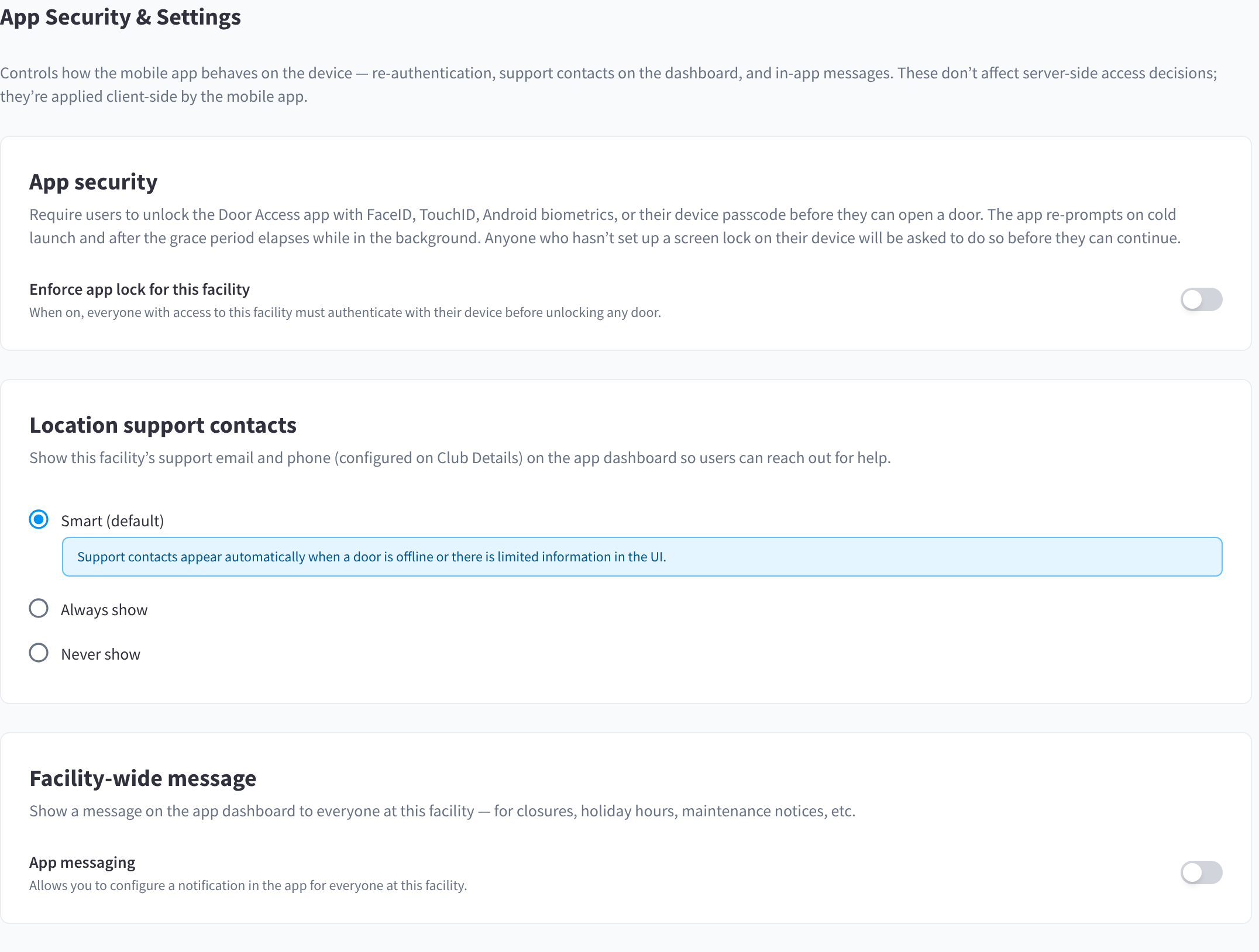
Figure 1: App security, location support contacts and the facility-wide message
App lock
App lock forces users to re-authenticate with their device — Face ID, Touch ID, Android biometrics, or the device passcode — before they can use the app to unlock doors. It protects against a lost or borrowed phone being used to enter your facility.
Enforce app lock for this facility
"When on, everyone with access to this facility must authenticate with their device before unlocking any door."
- Default: off. Members can still enable app lock voluntarily in their own app settings; this toggle makes it mandatory.
- When enforced, members cannot turn it off in the app.
- Members who haven't set up a screen lock on their device are asked to set one up before they can continue.
Grace period before re-prompting
"Tap the app, leave for less than this, come back and you won't be re-prompted. Cold launches and longer absences always require re-authentication."
| Option | Behaviour |
|---|---|
| Always prompt | Every return to the app requires authentication |
| 1 minute | Re-prompt after 1 minute away |
| 5 minutes (default) | Re-prompt after 5 minutes away |
| 15 minutes | Re-prompt after 15 minutes away |
| 30 minutes | Re-prompt after 30 minutes away |
| 1 hour | Re-prompt after 1 hour away |
A short grace period is more secure; a longer one is less intrusive for members who check the app frequently.
Users signed in to multiple facilities
"If a user is signed into multiple facilities, the strictest setting across them is applied (shortest grace period wins)." Concretely: app lock is enforced if any of the user's facilities enforces it, and the grace period used is the shortest among the enforcing facilities.
Location support contacts
Controls when the facility's support contact details (phone/email) appear on the app dashboard so members can reach you when something's wrong:
| Option | Behaviour |
|---|---|
| Smart (default) | "Support contacts appear automatically when a door is offline or there is limited information in the UI." — shown only when members likely need help |
| Always show | Contact details are always on the dashboard |
| Never show | Contact details are never shown |
Facility-wide message
The third card on this page is the facility-wide app message — an announcement shown to everyone at this facility on the app dashboard. It uses the standard message editor (type, title, body, optional link, schedule); see App Messaging for the full editor reference.
Saving
All changes on this page go through the settings save bar — click Save changes to apply. App-side settings (app lock, support contacts, messages) are picked up by members' apps when they next refresh.
Related pages
- App Messaging
- Mobile app guide — the member's view of app lock
- Reference — defaults table