
People timeline
The Timeline tab (AI Insights & People → Timeline) is the operational heart of the module: every detected individual for the selected period, one row per person, with their detections drawn as blocks on a horizontal time axis. In the UI's own words: "Gain visibility into people activity by tracking detections across all cameras within your selected time period."
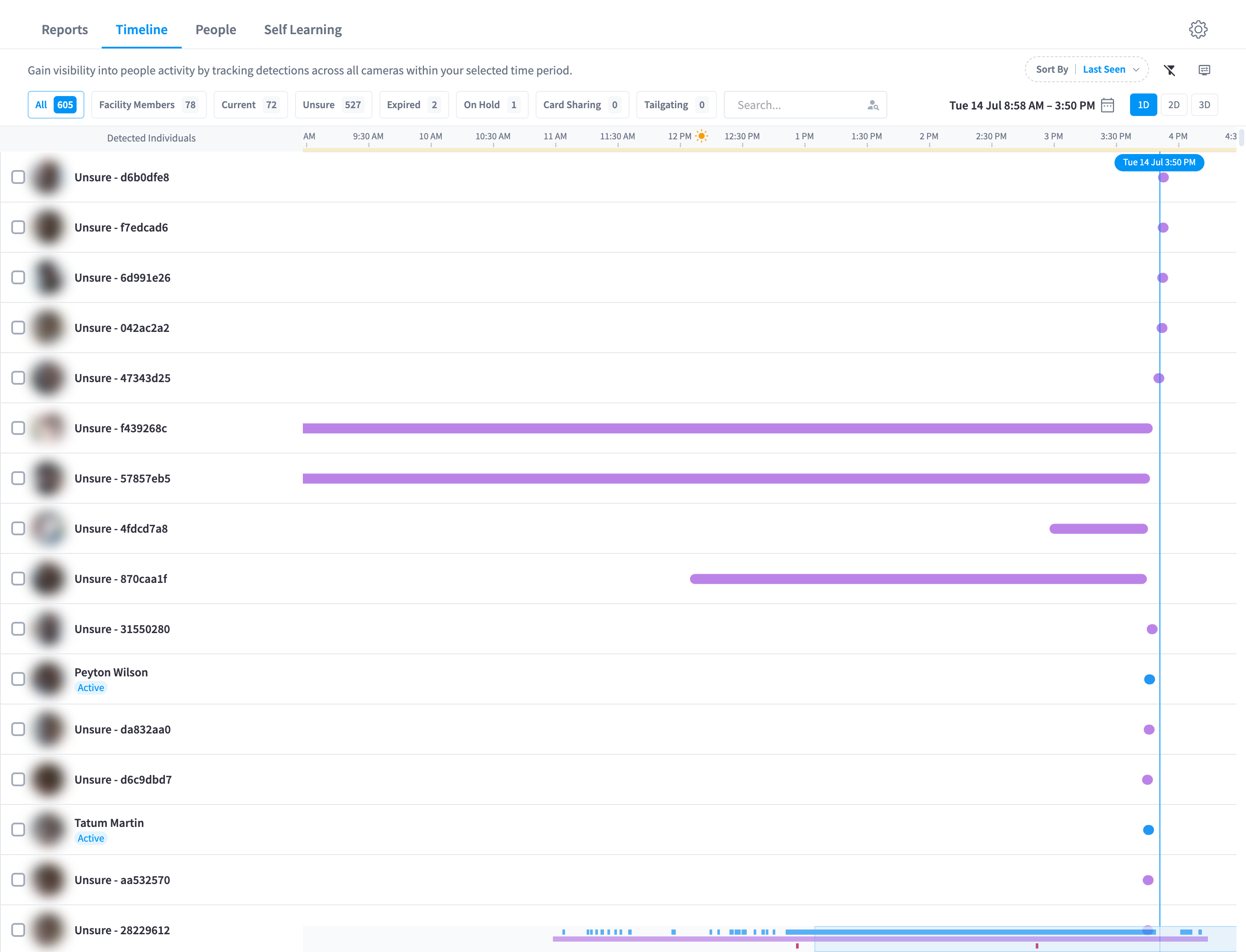
Figure 1: The People timeline for the Lower Manhattan facility — identified members and "Unsure" visitors listed under "Detected Individuals", detections drawn to the right
Reading the timeline
- The left column, "Detected Individuals", lists each person seen in the period — identified members by name, unidentified visitors as "Unsure - ".
- Each block to the right is a visit — detections grouped by the Detection Grouping settings (default: a new visit after a 45-minute gap).
- Hover a block for the detail popover: date, time, duration, how many "tracks" on how many cameras (e.g. "3 tracks across 2 cameras"), the avatar and detection photo side by side with the "% match" similarity, and warnings such as "Membership was Expired during this period" or access-violation details.
- The jump-to-detection button on a row ("Jump to detection") cycles through that person's detection groups, newest first, scrolling the canvas to each.
Tiles can also carry badges: membership status, "Checked In" / "Did Not Swipe" (when the Show No Check-In Badge setting is on), "Member from other facility", "Unusual activity", "Contains merged detections", and an access-violation badge ("Access violation on zone ").
Filters

Figure 2: The filter bar — classification chips with live counts, search, sort, day range, and the detection-threshold toggle
Classification chips
Chips filter the list by how each person was classified. Most chips hide themselves when their count is zero, so you'll typically see a subset:
| Chip | Shows |
|---|---|
| All | Every detection regardless of classification |
| Facility Members | Identified facility members |
| Current | Current/active members only |
| EA Members | EA (Executive Assistant) members |
| From Other Clubs | Members from other facilities in your brand |
| Unidentified | People with no profile match at all |
| Unsure | People where identification is uncertain — tracked shadow profiles |
| Expired | Expired members — still being detected on site |
| On Hold | Members whose access is on hold |
| Card Sharing | Detections flagged as card sharing — a check-in was recorded but the face doesn't match the card owner |
| Tailgating | Detections flagged as tailgating — on site with no corresponding check-in |
| Access Violators | "members detected in an access zone their membership plan does not permit" — see Access zones |
The Expired, Card Sharing, and Tailgating chips are the fastest daily security sweep you can do — each one is a person on your premises who arguably shouldn't be.
Search, sort, and day range
- Search ("Search...") filters by name or ID.
- Sort By: Last Seen (default), Visit Time, Name, or Visit Count.
- Day range: 1D / 2D / 3D buttons control how many days of data are shown; the date picker moves the window.
The detection-threshold toggle
The filter icon in the toolbar toggles the minimum-detection filter:
- Enabled (default): "only detections meeting the minimum criteria are considered: at least 5 detections and a duration of 5 minutes or more. Detections below these thresholds are hidden." This keeps brief walk-pasts from cluttering the view.
- Disabled: "All detections are displayed, including brief or incidental ones, such as when a person passes quickly." Use this when investigating — e.g. confirming whether someone briefly entered.
The underlying thresholds are configurable in Settings → Insights → People Timeline.
Advanced display options
The "Advanced display options" icon opens a small Display Toggles panel: Show Person ID, Show Tile Index, Minimap Full Canvas, and Show access violation banner — diagnostic aids, mostly useful when working with support.
Per-person actions
Each tile's menu offers:
| Action | Available for | Effect |
|---|---|---|
| "Copy Person ID" | Everyone | Copies the internal person ID — useful in support tickets and MCP queries |
| "Merge with another profile…" | Everyone | Starts a merge with this person pre-selected |
| "Identify This Person" | Unidentified only | Opens the Identify dialog to link the profile to a member — see People & profiles |
| "Delete this Person" | Unidentified only | Deletes the shadow profile and its detections |
Deleting asks for confirmation — "Are you sure to delete this unidentified person ()? This action cannot be undone." Identified members can't be deleted from the timeline; member data is managed in the People list.
Bulk actions
Ticking the checkbox on any tile opens the bulk action bar.

Figure 3: The bulk action bar — Select All, Merge, Identify, and Delete across multiple selected profiles
- Select All selects up to 100 people at once (the button reads "Select All (max 100)" when more are listed).
- Merge combines 2–20 profiles into one. The dialog explains the survivor rules: "The identified profile will be kept as the survivor. All other profiles will be permanently merged into it." For all-unidentified selections, "The profile with the green border will be kept as the survivor" — click a different profile to change it. Only one identified profile can be the survivor; extra identified profiles in the selection are skipped with a warning. Merges run with live progress ("Processing N of M…") and a per-profile retry on partial failure.
- Identify links an unidentified selection to a member.
- Delete removes unidentified profiles. The confirmation dialog lets you "Toggle faces to include or exclude from deletion", and members are explicitly protected — they're shown under a "Members — cannot be deleted" divider and the action "Will only delete the … unsure people in your selection".
Merging is more than cleanup — every merge consolidates a person's face references, which directly improves future recognition of that person.
Common workflows
- Morning sweep: open Timeline → tap Expired, Card Sharing, Tailgating chips → review each flagged person's popover and profile.
- Tidy new-visitor noise: filter Unsure, sort by Visit Count; merge obvious duplicates, identify known regulars, blacklist mannequins/posters (see Blacklist).
- Investigate an incident: disable the detection-threshold filter, narrow the date window, and use "Jump to detection" to step through appearances; the popover's camera/track breakdown tells you where to look in CCTV playback.
Related pages
- People & profiles — the person profile the timeline links into
- Settings → People Timeline — grouping thresholds and badges
- Access zones — where the Access Violators classification comes from