
Access zones
Access zones give your camera fleet structure. A zone is a named area of your facility — Gym Floor, Reception, Pool, Recovery Zone — with cameras assigned to it and, optionally, rules about who may be there. Zones power three things:
- Zone analytics — the Zone Activity Heatmap, zone deep dives, and sentiment by zone all aggregate by zone. No zones, no zone reports.
- Access violations — members detected in a zone their membership plan doesn't permit are flagged on the timeline (the Access Violators chip), in Reports, and on person tiles.
- Per-person access display — each member's profile shows which zones they may access (People & profiles).
Zones are managed in Settings → Access Zones (the shared Settings sidebar — see Settings).
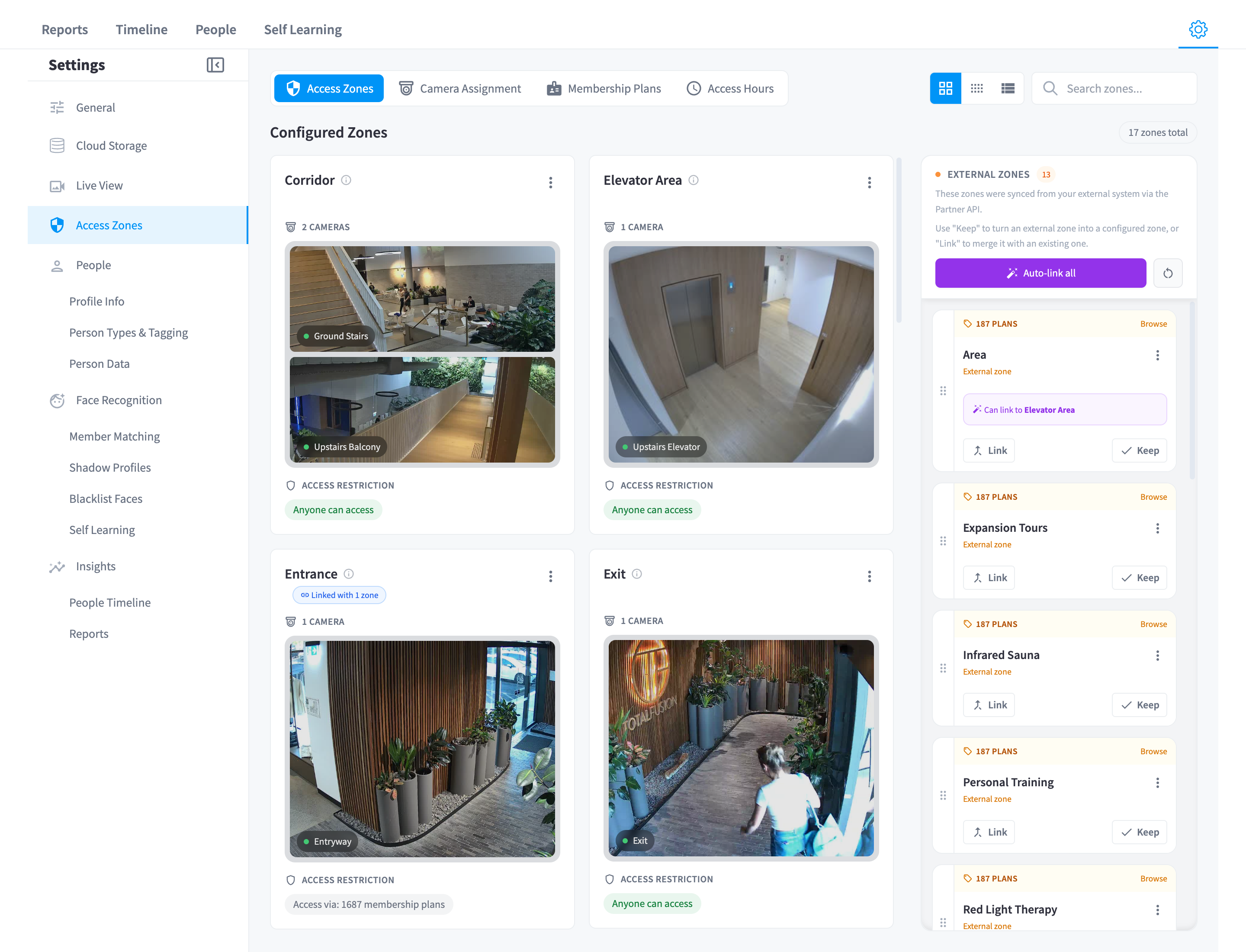
Figure 1: Access Zones settings — the zone list for Lower Manhattan with per-zone access badges
The zone list
Each zone row shows its name, its cameras, and an access badge:
| Badge | Meaning |
|---|---|
| "Anyone can access" | No restriction rules — a public zone. Everyone "passes"; violations are never raised here |
| "Membership plan access" | Access is tied to membership plans — only members on the allowed plans should be there |
| "Restricted" | The zone has restriction rules (plans, member types, or tags) limiting who may enter |
Zones can come from two places:
- Created locally in this settings page.
- Synced from your member management system — membership plans in the Partner integration can carry their own access-zone definitions, which appear here as synced zones. Synced zones can be linked to (or merged with) your locally-defined zones (the "Link Zone" / "Merge Zones" actions, with a "Combined zone name" when merging) so one physical area isn't represented twice.
Zones can also be nested: a child zone (say, Sauna inside Recovery Zone) rolls its cameras up into its parent for display and per-person access resolution.
Camera assignment
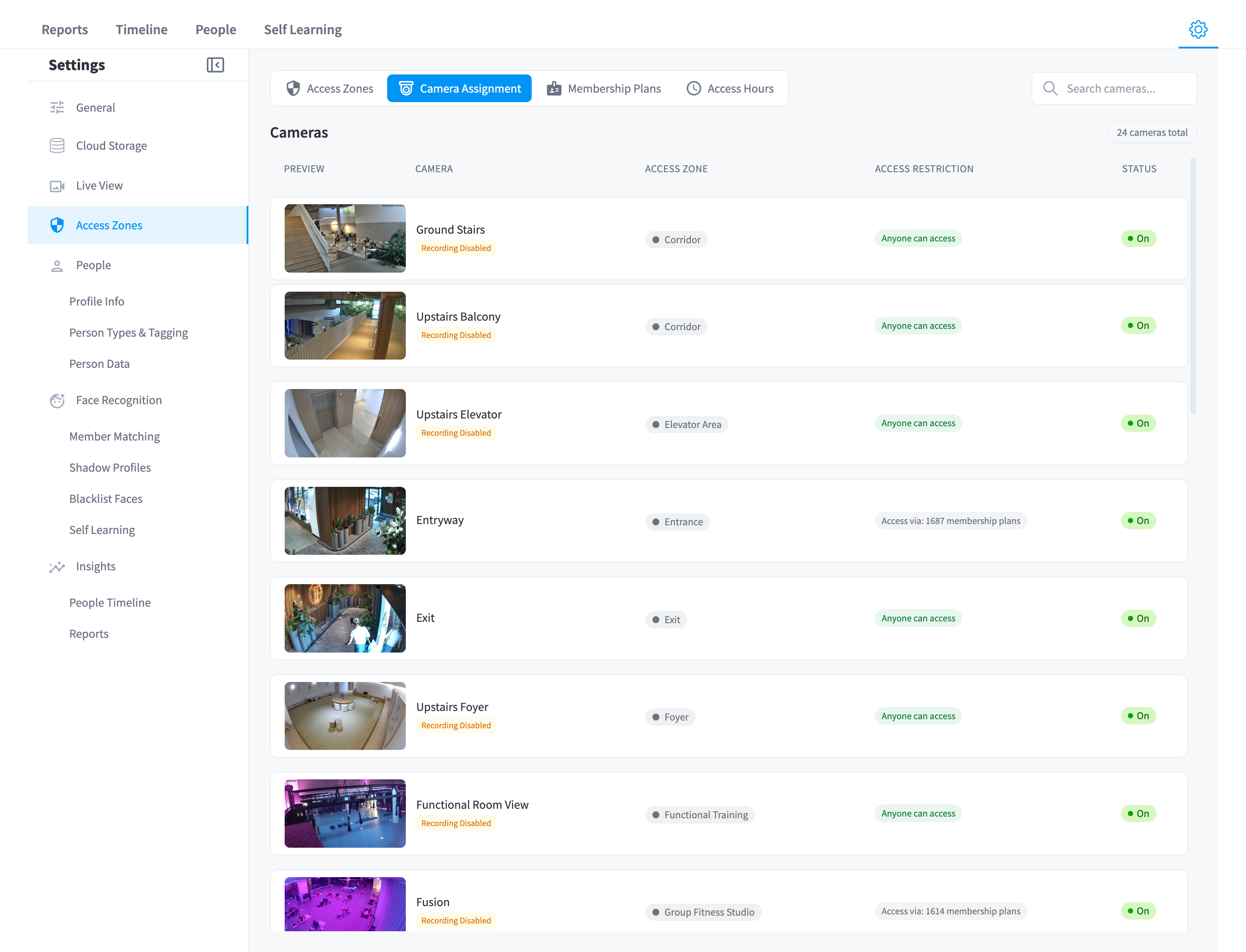
Figure 2: Camera Assignment — mapping each camera to the zone it watches
The Camera Assignment tab maps cameras to zones. This mapping is what turns "detected on camera X" into "was in the Gym Floor zone" — every zone metric and violation flows from it.
Guidance:
- Assign every People-Tracking camera to a zone — unassigned cameras' detections can't participate in zone analytics.
- One camera belongs to one zone; if a camera genuinely watches two areas, prefer the zone where identification matters more (or reposition the camera).
- Entrance cameras deserve their own zone (e.g. Entry) — they anchor the "Usually enters via" flow insights on person profiles.
Membership plans
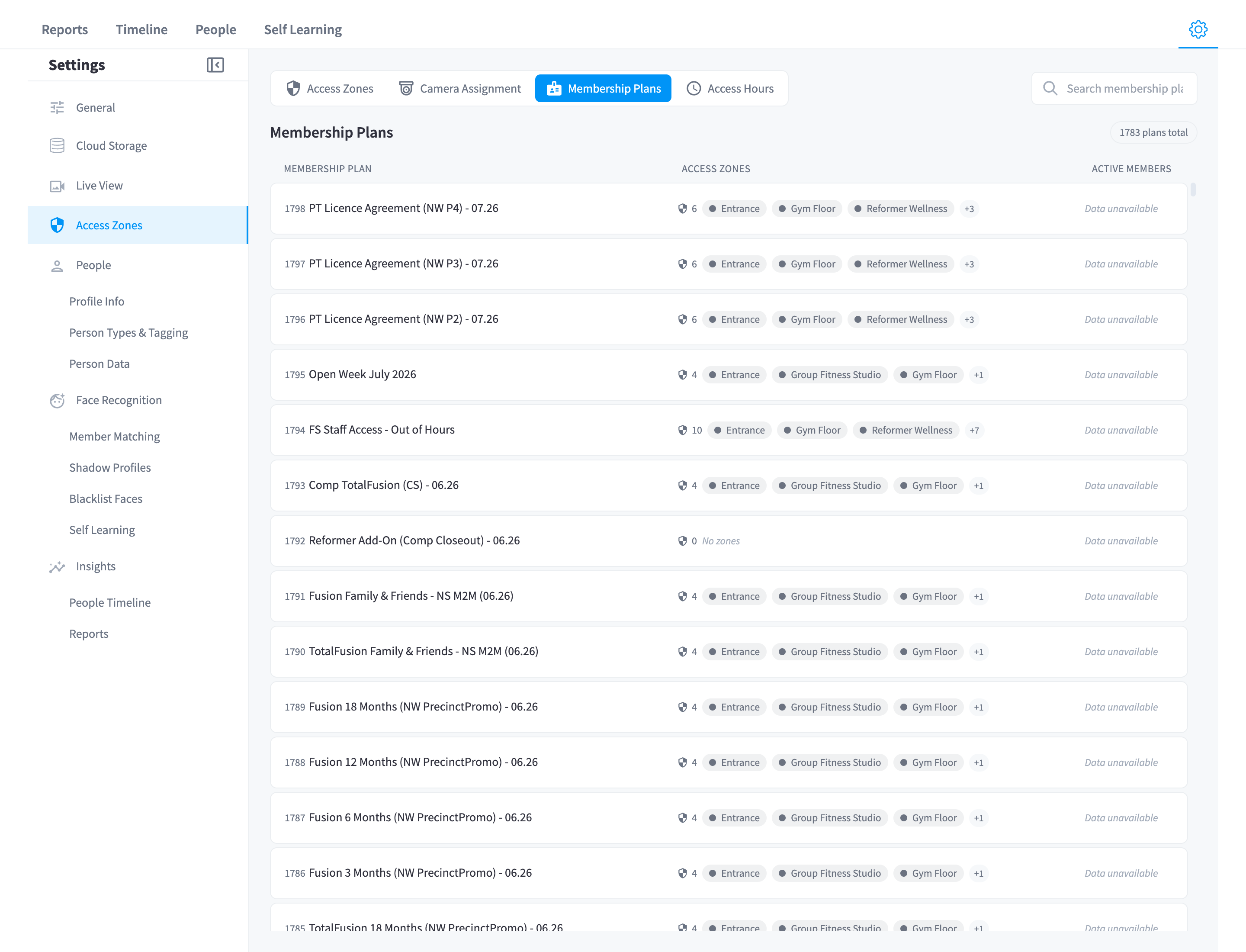
Figure 3: Membership Plans — which plans grant access to which zones
The Membership Plans tab defines the rules that make a zone "restricted". Rules match against the member's synced record — their membership plans, member type, and tags (from Person Types & Tagging) — and work in two directions:
- Include rules — only matching members may access the zone. A member matching no include rule shouldn't be there.
- Exclude rules — matching members are specifically barred, even if the zone is otherwise open.
When a member is detected in a zone whose rules their active plan fails, that detection becomes an access violation — the definition quoted from the Reports KPI: "Entries where a member's active membership plan was not permitted by the zone's access rules (excluded, or not in the allowed plans)."
Access hours
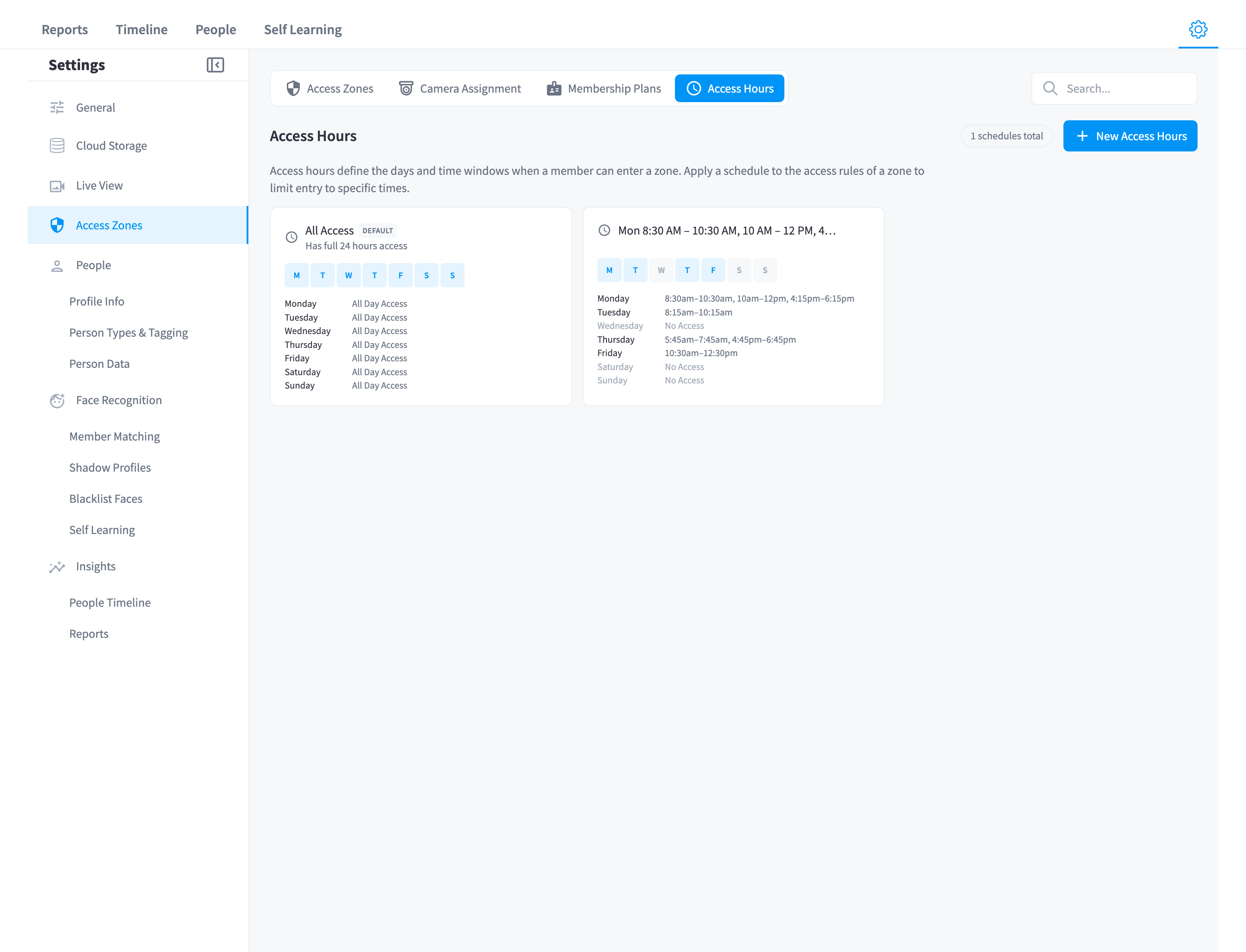
Figure 4: Access Hours — time-of-day and day-of-week access windows
The Access Hours tab defines when access applies — e.g. a Reformer Studio open to a plan only during staffed hours, or off-peak plans limited to daytime windows. Hours combine with plan rules: the right plan at the wrong time is still a mismatch.
Where violations show up
| Surface | What you see |
|---|---|
| People timeline | The Access Violators chip ("members detected in an access zone their membership plan does not permit"); tile badges ("Access violation on zone "); plan detail in the hover popover |
| Reports | The Access Violations KPI ("N members · M zones"), the Zone Access Violations section, and the heatmap's Violations display option |
| Person profile | The Access Zones accordion showing each member's zone entitlements |
Violation detection is passive — it flags and reports, it doesn't lock doors. For physical enforcement, pair it with the Door & Gate Access module; for automated follow-up (e.g. "message the front desk when a violation occurs in the Recovery Zone"), query violations from your AI Agent via MCP.
Setup checklist
- Create zones matching how you actually talk about your floor — the names appear verbatim in reports.
- Assign every People-Tracking camera to a zone.
- Add plan rules only to zones you genuinely restrict — over-restricting open areas just manufactures noise violations.
- Add access hours where time matters.
- After a few days, check Reports → Zone Access Violations: early violations are usually rule bugs (a plan you forgot to allow), not member behaviour.
Related pages
- Reports — everything zones feed into
- People timeline — the Access Violators filter
- Settings — the rest of the shared Settings sidebar