
Cameras & Devices
Cameras are managed in Device Management, where each camera appears nested under the Edge Processor that processes its feed. This page covers adding cameras, the stream test, per-camera configuration, and removal.
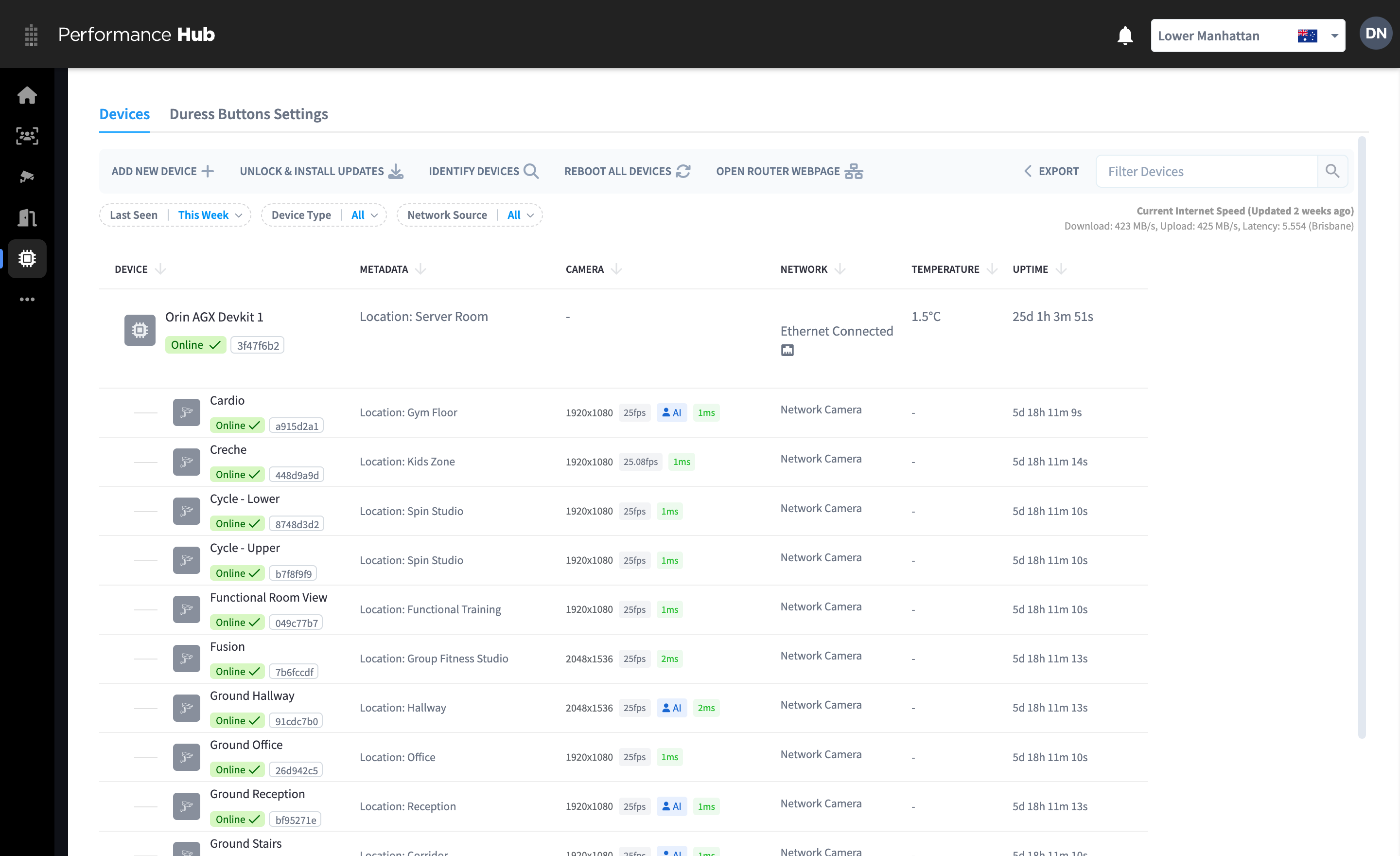
Figure 1: Device Management — the Edge Processor with its network cameras, showing resolution, frame rate, AI status, and stream latency per camera
The two camera types
When you click Add New Device → CCTV Camera (with an Edge Processor claimed), you're asked to choose a type:
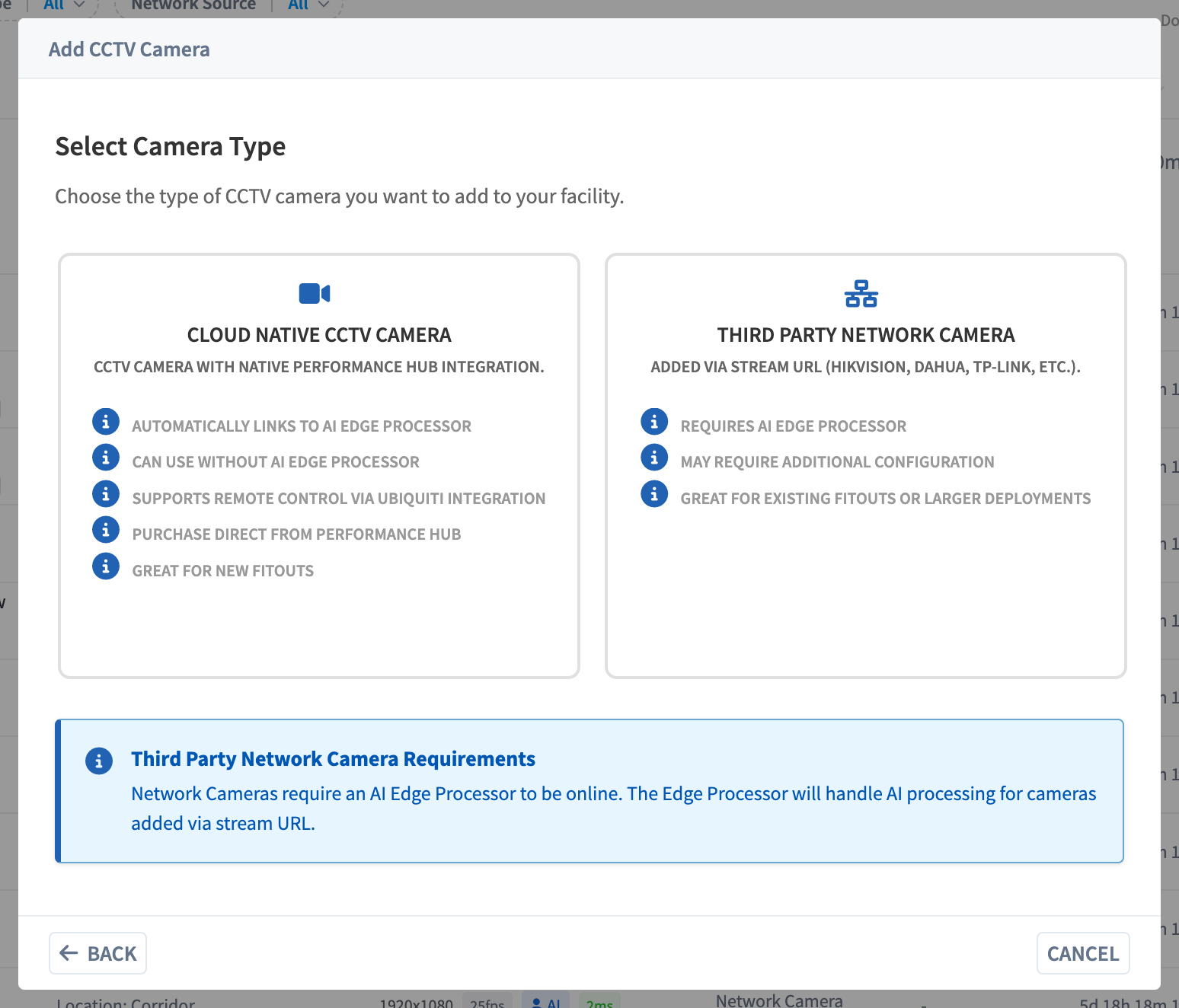
Figure 2: The camera type selection
| Type | What it is | When to choose it |
|---|---|---|
| Cloud Native CCTV Camera | "CCTV camera with native Performance Hub integration." Purchased through Performance Hub; links to an Edge Processor automatically, works without one, and supports remote power control via a compatible network controller | New fitouts |
| Third Party Network Camera | "Added via stream URL (Hikvision, Dahua, TP-Link, etc.)." Your existing IP cameras, connected by their stream address | Existing fitouts and larger deployments |
Third-party network cameras require an online Edge Processor: "Network Cameras require an AI Edge Processor to be online. The Edge Processor will handle AI processing for cameras added via stream URL."
Adding a network camera
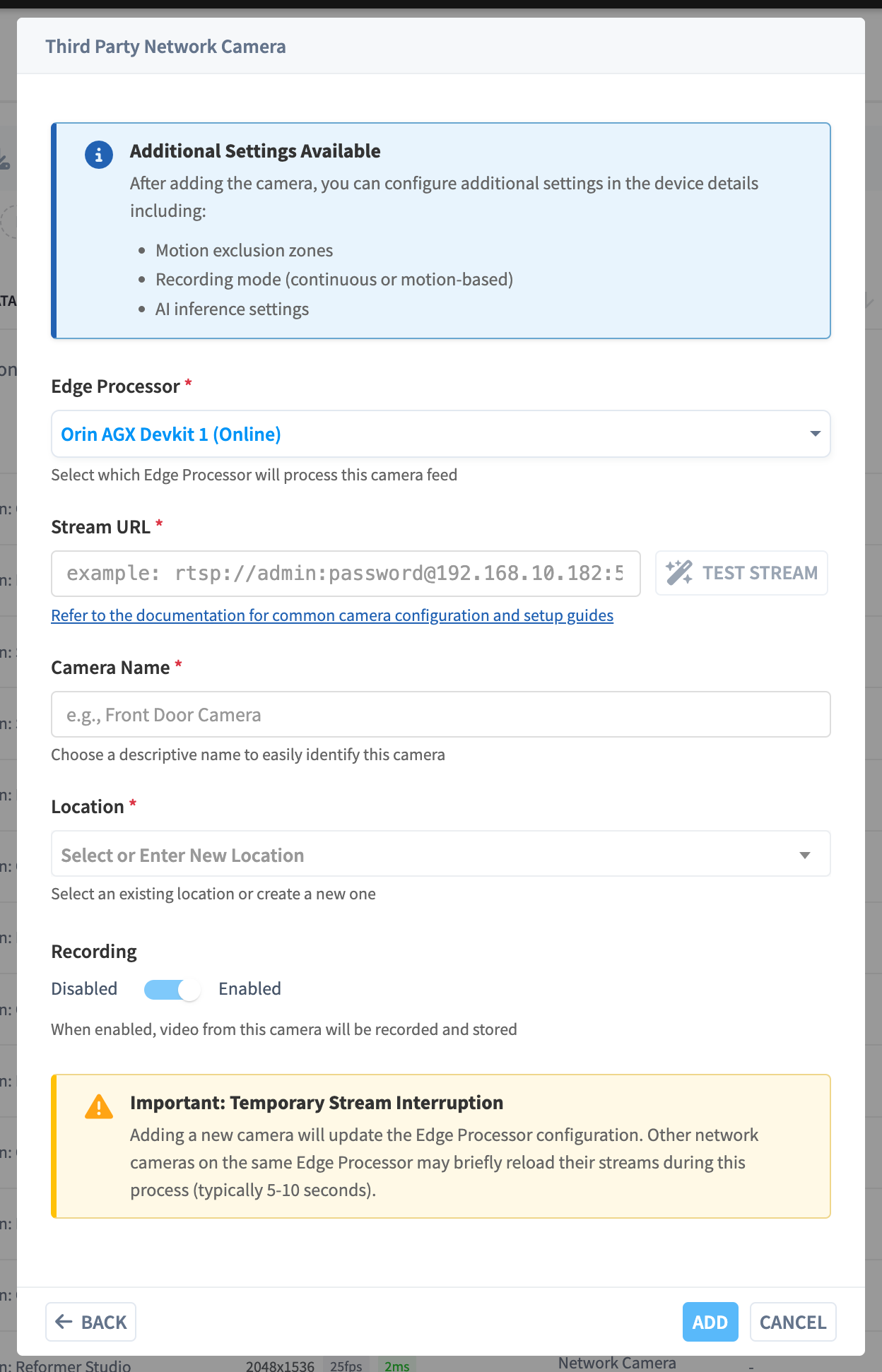
Figure 3: The add dialog — processor, stream URL, test, name, location, recording
| Field | Details |
|---|---|
| Edge Processor (required) | Which appliance will process the feed. Offline processors are shown but can't be selected |
| Stream URL (required) | The camera's network stream address. Secure (rtsps://) and standard (rtsp://) streams are supported, as are HTTP-based stream URLs |
| Camera Name (required) | Shown everywhere — pick names people recognise (Front Entrance, Gym Floor) |
| Location (required) | Groups cameras throughout the module (Dashboard filters, Recordings filters) |
| Recording | On by default. "When enabled, video from this camera will be recorded and stored" |
After adding, the dialog reminds you what's configurable later: "Motion exclusion zones", "Recording mode (continuous or motion-based)", and "AI inference settings".
Finding your camera's stream URL
Every camera brand exposes its stream slightly differently — the pattern is always rtsp://username:password@camera-ip:554/path:
- Start with the Camera Database — search for your camera model or manufacturer, fill in your credentials and IP, and copy a ready-to-paste URL.
- The exact
pathis otherwise in your camera's manual or web admin page (common examples:/stream1,/live1.sdp,/Streaming/Channels/101). - Use the camera's main (highest-quality) stream — the Edge Processor handles quality adaptation for viewing, so there's no reason to record the substream.
- Give cameras static IP addresses (or DHCP reservations) so the stream URL never breaks.
- The dialog links to further guidance: "Refer to the documentation for common camera configuration and setup guides".
The stream test
Click Test Stream before adding — the Edge Processor itself connects to the URL and verifies it can read video (30-second timeout). This catches wrong credentials, wrong paths, and unreachable addresses immediately, from the device that actually matters, not from your browser. If you skip it, the test runs automatically when you click Add.
Stream interruption warning
Adding a camera updates the Edge Processor's configuration. If the processor already has cameras, the dialog warns: "Adding a new camera will update the Edge Processor configuration. Other network cameras on the same Edge Processor may briefly reload their streams during this process (typically 5-10 seconds)." Recording resumes automatically after the reload.
The camera device dialog
Click any camera row in Device Management to open its device dialog, with tabs Details, Configuration, Connectivity Diagnosis, and Advanced.
Details tab
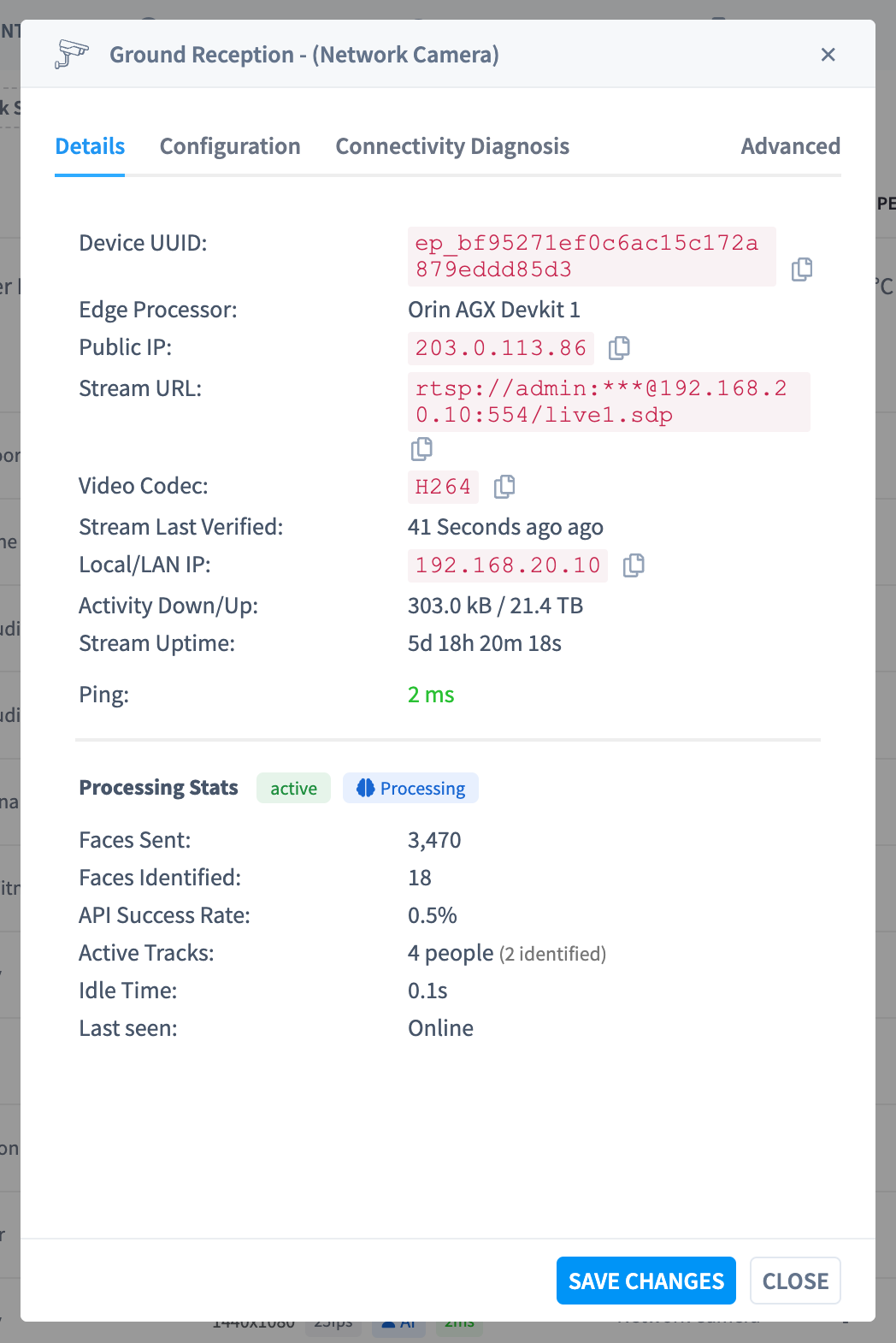
Figure 4: The Details tab — identity, stream, and live processing stats
| Field | Meaning |
|---|---|
| Device UUID | The camera's unique identifier |
| Edge Processor | Which appliance processes this feed |
| Public IP / Local/LAN IP | The facility's public address and the camera's LAN address |
| Stream URL | The configured stream (credentials masked) |
| Video Codec | e.g. H264 — recorded as-is, no re-encoding |
| Stream Last Verified | When the stream was last confirmed healthy |
| Activity Down/Up | Data moved for this camera |
| Stream Uptime / Ping | How long the stream has run continuously, and camera latency |
| Processing Stats | Live AI pipeline counters (faces sent, active tracks, idle time) — populated when AI processing is enabled; the detail belongs to AI Insights & People |
Configuration tab
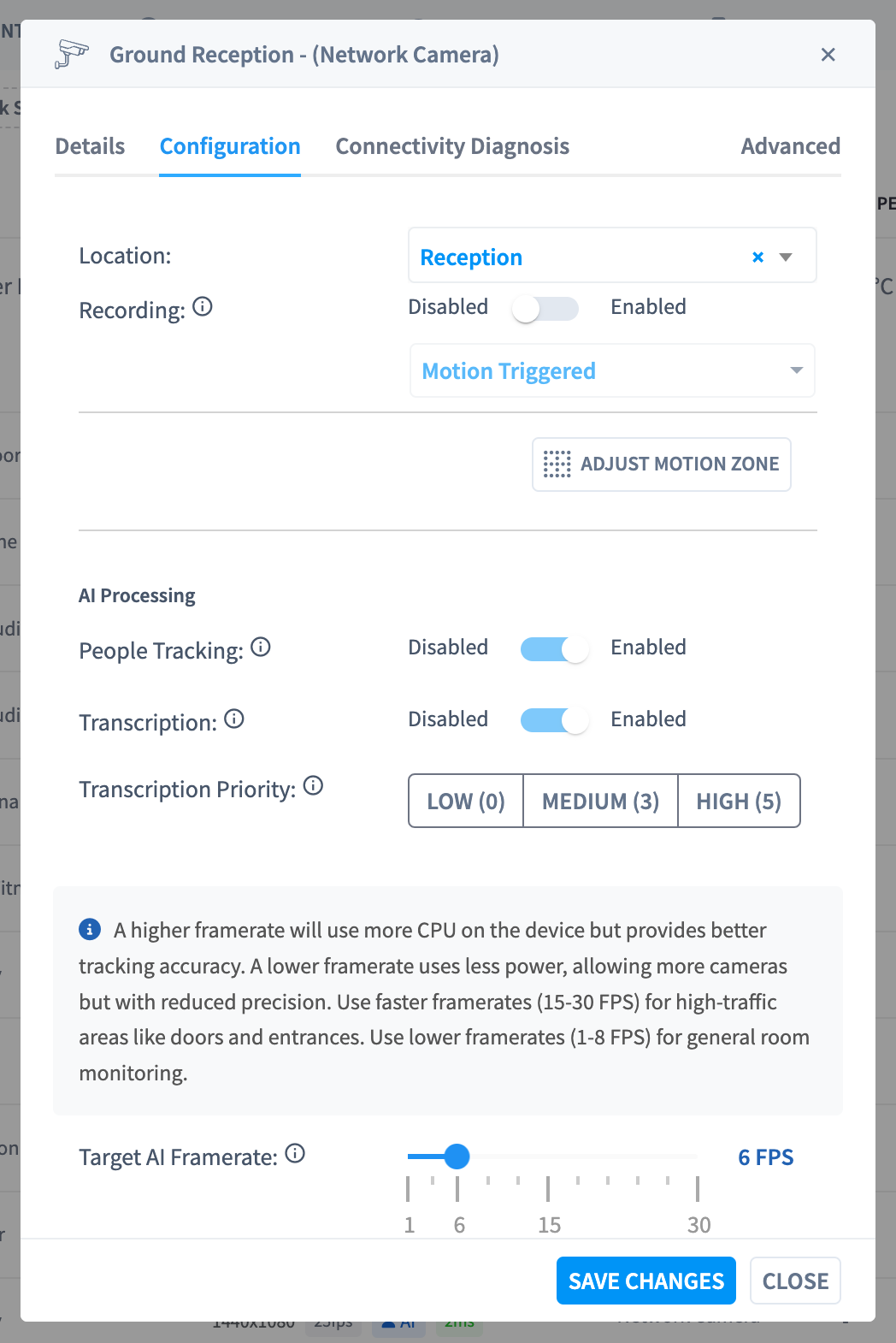
Figure 5: The Configuration tab — location, recording, motion zone, and AI processing
| Setting | Details |
|---|---|
| Location | Change the camera's location grouping |
| Recording | Enable/disable recording, and choose the mode: Motion Triggered or continuous — see Recording |
| Motion Threshold | For Motion Triggered cameras — how much pixel change triggers a recording, with Subtle / Default / Energetic / Intense presets (Motion detection and sensitivity) |
| Adjust Motion Zone | Opens the motion zone editor — draw where motion should trigger recording (Motion zones) |
| People Tracking | Enables on-device AI person detection for this feed (an AI Insights & People capability) |
| Transcription | Enables audio transcription for cameras with microphones, with a Low (0) / Medium (3) / High (5) priority (AI Insights & People) |
| Target AI Framerate | How many frames per second the AI pipeline analyses (1–30). The UI guidance: "Use faster framerates (15-30 FPS) for high-traffic areas like doors and entrances. Use lower framerates (1-8 FPS) for general room monitoring." A higher framerate uses more of the appliance's AI capacity |
Click Save Changes to apply — configuration changes are pushed to the Edge Processor and the affected stream reloads briefly.
Connectivity Diagnosis tab
Live diagnostics between the Edge Processor and the camera — use it when a stream misbehaves before assuming the camera is dead. See Troubleshooting.
Renaming, moving, and removing
- Rename a camera or change its Location in the Configuration tab at any time — recordings keep working; the new name applies everywhere.
- Removing a camera stops its recording and removes it from all views. Footage already uploaded remains in Recordings until retention expires (retained items stay).
- Replacing a camera (same position, new hardware): update the existing camera's Stream URL to the new camera's address rather than deleting and re-adding — history stays continuous.
Multiple Edge Processors
Facilities with more cameras than one appliance handles (capacity guidance) run several Edge Processors. Each camera belongs to exactly one processor — pick which at add time. Everything downstream (Live View, Timeline, Recordings) presents all cameras together regardless of which processor owns them.
Related pages
- Camera Database — known stream URL configurations for thousands of cameras
- Recording — modes, motion zones, and what gets stored
- Getting started — the first-camera walk-through
- Device health & monitoring — camera and processor status
- Troubleshooting — stream problems