
CarPlay
Door & Gate Access appears on the CarPlay screen automatically once the iPhone app is installed and signed in — no extra setup. It's built for vehicle entries: members pull up to a gate or garage and unlock it from the car screen without picking up their phone.
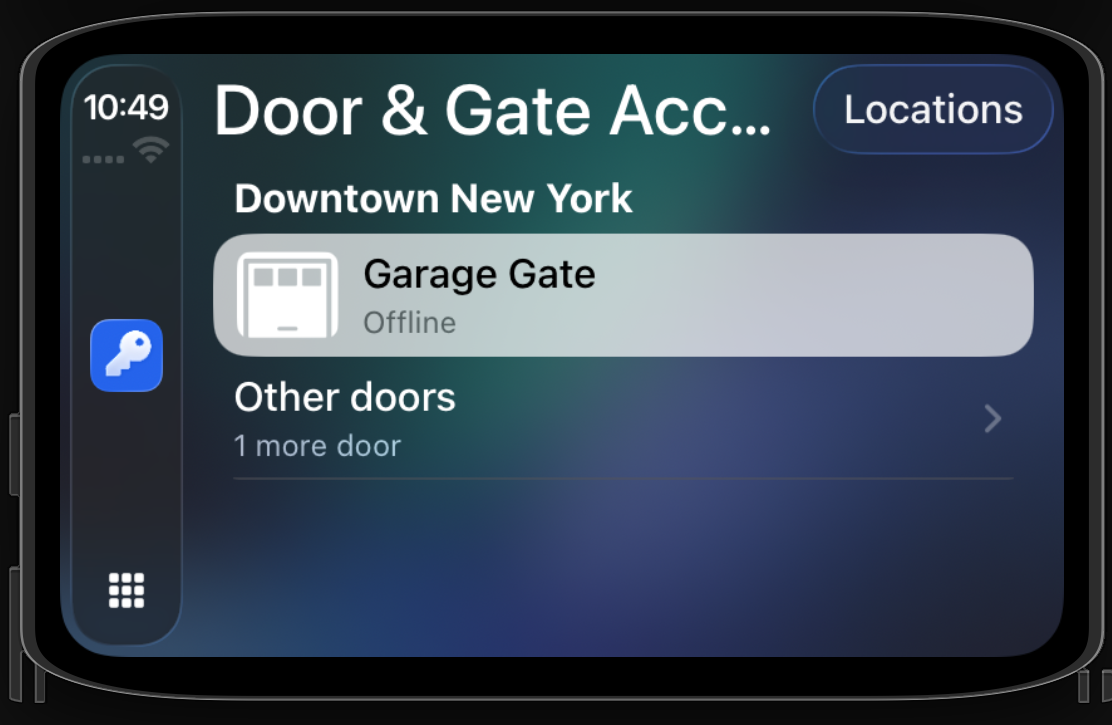
What the car screen shows
- The selected facility's name as a header, with gates and garage doors plus the member's pinned primary door surfaced first — the doors that matter when arriving by car. (At sites with only regular doors, all doors are listed flat instead.)
- Remaining doors sit behind an Other doors entry.
- Each row shows the door's icon, name, and live status — Offline, Under maintenance, Outside access hours, Unlocked, and so on — matching the phone dashboard.
- Members linked to more than one facility get a Locations button to switch facility from the car; members with a single facility see no switcher.
Signing in can't be done from the car — if the member isn't signed in on their iPhone, CarPlay shows a "Sign in on your iPhone" prompt instead of the door list.
Unlocking from the car
Tapping a door runs the exact same unlock pipeline as the iPhone app — nothing is relaxed for the car:
- Geofencing still applies: the app takes a fresh, precise GPS fix and the server makes the full access decision. If the member isn't at the site, CarPlay explains how far away they are.
- Offline, under-maintenance, and outside-hours doors show an explanation sheet rather than attempting the unlock.
- On success the row flips to Unlocked quietly — no pop-up, keeping driver distraction to a minimum.
- Every attempt appears in the admin Access Logs.
Tips for admins
- Doors using the gate or garage icon are what CarPlay puts front and centre — give vehicle entries the right icon when adding doors so they surface first in the car.
- Generous geofence radii on vehicle gates help members unlock as they approach rather than having to stop short of the gate.
Related pages
- iPhone & Android App — the phone walkthrough
- Apple Watch & Wear OS — unlocking from the wrist
- The Mobile App — full member-experience reference