
Models
The Models page (Settings cog → Models) is your facility's model catalog. "Turn models on or off for this account. All models are enabled by default. Individual keys and agents can be restricted further."
For the live price of every model, see the Model Catalog, and for how models compare on capability and value, see the Model Rankings.
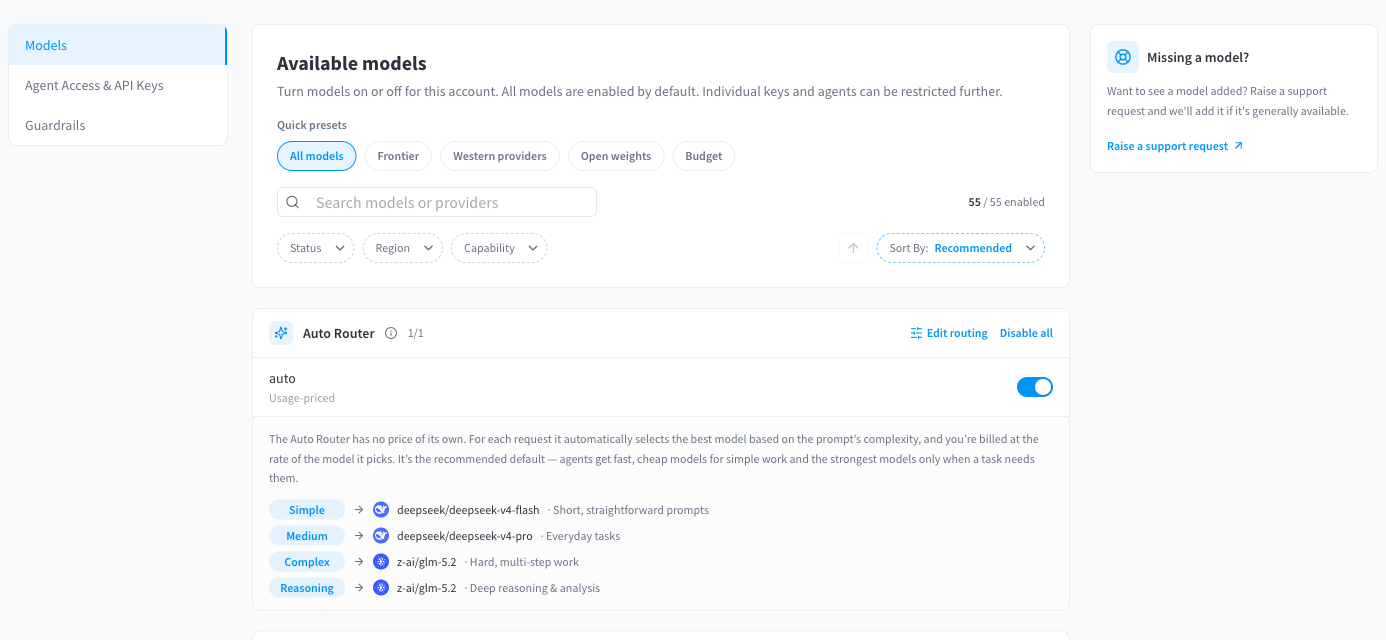
Figure 1: The Available models page — quick presets, search, filters, and the Auto Router card at the top of the list
The model list
Models are grouped by provider, each group showing a region badge (e.g. US) and an enabled count (e.g. 7/7). Each model row shows:
- The model ID (e.g.
anthropic/claude-sonnet-4-5) - Context window size (e.g. 200K context, 1M context)
- Pricing per million tokens, input and output separately (e.g. $3.15 in · $15.75 out / 1M tokens)
- An eye icon if the model "Supports image input"
- An enable/disable toggle
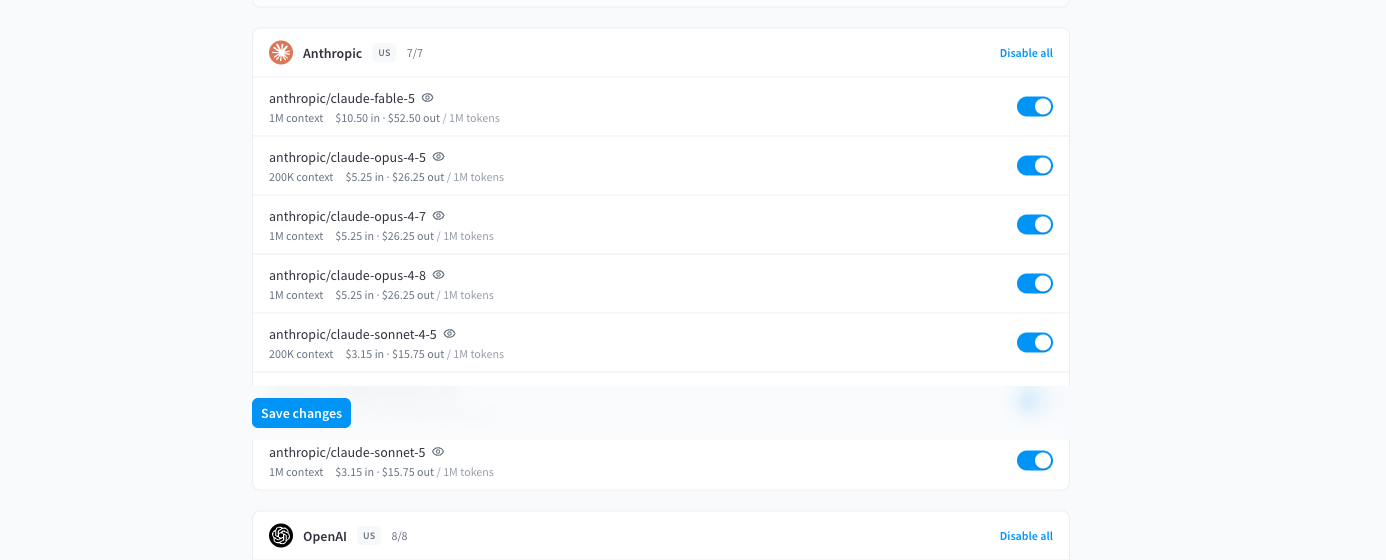
Figure 2: Provider groups with per-model context, pricing, and toggles; a save bar appears when you have unsaved changes
Toggle models on or off, then click Save changes. "At least one model must stay enabled." Each provider group has a Disable all / Enable all shortcut.
Disabling a model here blocks it for the whole facility — every API key and connected agent. To narrow the list for just one key or agent instead, use its Restrict models option (see API keys and AI Agents).
Quick presets
Presets apply a curated selection in one click (then Save changes to apply):
| Preset | Selection |
|---|---|
| All models | "Enable every available model." |
| Frontier | "Flagship models from Western labs (OpenAI, Anthropic, Google, xAI) plus the Auto Router." |
| Western providers | "Exclude models from Chinese providers (data-sovereignty friendly)." |
| Open weights | "Only models with openly available weights (Llama, Mistral, Qwen, DeepSeek…)." |
| Budget | "Low-cost models — input price at or below $1.00 per million tokens." |
Search, filters, and sorting
- Search matches model and provider names ("Search models or providers").
- Status — Any / Enabled / Disabled.
- Region — United States / Europe / China.
- Capability — Vision (image input).
- Sort By — Recommended / Name / Price / Context size, ascending or descending.
If nothing matches you'll see "No models match your filters." with a Clear filters action.
The Auto Router (auto)
The Auto Router sits at the top of the list as the model ID auto, marked "Usage-priced":
"The Auto Router has no price of its own. For each request it automatically selects the best model based on the prompt's complexity, and you're billed at the rate of the model it picks. It's the recommended default — agents get fast, cheap models for simple work and the strongest models only when a task needs them."
The card shows the current routing — which model handles each complexity tier:
| Tier | Handles |
|---|---|
| Simple | Short, straightforward prompts |
| Medium | Everyday tasks |
| Complex | Hard, multi-step work |
| Reasoning | Deep reasoning & analysis |
The current tier targets, with their prices, are published on the model catalog page.
In Activity and Logs, requests sent to auto show the model that actually served them; the request detail drawer records auto as the Requested model. This is expected — it's how you see what the router chose.
Editing the routing
Click Edit routing on the Auto Router card to customise the tier map for your facility:
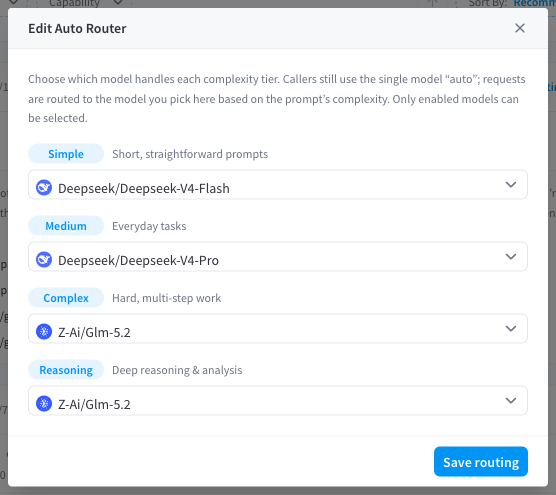
Figure 3: The Edit Auto Router dialog — one model select per complexity tier
"Choose which model handles each complexity tier. Callers still use the single model "auto"; requests are routed to the model you pick here based on the prompt's complexity. Only enabled models can be selected."
Pick a model for every tier ("Pick a model for every tier to save."), then Save routing. Reset to default returns your facility to the standard routing.
If your facility restricts the enabled-model list, keep the router's target models enabled — a routed request needs its resolved model to be available.
Missing a model?
The side card on the Models page: "Want to see a model added? Raise a support request and we'll add it if it's generally available." Use the Raise a support request link.