
Device Health & Monitoring
The Edge Processor reports on itself continuously — system load, temperature, upload backlog, network, per-camera stream health. This page covers where to read that telemetry and what to do with it.
The device status popover
Click the device status indicator in the CCTV module header:
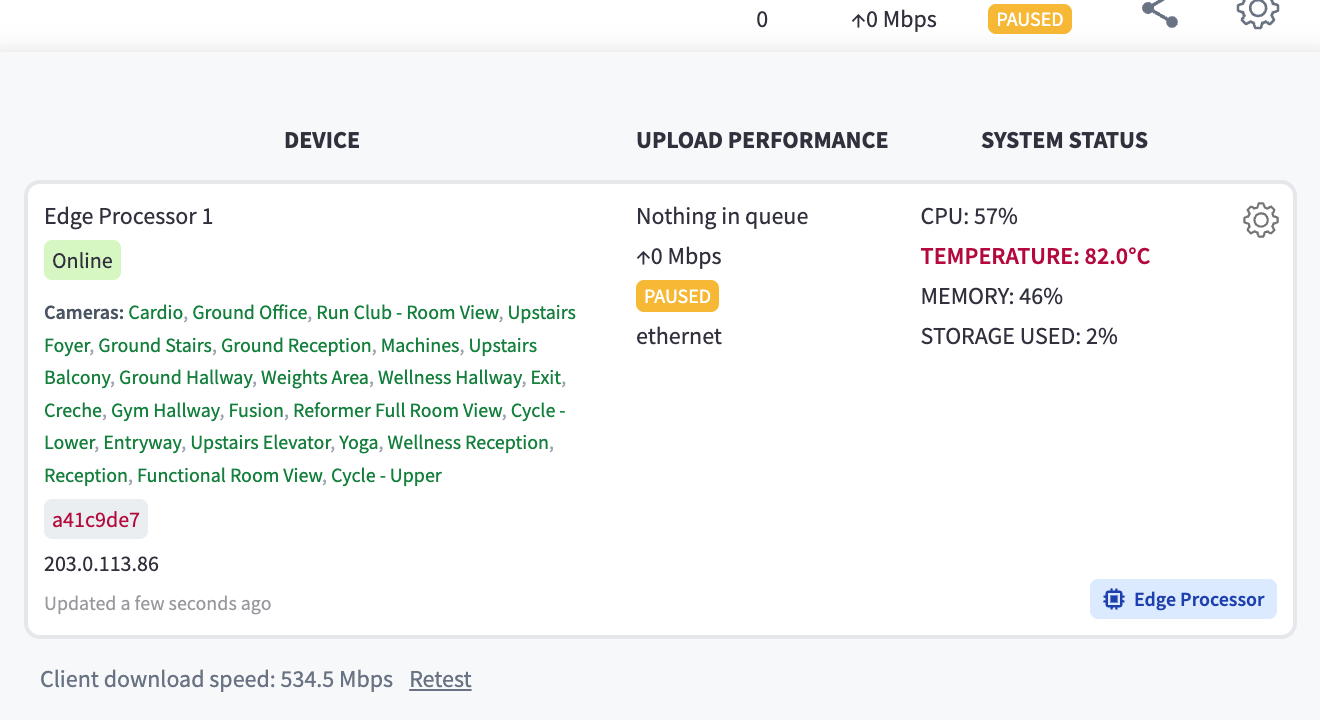
Figure 1: The status popover — the appliance's vitals, live
Each Edge Processor gets a row with three columns:
| Column | What it shows |
|---|---|
| DEVICE | The appliance's name and Online status, the cameras it serves (each a link), its identifier and public IP, and how recently it reported ("Updated a few seconds ago") |
| UPLOAD PERFORMANCE | The upload pipeline — queue depth ("Nothing in queue" when clear), current speed, status (IDLE / UPLOADING / PAUSED), and the connection type (ethernet or Wi‑Fi). The same three figures sit in the module header at all times |
| SYSTEM STATUS | CPU load, TEMPERATURE (highlighted in red when hot — the UI warns "Device will Thermal Throttle at temperatures over 77°C"; sustained high readings mean a ventilation problem, see placement guidance), MEMORY in use, and STORAGE USED — the local recording buffer, normally a few percent; a climbing figure means uploads aren't keeping up |
At the bottom, Client download speed (with a Retest link) measures your connection — for separating "the facility is slow" from "I am slow" when live view struggles.
What the appliance reports, and how often
The Edge Processor beacons telemetry to the cloud continuously — roughly every minute for core vitals (CPU, memory, network, uptime, temperature), with slower cadences for Wi‑Fi surveys, AI accelerator statistics, internet speed tests, and software version inventory. Per-camera stream health (codec, resolution, frame rate, uptime, camera ping) is reported alongside. You'll find the per-camera detail in each camera's device dialog (Details tab).
Online and offline
A device is considered offline when it hasn't been heard from for several minutes. Because the health beacon is designed to keep running even during software updates, an offline status genuinely means the appliance can't reach the cloud — power, network, or ISP.
When an Edge Processor is offline:
- Live view and new footage stop for its cameras.
- Recording may well be continuing — if the appliance has power and only its internet is out, it records locally and uploads the backlog when connectivity returns (Recording).
- Device Management shows the device offline, with the last-seen time.
Camera-level health
Camera trouble surfaces where you're looking:
- Live View tiles show "{camera} is offline" and can be hidden with the offline-camera filter.
- The Dashboard's Recording Activity strip makes silent cameras obvious — a camera with no clips all day when it usually produces dozens deserves a look.
- The camera's device dialog shows stream uptime, last verification, ping, and the Connectivity Diagnosis tab for live checks between the appliance and the camera.
Remote actions
From the device dialogs, without a site visit:
| Action | What it does |
|---|---|
| Restart Device | Reboots the Edge Processor — also offered in-place when a live stream can't start. Cameras are back within a few minutes; recording gaps are limited to the reboot window |
| Test Stream | Re-verifies a camera's stream from the appliance |
| Wi‑Fi configuration | For appliances on Wi‑Fi — though Ethernet is strongly recommended |
Software updates need no action at all — the appliance applies them in its nightly maintenance window (roughly 1–3 AM local time) with the health beacon staying online throughout (How it works).
A monitoring habit
Most facilities need less than a minute a day:
- Glance at the device status — online, temperature sane, queue near zero.
- Skim the Recording Activity strip — every camera showing life.
- Investigate surprises immediately — with a short recordings retention window, a camera that quietly stopped a week ago has already cost you footage. Troubleshooting covers the common failures.
Programmatic monitoring — device inventories and health via API — is covered in Integrations & MCP.
Related pages
- Troubleshooting — when a reading looks wrong
- The hardware — placement, power, and ventilation
- Cameras & devices — the per-camera dialogs