
Recording
Every camera with Recording enabled writes video clips on the Edge Processor and uploads them to cloud storage automatically. This page explains the two recording modes, the timing behaviour, motion zones, and offline resilience.
The two modes
Each camera records in one of two modes, set in its device dialog's Configuration tab (Cameras & devices):
| Mode | Behaviour | When to use |
|---|---|---|
| Motion Triggered (default) | Records a clip whenever motion is detected in the camera's motion zone | Most cameras — you store only the moments something happened |
| Continuous | Records back-to-back segments around the clock | Tills, entrances, and anywhere policy demands unbroken coverage |
Recording can also be disabled per camera — the camera stays available for live view but stores nothing. The Dashboard's Recording Activity strip shows a "Recording Disabled" badge for such cameras.
Clip timing
| Behaviour | Value |
|---|---|
| Pre-roll | 5 seconds of video before the motion that triggered the clip are included — you always see the lead-up |
| Post-roll | Recording continues 10 seconds after motion stops |
| Maximum clip length | 180 seconds (3 minutes) — sustained activity rolls into consecutive clips with no gap |
Clips record at the camera's native resolution and frame rate — standard camera video (H.264/H.265) is stored exactly as the camera produced it, with no re-encoding.
Motion detection and sensitivity
Motion is detected on the Edge Processor by analysing pixel change between frames — it needs no camera-side configuration and works identically across camera brands.
For cameras in Motion Triggered mode, the Configuration tab shows a Motion Threshold slider: the number of pixels that must change between frames to trigger a recording. A lower value triggers recordings with less movement in front of the camera; higher values require more motion. The slider has four presets:
| Preset | Best for |
|---|---|
| Subtle | Very light movement — spaces where minimal motion occurs, where any small shift matters |
| Default | Regular movement patterns — people walking between rooms or performing routine activities. The right choice for most cameras |
| Energetic | Busier environments — people actively moving or objects shifting regularly |
| Intense | Continuous, heavy movement such as high-traffic areas or roads — captures only significant motion to avoid constant triggering |
If a camera over- or under-triggers, adjust the threshold and check its motion zone, below — a zone that excludes the problem area (a TV, a busy street) is usually the more precise fix.
Motion zones
By default, motion anywhere in the frame triggers recording (the Full View zone). The motion zone editor lets you restrict that to the areas you care about — and exclude the ones you don't (a street beyond a window, a TV screen, trees).
Open it from the camera's Configuration tab with Adjust Motion Zone:
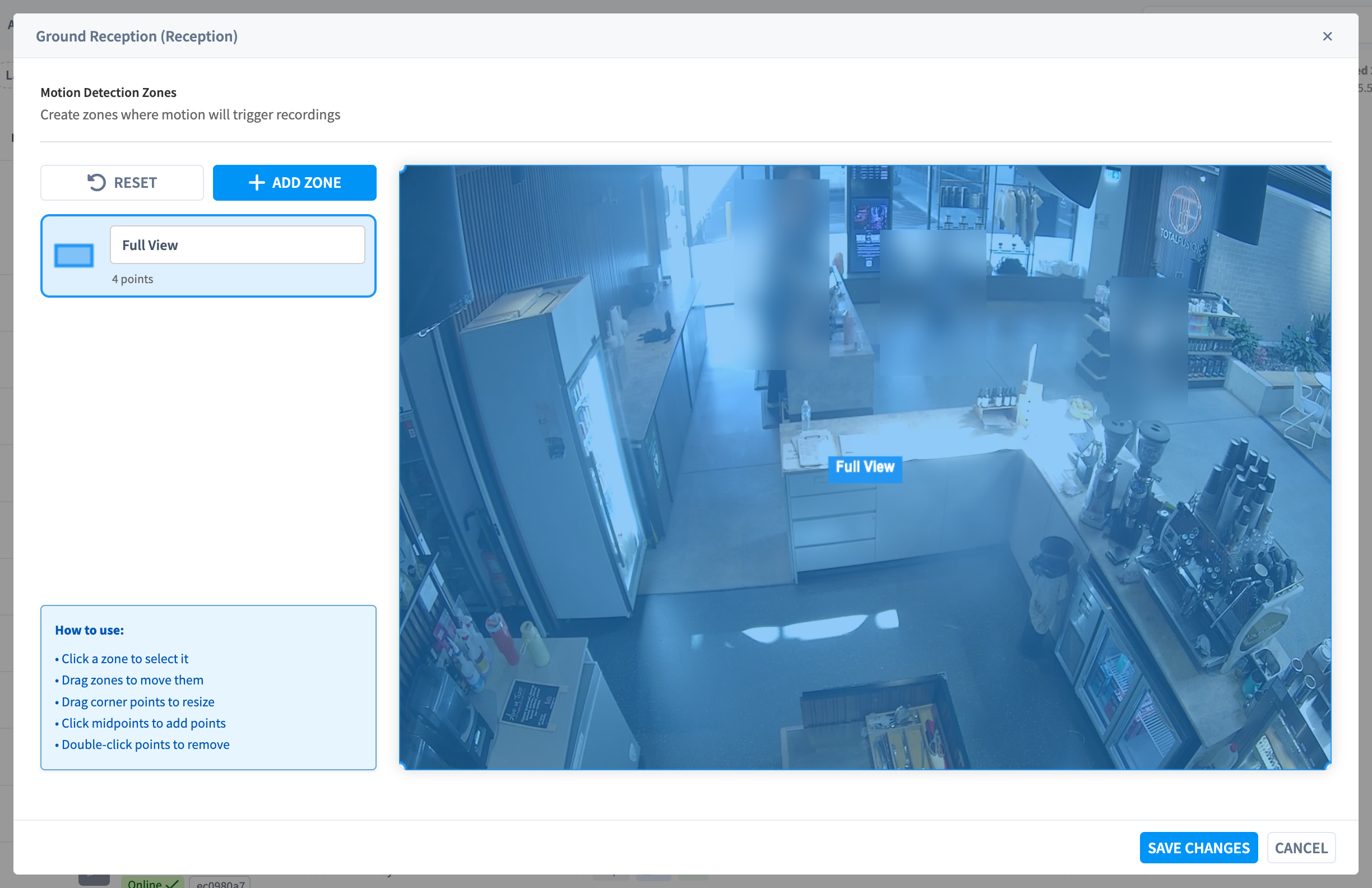
Figure 1: The motion zone editor — "Create zones where motion will trigger recordings"
Working with zones (from the editor's own guide):
- "Click a zone to select it"
- "Drag zones to move them"
- "Drag corner points to resize"
- "Click midpoints to add points" — turn a rectangle into any polygon
- "Double-click points to remove"
Add Zone creates additional zones (a camera can have several — e.g. the doorway and the till); each zone can be named. Reset returns to full-frame coverage. Click Save Changes to apply — the camera's stream reloads briefly as the Edge Processor takes the new configuration.
Motion zones affect what triggers recording, not what is recorded: when a clip is triggered, the full frame is recorded.
Thumbnails and previews
For every clip, the Edge Processor generates a thumbnail (a frame from early in the clip) and an animated preview (sampled every few seconds) and uploads them alongside the video. That's what makes the Recordings browser and Dashboard scannable without opening each clip.
From the appliance to the cloud
- Finished clips upload automatically, chunked and resumable — an interrupted transfer resumes where it stopped.
- The module header shows the pipeline live: "ITEMS QUEUED", "UPLOAD SPEED", "UPLOAD STATUS" (
IDLE/UPLOADING/PAUSED). - Uploads pause while you watch live streams and resume a few minutes after — live video gets the bandwidth first.
- A clip that hasn't finished uploading yet appears in Recordings marked "Uploading..." — it becomes playable the moment its upload completes.
When the internet is down
Recording is designed so a cloud outage never costs you footage:
- Clips keep writing to the appliance's local NVMe storage — recording never depends on connectivity.
- The upload queue grows; when the connection returns, the appliance drains the backlog automatically (the "ITEMS QUEUED" count falls back to zero).
- In a very long outage, if local storage runs low, the appliance clears the oldest already-uploaded files first, protecting footage that exists nowhere else.
What counts against storage
Recordings are one of the storage categories in your Cloud Storage Summary ("Standard Recordings"), and are deleted automatically when they exceed your recordings retention policy — unless retained. Timelapse imagery (Timeline & playback) is captured independently of recording mode — one frame per camera per minute — and has its own retention policy.
Related pages
- Cameras & devices — where the recording settings live
- Recordings — browsing and downloading clips
- Retain & archive — keeping footage indefinitely
- Storage & retention — policies and costs