
Budgets & Limits
Your AI Agent thinks using AI models provided through Performance Hub, and that usage is metered — every model call has a small cost that draws on your facility's AI account. Budgets & limits let you decide, per agent, exactly how much it's allowed to spend and how fast it's allowed to work.
Open the device drawer and choose the Budgets & limits tab.
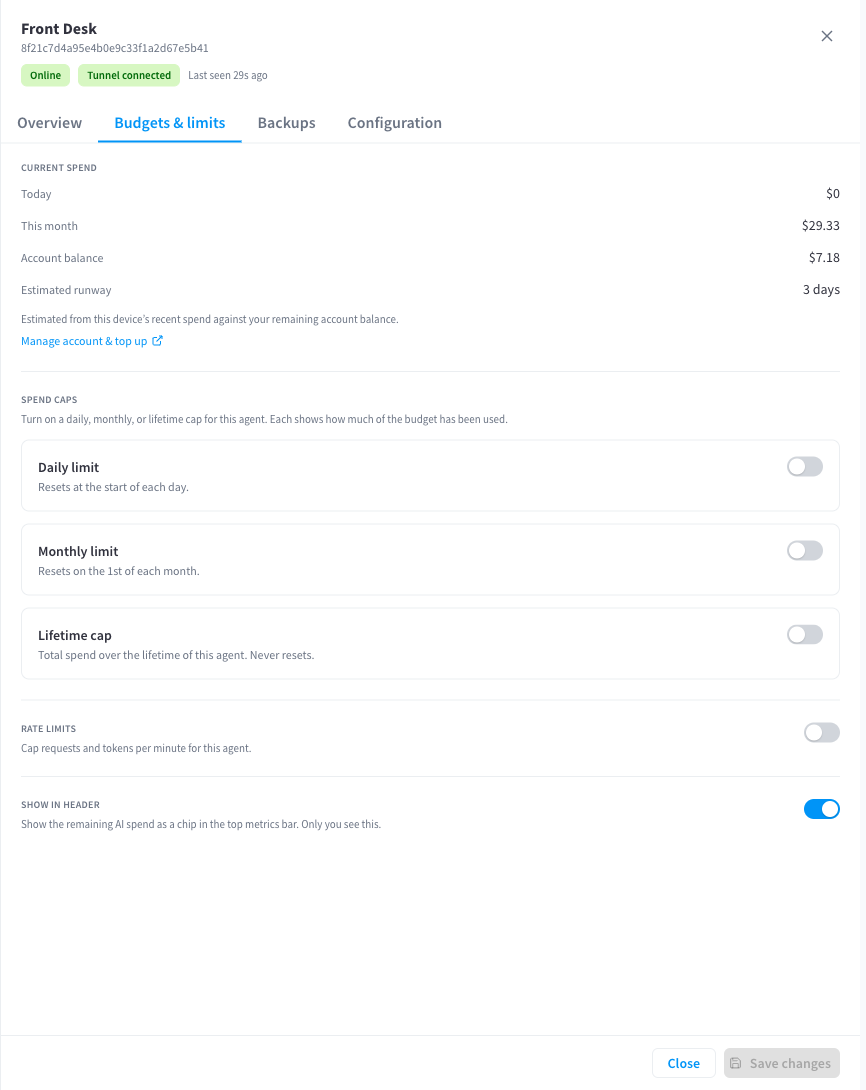
Figure 1: The Budgets & limits tab — usage summary, spend caps, and rate limits
Quick reference
| Control | What it does | When exceeded |
|---|---|---|
| Lifetime cap | Total spend allowed over the agent's life | Agent's model access stops until the cap is raised |
| Daily cap | Spend allowed per calendar day | Blocked for the rest of the day, resets at midnight (facility timezone) |
| Monthly cap | Spend allowed per calendar month | Blocked until the month rolls over |
| Requests per minute | How many model calls per minute | Requests are throttled, then retried |
| Tokens per minute | How much text volume per minute | Requests are throttled, then retried |
Leave any field empty to run without that cap.
How the agent spends
Each paired AI Agent automatically gets its own spend key in your facility's AI Models & Access account — you'll see it listed there alongside any keys you've created manually. Everything the agent does with AI models (chatting, summarising documents, running scheduled tasks, processing notifications) is metered against this key, so its spend is always visible and always separable from your other AI usage.
Two layers govern the spend:
- The agent's own caps and limits — set on this tab, apply only to this agent.
- Your facility's AI account — the shared prepaid balance and any facility-wide spend limits configured in AI Models & Access. The agent can never spend past these, whatever its own caps say.
If your facility's AI credit balance runs out, the agent's model access pauses along with everything else until the balance is topped up.
Spend caps
Set any combination of Lifetime, Daily, and Monthly caps in dollars. The tab shows current usage against each cap as you set them, so you can see how much headroom the agent has.
- When a cap is hit, the agent's model calls are declined until the window resets (daily/monthly) or the cap is raised (lifetime). The agent itself stays running — its files, memory, and schedule are untouched — it just can't call models until spend is available again.
- Daily and monthly windows reset on your facility's local timezone, not UTC.
- A useful pattern: a monthly cap as your real control, plus a daily cap around 2–3× your typical day as a runaway brake against an automation loop or an unusually heavy day.
If a lifetime cap is set, the module header shows a budget chip with $spent / $budget so anyone using the agent can see where it stands.
Rate limits
Requests per minute and Tokens per minute control how fast the agent can consume models, independent of cost:
- They protect against runaway loops — a misbehaving automation can burn budget quickly, and a rate limit slows it to a crawl instead.
- The agent handles throttling gracefully: requests over the limit wait and retry, so brief bursts are smoothed out rather than failing.
Most facilities don't need rate limits; caps are the primary control. Set them if you run heavy automations and want a hard ceiling on burst behaviour.
The spend chip
At the bottom of the tab: "Show the remaining AI spend as a chip in the top metrics bar. Only you see this."
Turn it on and a chip appears in the module header showing your remaining headroom — the tightest of your configured caps, or the facility's AI account balance if no caps are set (e.g. "$7.18 left"). It's a personal preference: each user chooses it for themselves. Clicking the chip jumps straight to this tab.
Changes take effect quickly
Cap and limit changes apply within about a minute — enforcement is checked on every model call the agent makes, with a short cache. There's nothing to restart.
Where to see detailed usage
The Budgets & limits tab shows the agent's headline numbers. For full detail — per-model spend, request history, and trends over time — open AI Models & Access, where the agent appears with its live lifetime and windowed spend alongside your other keys. See the AI Models & Access documentation.
Related pages
- AI Models & Access overview — the facility AI account, credits, and usage reporting
- Device management — the rest of the device drawer
- Automations & scheduled tasks — the most common source of unattended spend
- Troubleshooting — what it looks like when the agent hits a cap