
Settings
AI Insights & People shares one Settings surface with the CCTV module — a single sidebar serving two products. This page covers the groups owned by this module; the other half of the sidebar (General, Cloud Storage, Live View) belongs to the CCTV / VSaaS module.
| Sidebar group | Owner | Documented in |
|---|---|---|
| General, Cloud Storage, Live View | CCTV / VSaaS | The CCTV / VSaaS docs — e.g. Recording, Storage & retention, Live view |
| Access Zones | AI Insights & People | Access zones |
| People — Profile Info · Person Types & Tagging · Person Data | AI Insights & People | This page |
| Face Recognition — Member Matching · Shadow Profiles · Blacklist Faces · Self Learning | AI Insights & People | Face recognition tuning and Blacklist |
| Insights — People Timeline · Reports | AI Insights & People | This page |
Two gating notes: the AI-owned groups only appear when the People feature is enabled for the facility, and the Self Learning item is hidden unless Enhanced AI Analysis (a CCTV → General toggle) is on. That toggle — "Generates richer metadata including heatmaps, path tracking, and self learning. Disabling this will also turn off automatic profile matching. Increases storage usage." — lives in the CCTV-owned General group, but it directly controls features in this module.
Profile Info
Settings → People → Profile Info controls which member profile fields are synced from your member management system and displayed on profiles.
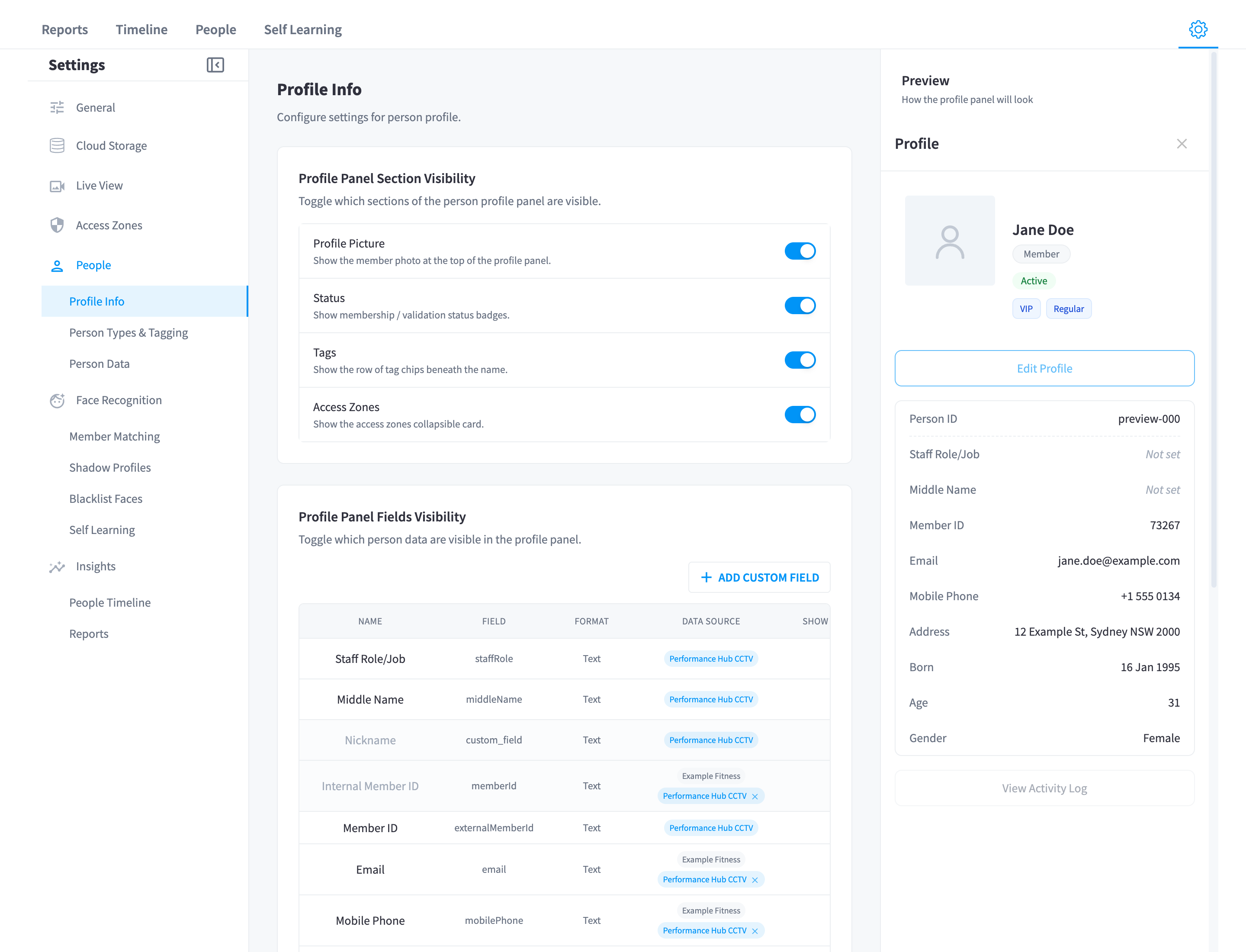
Figure 1: Profile Info — choosing which synced fields appear on member profiles
Core identity fields (name, date of birth, gender, profile photo, membership status, plans, tags) always sync — matching and access-zone rules depend on them. The optional contact fields are toggleable: email, mobile phone, address, and record created/updated timestamps; email and mobile phone are on by default. Turning a field off stops syncing it and removes the stored values — a data-minimisation control, not just a display preference (see Security & privacy).
The fields you enable here are exactly the fields shown in the profile panel and offered in the Edit Profile / Add People forms.
Person Types & Tagging
Settings → People → Person Types & Tagging manages the classification vocabulary applied to people: member types (member, staff, and so on) and free-form tags.
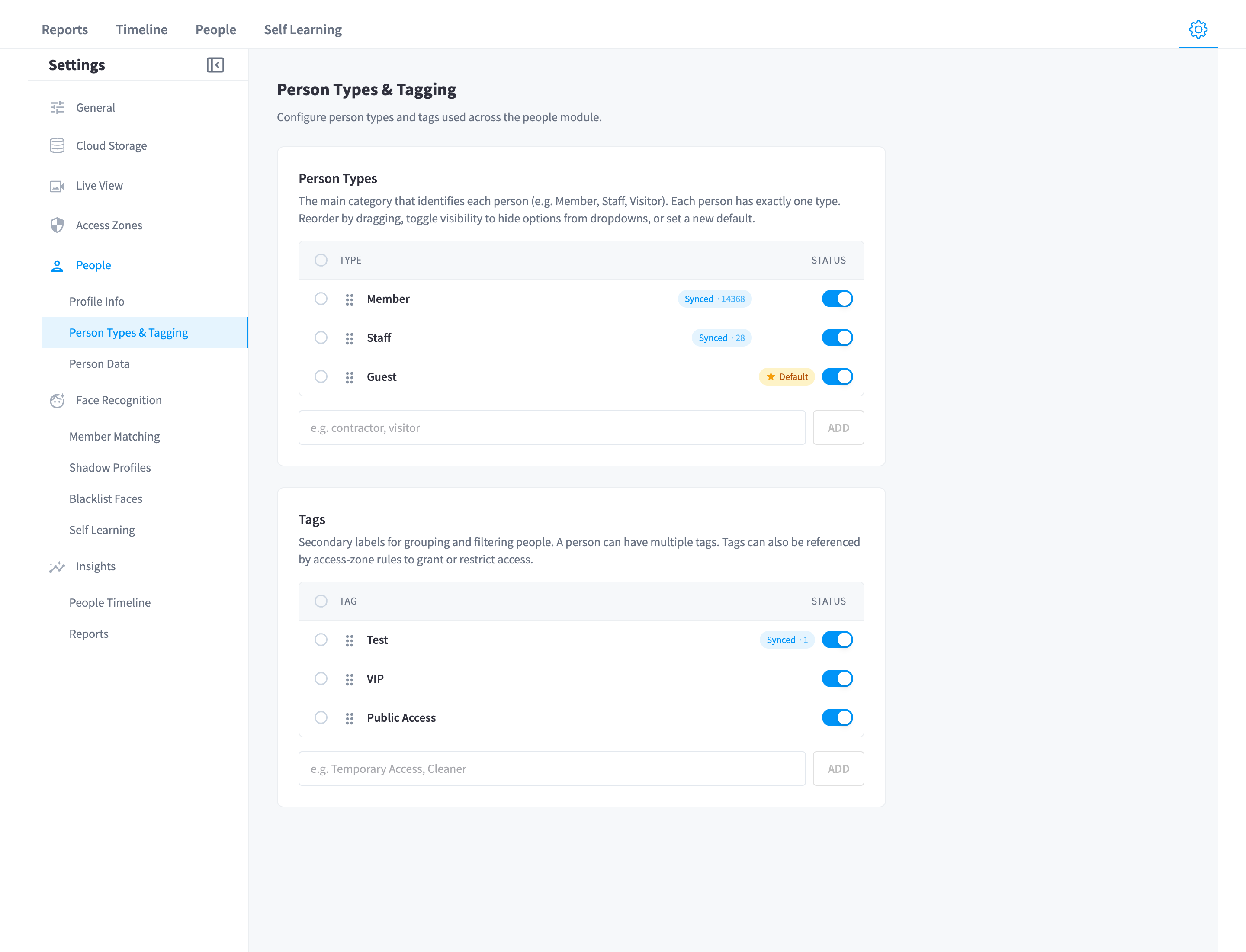
Figure 2: Person Types & Tagging — the types and tags used for filtering and access-zone rules
Types and tags matter beyond labelling:
- They're filterable facets in the People list (Type and Tags dropdowns).
- Access-zone rules can include or exclude people by member type and tag — e.g. a Staff Only zone excluding everyone whose type isn't Staff, or a PT Clients tag granting a studio.
Tags sync from your member system where the integration provides them, and can be managed here.
Person Data
Settings → People → Person Data is the data-lifecycle section: what person data is held and the controls for removing it.
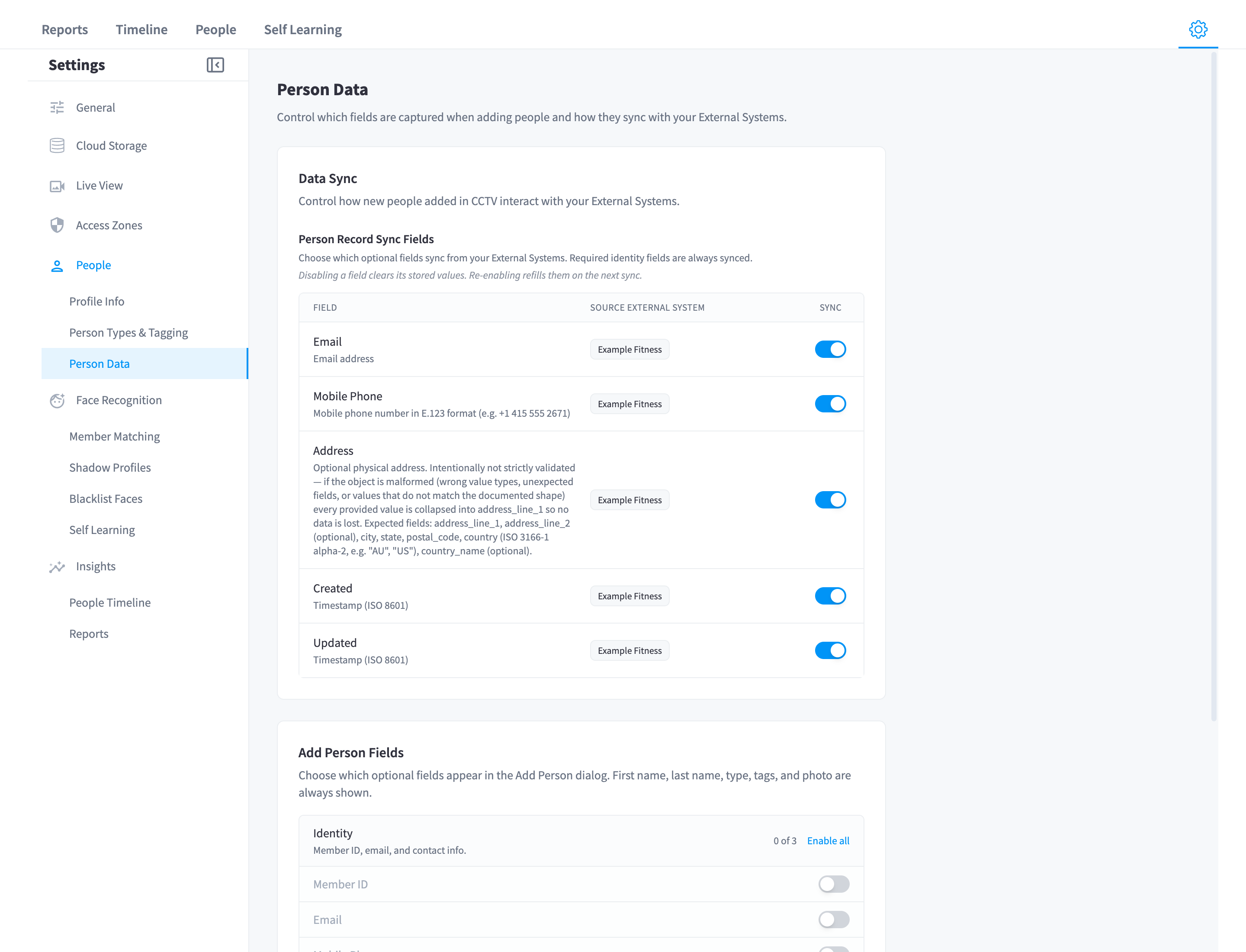
Figure 3: Person Data — data lifecycle and deletion controls
The "Delete person data" controls permanently remove a person's stored data. Deletion is also available per person — the profile panel's Advanced accordion ("Permanently remove this member and all associated data from the system. This action cannot be undone.") and the "Delete this person" action on unidentified profiles. What each path removes is detailed in Security & privacy.
Time-based cleanup — the AI Metadata retention window (default 24 months) — lives with the other storage controls in CCTV → Cloud Storage; see Storage & retention.
People Timeline
Settings → Insights → People Timeline controls how raw detections are grouped into the visits shown on the timeline.
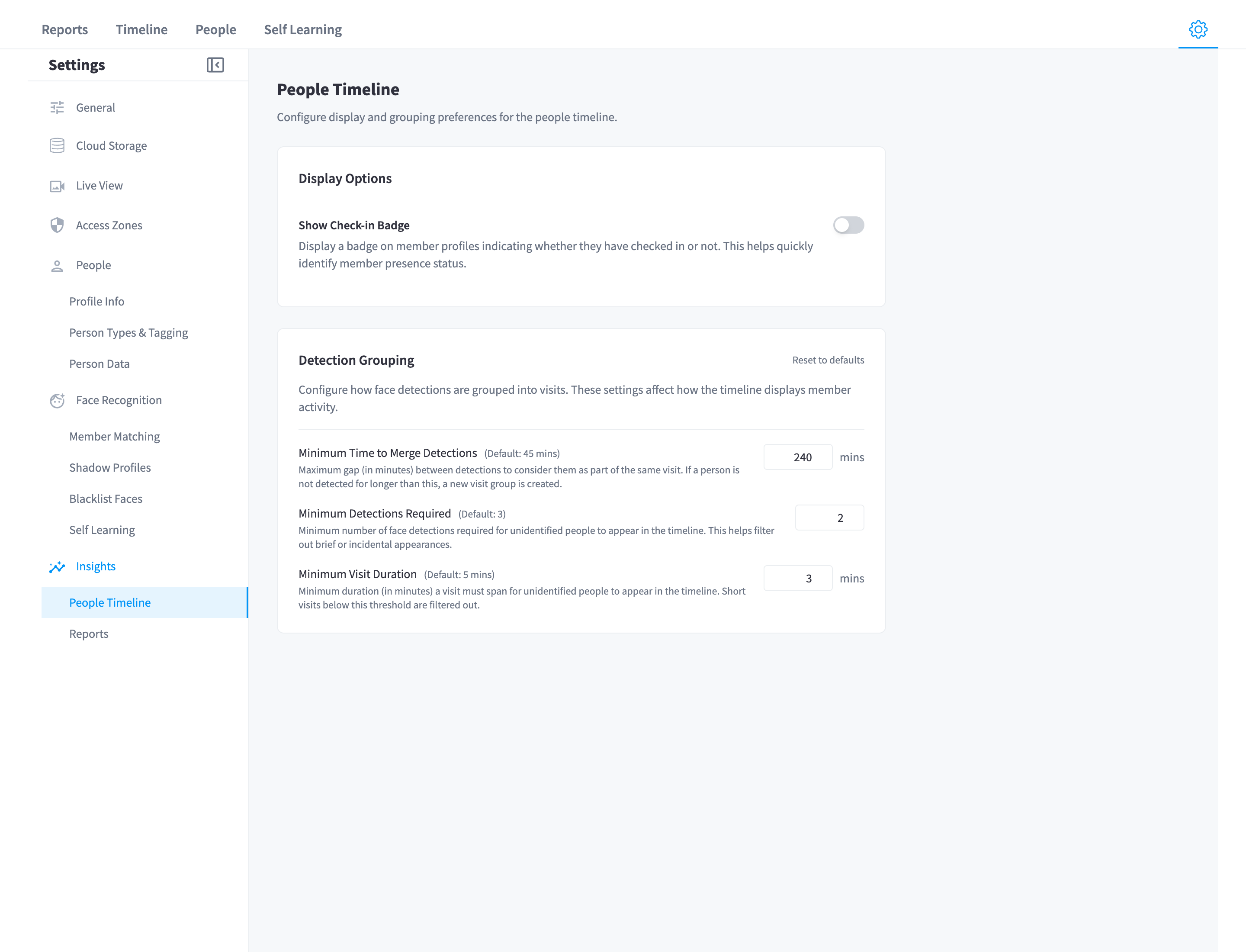
Figure 4: People Timeline settings — detection grouping thresholds with their defaults
| Setting | Default | Effect |
|---|---|---|
| Minimum Time to Merge Detections | "(Default: 45 mins)" | Detections closer together than this merge into one visit; a longer gap starts a new visit. Raise it for facilities where members legitimately dip in and out (pool ↔ gym floor) |
| Minimum detections | "(Default: 3)" | Unidentified people need at least this many detections in a visit to appear (when the timeline's threshold filter is on) |
| Minimum duration | "(Default: 5 mins)" | …and the visit must span at least this long. Together these keep walk-pasts off the timeline |
| Show No Check-In Badge | off | When on, tiles show "Checked In" / "Did Not Swipe" badges — a quick tailgating lens directly on the timeline |
The minimum-detections/duration pair can be bypassed ad-hoc with the timeline's detection-threshold toggle — change the settings here only if you want the default view to differ.
Sentiment Scoring
Settings → Insights → Sentiment Scoring controls how detected facial expressions become the 0–100 sentiment scores used in Reports and the demeanor read on person profiles.
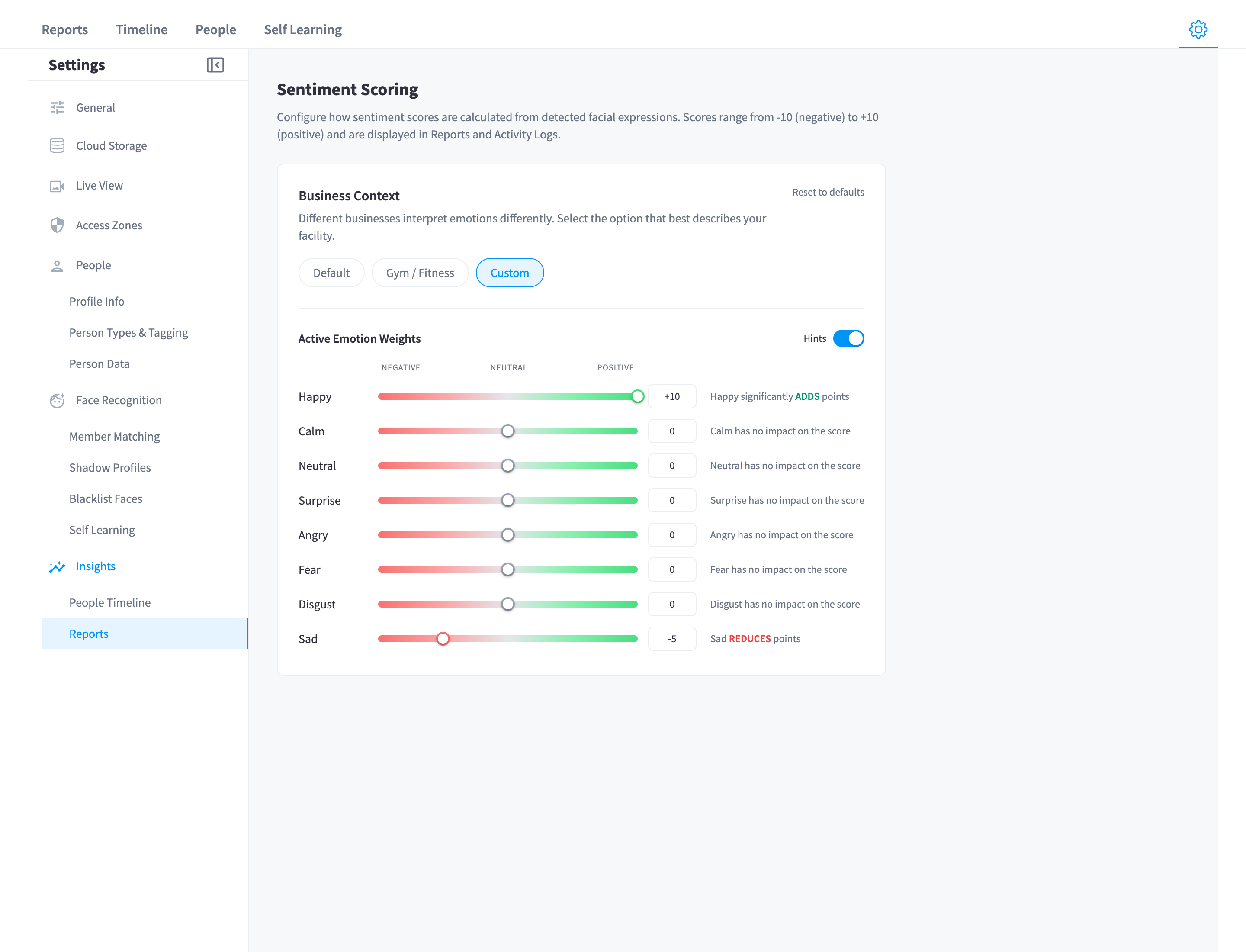
Figure 5: Sentiment Scoring — Business Context presets and per-emotion weightings
The key concept is Business Context: "Different businesses interpret emotions differently. Select the option that best describes your facility."
| Preset | Interpretation |
|---|---|
| Default | General-purpose weighting — happiness scores high, sadness low |
| Gym/Fitness | Fitness-aware weighting — a strained, intense face mid-set is effort, not unhappiness, and is weighted accordingly |
| Custom | Set each emotion's weight yourself |
Under whichever preset, each detected emotion carries a weight, and a person's (and by aggregation a zone's) score is the weighted blend of detected expressions, normalised to 0–100. The same context-awareness drives the demeanor labels on profiles — the reason an intense expression on a current member reads "Focused" rather than "Angry".
If you change presets, judge the effect over days, not hours — sentiment is only meaningful in aggregate, and the zone trend bands (Positive ≥ 70, Neutral 40–69, Negative < 40) assume reasonably stable weighting.
Related pages
- Face recognition tuning — the Face Recognition group in depth
- Access zones — the Access Zones group
- CCTV / VSaaS overview — the module that owns the other half of the sidebar