
People & profiles
The People tab (AI Insights & People → People) is your facility's people directory — every synced member plus every person the system has learned about — and the person profile is where everything the AI knows about one individual comes together.
The People list
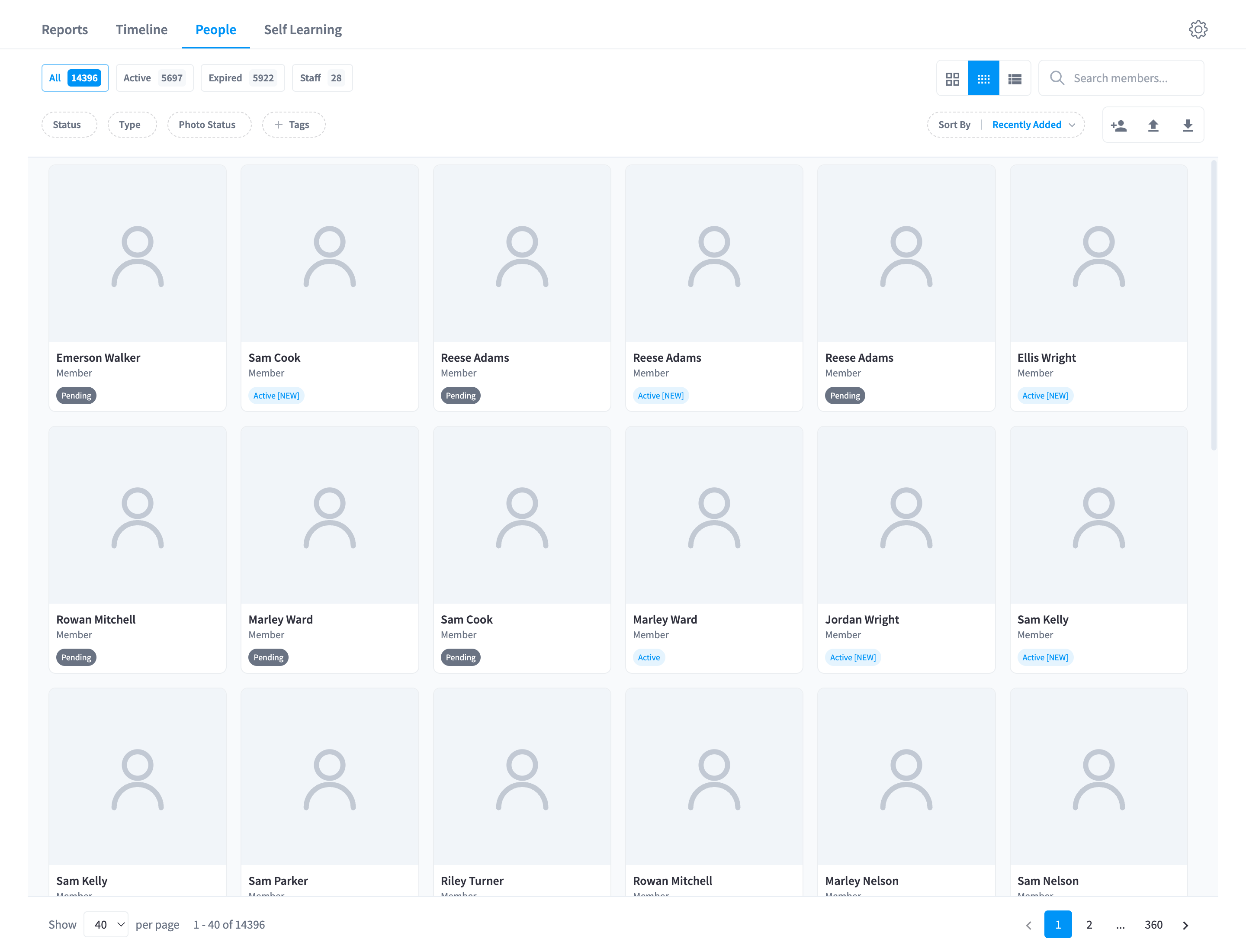
Figure 1: The People list — member cards with photos, membership badges, and quick status filters
Finding people
- Quick filter tabs: All, Active, Expired, Staff.
- Dropdown facets:
- Status — membership status values from your member system (e.g. "Current", "Expired", "On Hold").
- Type — member type (e.g. "Member", "Staff").
- Photo Status — "Valid Photo", "Invalid Photo", "Not Processed". The single most useful admin filter: a member with an invalid or unprocessed photo can't be face-matched.
- Tags — your tag values from Person Types & Tagging.
- Has Partner Conflicts — appears when any profiles have unresolved external-sync conflicts.
- Sort By: Recently Added (default), Last Name (A-Z / Z-A), First Name (A-Z / Z-A), Membership Updated.
- View modes: grid, compact grid, or list.
Member cards
Cards show the profile photo, name, and badges:
- Membership status — including "Active [NEW]" for members who joined within the last 5 days, "Expired ago", and "On hold since ago".
- "Invalid Photo" when the synced photo failed validation — the tooltip shows the quality score and fail reason.
- Transient states: "PROCESSING", "DELETING...", "DELETE FAILED - RETRY".
Adding people
- "Add people" — create a person manually (name, photo, and the profile fields you've configured).
- "Import Members" — bulk import from a file, in three steps: "Upload File" → "Map Fields" → "Preview & Import".
- "Export Members" — export the current list.
Manually added photos go through the same quality validation as synced ones.
The profile panel
Clicking a card opens the profile panel.
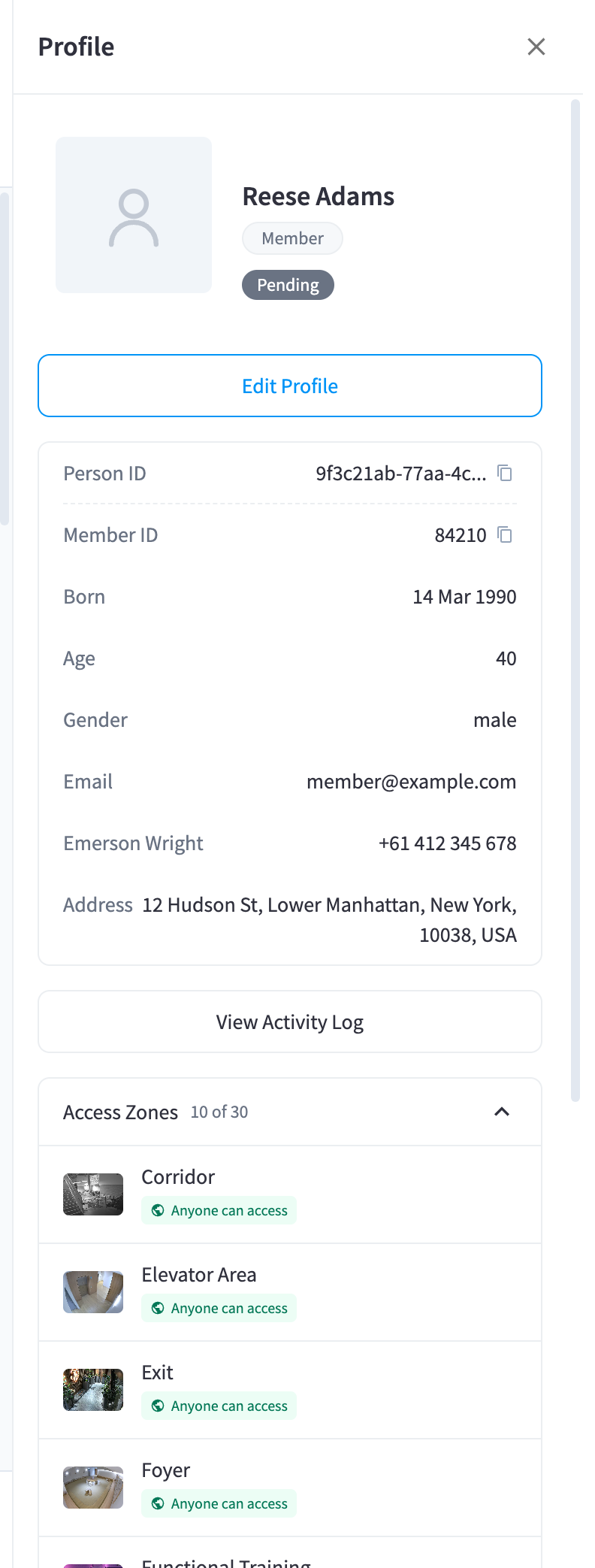
Figure 2: The profile panel — photo, IDs, synced detail fields, and the Access Zones accordion
It contains:
- Photo and IDs — "Person ID" (internal) and "Member ID" (from your member system), both copyable. Click the avatar to "view full image and quality details".
- Detail fields — the profile fields you've enabled in Settings → People → Profile Info (born, age, gender, email, mobile phone, address, and so on).
- "View Activity Log" — jumps to the person's full detection history (below).
- Access Zones accordion — which zones this person may access ("N of M", or "None configured" / "Public zones only"), with per-zone badges: "Anyone can access", "Membership plan access", "Restricted". See Access zones.
- Advanced accordion — the danger zone: "Permanently remove this member and all associated data from the system. This action cannot be undone." with a "Delete Member" button. See Security & privacy.
Editing a profile
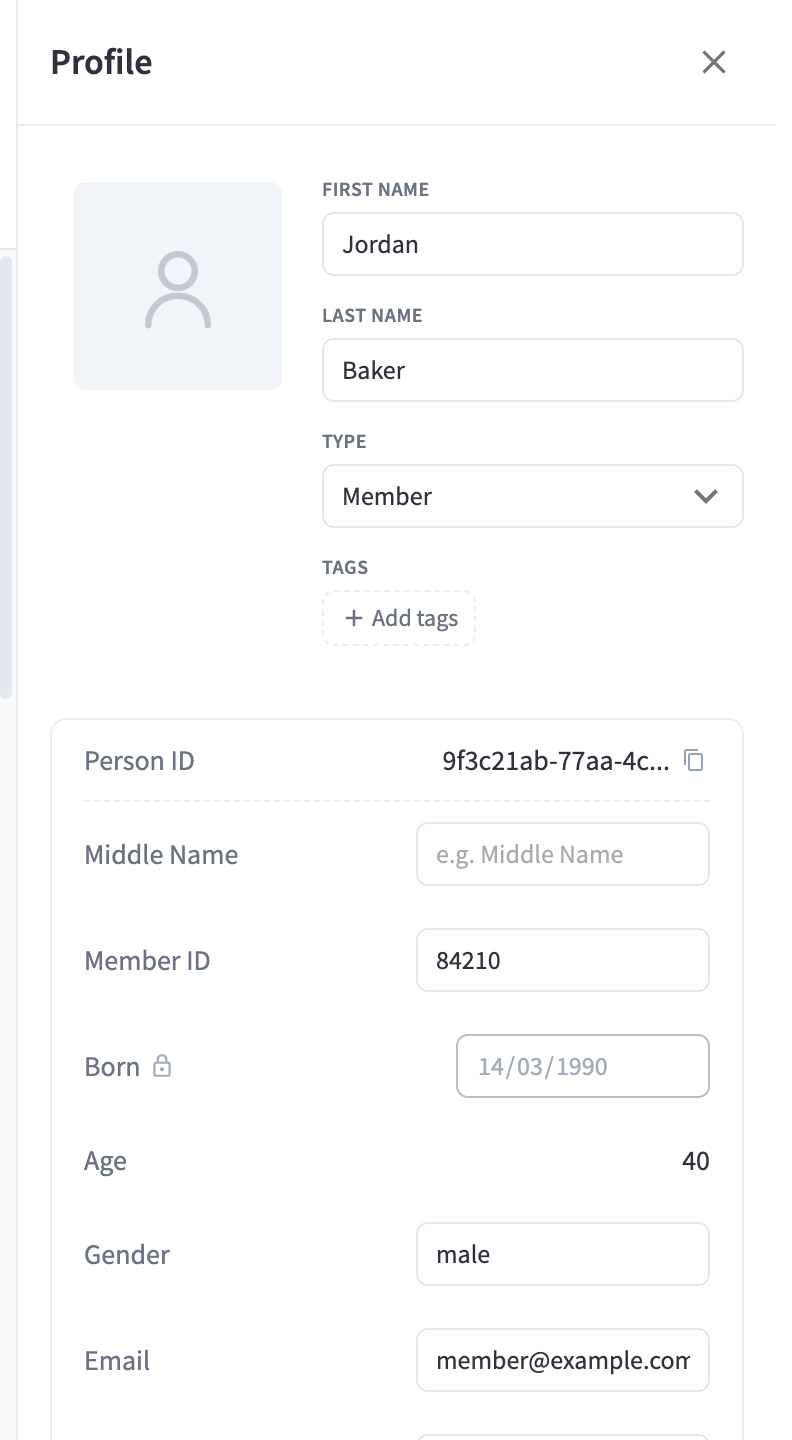
Figure 3: Edit Profile — name and photo plus your configured profile fields; externally-owned fields show a lock icon
"Edit Profile" opens the editable form: "First Name", "Last Name", a "Change" photo action, and the configured profile fields. Fields owned by your member system show a lock icon — the external system is the source of truth for those.
External sync conflicts
When your member management system sends a value that differs from a locally edited field, the profile shows a conflict banner — "1 field differs from your Partner system" (or "N fields differ…") — with guidance: "Accept the incoming value to overwrite, or keep yours to mark this field as locally owned."
Per field you choose "Accept" (take the incoming value) or "Keep mine" (mark the field locally owned so future syncs stop overwriting it); "Accept all incoming" / "Keep all mine" resolve everything at once.
The person profile & activity view
Opening a person from the timeline (or via "View Activity Log") shows the full profile sidebar next to their detection history.
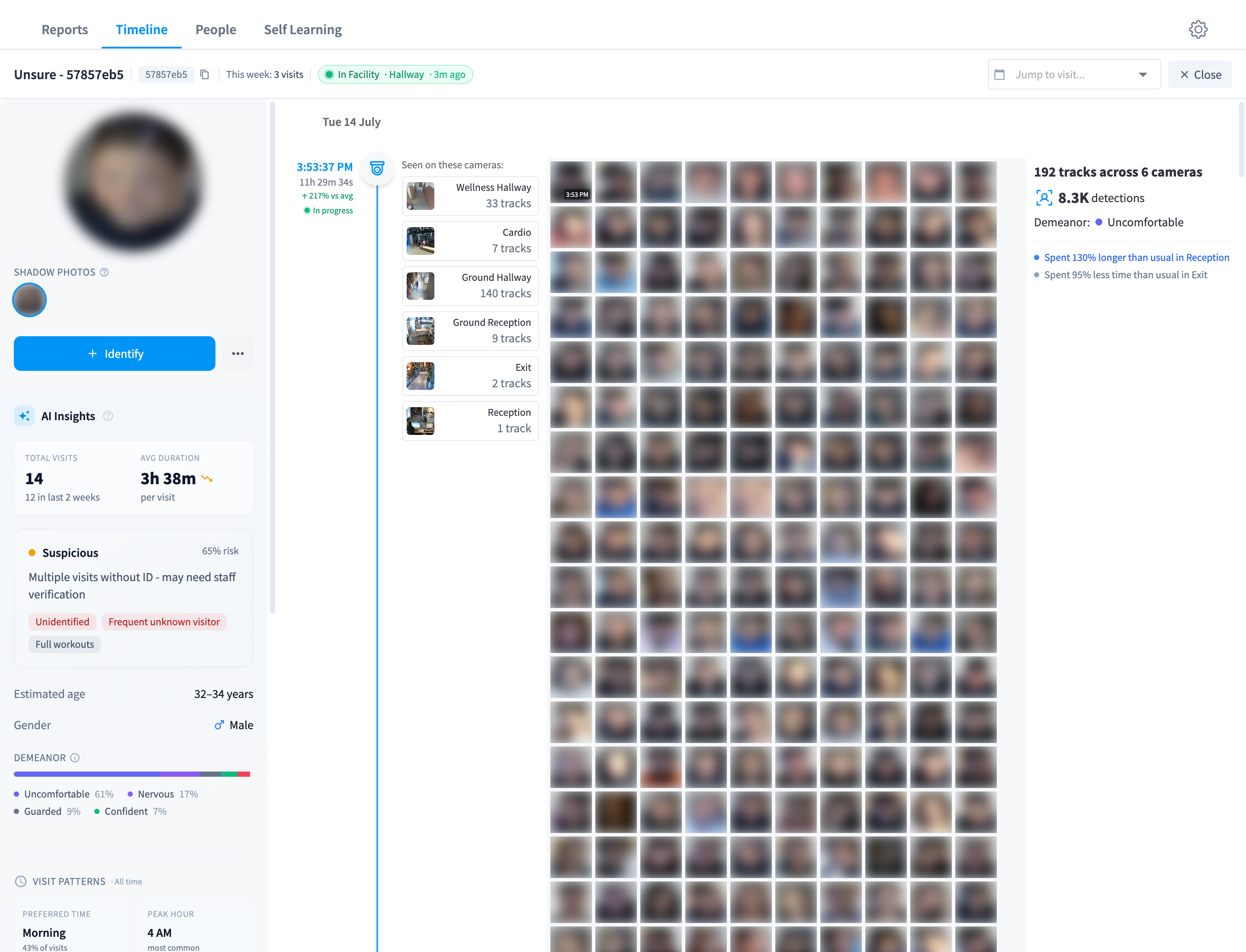
Figure 4: A person's activity view — the profile sidebar on the left, per-visit detection history on the right with a "Jump to visit..." selector
Shadow photos
Below the avatar sits the "Shadow Photos" strip — as the tooltip explains: "Shadow photos are additional face images used by the facial recognition engine to help identify this person. They are separate to the profile photo synchronised from external systems like your member management system."
Each photo is marked "Auto-added by self-learning" or "Manually added shadow photo". More shadow photos from varied angles and lighting = better recognition.
AI Insights
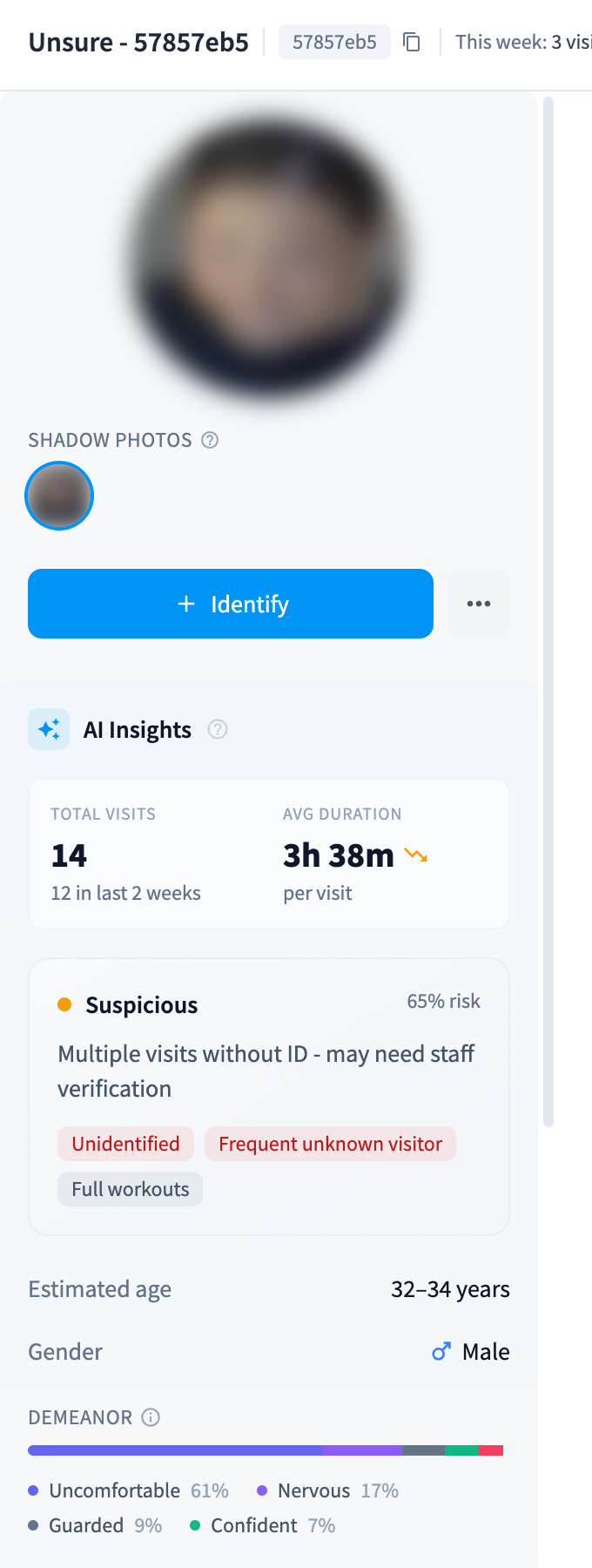
Figure 5: The AI Insights card — visits, average duration, engagement insight, demographics, and demeanor
The AI Insights card appears once a person has at least 2 visits. Its tooltip sets expectations: "Visits and other information on this screen is tracked by AI facial recognition and may not match the data in your member management system."
- Total Visits (with an "in last 2 weeks" recency note) and Avg Duration "per visit", with trend indicators.
- An insight badge — a plain-English read on the person, context-aware:
- Current members get an engagement score: "Highly Engaged", "Active", "At Risk" ("Engagement declining - may need outreach"), or "Disengaging" ("Low engagement - high churn risk").
- Expired members get a risk read: "Likely Tailgating" ("Repeated unauthorized access - staff should verify"), "Possible Tailgating", or "Needs Renewal" ("May be unaware membership expired - send reminder").
- Unidentified people range from "New Visitor" ("likely new member, trial, or guest") and "Pending ID" through "Needs Review", "Suspicious", and "High Risk" ("Unidentified for months with regular visits - requires immediate attention").
- Factor chips explain the verdict — e.g. "High frequency", "Long workouts", "Decreasing engagement", "Frequent unknown visitor", "Expired membership".
- Estimated attributes — "Estimated age" (a range in years), "Gender", "Ethnicity", and "Eyewear" ("Glasses" / "Sunglasses") where detected. These are AI estimates from imagery, not member data — see Security & privacy.
- Demeanor — "Calculated from detected emotions during the visit", with context-aware wording (a current member reads "Appears to enjoy their workouts"; an expired one might read "Seems at ease - may not realize membership expired"). The "See how it is calculated" link opens Sentiment Scoring settings.
Visit patterns & location insights
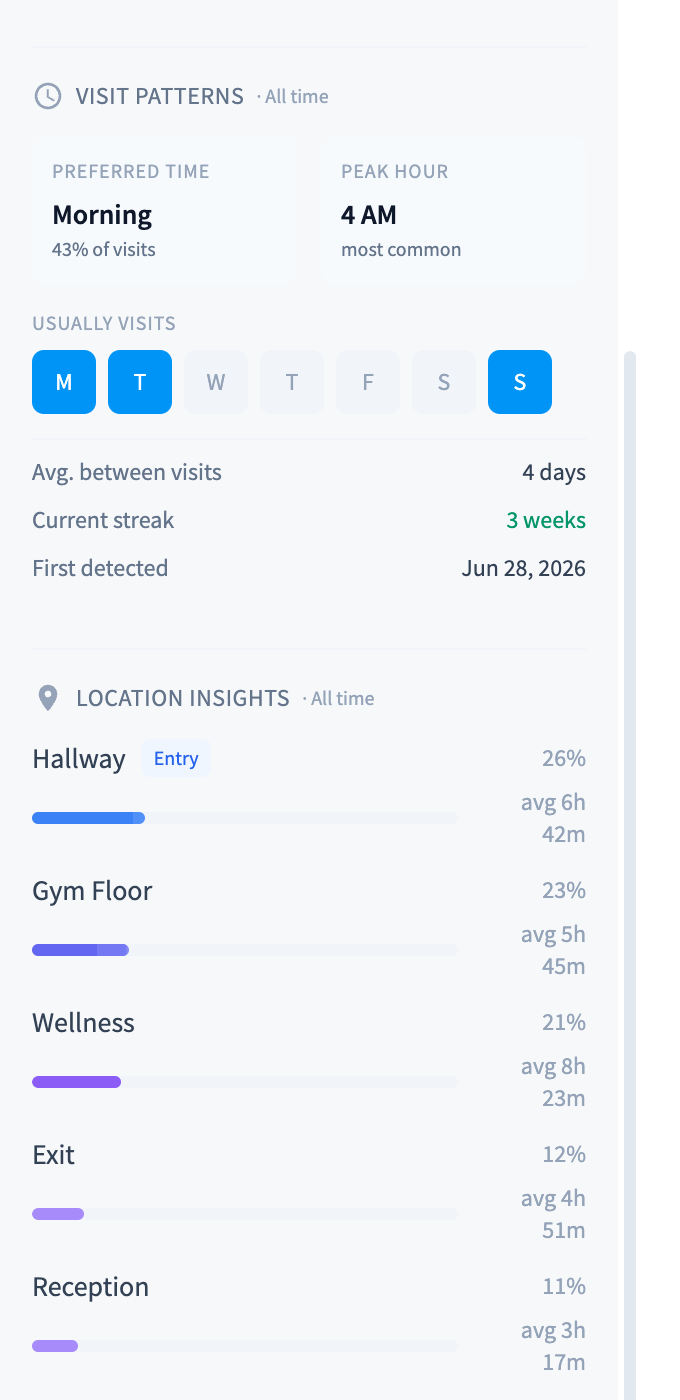
Figure 6: Visit Patterns and Location Insights — preferred time, peak hour, usual days, streaks, and typical entry/exit flow
- Visit Patterns (all time): "Preferred Time" (with % of visits), "Peak Hour", "Usually Visits" (day-of-week initials), "Avg. between visits", "Current streak", "Longest absence", and "First detected".
- Location Insights: per-zone entry/exit counts and the "Typical flow" — e.g. "Usually enters via" a given camera/zone with its % of visits.
The activity log
The right-hand side lists every visit with its per-camera tracks and durations. The "Jump to visit..." selector skips straight to any visit; each track links back to the footage in CCTV playback.
Identifying a person
For unidentified profiles, the "Identify" button (or "Identify This Person" in the tile menu) links the shadow profile to a member.
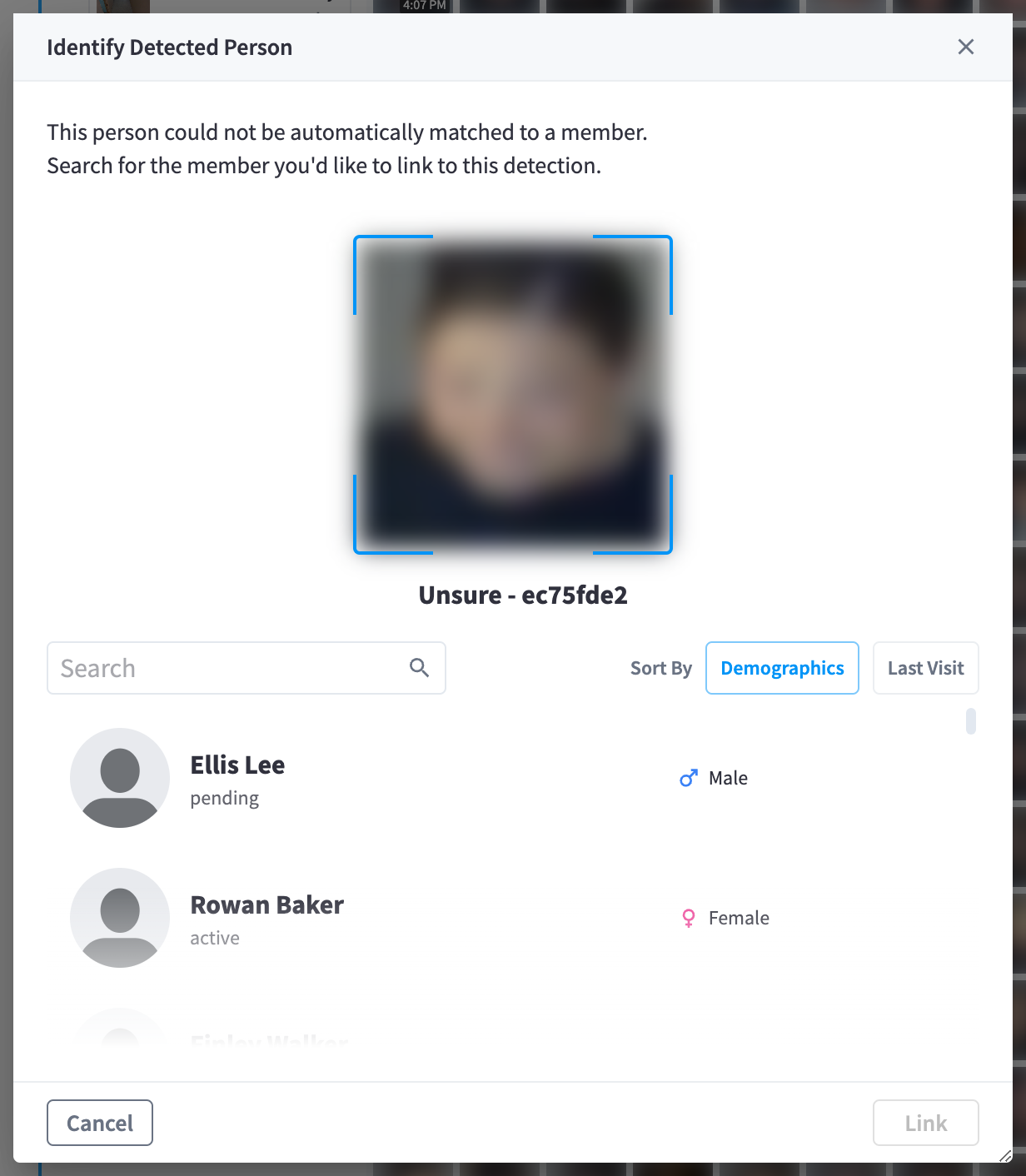
Figure 7: The Identify dialog — search for the member this person actually is
Search for the member and confirm. Behind the scenes the system moves the face reference into the identified collection, re-attributes the person's detection history to the member, copies the shadow photo across, and removes the now-orphaned unidentified profile. Identification runs as a tracked background process — large histories can take a little while to fully re-attribute.
Merging profiles
"Merge with another profile…" (from any tile or profile menu) combines duplicate profiles.
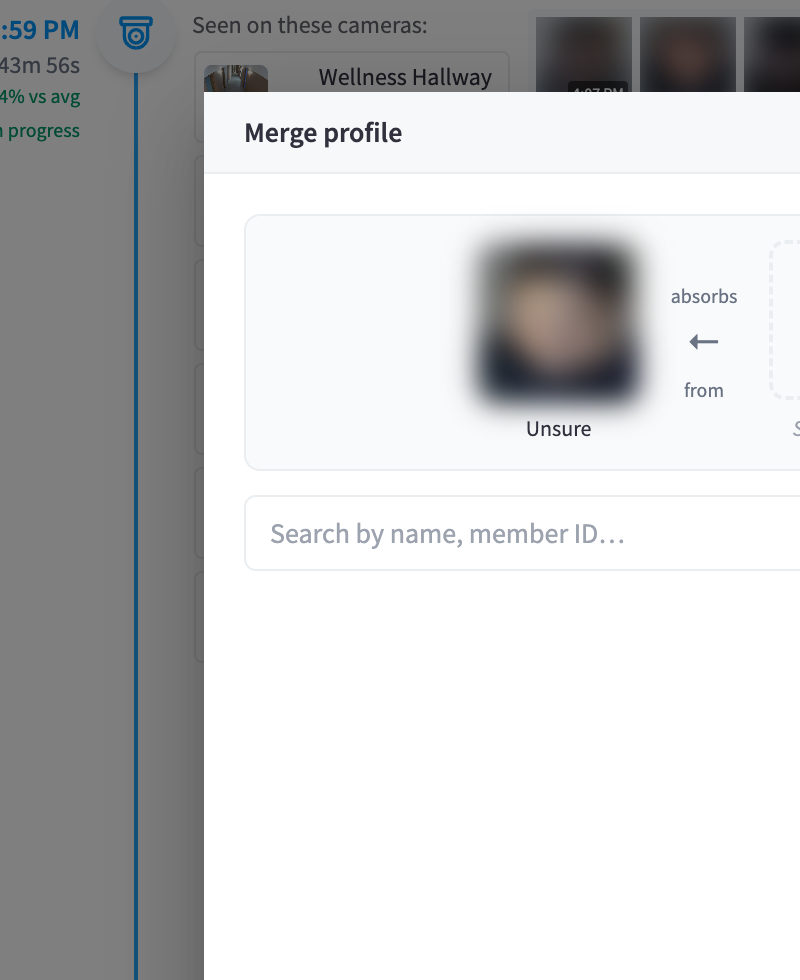
Figure 8: The merge dialog — the survivor keeps everything; the others are permanently merged in
The survivor receives the other profiles' shadow photos and full detection history; merged-away profiles are permanently removed. If an identified profile is in the selection it is always the survivor. Bulk merges support up to 20 profiles — see People timeline → Bulk actions.
Other actions
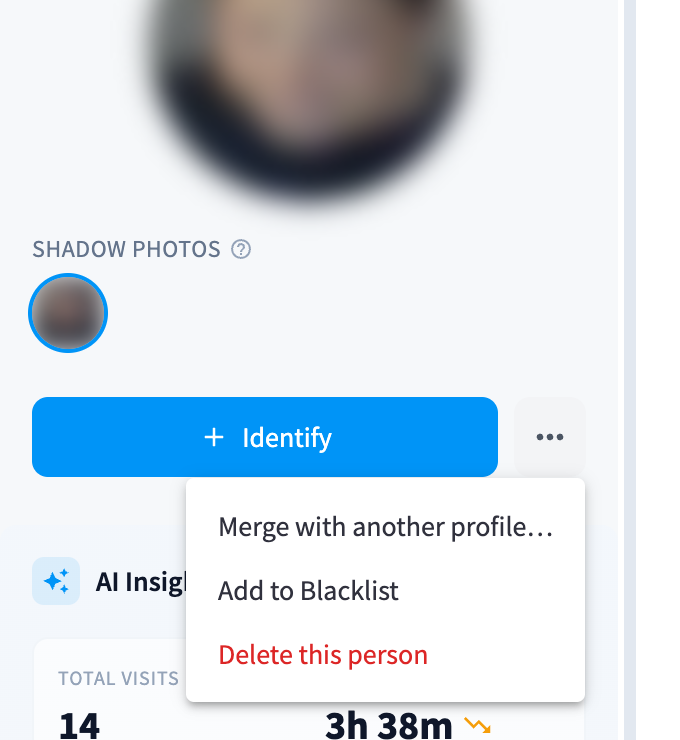
Figure 9: The profile actions menu — Merge, Add to Blacklist, Delete
- "Add to Blacklist" — stop this face being detected at all; see Blacklist.
- "Delete this person" — permanently removes an unidentified profile and its detections ("This action cannot be undone.").
- For members, deletion lives in the profile panel's Advanced accordion ("Delete Member") — see Security & privacy.
Related pages
- People timeline — where detections surface day-to-day
- Self Learning — automatic identification by visit correlation
- Settings → Profile Info — which fields sync and display