
Recordings
Recordings is the searchable library of every clip your cameras have produced — filterable by camera, location, date range, and type, with animated previews so you can scan without clicking.
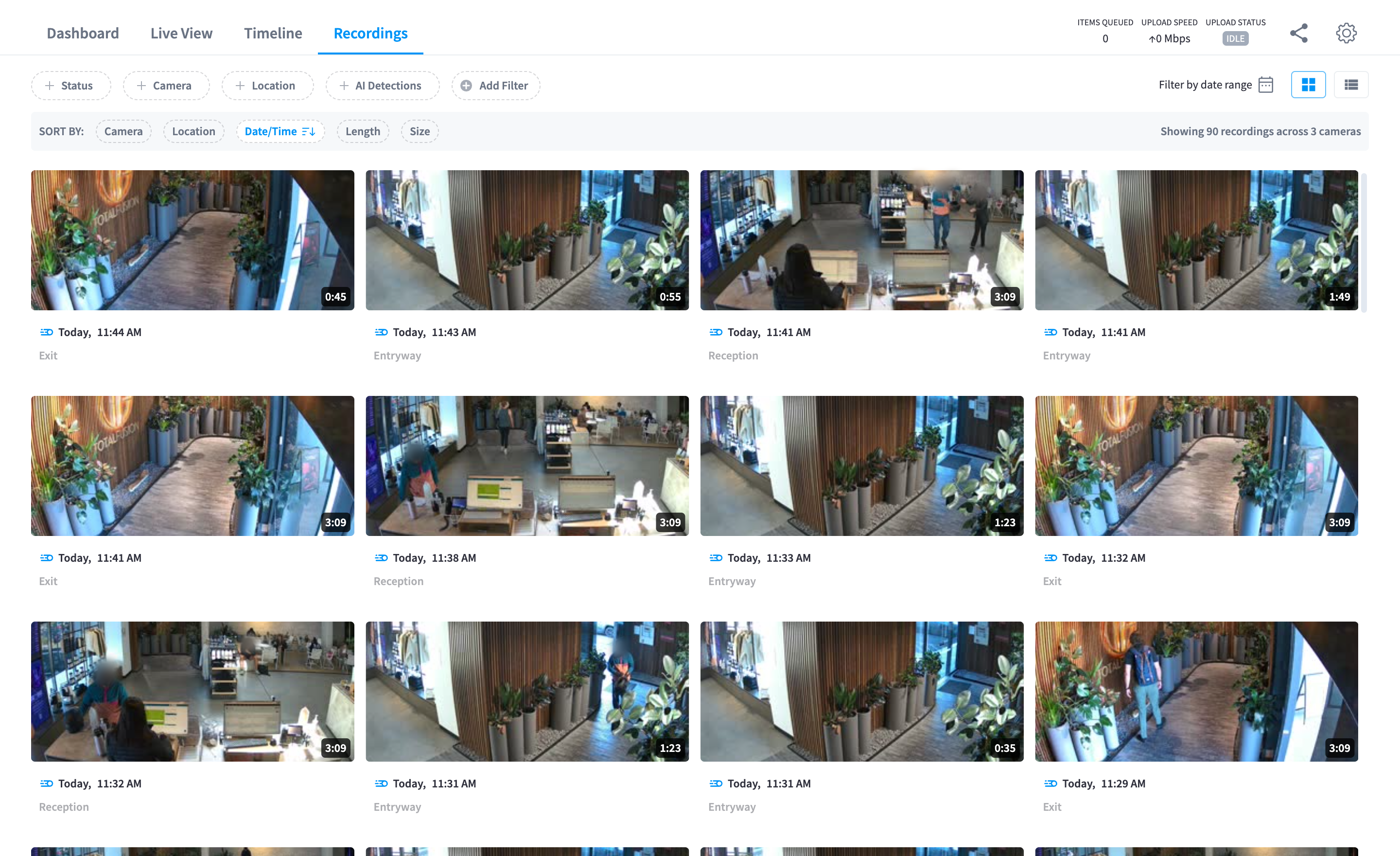
Figure 1: Recordings — the filter bar and the clip grid with animated preview cards
The grid
Each card shows the clip's thumbnail (animating on hover), the camera name, and when it happened. Badges tell you a card's state at a glance:
| Badge | Meaning |
|---|---|
| "Uploading..." | The clip is still transferring from the Edge Processor — playable the moment it lands |
| Retained ribbon | The clip is exempt from retention auto-deletion (Retain & archive) |
| A people count | AI person detection found people in the clip (an AI Insights & People feature) |
Results load continuously as you scroll. When filters match nothing, the empty state says "No records found matching the selected filters."
Filtering

Figure 2: The filter bar — search, type, cameras, locations, and date range
| Filter | Details |
|---|---|
| Search | Free-text search of the library |
| Type | All Recordings, Motion Recordings, AI Detections (clips where AI found people — requires AI Insights & People), Retained Recordings, or Timelapse |
| Cameras | One or more cameras |
| Locations | One or more locations — the fast way to scope to Front Entrance across several cameras |
| Date Range | Any range within your retention window |
The Timelapse type browses the once-a-minute timelapse imagery as daily sequences per camera — useful for long-range "what did the space look like" questions beyond your recordings retention window (timelapse is typically kept much longer — see Storage & retention).
The video player
Click a card to open the player:
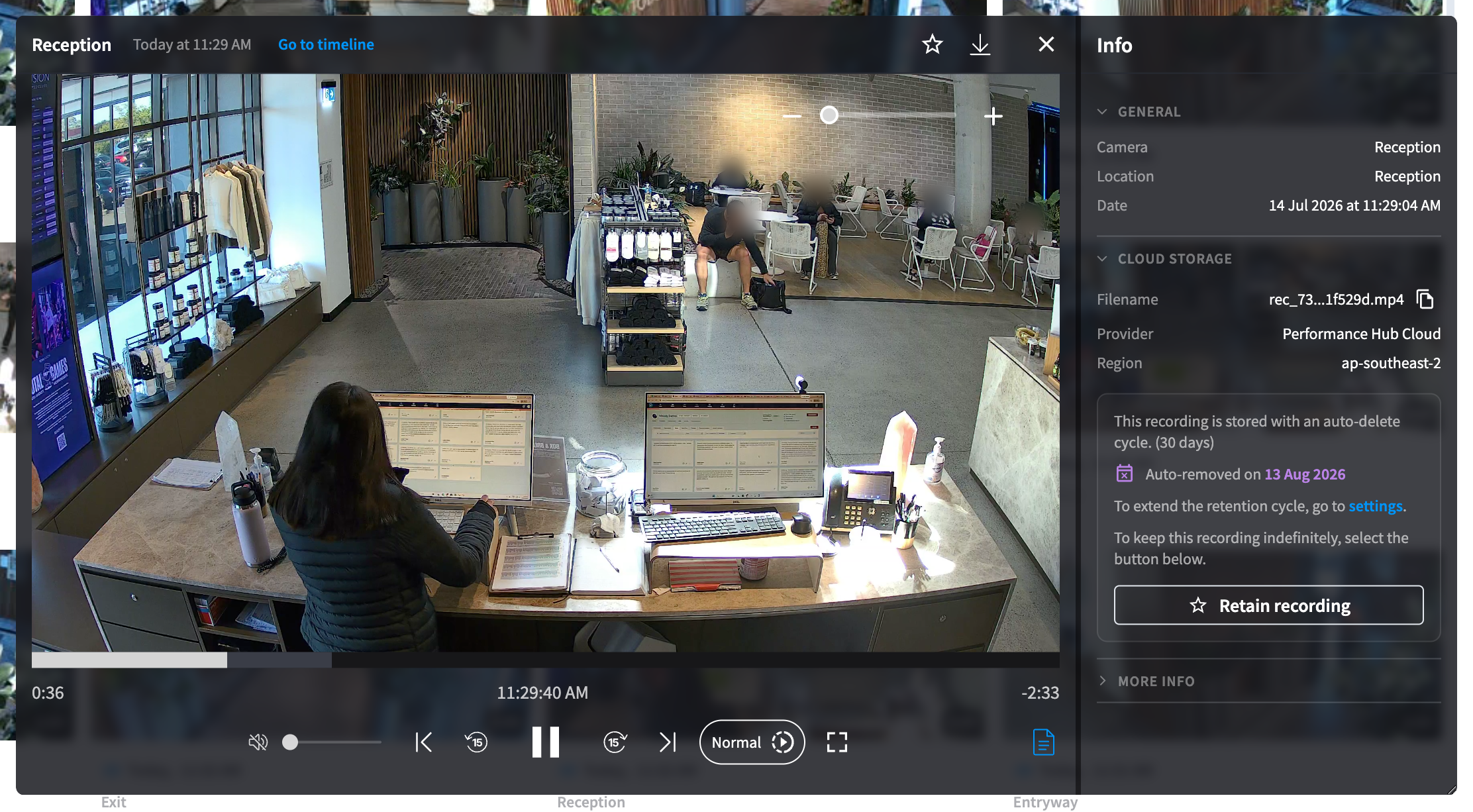
Figure 3: The player — the clip, its metadata, and the action row
Alongside the video: the camera name, the precise timestamp, and the clip duration. The action row:
| Action | Details |
|---|---|
| Retain recording | Keep this clip indefinitely — see Retain & archive |
| Download this recording | Save the original-quality clip locally |
| Go to timeline | Jump to this exact moment on the Timeline — see the context around the clip |
| Playback speed | Slow-motion through fast-forward |
The Timeline keyboard shortcuts work here too — arrow keys step by frame and second, J/L change speed, Space plays and pauses.
For clips where AI person detection ran, the player also surfaces the people found (an AI Insights & People feature, documented separately).
Downloading
Download this recording gives you the clip as recorded — original resolution and frame rate. Downloads are for individual clips; for handing footage to someone outside your organisation, prefer a share link (scoped, time-limited, and audited) over an emailed file.
The Dashboard's recording widgets
The Dashboard tab is the day-to-day pulse of the library:
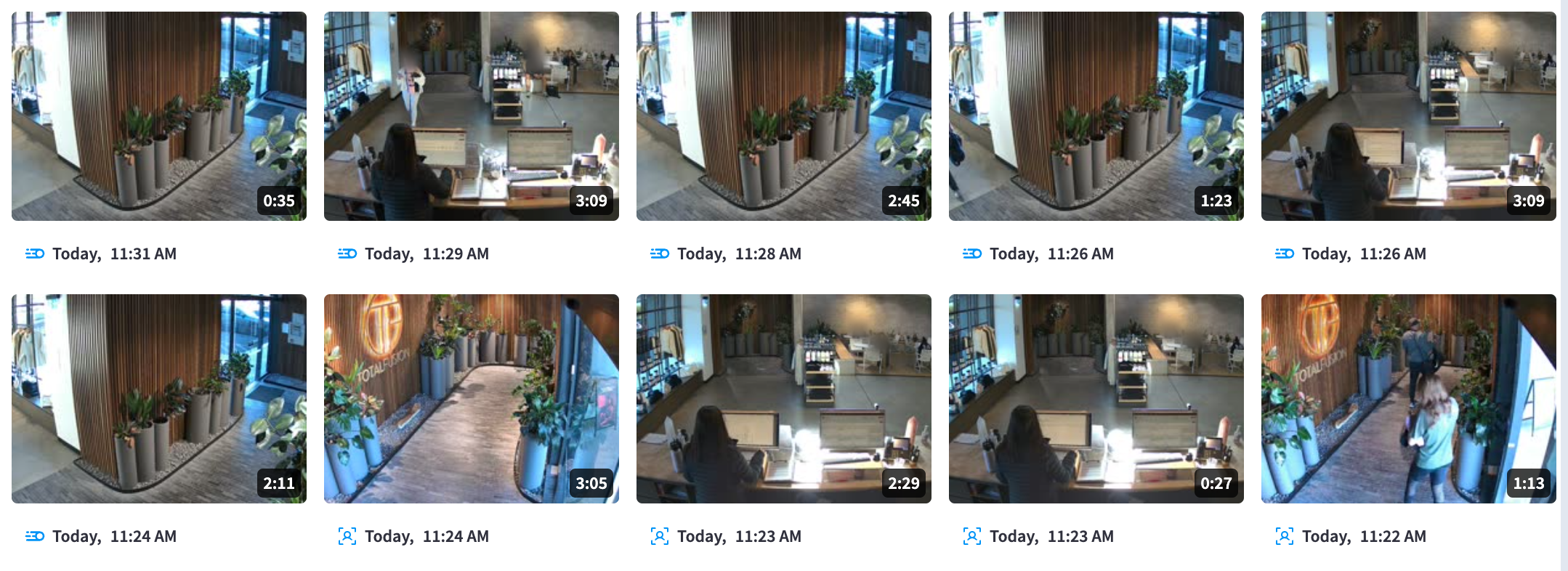
Figure 4: Most Recent Recordings — the latest clips across all cameras
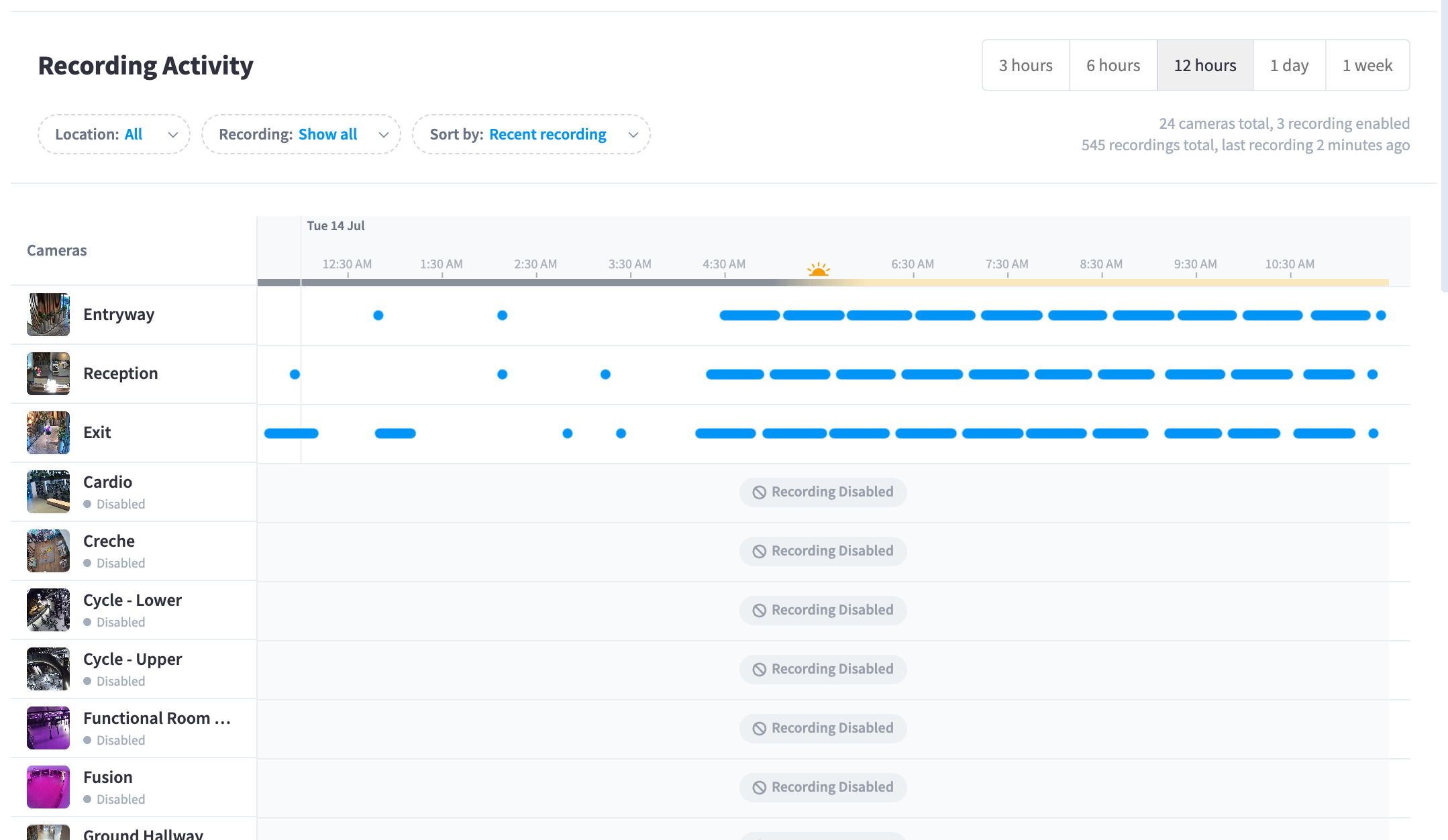
Figure 5: Recording Activity — per-camera activity strips across the last 24 hours
- Most Recent Recordings — the newest clips, one click from playback.
- Recording Activity — a 24-hour strip per camera showing exactly when clips were recorded; gaps are as informative as activity. Cameras with recording off carry a "Recording Disabled" badge.
- Access Logs — who viewed footage and when (Security & privacy).
Retention
Clips age out automatically per your recordings retention policy (default one month) unless retained. If you're looking for something older than the window, check Timelapse — its retention is typically much longer.
Related pages
- Retain & archive — protecting clips from expiry
- Timeline & playback — the moment in context
- Sharing & guest access — giving outsiders scoped access