
Opening a Terminal
During migration, your agent asks you to run one line on the old computer. That line is run in a terminal — a window where you type (or paste) commands instead of clicking. If you've never used one, this page walks you through it on each operating system.
Two things before you start:
- Your agent gives you the exact line to run — and it gives the right variant for your operating system (Windows uses a slightly different command to macOS and Ubuntu). Copy it exactly; don't retype it.
- Leave the window open after running the command. It's the live connection between the old computer and your agent — close it only when your agent says the migration is finished.
Windows
Windows uses PowerShell as its terminal:
- Click the Start button (or press the Windows key).
- Type
powershell. - Click Windows PowerShell in the results (no need to run it as administrator).
- Paste the command from your agent — right-click inside the PowerShell window pastes, or press Ctrl+V — then press Enter.
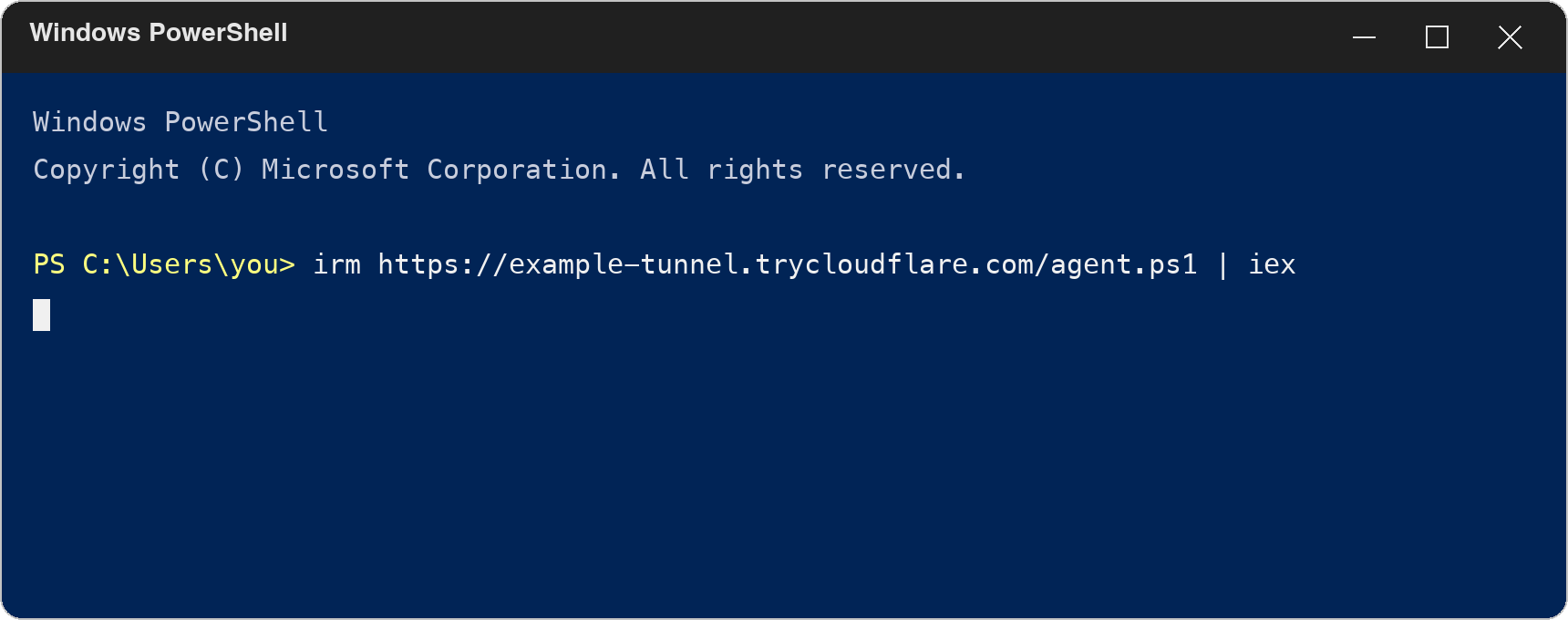
Figure 1: Windows PowerShell — paste the line your agent gave you and press Enter
macOS
macOS ships with the Terminal app:
- Press Cmd+Space to open Spotlight search.
- Type
terminaland press Enter. (Terminal also lives in Applications → Utilities.) - Paste the command from your agent with Cmd+V, then press Return.
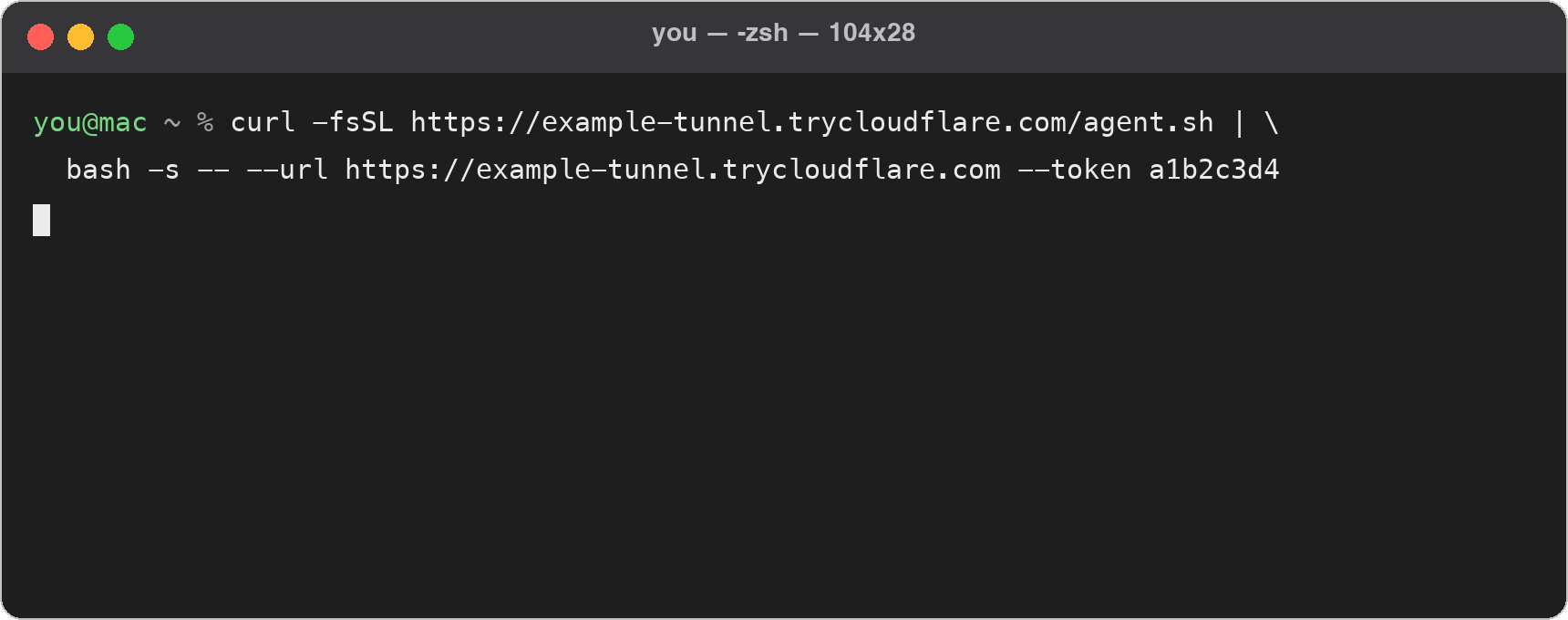
Figure 2: The macOS Terminal — paste the line your agent gave you and press Return
Ubuntu (Linux)
Ubuntu's terminal is one keyboard shortcut away:
- Press Ctrl+Alt+T. (Or open Activities, type
terminal, and click Terminal.) - Paste the command from your agent with Ctrl+Shift+V — note the extra Shift, terminals on Linux reserve plain Ctrl+V — then press Enter.
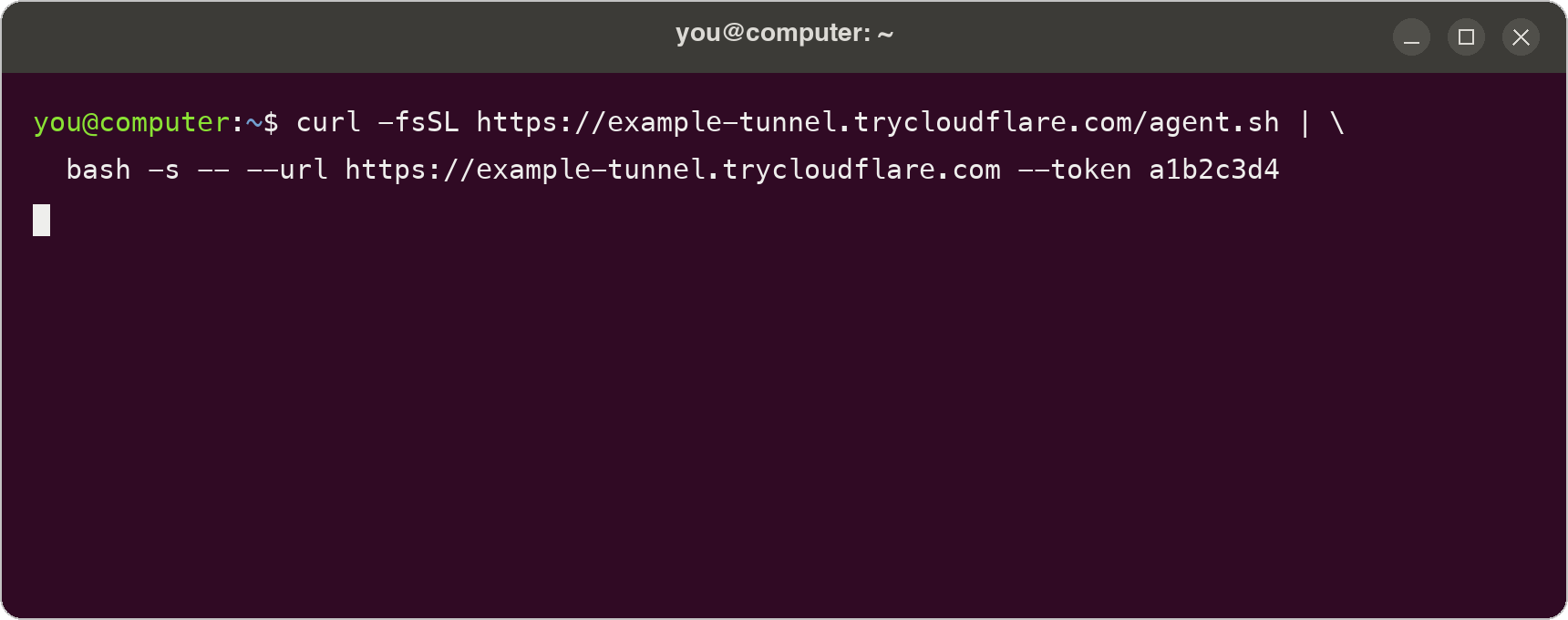
Figure 3: The Ubuntu terminal — paste the line your agent gave you and press Enter
What happens next
The command downloads a small helper and connects the old computer to your agent — nothing is installed permanently. You'll see a few lines of progress appear, and your agent will confirm in the chat that the old computer is connected. From there, everything continues in your conversation with the agent; the terminal window just needs to stay open until the agent says the transfer is done.
If the window closes or the computer sleeps mid-transfer, don't worry — run the same line again and the migration resumes where it left off.
Related pages
- Migrating to your agent — the full migration guide
- Getting started — if this is also a brand-new device