
Access Policies
Access Policies define who can use which doors and when. Configure them under Settings → Access Policies. A facility can have multiple named policies, and every policy is allow-only: it can grant access when it matches, but it cannot deny access granted by another policy or an additive grant path.
The module's top navigation is Doors, Users, and Access Logs. Access Policies live in Settings rather than as a top-level tab.
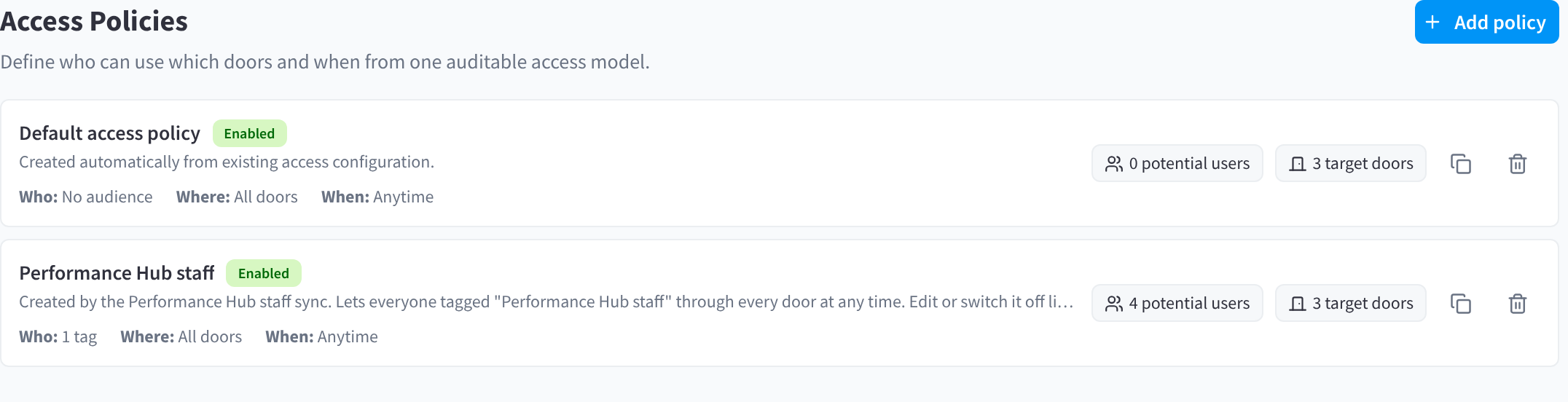
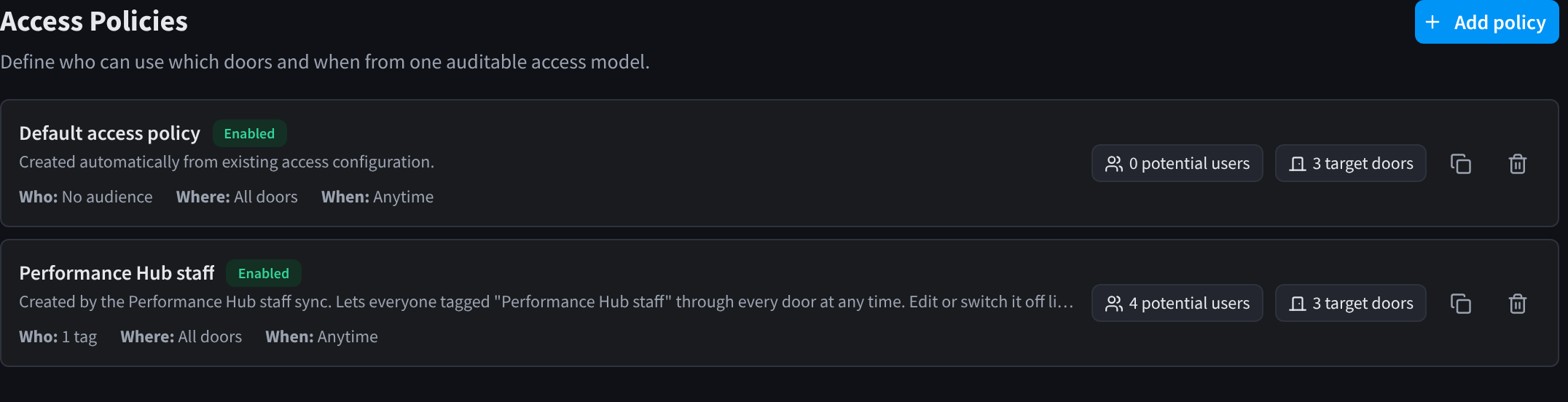
Figure 1: The Access Policies list
Each policy in the list shows whether it's enabled, a summary of its Who, Where and When, and how many potential users and target doors it covers, with buttons to duplicate or delete it.
When Performance Hub staff sync is on, the facility also has a Performance Hub staff policy. It's created once per facility and lets everyone tagged Performance Hub staff through every door at any time. Edit or disable it like any other policy.
Existing access is imported automatically
When Access Policies become available at a facility, its existing access configuration is imported automatically into named policies. Facility-wide access, different access for particular scopes or doors, and operating hours are preserved as explicit Who, Where, and When values. Administrators do not need to preview a conversion, select a rollout mode, or recreate access by hand.
Review the imported policy names and descriptions so they are meaningful to your team. Permanent per-user grants and administrator/integration Access Time Windows remain separate additive allow paths; the automatic import does not remove or change them.
How a policy matches
Each enabled policy has three parts:
- Who — person type and membership status conditions, or tags.
- When — Anytime, or one or more Weekly/One-time windows.
- Where — all doors at the facility, selected Access Scopes, selected doors, or a combination, with optional scope/door exclusions.
One policy matches only when Who AND Where AND When all match. Multiple policies are ORed together, so matching any one enabled policy is enough:
(Policy A: Who AND Where AND When)
OR
(Policy B: Who AND Where AND When)
OR ...
Within Who, any person-type/status condition or selected tag can match. A person-type condition requires the person's type to match and, when statuses are selected, their membership status to be one of them. Leaving statuses empty means Any status. Synced and custom tags both count.
Within Where, exclusions always win for that policy. For example, an all-facility policy with a Staff-only Access Scope excluded applies to every door except doors in that scope. Another policy can still allow one of those excluded doors.
Within When, Anytime has no schedule restriction. Scheduled policies are active when any Weekly or One-time window is active. Windows inside a policy are ORed together.
Creating and managing policies
Use Add policy to start from Active members on a daily schedule, Staff anytime, Contractors on selected doors, One-time event access, or a blank policy. Templates start disabled so they cannot grant access before review. Give each policy a unique name, optionally add a description, configure Who → When → Where, review its potential user and door impact, then enable it.
Policies can be duplicated; the copy retains Who, Where, and When but starts disabled. An empty Who matches nobody, and a policy must target the facility, at least one door, or at least one Access Scope.
Common examples
- Gym members: active Member records, all public doors, daily staffed or operating hours.
- 24/7 coworking members: a premium tag, selected entrances and meeting rooms, Anytime.
- Staff: a staff tag, all doors, Anytime.
- Contractors and cleaners: a contractor type/tag, selected service doors, a limited Weekly schedule.
- Students after hours: an enrolled-student tag, the studio doors, a Weekly evening schedule.
- One-time event: an event tag, selected venue entrances, one One-time window.
Automated Messages
Settings → Automated Messages contains dashboard messages keyed to membership status, person type, or tags (for example, an expired-membership notice). Message automation is independent of door authorisation and is documented in App Messaging.
Saving
Changes are not applied until you click Save changes in the save bar. Discard reverts the draft. Saved policy changes apply to subsequent server authorisation decisions; no door restart is required.
Related pages
- How access decisions work
- Access Policy Schedules
- Access Scopes
- Users — per-user grants
- App Messaging