
Holiday hours
Holiday Hours covers public holidays and the other days your facility keeps different hours, such as a staff training day, a stocktake, a school pupil-free day or a venue's private event. "Holiday hours replace your staffed hours on that date. Unstaffed/extended hours still apply, so a holiday with no hours falls back to the unstaffed hours for that day, and is only closed if there are none."
Quick reference
Where to find it: Settings (cog icon) → Facility & System Configuration → Facility Hours → Holiday Hours
Who can access: Users with Facility & System Configuration access at the facility
Purpose: Make sure doors, screens and audio follow the right hours on public holidays and special days
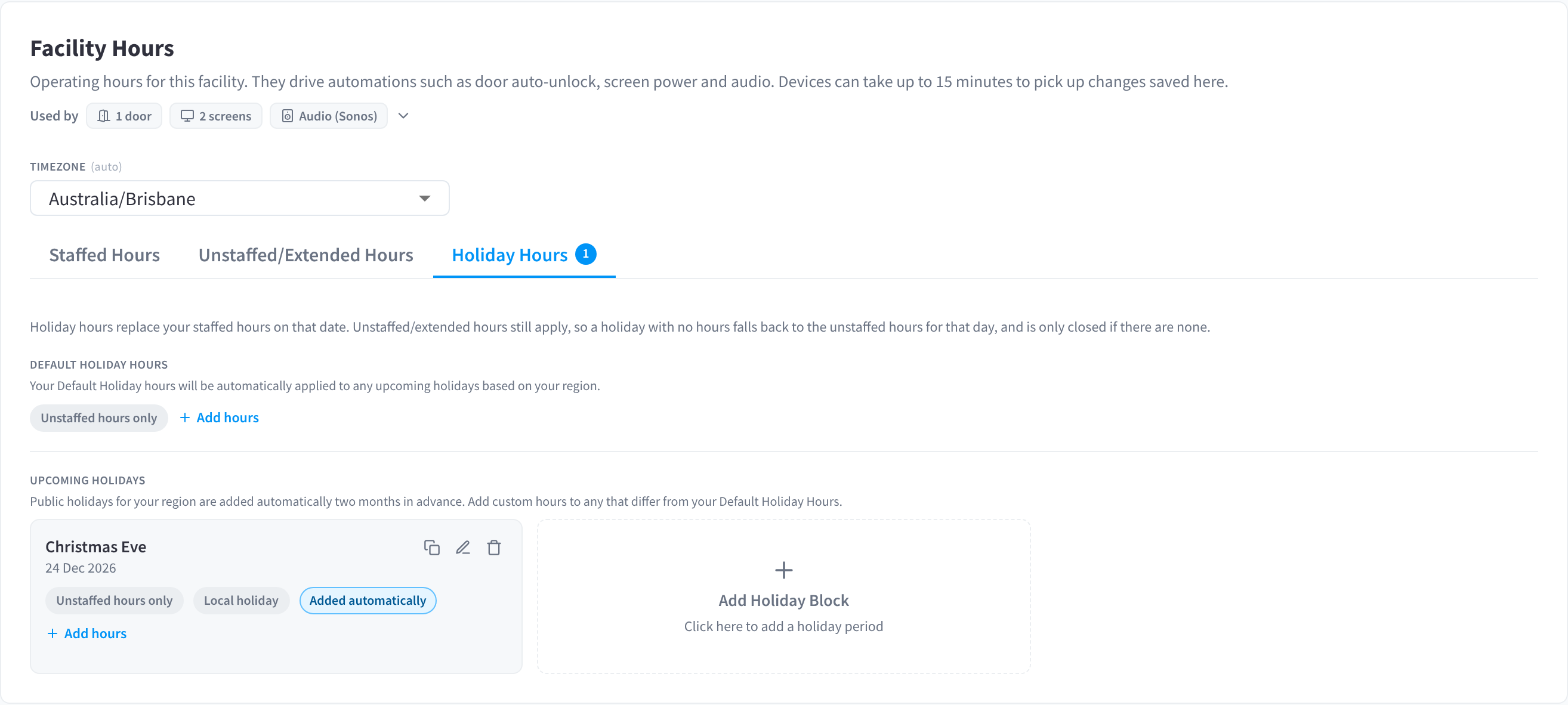
Figure 1: Holiday Hours: Default Holiday Hours and Upcoming Holidays
How holiday hours work
On a holiday:
| You set | What happens that day |
|---|---|
| Hours for the holiday | They replace the day's staffed hours |
| No hours (Unstaffed hours only) | No staffed hours. The facility uses its Unstaffed/Extended hours for that day |
| No hours, and no unstaffed/extended hours that day | The facility is closed |
For example, a 24/7 gym with no staffed hours on Christmas Day still lets members in during its extended hours, while an office with no extended hours stays closed.
Default Holiday Hours
"Your Default Holiday hours will be automatically applied to any upcoming holidays based on your region." Set them once to the hours you usually keep on a public holiday.
- Click Add hours under DEFAULT HOLIDAY HOURS to set them, for example 9:00am - 1:00pm for a store that opens for the morning.
- Leave them as Unstaffed hours only if the facility has no staffed hours on public holidays.
- Click Save changes in the bar at the bottom of the page.
Upcoming holidays
"Public holidays for your region are added automatically two months in advance. Add custom hours to any that differ from your Default Holiday Hours."
Organisation admins choose which public holidays are added, in Holiday Management.
Each holiday shows as a card with its name and date, its hours, and chips:
- Local holiday: a public holiday for your region.
- Added automatically: added for you, not by a user.
To give one holiday different hours, click Add hours on its card, then click Save changes. A café that opens late on New Year's Day, for example, can keep its Default Holiday Hours for every other holiday.
The icons at the top right of a card are:
- Create copy: a new holiday with the same hours, for another date.
- Update: opens the holiday to change it.
- Delete: removes the holiday.
Add a holiday block
Add a holiday block for any other day with different hours: a staff training day, a stocktake, a school's pupil-free day or a venue's private event.
- Click Add Holiday Block ("Click here to add a holiday period").
- Enter a Holiday Name, for example Staff Training Day.
- Choose the Date.
- Under Hours on this day, click Add hours to set the hours. "Leave empty for no staffed hours. The facility falls back to its unstaffed hours for that day."
- Click Save/Update.
- Click Save changes in the bar at the bottom of the page.
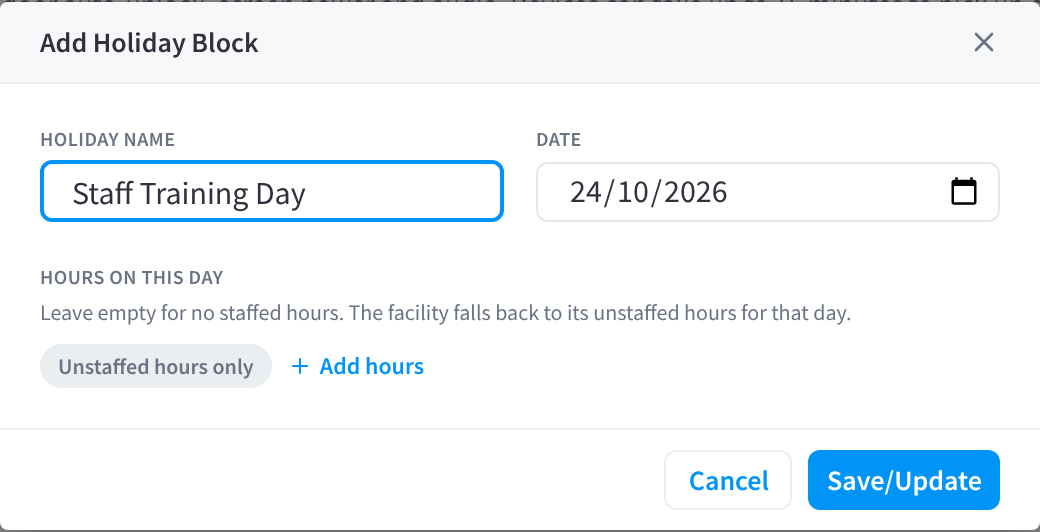
Figure 2: Add a holiday block
To change a holiday block later, click Update (the pencil icon) on its card. The dialog opens as Edit Holiday Block.
Each holiday block is one Date. For a closure over several days, such as a clinic closed between Christmas and New Year, add a block for each day; Create copy speeds this up.
Related pages
- Staffed hours: the hours holidays replace
- Unstaffed/Extended hours: the hours that still apply on a holiday
- How hours are used: what follows holiday hours
- Display Automations: what screens do on holidays with a custom schedule