
Facility settings & modules
Click a facility on the Facilities tab to open its panel. The panel slides out from the right and has two tabs: Facility Info and Modules.
Quick reference
Where to find it: Settings (cog icon) → Identity and Access Management → Facilities → a facility
Who can access: Organisation admins, and people whose role includes Identity and Access Management. Organisation notes and Delete facility are shown to organisation admins only.
Purpose: Check a facility's profile and who can work there, keep private notes on it, and choose the modules it can use
The panel header
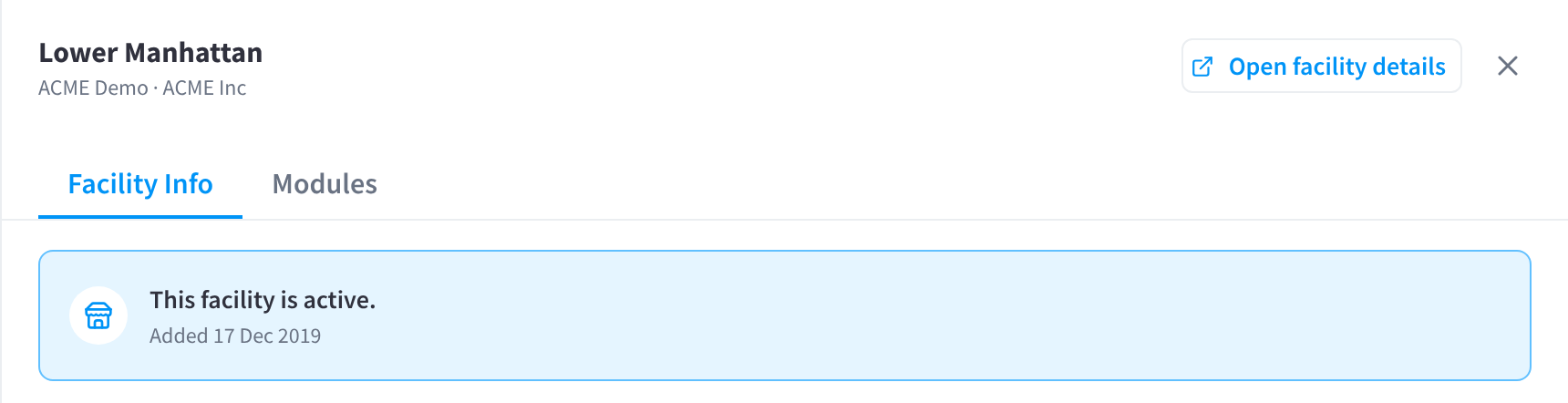
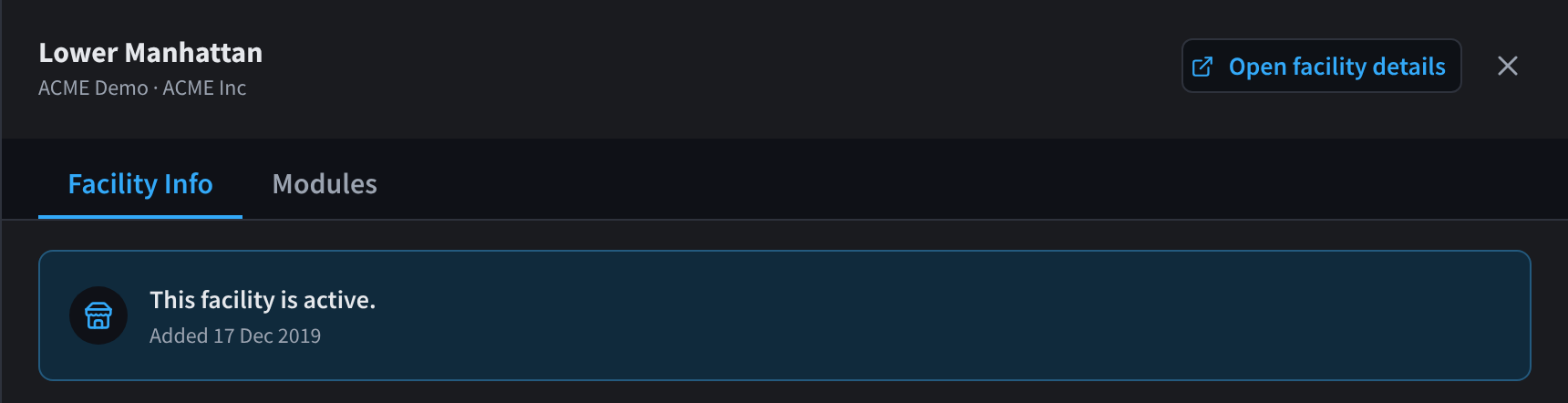
Figure 1: The panel header, tabs and Status card
The header shows:
- the facility name, with its brand and organisation below it, for example ACME Demo · ACME Inc
- Open facility details, which opens the facility in Facility & System Configuration, where you change its address, hours and other details
- the close button (×)
Two labels can appear under the name:
- Published or Unpublished, if the facility uses Website & Directory
- Unsaved module changes, while you have changes on the Modules tab that you haven't saved
Facility Info
Facility Info is a column of cards, from top to bottom:
| Card | What it shows | Who sees it |
|---|---|---|
| Status | Whether the facility is active or published, and when it was added | Everyone who can open the panel |
| Profile | Organisation, brand, address, region, time zone, contact details, Facility ID and slug | Everyone who can open the panel |
| Modules | The modules the facility can use | Everyone who can open the panel |
| Who has access | The people whose roles include this facility | Everyone who can open the panel |
| Business details | Details from the facility's Business Profile (KYC) | Only shown if the facility uses Business Profile (KYC) |
| Organisation notes | Private notes about the facility | Organisation admins only |
| Delete facility | Deletes the facility | Organisation admins only |
Status
The Status card shows "This facility is active." and the date it was added, for example Added 17 Dec 2019.
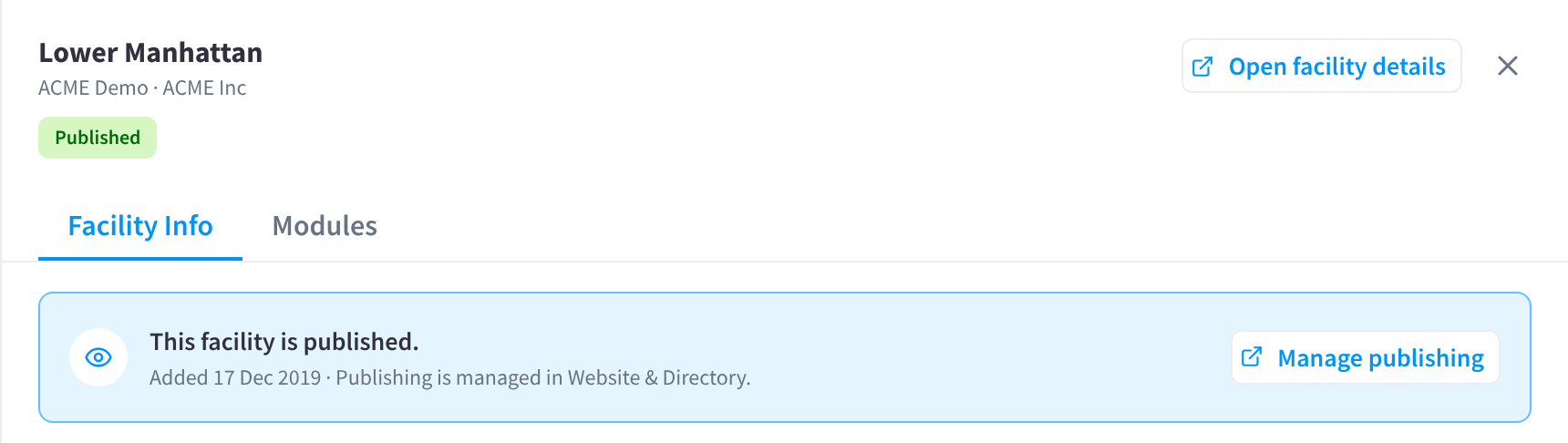
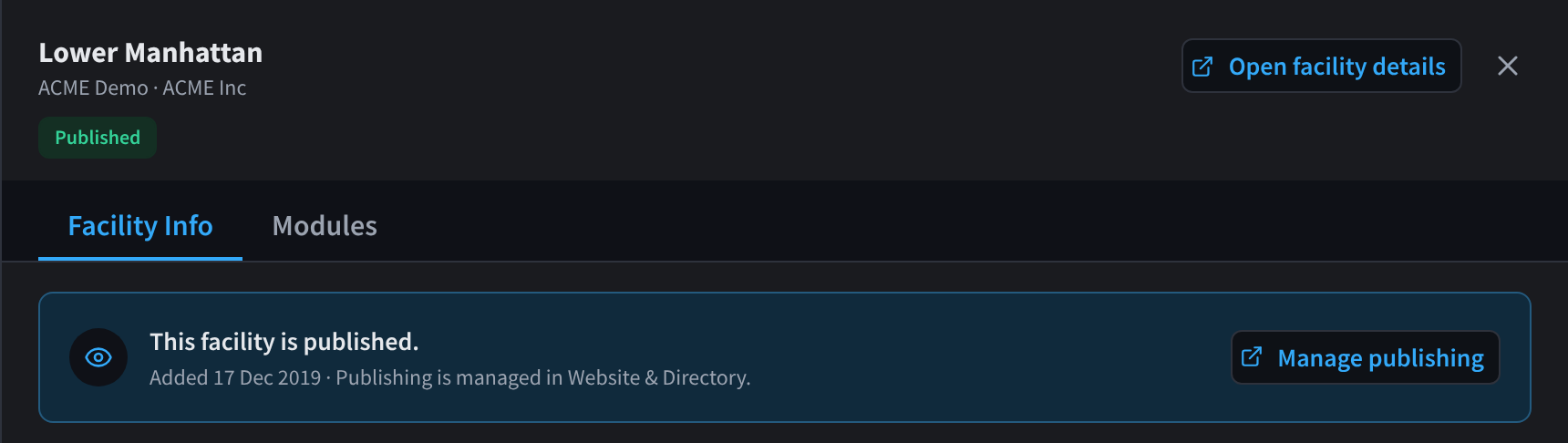
Figure 2: The Status card when the facility uses Website & Directory
Only if the facility uses Website & Directory. The card shows "This facility is published." or "This facility is unpublished" instead, with "Publishing is managed in Website & Directory." Click Manage publishing to choose whether the facility appears publicly in Website & Directory. The header shows Published or Unpublished to match.
The Profile card
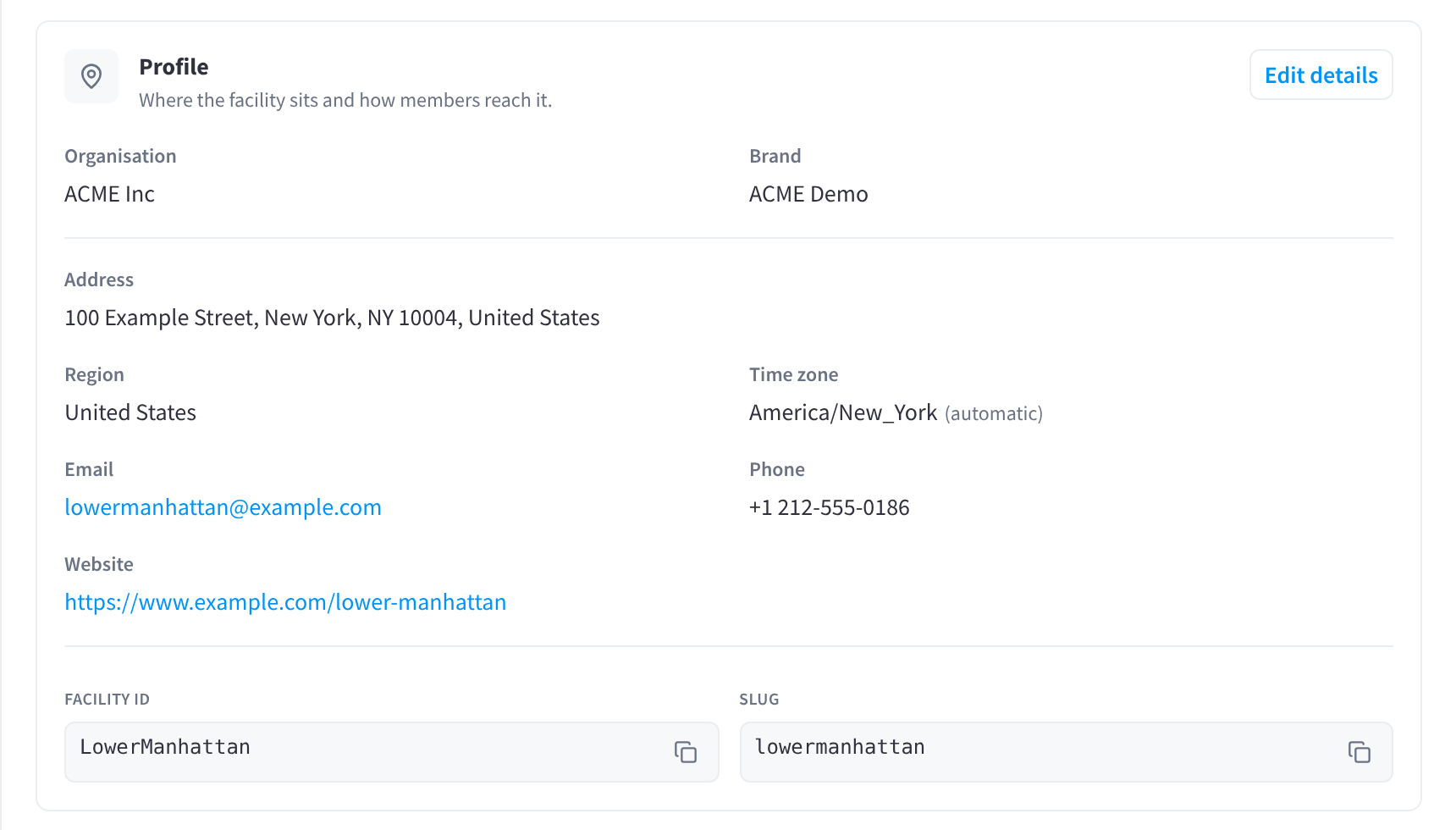
Figure 3: The Profile card
The Profile card describes where the facility is and how to contact it: "Where the facility sits and how members reach it."
| Field | What it's for |
|---|---|
| Organisation and Brand | The organisation the facility belongs to, and the brand whose branding and default modules it uses |
| Address | The facility's street address, for example 100 Example Street, New York, NY 10004, United States |
| Region | The country the facility is grouped in, for example United States. Roles scoped to Regions, and the Regions filter on the Facilities tab, use it. |
| Time zone | The time zone the facility's schedules and hours run in, for example America/New_York. It shows (automatic) while it's set from the facility's location. |
| Email, Phone and Website | How people contact the facility. The email and website are links. |
| Facility ID and Slug | Identifiers for the facility, each with a copy button. Use them when a support person or an integration asks which facility you mean. |
A field with no value shows Not set. To change any of these, click Edit details. It opens the facility in Facility & System Configuration.
The Modules card
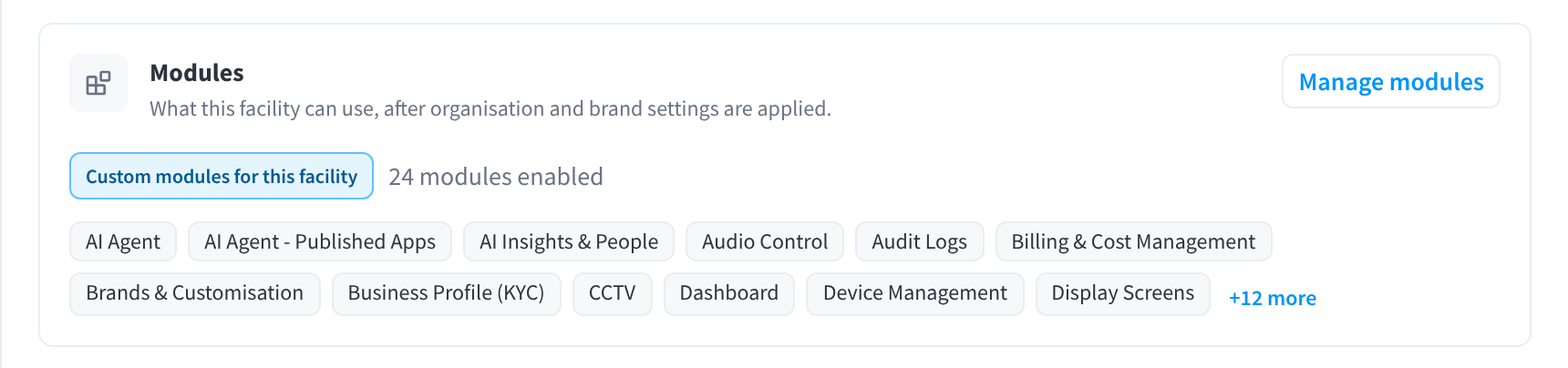
Figure 4: The Modules card
The Modules card lists "What this facility can use, after organisation and brand settings are applied."
- Using Brand Defaults or Custom modules for this facility shows where the list comes from.
- The count, for example 24 modules enabled, is how many modules the facility can use.
- The first 12 modules are listed by name. Click +12 more (the number varies) to see the rest, and Show less to fold the list again.
- If no modules are enabled, the card says "No modules are enabled for this facility."
Click Manage modules to open the Modules tab.
Who has access
Who has access lists the "Organisation members whose roles include this facility." Use it to check who can work at a site before you change roles, hand over a site, or delete a facility.
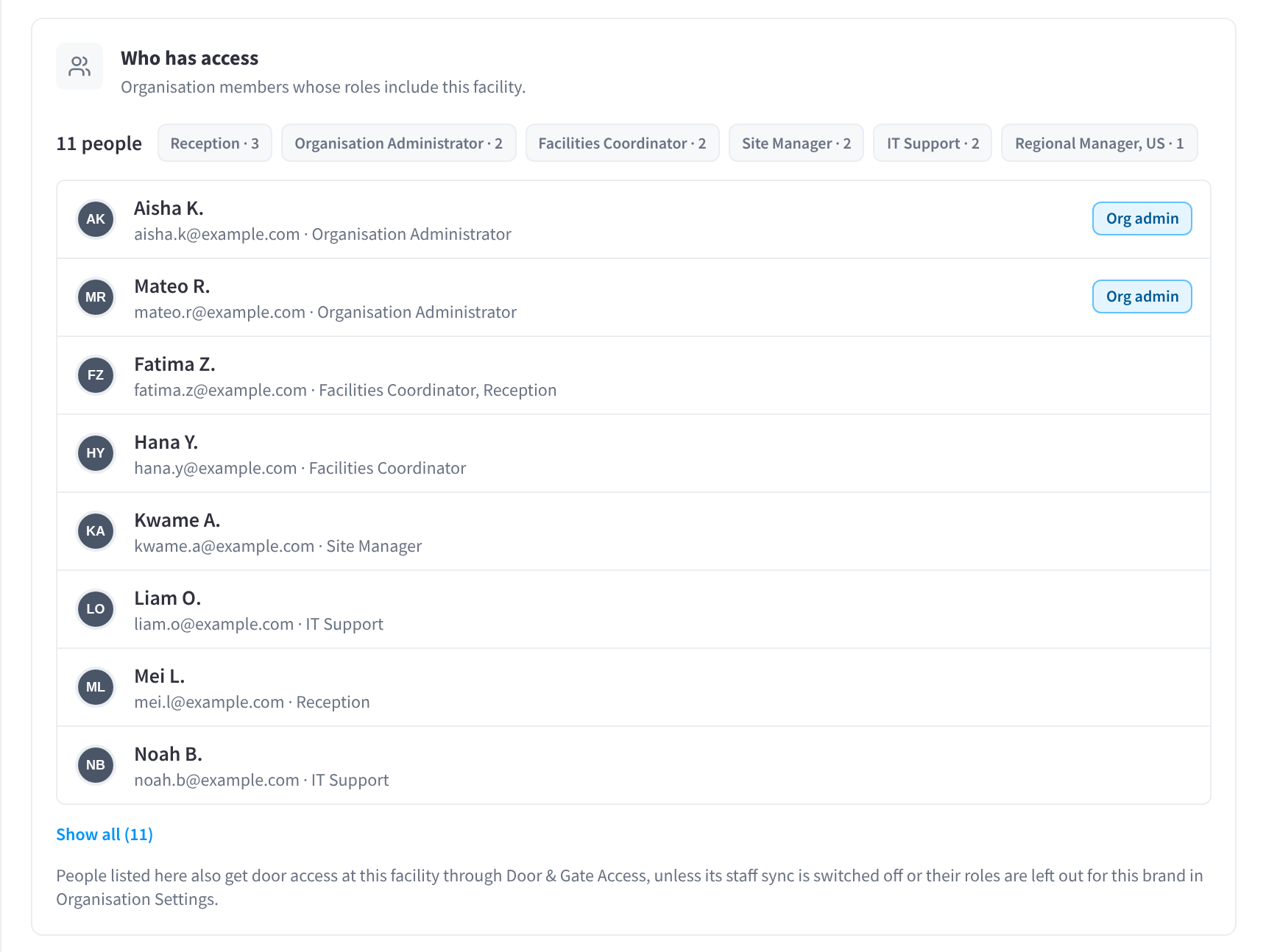
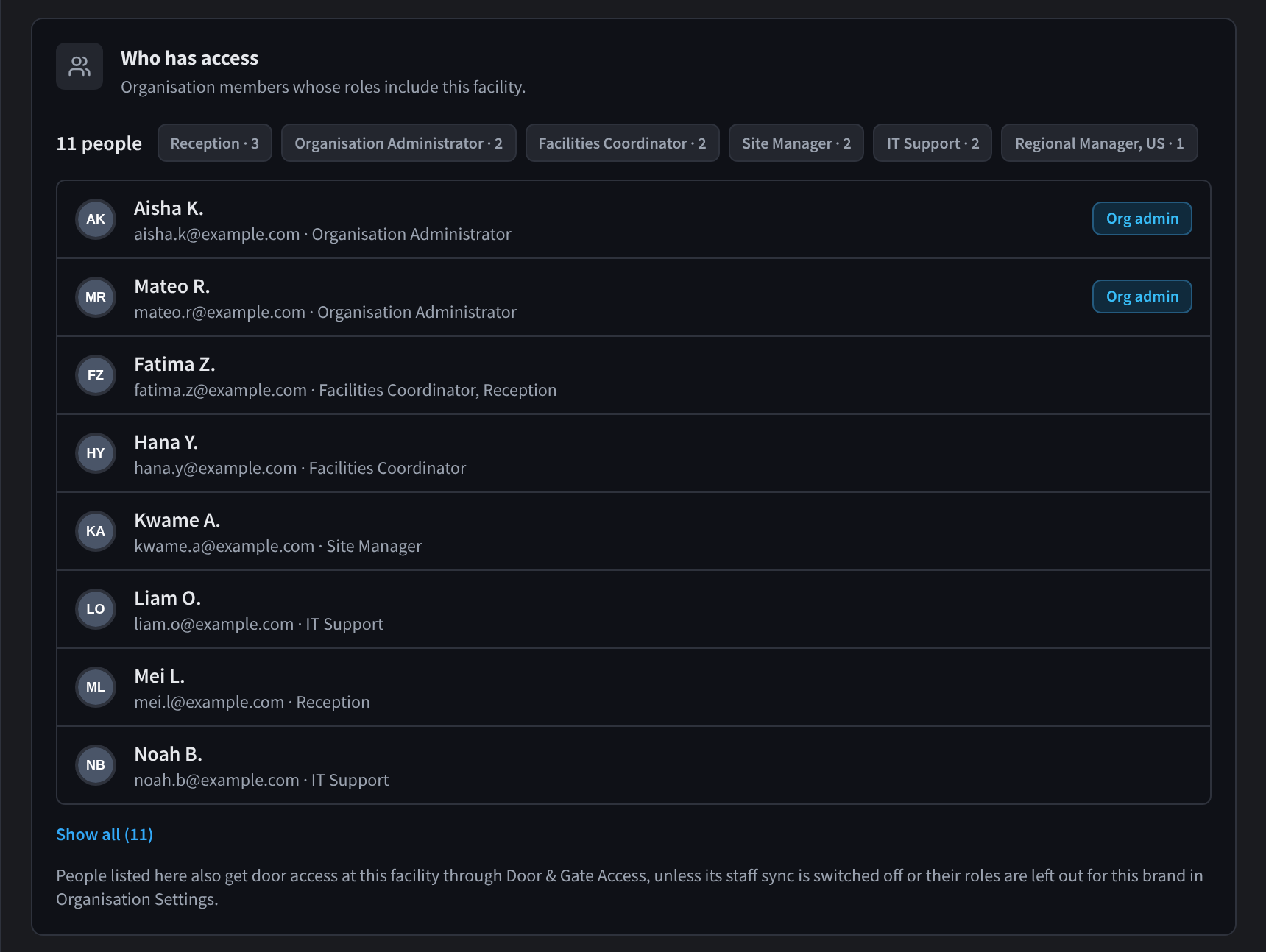
Figure 5: Who has access, as it first opens
At the top of the card:
- The number of people, for example 11 people, who reach the facility through at least one role.
- One label per role, with how many of those people have it, for example Reception · 3. The role with the most people comes first.
Each person shows:
- their picture or initials
- their name, or their email if they haven't added a name
- their email, then the roles that give them this facility, for example fatima.z@example.com · Facilities Coordinator, Reception
People with an organisation admin role are marked Org admin and listed first. Everyone else follows in alphabetical order.
The card lists the first eight people. Click Show all (11) to see everyone, and Show less to fold the list again.
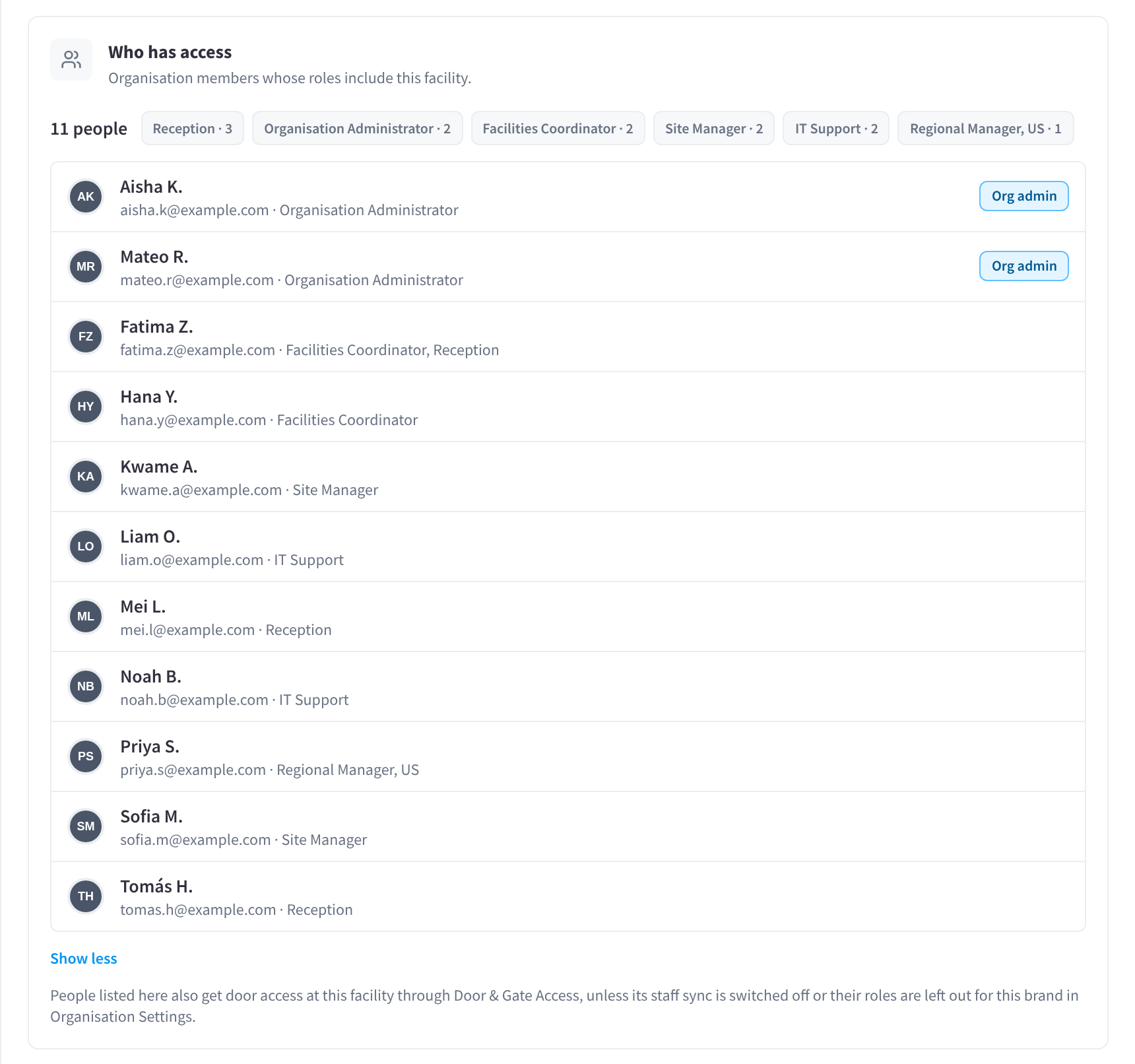
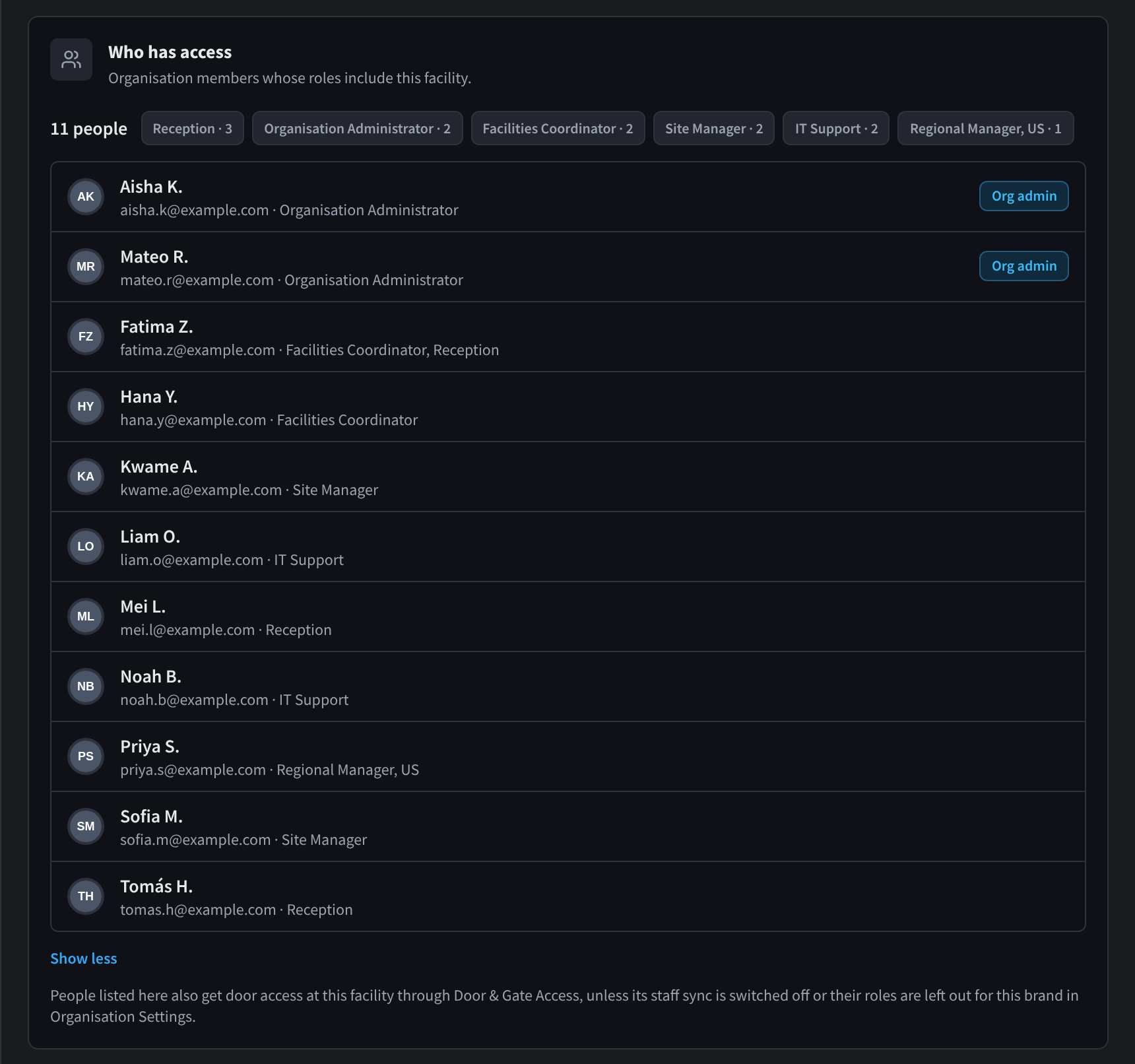
Figure 6: Who has access after Show all
How someone gets on the list. A person is listed when one of their roles covers this facility:
| The role's access scope | The person is listed when |
|---|---|
| Organisation | Always: the role covers every facility, like Organisation Administrator or IT Support in Figure 6 |
| Regions | The facility's Region is one of the role's regions, like Regional Manager, US for a facility in the United States |
| Facilities | This facility was picked for the role |
| Chosen per user | This facility, or its region, was picked for that person when they were given the role, like Site Manager or Reception in Figure 6 |
The list is based on access scope only, not on modules. A person can be listed even if their role doesn't include a particular module at this facility. To see which modules a role gives, see Access scope & module access.
Some examples:
- A regional operations manager for a chain of clinics appears on every clinic in their region.
- A front-of-house supervisor at a single venue appears only on that venue.
- A store manager whose role was given for one retail store appears on that store, but not on the other stores in the same region.
- An IT support person with organisation-wide access appears on every office, campus and gym in the organisation.
To add or remove someone, change their role or the role's access scope on the User Permissions or Roles tab. The card has no buttons of its own.
If nobody has a role that covers the facility yet, the card says "No one in this organisation has a role that includes this facility yet."
Only if the facility uses Door & Gate Access. The card ends with "People listed here also get door access at this facility through Door & Gate Access, unless its staff sync is switched off or their roles are left out for this brand in Organisation Settings." So check this list before you give someone a role that covers a site with controlled doors.
Business details
Only if the facility uses Business Profile (KYC).
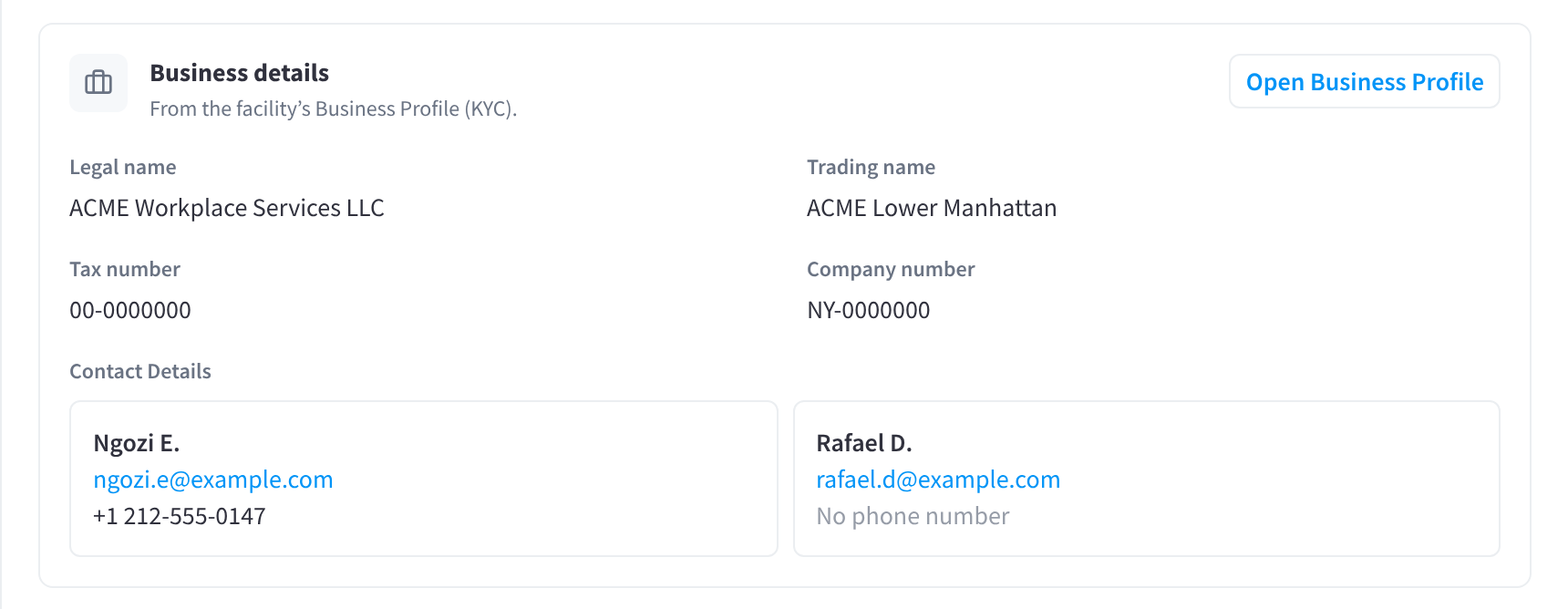
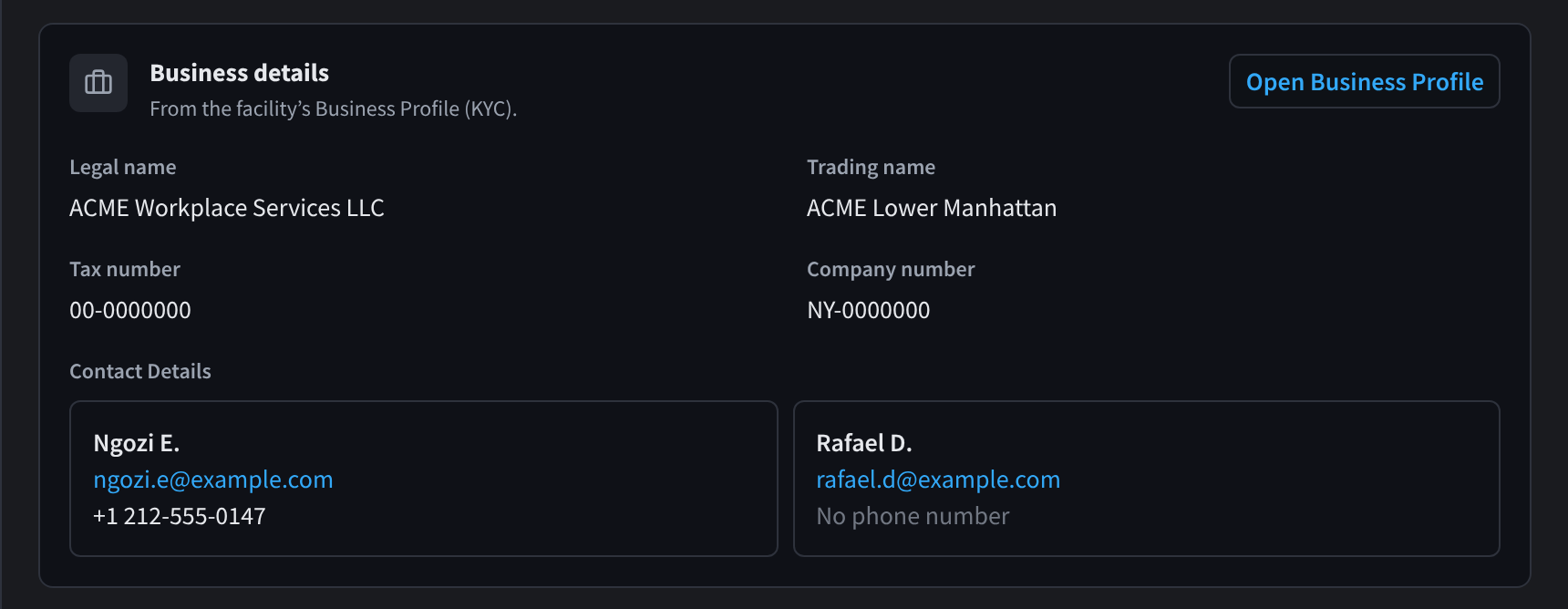
Figure 7: Business details
Business details shows what's on the facility's Business Profile ("From the facility’s Business Profile (KYC)."):
- Legal name and Trading name
- Tax number and Company number
- Contact Details: each contact's name, email and phone. If a contact has no email or phone, the card shows "No email address" or "No phone number".
A missing field shows Not set. If the profile is empty, the card says "No business details yet." Click Open Business Profile to change any of these details.
Organisation notes
Organisation admins only. "Only organisation admins can see these notes. Facility staff cannot."
Organisation notes are private notes that your organisation's admins keep about a facility, for example:
- after-hours access instructions, such as which entrance contractors use at an office tower or a hospital
- a landlord or property manager's preferred contact method
- a lease renewal date for a shopfront, clinic or studio
- cleaning or maintenance contractor visits
- who the fire wardens are
Don't store door codes, alarm codes or passwords in notes.
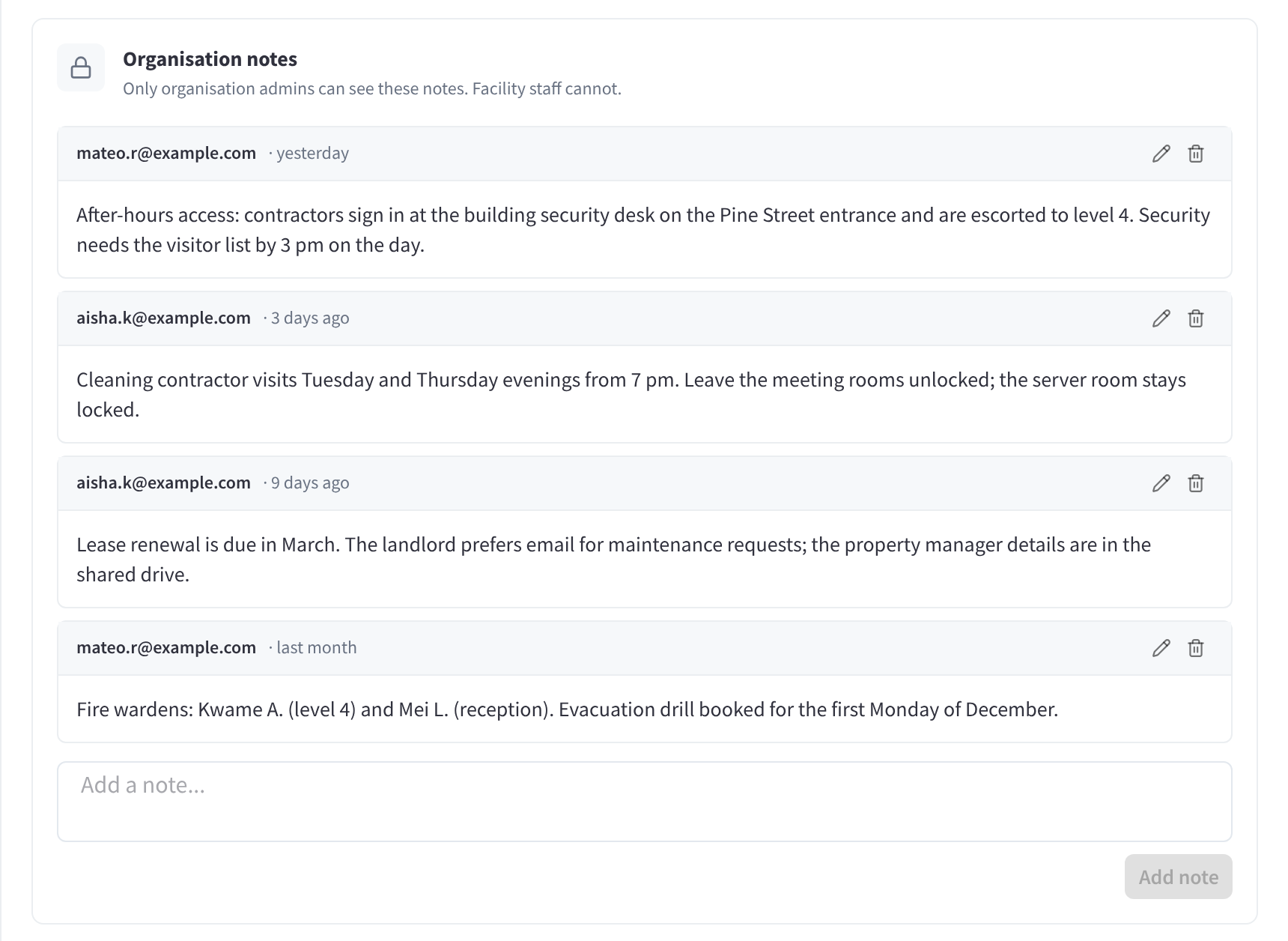
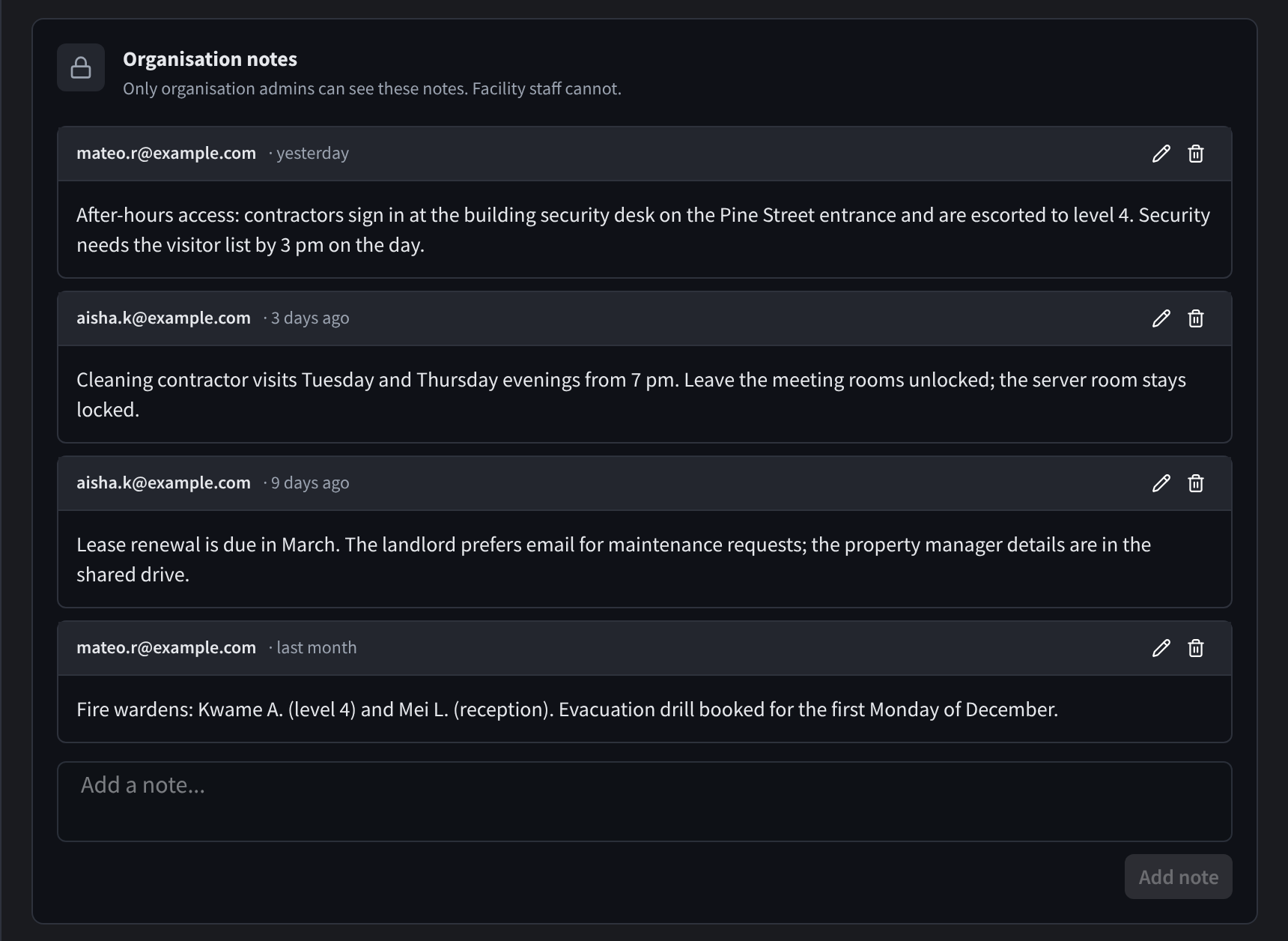
Figure 8: Organisation notes
Each note shows:
- Who last saved it: You for your own notes, otherwise the person's email
- When it was saved, for example yesterday or 3 days ago. Point at the time to see the full date and time.
- The note itself. Line breaks are kept.
The most recently saved note is at the top.
To add a note:
- Type in Add a note....
- Click Add note. The button stays greyed out until you type something.
To edit a note:
- Click its pencil button.
- Change the text.
- Click Save, or Cancel to keep the note as it was. Save stays greyed out until you change something.
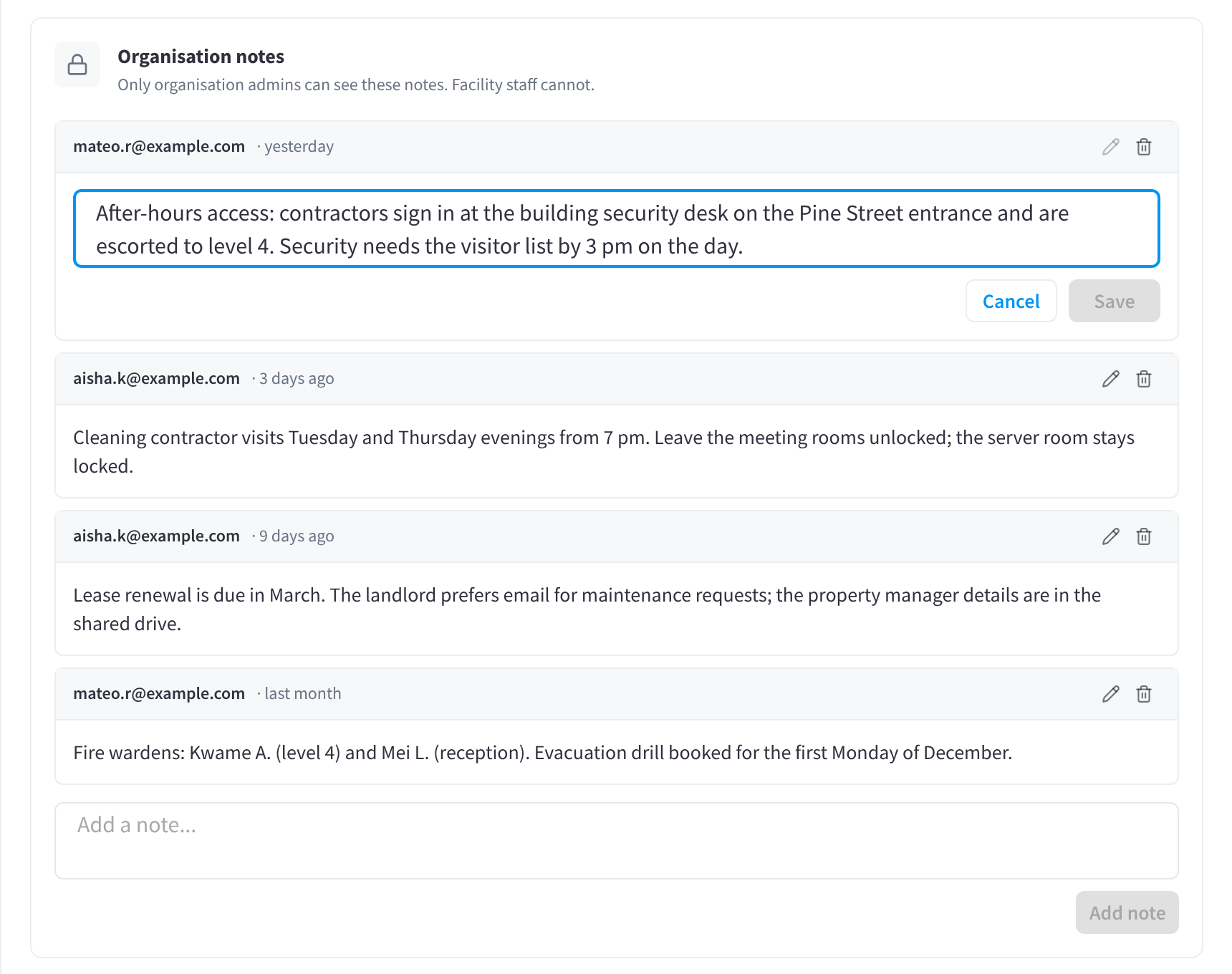
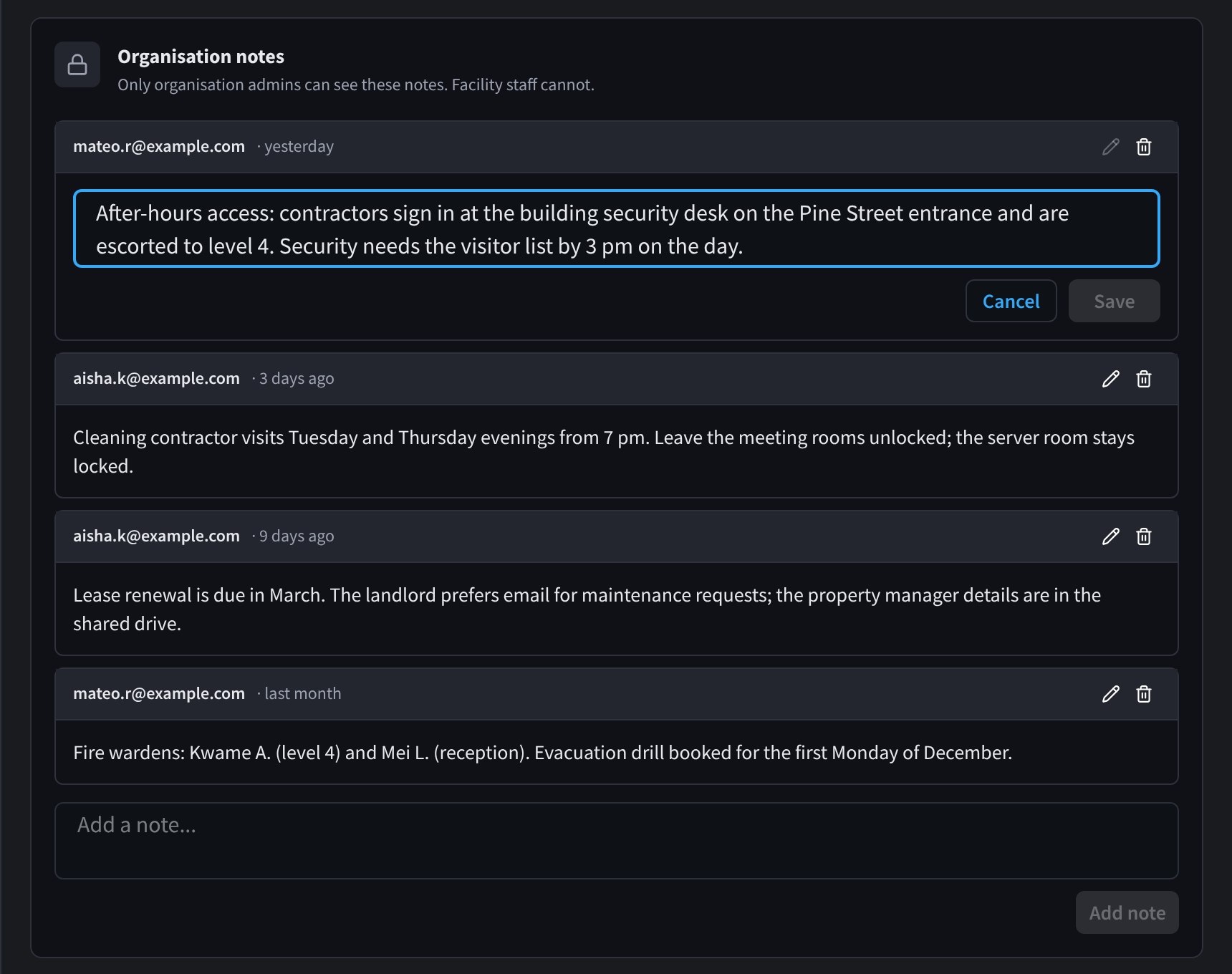
Figure 9: Editing an organisation note
To delete a note: click its bin button, then Delete to confirm. The confirmation asks "Delete note?" and says "This note will be removed for everyone."
Any organisation admin can edit or delete any note, not just their own. A note shows only who saved it last, so put your name in the text if the original author matters. If saving fails, the card shows an error, for example "Something went wrong. Please try again."
If there are no notes yet, the card says "No notes yet."
Delete facility
Organisation admins only.


Figure 10: The Delete facility card
"Remove its devices and settle its bills first. Deleted facilities are hidden from everyone and can be restored for 30 days." Click Delete facility to start. See Deleting & restoring facilities.
The Modules tab
A facility can use the modules its brand uses by default, or its own list.
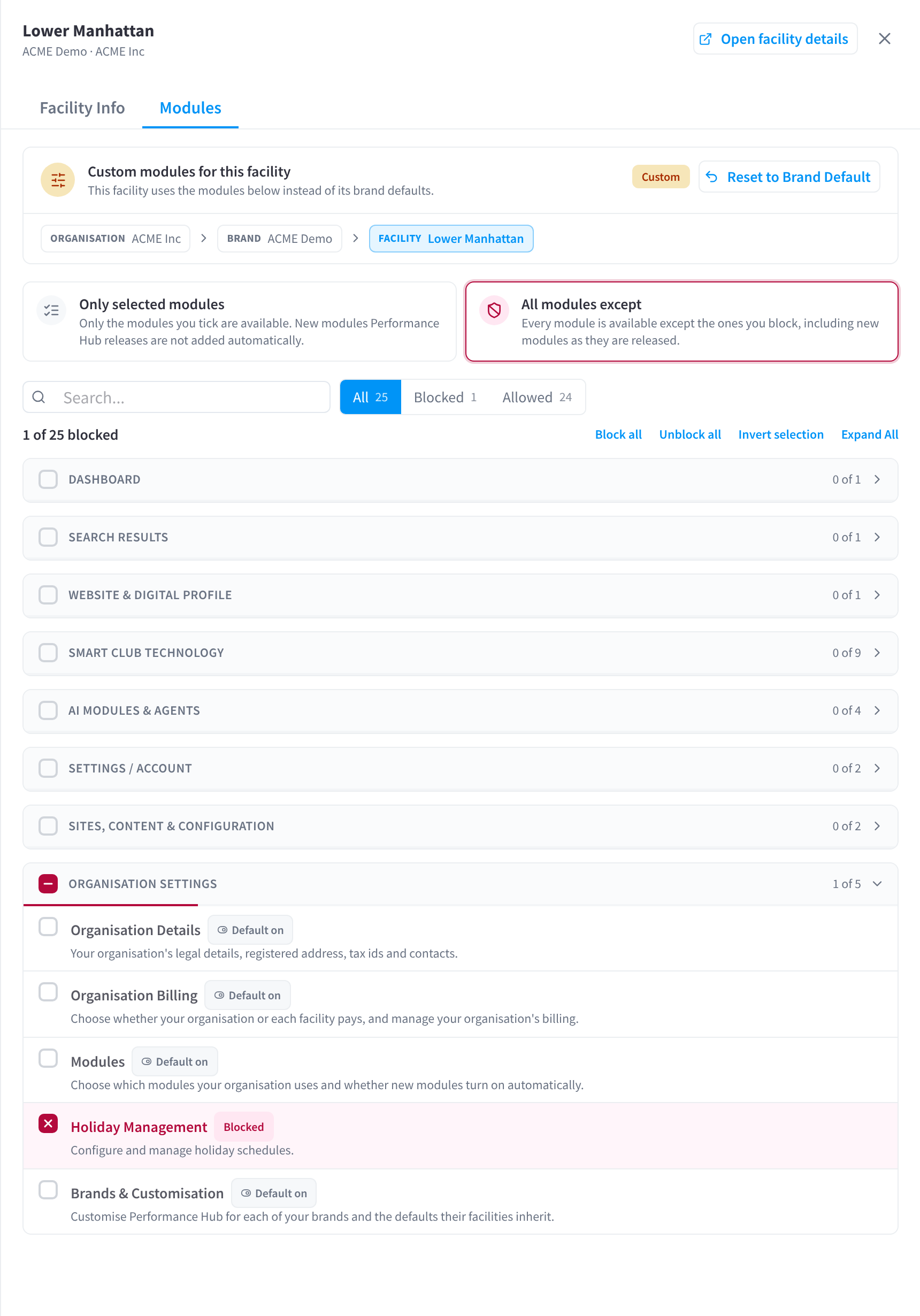
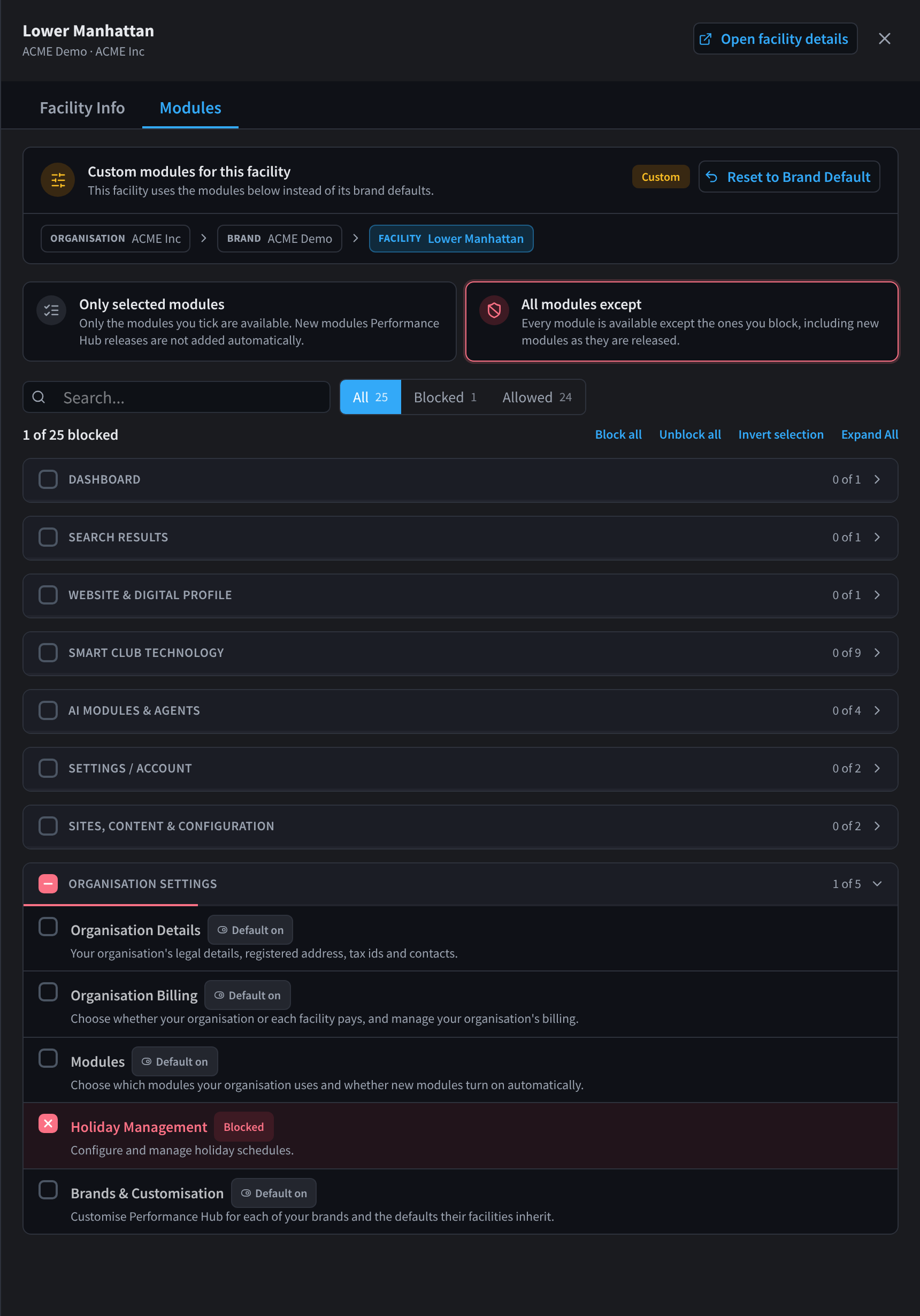
Figure 11: The Modules tab
- The path at the top, for example Organisation ACME Inc › Brand ACME Demo › Facility Lower Manhattan, shows where the facility's modules come from.
- Using Brand Defaults means "This facility gets the same modules as its brand. Customise to choose a different set for this facility only." Click Customise for this facility to start.
- Custom modules for this facility means "This facility uses the modules below instead of its brand defaults." It's marked Custom.
- Reset to Brand Default removes the facility's own list. It asks "Reset to Brand Default?" first, because "This will remove all custom module settings for this facility. It will inherit modules from its brand." Click Yes, reset to go back to the brand's modules.
To choose custom modules, pick how the list is read, then block or allow modules:
| Option | What it means |
|---|---|
| Only selected modules | "Only the modules you tick are available. New modules Performance Hub releases are not added automatically." |
| All modules except | "Every module is available except the ones you block, including new modules as they are released." |
To work through the list:
- The search box finds a module by name or description.
- All, Blocked and Allowed filter the list. With Only selected modules they read All, Selected and Not selected.
- The count above the list, for example 1 of 25 blocked, shows how many modules you've blocked. With Only selected modules it reads, for example, 24 of 25 selected.
- With All modules except, use Block all and Unblock all. With Only selected modules, use Select all and Clear all. These buttons act only on the modules currently shown, so search or filter first to change just those.
- Invert selection flips the modules currently shown: blocked ones become allowed, and allowed ones become blocked.
- Expand All and Collapse All are one button that opens or closes every group.
To save your changes:
Changes on the Modules tab aren't saved straight away. While you have unsaved changes, the header shows Unsaved module changes.
- Click Save Module Changes to save them, or Discard to undo them.
- With Only selected modules, if no modules are ticked, Performance Hub asks you to confirm in a "No Modules Selected" dialog: "Saving with no modules selected will disable all modules for this facility. Continue?" Click Yes, disable all only if the facility really should have no modules. With All modules except, blocking every module saves without asking.
For example:
- block Holiday Management at a corporate office that doesn't publish holiday hours
- block the AI modules at a clinic or retail store whose staff haven't been trained on them yet
- allow only Display Screens and Door & Gate Access at a small satellite office or a car park
A facility's modules set what anyone can use there. People's roles then decide which of those modules each person can use.
Related pages
- Facilities: the Facilities tab
- Roles: access scope and who a role covers
- Access scope & module access: which modules a role covers
- Deleting & restoring facilities
- Facility & System Configuration: the facility's details, location and hours