
Facilities
A facility is one of your sites: an office, a store, a restaurant or venue, a campus, a clinic or a gym. Each facility belongs to a brand and a region in your organisation. The Facilities tab lists them all.
Quick reference
Where to find it: Settings (cog icon) → Identity and Access Management → Facilities
Who can access: Organisation admins, and people whose role includes Identity and Access Management
Purpose: See, add and manage your organisation's facilities
The Facilities tab
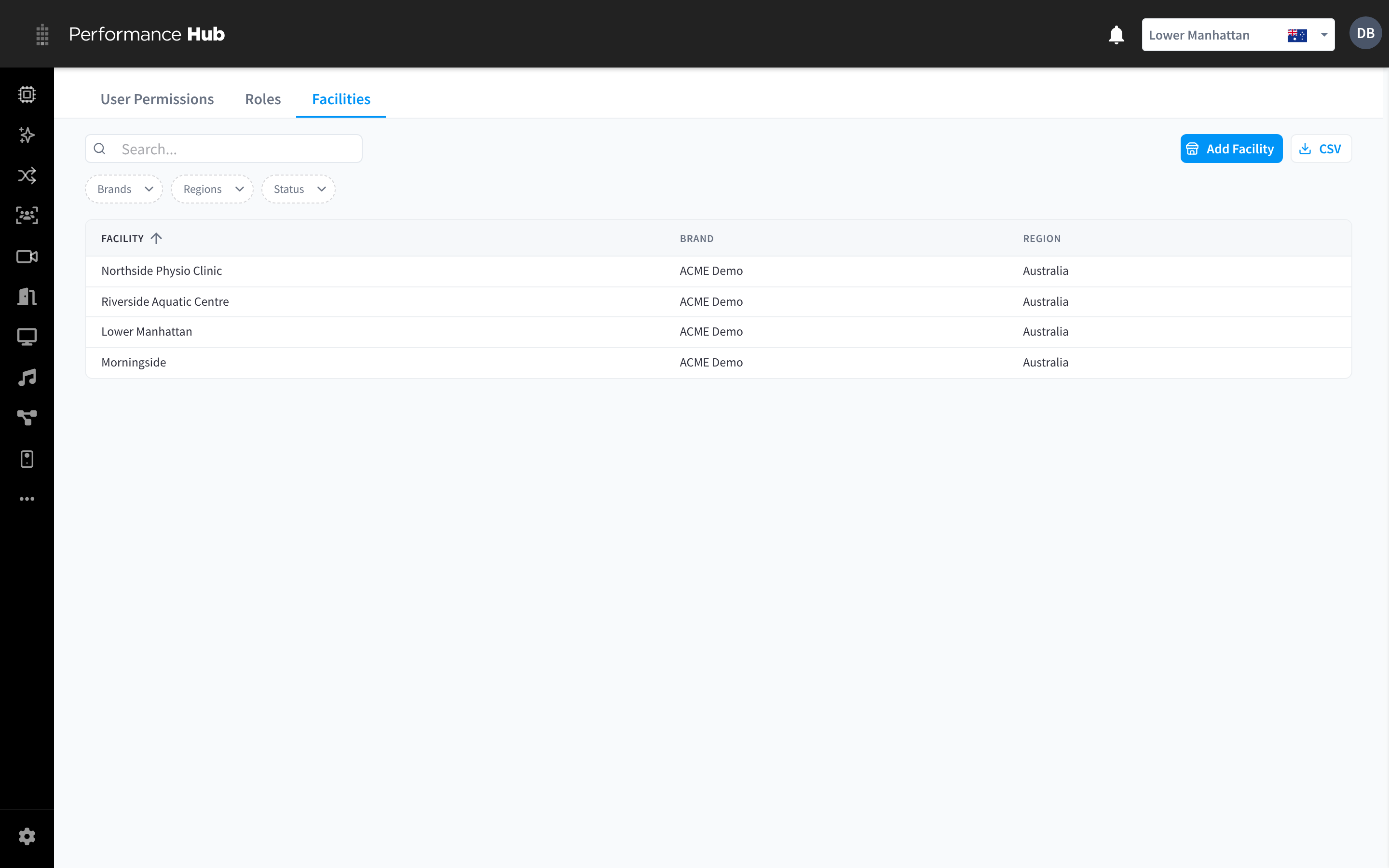
Figure 1: The Facilities tab, with Brands, Regions and Status filters
| Column | What it shows |
|---|---|
| Facility | The facility name, for example Northside Physio Clinic or Riverside Aquatic Centre |
| Brand | The brand it belongs to |
| Region | The region it belongs to |
Above the list:
- Search finds facilities.
- The filters Brands, Regions and Status narrow the list. Status shows Active facilities; organisation admins can also choose Recently deleted.
- Add Facility adds a facility.
- CSV downloads the list.
Only shown if your organisation has Business Suite. Facilities are also marked Published or Unpublished, depending on whether they appear publicly in Website & Directory, and Status can show only Published or only Unpublished facilities.
Click a facility to open it. See Facility settings & modules.
Facilities and access
A person can only work with a facility if one of their roles covers it. A role covers a facility when:
- the role's access scope is Organisation, or
- the facility is in a region the role covers, or
- the facility was picked for the role, or for that person when the role's access is chosen per user.
To see who can work with a facility, open it and check Who has access. See Facility settings & modules.
Related pages
- Adding facilities: add a new site
- Facility settings & modules: a facility's profile, access and modules
- Deleting & restoring facilities: delete a facility, or restore it
- Facility & System Configuration: a facility's details, location and hours