
Investigation examples
These examples show how to answer common questions with Audit Logs. Each one gives the question, the filters and clicks to use, and what to look for. The same steps work in any kind of site, so adapt the filters to your own question.
Quick reference
Where to find it: Settings (cog icon, bottom left) → Audit Logs
Who can use it: You need a role that includes Audit Logs and Identity & Access Management in your organisation, such as Organisation Administrator. See Who can use Audit Logs.
Purpose: Go from a question to the requests that answer it
Who unlocked the front entrance?
A gym or leisure centre: the front entrance was unlocked remotely and the duty manager wants to know who did it and why.
- On the Logs tab, click Endpoint, type
/api/door-gate-access/*and click Apply. The list shows only Door & Gate Access requests. - Set Range to cover the time of the unlock.
- Click the request whose endpoint ends in
/front-entrance/unlock.
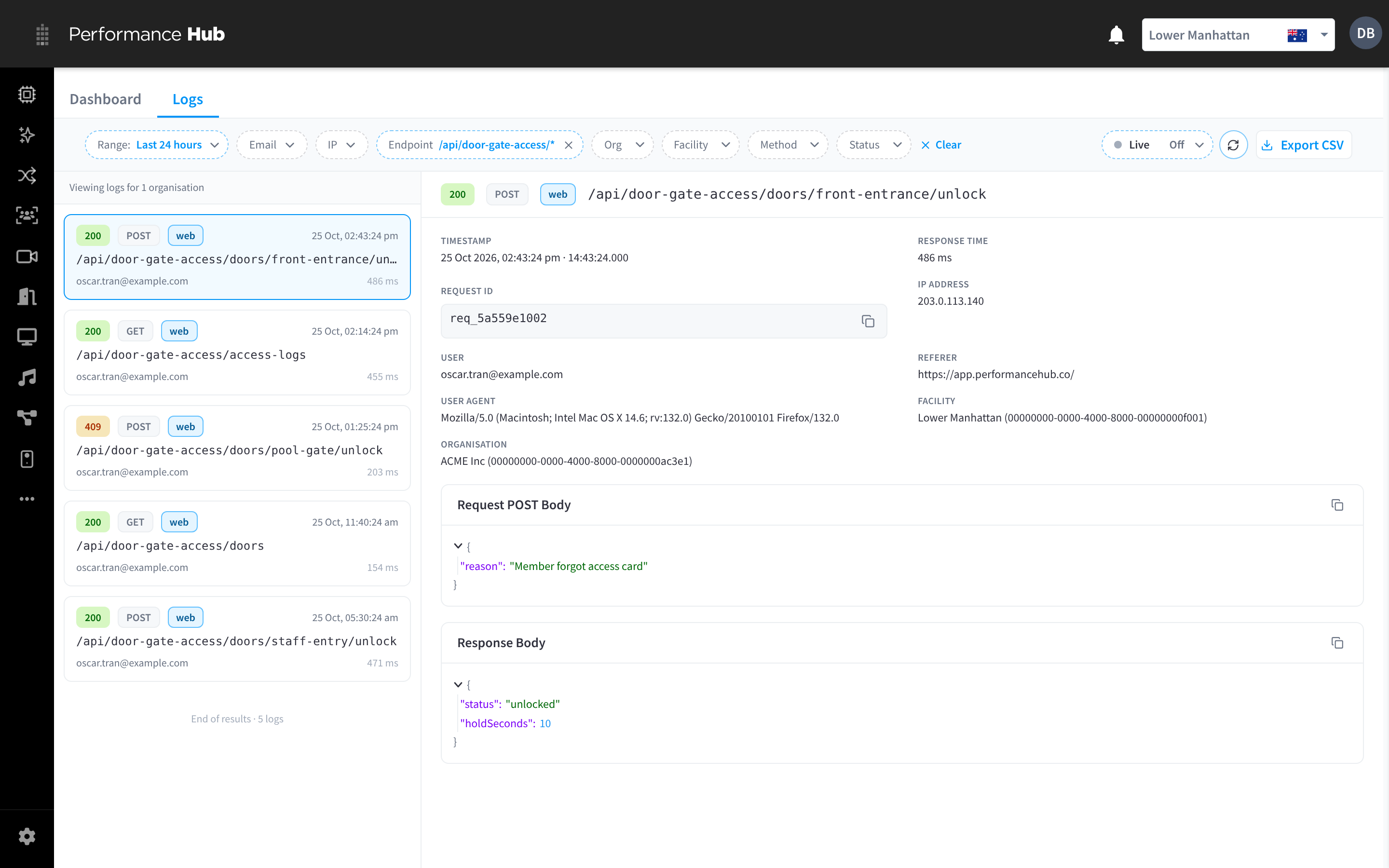
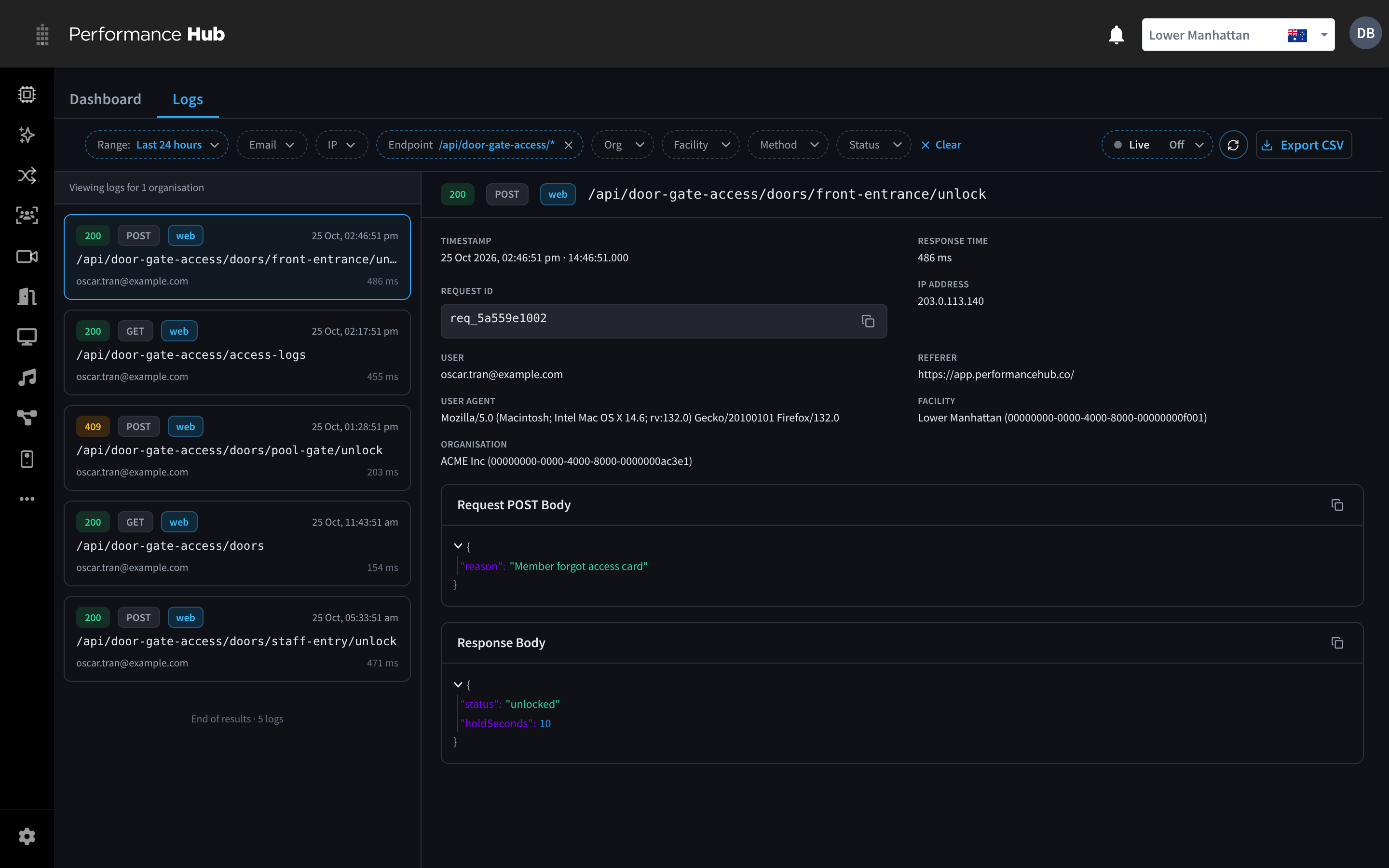
Figure 1: Every door request, with the front entrance unlock open
What to look for: User shows who unlocked the door, here oscar.tran@example.com. The Request POST Body shows the reason they gave, "Member forgot access card", and the Response Body shows that the door unlocked.
Next: check the door's own record in Door & Gate Access Access Logs, which records every unlock attempt at the door, including from the mobile app.
Why couldn't a staff member change someone's role?
A physiotherapy clinic: a coordinator tried to give a colleague a new role, and it didn't work.
- On the Logs tab, click Status and choose 403 Forbidden.
- Click the 403 Forbidden request from the time of the role change.
- In AI Error Summary, click Generate summary.


Figure 2: The summary explains why the role change was refused
What to look for: the summary says the person "does not have permission to assign that role". Check it against the Response Body, which says "You don't have permission to assign this role." The Request POST Body shows which role they tried to give.
Next: ask an Organisation Administrator to make the change, or review the person's role. See Changing a user's roles and Role templates.
Our booking integration stopped syncing overnight
An aquatic centre or council facility: check-ins from the booking system stopped appearing overnight.
- On the Logs tab, click Endpoint, type
/partner/v1/*and click Apply. - Set Range to Last 24 hours.
- Look at the status at the start of each row, then click the failed requests to read their Response Body.
What to look for: requests with the api-key badge from integrations@example.org. Here the list shows 429 Too Many Requests, where the integration sent too many requests in a short time, and 503 Service Unavailable. Note when the failures started and whether successful requests followed.
Next: click Export CSV and send the file to the integration partner so they can check their side. See Exporting logs and the Partner API Errors page.
A webhook didn't save
A café, store or hospitality venue: a manager set up a webhook to send visitor details to another system, and it didn't save.
- On the Logs tab, click Email and type the manager's full email address, here leo.hargreaves@example.com.
- Find the two POST requests from when the manager saved the webhook: a 400 Bad Request and a 201 Created on the same endpoint.
- Click the 400 Bad Request, then the 201 Created a few minutes later, and compare them.
What to look for: the Response Body of the 400 says "url must start with https://". In its Request POST Body, the address has no https:// at the start. In the 201, the manager had added https://, and the webhook saved.
Next: for a failed request, click Generate summary for a plain-language explanation. See AI Error Summary.
What did a departing staff member do last week?
An office or co-working site: before a staff member leaves, their manager wants a record of their recent activity.
- On the Logs tab, click Email and type the person's full email address.
- Set Range to Last 7 days.
- Scroll to the bottom of the list so every request loads. The export only includes the loaded rows.
- Click Export CSV, then Export.
What to look for: changes rather than reads. Set Method to POST, PUT, PATCH or DELETE in turn to see the requests that created, changed or removed things. For anything unexpected, open the request and read its Request POST Body.
Next: when they leave, remove their access. See Removing users. Store the CSV file in line with your organisation's policy.
Which site had the most failed requests?
A multi-site operator: several sites reported problems yesterday, and head office wants to know where to start.
- On the Dashboard tab, set Window to cover the day.
- In Errors Over Time, click the bucket where errors were highest. The Logs tab opens with the failed requests from that time.
- Click Facility and choose each site in turn, and compare how many failed requests each one has.
What to look for: a site with many more failures than the others, or failures on one endpoint. Open a few of its requests and read the Response Body or click Generate summary.
Next: see The dashboard for the other charts, and Facilities for the sites in your organisation.
Related pages
- Finding requests: every filter
- Reading a log entry: the fields, bodies and status codes
- Exporting logs: CSV export