
Reading a log entry
Click a request in the list on the Logs tab to open its details on the right. The details show when the request was made, who made it and from where, what was sent and what came back. For a failed request, you can also ask for a plain-language summary of the error.
Quick reference
Where to find it: Settings (cog icon, bottom left) → Audit Logs → Logs, then click a request
Who can use it: You need a role that includes Audit Logs and Identity & Access Management in your organisation, such as Organisation Administrator. See Who can use Audit Logs.
Purpose: See exactly what happened in one request
Open a log entry
- On the Logs tab, filter the list to the requests you need.
- Click a request. Its details open on the right, and the request is highlighted in the list.
- Use the up and down arrow keys to step through the list without leaving the details.
The top of the details repeats the status, method, source badge and endpoint.
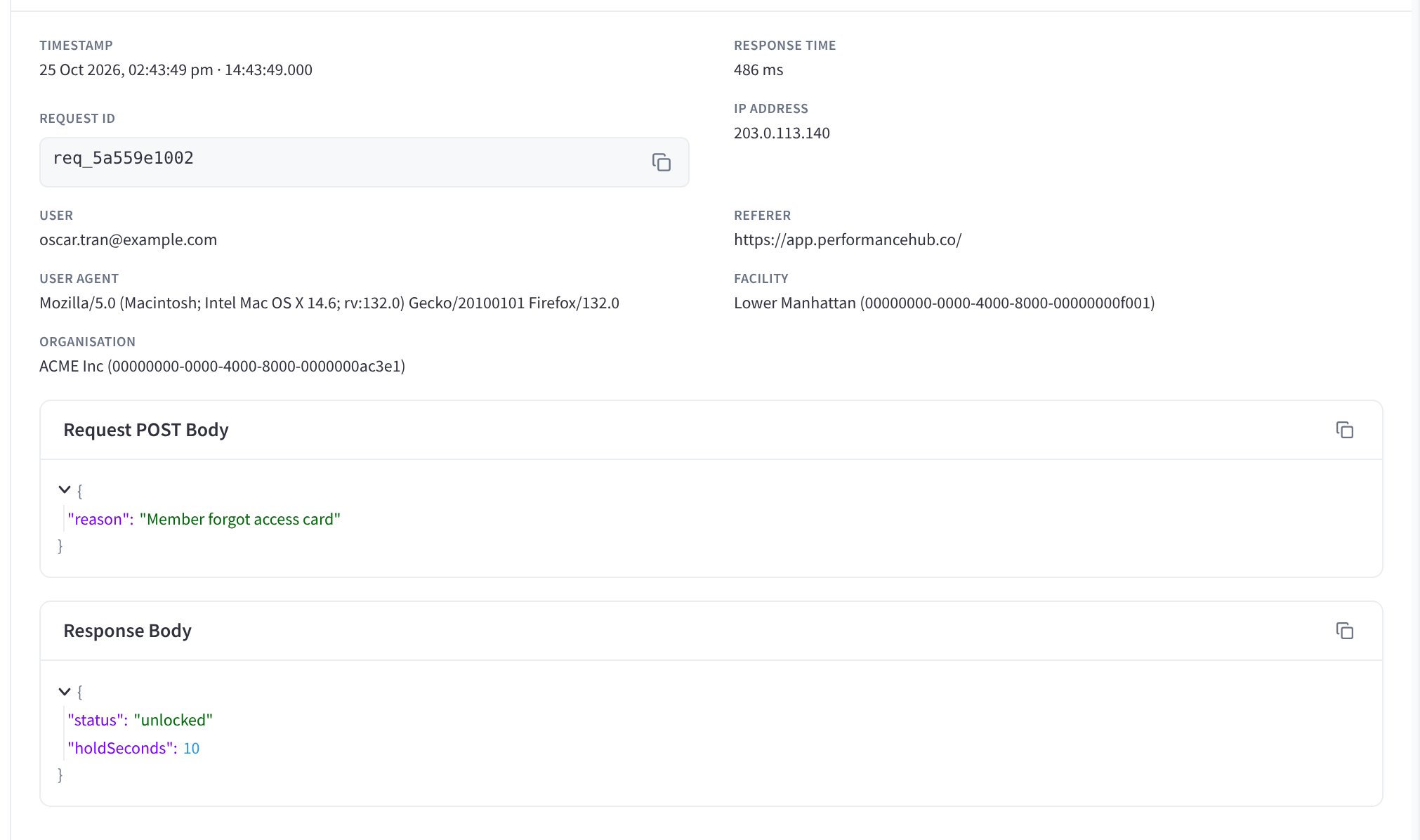
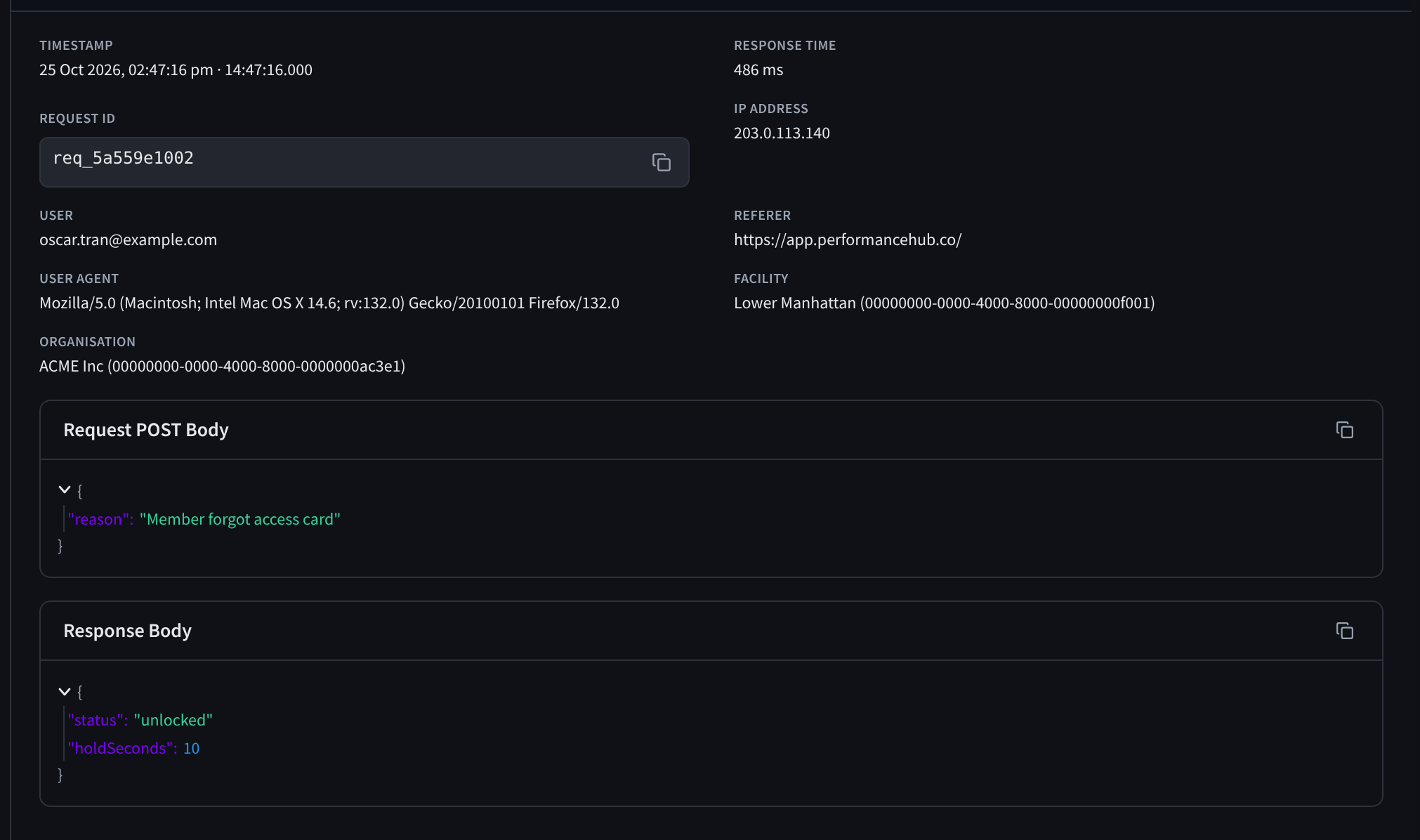
Figure 1: A log entry: when it happened, who made it, where from, and the request and response bodies
The fields
The fields are shown in capitals in Performance Hub, in this order:
| Field | What it shows |
|---|---|
| Timestamp | The date and time of the request |
| Response Time | How long Performance Hub took to respond, in milliseconds |
| Request ID | A unique ID for this request. Click the copy button to copy it, for example to give to Support. |
| IP Address | The IP address the request came from |
| User | The email address of the person who made the request |
| Referer | The page the request was made from, when there is one |
| User Agent | The browser, app or tool that sent the request |
| Facility | The facility the request was for, as "Name (id)", for example Lower Manhattan and its facility ID |
| Organisation | The organisation, as "Name (id)" |
Request and response
Below the fields are the bodies of the request, when it has any:
| Section | What it shows |
|---|---|
| Request POST Body | What was sent, for example the reason given for a door unlock or the new hours for a facility. The heading reads "Request POST Body" for every method that sends a body. |
| Response Body | What Performance Hub sent back, including any error message |
| Query Parameters | Options added to the request, such as a page number or a facility |
Click Copy section (the copy icon at the top right of a section) to copy its contents, for example to paste into a support request.
If a request had nothing to show, the details say "No request/response payloads recorded for this entry." Many GET requests, which only read information, have no request body.
AI Error Summary
For a failed request, with a status of 400 or above, the details include an AI Error Summary section.
- Click Generate summary.
- Read the summary. It explains in plain language what went wrong and what to do next.


Figure 2: For a failed request, Generate summary explains the error in plain language
- The summary is generated only when you click Generate summary. Once a summary has been generated, it may show a cached tag.
- It's generated by AI and may be wrong. Check it against the Response Body, which holds the message Performance Hub actually returned.
- If the summary can't be generated, a warning asks you to try again later. Read the Response Body in the meantime.
After 7 days: previews
Full request and response bodies are kept for 7 days. After that, longer bodies are cut to a short preview, and the details say "Full request and response payloads are kept for 7 days. Showing a preview for this log." Short bodies that fit in the preview stay in full.
The rest of the log entry, such as who made the request, when and the result, is kept for 90 days.
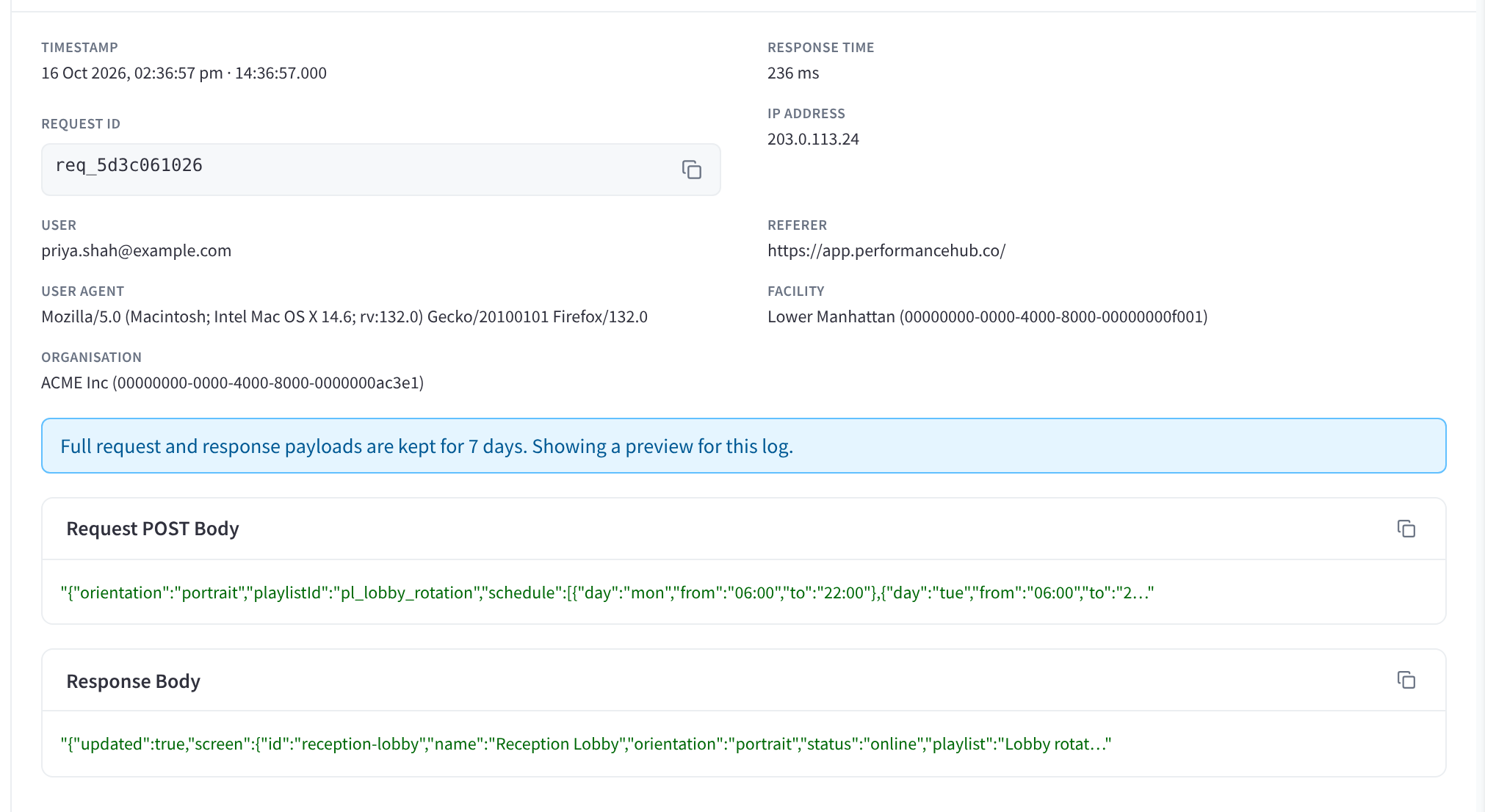
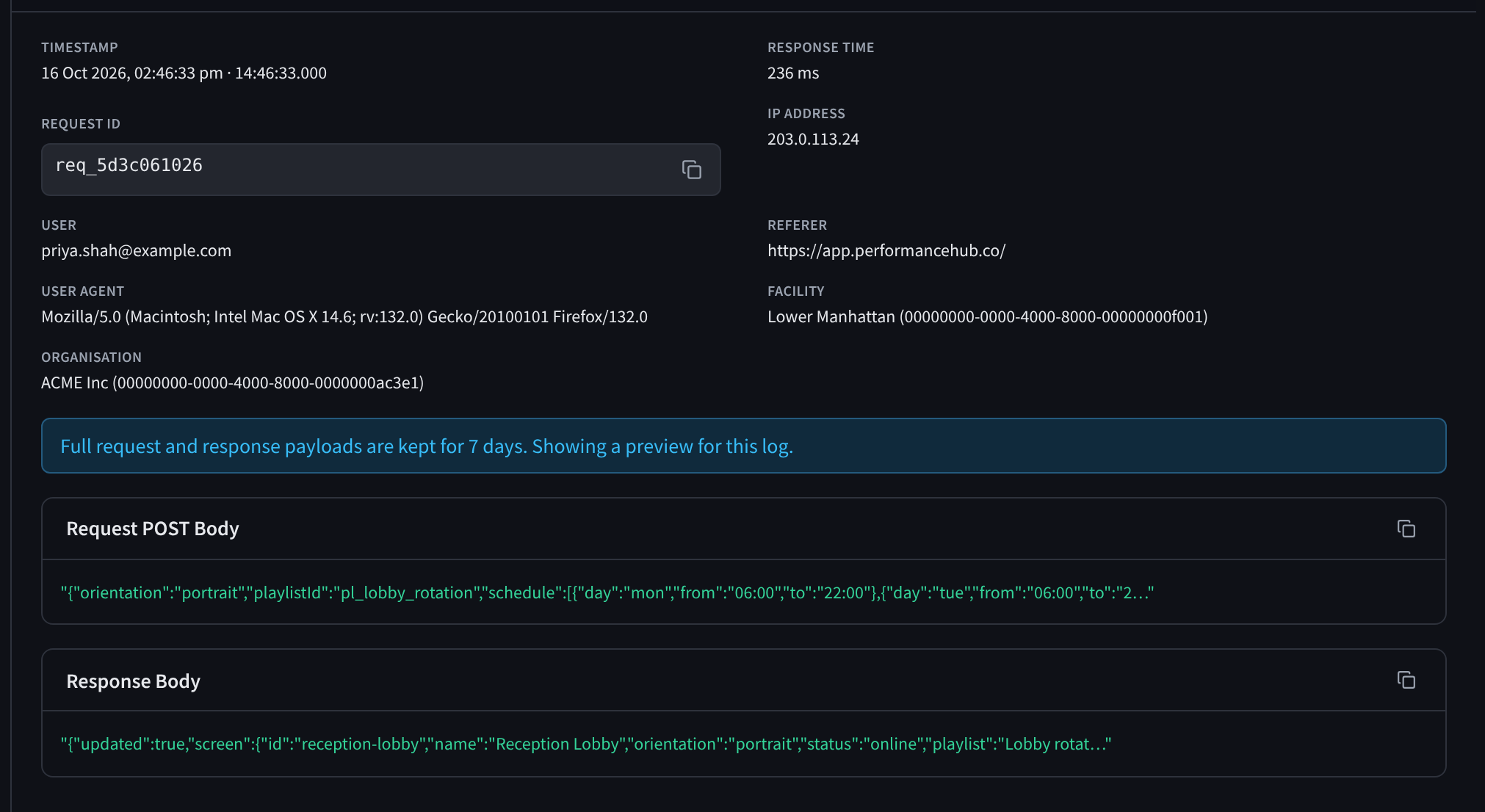
Figure 3: After 7 days only a short preview of the request and response remains
If you might need the full bodies later, open the request and use Copy section within 7 days. A CSV export doesn't include the bodies.
Status codes
The status is the first thing on each row. Its first digit tells you the kind of result:
| Status | Meaning | Examples |
|---|---|---|
| 2xx | Success | 200 OK, 201 Created |
| 3xx | Redirect: the request was sent somewhere else | 301 Moved |
| 4xx | A problem with the request, for example no permission or invalid input | 400 Bad Request (a value wasn't valid), 401 Unauthorised (not signed in), 403 Forbidden (no permission), 404 Not Found, 409 Conflict (the request clashed with the current state, such as a door in maintenance mode), 429 Too Many Requests (too many requests in a short time) |
| 5xx | A server error | 500 Server Error, 502 Bad Gateway, 503 Service Unavailable |
Source badges
Each request has a source badge that says where it came from:
| Badge | Where the request came from |
|---|---|
web | Someone using Performance Hub in a browser or the app |
api-key | An integration using an API key, such as a booking or member system. See Partner API authentication. |
mcp | An AI agent or AI client connected through MCP. See AI Agents. |
model-router | The Model Router |
websocket | A live connection, such as a real-time update |
guest-token | A guest link |
Other badges may appear.
Related pages
- Finding requests: filter the list
- Exporting logs: download the loaded logs
- Investigation examples: put the details to work
- Audit Logs: common questions