
Exporting logs
Export the requests on the Logs tab to a CSV file to keep a record, share it with someone who doesn't use Performance Hub, such as an integration partner or an auditor, or work with it in a spreadsheet.
Quick reference
Where to find it: Settings (cog icon, bottom left) → Audit Logs → Logs → Export CSV (top right)
Who can use it: You need a role that includes Audit Logs and Identity & Access Management in your organisation, such as Organisation Administrator. See Who can use Audit Logs.
Purpose: Download the requests you've found as a spreadsheet
Export to CSV
- On the Logs tab, filter the list to the requests you want.
- If you need more than the first 500, scroll down the list until all the requests you need have loaded.
- Click Export CSV. The Export Audit Logs (CSV) dialog opens and says how many logs it will export.
- Click Export. The file downloads to your computer. Click Cancel to close the dialog without exporting.
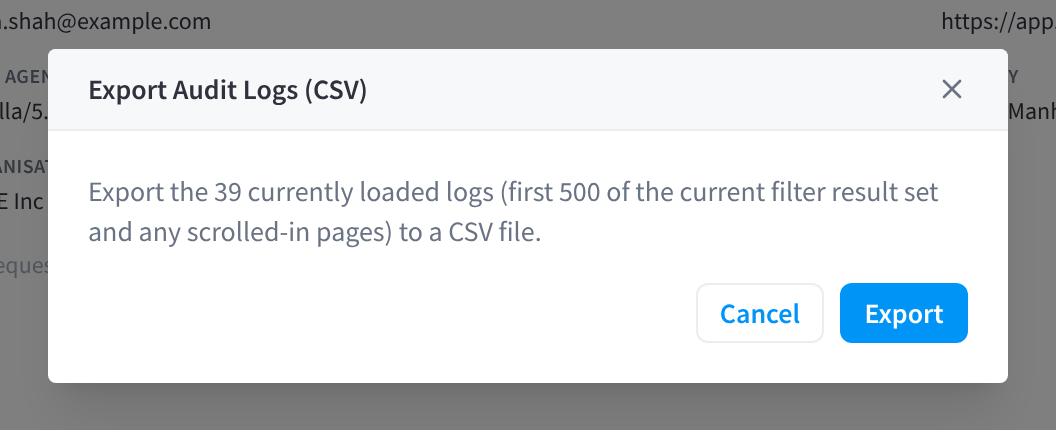
Figure 1: Export the loaded logs to a CSV file
Export CSV is unavailable (greyed out) when no logs are loaded, for example when no requests match the filters.
What's in the file
The export holds the logs currently loaded on the Logs tab: the first 500 of the current filter result, plus any more you've scrolled to load. It doesn't include requests that haven't loaded yet.
To export more:
- Scroll further down the list before you export, so more requests load.
- Or narrow the filters, for example to one week or one person at a time, and export in parts.
Each row is one request, with these columns:
| Column | What it holds |
|---|---|
| Timestamp | The date and time of the request, in UTC |
| User | The user's email address |
| IP Address | The IP address the request came from |
| Method | GET, POST, PUT, PATCH or DELETE |
| Endpoint | The part of Performance Hub the request was for |
| Status Code | The response status, such as 200 or 403 |
| Response Time | How long the response took |
| Source | The source badge, such as web or api-key |
The file doesn't include the request and response bodies. To keep a body, open the request and use Copy section. See Reading a log entry.
Timestamps are in UTC. They can differ from the times shown in Performance Hub. If you need to, convert them from UTC to your facility's time zone in your spreadsheet. For example, for a facility at UTC+10, add 10 hours.
File name: audit-logs-YYYY-MM-DD-HHmmss.csv, for example audit-logs-2026-10-25-143012.csv.
Keep the file safe
The file contains people's email addresses and IP addresses. Treat it as sensitive:
- Store it in line with your organisation's privacy and record-keeping policy.
- Share it only with people who need it, and only the rows they need. Filter before you export rather than sending everything.
- Delete copies you no longer need.
Related pages
- Finding requests: filter the list before you export
- Investigation examples: exports for an integration partner or a staff review
- Audit Logs: common questions