
Finding requests
The Logs tab lists the requests made in your organisation, newest first. Use the filters along the top to narrow the list to one person, one IP address, one part of Performance Hub or one kind of result, then click a request to see its details.
Quick reference
Where to find it: Settings (cog icon, bottom left) → Audit Logs → Logs
Who can use it: You need a role that includes Audit Logs and Identity & Access Management in your organisation, such as Organisation Administrator. See Who can use Audit Logs.
Purpose: Find the requests behind a question, such as who changed something or why something failed
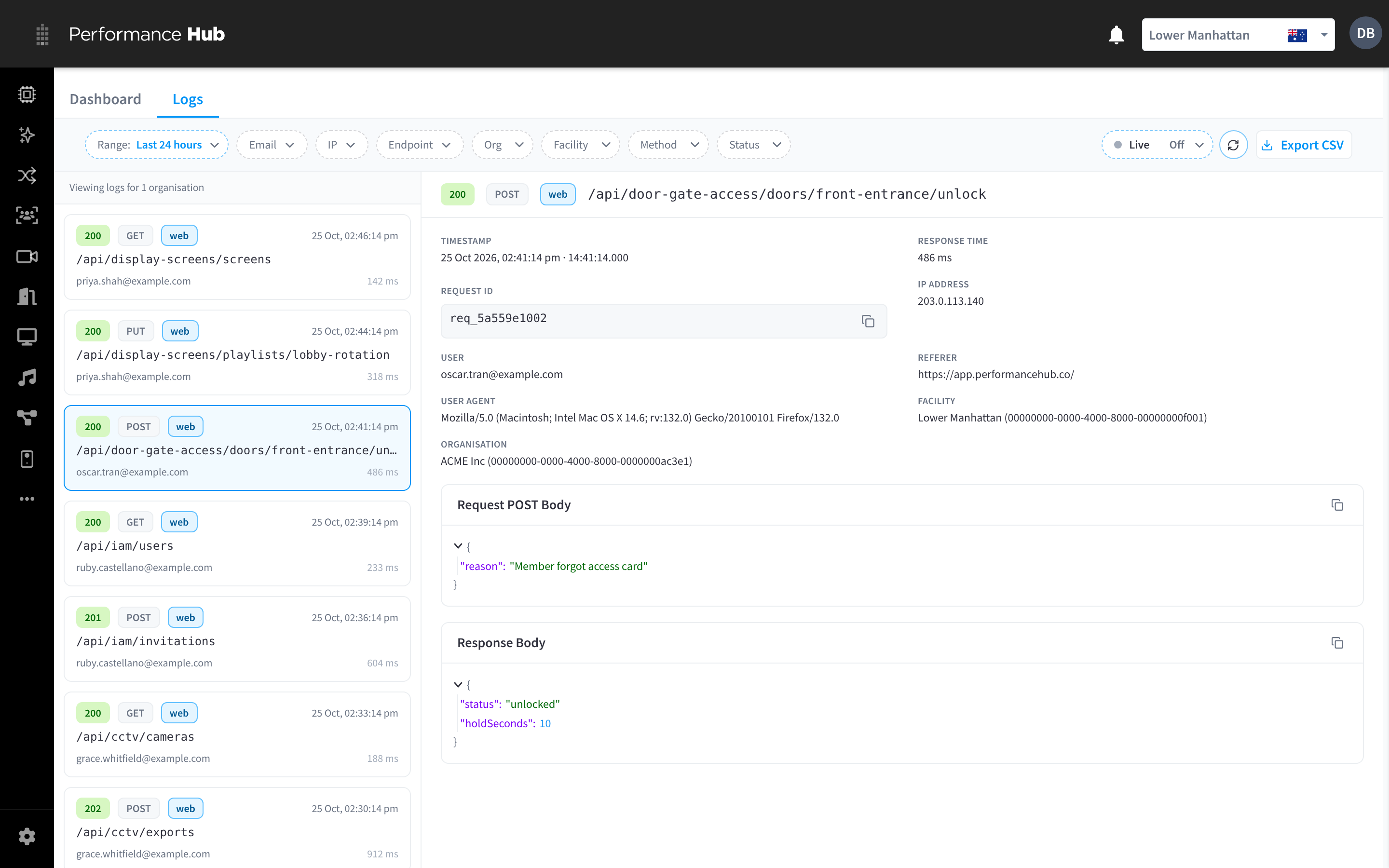
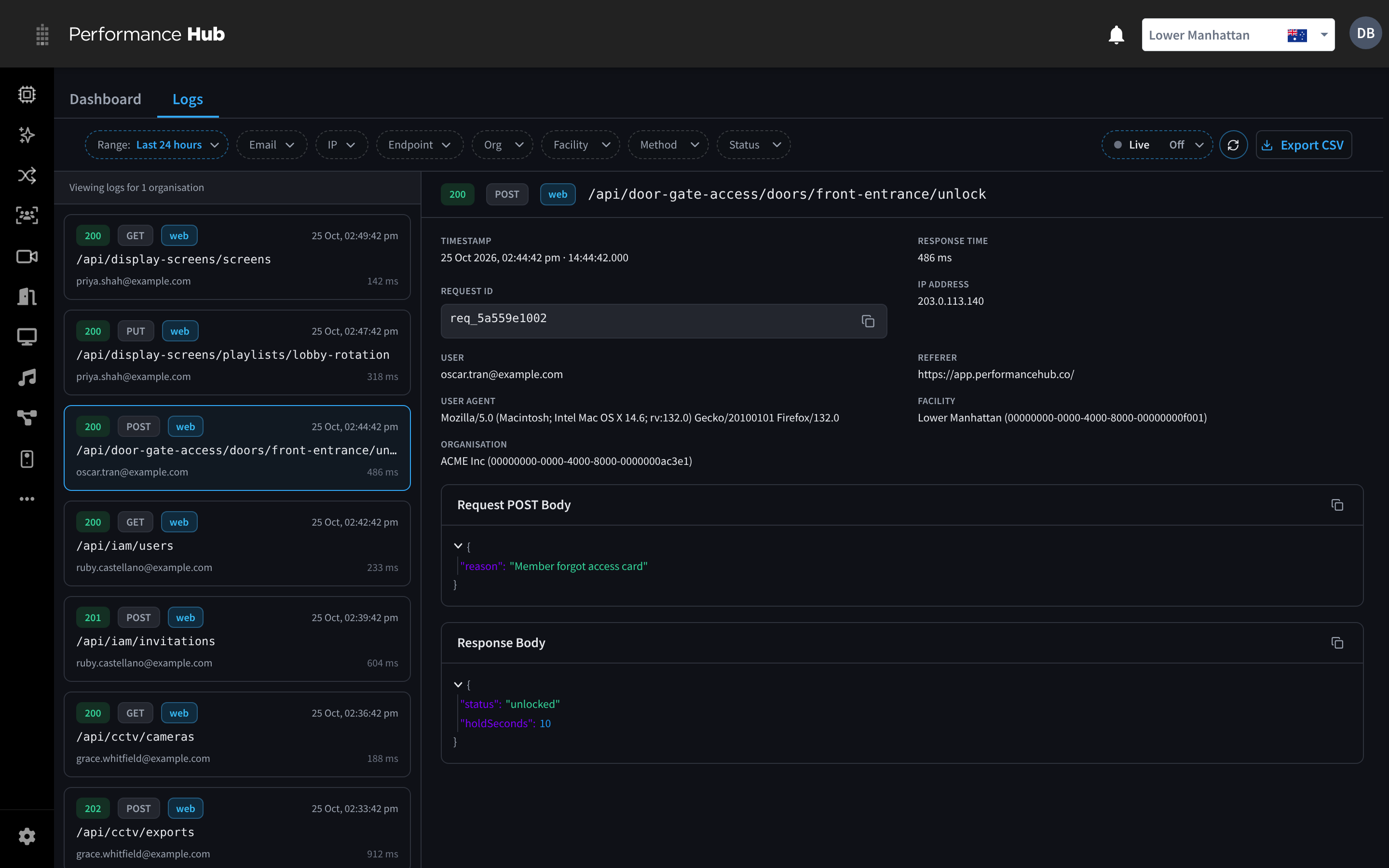
Figure 1: The Logs tab: filters along the top, matching requests on the left and the selected request on the right
The Logs tab
- Filter bar: the filters along the top, with Live, refresh and Export CSV on the right.
- List: the matching requests, newest first. Above it, "Viewing logs for 1 organisation" (or the number of organisations you can see). Each row shows the status code, the method, the source badge, the date and time, the endpoint, the user's email address and the response time in milliseconds.
- Details: the request you've selected. See Reading a log entry.
The list loads more requests as you scroll. At the end of the list it shows how many requests matched, for example "End of results · 5 logs".
Filter the list
- Click a filter in the filter bar, for example Endpoint.
- Choose an option, or type a value. For example, type
/api/door-gate-access/*in Endpoint and click Apply. - The filter shows the value you chose, and the list updates. Add more filters to narrow it further: a request must match every filter to appear.
- To remove one filter, click the × on it. To remove them all, click Clear, which appears once any filter is set.


Figure 2: The filter bar: Range, Email, IP, Endpoint, Org, Facility, Method and Status, then Live, refresh and Export CSV
| Filter | What it matches |
|---|---|
| Range | The time the request was made. The default is Last 24 hours. See Range. |
The user's full email address, for example priya.shah@example.com. It may suggest addresses as you type. | |
| IP | The full IP address the request came from, for example 203.0.113.140 |
| Endpoint | The part of Performance Hub the request was for. Any part of the path matches, and you can use a * wildcard. See Endpoint and wildcards. |
| Org | One organisation, or Any org. Shown when you have access to at least one organisation. |
| Facility | One facility, or Any facility. Shown when you have access to at least one facility. |
| Method | GET, POST, PUT, PATCH or DELETE |
| Status | The response status. See Status. |
Email and IP need the whole value
Email and IP only find exact matches. Type the whole email address, such as ruby.castellano@example.com, or the whole IP address. Part of an address, such as ruby or 203.0.113, finds nothing.
To find a person without their full address, use Top Users on the dashboard, or open one of their requests and copy the address from the User field.
Range
Click Range to choose how far back to look.
- Presets: Last 15 minutes, Last hour, Last 12 hours, Last 24 hours, Last 7 days, Last 30 days and Last 90 days.
- Dates: pick a start date and an end date on the two-month calendar, then click Apply. Click Cancel to close the menu without changing the range. Dates more than 90 days ago can't be picked.
The note at the bottom of the menu says how long logs are kept: "Audit logs are kept for 90 days. Full request and response payloads are kept for 7 days, after which a short preview remains. Need a longer history? Contact Support (additional charges apply)."
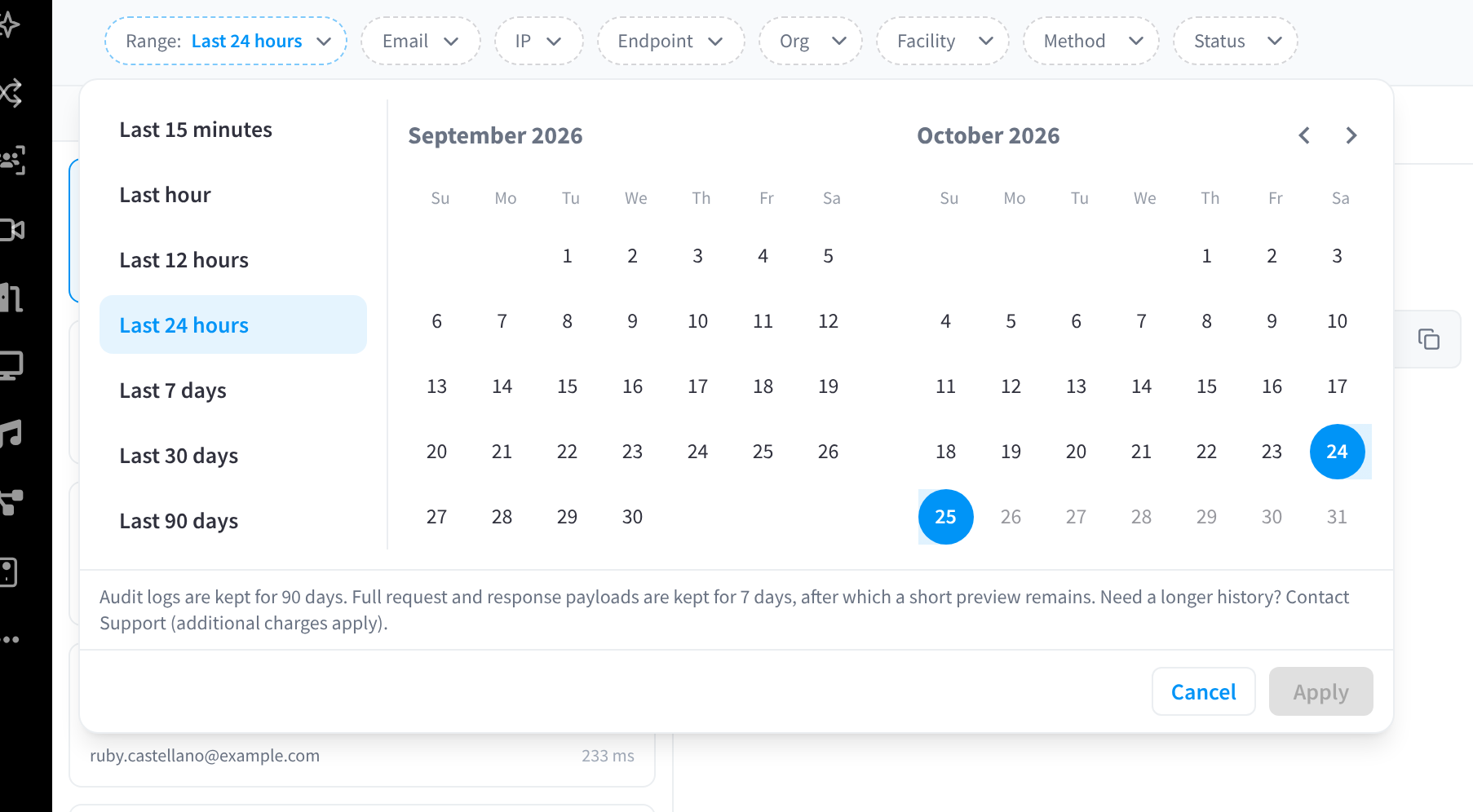
Figure 3: Range: pick a preset or dates on the calendar. The note shows how long logs are kept
Endpoint and wildcards
The endpoint is the path the request was sent to, such as /api/door-gate-access/doors/front-entrance/unlock. It tells you which part of Performance Hub the request was for.
- Without a
*, any part of the path matches. For example,unlockfinds every request with "unlock" in its path. - With a
*, every piece between the stars must appear in the path. For example,/api/door-gate-access/*finds every Door & Gate Access request, and/partner/v1/*finds every request from an integration that uses the Partner API.
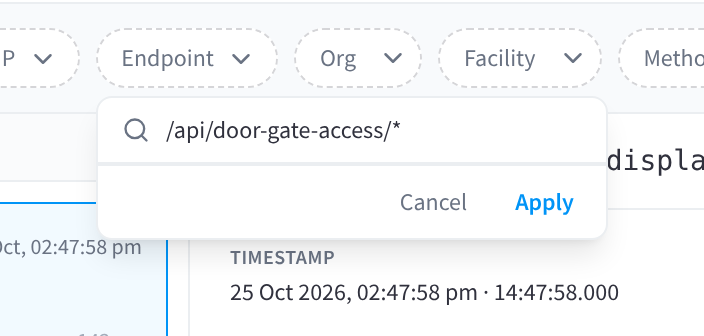
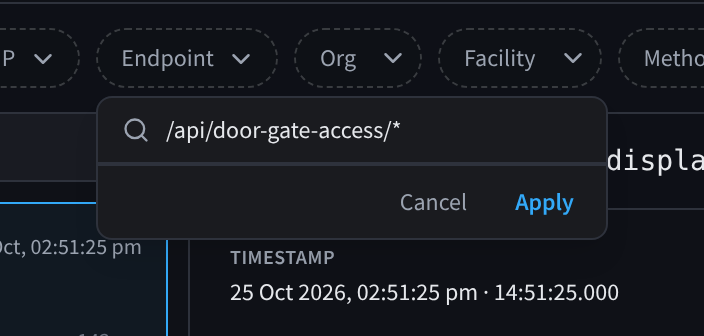
Figure 4: Endpoint accepts a * wildcard, for example every door request
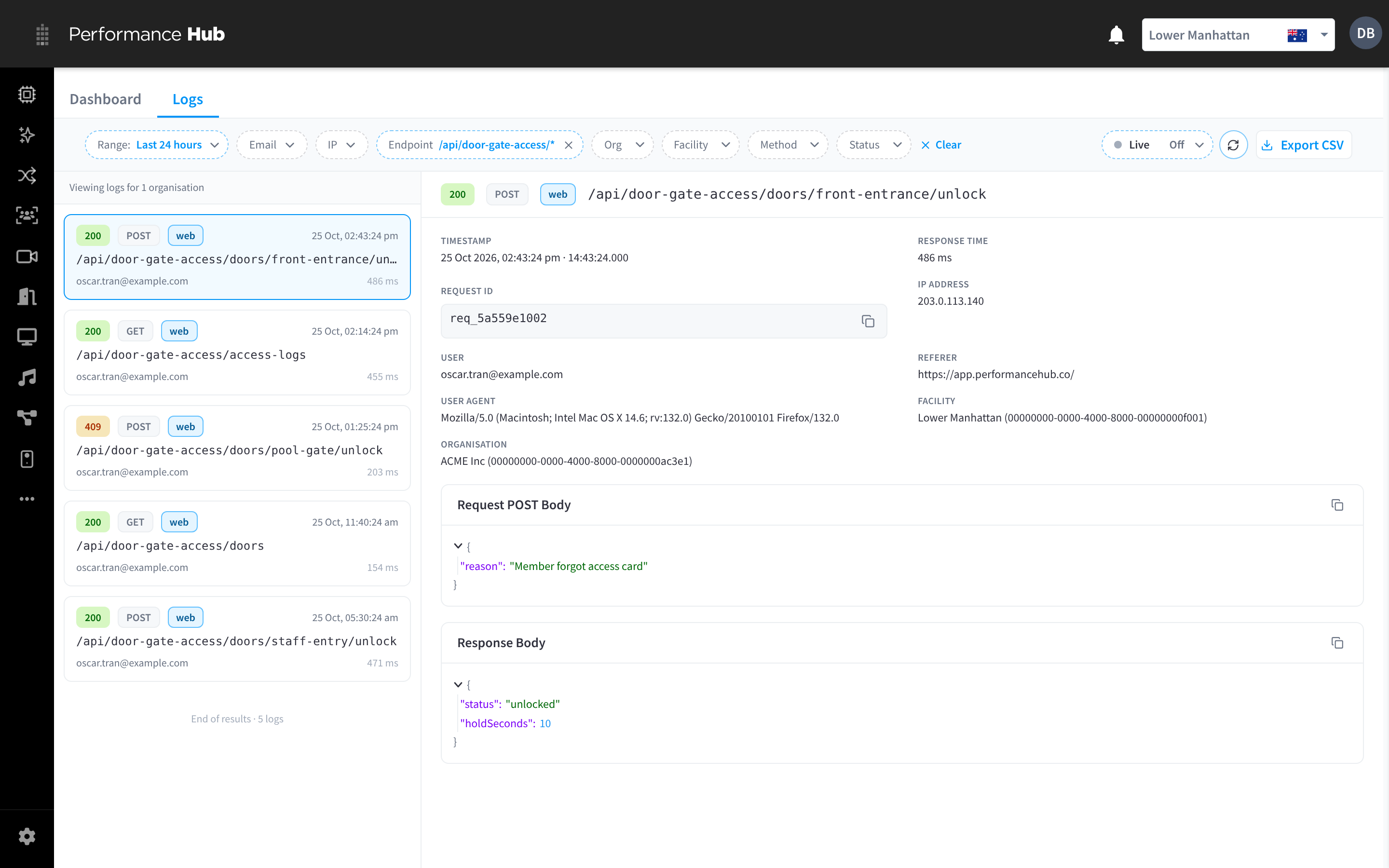
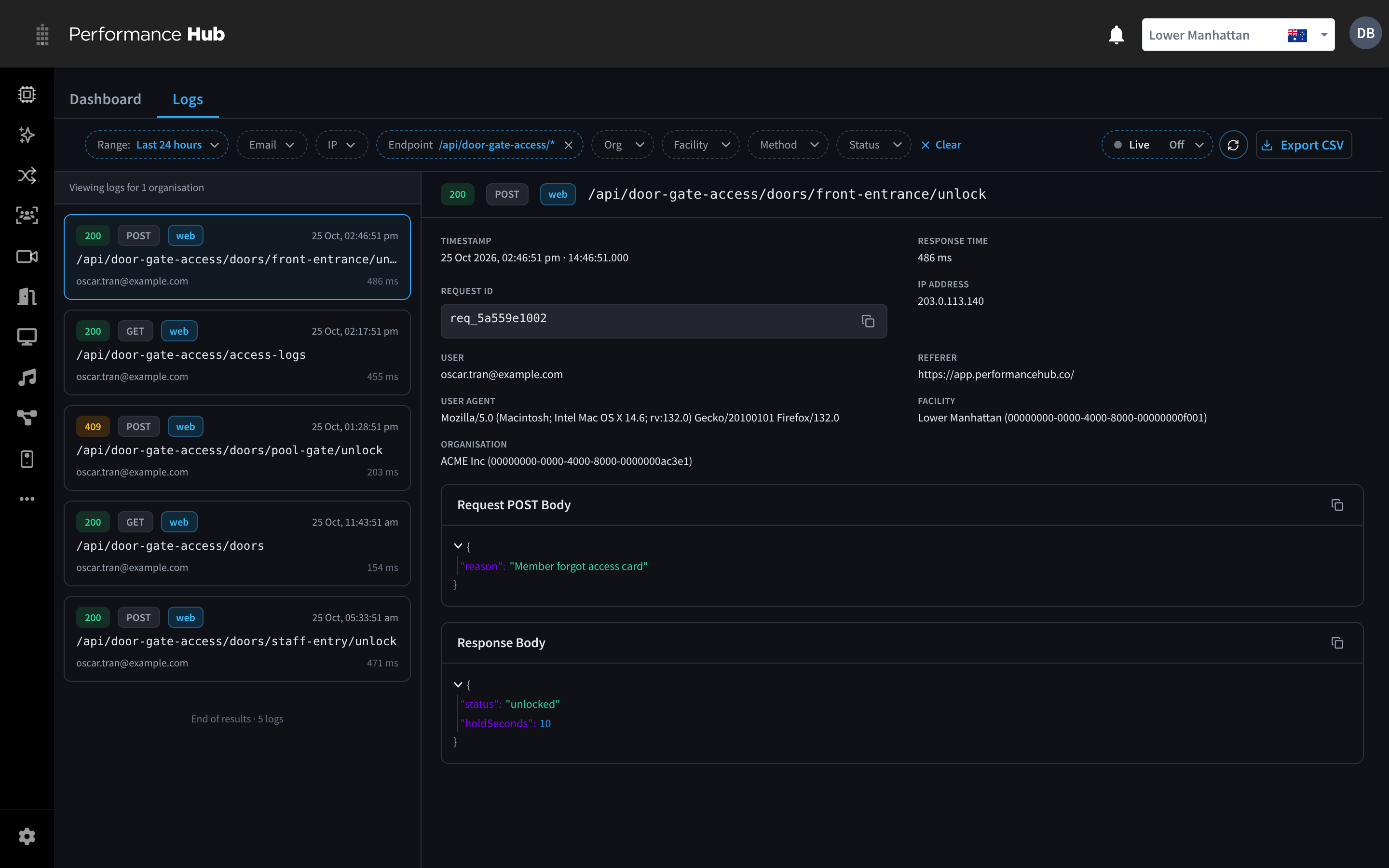
Figure 5: The list after filtering by an endpoint pattern
Not sure which endpoint to use? Open a request you know about, such as a door you unlocked yourself, and copy the start of its endpoint from the details.
Status
Click Status to filter by the response status. Type in Search… to find a status quickly, for example "403". Choose Any to show every status.
Statuses are listed with their names, such as 200 OK, 201 Created, 400 Bad Request, 401 Unauthorised, 403 Forbidden, 404 Not Found, 409 Conflict, 429 Too Many Requests, 500 Server Error and 503 Service Unavailable. See Status codes for what they mean.
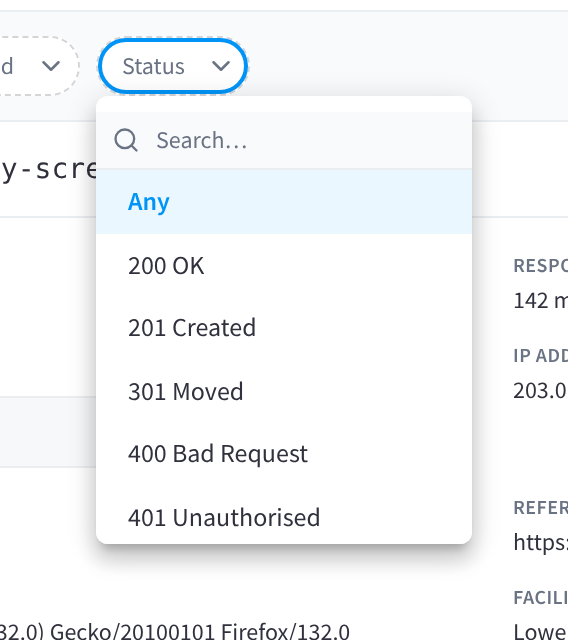
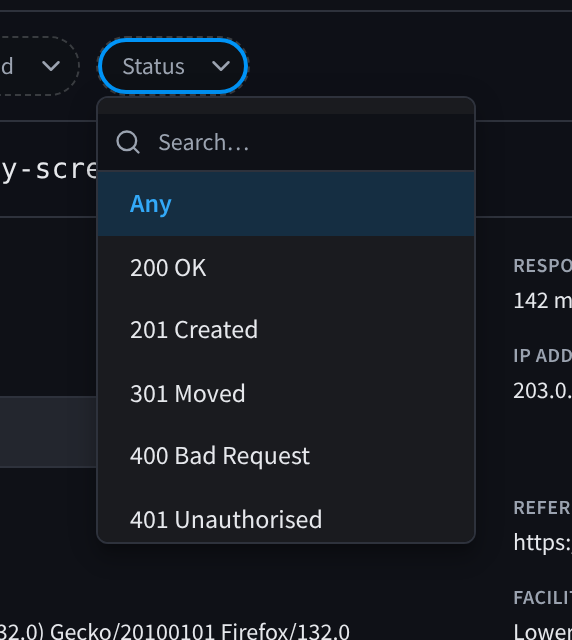
Figure 6: Filter by response status
Live and refresh
On the Logs tab, Live is Off by default, so the list stays still while you investigate. Turn it on and choose how often the list refreshes to watch new requests arrive. Click the refresh button (the circular arrows) to reload the list once.
Share or bookmark a filtered view
Your filters are saved in the page address. Bookmark the page to come back to the same view, or send the address to a colleague. They see the same filtered list if they have access to Audit Logs and to the same organisation.
For example, an address ending in /audit-logs/logs?email=priya.shah%40example.com opens the list filtered to that person, and one ending in /audit-logs/logs?endpoint=%2Fapi%2Fdoor-gate-access%2F* opens every door request.
Move through the list
- Click a request to open its details on the right.
- Use the up and down arrow keys to move to the previous or next request in the list.
- On a narrow screen, the details open over the list. Click the close button to go back to the list.
No results
If nothing matches, the list says "No logs match these filters" and "Try widening the time range or clearing a filter."
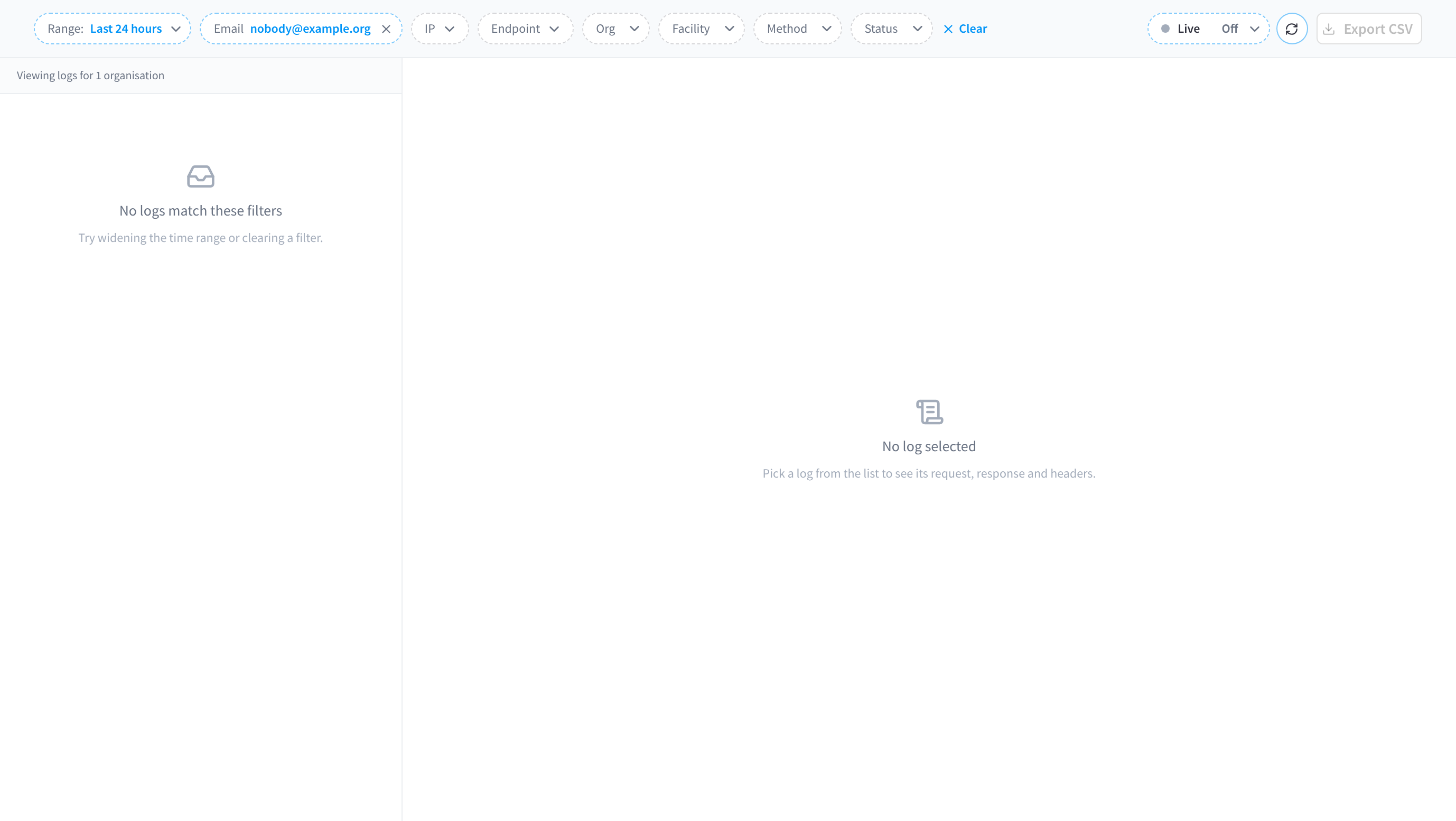
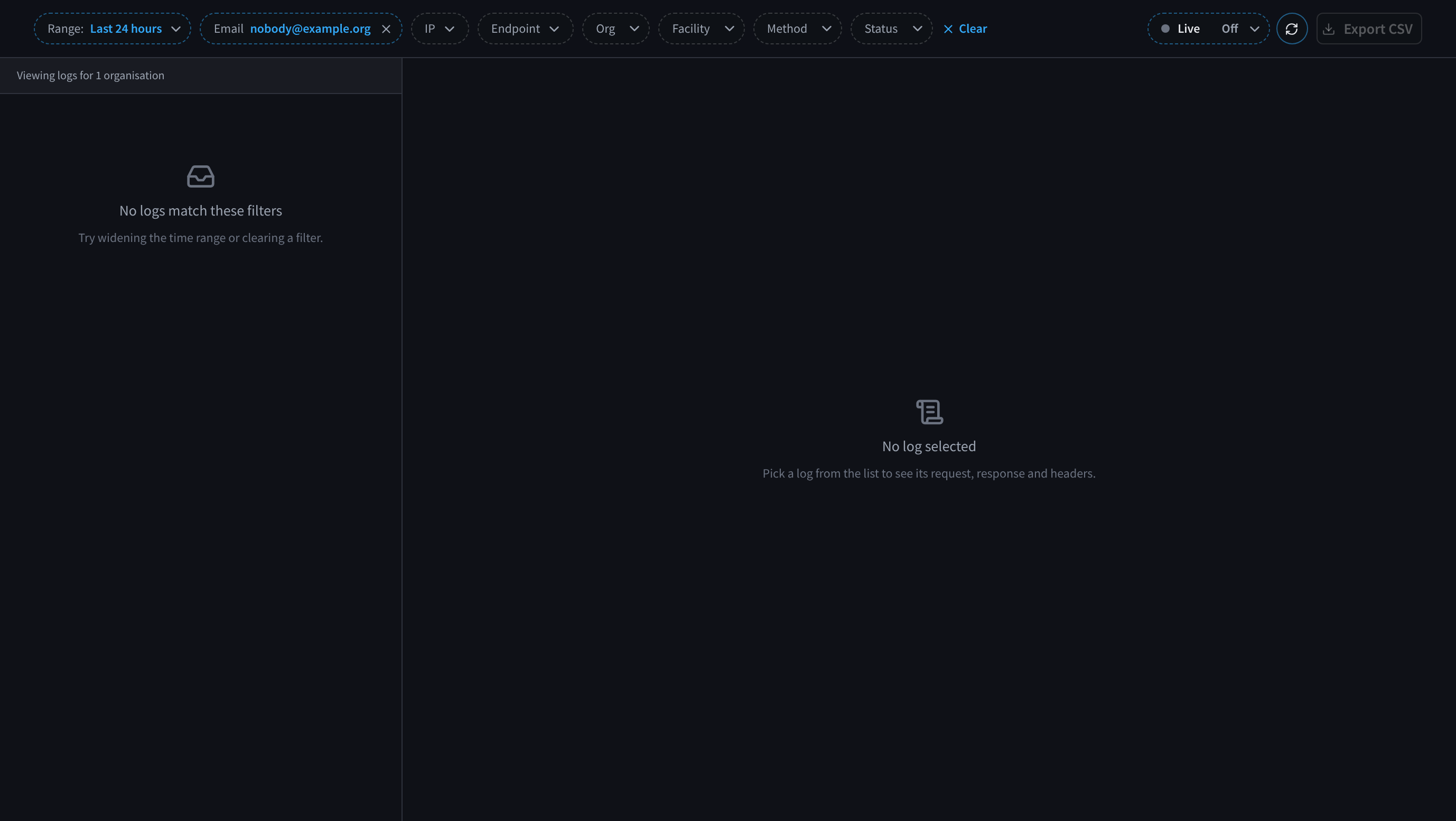
Figure 7: No requests match: widen the range or clear a filter
To find what you're looking for:
- Choose a longer Range, such as Last 7 days.
- Check that Email and IP hold the whole address. Part of an address finds nothing.
- Remove one filter at a time with its ×, or click Clear.
Related pages
- Reading a log entry: what each request shows
- Exporting logs: download the list as a CSV file
- Investigation examples: filters for common questions
- The dashboard: click a chart to open the matching logs