
The dashboard
The Dashboard tab gives you the shape of activity across your organisation at a glance: how many requests were made, how many failed, how fast Performance Hub responded, and which endpoints and people were busiest. Every chart links through to the Logs tab, so you can go from a spike in errors to the requests behind it in one click.
Quick reference
Where to find it: Settings (cog icon, bottom left) → Audit Logs → Dashboard
Who can use it: You need a role that includes Audit Logs and Identity & Access Management in your organisation, such as Organisation Administrator. See Who can use Audit Logs.
Purpose: Spot unusual activity and errors, then open the logs behind them
Choose the time window
- Click Window at the top left. It shows the current window, for example Window: Last 24 Hours.
- Choose Last Hour, Last 12 Hours, Last 24 Hours (the default), Last 7 Days or Last 14 Days.
Every figure and chart on the dashboard updates to the window you choose.
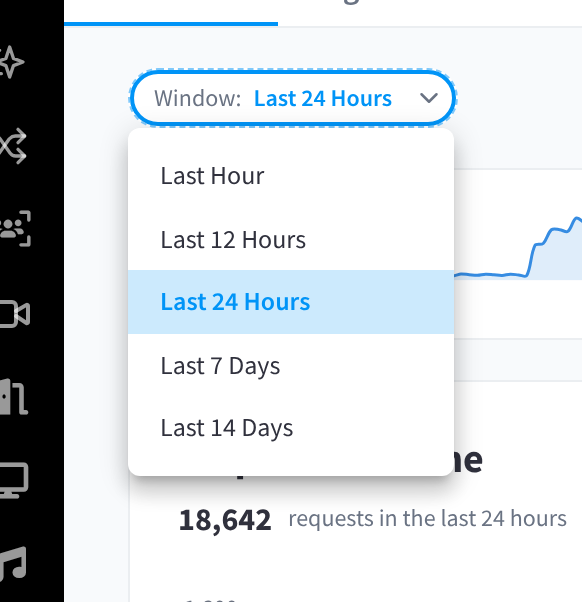
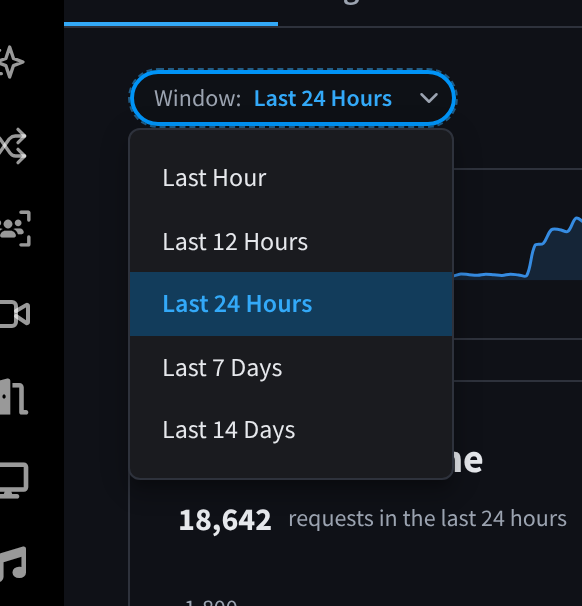
Figure 1: Choose the time window the dashboard covers
Live and Refresh now
Live is on by default. It counts down to the next refresh, for example Live 29s, and then reloads the dashboard. Click Refresh now (the circular arrow button next to it) to reload straight away.
Headline figures
The five figures across the top cover the whole window. Hover over the information icon next to each one to see what it means.
| Figure | What it means |
|---|---|
| Total Requests | "Requests captured in the selected window." |
| Unique Users | "Number of unique user emails seen." |
| Unique IPs | "Number of unique source IP addresses seen." |
| Error Rate | "Share of requests that returned an error status (4xx/5xx)." |
| Avg Response Time | "Mean end-to-end response time across requests." |
Request Timeline
The Request Timeline splits the window into buckets and shows the Successful and Failed requests in each. Use it to see your busy and quiet hours, and to spot a sudden jump in failures.
"Click a bucket to open the logs for that window." The Logs tab opens with the requests from that bucket's time.
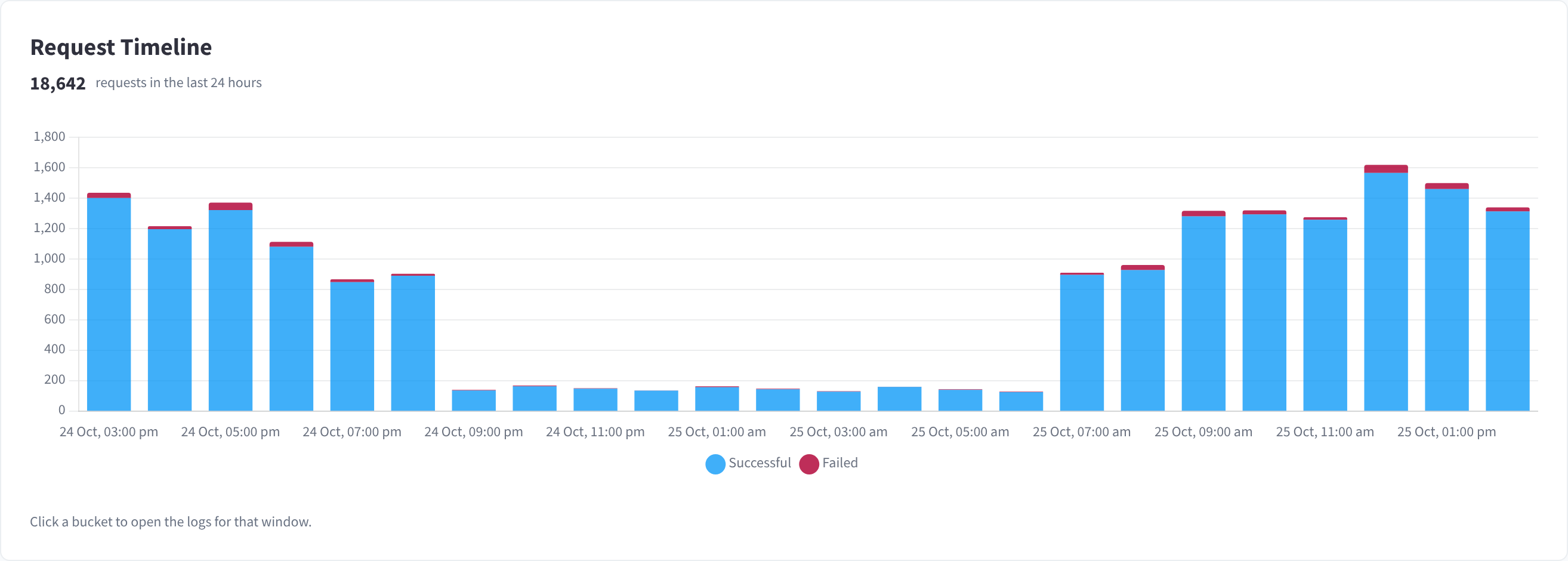
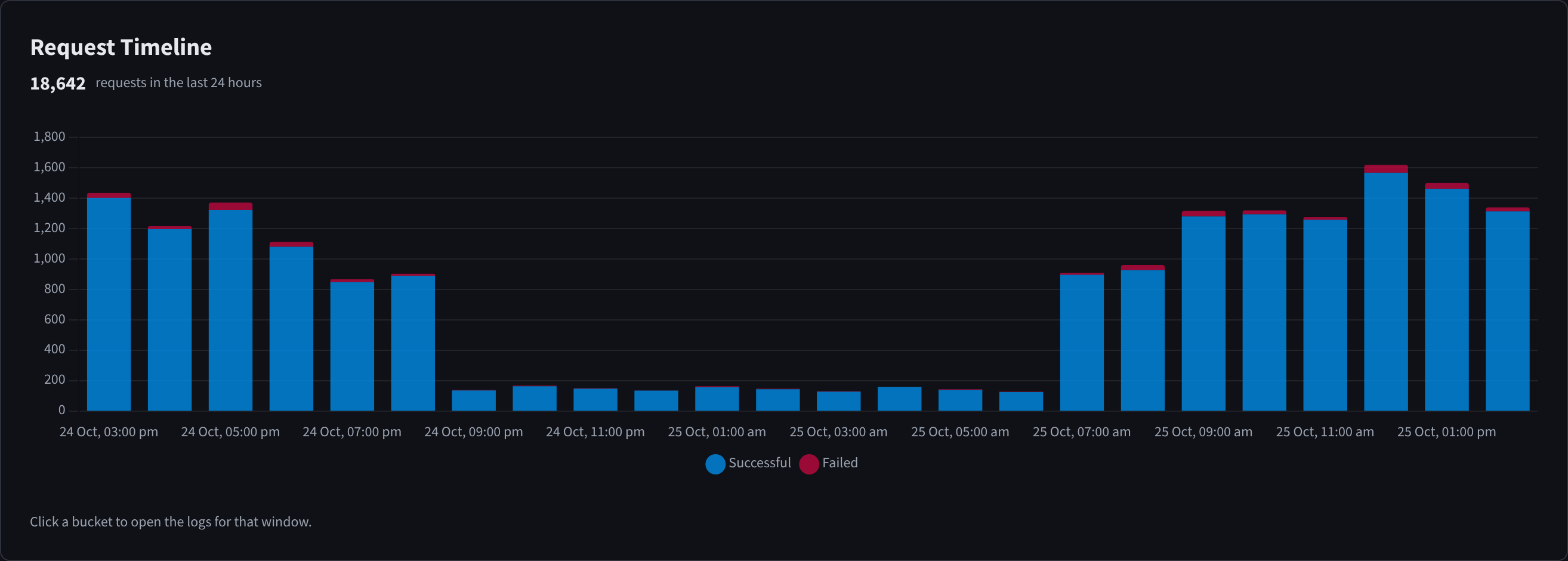
Figure 2: Request Timeline: successful and failed requests over the window
Errors Over Time
Errors Over Time shows only failed requests. "Bar height is the error count; the line is the error rate for the same bucket." A tall bar on a busy afternoon may be normal, while a high error rate in a quiet hour is worth a closer look.
"Click a bucket to open the failing logs for that window." The Logs tab opens with only the failed requests from that bucket's time.
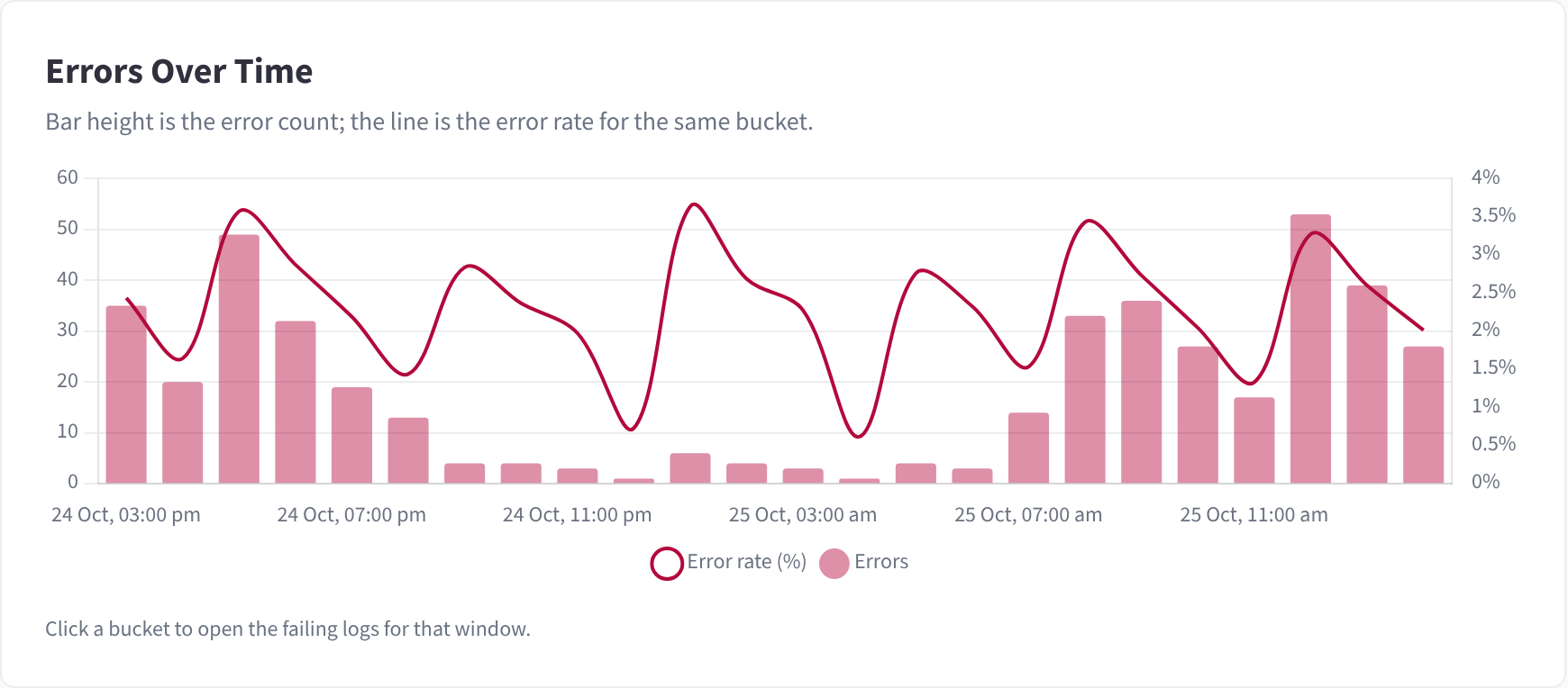
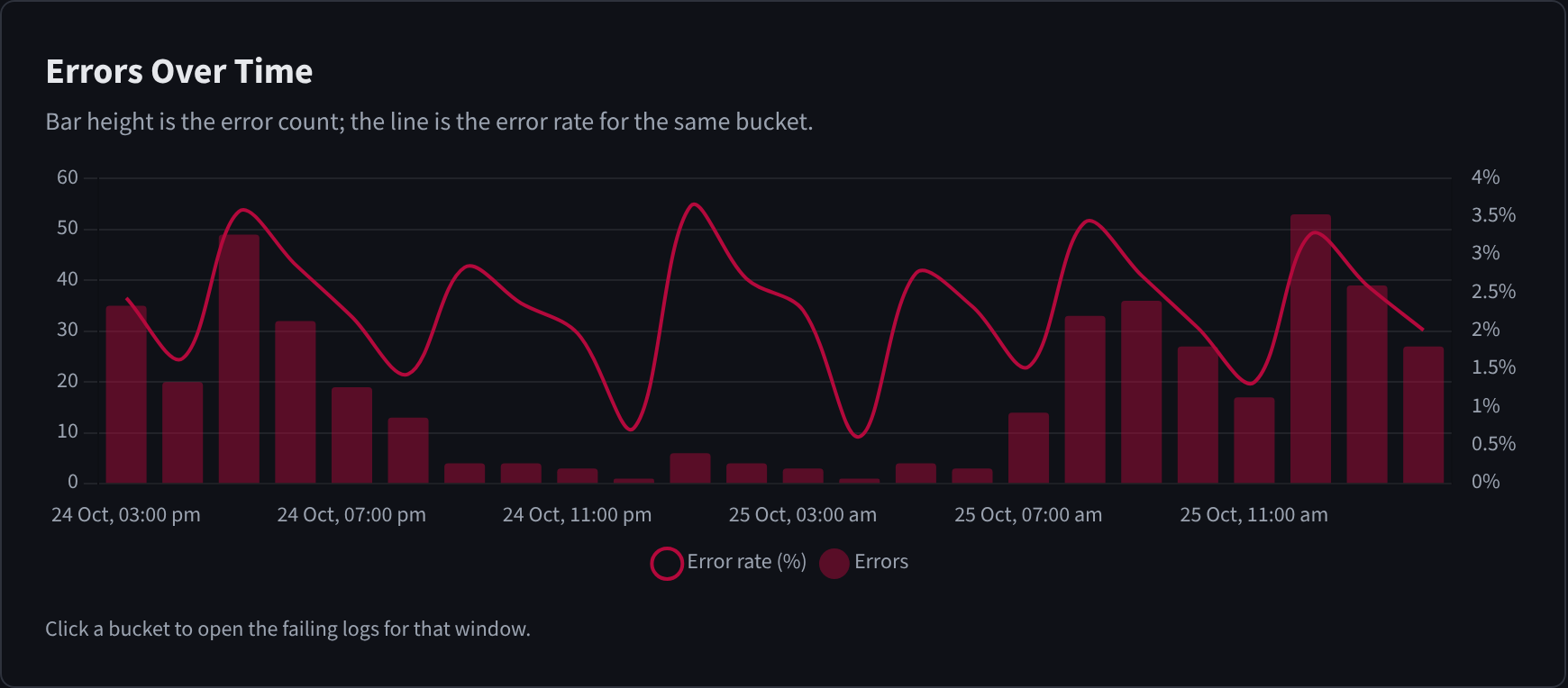
Figure 3: Errors Over Time: the error count per bucket, with the error rate as a line
Response Health
Response Health shows the "Share of requests by status class", with the number and percentage of requests in each class:
| Class | What it means |
|---|---|
| Success (2xx) | The request worked |
| Redirect (3xx) | The request was sent somewhere else |
| Client error (4xx) | There was a problem with the request, for example the person didn't have permission or a value wasn't valid |
| Server error (5xx) | Something went wrong on the server, rather than with the request |
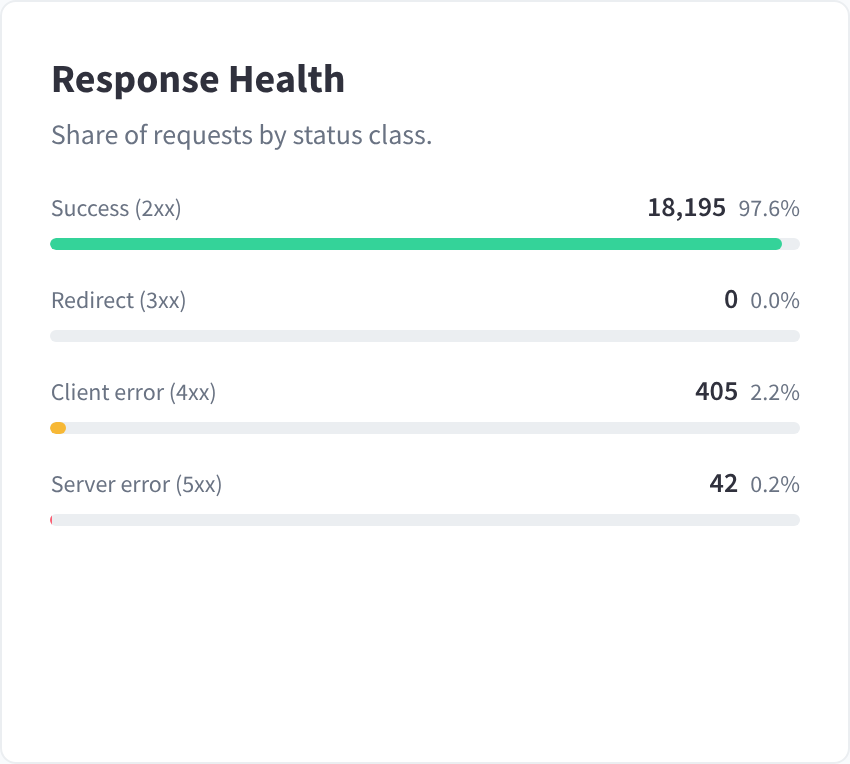
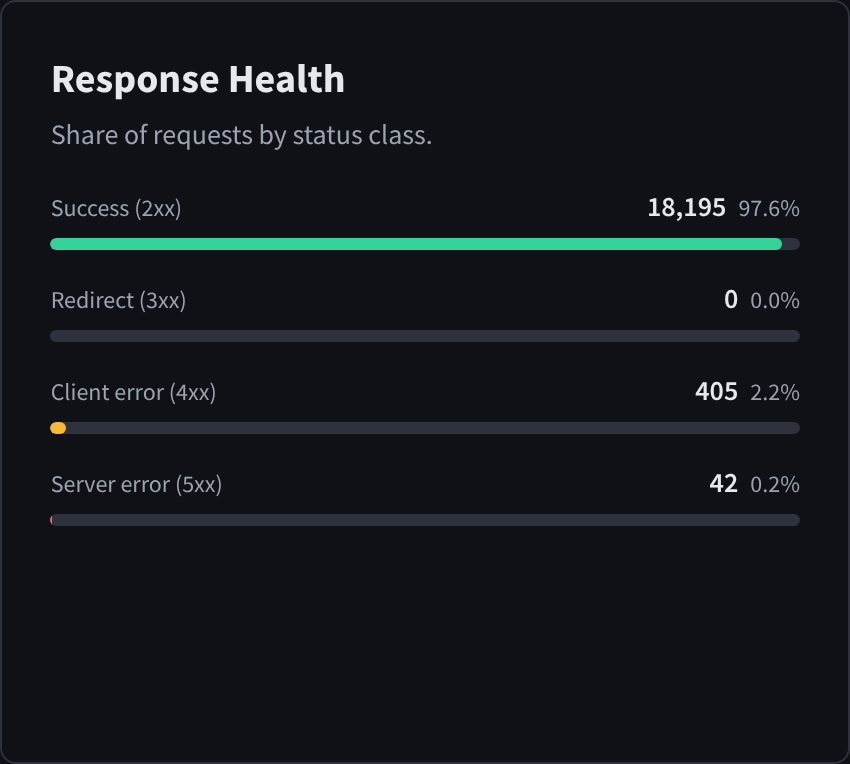
Figure 4: Response Health: the share of requests by status class
Top Endpoints and Top Users
Top Endpoints lists the endpoints with the most requests in the window, and Top Users lists the people with the most requests.
- In Top Endpoints, "Click a row to filter the logs by that endpoint."
- In Top Users, "Click a row to filter the logs by that user."
For example, click the top endpoint to see every request to it, or click a person's email address to see what they did in the window.
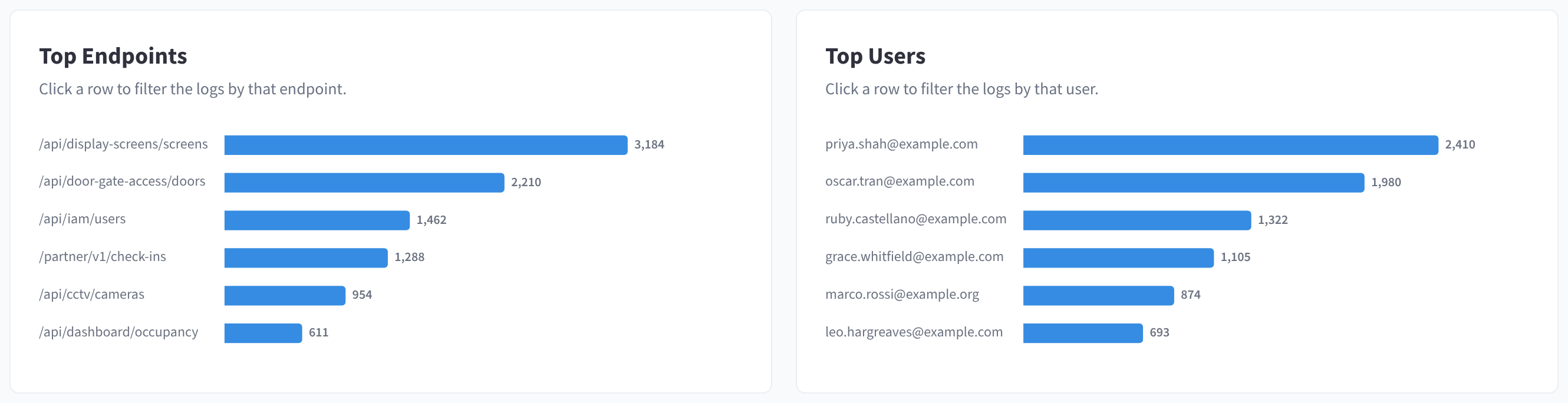
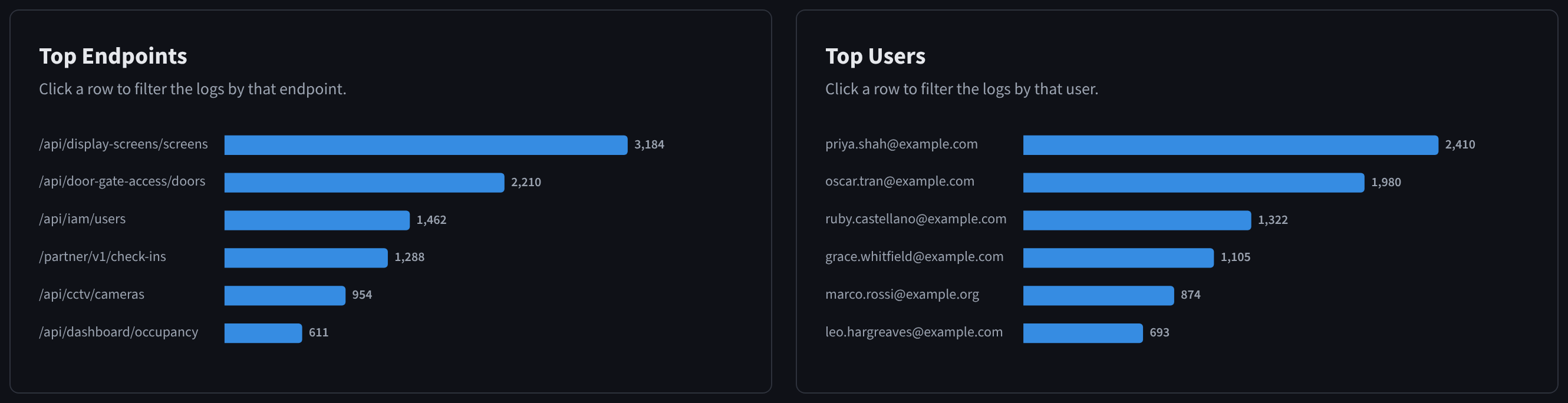
Figure 5: Top Endpoints and Top Users: click a row to open the matching logs
HTTP Methods, Status Codes and Top Organisations
The three rings at the bottom of the dashboard break the window down further:
| Chart | What it shows |
|---|---|
| HTTP Methods | Requests by method: GET reads something, POST creates something or runs an action, PUT and PATCH change something, and DELETE removes something. The centre shows the total. |
| Status Codes | Requests by response status, such as 200, 403 or 500. The centre shows the error rate. |
| Top Organisations | Requests by organisation. The centre shows how many organisations the window covers. |
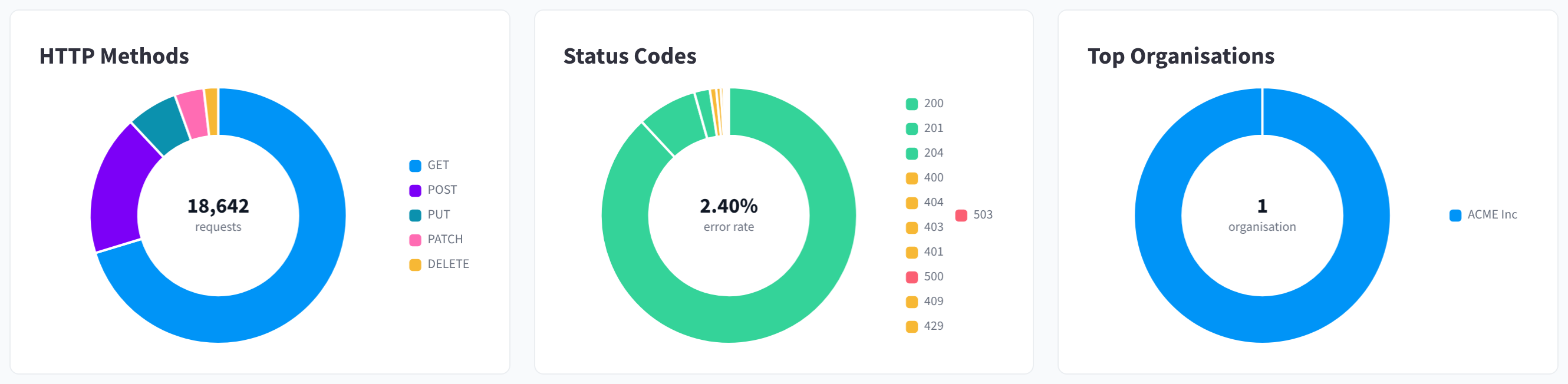
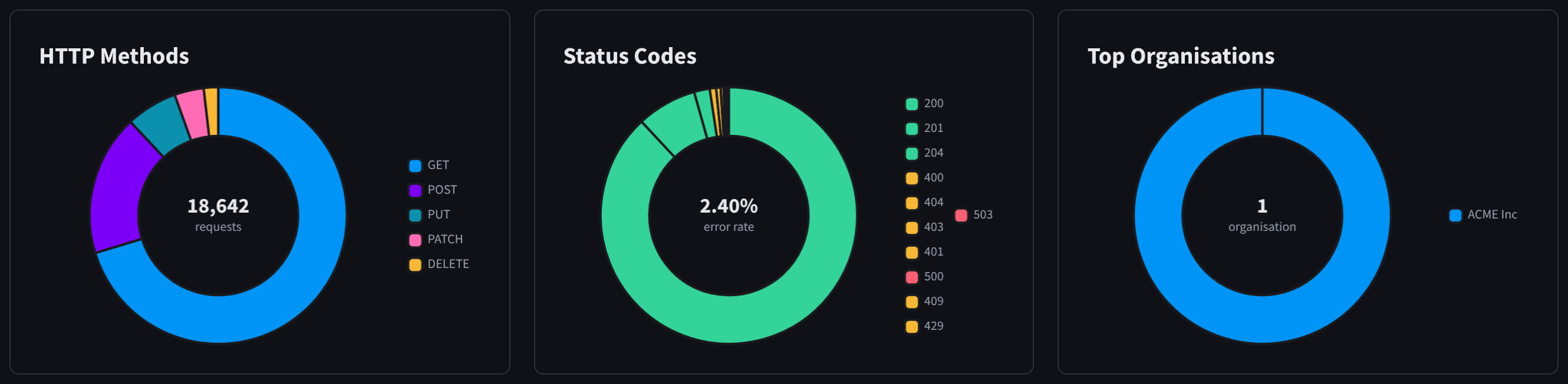
Figure 6: HTTP Methods, Status Codes and Top Organisations
Tips
- Start with Errors Over Time. If a team says something "stopped working", find the bucket where errors rose and click it to see the failed requests.
- Check a quiet window too. Requests late at night at a site that's closed, such as a café or a clinic, can be worth checking.
- Use Top Users for a quick review. Click a person to see everything they did in the window, then narrow it on the Logs tab.
Related pages
- Finding requests: filter the Logs tab
- Reading a log entry: what each request shows
- Investigation examples: step-by-step investigations