
Duress overview
Duress is your facility's duress alarm system. The people who might need to call for help discreetly carry a duress button or have one within reach. When someone presses it, Performance Hub alerts the people in your response plan, and your monitoring centre if you have one. Responders acknowledge the alarm, coordinate in Performance Hub and resolve the incident. You test the buttons on a schedule and report on how well alarms are answered. Duress suits any site where staff can face a threatening situation: a medical centre's reception, a school office, a hotel night desk, a retail counter, a bar, a council customer service desk or a gym floor.
Silent by design. A duress alarm is raised without anyone nearby knowing. To keep it that way, this documentation deliberately leaves out how the buttons behave and the timings behind an alarm. Staff who use the buttons are shown the button guide in the Duress module, and admins see the timings they chose in the Duress settings.
Quick reference
Where to find it: Side menu → Duress
Who can access: Users with Duress or Duress Settings at the facility. See Roles & permissions.
Purpose: Respond to duress button alarms, run button tests and review incident history
How an alarm works
- Someone presses a duress button.
- A display screen with Duress alarm monitoring on, or an IoT Gateway, relays the press to Performance Hub. See How presses reach Performance Hub.
- Performance Hub raises an alarm. It alerts the people in the facility's response plan, sends the alarm to your alarm destinations, such as a monitoring centre or a team chat, and runs the response actions you chose.
- A responder acknowledges the alarm, so everyone knows someone is responding. If nobody acknowledges, the next people in the plan are alerted.
- Responders post updates and notes on the incident, then resolve it with an outcome. See Responding to alarms.
The tabs
| Tab | What it's for |
|---|---|
| Home | Active alarms, the last 12 months at a glance, button health, recent incidents and testing. See Home. |
| Incidents | Every alarm and test at the facility, with its outcome and who acknowledged it. See The Incidents tab. |
| Devices | The facility's duress buttons: status, battery, signal and when each was last tested. See The button list. |
| Testing | Run a walk test or a full response drill, and book tests ahead. See Testing & reports. |
| Reports | Alarm response and readiness figures, with CSV and PDF downloads. See Reports. |
| Settings (cog icon) | Response plan, Response actions, Device alerts, Integrations, Delivery log, Workflows and Browser Notifications. See Alerts & notifications. |
When an alarm is open, the other tabs show how many open alarms need a response, with Open alarms to go straight to them.
Alarms at your other facilities appear in Performance Hub's alarm banner across the top of the app, with a way to switch to that facility.
Home
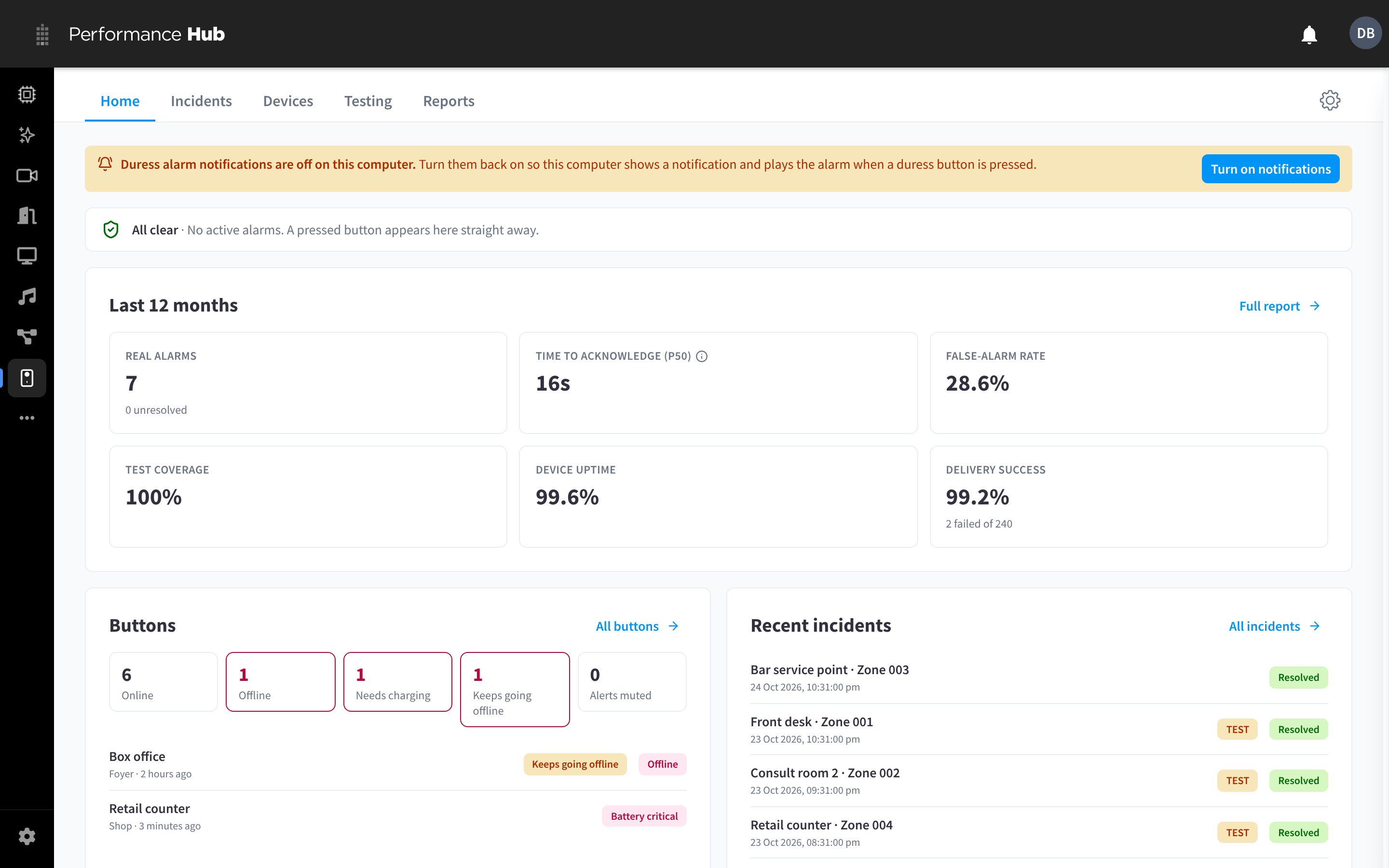
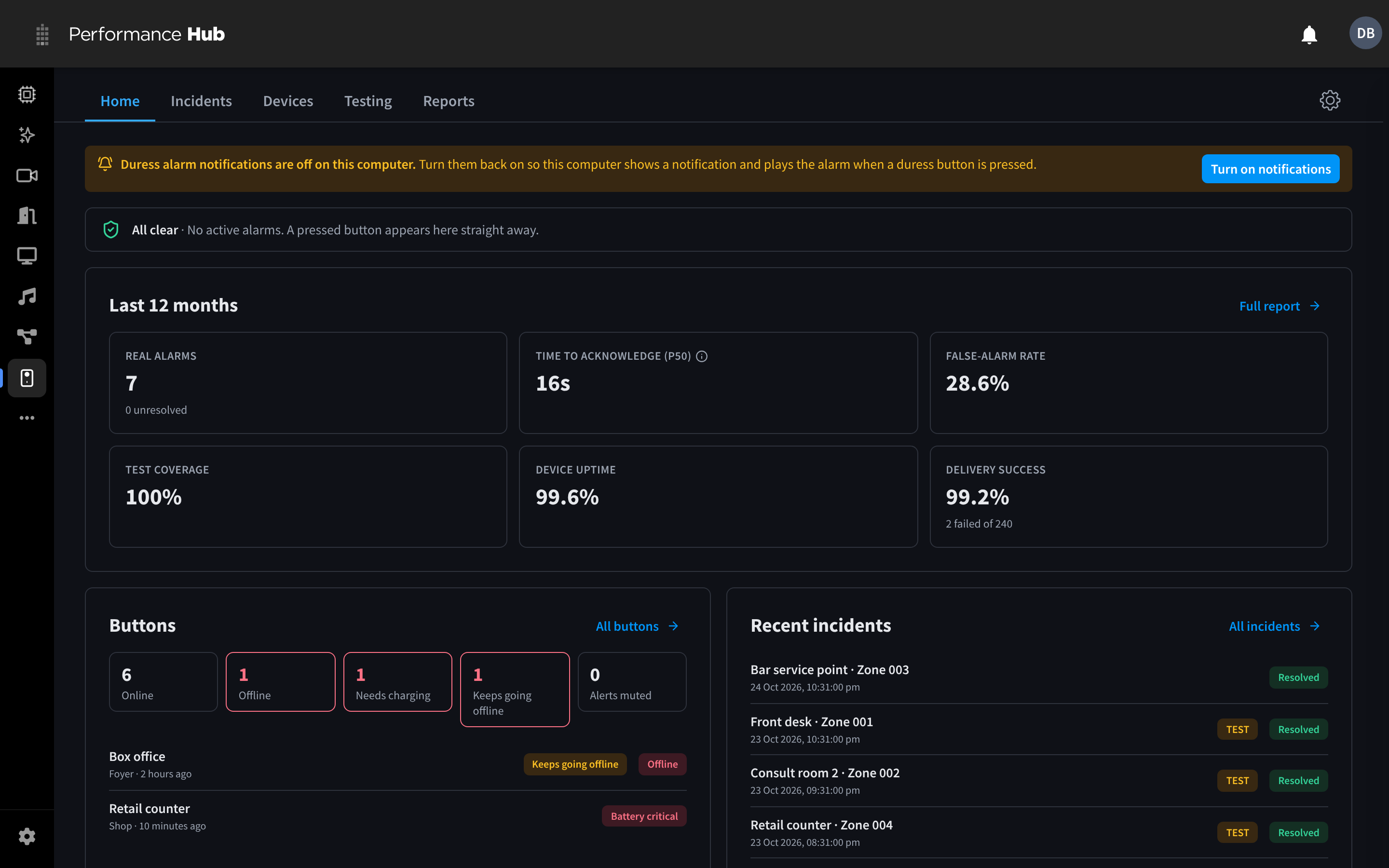
Figure 1: The Duress home page: live alarms, the last 12 months, buttons and recent incidents
| Part of Home | What it shows |
|---|---|
| Active alarms | Each active alarm appears at the top as a card with the button and the time, and Acknowledge, Resolve, Open incident and Post an update. When nothing is active, it shows All clear. |
| Last 12 months | REAL ALARMS, TIME TO ACKNOWLEDGE (P50), FALSE-ALARM RATE, TEST COVERAGE, DEVICE UPTIME and DELIVERY SUCCESS. Full report opens Reports. |
| Buttons | How many buttons are Online, Offline, Needs charging, Keeps going offline and Alerts muted, and the buttons that need attention. All buttons opens Devices. |
| Recent incidents | The latest alarms and tests, with their status. All incidents opens Incidents. |
| Testing | A summary of testing at the facility. Open testing opens Testing. |
Real alarms are rare, so Home and Reports cover the last 12 months by default.
Until alarm notifications are turned on for the computer you're using, Home shows a banner, "Duress alarm notifications are off on this computer.", with Turn on notifications. See Browser notifications.
Duress and Duress Settings
Duress has two modules, so the people who respond to alarms don't also need to be able to change how alarms work.
| Module | Lets people | Product description |
|---|---|---|
| Duress | Respond to alarms, see Home, Incidents and Reports, and start and end tests | "Respond to duress button alarms, run button tests and review incident history." |
| Duress Settings | Set up the response plan, response actions, device alerts, integrations, button labels and links, and test schedules | "Set up duress response plans, monitoring integrations, escalation policies and test schedules." |
Turning on Duress also turns on Device Management, which holds the buttons alongside the facility's other devices. See Roles & permissions for which role templates include each module.
Documentation guide
| Page | What it covers |
|---|---|
| Setting up Duress | The setup steps, the recommended order and preparing your staff |
| Buttons & triggers | How presses reach Performance Hub, adding buttons, the button list and what raises an alarm |
| Alerts & notifications | The response plan, response actions, alarm destinations, device alerts, the delivery log and browser notifications |
| Responding to alarms | Acknowledging and resolving, incidents, updates, evidence and doors |
| Testing & reports | Walk tests, full response drills, test schedules and reports |
| Roles & permissions | Who can respond, who can configure and which role templates include Duress |
| Common questions | Quick answers and troubleshooting |
Related pages
- Device Management: every device at the facility, including duress buttons
- Display Screens: the screens that relay button presses
- Door & Gate Access: the doors a duress alarm can unlock or lock down
- CCTV (VSaaS): the cameras linked to duress buttons
- Brand access & security: a brand's duress response plans