
Alerts and notifications
Duress settings decide who is told when a duress button is pressed, how they're told and what Performance Hub does automatically. This page covers each section of the Duress settings, and what your AI Agent can do with duress alarms.
Quick reference
Where to find it: Side menu → Duress → Settings (cog icon) → Response plan, Response actions, Device alerts, Integrations, Delivery log or Browser Notifications
Who can access: Users with Duress Settings at the facility can change these settings. Browser Notifications is for people who can respond to alarms. See Roles & permissions.
Purpose: Make sure every alarm reaches the right people, by the right channels, and that you hear when a message doesn't get through
Response plan
Settings → Response plan: "Who is told when a duress button is pressed, and how long to wait before telling the next people."
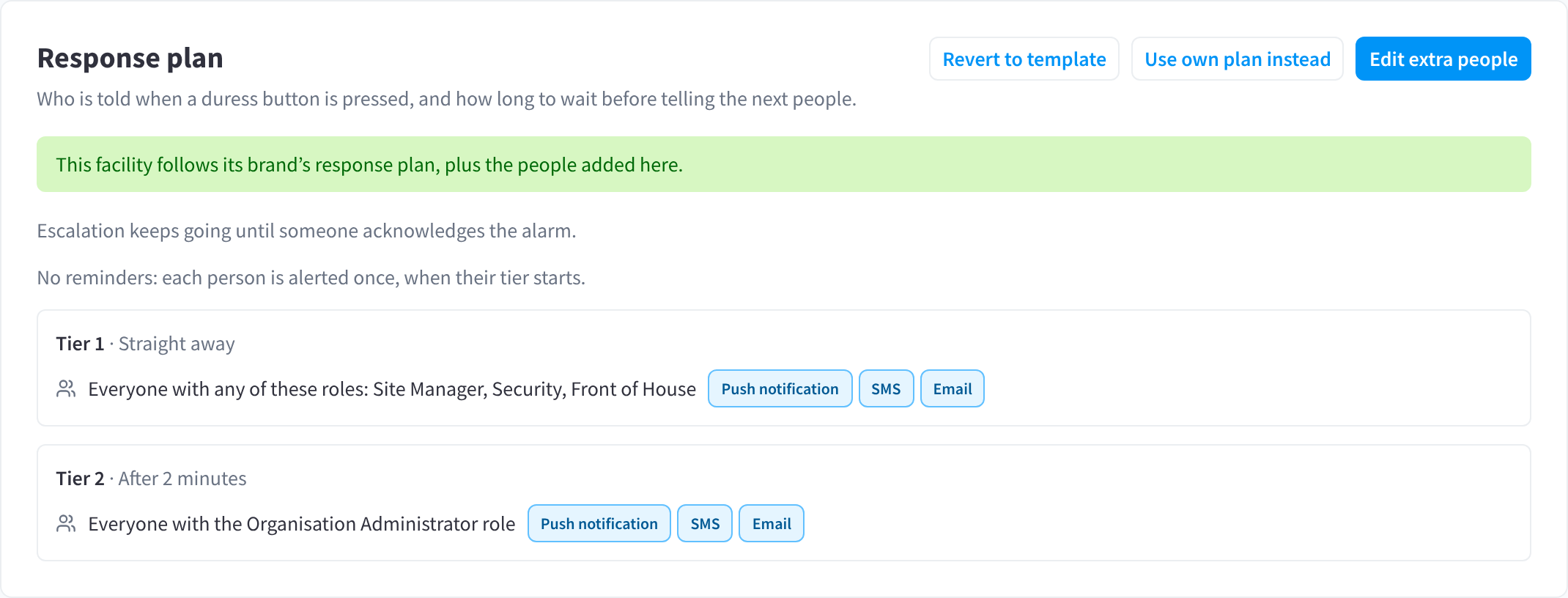
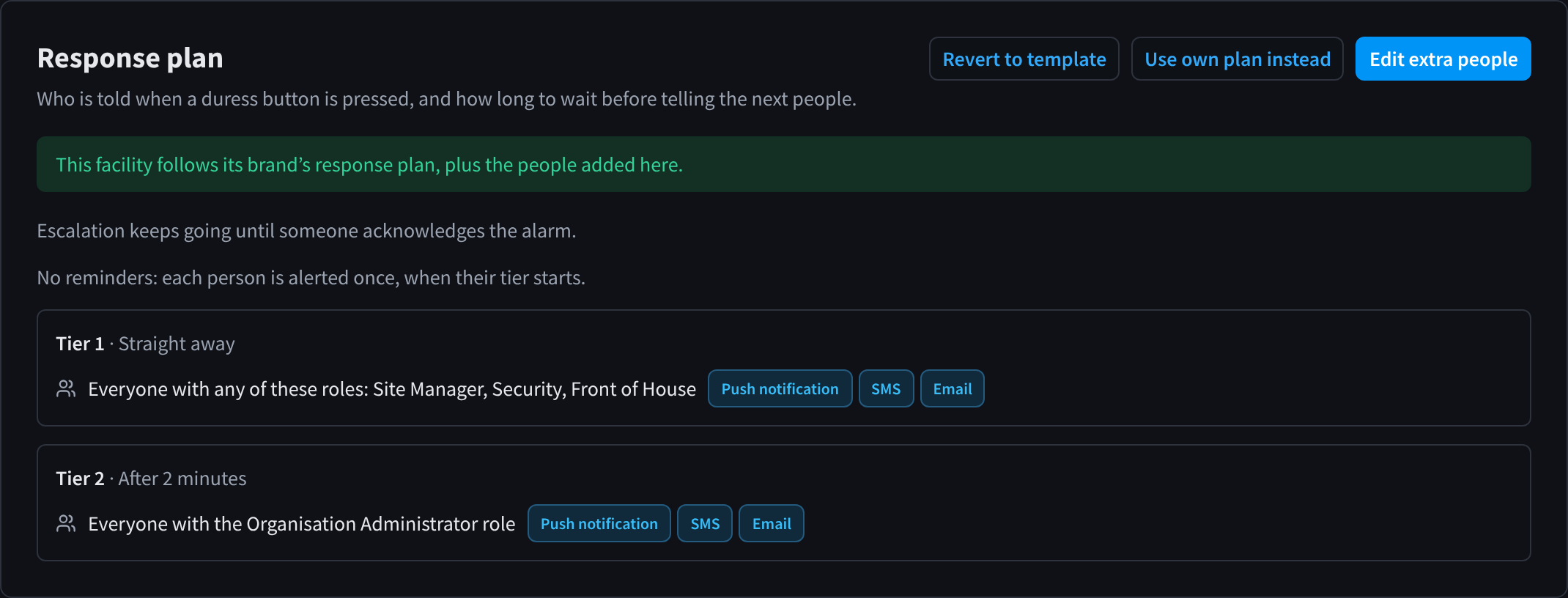
Figure 1: A response plan: who is alerted first, how, and who comes next
A response plan is a list of tiers. You decide who is in each tier, how they're contacted and when each tier starts.
- Tiers. Tier 1 is the first group of people alerted. Each later tier is alerted, after the wait you choose, if nobody has acknowledged the alarm yet. Escalation stops as soon as someone acknowledges.
- Contacts. A contact can be a role ("Everyone holding this role at the facility is contacted, as the role changes."), a Performance Hub user, an email address or a phone number.
- Channels. Each contact is reached by Push notification, SMS, Voice call or Email, or a mix. You choose whether each channel is used at once or after a delay.
- Reminders. You can have reminders repeat until someone acknowledges. Reminders only go to people already alerted, by SMS, voice call and push notification, never by email or to monitoring centres.
The tiers, contacts and timings in the figures are one facility's choices. Agree your own with whoever is responsible for safety at your site.
Brand response plans
A facility can follow its brand's response plan, add people to it, or have its own plan:
| The facility | What you see | What you can do |
|---|---|---|
| Follows the brand's plan | The brand's plan | Add people for this facility or Create own plan |
| Adds to the brand's plan | "This facility follows its brand's response plan, plus the people added here." | Edit extra people, Use own plan instead or Revert to template |
| Has its own plan | The facility's plan | Edit the plan |
The brand's plan is set in Organisation Settings. See Brand access & security.
Who gets contacted
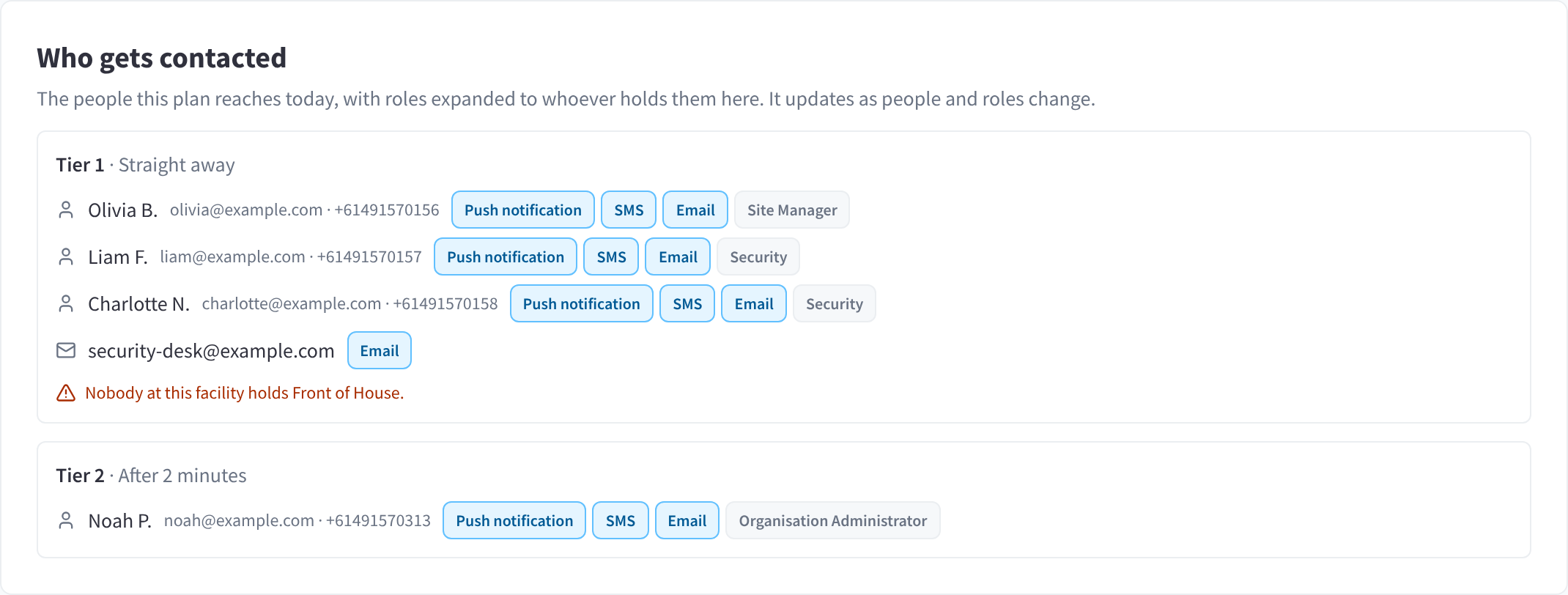
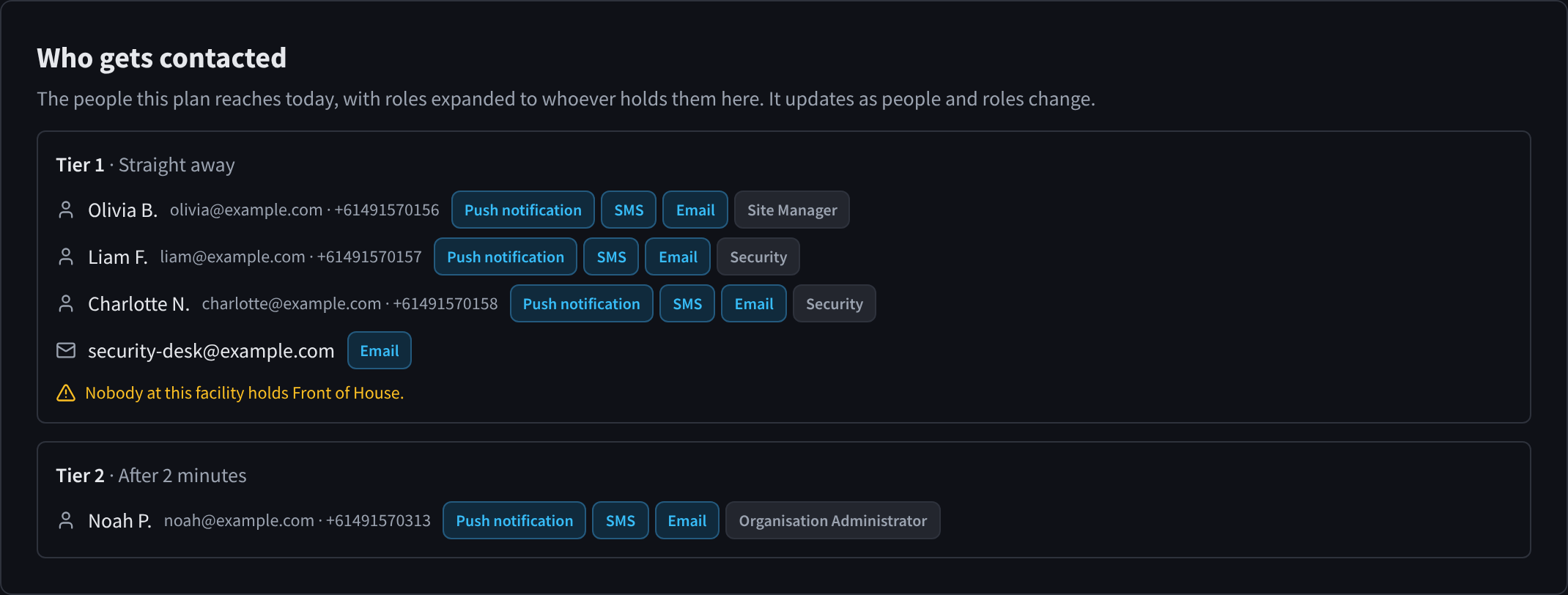
Figure 2: The people the plan reaches today, with roles expanded
Who gets contacted shows "The people this plan reaches today, with roles expanded to whoever holds them here. It updates as people and roles change." Check it whenever staff join or leave, or roles change. It warns you about gaps, such as:
- "No mobile number on their profile, so SMS and calls can’t reach them."
- "Nobody is contacted until a plan is set."
- A role in the plan that nobody at the facility holds.
Response actions
Settings → Response actions: "What Performance Hub does automatically when a duress button is pressed. Test alarms never unlock doors, lock down or alert screens."
| Action | What it does |
|---|---|
| Alert staff screens | Shows an alert on the display screens linked to the pressed button. Link only staff-only screens, never screens the public can see. |
| Lock down the doors | Locks the facility's doors down while the alarm is active. Needs Door & Gate Access. |
| Unlock doors when acknowledged | Unlocks the doors linked to the pressed button when someone acknowledges the alarm, so responders can get in. Needs Door & Gate Access. |
| Keep footage around the alarm | Keeps recordings from before the press until after the alarm ends, so CCTV (VSaaS) retention doesn't delete them, until someone releases them. Cameras chooses Every camera, The pressed button's cameras or Only these. Never used for test alarms. |
| Show cameras on the alarm dashboard | Shows live view from the linked cameras on the alarm dashboard. |
| Allow door controls on the alarm dashboard | Lets responders unlock doors and lift a lockdown from the alarm dashboard. |
| Contacts can resolve from the alarm page | Lets response plan contacts resolve the alarm from their own alarm page link. |
| Text updates to everyone texted so far | Sends updates posted for everyone alerted by SMS to everyone already texted about the alarm. |
| Draft an AI summary | Drafts a summary of the incident once it's resolved, for a responder to check and add as a note. "No names or contact details are sent." |
| Workflows can acknowledge, resolve and raise alarms | Workflows can start when a duress alarm is raised or resolved; this action also lets them, and your AI Agent acting on its own, acknowledge, resolve and raise alarms and start tests. |
Alarm page links
Alarm messages carry a Manage incident link. Alarm page link chooses where it goes:
- Shared alarm page (default): response plan contacts get their own link, and can act on the alarm from it if the facility allows it. A link shared with a group chat is view only.
- Log-in only: "The message links to the alarm in Performance Hub, which needs a log-in."
Alarm destinations
Settings → Integrations → Alarm destinations: "Everywhere this facility’s duress alarms are sent: the monitoring centre and your own places, such as a team chat, an on-call service or your own receiver."
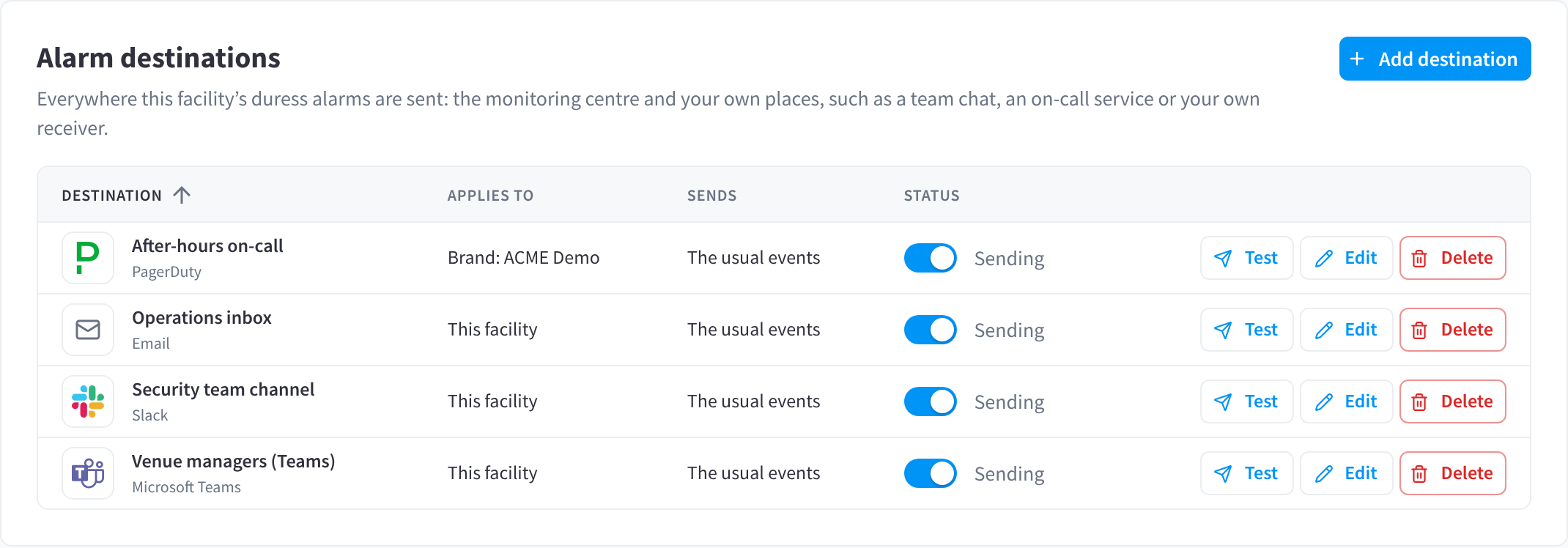
Figure 3: Alarm destinations: a team chat, an on-call service and an inbox
Click Add destination to send alarms to email, SMS, a voice call, Slack, Microsoft Teams, Google Chat, PagerDuty, Opsgenie or a Webhook.
| Column | What it shows |
|---|---|
| DESTINATION | The destination's name and type. |
| APPLIES TO | Where it was set: "This facility", "Brand: …" or "Organisation: …". A destination set for a brand or the whole organisation applies to every facility under it. |
| SENDS | Which events it receives. |
| STATUS | Whether it's sending. |
Each row has Test, Edit and Delete. Test a destination after you add or change it.
Monitoring centre
Your monitoring centre is connected with your monitoring provider and Support, and is set up and tested in External Integrations (Open in External Integrations). Its status is Not live yet, Live, Failing or Suspended. Older sites may still have an Alarm panel output (legacy) card; ask Support about it.
Device alerts
Settings → Device alerts: "Who is told about low button batteries, buttons going offline, buttons that can’t be heard, the monitoring centre connection and alarm messages that fail to send. Alarms themselves follow the response plan."
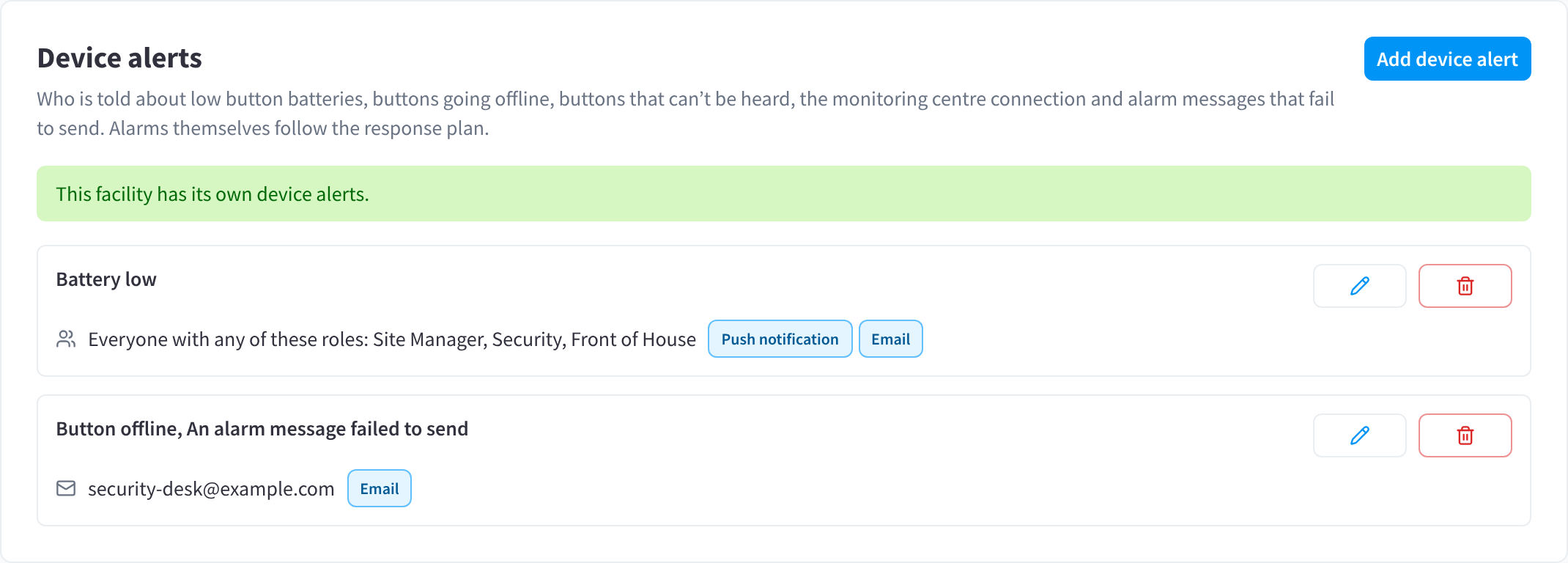
Figure 4: Device alerts tell people about low batteries, offline buttons and failed messages
Click Add device alert, choose what it's about and who is told, by push notification, SMS or email. If there's no battery rule, the page warns you that nobody is told about low batteries.
Delivery log
Settings → Delivery log: "Every attempt to send this facility’s alarms, tests and device alerts, newest first. Select a row for its details."
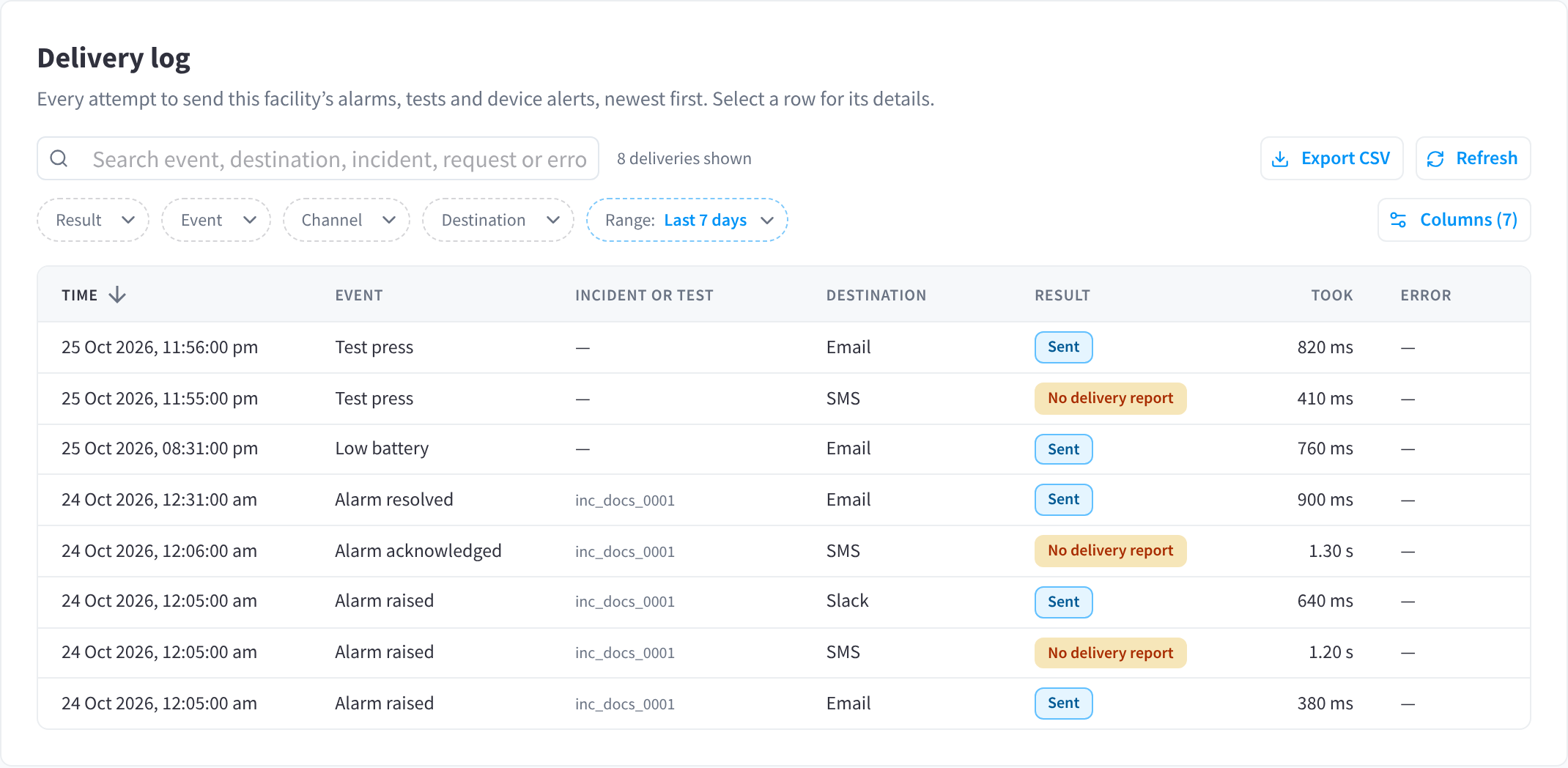
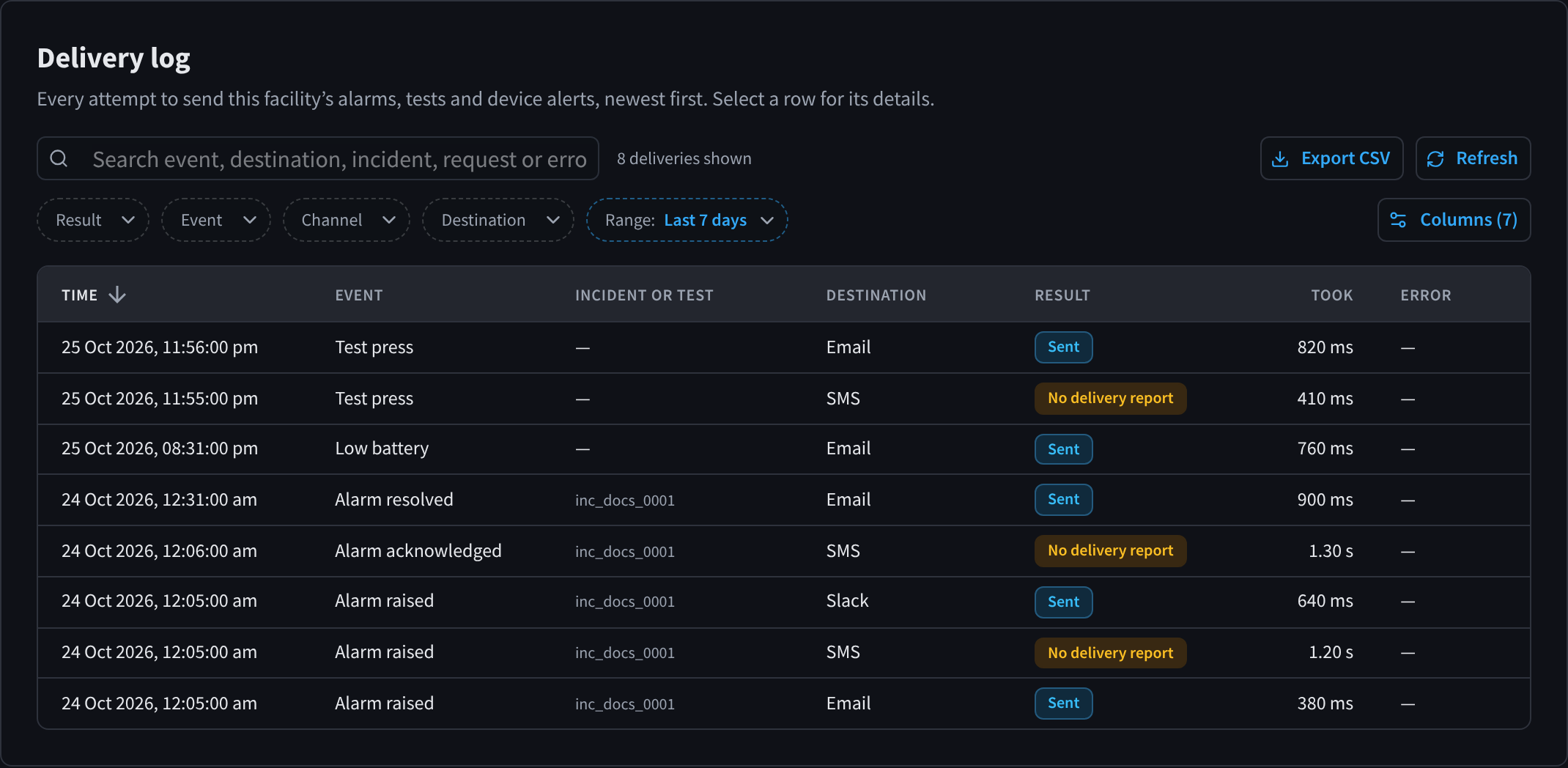
Figure 5: The delivery log lists every message sent for alarms, tests and device alerts
Search the log, or filter it by Result, Event, Channel, Destination and Range. Columns chooses the columns, and Export CSV downloads the rows. Each row shows the event, the incident or test it belongs to, the destination and the result, such as Sent or No delivery report.
When alerts from the latest alarm or test didn't all get through, a red banner says so on every Duress tab. Review opens the failures; once you've fixed the cause, click Mark as fixed.
Browser notifications
Settings → Browser Notifications: "Notifications on this computer". This section only shows for people who can respond to alarms.


Figure 6: Turn on alarm notifications on each computer that monitors alarms
Notifications are per computer and per browser: "These settings only apply to this browser." Until they're allowed, "duress alarms only show while Performance Hub is open, with no sound." The alarm sound comes with the notification.
- On the computer that watches for alarms, open Browser Notifications and click Turn on.
- Allow notifications when the browser asks.
- Click Send test notification to check it works.
Turn notifications on at every computer that watches for alarms, such as a security office, a manager's office or a staff room. The notification plays the alarm, so choose computers that the person causing the threat can't see or hear. If the browser has blocked notifications, allow them for Performance Hub in the browser's site settings, then try again. Turn off stops them on that computer.
Your AI Agent
Your AI Agent can list and read incidents, report on them, check buttons and help you locate one, add notes and updates, rename incidents and keep footage. Before it acknowledges or resolves an alarm, starts a test or starts a lockdown, it always asks you to confirm in the chat. It follows the same facility access as you. When it acts on its own, it can only acknowledge, resolve or raise alarms and start tests where Workflows can acknowledge, resolve and raise alarms is on.
Related pages
- Responding to alarms: acknowledge, resolve and coordinate
- Buttons & triggers: a button's links to cameras, doors and screens
- Brand access & security: a brand's duress response plans
- Roles & permissions: who can change these settings