
Testing and reports
A duress button is a safety device: it has to work the first time someone needs it. Test every button on a regular schedule, and again after you move a button, replace its battery or change the display screens and IoT Gateways near it. Reports then show how quickly alarms are answered and how ready the facility is.
Book tests ahead and tell staff. Presses during a test are treated as tests, so everyone should know when a test is on.
Quick reference
Where to find it: Side menu → Duress → Testing or Reports
Who can access: Users with Duress can start and end tests and see reports. Booking and editing test schedules needs Duress Settings. See Roles & permissions.
Purpose: Prove every button works end to end, and measure how well alarms are answered
Walk test or full response drill
| Walk test | Full response drill | |
|---|---|---|
| In the product | "Someone presses every button once. Only tier 1 of the response plan is told, with TEST-labelled messages, and the monitoring centre if it gets test codes." | "Someone presses a button, then the whole response plan runs, every tier, with TEST-labelled messages, until someone acknowledges. Measures how long that takes." |
| Checks | Every button reaches Performance Hub and alerts the first people in the plan | The whole response plan, and how long it takes someone to acknowledge |
| Use it | Regularly, and after any change to the buttons or relays | When you want to rehearse the full response with everyone in the plan |
Test alarms never unlock doors, lock down or alert screens, whichever test you run.
Run a test
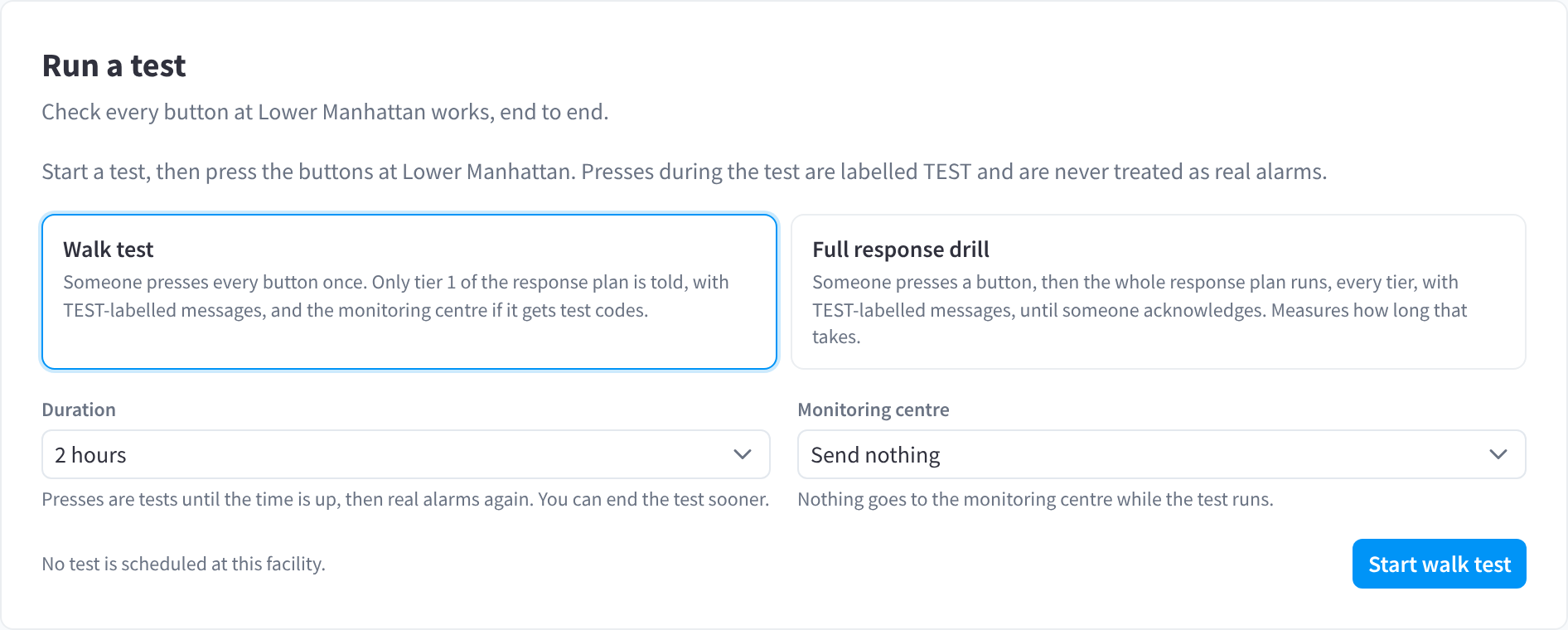
Figure 1: Run a walk test or a full response drill
Run a test checks that every button at the facility works, end to end.
- Open Testing and choose Walk test or Full response drill.
- Choose the Duration: "Presses are tests until the time is up, then real alarms again. You can end the test sooner." Choose a duration that gives you time to reach every button.
- Choose what goes to the Monitoring centre: Send test codes or Send nothing. Agree this with your monitoring provider.
- Click Start walk test for a walk test, or Start drill for a full response drill.
- Press every button for a walk test, or one button for a drill.
- If you finish before the duration is up, click End test in the test panel, or End early on the test's row in the list.
Tests never run by themselves: someone has to press every button. The durations shown in the figures are examples, not recommendations.
Test results
The results list every button, whether it was pressed or not, and who each press told. They also suggest next steps: a missed button opens Devices, and a failed message opens the delivery log. Fix any failure straight away, and make sure staff know another way to call for help until the button works. See A duress button isn't alerting.
Test schedules
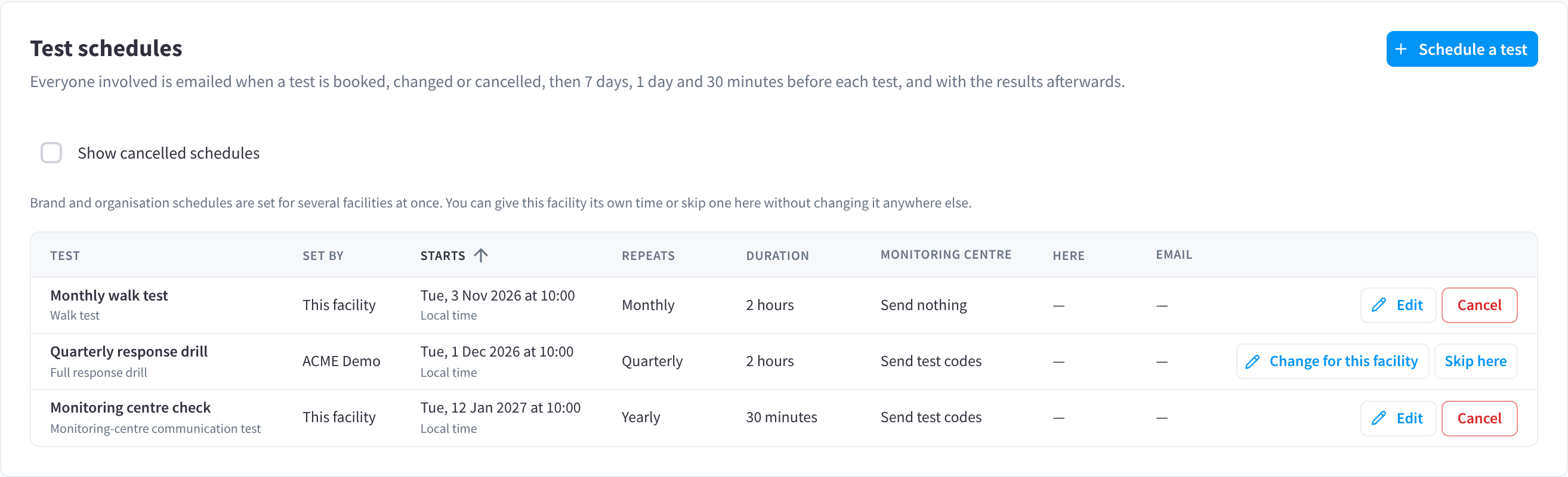
Figure 2: Book tests ahead, once or on a schedule
Test schedules: "Everyone involved is emailed when a test is booked, changed or cancelled, then 7 days, 1 day and 30 minutes before each test, and with the results afterwards."
- Click Schedule a test.
- Choose the test type, when it starts, its duration and what goes to the monitoring centre.
- Choose how often it repeats: once, Monthly, Quarterly, Twice a year or Yearly.
- Save. Everyone involved is emailed.
The list shows each schedule's TEST, SET BY, STARTS, REPEATS, DURATION, MONITORING CENTRE, HERE and EMAIL. Tick Show cancelled schedules to include cancelled ones.
- Brand and organisation schedules apply to several facilities at once. At a facility, Change for this facility gives it its own time, and Skip here skips it, without changing it anywhere else. They're managed from the brand's Duress settings in Organisation Settings.
- Cancel one test: click Cancel on the test's row. The dialog explains that only this test is cancelled, and later tests in the schedule still go ahead. Cancel test confirms, and Keep test closes the dialog without cancelling.
- Cancel a schedule: click Cancel on the schedule's row. In the "Cancel this schedule?" dialog, Cancel schedule cancels its upcoming tests and emails everyone who was told about them. Tests already running carry on. If the facility's schedule replaces a shared schedule, cancelling it also means the facility stops following the shared schedule.
A scheduled test still needs someone to press the buttons. Booking and editing schedules needs Duress Settings. Organisation-wide schedules need an Organisation Administrator, or Duress Settings across the whole organisation.
Reports


Figure 3: Alarm response figures for the last 12 months
Reports covers the selected facility over the range you choose. Download CSV and Download PDF export it.
| Group | What it measures |
|---|---|
| Alarm response | Time to acknowledge, time to resolve, the false-alarm rate and the number of real alarms |
| Readiness | Test coverage, buttons tested, device uptime and delivery success |
| Month by month | How the figures change from one month to the next |
| Button health | How each button at the facility is doing |
| Test history | The tests run at the facility and their results |
P50 is the median: half of the alarms were quicker than this. P95: 95% of alarms were acknowledged within the P95 time. Tests aren't counted as real alarms. A real alarm resolved as a test counts as an unplanned test, which counts as a completed drill.
Related pages
- Setting up Duress: preparing staff for tests
- Responding to alarms: acknowledge and resolve
- Alerts & notifications: the response plan a test checks
- Common questions: troubleshooting buttons that don't alert