
Responding to alarms
When a duress button is pressed, the people in the response plan are alerted and the alarm appears in Performance Hub. This page is for the people who respond: acknowledging and resolving an alarm, coordinating on the incident, and reviewing past incidents.
Quick reference
Where to find it: Side menu → Duress → Home (active alarms) or Incidents; or the Manage incident link in an alarm message
Who can access: Anyone with Duress at the facility. Response plan contacts can also act from their alarm page link, if the facility allows it.
Purpose: Respond to an alarm quickly, keep everyone informed and record what happened
When an alarm comes in
An alarm reaches you in the ways your facility has set up:
- By the channels in the response plan: push notification, SMS, voice call or email, with a Manage incident link.
- As a browser notification, on computers where browser notifications are on.
- On the Duress Home tab, as a card with the button and the time, and Acknowledge, Resolve, Open incident and Post an update.
- In Performance Hub's alarm banner, when the alarm is at another of your facilities.
Acknowledge an alarm
Click Acknowledge as soon as you're responding. Acknowledging tells everyone that you're responding, and stops the alarm escalating to the next people in the response plan. If the facility uses Unlock doors when acknowledged, the doors linked to the pressed button unlock so responders can get in.
Resolve an alarm
When the situation is over:
- Click Resolve. Resolve alarm opens.
- Choose the Outcome: Genuine emergency, False alarm or Test.
- Add a Note: "Recorded on the incident timeline. Required for a genuine emergency."
- Confirm.
Resolving a real alarm as Test records it as an unplanned test. It's left out of real-alarm reports and counts as a completed drill.
The Incidents tab
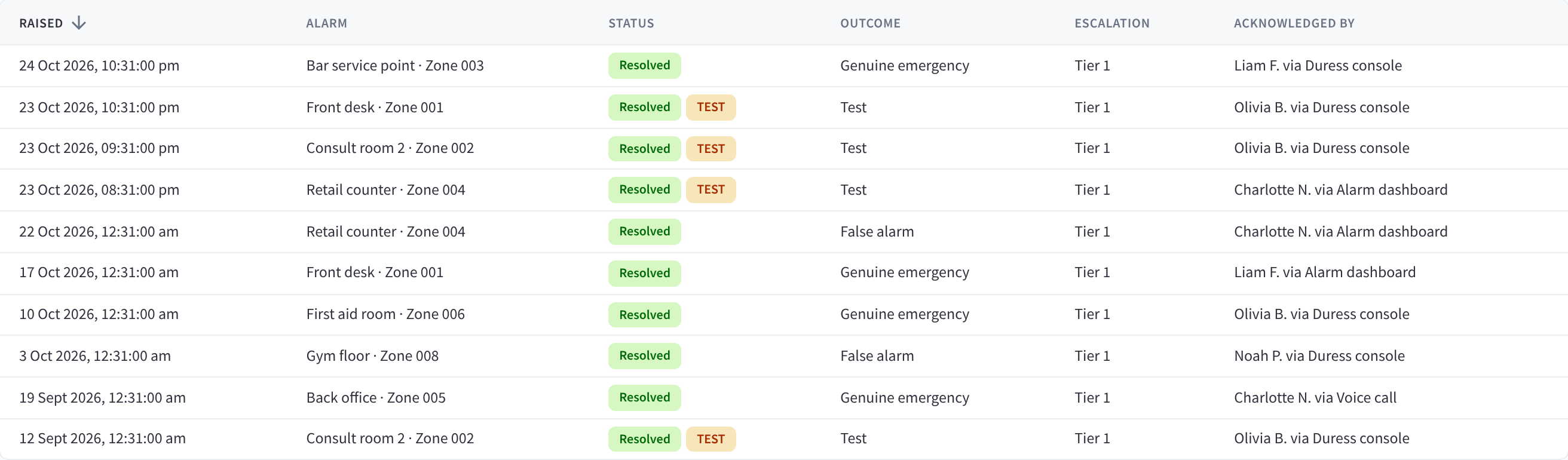
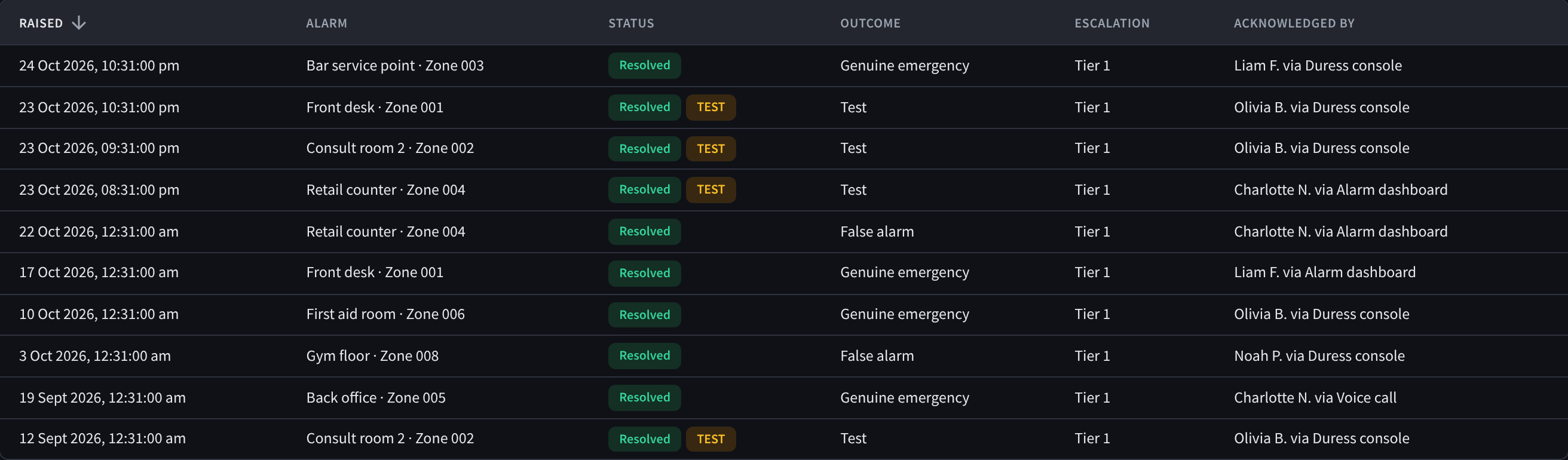
Figure 1: The incident history, with each alarm’s outcome and who acknowledged it
Incidents lists every alarm and test at the facility, newest first. Filter it by Status and Range, which starts at Last 12 months.
| Column | What it shows |
|---|---|
| RAISED | When the alarm was raised. |
| ALARM | The button that was pressed, with its zone. |
| STATUS | Where the incident is up to. Tests also show TEST. |
| OUTCOME | The outcome chosen when it was resolved. |
| ESCALATION | How far through the response plan the alarm went. |
| ACKNOWLEDGED BY | Who acknowledged it, and how, for example "via Duress console" or "via Alarm dashboard". |
Click a row to open the incident.
An incident
An incident's page has an All incidents link back to the list, the incident's name, its status and a TEST pill for tests. Click the pencil to give it a name that's easy to find later. Names stay in the Duress console: they never reach the alarm page or messages.
The page has three tabs, Activity, Evidence and Deliveries, and a side panel with the alarm, the response, the buttons pressed, doors and footage.
Activity
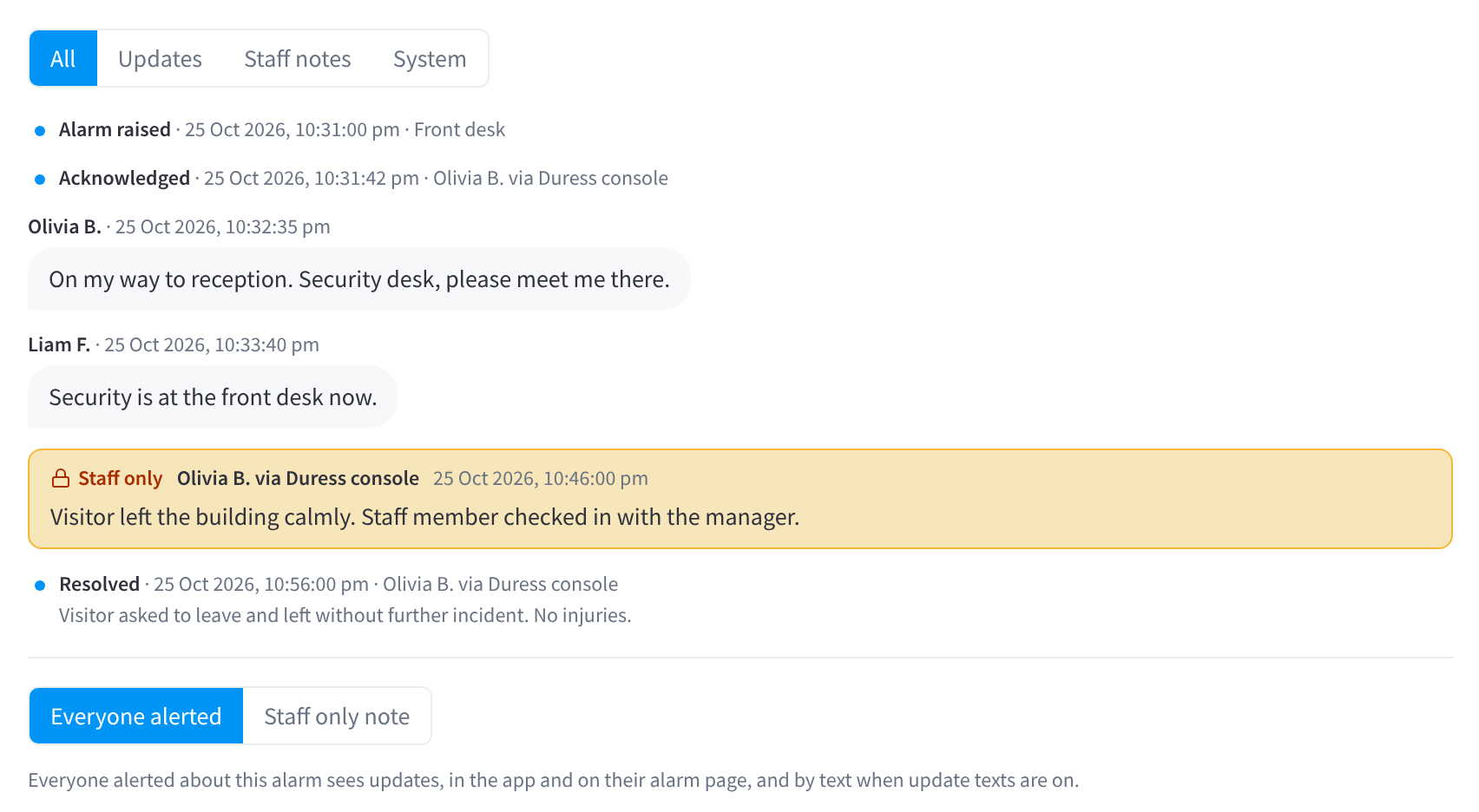
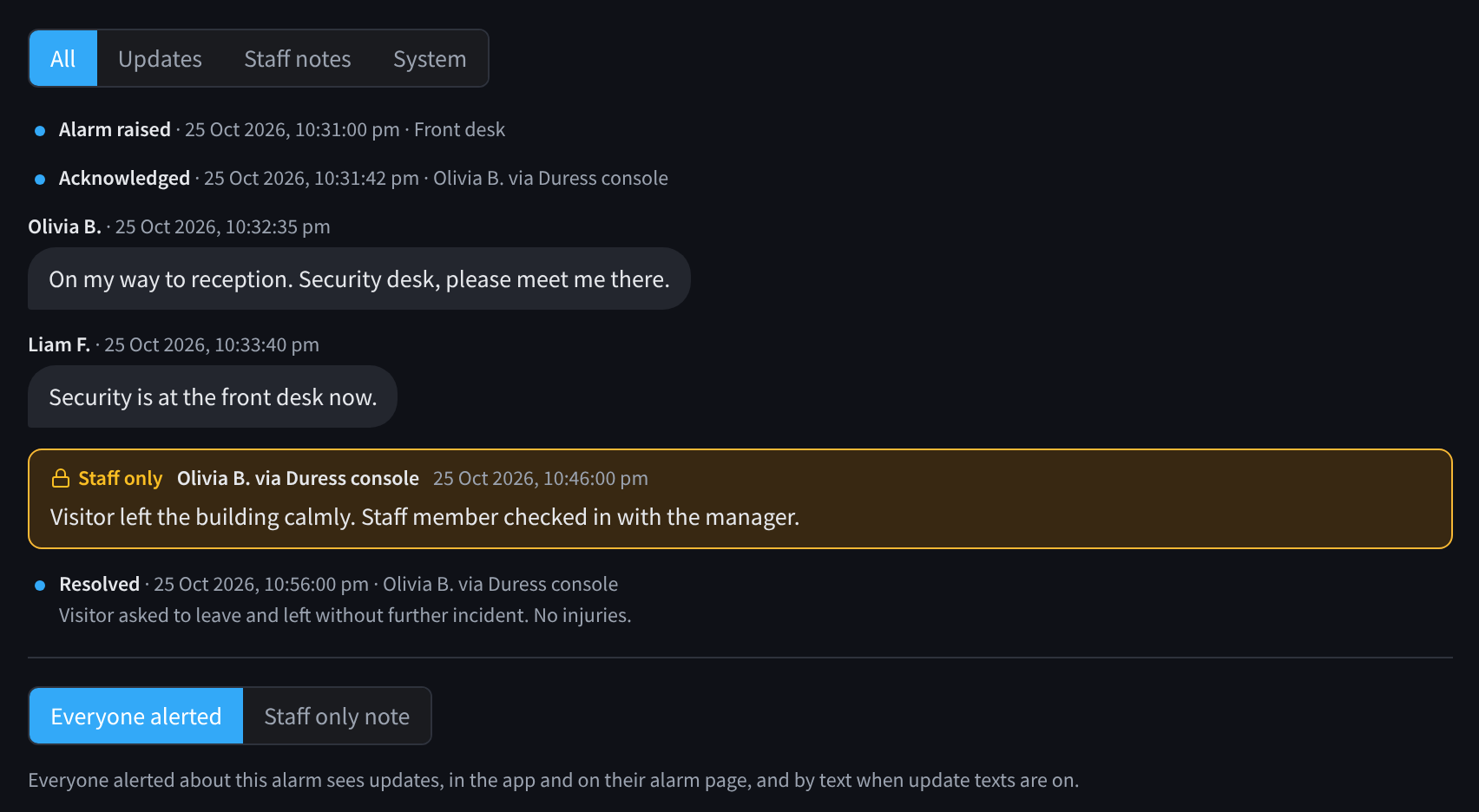
Figure 2: An incident’s activity: updates for everyone alerted and staff-only notes
Activity is the incident's timeline. Filter it with All, Updates, Staff notes and System.
To post, choose who sees it, then write your message:
| Option | Who sees it |
|---|---|
| Everyone alerted | "Everyone alerted about this alarm sees updates, in the app and on their alarm page, and by text when update texts are on." |
| Staff only note | "Only people with Duress access in Performance Hub see staff notes." |
Updates can include text, photos, files and a location. Use an update for what everyone responding needs to know, such as "Security is at the front desk now.", and a staff note for anything that should stay inside Performance Hub. Updates close a while after the alarm is resolved; staff notes stay open.
Evidence and footage
Evidence shows footage from the cameras linked to the pressed button. Open in CCTV opens it in CCTV (VSaaS). When the facility uses Keep footage around the alarm, the kept footage is listed here and protected from CCTV retention. Release kept footage, which needs Duress Settings, lets it age out normally again. See Retain & Archive for keeping other recordings.
Deliveries
Deliveries lists every message sent for this incident and its result. For every message the facility has sent, see the delivery log.
Doors
The side panel's Doors lists the doors linked to the alarm. Unlock unlocks one door and Unlock all unlocks them all. If the doors are locked down, it shows the lockdown and Lift lockdown. Each asks you to confirm first. Door controls need Duress and Door & Gate Access at the facility.
AI summary
When the facility uses Draft an AI summary, a draft summary of the incident appears once it's resolved. Check it, correct anything that's wrong, then click Add as note to add it to the timeline.
Related pages
- Alerts & notifications: the response plan, response actions and browser notifications
- Testing & reports: tests and the reports built from incidents
- Roles & permissions: who can respond
- Common questions: quick answers about alarms and incidents