
Buttons and triggers
Duress buttons are the facility's way to call for help discreetly. This page covers how a press reaches Performance Hub, adding buttons, reading the button list, a button's details and links, and everything that can raise a duress alarm.
Quick reference
Where to find it: Side menu → Duress → Devices
Who can access: Users with Duress or Duress Settings at the facility can open Devices. Changing a button's label, room, zone and links needs Duress Settings, and adding, moving and removing buttons needs Device Management.
Purpose: Add duress buttons, check they're healthy and decide what happens when each one is pressed
How presses reach Performance Hub
A duress button has no network connection of its own. Its presses are relayed by a device within range at the facility:
- A display screen. A Display Screen Player with Duress alarm monitoring turned on "Relays presses from nearby duress buttons." Turn it on in the screen's Connectivity & peripherals settings.
- An IoT Gateway. It's enabled by your account manager.
Every button needs at least one display screen or IoT Gateway close enough to hear it. Where you can, have more than one relay near the buttons, so a press still gets through if one is offline.
Add a button
Before you add a button, check that a display screen with Duress alarm monitoring on, or an IoT Gateway, is online near where the button will go. Adding a button needs Device Management at the facility.
From Duress:
- Open Devices and click Add button.
- Enter the serial number, "Printed on the back of the button".
- Follow the prompts. Duress checks that a display screen or IoT Gateway can hear the button.
From Device Management: click Add Device, then scan the QR code on the button or type its serial number. Or click Or choose the device type manually and choose Duress/Panic Button. See Adding devices.
Then give the button a label and room on its Settings tab. Name it for where it is, so responders can find it quickly, for example "Reception Lobby", "Consult Room 2", "Box Office" or "Bar Service Point".
The button list
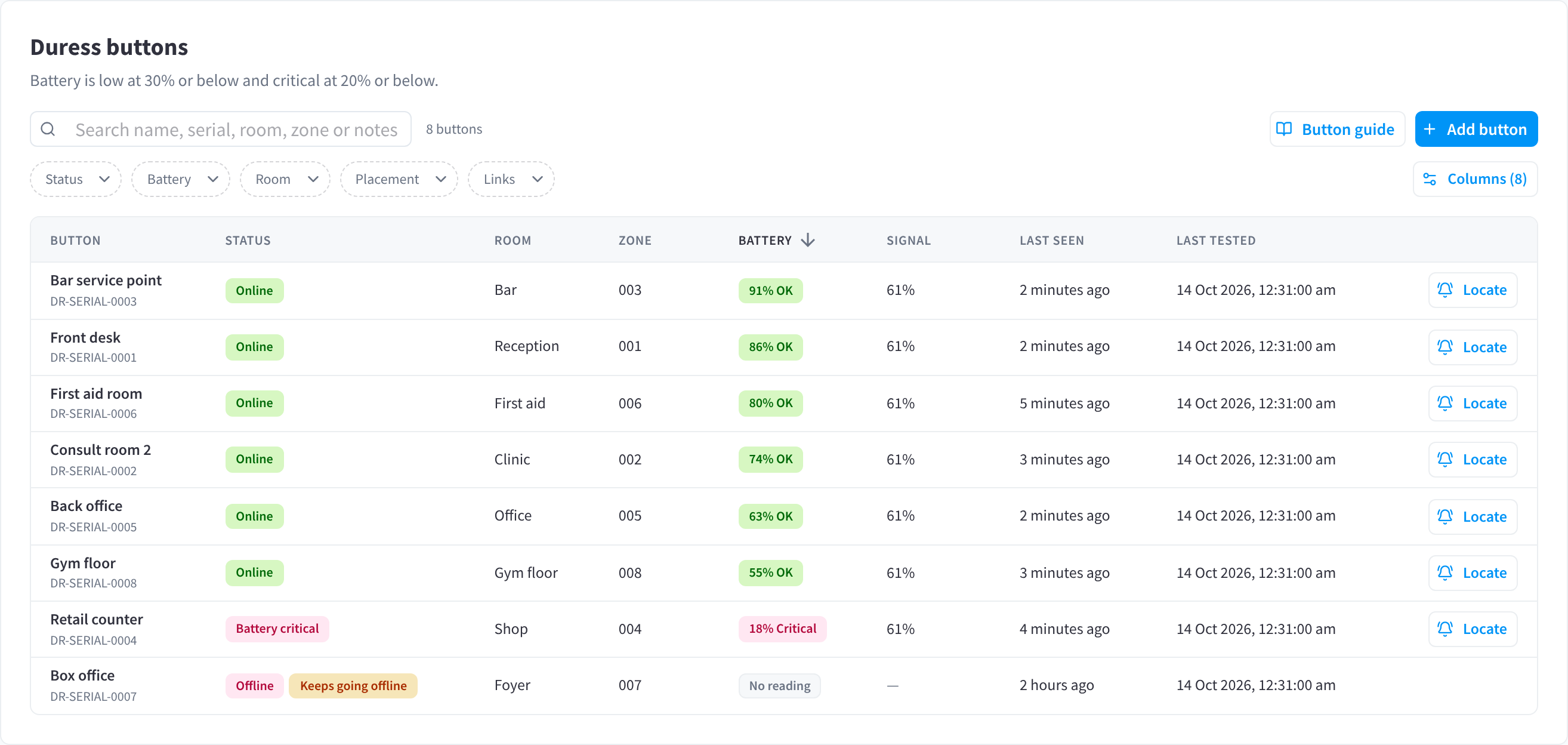
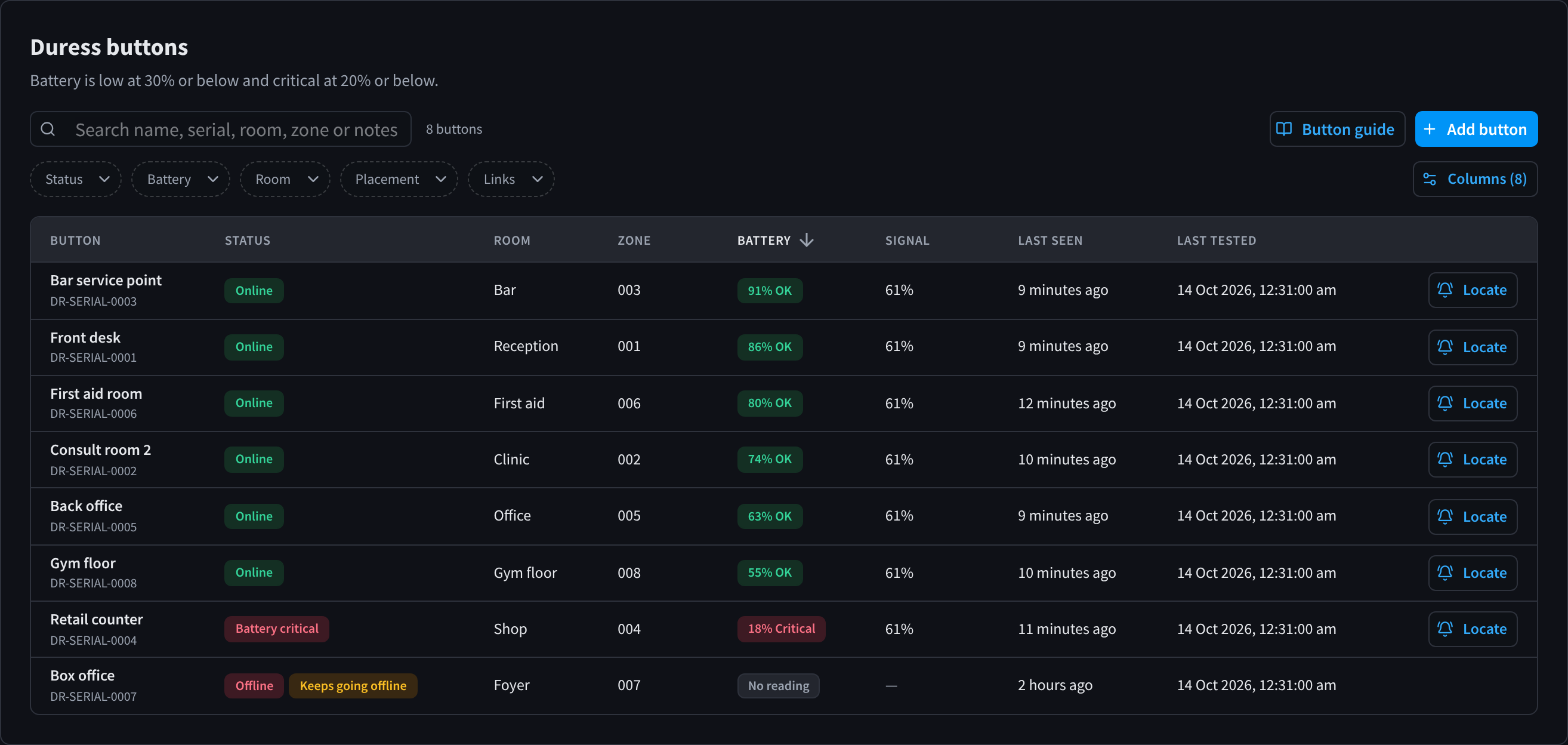
Figure 1: Every duress button at the facility, with its status, battery and when it was last tested
The Duress buttons list shows every button at the facility. "Battery is low at 30% or below and critical at 20% or below."
| Control | What it does |
|---|---|
| Search name, serial, room, zone or notes | Shows only the buttons that match what you type. |
| Button guide | Opens the guide to using the buttons. Show it to everyone who might use one. |
| Add button | Adds a button. See Add a button. |
| Status, Battery, Room, Placement, Links | Filter the list. |
| Columns | Chooses which columns show. |
| Locate | Helps you find the button in that row. |
| Column | What it shows |
|---|---|
| BUTTON | The button's label, with its serial number underneath. |
| STATUS | For example Online, Offline, Battery critical or Keeps going offline. |
| ROOM | Where the button is, as set on its Settings tab. |
| ZONE | The zone number your monitoring company uses for this button, as set on its Settings tab. |
| BATTERY | The battery level, marked OK, low or critical. |
| SIGNAL | How well a display screen or IoT Gateway hears the button. |
| LAST SEEN | When the button last reported. |
| LAST TESTED | When the button was last pressed in a test. |
An offline button shows No reading for its battery and signal, because its last reading may be out of date.
A button's details
Click a button in the list to open its details. They have four tabs:
| Tab | What it holds |
|---|---|
| Overview | The button's connection, device details and device alerts. Locate now helps you find the button. Mute alerts stops this button's offline, back-online and battery alerts. Alarms are always sent. |
| Settings | The button's label, room, zone, placement and notes, and its links to cameras, doors and screens. |
| Button guide | The guide to using the button, for staff. |
| Advanced | Move to another facility, Remove from this facility and Open in Device Management. Moving and removing need Device Management. |
Moving or removing a facility's last button warns you that Duress goes to sleep there, and that its contacts and monitoring centre are emailed.
Settings
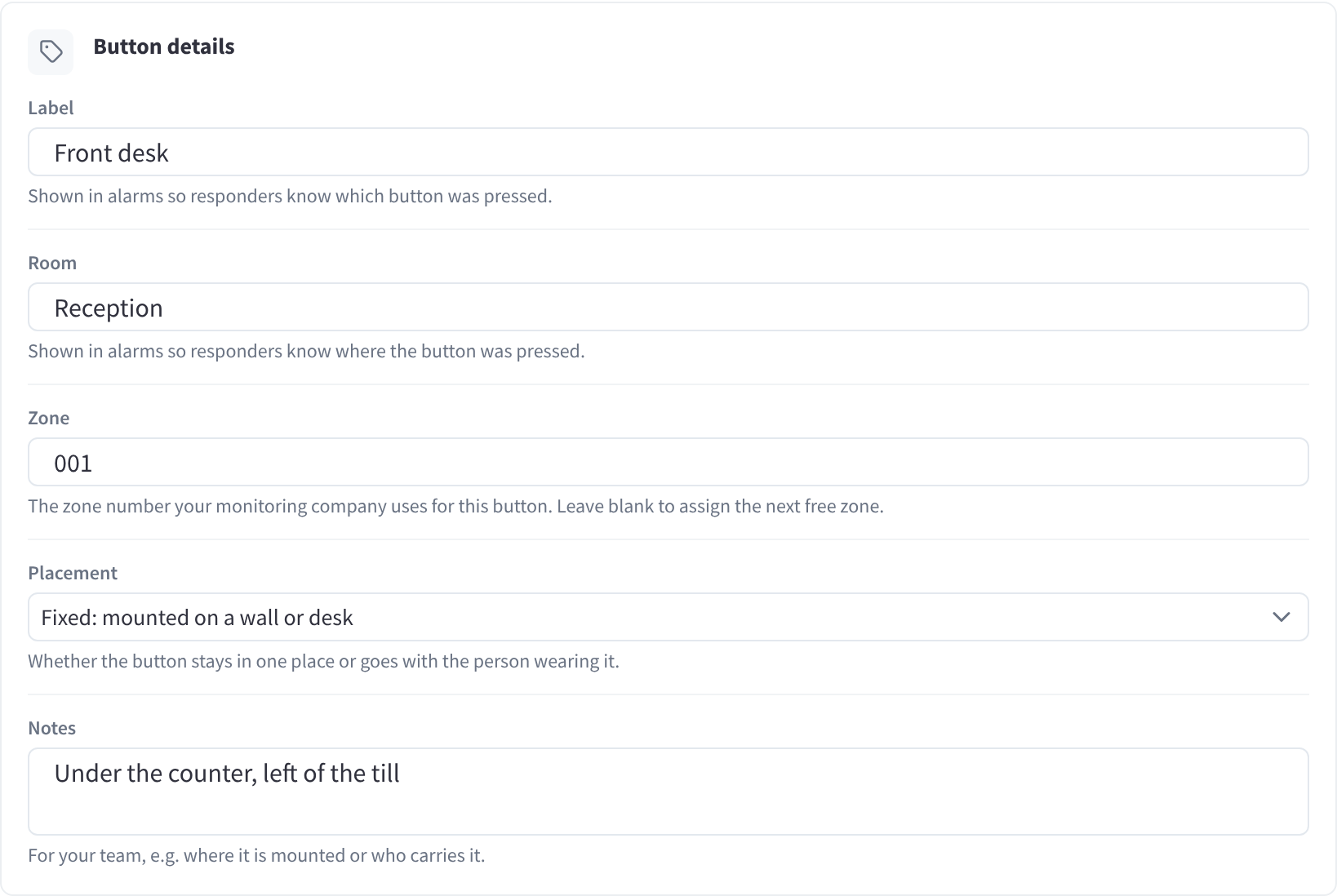
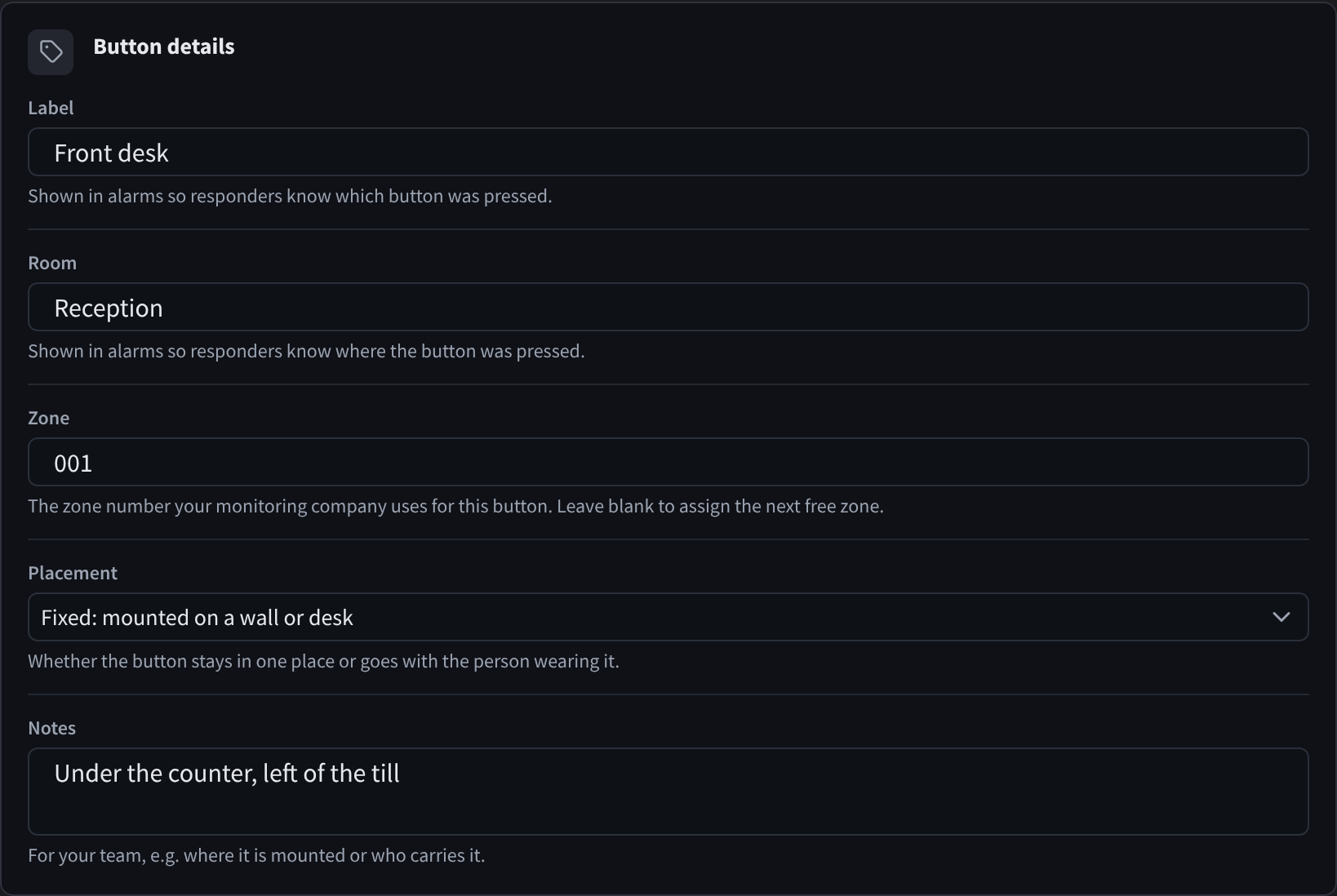
Figure 2: A button’s details: its label, room, zone, placement and notes
| Field | What it's for |
|---|---|
| Label | "Shown in alarms so responders know which button was pressed." |
| Room | "Shown in alarms so responders know where the button was pressed." |
| Zone | "The zone number your monitoring company uses for this button." |
| Placement | "Whether the button stays in one place or goes with the person wearing it." A fixed button is mounted on a wall or desk; a carried button goes with the person. |
| Notes | "For your team, e.g. where it is mounted or who carries it." |
"Labels, zones and the cameras, doors and screens a button is linked to need Duress Settings at this facility."
Links: cameras, doors and screens
"Give it a label and zone, and link its cameras, doors and screens." A button's links decide what happens at that button when it's pressed, together with the facility's response actions:
| Link | What it's used for |
|---|---|
| Cameras | Footage around the alarm, and live view on the alarm page, from CCTV (VSaaS) |
| Doors | Doors that can unlock when someone acknowledges the alarm, from Door & Gate Access |
| Screens | Display screens that show a staff screen alert |
Staff-only screens. Link a button only to staff-only screens, such as a back office or a staff room. Never link screens that the public, or the person causing the threat, can see.
What raises an alarm
| Trigger | What happens |
|---|---|
| A button press | A real alarm. The response plan, alarm destinations and response actions all run. |
| A press during a test | A test, labelled TEST. Presses during a test are treated as tests, so book tests ahead and tell staff. See Testing & reports. |
| A workflow | A real alarm, where Workflows can acknowledge, resolve and raise alarms is on. The alarm records that a workflow raised it. |
Door & Gate Access
With Door & Gate Access at the facility, Duress response actions can unlock a button's linked doors when someone acknowledges the alarm, and lock the doors down while the alarm is active. Responders can also unlock doors and lift a lockdown from the incident. Lockdown and door controls need Door & Gate Access as well as Duress. Test alarms never unlock doors, lock down or alert screens.
Display Screens
Display Screens works with Duress in three ways:
- Duress alarm monitoring relays presses from nearby buttons. See How presses reach Performance Hub.
- Alert staff screens shows an alert on the screens linked to the pressed button. Link only staff-only screens.
- A screen's relay controller can be set to Duress alarm or Duress low battery, so the relay responds to duress alarms.
Related pages
- Adding devices: the Add Device dialog in Device Management
- Screen settings: turn on Duress alarm monitoring for a screen
- Alerts & notifications: who is alerted, and the response actions
- Common questions: No reading, buttons that don't alert and more