
Setting up Duress
Duress does nothing at a facility until its first button is added. This page covers the setup steps Duress shows you, the order we recommend for a new site, brand response plans, and how to prepare the people who will use and respond to the buttons.
Quick reference
Where to find it: Side menu → Duress → Home
Who can access: Duress Settings to set up the response plan and alerts, and Device Management to add buttons. See Roles & permissions.
Purpose: Get a facility's duress alarms working end to end, then keep staff ready
Asleep until the first button
With no buttons, Duress is asleep at the facility: "nobody is texted, emailed or tested". The first time you open it, Duress shows "Welcome to Duress" with Add your first button, How the buttons work and Skip setup for now.
Duress wakes up as soon as the first button is added.
The setup steps
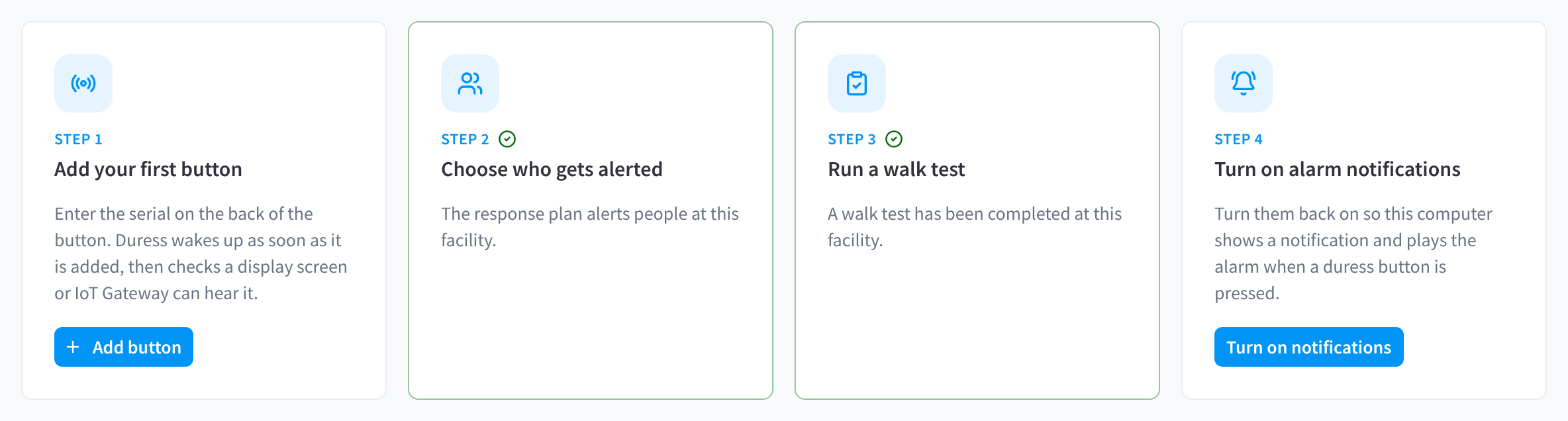
Figure 1: Before the first button is added, Duress shows the setup steps
Home shows a checklist, "Finish setting up Duress", with how many steps are complete, until every step is done. Hide setup guide hides it.
| Step | What it asks you to do |
|---|---|
| Add your first button | "Enter the serial on the back of the button. Duress wakes up as soon as it is added, then checks a display screen or IoT Gateway can hear it." See Add a button. |
| Choose who gets alerted | "Set up the response plan: who is alerted first, how, and who comes next if nobody acknowledges." See Response plan. |
| Run a walk test | Press every button once to check each press reaches the right people. See Run a test. |
| Turn on alarm notifications | Turn on notifications on the computer you're using. This step is per computer, and only shows for people who can respond to alarms. See Browser notifications. |
If you don't have the access a step needs, the step says who to ask.
Recommended order
For a new site, work through Duress in this order:
- Switch on the modules and roles. Give responders Duress, and the people who configure alarms Duress Settings. See Roles & permissions.
- Connect a relay. Turn on Duress alarm monitoring on a display screen near where the buttons will go, or set up an IoT Gateway. See How presses reach Performance Hub.
- Add the buttons. Give each a label and room that responders will recognise. See Add a button.
- Set the response plan: who is alerted first, how, and who comes next. See Response plan.
- Choose the response actions, such as unlocking doors or keeping footage. See Response actions.
- Add alarm destinations and device alerts: your monitoring centre, a team chat or an on-call service, and who hears about low batteries and offline buttons. See Alarm destinations and Device alerts.
- Turn on browser notifications on every computer that watches for alarms. See Browser notifications.
- Run a walk test to check every button end to end. See Run a test.
- Book recurring tests. See Test schedules.
- Prepare your staff. See Prepare your staff.
Staff-only screens. If you link a button to display screens, link only staff-only screens, such as a back office or a staff room. Never link screens that the public, or the person causing the threat, can see.
Brand response plans
A brand can have a response plan template that its facilities follow, add to or replace with their own. Brand plans live in the brand's Duress section in Organisation Settings. See Brand access & security, and Brand response plans for what a facility can do with its brand's plan.
Prepare your staff
A duress button only helps if people know it's there and responders know what to do.
- Everyone who might use a button knows where it is and has been shown the button guide in the Duress module. The guide is in the product, not in this documentation.
- Responders know how to acknowledge and resolve an alarm, and what to post as an update. See Responding to alarms.
- Test days are announced. Presses during a test are treated as tests, so book tests ahead and tell staff. Scheduled tests email everyone involved. See Test schedules.
- Inductions include the buttons. Cover them in new staff inductions, and refresh everyone's training when you add or move a button.
- There's a backup. Agree another way to call for help for any time a button is out of action.
- Records are kept. Note each button's location and serial number, and its battery changes, in your device inventory.
Related pages
- Duress overview: what Duress does and how an alarm works
- Buttons & triggers: relays, adding buttons and links
- Alerts & notifications: who is alerted and how
- Testing & reports: walk tests and test schedules