
Brightness
Brightness changes the brightness of every screen at the facility twice a day: a daytime level and a night-time level. Use it to make screens easier on the eyes after dark, or to save power overnight.
Quick reference
Where to find it: Main menu → Display Screens → cog icon → Brightness
Who can access: Users with Display Screens access at the facility
Purpose: Set daytime and night-time brightness for every screen at the facility
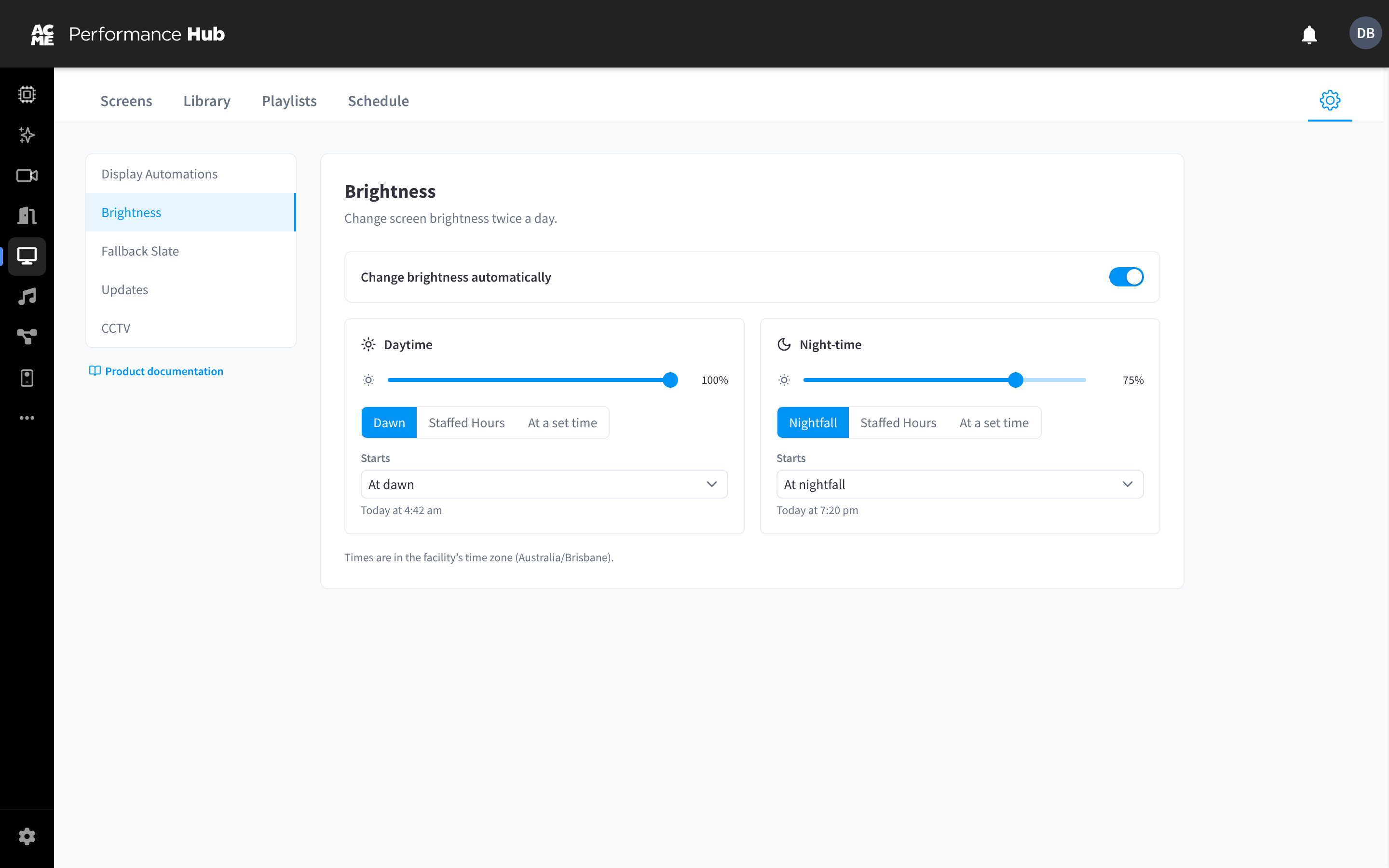
Figure 1: Brightness settings for daytime and night-time
Set up Brightness
- Open Settings (cog icon) → Brightness.
- Turn on Change brightness automatically.
- Set the Daytime level with the slider (for example 100%), and choose when daytime starts:
- Dawn: at dawn for the facility's location. The page shows today's time, for example "Today at 4:42 am".
- Staffed Hours: relative to the facility's staffed hours. Choose when under Starts, for example At opening.
- At a set time: at the time you choose under Starts at.
- Set the Night-time level (for example 75%), and choose when night-time starts: Nightfall, Staffed Hours or At a set time.
- Click Save changes.
Staffed Hours come from Facility & System Configuration; on holidays, holiday hours are used. See How hours are used.
How it works with each screen
Brightness automation changes each screen's Display brightness setting in its Display settings. Times are in the facility's time zone.
Brightness only changes how bright the picture is. To turn displays on and off, use Display Automations.
Related pages
- Display Automations: turn displays on and off with your hours
- Screen settings: one screen's base brightness
- Facility hours: staffed hours, holiday hours and time zone