
Power & Connectivity
The Display Screen Player needs three connections: power, a network connection to the internet, and HDMI to the TV or monitor. This page covers all three for the current model, the ASUS NUC 13 Rugged with Intel Processor N50.
Quick reference
Power: The supplied 65 W adapter (20 V DC), or power over Ethernet with the optional PoE dongle when the player drives a single display
Network: Ethernet recommended. Wi-Fi is supported where a cable run isn't practical.
Display: HDMI to the TV or monitor. DPMS is the preferred method for automatic power on and off; HDMI-CEC is used only through a Pulse-Eight USB-CEC adapter.
Power input
| Parameter | Value | Source |
|---|---|---|
| Input voltage | 12 to 20 V DC (±5%) | ASUS Technical Product Specification |
| Connector | DC barrel jack, 5.5 mm outer diameter, 2.5 mm inner diameter | ASUS Technical Product Specification |
| Polarity | Centre positive | ASUS Technical Product Specification |
| Supplied adapter | 20 V, 3.25 A, 65 W | ASUS datasheet |


Figure 1: Centre-positive polarity
Power the player from the adapter supplied with it, plugged into a mains outlet near the player. Choose the plug type for your country when you order hardware.
PH tip: power over Ethernet. The PoE dongle used with Door & Gate Access hardware is available when you order Display Screen Players, and can power the ASUS NUC 13 Rugged. One Ethernet run from an IEEE 802.3af PoE switch port or injector then carries both data and power to the player, so you don't need a power outlet behind the TV. This works when the player drives a single HDMI display. The dongle's specifications are on the Door & Gate Access Power & Connectivity page.
Figure 2: The PoE dongle
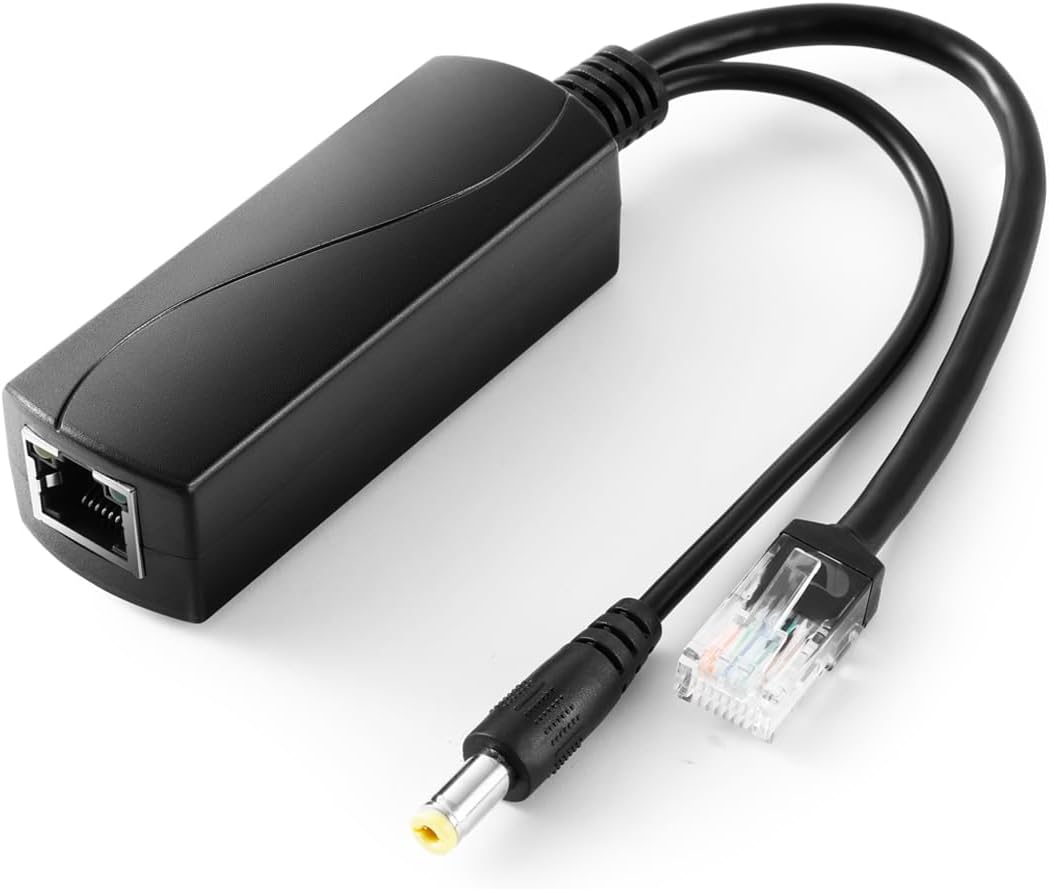
Warning: on PoE, the player only runs the screen. When the player is powered by the PoE dongle, it only runs and outputs HDMI to the display, so connect only Ethernet and the HDMI display. Don't connect external peripherals, such as USB accessories: they draw more power than PoE provides. If you need peripherals, power the player from its regular power supply.
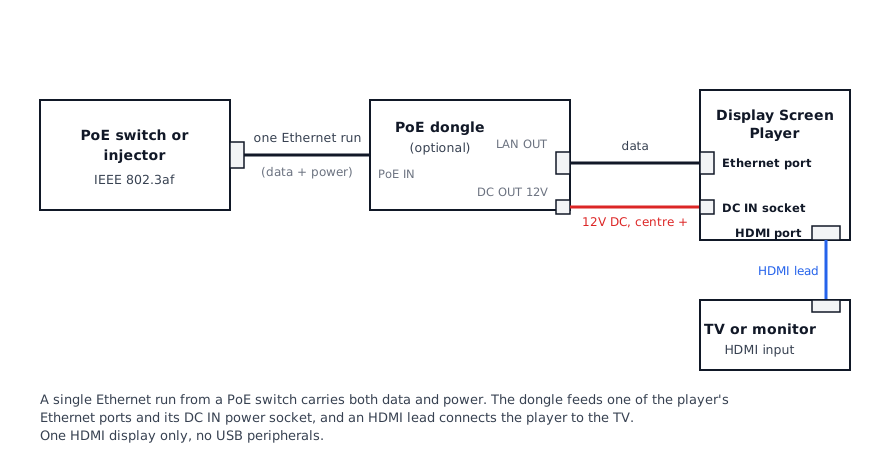
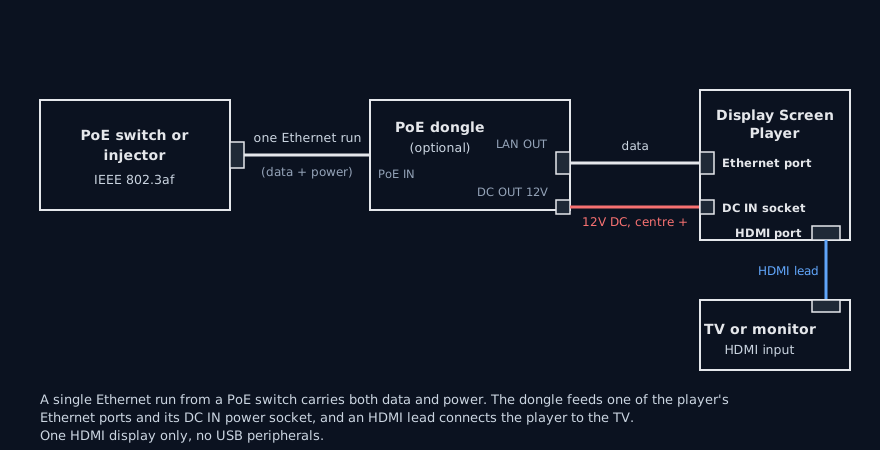
Figure 3: Powering the player over Ethernet with the PoE dongle
Don't use a different supply without checking it. Apart from the PoE dongle, a replacement supply must match the input range, connector size and polarity above, and be rated for the player's power draw. If in doubt, contact support before you change the power supply.
Wired network (recommended)
The player has two 2.5 Gigabit Ethernet ports (ASUS tech specs). Connect one of them to your network switch.
Ethernet is the most reliable way to connect a screen, and is recommended for every screen where a cable run is practical:
- Content, live views and changes reach the screen without buffering.
- Screens that share a synchronised session timer keep closer time over Ethernet. All of those screens must be on the same network.
- The player gets its network settings automatically (DHCP). No port forwarding is required.
Wi-Fi
The player has built-in Wi-Fi 6E (ASUS tech specs). Use Wi-Fi only where an Ethernet cable run isn't practical:
- Connect to a 5 GHz network with a strong signal at the screen's location.
- Avoid Wi-Fi for screens that share a synchronised session timer; timing can drift.
- To connect a player to a Wi-Fi network, or change its network, use Manage Wi-Fi on the screen's Advanced tab. Wifi support must be on in the screen's Connectivity & peripherals settings.
The screen's Overview tab shows which network it is using. For general Wi-Fi guidance, see Network & installation.
Display (HDMI)
The player has two HDMI 2.1 outputs, supporting up to 4K at 60 Hz (ASUS datasheet, ASUS Technical Product Specification). Each Display Screen Player drives one TV or monitor.
- Set the TV to the HDMI input the player is plugged into.
- Content is designed for 1920 x 1080 (landscape) or 1080 x 1920 (portrait). Set the screen's Resolution and Orientation in its Display settings.
Turning the TV on and off
DPMS is the preferred method for automatic power on and off, through Display Automations and Check-in power. It needs no extra hardware and works with most TVs and monitors, and the player always uses it. HDMI-CEC is used only through a Pulse-Eight USB-CEC adapter.
Display on and Display off, Display Automations and Check-in power switch the TV in up to two ways:
- DPMS (preferred), always. To turn the display off, the player stops the HDMI signal; to turn it on, it starts the signal again. Most TVs and monitors go to standby when the signal stops, but some don't, or show a "no signal" screen first. Turn on the TV's auto-standby or "no signal" power-saving setting so it goes to standby.
- HDMI-CEC, only with a Pulse-Eight USB-CEC adapter. If a TV doesn't switch reliably with DPMS, plug a Pulse-Eight USB-CEC adapter into one of the player's USB ports, run the HDMI lead from the player to the TV through it, and turn on HDMI-CEC in the TV's settings. Manufacturers use their own names for HDMI-CEC, such as Anynet+ (Samsung), SimpLink (LG), Bravia Sync (Sony) or CEC Control; check the TV's manual. The player detects the adapter within 5 minutes, then sends HDMI-CEC commands to the TV as well as DPMS. The adapter is a USB accessory, so the player needs its regular power supply, not the PoE dongle.
Display Screens doesn't use the player's built-in HDMI-CEC: without the adapter, the player only uses DPMS.
While the display is off, the player also stops playing content. The display status Performance Hub shows is what the player last set, not a reading of whether the TV is actually on. If the TV won't switch, see The display won't turn on or off.
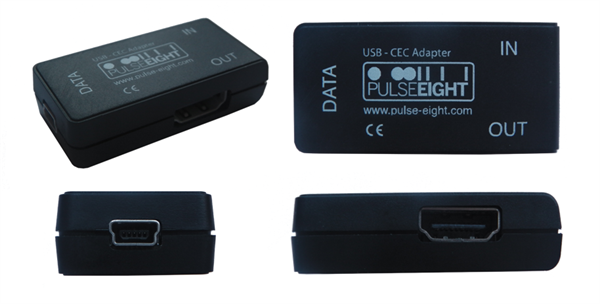
Figure 4: A Pulse-Eight USB-CEC adapter adds HDMI-CEC power control. Image © Pulse-Eight.
Bluetooth and USB
- Bluetooth 5.3 is used to relay presses from nearby duress buttons when Duress alarm monitoring is on for the screen.
- USB ports take optional peripherals: USB cameras for Camera restreaming, a relay controller, or a Pulse-Eight USB-CEC adapter for HDMI-CEC. See Connectivity & peripherals. A player with USB peripherals needs the regular power supply, not the PoE dongle.
Related pages
- Display Screen Player: current model, ports and pairing
- Mounting & Dimensions: where and how to mount the player
- Specifications: full specification tables and sources
- Hardware Troubleshooting: no picture, no power, offline players
- Display Automations: turn displays on and off on a schedule