
Advanced & device actions
A screen's Advanced tab holds the actions that act on the Display Screen Player itself: restarting it, letting it update, changing its Wi-Fi network, moving it to another facility, and removing it.
Quick reference
Where to find it: Display Screens → Screens → click a screen → Advanced tab
Who can access: Users with Display Screens access at the facility
Purpose: Restart, update, reconnect, move or remove a screen's player
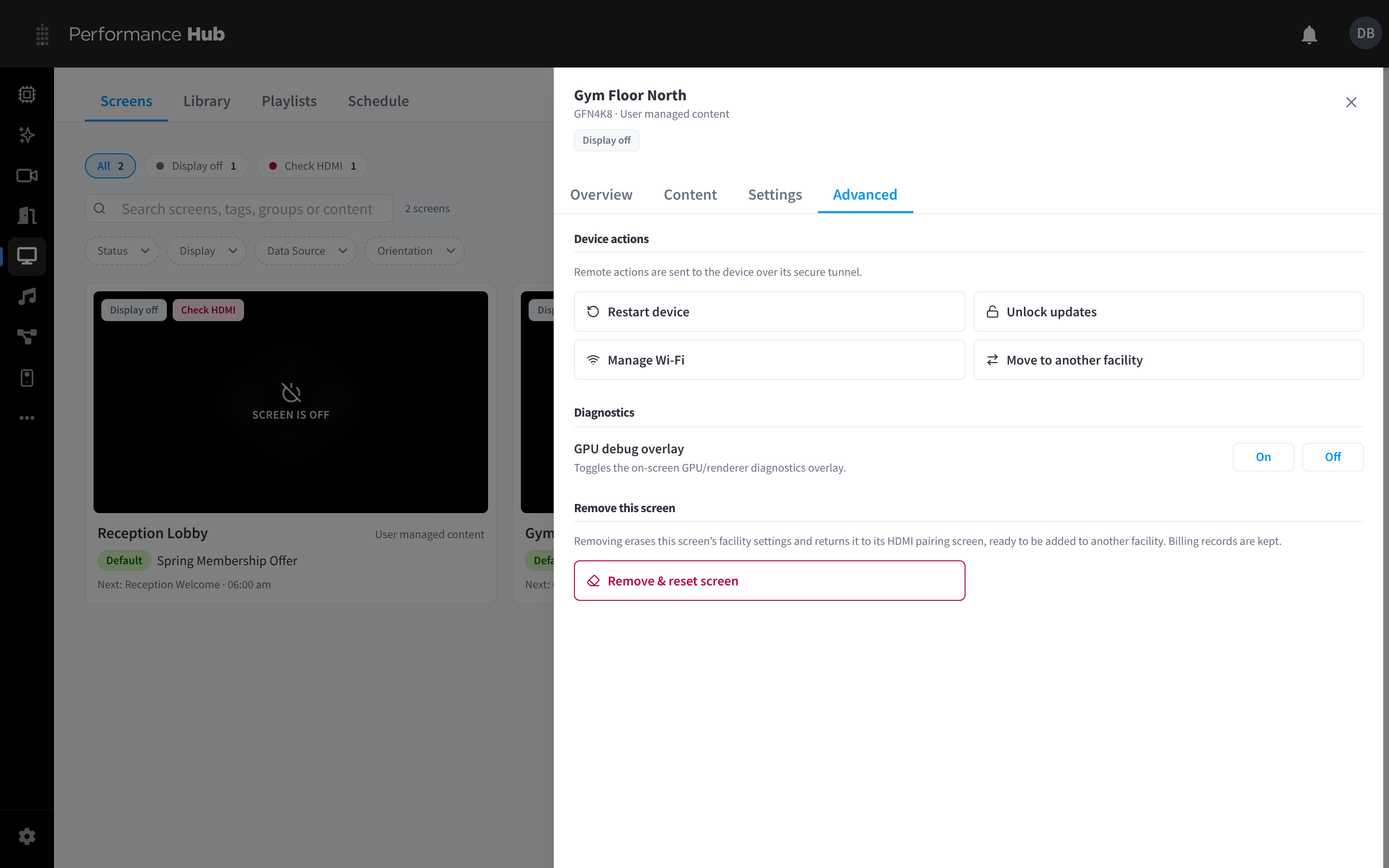
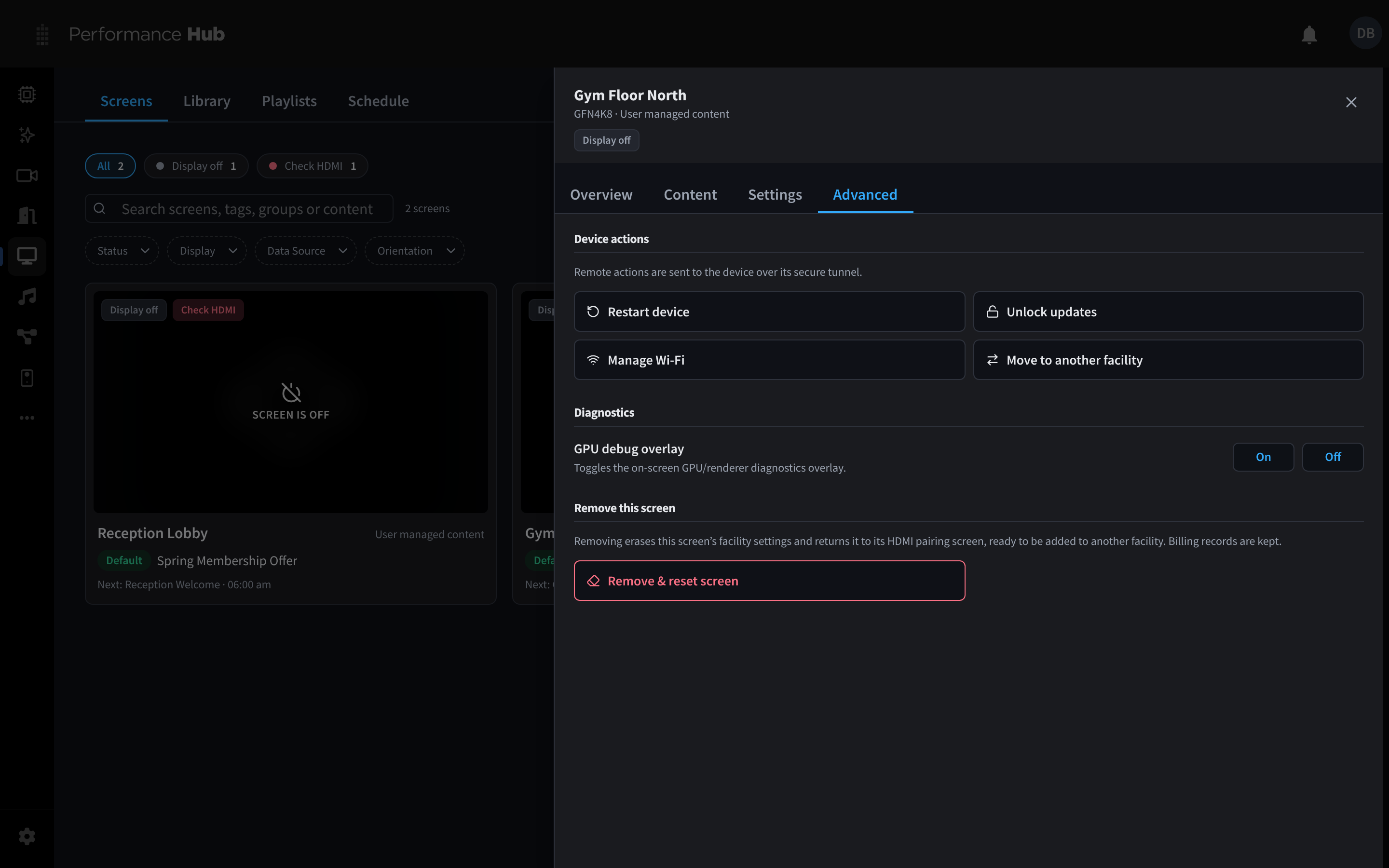
Figure 1: The Advanced tab, with device actions, diagnostics and removal
Device actions
Remote actions are sent to the player over its secure connection, so they work wherever the screen is.
| Action | What it does |
|---|---|
| Restart device | Restarts the player. You are asked to confirm. The screen goes blank while the device restarts, usually for about two minutes, then comes back playing its content. |
| Unlock updates | Lets the player install any waiting software update now, instead of waiting for its overnight update window. Updates lock again automatically later. |
| Manage Wi-Fi | See the Wi-Fi networks stored on the player, and connect it to a new one. See Manage Wi-Fi. |
| Move to another facility | Moves the screen to another facility in your organisation. Its content then comes from the new facility. See Move a screen to another facility. |
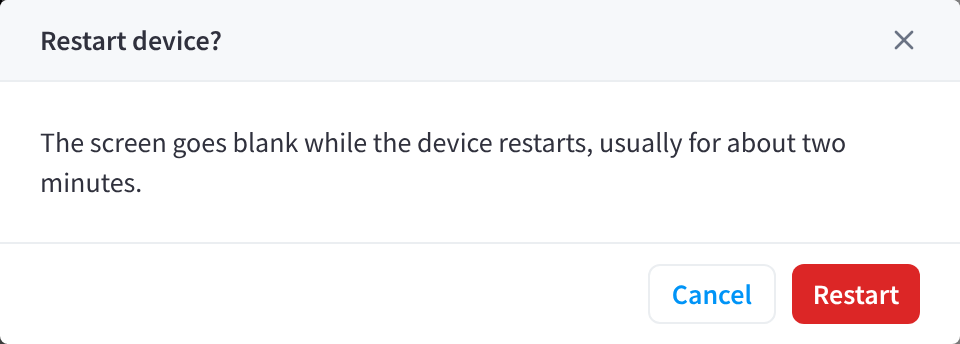
Figure 2: Confirm before restarting a screen
Manage Wi-Fi
- Open the screen → Advanced tab → Manage Wi-Fi. The Wifi networks dialog asks the player for the networks it has stored.
- Click Connect to new network.
- Enter the Network name (SSID) and Password, then click Connect to network.
If the player doesn't respond, the dialog says so. You can still send a new network: it applies as soon as the player reconnects.
Ethernet is recommended for every screen where a cable run is practical. See Power & Connectivity.
Move a screen to another facility
- Open the screen → Advanced tab → Move to another facility.
- Under Target facility, choose the facility. If your organisation has no other facility, the dialog shows "No other facilities available in this organisation."
- Click Move device.
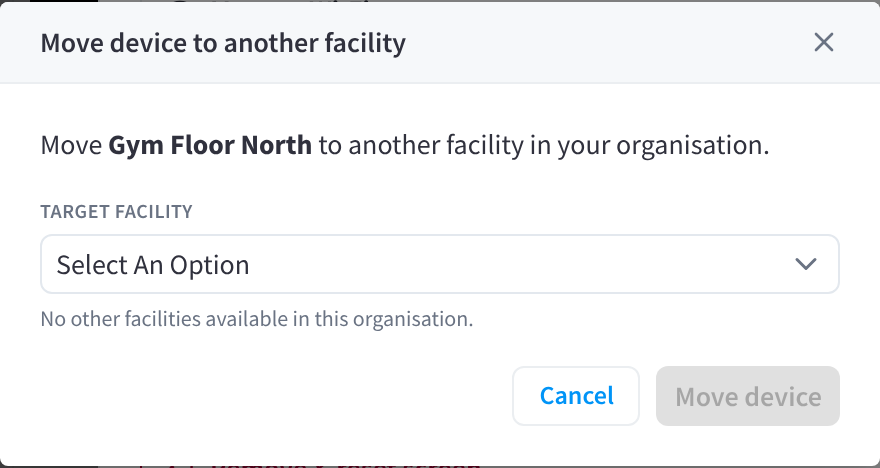
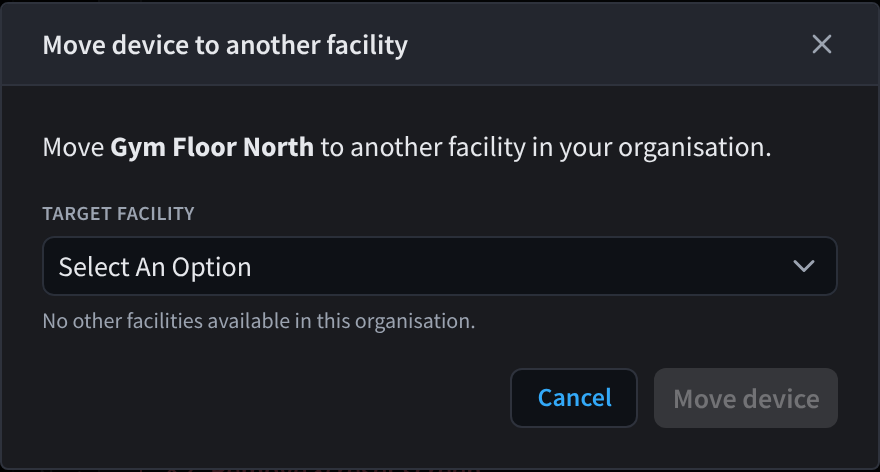
Figure 3: Move a screen to another facility
Diagnostics
GPU debug overlay shows or hides an on-screen overlay of graphics diagnostics. Turn it On only when support asks you to, and Off again afterwards: anyone near the screen can see it.
Remove this screen
Remove & reset screen erases this screen's facility settings and returns the player to its HDMI pairing screen, ready to be added to another facility. Billing records are kept.
Use it when you retire a screen or give the player to another facility. To add the player again, follow Adding a screen with the new pairing code.
Related pages
- Screen overview: quick actions, live metrics and device details
- Screen settings: name, groups, Data Source and hardware settings
- Hardware Troubleshooting: offline, no power and HDMI problems
- Display Screen Player: the hardware