
CCTV
The CCTV section provides access to your facility's camera system, including live views, recorded footage, storage management, and access logs. It is divided into four tabs: Dashboard, Live View, Timeline, and Recordings.
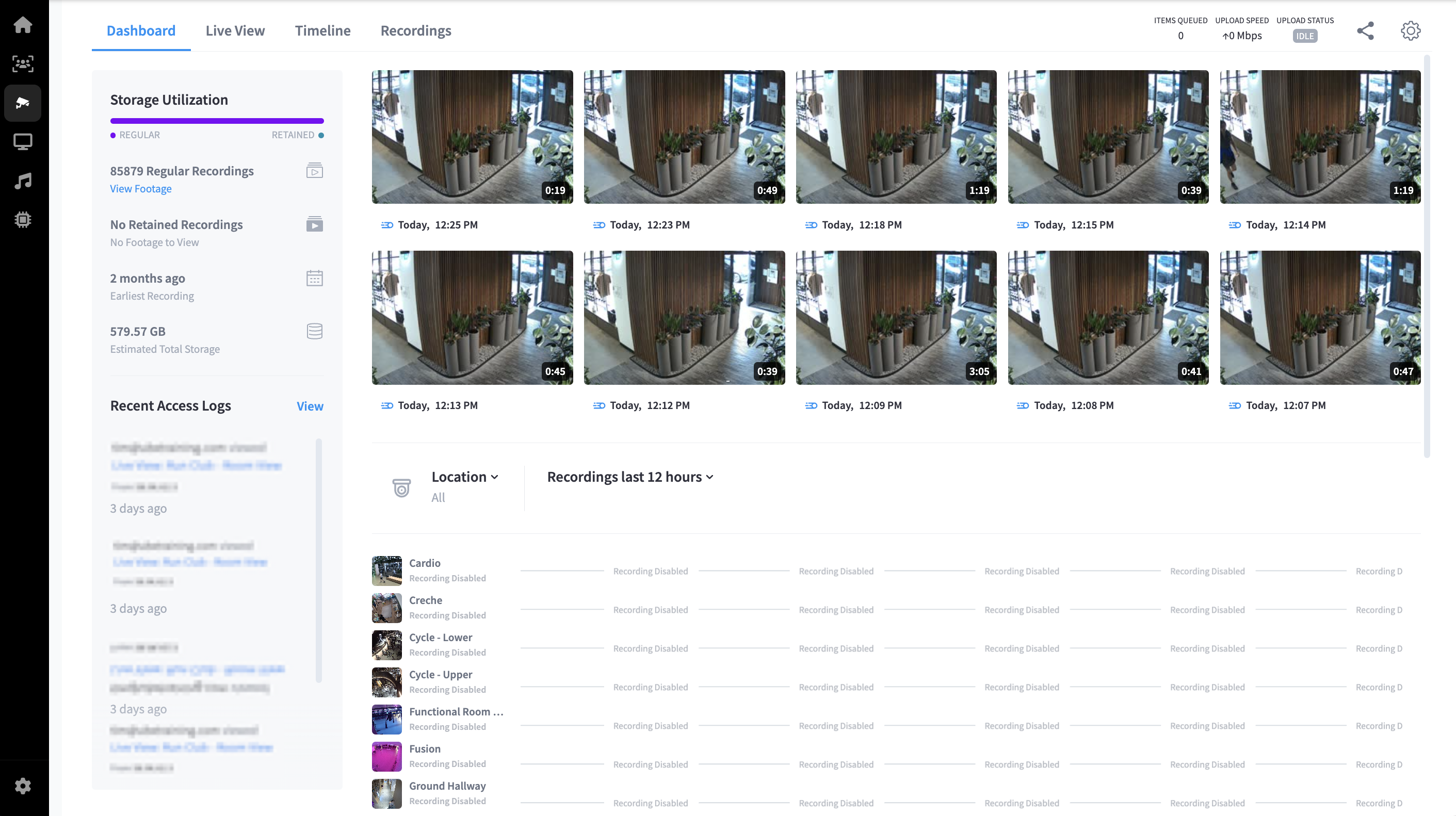
Dashboard
The Dashboard tab is the default view when you open the CCTV section. It gives you a quick overview of storage utilisation, recent camera activity, access logs, and recording status across all cameras.
Top bar
| Element | Description |
|---|---|
| Items Queued | Number of video clips currently queued for processing or upload |
| Upload Speed | Current upload throughput in Mbps |
| Upload Status | Indicator showing whether uploads are active or paused |
| Share | Share icon for sharing a view or clip |
| Settings | Access CCTV-specific settings — see CCTV Settings |
Storage Utilisation
Displays a summary of current recording storage at the facility.
| Field | Description |
|---|---|
| Regular | Storage used by standard scheduled recordings |
| Retained | Storage used by footage flagged for long-term retention |
| Regular Recordings count | Total number of regular recordings stored (e.g. 85,880) |
| Retained Recordings count | Total number of retained recordings stored |
| Earliest Recording | How far back your oldest stored recording goes |
| Estimated Total Storage | Total available storage across the system (e.g. 579.57 GB) |
Click View Footage under Regular or Retained to jump directly to the relevant recordings.
Camera thumbnails
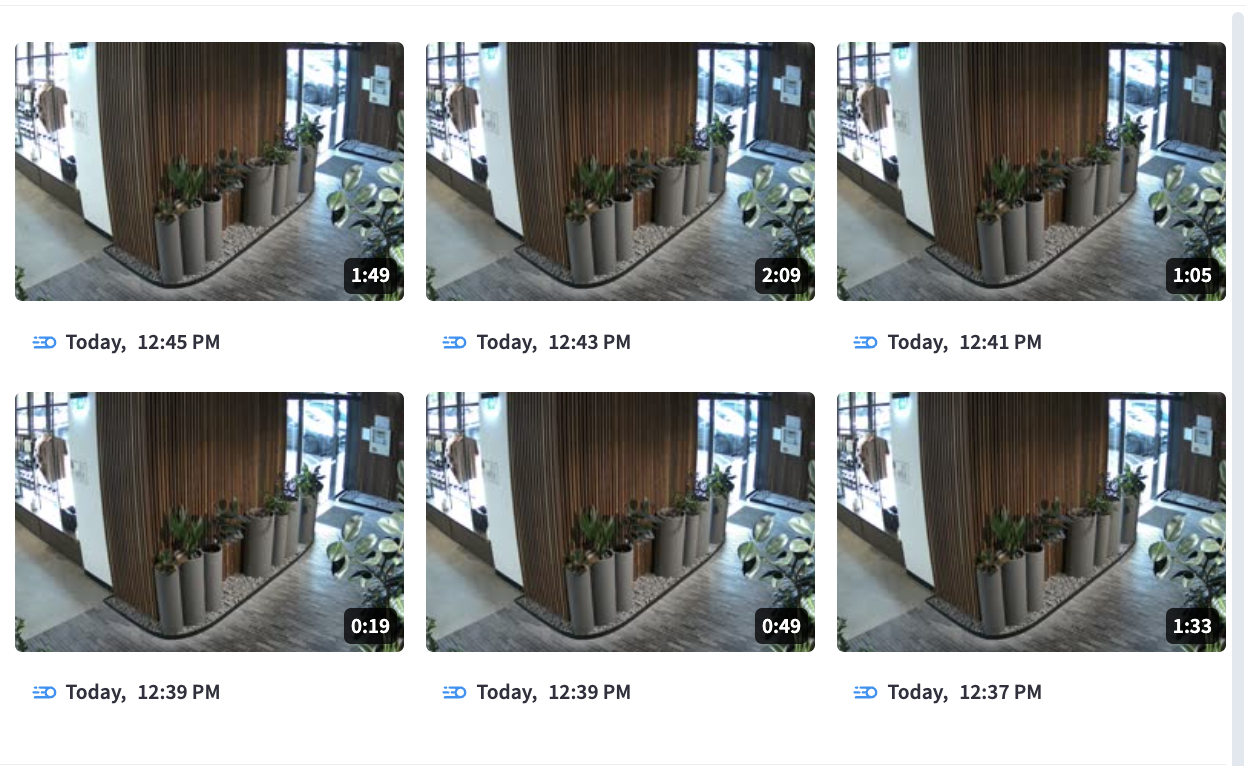
A grid of recent camera thumbnails shows the latest still from each connected camera, along with the timestamp of the capture and a duration badge indicating the clip length. Cameras are displayed in a scrollable grid ordered by location.
Recent Access Logs
Lists the most recent user activity in the CCTV system, showing who accessed which view, from which IP address, and when.
| Field | Description |
|---|---|
| User | Email address of the user who accessed the view |
| Action | What was accessed (e.g. Live View: Run Club - Room View) |
| IP address | The IP address from which the access occurred |
| Time | How long ago the access occurred |
Click View to open the full access log history.
Recordings table
A table showing all cameras and their recording status across recent time slots. Use the Location filter to narrow by area, and the Recordings dropdown to adjust the time window (e.g. last 12 hours).
Each camera in the recordings table may be selected to go straight to that camera's Timeline and gain further insights. The generic Timeline view is Live View.
Each row shows a camera name and recording status per time slot. A status of Recording Disabled indicates that scheduled recording is not active for that camera during that period.
Click View All to open the full recordings list.
Sub-pages
- Live View — Watch live camera feeds in real time. See CCTV Index for dashboard and storage overview.
- Timeline — Browse recorded footage by time and camera
- Recordings — Manage and review stored recordings
- Settings — Configure CCTV-specific options including face recognition, access zones, storage, and more