
Live View
The Live View tab allows you to watch real-time footage from all connected cameras at your facility. Use it to monitor activity across zones as it happens.
Camera grid
The main content area displays live feeds from all cameras in a grid layout. Each tile shows:
- The camera name and location
- A live video stream
- The number of people currently detected in frame
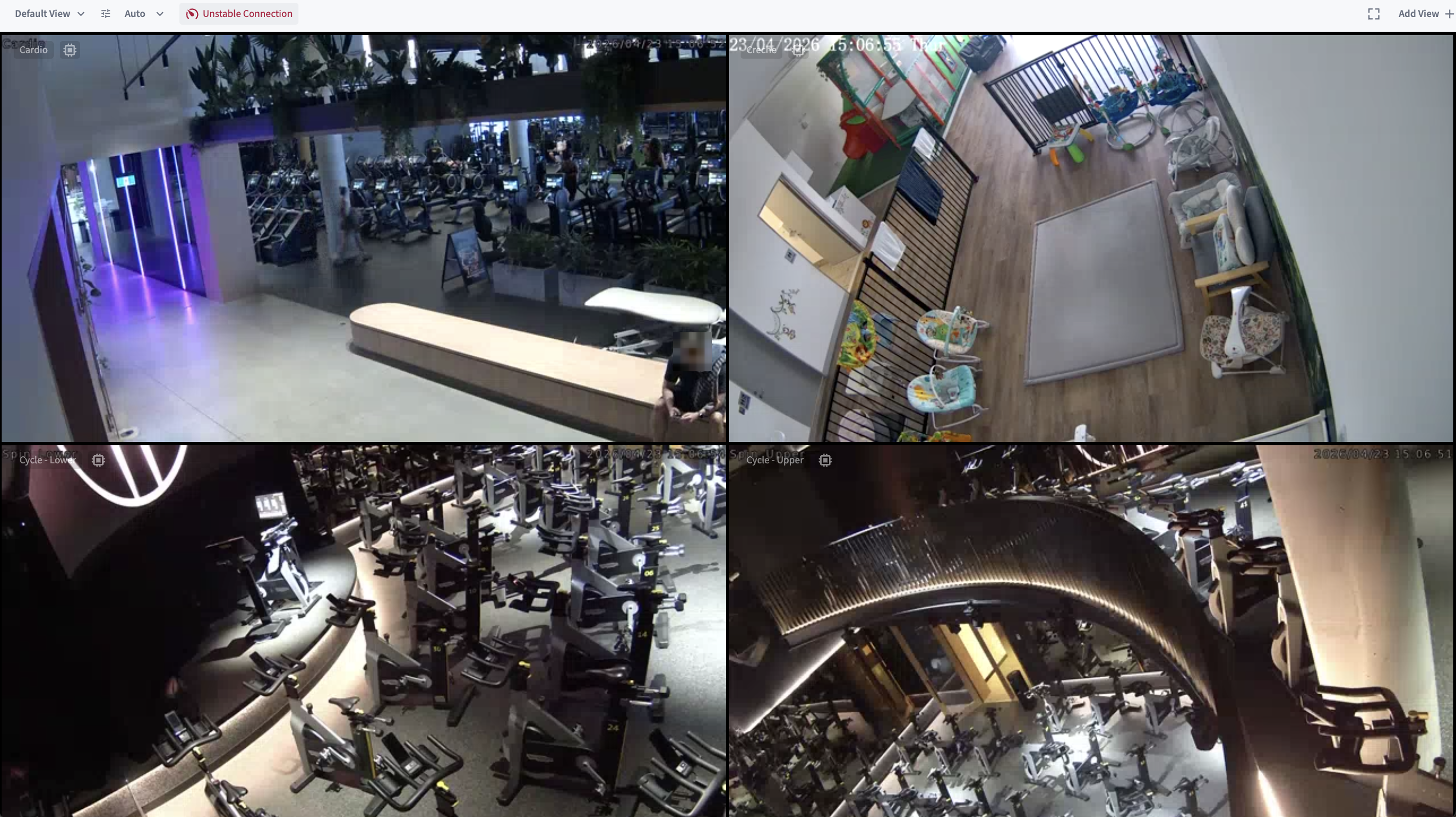
Change ALL camera quality in Live View using the drop down menu. You may select from 'Auto', 'Low', 'High' or 'Native'.
- 'Auto' will select the best quality based off of your bandwidth connection.
- 'Low' quality might be used when you know your bandwidth connection is poor, but should be avoided.
- 'High' is the most bandwidth intensive.
- 'Native' returns the in-built quality of the camera (usually will be of a high quality and bandwidth intensive).
Controls
| Control | Description |
|---|---|
| Grid layout selector | Switch between different grid sizes (e.g. 1×1, 2×2, 3×3) to focus on fewer or more cameras at once using Add View+ |
| Fullscreen selected camera/s grid view | Expand out your camera grid layout to fill the internet browser -- perfect for long term viewing |
| Fullscreen per camera | [ ] Expand a single camera feed to fill the screen -- Touch or mouse over the camera feed to show this option for each individual camera |
| Camera filter | Filter the visible cameras by location or zone |
Add View: Configuring the grid display of cameras
You might wish to have a single display monitor at the reception area or office having an overview of different areas.
Use the Add View feature to choose the grid number of cameras you wish to have displayed. You may display a minimum of 1 camera, and a maximum of 10 cameras.
Add a suitable name for your chosen view in the 'View Name' input field.
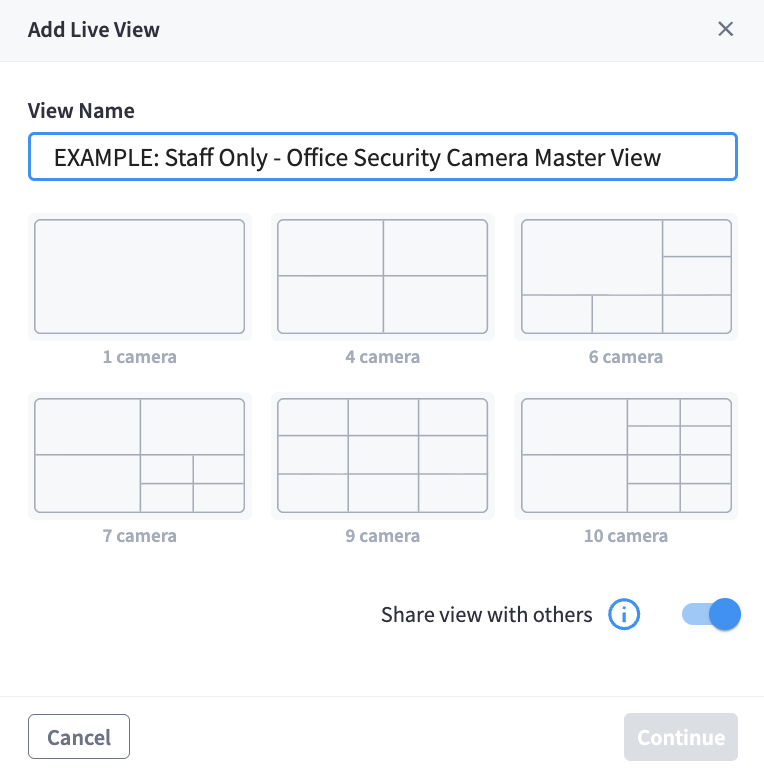
Then use the Fullscreen selected camera/s grid view to expand out your camera grid layout to fill the internet browser. This is perfect for long term viewing.

Note: Live View requires an active internet connection and sufficient bandwidth. Feeds may buffer or appear degraded on slow connections.
Related pages
- CCTV Index — dashboard overview and storage summary
- Timeline — scrub through recorded footage by time and camera
- Recordings — manage and review stored recordings