# Performance Hub Docs > Product documentation for Performance Hub: module guides for running sites and facilities, AI agents, and developer and partner resources. --- # Getting started The Performance Hub runs the technology at your sites from one place: display screens, doors and gates, cameras, audio, devices and AI agents, together with the people, roles and facility details behind them. Organisations of every kind use it, from offices, retail stores and hospitality venues to schools, universities, clinics and gyms. This section takes you from your first sign-in to a facility that's ready to use. Read the pages in order, or jump to the one you need. ## Quick reference **Where to find it:** Sign in to the Performance Hub with the account your organisation created for you **Who it's for:** Everyone who uses the Performance Hub. The [first setup checklist](https://docs.performancehub.co/module-docs/getting-started/first-setup) is for organisation admins. **Purpose:** Sign in, secure your account, learn the layout, and set up your organisation ## Start here 1. **[Signing in](https://docs.performancehub.co/module-docs/getting-started/signing-in)**: sign in with single sign-on, or with your email address and password, and reset a forgotten password. 2. **[Your account & security](https://docs.performancehub.co/module-docs/getting-started/your-account)**: update your details, change your password and turn on two-factor authentication. 3. **[Finding your way around](https://docs.performancehub.co/module-docs/getting-started/finding-your-way)**: the main menu, the facility selector, your profile menu and the settings menu. 4. **[First setup checklist](https://docs.performancehub.co/module-docs/getting-started/first-setup)**: for organisation admins, the steps to get a new organisation or facility ready, in order. ## How it fits together - An **organisation** is your company or group, for example *ACME Inc*. Everything you set up in the Performance Hub belongs to an organisation. - A **brand** groups facilities that share branding and default settings. An organisation can have more than one brand. - A **region** groups facilities by area, for example a state or country. Roles can give access to every facility in a region. - A **facility** is one site: an office, a store, a venue, a campus, a clinic or a gym. Facility names are usually the suburb or location only, such as *Fortitude Valley* or *Parramatta*. - A **user** is a person with a Performance Hub account. What they can do depends on their **roles**: each role sets which facilities they can work with (its access scope) and which **modules** (parts of the Performance Hub, see [Modules](#modules)) they can use there. - An **organisation admin** has a role with organisation admin access. Organisation admins manage people, roles and facilities in [Identity & Access Management](https://docs.performancehub.co/module-docs/identity-access-management/overview). ## Modules A **module** is one part of the Performance Hub, such as Display Screens, Door & Gate Access, CCTV / VSaaS, Audio Control, AI Agent, Workflows or Facility & System Configuration. Each module has its own icon in the main menu, or its own item in the settings menu. Which modules you see depends on three things: - **Your organisation**: the modules turned on for your organisation. - **The brand and facility you're working in**: a brand or a facility can switch modules off. - **Your roles**: each role gives access to some modules at some facilities. Organisations use different modules. A retail chain might use Display Screens, Audio Control and CCTV / VSaaS, while a coworking space relies on Door & Gate Access and Workflows. Organisation admins see and manage the organisation's modules in [Organisation Settings → Modules](https://docs.performancehub.co/module-docs/organisation-settings/modules). ## For organisation admins Three sections cover the setup that everything else depends on: | Section | What you do there | |---------|-------------------| | **[Organisation Settings](https://docs.performancehub.co/module-docs/organisation-settings/overview)** | Check your [organisation details](https://docs.performancehub.co/module-docs/organisation-settings/organisation-details) and [brands](https://docs.performancehub.co/module-docs/organisation-settings/brands), choose the public holidays added in [Holiday Management](https://docs.performancehub.co/module-docs/organisation-settings/holiday-management), and review your organisation's [modules](https://docs.performancehub.co/module-docs/organisation-settings/modules) | | **[Identity & Access Management](https://docs.performancehub.co/module-docs/identity-access-management/overview)** | Add people, give them roles, build your own roles from Performance Hub role templates, and manage your facilities | | **[Facility & System Configuration](https://docs.performancehub.co/module-docs/facility-system-config/overview)** | Set each facility's details, address and hours. Door auto-unlock, screen power, audio and other automations follow the hours you set here. | Once those are in place, set up the modules your sites use, such as [Display Screens](https://docs.performancehub.co/module-docs/display-screens/overview), [Door & Gate Access](https://docs.performancehub.co/module-docs/door-gate-access/overview) and [Device Management](https://docs.performancehub.co/module-docs/device-management/overview). ## Related pages - [Signing in](https://docs.performancehub.co/module-docs/getting-started/signing-in): the first step - [First setup checklist](https://docs.performancehub.co/module-docs/getting-started/first-setup): setting up a new organisation or facility - [Organisation Settings](https://docs.performancehub.co/module-docs/organisation-settings/overview): settings that apply across your organisation - [Support](https://docs.performancehub.co/support): contact us if you can't sign in or need help Source: https://docs.performancehub.co/module-docs/getting-started/overview --- # Signing in You sign in to the Performance Hub with an account your organisation has created for you. There's no self sign-up: if you don't have an account yet, ask an organisation admin to [add you](https://docs.performancehub.co/module-docs/identity-access-management/adding-users). When an admin adds you, you get a welcome email with sign-in instructions and a link to set up your password. If you already have a Performance Hub account through another organisation, you get an invitation to join instead. See [Accepting an invitation](https://docs.performancehub.co/module-docs/identity-access-management/accepting-invitations). ## Quick reference **Where to find it:** The Performance Hub sign-in page **Who can access:** Anyone with a Performance Hub account **Purpose:** Sign in with single sign-on or with your email address and password ## The sign-in page The sign-in page, **Sign in to your account**, offers two ways in: - **Single sign-on**: **Continue with Google**, **Continue with Microsoft**, **Continue with Slack** or **Continue with Apple**. - **Email and password**: below the **OR** divider, **Sign in with Email**. ![The Sign in to your account page, with the Continue with Google, Microsoft, Slack and Apple buttons, and Sign in with Email below the OR divider](https://docs.performancehub.co/module-docs/getting-started/screenshots/01-sign-in-methods-light.png) *Figure 1: The sign-in page, with single sign-on buttons and Sign in with Email* ## Sign in with single sign-on Use single sign-on if your organisation signs in to its work apps through Google, Microsoft, Slack or Apple. 1. On the sign-in page, click the button for the provider your organisation uses, for example **Continue with Microsoft**. 2. Sign in with that provider as you normally would. If you're not sure which provider to use, ask your organisation admin. ## Sign in with your email address and password 1. On the sign-in page, click **Sign in with Email**. 2. Enter your **Email** and **Password**. 3. On a device that only you use, you can tick **Remember me on this device**. Leave it unticked on a shared computer, such as a reception desk or a front counter. 4. Click **Sign In**. If the email address or password is wrong, you see "Incorrect email or password." Check both and try again, or [reset your password](#forgot-your-password). To go back to the single sign-on buttons, click **Use another sign in method?**. ![Signing in with an email address and password, with the Forgot password? link, the Remember me on this device option and the Sign In button](https://docs.performancehub.co/module-docs/getting-started/screenshots/02-sign-in-email-password-light.png) *Figure 2: Signing in with your email address and password* ## Enter a verification code If you've turned on [two-factor authentication](https://docs.performancehub.co/module-docs/getting-started/your-account#two-factor-authentication), or one of your roles requires it, the Performance Hub asks for a verification code after your password. 1. On **Enter verification code**, check where the code was sent. The page shows part of the address, for example "We've sent a verification code to da\*\*\*\*\*\*\*\*s@example.com. Please enter it below." 2. Enter the 6-digit code in **Verification Code**. 3. Click **Verify**. The code is sent by text message to the mobile number on your profile. If there's no mobile number, or the text can't be sent, it's emailed to you instead. If the code doesn't arrive, check your spam or junk folder, then click **Resend code** next to "Didn't receive the code?". To start again, click **Back to sign in**. ![The Enter verification code page, with six boxes for the code, the Verify button and the Resend code link](https://docs.performancehub.co/module-docs/getting-started/screenshots/04-sign-in-code-light.png) *Figure 3: Enter the 6-digit verification code sent to your phone or email* ## Forgot your password? 1. On the email sign-in page, click **Forgot password?**. 2. On **Forgot Password**, enter your **Email** and click **Send Reset Link**. 3. Open the email with the subject "Reset Your Password - Performance Hub" and follow the link in it. 4. Choose a new password. It must be at least 8 characters long. 5. Sign in with your new password. If the email doesn't arrive, check your spam or junk folder and that you entered the address your account uses. To return to the sign-in page without resetting, click **sign in?** in "Back to sign in?". If you sign in with single sign-on, the password you use there belongs to your Google, Microsoft, Slack or Apple account. Reset it with that provider. ![The Forgot Password page, with an email address entered and the Send Reset Link button](https://docs.performancehub.co/module-docs/getting-started/screenshots/03-forgot-password-light.png) *Figure 4: Forgot Password sends a reset link to your email address* ## Problems signing in The sign-in page says "Problems Accessing? Please contact us for support, or your local representative." The link goes to [Support](https://docs.performancehub.co/support). Before you contact support: - Check that you're using the email address your organisation added you with. - Try the other sign-in method: single sign-on if you used your email address, or **Sign in with Email** if you used single sign-on. - If you've just been added, look for your welcome email (or invitation) and follow its link first. - Ask an organisation admin to check your account and roles in [Identity & Access Management](https://docs.performancehub.co/module-docs/identity-access-management/overview). ## Related pages - [Your account & security](https://docs.performancehub.co/module-docs/getting-started/your-account): change your password and turn on two-factor authentication - [Finding your way around](https://docs.performancehub.co/module-docs/getting-started/finding-your-way): what you see once you're signed in - [Accepting an invitation](https://docs.performancehub.co/module-docs/identity-access-management/accepting-invitations): joining another organisation with your existing account Source: https://docs.performancehub.co/module-docs/getting-started/signing-in --- # Your account & security Your account settings live in **User Preferences**, in the profile menu. Use them to keep your name and phone number up to date, change your password, turn on two-factor authentication, and choose how the Performance Hub opens for you. ## Quick reference **Where to find it:** Profile menu (your initials, top right) → **User Preferences** **Who can access:** Every signed-in user, for their own account **Purpose:** Manage your personal details, password, two-factor authentication and preferences ## The profile menu Click your initials in the top right corner to open the profile menu. It shows the email address you're signed in with, then: | Item | What it does | |------|--------------| | **User Preferences** | Opens your account settings (below) | | **Appearance** | Chooses the theme: **Light**, **Dark**, **Auto** (based on your local sunrise and sunset) or **System**. The shortcut is Alt+Ctrl+L (Option+Command+L on a Mac). **Appearance** is shown only where choosing a theme is available. | | **Help** | Opens these docs in a new tab | | **Log out** | Signs you out | Log out when you finish on a shared computer. ![The profile menu open at the top right, with a little of the page below and to its left](https://docs.performancehub.co/module-docs/getting-started/screenshots/05-profile-menu-open-light.png) *Figure 1: Open your profile menu to reach User Preferences* ## User Preferences **User Preferences** shows your name and email address, three buttons for your account, and your preferences. ![The User Preferences dialog for Dana Brooks, with Edit Personal Details, Password & Security Settings and API & MCP Keys, then the preference settings](https://docs.performancehub.co/module-docs/getting-started/screenshots/06-user-preferences-light.png) *Figure 2: User Preferences, with Edit Personal Details and Password & Security Settings* | Setting | What it does | |---------|--------------| | **Edit Personal Details** | Change your **First Name**, **Last Name** and **Phone Number** | | **Password & Security Settings** | Change your password and turn two-factor authentication on or off. See [Password and security](#password-and-security). | | **API & MCP Keys** | Keys for connecting apps and AI agents to the Performance Hub. This is a developer feature; see [Create an MCP key](https://docs.performancehub.co/ai-agents/mcp-keys). | | **Default Organisation** | The organisation the Performance Hub opens in when you sign in. **Last selected organisation** opens the one you used last. | | **Consolidate all available organisations into Facilities selector** | If you work in more than one organisation, lists the facilities from all of them in the facility selector | | **Preferred Language** | The language the Performance Hub uses, for example **Auto [English]** | | **Unit of Measurement** | **Metric System** or **Imperial System** | | **Show Performance Hub Tutorial** | Shows or hides the Performance Hub tutorial | Click **Save** to keep your changes, or **Cancel** to close without saving. Your email address isn't one of the personal details you can edit: an account's primary email address can't be changed after the account is created. ## Password and security **Password & Security Settings** needs a phone number on your profile. If you don't have one yet, the Performance Hub asks for it first. ### Add a phone number If your profile has no phone number, clicking **Password & Security Settings** opens **Missing Phone Number**: "Phone number is required for password and security settings changes." 1. Choose your country, then enter your mobile number in **Phone Number**. 2. Click **Add Phone Number**. 3. Enter the verification code sent to your email address. 4. Enter the verification code sent to your new phone number. Click **Back** to return to User Preferences, or **Cancel** to close. ![The Missing Phone Number dialog, with a Phone Number field and the Add Phone Number button](https://docs.performancehub.co/module-docs/getting-started/screenshots/08-missing-phone-number-light.png) *Figure 3: A phone number is needed before you can change password and security settings* ### Change your password 1. Open **User Preferences** → **Password & Security Settings**. 2. Under **Password** ("Update your account password"), click **Change Password**. 3. Follow the prompts to set your new password. It must be at least 8 characters long. ### Two-factor authentication Two-factor authentication adds "an extra layer of security to your account": after your password, you also enter a 6-digit verification code. The status line shows "Two-factor authentication is enabled" or "Two-factor authentication is disabled". **To turn on two-factor authentication:** 1. Open **User Preferences** → **Password & Security Settings**. 2. Under **Two-Factor Authentication**, turn on **Enable Two-Factor Authentication**. 3. On **Enter verification code**, enter the 6-digit code sent to you and confirm. If it doesn't arrive, click **Resend**. From then on, you enter a verification code each time you [sign in](https://docs.performancehub.co/module-docs/getting-started/signing-in#enter-a-verification-code). The code is sent by text message to the mobile number on your profile. If there's no mobile number, or the text can't be sent, it's emailed to you instead. Some roles require a verification code at every sign-in, whatever your own setting. If one of your roles does, you're asked for a code even when two-factor authentication is off here. See [Creating & editing roles](https://docs.performancehub.co/module-docs/identity-access-management/creating-roles#details). Click **Back** to return to User Preferences, or **Close** when you're done. ![Password & Security Settings, with Change Password and the Enable Two-Factor Authentication switch](https://docs.performancehub.co/module-docs/getting-started/screenshots/07-password-security-light.png) *Figure 4: Password & Security Settings: change your password and turn on two-factor authentication* ## Related pages - [Signing in](https://docs.performancehub.co/module-docs/getting-started/signing-in): single sign-on, email and password, and verification codes - [Finding your way around](https://docs.performancehub.co/module-docs/getting-started/finding-your-way): the profile menu, the facility selector and the settings menu - [Create an MCP key](https://docs.performancehub.co/ai-agents/mcp-keys): connect an AI agent to the Performance Hub Source: https://docs.performancehub.co/module-docs/getting-started/your-account --- # Finding your way around Every page in the Performance Hub shares the same frame: the main menu down the left, the top bar with the facility selector and your profile, and the settings menu at the bottom of the main menu. ## Quick reference **Where to find it:** Every page, once you've [signed in](https://docs.performancehub.co/module-docs/getting-started/signing-in) **Who can access:** Every signed-in user. The items you see depend on your roles and on the modules your facility uses. **Purpose:** Move between modules, switch facility, and reach your account and organisation settings ## Page layout ![The main menu down the left of the page, with one icon per module and the settings cog at the bottom](https://docs.performancehub.co/module-docs/getting-started/screenshots/40-main-menu-light.png) *Figure 1: The main menu, one icon per module, with the settings cog at the bottom.* | Area | What it's for | |------|---------------| | **Main menu** (left) | One icon for each module you can use at the selected facility, such as Display Screens, Door & Gate Access, CCTV and Audio Control | | **Facility selector** (top right) | Shows the facility you're working in, for example **Lower Manhattan**. Choose another facility from the list to switch. | | **Notifications** (bell icon, top right) | Your Performance Hub notifications | | **Profile menu** (your initials, top right) | Your email address, **User Preferences**, **Appearance**, **Help** and **Log out**. See [Your account & security](https://docs.performancehub.co/module-docs/getting-started/your-account). | | **Settings menu** (cog icon, bottom left) | Facility and organisation settings. See [The settings menu](#the-settings-menu). | ## The facility selector Most pages work on one facility at a time: the one shown in the facility selector. When you change facility, the page you're on switches to the new facility. For example, [Facility & System Configuration](https://docs.performancehub.co/module-docs/facility-system-config/overview) shows the details and hours of the selected facility, and Display Screens shows its screens. ![The facility selector open, with a search box and the facilities Lower Manhattan, Morningside, Northside Physio Clinic and Riverside Aquatic Centre](https://docs.performancehub.co/module-docs/getting-started/screenshots/39-facility-selector-open-v3-light.png) *Figure 2: The facility selector, open. Type to search, or pick a facility from the list.* If you work in more than one organisation, you can list the facilities from all of them in the facility selector. Turn on **Consolidate all available organisations into Facilities selector** in [User Preferences](https://docs.performancehub.co/module-docs/getting-started/your-account#user-preferences). ## The settings menu Click the cog icon at the bottom of the main menu to open the settings menu. ![The settings menu open next to the cog, listing the settings pages](https://docs.performancehub.co/module-docs/getting-started/screenshots/09-settings-menu-open-v2-light.png) *Figure 3: The settings menu, opened from the cog at the bottom of the main menu* | Item | What it's for | |------|---------------| | **Facility & System Configuration** | The selected facility's primary details, location and hours. See [Facility & System Configuration](https://docs.performancehub.co/module-docs/facility-system-config/overview). | | **Partner/External Integrations** | Connections to partners and other systems | | **Identity and Access Management** | People, roles and facilities in your organisation. See [Identity & Access Management](https://docs.performancehub.co/module-docs/identity-access-management/overview). | | **Billing & Cost Management** | The facility's billing. See [Billing & Cost Management](https://docs.performancehub.co/module-docs/billing-cost-management/overview). If your organisation pays for this facility, Billing & Cost Management opens your organisation's billing for it instead (organisation admins only). | | **Audit Logs** | A record of requests made in your organisation, by people and connected tools. See [Audit Logs](https://docs.performancehub.co/module-docs/audit-logs/overview). | | **Organisation Settings** | Settings that apply across your organisation: details, billing, modules, holidays and brands. See [Organisation Settings](https://docs.performancehub.co/module-docs/organisation-settings/overview). | | **Raise Support Request** | Contact Performance Hub support. It opens in a new tab. | You only see the items your roles give you access to. ## Related pages - [Your account & security](https://docs.performancehub.co/module-docs/getting-started/your-account): the profile menu and User Preferences - [First setup checklist](https://docs.performancehub.co/module-docs/getting-started/first-setup): what to set up first - [Identity & Access Management](https://docs.performancehub.co/module-docs/identity-access-management/overview) and [Facility & System Configuration](https://docs.performancehub.co/module-docs/facility-system-config/overview) Source: https://docs.performancehub.co/module-docs/getting-started/finding-your-way --- # First setup checklist Use this checklist when your organisation is new to the Performance Hub, or when you open a new site: a store, an office, a clinic, a venue, a campus or a gym. The steps are in order, because later steps depend on earlier ones. For example, door auto-unlock and screen power follow the facility hours you set in step 4, and the users you add in step 6 need the roles you prepare in step 5. ## Quick reference **Who it's for:** Organisation admins **Before you start:** You can [sign in](https://docs.performancehub.co/module-docs/getting-started/signing-in), and your role has organisation admin access **Purpose:** Get an organisation or facility ready for your team, step by step ## Checklist Tick items off as you go. Your progress is saved in this browser, and you can print the list. ), }, ], }, { title: '2. Your organisation', items: [ { id: 'organisation', label: ( <> Check your organisation details and brand: settings (cog) → Organisation Settings. Check the organisation name, legal name and named contacts under{' '} Details, and each brand's name under{' '} Brands & Customisation. See{' '} Organisation Details {' '} and{' '} Brands & Customisation . ), }, ], }, { title: '3. Your facilities', items: [ { id: 'facilities', label: ( <> Add your facilities: settings (cog) →{' '} Identity and Access Management →{' '} Facilities → Add Facility, then check each facility's Modules tab. See{' '} Adding facilities . ), }, ], }, { title: '4. Facility & System Configuration', items: [ { id: 'primary-details', label: ( <> Check the primary details: settings (cog) →{' '} Facility & System Configuration, with the facility selected. Check the brand, facility name, primary email and phone. See{' '} Primary details . ), }, { id: 'location', label: ( <> Set the facility location: search for the address, then drag the map marker to fine-tune the position. The time zone is set from the location. See{' '} Facility location . ), }, { id: 'staffed-hours', label: ( <> Set staffed hours: the hours the facility is open with staff on site. See{' '} Staffed hours . ), }, { id: 'extended-hours', label: ( <> Set unstaffed or extended hours, if the facility is open without staff, for example 24/7 access. Turning them on fills in default hours (4:00am - 10:00pm, Sunday 5:00am - 9:00pm), so change these to your real hours. See{' '} Unstaffed/Extended hours . ), }, { id: 'holiday-hours', label: ( <> Check holiday hours: set your Default Holiday Hours, review the upcoming public holidays, and add blocks for your own closures, such as a staff training day. See{' '} Holiday hours . Organisation admins choose which public holidays are added, in{' '} Holiday Management . ), }, { id: 'save', label: ( <> Save your changes: click{' '} Save changes in the bar at the bottom of Facility & System Configuration. Nothing is saved until you do. ), }, ], }, { title: '5. Roles', items: [ { id: 'roles', label: ( <> Review the role templates, or create your own roles: settings (cog) → Identity and Access Management{' '} → Roles. Start from a Performance Hub role template such as Front of House or Site Manager, customise one, or add a role such as Store Manager or Clinic Coordinator. See{' '} Roles. ), }, ], }, { title: '6. Users', items: [ { id: 'users', label: ( <> Add your users: User Permissions{' '} → Add New User, then choose each person's role and the facilities or regions they can access. People who already have a Performance Hub account get an invitation to join instead. See{' '} Adding users . ), }, ], }, { title: '7. Your modules', items: [ { id: 'modules', label: ( <> Set up the modules your sites use, for example{' '} Display Screens,{' '} Door & Gate Access {' '} and{' '} Device Management . Each module's overview has its own getting started checklist. ), }, { id: 'duress-receiver', label: ( <> Optional: if you'll use Duress, set up a Display Screen Player or IoT Gateway at the facility first. See{' '} Setting up Duress. ), }, ], }, ]} /> ## Examples How the hours in step 4 might look at different kinds of site: | Site | Staffed Hours | Unstaffed/Extended Hours | Holiday Hours | |------|---------------|--------------------------|---------------| | Gym with 24/7 member access | 5:00am to 10:00pm every day | All day, every day, so members can train any time | Public holidays with no holiday hours fall back to the 24/7 unstaffed hours | | Physiotherapy clinic | 8:00am to 6:00pm on weekdays and 8:00am to 12:00pm on Saturdays; closed on Sundays | None | Closed on public holidays | | Bar or live music venue | 11:00am to 10:00pm, and until 11:30pm on Fridays and Saturdays | None | Custom hours for New Year's Eve | | School or campus | 8:00am to 4:00pm on weekdays in term | None | A holiday block for each pupil-free day | ## Related pages - [Identity & Access Management](https://docs.performancehub.co/module-docs/identity-access-management/overview): people, roles and facilities - [Facility & System Configuration](https://docs.performancehub.co/module-docs/facility-system-config/overview): facility details, location and hours - [How hours are used](https://docs.performancehub.co/module-docs/facility-system-config/how-hours-are-used): the automations that follow your hours Source: https://docs.performancehub.co/module-docs/getting-started/first-setup --- # Organisation Settings Organisation Settings holds the "settings that apply across your organisation": how your organisation appears and is invoiced, the modules it uses, the public holidays added to your facilities, and the settings for each of your brands. Whether you run a group of offices, a retail chain, a hospitality group, a school, a network of clinics or a gym chain, you set these once and every facility follows them. ## Quick reference **Where to find it:** Settings (cog icon, bottom left) → **Organisation Settings** **Who can access:** Organisation admins: people with the **Organisation Administrator** role, or with any role that has organisation admin access. **Holiday Management** is the exception; see [Who sees what](#who-sees-what). **Purpose:** Keep your organisation's details, modules, public holidays and brands correct in one place ## The page Organisation Settings has two tabs: - **Organisation**: a side nav with **Details**, **[Billing](https://docs.performancehub.co/module-docs/organisation-settings/billing)**, **Modules** and **Holiday Management**. - **Brands & Customisation**: the settings for each of your brands, one brand at a time. ![Organisation Settings with Organisation and Brands & Customisation tabs, and a side nav listing Details, Billing and Modules](https://docs.performancehub.co/module-docs/organisation-settings/screenshots/50-org-settings-overview-light.png) *Figure 1: Organisation Settings, open on Details. The side nav lists the Organisation pages you have access to.* ## Who sees what You only see the pages you have access to. | Page | Who sees it | |------|-------------| | **Details** | Organisation admins | | **Billing** | Organisation admins, and only when your organisation has Organisation Billing. Billing appears only for Technology Stack organisations. | | **Modules** | Organisation admins | | **Holiday Management** | Anyone whose role gives them Holiday Management at the selected facility. The facility must allow the module too. | | **Brands & Customisation** | Organisation admins | ## Payment method notice If your organisation pays for its facilities but has no payment method, a notice at the top of Organisation Settings says "Your organisation pays for its facilities but has no payment method. Add one so its statement can be paid and facilities aren’t locked out." Click **Add payment method** to add one. See [No payment method notice](https://docs.performancehub.co/module-docs/organisation-settings/billing-overview#no-payment-method-notice). ## Documentation guide | Page | What you do there | |------|-------------------| | **[Organisation Details](https://docs.performancehub.co/module-docs/organisation-settings/organisation-details)** | Your organisation's name and logo, its legal entity, named contacts and addresses | | **[Holiday Management](https://docs.performancehub.co/module-docs/organisation-settings/holiday-management)** | Choose which public holidays are added to your facilities' holiday hours | | **[Brands & Customisation](https://docs.performancehub.co/module-docs/organisation-settings/brands)** | Switch between brands, add a brand, and set each brand's name and landing page | | **[Brand modules](https://docs.performancehub.co/module-docs/organisation-settings/brand-modules)** | Give the facilities under a brand their own set of modules | | **[Brand content & integrations](https://docs.performancehub.co/module-docs/organisation-settings/brand-content)** | What facility users can edit, the boot screen for display screens, dashboard banners, partner integrations and workflow templates | | **[Brand access & security](https://docs.performancehub.co/module-docs/organisation-settings/brand-access-security)** | Which roles give staff door access, and duress response plans | | **[Modules](https://docs.performancehub.co/module-docs/organisation-settings/modules)** | The modules your organisation uses, and whether new modules are turned on automatically | | **[Billing](https://docs.performancehub.co/module-docs/organisation-settings/billing)** | Who pays, and your organisation's costs, statements and payment settings. See also [Overview & Facilities](https://docs.performancehub.co/module-docs/organisation-settings/billing-overview), [Insights & Statements](https://docs.performancehub.co/module-docs/organisation-settings/billing-insights-statements) and [Payment Settings](https://docs.performancehub.co/module-docs/organisation-settings/billing-payment-settings). | | **[Common questions](https://docs.performancehub.co/module-docs/organisation-settings/common-questions)** | Answers to common questions about Organisation Settings | ## Related pages - [Finding your way around](https://docs.performancehub.co/module-docs/getting-started/finding-your-way#the-settings-menu): the settings menu - [Identity & Access Management](https://docs.performancehub.co/module-docs/identity-access-management/overview): people, roles and facilities - [Facility & System Configuration](https://docs.performancehub.co/module-docs/facility-system-config/overview): each facility's details, location and hours Source: https://docs.performancehub.co/module-docs/organisation-settings/overview --- # Organisation Details **Details** holds your organisation's name and logo, the legal entity printed on invoices and statements, the people Performance Hub may contact about your account, and your addresses. ## Quick reference **Where to find it:** Settings (cog icon) → **Organisation Settings** → **Organisation** → **Details** **Who can access:** Organisation admins **Purpose:** Keep your organisation's name, logo, legal details, contacts and addresses up to date ## Organisation profile "How your organisation appears across Performance Hub." - **Organisation name**: "Shown in the facility selector, when switching organisation and in emails. Invoices use the legal or trading name below." - **Logo**: click **Upload logo** to add one. "Shown next to the Performance Hub logo in the top bar. Square images work best." ![The Organisation profile card with Organisation name set to ACME Inc and an Upload logo button](https://docs.performancehub.co/module-docs/organisation-settings/screenshots/51-org-profile-light.png) *Figure 1: The Organisation profile card: name and logo* ## Business "Your legal entity. The name you choose here is printed on invoices and statements." - **Legal name**: your organisation's registered name. - **Trading name**: the name you trade under. Tick **Same as legal name** if it's the same. - **Entity type**: the kind of legal entity your organisation is. - **Tax and registration details**: the labels follow the country of your [registered address](#registered-address). For an organisation registered in the United States, for example, they're **EIN** and **State registration number**. - **Public contact details**: expand it to see or change your organisation's public contact details. ![The Business card with Legal name, Trading name, Same as legal name, Entity type, EIN and State registration number](https://docs.performancehub.co/module-docs/organisation-settings/screenshots/52-org-business-light.png) *Figure 2: The Business card: legal and trading names, entity type and tax details* ## Named contacts "Performance Hub may contact these people about your organisation’s account. We also use them to confirm who you are when someone from your organisation calls support, so keep them up to date." - Click **Add contact** to add a person, for example your finance manager, a company director or your operations lead. - Mark one contact as **Primary**. - A contact doesn't need to use the Performance Hub: you can add someone with **No platform access**. - Contacts can be marked to get billing emails. If no one is marked, the card says "No one is marked, so every organisation admin gets billing emails." Billing contacts get the organisation's statements, and also get budget alerts. See [Payment Settings](https://docs.performancehub.co/module-docs/organisation-settings/billing-payment-settings#who-gets-statements-and-alerts). ## Registered address "Your organisation’s official address. Its country sets the tax labels above." 1. In **Find an address** ("Search for the street address to fill in the fields below."), start typing the street address and choose it from the list. 2. Check the address fields it fills in. Below it, set your organisation's **Billing address**. ## Related pages - [Organisation Settings](https://docs.performancehub.co/module-docs/organisation-settings/overview): the other Organisation pages - [Billing](https://docs.performancehub.co/module-docs/organisation-settings/billing): who pays for your facilities, and your organisation's billing - [Primary details](https://docs.performancehub.co/module-docs/facility-system-config/primary-details): each facility's own name, email and phone Source: https://docs.performancehub.co/module-docs/organisation-settings/organisation-details --- # Holiday Management "Public holidays are added to your facilities' holiday hours automatically, based on each facility's country and region." **Holiday Management** is where you choose which public holidays are added, for every facility in your organisation, from offices and stores to clinics, venues and gyms. ## Quick reference **Where to find it:** Settings (cog icon) → **Organisation Settings** → **Organisation** → **Holiday Management** **Who can access:** Anyone whose role gives them Holiday Management at the selected facility. The facility must allow the module too. **Purpose:** Choose which public holidays are added to your facilities' holiday hours ## How public holidays are added - **National holidays** are added to every facility in the country. - **Regional holidays** are added only to facilities in that region. "Facilities without a region only get national holidays." - "Holidays are refreshed nightly": "National and regional public holidays for this year and next are updated every night. Organisation admins are emailed when new ones appear." - "Each holiday is added to the facility's holiday hours two months before the date, using its Default Holiday Hours." Each facility sets its Default Holiday Hours in [Holiday hours](https://docs.performancehub.co/module-docs/facility-system-config/holiday-hours#default-holiday-hours). ## Choose which holidays are added "Auto-add is on for every holiday until you switch it off here." Switch a holiday off if your facilities keep their normal hours that day, for example a regional show day that your stores and offices don't close for. Each holiday shows its status: **In holiday hours**, or "Won't be added to holiday hours". - "Switching a holiday off doesn't remove hours already added." To change a holiday that's already in a facility's holiday hours, edit it in that facility's [Holiday hours](https://docs.performancehub.co/module-docs/facility-system-config/holiday-hours#upcoming-holidays). - You can rename a holiday. "Renaming only affects holidays not yet added." ## What holiday hours affect Holiday hours replace a facility's staffed hours on the day. Holiday hours are also used by door and gate auto-unlock, booking availability and workflow automations. See [How hours are used](https://docs.performancehub.co/module-docs/facility-system-config/how-hours-are-used). ## No holidays to manage If you see "None of your facilities have a country set, so there are no public holidays to manage yet.", set the address of each facility in [Facility location](https://docs.performancehub.co/module-docs/facility-system-config/location). Public holidays follow each facility's country and region. ## Related pages - [Holiday hours](https://docs.performancehub.co/module-docs/facility-system-config/holiday-hours): change one facility's holidays, and add your own holiday blocks - [How hours are used](https://docs.performancehub.co/module-docs/facility-system-config/how-hours-are-used): what follows your hours - [Organisation Settings](https://docs.performancehub.co/module-docs/organisation-settings/overview): who sees Holiday Management Source: https://docs.performancehub.co/module-docs/organisation-settings/holiday-management --- # Brands & Customisation A brand groups facilities that share branding and default settings, for example a hospitality group's café brand, a retail chain's outlet stores or a fitness operator's budget gyms. Each brand has its own settings in **Brands & Customisation**. ## Quick reference **Where to find it:** Settings (cog icon) → **Organisation Settings** → **Brands & Customisation** **Who can access:** Organisation admins **Purpose:** Manage each brand's settings, and add brands ## Choose a brand If your organisation has one brand, **Brands & Customisation** opens it straight away. The brand's name at the top is the brand switcher: click it to list your brands, each with how many facilities it has, for example "ACME Demo, 4 facilities". Click a brand to open it, or click **Add Brand** to add one. ![The brand switcher open, listing ACME Demo with 4 facilities, and an Add Brand button](https://docs.performancehub.co/module-docs/organisation-settings/screenshots/58-brand-switcher-light.png) *Figure 1: The brand switcher, with Add Brand* ## A brand's sections A brand's settings are grouped into sections, listed down the left: | Group | Sections | |-------|----------| | **General** | **[Brand info](#brand-info)** and **[Modules](https://docs.performancehub.co/module-docs/organisation-settings/brand-modules)** | | **Website & directory** | **[Facility editing](https://docs.performancehub.co/module-docs/organisation-settings/brand-content#facility-editing)** | | **Content and integrations** | **Display screens**, **Dashboard banners**, **Partner integrations** and **Workflow templates**. See [Brand content & integrations](https://docs.performancehub.co/module-docs/organisation-settings/brand-content). | | **Access & security** | **Door access** and **Duress**. See [Brand access & security](https://docs.performancehub.co/module-docs/organisation-settings/brand-access-security). | A section shows only when your organisation has a module that uses it. Business Suite organisations also see Side menu and Profile defaults. ## Brand info **Details**: "How the brand is named and where its users land." - **Name**: "Shown to admins wherever facilities are grouped by brand." - **Redirect Dashboard**: "The page to redirect users to when they log in instead of the default dashboard." Leave it as **Default Dashboard** to keep the usual dashboard. ![The Brand info section of a brand, with Name and Redirect Dashboard, and the brand's section list on the left](https://docs.performancehub.co/module-docs/organisation-settings/screenshots/57-brand-info-light.png) *Figure 2: A brand's Brand info: its name and redirect dashboard* ## Related pages - [Brand modules](https://docs.performancehub.co/module-docs/organisation-settings/brand-modules): the modules for a brand's facilities - [Brand content & integrations](https://docs.performancehub.co/module-docs/organisation-settings/brand-content): facility editing, display screens, banners, integrations and workflow templates - [Brand access & security](https://docs.performancehub.co/module-docs/organisation-settings/brand-access-security): door access and duress - [Primary details](https://docs.performancehub.co/module-docs/facility-system-config/primary-details): choose the brand a facility belongs to - [Overview & Facilities](https://docs.performancehub.co/module-docs/organisation-settings/billing-overview#brands-in-billing): Billing groups and filters facilities by brand. Source: https://docs.performancehub.co/module-docs/organisation-settings/brands --- # Brand modules A brand's **Modules** section sets "Custom modules for this brand": "Facilities under this brand get the modules below instead of the organisation defaults, unless a facility has its own." Use it when one brand needs a different set of modules from the rest of your organisation, for example a brand of unstaffed sites that doesn't use Audio Control, or a brand of clinics that doesn't need Display Screens. ## Quick reference **Where to find it:** Settings (cog icon) → **Organisation Settings** → **Brands & Customisation** → a brand → **Modules** **Who can access:** Organisation admins **Purpose:** Choose the modules available at the facilities under a brand ## How the order works The modules available at a facility are decided in this order: 1. **Organisation**: the modules turned on in [Modules](https://docs.performancehub.co/module-docs/organisation-settings/modules). 2. **Brand**: the brand's custom modules, if it has them. 3. **Facility**: the facility's own modules, if it has them. See [Facility settings & modules](https://docs.performancehub.co/module-docs/identity-access-management/facility-settings#the-modules-tab). A breadcrumb at the top of the section shows **Organisation** → **Brand**. For example, if the Lower Manhattan facility blocks Holiday Management in its own modules, Holiday Management isn't available while Lower Manhattan is selected, even though the organisation and its brand allow it. ## Choose how the list is read | Option | What it means | |--------|---------------| | **Only selected modules** | "Only the modules you tick are available. New modules Performance Hub releases are not added automatically." | | **All modules except** | "Every module is available except the ones you block, including new modules as they are released." | ![The brand Modules section with Only selected modules and All modules except, the All, Blocked and Allowed filters, and the list of modules grouped by category](https://docs.performancehub.co/module-docs/organisation-settings/screenshots/59-brand-modules-light.png) *Figure 1: Custom modules for a brand* ## Block or allow modules - With **Only selected modules**, tick the modules to allow. With **All modules except**, tick the modules to block. The list is grouped by category, such as **Dashboard**, **Website & Digital Profile** and **Smart Club Technology**. - Use **All**, **Blocked** and **Allowed** to show only some modules, or type in **Search** to find one. - **Block all** and **Unblock all** change every module at once. - The count above the list shows how many modules are blocked, for example "0 of 25 blocked". ## Go back to the organisation defaults Click **Reset to Organisation Default**. The brand's facilities then get the organisation's modules again. ## Related pages - [Modules](https://docs.performancehub.co/module-docs/organisation-settings/modules): your organisation's modules - [Facility settings & modules](https://docs.performancehub.co/module-docs/identity-access-management/facility-settings): a facility's own modules - [Access scope & module access](https://docs.performancehub.co/module-docs/identity-access-management/access-scope-and-modules): the modules a role gives - [Modules in Getting started](https://docs.performancehub.co/module-docs/getting-started/overview#modules): what decides the modules you see Source: https://docs.performancehub.co/module-docs/organisation-settings/brand-modules --- # Brand content & integrations These brand sections control what facility users can edit, what the brand's display screens show while they start up, the banners on the main dashboard, the brand's partner connections and its workflow templates. Each applies to every facility under the brand, so a café brand, a chain of stores or a group of gyms can keep its facilities consistent. ## Quick reference **Where to find it:** Settings (cog icon) → **Organisation Settings** → **Brands & Customisation** → a brand → **Facility editing**, **Display screens**, **Dashboard banners**, **Partner integrations** or **Workflow templates** **Who can access:** Organisation admins **Purpose:** Set the content and connections shared by every facility under a brand A section shows only when your organisation has a module that uses it. ## Facility editing **Facility editing**, in the **Website & directory** group, sets "What facilities can edit": "Choose which settings facility users can edit for their facility. Applies to every facility under this brand." - **Settings for** shows which facilities the list applies to. **Global defaults** means "Every facility under this brand, unless its country has an override." - Each setting has a switch. For example, **Facility Location** ("Address and map location.") decides whether facility users can change their facility's address in [Facility & System Configuration](https://docs.performancehub.co/module-docs/facility-system-config/overview). ![The Facility editing section with Settings for: Global defaults and a list of facility settings such as Facility Location](https://docs.performancehub.co/module-docs/organisation-settings/screenshots/60-brand-facility-editing-light.png) *Figure 1: Facility editing: what facility users can edit under this brand* ## Display screens **Boot screen**: "What screens show while they start up or reload. Applies to every facility and region in this brand." It shows on each display screen while its player starts up, before its content plays. 1. Drop an image on the drop zone, or click it to choose one: "PNG, JPEG or WebP up to 10 MB. A logo on a transparent background works best." The **Landscape** and **Portrait** previews show how it looks on each kind of screen. 2. Choose a **Layout** (**Centred logo** or **Fill the screen**) and a **Background colour**. 3. Click **Save boot screen**, and confirm "Change the boot screen for *brand*?". "Screens pick up a new boot screen within 30 minutes, or the next time they start." Until you upload one, "Screens show the Performance Hub default." To go back to it later, click **Reset to Performance Hub default**. Facility users see the boot screen, read-only, in Display Screens Settings → **Boot Screen**, with "Set by your organisation admin for *brand*." For every option, see [Boot Screen](https://docs.performancehub.co/module-docs/display-screens/settings#boot-screen). ![The Display screens section with landscape and portrait boot screen uploads and Save boot screen](https://docs.performancehub.co/module-docs/organisation-settings/screenshots/61-brand-display-screens-light.png) *Figure 2: The brand's boot screen for display screens, before a boot screen is set* Brands that use templated content also have a **Templated content** card here. Its settings decide what staff see about programs in Display Screens, including whether each day's program and the program's training phases show in the Schedule. See [Brand settings for programs and phases](https://docs.performancehub.co/module-docs/display-screens/schedule#brand-settings-for-programs-and-phases). ## Partner integrations **Partner integrations** lists the brand's connections to partner systems. ## Workflow templates **Workflow Templates** holds "Templates every facility of this brand can start a workflow from." Click **Create template** to add one. Use **Search**, **Sort** and **Category** to find a template. A brand with no templates shows "No templates for this brand yet." ![The Workflow Templates section of a brand, with Create template, the Search, Sort and Category controls, and No templates for this brand yet](https://docs.performancehub.co/module-docs/organisation-settings/screenshots/63-brand-workflow-templates-light.png) *Figure 3: A brand's workflow templates* ## Related pages - [Brands & Customisation](https://docs.performancehub.co/module-docs/organisation-settings/brands): a brand's other sections - [Display Screens](https://docs.performancehub.co/module-docs/display-screens/overview): the screens at your facilities - [Facility location](https://docs.performancehub.co/module-docs/facility-system-config/location): a facility's address Source: https://docs.performancehub.co/module-docs/organisation-settings/brand-content --- # Brand access & security A brand's **Access & security** sections decide which staff get door access at the brand's facilities, and hold the brand's duress response plans. ## Quick reference **Where to find it:** Settings (cog icon) → **Organisation Settings** → **Brands & Customisation** → a brand → **Door access** or **Duress** **Who can access:** Organisation admins **Purpose:** Control staff door access and duress response for every facility under a brand A section shows only when your organisation has a module that uses it. ## Door access "Door access for staff": "Choose which Performance Hub IAM roles give staff door access through Door & Gate Access at facilities under this brand." | Option | What it means | |--------|---------------| | **Only selected roles** | "Only staff holding a role you tick get door access. New roles aren’t added automatically." | | **All roles except** | "Staff with any role get door access except the roles you block, including new roles as they’re created." | The list groups your **Custom roles** and the **Performance Hub role templates**, and shows how many people hold each role. Use **Search**, the **All**, **Blocked** and **Allowed** filters, and **Block all** or **Unblock all** to work through it. For example, a retail brand might give door access only to its **Store Manager** and **Front Desk** roles, while a coworking brand gives it to every role except a **Viewer** role. ![The Door access section with Only selected roles and All roles except, and lists of custom roles and Performance Hub role templates with how many people hold each](https://docs.performancehub.co/module-docs/organisation-settings/screenshots/64-brand-door-access-light.png) *Figure 1: Door access for staff: which roles give door access under this brand* ## Duress A brand's **Duress** section holds its "Duress response plans". **Organisation-wide Duress** covers "Duress buttons across every brand, and test schedules for the whole organisation or several brands. Response plans are set per brand." A facility can follow its brand's response plan, add people to it or use its own. See [Response plan](https://docs.performancehub.co/module-docs/duress/alerts-and-notifications#response-plan) in Duress. ## Related pages - [Door & Gate Access](https://docs.performancehub.co/module-docs/door-gate-access/overview): doors, gates and who can open them - [Roles](https://docs.performancehub.co/module-docs/identity-access-management/roles): the roles in your organisation - [Brands & Customisation](https://docs.performancehub.co/module-docs/organisation-settings/brands): a brand's other sections Source: https://docs.performancehub.co/module-docs/organisation-settings/brand-access-security --- # Modules **Modules** lists every [module](https://docs.performancehub.co/module-docs/getting-started/overview#modules) your organisation can use, with a switch for each. Most organisations use Performance Hub's defaults and never change them. ## Quick reference **Where to find it:** Settings (cog icon) → **Organisation Settings** → **Organisation** → **Modules** **Who can access:** Organisation admins **Purpose:** Turn modules on or off for your whole organisation ## Performance Hub's default modules The banner at the top says "Your organisation uses Performance Hub’s default modules": "Most organisations never need to change anything here. Use this page only if you want to explicitly override the defaults, for example to turn off parts of Performance Hub your organisation doesn’t use." ![The Modules page with the default modules banner, the Automatically turn on new modules setting and a list of module switches grouped by category](https://docs.performancehub.co/module-docs/organisation-settings/screenshots/54-org-modules-light.png) *Figure 1: Organisation Settings, Modules: your organisation's modules, grouped by category* ## Automatically turn on new modules **Automatically turn on new modules** (**Off** / **On**): "Applies to modules Performance Hub releases in future. It doesn’t change the modules listed below." - **When a new module is released**: "When Performance Hub releases a new module, it’s turned on for your organisation straight away." - **Who gets it**: "Roles that allow all modules, role templates and organisation admins get new modules straight away. Roles that list their modules one by one keep their list." ## Your organisation's modules **Your organisation’s modules** lists the modules by category, such as **Dashboard**, **Website & Digital Profile**, **Smart Club Technology** and **AI Modules & Agents**, with one switch per module. - Type in **Search** to find a module. - Use **All**, **On** and **Off** to show only some modules. The count shows how many are on, for example "17 of 17 modules on". - Turn a module's switch off to stop your organisation using it, for example Audio Control if none of your sites play music. A module that's off here isn't available at any facility in your organisation, whatever its brand, facility settings or roles allow. To give one brand a different set of modules, use [Brand modules](https://docs.performancehub.co/module-docs/organisation-settings/brand-modules) instead. ## Related pages - [Modules in Getting started](https://docs.performancehub.co/module-docs/getting-started/overview#modules): what decides the modules you see - [Brand modules](https://docs.performancehub.co/module-docs/organisation-settings/brand-modules): modules for one brand's facilities - [Access scope & module access](https://docs.performancehub.co/module-docs/identity-access-management/access-scope-and-modules): the modules a role gives Source: https://docs.performancehub.co/module-docs/organisation-settings/modules --- # Who Pays **Billing** sets who pays for your facilities: the organisation, with one statement for every facility, or each facility, with its own statement. It suits organisations of every shape, from a franchise group whose stores pay their own way to a company that pays centrally for its offices. ## Quick reference **Where to find it:** Settings (cog icon) → **Organisation Settings** → **Organisation** → **Billing** **Who can access:** Organisation admins. Billing appears only for Technology Stack organisations. **Purpose:** Decide who pays for your facilities by default, and which facilities are exceptions Billing also has tabs for your organisation's costs: **Overview** and the facilities table ([Overview & Facilities](https://docs.performancehub.co/module-docs/organisation-settings/billing-overview)), **Insights** and **Statements** ([Insights & Statements](https://docs.performancehub.co/module-docs/organisation-settings/billing-insights-statements)), and **Payment Settings** ([Payment Settings](https://docs.performancehub.co/module-docs/organisation-settings/billing-payment-settings)). **Statements** and **Payment Settings** show only while the organisation's default is **Organisation pays for all facilities**, now or from the 1st of next month. When the default is **Each facility pays for itself**, Billing has **Overview** and **Insights** only, even if the organisation pays for some facilities as exceptions. ## How a facility is billed Two separate things decide how a facility is billed: - **Who pays**: the organisation or the facility itself. Your organisation chooses this here, with a default for every facility and exceptions for single facilities. - **How the bill is settled**: from a prepaid balance or by monthly invoice. Performance Hub sets this on your account. See [Settlement methods](#settlement-methods). | | Organisation pays | Facility pays for itself | |---|---|---| | **Statement** | One monthly statement for every facility the organisation pays for | The facility's own statement | | **Payment method and balance** | The organisation's, shared across those facilities | The facility's own | | **Where billing is managed** | **Organisation Settings** → **Billing**, by organisation admins | Settings → **Billing & Cost Management** at that facility, by people with the Billing & Cost Management module | | **At the facility** | **Billing & Cost Management** isn't in the Settings menu for anyone. Organisation admins see the facility's billing in **Organisation Settings** → **Billing**, and links to its billing pages open it there. | [Billing & Cost Management](https://docs.performancehub.co/module-docs/billing-cost-management/overview) with all its tabs | | **Unpaid bills** | An unpaid organisation statement locks out every facility the organisation pays for | Only the facility's own unpaid bills lock it out | The organisation still sees every facility on **Overview** and **Insights**, whoever pays for it. A medical group, for example, can pay centrally for its clinics while one clinic run by a partner practice pays for itself, and still see all of them in one place. ## Who pays by default **Who pays by default** shows the current setting, for example "Organisation pays for all facilities (Performance Hub default)", and "Every facility follows this setting." Click **How who pays works** for a summary, or **Change** to change it. ![The Who pays by default card reading Organisation pays for all facilities (Performance Hub default), with How who pays works and Change](https://docs.performancehub.co/module-docs/organisation-settings/screenshots/55-billing-who-pays-light.png) *Figure 1: Who pays by default, with How who pays works and Change* ## How who pays works 1. **"The organisation sets a default"**: every facility follows it unless it's an exception. 2. **"Facilities can be exceptions"**: in the facilities table, open a facility's menu and choose **Change who pays**. 3. **"Changes start on the 1st"**: "Every change takes effect from the 1st of next month, so a month is never split between two payers." 4. **"Whoever pays manages billing"**: organisation admins manage billing for the facilities the organisation pays for, and people with Billing access at a facility manage it for a facility that pays for itself. Good to know: - "An unpaid organisation bill locks out every facility the organisation pays for. A facility that pays for itself is only locked out by its own unpaid bills." - Organisation statements go to the billing contacts in [Organisation Details](https://docs.performancehub.co/module-docs/organisation-settings/organisation-details#named-contacts). ![How who pays works](https://docs.performancehub.co/module-docs/organisation-settings/screenshots/80-org-billing-how-who-pays-light.png) *Figure 2: How who pays works* ## Change who pays by default 1. Under **Who pays by default**, click **Change**. 2. Choose an option: - **Organisation pays for all facilities**: "One monthly statement and one payment for every facility, with a shared balance." "Only organisation admins can see Billing; facility staff can’t." "If the organisation’s bill is unpaid, every facility is locked out until an organisation admin settles it." - **Each facility pays for itself**: "Each facility gets its own statement and pays with its own payment method." "People with Billing access at a facility manage its billing there." "An unpaid bill only locks out the facility that owes it." 3. Click **Save**, or **Cancel** to keep the current setting. "Applies to every facility without an exception. Changes always start on the 1st of next month, never part-way through a month." ![The Change dialog with the options Organisation pays for all facilities and Each facility pays for itself](https://docs.performancehub.co/module-docs/organisation-settings/screenshots/56-billing-change-payer-light.png) *Figure 3: Changing who pays by default. Changes start on the 1st of next month.* ## Exceptions An exception is a single facility set differently from the default. A retail group that pays centrally for its stores might let one franchised store pay for itself, or a company that lets each office pay its own way might pay centrally for its head office. 1. On the **Overview** tab, find the facility in the **Facilities** table. 2. Open the facility's menu at the end of its row and choose **Change who pays…**. 3. In **Who pays for** *facility*, choose an option: - **Follow the organisation’s setting**: "The organisation pays, and this follows any future change to the organisation’s setting." - **The organisation pays for this facility**: "Always billed to the organisation, whatever the organisation’s setting." - **This facility pays for itself**: "Always billed to the facility, whatever the organisation’s setting." 4. Check the summary under "From 1 November 2026:" (the 1st of next month), then click **Save**, or **Cancel** to leave it as it is. If whoever will pay has no payment method yet, the dialog says so, for example "This facility has no payment method yet. Add one before 1 November 2026 so its first bill can be paid." ![The Who pays for Ashford Physio Clinic dialog with Follow the organisation’s setting, The organisation pays for this facility, and This facility pays for itself selected, the From 1 November 2026 summary, a no payment method warning, Cancel and Save](https://docs.performancehub.co/module-docs/organisation-settings/screenshots/83-org-billing-facility-payer-dialog-light.png) *Figure 4: Choosing who pays for one facility. The summary shows what changes from the 1st of next month.* To give several facilities the same setting, select their rows first. Like every change to who pays, an exception starts on the 1st of next month. ![The menu for a facility in the Facilities table, open, with Open billing, Change who pays… and Cost centre and PO number…](https://docs.performancehub.co/module-docs/organisation-settings/screenshots/72-org-billing-facility-menu-light.png) *Figure 5: A facility's menu: Open billing, Change who pays… and Cost centre and PO number…* A facility that pays for itself shows **Facility** in **PAID BY**, with an **Exception** chip, and the **Who pays by default** card counts them, for example "2 facilities are exceptions". Click that line to open the **Facilities** table filtered to those facilities. Its own payment method shows in **PAYMENT METHOD**, and its own unpaid amount in **OUTSTANDING**. To remove an exception, open the facility's menu, choose **Change who pays…** and choose **Follow the organisation’s setting**. The facility then follows the default again from the 1st of next month. ![The Facilities table with Northgate Retail Store and Parkview Café paid by Facility, each with an Exception chip](https://docs.performancehub.co/module-docs/organisation-settings/screenshots/78-org-billing-exceptions-light.png) *Figure 6: Two facilities that pay for themselves, shown as exceptions* ## Scheduled changes A change to who pays never applies straight away. Until the 1st of next month, the current payer keeps paying and managing billing. While a change is waiting, the **Who pays by default** card shows: - A chip with the date it starts, for example "Facilities pay from 1 November 2026". - **Cancel change**, to cancel it before it starts. - A line with the number of facilities that change, for example "7 facilities change who pays next month". It's a link that opens the **Facilities** table filtered to those facilities. A change for single facilities shows on the card as a line only, for example "1 facility changes who pays next month", with no date chip and no **Cancel change**. In the **Facilities** table, the facility shows a **Changes 1 Nov** chip under **PAID BY**, which keeps showing the current payer until the change starts. To cancel it, open the facility's menu, choose **Change who pays…**, choose the facility's current setting (for example **Follow the organisation’s setting**) and click **Save**. When you change who pays by default, the dialog says when the change starts: "This starts on" the 1st of next month. If a change is already scheduled and you choose the current setting again, the dialog says "Saving cancels the change scheduled for" that date instead. Saving then cancels the scheduled change and keeps the current setting. ![The Who pays by default card with the chip Facilities pay from 1 November 2026, Cancel change, and 7 facilities change who pays next month](https://docs.performancehub.co/module-docs/organisation-settings/screenshots/77-org-billing-scheduled-change-light.png) *Figure 7: A scheduled change to who pays, starting on the 1st of next month, with Cancel change* ![The Who pays by default card reading Organisation pays for all facilities (Performance Hub default), with the link 1 facility changes who pays next month](https://docs.performancehub.co/module-docs/organisation-settings/screenshots/81-org-billing-facility-change-scheduled-v2-light.png) *Figure 8: One facility changes who pays next month* ![The Facilities table with Bayside Aquatic Centre paid by Organisation and a Changes 1 Nov chip](https://docs.performancehub.co/module-docs/organisation-settings/screenshots/82-org-billing-facility-change-row-light.png) *Figure 9: A facility with a change to who pays waiting for the 1st of next month* ## Settlement methods Whoever pays, the bill is settled in one of two ways: - **Prepaid balance**: usage is deducted from a balance that you top up by card, by hand or with auto top-up. - **Monthly invoice** (some accounts): you're invoiced after the month and pay by card or by bank transfer. The **Facilities** table shows each facility's settlement in **BILLING METHOD** and **PAYMENT METHOD**, for example "Prepaid · Card". Your settlement method is part of your agreement with Performance Hub. To change it, contact Support (Settings → **Raise Support Request**). ## Related pages - [Overview & Facilities](https://docs.performancehub.co/module-docs/organisation-settings/billing-overview): your organisation's costs this month and every facility in one table - [Insights & Statements](https://docs.performancehub.co/module-docs/organisation-settings/billing-insights-statements): usage over time, and your organisation's monthly statements - [Payment Settings](https://docs.performancehub.co/module-docs/organisation-settings/billing-payment-settings): the organisation's payment methods, shared balance and billing profile - [Billing & Cost Management](https://docs.performancehub.co/module-docs/billing-cost-management/overview): billing for a facility that pays for itself - [Organisation Details](https://docs.performancehub.co/module-docs/organisation-settings/organisation-details): billing contacts and your billing address - [Organisation Settings](https://docs.performancehub.co/module-docs/organisation-settings/overview): the payment method notice Source: https://docs.performancehub.co/module-docs/organisation-settings/billing --- # Overview & Facilities The **Overview** tab of Organisation Settings > Billing brings every facility's costs together: this month so far, your organisation budget, the last statement and a table of every facility. A hospitality group can compare its cafés and hotels side by side, and a college can see each campus, whoever pays for it. ## Quick reference **Where to find it:** Settings (cog icon) → **Organisation Settings** → **Organisation** → **Billing** → **Overview** **Who can access:** Organisation admins, in Technology Stack organisations **Purpose:** Follow your organisation's costs, compare facilities, and manage who pays and the PO number for each facility ## Which billing area do I use? A facility's bill is paid either by the facility itself or by your organisation, and that decides where its billing is. | Who pays for the facility | Where its billing is | Payment Settings | If a payment lapses | |---|---|---|---| | The facility | Settings → **Billing & Cost Management**, at the facility | The facility's own **Payment Settings** tab | People who manage billing are taken to **Payment Settings** | | The organisation | **Organisation Settings** → **Billing**, for organisation admins. Links to the facility's billing pages open its page there. | No **Payment Settings** tab for the facility. A **Billed to your organisation** banner explains that the organisation pays. | People who manage billing are taken to the organisation's **Payment Settings** in **Organisation Settings** → **Billing**, and the locked menu shows **Organisation Billing**. | **Billing & Cost Management** appears in the Settings menu only while the selected facility pays for itself; when your organisation pays, it's hidden from the menu for everyone at that facility. (While a facility is locked out for an unpaid organisation bill, the menu shows **Organisation Billing** instead.) For the facility's side, see [Billing & Cost Management](https://docs.performancehub.co/module-docs/billing-cost-management/overview#which-billing-area-do-i-use). ## No payment method notice If your organisation pays for its facilities but has no payment method, a notice says "Your organisation pays for its facilities but has no payment method. Add one so its statement can be paid and facilities aren’t locked out." If the organisation starts paying from next month, the notice says "Your organisation starts paying on" the date it starts, "but has no payment method yet. Add one before then." The notice shows on every Organisation page until a payment method is added. Click **Add payment method** to add one, or see [Payment Settings](https://docs.performancehub.co/module-docs/organisation-settings/billing-payment-settings). ![The notice Your organisation pays for its facilities but has no payment method, with the Add payment method button](https://docs.performancehub.co/module-docs/organisation-settings/screenshots/76-org-billing-no-payment-method-light.png) *Figure 1: The notice shown when the organisation pays but has no payment method* ## The Overview tab The tab opens with "Consolidated view of all 7 facilities" (the number is how many facilities your organisation has). - **This month so far**: **MONTH TO DATE**, **PROJECTED MONTH END** and **SAME POINT LAST MONTH**, across every facility. These are estimates that update during the month; final amounts are on the monthly statement. - **Organisation budget**: "All facilities, whoever pays. Set a budget to get alerts before you overspend." Click **Set a budget** to set one. It covers every facility, including the ones that pay for themselves. A facility can also have its own [monthly budget](https://docs.performancehub.co/module-docs/billing-cost-management/costs-and-budgets#monthly-budget). - Cards for **LAST STATEMENT** (the organisation's last statement, with its usage month and status), **OUTSTANDING**, **ORGANISATION BALANCE** (the balance shared across the facilities the organisation pays for) and **NEEDS ATTENTION**. ![Organisation billing with Who pays by default, then the Overview tab showing This month so far, the Organisation budget, Last statement, Outstanding, Organisation balance and Needs attention](https://docs.performancehub.co/module-docs/organisation-settings/screenshots/70-org-billing-page-v2-light.png) *Figure 2: Organisation billing: who pays by default, then the Overview tab with this month so far, the organisation budget and the last statement* ## The Facilities table Below the cards, the **Facilities** table lists every facility in your organisation, one row each. Tools above the table: - **Search**: find a facility by name. - **Group by**: group the rows, for example by brand, with a subtotal for each group. - **Columns (9)**: choose which columns to show. - **Export CSV**: download the visible columns as a CSV file. - **Download documents**: download statements, invoices and receipts for several months and facilities at once. See [Download documents](#download-documents). - Filters: **Brand**, **Country**, **Paid by**, **Billing method**, **Payment method**, **Status** and **Cost centre**. - **Add organisation PO number**: set your organisation's purchase order number. It's printed for every facility that has no PO number of its own. Columns: - **FACILITY**, with the facility's brand under its name - **PAID BY**: **Organisation** or **Facility** (see [Exceptions](https://docs.performancehub.co/module-docs/organisation-settings/billing#exceptions)) - **BILLING METHOD** and **PAYMENT METHOD**: how the facility's bill is settled, for example "Prepaid · Card" (see [Settlement methods](https://docs.performancehub.co/module-docs/organisation-settings/billing#settlement-methods)) - **THIS MONTH SO FAR** and **PROJECTED**: estimates for the current month - **LAST STATEMENT**: the facility's total on its last statement, with its status - **OUTSTANDING** and **STATUS** A row for a facility the organisation pays for shows the organisation's billing method, and no outstanding amount of its own: what's owed is on the organisation's statement. "Statements from the last 6 months. The current month appears once it is billed." Click a row to open that facility's billing. See [One facility's billing](#one-facilitys-billing). ![The Facilities table with Search, Group by, Columns, Export CSV, Download documents and filters, listing seven facilities paid by the organisation](https://docs.performancehub.co/module-docs/organisation-settings/screenshots/71-org-billing-facilities-light.png) *Figure 3: The Facilities table: who pays, the billing and payment method, this month so far and the last statement for every facility* ## Facility actions Open a facility's menu at the end of its row for: - **Open billing**: open the facility's billing. - **Change who pays…**: make the facility an exception, or choose **Follow the organisation’s setting** to remove its exception. See [Exceptions](https://docs.performancehub.co/module-docs/organisation-settings/billing#exceptions). - **Cost centre and PO number…**: set the facility's cost centre and its own purchase order number. A facility without its own PO number uses the organisation's. To do the same for several facilities, select their rows first. Cost centres also work as a filter, so a company can see the costs of every office in one department, or a retail group every store in one region. ## Download documents **Download documents** downloads billing documents for many months and facilities at once. Choose: - **Months**: up to 24. - **Contents**: statements, invoices, receipts and data CSVs. - **Facilities**: all of them, the ones shown in the table, or the ones you selected. Small downloads start straight away. Bigger ones are prepared in the background, and an email tells you when they're ready. ## One facility's billing Click a facility's row, or **Open billing** in its menu, to see that facility's billing inside Organisation Settings. Click **← All facilities** to go back to the table. For a facility the organisation pays for, a banner reads **Billed to your organisation**: "ACME Inc pays for this facility. Statements, payment methods and balance are managed at organisation level." (with your organisation's name). Click **View statements** to open the organisation's [statements](https://docs.performancehub.co/module-docs/organisation-settings/billing-insights-statements#statements). The facility's billing has four tabs, which work like the same tabs in Billing & Cost Management: - **Overview**: see [Overview tab & budgets](https://docs.performancehub.co/module-docs/billing-cost-management/costs-and-budgets) - **Cost Breakdown**: see [Cost Breakdown](https://docs.performancehub.co/module-docs/billing-cost-management/cost-breakdown-pricing#cost-breakdown) - **Invoices & Receipts**: see [Invoices & Receipts](https://docs.performancehub.co/module-docs/billing-cost-management/invoices-receipts) - **Pricing**: see [Pricing](https://docs.performancehub.co/module-docs/billing-cost-management/cost-breakdown-pricing#pricing) There's no **Payment Settings** tab: the organisation's payment methods and balance are in the organisation's [Payment Settings](https://docs.performancehub.co/module-docs/organisation-settings/billing-payment-settings). When the organisation pays for a facility, **Billing & Cost Management** isn't in the Settings menu at that facility. Links and bookmarks to the facility's billing pages open its page here instead. ![One facility, Lower Manhattan, open in organisation billing, with All facilities, the Billed to your organisation banner, View statements and the Overview, Cost Breakdown, Invoices & Receipts and Pricing tabs](https://docs.performancehub.co/module-docs/organisation-settings/screenshots/79-org-billing-facility-view-light.png) *Figure 4: One facility in organisation billing, with the Billed to your organisation banner* ### The facility's rates A facility's **Pricing** tab shows the rates that apply to that facility, and its **Cost Breakdown** tab uses the same rates for each line. The **Standard rates** badge on the Pricing tab means the facility is on Performance Hub's list prices. See [Pricing](https://docs.performancehub.co/module-docs/billing-cost-management/cost-breakdown-pricing#pricing) for how to read the tab. > **Public rates:** Performance Hub's standard rates for devices and platform services are on [Platform pricing](https://docs.performancehub.co/module-docs/platform-pricing/rates). ## Brands in billing Brands have no billing of their own: billing only groups and filters facilities by brand, with the **Brand** filter and **Group by** in the Facilities table, and **Brands** in [Insights](https://docs.performancehub.co/module-docs/organisation-settings/billing-insights-statements#insights). See [Brands & Customisation](https://docs.performancehub.co/module-docs/organisation-settings/brands). ## Related pages - [Platform pricing](https://docs.performancehub.co/module-docs/platform-pricing/rates): Performance Hub's standard rates - [Who Pays](https://docs.performancehub.co/module-docs/organisation-settings/billing): who pays by default, exceptions and scheduled changes - [Insights & Statements](https://docs.performancehub.co/module-docs/organisation-settings/billing-insights-statements): usage over time and monthly statements - [Payment Settings](https://docs.performancehub.co/module-docs/organisation-settings/billing-payment-settings): the organisation's payment methods and shared balance - [Overview tab & budgets](https://docs.performancehub.co/module-docs/billing-cost-management/costs-and-budgets): a facility's cost summary and monthly budget - [Organisation Details](https://docs.performancehub.co/module-docs/organisation-settings/organisation-details): your organisation's bill-to details and billing contacts Source: https://docs.performancehub.co/module-docs/organisation-settings/billing-overview --- # Insights & Statements **Insights** shows how your organisation's usage changes over time, across every facility, whoever pays for it. **Statements** holds the monthly statements for the facilities your organisation pays for. A company can follow the trend for its offices, and a retail group can see which stores grew fastest last quarter. ## Quick reference **Where to find it:** Settings (cog icon) → **Organisation Settings** → **Organisation** → **Billing** → **Insights** or **Statements** **Who can access:** Organisation admins, in Technology Stack organisations. **Statements** shows only while the organisation's default is **Organisation pays for all facilities**, now or from the 1st of next month. **Purpose:** Follow usage over time and download your organisation's statements ## Insights Insights is built from issued statements, so the current month appears once it's billed. Click **Range: Last 12 months** to change the months shown. - **TOTAL USAGE**, **AVERAGE MONTH** and **OUTSTANDING** for the range. - **Monthly cost history**: "Each month's usage, whoever pays for it." Switch between **Top facilities** and **Brands** to stack each month by facility or by brand. - Below the chart: **Spend by service**, **By brand and country**, **Biggest changes** and **Trend by facility**. When some facilities pay for themselves, Insights notes "Including facilities that pay for themselves." Insights stays available when every facility pays for itself. ![Insights with Range Last 12 months, Total usage, Average month and Outstanding, and the Monthly cost history chart stacked by facility](https://docs.performancehub.co/module-docs/organisation-settings/screenshots/73-org-billing-insights-light.png) *Figure 1: Insights: twelve months of usage across every facility, whoever pays* ## Statements Your organisation gets one statement a month for every facility it pays for. "Each statement lists every facility's month total. Open a facility to see its usage detail and monthly statement." The table has the columns **Usage month**, **Reference**, **Status**, **Facilities** and **Total**. - Expand a row to see each facility's total for that month. - Click the download icon at the end of a row to **Download statement (PDF)**. - To download many months at once, use [Download documents](https://docs.performancehub.co/module-docs/organisation-settings/billing-overview#download-documents) on the Overview tab. ![Organisation statements from September 2026 back to April 2026, each with a reference, a Paid status, 7 facilities and a total](https://docs.performancehub.co/module-docs/organisation-settings/screenshots/74-org-billing-statements-light.png) *Figure 2: Organisation statements, one per usage month, each listing every facility's total* ### Statements are named for the usage month A statement is named for the month of usage it covers, not the month it's issued. The statement for September's usage is issued in October and reads "September 2026". ### Statuses - **Paid**: the statement has been paid. - **Pending**: the statement has been issued and isn't paid yet. - **Aggregating**: the month's facility totals are still being collected. The statement can't be downloaded until it's issued. ### Removed facilities A facility that has been removed from your organisation stays on the statements it was billed on, shown as "Deleted facility". ### Facilities that pay for themselves A facility that pays for itself gets its own invoices, in [Invoices & Receipts](https://docs.performancehub.co/module-docs/billing-cost-management/invoices-receipts) at that facility. ## Related pages - [Who Pays](https://docs.performancehub.co/module-docs/organisation-settings/billing): who pays by default and exceptions - [Overview & Facilities](https://docs.performancehub.co/module-docs/organisation-settings/billing-overview): this month so far, every facility, and Download documents - [Invoices & Receipts](https://docs.performancehub.co/module-docs/billing-cost-management/invoices-receipts): a facility's invoices and receipts - [Organisation Details](https://docs.performancehub.co/module-docs/organisation-settings/organisation-details#named-contacts): who gets the organisation's statements Source: https://docs.performancehub.co/module-docs/organisation-settings/billing-insights-statements --- # Payment Settings The organisation's **Payment Settings** hold the payment methods, balance and billing profile for every facility your organisation pays for. They work like a facility's [Payment Settings](https://docs.performancehub.co/module-docs/billing-cost-management/payment-settings) in Billing & Cost Management, shared across facilities: one card and one balance for a group of offices, clinics or stores. ## Quick reference **Where to find it:** Settings (cog icon) → **Organisation Settings** → **Organisation** → **Billing** → **Payment Settings** **Who can access:** Organisation admins, in Technology Stack organisations **Purpose:** Keep a payment method on file, top up the shared balance and check who gets the organisation's statements ## When the tab shows **Payment Settings** shows only while the organisation's default is **Organisation pays for all facilities**, now or from the 1st of next month. It doesn't show just because the organisation pays for some facilities as exceptions. When the default is **Each facility pays for itself**, Organisation Settings > Billing has **Overview** and **Insights** only, and each facility that pays for itself manages its own payment settings in [Billing & Cost Management](https://docs.performancehub.co/module-docs/billing-cost-management/payment-settings). A facility your organisation pays for has no **Payment Settings** tab of its own: its page shows the **Billed to your organisation** banner, and these settings apply to it. See [Which billing area do I use?](https://docs.performancehub.co/module-docs/organisation-settings/billing-overview#which-billing-area-do-i-use) ## What's different from a facility's Payment Settings The sections are the same as a facility's: **Payment Methods**, **Balance & Top-ups** and **Billing Profile**. For the steps, see [Payment Settings](https://docs.performancehub.co/module-docs/billing-cost-management/payment-settings) in Billing & Cost Management. The differences: - **One balance for every facility the organisation pays for.** "This balance is shared across your organisation (consolidated billing). Usage from every location draws from the same wallet." Top-ups and auto top-up add to that shared balance. - **The backup reminder covers every facility**: "Please add a backup payment method to your organisation to ensure uninterrupted service for every facility." - **Bill-to details and billing contacts come from Organisation Details.** In the **Billing Profile**, the organisation's bill-to details and billing contacts are taken from Organisation Settings > **Details**. To change them, click **Edit in Organisation details**, or see [Organisation Details](https://docs.performancehub.co/module-docs/organisation-settings/organisation-details). ![The organisation's Payment Settings with Payment Methods, a primary card, Add Payment Method, and Balance & Top-ups with the shared balance note, Top up balance and Auto top-up](https://docs.performancehub.co/module-docs/organisation-settings/screenshots/75-org-billing-payment-settings-v2-light.png) *Figure 1: The organisation's Payment Settings: payment methods and a balance shared across facilities* ## Who gets statements and alerts The organisation's statements and budget alerts go to the billing contacts in [Organisation Details](https://docs.performancehub.co/module-docs/organisation-settings/organisation-details#named-contacts), and to any CC emails in the billing profile. If no contact is marked for billing, every organisation admin gets them. ## Settlement method How the organisation's bill is settled, from a prepaid balance or by monthly invoice, is set by Performance Hub. Your settlement method is part of your agreement with Performance Hub. To change it, contact Support. See [Settlement methods](https://docs.performancehub.co/module-docs/organisation-settings/billing#settlement-methods). ## Related pages - [Payment Settings in Billing & Cost Management](https://docs.performancehub.co/module-docs/billing-cost-management/payment-settings): adding cards, topping up and auto top-up, step by step - [Who Pays](https://docs.performancehub.co/module-docs/organisation-settings/billing): who pays by default and exceptions - [Overview & Facilities](https://docs.performancehub.co/module-docs/organisation-settings/billing-overview): the no payment method notice and the organisation balance - [Organisation Details](https://docs.performancehub.co/module-docs/organisation-settings/organisation-details): billing contacts and the billing address Source: https://docs.performancehub.co/module-docs/organisation-settings/billing-payment-settings --- # Common questions ## Access ### Why can't I see Organisation Settings? Most of Organisation Settings is for organisation admins: people with the **Organisation Administrator** role, or with any role that has organisation admin access. If you need to change your organisation's details, modules or brands, ask an organisation admin. See [Who sees what](https://docs.performancehub.co/module-docs/organisation-settings/overview#who-sees-what). ### Why is Holiday Management missing? Holiday Management follows the selected facility. You see it only if one of your roles gives you Holiday Management at that facility, and the facility allows the module. A facility, or its brand, can block it in its own modules. Try selecting another facility, or ask an organisation admin to check the facility's modules. See [Brand modules](https://docs.performancehub.co/module-docs/organisation-settings/brand-modules). ### Why doesn't Billing appear? Billing appears only for Technology Stack organisations, and only organisation admins see it. See [Billing](https://docs.performancehub.co/module-docs/organisation-settings/billing) and [Overview & Facilities](https://docs.performancehub.co/module-docs/organisation-settings/billing-overview). ## Modules ### What happens when I turn off a module? A module that's off in [Modules](https://docs.performancehub.co/module-docs/organisation-settings/modules) isn't available at any facility in your organisation, whatever its brand, facility settings or roles allow. Most organisations never need to change anything there. ### Do we get new modules automatically? Only if **Automatically turn on new modules** is on. When it is, "Roles that allow all modules, role templates and organisation admins get new modules straight away. Roles that list their modules one by one keep their list." See [Automatically turn on new modules](https://docs.performancehub.co/module-docs/organisation-settings/modules#automatically-turn-on-new-modules). ## Holidays ### Why wasn't a public holiday added to one of our facilities? Public holidays follow each facility's country and region: "Facilities without a region only get national holidays." A holiday someone switched off in [Holiday Management](https://docs.performancehub.co/module-docs/organisation-settings/holiday-management) isn't added either. Holidays are added two months before the date, so a holiday further away won't show yet. ## Billing ### When does a change to who pays take effect? From the 1st of next month: "Every change takes effect from the 1st of next month, so a month is never split between two payers." See [How who pays works](https://docs.performancehub.co/module-docs/organisation-settings/billing#how-who-pays-works). ### Who gets our organisation's statements? "Organisation statements go to the billing contacts" in [Organisation Details](https://docs.performancehub.co/module-docs/organisation-settings/organisation-details#named-contacts). If no contact is marked for billing, every organisation admin gets billing emails. See [Who gets statements and alerts](https://docs.performancehub.co/module-docs/organisation-settings/billing-payment-settings#who-gets-statements-and-alerts). ### Why does a billing link open Organisation Settings? Your organisation pays for the selected facility, so **Billing & Cost Management** isn't in the Settings menu there, and links to the facility's billing pages open its page in Organisation Settings → **Billing** instead. See [Which billing area do I use?](https://docs.performancehub.co/module-docs/organisation-settings/billing-overview#which-billing-area-do-i-use) ### Why can't I see Statements or Payment Settings in Billing? Your organisation's default is **Each facility pays for itself**. **Statements** and **Payment Settings** show only while the organisation's default is **Organisation pays for all facilities**, now or from the 1st of next month. Paying for some facilities as exceptions doesn't bring them back. You still have **Overview** and **Insights**. See [Insights & Statements](https://docs.performancehub.co/module-docs/organisation-settings/billing-insights-statements) and [Payment Settings](https://docs.performancehub.co/module-docs/organisation-settings/billing-payment-settings#when-the-tab-shows). ### Why does the September statement arrive in October? A statement is named for its usage month, the month of usage it covers. The statement for September's usage is issued in October and reads "September 2026". See [Statements are named for the usage month](https://docs.performancehub.co/module-docs/organisation-settings/billing-insights-statements#statements-are-named-for-the-usage-month). ## Related pages - [Organisation Settings](https://docs.performancehub.co/module-docs/organisation-settings/overview) - [Billing & Cost Management: common questions](https://docs.performancehub.co/module-docs/billing-cost-management/common-questions) - [Identity & Access Management: common questions](https://docs.performancehub.co/module-docs/identity-access-management/common-questions) - [Facility & System Configuration: common questions](https://docs.performancehub.co/module-docs/facility-system-config/common-questions) Source: https://docs.performancehub.co/module-docs/organisation-settings/common-questions --- # Identity & Access Management Identity & Access Management is where organisation admins decide who can use the Performance Hub, where, and for what. Add the people who work at your sites, give each of them one or more roles, and manage the facilities those roles cover, whether they're offices, stores, venues, campuses, clinics or gyms. ## Quick reference **Where to find it:** Settings (cog icon, bottom left) → **Identity and Access Management** **Who can access:** Organisation admins, and people whose role includes Identity and Access Management. These pages describe what an organisation admin sees. **Purpose:** Add and remove users, manage roles and what they give access to, and manage your organisation's facilities ## How it fits together - A **user** is a person with a Performance Hub account. One account can belong to more than one organisation. - A **role** gives its holders access to a set of **[modules](https://docs.performancehub.co/module-docs/getting-started/overview#modules)** (parts of the Performance Hub, such as Display Screens or Door & Gate Access) at a set of **facilities**. A user can hold several roles, for example **Front Desk** at one site and **Viewer** at others. - A role's **access scope** decides which facilities it covers: facilities you pick, every facility in some regions, the whole organisation, or facilities chosen each time you give the role to someone. See [Access scope & module access](https://docs.performancehub.co/module-docs/identity-access-management/access-scope-and-modules). - **Performance Hub role templates** are ready-made roles kept up to date by Performance Hub. You can use them as they are, customise them, or hide them. See [Role templates](https://docs.performancehub.co/module-docs/identity-access-management/role-templates). - A role can make its holders **organisation admins**, and can require a verification code at every sign-in. - **Facilities** belong to a brand and a region in your organisation. See [Facilities](https://docs.performancehub.co/module-docs/identity-access-management/facilities). ## The three tabs | Tab | What you do there | |-----|-------------------| | **User Permissions** | See everyone in your organisation with their roles. [Add users](https://docs.performancehub.co/module-docs/identity-access-management/adding-users), [change their roles](https://docs.performancehub.co/module-docs/identity-access-management/changing-roles) and [remove them from the organisation](https://docs.performancehub.co/module-docs/identity-access-management/removing-users). | | **Roles** | See the Performance Hub role templates and your organisation's own roles, and [create or edit roles](https://docs.performancehub.co/module-docs/identity-access-management/creating-roles). See [Roles](https://docs.performancehub.co/module-docs/identity-access-management/roles). | | **Facilities** | See, [add](https://docs.performancehub.co/module-docs/identity-access-management/adding-facilities), [manage](https://docs.performancehub.co/module-docs/identity-access-management/facility-settings) and [delete or restore](https://docs.performancehub.co/module-docs/identity-access-management/deleting-facilities) facilities. See [Facilities](https://docs.performancehub.co/module-docs/identity-access-management/facilities). | ## The User Permissions tab The **User Permissions** tab lists everyone with a role in your organisation. ![The User Permissions tab, listing users with their roles, tags, login providers, last active time and date added](https://docs.performancehub.co/module-docs/identity-access-management/screenshots/10-iam-users-light.png) *Figure 1: The User Permissions tab lists everyone in your organisation with their roles* | Column | What it shows | |--------|---------------| | **User** | Name, email address and, if there is one, phone number | | **Roles** | Each role the person holds, with the facilities or regions it covers, for example **Front Desk** at *Riverside Aquatic Centre* or **Campus IT** for *Australia*. Use **Add Role** and the cross on a role to [change their roles](https://docs.performancehub.co/module-docs/identity-access-management/changing-roles). | | **Tags** | Tags on the person's account | | **Login Providers** | How the person signs in, for example with their email address | | **Last Active** | When the person last used the Performance Hub, or **Unknown** if there's no record of it yet | | **Date Added** | When the person was added to the organisation | Above the list: - **Search** finds people in the list. - The filters **Role**, **Facility**, **Region**, **Login Provider**, **Last Active** and **Date Added** narrow the list. **Clear filters** removes them all. - **Select all** ticks everyone in the list. Tick people to act on several at once, for example to [remove them from the organisation](https://docs.performancehub.co/module-docs/identity-access-management/removing-users). "Tip: hold Shift to select a range of users." - **Add New User** [adds a person](https://docs.performancehub.co/module-docs/identity-access-management/adding-users). - **CSV** downloads the list. Organisation admins see a menu at the end of each row (**User actions**) with the actions for that person, such as **Remove from organisation**. ## Documentation guide ### People - **[Adding users](https://docs.performancehub.co/module-docs/identity-access-management/adding-users)**: add a new person, or invite someone who already has a Performance Hub account. - **[Invitations](https://docs.performancehub.co/module-docs/identity-access-management/invitations)**: see, resend or cancel invitations that haven't been accepted yet. - **[Changing a user's roles](https://docs.performancehub.co/module-docs/identity-access-management/changing-roles)**: add or remove roles for someone. - **[Removing users](https://docs.performancehub.co/module-docs/identity-access-management/removing-users)**: remove people from your organisation. - **[Bulk requests & approvals](https://docs.performancehub.co/module-docs/identity-access-management/bulk-requests)**: large changes that need a second admin to approve. - **[Accepting an invitation](https://docs.performancehub.co/module-docs/identity-access-management/accepting-invitations)**: what the person you invite sees. ### Roles - **[Roles](https://docs.performancehub.co/module-docs/identity-access-management/roles)**: the Roles tab, role templates and your own roles. - **[Creating & editing roles](https://docs.performancehub.co/module-docs/identity-access-management/creating-roles)**: name a role, make it an organisation admin role, or require a verification code. - **[Access scope & module access](https://docs.performancehub.co/module-docs/identity-access-management/access-scope-and-modules)**: decide which facilities and modules a role covers. - **[Role templates](https://docs.performancehub.co/module-docs/identity-access-management/role-templates)**: use, customise or hide the ready-made roles. ### Facilities - **[Facilities](https://docs.performancehub.co/module-docs/identity-access-management/facilities)**: the Facilities tab. - **[Adding facilities](https://docs.performancehub.co/module-docs/identity-access-management/adding-facilities)**: add a new site. - **[Facility settings & modules](https://docs.performancehub.co/module-docs/identity-access-management/facility-settings)**: a facility's profile, who has access, and its modules. - **[Deleting & restoring facilities](https://docs.performancehub.co/module-docs/identity-access-management/deleting-facilities)**: delete a facility, and restore it if you need it back. ### Help - **[Common questions](https://docs.performancehub.co/module-docs/identity-access-management/common-questions)** ## Related pages - [First setup checklist](https://docs.performancehub.co/module-docs/getting-started/first-setup): roles and users in the order you set up an organisation - [Facility & System Configuration](https://docs.performancehub.co/module-docs/facility-system-config/overview): each facility's details, location and hours - [Signing in](https://docs.performancehub.co/module-docs/getting-started/signing-in): what your users do to sign in Source: https://docs.performancehub.co/module-docs/identity-access-management/overview --- # Adding users **Add New User** adds a person to your organisation in three steps: **Details**, **Role and access**, and **Review**. You give them one role as you add them; you can [add more roles](https://docs.performancehub.co/module-docs/identity-access-management/changing-roles) afterwards. What happens next depends on whether the person already has a Performance Hub account: - **New to the Performance Hub:** you create their account, and they get a welcome email with sign-in instructions and a link to set up their password. - **Already has an account** (for example through another organisation): they get an [invitation](https://docs.performancehub.co/module-docs/identity-access-management/invitations) to join your organisation, and the role applies once they accept. ## Quick reference **Where to find it:** Settings (cog icon) → **Identity and Access Management** → **User Permissions** → **Add New User** **Who can access:** Organisation admins, and people whose role includes Identity and Access Management **Purpose:** Give a new team member access to the Performance Hub, with the right role at the right facilities ## Step 1: Details 1. Open **User Permissions** and click **Add New User**. 2. Enter the person's **Primary Email**. Use the address they'll sign in with: "Primary email address cannot be changed after provisioning a new user." 3. The dialog checks the address: - "No existing account in system found for this email address" means you'll create a new account. - "This person already has a Performance Hub account. We'll email them an invitation to join *your organisation*; the role applies once they accept." means they'll get an invitation instead. 4. For a new account, enter their **First Name** and **Last Name**. **Mobile Phone Number** is optional. 5. Click **Continue**. ![The Details step of Add New User, with a primary email address entered, no existing account found, and the first and last name filled in](https://docs.performancehub.co/module-docs/identity-access-management/screenshots/11-add-user-details-light.png) *Figure 1: Add New User, Details step* ## Step 2: Role and access 1. Choose a role. Type in **Search roles** to find one. Each role shows: - its name, with a **Template** chip for [Performance Hub role templates](https://docs.performancehub.co/module-docs/identity-access-management/role-templates) and an **Org admin** chip for roles that make the person an organisation admin - its description - its access scope and module access, for example *Chosen per user - choose facilities or regions · All except 10* - **View modules**, which lists the modules the role covers 2. If the role's access is chosen per user ("Facilities need to be assigned manually for this role"), use **Regions** and **Facilities** to pick where this person can work. Roles with a fixed access scope, such as **Organisation Administrator**, don't ask. 3. Click **Continue**. For example, give Amelia Hart the **Site Manager** template at *Morningside*, a **Store Manager** role at two retail sites, or **Campus IT** for every facility in a region. ![The Role and access step, with the Site Manager template selected and the Morningside facility chosen](https://docs.performancehub.co/module-docs/identity-access-management/screenshots/12-add-user-role-light.png) *Figure 2: Role and access: choose a role, then the facilities or regions the person can access* ## Step 3: Review The **Review** step shows the person's **Details** and their **Role and access** (role, access and modules). Click **Edit** on either card to go back and change it. - **For a new account**, the dialog says: "As soon as you create this account, we'll send *their email address* a welcome email with sign-in instructions and a link to set up their password." Click **Create user**. - **For an existing account**, the dialog says: "We'll email *their email address* an invitation to join *your organisation*. The role applies once they accept; the invitation expires after 14 days." Click **Send invitation**. Tick **Send me a preview copy** to get a copy of the email yourself, so you can see what the person receives. The password setup link doesn't work in your copy. ![The Review step for Amelia Hart as Site Manager at Morningside, with the welcome email notice and the Send me a preview copy option](https://docs.performancehub.co/module-docs/identity-access-management/screenshots/13-add-user-review-light.png) *Figure 3: Review before you create the user* ## What a new user receives When you click **Create user**, the person gets a welcome email with the subject "Welcome to Performance Hub". It lists the access you gave them under **Your access**: the organisation, the role and the facilities or regions it covers. It then offers two ways in: - **Sign In to Performance Hub**: sign in with their Google, Microsoft, Apple or Slack account. - **Set Up Password**: get instructions to set up a password, to sign in with their email address instead. The email ends with a link to these docs. ![An example Performance Hub welcome email to amelia.hart@example.com, listing Site Manager at Morningside, with Sign In to Performance Hub and Set Up Password buttons](https://docs.performancehub.co/module-docs/identity-access-management/screenshots/29-welcome-email-light.png) *Figure 4: An example welcome email, with the access you gave them. Names and addresses are examples.* People who already have an account get an invitation email instead. See [What the person receives](https://docs.performancehub.co/module-docs/identity-access-management/invitations#what-the-person-receives). ## After you add someone - New users appear in **User Permissions** straight away. They can [sign in](https://docs.performancehub.co/module-docs/getting-started/signing-in) once they've set up their password from the welcome email. - People you invited appear in your [pending invitations](https://docs.performancehub.co/module-docs/identity-access-management/invitations) until they accept. - To give someone another role, for example **Venue Duty Manager** at a second venue, see [Changing a user's roles](https://docs.performancehub.co/module-docs/identity-access-management/changing-roles). ## Related pages - [Invitations](https://docs.performancehub.co/module-docs/identity-access-management/invitations): invitations that haven't been accepted yet - [Roles](https://docs.performancehub.co/module-docs/identity-access-management/roles): the roles you can give people - [Accepting an invitation](https://docs.performancehub.co/module-docs/identity-access-management/accepting-invitations): what an invited person sees - [Signing in](https://docs.performancehub.co/module-docs/getting-started/signing-in): what your users do next Source: https://docs.performancehub.co/module-docs/identity-access-management/adding-users --- # Invitations A Performance Hub account can belong to more than one organisation. When you [add someone](https://docs.performancehub.co/module-docs/identity-access-management/adding-users) who already has an account, for example a technician who looks after several businesses or a manager who also works for a sister company, the Performance Hub doesn't create a second account. It emails them an invitation to join your organisation instead. The role you chose applies once they accept. Until then, the invitation is pending. ## Quick reference **Where to find it:** Settings (cog icon) → **Identity and Access Management** → **User Permissions** → **Pending invitations (*number*)**, at the top of the tab, above the toolbar **Who can access:** Organisation admins, and people whose role includes Identity and Access Management **Purpose:** Follow up invitations that haven't been accepted, resend them or cancel them ## Send an invitation 1. In **User Permissions**, click **Add New User** and enter the person's email address. 2. The dialog says "This person already has a Performance Hub account. We'll email them an invitation to join *your organisation*; the role applies once they accept." 3. Choose their role and access, then review. The **Review** step says the invitation expires after 14 days. 4. Click **Send invitation**. See [Adding users](https://docs.performancehub.co/module-docs/identity-access-management/adding-users) for each step. ## Pending invitations Invitations that haven't been accepted yet are listed under **Pending invitations (*number*)**, at the top of the **User Permissions** tab, above the toolbar: "Their role applies once they accept the invitation." Each pending invitation shows: - **Invited by**: the admin who sent the invitation. - **Expires**: when it expires if it isn't accepted. - **Resend**: sends the email again, for example if the person can't find it. - **Cancel invitation**: withdraws it, if it was sent to the wrong person or is no longer needed. The person doesn't join your organisation. If an invitation expires, [add the person](https://docs.performancehub.co/module-docs/identity-access-management/adding-users) again to send a new one. ## What the person receives The person gets an email with the subject "You're invited to join *your organisation* on Performance Hub". It says who invited them and to which organisation, and shows the **Organisation**, the **Role** you chose and when the invitation **Expires**. "Nothing changes until you accept." **Review invitation** opens the invitation in the Performance Hub, where they sign in with their usual account. If they weren't expecting it, they can decline the invitation or ignore the email, and it expires on its own. ![An example Performance Hub invitation email to priya.raman@example.com, inviting Priya to join ACME Inc as Front Desk, with a Review invitation button](https://docs.performancehub.co/module-docs/identity-access-management/screenshots/28-org-invitation-email-light.png) *Figure 1: An example invitation email. Names and addresses are examples.* ## What the person sees The person accepts or declines the invitation in the Performance Hub. Once they accept, they see "You've joined *your organisation*", and the role you chose applies straight away. See [Accepting an invitation](https://docs.performancehub.co/module-docs/identity-access-management/accepting-invitations). ## Related pages - [Adding users](https://docs.performancehub.co/module-docs/identity-access-management/adding-users): add a person or invite them - [Accepting an invitation](https://docs.performancehub.co/module-docs/identity-access-management/accepting-invitations): the invited person's side - [Common questions](https://docs.performancehub.co/module-docs/identity-access-management/common-questions) Source: https://docs.performancehub.co/module-docs/identity-access-management/invitations --- # Changing a user's roles People's jobs change: a front desk team member becomes a site manager, a technician starts looking after a second campus, or a casual staff member finishes up at one venue. Change their roles on the **User Permissions** tab. A person can hold several roles at once, each covering its own facilities or regions. ## Quick reference **Where to find it:** Settings (cog icon) → **Identity and Access Management** → **User Permissions**, in the person's **Roles** column **Who can access:** Organisation admins, and people whose role includes Identity and Access Management **Purpose:** Add, change or remove a person's roles ## Roles in the User Permissions list The **Roles** column shows each role a person holds, with the facilities or regions it covers underneath. For example: - Grace Whitfield holds **Front Desk** at *Riverside Aquatic Centre*. - Leo Hargreaves holds **Campus IT** for the *Australia* region. - Daniel Novak holds two roles: **Regional Operations Lead**, and **Site Manager** for the *Australia* region. Each role has a cross to remove it, and each person has **Add Role**. See [Figure 1 on the Identity & Access Management overview](https://docs.performancehub.co/module-docs/identity-access-management/overview#the-user-permissions-tab). ## Give someone another role 1. Find the person in **User Permissions**. 2. Click **Add Role** in their **Roles** column. 3. In the dialog, which is titled with the person's email address, choose the role. As in [Add New User](https://docs.performancehub.co/module-docs/identity-access-management/adding-users#step-2-role-and-access), each role shows its description, access scope and modules. 4. If the role's access is chosen per user, pick the **Regions** or **Facilities** it covers for this person. 5. Click **Save**, or **Cancel** to close without changes. You can't change your own roles; ask another organisation admin. ## Change a role or where it applies 1. Find the person in **User Permissions**. 2. Click the role card (the role name and its facility) in their **Roles** column. A dialog opens, titled with the person's email address. ![The role dialog for grace.whitfield@example.com, with Select Role set to Front Desk, Facilities · 2 modules, View modules, and Cancel and Save](https://docs.performancehub.co/module-docs/identity-access-management/screenshots/25-change-user-role-light.png) *Figure 1: Click a role to change it. The dialog shows the role's facilities and how many modules it gives.* 3. To give the person a different role instead, choose it in **Select Role**. Below it, the dialog shows the role's facilities and how many modules it gives, for example **Facilities · 2 modules**. Click **View modules** to list them. 4. To change where the role applies for this person, for example to move a **Clinic Coordinator** from one clinic to another, change the **Regions** or **Facilities**. These are shown when the role's access is chosen per user. 5. Click **Save**, or **Cancel** to close without changes. To change where a role applies for everyone who holds it, edit the role's access scope instead. See [Access scope & module access](https://docs.performancehub.co/module-docs/identity-access-management/access-scope-and-modules). ## Take a role away Click the cross on the role in the person's **Roles** column, then click **Remove** at "Are you sure you want to remove this role?". The person keeps their other roles. The change can take up to 30 seconds to apply. To take every role in your organisation away from someone at once, use [Remove from organisation](https://docs.performancehub.co/module-docs/identity-access-management/removing-users). ## Related pages - [Roles](https://docs.performancehub.co/module-docs/identity-access-management/roles): the roles you can give people - [Removing users](https://docs.performancehub.co/module-docs/identity-access-management/removing-users): remove every role at once - [Adding users](https://docs.performancehub.co/module-docs/identity-access-management/adding-users): add a new person Source: https://docs.performancehub.co/module-docs/identity-access-management/changing-roles --- # Removing users When someone leaves your organisation, or no longer needs the Performance Hub, use **Remove from organisation**. It takes away every role the person has in your organisation, at every facility. Their Performance Hub account isn't deleted. If they belong to other organisations, for example a contractor who also works for another business, they keep their access there. Only their roles in your organisation go. ## Quick reference **Where to find it:** Settings (cog icon) → **Identity and Access Management** → **User Permissions** → the person's **User actions** menu (⋮) → **Remove from organisation** **Who can access:** Organisation admins **Purpose:** Take away all of a person's access to your organisation ## Remove one person 1. In **User Permissions**, find the person. 2. Click the menu at the end of their row (**User actions**) and choose **Remove from organisation**. 3. Check the email address listed in the dialog. The dialog says: "These users will lose every role in *your organisation*. Their accounts and access to other organisations stay." 4. Type **remove** in the box under "Type remove to confirm". **Remove** stays unavailable until you do. 5. Click **Remove**. ![The Remove from organisation dialog, listing leo.hargreaves@example.com with a box to type remove to confirm](https://docs.performancehub.co/module-docs/identity-access-management/screenshots/15-remove-from-organisation-light.png) *Figure 1: Remove from organisation: type remove to confirm* ## Remove several people 1. In **User Permissions**, tick each person you want to remove. To tick a range, tick the first person, then hold Shift and tick the last. Use the filters first if it helps, for example **Role** to find everyone with a role at a site that has closed. 2. Choose **Remove from organisation (*number*)**, where the number is how many people you ticked. 3. Check the list of email addresses, type **remove** and click **Remove**. Removing more than 25 people at once "needs a second admin to approve. Nothing changes until they approve, and the request expires after 72 hours." See [Bulk requests & approvals](https://docs.performancehub.co/module-docs/identity-access-management/bulk-requests). ## Things to know - **You can't remove yourself.** Ask another organisation admin. - **Removing someone isn't the same as taking one role away.** To take away one role and leave the rest, see [Changing a user's roles](https://docs.performancehub.co/module-docs/identity-access-management/changing-roles#take-a-role-away). - **You can add the person back later.** Because their account still exists, [adding them again](https://docs.performancehub.co/module-docs/identity-access-management/adding-users) sends them an [invitation](https://docs.performancehub.co/module-docs/identity-access-management/invitations) to rejoin. - **Other access is separate.** Door & Gate Access app users are managed in Door & Gate Access, so check its [Users](https://docs.performancehub.co/module-docs/door-gate-access/user-access) list as well when someone leaves. ## Related pages - [Changing a user's roles](https://docs.performancehub.co/module-docs/identity-access-management/changing-roles): take away one role - [Bulk requests & approvals](https://docs.performancehub.co/module-docs/identity-access-management/bulk-requests): removing more than 25 people - [Common questions](https://docs.performancehub.co/module-docs/identity-access-management/common-questions) Source: https://docs.performancehub.co/module-docs/identity-access-management/removing-users --- # Roles A role decides what its holders can do in the Performance Hub: which **[modules](https://docs.performancehub.co/module-docs/getting-started/overview#modules)** they can use, at which **facilities**. Give people the roles that match their jobs, such as **Front Desk** at a leisure centre, **Clinic Coordinator** at an allied health clinic, **Venue Duty Manager** at a hospitality venue, **Store Manager** at a retail store, **Site Supervisor** at a coworking space, or **Campus IT** across a school's campuses. Each role has three parts: - **Details**: its name, and whether it makes holders organisation admins or requires a verification code at sign-in. See [Creating & editing roles](https://docs.performancehub.co/module-docs/identity-access-management/creating-roles). - **Access scope**: which facilities holders can work with. - **Module access**: which modules they can use there. See [Access scope & module access](https://docs.performancehub.co/module-docs/identity-access-management/access-scope-and-modules). ## Quick reference **Where to find it:** Settings (cog icon) → **Identity and Access Management** → **Roles** **Who can access:** Organisation admins, and people whose role includes Identity and Access Management **Purpose:** See, create and edit the roles you give people ## The Roles tab The tab has two lists: **Performance Hub role templates** first, then your organisation's own roles. ![The Roles tab, with the Performance Hub role templates listed first and the organisation's own roles below](https://docs.performancehub.co/module-docs/identity-access-management/screenshots/16-roles-light.png) *Figure 1: The Roles tab: Performance Hub role templates, then your organisation's roles* Above the lists: - **Search** finds roles. - The filters **Modules**, **Regions** and **Facilities** show only roles that cover them. - **Add Role** [creates a role](https://docs.performancehub.co/module-docs/identity-access-management/creating-roles). - **CSV** downloads the list. ### Performance Hub role templates "Ready-made roles kept up to date by Performance Hub, including access to new modules. Customise one if your organisation needs different access." | Column | What it shows | |--------|---------------| | **Name** | The template name and description. **Org admin** marks a template that makes holders organisation admins. | | **Modules** | How many modules the template covers, for example **All modules**, **8 modules** or **All except 10** | | **Access Scope** | **Organisation** for the Organisation Administrator template; **Chosen per user** for the others | | **Users** | How many people in your organisation hold it | Organisation admins see **Customise** and **Hide** on each template. See [Role templates](https://docs.performancehub.co/module-docs/identity-access-management/role-templates). ### Your organisation's roles Below the templates are the roles your organisation has created, with their **Modules** and **Access Scope**. The access scope shows the facilities or regions the role covers, for example *Riverside Aquatic Centre* or *Australia*, or **Organisation** for a role that covers every facility. Click a role to open it. See [Creating & editing roles](https://docs.performancehub.co/module-docs/identity-access-management/creating-roles). ### Delete a role To delete a role, click the red cross (**Remove Role**) at the end of its row, and confirm with **Delete** at "Are you sure you want to remove this role?". You can't delete a role while anyone holds it ("Cannot delete role as it is assigned to *n* user(s)."), so [move its holders to another role](https://docs.performancehub.co/module-docs/identity-access-management/changing-roles) first. Only organisation admins can delete a role that makes its holders organisation admins. ## Choosing between a template and your own role | Use | When | |-----|------| | **A role template as it is** | It fits the job. Templates are kept up to date by Performance Hub, including access to new modules. | | **A customised copy of a template** | A template is close, but you need different modules. Your copy no longer follows Performance Hub updates. See [Role templates](https://docs.performancehub.co/module-docs/identity-access-management/role-templates#customise-a-template). | | **A new role** | Nothing is close, or the role needs a fixed set of facilities or regions, such as **Campus IT** for every facility in one region. See [Creating & editing roles](https://docs.performancehub.co/module-docs/identity-access-management/creating-roles). | ## Related pages - [Creating & editing roles](https://docs.performancehub.co/module-docs/identity-access-management/creating-roles): add a role or change one - [Access scope & module access](https://docs.performancehub.co/module-docs/identity-access-management/access-scope-and-modules): which facilities and modules a role covers - [Role templates](https://docs.performancehub.co/module-docs/identity-access-management/role-templates): the ready-made roles - [Changing a user's roles](https://docs.performancehub.co/module-docs/identity-access-management/changing-roles): give people roles Source: https://docs.performancehub.co/module-docs/identity-access-management/roles --- # Creating & editing roles Create a role when none of the [Performance Hub role templates](https://docs.performancehub.co/module-docs/identity-access-management/role-templates) fits a job, for example a **Pool Supervisor** at an aquatic centre, a **Store Manager** for a group of retail stores, or a **Site Supervisor** at a coworking space. ## Quick reference **Where to find it:** Settings (cog icon) → **Identity and Access Management** → **Roles** → **Add Role** (or click a role to edit it) **Who can access:** Organisation admins, and people whose role includes Identity and Access Management **Purpose:** Create a role, or change what an existing role gives access to ## Add a role 1. On the **Roles** tab, click **Add Role**. The **Add Role** panel opens, with three sections: **Details**, **Access Scope** and **Module Access**. Use the links on the left to jump between them. 2. Fill in the [Details](#details). 3. Choose the [Access Scope](https://docs.performancehub.co/module-docs/identity-access-management/access-scope-and-modules#access-scope). 4. Choose the [Module Access](https://docs.performancehub.co/module-docs/identity-access-management/access-scope-and-modules#module-access). The number next to **Module Access** on the left shows how many modules you've ticked. 5. Click **Add Role**. While you work, the panel shows **Unsaved changes** at the bottom left. Click **Cancel** to close it without saving. ![The Add Role panel, Details section, with the name Pool Supervisor and the Organisation Admin and Force 2-Step Authentication switches](https://docs.performancehub.co/module-docs/identity-access-management/screenshots/17-add-role-details-light.png) *Figure 1: Add Role, Details: name, Organisation Admin and Force 2-Step Authentication* ## Details | Setting | What it does | |---------|--------------| | **Name** | The role name people see, for example **Pool Supervisor** or **Venue Duty Manager**. Name it after the job, not the person. | | **Organisation** | The organisation the role belongs to (shown, not changed) | | **Organisation Admin** | "Grants elevated access to manage and view organisation-level settings and integrations across all linked facilities." Turn it on only for the people who run the Performance Hub for your organisation. | | **Force 2-Step Authentication** | "Requires users to enter a verification code sent to their phone number when logging in." Everyone with this role enters a code at every sign-in, even if they haven't turned on two-factor authentication themselves. | Consider **Force 2-Step Authentication** for roles with wide access, such as organisation admins, security staff or anyone who can unlock doors remotely. The code is sent by text message to the mobile number on the person's profile. If there's no mobile number, or the text can't be sent, it's emailed instead. See [Signing in](https://docs.performancehub.co/module-docs/getting-started/signing-in#enter-a-verification-code). ## Edit a role 1. On the **Roles** tab, click the role. It opens in a panel titled with the role's name, with the same sections as **Add Role**. 2. Make your changes. 3. Click **Save**. Changes apply to everyone who holds the role. To change access for one person only, [change their roles](https://docs.performancehub.co/module-docs/identity-access-management/changing-roles) instead. Performance Hub role templates can't be edited directly; they're "Maintained by Performance Hub". To change one, [customise it](https://docs.performancehub.co/module-docs/identity-access-management/role-templates#customise-a-template) to make a copy your organisation owns. ## Related pages - [Access scope & module access](https://docs.performancehub.co/module-docs/identity-access-management/access-scope-and-modules): the other two sections of a role - [Roles](https://docs.performancehub.co/module-docs/identity-access-management/roles): the Roles tab - [Role templates](https://docs.performancehub.co/module-docs/identity-access-management/role-templates): ready-made roles Source: https://docs.performancehub.co/module-docs/identity-access-management/creating-roles --- # Access scope & module access Two sections of a role decide what its holders can reach: - **Access Scope**: "Which facilities holders of this role can work with." - **Module Access**: which modules they can use at those facilities. Set both when you [add or edit a role](https://docs.performancehub.co/module-docs/identity-access-management/creating-roles). ## Quick reference **Where to find it:** Settings (cog icon) → **Identity and Access Management** → **Roles** → **Add Role** or a role → **Access Scope** and **Module Access** **Who can access:** Organisation admins, and people whose role includes Identity and Access Management **Purpose:** Decide where a role applies and what it lets people do there ## Access Scope ![The Access Scope section of Add Role, with Facilities, Regions, Organisation and Chosen per user, and Module Access below](https://docs.performancehub.co/module-docs/identity-access-management/screenshots/18-role-access-scope-light.png) *Figure 1: Access Scope decides which facilities holders of the role can work with* | Option | What it covers | Example | |--------|----------------|---------| | **Facilities** | "Only the facilities you pick below." Pick them in **Facilities**. | A **Clinic Coordinator** role for two clinics | | **Regions** | "Every facility in the regions you pick below, including facilities added later." | **Campus IT** for every campus in one state | | **Organisation** | "This role has access to all facilities and regions in the organisation" | A **Regional Operations Lead** who oversees every site | | **Chosen per user** | "Assign access to specific facilities/regions when assigning this role to a user" | **Store Manager**, given to each manager for their own store | Until you pick a facility for a **Facilities** role, the section warns: "No facilities selected yet. Holders of this role won't have access to any facility." **Which to choose:** - Use **Chosen per user** when many people do the same job at different sites. One **Venue Duty Manager** role can serve every venue: you pick the venue when you give the role to each person. - Use **Regions** when the role should follow your growth. A new facility in the region is covered automatically. - Use **Facilities** for a fixed, short list of sites that won't change often. - Use **Organisation** sparingly, for people who genuinely need every site. Every Performance Hub role template except **Organisation Administrator** uses **Chosen per user**. ## Module Access "Choose how the list is read, then tick the modules it covers." ![The Module Access section, with Only selected modules and All modules except, and the module list grouped by area](https://docs.performancehub.co/module-docs/identity-access-management/screenshots/19-role-module-access-light.png) *Figure 2: Module Access: only selected modules, or all modules except the ones you block* First choose how the list is read: | Option | What it means | |--------|---------------| | **Only selected modules** | "Only the modules you tick are available. New modules Performance Hub releases are not added automatically." | | **All modules except** | "Every module is available except the ones you block, including new modules as they are released." | Then tick the modules. They're grouped by area, such as **Dashboard**, **Website & Digital Profile**, **Smart Club Technology**, **AI Modules & Agents**, **Settings / Account** and **Organisation Settings**. Each group shows how many of its modules are ticked, for example **0 of 9**. To work through the list: - Type in **Search** to find a module. - Use **All**, **Selected** and **Not selected** to show only some modules. Each shows a count. - Use **Select all** or **Clear all** to tick or untick everything, and **Expand All** to open every group. - The count above the list, for example **0 of 25 selected**, shows how many you've ticked. **Which to choose:** - **Only selected modules** suits narrow roles, such as a **Front Desk** role that only needs Door & Gate Access, Display Screens and Audio Control. New modules stay hidden until you add them. - **All modules except** suits broad roles, such as a site manager who should get new modules as they're released but never billing or audit logs. ## Related pages - [Creating & editing roles](https://docs.performancehub.co/module-docs/identity-access-management/creating-roles): the Details section - [Changing a user's roles](https://docs.performancehub.co/module-docs/identity-access-management/changing-roles): choose facilities when a role's access is chosen per user - [Facility settings & modules](https://docs.performancehub.co/module-docs/identity-access-management/facility-settings#the-modules-tab): the modules a facility can use Source: https://docs.performancehub.co/module-docs/identity-access-management/access-scope-and-modules --- # Role templates **Performance Hub role templates** are "Ready-made roles kept up to date by Performance Hub, including access to new modules." They cover common jobs at most kinds of site, so many organisations can give people the right access without creating any roles of their own. In a role, a template is marked **Maintained by Performance Hub**. ## Quick reference **Where to find it:** Settings (cog icon) → **Identity and Access Management** → **Roles** → **Performance Hub role templates** **Who can access:** Organisation admins, and people whose role includes Identity and Access Management. Only organisation admins can customise or hide templates. **Purpose:** Use ready-made roles, customise them, or hide the ones your organisation doesn't use ## The templates The templates your organisation can use are listed at the top of the **Roles** tab: | Template | Description | |----------|-------------| | **Organisation Administrator** | "Full access to everything your organisation uses, including people, roles and settings." Marked **Org admin**, with **Organisation** access scope. | | **Site Manager** | "Runs day-to-day operations at the sites they're assigned, without access to payments, billing, security settings or [audit logs](https://docs.performancehub.co/module-docs/audit-logs/overview)." | | **Front of House** | "Welcomes visitors and staff: opens doors and gates, plays music and keeps site screens and details up to date." | | **Screens & Audio** | "Manages what plays on the site's screens and speakers." | | **Security** | "Monitors cameras and controls door and gate access." | | **Technology Administrator** | "Sets up and looks after devices, cameras, doors, screens, automations and integrations." | | **Viewer** | "A read-only overview of the sites they're assigned." | Every template except **Organisation Administrator** uses **Chosen per user** access scope: you pick the facilities or regions when you give the template to someone. For example, **Front of House** could cover the reception desk of an office tower for one person and the front counter of a leisure centre for another. ### Business Suite templates > **Only shown if your organisation has Business Suite.** These templates are listed as well: | Template | Description | |----------|-------------| | **Site Owner** | "Runs the sites they're assigned end to end, including payments, contracts and billing, without managing people, roles or [audit logs](https://docs.performancehub.co/module-docs/audit-logs/overview)." | | **Instructor** | "Runs sessions and programs: schedules, trial bookings, training programs and the site's screens and audio." | | **Marketing** | "Creates marketing and print materials and looks after the website, directory listings and analytics." | | **Finance** | "Looks after payments, contracts, billing and business verification details." | The **Organisation Administrator**, **Site Owner**, **Site Manager** and **Finance** templates require a verification code at every sign-in. See [Force 2-Step Authentication](https://docs.performancehub.co/module-docs/identity-access-management/creating-roles#details). ## Customise a template Customise a template when it's close to what you need but the modules aren't quite right. 1. On the **Roles** tab, click **Customise** next to the template. 2. In **Customise *template name***, choose what happens to the template: - **Move users to the copy**: people who hold the template now hold your copy instead. The number shows how many people that is. - **Hide the template in this organisation**: hides the template, so nobody gives it out by mistake. 3. Click **Create copy**. "This creates a role your organisation owns, starting from this template. Your copy no longer follows Performance Hub updates to the template." Your copy appears in your organisation's roles, where you can [edit it](https://docs.performancehub.co/module-docs/identity-access-management/creating-roles#edit-a-role) like any other role. ![The Customise Organisation Administrator dialog, with Move users to the copy and Hide the template in this organisation ticked](https://docs.performancehub.co/module-docs/identity-access-management/screenshots/20-role-template-customise-light.png) *Figure 1: Customise a Performance Hub role template to make a copy your organisation owns* ## Hide or show a template Click **Hide** next to a template your organisation doesn't use, for example **Security** if you don't have cameras. A hidden template is marked **Hidden**; click **Show** to bring it back. ## Retired templates When Performance Hub retires a template, it's marked **Retired**. A retired template stays listed while people still hold it. They keep their access, but you can't give it to anyone new ("This role template has been retired and can't be assigned"). Consider moving its holders to another role or to a [customised copy](#customise-a-template). ## Related pages - [Roles](https://docs.performancehub.co/module-docs/identity-access-management/roles): the Roles tab - [Creating & editing roles](https://docs.performancehub.co/module-docs/identity-access-management/creating-roles): roles your organisation owns - [Access scope & module access](https://docs.performancehub.co/module-docs/identity-access-management/access-scope-and-modules): Chosen per user and the other scopes Source: https://docs.performancehub.co/module-docs/identity-access-management/role-templates --- # Facilities A facility is one of your sites: an office, a store, a restaurant or venue, a campus, a clinic or a gym. Each facility belongs to a **brand** and a **region** in your organisation. The **Facilities** tab lists them all. ## Quick reference **Where to find it:** Settings (cog icon) → **Identity and Access Management** → **Facilities** **Who can access:** Organisation admins, and people whose role includes Identity and Access Management **Purpose:** See, add and manage your organisation's facilities ## The Facilities tab ![The Facilities tab, listing Northside Physio Clinic, Riverside Aquatic Centre, Lower Manhattan and Morningside with their brand and region](https://docs.performancehub.co/module-docs/identity-access-management/screenshots/21-facilities-light.png) *Figure 1: The Facilities tab, with Brands, Regions and Status filters* | Column | What it shows | |--------|---------------| | **Facility** | The facility name, for example *Northside Physio Clinic* or *Riverside Aquatic Centre* | | **Brand** | The brand it belongs to | | **Region** | The region it belongs to | Above the list: - **Search** finds facilities. - The filters **Brands**, **Regions** and **Status** narrow the list. **Status** shows **Active** facilities; organisation admins can also choose **Recently deleted**. - **Add Facility** [adds a facility](https://docs.performancehub.co/module-docs/identity-access-management/adding-facilities). - **CSV** downloads the list. > **Only shown if your organisation has Business Suite.** Facilities are also marked **Published** or **Unpublished**, depending on whether they appear publicly in Website & Directory, and **Status** can show only **Published** or only **Unpublished** facilities. Click a facility to open it. See [Facility settings & modules](https://docs.performancehub.co/module-docs/identity-access-management/facility-settings). ## Facilities and access A person can only work with a facility if one of their roles covers it. A role covers a facility when: - the role's access scope is **Organisation**, or - the facility is in a region the role covers, or - the facility was picked for the role, or for that person when the role's access is chosen per user. To see who can work with a facility, open it and check **Who has access**. See [Facility settings & modules](https://docs.performancehub.co/module-docs/identity-access-management/facility-settings#who-has-access). ## Related pages - [Adding facilities](https://docs.performancehub.co/module-docs/identity-access-management/adding-facilities): add a new site - [Facility settings & modules](https://docs.performancehub.co/module-docs/identity-access-management/facility-settings): a facility's profile, access and modules - [Deleting & restoring facilities](https://docs.performancehub.co/module-docs/identity-access-management/deleting-facilities): delete a facility, or restore it - [Facility & System Configuration](https://docs.performancehub.co/module-docs/facility-system-config/overview): a facility's details, location and hours Source: https://docs.performancehub.co/module-docs/identity-access-management/facilities --- # Adding facilities Add a facility when you open a new site, whether it's a new store, a second office floor, a pop-up venue, a new campus, a clinic or a gym. ## Quick reference **Where to find it:** Settings (cog icon) → **Identity and Access Management** → **Facilities** → **Add Facility** **Who can access:** Organisation admins, and people whose role includes Identity and Access Management **Purpose:** Create a new facility in your organisation ## Add a facility 1. On the **Facilities** tab, click **Add Facility**. **Add New Facility** opens, "Adding to" your organisation. 2. Under **Where it belongs**, choose the **Brand** and the **Region**. "Your organisation's regions are listed first." 3. Under **Identity** ("How the facility is named across the Performance Hub"), enter the **Name**. Keep it short and based on the location, for example *Fortitude Valley*, *Parramatta* or *Times Square, New York*. Your brand name is shown separately. 4. Under **Contact and location**, you can add the facility's **Address**, **Email** and **Phone** now, or later. To add the address, start typing it and choose it from the list; this also places the facility on the map. 5. Click **Create New Facility**. The dialog also shows the new facility's **Facility ID**. You don't need to do anything with it. ![The Add New Facility dialog, filled in with the brand ACME Demo, the region Australia, the name Northgate Aquatic Centre and a facility email address](https://docs.performancehub.co/module-docs/identity-access-management/screenshots/24-add-facility-light.png) *Figure 1: Add New Facility, filled in with an example* ## After you create it "Opening hours and other details are set from the facility details page." Select the new facility in the facility selector, then open [Facility & System Configuration](https://docs.performancehub.co/module-docs/facility-system-config/overview) to: - check its [primary details](https://docs.performancehub.co/module-docs/facility-system-config/primary-details) - set its [location](https://docs.performancehub.co/module-docs/facility-system-config/location), if you didn't add the address - set its [staffed hours](https://docs.performancehub.co/module-docs/facility-system-config/facility-hours), [unstaffed or extended hours](https://docs.performancehub.co/module-docs/facility-system-config/extended-hours) and [holiday hours](https://docs.performancehub.co/module-docs/facility-system-config/holiday-hours) Then: - Check which modules it uses. A new facility uses its brand's default modules. See [Facility settings & modules](https://docs.performancehub.co/module-docs/identity-access-management/facility-settings#the-modules-tab). - Give people access. Roles that cover the facility's region, or the whole organisation, include it straight away. For roles whose access is chosen per user, or that cover chosen facilities, add it where needed. See [Changing a user's roles](https://docs.performancehub.co/module-docs/identity-access-management/changing-roles). > **Only if your organisation uses Website & Directory.** Under **Identity**, **Advanced: URL slug** sets the **Slug** used for the facility's website URLs and landing pages. The new facility starts unpublished: "It was added to *brand* as unpublished. Open its details to add opening hours and more. Publishing is managed in Website & Directory." Publish it there when it's ready to appear publicly. ## Related pages - [Facilities](https://docs.performancehub.co/module-docs/identity-access-management/facilities): the Facilities tab - [Facility settings & modules](https://docs.performancehub.co/module-docs/identity-access-management/facility-settings): manage the new facility - [Facility & System Configuration](https://docs.performancehub.co/module-docs/facility-system-config/overview): its details, location and hours Source: https://docs.performancehub.co/module-docs/identity-access-management/adding-facilities --- # Facility settings & modules Click a facility on the **Facilities** tab to open its panel. The panel slides out from the right and has two tabs: **Facility Info** and **Modules**. ## Quick reference **Where to find it:** Settings (cog icon) → **Identity and Access Management** → **Facilities** → a facility **Who can access:** Organisation admins, and people whose role includes Identity and Access Management. **Organisation notes** and **Delete facility** are shown to organisation admins only. **Purpose:** Check a facility's profile and who can work there, keep private notes on it, and choose the modules it can use ## The panel header ![The top of the Lower Manhattan panel: the facility name, ACME Demo · ACME Inc, Open facility details, the Facility Info and Modules tabs, and the Status card reading This facility is active.](https://docs.performancehub.co/module-docs/identity-access-management/screenshots/22-facility-info-v3-light.png) *Figure 1: The panel header, tabs and Status card* The header shows: - the facility name, with its brand and organisation below it, for example *ACME Demo · ACME Inc* - **Open facility details**, which opens the facility in [Facility & System Configuration](https://docs.performancehub.co/module-docs/facility-system-config/overview), where you change its address, hours and other details - the close button (**×**) Two labels can appear under the name: - **Published** or **Unpublished**, if the facility uses Website & Directory - **Unsaved module changes**, while you have changes on the **Modules** tab that you haven't saved ## Facility Info **Facility Info** is a column of cards, from top to bottom: | Card | What it shows | Who sees it | |------|---------------|-------------| | **Status** | Whether the facility is active or published, and when it was added | Everyone who can open the panel | | **Profile** | Organisation, brand, address, region, time zone, contact details, Facility ID and slug | Everyone who can open the panel | | **Modules** | The modules the facility can use | Everyone who can open the panel | | **Who has access** | The people whose roles include this facility | Everyone who can open the panel | | **Business details** | Details from the facility's Business Profile (KYC) | Only shown if the facility uses Business Profile (KYC) | | **Organisation notes** | Private notes about the facility | Organisation admins only | | **Delete facility** | Deletes the facility | Organisation admins only | ### Status The **Status** card shows "This facility is active." and the date it was added, for example *Added 17 Dec 2019*. ![The Status card for a facility that uses Website & Directory: a Published label under the name, This facility is published., Publishing is managed in Website & Directory., and Manage publishing](https://docs.performancehub.co/module-docs/identity-access-management/screenshots/30-facility-status-published-light.png) *Figure 2: The Status card when the facility uses Website & Directory* > **Only if the facility uses Website & Directory.** The card shows "This facility is published." or "This facility is unpublished" instead, with "Publishing is managed in Website & Directory." Click **Manage publishing** to choose whether the facility appears publicly in Website & Directory. The header shows **Published** or **Unpublished** to match. ### The Profile card ![The Profile card for Lower Manhattan: Organisation ACME Inc, Brand ACME Demo, Address 100 Example Street, New York, NY 10004, United States, Region United States, Time zone America/New_York (automatic), Email, Phone, Website, Facility ID and Slug](https://docs.performancehub.co/module-docs/identity-access-management/screenshots/31-facility-profile-light.png) *Figure 3: The Profile card* The Profile card describes where the facility is and how to contact it: "Where the facility sits and how members reach it." | Field | What it's for | |-------|---------------| | **Organisation** and **Brand** | The organisation the facility belongs to, and the brand whose branding and default modules it uses | | **Address** | The facility's street address, for example *100 Example Street, New York, NY 10004, United States* | | **Region** | The country the facility is grouped in, for example *United States*. Roles scoped to **Regions**, and the **Regions** filter on the Facilities tab, use it. | | **Time zone** | The time zone the facility's schedules and hours run in, for example *America/New_York*. It shows **(automatic)** while it's set from the facility's location. | | **Email**, **Phone** and **Website** | How people contact the facility. The email and website are links. | | **Facility ID** and **Slug** | Identifiers for the facility, each with a copy button. Use them when a support person or an integration asks which facility you mean. | A field with no value shows **Not set**. To change any of these, click **Edit details**. It opens the facility in [Facility & System Configuration](https://docs.performancehub.co/module-docs/facility-system-config/overview). ### The Modules card ![The Modules card: Custom modules for this facility, 24 modules enabled, twelve module names from AI Agent to Display Screens, including Audit Logs, Business Profile (KYC) and CCTV, and +12 more](https://docs.performancehub.co/module-docs/identity-access-management/screenshots/32-facility-modules-card-light.png) *Figure 4: The Modules card* The Modules card lists "What this facility can use, after organisation and brand settings are applied." - **Using Brand Defaults** or **Custom modules for this facility** shows where the list comes from. - The count, for example **24 modules enabled**, is how many modules the facility can use. - The first 12 modules are listed by name. Click **+12 more** (the number varies) to see the rest, and **Show less** to fold the list again. - If no modules are enabled, the card says "No modules are enabled for this facility." Click **Manage modules** to open the [Modules tab](#the-modules-tab). ### Who has access **Who has access** lists the "Organisation members whose roles include this facility." Use it to check who can work at a site before you change roles, hand over a site, or [delete a facility](https://docs.performancehub.co/module-docs/identity-access-management/deleting-facilities). ![The Who has access card: 11 people, role counts Reception · 3, Organisation Administrator · 2, Facilities Coordinator · 2, Site Manager · 2, IT Support · 2 and Regional Manager, US · 1, the first eight people with their email and roles, Org admin labels on Aisha K. and Mateo R., and Show all (11)](https://docs.performancehub.co/module-docs/identity-access-management/screenshots/33-facility-who-has-access-light.png) *Figure 5: Who has access, as it first opens* At the top of the card: - **The number of people**, for example **11 people**, who reach the facility through at least one role. - **One label per role**, with how many of those people have it, for example **Reception · 3**. The role with the most people comes first. Each person shows: - their picture or initials - their name, or their email if they haven't added a name - their email, then the roles that give them this facility, for example *fatima.z@example.com · Facilities Coordinator, Reception* People with an organisation admin role are marked **Org admin** and listed first. Everyone else follows in alphabetical order. The card lists the first eight people. Click **Show all (11)** to see everyone, and **Show less** to fold the list again. ![Who has access after Show all: all 11 people, ending with Priya S. (Regional Manager, US), Sofia M. (Site Manager) and Tomás H. (Reception), then Show less](https://docs.performancehub.co/module-docs/identity-access-management/screenshots/34-facility-who-has-access-all-light.png) *Figure 6: Who has access after Show all* **How someone gets on the list.** A person is listed when one of their roles covers this facility: | The role's access scope | The person is listed when | |-------------------------|---------------------------| | **Organisation** | Always: the role covers every facility, like *Organisation Administrator* or *IT Support* in Figure 6 | | **Regions** | The facility's **Region** is one of the role's regions, like *Regional Manager, US* for a facility in the United States | | **Facilities** | This facility was picked for the role | | **Chosen per user** | This facility, or its region, was picked for that person when they were given the role, like *Site Manager* or *Reception* in Figure 6 | The list is based on access scope only, not on modules. A person can be listed even if their role doesn't include a particular module at this facility. To see which modules a role gives, see [Access scope & module access](https://docs.performancehub.co/module-docs/identity-access-management/access-scope-and-modules). Some examples: - A regional operations manager for a chain of clinics appears on every clinic in their region. - A front-of-house supervisor at a single venue appears only on that venue. - A store manager whose role was given for one retail store appears on that store, but not on the other stores in the same region. - An IT support person with organisation-wide access appears on every office, campus and gym in the organisation. To add or remove someone, change their role or the role's access scope on the **User Permissions** or **Roles** tab. The card has no buttons of its own. If nobody has a role that covers the facility yet, the card says "No one in this organisation has a role that includes this facility yet." > **Only if the facility uses Door & Gate Access.** The card ends with "People listed here also get door access at this facility through Door & Gate Access, unless its staff sync is switched off or their roles are left out for this brand in Organisation Settings." So check this list before you give someone a role that covers a site with controlled doors. ### Business details > **Only if the facility uses Business Profile (KYC).** ![The Business details card: Legal name ACME Workplace Services LLC, Trading name ACME Lower Manhattan, Tax number, Company number, and Contact Details for Ngozi E. and Rafael D., with No phone number shown for Rafael D.](https://docs.performancehub.co/module-docs/identity-access-management/screenshots/35-facility-business-details-light.png) *Figure 7: Business details* **Business details** shows what's on the facility's Business Profile ("From the facility’s Business Profile (KYC)."): - **Legal name** and **Trading name** - **Tax number** and **Company number** - **Contact Details**: each contact's name, email and phone. If a contact has no email or phone, the card shows "No email address" or "No phone number". A missing field shows **Not set**. If the profile is empty, the card says "No business details yet." Click **Open Business Profile** to change any of these details. ### Organisation notes > **Organisation admins only.** "Only organisation admins can see these notes. Facility staff cannot." Organisation notes are private notes that your organisation's admins keep about a facility, for example: - after-hours access instructions, such as which entrance contractors use at an office tower or a hospital - a landlord or property manager's preferred contact method - a lease renewal date for a shopfront, clinic or studio - cleaning or maintenance contractor visits - who the fire wardens are Don't store door codes, alarm codes or passwords in notes. ![Organisation notes with four notes, newest first: after-hours access through the building security desk (yesterday), cleaning contractor visits (3 days ago), lease renewal (9 days ago) and fire wardens (last month), each with edit and delete buttons, then Add a note... and Add note](https://docs.performancehub.co/module-docs/identity-access-management/screenshots/36-facility-org-notes-v2-light.png) *Figure 8: Organisation notes* Each note shows: - **Who last saved it**: **You** for your own notes, otherwise the person's email - **When it was saved**, for example *yesterday* or *3 days ago*. Point at the time to see the full date and time. - **The note itself**. Line breaks are kept. The most recently saved note is at the top. **To add a note:** 1. Type in **Add a note...**. 2. Click **Add note**. The button stays greyed out until you type something. **To edit a note:** 1. Click its pencil button. 2. Change the text. 3. Click **Save**, or **Cancel** to keep the note as it was. **Save** stays greyed out until you change something. ![Editing the after-hours access note: its text in an edit box with Cancel and Save below](https://docs.performancehub.co/module-docs/identity-access-management/screenshots/37-facility-org-notes-edit-v2-light.png) *Figure 9: Editing an organisation note* **To delete a note:** click its bin button, then **Delete** to confirm. The confirmation asks "Delete note?" and says "This note will be removed for everyone." Any organisation admin can edit or delete any note, not just their own. A note shows only who saved it last, so put your name in the text if the original author matters. If saving fails, the card shows an error, for example "Something went wrong. Please try again." If there are no notes yet, the card says "No notes yet." ### Delete facility > **Organisation admins only.** ![The Delete facility card: Remove its devices and settle its bills first. Deleted facilities are hidden from everyone and can be restored for 30 days., with a red Delete facility button](https://docs.performancehub.co/module-docs/identity-access-management/screenshots/38-facility-delete-light.png) *Figure 10: The Delete facility card* "Remove its devices and settle its bills first. Deleted facilities are hidden from everyone and can be restored for 30 days." Click **Delete facility** to start. See [Deleting & restoring facilities](https://docs.performancehub.co/module-docs/identity-access-management/deleting-facilities). ## The Modules tab A facility can use the modules its brand uses by default, or its own list. ![The Modules tab for Lower Manhattan, with Custom modules for this facility, Reset to Brand Default, the Organisation, Brand and Facility path, and All modules except selected with Holiday Management blocked](https://docs.performancehub.co/module-docs/identity-access-management/screenshots/23-facility-modules-v2-light.png) *Figure 11: The Modules tab* - The path at the top, for example **Organisation** ACME Inc › **Brand** ACME Demo › **Facility** Lower Manhattan, shows where the facility's modules come from. - **Using Brand Defaults** means "This facility gets the same modules as its brand. Customise to choose a different set for this facility only." Click **Customise for this facility** to start. - **Custom modules for this facility** means "This facility uses the modules below instead of its brand defaults." It's marked **Custom**. - **Reset to Brand Default** removes the facility's own list. It asks "Reset to Brand Default?" first, because "This will remove all custom module settings for this facility. It will inherit modules from its brand." Click **Yes, reset** to go back to the brand's modules. To choose custom modules, pick how the list is read, then block or allow modules: | Option | What it means | |--------|---------------| | **Only selected modules** | "Only the modules you tick are available. New modules Performance Hub releases are not added automatically." | | **All modules except** | "Every module is available except the ones you block, including new modules as they are released." | To work through the list: - The search box finds a module by name or description. - **All**, **Blocked** and **Allowed** filter the list. With **Only selected modules** they read **All**, **Selected** and **Not selected**. - The count above the list, for example **1 of 25 blocked**, shows how many modules you've blocked. With **Only selected modules** it reads, for example, **24 of 25 selected**. - With **All modules except**, use **Block all** and **Unblock all**. With **Only selected modules**, use **Select all** and **Clear all**. These buttons act only on the modules currently shown, so search or filter first to change just those. - **Invert selection** flips the modules currently shown: blocked ones become allowed, and allowed ones become blocked. - **Expand All** and **Collapse All** are one button that opens or closes every group. **To save your changes:** Changes on the **Modules** tab aren't saved straight away. While you have unsaved changes, the header shows **Unsaved module changes**. 1. Click **Save Module Changes** to save them, or **Discard** to undo them. 2. With **Only selected modules**, if no modules are ticked, Performance Hub asks you to confirm in a "No Modules Selected" dialog: "Saving with no modules selected will disable all modules for this facility. Continue?" Click **Yes, disable all** only if the facility really should have no modules. With **All modules except**, blocking every module saves without asking. For example: - block **Holiday Management** at a corporate office that doesn't publish holiday hours - block the AI modules at a clinic or retail store whose staff haven't been trained on them yet - allow only Display Screens and Door & Gate Access at a small satellite office or a car park A facility's modules set what anyone can use there. People's [roles](https://docs.performancehub.co/module-docs/identity-access-management/access-scope-and-modules#module-access) then decide which of those modules each person can use. ## Related pages - [Facilities](https://docs.performancehub.co/module-docs/identity-access-management/facilities): the Facilities tab - [Roles](https://docs.performancehub.co/module-docs/identity-access-management/roles): access scope and who a role covers - [Access scope & module access](https://docs.performancehub.co/module-docs/identity-access-management/access-scope-and-modules): which modules a role covers - [Deleting & restoring facilities](https://docs.performancehub.co/module-docs/identity-access-management/deleting-facilities) - [Facility & System Configuration](https://docs.performancehub.co/module-docs/facility-system-config/overview): the facility's details, location and hours Source: https://docs.performancehub.co/module-docs/identity-access-management/facility-settings --- # Deleting & restoring facilities Delete a facility when a site closes for good, such as a store that has shut, a venue whose lease has ended, or a temporary event site. If you deleted one by mistake, you can restore it for a while afterwards. ## Quick reference **Where to find it:** Settings (cog icon) → **Identity and Access Management** → **Facilities** → a facility → **Facility Info** → **Delete facility** **Who can access:** Organisation admins **Purpose:** Delete a facility, or restore a recently deleted one ## Before you delete "Remove its devices and settle its bills first. Deleted facilities are hidden from everyone and can be restored for 30 days." Before you delete a facility: - **Remove its devices**, such as display screens, door controllers and cameras. See [Device Management](https://docs.performancehub.co/module-docs/device-management/overview). - **Settle its bills.** - **Check who uses it.** The **Who has access** card on **Facility Info** shows the people whose roles cover it. Move them to another facility if they still need access. If the site is only closing for a while, for example for renovations, don't delete it. Change its hours instead; see [Holiday hours](https://docs.performancehub.co/module-docs/facility-system-config/holiday-hours). ## Delete a facility 1. On the **Facilities** tab, click the facility. 2. On **Facility Info**, click **Delete facility**. The **Delete facility: *facility name*** dialog takes you through up to four steps. 3. **Devices**: if devices remain, you see "This facility still has devices in Device Management". Remove or move them, using **Open Device Management**, then click **Check again**. 4. **Billing**, only if anything is owed: "Everything this facility owes must be settled before it can be deleted." Choose to charge the facility's card, charge the organisation's card, or add it to another facility's next bill. 5. **Credit**, only if the facility has credit: move it to another facility or to the organisation. 6. **Confirm**: read what happens, type the facility name, and click **Delete facility**. The **Confirm** step explains what deleting does: - "The facility is hidden from everyone, including facility staff, and is unpublished." - "Billing and usage reporting stop for this facility." - "Restoring does not reverse payments or moved credit, and the facility comes back unpublished." The **Confirm** step also says "Organisation admins can restore it until *date*. After that, it is permanently deleted." When it's done, you see "You can restore it from Recently deleted for 30 days." ## Restore a facility Deleted facilities can be restored for 30 days. 1. On the **Facilities** tab, set the **Status** filter to **Recently deleted**. 2. Find the facility; its row shows how many days are left to restore it. Click **Restore**. 3. Confirm at **Restore facility?**. The facility is listed under **Active** again. ## Related pages - [Facilities](https://docs.performancehub.co/module-docs/identity-access-management/facilities): the Facilities tab - [Facility settings & modules](https://docs.performancehub.co/module-docs/identity-access-management/facility-settings): the Facility Info tab - [Device Management](https://docs.performancehub.co/module-docs/device-management/overview): remove a facility's devices Source: https://docs.performancehub.co/module-docs/identity-access-management/deleting-facilities --- # Bulk requests & approvals Large changes are hard to undo, so they need two people. Removing more than 25 people from your organisation at once "needs a second admin to approve. Nothing changes until they approve, and the request expires after 72 hours." This might happen when a franchise store changes hands, a school year ends and casual staff finish up, or a venue closes for the season. ## Quick reference **Where to find it:** Settings (cog icon) → **Identity and Access Management** → **User Permissions** → **Bulk requests** (on the toolbar, shown when you have requests) **Who can access:** Organisation admins. The approver must be another organisation admin. **Purpose:** Send large changes for approval, and approve other admins' requests ## Send a request for approval 1. In **User Permissions**, tick the people to remove, then choose **Remove from organisation (*number*)**. See [Removing users](https://docs.performancehub.co/module-docs/identity-access-management/removing-users#remove-several-people). 2. Because there are more than 25 people, the dialog asks for approval. In **Approver**, choose another organisation admin. 3. Click **Send for approval**. Nothing changes until the approver approves. If they don't approve within 72 hours, the request expires and nothing changes; send a new one if you still need it. ## Approve a request When requests are waiting for you, a callout above the user list on the **User Permissions** tab says "*n* bulk requests are waiting for your approval." Click **Review** to open the **Bulk requests** dialog. ![A callout above the user list saying 2 bulk requests are waiting for your approval, with a Review button](https://docs.performancehub.co/module-docs/identity-access-management/screenshots/26-bulk-requests-callout-light.png) *Figure 1: The callout when bulk requests are waiting for your approval* You can also open the dialog in these ways: - Click **Bulk requests** on the **User Permissions** toolbar. The button is shown when you have requests. - Follow the link in the approval email. The dialog has two lists: - **Awaiting your approval**: requests other admins have sent you. Each shows who requested it, when it expires, and **Show users (*n*)**, **Reject** and **Approve**. - **Your requests**: requests you've sent, with their status and approver. Once a request is decided, it shows when, and how many users were removed, skipped or failed, for example "Removed: 26 · Skipped: 2 · Failed: 0", with the reason for each one skipped. ![The Bulk requests dialog with two requests awaiting approval, from Maya Lindqvist and Tomas Herrera, each with Show users, Reject and Approve, and one approved request under Your requests](https://docs.performancehub.co/module-docs/identity-access-management/screenshots/27-bulk-requests-panel-light.png) *Figure 2: The Bulk requests dialog: requests awaiting your approval, and your own requests* To approve a request: 1. Open **Bulk requests** and find the request under **Awaiting your approval**. 2. Check what it does and who it affects. 3. Click **Approve**. 4. In **Approve request**, type the number of users the request affects to confirm, then click **Approve and run**. The change runs straight away. ## Reject or withdraw a request - **To decline** a request, click **Reject**, add an optional note for the requester, and confirm. Nothing changes. - **To withdraw** a request you've sent, click **Cancel request** on it under **Your requests**. ## Related pages - [Removing users](https://docs.performancehub.co/module-docs/identity-access-management/removing-users): remove one person or several - [Identity & Access Management](https://docs.performancehub.co/module-docs/identity-access-management/overview): the User Permissions tab Source: https://docs.performancehub.co/module-docs/identity-access-management/bulk-requests --- # Accepting an invitation One Performance Hub account can belong to several organisations. If you already have an account, for example because you manage sites for more than one business or you look after the technology for several clients, a new organisation invites you to join rather than creating a second account for you. ## Quick reference **Where to find it:** The **link in your invitation email** (subject "You're invited to join *organisation* on Performance Hub"). It opens **Organisation invitations**. **Who can access:** The person who was invited, signed in with the account the invitation was sent to **Purpose:** Join another organisation with your existing account, or decline ## Accept or decline 1. Open the invitation email, "You're invited to join *organisation* on Performance Hub", and click **Review invitation**, then [sign in](https://docs.performancehub.co/module-docs/getting-started/signing-in) if you're asked to. See [an example invitation email](https://docs.performancehub.co/module-docs/identity-access-management/invitations#what-the-person-receives). 2. **Organisation invitations** shows each invitation, for example "Dylan Barnes invited you to join this organisation." 3. Click **Accept** to join, or **Decline** if you don't want to. When you accept, you see "You've joined *organisation name*". The role the admin chose for you applies straight away, so you can start working at the facilities it covers. **Organisation invitations** has no menu item; you reach it only from the email link. Invitations expire. If yours has expired, or you declined by mistake, ask the organisation's admin to invite you again. ## Working in more than one organisation Once you've joined, switch between your organisations as you need. To see the facilities from every organisation in one list, turn on **Consolidate all available organisations into Facilities selector** in [User Preferences](https://docs.performancehub.co/module-docs/getting-started/your-account#user-preferences). **Default Organisation** sets the one the Performance Hub opens in. ## Related pages - [Signing in](https://docs.performancehub.co/module-docs/getting-started/signing-in): sign in with your existing account - [Your account & security](https://docs.performancehub.co/module-docs/getting-started/your-account): your preferences, including your default organisation - [Invitations](https://docs.performancehub.co/module-docs/identity-access-management/invitations): the admin's side of invitations Source: https://docs.performancehub.co/module-docs/identity-access-management/accepting-invitations --- # Common questions ## Users and invitations ### Why did someone get an invitation instead of a welcome email? They already have a Performance Hub account, for example through another organisation. The Performance Hub doesn't create a second account: it invites them to join yours, and the role applies once they accept. See [Invitations](https://docs.performancehub.co/module-docs/identity-access-management/invitations). ### Can I change a user's email address? No. "Primary email address cannot be changed after provisioning a new user." Check the address before you click **Create user**. ### Someone didn't get their welcome email or invitation. What can I do? Ask them to check their spam or junk folder. For an invitation, use **Resend** in your pending invitations. When you add people, you can tick **Send me a preview copy** to check what they'll receive. ### What happens to someone's account when I remove them? **Remove from organisation** takes away every role they have in your organisation. Their Performance Hub account stays, and so does their access to any other organisations. See [Removing users](https://docs.performancehub.co/module-docs/identity-access-management/removing-users). ### Can I remove myself from the organisation? No. Ask another organisation admin to remove you. ### Why does removing a lot of people need approval? Removing more than 25 people at once needs a second admin to approve, so a large change can't happen by mistake. See [Bulk requests & approvals](https://docs.performancehub.co/module-docs/identity-access-management/bulk-requests). ## Roles ### Should I use a role template or create my own role? Use a template when it fits the job: Performance Hub keeps templates up to date, including access to new modules. Customise a template when it's close but you need different modules, or create a role when nothing is close. See [Roles](https://docs.performancehub.co/module-docs/identity-access-management/roles#choosing-between-a-template-and-your-own-role). ### Can I edit a Performance Hub role template? Not directly. Click **Customise** to make a copy your organisation owns, then edit the copy. Your copy no longer follows Performance Hub updates to the template. See [Role templates](https://docs.performancehub.co/module-docs/identity-access-management/role-templates#customise-a-template). ### Can one person have more than one role? Yes. For example, someone can be **Front Desk** at one site and **Viewer** at others. See [Changing a user's roles](https://docs.performancehub.co/module-docs/identity-access-management/changing-roles). ### What's the difference between Regions and Chosen per user? A **Regions** role covers every facility in the regions you pick, for everyone who holds it, including facilities added later. A **Chosen per user** role lets you pick the facilities or regions each time you give it to someone, so one role can serve many sites. See [Access scope & module access](https://docs.performancehub.co/module-docs/identity-access-management/access-scope-and-modules#access-scope). ### Will a role get new modules automatically? Only if its Module Access is **All modules except**: "Every module is available except the ones you block, including new modules as they are released." With **Only selected modules**, "New modules Performance Hub releases are not added automatically." ### How do I make sure people with wide access use a verification code? Turn on **Force 2-Step Authentication** on their role. Everyone with that role then enters a verification code at every sign-in. See [Creating & editing roles](https://docs.performancehub.co/module-docs/identity-access-management/creating-roles#details). ## Facilities ### Why can't someone see a facility? None of their roles covers it. Check the role's access scope, or the facilities chosen for that person, and the facility's **Who has access** card. See [Facilities](https://docs.performancehub.co/module-docs/identity-access-management/facilities#facilities-and-access). ### Why can't anyone use a module at one facility? The facility's modules may block it. Check the facility's [Modules tab](https://docs.performancehub.co/module-docs/identity-access-management/facility-settings#the-modules-tab), or use **Reset to Brand Default**. ### I deleted a facility by mistake. Can I get it back? Yes, within 30 days, if you're an organisation admin. Set the **Status** filter on the **Facilities** tab to **Recently deleted** and click **Restore** on its row. See [Deleting & restoring facilities](https://docs.performancehub.co/module-docs/identity-access-management/deleting-facilities#restore-a-facility). ### Where do I set a facility's hours and address? In [Facility & System Configuration](https://docs.performancehub.co/module-docs/facility-system-config/overview), with the facility selected in the facility selector. ## Related pages - [Identity & Access Management overview](https://docs.performancehub.co/module-docs/identity-access-management/overview) - [Facility & System Configuration common questions](https://docs.performancehub.co/module-docs/facility-system-config/common-questions) Source: https://docs.performancehub.co/module-docs/identity-access-management/common-questions --- # Facility & System Configuration Facility & System Configuration is where you "manage the core details, physical location and operating hours used across your facility systems." Set them once for each site, whether it's an office, a store, a café or bar, a venue, a campus, a clinic or a gym, and the rest of the Performance Hub uses them: door auto-unlock, display screen power and brightness, audio, workflows and your marketing materials. ## Quick reference **Where to find it:** Settings (cog icon, bottom left) → **Facility & System Configuration** **Who can access:** Users with Facility & System Configuration access at the facility **Works on:** The facility selected in the facility selector (top right). Switch facility to see another site's settings. **Purpose:** Keep each facility's details, address and hours correct, so the automations that depend on them run at the right times ## The page The page has three sections. Use the **Details**, **Location** and **Hours** buttons at the top right to jump to one. ![Facility & System Configuration for Lower Manhattan, with Primary Details and Facility Location, and the Details, Location and Hours buttons](https://docs.performancehub.co/module-docs/facility-system-config/screenshots/30-facility-config-overview-light.png) *Figure 1: Facility & System Configuration, with Details, Location and Hours* | Section | What you set there | |---------|--------------------| | **[Primary Details](https://docs.performancehub.co/module-docs/facility-system-config/primary-details)** | "Core identity and contact details for this facility, used throughout Performance Hub": brand, facility name, primary email, phone and other emails | | **[Facility Location](https://docs.performancehub.co/module-docs/facility-system-config/location)** | "The physical address and map position of this facility", found with Google address search or entered by hand | | **[Facility Hours](https://docs.performancehub.co/module-docs/facility-system-config/facility-hours)** | The facility's time zone, and its **Staffed Hours**, **Unstaffed/Extended Hours** and **Holiday Hours** | ## Save your changes Changes aren't saved straight away. When you change anything, a bar shows "You have unsaved changes". Click **Save changes** to save them ("Saving..." shows while it saves), or **Discard** to undo them. ## How hours fit together | Hours | What they mean | Example | |-------|----------------|---------| | **[Staffed Hours](https://docs.performancehub.co/module-docs/facility-system-config/facility-hours)** | "Open with staff on site." | A clinic's reception from 8:00am to 6:00pm on weekdays | | **[Unstaffed/Extended Hours](https://docs.performancehub.co/module-docs/facility-system-config/extended-hours)** | "Open, but may not be staffed." | A gym's 24/7 member access, or a coworking space open to members after reception closes | | **[Holiday Hours](https://docs.performancehub.co/module-docs/facility-system-config/holiday-hours)** | Hours for public holidays and other special days. "Holiday hours replace your staffed hours on that date." | Christmas Day, or a staff training day | "They drive automations such as door auto-unlock, screen power and audio. Devices can take up to 15 minutes to pick up changes saved here." See [How hours are used](https://docs.performancehub.co/module-docs/facility-system-config/how-hours-are-used). ## What isn't here - **Publishing a facility and its online profile**, such as showing it as closed or opening soon, are in Website & Directory. Website & Directory is for Business Suite users with that module enabled. - **Brands, organisation details and public holidays for the whole organisation** are in [Organisation Settings](https://docs.performancehub.co/module-docs/organisation-settings/overview), in the settings menu. - **Adding, deleting and restoring facilities** is in [Identity & Access Management](https://docs.performancehub.co/module-docs/identity-access-management/facilities). ## Documentation guide - **[Primary details](https://docs.performancehub.co/module-docs/facility-system-config/primary-details)**: brand, facility name, primary email, phone, Facility ID and other emails. - **[Facility location](https://docs.performancehub.co/module-docs/facility-system-config/location)**: find the address with AUTO DETECT, or enter it with MANUAL INPUT, and place the map marker. - **[Staffed hours](https://docs.performancehub.co/module-docs/facility-system-config/facility-hours)**: the time zone, staffed hours, copying hours between days and the weekly overview. - **[Unstaffed/Extended hours](https://docs.performancehub.co/module-docs/facility-system-config/extended-hours)**: hours the facility is open without staff. - **[Holiday hours](https://docs.performancehub.co/module-docs/facility-system-config/holiday-hours)**: Default Holiday Hours, upcoming public holidays and your own holiday blocks. - **[How hours are used](https://docs.performancehub.co/module-docs/facility-system-config/how-hours-are-used)**: the doors, screens, audio and workflows that follow your hours. - **[Common questions](https://docs.performancehub.co/module-docs/facility-system-config/common-questions)** ## Related pages - [First setup checklist](https://docs.performancehub.co/module-docs/getting-started/first-setup): Facility & System Configuration in the order you set up a facility - [Facilities](https://docs.performancehub.co/module-docs/identity-access-management/facilities): add and manage facilities - [Display Automations](https://docs.performancehub.co/module-docs/display-screens/settings): screen power that follows your staffed hours Source: https://docs.performancehub.co/module-docs/facility-system-config/overview --- # Primary details **Primary Details** holds the "Core identity and contact details for this facility, used throughout Performance Hub." Keep them current: other parts of the Performance Hub, such as your marketing materials, use them. ## Quick reference **Where to find it:** Settings (cog icon) → **Facility & System Configuration** → **Primary Details** (or click **Details** at the top of the page) **Who can access:** Users with Facility & System Configuration access at the facility. **Other emails** is shown to organisation admins only. **Purpose:** Set the facility's brand, name and main contact details ![The Primary Details section for Lower Manhattan, with Brand, Facility Name, Primary Location Email, Facility Phone and the Facility ID](https://docs.performancehub.co/module-docs/facility-system-config/screenshots/31-primary-details-v2-light.png) *Figure 1: Primary Details: brand, facility name, primary email and phone* ## Fields | Field | What it's for | |-------|---------------| | **Brand** | "Determines the branding applied to this facility" | | **Facility Name** | 'Suburb or location only - e.g. "Lower Manhattan" or "Soho"'. Your brand is shown separately, so name the facility after where it is, for example *Fortitude Valley* or *Parramatta*, not *ACME Fortitude Valley*. | | **Primary Location Email** | "Main contact email for this facility", for example the front desk or reception inbox | | **Facility Phone** | "Pick the country, then enter the number - it formats automatically" | | **Facility ID** | "This ID is for reference only and is used for internal purposes/systems". Click the copy button to copy it, for example when you contact support. | If the phone number isn't valid, you see "Please enter a valid phone number, or leave the field blank." ## Change the details 1. Select the facility in the facility selector, then open **Facility & System Configuration**. 2. In **Primary Details**, change the fields you need. 3. Click **Save changes** in the bar at the bottom of the page, or **Discard** to undo your changes. ## Other emails Organisation admins can add more email addresses for the facility. Click **Other emails** next to **Primary Location Email** to open **Other Associated Emails**: "Associates other email addresses with this location, used for things such as support. Separate multiple emails with a comma." The link shows how many there are, for example **Other emails (1)**. Click **Hide other emails** to close the field. Click **Save changes** to save them. For example, add a facilities manager's address and an IT support address for an office, or a shared bookings inbox for a venue. ## Related pages - [Facility location](https://docs.performancehub.co/module-docs/facility-system-config/location): the facility's address and map position - [Staffed hours](https://docs.performancehub.co/module-docs/facility-system-config/facility-hours): the facility's hours - Facility Variables (Business Suite): marketing designs that use these details Source: https://docs.performancehub.co/module-docs/facility-system-config/primary-details --- # Facility location **Facility Location** holds "The physical address and map position of this facility." The position matters: the facility's time zone is set from it, and features such as the [Door & Gate Access geofence](https://docs.performancehub.co/module-docs/door-gate-access/geofencing) start from it. ## Quick reference **Where to find it:** Settings (cog icon) → **Facility & System Configuration** → **Facility Location** (or click **Location** at the top of the page) **Who can access:** Users with Facility & System Configuration access at the facility **Purpose:** Record where the facility is, as an address and a point on the map If you don't see **Facility Location**, your brand manages addresses centrally. ## AUTO DETECT or MANUAL INPUT Use the switch at the top of the section to choose how you enter the address: "Auto uses Google address search. Switch to Manual if your address can't be found." | Option | Use it when | |--------------|-------------| | **AUTO DETECT** | Your address can be found with Google address search. This suits most sites. | | **MANUAL INPUT** | Google can't find your address, for example a new development, a unit inside a shopping centre, or a building on a university campus | ## Find the address (AUTO DETECT) 1. Leave the switch on **AUTO DETECT**. 2. In **Display Address** ("Start typing your address"), type the address, for example *100 Example Street, Lower Manhattan, NY 10004*, and choose it from the list. "Location is automatically set from address." 3. Check **Address details** (Address, City, State/Province, Postcode and Country). 4. On the map, "Drag the marker to fine-tune the exact position", for example to the main entrance rather than the middle of the block. **Latitude** and **Longitude** update as you move it. Click **Larger map** for a bigger view. 5. Click **Save changes** in the bar at the bottom of the page. To correct part of the address, click **Edit manually**. The section switches to **MANUAL INPUT** with the address it found filled in, so you only change what's wrong. ![Facility Location with AUTO DETECT, the display address, the Address details card, latitude and longitude, and the map with its marker](https://docs.performancehub.co/module-docs/facility-system-config/screenshots/32-facility-location-light.png) *Figure 1: Facility Location with AUTO DETECT address search and the map pin* ## Enter the address by hand (MANUAL INPUT) 1. Turn the switch to **MANUAL INPUT**. 2. Enter **Display Address**, "The full address as a single line", for example *100 Example Street, Lower Manhattan, NY 10004, United States*. 3. Enter **Address**, for example *100 Example Street*, and, if you need it, **Address 2**, for example *Level 2*, then **Country**, **State/Province**, **City** and **Postcode**. 4. Enter **Latitude** and **Longitude**, or drag the marker on the map to the facility. 5. Click **Save changes** in the bar at the bottom of the page. ![Facility Location with MANUAL INPUT, with Display Address, Address, Address 2, Country, State/Province, City, Postcode, Latitude and Longitude](https://docs.performancehub.co/module-docs/facility-system-config/screenshots/33-location-manual-light.png) *Figure 2: MANUAL INPUT, for an address Google can't find* ## Why the location matters - **Time zone.** "Timezone is auto-set from your location's Latitude and Longitude, unless overwritten here." Every schedule at the facility, including its hours, runs in that time zone. See [Time zone](https://docs.performancehub.co/module-docs/facility-system-config/facility-hours#time-zone). - **Door & Gate Access geofencing** starts from the facility's saved location. See [Geofencing](https://docs.performancehub.co/module-docs/door-gate-access/geofencing). - **Your facility's public details**, such as its address in marketing designs, come from here. ## Related pages - [Primary details](https://docs.performancehub.co/module-docs/facility-system-config/primary-details): the facility's name and contact details - [Staffed hours](https://docs.performancehub.co/module-docs/facility-system-config/facility-hours): the time zone and the facility's hours - [Geofencing](https://docs.performancehub.co/module-docs/door-gate-access/geofencing): unlocking doors only near the facility Source: https://docs.performancehub.co/module-docs/facility-system-config/location --- # Staffed hours **Facility Hours** holds the "Operating hours for this facility. They drive automations such as door auto-unlock, screen power and audio. Devices can take up to 15 minutes to pick up changes saved here." The **Staffed Hours** tab is where most facilities start: the times the site is "Open with staff on site." ## Quick reference **Where to find it:** Settings (cog icon) → **Facility & System Configuration** → **Facility Hours** → **Staffed Hours** (or click **Hours** at the top of the page) **Who can access:** Users with Facility & System Configuration access at the facility **Purpose:** Set the facility's time zone and the hours it is open with staff on site ![Facility Hours on the Staffed Hours tab, with the time zone, each day's hours, Copy buttons and the weekly overview](https://docs.performancehub.co/module-docs/facility-system-config/screenshots/34-staffed-hours-light.png) *Figure 1: Staffed Hours, the weekly overview, and what uses these hours* ## The Facility Hours section | Part | What it shows | |------|---------------| | **Used by** | Chips for the features that follow these hours at this facility, such as doors, screens and **Audio (Sonos)**. See [How hours are used](https://docs.performancehub.co/module-docs/facility-system-config/how-hours-are-used). | | **TIMEZONE** | The time zone every hour on this page is in. See [Time zone](#time-zone). | | **Staffed Hours**, **Unstaffed/Extended Hours** and **Holiday Hours** | One tab for each kind of hours. The number on **Holiday Hours** counts upcoming holidays. | | **WEEKLY OVERVIEW** | A chart of the week's hours, next to the day list | ## Time zone **TIMEZONE** shows **(auto)** while it is set from the facility's address: "Timezone is auto-set from your location's Latitude and Longitude, unless overwritten here." For most sites, check that it's right and leave it alone. If the [Facility location](https://docs.performancehub.co/module-docs/facility-system-config/location) is correct, the time zone will be too. To set it yourself, choose a time zone from the list, for example *America/New_York* or *Australia/Sydney*, then click **Save changes**. You must pick one of the listed time zones; otherwise you'll see "Please select a valid timezone from the list before saving." Every schedule at the facility runs in this time zone, including door auto-unlock, display screen power and brightness, audio and workflows. A wrong time zone shifts all of them by hours, so check it first if something switches at the wrong time. ## Set staffed hours Each day lists its staffed hours as time chips, for example **8:00am - 6:00pm**. 1. On the **Staffed Hours** tab, find the day. 2. Click **Add hours**. In **Add hours for *day***, choose **Opens** and **Closes**, then click **Save/Update**. Times are in 30-minute steps, and you can also type a time such as 11:59pm. 3. To add a second period on the same day, click **Add hours** again. A café closed between lunch and dinner service, or a gym with morning and evening sessions, has two or three periods on a day. 4. To remove a period, click the cross on its chip. 5. Click **Save changes** in the bar at the bottom of the page. The closing time must be after the opening time ("Closing hour must be after the opening hour"), so a period can't run past midnight. For a late close, end the day at 11:59pm and add a 12:00am period on the next day. A day with no staffed hours shows **Unstaffed hours only**: the facility uses its [Unstaffed/Extended hours](https://docs.performancehub.co/module-docs/facility-system-config/extended-hours) that day. A day with no staffed or unstaffed hours shows **Closed**. ## Copy hours to other days When several days have the same hours, set one day and copy it. 1. Click **Copy** on the day you've set. 2. Under **COPY TO**, choose **Weekdays**, **Weekend** or **All days**, or tick the days you want. 3. Click **Copy to** (the button shows the number of days, for example **Copy to 4 days**). 4. Click **Save changes** in the bar at the bottom of the page. "This replaces any existing hours on the selected days." ![The Copy hours from Monday dialog, with HOURS TO COPY, COPY TO with Weekdays selected, and Tuesday to Friday ticked](https://docs.performancehub.co/module-docs/facility-system-config/screenshots/35-copy-hours-light.png) *Figure 2: Copy hours from one day to other days* ## The weekly overview **WEEKLY OVERVIEW** draws each day from 12am to 12am: - **Staffed** hours in dark blue. - **Unstaffed/Extended** hours in light blue. - Each day's staffed total at the right, and the week's total at the top, for example **43.5h staffed / week**. Use it to spot gaps and overlaps, such as a day you forgot to set, before the hours start driving doors and screens. ## Examples | Facility | Staffed hours | |----------|---------------| | Office with a staffed reception | Monday to Friday, 8:30am - 5:30pm | | Clinic | Monday to Friday, 8:00am - 6:00pm, Saturday 8:00am - 12:00pm; Sunday has no staffed hours | | Bar or venue | Wednesday to Sunday from 4:00pm. On Friday and Saturday it closes at 1:00am, entered as 4:00pm - 11:59pm plus 12:00am - 1:00am on the next day | | Retail store | Every day, 9:00am - 5:30pm, late night Thursday to 9:00pm | | Gym with early opening | 5:30am - 9:30am and 4:00pm - 7:00pm on weekdays, with 24/7 member access as [Unstaffed/Extended hours](https://docs.performancehub.co/module-docs/facility-system-config/extended-hours) | ## Related pages - [Unstaffed/Extended hours](https://docs.performancehub.co/module-docs/facility-system-config/extended-hours): when the facility is open without staff - [Holiday hours](https://docs.performancehub.co/module-docs/facility-system-config/holiday-hours): public holidays and other special days - [How hours are used](https://docs.performancehub.co/module-docs/facility-system-config/how-hours-are-used): the doors, screens, audio and workflows that follow these hours - [Facility location](https://docs.performancehub.co/module-docs/facility-system-config/location): the address the time zone is set from Source: https://docs.performancehub.co/module-docs/facility-system-config/facility-hours --- # Unstaffed/Extended hours **Unstaffed/Extended Hours** are the times the facility is "Open, but may not be staffed." Use them for sites people can still use when no one is on the desk: a gym's 24/7 member access, a coworking space open to members after reception closes, a university library's after-hours study area, or a self-service laundromat. ## Quick reference **Where to find it:** Settings (cog icon) → **Facility & System Configuration** → **Facility Hours** → **Unstaffed/Extended Hours** **Who can access:** Users with Facility & System Configuration access at the facility **Purpose:** Record when the facility is open without staff, so doors, screens and audio can behave differently from staffed hours ![The Unstaffed/Extended Hours tab, with the Enabled switch, each day's hours and the weekly overview](https://docs.performancehub.co/module-docs/facility-system-config/screenshots/36-extended-hours-light.png) *Figure 1: Unstaffed/Extended Hours: open, but may not be staffed* ## Turn unstaffed/extended hours on or off Use the switch at the top right of the tab. It reads **Enabled** or **Disabled**. If your facility is only open while staff are on site, as many offices, shops and clinics are, leave it off and set only [Staffed hours](https://docs.performancehub.co/module-docs/facility-system-config/facility-hours). - **Turning the switch on** fills Monday to Saturday with 4:00am - 10:00pm and Sunday with 5:00am - 9:00pm. Change these to your real hours, then click **Save changes** in the bar at the bottom of the page. - **Turning the switch off** clears all unstaffed/extended hours, so note them first if you might need them again. While it's off, the tab shows a dimmed preview. ## Set unstaffed/extended hours The day list works the same way as on the Staffed Hours tab: 1. Click **Add hours** on a day and choose when the period opens and closes. 2. Click the cross on a chip to remove a period. 3. Click **Copy** on a day to copy its hours to other days. 4. Click **Save changes** in the bar at the bottom of the page. Unstaffed/extended hours can overlap your staffed hours, as the default hours do. The **WEEKLY OVERVIEW** shows unstaffed/extended hours in light blue, behind the staffed hours in dark blue. ## What changes outside staffed hours Features that follow your hours can treat unstaffed/extended hours differently from staffed hours, for example: - **Display screens** can turn on when someone checks in and off again after the last check-in. See [Check-in power](https://docs.performancehub.co/module-docs/display-screens/settings#check-in-power). - **Audio** can start when someone checks in, pause after the last check-in, and play at a separate, usually lower, volume. See [Audio Control Settings](https://docs.performancehub.co/module-docs/audio-control/settings). - **Holidays** with no staffed hours fall back to the unstaffed/extended hours for that day. See [Holiday hours](https://docs.performancehub.co/module-docs/facility-system-config/holiday-hours). See [How hours are used](https://docs.performancehub.co/module-docs/facility-system-config/how-hours-are-used) for the full list. ## Related pages - [Staffed hours](https://docs.performancehub.co/module-docs/facility-system-config/facility-hours): the time zone and the hours staff are on site - [Holiday hours](https://docs.performancehub.co/module-docs/facility-system-config/holiday-hours): public holidays and other special days - [How hours are used](https://docs.performancehub.co/module-docs/facility-system-config/how-hours-are-used): the automations that follow your hours Source: https://docs.performancehub.co/module-docs/facility-system-config/extended-hours --- # Holiday hours **Holiday Hours** covers public holidays and the other days your facility keeps different hours, such as a staff training day, a stocktake, a school pupil-free day or a venue's private event. "Holiday hours replace your staffed hours on that date. Unstaffed/extended hours still apply, so a holiday with no hours falls back to the unstaffed hours for that day, and is only closed if there are none." ## Quick reference **Where to find it:** Settings (cog icon) → **Facility & System Configuration** → **Facility Hours** → **Holiday Hours** **Who can access:** Users with Facility & System Configuration access at the facility **Purpose:** Make sure doors, screens and audio follow the right hours on public holidays and special days ![The Holiday Hours tab, with Default Holiday Hours, and an upcoming public holiday next to the Add Holiday Block card](https://docs.performancehub.co/module-docs/facility-system-config/screenshots/37-holiday-hours-light.png) *Figure 1: Holiday Hours: Default Holiday Hours and Upcoming Holidays* ## How holiday hours work On a holiday: | You set | What happens that day | |---------|-----------------------| | Hours for the holiday | They replace the day's staffed hours | | No hours (**Unstaffed hours only**) | No staffed hours. The facility uses its [Unstaffed/Extended hours](https://docs.performancehub.co/module-docs/facility-system-config/extended-hours) for that day | | No hours, and no unstaffed/extended hours that day | The facility is closed | For example, a 24/7 gym with no staffed hours on Christmas Day still lets members in during its extended hours, while an office with no extended hours stays closed. ## Default Holiday Hours "Your Default Holiday hours will be automatically applied to any upcoming holidays based on your region." Set them once to the hours you usually keep on a public holiday. - Click **Add hours** under **DEFAULT HOLIDAY HOURS** to set them, for example *9:00am - 1:00pm* for a store that opens for the morning. - Leave them as **Unstaffed hours only** if the facility has no staffed hours on public holidays. - Click **Save changes** in the bar at the bottom of the page. ## Upcoming holidays "Public holidays for your region are added automatically two months in advance. Add custom hours to any that differ from your Default Holiday Hours." Organisation admins choose which public holidays are added, in [Holiday Management](https://docs.performancehub.co/module-docs/organisation-settings/holiday-management). Each holiday shows as a card with its name and date, its hours, and chips: - **Local holiday**: a public holiday for your region. - **Added automatically**: added for you, not by a user. To give one holiday different hours, click **Add hours** on its card, then click **Save changes**. A café that opens late on New Year's Day, for example, can keep its Default Holiday Hours for every other holiday. The icons at the top right of a card are: - **Create copy**: a new holiday with the same hours, for another date. - **Update**: opens the holiday to change it. - **Delete**: removes the holiday. ## Add a holiday block Add a holiday block for any other day with different hours: a staff training day, a stocktake, a school's pupil-free day or a venue's private event. 1. Click **Add Holiday Block** ("Click here to add a holiday period"). 2. Enter a **Holiday Name**, for example *Staff Training Day*. 3. Choose the **Date**. 4. Under **Hours on this day**, click **Add hours** to set the hours. "Leave empty for no staffed hours. The facility falls back to its unstaffed hours for that day." 5. Click **Save/Update**. 6. Click **Save changes** in the bar at the bottom of the page. ![The Add Holiday Block dialog, with Holiday Name, Date and Hours on this day](https://docs.performancehub.co/module-docs/facility-system-config/screenshots/38-edit-holiday-block-light.png) *Figure 2: Add a holiday block* To change a holiday block later, click **Update** (the pencil icon) on its card. The dialog opens as **Edit Holiday Block**. Each holiday block is one **Date**. For a closure over several days, such as a clinic closed between Christmas and New Year, add a block for each day; **Create copy** speeds this up. ## Related pages - [Staffed hours](https://docs.performancehub.co/module-docs/facility-system-config/facility-hours): the hours holidays replace - [Unstaffed/Extended hours](https://docs.performancehub.co/module-docs/facility-system-config/extended-hours): the hours that still apply on a holiday - [How hours are used](https://docs.performancehub.co/module-docs/facility-system-config/how-hours-are-used): what follows holiday hours - [Display Automations](https://docs.performancehub.co/module-docs/display-screens/settings): what screens do on holidays with a custom schedule Source: https://docs.performancehub.co/module-docs/facility-system-config/holiday-hours --- # How hours are used Your facility's hours are "Operating hours for this facility. They drive automations such as door auto-unlock, screen power and audio. Devices can take up to 15 minutes to pick up changes saved here." Set them once in Facility & System Configuration, and the features below follow them, so a change to your hours, such as a new late night or a holiday closure, reaches doors, screens and music without changing each one. ## Quick reference **Where to find it:** Settings (cog icon) → **Facility & System Configuration** → **Facility Hours** → **Used by** **Who can access:** Users with Facility & System Configuration access at the facility **Purpose:** See which features follow the facility's hours before you change them ## Used by The **Used by** chips at the top of **Facility Hours** show what follows the hours at this facility, for example **1 door**, **2 screens** and **Audio (Sonos)**. Click the arrow next to them for the full list. A feature is listed only where the facility has its module. | Feature | What follows your hours | Follows | Picks up changes in about | |---------|-------------------------|---------|---------------------------| | **Door auto-unlock** | Doors held unlocked on a schedule. See [Schedule tab (auto-unlock)](https://docs.performancehub.co/module-docs/door-gate-access/doors#schedule-tab-auto-unlock). | Staffed and holiday hours | 15 minutes | | **Display screens** | **Power schedule** and **Brightness**. See [Display Automations](https://docs.performancehub.co/module-docs/display-screens/settings) and [Brightness](https://docs.performancehub.co/module-docs/display-screens/settings-brightness). | Staffed and holiday hours | 5 minutes | | **Display screens** | **Timer/bell volume** and **Power off after last check-in**. See Templated content (available where templated content is enabled for your location) and [Check-in power](https://docs.performancehub.co/module-docs/display-screens/settings#check-in-power). | Staffed hours | 5 minutes | | **Audio (Sonos)** | **Music start/stop**, **Auto volume** and **Pause music after last check-in**, at facilities with display screens. See [Audio Control Settings](https://docs.performancehub.co/module-docs/audio-control/settings). | Staffed hours | 5 minutes | | **Workflows** | Workflow triggers for staffed, unstaffed and holiday hours, and the "is extended hours" condition | Staffed, unstaffed and holiday hours | 1 minute | For example, display screens set to **Facility staffed hours** turn on and off with your staffed hours, and follow your holiday hours on holidays. See [Facility staffed hours or a custom schedule](https://docs.performancehub.co/module-docs/display-screens/settings#facility-staffed-hours-or-a-custom-schedule). ## When changes take effect Devices can take up to 15 minutes to pick up changes to your hours, as the table shows. Changes reach devices only after you click **Save changes**. If you change the hours for today, check the doors, screens or music after that time. Display Automations' **Next 7 days** chart shows when screens will be on against your new hours. ## Before you change your hours - **Check the time zone.** Every automation runs in the facility's time zone. See [Time zone](https://docs.performancehub.co/module-docs/facility-system-config/facility-hours#time-zone). - **Check Used by.** A change to staffed hours can unlock a door or switch screens at the new times. A hospital outpatient clinic that shortens its reception hours, for example, also shortens the time its waiting room screens are on. - **Use a holiday block for one-off days**, rather than editing the week's hours and changing them back. See [Holiday hours](https://docs.performancehub.co/module-docs/facility-system-config/holiday-hours). ## Related pages - [Staffed hours](https://docs.performancehub.co/module-docs/facility-system-config/facility-hours): the time zone and staffed hours - [Unstaffed/Extended hours](https://docs.performancehub.co/module-docs/facility-system-config/extended-hours): open without staff - [Holiday hours](https://docs.performancehub.co/module-docs/facility-system-config/holiday-hours): public holidays and holiday blocks - [Display Automations](https://docs.performancehub.co/module-docs/display-screens/settings): screen power that follows your hours - [Doors](https://docs.performancehub.co/module-docs/door-gate-access/doors): door auto-unlock schedules Source: https://docs.performancehub.co/module-docs/facility-system-config/how-hours-are-used --- # Common questions ## Details and location ### I can't see Facility Location. Where is it? If you don't see **Facility Location**, your brand manages addresses centrally. Ask your organisation admin to change the address. ### Google can't find our address. What do I do? Switch to **MANUAL INPUT** and enter the address yourself, then drag the map marker to the facility. This is common for new developments, units inside shopping centres and buildings on a campus. See [Enter the address by hand](https://docs.performancehub.co/module-docs/facility-system-config/location#enter-the-address-by-hand-manual-input). ### What should the facility name be? The suburb or location only, for example *Lower Manhattan* or *Soho*. The brand is shown separately, so leave it out of the name. See [Primary details](https://docs.performancehub.co/module-docs/facility-system-config/primary-details). ### Where do I publish the facility or change its online profile? In Website & Directory, not in Facility & System Configuration. ## Time zone ### Our doors and screens switch at the wrong time. Why? Check the time zone first. Every schedule at the facility runs in it, so a wrong time zone shifts them all. The time zone is set automatically from the facility's map position, so also check the [Facility location](https://docs.performancehub.co/module-docs/facility-system-config/location). See [Time zone](https://docs.performancehub.co/module-docs/facility-system-config/facility-hours#time-zone). ### Why can't I save the time zone? You must choose a time zone from the list. Otherwise you'll see "Please select a valid timezone from the list before saving." ## Hours ### What's the difference between staffed and unstaffed/extended hours? **Staffed Hours** are when the facility is "Open with staff on site." **Unstaffed/Extended Hours** are when it's "Open, but may not be staffed", such as a gym's 24/7 member access or a coworking space after reception closes. Features such as screens and music can behave differently in each. ### We close for lunch. Can a day have more than one period? Yes. Click **Add hours** again on the same day to add another period, for example *9:00am - 12:30pm* and *1:30pm - 5:00pm*. ### We close after midnight. How do I enter that? A period can't run past midnight. End the day at 11:59pm, then add a 12:00am period on the next day, for example *12:00am - 1:00am* on Saturday for a Friday late close. ### How do I set the same hours on every weekday? Set one day, click **Copy** on it, choose **Weekdays**, click **Copy to**, then click **Save changes**. "This replaces any existing hours on the selected days." See [Copy hours to other days](https://docs.performancehub.co/module-docs/facility-system-config/facility-hours#copy-hours-to-other-days). ### I changed our hours but nothing changed on site. Check that you clicked **Save changes** in the bar at the bottom of the page. "Devices can take up to 15 minutes to pick up changes saved here." Wait, then check again. If a screen still doesn't follow the hours, check that Display Automations uses **Facility staffed hours**. See [How hours are used](https://docs.performancehub.co/module-docs/facility-system-config/how-hours-are-used). ## Holidays ### Do I have to add public holidays myself? No. "Public holidays for your region are added automatically two months in advance." They use your **Default Holiday Hours** unless you give one its own hours. See [Holiday hours](https://docs.performancehub.co/module-docs/facility-system-config/holiday-hours). ### Are we closed on a holiday with no hours? Only if there are no unstaffed/extended hours that day. "Holiday hours replace your staffed hours on that date. Unstaffed/extended hours still apply, so a holiday with no hours falls back to the unstaffed hours for that day, and is only closed if there are none." ### How do I set hours for a training day or a one-off closure? Add a holiday block: click **Add Holiday Block**, enter a **Holiday Name** such as *Staff Training Day* or *Stocktake*, choose the **Date** and set the **Hours on this day**. See [Add a holiday block](https://docs.performancehub.co/module-docs/facility-system-config/holiday-hours#add-a-holiday-block). ## Related pages - [Facility & System Configuration](https://docs.performancehub.co/module-docs/facility-system-config/overview) - [First setup checklist](https://docs.performancehub.co/module-docs/getting-started/first-setup) Source: https://docs.performancehub.co/module-docs/facility-system-config/common-questions --- # Billing & Cost Management **Billing & Cost Management** is the billing for the selected facility: what it has cost so far this month, its monthly budget, its invoices and receipts, the rates that apply, and how it pays. It's where a franchised retail store, a café, a clinic billed on its own or a single gym manages its billing when it pays for itself. ## Quick reference **Where to find it:** Settings (cog icon) → **Billing & Cost Management** **Who can access:** People with the Billing & Cost Management module at the facility. See [Who can see it](#who-can-see-it). **Purpose:** Follow the facility's costs, download its invoices and receipts, and keep its payment method and balance in order ![The settings menu with Billing & Cost Management between Identity and Access Management and Audit Logs](https://docs.performancehub.co/module-docs/billing-cost-management/screenshots/01-bcm-settings-menu-light.png) *Figure 1: Billing & Cost Management in the Settings menu* ## Which billing area do I use? A facility's bill is paid either by the facility itself or by your organisation, and that decides where its billing is. | Who pays for the facility | Where its billing is | Payment Settings | If a payment lapses | |---|---|---|---| | The facility | Settings → **Billing & Cost Management**, at the facility | The facility's own **Payment Settings** tab | People who manage billing are taken to **Payment Settings** | | The organisation | **Organisation Settings** → **Billing**, for organisation admins. Links to the facility's billing pages open its page there. | No **Payment Settings** tab for the facility. A **Billed to your organisation** banner explains that the organisation pays. | People who manage billing are taken to the organisation's **Payment Settings** in **Organisation Settings** → **Billing**, and the locked menu shows **Organisation Billing**. | **Billing & Cost Management** appears in the Settings menu only while the selected facility pays for itself; when your organisation pays, it's hidden from the menu for everyone at that facility. (While a facility is locked out for an unpaid organisation bill, the menu shows **Organisation Billing** instead.) For the organisation's side, see [Overview & Facilities](https://docs.performancehub.co/module-docs/organisation-settings/billing-overview#which-billing-area-do-i-use). ![The Settings menu at a facility whose organisation pays: Facility & System Configuration, Partner/External Integrations, Identity and Access Management, Audit Logs, Organisation Settings and Raise Support Request, with no Billing & Cost Management entry.](https://docs.performancehub.co/module-docs/billing-cost-management/screenshots/10-bcm-settings-menu-org-pays-v1-light.png) *Figure 2: The Settings menu at a facility your organisation pays for, without Billing & Cost Management* ## Who pays, and how the bill is settled Two separate things decide how a facility is billed. **Who pays** is set by your organisation in [Organisation Settings > Billing](https://docs.performancehub.co/module-docs/organisation-settings/billing): - **Organisation pays for all facilities** (the Performance Hub default): one monthly statement and one payment for every facility, with a shared balance. Organisation admins manage it in Organisation Settings. - **Each facility pays for itself**: each facility gets its own statement and pays with its own payment method and balance. It's managed here, in Billing & Cost Management. - **Exceptions**: a single facility can be set differently from the organisation's default, for example one clinic in a medical group that pays for itself. Every change to who pays takes effect from the 1st of next month, so a month is never split between two payers. Until then, the current payer keeps paying. **How the bill is settled** is set by Performance Hub on your account: - **Prepaid balance**: usage is deducted from a balance that you top up by card, by hand or with auto top-up. - **Monthly invoice** (some accounts): you're invoiced after the month and pay by card or by bank transfer. Your settlement method is part of your agreement with Performance Hub. To change it, contact Support (Settings → **Raise Support Request**). ## When your organisation pays for the facility If your organisation pays for the selected facility, **Billing & Cost Management** isn't in the Settings menu for anyone at that facility. Its billing is in your organisation's billing instead, and a link or bookmark to one of the facility's billing pages opens the facility's page in **Organisation Settings** → **Billing**. A link to **Payment Settings** opens the organisation's [Payment Settings](https://docs.performancehub.co/module-docs/organisation-settings/billing-payment-settings). | You are | Who pays for the selected facility | What you see | |---|---|---| | Anyone with the Billing & Cost Management module | The facility pays for itself | Billing & Cost Management, with all five tabs | | An organisation admin | The organisation | The facility's billing in **Organisation Settings** → **Billing**, with the **Billed to your organisation** banner and the tabs **Overview**, **Cost Breakdown**, **Invoices & Receipts** and **Pricing**. There's no **Payment Settings** tab: payment methods and the balance are managed for the organisation. See [One facility's billing](https://docs.performancehub.co/module-docs/organisation-settings/billing-overview#one-facilitys-billing). | | Not an organisation admin | The organisation | No billing for this facility: "Only organisation admins can see Billing; facility staff can’t." | When a change to who pays is scheduled, what you see changes on the 1st of next month, when the new payer takes over. ## Who can see it At a facility that pays for itself: - **Organisation admins** always have Billing & Cost Management. - The built-in Business roles **Site Owner** and **Finance** include it. - In Technology Stack organisations, you can add **Billing & Cost Management** to any custom role in [Roles](https://docs.performancehub.co/module-docs/identity-access-management/roles). ## The tabs | Tab | What it's for | |---|---| | **Overview** | The cost summary, monthly budget, balance and this month's usage. See [Overview tab & budgets](https://docs.performancehub.co/module-docs/billing-cost-management/costs-and-budgets). | | **Cost Breakdown** | A month's usage by service. See [Cost Breakdown & Pricing](https://docs.performancehub.co/module-docs/billing-cost-management/cost-breakdown-pricing#cost-breakdown). | | **Invoices & Receipts** | Every invoice and receipt for the facility. See [Invoices & Receipts](https://docs.performancehub.co/module-docs/billing-cost-management/invoices-receipts). | | **Pricing** | The rates that apply to your account. See [Cost Breakdown & Pricing](https://docs.performancehub.co/module-docs/billing-cost-management/cost-breakdown-pricing#pricing). | | **Payment Settings** | Payment methods, the balance and top-ups, and the billing profile. See [Payment Settings](https://docs.performancehub.co/module-docs/billing-cost-management/payment-settings). | Days and months in Billing & Cost Management follow UTC, so a day's usage runs from midnight to midnight UTC, and a month from the 1st to its last day in UTC. ## Related pages - [Who Pays](https://docs.performancehub.co/module-docs/organisation-settings/billing): set who pays by default, and exceptions for single facilities - [Organisation Settings](https://docs.performancehub.co/module-docs/organisation-settings/overview): the settings that apply across your organisation - [Roles](https://docs.performancehub.co/module-docs/identity-access-management/roles): give a custom role Billing & Cost Management - [Platform pricing](https://docs.performancehub.co/module-docs/platform-pricing/rates): Performance Hub's standard rates - [Common questions](https://docs.performancehub.co/module-docs/billing-cost-management/common-questions) Source: https://docs.performancehub.co/module-docs/billing-cost-management/overview --- # Overview Tab & Budgets The **Overview** tab shows what the facility has cost so far this month, how that compares with last month, where the month is heading, and how much balance is left. A monthly budget adds email alerts, so a café or a branch office can see a busy month coming before the bill arrives. ## Quick reference **Where to find it:** Settings (cog icon) → **Billing & Cost Management** → **Overview** **Who can access:** People with the Billing & Cost Management module at the facility. See [Who can see it](https://docs.performancehub.co/module-docs/billing-cost-management/overview#who-can-see-it). **Purpose:** Follow the month's costs and balance, and get alerts before you overspend From top to bottom, the Overview tab shows: 1. **COST SUMMARY**: four cards with the month's costs so far, and **Monthly budget**. 2. The **Platform Balance** strip and, for a facility with Model Router, the **Model Router** strip. 3. "Showing usage for" and the month, with **Period** to pick another month. 4. The month's usage: the **Cost Breakdown** chart, with **Group By** and **Type**, next to **Service Split**, a ring chart with each service's amount and share of the month. 5. **Cost History**: each month's usage over the last 12 months. ## Cost summary **COST SUMMARY** has four cards: - **Cost to Date**: the facility's usage so far this month. - **Same period last month**: usage over the same days last month, to compare like with like. - **Forecast**: where the month is heading at the current pace. - **Last month total**: the whole of last month. These are estimates that update during the month. The monthly statement is final. Where the facility uses Model Router, the cards split each amount into platform and Model Router usage. A **No backup payment method** chip shows when only one card is saved. See [Payment methods](https://docs.performancehub.co/module-docs/billing-cost-management/payment-settings#payment-methods). ![The cost summary with Cost to Date, Same period last month, Forecast and Last month total, the No backup payment method chip, Monthly budget, and the Platform Balance and Model Router strips](https://docs.performancehub.co/module-docs/billing-cost-management/screenshots/03-bcm-cost-summary-light.png) *Figure 1: The cost summary: cost to date, the same period last month, the forecast and last month's total* ## Balance Under the cards, the **Platform Balance** strip shows the balance available, **Used this month**, and **Days Runway**: about how many days the balance lasts at the current pace. - **Top up** opens [Balance & Top-ups](https://docs.performancehub.co/module-docs/billing-cost-management/payment-settings#balance--top-ups) on the Payment Settings tab. - **Invoices & receipt history** opens [Invoices & Receipts](https://docs.performancehub.co/module-docs/billing-cost-management/invoices-receipts). For a facility with Model Router, a second strip shows its credits, runway and whether auto top-up is on, with **Manage Model Router Budgets**. Model Router keeps its own balance. See [Model Router](https://docs.performancehub.co/module-docs/model-router/overview). ## This month's usage Below the summary, "Showing usage for October 2026" names the month shown. Click **Period** to pick another month. - **Cost Breakdown**: the month's usage day by day, grouped by service. The shaded area is the forecast for the rest of the month. - **Service Split**: each service's share of the month. - **Cost History**: each month's usage over the last 12 months, by service. Click **Range: Last 12 months** to change the range. For the full breakdown of a month, open the [Cost Breakdown](https://docs.performancehub.co/module-docs/billing-cost-management/cost-breakdown-pricing#cost-breakdown) tab. ![Cost History with Range Last 12 months, showing each month's usage stacked by service](https://docs.performancehub.co/module-docs/billing-cost-management/screenshots/04-bcm-cost-history-light.png) *Figure 2: Cost history for the last 12 months* ## Monthly budget A monthly budget sends email alerts as the facility's spend grows. 1. On the Overview tab, next to **Monthly budget**, click **Set a budget**. 2. In **BUDGET AMOUNT (USD / MONTH)**, enter the budget for a month. 3. Optionally, tick "Also alert when the month-end forecast would exceed this budget". 4. Click **Save**, or **Cancel** to close without saving. "We will email your billing contacts when month-to-date spend reaches 80% and 100% of this budget." The billing contacts are the **NOMINATED SAAS BILLING CONTACTS** in the [billing profile](https://docs.performancehub.co/module-docs/billing-cost-management/payment-settings#billing-profile). Your organisation can also set an [organisation budget](https://docs.performancehub.co/module-docs/organisation-settings/billing-overview#the-overview-tab) that covers every facility, whoever pays. ![The Monthly budget dialog with Budget amount (USD / month), the forecast alert checkbox, Cancel and Save](https://docs.performancehub.co/module-docs/billing-cost-management/screenshots/09-bcm-budget-dialog-light.png) *Figure 3: Set a monthly budget to get alerts before you overspend* ## Related pages - [Overview & Facilities](https://docs.performancehub.co/module-docs/organisation-settings/billing-overview): the organisation's view of every facility's costs - [Cost Breakdown & Pricing](https://docs.performancehub.co/module-docs/billing-cost-management/cost-breakdown-pricing): a month's usage by service, and the rates that apply - [Payment Settings](https://docs.performancehub.co/module-docs/billing-cost-management/payment-settings): top up the balance and set up auto top-up - [Model Router](https://docs.performancehub.co/module-docs/model-router/overview): Model Router's own balance and budgets Source: https://docs.performancehub.co/module-docs/billing-cost-management/costs-and-budgets --- # Cost Breakdown & Pricing **Cost Breakdown** explains a month's bill, service by service. **Pricing** shows the rates that apply to your account. Together they answer "what did we use, and what does it cost?", whether the usage comes from display screens in a hotel lobby, cameras in a retail store or door controllers on a college campus. > **Looking for Performance Hub's rates?** This page explains where your costs are and how to read them. The standard rates for devices and platform services are on [Platform pricing](https://docs.performancehub.co/module-docs/platform-pricing/rates). ## Quick reference **Where to find it:** Settings (cog icon) → **Billing & Cost Management** → **Cost Breakdown** or **Pricing** **Who can access:** People with the Billing & Cost Management module at the facility. See [Who can see it](https://docs.performancehub.co/module-docs/billing-cost-management/overview#who-can-see-it). **Purpose:** Understand a month's usage, and check the rates that apply to your account The tabs are, in order: **Overview**, **Cost Breakdown**, **Invoices & Receipts**, **Pricing** and **Payment Settings**. For a facility your organisation pays for, the same **Cost Breakdown** and **Pricing** tabs are in Organisation Settings → **Billing**. See [Which billing area do I use?](https://docs.performancehub.co/module-docs/billing-cost-management/overview#which-billing-area-do-i-use) ## Cost Breakdown The **Cost Breakdown** tab shows one month's usage for the facility, grouped by service, with what changed since last month and, for prepaid accounts, what was deducted from the balance. From top to bottom, the tab shows: 1. The header: the facility's name, how the bill is settled, the period, and **Export CSV** and **Download Invoice**. 2. **What changed**: the services that changed most since last month. 3. The table of charges: one row for each service group, with the group's total and its share of the month, and under it a line for each service with its **Count**, **Unit**, **Rate** and **Total**. 4. **Total for selected period** and, for the current month, **Projected month end**. 5. On a prepaid account, **Prepaid balance activity**: the deductions from the balance during the month. The rates in the table are the rates on your [Pricing](#pricing) tab. ### The header - **Cost Breakdown:** and the facility's name, with a badge for how the bill is settled: "Prepaid billing", "Prepaid billing (preview)" or "Monthly invoice (postpaid)". A line under the period explains what the badge means, for example "These charges are deducted from your prepaid balance automatically as they are consumed." - **Period**: the month shown, and the billing currency. Choose **This Month (to date)** or an earlier month. The current month is an estimate until it's billed; the monthly statement is final. - **Export CSV**: download a closed month's lines as a CSV file, for your own reporting or your finance team. It isn't available for the current month. - **Download Invoice**: download the invoice for a month that has been billed. It isn't available for the current month. ### What changed **What changed** compares the month with the month before, and shows the three services that changed most, for example a rise in camera AI or a drop in Cloud Agent hours. Click **View all changes**, followed by the number of changes, to see every change. For the current month, the comparison is the month so far against all of last month, and the strip says so, for example "Month to date vs all of September 2026". Services that build up during the month, such as storage and Cloud Agent hours, are marked "(month to date)": they read lower than last month until the month is over. ### How costs are grouped The table has the columns **Service**, **Count**, **Unit**, **Rate** and **Total**. Lines are grouped, always in this order: | Group | What's in it | |---|---| | **Video & Access Control** | Display Screens, Door / Gate Controllers and Duress / Panic Buttons | | **CCTV / VSaaS** | Edge Processors, with the cameras behind each one listed under it | | **AI & Edge Computing** | Agents on a physical device, Cloud Agent hours for each instance size, and **Model Router (AI Inference)** | | **Consumable Charges** | Cloud Object Storage | | **Other** | Any other charge on your account | Each group's row shows the group's total and its share of the month, and each line shows its own share. For example, a group's row might show its total followed by (27%), its share of the month so far. ### How to read a line Each line under a group is one service, and its columns read from left to right: - **Service**: the device, feature or service, for example "Network Camera — Standard Recording". - **Count**: how much of the service was used in the period, for example the number of devices, or the gigabyte days of storage. - **Unit**: what the rate is charged per, as on the Pricing tab, for example "per device / month". - **Rate**: the rate that applies to your account, the same rate as on your [Pricing](#pricing) tab. - **Total**: what the line costs for the period. "Included" means the line has no charge of its own. To check a line, find the same service on the Pricing tab: its rate and how it's billed match the line's **Rate** and **Unit**. Some lines need a little more explanation: - **Device charges** bill the full month, whenever in the month a device is added or removed. - **Cameras behind an Edge Processor** record for free: "Network Camera — Standard Recording" shows the rate "Free" and the total "Included". A camera bills only for its AI feature, such as People Tracking, and a camera with more than one AI feature bills only the highest one. - **Cloud Object Storage** and **Cloud Agent hours** build up day by day, so they grow through the month. Storage shows the gigabyte days used. - **Model Router (AI Inference)** shows the month's Model Router spend for information only. It's paid from your prepaid Model Router balance and isn't included in the total. Click **View Model Router activity** for each request. See [Model Router](https://docs.performancehub.co/module-docs/model-router/overview). Under the table, **Total for selected period** is the month's total. For the current month it reads "to date", and **Projected month end** shows where the month is heading at the current pace. Where tax applies to your account, the footer shows the subtotal, the tax and the total, as the invoice does. The Overview tab's charts give a quicker picture of the same usage. See [This month's usage](https://docs.performancehub.co/module-docs/billing-cost-management/costs-and-budgets#this-months-usage). ### Prepaid balance activity On a prepaid account, **Prepaid balance activity** lists what was deducted from the balance during the month: the **Date**, **Type**, **Amount** and **Balance after** for each deduction, adjustment or refund. Top-ups and their receipts are on the [Invoices & Receipts](https://docs.performancehub.co/module-docs/billing-cost-management/invoices-receipts) tab. - Usage is deducted nightly. Click a usage row to see the charges behind it. - The table shows the 7 most recent rows. Click **Show all activity this period** to see the rest of the month, and **Load more** for older rows in the same month. - A "Month-end adjustment" row, for example "Month-end adjustment (September 2026)", early in a month, settles the month before. - The table doesn't show for a month with no deductions. **View usage deductions**, on the Payment Settings tab, opens this table. ## Pricing The **Pricing** tab shows the rates that apply to your account. It uses the same groups as Cost Breakdown, so a line on your bill and its rate are easy to match. ![The Pricing tab: the Platform pricing documentation card with View pricing docs, then Your effective rates marked Standard rates, with Search rates, Category and Rate type filters and Export CSV.](https://docs.performancehub.co/module-docs/billing-cost-management/screenshots/12-bcm-pricing-v2-light.png) *Figure 1: The Pricing tab: the pricing documentation card, and the filters above your effective rates* - **Platform pricing documentation**: rates are in USD and exclude taxes, and price changes follow your agreement. Click **View pricing docs** for full pricing details. - **Your effective rates**: under the filters, every service with its **Rate** and how it's **Billed**, for example "per device / month". The **Standard rates** badge means your account is on Performance Hub's list prices, the rates on [Platform pricing](https://docs.performancehub.co/module-docs/platform-pricing/rates). Rates differ from one account to another, so when your account has its own pricing, a different badge shows instead. A discount shows as a green chip on the service, with the original rate struck through when the rate changes. - **Search rates…**, **Category** and **Rate type** narrow the list, for example to only the discounted rates. - **Export CSV**: download the rates. The export includes every rate in the scope you choose, whatever the filters on screen. A few groups list only what the facility uses: - **Cloud Agent sizes**: the instance sizes the facility used in the last 30 days, each with one hourly rate. Click **Show all available sizes**, followed by the number of sizes, to see every size. - **Model Router (AI Inference)**: for facilities that use Model Router, the models used in the last 30 days, priced per 1M tokens. Click **Show all available models**, followed by the number of models, to see every model, or **Open Model Router** to manage them. Model Router is paid from its own balance, not the platform invoice. > **Public rates:** Performance Hub's standard rates for devices and platform services, with the Cloud Agent sizes, are on [Platform pricing](https://docs.performancehub.co/module-docs/platform-pricing/rates). An account with the **Standard rates** badge pays those rates. ## Related pages - [Platform pricing](https://docs.performancehub.co/module-docs/platform-pricing/rates): Performance Hub's standard rates - [Overview tab & budgets](https://docs.performancehub.co/module-docs/billing-cost-management/costs-and-budgets): the cost summary and this month's charts - [Invoices & Receipts](https://docs.performancehub.co/module-docs/billing-cost-management/invoices-receipts): the invoices for each month - [Overview & Facilities](https://docs.performancehub.co/module-docs/organisation-settings/billing-overview#one-facilitys-billing): the same tabs for a facility your organisation pays for Source: https://docs.performancehub.co/module-docs/billing-cost-management/cost-breakdown-pricing --- # Invoices & Receipts **Invoices & Receipts** keeps every billing document for the facility in one list, so a practice manager, a store manager or a school's business office can find last quarter's invoices without asking anyone. ## Quick reference **Where to find it:** Settings (cog icon) → **Billing & Cost Management** → **Invoices & Receipts** **Who can access:** People with the Billing & Cost Management module at the facility. See [Who can see it](https://docs.performancehub.co/module-docs/billing-cost-management/overview#who-can-see-it). **Purpose:** Find and download the facility's invoices and receipts ## All invoices & receipts "Every billing document for this facility in one place — platform invoices, balance top-up receipts and Model Router receipts. Filter by type and download PDFs individually or in bulk." The list has the columns **Date**, **Document**, **Reference**, **Details**, **Status** and **Amount**. Documents include: - **Platform invoice**: the facility's monthly invoice. **Details** shows the usage month it covers. Expand the row to see its delivery history. - **Balance top-up (card)**: a receipt for a top-up of the balance. **Details** shows the card used. - Model Router receipts, for facilities that use Model Router. See [Budgets & top-ups](https://docs.performancehub.co/module-docs/model-router/budgets-and-topups) in the Model Router docs. ![All invoices & receipts with Search documents, the Document type, Months, Card and Amount filters, and platform invoices and balance top-up receipts](https://docs.performancehub.co/module-docs/billing-cost-management/screenshots/05-bcm-invoices-receipts-light.png) *Figure 1: Every invoice and receipt for the facility, with filters and bulk download* ## Find a document Type in **Search documents...**, or narrow the list with the filters **Document type** (for example, only platform invoices), **Months**, **Card** and **Amount**. ## Download documents - To download one document, click the download icon at the end of its row. - To download several, select their rows, then download them in bulk. ## Invoices are named for the usage month An invoice is named for the month of usage it covers, not the month it's issued. The invoice for September's usage is issued in October and shows "September 2026" in **Details**. ## Statuses - **Paid**: the document has been paid. - **Pending**: the invoice has been issued and isn't paid yet. ## Related pages - [Insights & Statements](https://docs.performancehub.co/module-docs/organisation-settings/billing-insights-statements): the organisation's statements, for facilities the organisation pays for - [Payment Settings](https://docs.performancehub.co/module-docs/billing-cost-management/payment-settings): top up the balance, and who gets invoices - [Cost Breakdown & Pricing](https://docs.performancehub.co/module-docs/billing-cost-management/cost-breakdown-pricing): what's behind each month's invoice Source: https://docs.performancehub.co/module-docs/billing-cost-management/invoices-receipts --- # Payment Settings **Payment Settings** is where a facility that pays for itself keeps its cards, its balance and the details printed on its invoices. Set it up once, with a backup card and auto top-up, and a clinic, a café or a venue keeps running without anyone watching the balance. ## Quick reference **Where to find it:** Settings (cog icon) → **Billing & Cost Management** → **Payment Settings** **Who can access:** People with the Billing & Cost Management module at a facility that pays for itself. See [Who can see it](https://docs.performancehub.co/module-docs/billing-cost-management/overview#who-can-see-it). **Purpose:** Keep a payment method on file, keep the balance topped up, and send invoices to the right people Performance Hub may ask for business details the first time you set up billing. For a facility your organisation pays for, there's no Payment Settings tab: the organisation's [Payment Settings](https://docs.performancehub.co/module-docs/organisation-settings/billing-payment-settings) apply instead. ## Payment methods **Payment Methods** lists the facility's saved cards. One card is marked **Primary**. To add a card: 1. Click **Add Payment Method** ("Click here to add a new payment method"). 2. Follow the prompts. Add a second card as a backup, so a declined or expired card doesn't interrupt service. With only one card saved, Payment Settings shows "Please add a backup payment method to your facility to ensure uninterrupted service." and the Overview tab shows a **No backup payment method** chip. ![Payment Methods with the backup payment method reminder, a primary card and the Add Payment Method tile](https://docs.performancehub.co/module-docs/billing-cost-management/screenshots/06-bcm-payment-methods-light.png) *Figure 1: Payment methods, with the reminder to add a backup* ## Balance & Top-ups On a prepaid account, usage is deducted from the facility's balance. **Balance & Top-ups** shows the **Available balance**, and lets you top up now or automatically. ### Top up the balance 1. Under **Top up balance**, choose one of the preset amounts, or type an amount in **AMOUNT**. "Minimum top-up is $5." 2. In **PAY WITH**, choose the card to charge. 3. Click the **Top up** button, which shows the amount. The receipt is in [Invoices & Receipts](https://docs.performancehub.co/module-docs/billing-cost-management/invoices-receipts). **Invoices & receipt history** opens it. ### Auto top-up "Automatically charge your stored card when the balance falls below the threshold." 1. Turn on **Enable auto top-up**. 2. In **WHEN BALANCE IS BELOW**, enter the balance that should trigger a top-up. 3. In **TOP UP BY**, enter how much to add each time. 4. Click **Save changes**. You choose both amounts: pick a threshold that covers a few days of your usage, and a top-up amount that suits how often you want to be charged. **View usage deductions** shows the usage taken from the balance, on the [Cost Breakdown](https://docs.performancehub.co/module-docs/billing-cost-management/cost-breakdown-pricing#cost-breakdown) tab. ![Top up balance with preset amounts, Amount, Pay with and the Top up button, and Auto top-up with When balance is below, Top up by and Save changes](https://docs.performancehub.co/module-docs/billing-cost-management/screenshots/07-bcm-balance-topups-v2-light.png) *Figure 2: Top up the balance now, or turn on auto top-up* ## Billing profile The **Billing Profile** sets the details on the facility's invoices and who receives them. Click **Edit** to change them. - **INVOICE ADDRESS**: the address printed on invoices. - **INVOICE ENTITY**: the business named on invoices. - **NOMINATED SAAS BILLING CONTACTS**: the people who get the facility's invoices and budget alerts, for example a practice manager and an accounts officer. - **INVOICE CC EMAILS**: other addresses that get a copy of each invoice, for example `accounts-payable@example.com`. ![The Billing Profile with Invoice address, Invoice entity, two nominated billing contacts and an invoice CC email](https://docs.performancehub.co/module-docs/billing-cost-management/screenshots/08-bcm-billing-profile-light.png) *Figure 3: The billing profile: invoice address, invoice entity, billing contacts and CC emails* ## Settlement method Whether the facility settles from a prepaid balance or by monthly invoice is set by Performance Hub. Your settlement method is part of your agreement with Performance Hub. To change it, contact Support. See [Who pays, and how the bill is settled](https://docs.performancehub.co/module-docs/billing-cost-management/overview#who-pays-and-how-the-bill-is-settled). ## Related pages - [The organisation's Payment Settings](https://docs.performancehub.co/module-docs/organisation-settings/billing-payment-settings): the same settings, shared across the facilities your organisation pays for - [Overview tab & budgets](https://docs.performancehub.co/module-docs/billing-cost-management/costs-and-budgets): the balance strip and monthly budget - [Invoices & Receipts](https://docs.performancehub.co/module-docs/billing-cost-management/invoices-receipts): top-up receipts and invoices Source: https://docs.performancehub.co/module-docs/billing-cost-management/payment-settings --- # Common questions ## Access ### Why can't I see Billing & Cost Management? **Billing & Cost Management** is in the Settings menu only while the selected facility pays for itself, and only for people with the Billing & Cost Management module there. If it isn't in your Settings menu, either: - **Your organisation pays for the selected facility.** It's then hidden from the menu for everyone at that facility. Organisation admins find the facility's billing in **Organisation Settings** → **Billing**, and other staff don't see billing for it. See [Which billing area do I use?](https://docs.performancehub.co/module-docs/billing-cost-management/overview#which-billing-area-do-i-use) - **You don't have the module.** Ask an organisation admin for access. See [Who can see it](https://docs.performancehub.co/module-docs/billing-cost-management/overview#who-can-see-it). If you have several facilities, check which one is selected: a café that pays for itself shows Billing & Cost Management, while a head office your organisation pays for doesn't. ### Who pays for this facility? - **At the facility:** if **Billing & Cost Management** is in the Settings menu, the facility pays for itself. If it isn't, and you have the module, your organisation pays. - **In Organisation Settings → Billing** (organisation admins): the **PAID BY** column of the [Facilities table](https://docs.performancehub.co/module-docs/organisation-settings/billing-overview#the-facilities-table) shows **Organisation** or **Facility** for each facility. Open a facility the organisation pays for and a **Billed to your organisation** banner says so. For example, a retail group might pay centrally for most of its stores while Northgate Retail Store, a franchise, pays for itself. Who pays is set in [Who Pays](https://docs.performancehub.co/module-docs/organisation-settings/billing), and every change starts on the 1st of next month. ![A facility's page in organisation billing: the Billed to your organisation banner saying ACME Inc pays for this facility and that statements, payment methods and balance are managed at organisation level, with View statements, above the Overview, Cost Breakdown, Invoices & Receipts and Pricing tabs. There is no Payment Settings tab.](https://docs.performancehub.co/module-docs/organisation-settings/screenshots/84-org-billing-facility-banner-v1-light.png) *Figure 1: The Billed to your organisation banner on a facility your organisation pays for. There's no Payment Settings tab.* ### Why does a billing link open Organisation Settings? Your organisation pays for the selected facility, so links and bookmarks to its billing pages open the facility's page in **Organisation Settings** → **Billing**, and a link to **Payment Settings** opens the organisation's. See [When your organisation pays for the facility](https://docs.performancehub.co/module-docs/billing-cost-management/overview#when-your-organisation-pays-for-the-facility). ### Why can't I see Statements or Payment Settings in Organisation Settings? Your organisation's default is **Each facility pays for itself**. **Statements** and **Payment Settings** show only while the organisation's default is **Organisation pays for all facilities**, now or from the 1st of next month. Paying for some facilities as exceptions doesn't bring them back. Each facility that pays for itself has its invoices and payment settings in its own Billing & Cost Management. See [When the tab shows](https://docs.performancehub.co/module-docs/organisation-settings/billing-payment-settings#when-the-tab-shows). ## Costs and statements ### Why is this month's amount different from the statement? The amounts for the current month, such as **Cost to Date** and **Forecast**, are estimates that update as usage comes in. The monthly statement is final. See [Cost summary](https://docs.performancehub.co/module-docs/billing-cost-management/costs-and-budgets#cost-summary). ### Why does the September statement arrive in October? Statements and invoices are named for the usage month: the month of usage they cover, not the month they're issued. September's usage is billed once September is over, so its statement arrives in October and reads "September 2026". See [Invoices are named for the usage month](https://docs.performancehub.co/module-docs/billing-cost-management/invoices-receipts#invoices-are-named-for-the-usage-month). ### Can I see a facility that was removed? Yes, on the organisation's statements: a removed facility stays on the statements it was billed on, shown as "Deleted facility". See [Removed facilities](https://docs.performancehub.co/module-docs/organisation-settings/billing-insights-statements#removed-facilities). ## Payments and alerts ### How do I change from prepaid to invoice? Your settlement method is part of your agreement with Performance Hub. To change it, contact Support (Settings → **Raise Support Request**). See [Who pays, and how the bill is settled](https://docs.performancehub.co/module-docs/billing-cost-management/overview#who-pays-and-how-the-bill-is-settled). ### Who gets budget alerts? The billing contacts. For a facility that pays for itself, they're the **NOMINATED SAAS BILLING CONTACTS** in its [billing profile](https://docs.performancehub.co/module-docs/billing-cost-management/payment-settings#billing-profile). For the organisation budget, they're the billing contacts in [Organisation Details](https://docs.performancehub.co/module-docs/organisation-settings/organisation-details#named-contacts); if no contact is marked for billing, every organisation admin gets them. ## Related pages - [Billing & Cost Management](https://docs.performancehub.co/module-docs/billing-cost-management/overview) - [Organisation Settings: common questions](https://docs.performancehub.co/module-docs/organisation-settings/common-questions) - [Who Pays](https://docs.performancehub.co/module-docs/organisation-settings/billing) Source: https://docs.performancehub.co/module-docs/billing-cost-management/common-questions --- # What's New in 2026 Every Performance Hub product release and feature announcement in 2026, grouped by quarter with the newest first. **Product releases** are new modules, devices and apps; **feature announcements** are significant new capabilities in an existing part of the platform. For the latest changes, see [What's New](https://docs.performancehub.co/module-docs/whats-new). For earlier announcements, see [What's New in 2025](https://docs.performancehub.co/module-docs/whats-new/2025). ## Q4 2026 ### Product releases #### 22 October 2026 - **Duress: staff alarms, response and reporting in one module.** Duress is now a full module for staff alarm buttons. Responders see live alarms, acknowledge and resolve them, add notes and review incident history. Admins can schedule button tests with reminders, run compliance reports, connect a monitoring centre, send alerts to other channels, and locate and test buttons from Device Management. When an alarm is raised at a pharmacy counter, a hotel front desk or a school office, Performance Hub can lock doors, show alerts on staff screens and attach camera footage. See [Duress overview](https://docs.performancehub.co/module-docs/duress/overview), [Responding to alarms](https://docs.performancehub.co/module-docs/duress/responding-to-alarms), [Testing and reports](https://docs.performancehub.co/module-docs/duress/testing-and-reports), [Alerts and notifications](https://docs.performancehub.co/module-docs/duress/alerts-and-notifications) and [Setting up Duress](https://docs.performancehub.co/module-docs/duress/setup). #### 15 October 2026 - **Display Screens for every customer.** Display Screens is now available to all customers, with a new player, a content library, playlists, a schedule calendar, power scheduling and video uploads. Screens are managed in Device Management, can show live camera streams, and can have a custom background and start-up screen. A reception area can show a welcome loop by day and switch off overnight, while a café rotates its menu board and a campus schedules its notices. See [Display Screens](https://docs.performancehub.co/module-docs/display-screens/overview), [Library](https://docs.performancehub.co/module-docs/display-screens/library), [Playlists](https://docs.performancehub.co/module-docs/display-screens/playlists), [Schedule](https://docs.performancehub.co/module-docs/display-screens/schedule) and [Screen settings](https://docs.performancehub.co/module-docs/display-screens/screen-settings). ### Feature announcements #### 28 October 2026 - **Platform pricing, published in the docs.** Platform pricing now has its own public page with current rates, including Cloud Agents and AI model usage. Finance teams and site managers can check a rate before they turn on a module or add an agent. See [Pricing & Directories](https://docs.performancehub.co/module-docs/platform-pricing/overview) and [Platform pricing](https://docs.performancehub.co/module-docs/platform-pricing/rates). #### 27 October 2026 - **Smart Displays: agent-hosted apps that adapt to the room.** Smart Displays show apps your AI Agent builds and hosts, published straight to a screen or playlist. When the agent changes what the app shows, the screen changes too, so nobody has to republish anything. A lobby welcome board, a live occupancy display or a visit challenge leaderboard stays current on its own. See [Smart Displays](https://docs.performancehub.co/module-docs/display-screens/published-apps#smart-displays). #### 25 October 2026 - **Access Policies: who, where and when in one place.** One policy now covers people, doors and schedules. A facility can have several named policies, and the list shows a summary of each one's Who, Where and When. An office can keep one policy for staff and another for after-hours cleaners, while a warehouse gives drivers access to its loading gates only. See [Access Policies](https://docs.performancehub.co/module-docs/door-gate-access/access-rules). #### 24 October 2026 - **Button tests and incident history for every site.** Run a test from the app and see each button's last test and incidents. Sites with several alarm buttons, such as a clinic or a late-night retail store, can confirm that every button works and review what happened after an incident. See [The tabs](https://docs.performancehub.co/module-docs/duress/overview#the-tabs) and [Testing and reports](https://docs.performancehub.co/module-docs/duress/testing-and-reports). #### 8 October 2026 - **Doors unlock automatically during staffed hours.** A door can follow the facility's staffed hours: it unlocks while the site is staffed, follows holiday overrides and locks again when staffed hours end. You can set offsets and check a 14-day preview, so a medical centre's front door, a shop entrance or an office foyer opens and closes with the site's hours instead of a separate schedule. If a venue's event finishes early, staff can use **Lock now** to lock a door straight away, then **Resume schedule** to return it to its schedule. See [Doors](https://docs.performancehub.co/module-docs/door-gate-access/doors#schedule-tab-auto-unlock), [Lock now and Resume schedule](https://docs.performancehub.co/module-docs/door-gate-access/doors#lock-now-and-resume-schedule), [Access Policies](https://docs.performancehub.co/module-docs/door-gate-access/access-rules) and [How hours are used](https://docs.performancehub.co/module-docs/facility-system-config/how-hours-are-used). #### October 2026 - **A refreshed Identity & Access Management.** Identity & Access Management has a refreshed layout, and admins can now invite users across organisations. This suits groups whose staff work across several organisations, such as a property manager or a franchise network. Door & Gate Access users can also be exported to a CSV file from the filtered user list. See [Identity & Access Management](https://docs.performancehub.co/module-docs/identity-access-management/overview), [Invitations](https://docs.performancehub.co/module-docs/identity-access-management/invitations) and [Users](https://docs.performancehub.co/module-docs/door-gate-access/user-access#stats-and-filters). - **Remove and restore facilities.** Organisation admins can remove a facility from Performance Hub and restore it if needed, for example when a store closes for a refit or a clinic moves to a new site. If every facility is removed, an admin can still add a new one. See [Deleting & restoring facilities](https://docs.performancehub.co/module-docs/identity-access-management/deleting-facilities). - **Manage cameras and devices through MCP.** AI clients connected through MCP can now manage cameras and devices, and the MCP tool list has been reorganised. An IT team looking after offices or retail sites can check and manage devices from the AI client it already uses. See [Use with AI](https://docs.performancehub.co/ai-agents). - **Performance Hub staff sync for door access.** Staff now get door access automatically from their Performance Hub staff records. Anyone whose Performance Hub roles cover a facility is added to its Door & Gate Access users and let in through an editable Performance Hub staff Access Policy, and their access stays in step as their roles change. A retail chain's store teams, a clinic's reception staff or a school's office team can get through the right doors without anyone adding them by hand. See [Performance Hub staff](https://docs.performancehub.co/module-docs/door-gate-access/sync-and-integrations#performance-hub-staff). ## Q3 2026 ### Product releases #### August 2026 - **Cloud Agents: run an AI Agent without on-site hardware.** An AI Agent can now run in the cloud instead of on a device at your site. You choose a size and region and can add storage later, and from September 2026 backups stay in the same region as the agent. It suits a site without space for on-site hardware, such as a small office or a pop-up store. See [AI Agent](https://docs.performancehub.co/module-docs/ai-agent/overview) and [Platform pricing](https://docs.performancehub.co/module-docs/platform-pricing/rates). - **Billing & Cost Management: every facility's costs in one place.** Billing & Cost Management shows what each facility is charged for, with a clear cost breakdown. A prepaid balance with automatic top-ups, payment settings, and invoices and receipts sit in one place, so a franchised store, a café or a clinic that pays for itself can manage its own billing. See [Billing & Cost Management](https://docs.performancehub.co/module-docs/billing-cost-management/overview), [Cost Breakdown & Pricing](https://docs.performancehub.co/module-docs/billing-cost-management/cost-breakdown-pricing), [Invoices & Receipts](https://docs.performancehub.co/module-docs/billing-cost-management/invoices-receipts) and [Who Pays](https://docs.performancehub.co/module-docs/organisation-settings/billing). #### 9 July 2026 - **Model Router: one place for your organisation's AI models.** Model Router gives each organisation one place to use AI models, with usage reports, activity logs, budgets and limits. Each facility can use the automatic route or set its own, so a head office keeps spending in check while each site chooses what suits it. Model Router launched as AI Model Access and took its current name on 18 August 2026. See [Model Router](https://docs.performancehub.co/module-docs/model-router/overview), [Budgets & top-ups](https://docs.performancehub.co/module-docs/model-router/budgets-and-topups) and [Activity & logs](https://docs.performancehub.co/module-docs/model-router/activity-and-logs). ### Feature announcements #### 18 September 2026 - **Fast models and reasoning control in Model Router.** Model Router adds fast models for quick responses, and you can now set how much reasoning an agent uses. Choose a fast model for an assistant that answers simple front desk questions, and more reasoning for work that needs careful thought. See [Models](https://docs.performancehub.co/module-docs/model-router/models). #### 4 September 2026 - **Motion zones with layers, several per camera.** Camera motion zones have been rebuilt with layers, so you can draw several zones on one camera for different purposes. One camera can watch a car park entry and a loading bay separately, or a shop entrance and its stockroom door. See [Recording](https://docs.performancehub.co/module-docs/cctv-vsaas/recording) and [Cameras & Devices](https://docs.performancehub.co/module-docs/cctv-vsaas/cameras-and-devices). #### September 2026 - **Access time windows and invitation rules for Door & Gate Access.** Door access can now be limited to set times with access time windows, such as a contractor's booked visit or a cleaner's evening shift. Facilities can show a message to people who have no door access assigned, and choose exactly who receives app invitations by membership status, person type, tag or source. From 11 September 2026, the **No visit recorded** view in Access Logs lists one-off access time windows where the person never unlocked a door, so an office can see which contractors with a booked window didn't turn up. See [Access Policy Schedules](https://docs.performancehub.co/module-docs/door-gate-access/access-time-windows), [No visit recorded](https://docs.performancehub.co/module-docs/door-gate-access/access-logs#no-visit-recorded), [App Messaging](https://docs.performancehub.co/module-docs/door-gate-access/app-messaging) and [App Invitations](https://docs.performancehub.co/module-docs/door-gate-access/invitations#advanced-recipient-rules). - **Facility configuration and Audit Logs, redesigned.** Facility details and Audit Logs have been rebuilt in the new Performance Hub design, to match the other modules. Whether you manage one office or a network of clinics, settings and activity records now share the layout of the rest of the platform. See [Facility & System Configuration](https://docs.performancehub.co/module-docs/facility-system-config/overview) and [Audit Logs](https://docs.performancehub.co/module-docs/audit-logs/overview). #### 13 August 2026 - **A new Device Management, with clearer device status.** Device Management has a new device list with clearer status, so you can see which screens, cameras and controllers need attention. When you add a device, it recognises the device type from the serial number you scan or type. See [Device Management overview](https://docs.performancehub.co/module-docs/device-management/overview), [The device list](https://docs.performancehub.co/module-docs/device-management/device-list) and [Adding devices](https://docs.performancehub.co/module-docs/device-management/adding-devices). #### August 2026 - **Connected Apps for the AI Agent.** The AI Agent can connect to everyday business apps through Connected Apps, using a sign-in or an API key. That lets it work with the tools your team already uses, whether you run an accounting practice, a retail chain or a hotel. See [AI Agent](https://docs.performancehub.co/module-docs/ai-agent/overview) and [App Directory](https://docs.performancehub.co/module-docs/platform-pricing/connected-apps/app-directory). #### 29 July 2026 - **Share skills across your AI Agents.** Organisations can share AI Agent skills through a library, review them before they reach agents, and pin a version so it does not update automatically. A franchise network or a group of clinics can build a skill once, roll it out to every site and control when each site gets an update. See [Skills](https://docs.performancehub.co/module-docs/ai-agent/skills). #### 28 July 2026 - **Search Anything: find CCTV / VSaaS footage by describing it.** You can search camera footage by describing what you are looking for. From August 2026 you can also find "more like this" from an image and search by face, and AI clients can use the same search through MCP. For example, a car park operator can look for "white van at the boom gate". See [Recordings](https://docs.performancehub.co/module-docs/cctv-vsaas/recordings) and [Integrations & MCP](https://docs.performancehub.co/module-docs/cctv-vsaas/integrations-and-mcp). - **Publish AI Agent apps to Performance Hub.** Apps your AI Agent builds can be published into Performance Hub as their own modules, with health checks that show they are running. Your team opens them alongside the other modules, and they later became the basis for Smart Displays. See [Smart Displays and published apps](https://docs.performancehub.co/module-docs/display-screens/published-apps). #### 26 July 2026 - **Guided setup for new accounts and locations.** New accounts and new locations are now guided through setup step by step, including adding their first devices. Opening a new store, clinic or office starts with a clear set of steps rather than a blank screen. See [First setup checklist](https://docs.performancehub.co/module-docs/getting-started/first-setup). #### July 2026 - **Automatic backups and restore for AI Agents.** AI Agents are now backed up automatically. You can browse a backup, restore an agent and follow the progress as it runs. See [Backups](https://docs.performancehub.co/module-docs/ai-agent/backups) and [Restore & Recovery](https://docs.performancehub.co/module-docs/ai-agent/restore-and-recovery). - **Access controls and notifications for the AI Agent.** Admins can restrict who can use each agent and what it can do. The agent can also send a push notification, with an optional sound, when a task is finished, so a manager on a shop floor or a hospital ward doesn't need to watch the chat. See [Access Control](https://docs.performancehub.co/module-docs/ai-agent/access-control) and [Notifications](https://docs.performancehub.co/module-docs/ai-agent/notifications). ## Q2 2026 ### Product releases #### June 2026 - **Door & Gate Access app for iPhone, with CarPlay.** People can unlock doors and gates from the Door & Gate Access app on iPhone, and use CarPlay to open a gate from the car. Staff arriving at a depot, tenants at a car park gate or students at a campus gate can get in with their phone. See [iPhone & Android App](https://docs.performancehub.co/module-docs/door-gate-access/app-ios-android), [CarPlay](https://docs.performancehub.co/module-docs/door-gate-access/app-carplay) and [The Door & Gate Access Mobile App](https://docs.performancehub.co/module-docs/door-gate-access/mobile-app). - **Your own AI Agent.** Each facility can run its own AI Agent on dedicated hardware, opened from inside Performance Hub. It works on your local network or securely from anywhere, and you can switch between several agents. A hotel, a clinic or a regional office can keep an agent on site, dedicated to that location. See [AI Agent](https://docs.performancehub.co/module-docs/ai-agent/overview), [The Hardware](https://docs.performancehub.co/module-docs/ai-agent/the-hardware) and [Getting Started](https://docs.performancehub.co/module-docs/ai-agent/getting-started). #### 28 May 2026 - **Door & Gate Access becomes its own module.** Facilities can set up doors and gates, opening schedules, access hours, geofencing and user access, and open a door from the dashboard. It works on its own or alongside a member system. A warehouse can open its loading gate on a schedule, and an office can give contractors access for set hours. See [Door & Gate Access](https://docs.performancehub.co/module-docs/door-gate-access/overview), [Doors](https://docs.performancehub.co/module-docs/door-gate-access/doors), [Geofencing](https://docs.performancehub.co/module-docs/door-gate-access/geofencing) and [Users](https://docs.performancehub.co/module-docs/door-gate-access/user-access). #### 1 May 2026 - **The Door & Gate Controller joins Device Management.** The Performance Hub Door & Gate Controller can be added and managed in Device Management, with safeguards that protect the relays during maintenance. It gives offices, schools, depots and venues a supported way to bring their doors and gates into Performance Hub. See [Door & Gate Controller](https://docs.performancehub.co/module-docs/door-gate-access/hardware-overview), [Adding a Door or Gate](https://docs.performancehub.co/module-docs/door-gate-access/adding-doors) and [Adding devices](https://docs.performancehub.co/module-docs/device-management/adding-devices). - **Partner API for doors, and the partner program.** Partners can list doors, check their status and unlock them through the Partner API. From 6 May 2026, new partners can apply through the Become a Partner page. Systems a site already relies on, such as a member system, can then work with its doors. See [Access Control](https://docs.performancehub.co/api-docs/partner/access-control), [Become a Partner](https://docs.performancehub.co/api-docs/become-a-partner) and [Partner API changelog](https://docs.performancehub.co/api-docs/partner/changelog). ### Feature announcements #### 25 June 2026 - **Light and dark mode, matched to your device.** Performance Hub supports light and dark mode, and can follow your device's theme. Dark mode suits a dimly lit security office or a night shift at reception, while light mode stays clear in a bright shop or classroom. See [Your account & security](https://docs.performancehub.co/module-docs/getting-started/your-account). #### June 2026 - **App invitations and messaging for Door & Gate Access.** Facilities can invite people to the app by email, and send bulk invitations to anyone who has access but has not signed in yet. App messages can be set for each user by rules, door activity shows on the dashboard, and AI clients can use Door & Gate Access through MCP. A coworking space or a school can bring everyone onto the app without inviting each person by hand. See [App Invitations](https://docs.performancehub.co/module-docs/door-gate-access/invitations) and [App Messaging](https://docs.performancehub.co/module-docs/door-gate-access/app-messaging). #### 20 April 2026 - **Customise your side menu.** You can choose which items appear in your side menu, so the modules you use most are the ones you see. Hide the items you don't need and keep the ones you use every day within easy reach. See [Finding your way around](https://docs.performancehub.co/module-docs/getting-started/finding-your-way#page-layout). - **Role management through MCP.** The MCP server has been rebuilt and can now manage roles within your own permissions, with tool documentation published alongside it. IT and operations teams can review and update roles from their AI client. See [Use with AI](https://docs.performancehub.co/ai-agents). #### 17 April 2026 - **Heatmaps and peak times in AI Insights & People.** AI Insights & People shows heatmaps of where people spend time, and peak-time views of the busiest hours. A venue can plan staffing around them, a shop can rethink its layout, and a library can see which spaces are busiest. See [Reports](https://docs.performancehub.co/module-docs/ai-insights-people/reports). #### April 2026 - **Self-learning profiles in AI Insights & People.** AI Insights & People can learn and link profiles automatically from check-ins and door entries, so known people are recognised with less manual matching. That saves time at sites with regular visitors, such as a coworking space, an office or a clinic. See [Self Learning](https://docs.performancehub.co/module-docs/ai-insights-people/self-learning). ## Q1 2026 ### Product releases #### 24 February 2026 - **AI Insights & People becomes its own module.** People features moved out of CCTV / VSaaS into AI Insights & People, with its own place in the side menu. You can manage person profiles, add reference photos, link a profile to a member record and add a person to the blacklist, including straight from the activity log. You can also search face detections over a time range, by person or by free text. See [AI Insights & People](https://docs.performancehub.co/module-docs/ai-insights-people/overview), [People & profiles](https://docs.performancehub.co/module-docs/ai-insights-people/people-and-profiles), [Blacklist](https://docs.performancehub.co/module-docs/ai-insights-people/blacklist) and [People timeline](https://docs.performancehub.co/module-docs/ai-insights-people/people-timeline). ### Feature announcements #### 25 March 2026 - **Menus that match your modules.** The side menu now shows only the modules you can use, and you land on the first one available to you. Staff at a front desk, in a warehouse or at a head office each see a menu that fits their work. See [Finding your way around](https://docs.performancehub.co/module-docs/getting-started/finding-your-way). #### 16 March 2026 - **Automatic retention for CCTV / VSaaS.** Recordings, timelapses and AI data are now removed automatically once they pass each facility's retention period. Recordings you have chosen to keep are never removed, so footage of an incident at a shop or a school stays available while routine footage is cleared. See [Storage & Retention](https://docs.performancehub.co/module-docs/cctv-vsaas/storage-and-retention) and [Retain & Archive](https://docs.performancehub.co/module-docs/cctv-vsaas/retain-and-archive). #### 17 February 2026 - **Modules by brand and facility.** Modules can now be set for a brand or a single facility as well as for the whole organisation, and a facility setting can override the brand default. Modules can include sub-features, so each facility turns on only the parts it needs: a flagship store might use every feature while a small kiosk uses a few. See [Brand modules](https://docs.performancehub.co/module-docs/organisation-settings/brand-modules), [Modules](https://docs.performancehub.co/module-docs/organisation-settings/modules) and [Access scope & module access](https://docs.performancehub.co/module-docs/identity-access-management/access-scope-and-modules). #### 8 January 2026 - **One logo for every facility in a brand.** Logos are now managed at brand level, so every facility in a brand shows the same logo automatically. Organisations without a logo get a neutral building icon. A hotel group or a retail chain changes its logo once instead of at every site. See [Brand content & integrations](https://docs.performancehub.co/module-docs/organisation-settings/brand-content). Source: https://docs.performancehub.co/module-docs/whats-new/2026 --- # What's New in 2025 Every Performance Hub product release and feature announcement in 2025, grouped by quarter with the newest first. **Product releases** are new modules, devices and apps; **feature announcements** are significant new capabilities in an existing part of the platform. For the latest changes, see [What's New](https://docs.performancehub.co/module-docs/whats-new). For later announcements, see [What's New in 2026](https://docs.performancehub.co/module-docs/whats-new/2026). ## Q4 2025 ### Product releases #### 13 November 2025 - **Edge Processor brings network cameras to CCTV / VSaaS.** CCTV / VSaaS supports the Edge Processor, an on-site device that connects standard network cameras and runs people detection on site. In Device Management you can add an Edge Processor and its cameras, see camera previews and status, test each camera feed during setup, turn people tracking on or off per camera and set motion zones. Offices, warehouses and retail sites can bring their standard network cameras into Performance Hub. See [The Hardware](https://docs.performancehub.co/module-docs/cctv-vsaas/the-hardware), [Adding network cameras](https://docs.performancehub.co/module-docs/device-management/adding-network-cameras) and [Cameras & Devices](https://docs.performancehub.co/module-docs/cctv-vsaas/cameras-and-devices). #### 16 October 2025 - **Audit Logs: a record of activity across Performance Hub.** Audit Logs record activity across Performance Hub, with a dashboard, filters, charts and a detail view for each entry. Organisation users see the activity for their own organisation, and user profiles show when someone was last active. A compliance lead at a healthcare provider or a school can see who changed what, and when. See [Audit Logs](https://docs.performancehub.co/module-docs/audit-logs/overview), [The dashboard](https://docs.performancehub.co/module-docs/audit-logs/the-dashboard) and [Finding requests](https://docs.performancehub.co/module-docs/audit-logs/finding-requests). - **Connect AI clients to Performance Hub with MCP.** Performance Hub provides a Model Context Protocol (MCP) server, so AI clients can read your data and take actions with the same permissions you have. You create and manage your own MCP keys from your permissions page. See [Use with AI](https://docs.performancehub.co/ai-agents), [Create an MCP key](https://docs.performancehub.co/ai-agents/mcp-keys) and [Set up & integrate](https://docs.performancehub.co/ai-agents/setup). ### Feature announcements #### 4 December 2025 - **Two-step verification for your account.** You can turn on two-step verification, change your password and confirm a new mobile number with a one-time code. It adds a layer of protection to every account, from a reception desk login to a regional manager's. See [Your account & security](https://docs.performancehub.co/module-docs/getting-started/your-account) and [Signing in](https://docs.performancehub.co/module-docs/getting-started/signing-in). #### 1 December 2025 - **External Integrations: connect partner systems to each facility.** A new External Integrations area lets each facility connect partner systems, such as access control, member systems or security monitoring, and shows whether each connection is fully set up. From 12 December 2025, brands can switch an integration on for every facility at once. See [Sync & Integrations](https://docs.performancehub.co/module-docs/door-gate-access/sync-and-integrations). #### 24 October 2025 - **The AI Agent can take action.** The AI Agent can run several tasks at once and read files you drag into the chat. With the right permissions it can list devices, check integrations, and open facility doors or control other connected devices. Brands can also give the agent their own guidelines and persona, so it answers in the voice of a hotel group, a clinic network or a retail brand. See [Agent Capabilities](https://docs.performancehub.co/module-docs/ai-agent/agent-capabilities). #### 2 October 2025 - **Move a device to another facility.** Device Management can move a device, such as a screen or a camera processor, from one facility to another without setting it up again. That helps when a screen moves between stores or a campus reorganises its buildings. See [Device actions](https://docs.performancehub.co/module-docs/device-management/device-actions). #### October 2025 - **Add users directly, and edit your own profile.** Admins can create users and update their name and mobile number in Identity & Access Management. Every user can also update their own profile. See [Adding users](https://docs.performancehub.co/module-docs/identity-access-management/adding-users) and [Your account & security](https://docs.performancehub.co/module-docs/getting-started/your-account). ## Q3 2025 ### Product releases #### September 2025 - **An AI Agent chat assistant in Performance Hub.** The first AI Agent chat arrived inside Performance Hub. Answers stream in as they are written, conversations are kept as threads you can archive, and the browser can notify you when a longer task is done. The assistant picks a simpler or more capable model to suit each request. See [AI Agent](https://docs.performancehub.co/module-docs/ai-agent/overview). ### Feature announcements #### 16 September 2025 - **Holiday overrides for the whole organisation.** Organisations can set holiday dates and opening-hour changes once and apply them to all their facilities, instead of editing every site. A retail chain or a network of clinics can set its public holiday hours in one place. See [Holiday Management](https://docs.performancehub.co/module-docs/organisation-settings/holiday-management) and [Holiday hours](https://docs.performancehub.co/module-docs/facility-system-config/holiday-hours). #### August 2025 - **Access Zones and Access Hours for restricted areas.** Facilities can set up Access Zones, such as a staff-only room or a secure store, and Access Hours, and match them to access types. Brands can set defaults that every facility inherits. AI Insights & People uses them to flag a person seen in a zone they are not allowed in. See [Access zones](https://docs.performancehub.co/module-docs/ai-insights-people/access-zones). ## Q2 2025 ### Feature announcements #### 14 May 2025 - **Performance Hub in more languages.** The interface can be shown in several languages, including Japanese, based on each user's language preference. Teams that work in more than one language, at a hotel or a multinational office, can each use Performance Hub in the language they prefer. See [Your account & security](https://docs.performancehub.co/module-docs/getting-started/your-account). #### May 2025 - **Switch between organisations, and Organisation Admin.** If you work across several organisations, you can switch between them, and the facility selector groups facilities by organisation. The Organisation Admin setting gives a user full control of their organisation's settings and users. This suits people who support several businesses, such as a franchise support team or a managed service provider. See [Finding your way around](https://docs.performancehub.co/module-docs/getting-started/finding-your-way) and [Roles](https://docs.performancehub.co/module-docs/identity-access-management/roles). #### April 2025 - **Organisations, brands and facilities, for multi-site operators.** Performance Hub introduced a hierarchy of organisations, brands and facilities, in which each facility belongs to a brand and an organisation. A multi-site operator, such as a property group with several buildings or a business with several brands, can manage settings at the right level. Organisations can also upload their own logo. See [Organisation Settings](https://docs.performancehub.co/module-docs/organisation-settings/overview), [Brands & Customisation](https://docs.performancehub.co/module-docs/organisation-settings/brands) and [Organisation Details](https://docs.performancehub.co/module-docs/organisation-settings/organisation-details). - **Roles, modules and role templates.** Access is built from roles: each role grants a set of modules and an access scope of organisation, brand, region or facility. Role templates give you a quick starting point for common jobs, such as a site manager or front desk staff. See [Roles](https://docs.performancehub.co/module-docs/identity-access-management/roles), [Role templates](https://docs.performancehub.co/module-docs/identity-access-management/role-templates) and [Access scope & module access](https://docs.performancehub.co/module-docs/identity-access-management/access-scope-and-modules). - **"Club" becomes "facility".** Performance Hub now says "facility" (or "location") instead of "club" throughout, to suit customers in every industry, from offices and warehouses to clinics and schools. The change was completed in July 2025. See [Getting started](https://docs.performancehub.co/module-docs/getting-started/overview). ## Q1 2025 ### Feature announcements #### March 2025 - **A refreshed Performance Hub interface.** The dashboard cards, side menu and icons were redesigned for a cleaner, more consistent layout across the platform. Every module shares the same look, so moving between screens, cameras and settings is more familiar. See [Finding your way around](https://docs.performancehub.co/module-docs/getting-started/finding-your-way). #### January 2025 - **Find people in your CCTV / VSaaS footage.** CCTV / VSaaS gained a People view that groups face detections into person profiles, with a timeline of when and where each person was seen. You can search for a person and jump straight to the footage. A shop can check who entered a stockroom, or a school office can confirm when a visitor arrived. See [People & profiles](https://docs.performancehub.co/module-docs/ai-insights-people/people-and-profiles) and [People timeline](https://docs.performancehub.co/module-docs/ai-insights-people/people-timeline). Source: https://docs.performancehub.co/module-docs/whats-new/2025 --- # AI Agent The AI Agent is a **dedicated AI employee for your facility**. It holds its own memory, keeps its own files, runs its own schedule, and is plugged directly into your Performance Hub data. It's **Enterprise Grade Hermes**: the open Hermes agent, hardened and managed by Performance Hub so you can deploy it to every site at scale. You choose where it runs: - **Physical Agent** — an **AI Agent Processor**, a compact appliance that lives on-site. You connect power and network, pair it from this module, and your data stays on hardware you control. - **Cloud Agent** — a Cloud Agent Instance that Performance Hub launches in a region you choose. There is no hardware and no pairing; the agent is ready in a few minutes. Both kinds work the same way once they are running. Either way, your business has an assistant that: - **Knows your operation.** Through its Performance Hub connection it can look up customers and members, check attendance and bookings, review device health, and pull reports — scoped to exactly the facilities and modules you grant it. - **Remembers.** Conversations aren't throwaway. The agent builds long-term memory about your business — the people, the preferences, the decisions — and gets more useful the longer you work with it. - **Works unattended.** Scheduled tasks and automations let it prepare a morning summary before you arrive, watch for problems, and send [push notifications](https://docs.performancehub.co/module-docs/ai-agent/notifications) to your phone when something needs you. - **Keeps your data protected.** Encrypted hourly [cloud backups](https://docs.performancehub.co/module-docs/ai-agent/backups) are stored in regions you choose, and can be restored onto the same agent or a replacement. ![AI Agent page showing the agent switcher set to Front Office Agent, the Cloud relay status, live device metrics and the agent chat with suggested prompts](https://docs.performancehub.co/module-docs/ai-agent/screenshots/01-applet-shell-v3-light.png) *Figure 1: The AI Agent module — the agent switcher, connection status and live metrics across the top, with the agent's chat below* ## What you get | Piece | What it is | |-------|------------| | **Where it runs** | A **Physical Agent** on a compact, fanless AI Agent Processor ([the hardware](https://docs.performancehub.co/module-docs/ai-agent/the-hardware)) that arrives pre-imaged, or a **Cloud Agent** in a region you choose | | **The agent** | A full-featured AI assistant with chat, memory, files, a wiki, skills, and scheduled tasks | | **This module** | Adding agents, device health, budgets, backups, access control, apps, skills and updates — all managed from Performance Hub | | **AI models** | Model access is pre-wired through [Model Router](https://docs.performancehub.co/module-docs/model-router/overview) — no API keys to obtain or manage | | **Backups** | Automatic, encrypted, hourly, to cloud regions you choose | | **Skills** | Built-in skills, skills you teach it, and skills shared across your organisation through the [Skill Library](https://docs.performancehub.co/module-docs/ai-agent/skills#the-skill-library) | | **Connected Apps** | The tools your facility already uses — email, calendar, files and more — connected to the agent from one place. See [Agent capabilities](https://docs.performancehub.co/module-docs/ai-agent/agent-capabilities#connected-apps) | | **Apps for your screens** | Apps the agent builds and publishes can be shown on your TVs through [Display Screens](https://docs.performancehub.co/module-docs/display-screens/published-apps), including [Smart Displays](https://docs.performancehub.co/module-docs/display-screens/published-apps#smart-displays) that change as things change around the screen — see [Agent capabilities](https://docs.performancehub.co/module-docs/ai-agent/agent-capabilities#apps-for-your-screens) | It's a **turnkey** product: there is no installation, no model configuration, and no integration project. A Physical Agent arrives ready and pairs in a few minutes; a Cloud Agent launches from the same dialog. The agent is useful on day one. ## Enterprise Grade Hermes Hermes is a capable open agent. Performance Hub makes it ready for an organisation: one agent or many, at every site, under the controls your organisation already uses. | What you get | How it works | More | |--------------|--------------|------| | **Scoped to your organisation and facilities** | Each agent belongs to one facility, and only people with the AI Agent module there can open it. Every agent has an owner. An agent's owner can open it to everyone with access or restrict it to named people. | [Access control](https://docs.performancehub.co/module-docs/ai-agent/access-control) | | **One sign-in and an audit trail** | People sign in to Performance Hub, not to the agent, and their identity travels with every message. What the agent does in Performance Hub is recorded in Audit Logs under the agent's own identity, beside people and API keys. | [Audit Logs](https://docs.performancehub.co/module-docs/audit-logs/overview) | | **Model Router with guardrails, and no API keys** | **Auto** routing by default, from the models your administrators enable. The guardrails you turn on in Model Router, such as PII masking, secret redaction and the prompt-injection shield, apply to the agent's model calls, and can be overridden for each agent. Model access is pre-wired: there are no keys to copy, paste or rotate. | [Model Router](https://docs.performancehub.co/module-docs/model-router/overview) · [Guardrails](https://docs.performancehub.co/module-docs/model-router/guardrails) | | **Spend caps and rate limits per agent** | Daily, monthly and lifetime spend caps, and limits on requests and tokens per minute, for each agent. | [Budgets & limits](https://docs.performancehub.co/module-docs/ai-agent/budgets-and-limits) | | **Data residency and fully managed operation** | A Physical Agent keeps your data on hardware at your site, and a Cloud Agent runs in a region you choose. Encrypted backups go to regions you choose. Health checks, scheduled updates and backups are managed from this module for every agent you run. | [Backups](https://docs.performancehub.co/module-docs/ai-agent/backups) · [Device management](https://docs.performancehub.co/module-docs/ai-agent/device-management) | ## What it's for A few of the ways facilities put their agent to work: - **Operational questions, answered from live data.** *"How did this week's visitor numbers compare to last week?"* — *"Which door controllers are offline?"* — *"Summarise yesterday's failed payments."* - **A morning briefing** waiting in your notifications before you arrive, prepared overnight by a scheduled task. - **Documents and analysis.** Give it files — spreadsheets, PDFs, exports — and have it read, cross-reference, summarise, and produce new documents in its workspace. - **Institutional memory.** Ask it what was decided about the pricing change in March. It remembers. - **Watchdog automations** that check the things you care about and notify you only when something's wrong. - **Screens that keep themselves current** — a reception welcome board, a café menu board, a room bookings screen or a stock lookup, built and hosted by the agent. ## How the pieces fit The top of the module shows the essentials at a glance: the **agent switcher** (facilities can run more than one agent, physical or cloud), whether the agent is **online**, how you're connected to it, live health metrics, and — optionally — remaining AI spend. Buttons at the right open **Connected Apps**, the **Skill Library** and **Device management**. The rest of the screen *is the agent*: [its own full web interface](https://docs.performancehub.co/module-docs/ai-agent/the-agent-interface), embedded in Performance Hub. Management lives one click away in the **Device management** drawer: metrics and identity, [budgets & limits](https://docs.performancehub.co/module-docs/ai-agent/budgets-and-limits), [backups](https://docs.performancehub.co/module-docs/ai-agent/backups), [published apps](https://docs.performancehub.co/module-docs/ai-agent/agent-capabilities#apps-for-your-screens), [VPN](https://docs.performancehub.co/module-docs/ai-agent/device-management#vpn-tab), and configuration including [access control](https://docs.performancehub.co/module-docs/ai-agent/access-control) and the [Performance Hub connection](https://docs.performancehub.co/module-docs/ai-agent/connecting-to-performance-hub). ## Where to start 1. **[Getting started](https://docs.performancehub.co/module-docs/ai-agent/getting-started)** — add a Physical Agent or a Cloud Agent and have your first conversation, in a few minutes. 2. **[Using your agent](https://docs.performancehub.co/module-docs/ai-agent/using-your-agent)** — what day-to-day work with it looks like. 3. **[How it works](https://docs.performancehub.co/module-docs/ai-agent/how-it-works)** — the architecture, for the technically curious. ## Requirements - The **AI Agent module** enabled for your facility (it requires the Device Management module). - For a Physical Agent: an **AI Agent Processor** device — supplied as part of the product — and ordinary **outbound internet** at your facility, with no open ports and no firewall changes. - For a Cloud Agent: cloud agents enabled for your facility. If they aren't, the dialog reads *"Cloud agents are not available for this facility"* — contact support to enable them. - A **Model Router** balance with credit, which the agent uses for its thinking. Spend is capped per agent under [Budgets & limits](https://docs.performancehub.co/module-docs/ai-agent/budgets-and-limits). ## Documentation map | Section | Pages | |---------|-------| | **Get started** | [Getting started](https://docs.performancehub.co/module-docs/ai-agent/getting-started) · [Using your agent](https://docs.performancehub.co/module-docs/ai-agent/using-your-agent) · [The agent interface](https://docs.performancehub.co/module-docs/ai-agent/the-agent-interface) · [Notifications](https://docs.performancehub.co/module-docs/ai-agent/notifications) | | **Working with your agent** | [Agent capabilities](https://docs.performancehub.co/module-docs/ai-agent/agent-capabilities) · [Skills](https://docs.performancehub.co/module-docs/ai-agent/skills) · [Automations](https://docs.performancehub.co/module-docs/ai-agent/automations) · [Workspace, files & wiki](https://docs.performancehub.co/module-docs/ai-agent/workspace-files-and-wiki) · [Memory](https://docs.performancehub.co/module-docs/ai-agent/memory) · [Personality](https://docs.performancehub.co/module-docs/ai-agent/personality) | | **Managing the agent** | [Device management](https://docs.performancehub.co/module-docs/ai-agent/device-management) · [Access control](https://docs.performancehub.co/module-docs/ai-agent/access-control) · [Budgets & limits](https://docs.performancehub.co/module-docs/ai-agent/budgets-and-limits) · [Connecting to Performance Hub](https://docs.performancehub.co/module-docs/ai-agent/connecting-to-performance-hub) | | **Data protection** | [Backups](https://docs.performancehub.co/module-docs/ai-agent/backups) · [Restore & recovery](https://docs.performancehub.co/module-docs/ai-agent/restore-and-recovery) | | **Advanced** | [How it works](https://docs.performancehub.co/module-docs/ai-agent/how-it-works) · [The hardware](https://docs.performancehub.co/module-docs/ai-agent/the-hardware) · [Migrating to your agent](https://docs.performancehub.co/module-docs/ai-agent/migrating-to-your-agent) · [Opening a terminal](https://docs.performancehub.co/module-docs/ai-agent/opening-a-terminal) | | **Reference** | [Reference](https://docs.performancehub.co/module-docs/ai-agent/reference) · [Security & privacy](https://docs.performancehub.co/module-docs/ai-agent/security-privacy) · [Troubleshooting](https://docs.performancehub.co/module-docs/ai-agent/troubleshooting) · [Common questions](https://docs.performancehub.co/module-docs/ai-agent/common-questions) | Source: https://docs.performancehub.co/module-docs/ai-agent/overview --- # Getting Started From first visit to first conversation is a few minutes of work: choose where the agent runs, add it from the AI Agent module, and say hello. This page walks the whole path, simplest steps first. ## Setup checklist Tick items off as you go — your progress is saved in this browser, and you can print the list to take on site. ## The welcome screen The first time you open the **AI Agent** module at a facility with no agents, you see **Welcome to AI Agent**. It lists what's still needed, one step at a time — for example **Enable Model Router** and **Top up your balance** if Model Router isn't set up yet — and finishes with adding your first agent. ![Get started screen for a facility with no AI agents, offering to add a physical or cloud agent](https://docs.performancehub.co/module-docs/ai-agent/screenshots/06-onboarding-wizard-v3-light.png) *Figure 1: The welcome screen at a facility with no agents yet* Click **Add Agent** to begin. **Read the documentation** brings you here, and **Skip setup for now** hides the screen until you're ready. If you don't have hardware yet, **Order hardware** opens the ordering page. ## Step 1 — Choose where the agent runs Clicking **Add Agent** — on the welcome screen, or at the bottom of the agent switcher once you have agents — opens the **Add Agent** dialog: *"Where should this agent run? You can add more of either kind later."* ![Agent switcher listing Front Office Agent, Retail Ops Cloud Agent and Clinic Reception Agent with status dots, a cloud icon and a lock icon, and Add Agent at the bottom](https://docs.performancehub.co/module-docs/ai-agent/screenshots/02-device-dropdown-v2-light.png) *Figure 2: The agent switcher — switch between agents, or choose Add Agent at the bottom* ![Add Agent dialog offering a Physical Agent or a Cloud Agent](https://docs.performancehub.co/module-docs/ai-agent/screenshots/38-choose-deployment-v1-light.png) *Figure 3: Choosing a Physical Agent or a Cloud Agent* | Option | What it is | Choose it when | |--------|------------|----------------| | **Physical Agent** | *"Pair an on-site device with a serial number or QR code."* The agent runs on an AI Agent Processor at your site | You want the agent and its data on hardware you physically control, or you need the fastest connection on your local network | | **Cloud Agent** | *"Launch a Cloud Agent Instance in a region you choose. No pairing."* Performance Hub runs the agent for you | You have no hardware yet, you're running several sites from one agent, or you want an agent in a particular region | Both kinds have the same chat, memory, skills, backups, budgets and access control, and you can run a mix at the same facility. ## Step 2 — Add your agent ### Add a Physical Agent **Connect and power on first:** 1. Place the device somewhere ventilated and secure ([placement guidance](https://docs.performancehub.co/module-docs/ai-agent/the-hardware#placement-and-installation)). 2. **Connect Ethernet** before powering on, if you can. If you must use Wi‑Fi, power on first, then join the agent's setup Wi‑Fi network as shown on screen and follow the setup page to give it your Wi‑Fi details. 3. Connect power. The device boots and comes online within a couple of minutes. If you've connected an HDMI screen, it shows the device's network state and that it's waiting to be added to a facility. **Then pair it.** The fastest way: scan the [pairing QR sticker](https://docs.performancehub.co/module-docs/ai-agent/the-hardware#the-pairing-qr-sticker) on the device with your phone, which opens the pairing dialog with the serial number filled in. Or, in the **Add Agent** dialog, choose **Physical Agent** to open **Add Physical Agent**. The dialog reminds you: *"Make sure the AI Agent Processor is powered on and connected to your network first."* It has three fields — the device's serial number or device ID, with a **Scan QR code** button beside it, then **Device name** and **Location** — and a collapsed **Advanced settings** section underneath. Fill it in: | Field | Notes | |-------|-------| | Serial number or device ID | The first field. Type the serial number from the QR sticker or the label on the bottom or back of the unit, or click **Scan QR code** to scan the sticker with your camera | | **Device name** | What everyone will see in the agent switcher, e.g. *Meeting Room Agent* or *Café Counter*. Choose something people recognise | | **Location** | Where the unit physically is, e.g. *Level 3 meeting rooms* or *Comms cabinet*. Pick an existing location or type a new one | ![Add Physical Agent dialog with the serial number PHA24A001405 entered and shown as online, the name Meeting Room Agent and the location Level 3 meeting rooms](https://docs.performancehub.co/module-docs/ai-agent/screenshots/04-add-device-filled-v3-light.png) *Figure 4: Ready to pair — the dialog confirms the device is online* The dialog **checks the device is online** as you type, and shows **Device is online** when it finds it. If you see *"This device is not online yet. Make sure it is powered on and connected."*, confirm the device has power and network (the HDMI screen shows its network state), give it a minute, and try again. A device can belong to only one facility at a time — if it's already paired elsewhere, remove it there first, or use **Move to another facility** if it's yours. Click **Add** and pairing completes in moments: the device receives its facility identity, its secure connection details and its default settings. ### Add a Cloud Agent In the **Add Agent** dialog, choose **Cloud Agent** to open **Add Cloud Agent**: *"Choose a name, region, and size. The agent is added to this facility automatically."* ![Add Cloud Agent dialog with the name field, Sydney, Australia as the lowest-latency region and Small, Medium and Large sizes with hourly prices](https://docs.performancehub.co/module-docs/ai-agent/screenshots/39-cloud-agent-wizard-v2-light.png) *Figure 5: Add Cloud Agent — name, region and size* 1. **Name** — what everyone will see in the agent switcher, e.g. *Retail Ops Cloud Agent* or *Head Office Agent*. 2. **Region** — where the Cloud Agent Instance runs. The region with the **Lowest latency to you** is selected for you. To pick another, click **Choose a different region**, search the list, and select one. Pick a region close to the people who use the agent, or one that matches your data-residency needs. 3. Size — **Small**, **Medium** or **Large**, each with its resources and an hourly price and monthly estimate. **Medium** is marked **Recommended** for regular workloads; Small is *"Only for very simple, lightweight or budget-conscious agents that will do minimal work."* Click **Show all instance sizes** for more options. *"Cloud Agents are charged based on the size and resources you provision."* — **View pricing docs** has the details. 4. Optionally expand **Advanced settings** (below). 5. Click **Launch**. ![Add Cloud Agent region list with a search box, Sydney, Australia and regions in Europe](https://docs.performancehub.co/module-docs/ai-agent/screenshots/40-cloud-agent-region-picker-v1-light.png) *Figure 6: Choosing a different region for a Cloud Agent* The dialog then shows the launch's progress — **Provisioning the instance**, **Initialising agent** and **Adding to this facility** — until **Cloud agent is ready**. *"Setting up this region for the first time may take a few extra minutes."* You don't have to wait: *"Progress updates here automatically. You can leave this page and come back."* If the launch fails, the dialog says so, and *"Nothing was charged for this attempt."* Try again, or choose another size or region. ### Advanced settings (optional) Both dialogs have an **Advanced settings** section for changing the defaults when you add the agent. Everything here can be changed later in **Device management**, so when in doubt, leave the defaults. ![Add Physical Agent dialog with Advanced settings open, showing Restore from a backup, Cloud backup with retention, storage regions, MCP access, restricted access and budgets](https://docs.performancehub.co/module-docs/ai-agent/screenshots/05-add-device-advanced-v4-light.png) *Figure 7: Advanced settings when adding a Physical Agent* ![Add Cloud Agent advanced settings for cloud backup, MCP access, restricted access and budgets and limits](https://docs.performancehub.co/module-docs/ai-agent/screenshots/41-cloud-agent-advanced-v1-light.png) *Figure 8: Advanced settings when adding a Cloud Agent* - **Restore from a backup** — off by default. *"Seed this agent from another device's cloud backup — including devices that have been removed."* Choose the **Backup source** and restore point, and the agent starts with that backup's state. See [Restore & recovery](https://docs.performancehub.co/module-docs/ai-agent/restore-and-recovery). - **Cloud backup** — on by default, with **Keep backups for** set to 90 days and **Storage regions** set to **Automatic**. Adjust retention or choose specific regions up front if you have data-residency requirements. See [Backups](https://docs.performancehub.co/module-docs/ai-agent/backups). - **MCP access** — on by default, scoped to this facility. *"Lets the agent use Performance Hub tools through a device-bound service account. You can refine what it can access later in the agent's settings."* See [Connecting to Performance Hub](https://docs.performancehub.co/module-docs/ai-agent/connecting-to-performance-hub). - **Restrict access to this agent** — off by default, so anyone with access to the facility can open the agent. Turn it on and *"Only you will be able to open it. You can grant access to others later in the agent's settings."* See [Access control](https://docs.performancehub.co/module-docs/ai-agent/access-control). - **Budgets & limits** — *"Optional spend caps for this agent's AI usage. All limits are off by default."* Turn on a **Daily limit**, **Monthly limit** or **Lifetime cap** and enter an amount. See [Budgets & limits](https://docs.performancehub.co/module-docs/ai-agent/budgets-and-limits). Whoever adds the agent becomes its **owner** for access-control purposes. ## Step 3 — Meet your agent The new agent is selected in the agent switcher automatically, and its interface loads. A brand-new agent takes a few minutes to set itself up first; the module shows its progress and opens the agent as soon as it's ready — no need to refresh. On a brand-new agent, a short setup wizard inside the agent then walks you through four quick steps: 1. **Set the basics.** Name your agent, and choose how it behaves: what happens when you message it mid-task (steer it immediately, or queue your message as a follow-up) and how it handles [command approvals](https://docs.performancehub.co/module-docs/ai-agent/using-your-agent#command-approvals). 2. **Migrate, if you want to.** Optionally bring an existing assistant's memory, skills, and chat history across from another computer, or skip this step if you're starting fresh. See [Migrating to your agent](https://docs.performancehub.co/module-docs/ai-agent/migrating-to-your-agent). 3. **Introduce yourself.** Tell the agent your name and role, about your organisation, and what you want help with day to day. Everything goes into its long-term [memory](https://docs.performancehub.co/module-docs/ai-agent/memory) and shapes its [personality](https://docs.performancehub.co/module-docs/ai-agent/personality). 4. **Watch a short demo.** A two-minute live tour: reading the web, working with files, remembering things across conversations, and scheduling tasks, ending with suggestions tailored to what you told it. You can skip the wizard at any point and finish later — the wizard reappears until it's done, and everything it sets is changeable afterwards in the agent's settings. When it's done, the agent's chat is ready for your first request — see [Using your agent](https://docs.performancehub.co/module-docs/ai-agent/using-your-agent). ## Step 4 — Give it something real to do > **Note:** What the agent can see in Performance Hub depends on which modules and integrations your facility has connected. Examples that draw on live data — visits, bookings, door events and so on — need that data to be flowing into Performance Hub from modules such as [AI Insights & People](https://docs.performancehub.co/module-docs/ai-insights-people/overview) or your other connected systems. If a module isn't connected at your facility, the agent will tell you it can't see that data. Good first tasks that show what it can do: - *"What can you see in Performance Hub for this facility?"* — watch it enumerate its capabilities. - *"Summarise this week's visitor numbers against last week."* — live data, first question. - *"Every weekday at 7am, prepare a short morning briefing and notify me."* — your first [automation](https://docs.performancehub.co/module-docs/ai-agent/automations) with a [push notification](https://docs.performancehub.co/module-docs/ai-agent/notifications). - Drop a spreadsheet or PDF into the conversation and ask for a summary — it lands in the agent's [workspace](https://docs.performancehub.co/module-docs/ai-agent/workspace-files-and-wiki). Coming from another AI agent platform? The built-in migration skill can carry your old agent's data across — see [Migrating to your agent](https://docs.performancehub.co/module-docs/ai-agent/migrating-to-your-agent). ## What's already taken care of Because adding the agent wires everything up, note what you *didn't* have to do: no AI model API keys ([pre-connected](https://docs.performancehub.co/module-docs/model-router/overview) with the `auto` model), no backup setup (hourly, from the first hour), no firewall changes, no software installation. The remaining recommended step is a quick look at [Budgets & limits](https://docs.performancehub.co/module-docs/ai-agent/budgets-and-limits) to set a monthly spend cap you're comfortable with. ## Related pages - [Using your agent](https://docs.performancehub.co/module-docs/ai-agent/using-your-agent) — day-to-day work - [Device management](https://docs.performancehub.co/module-docs/ai-agent/device-management) — metrics, updates and settings - [The hardware](https://docs.performancehub.co/module-docs/ai-agent/the-hardware) — the AI Agent Processor, placement and the pairing QR sticker - [Troubleshooting](https://docs.performancehub.co/module-docs/ai-agent/troubleshooting) — pairing problems and fixes Source: https://docs.performancehub.co/module-docs/ai-agent/getting-started --- # Using Your Agent Open the AI Agent module, pick your agent in the agent switcher, and you're in the agent's own interface. This page covers the day-to-day mechanics of working with it — conversations, attachments, approvals, and the handful of settings worth knowing about. For a tour of the whole screen, see [The agent interface](https://docs.performancehub.co/module-docs/ai-agent/the-agent-interface). ![Agent chat with the conversation list and suggested prompts](https://docs.performancehub.co/module-docs/ai-agent/screenshots/27-agent-chat-home-v3-light.png) *Figure 1: The agent's chat — conversations in the sidebar, suggested prompts in the middle* ## Conversations Work happens in **conversations** (sessions), listed in the sidebar. Start a new one for a new topic; return to an old one to pick up where it left off — the agent has the full history of each conversation in front of it when you return. Two things make conversations here different from a typical chatbot: - **Everything is attributed.** Your Performance Hub identity travels with every message, so the agent knows who's asking — useful when several staff share the agent. - **Nothing is throwaway.** Conversations persist on the device, are included in [backups](https://docs.performancehub.co/module-docs/ai-agent/backups), and feed the agent's [long-term memory](https://docs.performancehub.co/module-docs/ai-agent/memory). To point a colleague to a specific conversation, choose **Copy conversation link** from the conversation's menu (see below) and send them the link. Only people with [access to the agent](https://docs.performancehub.co/module-docs/ai-agent/access-control) can open it, and they land directly in that conversation. ## Managing conversations The sidebar groups conversations by when they were last active: **Today**, **Yesterday**, **This week**, **Last week** and **Older**. To find one, type in **Filter conversations...** at the top: it matches titles and what was said in each conversation. Each conversation has a menu: click the three dots beside it in the sidebar (**Conversation actions**), or right-click the conversation. ![Conversation menu with Copy conversation link, Rename, Pin, Move to project, Archive, Duplicate, Export as HTML, Regenerate title and Delete conversation](https://docs.performancehub.co/module-docs/ai-agent/screenshots/63-conversation-menu-v1-light.png) *Figure 2: A conversation's menu* | Choose | To | |--------|----| | **Copy conversation link** | Copy a link that opens this conversation | | **Rename conversation** | Give it a title you'll recognise, such as *March pricing change* or *Level 3 fit-out* | | **Pin conversation** | Keep it at the top of the list. **Unpin conversation** puts it back | | **Move to project** | File it in a project (see below) | | **Archive conversation** | Hide it from the list without deleting it | | **Duplicate conversation** | Make a copy with the same workspace and model, to try a different direction without losing the original | | **Export as HTML** | Download the conversation as a web page you can open in any browser | | **Regenerate title** | Ask the agent for a fresh title based on what the conversation is now about | | **Delete conversation** | Remove it permanently | Archived conversations are kept, just out of the way. To see them, click the link at the foot of the list that counts them, for example **Show 2 archived**. To bring one back, choose **Restore conversation** from its menu. **Hide archived** tucks them away again. To tidy up several at once, click **Select** at the foot of the list, tick the conversations, then choose **Archive**, **Delete** or **Move to project**. ### Projects Projects are coloured groups for related conversations: one per site, client or piece of work, for example *Northgate Business Centre*, *Spring menu* or *Clinic accreditation*. Choose **Move to project** from a conversation's menu and pick a project, or create a new one there. The chips above the list filter it: **All**, **Unassigned**, or a project. Right-click a project chip (or press and hold it on a touch screen) to rename it, change its colour or delete it. Deleting a project keeps its conversations: they just become unassigned. ### Tags Add a **#tag** to a conversation's title, for example *Supplier invoices #finance* or *Visitor sign-in board #reception*, and it shows as a coloured chip in the list. Click the chip to show every conversation with that tag. ### Keeping a copy To keep a record of a conversation or move it to another of your agents, use the **Conversation** tab in **Settings**: **Transcript** downloads it as Markdown, **JSON** exports the whole conversation, and **Import** brings an exported conversation back in. See [Settings](https://docs.performancehub.co/module-docs/ai-agent/the-agent-interface#settings). ## Talking to it Write the way you'd brief a capable colleague. Give it the goal, not the steps; context helps ("for the board pack", "keep it under a page"). Some useful habits: - **Attach files** with the paperclip (or drag and drop) — spreadsheets, PDFs, images, exports. Files land in the agent's [workspace](https://docs.performancehub.co/module-docs/ai-agent/workspace-files-and-wiki) so they're available in later conversations too. - **Use the microphone** to dictate instead of typing. - **Interrupt freely.** If it's heading the wrong way, say so mid-task — you don't have to wait for it to finish. - **Ask for the output you actually want** — "as a table", "as a document in your workspace", "as a one-paragraph summary I can paste into an email". The **expand** control at the top right gives the agent's interface the full screen, and notification sounds (in settings) chime when a response is ready if you've switched tabs. ### Steering a response - **Stop it.** While the agent is working, the send button becomes a stop button. Click it to end the response where it is. - **Keep typing.** By default, a message you send while it works steers it as it goes, without starting over: *"use last quarter's figures instead"*. During setup you choose whether these messages steer the agent or wait in a queue until it has finished, and the composer's placeholder shows what **Enter** does while it's busy. To hold a single message until the agent has finished, start it with `/queue`. - **Change an earlier message.** Hover over one of your messages and choose **Edit message** to reword it. The conversation continues from that point with your new wording. - **Try again.** **Regenerate response** asks for a fresh answer to the same message, and `/retry` sends your last message again. ## Reading a response ![Agent conversation about the reception welcome screen](https://docs.performancehub.co/module-docs/ai-agent/screenshots/32-agent-conversation-v3-light.png) *Figure 3: A response — the agent's working steps folded into one row, then its reply* A response is more than its text. While the agent works, its steps appear above the reply, and they fold into a single row when it's done (**Processed** in Figure 3). Click the row to open it: - **Tool cards** show each thing the agent did, such as a search, a file it wrote or a Performance Hub lookup, with what it used and a snippet of the result. **Expand all** and **Collapse all** open or close every card at once. - **Reasoning cards** show the agent's thinking, folded away until you open them. - **Sub-agent cards** appear when the agent hands part of a large job to a helper, for example researching three suppliers at once. See [Delegation and long tasks](https://docs.performancehub.co/module-docs/ai-agent/agent-capabilities#delegation-and-long-tasks). ![Agent reply expanded to show its Thinking card and tool cards for reading the bookings export, running a command and writing the report](https://docs.performancehub.co/module-docs/ai-agent/screenshots/66-tool-and-reasoning-cards-v1-light.png) *Figure 4: A response opened up — the Thinking card and the tool cards* In the reply itself: - **Diagrams** such as flowcharts, sequence diagrams and timelines are drawn in place. Ask for *"a flowchart of our visitor sign-in process"* or *"a timeline of the fit-out"*. - **Code blocks** are highlighted, with a **Copy** button. - **File links** to the agent's workspace open the file in the workspace panel, so you can check a report or spreadsheet without downloading it. - **Times** appear beside messages. Hover over one for the full date and time. ## Which model is thinking A **model picker** in the composer controls which AI model the agent uses. Its chip shows the current choice, **auto** by default. Click it to see the list: a **Configured** group at the top, then the models grouped under **Performance Hub**, with **Auto** (*"Smart routing"*) first. The list shows the models enabled for your facility in [Model Router](https://docs.performancehub.co/module-docs/model-router/overview) (Settings → **Models**), narrowed by **Restrict models for this agent** if set, so it's the same for everyone using the agent. **Auto** is the right choice: Performance Hub routes each request to an appropriate model, and improvements roll out automatically without you changing anything. Pick a specific model only if you have a particular reason to; for some models you're asked to confirm first, and the agent may suggest starting a fresh conversation rather than switching part-way through a long one. You can also switch with `/model`. Whichever model you choose, the agent's use counts towards its caps and limits — see [Budgets & limits](https://docs.performancehub.co/module-docs/ai-agent/budgets-and-limits). ## Command approvals The agent can run commands on its own device to get work done — processing a spreadsheet, converting a file, running an analysis. The **approvals** setting controls how much it asks first: | Mode | Behaviour | |------|-----------| | **Always allow** (default) | Commands run without asking | | **Smart** | Safe commands run; risky ones ask first | | **Ask every time** | Confirms with you before each command | **Always allow** is the recommended default — commands run *on the agent's own device*, inside the agent's own environment, so approvals govern the agent's autonomy on its own device, not access to anything else. Switch to **Smart** or **Ask every time** if you prefer the agent to check in before acting; you choose during setup and can change it any time with **Command approvals** in **Settings** on the **Preferences** tab. The setting is saved on the agent, so it applies to everyone who uses it. Even with **Always allow**, truly destructive commands are still blocked. When the agent needs your go-ahead, an **Approval required** card appears in the conversation with the command it wants to run. Choose: | Button | What happens | |--------|--------------| | **Allow once** | Runs this command, and asks again next time | | **Allow session** | Runs it, and allows it for the rest of this conversation | | **Always allow** | Runs it, and allows commands like it from now on | | **Deny** | Doesn't run it | | **Skip all this session** | Runs this command and any others for the rest of this conversation without asking | If you're in another conversation when a request comes in, the waiting conversation shows an **Approval** badge in the sidebar. The agent waits until you answer. ## Long conversations and compacting Very long conversations eventually strain any model's working attention. The agent manages this with **compacting** — summarising the older parts of a conversation so the essentials stay in view while the transcript remains yours to scroll. It happens automatically when needed; you can also ask the agent to compact a conversation explicitly, or type `/compress`. Add a topic to keep it in focus, for example `/compress supplier contracts`. When compacting happens is set by **Conversation compacting** in **Settings** on the **Preferences** tab: choose one of its presets. Like command approvals, it's saved on the agent and applies to everyone who uses it. The context indicator in the composer shows, in tokens, how much of the model's working space the conversation is using. Hover over it to see the details, and click **Compress now** to compact the conversation straight away. As it fills up, it also offers to compress the conversation for you. To see the tokens each reply used, turn on **Show token usage after responses** in settings, or type `/usage`. The practical habit: **one topic per conversation.** Start fresh for new work — the agent's [memory](https://docs.performancehub.co/module-docs/ai-agent/memory) carries what matters across conversations, so you lose nothing by starting clean, and each conversation stays sharp. ## When it needs time Bigger tasks — a deep research job, a long document — take minutes, not seconds. You don't need to sit and watch: leave the tab, and the agent will [push a notification](https://docs.performancehub.co/module-docs/ai-agent/notifications) when the response is ready, deep-linked back to the conversation. For work that should happen on a schedule rather than on demand, set up an [automation](https://docs.performancehub.co/module-docs/ai-agent/automations). ## Related pages - [The agent interface](https://docs.performancehub.co/module-docs/ai-agent/the-agent-interface) — a tour of the screen, settings and slash commands - [Agent capabilities](https://docs.performancehub.co/module-docs/ai-agent/agent-capabilities) — what it can actually do, with prompting tips - [Workspace, files & wiki](https://docs.performancehub.co/module-docs/ai-agent/workspace-files-and-wiki) — where its files live - [Memory](https://docs.performancehub.co/module-docs/ai-agent/memory) — what it remembers between conversations - [Personality](https://docs.performancehub.co/module-docs/ai-agent/personality) — shaping how it behaves Source: https://docs.performancehub.co/module-docs/ai-agent/using-your-agent --- # The Agent Interface Below the agent switcher and metrics bar, the rest of the AI Agent module is the agent's own interface: chat, tasks, skills, memory, workspaces and the apps the agent is running, all in one place. This page is a tour of the screen. For the day-to-day mechanics of a conversation, see [Using your agent](https://docs.performancehub.co/module-docs/ai-agent/using-your-agent). ![The agent's interface: the row of tabs along the top with the Settings cog at the right, the conversation sidebar on the left, suggested prompts in the middle and the composer at the bottom](https://docs.performancehub.co/module-docs/ai-agent/screenshots/27-agent-chat-home-v3-light.png) *Figure 1: The agent's interface — tabs along the top, conversations on the left, the composer at the bottom* ## The screen at a glance | Area | Where | What it's for | |------|-------|---------------| | **Top bar** | Across the top | A row of tabs (hover over an icon to see its name), any Live Services tabs, and the **Settings** cog at the right | | **Sidebar** | Left | The list for the current tab: conversations on **Chat**, scheduled jobs on **Tasks**, skills on **Skills**, and so on | | **Main area** | Centre | The open conversation, or the item you picked in the sidebar | | **Composer** | Bottom | Where you write. The paperclip attaches files, the microphone dictates, the workspace chip (for example **Home**) picks the workspace, and the model chip (**auto** by default) picks the model. For models that support it, a reasoning chip (**Reasoning effort level**) sets how much the model thinks before it answers | | **Workspace panel** | Right | The files in the current workspace. Open and close it with the arrow at the right edge of the screen | The expand control at the top right gives the agent's interface the full screen. Click it again to return to the module. The tabs in the top bar: | Tab | What it shows | |-----|---------------| | **Chat** | Your conversations with the agent | | **Tasks** | The agent's scheduled jobs: see [Automations](https://docs.performancehub.co/module-docs/ai-agent/automations#the-tasks-tab) | | **Skills** | The skills on this agent: see [Skills](https://docs.performancehub.co/module-docs/ai-agent/skills#the-skills-tab) | | **Memory** | What the agent remembers: see [Memory](https://docs.performancehub.co/module-docs/ai-agent/memory#looking-inside-its-memory) | | **Spaces** | The agent's workspaces: see [Workspace, files & wiki](https://docs.performancehub.co/module-docs/ai-agent/workspace-files-and-wiki#spaces) | | **Todos** | The agent's checklist for the conversation you have open | | **Insights** | Token and skill usage over time | ## Chat **Chat** is where most work happens. The sidebar lists your conversations under date headings such as **Today** and **Yesterday**, with **Filter conversations...** at the top to find one by its title or by what was said in it. Click **+** to start a new conversation. Everything about running a conversation (renaming, pinning, projects, attachments, approvals and reading a response) is on [Using your agent](https://docs.performancehub.co/module-docs/ai-agent/using-your-agent). ## Tasks **Tasks** lists the agent's **Scheduled jobs**: the briefings, reports and checks it runs on its own. You can create and manage them here, or simply ask in a conversation. See [The Tasks tab](https://docs.performancehub.co/module-docs/ai-agent/automations#the-tasks-tab). ## Skills **Skills** lists the skills on this agent by category, so you can read, edit or add one. See [The Skills tab](https://docs.performancehub.co/module-docs/ai-agent/skills#the-skills-tab). To share skills with other sites, use the [Skill Library](https://docs.performancehub.co/module-docs/ai-agent/skills#the-skill-library). ## Memory **Memory** shows what the agent knows: its notes, what it knows about you, and its **Long-term memory** (the **Relations**, **Activity** and **Memories** views). See [Looking inside its memory](https://docs.performancehub.co/module-docs/ai-agent/memory#looking-inside-its-memory). ## Spaces **Spaces** lists the agent's workspaces, the folders it works in. Switch the workspace for a conversation from the workspace chip in the composer. See [Spaces](https://docs.performancehub.co/module-docs/ai-agent/workspace-files-and-wiki#spaces). ## Todos and the task list When the agent works through a job with several steps (say, reconciling a supplier invoice, checking room bookings for the week, then drafting an email to the café manager), it keeps a checklist and ticks items off as it goes. **Todos** shows the **Current task list** for the conversation you have open, so you can see how far it has got. A conversation without a checklist shows *"No active task list in this session."* To see the checklist next to the conversation, turn on **Show Todos tab in workspace panel** in **Settings** on the **Appearance** tab. A **Todos** tab then appears in the workspace panel. ## Insights **Insights** shows how the agent is being used: the tokens it uses, the skills it relies on and when it's busiest. Choose the period at the top: **7 days**, **30 days**, **90 days** or **365 days**. The **Sessions**, **Messages** and **Tokens** cards give the totals for that period. **Daily Tokens** charts the **Input** and **Output** tokens for each day, and **Token Breakdown** gives the **Input**, **Output** and **Total** tokens for the period. ![Daily Tokens chart in the Insights tab, with input and output tokens for each day over the last 30 days](https://docs.performancehub.co/module-docs/ai-agent/screenshots/72-insights-daily-tokens-v1-light.png) *Figure 2: Daily Tokens on the Insights tab* **Skill Usage** shows the **Total invocations** and how many skills were used (**Skills used**), then a table with each skill's **Skill**, **Uses**, **Views**, **Patches** and **Usage %**. It shows at a glance which skills do most of the work, whether that's a room booking report for an office, a stock reorder for a shop or appointment reminders for a clinic. ![Skill Usage card in the Insights tab, with total invocations, skills used and a table of skills such as room-booking-report and stock-reorder with their uses, views, patches and usage share](https://docs.performancehub.co/module-docs/ai-agent/screenshots/71-insights-skill-usage-v1-light.png) *Figure 3: Skill Usage on the Insights tab* **Activity by Day** and **Activity by Hour** show when the agent is used most, with a **Peak** marker on the busiest day and hour. Insights counts tokens and activity. Billed AI spend is in [Budgets & limits](https://docs.performancehub.co/module-docs/ai-agent/budgets-and-limits), along with the caps on the agent, and in [Model Router](https://docs.performancehub.co/module-docs/model-router/overview). ## Live Services tabs When the agent starts a web app, such as a lobby welcome screen, a stock lookup for a shop floor or a menu board for a café, a tab for it appears in the top bar, next to the other tabs. Click it to open the app full screen, or dock it beside the chat to check it while you talk to the agent about changes. See [Live Services tabs](https://docs.performancehub.co/module-docs/ai-agent/agent-capabilities#live-services-tabs). ## Settings Click the **Settings** cog at the right of the top bar. Most of the settings below are about how you work with the agent and how it looks. **Command approvals**, **Conversation compacting** and **Agent personality** are the exceptions: they're saved on the agent itself, so they apply to everyone who uses it. ### Conversation tab Actions for the conversation you have open: - **Transcript** downloads it as a Markdown file, handy for a handover note or a record of a decision. - **JSON** exports the full conversation. - **Import** brings a conversation you exported back in, for example to move it to another of your agents. ### Preferences tab | Setting | What it does | |---------|--------------| | **Send Key** | Which key sends a message: **Enter (Shift+Enter for newline)**, **Ctrl+Enter (Enter for newline)** or **Shift+Enter (Enter for newline)** | | **Language** | The language of the agent's interface | | **Notification sound** | *"Play a sound when the assistant finishes a response."* Pick the chime (**Pulse** by default). Only you hear it | | **Show token usage after responses** | Shows the token count below each reply. You can also type `/usage` | | **Command approvals** | When the agent asks before running a command. See [Approvals](https://docs.performancehub.co/module-docs/ai-agent/using-your-agent#command-approvals) | | **Conversation compacting** | When a long conversation is compacted, chosen from presets. See [Long conversations and compacting](https://docs.performancehub.co/module-docs/ai-agent/using-your-agent#long-conversations-and-compacting) | | **Agent personality** | How the agent should talk and behave, with presets to start from. See [Personality](https://docs.performancehub.co/module-docs/ai-agent/personality#the-agent-personality-setting) | ![Agent personality setting with the Professional & concise, Friendly & conversational and Direct & to the point presets and a box for standing instructions](https://docs.performancehub.co/module-docs/ai-agent/screenshots/62-agent-personality-v1-light.png) *Figure 4: The Agent personality setting on the Preferences tab* ## Appearance The agent's interface follows Performance Hub: switch Performance Hub between light and dark and the agent switches with it. It uses the **Performance Hub** skin by default, so it looks like the rest of the module. To try a different look, choose another skin under **Skin** in **Settings** on the **Appearance** tab. ## Slash commands Type `/` in the composer to see the commands available, then use the arrow keys and **Enter** to pick one. Your skills appear in the list too: type part of a skill's name to run it directly. Anything after `/` that isn't a command goes to the agent as an ordinary message. ![Slash command list open above the message box, showing /help, /clear, /compress and /compact](https://docs.performancehub.co/module-docs/ai-agent/screenshots/65-slash-commands-v1-light.png) *Figure 5: The slash command list* | Command | What it does | |---------|--------------| | `/help` | Lists the commands | | `/new` | Starts a new conversation | | `/clear` | Clears the messages in this conversation | | `/compress [topic]` | Compacts the conversation now, optionally keeping a topic in focus. `/compact` does the same. See [Long conversations and compacting](https://docs.performancehub.co/module-docs/ai-agent/using-your-agent#long-conversations-and-compacting) | | `/model` | Switches the model for this conversation, from the models your organisation allows | | `/workspace` | Switches to another workspace by name | | `/usage` | Shows or hides the token count below each reply | | `/theme` | Changes the skin. Light and dark follow Performance Hub | ## On a phone or tablet The agent's interface works in a phone or tablet browser too, which suits a quick check from the shop floor, a ward round or the front desk of a hotel. - On a narrow screen the tabs sit at the top of the sidebar, and the sidebar slides in over the chat. Pick a conversation and it slides away again. - The workspace panel slides in from the right edge. - On a touch screen, **Enter** adds a new line. Tap the send button to send. ![The agent on a phone-sized screen, with suggested prompts and the message box](https://docs.performancehub.co/module-docs/ai-agent/screenshots/68-mobile-v1-light.png) *Figure 6: The agent on a phone* ## Managed for you ![AI Agent page showing the agent switcher set to Front Office Agent, the Cloud relay status, live device metrics and the agent chat with suggested prompts](https://docs.performancehub.co/module-docs/ai-agent/screenshots/01-applet-shell-v3-light.png) *Figure 7: The agent's interface, embedded in the AI Agent module* Performance Hub runs the agent's interface for you. Software updates, sign-in and the server it runs on are handled for you and managed from the AI Agent module, so the settings here are only the ones that are yours to choose: how you work, how it looks and how the agent behaves. You sign in to Performance Hub once, and that is who the agent sees in every conversation. ## Related pages - [Using your agent](https://docs.performancehub.co/module-docs/ai-agent/using-your-agent) — conversations, attachments, models and approvals - [Automations](https://docs.performancehub.co/module-docs/ai-agent/automations) — scheduled tasks and the Tasks tab - [Skills](https://docs.performancehub.co/module-docs/ai-agent/skills) — the Skills tab and the Skill Library - [Memory](https://docs.performancehub.co/module-docs/ai-agent/memory) — what the agent remembers - [Workspace, files & wiki](https://docs.performancehub.co/module-docs/ai-agent/workspace-files-and-wiki) — spaces and the files panel - [Agent capabilities](https://docs.performancehub.co/module-docs/ai-agent/agent-capabilities) — what the agent can do, including Live Services tabs Source: https://docs.performancehub.co/module-docs/ai-agent/the-agent-interface --- # Notifications Most assistants only speak when spoken to. Yours can **reach out** — a real push notification to your phone or browser when something you care about happens, even when you have no tab open and haven't thought about the agent all day. This is what turns the agent from a tool you visit into a colleague who taps you on the shoulder at the right moment. ## Where notifications arrive - **The Performance Hub mobile app** — standard push notifications on your phone. - **Your browser** — web push on desktop and mobile browsers, delivered even with Performance Hub closed (allow notifications for Performance Hub when your browser asks). Every notification **deep-links back to the conversation** that produced it — tap through and you're looking at the context, ready to respond. Notifications can carry more than text: the agent can attach an **image** (a chart it generated, a photo it processed), up to three **action buttons**, and a choice of alert **sounds**; supported platforms offer **inline reply** — answer the agent straight from the notification without opening anything. ## Asking to be notified Like everything else, it's conversational. Tell the agent what to watch and it handles the rest: > *"Notify me when the overnight backup report is ready."* > *"Watch for any failed payments and notify me with the member's name and amount."* > *"When a payment completes on my payment link, notify me — then start the shipping process."* That last one is the pattern worth noticing: **notify *and then act***. A notification can be one step in a chain — the agent tells you something happened and gets on with the follow-up you've already authorised. The three common shapes: | Shape | Example | |-------|---------| | **One-off** | *"Tell me when you've finished analysing that spreadsheet."* | | **Standing watch** | *"Always notify me if a door controller goes offline for more than 15 minutes."* | | **Scheduled delivery** | The morning briefing from an [automation](https://docs.performancehub.co/module-docs/ai-agent/automations), pushed at 7am | ## Response-ready notifications Long tasks come with a built-in courtesy: if you ask for something that takes a while and walk away, the agent automatically sends a **"response ready"** push when it finishes. Start the deep-research question, close the laptop, and your phone buzzes when the answer is waiting. Nothing to set up. ## Browser notifications for finished requests Performance Hub can also tell you in your browser when the agent finishes working on a request, even when Performance Hub is in another tab. The first time you use the agent, a prompt asks **Enable browser notifications?** - Click **Enable notifications**, then allow notifications when your browser asks. - Click **Not now** to be asked again later. - Click **Don't remind me again** to stop the prompt appearing. You can still turn notifications on later. To change the setting later, open [Device management](https://docs.performancehub.co/module-docs/ai-agent/device-management#configuration-tab) and go to the **Configuration** tab. **Browser notifications** shows **Enabled in this browser**, **Not enabled** or **Blocked in this browser**, and lets you turn notifications on or off for this browser. If your browser has blocked notifications for Performance Hub, click **How to unblock**. The dialog explains the steps: 1. Open the site controls beside your browser address bar. 2. Set Notifications to Allow. 3. Return to Performance Hub and click **Check again**. ![How to unblock dialog explaining how to allow notifications for Performance Hub in the browser](https://docs.performancehub.co/module-docs/ai-agent/screenshots/59-notification-prompt-v1-light.png) *Figure 1: Notifications are blocked — how to unblock them* You can close the dialog and keep using the agent without browser notifications. Some browsers and private browsing modes don't support them at all. ## Who gets notified Notifications go to the person the agent is working with — your watches notify **you**. Staff who share the agent set up their own watches, and each person's notifications deep-link into the agent under their own identity. (Separately, the platform itself notifies device owners about administrative events — access requests, ownership changes, replacement restores — through the same channels.) ## Sensible-use limits Push channels stay useful only if they're not noisy, so notification volume is rate-limited per device per hour — generous for real use, but a brake on a misconfigured watch that would otherwise fire continuously. If the agent hits the limit, further notifications in that hour are dropped rather than queued into a flood; the underlying work still completes and the conversation still holds the results. Design watches to be quiet by default: *"only tell me if something's wrong"* beats *"tell me the status every hour"* — see the watchdog pattern in [Automations](https://docs.performancehub.co/module-docs/ai-agent/automations#what-automations-are-good-at). Two privacy habits worth building in: notification text appears on **lock screens**, so tell the agent to keep sensitive figures or member details out of titles and bodies (put them behind the tap-through instead); and attached images are delivered via temporary links that expire after about a week — fine for a chart, not the place for confidential documents. ## If notifications aren't arriving 1. Check your browser or phone hasn't blocked notifications for Performance Hub (browser site settings or app notification settings). In a browser, see [Browser notifications for finished requests](#browser-notifications-for-finished-requests). 2. Confirm the device is online — a device with no connectivity can't push (it will send what still applies once it's back). 3. Ask the agent — *"what watches do you have set up for me?"* — to confirm the watch actually exists as you intended. More in [Troubleshooting](https://docs.performancehub.co/module-docs/ai-agent/troubleshooting). ## Related pages - [Automations](https://docs.performancehub.co/module-docs/ai-agent/automations) — scheduled work that delivers by notification - [Skills](https://docs.performancehub.co/module-docs/ai-agent/skills) — the built-in notify capability - [Using your agent](https://docs.performancehub.co/module-docs/ai-agent/using-your-agent) — day-to-day chat Source: https://docs.performancehub.co/module-docs/ai-agent/notifications --- # Agent Capabilities It's easy to under-use an agent by not knowing what to ask. This page is the tour of what your agent can actually do out of the box — no setup, no add-ons — so you can calibrate your requests to its real range. The appliance ships with substantially more capability than a stock chat assistant; treat this list as a menu. ## Research and the web The agent can search and read the web: current information, competitor sites, supplier documentation, reviews, industry news. Point it at a question rather than a link — *"research what similar businesses in our area charge for after-hours access and summarise the spread"* — and it will search, read, cross-reference, and write up findings with sources. Pair with the [wiki](https://docs.performancehub.co/module-docs/ai-agent/workspace-files-and-wiki#the-wiki) for research you want maintained over time. ## Documents, spreadsheets, and PDFs Give it files — drag them into chat — and it reads them properly: - **Spreadsheets**: analyse, cross-reference, reconcile, pivot. *"Compare this month's export with last month's and list customers or members who lapsed."* - **PDFs**: contracts, invoices, statements, manuals — it extracts, summarises, and answers questions against the actual text. - **Word documents and text**: review, rewrite, merge, reformat. It can work across *multiple* files at once — reconciling an export against an invoice is a one-message request. ## Images and OCR The agent handles images as inputs: photograph a paper form, a whiteboard, a delivery docket, an error on a screen — it reads the text (OCR), interprets what it sees, and acts on it. *"Here's a photo of the supplier's price list — put it in a spreadsheet."* ## Producing files and reports Outputs aren't limited to chat. Ask for real artefacts and the agent writes them into its [workspace](https://docs.performancehub.co/module-docs/ai-agent/workspace-files-and-wiki) and hands you a download: formatted documents, spreadsheets with working formulas, CSV exports, charts and graphs it generates from data, even simple slide-ready summaries. The habit that pays: **"…as a file"** at the end of a request. ## Code and data analysis Behind the scenes, the agent can write and run code on its own device — which is what makes the heavier requests possible: statistical analysis over a year of attendance data, deduplicating a messy export, converting between file formats, generating a chart. You never see the code unless you ask; you just get the result. (Its autonomy to run things is governed by the [command approvals](https://docs.performancehub.co/module-docs/ai-agent/using-your-agent#command-approvals) setting.) ## Media and speech The agent can produce spoken audio from text — useful for announcements or accessibility — and process audio and video files you give it, within the practical limits of the device's storage. ## Your business, live The capability that ties the rest together: through its [Performance Hub connection](https://docs.performancehub.co/module-docs/ai-agent/connecting-to-performance-hub), everything above can be done *against your live operational data* — customers and members, visits, bookings, devices, payments, reports, across whatever scope you've granted. Analysis of a spreadsheet is useful; the same analysis against this morning's real numbers, unprompted at 7am via an [automation](https://docs.performancehub.co/module-docs/ai-agent/automations), is a different product. ## Connected apps Beyond Performance Hub, the agent can work with the tools your facility already uses — email, calendar, CRM, files, chat and helpdesk. Click **Connected Apps** at the top right of the AI Agent module to open **Apps for** your agent: *"Connect the tools your facility already uses — email, calendar, CRM, files and more. Connections belong to this agent only, and you can connect multiple accounts for the same app."* ![Connected Apps for Front Office Agent with featured suites and apps, filters and the External apps switch](https://docs.performancehub.co/module-docs/ai-agent/screenshots/54-connected-apps-v1-light.png) *Figure 1: Connected Apps — the apps connected to this agent, then featured suites and apps* - To find an app, use **Search apps…**, or filter by **Connected**, **Built-in** or **Categories**. Apps already connected to the agent are listed first, then **Featured** apps. - To connect an app, click **Connect** and sign in to the app when asked. To give the agent a second account for the same app — say, a reception inbox and a bookings inbox — click **Add account**. Each account gets a label, usually the email address you signed in with, so you and the agent can tell accounts apart; **Rename** it any time. - To connect a suite, use its **Suite** card. It connects all of its apps one after another with the same account. You approve one authorisation screen for each app in the suite, so use the same account on every screen. - **Built-in services** are *"Included with your agent — no sign-in needed."* - **Requested by your agent** — when the agent needs an app while it works, its request appears at the top of the page. Connect it there, or dismiss the request. - **Disconnect** an account and the agent immediately loses access to it. You can reconnect at any time. An account marked **Needs reconnecting** has lost its sign-in — click **Reconnect**. The **External apps** switch at the top is a hard off switch: *"turn it off and this agent instantly loses access to ALL of these integrations — every app and every account — until you turn it back on. Your connections are kept, so nothing needs reconnecting."* Connected Apps are hidden from people who can't open a [restricted agent](https://docs.performancehub.co/module-docs/ai-agent/access-control#restricting-access). For the full list of apps you can connect, see the [app directory](https://docs.performancehub.co/module-docs/platform-pricing/connected-apps/app-directory). ### Apps that use an API key Some apps connect with an API key instead of a sign-in. Clicking **Connect** on one opens a dialog with numbered setup steps for that app. ![Connect dialog for a helpdesk app with setup steps and API key and helpdesk subdomain fields](https://docs.performancehub.co/module-docs/ai-agent/screenshots/55-api-key-app-v1-light.png) *Figure 2: Connecting a helpdesk app with an API key* 1. Follow the steps in the dialog to create or copy an API key in the app. 2. Paste the key, and fill in any other fields the app needs, such as its subdomain. 3. Optionally add an **Account label**, e.g. *Clinic helpdesk*. 4. Click **Connect**. The agent can do anything the account behind the key can do, so use an account with only the access the agent needs. ## Apps for your screens The agent can build web apps for the TVs at your site, such as a visitor sign-in board, a meeting room schedule, a menu board, a stock lookup or a lobby welcome screen, and publish them to your screens. It can publish a static app that screens download and keep playing offline (an **On-Device Web App**), or an app that runs live on the agent with its own server side (an **Agent: Published App**). An agent-hosted app turns a screen into a [Smart Display](https://docs.performancehub.co/module-docs/display-screens/published-apps#smart-displays) that keeps changing with what happens at your site; an On-Device Web App plays the same content until it is republished. Either way the app appears in the [Display Screens](https://docs.performancehub.co/module-docs/display-screens/overview) Library, where you can add it to playlists and schedules like any other content. The agent can also manage screens, playlists and schedules for you, and asks you to confirm before changing several screens at once. See [Smart Displays and published apps](https://docs.performancehub.co/module-docs/display-screens/published-apps). ### Live Services tabs When the agent starts a web app, a tab for it appears in the top bar of [the agent's interface](https://docs.performancehub.co/module-docs/ai-agent/the-agent-interface), next to the other tabs, for example **Reception Welcome Board**. You can check the app as the agent builds it and ask for changes in the same conversation: *"make the clock bigger"*, *"add tomorrow's room bookings"*. - Click the tab to open the app **Full screen**. - Or choose **Split view (dock beside the chat)**, and drag the divider to give the app or the chat more room. - **Tab settings** (the pencil on the tab, right-click it, or the gear) lets you rename the tab and choose its icon. - **Publish App…** in **Tab settings** (shown when your facility has Published Apps; **Manage published app…** once published) takes you to the [Published Apps tab](#the-published-apps-tab), where you can add the app to the Performance Hub side menu and your screens. ![Reception Welcome Board open from its Live Services tab and docked beside the conversation that built it](https://docs.performancehub.co/module-docs/ai-agent/screenshots/70-live-services-split-v1-light.png) *Figure 3: A Live Services tab docked beside the conversation that built it* ### The Published Apps tab Apps the agent hosts are managed in **Device management** on the **Published Apps** tab. ![Published Apps tab listing Visitor Sign-in Board, Store Stock Lookup, Today's Room Bookings and Lunch Menu Board and live services on the agent](https://docs.performancehub.co/module-docs/ai-agent/screenshots/47-published-apps-v1-light.png) *Figure 4: The Published Apps tab — live services on the agent, and the apps published from it* - **Live services on this agent** — *"Web apps your agent is hosting right now. Publish one to add it to the Performance Hub side menu for this facility."* Each shows its port, and **Published** once it's published. - **Published apps** — each published app with its audience, port and publisher, and buttons to **Show on screens**, **Pause** or **Resume**, **Edit**, **Transfer** to a new owner, and **Unpublish**. To publish an app: 1. Ask the agent to build and start the app. It appears under **Live services on this agent**. 2. Click **Publish** next to it. 3. Set the **App name & icon** and, if you like, a **Description (optional)**. 4. Choose **Who can see it**: **Only me (testing)**, **Specific people**, **This facility**, **Selected facilities**, **Whole brand** or **Entire organisation**. 5. Click **Publish**. The app is added to the Performance Hub side menu for everyone in that audience with Custom Apps access. You can pause or unpublish it at any time. Unpublishing removes only the menu entry — the app keeps running on the agent. ### Editing a published app Click **Edit** on a published app to change its name, icon, description and audience. ![Edit published app dialog with who can see it, show on screens and the Health checks & auto-repair switch](https://docs.performancehub.co/module-docs/ai-agent/screenshots/58-health-checks-auto-repair-v1-light.png) *Figure 5: Editing a published app — support email, audience, health checks and display screens* - **Support email (optional)** — *"Shown on the app’s offline/error pages so viewers contact you, not Performance Hub support. Leave empty to use the agent owner’s email."* - **Health checks & auto-repair** — *"The agent regularly checks this app is up; if it stops, it restarts it and asks the agent to repair it when a restart is not enough. It always stays out of the way while anyone is actively working with the agent."* - **Allow on display screens** — lets Display Screens users show the app on in-venue screens at facilities in its audience. Anyone near those screens can see it, so only allow apps without private information. Click **Save**. If the agent is removed, its published apps go offline, and the removal dialog lists them first. Published Apps are hidden from people who can't open a [restricted agent](https://docs.performancehub.co/module-docs/ai-agent/access-control#restricting-access). ## Delegation and long tasks Big jobs don't need babysitting. The agent can break a large request into parts, work through them — including delegating subtasks internally — and [notify you](https://docs.performancehub.co/module-docs/ai-agent/notifications) when the result is ready. Ask for the quarterly analysis and go run your facility. ## Learning new tricks Anything it does well can become a repeatable, named procedure — see [Skills](https://docs.performancehub.co/module-docs/ai-agent/skills). The out-of-box capabilities are the raw material; skills are how they compound into *your* way of working. ## Getting the best out of it — prompting that works Six habits that consistently improve results: 1. **State the goal, not the steps.** *"I need to know which membership tier is underperforming"* beats a list of micro-instructions — let it choose the method. 2. **Give context.** Who it's for, what it's for, what good looks like: *"for the owners' meeting — one page, numbers first."* 3. **Name the output.** "As a table", "as a spreadsheet in your workspace", "as three bullet points I can text to staff." 4. **Correct early and specifically.** The first draft is a proposal. *"Right numbers, wrong tone — make it more formal"* gets you there in one round. 5. **Promote what works.** The moment a result is exactly right: *"save that as a skill."* 6. **One topic per conversation.** Fresh conversation for fresh work; [memory](https://docs.performancehub.co/module-docs/ai-agent/memory) carries the context that matters. ## Related pages - [Using your agent](https://docs.performancehub.co/module-docs/ai-agent/using-your-agent) — mechanics of the chat - [Skills](https://docs.performancehub.co/module-docs/ai-agent/skills) · [Automations](https://docs.performancehub.co/module-docs/ai-agent/automations) · [Notifications](https://docs.performancehub.co/module-docs/ai-agent/notifications) - [Connecting to Performance Hub](https://docs.performancehub.co/module-docs/ai-agent/connecting-to-performance-hub) — scoping what "your business, live" means - [Smart Displays and published apps](https://docs.performancehub.co/module-docs/display-screens/published-apps) — putting the agent's apps on your screens Source: https://docs.performancehub.co/module-docs/ai-agent/agent-capabilities --- # Skills Skills are **packaged know-how** — repeatable procedures the agent has learned, kept, and can run on demand. Where memory holds facts, a skill holds a *method*: how to produce the weekly report, how to format the newsletter, how to reconcile the till export. Your agent arrives with a set of built-in skills that make it substantially more capable than a stock AI assistant, and it can learn new ones — from you, simply by being shown or told. ## The built-in skills Every AI Agent ships with skills maintained by Performance Hub and kept current with software updates. The headline ones: ### The operational runbook The quiet superpower. The runbook makes the agent **an expert in its own situation**: it knows whether it runs on a device at your facility or in the cloud, what's connected to what, how its Performance Hub access works, where its own files and settings live, and how to get things done in this specific environment rather than in the abstract. You don't invoke it — you just notice its effects. It's the difference between an assistant that says *"you could try checking your access control system"* and one that says *"two door controllers at this facility haven't reported in over an hour — want the details?"*. It's also why the agent can sensibly answer questions about *itself* — its backups, its spend, its connection — and knows the right way to act on your operational data. The runbook keeps the agent effective as the product evolves, without you re-briefing it. ### Notifications Lets the agent **reach you proactively** — real push notifications to your phone and browser when something you asked it to watch for happens. Covered fully in [Notifications](https://docs.performancehub.co/module-docs/ai-agent/notifications). ### Migration Brings an existing AI assistant's life — chat history, memory, files, skills, schedules — across from another computer or platform. Covered in [Migrating to your agent](https://docs.performancehub.co/module-docs/ai-agent/migrating-to-your-agent). ### Onboarding Runs the first-run conversation that introduces the agent and captures your initial context — see [Getting started](https://docs.performancehub.co/module-docs/ai-agent/getting-started). Built-in skills are part of the product: they update with the software, and you don't manage them. ## Teaching your agent new skills The interesting part. When the agent does something well that you'll want again, **make it a skill** — conversationally: > *"That's exactly the format I want for the weekly report. Save that as a skill and use it every time I ask for the weekly report."* Or teach one from scratch by describing the procedure: > *"Learn this as a skill called 'end of month': pull the month's attendance and revenue figures, compare to the previous month, write a one-page summary in the workspace, and notify me when it's ready."* The agent writes the procedure down as a skill, confirms its understanding, and from then on *"run end of month"* does the whole thing. Skills you create can be: - **Refined** — *"update the weekly report skill: add a churn section"*. - **Listed and inspected** — *"what skills do you have?"*, *"show me what the end-of-month skill does"*. - **Removed** — *"delete the old newsletter skill"*. - **Combined with [automations](https://docs.performancehub.co/module-docs/ai-agent/automations)** — a skill defines *how*, a schedule defines *when*. The pair is how you build work that runs genuinely unattended. The craft is the same as delegating to a person: be explicit about the output you want, run it once and correct it, then let it run. A skill that produced the right thing three times will keep producing it. ## The Skills tab To see every skill on this agent, open **Skills** in the top bar of [the agent's interface](https://docs.performancehub.co/module-docs/ai-agent/the-agent-interface). This is the agent's own set of skills: the built-in ones, the ones you've taught it and the ones installed from the Skill Library. To share skills between sites, use the [Skill Library](#the-skill-library) instead. - Skills are grouped by category in the sidebar. Type in **Search skills...** to find one by name. - Click a skill to read it: what it does, the steps it follows, and any **Linked Files** it uses, such as a report template or a checklist. Click a linked file to open it. - Click **Edit** to change a skill, for example to add a section to the weekly report or change who the visitor follow-up is addressed to. Click **Save** when you're done. - Click **Delete** to remove a skill you no longer need. - Click **New skill** at the top of the list to write one from scratch: give it a **Name**, optionally a **Category**, and the steps. Most people find it easier to [teach the agent in conversation](#teaching-your-agent-new-skills) and refine it here. ![Skills tab with skills grouped by category and the room-booking-report skill open, showing its steps, rules and Linked Files](https://docs.performancehub.co/module-docs/ai-agent/screenshots/61-skills-tab-v1-light.png) *Figure 1: The Skills tab, with a skill open* Built-in skills are part of the product and update with the software, so make your changes to the skills you've taught it or installed. A skill's name can't be changed once it's created. To rename one, create a new skill with the name you want and delete the old one. ## The Skill Library The **Skill Library** lets facilities share skills across the organisation, so a skill that works well at one site (a visitor follow-up at a reception desk, a weekly stock report for a store room, a lunch menu poster for a café) can be installed on other agents. Click **Skill Library** at the top right of the AI Agent module to open it. Everyone who can open the agent sees the **Library** and **Your skills** tabs. Organisation admins also see **Approvals** and **Governance**. Shared skills run inside the agent, so the Skill Library stays hidden from people who can't open a [restricted agent](https://docs.performancehub.co/module-docs/ai-agent/access-control#restricting-access). ### Finding and installing a skill The **Library** tab lists the skills shared with you. Each card shows the skill's name, a short description, its category, who it is shared with, how many facilities use it, and **Installed** if it is already on this agent. Use **Search skills…** or **All categories** to narrow the list, then open a skill to read its details and install it. ![Skill Library listing skills shared in the organisation, such as Visitor sign-in follow-up and Weekly stock report](https://docs.performancehub.co/module-docs/ai-agent/screenshots/49-skill-library-v1-light.png) *Figure 2: The Library tab of the Skill Library* *"Skills shared within your organisation. Performance Hub runs automated security scans on every version — scans are not a guarantee, so review a skill before installing it."* Only install skills from publishers you trust. When you install one, the skill is delivered to the agent within a few minutes. If it needs details from you, the agent runs a short setup interview in the chat; those details are never included in the shared skill. ### Managing installed skills The **Your skills** tab lists the skills **Installed on this agent**. For each one, choose how it handles new versions: - **Update automatically** — new versions are installed as they are published. - **Notify me of updates** — the agent tells you a new version is available, and you approve it. - **Pinned (never update)** — the skill stays on its current version. Click **Uninstall** to remove a skill. It is removed from the device on its next sync, and you can reinstall it from the Skill Library at any time. ![Your skills tab listing skills installed on this agent and skills ready to share](https://docs.performancehub.co/module-docs/ai-agent/screenshots/50-your-skills-v1-light.png) *Figure 3: Your skills — installed skills and their update settings* ### Sharing a skill To share a skill you've built, first ask your agent to prepare it for sharing. The agent runs a security and portability pass and stages a clean copy, which then appears under **Ready to share** on the **Your skills** tab. 1. Next to the staged skill under **Ready to share**, click **Share**. The **Share a skill** dialog opens. 2. Under **Who can see it**, choose who can find and install the skill: **Only me (testing)**, **Specific people**, **This facility**, **Selected facilities**, **Whole brand** or **Entire organisation**. You can never share wider than your own access. Click **Next**. 3. Fill in the listing details shown in the library: **Listing description (optional)**, **Category (optional)** and **Changelog (optional)**. If you leave the description empty, the skill's own description is used. 4. Click **Scan & publish**. Performance Hub runs a second security scan over the skill, and nothing is shared if the scan finds a problem. ![Share a skill dialog, first step, with the Who can see it list open: Only me (testing), Specific people, This facility (selected), Selected facilities, Whole brand and Entire organisation](https://docs.performancehub.co/module-docs/ai-agent/screenshots/52-share-skill-visibility-v1-light.png) *Figure 4: Share a skill — choosing who can see it* ![Share a skill dialog, listing step, with the optional description, category and changelog and the Scan and publish button](https://docs.performancehub.co/module-docs/ai-agent/screenshots/51-share-skill-wizard-v1-light.png) *Figure 5: Share a skill — listing details* Depending on your organisation's settings, a share to several facilities or the whole organisation may wait for an organisation admin to approve it on the **Approvals** tab before it is published. On the **Governance** tab, organisation admins set the rules for sharing and installing skills. Published versions can't be changed. To update a skill you've shared, ask the agent to stage the new version and share it again: facilities using the skill see your changelog before they update. ### Skill updates When a newer version of an installed skill is available and the skill is set to **Notify me of updates**, a banner appears above the chat: *"A skill update is available: {name}."* Click **View** to read what changed, or **Approve update** to install it. ![Banner saying a newer version of the Weekly stock report skill is available, with View and Approve update](https://docs.performancehub.co/module-docs/ai-agent/screenshots/53-skill-update-banner-v1-light.png) *Figure 6: A skill update banner* ## Skills persist — and are protected Skills your agent learns are stored on the device, survive software updates, and are included in hourly [backups](https://docs.performancehub.co/module-docs/ai-agent/backups) — so a device replacement or restore carries your custom skills along with everything else. They also travel in a [migration](https://docs.performancehub.co/module-docs/ai-agent/migrating-to-your-agent). ## Related pages - [Automations](https://docs.performancehub.co/module-docs/ai-agent/automations) — putting skills on a schedule - [Notifications](https://docs.performancehub.co/module-docs/ai-agent/notifications) — the notify capability in depth - [Agent capabilities](https://docs.performancehub.co/module-docs/ai-agent/agent-capabilities) — the raw abilities skills are built from Source: https://docs.performancehub.co/module-docs/ai-agent/skills --- # Automations & Scheduled Tasks The agent doesn't only work when you're talking to it. Give it a schedule and it works while you sleep — preparing the morning briefing before you arrive, running the weekly report every Friday, checking the things you'd otherwise have to remember to check. Because the agent runs on its own always-on device — an AI Agent Processor at your facility or a Cloud Agent Instance — automations don't depend on your laptop being open or your browser running. They just happen. ## Creating an automation The quickest way to set one up is **in conversation**, in plain language. The [Tasks tab](#the-tasks-tab) then shows everything that's scheduled, and you can create and manage automations there too. > *"Every weekday at 7am, prepare a short briefing: yesterday's attendance vs the same day last week, any offline devices, and anything unusual. Notify me when it's ready."* > *"On the first of each month, run the end-of-month skill."* > *"Every hour during opening hours, check whether any door controllers are offline — only tell me if something's wrong."* The agent confirms what it understood — the schedule and the task — and from then on it runs. Times are interpreted in your **facility's local time**, daylight saving included. ## What automations are good at Three broad patterns cover most of what facilities build: **Briefings and reports.** Anything you'd otherwise compile by hand on a rhythm — daily summaries, weekly performance reports, monthly comparisons. The agent pulls live data through its [Performance Hub connection](https://docs.performancehub.co/module-docs/ai-agent/connecting-to-performance-hub), writes the output to its [workspace](https://docs.performancehub.co/module-docs/ai-agent/workspace-files-and-wiki) or straight into a [notification](https://docs.performancehub.co/module-docs/ai-agent/notifications), and has it waiting for you. **Monitoring and watchdogs.** *"Check X, tell me only if it's wrong."* Device health, failed payments, unusual patterns. The valuable half of this sentence is the second half — a well-built watchdog is silent for weeks and then earns its keep in one push notification. **Housekeeping.** Recurring tidy-up of the agent's own world — archiving old workspace files, refreshing a wiki page with current numbers, updating a standing document. An automation can also keep a [Smart Display](https://docs.performancehub.co/module-docs/display-screens/published-apps#smart-displays) up to date: for example, a [waiting room board](https://docs.performancehub.co/module-docs/display-screens/published-apps#waiting-room-board-with-live-wait-times) that refreshes its wait times every 5 minutes during opening hours. The strongest automations pair a **[skill](https://docs.performancehub.co/module-docs/ai-agent/skills)** (the *how*, refined until it's right) with a schedule (the *when*). Get the task perfect interactively first, save it as a skill, then schedule the skill. ## The Tasks tab Open **Tasks** in the top bar of [the agent's interface](https://docs.performancehub.co/module-docs/ai-agent/the-agent-interface) to see its **Scheduled jobs**: every automation on this agent, whether it was set up in conversation or here. Each job shows its status, such as **active** or **paused**, and when it runs **Next** and ran **Last**. Click a job to open it. You see its prompt and its **Last output**, and **All runs** lists every run, so you can check what last Monday's report said. The buttons at the top of the job: | Button | What it does | |--------|--------------| | **Run now** | Runs the job straight away, without changing its schedule | | **Pause** / **Resume** | Stops the job running on schedule until you resume it | | **Edit** | Changes its name, schedule or prompt | | **Duplicate** | Makes a paused copy, handy for a similar job at another site | | **Delete** | Removes the job. *"This cannot be undone."* | ![Tasks tab listing scheduled jobs such as Morning briefing, Room booking report and Bondi stock reorder, with Morning briefing open showing its status, schedule, next and last run, prompt and recent output](https://docs.performancehub.co/module-docs/ai-agent/screenshots/60-tasks-tab-v1-light.png) *Figure 1: The Tasks tab, with a job open* ### Creating a job 1. On **Tasks**, click **New job** at the top of the list. 2. Optionally give it a **Name**, such as *Café stock check* or *Clinic rooms for tomorrow*. 3. Under **Schedule**, choose **Hourly**, **Daily**, **Weekdays (Mon–Fri)**, **Weekly**, **Monthly** or **Custom**, then the time or day. 4. Under **Prompt**, write what you'd ask the agent to do, as you would in a conversation. For example: *"Check tomorrow's meeting room bookings at the Riverside office and email the front desk a summary by 4pm."* 5. Optionally add **Skills** for the job to use, such as your weekly report skill. 6. Click **Save**. Three jobs a mixed organisation might run: a **Daily** check of overnight orders at a retail store, a **Weekdays (Mon–Fri)** briefing on yesterday's visitors for an office reception, and a **Monthly** summary of room occupancy for a hotel. ### Completion alerts When a job finishes, a short alert appears in the agent's interface, and the **Tasks** tab shows a badge until you've looked at the new runs. To turn the alert off for a job, edit it and set **Completion toasts** to **Disabled**; the badge still updates. For alerts on your phone, ask the agent to [notify you](https://docs.performancehub.co/module-docs/ai-agent/notifications) as part of the job. ## Managing your automations in conversation Everything on the Tasks tab can also be done by asking: | You want to… | Say something like | |--------------|--------------------| | See what's scheduled | *"What automations do you have running?"* | | Change one | *"Move the morning briefing to 6:30."* | | Pause or stop one | *"Pause the hourly device check until Monday."* / *"Delete the old weekly report task."* | | Test one now | *"Run the morning briefing now so I can see it."* | Scheduled tasks persist on the device, survive software updates and reboots, and are included in [backups](https://docs.performancehub.co/module-docs/ai-agent/backups) — a restored or replaced device comes back with its schedule intact. ## Automations and spend Unattended work is the most common source of unattended *spend* — an automation runs whether or not anyone's watching. Two habits keep it boring: - Set a **monthly cap** (and ideally a daily one) under [Budgets & limits](https://docs.performancehub.co/module-docs/ai-agent/budgets-and-limits) — a daily cap is precisely the brake that turns a runaway automation from a bill into a blip. - **Right-size the frequency.** A device-health check every hour is sensible; every minute is spend without insight. If the agent hits a spend cap, scheduled tasks that need AI models pause until the window resets — and resume by themselves. ## If the timing matters, mind the power Automations run on the agent's device, so they run only while the device is powered and — for anything needing models or Performance Hub data — online. For a Physical Agent, this is one more reason for the placement advice on [the hardware page](https://docs.performancehub.co/module-docs/ai-agent/the-hardware#placement-and-installation): constant power, wired network. A Cloud Agent has no power or network at your site to worry about. A brief outage doesn't break an automation's schedule; it just means a run that fell inside the outage is missed. ## Related pages - [Skills](https://docs.performancehub.co/module-docs/ai-agent/skills) — packaging the *how* before you schedule the *when* - [Notifications](https://docs.performancehub.co/module-docs/ai-agent/notifications) — how automations reach you - [Budgets & limits](https://docs.performancehub.co/module-docs/ai-agent/budgets-and-limits) — keeping unattended spend bounded Source: https://docs.performancehub.co/module-docs/ai-agent/automations --- # Workspace, Files & Wiki Your agent doesn't just talk — it produces and keeps *things*. Two places hold them: - The **workspace** — the agent's project folder: files you give it, documents and reports it produces, data it's working on. - The **wiki** — the agent's research library: structured, long-lived notes it writes and maintains on topics that matter to your business. Both live on the device and both are covered by hourly [backups](https://docs.performancehub.co/module-docs/ai-agent/backups) — with the useful twist that each can be [restored independently](https://docs.performancehub.co/module-docs/ai-agent/restore-and-recovery#restoring), without touching conversations or memory. ## The workspace Think of the workspace as **the agent's desk**. Everything file-shaped goes through it: - **Files you attach** in chat land here, and stay available in every later conversation — attach the membership export once, refer to it all week. - **Files the agent creates** — reports, spreadsheets, summaries, generated documents — are saved here, and it will hand you a download link in chat. - **Working data** the agent uses mid-task lives here too. You interact with the workspace mostly through conversation: *"save that as a document"*, *"what files do you have from last week?"*, *"clean up anything older than a month"*. The [files panel](#the-files-panel) also lets you work with the files directly. A few habits that pay off: - **Ask for durable outputs as files.** A summary in chat scrolls away; *"write that up as a document in your workspace"* gives you an artefact you (and the agent) can come back to. - **Tell it to organise.** The agent will happily keep folders per project or per month if you ask it to — say how you'd like things arranged once, and it remembers. - **It's not unlimited.** The device has a finite amount of solid-state storage (current usage is always visible in **Device management** under **Overview → Storage**) — plenty for documents and data, not the place for a video archive. ### The files panel The **Workspace** panel on the right of [the agent's interface](https://docs.performancehub.co/module-docs/ai-agent/the-agent-interface) shows the files in the current workspace. Open and close it with the arrow at the right edge of the screen, and drag its edge to make it wider or narrower. - **Browse.** On the **Files** tab, folders open in a tree. **Parent directory** takes you up a level, and the path at the top shows where you are. - **Preview.** Click a file to read it without downloading: text and code, Markdown shown formatted, and images. - **Edit.** In a text file's preview, click **Edit**, make your change and click **Save**. Useful for fixing a typo in a report or adding a line to a checklist. - **Add.** **Upload file** adds a file from your computer. Right-click a folder for **New File** or **New Folder**. - **Rename, download or delete.** Right-click a file or folder for **Rename** and **Delete**, or **Download Folder** to download a whole folder. To save a copy of a file, open its preview and click **Download**. Files the agent links to in chat open here too, so you can check a document before you download it. ![Files panel open beside a conversation, showing a preview of the room bookings report from the reports folder](https://docs.performancehub.co/module-docs/ai-agent/screenshots/64-files-panel-v1-light.png) *Figure 1: The files panel, previewing a report beside the conversation* ### Spaces A workspace is a folder the agent works in. The default one is shown as **Home** on the workspace chip in the composer. You can give the agent several, so the files for different work stay apart: one for the front office, one for a fit-out project, one for the monthly board pack. Open **Spaces** in the top bar to *"Add and switch workspaces for your sessions."* - To add one, click **+** (**Add space**), give it an optional **Name** and choose its **Path**: the folder on the agent to use. - To rename one, open it and click **Rename**. Its path can't be changed: *"Path cannot be changed. Rename only."* - To take one off the list, open it and click **Remove**. To switch the workspace for the conversation you're in, click the workspace chip in the composer and pick another, open the space and click **Use this space**, or type `/workspace` and its name. The files panel and anything the agent saves then use that workspace. ## The wiki The wiki is for knowledge that should **outlive any conversation** — structured notes the agent writes, links between them, and updates over time. Where the workspace holds *files*, the wiki holds *understanding*: - Ask the agent to **research something and write it up** — *"research our three closest competitors and keep a wiki page on each"* — and you get living documents it can update when you ask again next quarter. - Have it **document your operation** — opening procedures, escalation contacts, supplier details — so its answers to staff questions come from your own vetted notes. - It **cross-references** wiki content in conversation: answers can draw on what it wrote there months ago. The difference from [memory](https://docs.performancehub.co/module-docs/ai-agent/memory): memory is what the agent *automatically* retains from working with you — facts, preferences, context — while the wiki is *deliberate*, readable writing you can open and check. Memory is the agent's recall; the wiki is its filing cabinet. ## How they're protected | Area | Backed up | Restorable on its own | |------|-----------|----------------------| | Workspace | Hourly, like everything else | Yes — **Only selected areas** when you restore | | Wiki | Hourly, like everything else | Yes — **Only selected areas** when you restore | Individual files can also be recovered surgically — browse any restore point, view a file's [version history](https://docs.performancehub.co/module-docs/ai-agent/restore-and-recovery#version-history-for-a-single-file) across backups, and restore or download exactly the version you want. If someone (or the agent) overwrites a document badly, the previous hour's version is a few clicks away. ## Related pages - [Using your agent](https://docs.performancehub.co/module-docs/ai-agent/using-your-agent) — attachments and asking for file outputs - [Memory](https://docs.performancehub.co/module-docs/ai-agent/memory) — what the agent retains automatically - [Restore & recovery](https://docs.performancehub.co/module-docs/ai-agent/restore-and-recovery) — the file browser and per-area restores Source: https://docs.performancehub.co/module-docs/ai-agent/workspace-files-and-wiki --- # Memory The reason your agent gets better the longer you use it: it **remembers**. Not just within a conversation — across all of them. Tell it in March that your peak hours are 6–8am; in September it still knows. Mention once that reports should go to the operations manager; every future report does. Memory is automatic. As you work together, the agent quietly retains the facts, people, preferences, and decisions that matter, and connects them to each other. Nothing to configure — but everything is inspectable, correctable, and removable, and this page shows how. ## What it remembers Broadly, the things a good employee would keep in their head: - **People** — who you are, who your staff are, who does what, how people like to be addressed. - **Your business** — the facility, the equipment, the schedule, the quirks (*"the pool pump logs pressure warnings that are safe to ignore below 3 bar"*). - **Preferences and standing instructions** — report formats, tone, who gets notified about what. - **Decisions and context** — what was decided, when, and why, so you can ask *"what did we settle on for the March pricing change?"* months later. It's selective, not a transcript — the agent distils what's worth keeping rather than hoarding every sentence. And memory is **per-device**: your agent's memory is its own, stored on the agent's device, included in [backups](https://docs.performancehub.co/module-docs/ai-agent/backups), and never shared with other agents or facilities. ## Looking inside its memory Open **Memory** in [the agent's interface](https://docs.performancehub.co/module-docs/ai-agent/the-agent-interface). The sidebar lists the agent's notes and its **Long-term memory**. ### The agent's notes Next to its long-term memory, the agent keeps two short sets of notes it reads at the start of every conversation: - **My Notes** — the agent's own notes about your business and how things are done, for example *"Invoices go to accounts@example.com"* or *"The Level 2 meeting room has no screen."* - **User Profile** — what it knows about the person it's talking to, such as their role and how they like answers set out. Click either one to read it. Click **Edit** to correct or add something, then **Save**. A new agent shows *"No notes yet."* until it has learned something worth keeping. ![Memory tab with My Notes open, listing notes such as where invoices go and which meeting room has no screen](https://docs.performancehub.co/module-docs/ai-agent/screenshots/69-memory-notes-v1-light.png) *Figure 1: My Notes — the agent's own notes about your business* ### Long-term memory Under **Long-term memory** there are three views, and **Relations** opens by default. #### Relations ![Long-term memory Relations view: a graph of the entities the agent knows about, such as the facility, staff, the café and the pro shop, and the links between them](https://docs.performancehub.co/module-docs/ai-agent/screenshots/29-memory-relations-v1-light.png) *Figure 2: Relations — how the agent's knowledge connects* Memory isn't a flat list — it's a **graph**. **Relations** shows *"Entities and how they connect."*: each dot is something the agent knows about (a person, a place, a team, a procedure), and each line a relationship it has learned. The counts at the top show how many entities and links it holds. - Drag to pan, and scroll or pinch to zoom. Tap a dot to see its paths, then drag it to move it. - Use **Search nodes** to find a person or topic, and **Trace path** to see how two things are connected. Watching this graph grow over weeks is the clearest picture of the agent genuinely learning your business. #### Activity ![Long-term memory Activity view with counts of entities, facts, observations and relations, breakdowns by type, a 30-day growth chart, extraction usage, top tags and recent activity](https://docs.performancehub.co/module-docs/ai-agent/screenshots/28-memory-overview-v1-light.png) *Figure 3: Activity — what the agent knows, at a glance* **Activity** shows *"Live counts, growth and recent memory activity."*: how many **Entities**, **Facts**, **Observations** and **Relations** the agent holds, when it **Last consolidated** its memory, a **Memory growth (30 days)** chart, its **Top tags** and **Recent activity** — a quick read on how well it knows your operation. #### Memories ![Long-term memory Memories view: a searchable list of remembered facts with type filters, tags and when each was learned](https://docs.performancehub.co/module-docs/ai-agent/screenshots/30-memory-memories-v1-light.png) *Figure 4: Memories — individual remembered facts, searchable* **Memories** lists *"Facts and observations the agent has learned."*, each with its tags and when it was learned. Use **Search memories…**, filter by **All**, **Observations**, **World** or **Experience**, or click a tag to narrow the list. This is where you audit what it knows about a specific topic or person. ## Steering its memory You manage memory the same way you'd manage a colleague's understanding — by talking: | You want to… | Say something like | |--------------|--------------------| | Make sure something sticks | *"Remember this: we close early on public holidays."* | | Check what it knows | *"What do you remember about our supplier arrangements?"* | | Correct it | *"That's out of date — the operations manager is now Olivia B., not Liam F."* | | Remove something | *"Forget what I told you about the old pricing structure."* | Corrections take effect going forward immediately. It's worth a periodic *"what do you remember about X?"* on anything operationally important — like any employee, its understanding is only as current as what you've told it. ## Memory, wiki, personality — which is which Three places hold "what the agent knows", with different jobs: - **Memory** (this page) — automatic recall: facts and context the agent retains from working with you. - **[Wiki](https://docs.performancehub.co/module-docs/ai-agent/workspace-files-and-wiki)** — deliberate, readable documents the agent writes and maintains on request. - **[Personality](https://docs.performancehub.co/module-docs/ai-agent/personality)** — not knowledge at all, but *how it behaves*: tone, name, standing behavioural instructions. Rule of thumb: facts about your world belong in memory, reference material you want to read belongs in the wiki, and instructions about conduct belong in personality. ## Protection and recovery Memory is included in every hourly backup. A **full restore** rolls memory back along with everything else — which is also the recovery path if memory ever gets polluted (say, after feeding the agent a batch of bad data): restore to a point before the damage. See [Restore & recovery](https://docs.performancehub.co/module-docs/ai-agent/restore-and-recovery). ## Related pages - [Using your agent](https://docs.performancehub.co/module-docs/ai-agent/using-your-agent) - [Personality](https://docs.performancehub.co/module-docs/ai-agent/personality) - [Workspace, files & wiki](https://docs.performancehub.co/module-docs/ai-agent/workspace-files-and-wiki) Source: https://docs.performancehub.co/module-docs/ai-agent/memory --- # Personality Two facilities can run identical agents and end up with very different ones — because personality is yours to shape. The agent's **personality** defines how it carries itself: its name, its tone, its standing behavioural rules. It's the difference between a terse operations bot and a warm front-of-house presence, on the same software. ## Setting the personality The personality is a plain-language description of who the agent is and how it should behave, which the agent consults in everything it does. There's no syntax to learn. You can shape it in two ways: in conversation, or with the **Agent personality** setting. To set or replace the personality in conversation: 1. Open the chat and tell the agent you want to set its personality. 2. Describe it the way you'd write a role description for a new hire. For example: > *You are Riley, the operations assistant at Northgate Business Centre. You're direct and practical — short answers first, detail on request. You care about the visitor experience and flag anything that affects it. When producing reports, lead with the numbers. Never send anything customer-facing without asking first.* 3. Ask the agent to read the personality back to you, and correct anything it got wrong. After that, shape it as you go — *"be more concise"*, *"stop using bullet points in emails"*, *"from now on your name is Riley"* — and the agent folds the instruction into how it behaves. To check where things stand, ask *"what's your current personality?"* ## The Agent personality setting For a quick way to set the tone without a conversation, use **Agent personality** in the agent's settings: 1. In [the agent's interface](https://docs.performancehub.co/module-docs/ai-agent/the-agent-interface), click the **Settings** cog and open the **Preferences** tab. 2. Under **Agent personality**, click a preset to start from: **Professional & concise**, **Friendly & conversational** or **Direct & to the point**. The preset's wording fills the text box. 3. Edit the text to suit your site, for example *"Keep replies short and use plain English, as most of our front desk staff read them on a tablet."* ![Agent personality setting with the Professional & concise, Friendly & conversational and Direct & to the point presets and a box for standing instructions](https://docs.performancehub.co/module-docs/ai-agent/screenshots/62-agent-personality-v1-light.png) *Figure 1: The Agent personality setting — presets and standing instructions* Your changes save automatically. Clear the box to remove it. Changes apply to new conversations. The setting holds your standing preferences on tone and style; it adds to the personality you've set in conversation rather than replacing who the agent is. Like the rest of the personality, it applies to everyone who uses the agent. ## Naming your agent Give it a name. It sounds cosmetic; it isn't. A named agent gets addressed naturally by staff, referred to in handovers (*"ask Riley to pull the numbers"*), and generally treated as the colleague it's meant to be. The name lives in the personality and the agent will introduce itself with it. (The *device* also has a name — set on the **Configuration** tab in [Device management](https://docs.performancehub.co/module-docs/ai-agent/device-management) — which identifies the agent in the agent switcher. The two are independent: the device might be "Front Desk" while the agent is "Riley".) ## What belongs in personality — and what doesn't The line that keeps both systems working well: | Put it in **personality** | Put it in **[memory](https://docs.performancehub.co/module-docs/ai-agent/memory)** (just tell it) | |---------------------------|--------------------------------------------------------------------| | *Be concise; lead with numbers* | *Peak hours are 6–8am* | | *Never contact customers without approval* | *Olivia B. is the operations manager* | | *Your name is Riley; friendly but professional* | *We decided in March to hold pricing until Q3* | | *Always double-check financial figures before reporting them* | *The lobby door sensor's overnight alerts are known noise* | Personality is **conduct** — how to behave, always. Memory is **knowledge** — facts about your world, learned as you go. Standing instructions about behaviour go in personality so they apply universally; facts go in memory where the agent connects and updates them. If you find yourself putting facts into the personality, tell them to the agent as facts instead, and it will keep them in memory. ## Iterating safely Personality changes apply to new conversations and to everyone who uses the agent — so for a substantial rewrite: 1. Take a **manual backup** first: click **Back up now** and, under **What is this backup for?**, enter something like *before personality rewrite*. 2. Make the change and work with the agent for a day. 3. Not right? Refine further — or [restore](https://docs.performancehub.co/module-docs/ai-agent/restore-and-recovery) to the backup and you're back where you started. The personality is part of every backup, survives updates, travels through [migration](https://docs.performancehub.co/module-docs/ai-agent/migrating-to-your-agent), and carries over to a replacement device like everything else. ## Related pages - [Memory](https://docs.performancehub.co/module-docs/ai-agent/memory) — the knowledge side of the line - [Getting started](https://docs.performancehub.co/module-docs/ai-agent/getting-started) — onboarding seeds the first personality - [Backups](https://docs.performancehub.co/module-docs/ai-agent/backups) — the safety net for experiments Source: https://docs.performancehub.co/module-docs/ai-agent/personality --- # Device Management Everything about the device behind your agent — an AI Agent Processor for a Physical Agent, or a Cloud Agent Instance for a Cloud Agent — is managed from the top of the AI Agent module and the **Device management** drawer. ## The agent switcher and metrics bar The top of the module is always visible: - The **agent switcher** on the left lists every agent at the facility with a status dot (green when online), its location, a cloud icon for Cloud Agents, and a lock icon for agents you can't open. Choose an agent to switch to it, or choose **Add Agent** to add another — see [Getting started](https://docs.performancehub.co/module-docs/ai-agent/getting-started). - Next to it, the **connection status** shows how your browser is reaching the agent: **Direct (local network)**, **Cloud relay** with the relay's city, or **via Performance Hub**. See [How it works](https://docs.performancehub.co/module-docs/ai-agent/how-it-works#how-your-browser-reaches-the-agent). - The **metrics bar** shows compact chips for CPU, memory, disk, temperature and uptime, plus a **VPN** chip when the agent has a VPN connection. Chips turn amber at 75% and red at 90% (temperature: 75°C and 85°C), so problems are visible at a glance. Until a new agent is online you'll see *"Metrics will appear once the agent is online."* - Buttons at the right open **Connected Apps**, the **Skill Library** and the **Device management** drawer. When the agent detects a problem with its device, a **health banner** appears under the metrics bar, with **View report** to open **Device diagnostics**. See [Troubleshooting](https://docs.performancehub.co/module-docs/ai-agent/troubleshooting#health-banners-and-device-diagnostics). ## The Device management drawer The drawer has six tabs — **Overview**, **Budgets & limits**, **Backups**, **Published Apps**, **VPN** and **Configuration** — plus a header that is always visible: - The **device name**, with its unique device ID underneath. - Status pills: **Online** or **Offline**, **Tunnel connected** or **Tunnel down**, the VPN connection when there is one, and a **Last seen** time. - **Close** and **Save changes** buttons at the bottom. Most settings only apply after you click **Save changes**. The **VPN** tab appears once VPN support is turned on (see [VPN tab](#vpn-tab)). ## Overview tab ![Device management Overview tab with live metrics, storage, connection and software details for Front Office Agent](https://docs.performancehub.co/module-docs/ai-agent/screenshots/10-drawer-overview-v2-light.png) *Figure 1: The Overview tab for a Physical Agent — live metrics, storage, connection and software* ### Live metrics Real-time readings from the device, refreshed automatically: | Metric | Notes | |--------|-------| | **CPU usage** | Percentage bar | | **Memory** | Used and total memory, with **Swap** and **Available RAM** below | | **CPU temperature** | The AI Agent Processor is fanless; warm readings under load are normal | | **Uptime** | Time since the device last started, e.g. *19d 0h* | While the device is offline you'll see *"Metrics are unavailable while the device is offline."* ### Storage - **Your data** — how much of the device's usable space your agent's data occupies (used and available). - **System (OS + reserved)** — space used by the device's operating system. - **Device total** — the total capacity of the device. Everything in **Your data** is also protected by [cloud backups](https://docs.performancehub.co/module-docs/ai-agent/backups). ### Connection | Row | Meaning | |-----|---------| | **Relay region** | The cloud relay region the device is anchored to (e.g. *syd*) | | **Public IP** | The internet address the device presents (Physical Agents) | | **Local IP** | The device's address on your local network (Physical Agents) | | **Network** | How the device is connected — Ethernet or Wi‑Fi (Physical Agents) | | **Wi-Fi network** | Shown when a Physical Agent is on Wi‑Fi | | **Cloud region** | Where a Cloud Agent runs, e.g. *Sydney, Australia* | ### Software - **Agent version**, **Host OS** and the device software version — the software running on the device. - Update status: - *"The agent is up to date."* — nothing to do. - *"A new update is available."* with an **Update now** link. - *"An update is being applied. The agent will restart shortly."* — while an update installs. ### Identity - **Deployment** — shown for Cloud Agents. - **Location** — where you recorded the device as installed. - **Model** — the hardware model (see [The hardware](https://docs.performancehub.co/module-docs/ai-agent/the-hardware)). - **Serial number** — matches the label on the device. - **Facility** — the facility the agent belongs to. - **Compliance details** — opens the compliance dialog for the AI Agent Processor. ### Cloud Agents A Cloud Agent's Overview tab has the same sections, with the details that matter for a cloud instance: the **Cloud region** it runs in and its size under **Connection**, and **Cloud** as its deployment and location under **Identity**. ![Device management Overview for Retail Ops Cloud Agent showing its cloud region and size](https://docs.performancehub.co/module-docs/ai-agent/screenshots/43-cloud-agent-overview-v2-light.png) *Figure 2: The Overview tab for a Cloud Agent — cloud region and size under Connection* ## Software updates Updates are delivered automatically to the device, but **you decide when they apply** — the device holds its current version until you update now or schedule a time. When a new version is available, a compact **Update available** pill appears in the bar at the top of the module, with **Schedule** and **Update now** buttons. ![Update available pill at the top of the module, with Schedule and Update now buttons](https://docs.performancehub.co/module-docs/ai-agent/screenshots/42-update-banner-v1-light.png) *Figure 3: The Update available pill* - **Update now** starts the update immediately. The agent restarts briefly while it applies; you'll see phase messages (*Downloading update…*, *Installing update…*, *Restarting AI Agent…*) with a progress bar. - **Schedule** opens the **Schedule update** dialog. ![Schedule update dialog with Tonight at 2:00 AM, Tomorrow at 2:00 AM and a custom time](https://docs.performancehub.co/module-docs/ai-agent/screenshots/08-schedule-update-v3-light.png) *Figure 4: Scheduling an update — a one-click preset or a custom time* To schedule an update: 1. Click **Schedule** on the **Update available** pill. 2. Choose **Tonight at 2:00 AM** or **Tomorrow at 2:00 AM**, or pick a date on the calendar and a time under **Install at** (choose **Custom time…** for a time that isn't in the list). 3. Click **Schedule update**. The dialog notes: *"Times are in your local timezone. The install may start up to 5 minutes after the scheduled time."* A scheduled update then shows as **Update scheduled for** the date and time, with **Cancel schedule** and **Update now** available at any point before it runs. Your agent's data is unaffected by updates — conversations, memory, files, and skills all persist across versions. ### Locking updates Under **Configuration → Actions** you can **Lock updates** — *"The device will hold its current release and skip automatic updates until unlocked. Continue?"* Use this if you need the device to stay exactly as it is (for example, during an important business period). **Unlock updates** resumes normal behaviour. ## Configuration tab ![Configuration tab with device name, location, scheduled reboot and browser notifications](https://docs.performancehub.co/module-docs/ai-agent/screenshots/20-drawer-configuration-v2-light.png) *Figure 5: The top of the Configuration tab — device settings and browser notifications* ### Device settings | Setting | Notes | |---------|-------| | **Device name** | The name shown everywhere — the agent switcher, notifications, and confirmation prompts | | **Device location** | *"Where the physical device is installed in your facility."* Free text with suggestions; up to 64 characters | | **Scheduled reboot** | **Disabled** (default), **Daily**, **Weekly**, or **Monthly**. *"Reboots run at 2am local time on the device."* | | **Browser notifications** | Whether this browser receives a notification when the agent finishes a request. Shows **Enabled in this browser**, **Not enabled**, or **Blocked in this browser** with **How to unblock**. See [Notifications](https://docs.performancehub.co/module-docs/ai-agent/notifications#browser-notifications-for-finished-requests) | A periodic reboot is optional — the device is designed for continuous operation — but a weekly or monthly reboot is a reasonable hygiene measure if you prefer it. The Configuration tab also contains **Access Control** (see [Access control](https://docs.performancehub.co/module-docs/ai-agent/access-control)), **MCP access** (see [Connecting to Performance Hub](https://docs.performancehub.co/module-docs/ai-agent/connecting-to-performance-hub)), **Cloud backup** (see [Backups](https://docs.performancehub.co/module-docs/ai-agent/backups)), and **VPN support** (below). ### Actions *"Remote actions are sent to the device over its secure tunnel."* Each action asks for confirmation before it runs, and shows *"Command sent to the device."* on success. | Action | What it does | |--------|--------------| | **Reboot device** | *"The AI Agent will restart and be briefly unavailable. Continue?"* | | **Lock updates** | Holds the current software version (see above) | | **Unlock updates** | Resumes applying available updates | | **Move to another facility** | Re-registers the device under a different facility in your organisation | **Moving a device:** choose the **Target facility** and click **Move device**. The dialog warns — *"Backup history and the AI spend key stay with the current facility. A fresh backup history and spend key (with default budgets) start at the new facility."* The device itself, its name, settings, and access configuration move with it; its backup history remains available at the original facility. ### Replace or remove this device The bottom of the Configuration tab, **Replace or remove this device**, handles the device's lifecycle: - **Replace this device** — swap failed hardware for a new AI Agent Processor that takes over this device's name, settings, access and backup history. See [Restore & recovery](https://docs.performancehub.co/module-docs/ai-agent/restore-and-recovery#replacing-a-device). - **Remove & reset device** — remove the device from the facility and erase it back to its pairing screen, with a choice of what happens to its backups. See [Restore & recovery](https://docs.performancehub.co/module-docs/ai-agent/restore-and-recovery#removing-a-device). - For a Cloud Agent, **Delete this cloud agent** — *"Removes the Cloud Agent Instance and this facility’s registration. Cloud backups are kept as a restore source."* ## VPN tab A VPN lets the agent reach systems inside a corporate or cloud network — an on-premises booking server at head office, a stock database at a warehouse, or an internal reporting tool. Turn on **VPN support** in the Configuration tab: *"Give the agent an always-on OpenVPN connection into a corporate or cloud network. The VPN is only visible to the agent and its workloads — nothing else on the device can use it. Turning this on adds a VPN tab where you import profiles and manage connections."* Click **Save changes**, and the **VPN** tab appears. ![VPN tab with the Head office network connection and the area to import a VPN profile](https://docs.performancehub.co/module-docs/ai-agent/screenshots/48-vpn-import-v1-light.png) *Figure 6: The VPN tab — import a profile, then manage its connection* To add a connection: 1. Under **Import a VPN profile**, drop your OpenVPN files onto the area, or click it to browse. It accepts `.ovpn` and `.conf` profiles with their certificates and keys, and profile exports from common VPN clients (zip bundle folders first). An archive with several profiles imports them all. 2. If the profile needs credentials, click **Edit** on the connection and add the **Username** and **Password / PIN**, or the **Private key passphrase** for an encrypted key. 3. Click **Connect**. The status updates as the device reports back, about every 30 seconds. Connections stay up unattended, so credentials must be static — a username and password, a fixed PIN, or a fixed challenge response, which is stored securely and replayed on every reconnect. Profiles that need a rotating code (TOTP) or a browser sign-in (SAML) can't stay connected on their own. Each connection shows its status (**Connected**, **Connecting**, **Disconnected** or **Error**), server, routes, DNS, how long it has been connected, and traffic, with **Disconnect**, **Edit connection** and **Delete connection**. Deleting a connection disconnects it and removes its profile and stored credentials from the device. Turning **VPN support** off shuts down all VPN connections. ## The spend chip An optional **spend chip** (e.g. *"$7.18 left"*) in the metrics bar shows the remaining amount of your tightest budget — or the account balance if no caps are set. Turn it on with **Show in header** on the **Budgets & limits** tab: *"Show the remaining AI spend as a chip in the top metrics bar. Only you see this."* Clicking the chip opens the Budgets & limits tab. ## Related pages - [Access control](https://docs.performancehub.co/module-docs/ai-agent/access-control) — who can open this agent - [Budgets & limits](https://docs.performancehub.co/module-docs/ai-agent/budgets-and-limits) — spend caps and rate limits - [Backups](https://docs.performancehub.co/module-docs/ai-agent/backups) — cloud backup configuration - [Agent capabilities](https://docs.performancehub.co/module-docs/ai-agent/agent-capabilities#apps-for-your-screens) — the Published Apps tab - [Restore & recovery](https://docs.performancehub.co/module-docs/ai-agent/restore-and-recovery) — restores, replacement, and removal - [Troubleshooting](https://docs.performancehub.co/module-docs/ai-agent/troubleshooting) — offline devices, health banners and update issues Source: https://docs.performancehub.co/module-docs/ai-agent/device-management --- # Access Control Your AI Agent can hold sensitive business context — conversations, documents, memory about your operation. Access control determines **who at your organisation can open the agent and chat with it**. Access is configured per agent, in **Device management** under **Configuration → Access Control**. ![Access control section with the owner, people allowed to use the agent and a pending access request](https://docs.performancehub.co/module-docs/ai-agent/screenshots/21-access-control-v2-light.png) *Figure 1: The Access Control section — restricted to named people, with a pending request and Reallocate owner* ## Quick reference | Setting | Behaviour | |---------|-----------| | **Owner** | The person who added the agent (until reallocated). Manages access and approves requests | | **Restrict access to this agent** (off by default) | Off: anyone with access to this facility can open the agent. On: only the owner and the **People with access** list | | **Only admins can see this agent** | When restricted, hides the agent from everyone else's agent switcher. Admins still see it, locked | | **Permit access from Performance Hub Support** (on by default) | Lets Performance Hub Support open the agent to help you | | **Pending access requests** | Requests from people who want to open a restricted agent, with **Approve** and **Deny** | ## The owner Every AI Agent has exactly one **owner** — initially, the person who added it to the facility. The owner: - Controls whether access is restricted, and who is on the **People with access** list. - Receives and resolves access requests. - Is always able to open the agent. The owner sees *"You own this agent. Choose who can open it — changes apply within minutes."* An administrator editing the settings sees *"You're editing access on behalf of the owner, {owner}. Changes apply within minutes."*, with the owner's email address in place of {owner}. ### Changing the owner When the original owner leaves the business or hands the agent over, an administrator can reallocate it: 1. In **Access Control**, click **Reallocate owner**. 2. The dialog shows the **Current owner:**. Under **New owner**, search for the person among the users with access to this facility. 3. Click **Reallocate**. *"The new owner takes over managing who can access this agent. Both the current and the new owner are notified."* ## Restricting access By default, anyone with access to the facility and the AI Agent module can open the agent and chat — *"Anyone with access to this facility can open this agent."* That's right for a shared, team-facing agent: front-desk questions, customer look-ups, operational help. To limit it to named people: 1. Turn on **Restrict access to this agent** — *"When off, anyone with access to this facility can open this agent. Turn on to limit it to you and the people you choose."* 2. Under **People with access**, add people by name or email — *"Only you and the people listed here can open this agent. Leave empty to keep it to yourself."* 3. Click **Save changes**. When restricted, the owner and the people listed open the agent as normal. Everyone else sees it with a lock in the agent switcher and a **Request access** panel instead of the chat. Restricted access suits agents that hold sensitive material — financials, HR context, strategy documents — where you want an explicit list of who's in. You can restrict an agent from the start with **Restrict access to this agent** under **Advanced settings** when you add it. ### Hiding a restricted agent With restriction on, **Only admins can see this agent** — *"Hide the agent from everyone else’s device list. Admins still see it (locked) but can’t open it."* Use it when you don't want the agent's existence advertised: it simply doesn't appear for people who aren't on the list. ### What admins can do with a restricted agent An administrator who isn't on the list can still manage the device — metrics, updates, budgets and configuration — but can't open the agent or see what's inside it: *"You can still manage this device, but Connected Apps, the Skill Library, backup browsing and Published Apps stay hidden until this agent is shared with you."* On the **Backups** tab they see only [Backup health](https://docs.performancehub.co/module-docs/ai-agent/backups#backup-health), which confirms backups are working without showing restore points or files. ## Requesting and granting access When someone without access opens a restricted agent, they see that it *"is restricted"*, with a **Request access** button. 1. The person clicks **Request access**. The panel then reads *"Waiting for {owner} to approve your access request."* Asking again doesn't send duplicate notifications. 2. The **owner is notified** — in-app, by push notification, and by email — with a link straight to the agent. 3. The owner clicks **Approve** or **Deny** under **Pending access requests**, or from the notification. Approving adds the person to **People with access**. 4. The **requester is notified** of the outcome the same way. The email notification looks like this — **Review Request** takes the owner straight to the agent's settings: ![Access request email from Performance Hub saying olivia.b@example.com has requested access to the restricted AI Agent Front Office Agent, with a Review Request button](https://docs.performancehub.co/module-docs/ai-agent/screenshots/37-access-request-email-v1.png) *Figure 2: The access request email sent to the agent's owner* A person whose request was denied sees *"Your previous access request was denied."* and can click **Request access again**. Access changes apply within minutes; the person doesn't need to log out or refresh anything beyond the module page. ## Performance Hub Support access **Permit access from Performance Hub Support** is on by default: *"Allows Performance Hub Support to open this agent to help you. When off, not even support staff can access it. You will be notified whenever support opens this agent, and their access history is available in Audit Logs."* Leave it on to make troubleshooting fast — for example, diagnosing why the agent isn't responding, or helping with a restore. If your agent holds material you don't want anyone outside the organisation to see, turn it off. ## What access control does — and doesn't — cover - Access control governs **opening the agent and chatting with it**, and with it the agent's Connected Apps, skills, backed-up files and published apps. Managing the device itself is governed by your Performance Hub permissions. - All access still requires the **AI Agent module** to be enabled for the person at the facility. Access control narrows *within* that group; it can't grant the agent to someone who doesn't have the module. - Every chat message is attributed to the signed-in Performance Hub user, so the agent always knows who it's talking to — whether or not access is restricted. ## Related pages - [Device management](https://docs.performancehub.co/module-docs/ai-agent/device-management) — the rest of the Configuration tab - [Connecting to Performance Hub](https://docs.performancehub.co/module-docs/ai-agent/connecting-to-performance-hub) — what the *agent itself* is allowed to reach - [Common questions](https://docs.performancehub.co/module-docs/ai-agent/common-questions) Source: https://docs.performancehub.co/module-docs/ai-agent/access-control --- # Budgets & Limits Your AI Agent thinks using AI models provided through [Model Router](https://docs.performancehub.co/module-docs/model-router/overview), and that usage is metered — every model call has a small cost that draws on your Model Router balance. Budgets & limits let you decide, per agent, exactly how much it's allowed to spend and how fast it's allowed to work. Open **Device management** and choose the **Budgets & limits** tab. ![Budgets and limits tab with current spend today and this month, the account balance and the estimated runway](https://docs.performancehub.co/module-docs/ai-agent/screenshots/12-drawer-budgets-v2-light.png) *Figure 1: The Budgets & limits tab — current spend, account balance and runway, then the spend caps* ## Quick reference | Control | What it does | When exceeded | |---------|--------------|---------------| | **Daily limit** | Spend allowed per day — *"Resets at the start of each day."* | Model calls decline for the rest of the day | | **Monthly limit** | Spend allowed per month — *"Resets on the 1st of each month."* | Model calls decline until the month rolls over | | **Lifetime cap** | *"Total spend over the lifetime of this agent. Never resets."* | Model calls decline until the cap is raised | | **Requests / min** | How many model calls per minute | Calls are held to the set rate | | **Tokens / min** | How much text volume per minute | Calls are held to the set rate | Every limit is off until you turn it on. ## Current spend The top of the tab, **Current spend**, shows what the agent has spent **Today** and **This month**, the **Account balance** it draws on, and an **Estimated runway** — *"Estimated from this device’s recent spend against your remaining account balance."* **Manage account & top up** opens Model Router, where you can add credit. ## How the agent spends Each agent appears under **Connected Services** in [Model Router](https://docs.performancehub.co/module-docs/model-router/overview) (Settings → Service Access & API Keys). Everything the agent does with AI models (chatting, summarising documents, running scheduled tasks, processing notifications) is metered to that agent, so its spend is always visible and always separable from your other AI usage. Two layers govern the spend: 1. **The agent's own caps and limits** — set on this tab, apply only to this agent. 2. **Your Model Router account** — the shared prepaid balance and any facility-wide spend limits configured in Model Router. The agent can never spend past these, whatever its own caps say. If the Model Router balance runs out, the agent's model access pauses along with everything else until the balance is topped up. The agent shows a notice with **Open Model Router** — *"If you cannot access the Model Router page, contact your administrator."* ## Spend caps **Spend caps**: *"Turn on a daily, monthly, or lifetime cap for this agent. Each shows how much of the budget has been used."* ![Spend caps with a daily limit of 5 dollars and a monthly limit of 50 dollars, and rate limits per minute](https://docs.performancehub.co/module-docs/ai-agent/screenshots/46-spend-limits-editor-v1-light.png) *Figure 2: Setting spend caps and rate limits* To set a cap: 1. Turn on **Daily limit**, **Monthly limit** or **Lifetime cap**. 2. Enter an amount under **Limit**. A bar shows how much of it the agent has already used, e.g. *$0.96 of $5 (19%)*. 3. Click **Save changes**. When a cap is hit, the bar shows **Limit reached** and the agent's model calls are declined until the window resets (daily and monthly) or the cap is raised (lifetime). The agent itself stays running — its files, memory, and schedule are untouched — it just can't call models until spend is available again. A useful pattern: a **monthly limit** as your real control, plus a **daily limit** around two to three times your typical day as a brake against a runaway automation or an unusually heavy day. You can also set caps when you add the agent, under **Advanced settings** — see [Getting started](https://docs.performancehub.co/module-docs/ai-agent/getting-started#advanced-settings-optional). ## Rate limits **Rate limits**: *"Cap requests and tokens per minute for this agent."* Turn them on and set **Requests / min** and **Tokens / min**. - They protect against runaway loops — a misbehaving automation can burn budget quickly, and a rate limit slows it to a crawl instead. - Set them with some headroom above normal use, so everyday bursts of work aren't held back. Most facilities don't need rate limits; caps are the primary control. Set them if you run heavy automations and want a hard ceiling on burst behaviour. ## The spend chip At the bottom of the tab, **Show in header**: *"Show the remaining AI spend as a chip in the top metrics bar. Only you see this."* Turn it on and a chip appears in the metrics bar showing your remaining headroom — the tightest of your configured caps, or the account balance if no caps are set (e.g. *"$7.18 left"*). It's a personal preference: each user chooses it for themselves. Clicking the chip jumps straight to this tab. ## Who can change budgets Budgets and spend limits are set by people who manage the agent's AI spend. If you don't have access, the tab says so: *"You do not have access to budgets & spend limits. Please ask your account administrator to set and configure them for this agent."* ## Changes take effect quickly Cap and limit changes apply within about a minute — enforcement is checked on every model call the agent makes, with a short cache. There's nothing to restart. ## Where to see detailed usage The Budgets & limits tab shows the agent's headline numbers. For full detail — per-model spend, request history, and trends over time — open **Model Router**, where the agent appears with its live lifetime and windowed spend alongside your other connected services and API keys. See [AI agents in Model Router](https://docs.performancehub.co/module-docs/model-router/ai-agents). ## Related pages - [Model Router overview](https://docs.performancehub.co/module-docs/model-router/overview) — the account balance, top-ups and usage reporting - [Device management](https://docs.performancehub.co/module-docs/ai-agent/device-management) — the rest of the drawer - [Automations & scheduled tasks](https://docs.performancehub.co/module-docs/ai-agent/automations) — the most common source of unattended spend - [Troubleshooting](https://docs.performancehub.co/module-docs/ai-agent/troubleshooting) — what it looks like when the agent hits a cap Source: https://docs.performancehub.co/module-docs/ai-agent/budgets-and-limits --- # Connecting to Performance Hub What separates your AI Agent from a generic chatbot is that it's **plugged into your business**. Through Performance Hub's MCP connection, the agent can look up customers and members, check bookings and visits, review device health, pull reports — the same operational data you see in Performance Hub, available to the agent in conversation and in its automations. You control exactly how much of Performance Hub the agent can reach: which facilities, which capabilities, even which individual tools. This page explains the options. MCP access is configured in **Device management** under **Configuration → MCP access**. ![MCP access section allowing the agent to use Performance Hub tools at this facility](https://docs.performancehub.co/module-docs/ai-agent/screenshots/23-mcp-access-v2-light.png) *Figure 1: The MCP access section — access scope, capabilities and the on/off switch* ## Quick reference | Setting | Default | Options | |---------|---------|---------| | **MCP access** | On | On / off | | **Access scope** | **This facility** | **This facility** · **Selected facilities** · **Regions** · **Entire organisation** | | **Capabilities** | **All capabilities** | **All capabilities** · **Only selected capabilities** · **All capabilities except selected** | | **Tool selection** (under **Advanced**) | **All tools in the granted capabilities** | **All tools in the granted capabilities** · **Only selected tools** · **All except selected tools** | > **Recommendation:** Leave MCP access **turned on** (the default). The connection is what makes the agent genuinely useful for your business, and out of the box it's safely scoped to just the facility the agent was added to. If you later need the agent to work with wider data — several sites, a region, or the whole organisation — widen the **Access scope** rather than working without the connection. *"If this is turned off, the agent will not be able to access any Performance Hub features, tools, or data."* ## What the connection gives the agent MCP (Model Context Protocol) is the open standard the agent uses to call Performance Hub: *"Let this agent call Performance Hub tools through a service account. No key is stored on the device — access is verified on every request and revoked the moment you turn this off."* In practice it means you can ask things like: - *"How many visitors signed in at reception this week compared to last?"* - *"Which door controllers are offline right now?"* - *"Find the customer whose payment failed yesterday and summarise their account."* …and the agent answers from live Performance Hub data, scoped to what you've granted it. The same connection powers [automations](https://docs.performancehub.co/module-docs/ai-agent/automations) — a morning summary of yesterday's bookings, a weekly device-health digest — and the built-in operational runbook described in [Skills](https://docs.performancehub.co/module-docs/ai-agent/skills). The agent acts as its own identity in Performance Hub (a service account tied to the device), not as any particular person. Every call it makes is checked against the access you've granted here, on the Performance Hub side — the grant is enforced centrally, not on trust. ## Access scope — which facilities the agent can see - **This facility** (default) — the facility the agent was added to. Right for a single-site agent. - **Selected facilities** — only the facilities you list. Useful for an agent that serves a few sites. - **Regions** — every facility in the selected regions. Useful for a regional manager's agent. - **Entire organisation** — everything. Suited to head-office agents doing cross-site reporting. *"You can only grant access within your own facilities, regions and permissions."* ## Capabilities — what the agent can use Capabilities are groups of tools tied to Performance Hub modules. - **All capabilities** (default) — *"The agent can use every available capability, including new capabilities as they are added."* - **Only selected capabilities** — *"The agent can only use the capabilities you select below."* The agent gets exactly these and nothing else, even as your subscriptions change. - **All capabilities except selected** — *"The agent can use every capability except the ones you select below. New capabilities are automatically included."* A good middle ground: full utility, with (say) billing carved out. The section also has a read-only switch: turn it on and the agent can look things up but can't change anything, because tools that make changes are hidden and refused. It's the simplest way to run a strictly informational agent. ### Tool selection (advanced) For fine-grained control, expand **Advanced** and choose a **Tool selection** — **Only selected tools** or **All except selected tools** — to include or exclude individual tools within the granted capabilities. For example, you might allow customer *look-ups* but exclude customer *updates*. Most facilities never need this; capability-level control is the practical grain. **Last updated by** shows who last changed the grant. ## A note on write actions Unless you turn on the read-only switch, the grant covers whatever the capabilities expose — including actions that *change* data, not just read it, where a module offers them. To keep the agent informational, use the read-only switch, or keep it to reporting-oriented capabilities, or exclude specific tools. The agent also confirms significant actions in conversation before taking them. ## Turning it off, and revoking access - Turn **MCP access** off and the agent immediately loses its connection to Performance Hub — it keeps working as a general assistant with its files and memory, but can no longer see your business data. Changes (on, off, or scope edits) take effect within moments of saving; nothing needs restarting. - [Removing or resetting the agent](https://docs.performancehub.co/module-docs/ai-agent/restore-and-recovery#removing-a-device) revokes its credentials entirely. ## Who can grant what Grants are limited to the granter: whatever scope and capabilities *you* hold at the organisation is the ceiling on what you can hand the agent. If an option is unavailable, it's because your own role doesn't include it — an administrator with the necessary access can set it instead. If you can't change MCP access at all, the section says *"You do not have permission to configure MCP access for this device."* ## Related pages - [Skills](https://docs.performancehub.co/module-docs/ai-agent/skills) — the operational runbook that puts this connection to work - [Agent capabilities](https://docs.performancehub.co/module-docs/ai-agent/agent-capabilities#connected-apps) — connecting the agent to your other apps - [Automations & scheduled tasks](https://docs.performancehub.co/module-docs/ai-agent/automations) — unattended jobs that use Performance Hub data - [Access control](https://docs.performancehub.co/module-docs/ai-agent/access-control) — who can talk to the agent (a separate question from what the agent can reach) - [Security & privacy](https://docs.performancehub.co/module-docs/ai-agent/security-privacy) Source: https://docs.performancehub.co/module-docs/ai-agent/connecting-to-performance-hub --- # Backups Everything that makes your agent *yours* — its conversations, memory, personality, workspace files, wiki, skills, and schedules — lives on the agent's device. Cloud backups make sure that if the hardware fails, is stolen, or something goes wrong, none of it is lost. Backups are **on by default** from the moment you add an agent, Physical or Cloud. They run automatically, are encrypted before they leave the device, and are stored in the cloud region or regions of your choice. You don't have to do anything — but this page explains how to tune retention, storage locations, and manual restore points. Restore points live in **Device management** on the **Backups** tab; settings live under **Configuration → Cloud backup**. ![Backups tab with the 90-day coverage strip, latest backup and the list of hourly, nightly and manual restore points](https://docs.performancehub.co/module-docs/ai-agent/screenshots/14-drawer-backups-v2-light.png) *Figure 1: The Backups tab — the 90-day coverage strip, filters, and restore points with their actions* ## Quick reference | Fact | Value | |------|-------| | Automatic backups | **Hourly**, around the clock | | Nightly maintenance | Around 3am (device local time) — a nightly restore point, plus cleanup of expired ones | | Default retention | **90 days** | | Retention options | 7, 14, 30, 60, 90 days · 1 year · 2 years · 5 years | | Manual backups | Any time via **Back up now**, with an optional note | | Pinning | Pinned restore points are kept beyond the retention period until you unpin them | | Storage location | **Automatic** (nearest region) or specific regions you choose | | Encryption | Encrypted on the device before upload; only your facility can read it | ## What's backed up *"Hourly encrypted snapshots of the agent — its memory, chats, workspace and installed tools — stored in your cloud storage region. Backups run in the background and never interrupt the agent."* Every restore point is a complete, consistent copy of the agent's state: - **Conversations** — full chat history across all sessions. - **Memory** — everything the agent has learned and remembered. - **Workspace files** — documents, spreadsheets, and anything else in the agent's file area. - **Wiki** — the agent's structured notes. - **Personality and settings** — the agent's character, preferences, and configuration. - **Skills, installed tools, automations and scheduled tasks.** In short: if you replaced the device and restored the latest backup onto new hardware, the agent would carry on exactly where it left off. (That's literally how [device replacement](https://docs.performancehub.co/module-docs/ai-agent/restore-and-recovery#replacing-a-device) works.) Backups are **incremental and deduplicated** — after the first full backup, each hourly run uploads only what changed, so hourly cadence doesn't mean heavy network traffic or runaway storage. ## The Backups tab The top of the tab reads *"Pick a point in time to restore the agent to, browse its files, or take a backup now."*, with **Next automatic backup in** and the **Earliest restore point:** underneath. - **Backup coverage — last 90 days** is a strip with one square per day: **backed up**, **failed**, or **no backups**. A failed day stands out at a glance. - Filter restore points with **All**, **Hourly**, **Manual** or **Pinned**, search them with **Search notes…**, or go straight to a day with **Jump to date**. - Restore points are grouped by day, newest first. Each shows its time, type, software version and size, with buttons to pin it, browse its files, see what changed, and restore it. ### Restore point types | Type | Created | |------|---------| | **Hourly** | Automatically, every hour | | **Nightly** | Automatically, by the nightly maintenance run | | **Manual** | When you click **Back up now** | | **Safety** | Automatically, just before any restore, so the restore can be undone | A restore point the device reported as failed is marked **Failed**. ## Manual backups — Back up now Before anything risky — a big cleanup of the agent's files, an experiment with its personality, a restore — take a manual restore point. ![Back up now dialog with an optional note](https://docs.performancehub.co/module-docs/ai-agent/screenshots/15-backup-now-dialog-v2-light.png) *Figure 2: Back up now — with an optional note so you can find it later* 1. On the Backups tab, click **Back up now**. 2. Under **What is this backup for?**, optionally describe the backup, e.g. *Before rewriting the reception welcome screen*. *"Shown on the restore point so you can tell it apart from automatic backups."* 3. Click **Start backup**. *"Takes a snapshot of the agent right now, in addition to the automatic hourly backups. The agent keeps running."* The device picks the job up within moments and the new restore point appears in the list when it completes. Only one backup or restore runs at a time; if one is already in progress you'll be asked to wait for it. ## Retention and pinning **Retention** controls how long restore points are kept. Set it with **Keep backups for** under **Configuration → Cloud backup**, from 7 days up to 5 years (default **90 days**). The nightly maintenance run removes restore points older than the window and reclaims their storage. **Pinning** exempts individual restore points from retention. Click the pin on a restore point — *"Pin — keep beyond the retention period"*. Pin anything you might want back months later: the state before a major change, an end-of-financial-year snapshot, the last backup of a departing configuration. Pinned restore points are kept until you unpin them (*"Unpin (retention applies again)"*), and the **Pinned** filter lists them all. Longer retention and pinned restore points increase the amount of cloud storage held, which is reflected in your storage usage (see below). ## Storage regions Backups are stored in the region or regions you choose — under **Configuration → Cloud backup → Storage regions**. ![Cloud backup settings on the Configuration tab with retention and the storage regions picker](https://docs.performancehub.co/module-docs/ai-agent/screenshots/22-storage-regions-v2-light.png) *Figure 3: Cloud backup settings — retention, and storage regions with Choose specific regions expanded* ### Automatic (default) **Automatic** stores backups in the region closest to your agent. The picker shows which region Automatic currently resolves to (e.g. *Automatic — Sydney, Australia*). For a Cloud Agent, that's the same region the agent runs in. This is the right choice for almost everyone. ### Choosing specific regions If you have data-residency requirements, or want geographic redundancy: 1. Expand **Choose specific regions**. 2. Search with **Search regions…** if you like, and select one or more regions. 3. Click **Save changes**. | Region | Location | |--------|----------| | 🇺🇸 | Virginia (Ashburn), USA | | 🇺🇸 | Virginia (Manassas), USA | | 🇺🇸 | Texas, USA | | 🇺🇸 | Oregon, USA | | 🇺🇸 | San Jose, USA | | 🇨🇦 | Toronto, Canada | | 🇳🇱 | Amsterdam, Netherlands | | 🇩🇪 | Frankfurt, Germany | | 🇬🇧 | London (Slough), UK | | 🇬🇧 | London (Chessington), UK | | 🇫🇷 | Paris, France | | 🇮🇹 | Milan, Italy | | 🇯🇵 | Tokyo, Japan | | 🇯🇵 | Osaka, Japan | | 🇸🇬 | Singapore | | 🇦🇺 | Sydney, Australia | Points to know when selecting multiple regions: - **Each region holds a complete, independent copy.** *"Backups are stored independently in each selected region and can be restored from any of them. Each region is billed for its own storage."* - *"Some cities have two locations — these are physically separate data centres, so selecting both stores independent copies of your backups."* - **Automatic is exclusive** — picking a specific region replaces it; clearing your last specific region falls back to Automatic. - **Deselecting a region doesn't delete its data immediately.** Existing restore points in a removed region remain restorable until they age out under your retention setting, and their storage counts until then. - If your facility appears to be in the EU and you choose a region outside it, the picker warns you to check your data-residency obligations before saving. - Restore points stored in different regions can't be compared with **What changed** — comparisons work within a region. ## Storage usage and cost The **Cloud backup** section shows the **Last backup**, the number of **Restore points**, the **Earliest restore point**, **Data protected** (*"Total across all restore points, uncompressed"*) and **Cloud storage used** (*"Compressed and deduplicated — what you're billed for"*). Storage is billed per GB, and each region is billed for its own storage; deduplication and compression keep it far smaller than the data protected. ## Changing settings Backup settings (on or off, retention, regions) are saved with **Save changes** in the drawer and picked up by the device before its next run — within about an hour, with no restart needed. We recommend leaving backups **on** always. If you turn **Cloud backup** off, the agent keeps working but new restore points stop; existing ones age out under retention as usual. ## Backup health People who can manage the agent but haven't been given access to a [restricted agent](https://docs.performancehub.co/module-docs/ai-agent/access-control#restricting-access) see only **Backup health** on the Backups tab: *"Restore points and backed-up files stay hidden until this agent is shared with you — this page only confirms that backups are working."* ![Backups tab for an admin who has not been given access to a restricted agent: a notice that restore points stay hidden and a Backup health card showing backups are working](https://docs.performancehub.co/module-docs/ai-agent/screenshots/44-backup-health-v1-light.png) *Figure 4: Backup health — confirms backups are working without showing what's in them* The card shows a status — **Backups working**, **Last backup failed**, **Backup in progress** or **Restore in progress** — with the **Last backup**, **Restore points**, **Oldest restore point**, **Stored size** and **Retention**. If it shows a failure, ask the agent's owner to check the Backups tab. ## Browsing, comparing, and restoring The Backups tab is also where you dig into restore points — browsing the files inside them, seeing what changed between two points in time, downloading individual files, and running restores. That's covered in detail on [Restore & recovery](https://docs.performancehub.co/module-docs/ai-agent/restore-and-recovery). ## Related pages - [Restore & recovery](https://docs.performancehub.co/module-docs/ai-agent/restore-and-recovery) — the file browser, version history, restores, and device replacement - [Device management](https://docs.performancehub.co/module-docs/ai-agent/device-management) — the rest of the drawer - [Security & privacy](https://docs.performancehub.co/module-docs/ai-agent/security-privacy) — encryption and data handling Source: https://docs.performancehub.co/module-docs/ai-agent/backups --- # Restore & Recovery [Backups](https://docs.performancehub.co/module-docs/ai-agent/backups) capture your agent's state every hour. This page covers the other half: getting things **back** — from recovering one accidentally deleted file, to rolling the whole agent back to yesterday, to standing up a brand-new device with everything a failed one had. Everything here starts from the **Backups** tab in **Device management**. ## Quick reference | I want to… | Use | |------------|-----| | Get one file back | **Browse files** on a restore point, then download or restore the file | | See how a file changed over time | **Version history** on the file | | See what changed since a backup | **What changed** on a restore point | | Roll the whole agent back | **Restore to this point** → **Everything** | | Roll back just files or the wiki | **Restore to this point** → **Only selected areas** | | Undo a restore I just did | **Undo this restore** | | Swap failed hardware | **Replace this device** (Configuration tab) | | Retire an agent | **Remove & reset device** (Configuration tab) | A reassuring property of the design: *"A safety snapshot is taken automatically first, so this restore can itself be undone."* Restoring is never a one-way door — you can always undo back to the moment before. ## Browsing inside a restore point Click **Browse files** on any restore point to open **Browse backup** — a read-only view of the agent's files exactly as they were at that moment, with the restore point's time and region in the title. ![Backup file browser showing the workspace folder of a restore point](https://docs.performancehub.co/module-docs/ai-agent/screenshots/16-backup-file-browser-v2-light.png) *Figure 1: Browsing the workspace inside a restore point* From the browser you can: - Switch between the **Workspace**, **Wiki** and **Data** areas, and navigate folders. Turn on **Show system files & folders** to see the agent's system files too. - Search by file name within the restore point, or click **All restore points** to *"Search every restore point — finds files that were deleted or changed since this backup."* - **View** a file, **Download** it (or a folder, with **Download as archive**) straight to your computer — handy when you just need to *look* at an old version without restoring anything. - **Restore to device** — put a file or folder back onto the agent, in place. Use **Select multiple items** to restore several at once. - **Copy link to this location** — share a link that opens the browser at the same place. Files that may contain keys or credentials are flagged before you download them, because downloads are decrypted. Browsing works even when the device is **offline or dead** — the backups live in the cloud, so a failed device doesn't stop you reading (or downloading) everything it had. This is also how you'd extract data before a [replacement](#replacing-a-device). ## Version history for a single file For any file in the browser, **Version history** lists every restore point in which that file changed, with timestamps and sizes, so you can walk a document back through time and pick the exact version you want. ![Version history for weekly-summary.md listing four versions across restore points](https://docs.performancehub.co/module-docs/ai-agent/screenshots/17-version-history-v2-light.png) *Figure 2: Version history for a single file across restore points* Each version can be viewed, downloaded, compared with the previous version (**Compare with the previous version**), or restored with **Restore this version to the device**. ## What changed between restore points **What changed** on a restore point lists the files that were added, changed or removed since that backup. ![What changed dialog listing added, modified and removed files in the workspace](https://docs.performancehub.co/module-docs/ai-agent/screenshots/18-what-changed-v2-light.png) *Figure 3: What changed since a restore point* Use it to answer "when did this file disappear?" or to sanity-check what a restore would roll back. **Open in file browser** jumps to a file in the restore point. Comparisons work between restore points stored in the same region. ## Restoring Click **Restore to this point** on a restore point to open **Restore this agent**. The dialog tells you when the agent will be rewound to, and what has changed since that point. ![Restore dialog for a nightly restore point with options to restore everything or selected areas](https://docs.performancehub.co/module-docs/ai-agent/screenshots/19-restore-dialog-v2-light.png) *Figure 4: Restore this agent — choose everything, or only selected areas* Under **What to restore**, choose: - **Everything** — *"memory, chats, workspace files and installed tools are all replaced with the backup; anything created since is removed. The agent restarts."* - **Only selected areas** — *"the rest of the device is untouched and the agent keeps running."* Choose the areas to roll back, such as the workspace files or the wiki. To restore everything: 1. Select **Everything**. 2. Optionally tick **Also restore the software version from this backup**, so the agent's data and software go back together — useful when tools or anything custom on the agent stopped working correctly. 3. Under **Type the device name to confirm:**, type the agent's name exactly. 4. Click **Restore**. A **Safety** restore point is taken automatically first. The agent stops briefly while data is replaced, then comes back at the restored state. If the backup is stored in more than one region, choose a **Restore from region** — *"The copies are identical — pick whichever region to restore from."* ### Individual files From the file browser (above), restore any selection of specific files back into place — the most surgical option, for when one document went wrong. ### Watching a restore While a restore runs, a banner across the top of the module shows its progress — for example *Restoring file…* or *Restoring this agent…*, with how much has been restored and how much remains. ![Banner showing a file restore in progress with 62 percent restored](https://docs.performancehub.co/module-docs/ai-agent/screenshots/45-restore-banner-v1-light.png) *Figure 5: A file restore in progress* When it finishes, the banner reads *"The last file restore completed successfully."* or *"The agent was restored successfully."* After a full restore the agent restarts: *"The backup has been restored. The agent is starting its services back up — this takes about a minute."* ### Undo this restore After a full restore completes, **Undo this restore** — *"Rewinds the agent to the automatic safety snapshot taken just before this restore — undoing it."* If a restore turns out to be the wrong call, nothing is lost. ## Replacing a device If an AI Agent Processor fails, **Replace this device** (bottom of the Configuration tab) moves everything to a new unit. *"The replacement takes over this device’s name, settings, access and backup history. The old device is decommissioned and can no longer connect."* ![Replace this device dialog for Front Office Agent at the restore point step, with Restore a backup onto the new device ticked and a list of restore points to choose from](https://docs.performancehub.co/module-docs/ai-agent/screenshots/24-replace-device-v4-light.png) *Figure 6: Replace this device — choose a restore point* The dialog walks you through the replacement in steps: first you enter the replacement device's serial number or device ID, then you choose what to restore onto it, then you confirm. 1. Power up the **new** device and get it online — it must be unpaired and reachable. 2. Click **Replace this device**, enter the replacement device's serial number or device ID (from its QR sticker or the label on the bottom or back of the unit), and click **Next**. 3. On the second step (Figure 6), leave **Restore a backup onto the new device** ticked and choose a **Restore point** from the list — by default, the latest backup. Optionally tick **Also pin the software to the version from this restore point**, then click **Next**. 4. Under **Type the device name to confirm:**, type the old device's name exactly as shown, then click **Replace device**. > **Note:** *"This cannot be undone. The old device is decommissioned immediately and any data on the replacement is overwritten."* The dialog shows progress while the new device takes over and restores the backup; click **Continue in background** if you don't want to wait. When it's done: *"Device replacement complete — the new device is ready."* The old device's restore points stay available on the Backups tab, marked **Previous device**, so nothing is orphaned. Because backups run hourly, a hardware failure typically costs **at most an hour** of agent state. ## Removing a device **Remove & reset device** (bottom of the Configuration tab) retires a Physical Agent from your facility. ![Remove and reset device dialog explaining what happens to the agent and its backups](https://docs.performancehub.co/module-docs/ai-agent/screenshots/25-remove-device-v3-light.png) *Figure 7: Remove & reset device — what will happen, and what happens to the backups* The dialog explains what happens: - *"The device is removed from this facility and loses all access."* - *"All data on the hardware is erased and it returns to its pairing screen, ready to be added to any facility."* - If the agent hosts published apps, they're listed: *"Removing this agent will take those apps offline. Anyone using them will lose access."* Choose what happens to the backups: | Option | What happens | |--------|--------------| | **Make a final backup, then delete** | Recommended. A final backup runs first, and nothing is removed until it completes. Existing backups are kept as a restore source | | **Keep existing backups, skip a final backup** | *"No new backup is taken. Previous restore points stay available."* | | **Delete this agent and permanently erase all its backups** | *"This cannot be undone. No restore source will remain."* | Click **Next**, then confirm: ![Remove and reset confirmation asking you to type the agent name exactly, with the name typed in](https://docs.performancehub.co/module-docs/ai-agent/screenshots/26-remove-confirm-v2-light.png) *Figure 8: Type the agent name to confirm removal* 1. Under **Type the agent name exactly as shown (case sensitive):**, type the agent's name. *"The name must match exactly, including capital letters."* 2. Click **Remove & reset device**. With a final backup, *"A final backup runs first and can take several minutes. The device is only erased after it confirms the backup completed."* If the final backup can't finish, nothing is removed and you choose how to continue: **Retry the backup**, **Remove without a backup**, or **Keep this agent**. If the device is offline, it's removed now and erases itself the next time it powers on and connects. Its credentials — Performance Hub connection, model access, notification keys — are revoked as soon as it's removed. Kept backups stay in cloud storage under your facility, and can seed a future agent — either through **Replace this device** or with **Restore from a backup** when you add an agent. They age out under your retention setting as usual. Removal is the right path when retiring hardware, returning a unit, or decommissioning an agent you no longer need. If you're moving the agent to different hardware at the same facility, use **Replace this device** instead — *"it carries the name, settings and backups over."* ### Removing a Cloud Agent For a Cloud Agent, use **Delete this cloud agent** instead. It removes the Cloud Agent Instance and the agent's registration at this facility, with the same choice of what happens to its backups. *"The Cloud Agent Instance and disks are removed. This cannot be undone."* ## Related pages - [Backups](https://docs.performancehub.co/module-docs/ai-agent/backups) — cadence, retention, pinning, and regions - [Getting started](https://docs.performancehub.co/module-docs/ai-agent/getting-started) — adding an agent, including *Restore from a backup* - [Device management](https://docs.performancehub.co/module-docs/ai-agent/device-management) — the Configuration tab - [Troubleshooting](https://docs.performancehub.co/module-docs/ai-agent/troubleshooting) Source: https://docs.performancehub.co/module-docs/ai-agent/restore-and-recovery --- # How It Works You don't need this page to use your agent — but if you're the person your organisation asks *"where does the data actually live?"*, this is for you. ## The shape of the system Three parts: 1. **The device** — where the agent and its supporting services run. All of the agent's data (conversations, memory, files, wiki, settings) lives here. It's either an **AI Agent Processor** at your facility (a Physical Agent) or a **Cloud Agent Instance** in the region you chose (a Cloud Agent). 2. **Performance Hub** — the management plane. Adding agents, access control, budgets, backups configuration, and updates are all decided here and delivered to the device. 3. **Cloud services the device consumes** — AI models (via your facility's Model Router account), encrypted backup storage in your chosen regions, and push notification delivery. The guiding principle: **your data stays on your agent's device; the cloud provides brains, backup, and reach.** ## Physical Agents and Cloud Agents Both kinds of agent run the same software and are managed the same way in Performance Hub. The difference is where the device is: | | Physical Agent | Cloud Agent | |---|---|---| | **Runs on** | An AI Agent Processor at your facility ([the hardware](https://docs.performancehub.co/module-docs/ai-agent/the-hardware)) | A Cloud Agent Instance in the region you choose when you add it | | **Added by** | Pairing with its serial number or QR code | Launching it from **Add Cloud Agent** — no pairing | | **Where data lives** | On hardware you physically control | On the instance's disk in the chosen **Cloud region** | | **Connection from your browser** | **Direct (local network)** when you're on site, otherwise **Cloud relay** | **Cloud relay** | | **Cost** | The AI Agent Processor is supplied as part of the product | Charged for the instance size and resources you provision | | **If it fails** | Replace the hardware and restore from backup | Remove it and launch a new Cloud Agent from a backup | A Cloud Agent's backups go to the same region as the agent by default, so its data stays in one place unless you choose other [storage regions](https://docs.performancehub.co/module-docs/ai-agent/backups#storage-regions). ## Outbound-only networking A Physical Agent makes **only outbound connections** — ordinary, encrypted internet connections made from your network. It never requires an open inbound port, port-forwarding, or firewall changes. If your network can browse the web, the device can do its job. This is also how Performance Hub reaches the device: the device connects out to a Performance Hub relay and keeps that secure connection open, and management and remote access travel back over it. Cloud Agents connect the same way. The relay the device is anchored to is shown as **Relay region** in **Device management**. ## How your browser reaches the agent When you open the AI Agent module, what you see is the agent's own web interface, served from the device. Your browser connects over the best available path, and the top of the module shows which one (for example **Cloud relay** with the relay's city): | Header shows | Path | When | |--------------|------|------| | **Direct (local network)** | Browser → device, directly over your LAN | You're on the same network as a Physical Agent — fastest | | **Cloud relay** | Browser → nearest relay → device | You're remote — the normal path from anywhere | | **via Performance Hub** | Browser → Performance Hub → device | Fallback if the relay path is unavailable | The module tries them in that order automatically; you never choose. All three paths are encrypted end to end, and all three carry your Performance Hub identity, so the agent always knows who it's talking to and access control is enforced identically on every path. Sessions to the device use short-lived credentials issued by Performance Hub when you open the module — there are no standing passwords to the device, and access revoked in Performance Hub takes effect when the current short-lived session expires or the page reloads. ## How the agent gets AI models The agent's intelligence comes from AI models delivered through your facility's [Model Router](https://docs.performancehub.co/module-docs/model-router/overview) account. On the device, a small proxy service sits between the agent and the cloud: - The agent is pre-configured with an **`auto`** model selection — Performance Hub routes each request to an appropriate model, and improvements roll out without you re-configuring anything. - The device authenticates with **short-lived credentials** issued by Performance Hub. There is **no long-lived API key stored on the device** — nothing that would remain useful if the hardware were stolen. - Every request is metered against the agent's own spend key, which is how [Budgets & limits](https://docs.performancehub.co/module-docs/ai-agent/budgets-and-limits) are enforced — centrally, on the Performance Hub side, not on trust. ## How the agent reaches Performance Hub data The agent's access to your business data works the same way, over MCP (Model Context Protocol): - The agent's MCP calls go to Performance Hub over the same secure connection, authenticated with the same short-lived credentials. - On the Performance Hub side, the device acts as a **service account** whose scope and capabilities are exactly what you granted under [Connecting to Performance Hub](https://docs.performancehub.co/module-docs/ai-agent/connecting-to-performance-hub). Every call is authorised centrally against that grant. - Changing or revoking the grant takes effect within moments — the device holds no independent credentials to your data. ## How backups flow A backup service on the device takes encrypted snapshots **hourly** and uploads them directly to cloud storage in your chosen regions — encrypted on the device before upload, with the encryption key held by Performance Hub for your facility (never stored in the backup itself). Backups are incremental and deduplicated, so hourly cadence stays lightweight. Details on [Backups](https://docs.performancehub.co/module-docs/ai-agent/backups). ## How updates work The device runs a managed software stack, updated as a whole: - New releases are **staged to the device automatically**, but **held** until you click **Update now** or **Schedule** a time — the device never restarts itself on you unannounced. - Updates replace the software, not the data: the agent's state lives in a persistent data area that carries across every update. - If you never touch the banner, the device simply keeps running its current version. That said, we recommend keeping devices on the latest version — every update is rigorously tested before it is rolled out, and staying current means you always have the newest capabilities and fixes. ## If the internet goes out - **You at the facility, with a Physical Agent:** the *Direct (local network)* path keeps working — you can still open and use the agent over your LAN, though it can't call AI models (so it can't think about new requests) until connectivity returns. - **Backups and notifications** queue up and resume when the connection is back. - **Performance Hub management** (drawer, settings, updates) needs the device online and reconnects automatically. ## If the hardware dies Backups are the answer: cloud restore points remain browsable and downloadable even with the device dead, and **Replace this device** stands up a new unit from the old one's latest backup — typically losing at most an hour of state. A Cloud Agent can be seeded the same way, with **Restore from a backup** when you add it. See [Restore & recovery](https://docs.performancehub.co/module-docs/ai-agent/restore-and-recovery). ## Related pages - [The hardware](https://docs.performancehub.co/module-docs/ai-agent/the-hardware) - [Security & privacy](https://docs.performancehub.co/module-docs/ai-agent/security-privacy) — the same ground, organised as a security review - [Connecting to Performance Hub](https://docs.performancehub.co/module-docs/ai-agent/connecting-to-performance-hub) - [Backups](https://docs.performancehub.co/module-docs/ai-agent/backups) Source: https://docs.performancehub.co/module-docs/ai-agent/how-it-works --- # The Hardware A Physical Agent runs on a dedicated appliance called the **AI Agent Processor** — a compact, business-grade mini PC that lives at your facility. It arrives pre-imaged and pre-configured: there is nothing to install on it and no software to license. You connect power and network, and pair it with your facility from the AI Agent module. If you'd rather not run hardware on site, a [Cloud Agent](https://docs.performancehub.co/module-docs/ai-agent/getting-started#add-a-cloud-agent) runs the same agent in a region you choose, and this page doesn't apply to it. This page covers the physical device: what it is, where to put it, how to connect it, and where its regulatory information lives. ## The current appliance The appliance is a **fanless, industrial-grade mini PC** designed for 24/7 operation. Performance Hub has run this product line for several years and manages many thousands of these units in the field: it is a tried and time-tested hardware solution. > **Note:** Hardware revisions improve over time, so a newer unit may differ in model or appearance. The software experience — the module, the agent, backups, and updates — is identical across revisions. Your device's exact model and serial number are always shown in **Device management** under **Overview → Identity**. Key characteristics of the current revision: - **Fanless, solid-state design** — no moving parts, silent operation, suitable for front-of-house placement. - **Compact footprint** — small enough for a comms cabinet, under a desk, or on a shelf. - **Wired Gigabit Ethernet** plus dual-band Wi‑Fi. - **HDMI output** — used for the built-in status screen (see below). - **Solid-state on-device storage** for your agent's data. Current usage is shown live in **Device management** under **Overview → Storage**. For detailed specifications, manuals, and support resources for the underlying hardware platform, use the support and manuals link in the [Compliance dialog](#compliance-and-regulatory-information). ## Placement and installation Follow the same practices as any always-on appliance at your facility: - **Hard-wire it if at all possible.** Connect the device to your network with an Ethernet cable rather than Wi‑Fi. A wired connection is faster, more reliable, and immune to Wi‑Fi congestion — and because the agent works for you around the clock (backups, automations, notifications), a dependable connection matters more than it would for a laptop. Wi‑Fi is fully supported as a fallback (see [Connecting to your network](#connecting-to-your-network)). - **Give it constant power.** Plug it into a socket that is not on a switched circuit or timer. If you have a UPS protecting your network gear, put the device on it too. - **Keep it ventilated.** The unit is fanless and cools passively — leave a few centimetres of clearance and avoid enclosing it in a sealed cabinet with other heat-producing equipment. You can check the running temperature at any time under **Overview → Live metrics → CPU temperature**. - **Place it securely.** The device holds your business data, so treat it like a server: staff-only areas, comms cabinets, or locked offices are ideal. (All data on the device is also backed up to the cloud — see [Backups](https://docs.performancehub.co/module-docs/ai-agent/backups).) - **Antenna separation.** The device should be installed with a minimum separation of 20 cm from the antenna to any person, to comply with RF exposure limits (this applies when using Wi‑Fi). ## Connecting to your network **Ethernet (recommended).** Plug a network cable into the device before powering on. The device acquires an address automatically via DHCP — no configuration needed. **Device management** shows the active connection type under **Overview → Connection → Network**. **Wi‑Fi (fallback).** If the device has no cable and can't get online, it broadcasts a temporary setup Wi‑Fi network. Join the agent's setup Wi‑Fi network as shown on screen from a phone or laptop and follow the setup page to select your Wi‑Fi network and enter its password. The hotspot disappears as soon as the device is online — and immediately if you plug in an Ethernet cable. Your network needs to allow ordinary outbound internet access (HTTPS). The device makes only outbound connections — you do not need to open ports or configure port-forwarding. ## The pairing QR sticker Every device ships with a durable silver **QR sticker** attached to it — the same style of non-fading label as a warranty or serial sticker on the back of a computer. The QR code contains the device's unique **serial number**: scan it with your phone and it takes you straight to the device pairing screen in Performance Hub. ![Pairing sticker with a QR code, the serial PHA24A001405 and the words Scan to Pair in Performance Hub](https://docs.performancehub.co/module-docs/ai-agent/screenshots/33-pairing-qr-sticker-v1.png) *Figure 1: The pairing QR sticker attached to each device — scan it to pair the device in Performance Hub* If the sticker is ever damaged or lost, you're not stuck: the pairing code is simply the device's serial number, which is also printed on the bottom/back of the device and can be entered manually in Performance Hub. ## The HDMI status screen If you connect the device to a monitor or TV over HDMI, it displays a status screen that is especially handy during setup: - The device's current **network status** (connected / waiting for network) and addresses. - Its **pairing state** — whether it is waiting to be added to a facility, or already paired. A screen is never required for day-to-day operation; everything is managed from the AI Agent module in Performance Hub. ## Identity, model, and serial number Each device's identity is shown in **Device management** under **Overview → Identity**: - **Location** — where you said the device is installed. - **Model** — the hardware model. - **Serial number** — matches the pairing QR sticker and the label on the bottom/back of the unit. - **Facility** — the facility the device is paired to. You need the serial number when pairing the device, when replacing hardware, and when talking to support. ## Compliance and regulatory information Click **Compliance details** at the bottom of the **Overview** tab to open the **Compliance** dialog for your device. It lists the regulatory certifications and guidance for the current hardware revision. The dialog shows: - The device family and model, and the **certification markings** that apply in your region (CE, FCC, and others). - Usage constraints — e.g. *"5GHz product for indoor use only"* and the 20 cm RF-exposure separation guidance. - Interference guidance: the device complies with Part 15 of the FCC Rules (tested against Class B limits) and, in Canada, with ISED radiation-exposure limits. If interference to radio or TV reception occurs, reorient the antenna, increase separation from the receiver, or consult a technician. Unauthorised modifications could void the authority to operate the equipment. - A link to the manufacturer's support and manuals for the underlying hardware platform. ## Related pages - [Getting started](https://docs.performancehub.co/module-docs/ai-agent/getting-started) — unboxing to first chat - [Device management](https://docs.performancehub.co/module-docs/ai-agent/device-management) — metrics, storage, updates, and remote actions - [Backups](https://docs.performancehub.co/module-docs/ai-agent/backups) — how the device's data is protected in the cloud Source: https://docs.performancehub.co/module-docs/ai-agent/the-hardware --- # Migrating to Your Agent If you've been running an AI assistant somewhere else — on a laptop, a server, another platform — you don't have to start from zero. Your AI Agent ships with a built-in **migration skill** that moves your old assistant's accumulated life onto the appliance: the conversations, the memory, the files, the skills, the schedules. What took months to build up arrives in one guided session. ## What migration brings across | Comes across | Stays behind (deliberately) | |--------------|------------------------------| | **Chat history** — past conversations | Model/API-key configuration — the appliance's [pre-wired models](https://docs.performancehub.co/module-docs/model-router/overview) replace it | | **Memory** — what your old assistant knew | Messaging-platform hookups (Telegram bots, etc.) — notifications here work through [Performance Hub push](https://docs.performancehub.co/module-docs/ai-agent/notifications) | | **Workspace files and documents** | Hosting/infrastructure plumbing — the appliance *is* the infrastructure | | **Skills** you'd created | | | **Scheduled tasks** | | | **Personality** | | That split is the point: migration brings your **data and know-how**, not your old plumbing. Everything the turnkey appliance already handles — models, connectivity, backups, the web interface — stays the appliance's pre-configured setup, so you land with your history *and* none of your old maintenance burden. ## How it works The whole flow runs as a conversation with your new agent: 1. **Ask the agent to migrate.** Something like *"I want to migrate my old assistant from my Mac"* starts the skill. It asks a couple of questions about where the old assistant lives. 2. **Run one line on the old computer.** The agent gives you a single command to run on the machine that holds your old assistant. You run it in a **terminal** — the Terminal app on macOS and Ubuntu, or PowerShell on Windows — then simply leave that window open until the migration finishes. That's the entire footprint on the old side: nothing to install. Never used a terminal before? See [Opening a terminal](https://docs.performancehub.co/module-docs/ai-agent/opening-a-terminal) for step-by-step instructions and screenshots for Windows, macOS, and Ubuntu. 3. **The agent scans and proposes a plan.** It examines what it found — how many conversations, how much memory, which files, which skills — and presents a migration plan for your approval. Nothing moves until you approve it. 4. **Transfer runs, with resume.** Data moves across encrypted; if the connection drops mid-way, the transfer **resumes where it left off** rather than starting over. 5. **Install and hand-back.** The agent installs what arrived — history, memory, files, skills, schedules — then walks you through a short setup pass to confirm everything landed and reconcile anything (like the personality) you may want to blend with what you'd already set up. ## How the data travels The transfer is **peer-to-peer**: your old computer and your agent talk to each other over a secure, encrypted tunnel that runs over a global network of relay points. That is why the transfer is so dependable: - **Same network?** If the old computer and a Physical Agent are on the same network, the transfer is usually **direct between the two machines** — the data often never leaves your building. - **Different networks?** The two sides negotiate a direct peer-to-peer connection across the internet where possible. - **Direct connection blocked?** Where a direct connection isn't possible (strict firewalls, carrier-grade NAT), the data automatically relays through the **closest relay point** instead of failing. You don't choose between these — the connection always finds the best available path on its own. ## What you can migrate from The migration skill natively understands a range of popular AI assistants and tools, including: - **Hermes** and **OpenClaw** / **Clawbot** agents — including a previous agent of the same lineage - **Claude Code** and **Claude Desktop** - **ChatGPT Desktop** and **Codex** (the ChatGPT CLI) — plus official ChatGPT and Claude conversation export archives - **Cursor** - **Gemini** - **Aider** - **GitHub Copilot** The scan step is honest about what it can and can't extract from each source. And because the whole migration flow is **AI native** — your agent itself drives the discovery, the plan, and the install — it isn't limited to that list. If your old assistant or data source isn't mentioned above, let the agent do its own discovery: tell it where the old assistant lives, then prompt it and work with it to make sure it finds and brings across everything you need. ## Migrating just part of it You don't have to take everything. The migration plan is itemised and you choose what comes across — just the **conversation history**, just your **skills and scheduled tasks**, just the **memory and personality**, or any combination. That's handy when you want your old assistant's know-how without its clutter, or when you're pulling selected pieces from more than one source. ## Before you start - **Take a backup first.** If your new agent already has any state you care about, **Back up now** with a note — migration adds substantial content, and a restore point means you can rewind the whole thing. See [Backups](https://docs.performancehub.co/module-docs/ai-agent/backups). - **Both machines online.** The old computer needs to reach the internet for the transfer; the agent handles the rest. - **Budget headroom.** Installing a large memory archive involves some model work — worth knowing if you run tight [spend caps](https://docs.performancehub.co/module-docs/ai-agent/budgets-and-limits). ## Migration, restore, or replace? Three tools move agent state around — use the right one: | Situation | Use | |-----------|-----| | Bringing an assistant's life from **another platform/computer** | **Migration** (this page) | | Rolling **this device** back to an earlier state | [Restore](https://docs.performancehub.co/module-docs/ai-agent/restore-and-recovery) | | Moving this agent to **new hardware** | [Replace this device](https://docs.performancehub.co/module-docs/ai-agent/restore-and-recovery#replacing-a-device) | | Seeding a **new agent** from a removed device's backups | **Restore from a backup** in the [Advanced settings](https://docs.performancehub.co/module-docs/ai-agent/getting-started#advanced-settings-optional) when you add the agent | ## After the migration Spend the first day or two the way you would with the onboarding conversation: ask the agent what it remembers, spot-check the migrated [memory](https://docs.performancehub.co/module-docs/ai-agent/memory), skim the [workspace](https://docs.performancehub.co/module-docs/ai-agent/workspace-files-and-wiki) file list, and confirm any migrated [scheduled tasks](https://docs.performancehub.co/module-docs/ai-agent/automations) still make sense in their new home (they now run in your facility's timezone, on an always-on agent). Then let the hourly backups take over protecting all of it. One extra step worth doing: ask the agent to **re-index everything it migrated into its long-term memory**. The agent's memory normally indexes conversations as it lives through them, so an imported archive isn't automatically part of its recall. Ask something like *"re-index the migrated history into your long-term memory"* — it involves some model work (the agent will confirm before spending the credit), and once done, future conversations are context-aware of everything your old assistant knew. ## Related pages - [Opening a terminal](https://docs.performancehub.co/module-docs/ai-agent/opening-a-terminal) — running the migration command on Windows, macOS, and Ubuntu - [Getting started](https://docs.performancehub.co/module-docs/ai-agent/getting-started) — if this is also a brand-new device - [Skills](https://docs.performancehub.co/module-docs/ai-agent/skills) — the migration skill's siblings - [Backups](https://docs.performancehub.co/module-docs/ai-agent/backups) — the pre-migration safety net Source: https://docs.performancehub.co/module-docs/ai-agent/migrating-to-your-agent --- # Opening a Terminal During [migration](https://docs.performancehub.co/module-docs/ai-agent/migrating-to-your-agent), your agent asks you to run **one line** on the old computer. That line is run in a **terminal** — a window where you type (or paste) commands instead of clicking. If you've never used one, this page walks you through it on each operating system. Two things before you start: - **Your agent gives you the exact line to run** — and it gives the right variant for your operating system (Windows uses a slightly different command to macOS and Ubuntu). Copy it exactly; don't retype it. - **Leave the window open** after running the command. It's the live connection between the old computer and your agent — close it only when your agent says the migration is finished. ## Windows Windows uses **PowerShell** as its terminal: 1. Click the **Start** button (or press the **Windows key**). 2. Type `powershell`. 3. Click **Windows PowerShell** in the results (no need to run it as administrator). 4. Paste the command from your agent — **right-click** inside the PowerShell window pastes, or press **Ctrl+V** — then press **Enter**. ![Windows PowerShell with the migration command pasted](https://docs.performancehub.co/module-docs/ai-agent/screenshots/35-terminal-windows-v1.png) *Figure 1: Windows PowerShell — paste the line your agent gave you and press Enter* ## macOS macOS ships with the **Terminal** app: 1. Press **Cmd+Space** to open Spotlight search. 2. Type `terminal` and press **Enter**. (Terminal also lives in **Applications → Utilities**.) 3. Paste the command from your agent with **Cmd+V**, then press **Return**. ![macOS Terminal with the migration command pasted](https://docs.performancehub.co/module-docs/ai-agent/screenshots/34-terminal-macos-v1.png) *Figure 2: The macOS Terminal — paste the line your agent gave you and press Return* ## Ubuntu (Linux) Ubuntu's terminal is one keyboard shortcut away: 1. Press **Ctrl+Alt+T**. (Or open **Activities**, type `terminal`, and click **Terminal**.) 2. Paste the command from your agent with **Ctrl+Shift+V** — note the extra **Shift**, terminals on Linux reserve plain Ctrl+V — then press **Enter**. ![Ubuntu terminal with the migration command pasted](https://docs.performancehub.co/module-docs/ai-agent/screenshots/36-terminal-ubuntu-v1.png) *Figure 3: The Ubuntu terminal — paste the line your agent gave you and press Enter* ## What happens next The command downloads a small helper and connects the old computer to your agent — nothing is installed permanently. You'll see a few lines of progress appear, and your agent will confirm in the chat that the old computer is connected. From there, everything continues in your conversation with the agent; the terminal window just needs to stay open until the agent says the transfer is done. If the window closes or the computer sleeps mid-transfer, don't worry — run the same line again and the migration [resumes where it left off](https://docs.performancehub.co/module-docs/ai-agent/migrating-to-your-agent#how-it-works). ## Related pages - [Migrating to your agent](https://docs.performancehub.co/module-docs/ai-agent/migrating-to-your-agent) — the full migration guide - [Getting started](https://docs.performancehub.co/module-docs/ai-agent/getting-started) — if this is also a brand-new device Source: https://docs.performancehub.co/module-docs/ai-agent/opening-a-terminal --- # Reference The exact numbers, defaults, and options across the AI Agent module, gathered for quick lookup. Each table links to the page that explains the behaviour. ## Adding an agent and device settings See [Getting started](https://docs.performancehub.co/module-docs/ai-agent/getting-started) and [Device management](https://docs.performancehub.co/module-docs/ai-agent/device-management). | Setting / rule | Value | |----------------|-------| | Deployment choices | **Physical Agent** (a device at your facility, paired by serial number or QR code) · **Cloud Agent** (launched in a region you choose, no pairing) | | Cloud Agent sizes | **Small** · **Medium** (recommended) · **Large**, charged by the size and resources you provision | | Cloud Agent region | The region with the lowest latency to you, or one you choose | | Online check for pairing/replacement | Device must have reported within the last **5 minutes** | | Setting-up grace period after pairing | Up to **15 minutes** before the device is expected fully ready | | Device name | Free text; used in confirmations and notifications | | Device location | Free text, up to **64 characters** | | Scheduled reboot options | **Disabled** (default) · Daily · Weekly (Sundays) · Monthly (the 1st) — runs at **2:00 AM** device local time | | One device, one facility | A device pairs to exactly one facility at a time | | Owner | The person who adds the agent (an administrator can use **Reallocate owner**) | ## Defaults when adding an agent | Area | Default | |------|---------| | Cloud backup | **On**, retention **90 days**, region **Automatic** | | Performance Hub access (MCP) | **On**, scope: **This facility**, **All capabilities** | | Restrict access to this agent | **Off** — anyone with access to the facility can open the agent | | Permit access from Performance Hub Support | **On** | | Budgets & limits | All limits **off** | | Model selection | **`auto`** | ## Backups See [Backups](https://docs.performancehub.co/module-docs/ai-agent/backups) and [Restore & recovery](https://docs.performancehub.co/module-docs/ai-agent/restore-and-recovery). | Item | Value | |------|-------| | Automatic cadence | **Hourly**, plus a nightly maintenance run (~**3am** device local) that takes the nightly restore point and prunes expired ones | | Restore point types | Hourly · Nightly · Manual · Safety (taken just before a restore) | | Retention options | **7 · 14 · 30 · 60 · 90 days · 1 year · 2 years · 5 years** (default **90 days**) | | Pinned restore points | Kept beyond the retention period until you unpin them | | **What is this backup for?** (manual backups) | Up to **200 characters** | | Concurrency | One backup or restore at a time per device | | Settings pickup | Before the next run — within about **1 hour**, no restart | | Storage regions | **16 regions** worldwide ([full table](https://docs.performancehub.co/module-docs/ai-agent/backups#storage-regions)); Automatic resolves to the nearest | | Multi-region | Each selected region holds a complete independent copy | | Coverage view | Backup coverage heatmap spans the last **90 days** | | Backup health | People without access to a restricted agent see only whether backups are working | ## Restores and the file browser | Item | Value | |------|-------| | Full restore confirmation | Type the **device name** | | Safety restore point before full restore | Automatic (appears as **Safety**); **Undo this restore** returns to it | | Selective restore areas | Workspace files · Wiki (no typed confirmation; agent keeps running) | | File-level restore | Up to **50 files/paths** per request | | Single-file download from a restore point | Up to **2 GB** per file | | Browsing offline/dead devices | Supported — backups are read from the cloud | | "What changed" comparison | Between restore points in the **same region**; lists up to **500** changes | | Search within a restore point | Up to **200** matches shown per restore point | ## Budgets & limits See [Budgets & limits](https://docs.performancehub.co/module-docs/ai-agent/budgets-and-limits). | Item | Value | |------|-------| | Spend caps | Lifetime · Daily · Monthly (any combination; blank = off) | | Cap windows | Reset on the **facility's local timezone** | | Rate limits | Requests/minute · Tokens/minute | | When a cap is hit | Model calls decline until the window resets or the cap is raised; agent and data unaffected | | Enforcement lag | Changes apply within about **a minute** | | Header chips — spend warning colours | Amber at **75%**, red at **90%** of a cap | | Header chips — temperature colours | Amber at **75°C**, red at **85°C** | ## Access control See [Access control](https://docs.performancehub.co/module-docs/ai-agent/access-control). | Item | Value | |------|-------| | **Restrict access to this agent** | Off (default): anyone with access to the facility · On: the owner and **People with access** | | **Only admins can see this agent** | When restricted, hides the agent from everyone else's agent switcher | | **Permit access from Performance Hub Support** | Default **on** | | Access requests | Asking again doesn't send duplicate notifications; denied users may request again | | Owner change | **Reallocate owner**, by an administrator | | Propagation | Changes apply within minutes | ## Performance Hub access (MCP) See [Connecting to Performance Hub](https://docs.performancehub.co/module-docs/ai-agent/connecting-to-performance-hub). | Item | Value | |------|-------| | **Access scope** | **This facility** (default) · **Selected facilities** · **Regions** · **Entire organisation** | | **Capabilities** | **All capabilities** (default) · **Only selected capabilities** · **All capabilities except selected** | | **Tool selection** (advanced) | **All tools in the granted capabilities** · **Only selected tools** · **All except selected tools** | | Grant ceiling | Limited to what the granting user holds | | Propagation | Within moments of saving | ## Connection and sessions See [How it works](https://docs.performancehub.co/module-docs/ai-agent/how-it-works). | Item | Value | |------|-------| | Connection paths, in preference order | Direct (local network), then Cloud relay, then via Performance Hub | | Cloud Agents | Always reached through the cloud relay or Performance Hub; there is no local path | | Networking model | Outbound-only; no inbound ports required | | Browser sessions to the device | Short-lived signed tokens (~**8 hours**), renewed automatically while you work | | "Online" definition throughout the module | Device reported within the last **5 minutes** | ## Updates See [Device management](https://docs.performancehub.co/module-docs/ai-agent/device-management#software-updates). | Item | Value | |------|-------| | Delivery | Staged automatically; **held** until you apply or schedule | | Scheduling slack | Install may start up to **5 minutes** after the scheduled time | | Presets | Tonight at 2:00 AM · Tomorrow at 2:00 AM | | Lock updates | Holds the current version until unlocked | | Data across updates | Fully preserved | ## VPN See [Device management](https://docs.performancehub.co/module-docs/ai-agent/device-management#vpn-tab). | Item | Value | |------|-------| | **VPN support** | Off by default; turning it on adds the **VPN** tab | | Profiles | OpenVPN `.ovpn` and `.conf` profiles, with their certificates and keys; an archive can hold several | | Credentials | Static only (username and password, fixed PIN or fixed challenge response) | | Visibility | Only the agent and its workloads can use the VPN | | Status refresh | About every **30 seconds** | ## Notifications See [Notifications](https://docs.performancehub.co/module-docs/ai-agent/notifications). | Item | Value | |------|-------| | Channels | Performance Hub mobile app push · browser web push (no open tab needed) | | Browser notifications for finished requests | Prompt: **Enable notifications** · **Not now** · **Don't remind me again**; change later under **Configuration** | | Features | Deep link to the conversation · inline reply · optional image and action buttons | | Response-ready push | Automatic for long-running requests | | Volume | Rate-limited per device per hour; excess in an hour is dropped, work still completes | | Platform notifications | Access requests/outcomes, ownership changes, replacement restore results — in-app + push + email | ## Related pages - [Troubleshooting](https://docs.performancehub.co/module-docs/ai-agent/troubleshooting) — when a number in these tables is the symptom - [Common questions](https://docs.performancehub.co/module-docs/ai-agent/common-questions) Source: https://docs.performancehub.co/module-docs/ai-agent/reference --- # Security & Privacy This page collects the product's security properties in one place — written for the person doing a security or privacy review before (or after) deploying an agent. The architecture behind these properties is described on [How it works](https://docs.performancehub.co/module-docs/ai-agent/how-it-works). ## Where your data lives **On the agent's own device.** Conversations, memory, workspace files, wiki, personality, skills, and schedules are stored on the device the agent runs on. They are not held in a shared cloud service. - A **Physical Agent** keeps them on the AI Agent Processor at your facility, which you physically control. - A **Cloud Agent** keeps them on its own Cloud Agent Instance, in the region you chose when you added it. The instance is dedicated to your agent. Two things leave the device, both under your control: - **Encrypted backups** — hourly, to cloud storage in the region(s) you select (or the nearest region on Automatic). Encrypted on the device *before* upload; the storage provider holds ciphertext only. See [Backups](https://docs.performancehub.co/module-docs/ai-agent/backups). - **AI model requests** — the content the agent needs a model to think about is sent to models via your facility's [Model Router](https://docs.performancehub.co/module-docs/model-router/overview) account for processing. Model traffic is metered and governed by that module's arrangements; it is not used to train models. ## Encryption | Path | Protection | |------|-----------| | Browser ↔ device (all three connection paths) | Encrypted end to end (TLS) | | Device ↔ Performance Hub (management, models, data access) | Outbound TLS with short-lived signed tokens | | Backups at rest | Encrypted on-device before upload; per-facility key | The backup encryption key is generated at pairing and held by Performance Hub on behalf of your facility — it is never stored inside the backups themselves, and never exposed in the browser. ## Credentials and what a stolen device is worth The device holds **no long-lived secrets to your data**: - It authenticates to Performance Hub services with **short-lived tokens** derived from a per-device secret issued at pairing. - There is **no standing API key** for AI models on the device. - **Removing the device** from Performance Hub ([Remove & reset](https://docs.performancehub.co/module-docs/ai-agent/restore-and-recovery#removing-a-device)) revokes its credentials immediately — a removed device can no longer reach your Performance Hub data, models, or notification channels, whatever state it's in. What a physically stolen device *does* contain is its local data (conversations, files, memory). Mitigations: place the device in a secure area ([placement guidance](https://docs.performancehub.co/module-docs/ai-agent/the-hardware#placement-and-installation)), and on theft, remove the device in Performance Hub at once to cut its credentials, then stand up a replacement from backups. ## Network exposure - The device makes **outbound connections only** — no inbound ports, no port-forwarding, no firewall exceptions. Its attack surface from the internet is nil beyond the outbound channels it initiates. - Remote access to the agent flows through authenticated, tokenised tunnels — there is no direct public endpoint on the device. - On your LAN, the direct-access path is likewise TLS-protected and requires a valid Performance Hub session token. ## Who can do what Three separate controls, enforced centrally on the Performance Hub side (not on device trust): | Control | Governs | Page | |---------|---------|------| | **Access control** | Which *people* can open and chat with the agent | [Access control](https://docs.performancehub.co/module-docs/ai-agent/access-control) | | **MCP access** | Which *Performance Hub data and capabilities* the agent can reach | [Connecting to Performance Hub](https://docs.performancehub.co/module-docs/ai-agent/connecting-to-performance-hub) | | **Budgets & limits** | How much the agent can *spend* on models, and how fast | [Budgets & limits](https://docs.performancehub.co/module-docs/ai-agent/budgets-and-limits) | Notable properties: - Every chat message carries the signed-in user's identity — actions and conversations are attributable. - Grants are **attenuated to the granter**: no one can give the agent more scope than they themselves hold. - **Permit access from Performance Hub Support** (on by default) can be switched off, after which support staff cannot open the agent without owner approval. See [Access control](https://docs.performancehub.co/module-docs/ai-agent/access-control#performance-hub-support-access). - Command execution *on the device* is governed by the [approvals setting](https://docs.performancehub.co/module-docs/ai-agent/using-your-agent#command-approvals). ## What Performance Hub can see - **Operational telemetry** — online status, health metrics (CPU, memory, temperature, disk), software version, connection state. This is what powers the metrics bar and the Device management drawer. - **Backup metadata** — that restore points exist, when, their sizes and regions. Restore-point *contents* are only decrypted when you browse or restore them through the module. - **Spend metering** — model usage against the agent's key. - **Not** a live feed of your conversations. Conversation content lives on the device; it transits Performance Hub infrastructure only as part of delivering the interface to your browser and is not warehoused as content. ## Data lifecycle | Event | Effect on data | |-------|----------------| | Software update | No effect — data persists across all updates | | Full restore | Device state replaced by chosen restore point (automatic safety backup taken first) | | **Remove & reset** | Device storage **erased** (factory reset); credentials revoked; **cloud backups retained** under your facility and retention policy | | Retention expiry | Restore points removed automatically past your retention window (7 days–5 years; pinned points exempt) | | Move to another facility | Device data moves with the device; backup history remains at the original facility | For data-residency requirements, pin backups to specific [storage regions](https://docs.performancehub.co/module-docs/ai-agent/backups#storage-regions) rather than Automatic. ## Sensible deployment posture For a high-sensitivity deployment, the tight configuration is: **Restrict access to this agent** with a named **People with access** list and **Only admins can see this agent**, **Permit access from Performance Hub Support** off, MCP scope limited to the facility with **capability exclusions** for anything the agent shouldn't touch, **specific backup regions** matching your residency needs, and, for a Physical Agent, the device in a locked comms area on wired Ethernet. Every one of those is a setting documented on the pages above — the defaults are deliberately more open (**This facility** as the MCP access scope with **All capabilities**, and anyone with access to the facility able to open the agent) because most facilities want a shared, fully-capable agent. ## Related pages - [How it works](https://docs.performancehub.co/module-docs/ai-agent/how-it-works) — the same architecture, explained constructively - [Access control](https://docs.performancehub.co/module-docs/ai-agent/access-control) · [Connecting to Performance Hub](https://docs.performancehub.co/module-docs/ai-agent/connecting-to-performance-hub) · [Backups](https://docs.performancehub.co/module-docs/ai-agent/backups) - [Common questions](https://docs.performancehub.co/module-docs/ai-agent/common-questions) Source: https://docs.performancehub.co/module-docs/ai-agent/security-privacy --- # Troubleshooting Most problems fall into a handful of shapes. Find the symptom, follow the checks in order — they're sequenced from most to least likely. ## The device shows Offline "Online" means the device has reported within the last 5 minutes, so *Offline* is about power or network: 1. **Power** — is the unit on? Check the socket isn't switched or on a timer. 2. **Network** — is the Ethernet cable seated at both ends? Link lights? If the device is on Wi‑Fi, has the network name or password changed? 3. **Give it two minutes** after any power or network change — the device reconnects on its own; no one needs to log into it. 4. **The HDMI status screen** (plug in any monitor) shows the device's own view of its network state — the fastest way to see whether it has an address and connectivity. 5. **Your internet** — if the whole facility is offline, the device shows offline too. It recovers automatically when connectivity returns; backups and notifications queue and resume. A device that stays offline with confirmed power and network is a support case — have the serial number ready (**Device management → Overview → Identity**, or the device label). A Cloud Agent has no power or network for you to check. If one shows offline for more than a few minutes, reload the page, then contact support. ## Health banners and device diagnostics The agent checks its own device and reports problems it finds. When it does, a **health banner** appears under the metrics bar at the top of the module, with a short description of the issue — for example, that the Ethernet port has no link and the agent is using Wi‑Fi instead. ![Banner saying Ethernet has no link and the agent is using Wi-Fi, with View report](https://docs.performancehub.co/module-docs/ai-agent/screenshots/56-health-banner-v1-light.png) *Figure 1: A device health banner* Click **View report** to open **Device diagnostics**. It names the issue and how serious it is, shows the technical details the device reported, and lists **What to try** — a short set of steps in order. Under **Details**, the agent explains the issue in plain language and what it means for you. ![Device diagnostics dialog explaining the Ethernet issue with steps to try](https://docs.performancehub.co/module-docs/ai-agent/screenshots/57-device-diagnostics-v2-light.png) *Figure 2: Device diagnostics with the steps to try* Work through the steps, then close the dialog. Many issues clear by themselves once the cause is fixed: in the example above, the agent moves back to Ethernet as soon as the link is up. To hide a banner you've already dealt with, click the close button on the banner. If nothing is wrong, the report reads *"No issues reported for this device."* ## The agent isn't responding in chat The device is online but the conversation is stalled: 1. **Reload the module page** — your session token may simply have expired after a long-lived tab; reloading mints a fresh one. 2. **Check for a spend wall.** If the agent has hit a [spend cap](https://docs.performancehub.co/module-docs/ai-agent/budgets-and-limits) or your facility's prepaid Model Router balance is empty, model calls decline — the agent can't think until spend is available. The **Budgets & limits** tab shows usage against caps and the **Account balance**; [Model Router](https://docs.performancehub.co/module-docs/model-router/overview) shows the facility balance. 3. **Check the header connection state.** If it's cycling paths (*Cloud relay* → *via Performance Hub*), the tunnel may be re-establishing — give it a moment. 4. **Restart the agent** via **Device management → Configuration → Actions → Reboot device** (confirm the prompt). The device restarts and is briefly unavailable; conversations, memory, and files are unaffected. ## The balance has run out, or requests are declined mid-task The financial wall, specifically: - **Facility balance empty** → the module shows that the facility has used all of its prepaid balance. Click **Top up** (or **Top up your balance**) to add prepaid credit with your stored billing card, or top up in [Model Router](https://docs.performancehub.co/module-docs/model-router/overview). The agent resumes immediately. If Model Router isn't set up for the facility yet, the module asks you to enable it first; if you don't have access to Model Router, ask your administrator. - **Daily/monthly cap reached** → wait for the window to reset (facility local midnight / month start), or raise the cap in [Budgets & limits](https://docs.performancehub.co/module-docs/ai-agent/budgets-and-limits). - **Lifetime cap reached** → raise it; there's no automatic reset. - Scheduled [automations](https://docs.performancehub.co/module-docs/ai-agent/automations) that were paused by a cap resume by themselves once spend is available. ## "You don't have access to this agent" You can see the device but get a locked panel instead of chat: - The agent is in **restricted mode** and you're not on its allowed list. Click **Request access** — the owner is notified and can approve you in one click. See [Access control](https://docs.performancehub.co/module-docs/ai-agent/access-control). - If the request seems to vanish: it's already pending — asking again doesn't re-notify. Chase the owner directly. - If the **owner has left the business**, an administrator can reassign ownership with **Reallocate owner** in the agent's access settings. See [Changing the owner](https://docs.performancehub.co/module-docs/ai-agent/access-control#changing-the-owner). - If you can't see the agent at all but colleagues can, it's restricted with **Only admins can see this agent** turned on — same fix: ask the owner or an admin. ## Pairing fails In the **Add Physical Agent** dialog: | What you see | Cause and fix | |--------------|---------------| | The serial number isn't recognised | Typo, usually — click **Scan QR code** to scan the QR sticker on the device, or type the serial number from the sticker or the label on the bottom or back of the unit | | *"This device is not online yet. Make sure it is powered on and connected."* | The device hasn't reported in the last **5 minutes**. Confirm power and network (the HDMI screen helps), wait a minute or two, and retry. The dialog shows **Device is online** once it finds the device | | Already paired to another facility | A device belongs to one facility at a time. Remove it there first, or use **Move to another facility** if it's yours | | An error asking you to contact support | Rare inventory condition — contact support with the serial number | ## A Cloud Agent won't launch In the **Add Cloud Agent** dialog: - **Launch failed** — *"Nothing was charged for this attempt."* Try again, or choose another size or region. - *"This size cannot be launched right now."* — choose another size. - *"We could not load the available regions and sizes."* — reload the page and try again. - **Cloud agents are not available for this facility** — *"You can still add a Physical Agent, or contact support to enable cloud agents."* The first launch in a new region can take a few extra minutes. You can leave the page while it runs; progress updates by itself. ## A backup failed, or backups have stopped - A single failed restore point shows as unhealthy in the [Backups tab](https://docs.performancehub.co/module-docs/ai-agent/backups) list — the next hourly run usually succeeds on its own; treat one-offs as noise. - **Backups stopped entirely:** check the agent is online, and check backups weren't turned off under **Configuration → Cloud backup**. Settings changes (including re-enabling) are picked up within about an hour. - **Back up now refuses:** another backup or restore is already running — one at a time per device. Wait for it to finish. - Repeated failures with a healthy, online device are a support case. ## A restore didn't do what I expected - **Wrong point restored / results worse:** use **Undo this restore** on the completed restore — it returns the agent to the automatic safety restore point taken just before the restore. Nothing is lost by a full restore; see [Restore & recovery](https://docs.performancehub.co/module-docs/ai-agent/restore-and-recovery). - **Restore seems stuck:** full restores stop the agent while data is replaced — allow for the size of the restore point. A banner above the chat shows the restore's progress, and the Backups tab shows the request's state; a request that never gets picked up points at the device being offline. - **Can't compare two restore points:** they're stored in different regions — comparisons work within a region. ## A notice about local network access When you're at the facility, the module tries the fastest path — **Direct (local network)** — which can prompt your browser for permission to reach devices on your local network. Allowing it gets you the quickest connection; declining is harmless — the module falls back to the cloud relay automatically and everything still works, just via the internet. ## An update seems stuck - The module shows the update's phases (*Downloading… Installing… Restarting…*); on a slow connection the download phase dominates — give it time. - A **scheduled** update may start up to 5 minutes after its set time. See [Software updates](https://docs.performancehub.co/module-docs/ai-agent/device-management#software-updates). - If **Lock updates** was engaged (Configuration → Actions), the device holds its version by design — unlock to proceed. - Still stuck after generous patience: **Reboot device**, which lets the update finish on startup. ## When to contact support Persistent offline with confirmed power and network, repeated backup failures, pairing errors that survive the checks above, or anything involving suspected hardware failure. Have ready: the **serial number**, the **device name**, your **facility**, and roughly **when** the problem started. If **Permit access from Performance Hub Support** is turned on (see [Performance Hub Support access](https://docs.performancehub.co/module-docs/ai-agent/access-control#performance-hub-support-access)), support can inspect the agent directly, which shortens most investigations. ## Related pages - [Reference](https://docs.performancehub.co/module-docs/ai-agent/reference) — the exact numbers behind these behaviours - [Device management](https://docs.performancehub.co/module-docs/ai-agent/device-management) · [Backups](https://docs.performancehub.co/module-docs/ai-agent/backups) · [Restore & recovery](https://docs.performancehub.co/module-docs/ai-agent/restore-and-recovery) Source: https://docs.performancehub.co/module-docs/ai-agent/troubleshooting --- # Common Questions ### Should we choose a Physical Agent or a Cloud Agent? A **Physical Agent** runs on an AI Agent Processor at your site: choose it when you want the agent and its data on hardware you physically control, or fast access over the local network. A **Cloud Agent** runs on a Cloud Agent Instance in a region you choose, with no hardware to install: choose it for sites without a good place for a device, or to get started straight away. Both work the same way once they're added. See [Getting started](https://docs.performancehub.co/module-docs/ai-agent/getting-started#step-1--choose-where-the-agent-runs). ### Where does our data actually live? For a Physical Agent, on the appliance at your facility: conversations, memory, files, wiki, personality and schedules are stored on hardware you physically control. For a Cloud Agent, on its Cloud Agent Instance in the region you chose. Either way, the only copies elsewhere are your **encrypted backups**, in the cloud region or regions you chose. Full detail: [Security & privacy](https://docs.performancehub.co/module-docs/ai-agent/security-privacy). ### Is our data used to train AI models? No. Model requests are processed to answer them, not to train on them, under your facility's [Model Router](https://docs.performancehub.co/module-docs/model-router/overview) arrangements. ### What happens if the power goes out? For a Physical Agent, nothing dramatic. The device shuts off, and when power returns it boots, reconnects, and carries on — no one needs to touch it. Backups run hourly, so even a failure *during* an outage costs at most an hour of state. Scheduled automations that fell inside the outage are missed (not queued); everything else resumes. Put the device on a UPS if outages are common — see [placement guidance](https://docs.performancehub.co/module-docs/ai-agent/the-hardware#placement-and-installation). ### What happens if our internet goes down? On-site you can still reach a Physical Agent over the local network, though it can't call AI models or Performance Hub data until connectivity returns. Backups and notifications queue and resume automatically. See [How it works](https://docs.performancehub.co/module-docs/ai-agent/how-it-works#if-the-internet-goes-out). ### What does it cost to run? The agent's thinking is metered through [Model Router](https://docs.performancehub.co/module-docs/model-router/overview) and paid from its own prepaid credits — you control the ceiling with per-agent [spend caps](https://docs.performancehub.co/module-docs/ai-agent/budgets-and-limits) (daily, monthly, lifetime). Cloud backup is billed as a separate **AI Agent Backup Storage** line at the Cloud Object Storage rate, kept small by deduplication and your retention setting. A Cloud Agent is also billed by the hour for the instance size you choose; see [How is a Cloud Agent billed?](#how-is-a-cloud-agent-billed) Power draw of the fanless appliance is trivial. ### How is a Cloud Agent billed? A Cloud Agent is billed by the hour for the size you choose. Each size includes a set amount of vCPU, RAM and disk, and the price you see for a size when you launch covers its disk and network. The sizes, what each one includes and their current prices are on [Platform pricing](https://docs.performancehub.co/module-docs/platform-pricing/rates). - **Hourly, rounded up.** Usage is rounded up to the whole hour, with a minimum of one hour each time you launch an agent. - **From launch until you delete the agent.** There's no stop or pause, so an agent is billed for every hour it exists, whether or not it's busy. To stop charges, delete the agent. - **Data transfer is included.** Network ingress and egress (data transfer in and out) are included in the Cloud Agent price, subject to fair use, with no separate data-transfer charge. - **Prices by region.** Prices can vary slightly by region. The launch wizard shows the exact price for your agent. - **Monthly estimates.** "Est. per month" on Platform pricing is an estimate for an agent running all month. Actual charges depend on the hours the agent exists. - **Backups.** Cloud backup is on by default and is billed as a separate **AI Agent Backup Storage** line at the Cloud Object Storage rate. See [Backups](https://docs.performancehub.co/module-docs/ai-agent/backups). - **AI usage.** Model Router usage is billed separately, from its own prepaid credits, not as part of the Cloud Agent price. See [Budgets & limits](https://docs.performancehub.co/module-docs/ai-agent/budgets-and-limits). - **No setup fee.** There's no setup fee, minimum term or monthly minimum. - No GPU sizes are offered. ### Do updates interrupt the agent? Will they change its behaviour? Updates are staged automatically but **apply only when you choose** — Update now, or a scheduled time like 2 AM. The agent restarts briefly during the update. Its data — memory, files, conversations, personality, skills — is untouched; updates change the software, not your agent's accumulated life. See [Software updates](https://docs.performancehub.co/module-docs/ai-agent/device-management#software-updates). ### Can we move the device to another site? Yes — **Move to another facility** (**Device management → Configuration → Actions**) re-registers it under another facility in your organisation. Note that **backup history and the AI spend key stay with the original facility**; the new facility starts fresh on both. For a permanent relocation of the *agent* rather than the hardware, consider pairing a device at the new site and seeding it from a backup instead. ### The hardware died. Have we lost the agent? No. Backups live in the cloud and remain browsable and downloadable even with the device dead. **Replace this device** stands a new unit up from the old one's latest backup — name, settings, access, memory, files, everything — typically losing at most an hour. See [Restore & recovery](https://docs.performancehub.co/module-docs/ai-agent/restore-and-recovery#replacing-a-device). ### Can several staff use the agent at once? Does it know who's who? Yes and yes. The agent is shared by default across your organisation ([restrictable](https://docs.performancehub.co/module-docs/ai-agent/access-control)), and every message carries the sender's Performance Hub identity — it knows who it's talking to, and notifications go to the right person. ### Can we have more than one agent? Yes — facilities can run several agents, physical, cloud or both, and switch between them with the agent switcher at the top of the module. Each agent is fully independent: its own memory, files, personality, backups, and budgets. ### What can the agent see in Performance Hub? Exactly what you grant it — scope (facility, region, organisation) and capabilities (all, selected, or all-except modules, down to individual tools). The grant is enforced centrally and revocable in one click. See [Connecting to Performance Hub](https://docs.performancehub.co/module-docs/ai-agent/connecting-to-performance-hub). ### Can Performance Hub staff read our conversations? Support staff can open the agent **only** while **Permit access from Performance Hub Support** is turned on — it's on by default to make support fast, and you can turn it off, after which support must request access like anyone else. Operational telemetry (health, versions, backup metadata) is visible to run the service; conversations aren't warehoused. See [Security & privacy](https://docs.performancehub.co/module-docs/ai-agent/security-privacy#what-performance-hub-can-see). ### How do we start over with a fresh agent? Take a backup (in case you regret it), then use **Remove & reset device** — the device is erased to its out-of-box state and can be paired again as brand new. Old backups survive under your retention policy, so a fresh start is reversible with **Restore from a backup** when you add an agent. See [Removing a device](https://docs.performancehub.co/module-docs/ai-agent/restore-and-recovery#removing-a-device). ### We already have an AI assistant elsewhere. Can we bring its history? Yes — the built-in migration skill moves chat history, memory, files, skills, and schedules across in one guided conversation. See [Migrating to your agent](https://docs.performancehub.co/module-docs/ai-agent/migrating-to-your-agent). ### Why does my browser ask about "local network access"? That's the module trying the fastest connection path to a Physical Agent — directly to the device over your LAN. Allow it for the quickest experience, or decline and the cloud path is used automatically. Either way everything works. See [Troubleshooting](https://docs.performancehub.co/module-docs/ai-agent/troubleshooting#a-notice-about-local-network-access). ## Related pages - [Overview](https://docs.performancehub.co/module-docs/ai-agent/overview) · [Getting started](https://docs.performancehub.co/module-docs/ai-agent/getting-started) - [Security & privacy](https://docs.performancehub.co/module-docs/ai-agent/security-privacy) · [Reference](https://docs.performancehub.co/module-docs/ai-agent/reference) · [Troubleshooting](https://docs.performancehub.co/module-docs/ai-agent/troubleshooting) Source: https://docs.performancehub.co/module-docs/ai-agent/common-questions --- # AI Insights & People AI Insights & People is Performance Hub's **people intelligence** layer. It runs on the same Edge Processor appliance as the [CCTV / VSaaS module](https://docs.performancehub.co/module-docs/cctv-vsaas/overview) and turns raw camera footage into answers about *people*: who visited, when, for how long, which zones they used, and whether their membership actually allows them to be there. Where the CCTV module records and plays back video, AI Insights & People **identifies and understands** the people in that video: - **Face recognition and member matching.** Detected faces are matched against your synced member list — automatically, with visit-assisted confirmation when someone has just checked in. - **A people timeline.** Every detected individual — identified member or not — on a scrubbable timeline with classification filters like *"Facility Members"*, *"Unsure"*, *"Expired"*, *"Card Sharing"* and *"Tailgating"*. - **Person profiles with AI insights.** Visit counts, average duration, visit patterns, demographics, demeanor, and plain-English risk/engagement insights per person. - **Reports.** Zone activity heatmaps, busiest and under-used zones, sentiment trends, demographics, and zone access violations. - **Self Learning.** The system links unidentified visitors to real members by correlating camera detections with check-in times — useful when member photos are missing or poor quality. - **Access zones.** Map cameras to named zones, tie zones to membership plans and access hours, and surface members detected where their plan doesn't permit. ![The Reports view](https://docs.performancehub.co/module-docs/ai-insights-people/screenshots/14-reports-overview.png) *Figure 1: The Reports view — KPIs, the Zone Activity Heatmap, busiest/low-utilisation zones, and Zone Access Violations for the Lower Manhattan facility* ## Quick reference | | | |---|---| | **Menu location** | **AI Insights & People** in the Performance Hub sidebar (group: Facility Operations) | | **Main views** | **Reports** · **Timeline** · **People** · **Self Learning** · **Settings** | | **Requires** | The **CCTV module** (which itself requires Device Management), with the **People** facility feature enabled | | **Enhanced analysis** | Some capabilities (Self Learning, richer AI metadata) additionally require **Enhanced AI Analysis** — a toggle in the shared **CCTV Settings** | | **Hardware** | The same [Edge Processor](https://docs.performancehub.co/module-docs/cctv-vsaas/the-hardware) that powers CCTV — no extra appliance | ## The main views | View | What it's for | |------|---------------| | **Reports** | Facility-level analytics: KPIs, zone activity heatmap, zone deep dives, sentiment and demographics — see [Reports](https://docs.performancehub.co/module-docs/ai-insights-people/reports) | | **Timeline** | Every detected individual across your cameras on a horizontal timeline, with classification filters and bulk actions — see [People timeline](https://docs.performancehub.co/module-docs/ai-insights-people/people-timeline) | | **People** | Your synced member list with photos, profiles, tags, and per-person activity logs — see [People & profiles](https://docs.performancehub.co/module-docs/ai-insights-people/people-and-profiles) | | **Self Learning** | The automatic visit-correlation pipeline and its review queue — see [Self Learning](https://docs.performancehub.co/module-docs/ai-insights-people/self-learning) | | **Settings** | People, Face Recognition, Insights, and Access Zones settings — shared with the CCTV Settings sidebar; see [Settings](https://docs.performancehub.co/module-docs/ai-insights-people/settings) | ## The CCTV / AI Insights boundary AI Insights & People is a **facility feature that requires the CCTV module** — the two share one appliance, one Settings surface, and one camera fleet: - **CCTV owns** cameras, recording, cloud storage, live view, the video timeline, retention, and sharing. Those are documented in the [CCTV / VSaaS module docs](https://docs.performancehub.co/module-docs/cctv-vsaas/overview). - **AI Insights & People owns** everything from *identifying people* onward: face recognition, member matching, people profiles, the people timeline, reports, self learning, access zones, and the blacklist. - The Settings sidebar serves both products. The **General**, **Cloud Storage**, and **Live View** groups belong to CCTV; the **Access Zones**, **People**, **Face Recognition**, and **Insights** groups belong to this feature. This module's [Settings page](https://docs.performancehub.co/module-docs/ai-insights-people/settings) explains the split. - One CCTV-owned toggle matters a great deal here: **Enhanced AI Analysis** (Settings → General). It *"Generates richer metadata including heatmaps, path tracking, and self learning. Disabling this will also turn off automatic profile matching."* ## Where to start 1. **[Getting started](https://docs.performancehub.co/module-docs/ai-insights-people/getting-started)** — enable the feature, turn on People Tracking per camera, connect your member sync. 2. **[How it works](https://docs.performancehub.co/module-docs/ai-insights-people/how-it-works)** — the identification pipeline: how a face becomes an identified member, an "unsure" visitor, or a blacklist drop. 3. **[People timeline](https://docs.performancehub.co/module-docs/ai-insights-people/people-timeline)** — the day-to-day view of who is in your facility. ## Requirements - The **CCTV module** enabled and operating — an [Edge Processor](https://docs.performancehub.co/module-docs/cctv-vsaas/the-hardware) with cameras added and recording. - The **People** facility feature enabled for your facility (arranged through your Performance Hub account manager). - **People Tracking** enabled on the cameras you want analysed — a per-camera setting in [Cameras & devices](https://docs.performancehub.co/module-docs/cctv-vsaas/cameras-and-devices). - A **member sync** from your member management system (via the Partner integration), so detected faces have member records and check-ins to match against. The feature still works without one — visitors appear as unidentified people — but member matching, self learning, and access-zone rules all depend on synced members, plans, and check-ins. - For Self Learning and richer analytics: **Enhanced AI Analysis** turned on in **CCTV Settings → General**. > **AI capacity:** running person detection alongside recording reduces the number of camera feeds an appliance can handle — roughly half the VSaaS-only capacity. See [The hardware](https://docs.performancehub.co/module-docs/cctv-vsaas/the-hardware) for per-model guidance. ## Documentation map | Section | Pages | |---------|-------| | **Platform** | [How it works](https://docs.performancehub.co/module-docs/ai-insights-people/how-it-works) · [Getting started](https://docs.performancehub.co/module-docs/ai-insights-people/getting-started) | | **Guides** | [People timeline](https://docs.performancehub.co/module-docs/ai-insights-people/people-timeline) · [People & profiles](https://docs.performancehub.co/module-docs/ai-insights-people/people-and-profiles) · [Reports](https://docs.performancehub.co/module-docs/ai-insights-people/reports) · [Self Learning](https://docs.performancehub.co/module-docs/ai-insights-people/self-learning) · [Access zones](https://docs.performancehub.co/module-docs/ai-insights-people/access-zones) · [Blacklist](https://docs.performancehub.co/module-docs/ai-insights-people/blacklist) | | **Administration** | [Settings](https://docs.performancehub.co/module-docs/ai-insights-people/settings) · [Face recognition tuning](https://docs.performancehub.co/module-docs/ai-insights-people/face-recognition-tuning) · [Security & privacy](https://docs.performancehub.co/module-docs/ai-insights-people/security-privacy) · [Integrations & MCP](https://docs.performancehub.co/module-docs/ai-insights-people/integrations-and-mcp) | | **Reference** | [Reference](https://docs.performancehub.co/module-docs/ai-insights-people/reference) · [Troubleshooting](https://docs.performancehub.co/module-docs/ai-insights-people/troubleshooting) · [Common questions](https://docs.performancehub.co/module-docs/ai-insights-people/common-questions) | | **Related modules** | [Display Screens: Smart Displays](https://docs.performancehub.co/module-docs/display-screens/published-apps#smart-displays), such as a gym leaderboard or a lobby welcome built from arrivals your AI Agent reads | Source: https://docs.performancehub.co/module-docs/ai-insights-people/overview --- # How it works This page explains the conceptual model behind AI Insights & People: what happens between a camera seeing a face and that face appearing on your [People timeline](https://docs.performancehub.co/module-docs/ai-insights-people/people-timeline) as an identified member, an *"Unsure"* visitor, or not at all. You don't need any of this to *use* the product — but it makes the [tuning settings](https://docs.performancehub.co/module-docs/ai-insights-people/face-recognition-tuning) and the [Self Learning](https://docs.performancehub.co/module-docs/ai-insights-people/self-learning) review queue much easier to reason about. The same pipeline is drawn live, with your facility's actual thresholds, in the **Logic Visualisation** panels on the Member Matching and Shadow Profiles settings pages. ## The cast of characters | Term | Meaning | |------|---------| | **Detection** | A single face captured in a camera frame | | **Track** | One continuous sighting of the same person on one camera — many detections merged together | | **Visit** | Tracks grouped across cameras into one attendance — controlled by [Detection Grouping settings](https://docs.performancehub.co/module-docs/ai-insights-people/settings#people-timeline) | | **Identified person** | A detection matched to a synced member record | | **Unsure person** | A real person the system tracks consistently but cannot yet tie to a member — shown as *"Unsure - "* | | **Shadow profile** | The internal profile created for an unsure person — the face reference the system compares future detections against | | **Shadow photos** | *"Additional face images used by the facial recognition engine to help identify this person. They are separate to the profile photo synchronised from external systems like your member management system."* (quoted from the UI) | | **Blacklisted face** | A face you've told the system to ignore entirely — see [Blacklist](https://docs.performancehub.co/module-docs/ai-insights-people/blacklist) | | **Check-in** | A swipe/entry event synced from your member management system — used for visit-assisted matching and self learning | ## The identification pipeline Every detected face flows through the same ordered decision chain. Order matters — an earlier stage's outcome prevents later stages from running. ### 1. Blacklist check (always first) The face is compared against your facility's blacklist collection at a **fixed 95% threshold** (not configurable). On a match, processing stops immediately: the detection is dropped and never appears on the timeline. This is what makes the blacklist effective against static false positives like posters and mannequins — see [Blacklist](https://docs.performancehub.co/module-docs/ai-insights-people/blacklist). ### 2. Face extraction The system verifies there is actually a usable face in the image and extracts its features, pose, and a confidence score. No face → dropped. ### 3. Search identified members The face is searched against the **identified collection** — every member with validated photos or previously confirmed detections. The search runs from the **Identified Collection Search Floor** upward (default **40%** similarity on the Balanced preset) so borderline candidates are at least *considered*. ### 4. Visit-assisted matching Before the final decision, the system checks recent facility check-ins. If a candidate member checked in within the **Check-in Lookback Window** (default **30 mins**), their similarity score receives the **Visiting Member Bonus** (default **+5**). The reasoning: if someone who looks 82% like Alex Nguyen swiped Alex Nguyen's card three minutes ago, it's almost certainly Alex. ### 5. The match decision - **Score ≥ Identified Match Threshold** (default **85%**, Balanced) → the detection is confirmed as that member. - **Borderline scores** — within the **Borderline Confidence Zone** (default **+7** points above threshold) — get an extra **pose check**: the face must be reasonably front-facing (default identified limits: yaw 55° / pitch 30° / roll 30°). Steep-angle faces at borderline confidence are dropped rather than risk a wrong identification. - **Score below the Drop Threshold** (default **45%**) → the similarity is *"not high enough to confirm the correct person with certainty"* and the detection is dropped from matching. - **Anything in between** → the person is treated as *unsure* and continues to step 6. ### 6. Shadow profile matching Unmatched faces are searched against the **unidentified collection** — the shadow profiles of previously seen unsure people: - **Score ≥ Profile Link Threshold** (default **80%**) → the detection is linked to that existing shadow profile. The same visitor keeps the same *"Unsure - …"* identity across days and cameras. - **No match** → the detection becomes a candidate for a **new** shadow profile, but only after quality gates (next step). ### 7. Quality gates for new shadow profiles Creating a shadow profile means committing to a reference photo the system will compare against for weeks — so the photo has to be good. Two tiers run in sequence: | Gate | What it checks | Speed | |------|----------------|-------| | **Detection Confidence Gate** | The AI's confidence it found a real face at all (default minimum **90**). Below it, the image is dropped immediately — *"no quality checks, no profile search"* | instant | | **Pose check** | Stricter than member matching (default unidentified limits: yaw 30° / pitch 35° / roll 60°) — poor-angle reference photos cause misgrouped people later | instant | | **Tier 1 — Fast Quality Checks** | *"Sharpness · Contrast · Lighting · Exposure · Dynamic Range · Eye Aspect Ratio"* — rejects obviously unusable photos | ~10–60 ms | | **Tier 2 — ISO Quality Checks** | Standards-based image quality assessment: *"Face Occlusion · Eyes · Mouth · Head Pose · Illumination · Exposure · Compression · Expression"* | ~5–10 s | Photos that pass get **attribute analysis** (estimated age, gender, emotion) and then a final **race-condition re-check**: because detections process in parallel, the system searches the shadow collection once more before creating the profile, so two frames of the same new visitor don't create two profiles. The outcome is either **New Shadow Profile Created** or **Matched Existing Shadow Profile**. All of these thresholds are tunable via **Lenient / Balanced / Strict** presets — see [Face recognition tuning](https://docs.performancehub.co/module-docs/ai-insights-people/face-recognition-tuning). ## Self learning: closing the identification gap Face matching alone can't identify a member who has no photo — or a photo too poor to pass validation. **Self Learning** solves this with behaviour instead of biometrics: 1. Every unidentified person's detection times are correlated against member **check-ins** over a lookback period (default **8 correlated visits** required, looking at recent months of history, with a timing window of about **10 minutes** either side of each check-in). 2. If exactly **one** member consistently checked in whenever this person was detected, validation checks run (gender alignment, optional age tolerance). 3. Checks pass → the profile is **automatically linked** to that member. Checks fail → it lands in the **Pending Review** queue for a human decision. Multiple candidate members → **no match**; the system keeps watching. Separately, once a person *is* identified, the system quietly keeps its face reference fresh: near-perfect matches (99%+ similarity) can be auto-added as shadow photos, capped at a small rotating set (6) per person, so recognition keeps working as appearance changes. These auto-added photos are labelled *"Auto-added by self-learning"* in the profile. The full pipeline, its statuses, and the review workflow are documented in [Self Learning](https://docs.performancehub.co/module-docs/ai-insights-people/self-learning). ## From detections to the timeline Raw detections would be unreadable, so the timeline shows **visits**: detections merged into groups using the [Detection Grouping settings](https://docs.performancehub.co/module-docs/ai-insights-people/settings#people-timeline) — by default a new visit starts after a **45 minute** gap, and unidentified people only appear at all with at least **3 detections** spanning **5 minutes** (so someone briefly walking past a door camera doesn't clutter the view). A toolbar toggle on the timeline can disable this threshold filter when you *want* to see every brief appearance. ## What runs where | Stage | Where it runs | |-------|---------------| | Video ingest, person detection on frames | On the **Edge Processor** at your facility | | Face matching, shadow profiles, quality gates, attribute analysis | In the **cloud**, against your facility's private face collections | | Member/check-in sync | Cloud, from your member management system via the Partner integration | | Self learning correlation | Cloud, on a recurring schedule (requires **Enhanced AI Analysis**) | | Reports snapshots | Cloud, generated daily (previous day, computed overnight facility-local time) | Each facility has **its own isolated face collections** (identified, unidentified, and blacklist) — recognition never crosses facilities. Face images and AI metadata are stored in your chosen [storage region](https://docs.performancehub.co/module-docs/cctv-vsaas/storage-and-retention#storage-regions) and age out with [AI Metadata retention](https://docs.performancehub.co/module-docs/cctv-vsaas/storage-and-retention) (default 24 months). See [Security & privacy](https://docs.performancehub.co/module-docs/ai-insights-people/security-privacy). ## Glossary | Term | Definition | |------|-----------| | **Identified Match Threshold** | Minimum similarity to confirm a face as a member (default 85, Balanced) | | **Drop Threshold** | Below this, a partial match is discarded entirely (default 45) | | **Identified Collection Search Floor** | Minimum similarity for a candidate to even be returned by the search (default 40) | | **Visiting Member Bonus** | Similarity points added when the candidate has a recent check-in (default +5) | | **Check-in Lookback Window** | How far back to look for check-ins (default 30 mins) | | **Borderline Confidence Zone** | Score band above the match threshold in which the pose check applies (default +7) | | **Profile Link Threshold** | Minimum similarity to link a detection to an existing shadow profile (default 80) | | **Duplicate Prevention Threshold** | Similarity at which the race-condition re-check treats a "new" face as an existing profile (default 90) | | **Minimum Detection Confidence** | Confidence the AI must have that an image contains a face before shadow-profile creation is attempted (default 90) | | **Enhanced AI Analysis** | CCTV General setting that enables richer metadata, path tracking, and self learning | | **Demeanor** | Per-person emotional read *"Calculated from detected emotions during the visit"* | | **Sentiment score** | Zone/facility-level 0–100 score derived from detected facial expressions, weighted by your [Sentiment Scoring](https://docs.performancehub.co/module-docs/ai-insights-people/settings#sentiment-scoring) configuration | Source: https://docs.performancehub.co/module-docs/ai-insights-people/how-it-works --- # Getting started This guide takes a facility from "CCTV recording" to "identifying members on the People timeline". It assumes your [CCTV / VSaaS module](https://docs.performancehub.co/module-docs/cctv-vsaas/getting-started) is already up and running — an Edge Processor online, cameras added, footage recording. ## Step 1: Enable the feature AI Insights & People is a facility feature layered on the CCTV module. It's enabled per facility by your Performance Hub account manager: - **People** — the core feature: people timeline, profiles, member matching, reports, access zones, and the `insights_*` MCP tools. - **AI Insights** — the enhanced-analysis layer used by background processing such as Self Learning correlation and heatmap pre-generation. Once enabled, **AI Insights & People** appears in your Performance Hub sidebar and the **Access Zones**, **People**, **Face Recognition**, and **Insights** groups appear in the shared Settings sidebar. If a People API is called for a facility without the feature, it returns *"People feature is not enabled for this facility"* — see [Troubleshooting](https://docs.performancehub.co/module-docs/ai-insights-people/troubleshooting). ## Step 2: Turn on People Tracking per camera Person detection is opt-in **per camera**. In the CCTV module, open each camera's settings and enable **People Tracking** (see [Cameras & devices](https://docs.performancehub.co/module-docs/cctv-vsaas/cameras-and-devices)). Choose deliberately: - **Enable it** on entrances, reception, and key zones — anywhere you want attendance, identification, or access-zone coverage. - **Skip it** where people intelligence adds nothing (car parks, plant rooms) — every AI-analysed feed consumes appliance inference capacity. As a rule of thumb, an appliance handles roughly **half** as many camera feeds with AI inference as it does for recording alone; see [The hardware](https://docs.performancehub.co/module-docs/cctv-vsaas/the-hardware) for per-model numbers. - **Privacy-sensitive areas** (bathrooms, change rooms) should never have cameras at all — see [Security & privacy](https://docs.performancehub.co/module-docs/ai-insights-people/security-privacy). ## Step 3: Turn on Enhanced AI Analysis In **Settings → General** (a CCTV-owned setting), enable **Enhanced AI Analysis**: > *"Generates richer metadata including heatmaps, path tracking, and self learning. Disabling this will also turn off automatic profile matching. Increases storage usage."* This is what unlocks [Self Learning](https://docs.performancehub.co/module-docs/ai-insights-people/self-learning) — with it off, the Self Learning settings section is hidden and the correlation pipeline doesn't run. Basic face matching still works without it, but for a facility adopting this module you almost always want it on. ## Step 4: Connect your member sync Member matching needs members to match against. Performance Hub's **Partner integration** syncs from your member management system: - **Member records** — name, membership status, plans, tags, and profile photo. - **Check-ins** — swipe/entry events, which power visit-assisted matching and Self Learning. Synced photos are automatically quality-checked before being used for recognition (sharpness, lighting, pose, occlusion — plus a content check that rejects non-person images like pets or cartoons). Photos that fail show an **"Invalid Photo"** badge in the [People list](https://docs.performancehub.co/module-docs/ai-insights-people/people-and-profiles), and you can filter by **Photo Status** (*"Valid Photo"*, *"Invalid Photo"*, *"Not Processed"*) to find them. A member with an invalid photo can't be face-matched — but Self Learning can still identify them by visit correlation. You control which optional contact fields sync (email, mobile phone, address) in [Settings → People → Profile Info](https://docs.performancehub.co/module-docs/ai-insights-people/settings#profile-info). No member management system? You can still add people manually (**"Add people"**) or bulk **"Import Members"** from a file — see [People & profiles](https://docs.performancehub.co/module-docs/ai-insights-people/people-and-profiles). ## Step 5: Watch the first identifications Within a day of running you should see: 1. **The Timeline populating** — open **AI Insights & People → Timeline**. Identified members appear by name; new visitors appear as *"Unsure - "*. See [People timeline](https://docs.performancehub.co/module-docs/ai-insights-people/people-timeline). ![The People timeline](https://docs.performancehub.co/module-docs/ai-insights-people/screenshots/01-people-timeline.png) *Figure 1: The People timeline on day one — a mix of identified members and "Unsure" visitors* 2. **Person profiles filling in** — click any person to see their activity log, visit patterns, and AI insights. See [People & profiles](https://docs.performancehub.co/module-docs/ai-insights-people/people-and-profiles). 3. **Reports appearing from the next day** — report snapshots are generated overnight for the previous day, so the [Reports](https://docs.performancehub.co/module-docs/ai-insights-people/reports) view starts showing data after the first full day. ## Step 6: First-week tune-up A few things worth doing once real data flows: | Task | Where | Why | |------|-------|-----| | Blacklist false positives | Timeline → person menu → **"Add to Blacklist"** | Posters, mannequins, and screens can be detected as faces every day — blacklisting drops them permanently. See [Blacklist](https://docs.performancehub.co/module-docs/ai-insights-people/blacklist) | | Merge duplicate unsure profiles | Timeline → select tiles → **"Merge"** | Early on, one visitor can end up with two shadow profiles; merging teaches the system they're the same person | | Identify regulars manually | Person menu → **"Identify This Person"** | Fast-tracks recognition for people with missing/poor member photos | | Review Self Learning queue | **Self Learning** tab → *"Pending Review"* | Approve or reject the automatic member correlations | | Set up access zones | Settings → **Access Zones** | Map cameras to zones so Reports and access-violation detection have structure. See [Access zones](https://docs.performancehub.co/module-docs/ai-insights-people/access-zones) | | Check retention | Settings → Cloud Storage | AI metadata retention defaults to 24 months — confirm it matches your privacy policy. See [Security & privacy](https://docs.performancehub.co/module-docs/ai-insights-people/security-privacy) | Leave the recognition thresholds on the **Balanced** presets for at least a couple of weeks before considering changes — see [Face recognition tuning](https://docs.performancehub.co/module-docs/ai-insights-people/face-recognition-tuning) for when and how to adjust. ## Next steps - [How it works](https://docs.performancehub.co/module-docs/ai-insights-people/how-it-works) — understand the pipeline before you tune it. - [People timeline](https://docs.performancehub.co/module-docs/ai-insights-people/people-timeline) — the day-to-day operational view. - [Integrations & MCP](https://docs.performancehub.co/module-docs/ai-insights-people/integrations-and-mcp) — query people data from your AI Agent. Source: https://docs.performancehub.co/module-docs/ai-insights-people/getting-started --- # People timeline The **Timeline** tab (AI Insights & People → Timeline) is the operational heart of the module: every detected individual for the selected period, one row per person, with their detections drawn as blocks on a horizontal time axis. In the UI's own words: *"Gain visibility into people activity by tracking detections across all cameras within your selected time period."* ![People timeline](https://docs.performancehub.co/module-docs/ai-insights-people/screenshots/01-people-timeline.png) *Figure 1: The People timeline for the Lower Manhattan facility — identified members and "Unsure" visitors listed under "Detected Individuals", detections drawn to the right* ## Reading the timeline - The left column, **"Detected Individuals"**, lists each person seen in the period — identified members by name, unidentified visitors as *"Unsure - "*. - Each block to the right is a **visit** — detections grouped by the [Detection Grouping settings](https://docs.performancehub.co/module-docs/ai-insights-people/settings#people-timeline) (default: a new visit after a 45-minute gap). - Hover a block for the detail popover: date, time, duration, how many *"tracks"* on how many cameras (e.g. *"3 tracks across 2 cameras"*), the avatar and detection photo side by side with the *"% match"* similarity, and warnings such as *"Membership was Expired during this period"* or access-violation details. - The **jump-to-detection** button on a row (*"Jump to detection"*) cycles through that person's detection groups, newest first, scrolling the canvas to each. Tiles can also carry badges: membership status, *"Checked In"* / *"Did Not Swipe"* (when the *Show No Check-In Badge* setting is on), *"Member from other facility"*, *"Unusual activity"*, *"Contains merged detections"*, and an access-violation badge (*"Access violation on zone "*). ## Filters ![Timeline filters](https://docs.performancehub.co/module-docs/ai-insights-people/screenshots/02-timeline-filters.png) *Figure 2: The filter bar — classification chips with live counts, search, sort, day range, and the detection-threshold toggle* ### Classification chips Chips filter the list by how each person was classified. Most chips hide themselves when their count is zero, so you'll typically see a subset: | Chip | Shows | |------|-------| | **All** | Every detection regardless of classification | | **Facility Members** | Identified facility members | | **Current** | Current/active members only | | **EA Members** | EA (Executive Assistant) members | | **From Other Clubs** | Members from other facilities in your brand | | **Unidentified** | People with no profile match at all | | **Unsure** | People where identification is uncertain — tracked shadow profiles | | **Expired** | Expired members — still being detected on site | | **On Hold** | Members whose access is on hold | | **Card Sharing** | Detections flagged as card sharing — a check-in was recorded but the face doesn't match the card owner | | **Tailgating** | Detections flagged as tailgating — on site with no corresponding check-in | | **Access Violators** | *"members detected in an access zone their membership plan does not permit"* — see [Access zones](https://docs.performancehub.co/module-docs/ai-insights-people/access-zones) | The **Expired**, **Card Sharing**, and **Tailgating** chips are the fastest daily security sweep you can do — each one is a person on your premises who arguably shouldn't be. ### Search, sort, and day range - **Search** (*"Search..."*) filters by name or ID. - **Sort By**: **Last Seen** (default), **Visit Time**, **Name**, or **Visit Count**. - **Day range**: **1D / 2D / 3D** buttons control how many days of data are shown; the date picker moves the window. ### The detection-threshold toggle The filter icon in the toolbar toggles the minimum-detection filter: - **Enabled** (default): *"only detections meeting the minimum criteria are considered: at least 5 detections and a duration of 5 minutes or more. Detections below these thresholds are hidden."* This keeps brief walk-pasts from cluttering the view. - **Disabled**: *"All detections are displayed, including brief or incidental ones, such as when a person passes quickly."* Use this when investigating — e.g. confirming whether someone briefly entered. The underlying thresholds are configurable in [Settings → Insights → People Timeline](https://docs.performancehub.co/module-docs/ai-insights-people/settings#people-timeline). ### Advanced display options The **"Advanced display options"** icon opens a small **Display Toggles** panel: **Show Person ID**, **Show Tile Index**, **Minimap Full Canvas**, and **Show access violation banner** — diagnostic aids, mostly useful when working with support. ## Per-person actions Each tile's menu offers: | Action | Available for | Effect | |--------|--------------|--------| | **"Copy Person ID"** | Everyone | Copies the internal person ID — useful in support tickets and MCP queries | | **"Merge with another profile…"** | Everyone | Starts a merge with this person pre-selected | | **"Identify This Person"** | Unidentified only | Opens the Identify dialog to link the profile to a member — see [People & profiles](https://docs.performancehub.co/module-docs/ai-insights-people/people-and-profiles#identifying-a-person) | | **"Delete this Person"** | Unidentified only | Deletes the shadow profile and its detections | Deleting asks for confirmation — *"Are you sure to delete this unidentified person ()? This action cannot be undone."* Identified members can't be deleted from the timeline; member data is managed in the [People list](https://docs.performancehub.co/module-docs/ai-insights-people/people-and-profiles). ## Bulk actions Ticking the checkbox on any tile opens the bulk action bar. ![Bulk actions](https://docs.performancehub.co/module-docs/ai-insights-people/screenshots/03-timeline-bulk-actions.png) *Figure 3: The bulk action bar — Select All, Merge, Identify, and Delete across multiple selected profiles* - **Select All** selects up to **100** people at once (the button reads *"Select All (max 100)"* when more are listed). - **Merge** combines **2–20** profiles into one. The dialog explains the survivor rules: *"The identified profile will be kept as the survivor. All other profiles will be permanently merged into it."* For all-unidentified selections, *"The profile with the green border will be kept as the survivor"* — click a different profile to change it. Only one identified profile can be the survivor; extra identified profiles in the selection are skipped with a warning. Merges run with live progress (*"Processing N of M…"*) and a per-profile retry on partial failure. - **Identify** links an unidentified selection to a member. - **Delete** removes unidentified profiles. The confirmation dialog lets you *"Toggle faces to include or exclude from deletion"*, and members are explicitly protected — they're shown under a *"Members — cannot be deleted"* divider and the action *"Will only delete the … unsure people in your selection"*. Merging is more than cleanup — every merge consolidates a person's face references, which directly improves future recognition of that person. ## Common workflows - **Morning sweep:** open Timeline → tap **Expired**, **Card Sharing**, **Tailgating** chips → review each flagged person's popover and profile. - **Tidy new-visitor noise:** filter **Unsure**, sort by **Visit Count**; merge obvious duplicates, identify known regulars, blacklist mannequins/posters (see [Blacklist](https://docs.performancehub.co/module-docs/ai-insights-people/blacklist)). - **Investigate an incident:** disable the detection-threshold filter, narrow the date window, and use *"Jump to detection"* to step through appearances; the popover's camera/track breakdown tells you where to look in [CCTV playback](https://docs.performancehub.co/module-docs/cctv-vsaas/timeline-and-playback). ## Related pages - [People & profiles](https://docs.performancehub.co/module-docs/ai-insights-people/people-and-profiles) — the person profile the timeline links into - [Settings → People Timeline](https://docs.performancehub.co/module-docs/ai-insights-people/settings#people-timeline) — grouping thresholds and badges - [Access zones](https://docs.performancehub.co/module-docs/ai-insights-people/access-zones) — where the Access Violators classification comes from Source: https://docs.performancehub.co/module-docs/ai-insights-people/people-timeline --- # People & profiles The **People** tab (AI Insights & People → People) is your facility's people directory — every synced member plus every person the system has learned about — and the person profile is where everything the AI knows about one individual comes together. ## The People list ![People list](https://docs.performancehub.co/module-docs/ai-insights-people/screenshots/07-people-list.png) *Figure 1: The People list — member cards with photos, membership badges, and quick status filters* ### Finding people - **Quick filter tabs:** **All**, **Active**, **Expired**, **Staff**. - **Dropdown facets:** - **Status** — membership status values from your member system (e.g. *"Current"*, *"Expired"*, *"On Hold"*). - **Type** — member type (e.g. *"Member"*, *"Staff"*). - **Photo Status** — *"Valid Photo"*, *"Invalid Photo"*, *"Not Processed"*. The single most useful admin filter: a member with an invalid or unprocessed photo can't be face-matched. - **Tags** — your tag values from [Person Types & Tagging](https://docs.performancehub.co/module-docs/ai-insights-people/settings#person-types--tagging). - **Has Partner Conflicts** — appears when any profiles have unresolved external-sync conflicts. - **Sort By:** **Recently Added** (default), **Last Name (A-Z / Z-A)**, **First Name (A-Z / Z-A)**, **Membership Updated**. - **View modes:** grid, compact grid, or list. ### Member cards Cards show the profile photo, name, and badges: - Membership status — including *"Active [NEW]"* for members who joined within the last 5 days, *"Expired placement guidance ) ), }, { id: 'serial', label: ( <> The appliance's pairing QR sticker (attached to the unit) or its serial number — printed on the sticker, the label, and the carton ), }, { id: 'camera', label: ( <> At least one IP camera on the same network, and its stream URL (typically{' '} rtsp://user:password@camera-ip:554/… — check the camera's manual or admin page) ), }, ], }, { title: 'Setup steps', items: [ { id: 'step-1', label: ( <> Step 1 — Connect and power on ), }, { id: 'step-2', label: ( <> Step 2 — Claim the Edge Processor ), }, { id: 'step-3', label: ( <> Step 3 — Add your first camera ), }, { id: 'step-4', label: ( <> Step 4 — Watch and verify ), }, { id: 'step-5', label: ( <> Step 5 — Set your policies ), }, ], }, ]} /> ## Step 1 — Connect and power on 1. Place the appliance somewhere ventilated and secure, close to your cameras' network. 2. **Connect Ethernet first**, then power. The appliance boots and comes online within a couple of minutes. 3. That's it — the device is pre-imaged and finds its way to the cloud on its own. It must be online before you can claim it. ## Step 2 — Claim the Edge Processor The fastest way to claim: **scan the QR sticker attached to the appliance** with your phone. The sticker encodes the device's unique serial number, and scanning it takes you straight to the device pairing screen in Performance Hub. ![Pairing QR sticker](https://docs.performancehub.co/module-docs/cctv-vsaas/screenshots/35-pairing-qr-sticker.png) *Figure 1: The pairing QR sticker attached to every appliance — scan it to jump straight to pairing* You can also claim it manually: 1. Open **Device Management** in Performance Hub and click **Add Device**. Type the serial number, or click **Scan QR** and scan the sticker with your computer's camera, then click **Continue**. Or click **Or choose the device type manually**, then **Edge Processor** under **CCTV / VSaaS**. See [Adding devices](https://docs.performancehub.co/module-docs/device-management/adding-devices#edge-processor-and-network-camera). ![The Choose device type dialog, with device types grouped under Video & Access Control, CCTV / VSaaS and AI Workers](https://docs.performancehub.co/module-docs/device-management/screenshots/08-device-type-light.png) *Figure 2: The Choose device type dialog — choose Edge Processor under CCTV / VSaaS* 2. Fill in the **Add an edge processor** dialog. The banner reminds you: *"Please ensure your edge processor is powered on and connected to your network before adding it."* | Field | Notes | |-------|-------| | **Serial Number** | Pre-filled if you scanned the QR sticker or entered it in the first step — otherwise type it from the sticker or the label, or click **Scan QR** to scan the sticker with your computer's camera | | **Device Name** | What everyone will see, e.g. *Ground Floor Processor* (*"Choose a descriptive name to easily identify this device"*) | | **Location** | *"Select an existing location or create a new one"* | 3. Click **Add**. The claim checks the device has been heard from recently — if it fails, confirm power and network and give it a minute. Once claimed, the appliance receives its facility identity and begins provisioning (you may see a *"Provisioning"* badge for a short while). Whoever's facility the device is claimed into owns it — an appliance belongs to exactly one facility at a time. ## Step 3 — Add your first camera > **Note:** Before you add cameras, check the site's upload speed in the [Site internet speed](https://docs.performancehub.co/module-docs/device-management/device-list#site-internet-speed) strip in Device Management. Cameras upload their video over the site's internet connection, and the upload needed depends on how many cameras are connected. With continuous recording, allow roughly 4 Mbps of upload per 1080p camera (H.264), multiplied by the number of cameras. See [Internet upload for continuous recording](https://docs.performancehub.co/module-docs/cctv-vsaas/the-hardware#internet-upload-for-continuous-recording). 1. In **Device Management**, click **Add Network Camera**. The **Add network cameras** dialog opens. See [Adding network cameras](https://docs.performancehub.co/module-docs/device-management/adding-network-cameras). Network cameras need an online edge processor: the dialog asks you to add or power one on first if none is online. 2. Under **EDGE PROCESSOR**, choose the edge processor that will process the camera's feed. 3. Fill in the camera's card: | Field | Notes | |-------|-------| | **STREAM URL** | The camera's stream address, e.g. `rtsp://:@192.168.20.60:554/stream1`. Click **Find my camera**, or look up your camera in the [Camera Database](https://docs.performancehub.co/module-docs/cctv-vsaas/camera-database), for a ready-to-paste URL | | **CAMERA NAME** | A name people will recognise, e.g. *Front Entrance* or *Loading Dock* | | **LOCATION** | Choose an existing location or type a new one | | **Recording & AI settings** | Optional. Set the camera's recording and AI options now, or change them later | ![The Add network cameras dialog, with the Use static IP addresses warning, the edge processor picker, and one camera card with the stream URL, camera name, location and Recording & AI settings](https://docs.performancehub.co/module-docs/device-management/screenshots/09-add-network-cameras-light.png) *Figure 3: Adding a network camera — edge processor, stream URL with Test, name and location* 4. Click **Test** on the card. The edge processor connects to the stream and shows the result. 5. Click **Add 1 camera**. To add more cameras in one go, click **Add another camera** first; the button then shows how many are ready. Adding cameras briefly reloads the edge processor's configuration, so other cameras on the same edge processor may pause for a few seconds. The camera appears in Device Management nested under its Edge Processor, and in the CCTV module within moments. Repeat for the rest of your cameras — see [Cameras & devices](https://docs.performancehub.co/module-docs/cctv-vsaas/cameras-and-devices) for stream-URL guidance per camera brand and every per-camera setting. ## Step 4 — Watch and verify 1. Open the **CCTV** module from the side menu. The **Dashboard** loads with your storage summary and camera activity. 2. Open **Live View** — your camera is live. Add more cameras to the wall as you connect them ([Live view](https://docs.performancehub.co/module-docs/cctv-vsaas/live-view)). 3. Walk past the camera, wait a minute, and check **Recordings** — your first motion-triggered clip appears, thumbnail and all ([Recordings](https://docs.performancehub.co/module-docs/cctv-vsaas/recordings)). ![The Dashboard](https://docs.performancehub.co/module-docs/cctv-vsaas/screenshots/01-dashboard.png) *Figure 4: The Dashboard after setup — recordings flowing, storage tracked, activity visible* ## Step 5 — Set your policies (recommended) A few minutes in **Settings** (the gear icon) finishes the job: - **Cloud Storage** — choose your [storage region](https://docs.performancehub.co/module-docs/cctv-vsaas/storage-and-retention#storage-regions) (or leave it on **Auto**) and set your [retention policies](https://docs.performancehub.co/module-docs/cctv-vsaas/storage-and-retention#retention-policies). Defaults: recordings 1 month, timelapse 6 months, AI metadata 2 years. - **Live View** — tune the idle "continue watching" prompts ([Live view](https://docs.performancehub.co/module-docs/cctv-vsaas/live-view#inactivity-and-the-continue-watching-prompt)). - Per camera — recording mode (motion vs continuous) and [motion zones](https://docs.performancehub.co/module-docs/cctv-vsaas/recording#motion-zones) in each camera's device dialog. ## What's already taken care of No NVR to configure, no storage to provision, no port-forwarding, no dynamic-DNS, no software updates to manage — recording started the moment the camera was added, uploads are automatic, and the appliance maintains itself in a nightly window. ## Related pages - [Cameras & devices](https://docs.performancehub.co/module-docs/cctv-vsaas/cameras-and-devices) — everything about adding and configuring cameras - [Storage & retention](https://docs.performancehub.co/module-docs/cctv-vsaas/storage-and-retention) — regions, policies, and costs - [Troubleshooting](https://docs.performancehub.co/module-docs/cctv-vsaas/troubleshooting) — claim and stream problems Source: https://docs.performancehub.co/module-docs/cctv-vsaas/getting-started --- # Cameras & Devices Cameras are managed in **Device Management**, where each camera appears nested under the Edge Processor that processes its feed. This page covers adding cameras, the stream test, per-camera configuration, and removal. ![Device Management — Edge Processor with nested cameras](https://docs.performancehub.co/module-docs/cctv-vsaas/screenshots/26-device-management-list.png) *Figure 1: Device Management — the Edge Processor with its network cameras, showing resolution, frame rate, AI status, and stream latency per camera* ## The two camera types To add your existing IP cameras, click **Add Network Camera** in Device Management; see [Adding network cameras](https://docs.performancehub.co/module-docs/device-management/adding-network-cameras). Cloud cameras are added with **Add Device**: click **Or choose the device type manually**, then **Add a Cloud Camera v1** (marked Legacy). There are two camera types: ![Select Camera Type](https://docs.performancehub.co/module-docs/cctv-vsaas/screenshots/29-select-camera-type.png) *Figure 2: The camera type selection* | Type | What it is | When to choose it | |------|------------|-------------------| | **Cloud Native CCTV Camera** | *"CCTV camera with native Performance Hub integration."* Purchased through Performance Hub; links to an Edge Processor automatically, works without one, and supports remote power control via a compatible network controller | New fitouts | | **Third Party Network Camera** | *"Added via stream URL (Hikvision, Dahua, TP-Link, etc.)."* Your existing IP cameras, connected by their stream address | Existing fitouts and larger deployments | Third-party network cameras **require an online Edge Processor**: *"Network Cameras require an Edge Processor to be online. The Edge Processor will handle AI processing for cameras added via stream URL."* ## Adding a network camera ![Third Party Network Camera dialog](https://docs.performancehub.co/module-docs/cctv-vsaas/screenshots/30-add-network-camera.png) *Figure 3: The add dialog — processor, stream URL, test, name, location, recording* | Field | Details | |-------|---------| | **Edge Processor** (required) | Which appliance will process the feed. Offline processors are shown but can't be selected | | **Stream URL** (required) | The camera's network stream address. Secure (`rtsps://`) and standard (`rtsp://`) streams are supported, as are HTTP-based stream URLs | | **Camera Name** (required) | Shown everywhere — pick names people recognise (*Front Entrance*, *Gym Floor*) | | **Location** (required) | Groups cameras throughout the module (Dashboard filters, Recordings filters) | | **Recording** | On by default. *"When enabled, video from this camera will be recorded and stored"* | After adding, the dialog reminds you what's configurable later: *"Motion exclusion zones"*, *"Recording mode (continuous or motion-based)"*, and *"AI inference settings"*. ### Finding your camera's stream URL Every camera brand exposes its stream slightly differently — the pattern is always `rtsp://username:password@camera-ip:554/path`: - **Start with the [Camera Database](https://docs.performancehub.co/module-docs/cctv-vsaas/camera-database)** — search for your camera model or manufacturer, fill in your credentials and IP, and copy a ready-to-paste URL. - The exact `path` is otherwise in your camera's manual or web admin page (common examples: `/stream1`, `/live1.sdp`, `/Streaming/Channels/101`). - Use the camera's **main (highest-quality) stream** — the Edge Processor handles quality adaptation for viewing, so there's no reason to record the substream. - Give cameras **static IP addresses** (or DHCP reservations) so the stream URL never breaks. - The dialog links to further guidance: *"Refer to the documentation for common camera configuration and setup guides"*. ### The stream test Click **Test Stream** before adding — the Edge Processor itself connects to the URL and verifies it can read video (30-second timeout). This catches wrong credentials, wrong paths, and unreachable addresses immediately, from the device that actually matters, not from your browser. If you skip it, the test runs automatically when you click **Add**. ### Stream interruption warning Adding a camera updates the Edge Processor's configuration. If the processor already has cameras, the dialog warns: *"Adding a new camera will update the Edge Processor configuration. Other network cameras on the same Edge Processor may briefly reload their streams during this process (typically 5-10 seconds)."* Recording resumes automatically after the reload. ## The camera device dialog Click any camera row in Device Management to open its device dialog, with tabs **Details**, **Configuration**, **Connectivity Diagnosis**, and **Advanced**. ### Details tab ![Camera details](https://docs.performancehub.co/module-docs/cctv-vsaas/screenshots/31-camera-details.png) *Figure 4: The Details tab — identity, stream, and live processing stats* | Field | Meaning | |-------|---------| | **Device UUID** | The camera's unique identifier | | **Edge Processor** | Which appliance processes this feed | | **Public IP** / **Local/LAN IP** | The facility's public address and the camera's LAN address | | **Stream URL** | The configured stream (credentials masked) | | **Video Codec** | e.g. `H264` — recorded as-is, no re-encoding | | **Stream Last Verified** | When the stream was last confirmed healthy | | **Activity Down/Up** | Data moved for this camera | | **Stream Uptime** / **Ping** | How long the stream has run continuously, and camera latency | | **Processing Stats** | Live AI pipeline counters (faces sent, active tracks, idle time) — populated when AI processing is enabled; the detail belongs to AI Insights & People | ### Configuration tab ![Camera configuration](https://docs.performancehub.co/module-docs/cctv-vsaas/screenshots/32-camera-configuration.png) *Figure 5: The Configuration tab — location, recording, motion zone, and AI processing* | Setting | Details | |---------|---------| | **Location** | Change the camera's location grouping | | **Recording** | Enable/disable recording, and choose the mode: **Motion Triggered** or continuous — see [Recording](https://docs.performancehub.co/module-docs/cctv-vsaas/recording) | | **Motion Threshold** | For Motion Triggered cameras — how much pixel change triggers a recording, with **Subtle / Default / Energetic / Intense** presets ([Motion detection and sensitivity](https://docs.performancehub.co/module-docs/cctv-vsaas/recording#motion-detection-and-sensitivity)) | | **Adjust Motion Zone** | Opens the motion zone editor — draw where motion should trigger recording ([Motion zones](https://docs.performancehub.co/module-docs/cctv-vsaas/recording#motion-zones)) | | **People Tracking** | Enables on-device AI person detection for this feed (an AI Insights & People capability) | | **Transcription** | Enables audio transcription for cameras with microphones, with a **Low (0) / Medium (3) / High (5)** priority (AI Insights & People) | | **Target AI Framerate** | How many frames per second the AI pipeline analyses (1–30). The UI guidance: *"Use faster framerates (15-30 FPS) for high-traffic areas like doors and entrances. Use lower framerates (1-8 FPS) for general room monitoring."* A higher framerate uses more of the appliance's AI capacity | Click **Save Changes** to apply — configuration changes are pushed to the Edge Processor and the affected stream reloads briefly. ### Connectivity Diagnosis tab Live diagnostics between the Edge Processor and the camera — use it when a stream misbehaves before assuming the camera is dead. See [Troubleshooting](https://docs.performancehub.co/module-docs/cctv-vsaas/troubleshooting). ## Renaming, moving, and removing - **Rename** a camera or change its **Location** in the Configuration tab at any time — recordings keep working; the new name applies everywhere. - **Removing a camera** stops its recording and removes it from all views. Footage already uploaded remains in Recordings until retention expires (retained items stay). - **Replacing a camera** (same position, new hardware): update the existing camera's Stream URL to the new camera's address rather than deleting and re-adding — history stays continuous. ## Multiple Edge Processors Facilities with more cameras than one appliance handles ([capacity guidance](https://docs.performancehub.co/module-docs/cctv-vsaas/the-hardware#which-tier-do-i-need)) run several Edge Processors. Each camera belongs to exactly one processor — pick which at add time. Everything downstream (Live View, Timeline, Recordings) presents all cameras together regardless of which processor owns them. ## Related pages - [Camera Database](https://docs.performancehub.co/module-docs/cctv-vsaas/camera-database) — known stream URL configurations for thousands of cameras - [Recording](https://docs.performancehub.co/module-docs/cctv-vsaas/recording) — modes, motion zones, and what gets stored - [Getting started](https://docs.performancehub.co/module-docs/cctv-vsaas/getting-started) — the first-camera walk-through - [Device health & monitoring](https://docs.performancehub.co/module-docs/cctv-vsaas/device-health-and-monitoring) — camera and processor status - [Troubleshooting](https://docs.performancehub.co/module-docs/cctv-vsaas/troubleshooting) — stream problems Source: https://docs.performancehub.co/module-docs/cctv-vsaas/cameras-and-devices --- # Recording Every camera with **Recording** enabled writes video clips on the Edge Processor and uploads them to cloud storage automatically. This page explains the two recording modes, the timing behaviour, motion zones, and offline resilience. ## The two modes Each camera records in one of two modes, set in its device dialog's **Configuration** tab ([Cameras & devices](https://docs.performancehub.co/module-docs/cctv-vsaas/cameras-and-devices#configuration-tab)): | Mode | Behaviour | When to use | |------|-----------|-------------| | **Motion Triggered** (default) | Records a clip whenever motion is detected in the camera's motion zone | Most cameras — you store only the moments something happened | | **Continuous** | Records back-to-back segments around the clock | Tills, entrances, and anywhere policy demands unbroken coverage | Recording can also be **disabled** per camera — the camera stays available for live view but stores nothing. The Dashboard's Recording Activity strip shows a *"Recording Disabled"* badge for such cameras. ## Clip timing | Behaviour | Value | |-----------|-------| | **Pre-roll** | **5 seconds** of video *before* the motion that triggered the clip are included — you always see the lead-up | | **Post-roll** | Recording continues **10 seconds** after motion stops | | **Maximum clip length** | **180 seconds (3 minutes)** — sustained activity rolls into consecutive clips with no gap | Clips record at the camera's **native resolution and frame rate** — standard camera video (H.264/H.265) is stored exactly as the camera produced it, with no re-encoding. ## Motion detection and sensitivity Motion is detected on the Edge Processor by analysing pixel change between frames — it needs no camera-side configuration and works identically across camera brands. For cameras in Motion Triggered mode, the Configuration tab shows a **Motion Threshold** slider: the number of pixels that must change between frames to trigger a recording. A lower value triggers recordings with less movement in front of the camera; higher values require more motion. The slider has four presets: | Preset | Best for | |--------|----------| | **Subtle** | Very light movement — spaces where minimal motion occurs, where any small shift matters | | **Default** | Regular movement patterns — people walking between rooms or performing routine activities. The right choice for most cameras | | **Energetic** | Busier environments — people actively moving or objects shifting regularly | | **Intense** | Continuous, heavy movement such as high-traffic areas or roads — captures only significant motion to avoid constant triggering | If a camera over- or under-triggers, adjust the threshold *and* check its **motion zone**, below — a zone that excludes the problem area (a TV, a busy street) is usually the more precise fix. ## Motion zones By default, motion anywhere in the frame triggers recording (the **Full View** zone). The motion zone editor lets you restrict that to the areas you care about — and exclude the ones you don't (a street beyond a window, a TV screen, trees). Open it from the camera's Configuration tab with **Adjust Motion Zone**: ![Motion Detection Zones](https://docs.performancehub.co/module-docs/cctv-vsaas/screenshots/33-motion-zones.png) *Figure 1: The motion zone editor — "Create zones where motion will trigger recordings"* Working with zones (from the editor's own guide): - *"Click a zone to select it"* - *"Drag zones to move them"* - *"Drag corner points to resize"* - *"Click midpoints to add points"* — turn a rectangle into any polygon - *"Double-click points to remove"* **Add Zone** creates additional zones (a camera can have several — e.g. the doorway *and* the till); each zone can be named. **Reset** returns to full-frame coverage. Click **Save Changes** to apply — the camera's stream reloads briefly as the Edge Processor takes the new configuration. Motion zones affect **what triggers recording**, not what is recorded: when a clip is triggered, the full frame is recorded. ## Thumbnails and previews For every clip, the Edge Processor generates a **thumbnail** (a frame from early in the clip) and an **animated preview** (sampled every few seconds) and uploads them alongside the video. That's what makes the [Recordings](https://docs.performancehub.co/module-docs/cctv-vsaas/recordings) browser and Dashboard scannable without opening each clip. ## From the appliance to the cloud - Finished clips **upload automatically**, chunked and resumable — an interrupted transfer resumes where it stopped. - The module header shows the pipeline live: *"ITEMS QUEUED"*, *"UPLOAD SPEED"*, *"UPLOAD STATUS"* (`IDLE` / `UPLOADING` / `PAUSED`). - Uploads pause while you watch live streams and resume a few minutes after — live video gets the bandwidth first. - A clip that hasn't finished uploading yet appears in Recordings marked *"Uploading..."* — it becomes playable the moment its upload completes. ## When the internet is down Recording is designed so a cloud outage never costs you footage: 1. Clips keep writing to the appliance's local NVMe storage — recording never depends on connectivity. 2. The upload queue grows; when the connection returns, the appliance drains the backlog automatically (the *"ITEMS QUEUED"* count falls back to zero). 3. In a very long outage, if local storage runs low, the appliance clears the oldest **already-uploaded** files first, protecting footage that exists nowhere else. ## What counts against storage Recordings are one of the storage categories in your [Cloud Storage Summary](https://docs.performancehub.co/module-docs/cctv-vsaas/storage-and-retention#the-storage-summary) (*"Standard Recordings"*), and are deleted automatically when they exceed your recordings retention policy — unless [retained](https://docs.performancehub.co/module-docs/cctv-vsaas/retain-and-archive). Timelapse imagery ([Timeline & playback](https://docs.performancehub.co/module-docs/cctv-vsaas/timeline-and-playback#scrubbing-and-the-timelapse-filmstrip)) is captured independently of recording mode — one frame per camera per minute — and has its own retention policy. ## Related pages - [Cameras & devices](https://docs.performancehub.co/module-docs/cctv-vsaas/cameras-and-devices) — where the recording settings live - [Recordings](https://docs.performancehub.co/module-docs/cctv-vsaas/recordings) — browsing and downloading clips - [Retain & archive](https://docs.performancehub.co/module-docs/cctv-vsaas/retain-and-archive) — keeping footage indefinitely - [Storage & retention](https://docs.performancehub.co/module-docs/cctv-vsaas/storage-and-retention) — policies and costs Source: https://docs.performancehub.co/module-docs/cctv-vsaas/recording --- # Live View **Live View** is the module's video wall: real-time streams from your cameras, arranged into saved layouts you can flip between. Streams come straight from the Edge Processor to your browser — see [How it works](https://docs.performancehub.co/module-docs/cctv-vsaas/how-it-works#how-live-view-reaches-your-browser). ![Live View](https://docs.performancehub.co/module-docs/cctv-vsaas/screenshots/05-live-view.png) *Figure 1: Live View — a multi-camera wall with the view selector, quality control, and stream summary in the toolbar* ## Views (video walls) A **view** is a saved layout — a named arrangement of cameras. The view selector at the top-left switches between them: ![The views menu](https://docs.performancehub.co/module-docs/cctv-vsaas/screenshots/07-live-view-views-menu.png) *Figure 2: The view selector — switch between saved views* - Every facility starts with a **Default View** containing all cameras. - Views are **shared** (visible to everyone at the facility) or **personal** (just you) — chosen when the view is created. ### Creating a view Click **Add View**: ![Add Live View](https://docs.performancehub.co/module-docs/cctv-vsaas/screenshots/08-add-live-view-dialog.png) *Figure 3: The Add Live View dialog — name, layout, and sharing* 1. Enter a **View Name** (e.g. *Front of House*). 2. Pick a layout: **1, 4, 6, 7, 9, or 10 cameras**. The 6, 7, and 10-camera layouts feature one large tile — put your most important camera there. 3. **Share view with others** — on by default; when on, everyone with access to the facility sees the view. Turn it off for a personal view. 4. Click **Continue**, then drag cameras from the camera list into the layout's tiles (*"Drag and drop a camera here"*). Search the list with **Search Device**; drag a tile's camera out to the bin (*"Remove Camera"*) to empty it. Edit or delete an existing view from the toolbar's **Edit View** / **Delete View** (deleting asks *"Are you sure you want to delete?"*). The toolbar also offers **Configure View** for tweaking the current wall. ## Stream quality Every stream is served at multiple quality levels, and two controls decide what you get: - **The global quality selector** in the toolbar sets all cameras at once: **Auto**, **Low**, **High**, or **Native**. **Auto** is the default and right for almost everyone — it measures your connection and picks a level (shown as *"Auto (720p)"* etc.). - **Per-tile quality** — each tile's **Stream Quality** control overrides the global setting for that camera alone. When you pick a level your connection may not sustain, the UI warns: *"Your connection may not be fast enough for this quality"*. If the module detects a genuinely slow path it says so plainly — *"Slow Network Detected"* — with your measured download speed, the facility's upload speed, and the recommended speeds for the camera count you're viewing. On severely constrained connections the module limits you to one stream at a time and explains which side (your download or the facility's upload) is the constraint. The stream summary in the toolbar always tells you what's happening: *"Viewing 6 of 24 · 18 paused · 24 available"* — streams outside your current scroll position pause automatically to save bandwidth. ## Fullscreen - **Enter Fullscreen** in the toolbar takes the whole wall fullscreen — the wall-mounted-monitor mode. - Each tile also has its own **Full Screen** control for a single camera. ## Inactivity and the "continue watching" prompt Live streaming consumes facility upload bandwidth, so an idle wall left open eventually asks whether anyone is still there: *"Still watching?"* — *"Your livestream will pause due to inactivity. Choose an option to continue."* You can choose **Yes, Continue Watching**, **Ask Again in 1 Hour**, **Ask Again in 3 Hours**, or **Never ask again**. Without an answer, streams pause after a 30-second countdown (*"Pausing in {n} seconds"*), showing *"Livestream is currently paused due to inactivity."* with a **Resume Livestream** button. When the prompts appear is configurable in **Settings → Live View**: ![Live View settings](https://docs.performancehub.co/module-docs/cctv-vsaas/screenshots/25-settings-live-view.png) *Figure 4: Settings → Live View — inactivity prompt behaviour* | Setting | Meaning | Default | |---------|---------|---------| | **Never ask to continue watching** | *"When enabled, the live view keeps streaming during inactivity and never shows the continue-watching prompt."* For dedicated monitoring screens | Off | | **When I am on the page** | *"Prompt after this much inactivity (no mouse or keyboard) while the page is open."* Options: 5 minutes – 4 hours | **2 hours** | | **When I have left the page or tab** | *"Prompt after this long once you switch away to another tab or window."* Options: 5 minutes – 4 hours | **15 minutes** | ## Tile badges and states | Badge / state | Meaning | |---------------|---------| | *"This stream is being optimised by an Edge Processor"* | The stream is served through the appliance's quality ladder | | *"Connected via Wifi"* | The appliance is on Wi‑Fi rather than Ethernet — expect less headroom | | *"Device Overheating"* | The appliance is running hot — check its ventilation ([Device health](https://docs.performancehub.co/module-docs/cctv-vsaas/device-health-and-monitoring)) | | *"Provisioning device changes"* / *"Device updates are currently in progress"* | Configuration or updates are being applied; the stream returns shortly | | *"Paused"* | The tile is paused (scrolled out of view, or by the inactivity prompt) | | *"{camera} is offline"* | The camera isn't reachable — see [Troubleshooting](https://docs.performancehub.co/module-docs/cctv-vsaas/troubleshooting) | | *"Taking longer than usual to connect — retrying automatically"* | The player is renegotiating; no action needed | Cameras that are offline can be hidden from the wall with the toolbar's **Apply Filters and Hide Offline Cameras** (and restored with **Remove Filters and Show All Cameras**). ## Extras in the toolbar - **Unlock Facility Doors** — appears for facilities with the compatible door integration; remotely unlocks doors you're authorised for, with a mandatory reason, logged to the door unlock logs. - **Write a message on your display screens** — the toolbar includes an option to write a message on your display screens, at facilities with display screens. To show live cameras on your screens, add a [CCTV/VSaaS: Live View](https://docs.performancehub.co/module-docs/display-screens/adding-content#cctvvsaas-live-views) in Display Screens. ## Related pages - [Timeline & playback](https://docs.performancehub.co/module-docs/cctv-vsaas/timeline-and-playback) — a single camera, in depth, over time - [How it works](https://docs.performancehub.co/module-docs/cctv-vsaas/how-it-works) — how streams reach your browser - [Sharing & guest access](https://docs.performancehub.co/module-docs/cctv-vsaas/sharing-and-guest-access) — giving someone Live View without an account Source: https://docs.performancehub.co/module-docs/cctv-vsaas/live-view --- # Timeline & Playback The **Timeline** is the investigation surface: one camera at a time, scrubbed across a whole day, with recordings, timelapse imagery, and live video woven into a single view. When you know roughly *when* something happened, this is where you find it. ![The Timeline](https://docs.performancehub.co/module-docs/cctv-vsaas/screenshots/09-timeline.png) *Figure 1: The Timeline — the player, the camera strip below, and the time rail with recordings on the right* ## The layout - **The player** fills the main area with the selected camera at the selected moment. - **The camera strip** below shows live thumbnails of every camera — click to switch. Search with the *"Search {n} cameras..."* box. - **The time rail** on the right is the day: a vertical scale with the date at the top, recording markers, and periodic preview thumbnails. Drag it to move through time; the current position is flagged with the exact timestamp. ![The time rail](https://docs.performancehub.co/module-docs/cctv-vsaas/screenshots/10-timeline-rail.png) *Figure 2: The time rail — the day at a glance, with recordings marked and the playhead timestamped* The rail's magnifier slider zooms the time scale from day-overview down to second-level precision. The rail has two tabs: **Timeline** (the scale) and **Recordings** (the same period as a list of clips — click one to jump to it). ## Scrubbing and the timelapse filmstrip Because the Edge Processor captures a **timelapse frame from every camera once a minute**, the Timeline can show you imagery even where no recording was triggered: - Drag through time and the player shows the nearest timelapse frame — a minute-by-minute filmstrip of the entire day. - When you land inside a recording, playback switches to real video, frame-accurate. - Where nothing exists yet (footage still uploading, or a camera that was offline), the player says so: *"Recording queued for upload."* or *"There is no available timelapse data during this time"*. This is what makes finding an unknown moment fast: skim the filmstrip at day scale, spot the change, zoom in, and play the actual recording. ## Playback controls | Control | Action | |---------|--------| | **Play / Pause** | Toggle playback (Space) | | **Previous (Older)** / **Next (Newer)** | Jump between recordings | | **Rewind 15 seconds** / **Forward 15 seconds** | Skip within a clip | | **Playback Speed** | From slow-motion to fast-forward (default *"Normal"*) | | **Mute / Unmute** | For cameras with audio | | **Fullscreen** | Take the player fullscreen | ### Keyboard shortcuts | Action | Keys | |--------|------| | Skip ±1 second | ↑ / ↓ | | Step one frame back / forward | ← / → | | Slow down / speed up | J / L | | Play / pause | Space | The same shortcuts work in the [Recordings video player](https://docs.performancehub.co/module-docs/cctv-vsaas/recordings#the-video-player). ## The toolbar under the player ![Timeline toolbar](https://docs.performancehub.co/module-docs/cctv-vsaas/screenshots/11-timeline-toolbar.png) *Figure 3: The camera search and the player toolbar* | Tool | Action | |------|--------| | **Take a Snapshot** | Save the current frame as an image — handy for reports | | **Show additional info** | Metadata about the current recording | | **Retain recording** / **Unretain recording** | Keep the current clip indefinitely — see [Retain & archive](https://docs.performancehub.co/module-docs/cctv-vsaas/retain-and-archive) | | **Download this recording** | Save the clip locally | | **Stream Quality** | Playback quality for the current stream | | **Device Settings** | Jump to the camera's device dialog | | **Show Motion Map** / **Hide Motion Map** | An AI Insights & People overlay showing where motion/people concentrated — documented with that feature | ## Live mode The Timeline can run at the **live edge**: select a camera and switch to its live stream (**View Live Stream**) to watch in real time in the same player, then scrub back the moment you need to review something. If the stream can't start, the player explains why (device updating, camera offline) and offers **Restart Device** where appropriate. ## Getting to the Timeline from elsewhere - The Dashboard's recent recordings and Recording Activity strip link straight into the relevant camera and time. - The [Recordings](https://docs.performancehub.co/module-docs/cctv-vsaas/recordings) video player's **Go to timeline** button jumps to the same moment in context — perfect for "what happened just before this clip". ## Related pages - [Recordings](https://docs.performancehub.co/module-docs/cctv-vsaas/recordings) — browse and filter clips across all cameras - [Live view](https://docs.performancehub.co/module-docs/cctv-vsaas/live-view) — many cameras at once, right now - [Retain & archive](https://docs.performancehub.co/module-docs/cctv-vsaas/retain-and-archive) — keeping what you find Source: https://docs.performancehub.co/module-docs/cctv-vsaas/timeline-and-playback --- # Recordings **Recordings** is the searchable library of every clip your cameras have produced — filterable by camera, location, date range, and type, with animated previews so you can scan without clicking. ![The Recordings browser](https://docs.performancehub.co/module-docs/cctv-vsaas/screenshots/12-recordings.png) *Figure 1: Recordings — the filter bar and the clip grid with animated preview cards* ## The grid Each card shows the clip's thumbnail (animating on hover), the camera name, and when it happened. Badges tell you a card's state at a glance: | Badge | Meaning | |-------|---------| | *"Uploading..."* | The clip is still transferring from the Edge Processor — playable the moment it lands | | **Retained** ribbon | The clip is exempt from retention auto-deletion ([Retain & archive](https://docs.performancehub.co/module-docs/cctv-vsaas/retain-and-archive)) | | A people count | AI person detection found people in the clip (an AI Insights & People feature) | Results load continuously as you scroll. When filters match nothing, the empty state says *"No records found matching the selected filters."* ## Filtering ![Recordings filters](https://docs.performancehub.co/module-docs/cctv-vsaas/screenshots/13-recordings-filters.png) *Figure 2: The filter bar — search, type, cameras, locations, and date range* | Filter | Details | |--------|---------| | **Search** | Free-text search of the library | | **Type** | **All Recordings**, **Motion Recordings**, **AI Detections** (clips where AI found people — requires AI Insights & People), **Retained Recordings**, or **Timelapse** | | **Cameras** | One or more cameras | | **Locations** | One or more locations — the fast way to scope to *Front Entrance* across several cameras | | **Date Range** | Any range within your retention window | The **Timelapse** type browses the once-a-minute timelapse imagery as daily sequences per camera — useful for long-range "what did the space look like" questions beyond your recordings retention window (timelapse is typically kept much longer — see [Storage & retention](https://docs.performancehub.co/module-docs/cctv-vsaas/storage-and-retention#retention-policies)). ## The video player Click a card to open the player: ![The video player](https://docs.performancehub.co/module-docs/cctv-vsaas/screenshots/14-video-modal.png) *Figure 3: The player — the clip, its metadata, and the action row* Alongside the video: the camera name, the precise timestamp, and the clip duration. The action row: | Action | Details | |--------|---------| | **Retain recording** | Keep this clip indefinitely — see [Retain & archive](https://docs.performancehub.co/module-docs/cctv-vsaas/retain-and-archive) | | **Download this recording** | Save the original-quality clip locally | | **Go to timeline** | Jump to this exact moment on the [Timeline](https://docs.performancehub.co/module-docs/cctv-vsaas/timeline-and-playback) — see the context around the clip | | **Playback speed** | Slow-motion through fast-forward | The [Timeline keyboard shortcuts](https://docs.performancehub.co/module-docs/cctv-vsaas/timeline-and-playback#keyboard-shortcuts) work here too — arrow keys step by frame and second, J/L change speed, Space plays and pauses. For clips where AI person detection ran, the player also surfaces the people found (an AI Insights & People feature, documented separately). ## Downloading **Download this recording** gives you the clip as recorded — original resolution and frame rate. Downloads are for individual clips; for handing footage to someone outside your organisation, prefer a [share link](https://docs.performancehub.co/module-docs/cctv-vsaas/sharing-and-guest-access) (scoped, time-limited, and audited) over an emailed file. ## The Dashboard's recording widgets The **Dashboard** tab is the day-to-day pulse of the library: ![Recent recordings](https://docs.performancehub.co/module-docs/cctv-vsaas/screenshots/03-dashboard-recent-recordings.png) *Figure 4: Most Recent Recordings — the latest clips across all cameras* ![Recording activity](https://docs.performancehub.co/module-docs/cctv-vsaas/screenshots/04-dashboard-recording-activity.png) *Figure 5: Recording Activity — per-camera activity strips across the last 24 hours* - **Most Recent Recordings** — the newest clips, one click from playback. - **Recording Activity** — a 24-hour strip per camera showing exactly when clips were recorded; gaps are as informative as activity. Cameras with recording off carry a *"Recording Disabled"* badge. - **Access Logs** — who viewed footage and when ([Security & privacy](https://docs.performancehub.co/module-docs/cctv-vsaas/security-privacy#access-logging)). ## Retention Clips age out automatically per your [recordings retention policy](https://docs.performancehub.co/module-docs/cctv-vsaas/storage-and-retention#retention-policies) (default one month) unless retained. If you're looking for something older than the window, check **Timelapse** — its retention is typically much longer. ## Related pages - [Retain & archive](https://docs.performancehub.co/module-docs/cctv-vsaas/retain-and-archive) — protecting clips from expiry - [Timeline & playback](https://docs.performancehub.co/module-docs/cctv-vsaas/timeline-and-playback) — the moment in context - [Sharing & guest access](https://docs.performancehub.co/module-docs/cctv-vsaas/sharing-and-guest-access) — giving outsiders scoped access Source: https://docs.performancehub.co/module-docs/cctv-vsaas/recordings --- # Retain & Archive Retention policies keep your storage costs sane by deleting old footage automatically — but some footage must survive: an incident, an insurance claim, evidence requested by police. **Retaining** a recording exempts it from auto-deletion. It stays until someone deliberately unretains it. ## Retaining a recording Find the clip — in [Recordings](https://docs.performancehub.co/module-docs/cctv-vsaas/recordings) or on the [Timeline](https://docs.performancehub.co/module-docs/cctv-vsaas/timeline-and-playback) — open it, and click **Retain recording**: ![Retain Recording](https://docs.performancehub.co/module-docs/cctv-vsaas/screenshots/15-retain-recording.png) *Figure 1: The Retain Recording panel — a name and notes, kept with the clip* - Give it a **Name** (e.g. *"Incident — front desk"*) and **Notes** explaining why (e.g. *"Reported slip near reception at 11:29 AM. Retained for insurance review."*). Write them for a reader two years from now — include claim or report numbers. - Click **Retain**. The clip is marked immediately — a **Retained** ribbon on its card, and the player action flips to **Unretain recording**. Who retained it, when, and the name and notes are kept with the recording, and viewing activity surfaces in the module's [access logs](https://docs.performancehub.co/module-docs/cctv-vsaas/security-privacy#access-logging). ## What retention protects | | | |---|---| | **Protected from** | The recordings retention policy — the clip is skipped by auto-deletion no matter how old it gets | | **Not protected from** | Deliberate unretaining; the facility ceasing to use the product | | **Storage cost** | Retained clips still occupy storage and count in the *"Retained Footage (Incidents)"* line of your [storage summary](https://docs.performancehub.co/module-docs/cctv-vsaas/storage-and-retention#the-storage-summary) — this is by design; they're the footage you chose to pay to keep | ## Finding retained footage - **Recordings → Type → Retained Recordings** filters the library to only retained clips. - The Dashboard's Storage Utilisation sidebar counts your **Retained Recordings** at a glance, with a **View Footage** shortcut straight to them. ## Unretaining Open the retained clip and click **Unretain recording**. The clip returns to normal retention rules — if it is already older than your retention window it becomes eligible for deletion, so unretain only when the clip is genuinely no longer needed. ## Practices that hold up later - **Retain immediately.** The default window is one month ([Storage & retention](https://docs.performancehub.co/module-docs/cctv-vsaas/storage-and-retention)) — an incident discovered late can be unrecoverable. Make "retain the clip" part of any incident procedure. - **Retain the surrounding clips too.** Context before and after an event is usually requested later; the Timeline's **Go to timeline** makes finding adjacent clips trivial. - **Use reference numbers in the name and notes.** A claim number or police report number connects footage to paperwork long after everyone's memory has faded. - **For handover, use a share link** ([Sharing & guest access](https://docs.performancehub.co/module-docs/cctv-vsaas/sharing-and-guest-access)) — scoped, expiring, and audited — rather than downloading and emailing files. ## Related pages - [Storage & retention](https://docs.performancehub.co/module-docs/cctv-vsaas/storage-and-retention) — the policies retained clips are exempt from - [Recordings](https://docs.performancehub.co/module-docs/cctv-vsaas/recordings) — finding and filtering clips - [Security & privacy](https://docs.performancehub.co/module-docs/cctv-vsaas/security-privacy) — the audit trail - [Responding to alarms](https://docs.performancehub.co/module-docs/duress/responding-to-alarms#evidence-and-footage) — footage Duress keeps around a duress alarm Source: https://docs.performancehub.co/module-docs/cctv-vsaas/retain-and-archive --- # Sharing & Guest Access Police ask for footage. An insurer wants to review an incident. A contractor needs to watch a door for an afternoon. None of them should get a Performance Hub account — and none of them should get an emailed video file that lives forever. **Share Access to CCTV** creates a **time-limited guest link**, scoped to exactly the sections you choose, that expires on schedule and is fully audited. ## Creating a share link Open the share dialog from the module header (the share icon): ![Share Access to CCTV](https://docs.performancehub.co/module-docs/cctv-vsaas/screenshots/16-share-access-dialog.png) *Figure 1: The Share Access to CCTV dialog — expiry, sections, and delivery* 1. **Choose expiry** — the **Link expires in** dropdown: **1 hour**, **3 hours**, **6 hours** (the default), **12 hours**, **1 day**, **3 days**, **1 week**, **2 weeks**, or **1 month**. 2. **Choose Access Sections** — any combination of: - **Timeline** — *"Browse events & timelapse"* - **Live View** — *"Watch cameras in real-time"* - **Recordings** — *"Play back saved footage"* As the dialog puts it: *"Recipients can access selected sections during the specified timeframe."* 3. **Choose the Send Method:** - **Send via SMS** — pick recipients from your owners and staff, or enter numbers manually (**up to 4**), then click **Send Link**, or - **Copy Link Only** — copy the URL and send it through whatever channel you prefer. 4. Optionally add a **Note** — *"Add a brief note or reason to share access"* — your future audit trail will thank you. The dialog's **View Share History** link shows every link previously created — who it went to, what it granted, and when it expires. The link itself is a long, unguessable URL. Anyone holding it gets the scoped access until expiry — treat it accordingly and prefer SMS delivery straight to the intended person. ## What guests see Guests land in a stripped-down CCTV view containing **only the sections you granted** — no Performance Hub navigation, no settings, no other modules. Within those sections: | Guests can | Guests cannot | |------------|---------------| | Watch live streams (if Live View was granted) | See any people/AI data — names, face matches, and people counts are never shown to guests | | Scrub the timeline and play footage (if Timeline was granted) | Retain or unretain recordings | | Browse and play clips (if Recordings was granted) | Create or edit live views, or change any camera or device setting | | | Restart devices or access device dialogs | | | Reach any other part of Performance Hub | Guest sessions are short-lived browser sessions tied to the link — when the link expires, access ends everywhere it was opened. ## Auditing Guest activity appears in the module's **Access Logs** alongside staff activity — see [Security & privacy](https://docs.performancehub.co/module-docs/cctv-vsaas/security-privacy#access-logging): ![Access Logs](https://docs.performancehub.co/module-docs/cctv-vsaas/screenshots/17-access-logs.png) *Figure 2: Access Logs — every viewing session, including guest links, with timestamps* You always have an answer to "who has seen this footage?" ## Revoking access Share links expire on their own — that's the point of the mandatory expiry. Choose the **shortest expiry that does the job**: an incident review usually needs hours, not weeks. If a link must die early (sent to the wrong number, incident closed), contact your Performance Hub administrator or support to invalidate the facility's outstanding guest tokens. ## Sharing vs downloading | | Share link | Download + email | |---|---|---| | Expires | Yes, automatically | Never — the file is out there | | Scoped | Only the sections you chose | The whole file | | Audited | Every session logged | Nothing after it leaves | | Quality | Full playback experience, timeline context | One clip, no context | Download when *you* need a local copy (see [Recordings](https://docs.performancehub.co/module-docs/cctv-vsaas/recordings#downloading)); share when *someone else* needs to look. ## Related pages - [Security & privacy](https://docs.performancehub.co/module-docs/cctv-vsaas/security-privacy) — the audit trail and data handling - [Access control & permissions](https://docs.performancehub.co/module-docs/cctv-vsaas/access-control-and-permissions) — who can create share links - [Recordings](https://docs.performancehub.co/module-docs/cctv-vsaas/recordings) — downloads for your own use Source: https://docs.performancehub.co/module-docs/cctv-vsaas/sharing-and-guest-access --- # Storage & Retention Your footage lives in cloud object storage in a region you choose, and three retention policies decide how long each category of data is kept. This page covers the storage summary, regions, retention, and cost. ## The storage summary The Dashboard's **Storage Utilisation** sidebar is always one glance away — total regular and retained recording counts, the earliest recording still in storage, and the estimated total footprint: ![Storage Utilisation](https://docs.performancehub.co/module-docs/cctv-vsaas/screenshots/02-dashboard-storage-sidebar.png) *Figure 1: The Dashboard's Storage Utilisation sidebar — with the Recent Access Logs below it* The full picture lives in **Settings → Cloud Storage** (*"Configure cloud storage location and recording retention policies."*): ![Storage Settings](https://docs.performancehub.co/module-docs/cctv-vsaas/screenshots/20-settings-cloud-storage.png) *Figure 2: Settings → Cloud Storage — the summary, the storage location, and the retention controls on one page* The **Cloud Storage Summary** breaks the total down by category: ![Cloud Storage Summary breakdown](https://docs.performancehub.co/module-docs/cctv-vsaas/screenshots/21-storage-usage-breakdown.png) *Figure 3: The per-category breakdown* | Category | What it is | Governed by | |----------|------------|-------------| | **Standard Recordings** | Ordinary clips (motion or continuous) — usually the bulk of the total | The recordings retention policy | | **Timelapse Data** | The once-a-minute imagery behind the [Timeline filmstrip](https://docs.performancehub.co/module-docs/cctv-vsaas/timeline-and-playback#scrubbing-and-the-timelapse-filmstrip) | The timelapse retention policy | | **Retained Footage (Incidents)** | Clips you've [retained](https://docs.performancehub.co/module-docs/cctv-vsaas/retain-and-archive) | Kept until unretained | | **AI Metadata** | Detection data produced by AI processing (an AI Insights & People artefact) | The AI metadata retention policy | | **Other** | Everything small — thumbnails, previews, and supporting data | Follows its parent footage | ## Storage regions Each facility's footage is stored in a single **storage region**, chosen under **Cloud Storage Location** — *"Select your preferred cloud storage region where your recordings and other related data will be stored. It is recommended to leave this on 'Auto' if unsure, the system will automatically select the best option based on your facility's location."* ![Storage region selection](https://docs.performancehub.co/module-docs/cctv-vsaas/screenshots/22-storage-region-selector.png) *Figure 4: The Cloud Region selector — Auto or an explicit region* - **Auto** (the default) picks the region nearest your facility — the selector shows what Auto resolved to, e.g. *"Auto (ap-southeast-2)"*. - Or pick an explicit region — the usual reason is **data residency**: keeping footage in your own jurisdiction. The platform supports **16 storage regions** across four continents: | Region | Location | |--------|----------| | 🇺🇸 | Virginia (Ashburn), USA | | 🇺🇸 | Virginia (Manassas), USA | | 🇺🇸 | Texas, USA | | 🇺🇸 | Oregon, USA | | 🇺🇸 | San Jose, USA | | 🇨🇦 | Toronto, Canada | | 🇳🇱 | Amsterdam, Netherlands | | 🇩🇪 | Frankfurt, Germany | | 🇬🇧 | London (Slough), UK | | 🇬🇧 | London (Chessington), UK | | 🇫🇷 | Paris, France | | 🇮🇹 | Milan, Italy | | 🇯🇵 | Tokyo, Japan | | 🇯🇵 | Osaka, Japan | | 🇸🇬 | Singapore | | 🇦🇺 | Sydney, Australia | For European facilities, choosing a region outside Europe raises a compliance warning: *"The selected region is not within Europe. Please be aware that choosing a non-European region may impact data protection regulations, including GDPR compliance."* Set the region **before** building up an archive — it applies to footage as it is uploaded. If you need to change the region for a facility that already holds a large archive, contact support about the existing data. ## Retention policies The **Footage Retention Controls** (*"Manage the lifecycle of your video data. Define separate policies for standard continuous recordings and high-speed timelapse footage to optimize historical access."*) decide how long each data category lives: ![Retention controls](https://docs.performancehub.co/module-docs/cctv-vsaas/screenshots/23-retention-controls.png) *Figure 5: Recording and timelapse retention* ![AI metadata retention](https://docs.performancehub.co/module-docs/cctv-vsaas/screenshots/24-ai-metadata-retention.png) *Figure 6: AI metadata retention* | Policy | Options | Default | |--------|---------|---------| | **Recordings** | 1 week · 1 month · 3 months · 6 months | **1 month** | | **Timelapse** | 6 months · 1 year · 2 years · Forever | **6 months** | | **AI Metadata** | 1 year · 2 years · 3 years · 4 years · 5 years · Forever | **2 years** | How to think about the split: - **Recordings are the storage heavyweight** — full-rate video. Most facilities discover an incident within days, so a short recordings window plus disciplined [retaining](https://docs.performancehub.co/module-docs/cctv-vsaas/retain-and-archive) beats a long window on cost. - **Timelapse is cheap and long-range** — one frame per minute compresses a day into a small footprint, which is why it can affordably reach back months or years for "what did the space look like" questions. - **AI metadata is tiny but valuable over time** — detection data feeds AI Insights & People reporting, where year-over-year comparison matters. Changes apply to the whole archive: shortening a policy makes older footage eligible for deletion on the next cleanup pass. **Retained recordings are never touched** by any policy. Some organisations must also satisfy externally imposed minimums (industry rules, insurer requirements) — set the policy to the longest applicable requirement. ## How storage is billed CCTV has two usage-based billing components: - **Cloud storage** — billed on your actual stored footprint across all four categories. - **Cameras** — billed per active camera (a camera counts as active if it produced footage within the last 30 days). Current rates and your live charges are available in the Performance Hub **Billing & Cost Management** section, and the breakdown's **estimated monthly cost** projects your current footprint forward, so you can see the effect of a retention change before committing to it. The levers, in order of impact: recordings retention window, recording mode (continuous stores roughly an order of magnitude more than motion-triggered), camera resolution, and the size of your retained set. ## Related pages - [Retain & archive](https://docs.performancehub.co/module-docs/cctv-vsaas/retain-and-archive) — the exemption from these policies - [Recording](https://docs.performancehub.co/module-docs/cctv-vsaas/recording) — what generates the data - [Security & privacy](https://docs.performancehub.co/module-docs/cctv-vsaas/security-privacy) — encryption and data handling Source: https://docs.performancehub.co/module-docs/cctv-vsaas/storage-and-retention --- # Device Health & Monitoring The Edge Processor reports on itself continuously — system load, temperature, upload backlog, network, per-camera stream health. This page covers where to read that telemetry and what to do with it. ## The device status popover Click the device status indicator in the CCTV module header: ![Device status popover](https://docs.performancehub.co/module-docs/cctv-vsaas/screenshots/18-device-status-popover.png) *Figure 1: The status popover — the appliance's vitals, live* Each Edge Processor gets a row with three columns: | Column | What it shows | |--------|---------------| | **DEVICE** | The appliance's name and **Online** status, the cameras it serves (each a link), its identifier and public IP, and how recently it reported (*"Updated a few seconds ago"*) | | **UPLOAD PERFORMANCE** | The upload pipeline — queue depth (*"Nothing in queue"* when clear), current speed, status (`IDLE` / `UPLOADING` / `PAUSED`), and the connection type (`ethernet` or Wi‑Fi). The same three figures sit in the module header at all times | | **SYSTEM STATUS** | **CPU** load, **TEMPERATURE** (highlighted in red when hot — the UI warns *"Device will Thermal Throttle at temperatures over 77°C"*; sustained high readings mean a ventilation problem, see [placement guidance](https://docs.performancehub.co/module-docs/cctv-vsaas/the-hardware#placement-and-installation)), **MEMORY** in use, and **STORAGE USED** — the local recording buffer, normally a few percent; a climbing figure means uploads aren't keeping up | At the bottom, **Client download speed** (with a **Retest** link) measures *your* connection — for separating "the facility is slow" from "I am slow" when live view struggles. ## What the appliance reports, and how often The Edge Processor beacons telemetry to the cloud continuously — roughly every minute for core vitals (CPU, memory, network, uptime, temperature), with slower cadences for Wi‑Fi surveys, AI accelerator statistics, internet speed tests, and software version inventory. Per-camera stream health (codec, resolution, frame rate, uptime, camera ping) is reported alongside. You'll find the per-camera detail in each camera's device dialog ([Details tab](https://docs.performancehub.co/module-docs/cctv-vsaas/cameras-and-devices#details-tab)). ## Online and offline A device is considered **offline** when it hasn't been heard from for several minutes. Because the health beacon is designed to keep running even during software updates, an offline status genuinely means the appliance can't reach the cloud — power, network, or ISP. When an Edge Processor is offline: - **Live view and new footage stop** for its cameras. - **Recording may well be continuing** — if the appliance has power and only its internet is out, it records locally and uploads the backlog when connectivity returns ([Recording](https://docs.performancehub.co/module-docs/cctv-vsaas/recording#when-the-internet-is-down)). - Device Management shows the device offline, with the last-seen time. ## Camera-level health Camera trouble surfaces where you're looking: - **Live View** tiles show *"{camera} is offline"* and can be hidden with the offline-camera filter. - **The Dashboard's Recording Activity strip** makes silent cameras obvious — a camera with no clips all day when it usually produces dozens deserves a look. - **The camera's device dialog** shows stream uptime, last verification, ping, and the **Connectivity Diagnosis** tab for live checks between the appliance and the camera. ## Remote actions From the device dialogs, without a site visit: | Action | What it does | |--------|--------------| | **Restart Device** | Reboots the Edge Processor — also offered in-place when a live stream can't start. Cameras are back within a few minutes; recording gaps are limited to the reboot window | | **Test Stream** | Re-verifies a camera's stream from the appliance | | **Wi‑Fi configuration** | For appliances on Wi‑Fi — though Ethernet is strongly recommended | Software updates need no action at all — the appliance applies them in its nightly maintenance window (roughly 1–3 AM local time) with the health beacon staying online throughout ([How it works](https://docs.performancehub.co/module-docs/cctv-vsaas/how-it-works#updates)). ## A monitoring habit Most facilities need less than a minute a day: 1. Glance at the **device status** — online, temperature sane, queue near zero. 2. Skim the **Recording Activity strip** — every camera showing life. 3. Investigate surprises immediately — with a short recordings retention window, a camera that quietly stopped a week ago has already cost you footage. [Troubleshooting](https://docs.performancehub.co/module-docs/cctv-vsaas/troubleshooting) covers the common failures. Programmatic monitoring — device inventories and health via API — is covered in [Integrations & MCP](https://docs.performancehub.co/module-docs/cctv-vsaas/integrations-and-mcp). ## Related pages - [Troubleshooting](https://docs.performancehub.co/module-docs/cctv-vsaas/troubleshooting) — when a reading looks wrong - [The hardware](https://docs.performancehub.co/module-docs/cctv-vsaas/the-hardware) — placement, power, and ventilation - [Cameras & devices](https://docs.performancehub.co/module-docs/cctv-vsaas/cameras-and-devices) — the per-camera dialogs Source: https://docs.performancehub.co/module-docs/cctv-vsaas/device-health-and-monitoring --- # Integrations & MCP CCTV / VSaaS exposes its data programmatically through **MCP (Model Context Protocol)** — the same integration surface used across Performance Hub. The **preferred way to build on the platform is through the AI Agent appliance**, which speaks MCP natively, holds facility context, and can react to events in real time. ## Two ways in | Path | What it is | When | |------|------------|------| | **The AI Agent appliance** (preferred) | Your facility's [AI Agent](https://docs.performancehub.co/module-docs/ai-agent/overview) connects to Performance Hub over MCP out of the box. Ask it questions ("who was in the facility at 6 this morning?"), build [automations](https://docs.performancehub.co/module-docs/ai-agent/automations) that react to events, and let it correlate CCTV data with everything else it knows | Almost everything — no code, real-time, and conversational | | **Direct MCP** | Any MCP-capable client or agent connecting with a Performance Hub MCP key | Custom software, external agent platforms, scripted integrations | The AI Agent path is preferred because events flow to it as they happen — a person detection, a device going offline — so integrations built there are *reactive*, not polled. The details of connecting an AI Agent are in [Connecting to Performance Hub](https://docs.performancehub.co/module-docs/ai-agent/connecting-to-performance-hub). ## Authentication and scoping Direct MCP access authenticates with a **personal MCP key** (a `phk_…` token) generated from your Performance Hub profile. Every tool call is scoped by the same rules as the UI: - You can only query **facilities your account can access**. - Tools are **gated by module**: the vision and people tools require the facility to have CCTV and the people features enabled; device tools require Device Management. - Calls are subject to the same audit posture as the rest of the platform. Treat MCP keys like passwords — scope them to service accounts where possible and rotate them when staff change. ## The tool surface The full, always-current catalogue of MCP tools — names, parameters, and what each returns — lives in the [MCP documentation under Use with AI](https://docs.performancehub.co/ai-agents), so there is a single source of truth to consult. For this module, the relevant categories are: - **[CCTV tools](https://docs.performancehub.co/ai-agents/mcp/cctv)** — cameras and Edge Processors, and searching recorded footage by meaning, the same search the CCTV page runs. - **[AI Insights & People tools](https://docs.performancehub.co/ai-agents/mcp/insights)** — the people-data surface: searching the detection timeline, looking up people and their visit activity, check-in history, and facility report snapshots. - **[Device Management tools](https://docs.performancehub.co/ai-agents/mcp/device)** — listing Edge Processors and cameras with their status, and sending remote commands to devices. The same MCP surface carries the rest of Performance Hub — door and gate control, user profile and facility lookup, and more — so an integration can span modules: *"when an unknown person is detected after hours, check the door logs and notify the manager"* is one AI Agent automation, not three systems. ## Patterns that work well - **After-hours monitoring** — an AI Agent automation on detection events outside opening hours, notifying staff with the camera and timestamp. - **Daily digest** — a scheduled automation summarising yesterday: visits, busiest hours, camera health, upload backlog. - **Fleet monitoring at scale** — multi-facility operators polling the device-listing tools across facilities from their NOC tooling, or letting an AI Agent watch and escalate. - **Investigation assistant** — "show me everyone who entered between 5 and 6 pm" answered conversationally through the detection-timeline search tools, instead of manual scrubbing. ## What integrations can't do The MCP surface is **data and control-plane** access. Video itself — live streams and recording playback — is served to browsers through the module and [guest share links](https://docs.performancehub.co/module-docs/cctv-vsaas/sharing-and-guest-access), not through MCP. For handing footage to an external party, generate a share link. ## Related pages - [AI Agent — Agent capabilities](https://docs.performancehub.co/module-docs/ai-agent/agent-capabilities) and [Automations](https://docs.performancehub.co/module-docs/ai-agent/automations) - [Security & privacy](https://docs.performancehub.co/module-docs/cctv-vsaas/security-privacy) — the audit posture integrations inherit - [Access control & permissions](https://docs.performancehub.co/module-docs/cctv-vsaas/access-control-and-permissions) Source: https://docs.performancehub.co/module-docs/cctv-vsaas/integrations-and-mcp --- # Access Control & Permissions Camera footage is sensitive by default, so access to it is layered: the module has to be enabled, the user has to belong to the facility, their role has to permit management actions, and guests get only what a link explicitly grants. ## The layers | Layer | Rule | |-------|------| | **Module** | The CCTV module must be enabled for the facility (it requires the Device Management module). No module, no surface — for anyone | | **Facility** | Users only ever see facilities their account is assigned to. Footage, cameras, settings, and logs are all facility-scoped | | **Role** | Viewing and managing CCTV is a **management-level** capability — facility managers and administrators. It is not exposed to member-level accounts | | **Guest links** | People outside Performance Hub get access only through [share links](https://docs.performancehub.co/module-docs/cctv-vsaas/sharing-and-guest-access) — scoped to chosen sections, time-limited, and audited | ## What staff can do Facility managers and administrators get the full module: watching (Dashboard, Live View, Timeline, Recordings), acting (retain, download, share, snapshot), and administering (cameras, devices, settings, retention, storage region). Device claiming and camera add/remove live in **Device Management** and follow that module's permissions. Administrators of **multi-facility organisations** see each facility's CCTV separately — cameras and footage never blend across facilities, and a user assigned to three of an organisation's ten facilities sees exactly those three. ## What guests can do Exactly what their link grants — and structurally nothing more. The boundaries worth repeating from [Sharing & guest access](https://docs.performancehub.co/module-docs/cctv-vsaas/sharing-and-guest-access#what-guests-see): - Only the granted sections (Timeline / Live View / Recordings), inside a stripped-down viewer. - **No people data, ever** — guest access never exposes names, face matches, or people analytics, regardless of what the facility has enabled. - No settings, no retention actions, no device controls, no other modules. - Access dies with the link's expiry. ## Where AI Insights & People permissions differ The people features carry their own, stricter access rules (who may see identities, manage face recognition, and run reports) — documented with that feature. The rule of thumb: CCTV permissions get you to *footage*; people permissions get you to *identities*. ## MCP and integrations Programmatic access ([Integrations & MCP](https://docs.performancehub.co/module-docs/cctv-vsaas/integrations-and-mcp)) inherits the same model — keys act as the user they belong to, facility scoping applies to every call, and tools are gated by the modules and features the facility actually has. An MCP key can never see more than its owner could in the UI. ## Reviewing access - **Access Logs** in the module record viewing sessions — staff and guest — with timestamps ([Security & privacy](https://docs.performancehub.co/module-docs/cctv-vsaas/security-privacy#access-logging)). - Review **who holds management roles** at the facility periodically, and prefer share links over role grants for anyone who only needs to *look at* footage temporarily. - Door unlock actions taken from Live View require a reason and are written to the door unlock logs. ## Related pages - [Sharing & guest access](https://docs.performancehub.co/module-docs/cctv-vsaas/sharing-and-guest-access) - [Security & privacy](https://docs.performancehub.co/module-docs/cctv-vsaas/security-privacy) - [Integrations & MCP](https://docs.performancehub.co/module-docs/cctv-vsaas/integrations-and-mcp) Source: https://docs.performancehub.co/module-docs/cctv-vsaas/access-control-and-permissions --- # Security & Privacy A surveillance product carries a double duty: protect the footage from outsiders, and be accountable for how insiders use it. This page describes both — the technical posture and the governance surface — in the same order a security review would ask about them. ## Architecture posture - **Cameras are isolated.** Cameras talk only to the Edge Processor on the local network — they never need internet access, never expose ports to the world, and their credentials live only in the appliance's configuration. A compromised camera brand's cloud is irrelevant to you: your cameras aren't on anyone's cloud. - **No inbound holes.** The appliance makes **outbound-only** connections to the cloud (HTTPS and secure WebSockets). No port-forwarding, no dynamic DNS, no VPN appliance — the attack surface that plagues traditional DVR/NVR installs simply isn't there. - **The appliance is a managed device.** It arrives pre-imaged, updates itself in a nightly window, and holds only a transient local buffer — footage's home is the cloud. ## Encryption | Path | Protection | |------|-----------| | Appliance → cloud storage | HTTPS (TLS) — chunked uploads to presigned, expiring destinations | | Appliance → management plane | TLS — API calls and secure WebSocket messaging | | Browser → Performance Hub | HTTPS | | Browser → appliance (live view) | Encrypted WebRTC peer-to-peer, with an encrypted fallback path | | At rest in the cloud | Server-side encryption in your chosen storage region | ## Data residency You choose where footage physically lives — one of [16 storage regions](https://docs.performancehub.co/module-docs/cctv-vsaas/storage-and-retention#storage-regions) across the US, Canada, Europe, and Asia-Pacific. For European facilities the UI actively warns when a selected region would leave Europe: *"The selected region is not within Europe. Please be aware that choosing a non-European region may impact data protection regulations, including GDPR compliance."* ## Retention as a privacy control Privacy regulation generally requires that surveillance footage be kept **no longer than needed**. The [retention policies](https://docs.performancehub.co/module-docs/cctv-vsaas/storage-and-retention#retention-policies) are the enforcement mechanism: deletion is automatic, organisation-wide, and doesn't rely on anyone remembering. The [retain](https://docs.performancehub.co/module-docs/cctv-vsaas/retain-and-archive) mechanism is the documented exception — each retained clip carries a **name and written notes** and an actor, which is exactly the paper trail a privacy inquiry asks for. ## Access logging The module keeps **Access Logs** — a record of viewing sessions, staff and guest alike: ![Access Logs](https://docs.performancehub.co/module-docs/cctv-vsaas/screenshots/17-access-logs.png) *Figure 1: The Access Logs widget — who viewed footage, and when* The logs are also reachable from **Settings → General → Activity Logs** (*"View logs of who has accessed the CCTV system and recordings that have been shared."*), which offers both **View Access Logs** and **View Share History** — the latter being the record of every guest link created: ![Settings — General](https://docs.performancehub.co/module-docs/cctv-vsaas/screenshots/19-settings-general.png) *Figure 2: Settings → General — Activity Logs, plus the Enhanced AI Analysis switch* Combined with [guest links](https://docs.performancehub.co/module-docs/cctv-vsaas/sharing-and-guest-access) (scoped, expiring) instead of emailed files, the organisation can always answer *"who has seen this footage?"* — including for footage handed to police or insurers. Door unlocks performed from Live View additionally require a stated reason and land in the door unlock logs. ## People and faces Recording video of people and *identifying* people are different activities with different legal weight. This module records video; **identification (face recognition, member matching, people profiles) is the AI Insights & People feature**, off unless enabled, with its own settings, consent considerations, and documentation. The **Enhanced AI Analysis** switch in Settings → General (*"Generates richer metadata including heatmaps, path tracking, and self learning. Disabling this will also turn off automatic profile matching. Increases storage usage."*) is the master control for the richer analysis tier. Two boundaries hold regardless: - Guest share links **never** expose people data. - AI person detection metadata has its own retention policy, separate from video. ## Your obligations as the operator The platform gives you the controls; local law decides how you must use them. Common obligations (jurisdiction-dependent — take advice): - **Signage** — most jurisdictions require visible notice that CCTV is in operation. - **Placement** — cameras generally must not cover changing rooms, bathrooms, or other high-privacy areas. [Motion zones](https://docs.performancehub.co/module-docs/cctv-vsaas/recording#motion-zones) can narrow what triggers recording, but placement is the real control. - **Subject access** — some jurisdictions grant individuals the right to request footage of themselves; retention windows bound how far back you can be asked to look. - **Staff policy** — decide and document who may view footage and when; the access logs let you verify the policy is followed. ## Incident checklist If footage becomes evidence, work through this list (you can print it for your incident file): ), }, { id: 'guest-link', label: ( <> Share via a{' '} guest link {' '} scoped to Recordings with the shortest workable expiry, rather than emailing files. ), }, { id: 'access-logs', label: ( <> Note the access logs — they document the chain of viewing if provenance is questioned. ), }, ], }, ]} /> ## Related pages - [Storage & retention](https://docs.performancehub.co/module-docs/cctv-vsaas/storage-and-retention) - [Access control & permissions](https://docs.performancehub.co/module-docs/cctv-vsaas/access-control-and-permissions) - [How it works](https://docs.performancehub.co/module-docs/cctv-vsaas/how-it-works) — the same architecture, explained for operators Source: https://docs.performancehub.co/module-docs/cctv-vsaas/security-privacy --- # Reference The quick-lookup page: every option, default, and limit, with links to the page that explains it. ## Hardware tiers Details: [The hardware](https://docs.performancehub.co/module-docs/cctv-vsaas/the-hardware) · [Specifications](https://docs.performancehub.co/module-docs/cctv-vsaas/specifications) | | Edge Processor 16 | Edge Processor 32 | Edge Processor 64 | Edge Processor Thor | |---|---|---|---|---| | Compute module | Jetson Orin NX 16GB | Jetson AGX Orin 32GB | Jetson AGX Orin 64GB | Jetson AGX Thor (T5000) | | AI performance | 100 TOPS | 200 TOPS | 275 TOPS | 2,070 TFLOPS (FP4) | | Memory | 16 GB | 32 GB | 64 GB | 128 GB | | Camera feeds (with AI, 1080p) | 4 | 8 | 12 | 24 | | Camera feeds (VSaaS-only, 1080p) | ~8 | ~16 | ~24 | ~48 | | Networking | 1× 10GbE + 4× 1GbE | 1× 10GbE + 4× 1GbE | 1× 10GbE + 4× 1GbE | 1× 5GbE + QSFP28 | | Power | 15–60 W | 15–60 W | 15–60 W | 40–130 W | | Thermal throttle warning | 77 °C | 77 °C | 77 °C | 77 °C | ## Recording behaviour Details: [Recording](https://docs.performancehub.co/module-docs/cctv-vsaas/recording) | Behaviour | Value | |-----------|-------| | Modes | Motion Triggered (default) · Continuous · Disabled | | Pre-roll | 5 seconds | | Post-roll | 10 seconds | | Maximum clip length | 180 seconds | | Video handling | H.264 / H.265 recorded as-is; other formats hardware-converted | | Motion zones | Multiple named polygons per camera; default Full View | | Timelapse capture | 1 frame per camera per minute | | Per-clip assets | Thumbnail + animated preview, uploaded with the clip | ## Retention and storage Details: [Storage & retention](https://docs.performancehub.co/module-docs/cctv-vsaas/storage-and-retention) | Policy | Options | Default | |--------|---------|---------| | Recordings | 1 week / 1 month / 3 months / 6 months | 1 month | | Timelapse | 6 months / 1 year / 2 years / Forever | 6 months | | AI Metadata | 1–5 years / Forever | 2 years | **Billing:** usage-based — cloud storage (by GB stored) + active cameras (footage within 30 days). Rates in Performance Hub **Billing & Cost Management**. Storage categories: Standard Recordings · Timelapse Data · Retained Footage (Incidents) · AI Metadata · Other. **Storage regions (16):** Virginia (Ashburn), USA · Virginia (Manassas), USA · Texas, USA · Oregon, USA · San Jose, USA · Toronto, Canada · Amsterdam, Netherlands · Frankfurt, Germany · London (Slough), UK · London (Chessington), UK · Paris, France · Milan, Italy · Tokyo, Japan · Osaka, Japan · Singapore · Sydney, Australia — plus **Auto** (default). ## Live view Details: [Live view](https://docs.performancehub.co/module-docs/cctv-vsaas/live-view) | Setting | Values | Default | |---------|--------|---------| | View layouts | 1 / 4 / 6 / 7 / 9 / 10 cameras | — | | View sharing | Shared or personal | Shared | | Global quality | Auto / Low / High / Native | Auto | | Stream quality ladder | 240p / 360p / 480p / 720p / 1080p / native | — | | Inactivity prompt (on page) | 5 minutes – 4 hours, or never | 2 hours | | Inactivity prompt (left page/tab) | 5 minutes – 4 hours, or never | 15 minutes | | Pause countdown | 30 seconds | — | ## Sharing Details: [Sharing & guest access](https://docs.performancehub.co/module-docs/cctv-vsaas/sharing-and-guest-access) | Aspect | Values | |--------|--------| | Sections | Timeline · Live View · Recordings (any combination) | | Expiry | 1 h / 3 h / 6 h (default) / 12 h / 1 day / 3 days / 1 week / 2 weeks / 1 month | | Delivery | SMS (up to 4 numbers) or Copy Link | | Guest exclusions | No people data, no retain, no settings, no device actions | ## Player keyboard shortcuts Details: [Timeline & playback](https://docs.performancehub.co/module-docs/cctv-vsaas/timeline-and-playback#keyboard-shortcuts) | Action | Keys | |--------|------| | Skip ±1 second | ↑ / ↓ | | Frame step | ← / → | | Slower / faster | J / L | | Play / pause | Space | ## Recordings filters Details: [Recordings](https://docs.performancehub.co/module-docs/cctv-vsaas/recordings#filtering) Type: **All Recordings** / **Motion Recordings** / **AI Detections** / **Retained Recordings** / **Timelapse** — plus Search, Cameras, Locations, Date Range. ## Camera configuration options Details: [Cameras & devices](https://docs.performancehub.co/module-docs/cctv-vsaas/cameras-and-devices#configuration-tab) | Setting | Values | |---------|--------| | Recording | Enabled/disabled; Motion Triggered or Continuous | | Motion zone | Editor: add/move/resize/rename zones, Reset to full view | | People Tracking | On/off (AI Insights & People) | | Transcription | Off, or priority Low (0) / Medium (3) / High (5) (AI Insights & People) | | Target AI Framerate | 1–30 FPS (higher for entrances, lower for general areas) | ## Network requirements Details: [The hardware](https://docs.performancehub.co/module-docs/cctv-vsaas/the-hardware#network-requirements) | Path | Requirement | |------|-------------| | Cameras → appliance | Local network reachability (standard camera streaming ports); cameras need no internet | | Appliance → cloud | Outbound HTTPS + secure WebSockets only; no inbound ports | | Browser live view | Peer-to-peer where possible; automatic buffered fallback | ## Module prerequisites | Requirement | Detail | |-------------|--------| | CCTV module | Requires the Device Management module | | AI Insights & People | Requires the CCTV module (documented separately) | | Guest links | No requirements on the guest — a browser and the URL | ## MCP tools CCTV data is available programmatically over MCP — see [Integrations & MCP](https://docs.performancehub.co/module-docs/cctv-vsaas/integrations-and-mcp) for how to connect. The full tool catalogue (names, parameters, and returns) is maintained in one place: the [CCTV](https://docs.performancehub.co/ai-agents/mcp/cctv), [AI Insights & People](https://docs.performancehub.co/ai-agents/mcp/insights) and [Device Management](https://docs.performancehub.co/ai-agents/mcp/device) categories of the MCP documentation under [Use with AI](https://docs.performancehub.co/ai-agents). ## Related pages - [Troubleshooting](https://docs.performancehub.co/module-docs/cctv-vsaas/troubleshooting) - [Common questions](https://docs.performancehub.co/module-docs/cctv-vsaas/common-questions) Source: https://docs.performancehub.co/module-docs/cctv-vsaas/reference --- # Troubleshooting Organised by symptom. Two tools solve most problems here: the **device status popover** (the appliance's vitals — [Device health & monitoring](https://docs.performancehub.co/module-docs/cctv-vsaas/device-health-and-monitoring)) and each camera's **Connectivity Diagnosis** tab. ## Claiming the Edge Processor **The claim fails or the device "can't be found."** 1. Confirm the appliance has **power and Ethernet**, and has been up for a couple of minutes — the claim requires the device to have recently reported to the cloud. 2. Double-check the **serial number** — or use **Scan QR** and skip typing entirely. 3. If your network filters outbound traffic, ensure ordinary outbound HTTPS is allowed ([network requirements](https://docs.performancehub.co/module-docs/cctv-vsaas/the-hardware#network-requirements)). 4. Power-cycle the appliance, wait two minutes, retry. ## Adding a camera **Test Stream fails.** The Edge Processor couldn't read video at that URL. In order of likelihood: 1. **Credentials** — the username/password embedded in the URL. Special characters in passwords often need URL-encoding (`@` → `%40`). 2. **The path** — `/stream1` vs `/Streaming/Channels/101` etc. is brand-specific; look up your camera in the [Camera Database](https://docs.performancehub.co/module-docs/cctv-vsaas/camera-database) or verify in the camera's manual or web admin page. 3. **Reachability** — is the camera's IP right, and on a network the appliance can reach? Confirm the camera is streaming at all by opening the URL in a desktop player (e.g. VLC) from the same network. 4. **The camera's own settings** — its stream/ONVIF service may be disabled, or it may limit concurrent connections (close other viewers). **"Network Cameras require an Edge Processor to be online."** Cameras attach to a processor, so the processor must be online first — check its status, then retry. ## Streams and live view **A camera tile says the camera is offline.** The appliance can't currently read the camera's stream. It retries automatically with backoff — so if the camera just rebooted, it will come back on its own. If it stays offline: 1. Open the camera's **Connectivity Diagnosis** tab — it tests the path from the appliance to the camera and usually names the problem. 2. Check the obvious physical causes: camera power (PoE port, injector), network cable, a changed IP address (which breaks the stream URL — this is why static IPs/reservations are recommended). 3. If the camera responds but the stream doesn't, power-cycle the camera and use **Test Stream** to verify. **Live view is choppy or stuck on low quality.** - Open the device status popover and run the **client speed test** — it separates *your* connection from the *facility's*. The module tells you which side is constrained when it detects a slow path, along with recommended speeds for the camera count. - Reduce the number of simultaneous tiles, or let **Auto** quality do its job rather than forcing High/Native. - Remote viewing falls back to a buffered mode when a direct path can't be established — that adds a few seconds of latency by design. On-network viewing should always be near-instant; if it isn't, check the appliance's uplink. - A *"Connected via Wifi"* badge means the appliance itself is on Wi‑Fi — move it to Ethernet. **Streams pause on their own.** That's the inactivity guard (*"Livestream is currently paused due to inactivity."*). Click **Resume Livestream**, and for dedicated monitoring screens enable **Never ask to continue watching** in Settings → Live View ([Live view](https://docs.performancehub.co/module-docs/cctv-vsaas/live-view#inactivity-and-the-continue-watching-prompt)). ## Recordings **Motion happened but there's no clip.** 1. Is **Recording enabled** for the camera, and in the right mode? The Dashboard activity strip shows *"Recording Disabled"* badges. 2. Check the **motion zone** — motion outside the zone doesn't trigger. Open the editor and confirm the zone covers the area ([Motion zones](https://docs.performancehub.co/module-docs/cctv-vsaas/recording#motion-zones)). 3. Check the clip isn't just **still uploading** — cards show *"Uploading..."* until the transfer lands. 4. If the camera was offline at the time, there is nothing to record — correlate with the activity strip. **A clip I need is gone.** Recordings age out per your [retention policy](https://docs.performancehub.co/module-docs/cctv-vsaas/storage-and-retention#retention-policies) (default one month). Expired footage is not recoverable. Two mitigations: [retain](https://docs.performancehub.co/module-docs/cctv-vsaas/retain-and-archive) incident footage immediately, and check **Timelapse** — its retention is much longer and may still show the scene at one-minute resolution. ## Uploads **"ITEMS QUEUED" is high and not falling.** A backlog forms during heavy motion, after an internet outage, or while someone watches live streams (uploads pause for live view by design and resume a few minutes after). A queue that *never* drains means the facility's **upload bandwidth** doesn't match what the cameras produce: check the facility's measured upload speed in the header, then reduce production (motion mode instead of continuous for busy cameras, tighter motion zones) or increase bandwidth. **Storage Used on the appliance keeps climbing.** Same root cause — clips are being produced faster than they upload. The appliance protects itself (oldest already-uploaded files are cleared first), but fix the bandwidth mismatch before a long outage stacks the odds. ## The appliance **Temperature is high / "Device Overheating" appears.** The appliance throttles at 77 °C. Give it airflow: clear the vents, get it out of sealed cabinets or direct sun, and away from other hot gear ([placement](https://docs.performancehub.co/module-docs/cctv-vsaas/the-hardware#placement-and-installation)). Throttling degrades AI processing first, then streaming. **The whole device is offline.** Power and internet, in that order. The health beacon is designed to survive software updates, so a genuinely offline device isn't "just updating." If footage matters right now, remember: an appliance with power but no internet is still recording locally and will upload the backlog when connectivity returns. **"Provisioning device changes" / "Device updates are currently in progress" won't clear.** Configuration pushes settle within minutes; nightly updates within the maintenance window. If a device is stuck for hours, use **Restart Device**, then contact support. ## When to contact support Include the facility name, the device's serial number, camera names, and timestamps — and leave the device powered on so its telemetry and logs are reachable remotely. Support can inspect the appliance's health history without a site visit. ## Related pages - [Device health & monitoring](https://docs.performancehub.co/module-docs/cctv-vsaas/device-health-and-monitoring) - [Cameras & devices](https://docs.performancehub.co/module-docs/cctv-vsaas/cameras-and-devices) - [Common questions](https://docs.performancehub.co/module-docs/cctv-vsaas/common-questions) Source: https://docs.performancehub.co/module-docs/cctv-vsaas/troubleshooting --- # Common Questions Quick answers, with links to the full pages. ## The product **What is VSaaS, and how is this different from an NVR?** Video Surveillance as a Service: the recorder at your site (the Edge Processor) is a managed appliance, and footage's home is the cloud rather than a hard drive. Compared with an NVR you lose the failure modes — full disks, dead drives, port-forwarding for remote access, firmware you must patch — and gain cloud retention policies, guest sharing, audit logs, and an appliance that updates itself. See [Overview](https://docs.performancehub.co/module-docs/cctv-vsaas/overview). **Do I need the AI features to use CCTV?** No. CCTV is a complete surveillance product on its own. **AI Insights & People** is a separate feature that runs on top of it (and requires it) — and running without AI roughly doubles the camera capacity of your appliance. See [The hardware](https://docs.performancehub.co/module-docs/cctv-vsaas/the-hardware#the-four-tiers). **Can footage leave my region?** You choose one of [16 storage regions](https://docs.performancehub.co/module-docs/cctv-vsaas/storage-and-retention#storage-regions) (or Auto). European facilities get an explicit warning if a selected region would take footage outside Europe. ## Cameras **Will my existing cameras work?** Almost certainly — any IP camera that produces a standard network stream (the norm for Hikvision, Dahua, TP-Link, and most others). You add it by stream URL and verify with the built-in **Test Stream** before committing. See [Cameras & devices](https://docs.performancehub.co/module-docs/cctv-vsaas/cameras-and-devices). **How many cameras can I run?** Per appliance at 1080p: 4 / 8 / 12 / 24 with AI on the four tiers, roughly double that for record-only. Facilities can run multiple Edge Processors. See [The hardware](https://docs.performancehub.co/module-docs/cctv-vsaas/the-hardware#which-tier-do-i-need). **Do my cameras need internet access?** No — cameras talk only to the Edge Processor on your local network. That's a security feature: your cameras have no cloud exposure at all. **What resolution is recorded?** Whatever the camera produces — standard camera video is stored as-is, with no re-encoding. See [Recording](https://docs.performancehub.co/module-docs/cctv-vsaas/recording). ## Recording and storage **Motion or continuous — which should I use?** Motion-triggered (the default) for most cameras; continuous where policy demands unbroken coverage. Continuous stores roughly an order of magnitude more, and storage is billed by the GB. See [Recording](https://docs.performancehub.co/module-docs/cctv-vsaas/recording#the-two-modes). **How long is footage kept?** Your choice: recordings 1 week–6 months (default 1 month), timelapse up to forever (default 6 months), AI metadata up to forever (default 2 years). [Retained](https://docs.performancehub.co/module-docs/cctv-vsaas/retain-and-archive) clips never expire. See [Storage & retention](https://docs.performancehub.co/module-docs/cctv-vsaas/storage-and-retention). **What does it cost?** Billing is usage-based: cloud storage by footprint, plus a per-active-camera component (cameras that produced footage in the last 30 days). Current rates are shown in the Performance Hub **Billing & Cost Management** section, and the Settings storage breakdown shows a live estimate. See [Storage & retention](https://docs.performancehub.co/module-docs/cctv-vsaas/storage-and-retention#how-storage-is-billed). **What happens if the internet goes down?** Recording continues on the appliance's local storage; uploads queue and catch up automatically when the connection returns. See [How it works](https://docs.performancehub.co/module-docs/cctv-vsaas/how-it-works#if-the-internet-goes-out). **Can I recover footage after it expired?** No — retention deletion is permanent. That's why incident footage should be retained immediately (the timelapse archive, with its longer retention, is sometimes a fallback for *seeing* a scene). See [Retain & archive](https://docs.performancehub.co/module-docs/cctv-vsaas/retain-and-archive). ## Watching and sharing **Can I watch from home / on my phone?** Yes — the module works wherever Performance Hub does. Live streams connect peer-to-peer where possible and fall back automatically, no VPN or port-forwarding involved. See [Live view](https://docs.performancehub.co/module-docs/cctv-vsaas/live-view). **How do I give footage to the police or my insurer?** Create a [share link](https://docs.performancehub.co/module-docs/cctv-vsaas/sharing-and-guest-access): pick the sections, pick an expiry (1 hour to 1 month), send by SMS or copy the link. No account needed on their side; every viewing session is logged. Retain the relevant clips first. **Can a guest see who people are?** No. Guest links never expose people data — names, matches, or analytics — regardless of what the facility has enabled. **Who at my organisation can see footage?** Facility managers and administrators, per facility. Member-level accounts have no CCTV access. See [Access control & permissions](https://docs.performancehub.co/module-docs/cctv-vsaas/access-control-and-permissions). ## The appliance **Do I need to maintain the Edge Processor?** No — it arrives pre-imaged, updates itself in a nightly window (~1–3 AM local), and reports its own health. Your job is power, Ethernet, and airflow. See [Device health & monitoring](https://docs.performancehub.co/module-docs/cctv-vsaas/device-health-and-monitoring). **What if the appliance is stolen or destroyed?** Everything already uploaded is safe in the cloud — you lose at most the recent footage still queued for upload. A replacement appliance is claimed the same way as the original. Place the unit in a staff-only area. **Can I build integrations on this?** Yes — via MCP, ideally through the AI Agent appliance for real-time, event-driven integrations (after-hours alerts, daily digests, fleet monitoring). See [Integrations & MCP](https://docs.performancehub.co/module-docs/cctv-vsaas/integrations-and-mcp). ## Related pages - [Getting started](https://docs.performancehub.co/module-docs/cctv-vsaas/getting-started) - [Reference](https://docs.performancehub.co/module-docs/cctv-vsaas/reference) - [Troubleshooting](https://docs.performancehub.co/module-docs/cctv-vsaas/troubleshooting) Source: https://docs.performancehub.co/module-docs/cctv-vsaas/common-questions --- # Device Management overview Device Management is one list of every device at the selected facility, whatever module it belongs to: display screens, door and gate controllers, duress buttons, edge processors, network cameras, agent processors and more. Each row shows the device's status, network, uptime and serial number. Use Device Management to add devices, check their health and run actions across the whole facility. ## Quick reference **Where to find it:** Side menu → **Device Management** **Who can access:** Users with Device Management access at the facility **Purpose:** Add devices, check that they're online and healthy, and run facility-wide actions such as updates and reboots The list shows the devices at the facility selected with the facility switcher in the header. Switch facility to see another site's devices. ![The Device Management list, with the site internet speed, the toolbar and filters, and one row per device showing its status, preview, local IP, network, uptime and serial number](https://docs.performancehub.co/module-docs/device-management/screenshots/01-device-list-light.png) *Figure 1: Device Management lists every device at the facility, with its status, network and uptime* ## Device types Every device in the list belongs to a module, which owns its setup, hardware and settings. Device Management shows them side by side and links to that module for the detail. The type picker in **Add Device** groups them like this: | Group | Device type | What it is | Home module | |-------|-------------|------------|-------------| | **Video & Access Control** | **Door/Gate Controller** | Controls the lock on a door, gate or turnstile | [Door & Gate Access](https://docs.performancehub.co/module-docs/door-gate-access/overview) | | **Video & Access Control** | **Display Screen** | A Display Screen Player connected to a TV or monitor | [Display Screens](https://docs.performancehub.co/module-docs/display-screens/overview) | | **Video & Access Control** | **Duress/Panic Button** | A panic button for staff | [Buttons & triggers](https://docs.performancehub.co/module-docs/duress/devices-and-triggers) | | **Video & Access Control** | **IoT Gateway** | Relays LoRa and Bluetooth sensors, including duress buttons. Enabled by your account manager. | [Buttons & triggers](https://docs.performancehub.co/module-docs/duress/devices-and-triggers) | | **CCTV / VSaaS** | **Edge Processor** | The on-site processor that runs your network cameras | [CCTV / VSaaS](https://docs.performancehub.co/module-docs/cctv-vsaas/overview) | | **CCTV / VSaaS** | **Network Camera** | An existing RTSP camera, processed by an edge processor | [CCTV / VSaaS](https://docs.performancehub.co/module-docs/cctv-vsaas/overview) | | **AI Workers** | **Agent Processor** | The processor or cloud instance that runs your AI agents | [AI Agent](https://docs.performancehub.co/module-docs/ai-agent/overview) | | **AI Workers** | **On Premise Inference** | Runs your own models on site for your agent processors. Requires an enterprise account. | [AI Agent](https://docs.performancehub.co/module-docs/ai-agent/overview) | ## What you can do - **Find a device and check its health:** search, filter and sort the list, and choose its columns. See [The device list](https://docs.performancehub.co/module-docs/device-management/device-list). - **Add a device:** scan its QR code or enter its serial number or pairing code. See [Adding devices](https://docs.performancehub.co/module-docs/device-management/adding-devices). - **Add network cameras:** add one or more RTSP cameras to an edge processor in one go. See [Adding network cameras](https://docs.performancehub.co/module-docs/device-management/adding-network-cameras). - **Open a device:** click a row to see its live metrics, connection and settings. See [Device details](https://docs.performancehub.co/module-docs/device-management/device-details). - **Reboot, update, move or decommission devices:** for one device or the whole facility. See [Device actions](https://docs.performancehub.co/module-docs/device-management/device-actions). - **Duress buttons** are set up and tested in the [Duress module](https://docs.performancehub.co/module-docs/duress/overview). - **Plan an installation:** naming, network and placement guidance for every device. See [Network & installation](https://docs.performancehub.co/module-docs/device-management/network-and-installation). - **Fix a problem:** offline devices, weak Wi-Fi, updates that don't install and cameras with no picture. See [Troubleshooting](https://docs.performancehub.co/module-docs/device-management/troubleshooting) and [Common questions](https://docs.performancehub.co/module-docs/device-management/common-questions). ## Related pages - [The device list](https://docs.performancehub.co/module-docs/device-management/device-list): search, filters, columns and the site internet speed - [Adding devices](https://docs.performancehub.co/module-docs/device-management/adding-devices): add any device to the facility - [Device actions](https://docs.performancehub.co/module-docs/device-management/device-actions): facility-wide and per-device actions - [Display Screen Player](https://docs.performancehub.co/module-docs/display-screens/hardware-overview): the hardware behind every display screen Source: https://docs.performancehub.co/module-docs/device-management/overview --- # The device list The device list shows every device at the facility, one row per device. Search and filter it to find a device, choose which columns it shows, and read each device's status, network and uptime at a glance. Click a row to open the device's [details](https://docs.performancehub.co/module-docs/device-management/device-details). ## Quick reference **Where to find it:** Side menu → **Device Management** **Who can access:** Users with Device Management access at the facility **Purpose:** Find a device and check its status, network and uptime ## The toolbar ![The Device Management toolbar, with the search box, the device count, the Actions, Add Network Camera and Add Device buttons, and the filter row with Columns (7)](https://docs.performancehub.co/module-docs/device-management/screenshots/02-toolbar-light.png) *Figure 1: Search, filters, Actions and the two add buttons* | Control | What it does | |---------|--------------| | **Search devices…** | Shows only the devices that match what you type, such as part of a device's name. | | Device count | Shows how many devices match the search and filters, out of the total at the facility. "20 / 20 devices" means all 20 are showing. | | **Actions** | Facility-wide actions, such as **Export CSV** and **Reboot all devices**. See [Device actions](https://docs.performancehub.co/module-docs/device-management/device-actions#facility-actions). | | **Add Network Camera** | Adds one or more RTSP cameras to an edge processor. See [Adding network cameras](https://docs.performancehub.co/module-docs/device-management/adding-network-cameras). | | **Add Device** | Adds any other device. See [Adding devices](https://docs.performancehub.co/module-docs/device-management/adding-devices). | | **Columns (7)** | Chooses and reorders the columns. The number is how many are showing. See [Choose the columns](#choose-the-columns). | ## Filter the list 1. Click a filter under the search box. 2. Choose a value. The list and the device count update straight away. 3. To clear a filter, set it back to **All**. | Filter | Options | |--------|---------| | **Range** | How recently a device was seen: **Only Online**, **This Week**, **Last 30 days** or **All**. Use **All** to include devices that haven't reported in for a long time. | | **Status** | **All**, **Online**, **Offline**, **Pending** or **Removing**. **Pending** also shows devices that are **Initializing** or **Provisioning**, and **Offline** also shows agent processors whose launch failed. | | **Type** | One device type, such as **Display Screen**, **Duress Button** or **Edge Processor**. Type in the box to search the list of types. | | **Location**, **Network** | The locations and networks in use at the facility. Pick one to show only matching devices. | | **Link** | How a device connects: **All**, **Ethernet**, **Wi-Fi** or **Bluetooth / LoRa**. Duress buttons count as **Bluetooth / LoRa**. Cloud agent processors have no link, so they only appear with **All**. | | **Recording** | **All**, **On** or **Off**: network and cloud cameras with recording turned on or off. An edge processor stays in the list when any of its cameras match. | ![The Type filter open, with a search box and the device types at the facility](https://docs.performancehub.co/module-docs/device-management/screenshots/03-type-filter-light.png) *Figure 2: Filter the list by device type* ## Choose the columns The list shows seven columns by default: **DEVICE**, **STATUS**, **PREVIEW**, **LOCAL IP**, **NETWORK**, **UPTIME** and **SERIAL NUMBER**. 1. Click **Columns (7)**. 2. Tick a column to show it, or clear it to hide it. **Device** is always shown and can't be cleared. 3. Drag a column by its handle to change its place in the list. Other columns you can add include **Location**, **Model**, **Public IP**, **Activity Down/Up**, **CPU %**, **Memory %**, **Storage / Disk** and **Temperature**. ![The Show columns menu, with a tick box and a drag handle for each column](https://docs.performancehub.co/module-docs/device-management/screenshots/04-columns-light.png) *Figure 3: Choose and reorder the columns* ## Sort the list Click a column header, such as **DEVICE**, **STATUS** or **UPTIME**, to sort by it. Click it again to reverse the order. ## Reading a row | Part of the row | What it shows | |-----------------|---------------| | **DEVICE** | The device's name, with its type and location underneath, for example "Door/Gate Controller · Roller Door". An edge processor's row shows the **Edge Processor** device type. | | **STATUS** | The device's status pill. See [Status](#status). | | **PREVIEW** | A camera's latest frame, or what a display screen is showing. | | **LOCAL IP** | The device's address on your local network. | | **NETWORK** | How the device connects: Ethernet, or the Wi-Fi network's name and its signal strength as a percentage. Duress buttons show **Bluetooth / LoRa**. | | **UPTIME** | How long the device has been running since it last started. Duress buttons show when they last reported instead, for example "Updated 3 minutes ago". | | **SERIAL NUMBER** | The serial number printed on the device's label. | Network cameras appear indented under the edge processor that runs them. Offline devices are dimmed, and show **Last seen** with how long ago they last reported, in place of their uptime. ### Status | Status | What it means | |--------|---------------| | **Online** | The device is connected and reporting. | | **Offline** | The device hasn't reported recently. Check its power and network. See [A device shows Offline](https://docs.performancehub.co/module-docs/device-management/troubleshooting#a-device-shows-offline). | | **Pending** | The device has been added, and Performance Hub is waiting for it to come online and finish setting up. | | **Initializing** | A network camera's stream is starting. | | **Provisioning** | The device is downloading its settings after being added. This can take several minutes and isn't a fault. | | **Removing…** | The device is being removed from the facility. | | **Launch failed** | A cloud agent processor couldn't be launched. See [Device management](https://docs.performancehub.co/module-docs/ai-agent/device-management) in the AI Agent docs, or contact Support. | ## Site internet speed The strip above the list shows the site's internet speed from the most recent test: download, upload and latency. On the right, it shows how long ago the test ran and which device ran it. ![The Site internet speed strip, with download and upload speeds, latency, and when and by which device the test ran](https://docs.performancehub.co/module-docs/device-management/screenshots/05-speed-strip-light.png) *Figure 4: The site internet speed, from the most recent test* The test measures download and upload speed against the nearest speedtest.net server, from the device that ran it. Treat the result as a rough guide to the site's connection: it depends on which device ran the test and how that device is connected, so a test from another device can give a different result. Devices at the site run the test automatically every few hours: edge processors, and the display screen acting as the [master clock](https://docs.performancehub.co/module-docs/display-screens/screen-settings#session-timer). It doesn't run in your browser or measure your own connection. The strip only appears when the latest test is recent. Upload speed matters as much as download. Performance Hub is a SaaS platform, so devices at the site send their data to the cloud over the site's internet connection. Some services need considerable upload bandwidth, especially video surveillance as a service (CCTV / VSaaS), where the upload needed depends on how many cameras are connected. With continuous recording, allow roughly 4 Mbps of upload per 1080p camera (H.264), multiplied by the number of cameras. See [Internet upload for continuous recording](https://docs.performancehub.co/module-docs/cctv-vsaas/the-hardware#internet-upload-for-continuous-recording) for other resolutions. If many devices go offline at once, check this strip first. A slow or missing result points to the site's internet connection rather than the devices. See [Many devices are offline at once](https://docs.performancehub.co/module-docs/device-management/troubleshooting#many-devices-are-offline-at-once). ## Related pages - [Device details](https://docs.performancehub.co/module-docs/device-management/device-details): open a device to see its metrics and settings - [Device actions](https://docs.performancehub.co/module-docs/device-management/device-actions): export the list, reboot and update devices - [Troubleshooting](https://docs.performancehub.co/module-docs/device-management/troubleshooting): offline devices, weak Wi-Fi and other problems - [Common questions](https://docs.performancehub.co/module-docs/device-management/common-questions): dimmed rows, indented cameras and more Source: https://docs.performancehub.co/module-docs/device-management/device-list --- # Adding devices **Add Device** adds any device to the selected facility: a display screen, door or gate controller, duress button, edge processor or agent processor. Scan the QR code on the device, or type its serial number or pairing code, and Device Management works out what kind of device it is. The device's own module then takes over its setup. ## Quick reference **Where to find it:** Device Management → **Add Device** **Who can access:** Users with Device Management access at the facility **Purpose:** Add a new device to the facility ## Before you start - **Select the right facility** with the facility switcher in the header. The device is added to whichever facility is selected. - **Install and connect the device** as its module describes: powered on and connected to your network. Most devices must be online before you can add them. - **Have the device's QR code, serial number or pairing code ready.** The QR code and serial number are on the device's label. A display screen shows its 6-character pairing code on the TV. ## Add a device 1. In Device Management, click **Add Device**. The **Add a device** dialog opens. 2. Click **Scan QR** and scan the QR code on the device with this computer's camera. Or type the device's serial number or pairing code under **SERIAL NUMBER OR PAIRING CODE**. Display screens use a 6-character code. 3. Click **Continue**. Device Management identifies the device type and shows the next step for that device. 4. Follow the steps for the device type. See [Device types](#device-types). ![The Add a device dialog, with a box for the serial number or pairing code, a Scan QR button and the Or choose the device type manually link](https://docs.performancehub.co/module-docs/device-management/screenshots/07-add-device-light.png) *Figure 1: Scan the device's QR code or enter its serial number or pairing code* Network cameras have no QR code or serial number to enter. Add them with **Add Network Camera** instead. See [Adding network cameras](https://docs.performancehub.co/module-docs/device-management/adding-network-cameras). ## Choose the device type yourself If the device can't be identified, or you'd rather pick its type, click **Or choose the device type manually** in the **Add a device** dialog. The **Choose device type** dialog lists every type in three groups. Click a type to continue, or **Back** to return to the code. ![The Choose device type dialog, with device types grouped under Video & Access Control, CCTV / VSaaS and AI Workers](https://docs.performancehub.co/module-docs/device-management/screenshots/08-device-type-light.png) *Figure 2: Or choose the device type yourself* | Group | Type | Description in the dialog | |-------|------|---------------------------| | **Video & Access Control** | **Door/Gate Controller** | "Access controller for a door, gate or turnstile." | | **Video & Access Control** | **Display Screen** | "Pair a screen using the 6-character code shown on the TV." | | **Video & Access Control** | **Duress/Panic Button** | "Panic button for staff. Its presses reach Performance Hub through a display screen or IoT Gateway." | | **Video & Access Control** | **IoT Gateway** | "Connects LoRa and Bluetooth IoT sensors, including duress buttons, to Performance Hub." Marked "Enabled by your account manager". | | **CCTV / VSaaS** | **Edge Processor** | "On-premise processor that runs your network cameras." | | **CCTV / VSaaS** | **Network Camera** | "An existing RTSP camera processed by an on-site edge processor." | | **CCTV / VSaaS** | **Add a Cloud Camera v1** | Marked "Legacy". | | **AI Workers** | **Agent Processor** | "Physical processor or cloud instance that runs your agents." | | **AI Workers** | **On Premise Inference** | "Run your own models on site for your agent processors." Marked "Requires an enterprise account". | A type marked "Enabled by your account manager" or "Requires an enterprise account" is available only once your account manager has turned it on for you. ## Device types Each device's module covers its hardware, installation and setup. Device Management only starts the process. ### Display Screen The [Display Screen Player](https://docs.performancehub.co/module-docs/display-screens/hardware-overview) arrives pre-loaded: there's no software to install. Plug it in and pair it. Connect it to the TV and your network, then enter the 6-character pairing code shown on the TV. The screen then appears in Display Screens as well as in Device Management. See [Adding a screen](https://docs.performancehub.co/module-docs/display-screens/adding-a-screen). ### Door/Gate Controller Install, wire and connect the door controller first, then enter its serial number or scan its pairing QR sticker. Give it a name, such as "Lobby Door" or "Roller Door", and a location. See [Adding a door or gate](https://docs.performancehub.co/module-docs/door-gate-access/adding-doors) and [Door & Gate Controller](https://docs.performancehub.co/module-docs/door-gate-access/hardware-overview). ### Duress/Panic Button A duress button reaches Performance Hub through a nearby display screen or an IoT Gateway, so set those up first. See [Add a button](https://docs.performancehub.co/module-docs/duress/devices-and-triggers#add-a-button) in Duress. ### Edge Processor and Network Camera Add the edge processor first: connect it to your network, then scan its QR sticker or enter its serial number. Once it's online, add your cameras to it with **Add Network Camera**. See [Getting started](https://docs.performancehub.co/module-docs/cctv-vsaas/getting-started) in CCTV / VSaaS, [The Hardware](https://docs.performancehub.co/module-docs/cctv-vsaas/the-hardware) and [Adding network cameras](https://docs.performancehub.co/module-docs/device-management/adding-network-cameras). ### Agent Processor and On Premise Inference An agent processor runs your AI agent, on a physical processor at your site or as a cloud instance. See [The hardware](https://docs.performancehub.co/module-docs/ai-agent/the-hardware) and [Device management](https://docs.performancehub.co/module-docs/ai-agent/device-management) in the AI Agent docs. ## After adding a device The device appears in the [device list](https://docs.performancehub.co/module-docs/device-management/device-list), usually with the status **Pending** or **Provisioning** while it finishes setting up. Give it a few minutes. If it stays there or goes **Offline**, see [Troubleshooting](https://docs.performancehub.co/module-docs/device-management/troubleshooting). ## Related pages - [Adding network cameras](https://docs.performancehub.co/module-docs/device-management/adding-network-cameras): add RTSP cameras to an edge processor - [Network & installation](https://docs.performancehub.co/module-docs/device-management/network-and-installation): naming, network and placement guidance - [Device details](https://docs.performancehub.co/module-docs/device-management/device-details): check a device after adding it - [Adding a screen](https://docs.performancehub.co/module-docs/display-screens/adding-a-screen): pair a Display Screen Player Source: https://docs.performancehub.co/module-docs/device-management/adding-devices --- # Adding network cameras **Add Network Camera** adds your existing IP cameras to an edge processor, which records them and runs AI on their video. Add one camera, or up to 25 in one batch, by giving each camera's RTSP stream URL, a name and a location. Test each stream before you add it. ## Quick reference **Where to find it:** Device Management → **Add Network Camera** **Who can access:** Users with Device Management access at the facility **Purpose:** Connect existing RTSP cameras to an edge processor ## Before you start - **The edge processor must be added and online.** See [Adding devices](https://docs.performancehub.co/module-docs/device-management/adding-devices#edge-processor-and-network-camera). - **The cameras must be reachable from the edge processor** on your local network. - **Give each camera a static IP address or a DHCP reservation first.** The stream URL includes the camera's IP address. If the address changes later, the URL stops working and the camera's video disappears from the edge processor until you update it. - **Have each camera's stream URL ready,** with its username and password. If you don't know it, see the [camera database](https://docs.performancehub.co/module-docs/cctv-vsaas/camera-database). ## Add cameras 1. In Device Management, click **Add Network Camera**. The **Add network cameras** dialog opens. 2. Under **EDGE PROCESSOR**, choose the edge processor that will run the cameras. 3. For the first camera, fill in: - **STREAM URL**: the camera's RTSP address, in the form `rtsp://:@192.168.20.60:554/stream1`. If you're unsure of it, click **Find my camera**, or follow **Browse the camera database**. - **CAMERA NAME**: a name people will recognise, such as "Loading Dock", "Waiting Room" or "Car Park North". - **LOCATION**: choose an existing location or type a new one, such as "Warehouse", "Clinic" or "Stockroom". - **Recording & AI settings** (optional): click to set the camera's recording and AI options now. You can change them later on the camera's [Configuration tab](https://docs.performancehub.co/module-docs/device-management/device-details#network-camera). 4. Click **Test** on the camera's card. The edge processor connects to the stream and the card shows the result. Until then it shows **Not tested**. 5. To add more cameras in the same batch, click **Add another camera** and repeat steps 3 and 4. The counter shows how many cameras are in the batch, up to 25. 6. Click **Test all** to test every camera in the batch at once. 7. Click **Add N cameras**, where N is the number of cameras ready to add. The footer shows how many are ready, for example "3/4 ready to add". ![The Add network cameras dialog, with the Use static IP addresses warning, the edge processor picker, and one camera card with the stream URL, camera name, location and Recording & AI settings](https://docs.performancehub.co/module-docs/device-management/screenshots/09-add-network-cameras-light.png) *Figure 1: Add one or more RTSP cameras to an edge processor* To remove a camera from the batch before adding it, click the bin icon on its card. ### Add many cameras at once - **Import CSV** adds cameras to the batch from a CSV file. - **Paste URLs** adds a camera to the batch for each stream URL you paste. Name, locate and test each camera before you click **Add N cameras**. ## Example names and locations Name cameras for what they show, and use locations to group them, so anyone can find the right camera quickly: | Site | Camera name | Location | |------|-------------|----------| | Warehouse | Loading Dock | Warehouse | | Medical clinic | Waiting Room | Clinic | | School | Car Park North | Grounds | | Retail store | Stockroom Door | Stockroom | | Gym | Gym Floor East | Gym Floor | ## After adding cameras Each camera appears in the [device list](https://docs.performancehub.co/module-docs/device-management/device-list), indented under its edge processor. Click a camera to change its settings or test its stream again. See [Device details](https://docs.performancehub.co/module-docs/device-management/device-details#network-camera). The cameras also appear in [CCTV / VSaaS](https://docs.performancehub.co/module-docs/cctv-vsaas/overview), where you can watch their live video and recordings. If a camera has no picture, see [A camera has no picture](https://docs.performancehub.co/module-docs/device-management/troubleshooting#a-camera-has-no-picture). ## Related pages - [Camera database](https://docs.performancehub.co/module-docs/cctv-vsaas/camera-database): find the stream URL for your camera model - [Cameras & Devices](https://docs.performancehub.co/module-docs/cctv-vsaas/cameras-and-devices): camera types and per-camera settings in CCTV / VSaaS - [The Hardware](https://docs.performancehub.co/module-docs/cctv-vsaas/the-hardware): edge processor models and camera capacity - [Device details](https://docs.performancehub.co/module-docs/device-management/device-details): a camera's recording, motion and AI settings Source: https://docs.performancehub.co/module-docs/device-management/adding-network-cameras --- # Device details Click any row in the [device list](https://docs.performancehub.co/module-docs/device-management/device-list) to open that device's details in a panel on the right. Edge processors and network cameras have Device Management's own panel, described on this page. Display screens, door and gate controllers, duress buttons and agent processors open the same panel as in their own module. ## Quick reference **Where to find it:** Device Management → click a device **Who can access:** Users with Device Management access at the facility **Purpose:** Check one device's health and connection, and change its settings ## The device panel Every device panel has the same frame: - At the top, the device's name, its ID underneath, and its status pill, such as **Online**. - Tabs for the device's details and settings. The tabs depend on the device type. - **Save changes** at the bottom. Changes to names, locations and settings apply only when you click it. Close the panel with the **X** at the top right. ## Edge processor An edge processor's panel has three tabs: **Overview**, **Configuration** and **Advanced**. ![An edge processor's Overview tab, with live metrics, connection, device and software details](https://docs.performancehub.co/module-docs/device-management/screenshots/10-edge-overview-light.png) *Figure 1: An edge processor's live metrics, connection and device details* ### Overview tab | Section | What it shows | |---------|---------------| | **Live metrics** | **CPU usage** and **Memory usage** (with the device's total memory), **Temperature** and **Uptime**, refreshed automatically. | | **Connection** | **Network** (such as Ethernet), **Local IP**, **Public IP**, **Activity Down/Up** (data received and sent) and **Last heartbeat** (when the device last reported). | | **Device** | **Type**, **Status**, **Serial number**, **Model** and **Device UUID**. Click the copy icon next to the UUID to copy it. | | **Software** | The **Software version** and the date it was released, and whether the device is **Up to date**. | If an update is waiting, the Software section says so. See [Software updates](https://docs.performancehub.co/module-docs/device-management/device-actions#software-updates). ### Configuration tab | Setting | What it does | |---------|--------------| | **Device name** | The name shown in the device list and across Performance Hub. Use the location, for example "Warehouse Processor" or "Level 2 Processor". | | **Location** | Groups the device with others at the same location in the list and its filters. | Click **Save changes** after changing either. ### Advanced tab Reboot, unlock updates, manage Wi-Fi, move or decommission the edge processor. See [One device's Advanced tab](https://docs.performancehub.co/module-docs/device-management/device-actions#one-devices-advanced-tab). ## Network camera A network camera's panel has three tabs: **Overview**, **Configuration** and **Diagnostics**. ![A network camera's Configuration tab, with the camera's name and location, recording settings, motion zones and AI processing](https://docs.performancehub.co/module-docs/device-management/screenshots/12-camera-configuration-light.png) *Figure 2: A network camera's name, location, recording and AI settings* ### Overview tab A summary of the camera and its connection to its edge processor. ### Configuration tab | Section | Setting | What it does | |---------|---------|--------------| | **Camera details** | **DEVICE NAME** | The camera's name, for example "Loading Dock" or "Waiting Room". | | **Camera details** | **LOCATION** | Groups the camera with others at the same location. | | **Recording** | **RECORDING ENABLED** | Turn off to stop this camera from recording footage. | | **Recording** | **RECORDING MODE** | When the camera records, for example **Motion-Based**. | | **Recording** | **MOTION SENSITIVITY THRESHOLD** | How much movement starts a motion-based recording. | | **Motion zones** | **Customize motion zones** | By default the whole frame detects motion (**Full Frame**). Click **Customize motion zones** to choose the parts of the picture that count, for example a doorway but not a busy street outside. | | **AI processing** | AI settings | The camera's AI options, such as people tracking and the AI frame rate. | Click **Save changes** to apply your changes. ### Diagnostics tab Test the camera's stream with **Run test**. See [A camera has no picture](https://docs.performancehub.co/module-docs/device-management/troubleshooting#a-camera-has-no-picture). ## Cloud camera (legacy) A cloud camera added with **Add a Cloud Camera v1** has **Overview**, **Configuration** and **Advanced** tabs, like an edge processor. ## Devices with their module's panel Display screens, door and gate controllers, duress buttons and agent processors open the same panel you get in their own module, so their settings are the same wherever you change them. Their tabs are documented with each module: | Device | Tabs | Documentation | |--------|------|---------------| | Display screen | **Overview**, **Content**, **Settings**, **Advanced** | [Screen overview](https://docs.performancehub.co/module-docs/display-screens/screen-details) in Display Screens | | Door/Gate Controller | **Overview**, **Configuration**, **Schedule**, **Access Policies**, **Geofence** | [The door detail panel](https://docs.performancehub.co/module-docs/door-gate-access/doors#the-door-detail-panel) in Door & Gate Access | | Duress button | **Overview**, **Settings**, **Button guide**, **Advanced** | [A button's details](https://docs.performancehub.co/module-docs/duress/devices-and-triggers#a-buttons-details) in Duress | | Agent processor | See the AI Agent docs | [Device management](https://docs.performancehub.co/module-docs/ai-agent/device-management) in AI Agent | ## Related pages - [Device actions](https://docs.performancehub.co/module-docs/device-management/device-actions): reboot, update, move and decommission devices - [Troubleshooting](https://docs.performancehub.co/module-docs/device-management/troubleshooting): high temperature, weak Wi-Fi and cameras with no picture - [Adding network cameras](https://docs.performancehub.co/module-docs/device-management/adding-network-cameras): add cameras to an edge processor - [Recording](https://docs.performancehub.co/module-docs/cctv-vsaas/recording): recording modes in CCTV / VSaaS Source: https://docs.performancehub.co/module-docs/device-management/device-details --- # Device actions Device Management has two sets of actions. The **Actions** menu acts on every device at the facility: identify screens, install updates, export the list or reboot everything. A device's **Advanced** tab acts on that one device: reboot it, let it update, change its Wi-Fi, move it to another facility or decommission it. ## Quick reference **Where to find it:** Device Management → **Actions** (facility actions), or click a device → **Advanced** tab (one device) **Who can access:** Users with Device Management access at the facility **Purpose:** Reboot, update, export, move or decommission devices ## Facility actions 1. In Device Management, click **Actions**. 2. Click an action. Each one shows, on the right, how many devices it applies to. ![The Actions menu, listing the facility actions with a description and a device count for each](https://docs.performancehub.co/module-docs/device-management/screenshots/06-actions-menu-light.png) *Figure 1: Facility-wide actions* | Action | What it does | |--------|--------------| | **Identify display screens** | Shows equipment numbers on every online display screen at the facility, so you can tell which screen is which. | | **Unlock & install updates** | Lets every device at the facility install its pending software updates now, instead of waiting for the overnight update. See [Software updates](#software-updates). | | **Export CSV** | "Download the currently filtered device rows." The file holds the rows that match your current search and filters. Clear them first to export every device. | | **Duress alarm settings** | "Configure how this facility raises duress alarms." Opens the Duress module's own settings. See [Duress alerts & notifications](https://docs.performancehub.co/module-docs/duress/alerts-and-notifications). | | **Reboot all devices** | Restarts every device at the facility. You're asked to confirm first. | > **Warning: Reboot all devices takes the whole site offline for a few minutes.** Every device restarts at once: screens go blank, door controllers and cameras drop offline, and duress buttons can't relay presses until their display screen or IoT Gateway is back. Run it outside opening hours, and only when rebooting one device hasn't helped. ## One device's Advanced tab 1. In the device list, click the device. 2. Click the **Advanced** tab. 3. Click the button next to the action. Some actions ask you to confirm first. ![An edge processor's Advanced tab, with Reboot, Unlock and Manage](https://docs.performancehub.co/module-docs/device-management/screenshots/11-edge-advanced-v2-light.png) *Figure 2: The top of an edge processor's Advanced tab* ![The Move and Decommission rows further down the Advanced tab](https://docs.performancehub.co/module-docs/device-management/screenshots/11b-edge-advanced-move-decommission-light.png) *Figure 3: Moving or decommissioning an edge processor* Which actions appear depends on the device type. | Action | Button | What it does | |--------|--------|--------------| | **Remotely reboot device** | **Reboot** | Restarts the device. It drops offline for a minute or two while it boots. | | **Unlock updates** | **Unlock** | Lets the device install pending software updates now. | | **Manage wifi networks** | **Manage** | Shows the Wi-Fi networks stored on the device, connects it to one, or adds a new network. | | **Move to another facility** | **Move** | Moves the device to another facility in your organisation. It then appears in that facility's device list. | | **Decommission edge processor** | **Decommission** | Unpairs the edge processor from the facility so it can be re-paired or returned. Recorded footage is kept. Before it's removed, choose whether to also remove its network cameras, or move them to another edge processor. | > **Warning: Decommission can't be undone.** It unpairs the edge processor, so its cameras stop recording through it. If you remove its cameras as well, you'll need to add them again to use them. Move the cameras to another edge processor first if you want them to keep recording. Display screens, door and gate controllers, duress buttons and agent processors have their own module's Advanced tab. See [Devices with their module's panel](https://docs.performancehub.co/module-docs/device-management/device-details#devices-with-their-modules-panel). ## Software updates Devices install software updates automatically overnight, so most of the time there's nothing to do. - **One device:** when an update is waiting, the device's panel shows **Software update available**. Click **Install update**, or use **Unlock** on its **Advanced** tab. - **The whole facility:** click **Actions** → **Unlock & install updates**. - **Agent processors:** an agent processor with an update shows **Updates Available**. Click it to choose when it installs: **Update now**, **Tonight at 2:00 AM**, **Tomorrow at 2:00 AM** or **Custom time…**. A device may restart briefly while it installs an update. If an update doesn't install, see [An update isn't installing](https://docs.performancehub.co/module-docs/device-management/troubleshooting#an-update-isnt-installing). ## Related pages - [Device details](https://docs.performancehub.co/module-docs/device-management/device-details): a device's metrics, connection and settings - [Advanced & device actions](https://docs.performancehub.co/module-docs/display-screens/screen-advanced): the same actions for a display screen - [Troubleshooting](https://docs.performancehub.co/module-docs/device-management/troubleshooting): when a device is offline or won't update - [Common questions](https://docs.performancehub.co/module-docs/device-management/common-questions): moving devices, decommissioning and exporting Source: https://docs.performancehub.co/module-docs/device-management/device-actions --- # Network & installation Devices that are well named, wired and placed are easier to find, more reliable and simpler to support. This page is general guidance for every device at a site. Each module's hardware pages have the detail for its own devices, such as power, mounting and specifications. ## Quick reference **Applies to:** Every device at the facility: display screens, door and gate controllers, duress buttons, edge processors, cameras and agent processors **Purpose:** Plan an installation, or tidy up an existing one ## Name devices for where they are A good name tells anyone, including new staff and Support, where the device is and what it does, without opening it. - **Start with the place,** then add the device or its view if there's more than one: "Reception Lobby Screen", "Loading Dock Camera", "Staff Entrance Door". - **Add a position when there are several in one place:** "Car Park North Camera" and "Car Park South Camera", "Café Menu Board 1" and "Café Menu Board 2". - **Use the names people use on site,** not codes or abbreviations. "Consult Room 2 Duress Button" is clearer than "CR2-DB". - **Use locations to group devices.** Give devices in the same area the same location, such as "Warehouse", "Clinic", "Level 2" or "Gym Floor", so you can filter the [device list](https://docs.performancehub.co/module-docs/device-management/device-list) by it. - **Rename a device when it moves,** or when a room is renamed. Change the name on the device's **Configuration** or **Settings** tab. | Site | Good names | Names to avoid | |------|------------|----------------| | Office | "Lobby Screen", "Level 3 Door" | "Screen", "Door 1" | | Medical clinic | "Waiting Room Screen", "Front Desk Duress Button" | "WR", "Button" | | Warehouse | "Loading Dock Camera", "Roller Door" | "Cam1", "DOCK-CAM-01" | | School | "Car Park Camera", "School Office Duress Button" | "CP", "Office" | | Retail store | "Window Screen", "Stockroom Camera" | "TV", "Back" | | Gym | "Gym Floor Screen", "Front Entrance Door" | "GF", "Main" | ## Use Ethernet where you can Ethernet is the most reliable way to connect a device. Use it for every device where a cable run is practical, and Wi-Fi only where it isn't. - **Display screens:** Ethernet is recommended. Use Wi-Fi only where a cable run isn't practical, on a 5 GHz network with a strong signal at the screen. See [Power & Connectivity](https://docs.performancehub.co/module-docs/display-screens/hardware-power-networking). - **Edge processors:** always Ethernet. They carry every camera's video. See [Placement and installation](https://docs.performancehub.co/module-docs/cctv-vsaas/the-hardware#placement-and-installation) for edge processors. - **Door and gate controllers:** see [Power & Connectivity](https://docs.performancehub.co/module-docs/door-gate-access/hardware-power-networking) for door controllers, including power over Ethernet. - **Agent processors:** see [Connecting to your network](https://docs.performancehub.co/module-docs/ai-agent/the-hardware#connecting-to-your-network). The **NETWORK** column in the device list shows each device's connection, and for Wi-Fi its signal strength. Move a device with a weak signal to Ethernet, or improve the Wi-Fi coverage where it is. ### Power over Ethernet for a display screen A Display Screen Player that drives a single display can be powered over Ethernet with the PoE dongle. On PoE, the player only runs the screen, so don't connect USB accessories to it. A player that needs peripherals, such as a Pulse-Eight USB-CEC adapter, needs its regular power supply. DPMS is the preferred way to turn the TV on and off; HDMI-CEC is used only through a Pulse-Eight USB-CEC adapter. See [Power & Connectivity](https://docs.performancehub.co/module-docs/display-screens/hardware-power-networking) for the detail. ## Give cameras a fixed address A network camera's stream URL includes its IP address. If the address changes, the edge processor loses the stream until you update the URL. Before you [add a network camera](https://docs.performancehub.co/module-docs/device-management/adding-network-cameras), give it a static IP address, or set a DHCP reservation for it on your router. Display Screen Players get their network settings automatically, and need no fixed address or port forwarding. ## Place devices with care - **Leave room to breathe.** Display Screen Players, edge processors and agent processors cool through their cases or fans. Keep them out of sealed cabinets, direct sun and hot equipment. Check a device's temperature on its [details](https://docs.performancehub.co/module-docs/device-management/device-details) panel after installing it. - **Keep power constant.** Plug devices into outlets that aren't switched off at night or on a timer. - **Secure devices in public areas,** and keep edge processors and agent processors in staff-only areas such as a comms cabinet or locked office. - **Stay within range.** Duress buttons need a **Display Screen Player** or an **IoT Gateway** at the facility to receive their presses. Keep each button within about 10 to 15 metres of a Display Screen Player with **Duress alarm monitoring** on, or within an IoT Gateway's coverage. Walls, metal and distance reduce range, so test each button from where it will be, and have more than one Display Screen Player or IoT Gateway near the buttons where you can. See [How presses reach Performance Hub](https://docs.performancehub.co/module-docs/duress/devices-and-triggers#how-presses-reach-performance-hub). Each module's hardware pages give its devices' mounting, power and temperature detail: - [Mounting & Dimensions](https://docs.performancehub.co/module-docs/display-screens/hardware-mounting) for the Display Screen Player - [Mounting & Dimensions](https://docs.performancehub.co/module-docs/door-gate-access/hardware-mounting) for door and gate controllers - [The Hardware](https://docs.performancehub.co/module-docs/cctv-vsaas/the-hardware) for edge processors - [The Hardware](https://docs.performancehub.co/module-docs/ai-agent/the-hardware) for agent processors ## Keep a device inventory A simple record of your devices makes support, audits and replacements quicker. For each device, record: - Its name and location, matching Device Management - Its type and serial number - Where it connects: the switch port or Wi-Fi network - When it was installed, and any warranty details - Battery changes and tests, for duress buttons Update the inventory whenever you add, move or remove a device. **Actions** → **Export CSV** in Device Management gives you a starting point. See [Facility actions](https://docs.performancehub.co/module-docs/device-management/device-actions#facility-actions). ## Related pages - [Power & Connectivity](https://docs.performancehub.co/module-docs/display-screens/hardware-power-networking): power, network and HDMI for the Display Screen Player - [Adding devices](https://docs.performancehub.co/module-docs/device-management/adding-devices): add any device to the facility - [Adding network cameras](https://docs.performancehub.co/module-docs/device-management/adding-network-cameras): add RTSP cameras to an edge processor - [Troubleshooting](https://docs.performancehub.co/module-docs/device-management/troubleshooting): offline devices and weak Wi-Fi Source: https://docs.performancehub.co/module-docs/device-management/network-and-installation --- # Troubleshooting Symptom-based fixes for the most common device problems. Each entry gives the symptom, then the steps to fix it. For general questions, see [Common questions](https://docs.performancehub.co/module-docs/device-management/common-questions). > **Start with the device list.** The [device list](https://docs.performancehub.co/module-docs/device-management/device-list) shows every device's status, network and uptime. Click a device to see its live metrics, connection and last heartbeat on its **Overview** tab. ## A device shows Offline **Symptom:** The device is dimmed in the list, with the status **Offline** and **Last seen** with how long ago it last reported. **Resolution:** 1. Check **Last seen**. A device that went offline minutes ago usually has a power or network problem. One that has been offline for weeks may have been unplugged or removed. 2. Check the device has power: its lights are on, and it's plugged into an outlet that isn't switched off. 3. Check its network cable is plugged in at both ends, or that its Wi-Fi network is working. 4. If other devices went offline at the same time, see [Many devices are offline at once](#many-devices-are-offline-at-once). 5. Unplug the device's power, wait 10 seconds and plug it back in. Give it a few minutes to come back online. 6. When it's back, click it and check its **Overview** tab. **Reboot** on a device's **Advanced** tab only works while the device is online. Use it when a device is online but not working properly. ## The Wi-Fi signal is low **Symptom:** The **NETWORK** column shows the device's Wi-Fi network with a low signal percentage, and the device drops offline from time to time. **Resolution:** 1. Connect the device by Ethernet if a cable run is practical. See [Use Ethernet where you can](https://docs.performancehub.co/module-docs/device-management/network-and-installation#use-ethernet-where-you-can). 2. Otherwise, improve the Wi-Fi coverage where the device is, for example with another access point, or move the device closer to one. 3. To connect the device to a different network, click it → **Advanced** tab → **Manage wifi networks** → **Manage**. ## A device is running hot **Symptom:** The device's **Overview** tab shows a high **Temperature**, or the device slows down or restarts. **Resolution:** 1. Check the space around the device. Clear anything blocking its case or vents, and move it out of sealed cabinets, direct sun or away from hot equipment. 2. Check the temperature again after an hour. 3. If it stays high, see the device's hardware pages: [The player runs hot](https://docs.performancehub.co/module-docs/display-screens/hardware-troubleshooting#the-player-runs-hot) for display screens, or [Placement and installation](https://docs.performancehub.co/module-docs/cctv-vsaas/the-hardware#placement-and-installation) for edge processors. ## An update isn't installing **Symptom:** The device shows **Software update available** for days, or its software version is behind other devices of the same type. **Resolution:** 1. Check the device is online. Updates install only while it's connected. 2. Click the device and click **Install update**, or go to its **Advanced** tab and click **Unlock**. 3. To let every device at the facility update, click **Actions** → **Unlock & install updates**. 4. Give the device several minutes. It may restart while it installs the update. See [Software updates](https://docs.performancehub.co/module-docs/device-management/device-actions#software-updates). ## A camera has no picture **Symptom:** A network camera shows no preview, or its video is missing in CCTV / VSaaS. **Resolution:** 1. Check the camera's edge processor is online. Cameras are listed under it in the device list. 2. Click the camera → **Diagnostics** tab → **Run test**. The test checks that the edge processor can reach the camera and decode its RTSP stream. 3. If the test fails, check that the camera has power and is on the same local network as the edge processor. 4. Check the camera's IP address hasn't changed. If it has, give the camera a static IP address or DHCP reservation, then update its stream URL. 5. Check the camera's username and password haven't changed. ![The Stream connectivity test on a network camera's Diagnostics tab, with the Run test button](https://docs.performancehub.co/module-docs/device-management/screenshots/13-camera-diagnostics-light.png) *Figure 1: Test a network camera's stream* For more camera problems, see [CCTV / VSaaS troubleshooting](https://docs.performancehub.co/module-docs/cctv-vsaas/troubleshooting). ## A display screen is blank **Symptom:** A display screen is online in the list, but the TV shows nothing, or **Check HDMI**. **Resolution:** See [Hardware Troubleshooting](https://docs.performancehub.co/module-docs/display-screens/hardware-troubleshooting) in Display Screens, which covers the TV's input, HDMI and power on and off. ## A duress button was pressed but no alert came through **Symptom:** Someone pressed a duress button and nobody was alerted, a walk test press didn't arrive, or the button shows **Offline** or **Battery depleted**. **Cause:** A duress button has no internet connection of its own. Its presses only reach Performance Hub through an online **Display Screen Player** or **IoT Gateway** at the facility. **Resolution:** 1. Check a **Display Screen Player** or **IoT Gateway** near the button is online in the device list. For a Display Screen Player, also check **Duress alarm monitoring** is on in its [Connectivity & peripherals settings](https://docs.performancehub.co/module-docs/display-screens/screen-settings#connectivity--peripherals). If it's offline, work through [A device shows Offline](#a-device-shows-offline). 2. Open the button and look for **Offline** or **Battery depleted**. Charge it if needed. 3. If the button is new, allow up to 15 minutes for it to come online. If it still doesn't, restart the facility's Display Screen Players or IoT Gateway. 4. Check the button is within about 10 to 15 metres of a Display Screen Player, or within the IoT Gateway's coverage. Move it closer, or add another Display Screen Player or IoT Gateway nearby. 5. Check the response plan and the delivery log in Duress, in case the alarm was raised but a message failed. 6. Walk-test the button. See [Run a test](https://docs.performancehub.co/module-docs/duress/testing-and-reports#run-a-test). 7. Until it's fixed, make sure staff have another way to call for help. See [A button was pressed but no alert came through](https://docs.performancehub.co/module-docs/duress/common-questions#a-button-was-pressed-but-no-alert-came-through) in Duress for the full checks. ## Many devices are offline at once **Symptom:** Several devices, often of different types, went offline at about the same time. **Resolution:** 1. Check the **Site internet speed** strip above the list. If the strip is missing (no recent test) or the speeds are very low, the site's internet connection is the likely cause. The result is a rough guide, measured from the device that ran the test. See [Site internet speed](https://docs.performancehub.co/module-docs/device-management/device-list#site-internet-speed). 2. Check the site's router, modem and network switches have power and are working. Restart them if needed. 3. Check whether there was a power cut at the site. 4. If the devices share a network switch or Wi-Fi access point, check that first. 5. Once the network is back, devices reconnect on their own within a few minutes. ## Contact Support Contact Support if a device stays offline after you've checked its power and network, if a fix here doesn't work, or if a device keeps going offline. Send: - The device's name, as shown in Device Management - Its serial number, from the **SERIAL NUMBER** column or its label - The facility it's at - What you've seen, and what you've tried ## Related pages - [The device list](https://docs.performancehub.co/module-docs/device-management/device-list): status, network and uptime for every device - [Device actions](https://docs.performancehub.co/module-docs/device-management/device-actions): reboot and update devices - [Network & installation](https://docs.performancehub.co/module-docs/device-management/network-and-installation): wiring and placement guidance - [Hardware Troubleshooting](https://docs.performancehub.co/module-docs/display-screens/hardware-troubleshooting): problems with a Display Screen Player Source: https://docs.performancehub.co/module-docs/device-management/troubleshooting --- # Common questions Answers to common questions about Device Management. For step-by-step fixes, see [Troubleshooting](https://docs.performancehub.co/module-docs/device-management/troubleshooting). ## The device list **Why is a device dimmed?** It's offline: it hasn't reported recently. The **UPTIME** column shows **Last seen** with how long ago it last reported. See [A device shows Offline](https://docs.performancehub.co/module-docs/device-management/troubleshooting#a-device-shows-offline). **Why are some cameras indented?** Network cameras appear indented under the edge processor that runs them, so you can see which processor each camera depends on. If that edge processor goes offline, its cameras do too. **What does Pending mean?** The device has been added, and Performance Hub is waiting for it to come online and finish setting up. Give it a few minutes after you add it. If it stays **Pending**, check it has power and a network connection. See [Status](https://docs.performancehub.co/module-docs/device-management/device-list#status). **Why does a duress button show "Updated … ago" instead of an uptime?** A duress button has no uptime to show, so the list shows when the button last reported through its display screen or IoT Gateway instead. See [Reading a row](https://docs.performancehub.co/module-docs/device-management/device-list#reading-a-row). **Can I export the list?** Yes. Click **Actions** → **Export CSV**. The file holds the rows that match your current search and filters, so clear them first to export every device. See [Facility actions](https://docs.performancehub.co/module-docs/device-management/device-actions#facility-actions). ## Adding devices **Where did the old button for adding devices go?** It's now **Add Device**, at the top right of Device Management. Network cameras have their own button, **Add Network Camera**. See [Adding devices](https://docs.performancehub.co/module-docs/device-management/adding-devices). **Why can't I see a device type in the picker?** Some types are available only once your account manager has turned them on for you. **IoT Gateway** is enabled by your account manager, and **On Premise Inference** requires an enterprise account. Contact your account manager to ask about them. **Can I add a display screen from Device Management?** Yes. Click **Add Device** and enter the 6-character pairing code shown on the TV, or choose **Display Screen** under **Or choose the device type manually**. The screen appears in Display Screens too. See [Adding a screen](https://docs.performancehub.co/module-docs/display-screens/adding-a-screen). ## Moving and removing devices **How do I move a device to another facility?** Click the device → **Advanced** tab → **Move to another facility** → **Move**, then choose a facility in your organisation. The device then appears in that facility's device list. See [One device's Advanced tab](https://docs.performancehub.co/module-docs/device-management/device-actions#one-devices-advanced-tab). **What happens when I decommission an edge processor?** **Decommission** unpairs the edge processor from the facility so it can be re-paired or returned. Recorded footage is kept. Before it's removed, you choose whether to also remove its network cameras, or move them to another edge processor so they keep recording. See [Device actions](https://docs.performancehub.co/module-docs/device-management/device-actions#one-devices-advanced-tab). **Does rebooting all devices affect the whole site?** Yes. **Actions** → **Reboot all devices** restarts every device at the facility at once, and they drop offline for a few minutes. Run it outside opening hours. ## Related pages - [Device Management overview](https://docs.performancehub.co/module-docs/device-management/overview): what Device Management does - [The device list](https://docs.performancehub.co/module-docs/device-management/device-list): search, filters and columns - [Troubleshooting](https://docs.performancehub.co/module-docs/device-management/troubleshooting): fixes for common device problems - [Device actions](https://docs.performancehub.co/module-docs/device-management/device-actions): reboot, update, move and decommission Source: https://docs.performancehub.co/module-docs/device-management/common-questions --- # Display Screens Display Screens is cloud-managed digital signage for the TVs and monitors at your sites, whether that's an office lobby, a shop floor, a restaurant, a venue, a campus, a clinic waiting room or a gym. Pair a screen once, then manage everything it shows from the Performance Hub: images and videos, web pages, live camera views, and apps that you or your AI agent build, from lobby welcome boards and menu boards to room schedules, leaderboards and live occupancy. Combine content into playlists, schedule what plays when, and take over every screen in seconds when you need to. Display Screens also turns displays on and off with your staffed hours, dims them at night, and shows a branded slate whenever a screen has nothing to play. ![A gym leaderboard for an October visit challenge on a landscape screen, with members ranked by visits and a Just arrived panel](https://docs.performancehub.co/module-docs/display-screens/screenshots/83-published-app-leaderboard-light.png) *Figure 1: A Smart Display on a gym floor: the AI Agent keeps the leaderboard current from check-ins. The club, members and visits are fictitious.* ## Start here - **[Adding a screen](https://docs.performancehub.co/module-docs/display-screens/adding-a-screen)**: connect a Display Screen Player to a TV and pair it with your facility. A new screen is usually playing within a few minutes. - **[Smart Displays and published apps](https://docs.performancehub.co/module-docs/display-screens/published-apps)**: your AI agent hosts an app on your screens and keeps changing it as things change around the screen, such as a gym leaderboard that greets members as they check in. It can also build apps that play from the screen itself. ## Quick reference **Where to find it:** Main menu → **Display Screens** **Who can access:** Users with Display Screens access at the facility. Some actions need extra access; see [Roles and permissions](#roles-and-permissions). **Hardware:** One [Display Screen Player](https://docs.performancehub.co/module-docs/display-screens/hardware-overview) per TV or monitor, connected by HDMI and to your network (Ethernet recommended). [Order a player](https://docs.performancehub.co/order-hardware). **Purpose:** Show the right content on every screen in your facility, keep screens healthy, and control them remotely ## How it fits together - A **screen** is a Display Screen Player paired to your facility, together with the TV or monitor it drives. The physical TV or monitor is called the **display**. A screen can be online while its display is switched off. - The **Library** holds everything a screen can show: images, videos, web pages, apps and CCTV live views. - A **playlist** is an ordered loop of Library items, each with its own time on screen. - You **publish** a Library item or playlist to a **target**: one screen, a group of screens, or every screen at the facility. Users with organisation-wide access can also publish to every screen in a brand or organisation. - Each publish has a **layer** that decides when it plays: **Default** (what the screen normally shows), **Scheduled** (only at the days and times you set) or **Takeover** (interrupts everything for a set time, then ends by itself). - Screens check in with the Performance Hub and update within seconds of a change. When there is nothing to show, a screen displays your facility's [Fallback Slate](https://docs.performancehub.co/module-docs/display-screens/settings-fallback-slate). The [Glossary](#glossary) at the end of this page defines each term. ## Tabs and Settings | Area | What you do there | |------|-------------------| | **[Screens](https://docs.performancehub.co/module-docs/display-screens/screens)** | See every screen at the facility, its status and what it is playing. [Add screens](https://docs.performancehub.co/module-docs/display-screens/adding-a-screen), turn all displays on or off, and take over screens. Click a screen to open its [details panel](https://docs.performancehub.co/module-docs/display-screens/screen-details). | | **[Library](https://docs.performancehub.co/module-docs/display-screens/library)** | [Add](https://docs.performancehub.co/module-docs/display-screens/adding-content) and manage images, videos, External Web Pages, On-Device Web Apps, Agent: Published Apps and CCTV live views. [Publish](https://docs.performancehub.co/module-docs/display-screens/publishing) any item to screens. | | **[Playlists](https://docs.performancehub.co/module-docs/display-screens/playlists)** | Build looping playlists with transitions, per-item timing and date ranges, preview them in landscape and portrait, and publish them. | | **[Schedule](https://docs.performancehub.co/module-docs/display-screens/schedule)** | See takeovers, scheduled and default content on a calendar for the facility or a screen, schedule content for particular days and times, and edit or remove it. | | **Templated content** | Only where templated content is enabled for your location. The page is available when you're signed in to the Performance Hub with an account at one of those facilities. | | **Settings** (cog icon) | Facility-wide [Display Automations](https://docs.performancehub.co/module-docs/display-screens/settings), [Brightness](https://docs.performancehub.co/module-docs/display-screens/settings-brightness), [Fallback Slate](https://docs.performancehub.co/module-docs/display-screens/settings-fallback-slate), and [Updates and CCTV](https://docs.performancehub.co/module-docs/display-screens/settings-updates). | ![The Screens tab](https://docs.performancehub.co/module-docs/display-screens/screenshots/01-screens-overview-light.png) *Figure 2: The Screens tab, showing each screen as a card with its status and the content it is playing* ## How a screen decides what to show A screen can have several things published to it at once: something published straight to it, to a group it belongs to, and to the whole facility. It works out what to play in two steps: 1. **Layer first.** A running **Takeover** beats anything **Scheduled**, and a scheduled item that is inside its time window beats the **Default**. 2. **Then the most specific target.** Within the same layer, content published to the screen itself beats content for its group, which beats content for the whole facility (and then brand, then organisation). If nothing applies, or nothing that applies can be played (for example, a web page that refuses to load inside a playlist), the screen shows the [Fallback Slate](https://docs.performancehub.co/module-docs/display-screens/settings-fallback-slate). You can see the result for any screen on its [Content tab](https://docs.performancehub.co/module-docs/display-screens/screen-content): what is playing now, the next 24 hours, and everything published to it. ## Data Sources Each screen has a **Data Source**, set on its [Settings tab](https://docs.performancehub.co/module-docs/display-screens/screen-settings#data-source). It decides whether the screen uses the Library, Playlists and Schedule at all. | Data Source | What the screen shows | |-------------|-----------------------| | **User managed content** | The content you publish from Display Screens: Library items, playlists, schedules and takeovers. This is the standard signage mode. | | **Full-page website (Kiosk Mode)** | One website, full screen. Use it for a page that must fill the whole display, including pages that refuse to load inside a playlist. Published content is ignored. | | **Templated content (*source name*)** | Only at facilities that use templated content: the template for the screen's equipment or area, with a synchronised round timer. Published content is ignored. See the **Templated content** tab, available where templated content is enabled for your location. | Only **User managed content** screens play what you publish. When you publish to a group or the facility, screens with another Data Source are skipped. ## Roles and permissions What you can do depends on your access in the Performance Hub: | Task | Who can do it | |------|---------------| | See screens, the Library, playlists and the schedule; send quick actions such as Display on/off, Reload content, Identify and Display message | Users with Display Screens access at the facility | | Add content, build playlists, and publish to a screen, a group or the whole facility | Users with Display Screens access at the facility | | Own content at brand or organisation level, and publish to every screen in a brand or organisation | Users with organisation-wide Display Screens access, such as organisation admins | | Add a [CCTV/VSaaS: Live View](https://docs.performancehub.co/module-docs/display-screens/adding-content#cctvvsaas-live-views) to the Library or a screen | People with [CCTV / VSaaS](https://docs.performancehub.co/module-docs/cctv-vsaas/overview) access at the facility, once an organisation admin with CCTV access has turned on **Allow CCTV on display screens** | | Turn **Allow CCTV on display screens** on or off | Organisation admins who also have CCTV access (the setting itself says "Only facility admins can change this") | | Show an [Agent: Published App](https://docs.performancehub.co/module-docs/display-screens/published-apps#agent-published-apps) | Anyone who can add content, once the app has been published by your [AI Agent](https://docs.performancehub.co/module-docs/ai-agent/overview) and allowed on display screens, at a facility with the Custom Apps module | Content can only be published within its owner. Content owned by a facility can go on that facility's screens; content owned by a brand or organisation can go on screens anywhere in it. ## Integrations Display Screens works with several other parts of the Performance Hub: | Module or feature | How it connects | |-------------------|-----------------| | [AI Agent](https://docs.performancehub.co/module-docs/ai-agent/overview) and MCP | Your agent can run [Smart Displays](https://docs.performancehub.co/module-docs/display-screens/published-apps#smart-displays), apps it hosts and keeps updating on your screens, build other [published apps](https://docs.performancehub.co/module-docs/display-screens/published-apps), and manage screens, playlists and schedules for you through the [Display Screens MCP tools](https://docs.performancehub.co/ai-agents/mcp/display). | | [CCTV / VSaaS](https://docs.performancehub.co/module-docs/cctv-vsaas/live-view) | Show a shared Live View or a set of cameras as a **CCTV/VSaaS: Live View** on any screen. An organisation admin with CCTV access must turn on [Allow CCTV on display screens](https://docs.performancehub.co/module-docs/display-screens/settings-updates#cctv) first. | | [Door & Gate Access](https://docs.performancehub.co/module-docs/door-gate-access/overview) | A door unlock can trigger a workflow that turns screens on. Through its Performance Hub access (MCP), which is on by default, your AI Agent can check door events and update a [Smart Display](https://docs.performancehub.co/module-docs/display-screens/published-apps#smart-displays) it hosts, such as an [office lobby welcome for each visitor](https://docs.performancehub.co/module-docs/display-screens/published-apps#office-lobby-welcome-for-each-visitor). The PoE dongle used with Door & Gate Access hardware can also [power a Display Screen Player](https://docs.performancehub.co/module-docs/display-screens/hardware-power-networking#power-input). | | [AI Insights & People](https://docs.performancehub.co/module-docs/ai-insights-people/overview) | Through its Performance Hub access (MCP), which is on by default, your AI Agent can check recent check-ins from your member management system and people records on a schedule, within its permissions, and reflect them in an app it published, such as a [gym leaderboard](https://docs.performancehub.co/module-docs/display-screens/published-apps#gym-leaderboard-that-greets-members-as-they-arrive) or a [lobby welcome](https://docs.performancehub.co/module-docs/display-screens/published-apps#office-lobby-welcome-for-each-visitor). | | [Facility & System Configuration](https://docs.performancehub.co/module-docs/facility-system-config/how-hours-are-used) | Staffed hours, holiday hours and the facility time zone drive [Display Automations](https://docs.performancehub.co/module-docs/display-screens/settings), [Brightness](https://docs.performancehub.co/module-docs/display-screens/settings-brightness) and the [Schedule](https://docs.performancehub.co/module-docs/display-screens/schedule). Check-ins during unstaffed hours can turn screens on. | | [Duress](https://docs.performancehub.co/module-docs/duress/overview) | Display Screen Players relay presses from nearby duress buttons when **Duress alarm monitoring** is on. | | [Audio Control](https://docs.performancehub.co/module-docs/audio-control/overview) | A Display Screen Player can act as the controller for the facility's Sonos system. | | [Edge Processors](https://docs.performancehub.co/module-docs/cctv-vsaas/cameras-and-devices) | **Camera restreaming** shares USB cameras plugged into a Display Screen Player with your Edge Processors. | | [Device Management](https://docs.performancehub.co/module-docs/device-management/overview) | Screens also appear in Device Management, alongside your other devices. | ## What's new Display Screens announcements, including Smart Displays and Display Screens for every customer, are listed in [What's New in 2026](https://docs.performancehub.co/module-docs/whats-new/2026#q4-2026). ## Documentation guide ### Get started - **[Adding a screen](https://docs.performancehub.co/module-docs/display-screens/adding-a-screen)**: connect a player and pair it with the pairing code or QR code. - **[Smart Displays and published apps](https://docs.performancehub.co/module-docs/display-screens/published-apps)**: Smart Displays your AI agent hosts and keeps changing with what happens around the screen, other apps it builds for your screens, and how to publish your own. - **[Hardware](https://docs.performancehub.co/module-docs/display-screens/hardware-overview)**: the Display Screen Player, [mounting](https://docs.performancehub.co/module-docs/display-screens/hardware-mounting), [power and connectivity](https://docs.performancehub.co/module-docs/display-screens/hardware-power-networking), [specifications](https://docs.performancehub.co/module-docs/display-screens/hardware-specifications) and [hardware troubleshooting](https://docs.performancehub.co/module-docs/display-screens/hardware-troubleshooting). ### Screens - **[Screens](https://docs.performancehub.co/module-docs/display-screens/screens)**: the Screens tab, statuses, filters, turning all screens on or off, and taking over screens. - **[Screen overview](https://docs.performancehub.co/module-docs/display-screens/screen-details)**: the details panel, quick actions, live metrics and live view, and sending a message. - **[Screen content](https://docs.performancehub.co/module-docs/display-screens/screen-content)**: what a screen is playing now, its next 24 hours, and everything published to it. - **[Screen settings](https://docs.performancehub.co/module-docs/display-screens/screen-settings)**: name, groups and tags, Data Source, display, casting and audio, and peripherals. - **[Advanced & device actions](https://docs.performancehub.co/module-docs/display-screens/screen-advanced)**: restart, updates, Wi-Fi, moving and removing a screen. ### Content - **[Library](https://docs.performancehub.co/module-docs/display-screens/library)**: content types, the Library layout, and viewing and editing items. - **[Adding content](https://docs.performancehub.co/module-docs/display-screens/adding-content)**: images and videos, web pages, apps and CCTV live views. - **[Publishing content](https://docs.performancehub.co/module-docs/display-screens/publishing)**: put an item on screens as default, scheduled or takeover content. - **[Playlists](https://docs.performancehub.co/module-docs/display-screens/playlists)** and **[Schedule](https://docs.performancehub.co/module-docs/display-screens/schedule)**: rotate content and plan the week. ### Settings and help - **[Display Automations](https://docs.performancehub.co/module-docs/display-screens/settings)**, **[Brightness](https://docs.performancehub.co/module-docs/display-screens/settings-brightness)**, **[Fallback Slate](https://docs.performancehub.co/module-docs/display-screens/settings-fallback-slate)** and **[Updates & CCTV](https://docs.performancehub.co/module-docs/display-screens/settings-updates)**: facility-wide settings. - **[Troubleshooting](https://docs.performancehub.co/module-docs/display-screens/troubleshooting)** and **[Common questions](https://docs.performancehub.co/module-docs/display-screens/common-questions)**. ## Getting started checklist Tick items off as you go. Your progress is saved in this browser, and you can print the list. ), }, { id: 'name-group', label: ( <> Name and group your screens: open each screen →{' '} Settings tab. Groups such as Reception, Café or Gym floor let you publish to several screens at once. See{' '} Screen settings . ), }, { id: 'automations', label: ( <> Set Display Automations: Settings (cog) →{' '} Display Automations, so displays follow your staffed hours. See{' '} Display Automations . ), }, { id: 'slate', label: ( <> Brand your Fallback Slate: Settings (cog) →{' '} Fallback Slate, with your message, colour and logo. See{' '} Fallback Slate . ), }, { id: 'content', label: ( <> Add content: Library →{' '} Add content. Design images at 1920 × 1080 (landscape) or 1080 × 1920 (portrait). See{' '} Adding content . ), }, { id: 'app', label: ( <> Ask your AI agent for an app: describe the board you want, such as a gym leaderboard that updates as members check in, a lobby welcome board or a menu board, and ask the agent to publish it to your screens. See{' '} Smart Displays and published apps . ), }, { id: 'playlist', label: ( <> Build a playlist and publish it as the default: Playlists → New playlist, add items, then{' '} Publish. See{' '} Playlists. ), }, { id: 'schedule', label: ( <> Schedule time-based content: Schedule →{' '} Schedule content, for example a lunch menu on weekdays from 11:00 to 14:00. See{' '} Schedule. ), }, ], }, ]} /> ## Glossary | Term | Meaning | |------|---------| | **Display Screen Player** | The small, fanless computer that drives one TV or monitor over HDMI. See [Display Screen Player](https://docs.performancehub.co/module-docs/display-screens/hardware-overview). | | **Screen** | A Display Screen Player paired to your facility, together with the TV or monitor it drives. | | **Display** | The physical TV or monitor. Display Automations turn the display on and off; the player stays online. | | **Pairing code** | The 6-character code a new player shows on the TV, used to [add the screen](https://docs.performancehub.co/module-docs/display-screens/adding-a-screen). | | **Group** | A set of screens that should show the same content, such as "Lobby", "Waiting room" or "Gym floor". Content published to a group shows on every screen in it. | | **Tag** | A label for finding screens or Library items. Tags don't change what a screen shows. | | **Library** | Everything a screen can show: images, videos, web pages, apps and CCTV live views. | | **External Web Page** | A website shown live on a screen. Needs internet access. | | **On-Device Web App** | A static HTML, CSS and JavaScript app that screens download and keep, so it plays offline. Each publish is a new version. See [Published apps](https://docs.performancehub.co/module-docs/display-screens/published-apps#on-device-web-apps). | | **Agent: Published App** | A web app your AI Agent built that runs live on your AI Agent device and is shown on screens. Shown on a screen, it makes a [Smart Display](https://docs.performancehub.co/module-docs/display-screens/published-apps#smart-displays). See [Published apps](https://docs.performancehub.co/module-docs/display-screens/published-apps#agent-published-apps). | | **Smart Display** | A screen showing an Agent: Published App, which your AI Agent changes as things change around the screen. See [Smart Displays](https://docs.performancehub.co/module-docs/display-screens/published-apps#smart-displays). | | **Version** | One published copy of an On-Device Web App. One version is **Live**; you can make an earlier version live again. | | **CCTV/VSaaS: Live View** | Live cameras from this facility shown on a screen as a video wall. | | **Playlist** | An ordered loop of Library items, each with its own time on screen. | | **Publish** | Put a Library item or playlist on a target, in a layer. See [Publishing content](https://docs.performancehub.co/module-docs/display-screens/publishing). | | **Target** | Where content is published: one screen, a group, every screen at the facility, or (with organisation-wide access) a brand or organisation. | | **Layer** | When published content plays: **Default**, **Scheduled** or **Takeover**. | | **Takeover** | Content that interrupts everything else on its target for a set time (up to 7 days), then ends by itself. | | **Data Source** | A per-screen setting that decides whether the screen plays published content, one full-page website, or templated content. | | **Fallback Slate** | The branded slate a screen shows when it has nothing it can play. | | **Display Automations** | Facility-wide schedule that turns displays on and off with staffed hours or a custom schedule. | | **Check-in power** | Turns displays on when someone checks in during Unstaffed or Extended Hours, and off again after the last check-in. | | **Templated content** | Screens that show the facility's program from a template, at facilities that use templated content. | | **Published app** | An app built for your screens, often by an AI agent: an On-Device Web App or an Agent: Published App. See [Published apps](https://docs.performancehub.co/module-docs/display-screens/published-apps). | | **PoE dongle** | The optional power over Ethernet adapter that can power a Display Screen Player driving a single display. See [Power & Connectivity](https://docs.performancehub.co/module-docs/display-screens/hardware-power-networking#power-input). | ## Related pages - [Adding a screen](https://docs.performancehub.co/module-docs/display-screens/adding-a-screen): pair your first screen - [Smart Displays and published apps](https://docs.performancehub.co/module-docs/display-screens/published-apps): Smart Displays your AI agent hosts and keeps current, and other apps it builds for your screens - [Display Screen Player](https://docs.performancehub.co/module-docs/display-screens/hardware-overview): the hardware - [Library](https://docs.performancehub.co/module-docs/display-screens/library): the content your screens can show - [Display Automations](https://docs.performancehub.co/module-docs/display-screens/settings): turn displays on and off with your hours - [Troubleshooting](https://docs.performancehub.co/module-docs/display-screens/troubleshooting) and [Common questions](https://docs.performancehub.co/module-docs/display-screens/common-questions) ## Image credits The sample Library content in the Display Screens screenshots includes these photos, cropped and resized (some as backgrounds for sample signage): - ["Design and equipment in modern gym"](https://commons.wikimedia.org/wiki/File:Design_and_equipment_in_modern_gym.jpg), ["Interior of new modern gym with equipment"](https://commons.wikimedia.org/wiki/File:Interior_of_new_modern_gym_with_equipment.jpg) and ["A variety of colorful weight plates"](https://commons.wikimedia.org/wiki/File:A_variety_of_colorful_weight_plates.jpg) by Shixart1985, [CC BY 2.0](https://creativecommons.org/licenses/by/2.0), via Wikimedia Commons - ["Dumbbells - Hanteln"](https://commons.wikimedia.org/wiki/File:Dumbbells_-_Hanteln_(3211594364).jpg) by I G, [CC BY 2.0](https://creativecommons.org/licenses/by/2.0), via Wikimedia Commons - ["Green Templeton College Gym"](https://commons.wikimedia.org/wiki/File:Green_Templeton_College_Gym.jpg) by Oxfordhistorian101, [CC BY 4.0](https://creativecommons.org/licenses/by/4.0), via Wikimedia Commons The demo apps shown in the published app screenshots (October Visit Challenge, Counter Menu Board, Lobby Visitor Welcome, Reception Welcome Sign, Reception Welcome Board and Gym Floor Live Board) are original work made for these docs. Their companies, people, teams and data are fictitious and simulated. Source: https://docs.performancehub.co/module-docs/display-screens/overview --- # Adding a screen Adding a screen pairs a Display Screen Player with your facility. Connect the player to the TV and your network, enter the pairing code the TV shows, and the screen starts playing whatever is published to the facility within a few minutes. ## Quick reference **Where to find it:** Main menu → **Display Screens** → **Screens** → **Add screen** **Who can access:** Users with Display Screens access at the facility **You need:** One [Display Screen Player](https://docs.performancehub.co/module-docs/display-screens/hardware-overview) per TV or monitor, an HDMI cable, a network connection (Ethernet recommended) and a power outlet **Purpose:** Bring a new TV or monitor under Display Screens management ## Before you start 1. **The player comes pre-loaded.** There's no software to install: mount it, plug it in, connect it to the TV and your network, and pair it. 2. **Mount the player** near the TV, with clear airflow around it. See [Mounting & Dimensions](https://docs.performancehub.co/module-docs/display-screens/hardware-mounting). 3. **Connect it:** HDMI from the player to the TV, Ethernet to your network (recommended), then power. See [Power & Connectivity](https://docs.performancehub.co/module-docs/display-screens/hardware-power-networking). 4. **Turn on the TV** and select the HDMI input the player is plugged into. [Display Automations](https://docs.performancehub.co/module-docs/display-screens/settings) turn the TV off by stopping the HDMI signal (DPMS), the preferred method; most TVs go to standby on their own when the signal stops. If yours doesn't, add a Pulse-Eight USB-CEC adapter and turn on HDMI-CEC in the TV's settings. The player uses HDMI-CEC only through the adapter. See [Display (HDMI)](https://docs.performancehub.co/module-docs/display-screens/hardware-power-networking#display-hdmi). After a short start-up, usually a minute or two, the TV shows a **6-character pairing code** and a **QR code**. ## Pair the screen 1. On the **Screens** tab, click **Add screen**. 2. Under **Pairing Code**, type the 6-character code shown on the TV. Or click **Scan QR**, then **Request Camera Permissions**, and scan the QR code on the TV with your device's camera. Click **Stop** to go back to typing the code. 3. Under **Display Name**, enter a descriptive name that tells people where the screen is, for example "Reception Lobby", "Café Menu Board" or "Gym Floor North". 4. Click **Add**. It is available once you have entered both the code and a name. Some facilities see extra fields in this dialog, depending on the features they use. Fill them in as prompted. ![The pairing code entered](https://docs.performancehub.co/module-docs/display-screens/screenshots/26-add-screen-code-entered-light.png) *Figure 1: Enter the pairing code shown on the TV* ![A phone scanning the QR code shown on the TV to pair the screen](https://docs.performancehub.co/module-docs/display-screens/screenshots/27-add-screen-qr-scan-light.png) *Figure 2: Or scan the QR code on the TV with this device's camera* ## After pairing The screen appears on the [Screens](https://docs.performancehub.co/module-docs/display-screens/screens) tab straight away with the status **Provisioning** while it downloads its settings. This can take up to 15 minutes and is not a fault. The screen then plays whatever is published to the whole facility, or the [Fallback Slate](https://docs.performancehub.co/module-docs/display-screens/settings-fallback-slate) if nothing is. **Next steps for a new screen:** - Use **Identify** on the screen's [Overview tab](https://docs.performancehub.co/module-docs/display-screens/screen-details#quick-actions) to flash its name and code on the TV, and confirm you paired the right one. - Open the screen → **Settings** tab to add it to [groups and tags](https://docs.performancehub.co/module-docs/display-screens/screen-settings#screen-details), and check its [Data Source](https://docs.performancehub.co/module-docs/display-screens/screen-settings#data-source) and [Display](https://docs.performancehub.co/module-docs/display-screens/screen-settings#display) settings, such as orientation for a portrait screen. - Put something on it: [publish content](https://docs.performancehub.co/module-docs/display-screens/publishing), or ask your AI agent to build a [published app](https://docs.performancehub.co/module-docs/display-screens/published-apps). ## If the code is rejected - Check you typed all six characters. Codes never use the letters O or I, or the numbers 0 or 1. - Check the TV still shows the same code. - If the player has already been added to another facility, it must be removed there first with [Remove & reset screen](https://docs.performancehub.co/module-docs/display-screens/screen-advanced#remove-this-screen). If the TV shows no code at all, see [Hardware Troubleshooting](https://docs.performancehub.co/module-docs/display-screens/hardware-troubleshooting). ## Adding a screen from Device Management You can also add a Display Screen Player from Device Management: click **Add Device** and enter the pairing code, or choose **Display Screen** under **Or choose the device type manually**. The screen then appears in Display Screens as well. See [Adding devices](https://docs.performancehub.co/module-docs/device-management/adding-devices). ## Related pages - [Display Screen Player](https://docs.performancehub.co/module-docs/display-screens/hardware-overview): the hardware and what's in the box - [Screens](https://docs.performancehub.co/module-docs/display-screens/screens): every screen at the facility and its status - [Screen settings](https://docs.performancehub.co/module-docs/display-screens/screen-settings): name, groups, Data Source and display settings - [Smart Displays and published apps](https://docs.performancehub.co/module-docs/display-screens/published-apps): apps your AI agent builds for your screens Source: https://docs.performancehub.co/module-docs/display-screens/adding-a-screen --- # Smart Displays and published apps A **Smart Display** is a screen showing an app your [AI Agent](https://docs.performancehub.co/module-docs/ai-agent/overview) hosts. Because the agent runs the app, it can change what the screen shows as things change around it: a lunch rush at the counter, a visitor opening the front door, a hotel lobby filling up, a busy waiting room, members arriving for a visit challenge. Describe what you want in plain language. The agent builds the app, keeps it up to date, and you put it on your screens like any other content. ![A gym leaderboard for an October visit challenge on a landscape screen, with members ranked by visits and a Just arrived panel showing where three members who just checked in rank](https://docs.performancehub.co/module-docs/display-screens/screenshots/83-published-app-leaderboard-light.png) *Figure 1: A Smart Display on a gym floor. The agent recounts check-ins every few minutes and shows members who just arrived where they rank. The club and members are fictitious.* You stay in control: every app is in your Library, where you can preview it, see where it is used, and change or remove it. ## Smart Displays A Smart Display uses an **Agent: Published App**: a web app your AI Agent built that runs live on your facility's AI Agent device. Screens show the live app, so when the agent changes what it shows, the screen changes too. Nobody republishes anything. The agent keeps the app current in one of two ways: - **On a schedule.** An [automation](https://docs.performancehub.co/module-docs/ai-agent/automations) runs every few minutes during the hours that matter. Through its [Performance Hub connection](https://docs.performancehub.co/module-docs/ai-agent/connecting-to-performance-hub), the agent reads what it needs, such as check-ins, door events or camera counts, and updates the app. Each run uses AI spend, so check only as often as you need to. - **When something happens.** An event at your site, such as a visitor's pass opening the front door, prompts the agent to update the app. The screen changes soon after the event, and the agent does no work in between. See the [office lobby welcome](#office-lobby-welcome-for-each-visitor). A Smart Display can only use what the agent can read. Its MCP access must include the facility and the capabilities the app needs, such as Door & Gate Access for door events or CCTV for check-ins and camera counts. See [Connecting to Performance Hub](https://docs.performancehub.co/module-docs/ai-agent/connecting-to-performance-hub). ## Two ways an app reaches your screens | | Agent: Published App (Smart Display) | On-Device Web App | |---|---|---| | **Who builds it** | Your [AI Agent](https://docs.performancehub.co/module-docs/ai-agent/overview) | You, a developer, or any AI agent connected through MCP | | **Where it runs** | On your AI Agent device, shown live on screens | On each screen (screens download it) | | **Keeps adapting** | Yes: the agent changes it as things change at your site | No: it plays the same files until a new version is published | | **Your facility's data** | Yes, anything the agent can read | No: only public data, such as the weather | | **If the internet or agent drops out** | Skipped until the agent is back | Keeps playing | | **Versions and rollback** | Managed by the agent | Yes, in the Library | | **Modules needed** | Display Screens, AI Agent and Custom Apps | Display Screens | Your agent can build an On-Device Web App for you too, but once it is published it can't keep adapting. It plays the same files on every screen until someone publishes a new version, and it can't use your facility's data. Only an Agent: Published App keeps changing with what happens around the screen. Choose a **Smart Display** when the screen should react to your site: who has arrived, how busy it is, or what just happened. Choose an **On-Device Web App** for content that stays the same or only needs public data, and that must keep playing offline. ## Smart Display examples Each example below is a real setup: what the screen reacts to, what it shows, how the agent keeps it current, and what you need. The businesses and people are fictitious. ### Visit challenge leaderboard that greets members as they arrive A coworking space, a campus library or a gym runs a visit challenge for the month. Its agent hosts a leaderboard for the screens members pass that ranks members by visits this month and welcomes challenge members when they're near the screen. In the figures, a gym runs an October visit challenge on its gym floor screens. - **Reacts to:** who's near the screen. The agent knows this through Performance Hub's facial recognition, recent check-ins, or both, depending on how your site sets it up. Each challenge member near the screen gets a **Just in** tag and a card showing where they rank. In the figures, the gym uses check-ins from the last 30 minutes. - **Shows:** the top members by visits, first name and last initial only, the days left in the challenge and the prize. - **Stays current:** every 5 minutes during opening hours, the agent recounts this month's check-ins with [`insights_checkins`](https://docs.performancehub.co/module-docs/ai-insights-people/integrations-and-mcp#insights_checkins), checks who's near the screen, and updates the app. - **You need:** CCTV with AI Insights & People, with facial recognition on the cameras near the screen, check-ins from your member management system, or both, and an opt-in list of the members who joined the challenge. ![An AI Agent conversation asking for a visit challenge leaderboard from check-ins, with members who just checked in highlighted, and the October Visit Challenge app open beside it](https://docs.performancehub.co/module-docs/display-screens/screenshots/82-ai-agent-leaderboard-split-light.png) *Figure 2: Ask your AI Agent for the leaderboard. It builds the app, opens it beside the chat, and recounts check-ins every 5 minutes. The conversation is an example.* ![The October visit challenge leaderboard stacked for a portrait screen](https://docs.performancehub.co/module-docs/display-screens/screenshots/84-published-app-leaderboard-portrait-light.png) *Figure 3: The same leaderboard on a portrait screen* > **Privacy.** Include only members who opted in, show no more than a first name and last initial, and never show membership or health details. ### Quick-service menu board that reacts to the lunch rush A quick-service restaurant asks its agent for the menu board above the counter. It switches menus through the day and, when the counter is busy, moves the items that are quickest to prepare to the top. - **Reacts to:** the time of day, and how busy the counter is: the number of people the counter camera has counted so far this hour, compared with a normal hour. - **Shows:** breakfast until 11 am, lunch until 3 pm, then the afternoon menu. When it's busy, a **Ready in under 3 minutes** banner with the fast-prep items, and a **Quick** tag on them in the menu. - **Stays current:** every 5 minutes, the agent checks today's camera counts in [AI Insights & People](https://docs.performancehub.co/module-docs/ai-insights-people/overview) and updates the app. Prices and prep times come from a menu file you give the agent. - **You need:** CCTV with AI Insights & People, with a camera that covers the counter. ![An AI Agent conversation asking for a counter menu board that changes with the time of day and promotes fast-prep items when the counter is busy, with the Counter Menu Board open beside it](https://docs.performancehub.co/module-docs/display-screens/screenshots/85-ai-agent-qsr-menu-split-light.png) *Figure 4: The agent builds the menu board and opens it beside the chat. It uses anonymous counts only. The conversation is an example.* ![The lunch menu board on a landscape screen, with a Busy right now banner showing three items ready in under 3 minutes above the burger, bowls and sides menus](https://docs.performancehub.co/module-docs/display-screens/screenshots/86-published-app-qsr-menu-light.png) *Figure 5: The result above the counter during the lunch rush* ### Office lobby welcome for each visitor An office gives each visitor a [Door & Gate Access](https://docs.performancehub.co/module-docs/door-gate-access/overview) pass for the time of their visit. When a visitor's pass opens the front door, the lobby screen greets them by first name with their host, meeting room and directions, then goes back to the usual welcome after a minute. - **Reacts to:** the visitor's pass opening the front door. - **Shows:** "Hi Priya, great to see you", the host's name and team, the meeting room and time, and step-by-step directions. - **Stays current:** a workflow triggers the greeting when the visitor's pass opens the front door. The agent matches the person on the door event to today's visitor list, which reception keeps and gives the agent with each visitor's host, room and directions. Door events don't include names, hosts or rooms, so the list is always needed. - **You need:** Door & Gate Access and a visitor list for the day. ![An AI Agent conversation asking for a lobby welcome screen that greets each visitor when their access opens the front door, with the Lobby Visitor Welcome app open beside it](https://docs.performancehub.co/module-docs/display-screens/screenshots/87-ai-agent-visitor-welcome-split-light.png) *Figure 6: The agent builds the welcome screen and opens it beside the chat. The conversation is an example.* ![The lobby welcome on a portrait screen, greeting a visitor by first name with their host, meeting room and directions](https://docs.performancehub.co/module-docs/display-screens/screenshots/88-published-app-visitor-welcome-portrait-light.png) *Figure 7: The result on the portrait screen in the lobby* The same setup can welcome your own team. For example, it can wish a team member a happy birthday when they arrive on their birthday, from a birthday list of people who agreed to it. Date of birth is personal information: include only people who agreed, and show no more than a first name. > **Think about who can see the screen.** Anyone in the lobby can see a welcome message. Show no more than a first name, and never show private information such as health, membership or HR details. ### Waiting room board with live wait times A clinic or service centre shows how long the wait is right now, so people waiting know what to expect. - **Reacts to:** about how many people are waiting, from the anonymous counts of the camera that covers the waiting area, and arrivals from check-ins where your site records them. - **Shows:** an approximate wait and about how many people are waiting, the opening hours, and a reassuring message when it's busy. - **Stays current:** every few minutes, the agent reads the latest counts and arrivals and works out the wait from the typical time per visit you give it. - **You need:** CCTV with AI Insights & People, with a camera that covers the waiting area. An example of what the screen says when it's busy: > **About 25 minutes** > > About 7 people waiting > > We're busier than usual this morning. Thanks for your patience: we'll call you as soon as we're ready. > **Never show patient or customer information.** The board shows totals only, never names or reasons for a visit. ### Hotel lobby board that follows the day A hotel or venue shows guests what's on, changing with the time of day and how busy the lobby is. - **Reacts to:** the time of day, and how busy the lobby is, from the lobby camera's anonymous counts. - **Shows:** check-in information and the Wi-Fi details in the afternoon, tonight's events and restaurant availability in the evening, and breakfast times and check-out reminders in the morning. When the lobby is busy, check-in and Wi-Fi details come first, so arriving guests find them quickly. - **Stays current:** every few minutes, the agent reads the lobby counts and updates the app. Events and restaurant availability come from lists or systems you give the agent access to. - **You need:** CCTV with AI Insights & People for the lobby counts. Without CCTV, the board still changes with the time of day. An example of what the screen says at 6 pm: > **Tonight at Demo Harbour Hotel** > > Jazz in the lounge, 7 pm to 10 pm > > Harbour Grill: tables free from 8:30 pm. Book at reception. > > Breakfast tomorrow from 6:30 am in Harbour Grill. ### Shopping centre signage that follows the audience A shopping centre asks its agent for atrium signage that picks the promotion from the age and gender mix of shoppers near the signs. - **Reacts to:** the age and gender mix of shoppers near the signs over the last 5 minutes, as anonymous aggregate counts: totals by age band (18-24, 25-34, 35-44, 45-54 and 55+) and by gender. No individual is ever identified or tracked. - **Shows:** a promotion for families, students or seniors, or a general one, with the clock and what's on today, and nothing about the people nearby. - **Stays current:** every 5 minutes, the agent reads the demographics from the facility's computer vision data in [AI Insights & People](https://docs.performancehub.co/module-docs/ai-insights-people/overview) and, whenever the promotion should change, refreshes the app. - **You need:** CCTV with AI Insights & People at the facility. ![An AI Agent conversation asking for atrium signage that picks a promotion every 5 minutes from the anonymous age and gender mix of shoppers near the signs, with the Atrium Promotions app open beside it](https://docs.performancehub.co/module-docs/display-screens/screenshots/78-ai-agent-mall-signage-split-light.png) *Figure 8: The agent builds the app and opens it beside the chat. It uses only anonymous counts, never individual people. The conversation is an example.* ![The Atrium Promotions screen at a shopping centre, showing a school holiday promotion for families, the time and what's on today](https://docs.performancehub.co/module-docs/display-screens/screenshots/77-published-app-mall-signage-light.png) *Figure 9: The result on a landscape screen. It shows the promotion, never anything about the people nearby.* ![The Atrium Promotions screen stacked for a portrait screen](https://docs.performancehub.co/module-docs/display-screens/screenshots/79-published-app-mall-signage-portrait-light.png) *Figure 10: The same app on a portrait screen* > **Privacy.** Only use aggregate counts, follow the privacy law that applies to you, and tell shoppers that cameras and audience measurement are in use. ### Safety instructions during an emergency Any site can have its screens switch to safety instructions during an emergency, and go back to normal once it's over. - **Reacts to:** whatever trigger your site chooses, for example a lockdown or evacuation that your site starts, and that event ending. - **Shows:** the instructions you prepared for that event, in place of everything else on the screens you choose. When the event ends, the screens go back to their usual content. - **Stays current:** the screens you choose switch to your instructions when the trigger you chose happens, and switch back when the event ends. Your agent can help you write the instructions and set this up. - **You need:** Display Screens, and instructions agreed with whoever is responsible for safety at your site. Prepare the instructions as an image or an On-Device Web App rather than an Agent: Published App, so they still show if the agent is offline. Agree what the screens show, and which screens show it, with whoever is responsible for safety at your site, and test it with them. > **Keep silent alarms off public screens.** Duress alarms are silent, so they shouldn't drive public-facing screens. A takeover on a Duress alarm only makes sense on screens in private, non-public areas, such as a back office. ## Agent: Published Apps An Agent: Published App is a web app your AI Agent built that runs live on your facility's AI Agent device. Because it runs on the agent, it can have its own server side and update on its own. Screens show it live from the agent. ### Build an app in a conversation Ask your AI Agent for the screen you want, including where it goes and what it should react to. The agent builds the app and opens it beside the chat so you can check it. For example: - "Build a leaderboard for our October visit challenge from check-ins, and keep it up to date every few minutes during opening hours." - "Make a menu board for the counter that switches from breakfast to lunch at 11 am and promotes fast-prep items when it's busy." - "Make a welcome screen for the lobby that greets each visitor when their pass opens the front door." #### A workout screen on the gym floor A gym asks its agent for a portrait workout screen for the gym floor. It shows two stations, one above the other: a ski erg benchmark and sit-ups, each with its aim and a short looping demo clip. Between them sits a large round timer, with the target intensity in the middle. ![An AI Agent conversation asking for a portrait workout screen with two stations and a round timer, with the Workout Station Board open beside it](https://docs.performancehub.co/module-docs/display-screens/screenshots/80-ai-agent-workout-split-light.png) *Figure 11: Ask your AI Agent for a workout screen. It builds the app and opens it beside the chat. The conversation is an example.* ![A portrait workout screen with two exercise stations, demo videos and a large round timer](https://docs.performancehub.co/module-docs/display-screens/screenshots/81-published-app-workout-portrait-light.png) *Figure 12: The result on a portrait screen on the gym floor* ### Publish an app from your AI Agent In **AI Agent** → **Published apps**, choose **Publish to Performance Hub** and fill in: | Setting | What it does | |---------|--------------| | **Name** | Up to 60 characters | | **Icon** and **Description** | How the app is listed. The description can be up to 300 characters. | | **Support email** | Who to contact about the app | | **Health checks & auto-repair** | On by default. The agent restarts or repairs the app if it stops working. | | **Allow on display screens** | Off by default. Turn it on to let the app be shown on screens. The setting warns: "Anyone near those screens can see it, so only allow apps without private information." | | **Audience** | Who can use the app: **Only me (testing)**, **Specific people**, **This facility** (the default), **Selected facilities**, **Whole brand** or **Entire organisation**. It can never be wider than your own access, and brand or organisation audiences need organisation-level access. | From the same tab you can **Pause** and **Resume**, **Edit**, **Unpublish**, **Transfer ownership** and **Show on screens**. ### Show it on screens 1. In Display Screens, open the **Library** and click **Add content** → **Agent: Published App**. 2. Choose the app. Each eligible app is listed with a picture of it, and an **Offline** badge if the agent is offline. 3. Give it a **Name**, and optionally **Tags** and **Show for (seconds)**, then click **Add to library**. 4. [Publish it](https://docs.performancehub.co/module-docs/display-screens/publishing) to screens, or add it to a [playlist](https://docs.performancehub.co/module-docs/display-screens/playlists). ![The Add an Agent: Published App dialog with the October Visit Challenge leaderboard selected](https://docs.performancehub.co/module-docs/display-screens/screenshots/89-add-agent-published-app-leaderboard-light.png) *Figure 13: Add an Agent: Published App to the Library. Choose the app, give it a name, and click **Add to library**. Pictures of apps that aren't part of this example are blurred.* ![The October Visit Challenge leaderboard in the Library, with its live preview, Preview landscape, Preview portrait, tags, Show for 30 seconds and where it is used](https://docs.performancehub.co/module-docs/display-screens/screenshots/90-library-agent-app-leaderboard-light.png) *Figure 14: An Agent: Published App in the Library. The preview is a picture of the live app, taken by the Performance Hub. **Where it is used** lists the screens and schedules that show it. The club and members are fictitious.* Previews, such as **Preview landscape**, **Preview portrait** and the playlist preview, can't show the live app, so they show the placeholder "Shown live on the screen". ### Requirements - The **AI Agent** module, to publish the app. - The **Custom Apps** (AI Agent: Published Apps) module at the facility, to show it on screens. - The app must be active, have **Allow on display screens** turned on, and have an audience that includes the facility. ### When screens skip an agent app Screens move on to their next item while an agent app: - is paused or unpublished, - is not allowed on display screens, - has an audience that doesn't include the facility, - is at a facility without the Custom Apps module, or - can't be reached because the agent is offline. If an app is unpublished for good, remove it from your playlists and schedules. ## On-Device Web Apps An On-Device Web App is a static bundle of HTML, CSS and JavaScript. Screens download it and play it from their own storage, so it keeps playing if the internet drops. It suits content that doesn't need to react to your site, for example: - **Any business with a front desk:** a reception welcome sign with your logo, the date and time, and a news ticker. Offices, clinics, gyms, hotels, schools and showrooms can all use it. See [Example: a reception welcome sign](#example-a-reception-welcome-sign). - **Hospitality:** a menu board that switches from breakfast to lunch to dinner at set times. - **Retail:** a shop window promotion that rotates through this week's specials. - **Education:** a campus noticeboard with today's events and reminders. ![The Reception Welcome Sign on a landscape screen: the Acme Demo Co. logo, the time and date, "Good morning", "Welcome", "Please check in at the front desk" and an In the news ticker along the bottom](https://docs.performancehub.co/module-docs/display-screens/screenshots/91-published-app-reception-sign-light.png) *Figure 15: Reception Welcome Sign, an On-Device Web App, on a landscape screen. The clock, date and greeting use the facility's time zone. The Preview badge appears only in previews, not on real screens. Acme Demo Co. is fictitious, and the headlines in this screenshot are examples.* ![The Reception Welcome Sign on a portrait screen](https://docs.performancehub.co/module-docs/display-screens/screenshots/92-published-app-reception-sign-portrait-light.png) *Figure 16: The same app on a portrait screen* ### Example: a reception welcome sign The Reception Welcome Sign greets people at your front desk with your logo, the date and time, and a news ticker. It suits any business with a reception or entrance. - **Plays from the screen:** the logo, background, font, clock, date and greeting are all part of the app, so they keep working without internet. The clock follows the facility's time zone. - **One part uses the internet:** the news ticker. By default it shows headlines from Wikipedia's "In the news", credited on screen. It can read any RSS feed that allows cross-site requests instead, for example a news feed through your own relay. - **Handles being offline:** the ticker hides when the screen is offline, or when the headlines can't load, and comes back when the screen is online again. Everything else plays from the screen's own copy. - **Make it yours:** download the sign from **For developers** below, replace `logo.svg` and `background.jpg`, and change the welcome text and news settings in `config.js`, or turn the ticker off. Then upload it: Library → **Add content** → **On-Device Web App** → **Choose ZIP** → **Publish app**. ![The Reception Welcome Sign with no news ticker, because the headlines can't be loaded](https://docs.performancehub.co/module-docs/display-screens/screenshots/95-published-app-reception-sign-offline-light.png) *Figure 17: When the headlines can't load, or the screen is offline, the sign hides the ticker and keeps showing everything else. The ticker comes back once headlines load again.*
For developers: how the sign is built [Download the Reception Welcome Sign (ZIP, 134 KB)](https://docs.performancehub.co/module-docs/display-screens/downloads/reception-welcome-sign-v1-1.zip) | File | What it does | |------|--------------| | `index.html` | The page. Loads the Display App SDK, `config.js` and `app.js`. | | `config.js` | Welcome text, greeting, time zone fallback and news settings | | `app.js` | Clock, date and greeting in the facility's time zone, and the news ticker | | `style.css` | Layout for landscape and portrait screens | | `logo.svg`, `background.jpg`, `source-sans-3.woff2` | Logo, background and font, stored in the app | | `README.txt`, `OFL.txt` | How to make the sign your own, and the font's licence | The app reads the facility's time zone and locale from `PHDisplay.onInit(ctx)`. If the SDK can't load, for example when the screen starts offline, it uses `timeZone` in `config.js` or the screen's own time zone. The ticker is the only part that fetches live data. The optional Display App SDK loads from the Performance Hub app host. While the screen is offline, the ticker makes no request and stays hidden, and the browser's `online` event loads the headlines again: ```javascript function loadNews() { clearTimeout(nextTimer); if (navigator.onLine === false) { hideTicker(); return; // the 'online' event loads it again } if (loading) return; loading = true; var load = news.source === 'rss' ? rssHeadlines : wikipediaHeadlines; load() .then(function (headlines) { failures = 0; showTicker(headlines.slice(0, news.maxHeadlines || 8)); schedule(news.refreshMinutes || 15); }) .catch(function () { hideTicker(); // ... schedules the next try }) .then(function () { loading = false; }); } window.addEventListener('offline', function () { clearTimeout(nextTimer); hideTicker(); }); window.addEventListener('online', function () { failures = 0; loadNews(); }); ``` To use another news source, set `source: 'rss'` and `rssUrl` in `config.js` to a feed that allows cross-site requests (it sends an `Access-Control-Allow-Origin` header), for example a news feed through your own relay. Check that the feed's terms allow showing it on your screens. To turn the ticker off, set `enabled: false` under `news`.
There are two ways to add one: - **Ask an AI agent** to build and publish it. - **Add it yourself:** Library → **Add content** → **On-Device Web App**, then upload a ZIP, a folder or files. See [Adding content](https://docs.performancehub.co/module-docs/display-screens/adding-content#on-device-web-apps). ![An AI Agent conversation on the left, where the agent reports that it has added the Reception Welcome Board to the Display Screens Library as an On-Device Web App, with the app open on the right](https://docs.performancehub.co/module-docs/display-screens/screenshots/73-ai-agent-build-split-light.png) *Figure 18: Ask your AI Agent for a screen. It builds the app, opens it beside the chat so you can check it, and adds it to your Display Screens Library as an On-Device Web App, ready to put on a screen. The conversation is an example.* To publish an On-Device Web App, the agent: 1. Reads the Display Screens app guidelines, so the app fits a screen and follows the rules below. 2. Publishes the app to your Library. In the same step it can publish it to screens or groups, schedule it, or take over screens. 3. Checks its work with a screenshot of the rendered app. 4. Rolls back to an earlier version if you ask. Any AI agent connected through MCP can do this if its access includes the Display Screens capability, including your [AI Agent](https://docs.performancehub.co/module-docs/ai-agent/overview). See the [Display Screens MCP tools](https://docs.performancehub.co/ai-agents/mcp/display) and [Create an MCP key](https://docs.performancehub.co/ai-agents/mcp-keys). Your agent asks you to confirm before acting on several screens at once. ![The Library filtered to On-Device Web Apps](https://docs.performancehub.co/module-docs/display-screens/screenshots/63-library-filter-web-apps-light.png) *Figure 19: Filter the Library by **On-Device Web Apps** to see every app at the facility. Thumbnails of apps that aren't part of this example are blurred.* ### Put it on screens To put an app on screens yourself, open it in the Library and click **Publish**. In **Show on screens**, choose every screen at the facility or individual screens, then choose **When**: **Always (default)**, **Scheduled** or **Take over now**. See [Publishing content](https://docs.performancehub.co/module-docs/display-screens/publishing). ![The Show on screens dialog for the Reception Welcome Sign, with the Reception Lobby screen ticked](https://docs.performancehub.co/module-docs/display-screens/screenshots/93-show-on-screens-reception-sign-light.png) *Figure 20: Show the Reception Welcome Sign on the Reception Lobby screen* ### Versions Each publish creates a new version that never changes. Open the app in the Library to see its **Versions**: the current one is marked **Live**, and **Make live** on any earlier version rolls back to it. Under **Publish a new version**, drop a ZIP, a folder or files to upload a new version yourself. When a new version is published, the Performance Hub shows "New version published. Screens update within a few seconds." After **Make live**, it confirms which version is live, for example "Version 4 is now live". The change reaches every screen showing the app. ![The Reception Welcome Board On-Device Web App in the Library, with its preview and versions v1 to v4, v4 marked Live](https://docs.performancehub.co/module-docs/display-screens/screenshots/62-library-web-app-versions-light.png) *Figure 21: The Reception Welcome Board in the Library: its preview, Preview landscape and Preview portrait, and four versions, with v4 live and Make live on the earlier ones* Use **Preview landscape** and **Preview portrait** to open the app at screen size and check it fits before you publish it to screens. ### How it runs - **Offline:** screens keep a copy of the app, so it keeps playing without internet. Anything the app loads from the internet won't be available while a screen is offline. - **Live data:** only from public HTTPS APIs that allow cross-origin requests. - **Isolated:** the app runs in a sandbox, separate from the Performance Hub, without access to your Performance Hub session. ### Limits | Limit | Value | |-------|-------| | Total size | 10 MB | | Number of files | 200 | | Size of one file | 5 MB | | File path length | 200 characters | | File types | html, htm, css, js, mjs, json, svg, png, jpg, jpeg, webp, gif, woff, woff2, txt, map | | Time on screen in a playlist | 5 to 3,600 seconds | ### Design guidelines - **Fill the screen without scrolling:** 1920 × 1080 for landscape screens, 1080 × 1920 for portrait screens. - **Large text:** body text at least 32 px, headings at least 64 px. - **High contrast**, so the screen reads well from across the room. - **No logins, forms or hover effects.** Nobody interacts with a screen. - **Light on the processor**, so it runs smoothly on the player. - **Handles being offline**, for example when a public API it uses can't be reached. - **Uses the facility's time zone** for clocks and times. These guidelines suit Smart Displays too.
For developers: the Display App SDK Apps can optionally use the Display App SDK to learn about the screen they are running on and to report their state. | Call | What it provides | |------|------------------| | `PHDisplay.onInit(ctx)` | Runs when the app starts. `ctx` includes the **screen** (id, name, orientation, width, height), the **facility** (id, name, timezone), the **locale**, the **brand** (name, logoUrl, primaryColor), the **item** (id, durationSec) and whether this is a **preview** | | `onVisible`, `onHidden` | Run when the app is shown or hidden on the screen | | `ready()`, `done()`, `error()` | Report the app's state to the screen | `durationSec` is the item's time on screen, from 5 to 3,600 seconds.
## Related pages - [Adding content](https://docs.performancehub.co/module-docs/display-screens/adding-content#on-device-web-apps): upload an On-Device Web App yourself - [Publishing content](https://docs.performancehub.co/module-docs/display-screens/publishing): put an app on screens - [AI Agent capabilities](https://docs.performancehub.co/module-docs/ai-agent/agent-capabilities#apps-for-your-screens): what else your agent can do - [AI Agent automations](https://docs.performancehub.co/module-docs/ai-agent/automations): keep a Smart Display current on a schedule - [Door & Gate Access](https://docs.performancehub.co/module-docs/door-gate-access/overview) and [AI Insights & People](https://docs.performancehub.co/module-docs/ai-insights-people/overview): arrivals, door events and camera counts a Smart Display can react to - [Troubleshooting](https://docs.performancehub.co/module-docs/display-screens/troubleshooting#a-published-app-doesnt-show-on-a-screen): an app doesn't show on a screen Source: https://docs.performancehub.co/module-docs/display-screens/published-apps --- # Display Screen Player The Display Screen Player is the small, fanless computer that drives each display screen. It connects to one TV or monitor over HDMI and to your network, and plays everything you manage in Display Screens: published content, apps, live camera views and the Fallback Slate. Players arrive pre-loaded and ready to mount. There's no software to install; plug it in and pair it. You need one player per TV or monitor. ![The Display Screen Player, a small fanless metal box](https://docs.performancehub.co/module-docs/display-screens/hardware/02-player-angle.png) *Figure 1: The Display Screen Player* ## Quick reference **Current model:** ASUS NUC 13 Rugged with Intel Processor N50 (kit NUC13BRK) **Connects to:** One TV or monitor (HDMI), your network (Ethernet recommended, or Wi-Fi) and mains power, or power over Ethernet with the optional PoE dongle. On PoE, connect no USB accessories; for peripherals, switch to the regular power supply. See [Power & Connectivity](https://docs.performancehub.co/module-docs/display-screens/hardware-power-networking#power-input). **Pairs with:** Your facility, using the pairing code the TV shows. See [Adding a screen](https://docs.performancehub.co/module-docs/display-screens/adding-a-screen). **Order:** [Order hardware](https://docs.performancehub.co/order-hardware) > **Hardware versions vary.** The model supplied as a Display Screen Player can change over time, and players already installed at your facility may be an earlier model. Current units ship on the ASUS NUC 13 Rugged with Intel Processor N50. The specifications on these pages are for that model. ## At a glance | | Current model | Source | |---|---|---| | **Processor** | Intel Processor N50, with Intel UHD Graphics | [ASUS tech specs](https://www.asus.com/displays-desktops/nucs/nuc-kits/asus-nuc-13-rugged/techspec/) | | **Display outputs** | 2 x HDMI 2.1 (TMDS), with HDMI-CEC. Display Screens doesn't use the built-in CEC; see [Power & Connectivity](https://docs.performancehub.co/module-docs/display-screens/hardware-power-networking#turning-the-tv-on-and-off). | [ASUS tech specs](https://www.asus.com/displays-desktops/nucs/nuc-kits/asus-nuc-13-rugged/techspec/), [ASUS datasheet](https://dlcdnwebimgs.asus.com/files/media/19f2853e-8a5f-408e-adbf-ff9d1ec73ec6/asus-nuc-13-rugged-datasheet.pdf) | | **Network** | 2 x 2.5 GbE Ethernet, Wi-Fi 6E, Bluetooth 5.3 | [ASUS tech specs](https://www.asus.com/displays-desktops/nucs/nuc-kits/asus-nuc-13-rugged/techspec/) | | **Design** | Fanless, rated IP50 | [ASUS Technical Product Specification](https://dlcdnets.asus.com/pub/ASUS/NUC/NUC_13_Rugged/NUC13-Rugged-Bravo-TPS_Rel1.6.pdf) | | **Operating temperature** | 0 to 40 °C | [ASUS tech specs](https://www.asus.com/displays-desktops/nucs/nuc-kits/asus-nuc-13-rugged/techspec/) | | **Size and weight** | 174 x 108 x 25.9 mm, 714 g | [ASUS tech specs](https://www.asus.com/displays-desktops/nucs/nuc-kits/asus-nuc-13-rugged/techspec/) | Full tables are in [Specifications](https://docs.performancehub.co/module-docs/display-screens/hardware-specifications). ## What's in the box The two mounting brackets come in the box, with their screws. ![The Display Screen Player with its power adapter and the two mounting brackets that come in the box](https://docs.performancehub.co/module-docs/display-screens/hardware/03-player-box-contents.png) *Figure 2: What's in the box, including the two mounting brackets* - 1 x Display Screen Player - 1 x power adapter, with the plug type you choose when you order ([order hardware](https://docs.performancehub.co/order-hardware)) - 1 x mounting bracket kit: two flat brackets and screws. The brackets fix under the left and right ends of the player so you can mount it on a wall or other surface. DIN rail clips can attach to the same brackets; the DIN rail isn't included ([ASUS datasheet](https://dlcdnwebimgs.asus.com/files/media/19f2853e-8a5f-408e-adbf-ff9d1ec73ec6/asus-nuc-13-rugged-datasheet.pdf)). See [Mounting & Dimensions](https://docs.performancehub.co/module-docs/display-screens/hardware-mounting#mounting-brackets). You also need an HDMI cable to the TV and, ideally, an Ethernet cable to your network. ## Ports and what they're used for The rear panel has 2 x USB 3.2 Gen 2 Type-A, 2 x USB 2.0 Type-A, 2 x HDMI, 2 x RJ45 Ethernet and the DC power input. A Kensington lock slot is on the side ([ASUS tech specs](https://www.asus.com/displays-desktops/nucs/nuc-kits/asus-nuc-13-rugged/techspec/), [ASUS datasheet](https://dlcdnwebimgs.asus.com/files/media/19f2853e-8a5f-408e-adbf-ff9d1ec73ec6/asus-nuc-13-rugged-datasheet.pdf)). ![The rear panel of the player, with USB, HDMI, Ethernet and DC power ports](https://docs.performancehub.co/module-docs/display-screens/hardware/01-player-rear-ports.png) *Figure 3: The rear panel* | Port | Used for | |------|----------| | **HDMI** | The TV or monitor. Each player drives one display. [Display Automations](https://docs.performancehub.co/module-docs/display-screens/settings) turn the TV off by stopping the signal (DPMS), the preferred method. HDMI-CEC is used only through a Pulse-Eight USB-CEC adapter on a USB port. See [Turning the TV on and off](https://docs.performancehub.co/module-docs/display-screens/hardware-power-networking#turning-the-tv-on-and-off). | | **Ethernet (RJ45)** | Your network. Recommended for every screen. See [Power & Connectivity](https://docs.performancehub.co/module-docs/display-screens/hardware-power-networking). | | **USB** | Optional peripherals: USB cameras for [Camera restreaming](https://docs.performancehub.co/module-docs/display-screens/screen-settings#connectivity--peripherals), a relay controller, a Pulse-Eight USB-CEC adapter, or a USB drive for Backup Media on templated content screens | | **DC in** | The supplied power adapter, or the optional PoE dongle. See [Power & Connectivity](https://docs.performancehub.co/module-docs/display-screens/hardware-power-networking#power-input). | | **Kensington lock slot** | A security cable, to deter theft in public areas | The player also has built-in **Wi-Fi**, for sites where a cable run isn't practical, and **Bluetooth**, which it uses to relay presses from nearby [duress buttons](https://docs.performancehub.co/module-docs/duress/devices-and-triggers) when **Duress alarm monitoring** is on. A Display Screen Player with **Duress alarm monitoring** on receives presses from duress buttons within about 10 to 15 metres. See [How presses reach Performance Hub](https://docs.performancehub.co/module-docs/duress/devices-and-triggers#how-presses-reach-performance-hub) in Duress. ## Pairing code A player that isn't paired with a facility shows a **6-character pairing code** and a **QR code** on the TV a minute or two after it starts. Enter the code, or scan the QR code, in Display Screens → **Screens** → **Add screen**. See [Adding a screen](https://docs.performancehub.co/module-docs/display-screens/adding-a-screen). When you remove a screen with [Remove & reset screen](https://docs.performancehub.co/module-docs/display-screens/screen-advanced#remove-this-screen), the player returns to its pairing code, ready to be added again. ## Health and diagnostics Each screen's [Overview tab](https://docs.performancehub.co/module-docs/display-screens/screen-details#live-metrics-live-view-connection-and-device) shows the player's CPU and memory usage, temperature, uptime, network connection and serial number. Consistently high temperature usually means the player needs more airflow; see [Mounting & Dimensions](https://docs.performancehub.co/module-docs/display-screens/hardware-mounting#placement-guidance). ## Related pages - [Mounting & Dimensions](https://docs.performancehub.co/module-docs/display-screens/hardware-mounting): where and how to mount the player - [Power & Connectivity](https://docs.performancehub.co/module-docs/display-screens/hardware-power-networking): power, Ethernet, Wi-Fi and HDMI - [Specifications](https://docs.performancehub.co/module-docs/display-screens/hardware-specifications): full specification tables and sources - [Hardware Troubleshooting](https://docs.performancehub.co/module-docs/display-screens/hardware-troubleshooting): no picture, no power, offline players - [Adding a screen](https://docs.performancehub.co/module-docs/display-screens/adding-a-screen): pair the player with your facility Source: https://docs.performancehub.co/module-docs/display-screens/hardware-overview --- # Mounting & Dimensions This page covers the physical installation of the [Display Screen Player](https://docs.performancehub.co/module-docs/display-screens/hardware-overview): its size, the supplied mounting brackets and where to put it. The player comes pre-loaded, so mounting and cabling is all the installation it needs. For power and network, see [Power & Connectivity](https://docs.performancehub.co/module-docs/display-screens/hardware-power-networking). ## Quick reference **Size:** 174 x 108 x 25.9 mm (W x D x H), plus 3.4 mm with the rubber feet fitted **Weight:** 714 g **Mounting:** A mounting bracket kit is supplied: two flat brackets that fix under the left and right ends of the player. Mount the player on a wall or other flat surface through the brackets' keyholes, or on a DIN rail with clips on the same brackets (DIN rail not included). Cable-tie mounting is also supported. **Environment:** Fanless, rated IP50, operating temperature 0 to 40 °C These values are for the current model, the ASUS NUC 13 Rugged with Intel Processor N50. Players supplied earlier may differ; see [Hardware versions vary](https://docs.performancehub.co/module-docs/display-screens/hardware-overview#quick-reference). ## Dimensions | Measurement | Value | Source | |-------------|-------|--------| | Width | 174 mm | [ASUS tech specs](https://www.asus.com/displays-desktops/nucs/nuc-kits/asus-nuc-13-rugged/techspec/) | | Depth | 108 mm | [ASUS tech specs](https://www.asus.com/displays-desktops/nucs/nuc-kits/asus-nuc-13-rugged/techspec/) | | Height | 25.9 mm, or 29.3 mm with the rubber feet fitted | [ASUS tech specs](https://www.asus.com/displays-desktops/nucs/nuc-kits/asus-nuc-13-rugged/techspec/), [ASUS datasheet](https://dlcdnwebimgs.asus.com/files/media/19f2853e-8a5f-408e-adbf-ff9d1ec73ec6/asus-nuc-13-rugged-datasheet.pdf) | | Weight | 714 g | [ASUS tech specs](https://www.asus.com/displays-desktops/nucs/nuc-kits/asus-nuc-13-rugged/techspec/), [ASUS datasheet](https://dlcdnwebimgs.asus.com/files/media/19f2853e-8a5f-408e-adbf-ff9d1ec73ec6/asus-nuc-13-rugged-datasheet.pdf) | Allow extra space at the rear for the HDMI, Ethernet and power plugs and their cable bend radius. ## Mounting brackets The player comes with a **mounting bracket kit**: two flat brackets and their screws. You can see both brackets in [Figure 2 on the Display Screen Player page](https://docs.performancehub.co/module-docs/display-screens/hardware-overview#whats-in-the-box). The DIN rail itself isn't included ([ASUS datasheet](https://dlcdnwebimgs.asus.com/files/media/19f2853e-8a5f-408e-adbf-ff9d1ec73ec6/asus-nuc-13-rugged-datasheet.pdf)). Each bracket fixes under one end of the player, left and right, with two screws. The brackets extend past the player, and each has a mounting hole at each end and a keyhole in the middle, so the player can slide onto screws in a wall or other surface ([ASUS Integration Guide](https://dlcdnets.asus.com/pub/ASUS/NUC/NUC_13_Rugged/15060-29N30000-NUC13BRF-NUC13BRK-NUC13BRB-NUC13BRFN-IG_rev8.0.pdf), pages 17 and 18). To mount the player on a wall or other flat surface: 1. Fix one bracket under each end of the player, with two screws each. 2. Hold the player in position, with its rear ports facing where the cables will come from, and mark where the two keyholes fall. 3. Fit a screw at each mark, with fixings that suit the surface: for example, wall plugs in masonry, or screws into a stud or backing board in plasterboard. Leave the screw heads standing out from the surface so the keyholes can slide over them. 4. Slide the player down onto the screws through the keyholes. ### DIN rail and cable ties - **DIN rail:** DIN rail clips attach to the same brackets, so the player can clip onto a DIN rail, for example in a comms cabinet. The DIN rail isn't included. - **Cable ties:** the player also supports cable-tie mounting ([ASUS Integration Guide](https://dlcdnets.asus.com/pub/ASUS/NUC/NUC_13_Rugged/15060-29N30000-NUC13BRF-NUC13BRK-NUC13BRB-NUC13BRFN-IG_rev8.0.pdf), page 19; [ASUS User Guide](https://dlcdnets.asus.com/pub/ASUS/NUC/NUC_13_Rugged/E22868_15060-29N40000-NUC13BRF_NUC13BRK_NUC13BRFN_NUC13BRB_UG_MANUAL_2.0.pdf)). ## Where to mount it | Location | When to use it | |----------|----------------| | **On the wall behind the TV** | The most common installation. The player sits out of sight behind the TV, with a short HDMI run. Leave space between the player and the back of the TV for airflow. | | **On a nearby wall or surface** | When there isn't room behind the TV, or the TV's wall mount leaves no clearance. Keep the HDMI run short. | | **In a comms cabinet or on a backboard** | With other network equipment, on the backboard or a [DIN rail](#din-rail-and-cable-ties), where the cabinet has enough airflow and the HDMI run to the TV is practical. | Whichever location you use, mount the player so you can still reach its ports, and so the TV is visible when you first power the player on: it shows the pairing code you need to [add the screen](https://docs.performancehub.co/module-docs/display-screens/adding-a-screen). ## Placement guidance - **Give it airflow.** The player is fanless: it cools through its case. Keep its case clear, and don't seal it inside a cabinet or tight against the back of a TV without space around it. - **Stay within the operating temperature.** The player is rated for 0 to 40 °C ([ASUS tech specs](https://www.asus.com/displays-desktops/nucs/nuc-kits/asus-nuc-13-rugged/techspec/)). Keep it out of direct sun and away from heaters and other hot equipment. - **Keep it dry.** The player is rated IP50: protected against dust, but not against water ([ASUS Technical Product Specification](https://dlcdnets.asus.com/pub/ASUS/NUC/NUC_13_Rugged/NUC13-Rugged-Bravo-TPS_Rel1.6.pdf)). Install it away from showers, pools and spills. - **Short HDMI run.** Mount the player close to the TV. If you must use an HDMI extender or switch, test it before you fix everything in place. - **Within cable reach.** Plan the Ethernet run to your network switch and a power outlet for the supplied adapter before you fix the player. Ethernet is recommended for every screen; see [Power & Connectivity](https://docs.performancehub.co/module-docs/display-screens/hardware-power-networking). - **Secure it in public areas.** Use the Kensington lock slot on the side of the player with a security cable where the public can reach it. After installation, check the player's temperature on the screen's [Overview tab](https://docs.performancehub.co/module-docs/display-screens/screen-details#live-metrics-live-view-connection-and-device). Consistently high temperature means it needs more airflow or a cooler location. ## Related pages - [Display Screen Player](https://docs.performancehub.co/module-docs/display-screens/hardware-overview): current model, ports and pairing - [Power & Connectivity](https://docs.performancehub.co/module-docs/display-screens/hardware-power-networking): powering the player and connecting it to your network - [Specifications](https://docs.performancehub.co/module-docs/display-screens/hardware-specifications): full specification tables and sources - [Hardware Troubleshooting](https://docs.performancehub.co/module-docs/display-screens/hardware-troubleshooting): including a player that runs hot - [Network & installation](https://docs.performancehub.co/module-docs/device-management/network-and-installation): Device Management network and installation guidance for all devices Source: https://docs.performancehub.co/module-docs/display-screens/hardware-mounting --- # Power & Connectivity The [Display Screen Player](https://docs.performancehub.co/module-docs/display-screens/hardware-overview) needs three connections: **power**, a **network** connection to the internet, and **HDMI** to the TV or monitor. This page covers all three for the current model, the ASUS NUC 13 Rugged with Intel Processor N50. ## Quick reference **Power:** The supplied 65 W adapter (20 V DC), or power over Ethernet with the optional PoE dongle when the player drives a single display **Network:** Ethernet recommended. Wi-Fi is supported where a cable run isn't practical. **Display:** HDMI to the TV or monitor. DPMS is the preferred method for automatic power on and off; HDMI-CEC is used only through a Pulse-Eight USB-CEC adapter. ## Power input | Parameter | Value | Source | |-----------|-------|--------| | Input voltage | 12 to 20 V DC (±5%) | [ASUS Technical Product Specification](https://dlcdnets.asus.com/pub/ASUS/NUC/NUC_13_Rugged/NUC13-Rugged-Bravo-TPS_Rel1.6.pdf) | | Connector | DC barrel jack, 5.5 mm outer diameter, 2.5 mm inner diameter | [ASUS Technical Product Specification](https://dlcdnets.asus.com/pub/ASUS/NUC/NUC_13_Rugged/NUC13-Rugged-Bravo-TPS_Rel1.6.pdf) | | Polarity | Centre positive | [ASUS Technical Product Specification](https://dlcdnets.asus.com/pub/ASUS/NUC/NUC_13_Rugged/NUC13-Rugged-Bravo-TPS_Rel1.6.pdf) | | Supplied adapter | 20 V, 3.25 A, 65 W | [ASUS datasheet](https://dlcdnwebimgs.asus.com/files/media/19f2853e-8a5f-408e-adbf-ff9d1ec73ec6/asus-nuc-13-rugged-datasheet.pdf) | ![Centre-positive polarity symbol](https://docs.performancehub.co/module-docs/display-screens/hardware/05-dc-polarity-light.png) *Figure 1: Centre-positive polarity* Power the player from the adapter supplied with it, plugged into a mains outlet near the player. Choose the plug type for your country when you [order hardware](https://docs.performancehub.co/order-hardware). > **PH tip: power over Ethernet.** The PoE dongle used with [Door & Gate Access hardware](https://docs.performancehub.co/module-docs/door-gate-access/hardware-power-networking#recommended-power-over-ethernet-poe) is available when you [order Display Screen Players](https://docs.performancehub.co/order-hardware), and can power the ASUS NUC 13 Rugged. One Ethernet run from an IEEE 802.3af PoE switch port or injector then carries both data and power to the player, so you don't need a power outlet behind the TV. This works when the player drives a single HDMI display. The dongle's specifications are on the [Door & Gate Access Power & Connectivity](https://docs.performancehub.co/module-docs/door-gate-access/hardware-power-networking#poe-splitter-specifications) page. > > ![A PoE dongle with an Ethernet input and a DC barrel output](https://docs.performancehub.co/module-docs/door-gate-access/hardware/14-poe-splitter.jpg) > > *Figure 2: The PoE dongle* > **Warning: on PoE, the player only runs the screen.** When the player is powered by the PoE dongle, it only runs and outputs HDMI to the display, so connect only Ethernet and the HDMI display. Don't connect external peripherals, such as USB accessories: they draw more power than PoE provides. If you need peripherals, power the player from its regular power supply. ![Wiring diagram: PoE switch or injector, one Ethernet run to the PoE dongle, then data Ethernet and DC power from the dongle to the player, and an HDMI lead from the player to the TV or monitor](https://docs.performancehub.co/module-docs/display-screens/hardware/06-wiring-poe-light.svg) *Figure 3: Powering the player over Ethernet with the PoE dongle* > **Don't use a different supply without checking it.** Apart from the PoE dongle, a replacement supply must match the input range, connector size and polarity above, and be rated for the player's power draw. If in doubt, contact support before you change the power supply. ## Wired network (recommended) The player has two 2.5 Gigabit Ethernet ports ([ASUS tech specs](https://www.asus.com/displays-desktops/nucs/nuc-kits/asus-nuc-13-rugged/techspec/)). Connect one of them to your network switch. Ethernet is the most reliable way to connect a screen, and is recommended for every screen where a cable run is practical: - Content, live views and changes reach the screen without buffering. - Screens that share a synchronised session timer keep closer time over Ethernet. All of those screens must be on the same network. - The player gets its network settings automatically (DHCP). No port forwarding is required. ## Wi-Fi The player has built-in Wi-Fi 6E ([ASUS tech specs](https://www.asus.com/displays-desktops/nucs/nuc-kits/asus-nuc-13-rugged/techspec/)). Use Wi-Fi only where an Ethernet cable run isn't practical: - Connect to a **5 GHz** network with a strong signal at the screen's location. - Avoid Wi-Fi for screens that share a synchronised session timer; timing can drift. - To connect a player to a Wi-Fi network, or change its network, use [Manage Wi-Fi](https://docs.performancehub.co/module-docs/display-screens/screen-advanced#manage-wi-fi) on the screen's **Advanced** tab. **Wifi support** must be on in the screen's [Connectivity & peripherals settings](https://docs.performancehub.co/module-docs/display-screens/screen-settings#connectivity--peripherals). The screen's [Overview tab](https://docs.performancehub.co/module-docs/display-screens/screen-details#live-metrics-live-view-connection-and-device) shows which network it is using. For general Wi-Fi guidance, see [Network & installation](https://docs.performancehub.co/module-docs/device-management/network-and-installation). ## Display (HDMI) The player has two HDMI 2.1 outputs, supporting up to 4K at 60 Hz ([ASUS datasheet](https://dlcdnwebimgs.asus.com/files/media/19f2853e-8a5f-408e-adbf-ff9d1ec73ec6/asus-nuc-13-rugged-datasheet.pdf), [ASUS Technical Product Specification](https://dlcdnets.asus.com/pub/ASUS/NUC/NUC_13_Rugged/NUC13-Rugged-Bravo-TPS_Rel1.6.pdf)). Each Display Screen Player drives one TV or monitor. - Set the TV to the HDMI input the player is plugged into. - Content is designed for 1920 x 1080 (landscape) or 1080 x 1920 (portrait). Set the screen's **Resolution** and **Orientation** in its [Display settings](https://docs.performancehub.co/module-docs/display-screens/screen-settings#display). ### Turning the TV on and off **DPMS is the preferred method for automatic power on and off**, through [Display Automations](https://docs.performancehub.co/module-docs/display-screens/settings) and **Check-in power**. It needs no extra hardware and works with most TVs and monitors, and the player always uses it. HDMI-CEC is used only through a Pulse-Eight USB-CEC adapter. **Display on** and **Display off**, Display Automations and Check-in power switch the TV in up to two ways: - **DPMS (preferred), always.** To turn the display off, the player stops the HDMI signal; to turn it on, it starts the signal again. Most TVs and monitors go to standby when the signal stops, but some don't, or show a "no signal" screen first. Turn on the TV's auto-standby or "no signal" power-saving setting so it goes to standby. - **HDMI-CEC, only with a Pulse-Eight USB-CEC adapter.** If a TV doesn't switch reliably with DPMS, plug a [Pulse-Eight USB-CEC adapter](https://www.pulse-eight.com/p/104/usb-hdmi-cec-adapter) into one of the player's USB ports, run the HDMI lead from the player to the TV through it, and turn on HDMI-CEC in the TV's settings. Manufacturers use their own names for HDMI-CEC, such as Anynet+ (Samsung), SimpLink (LG), Bravia Sync (Sony) or CEC Control; check the TV's manual. The player detects the adapter within 5 minutes, then sends HDMI-CEC commands to the TV as well as DPMS. The adapter is a USB accessory, so the player needs its regular power supply, not the PoE dongle. Display Screens doesn't use the player's built-in HDMI-CEC: without the adapter, the player only uses DPMS. While the display is off, the player also stops playing content. The display status Performance Hub shows is what the player last set, not a reading of whether the TV is actually on. If the TV won't switch, see [The display won't turn on or off](https://docs.performancehub.co/module-docs/display-screens/hardware-troubleshooting#the-display-wont-turn-on-or-off). ![A Pulse-Eight USB-CEC adapter](https://docs.performancehub.co/module-docs/display-screens/hardware/04-pulse-eight-usb-cec-adapter.png) *Figure 4: A Pulse-Eight USB-CEC adapter adds HDMI-CEC power control. Image © Pulse-Eight.* ## Bluetooth and USB - **Bluetooth 5.3** is used to relay presses from nearby [duress buttons](https://docs.performancehub.co/module-docs/duress/devices-and-triggers) when **Duress alarm monitoring** is on for the screen. A Display Screen Player with **Duress alarm monitoring** on receives presses from duress buttons within about 10 to 15 metres. See [How presses reach Performance Hub](https://docs.performancehub.co/module-docs/duress/devices-and-triggers#how-presses-reach-performance-hub) in Duress. - **USB** ports take optional peripherals: USB cameras for **Camera restreaming**, a relay controller, or a Pulse-Eight USB-CEC adapter for [HDMI-CEC](#turning-the-tv-on-and-off). See [Connectivity & peripherals](https://docs.performancehub.co/module-docs/display-screens/screen-settings#connectivity--peripherals). A player with USB peripherals needs the regular power supply, not the PoE dongle. ## Related pages - [Display Screen Player](https://docs.performancehub.co/module-docs/display-screens/hardware-overview): current model, ports and pairing - [Mounting & Dimensions](https://docs.performancehub.co/module-docs/display-screens/hardware-mounting): where and how to mount the player - [Specifications](https://docs.performancehub.co/module-docs/display-screens/hardware-specifications): full specification tables and sources - [Hardware Troubleshooting](https://docs.performancehub.co/module-docs/display-screens/hardware-troubleshooting): no picture, no power, offline players - [Display Automations](https://docs.performancehub.co/module-docs/display-screens/settings): turn displays on and off on a schedule Source: https://docs.performancehub.co/module-docs/display-screens/hardware-power-networking --- # Specifications Reference specifications for the current [Display Screen Player](https://docs.performancehub.co/module-docs/display-screens/hardware-overview): the ASUS NUC 13 Rugged with Intel Processor N50 (kit NUC13BRK). > **Hardware versions vary.** The model supplied as a Display Screen Player can change over time, and players already installed at your facility may be an earlier model. These tables are for the current model only. Each screen's [Overview tab](https://docs.performancehub.co/module-docs/display-screens/screen-details#live-metrics-live-view-connection-and-device) shows the model of its player. ## Processor, memory and storage | Parameter | Value | Source | |-----------|-------|--------| | Processor | Intel Processor N50 (configurable TDP 6 W) | [Datasheet](#sources) | | Graphics | Intel UHD Graphics | [Datasheet](#sources) | | Memory | 1 x DDR5-4800 SO-DIMM slot, up to 16 GB | [Datasheet](#sources) | | Storage | 64 GB eMMC; M.2 2280 NVMe and M.2 3042 SATA slots | [Datasheet](#sources) | | As supplied | 8 GB memory, 64 GB storage | [Order hardware](https://docs.performancehub.co/order-hardware) | ## Display | Parameter | Value | Source | |-----------|-------|--------| | Outputs | 2 x HDMI 2.1 (TMDS) | [Datasheet](#sources), [TPS](#sources) | | Maximum resolution | Up to two 4K displays at 60 Hz | [Datasheet](#sources) | | HDMI-CEC | Supported on both HDMI outputs. Display Screens doesn't use the built-in CEC; see [Power & Connectivity](https://docs.performancehub.co/module-docs/display-screens/hardware-power-networking#turning-the-tv-on-and-off). | [TPS](#sources) | Each Display Screen Player drives one TV or monitor. ## Network and wireless | Parameter | Value | Source | |-----------|-------|--------| | Ethernet | 2 x 2.5 Gigabit Ethernet (Intel I226-V) | [Tech specs](#sources) | | Wi-Fi | Wi-Fi 6E (Intel AX210) | [Tech specs](#sources) | | Bluetooth | Bluetooth 5.3 | [Tech specs](#sources) | A Display Screen Player with **Duress alarm monitoring** on receives presses from duress buttons within about 10 to 15 metres. See [How presses reach Performance Hub](https://docs.performancehub.co/module-docs/duress/devices-and-triggers#how-presses-reach-performance-hub) in Duress. ## Ports | Location | Ports | Source | |----------|-------|--------| | Rear | 2 x USB 3.2 Gen 2 Type-A, 2 x USB 2.0 Type-A, 2 x HDMI, 2 x RJ45 Ethernet, DC power input | [Tech specs](#sources) | | Side | Kensington lock slot | [Tech specs](#sources) | ## Power | Parameter | Value | Source | |-----------|-------|--------| | Input voltage | 12 to 20 V DC (±5%) | [TPS](#sources) | | Maximum input current | 10 A | [TPS](#sources) | | Connector | DC barrel jack, 5.5 mm outer diameter, 2.5 mm inner diameter | [TPS](#sources) | | Polarity | Centre positive | [TPS](#sources) | | Supplied adapter | 20 V, 3.25 A, 65 W | [Datasheet](#sources) | | Optional PoE dongle | The PoE dongle used with Door & Gate Access hardware, for a player that drives a single HDMI display with no extra peripherals | [Door & Gate Access specifications](https://docs.performancehub.co/module-docs/door-gate-access/hardware-specifications#poe-splitter-optional) | See [Power & Connectivity](https://docs.performancehub.co/module-docs/display-screens/hardware-power-networking). ## Physical and environmental | Parameter | Value | Source | |-----------|-------|--------| | Dimensions (W x D x H) | 174 x 108 x 25.9 mm, plus 3.4 mm with the rubber feet fitted | [Tech specs](#sources), [Datasheet](#sources) | | Weight | 714 g | [Datasheet](#sources), [Tech specs](#sources) | | Cooling | Fanless | [TPS](#sources) | | Ingress protection | IP50 | [TPS](#sources) | | Operating temperature | 0 to 40 °C | [Datasheet](#sources), [TPS](#sources) | | Storage temperature | −20 to 40 °C for sustained storage, such as in a warehouse; −40 to 60 °C for short periods, such as shipping | [TPS](#sources), [Datasheet](#sources) | | Humidity | 0 to 92%, non-condensing | [Datasheet](#sources) | | Mounting | Mounting bracket kit supplied: two flat brackets, fixed under the left and right ends, for mounting on a wall or other surface. DIN rail clips attach to the same brackets (DIN rail not included). Cable-tie mounting is also supported. | [Datasheet](#sources), [Integration Guide](#sources), [User Guide](#sources) | See [Mounting & Dimensions](https://docs.performancehub.co/module-docs/display-screens/hardware-mounting). ## Sources All specifications on this page and the other Display Screens hardware pages come from ASUS's official documentation for the ASUS NUC 13 Rugged: - **Tech specs:** [ASUS NUC 13 Rugged tech specs](https://www.asus.com/displays-desktops/nucs/nuc-kits/asus-nuc-13-rugged/techspec/) - **Product page:** [ASUS NUC 13 Rugged](https://www.asus.com/displays-desktops/nucs/nuc-kits/asus-nuc-13-rugged/) - **Datasheet:** [ASUS NUC 13 Rugged datasheet (PDF)](https://dlcdnwebimgs.asus.com/files/media/19f2853e-8a5f-408e-adbf-ff9d1ec73ec6/asus-nuc-13-rugged-datasheet.pdf) - **TPS:** [ASUS NUC 13 Rugged Technical Product Specification, revision 1.6 (PDF)](https://dlcdnets.asus.com/pub/ASUS/NUC/NUC_13_Rugged/NUC13-Rugged-Bravo-TPS_Rel1.6.pdf) - **Integration Guide:** [ASUS NUC 13 Rugged Integration Guide, revision 8.0 (PDF)](https://dlcdnets.asus.com/pub/ASUS/NUC/NUC_13_Rugged/15060-29N30000-NUC13BRF-NUC13BRK-NUC13BRB-NUC13BRFN-IG_rev8.0.pdf), pages 17 to 19 for mounting - **User Guide:** [ASUS NUC 13 Rugged User Guide, version 2.0 (PDF)](https://dlcdnets.asus.com/pub/ASUS/NUC/NUC_13_Rugged/E22868_15060-29N40000-NUC13BRF_NUC13BRK_NUC13BRFN_NUC13BRB_UG_MANUAL_2.0.pdf) The memory and storage the player is supplied with are listed on [Order hardware](https://docs.performancehub.co/order-hardware). ## Related pages - [Display Screen Player](https://docs.performancehub.co/module-docs/display-screens/hardware-overview): current model, ports and pairing - [Mounting & Dimensions](https://docs.performancehub.co/module-docs/display-screens/hardware-mounting): where and how to mount the player - [Power & Connectivity](https://docs.performancehub.co/module-docs/display-screens/hardware-power-networking): power, Ethernet, Wi-Fi and HDMI - [Hardware Troubleshooting](https://docs.performancehub.co/module-docs/display-screens/hardware-troubleshooting): no picture, no power, offline players Source: https://docs.performancehub.co/module-docs/display-screens/hardware-specifications --- # Hardware Troubleshooting Symptom-based fixes for the physical [Display Screen Player](https://docs.performancehub.co/module-docs/display-screens/hardware-overview), its power, network and HDMI connection to the TV. Each entry follows symptom, cause, then resolution. For content and schedule problems, see [Troubleshooting](https://docs.performancehub.co/module-docs/display-screens/troubleshooting). > **Start with the screen's panel.** Click the screen on the [Screens](https://docs.performancehub.co/module-docs/display-screens/screens) tab. The banner at the top of the **Overview** tab usually says what is wrong and what to do, and the **Live view** shows what is on the TV. ## A screen shows Check HDMI **Symptom:** The screen has a **Check HDMI** chip, or **Check HDMI** in the **Display** column. **Cause:** The player is online but can't confirm a display on its HDMI connection. Usually the HDMI cable is loose or faulty, the TV is switched off at the wall, or the TV is set to a different input. **Resolution:** 1. At the TV, check it has power and is set to the HDMI input the player is plugged into. 2. Reseat the HDMI cable at both ends. Try another cable or another HDMI port on the TV if you have one. 3. If the player is connected through an HDMI extender, splitter or switch, try connecting it straight to the TV to rule that out. 4. On the screen's **Overview** tab, click **Display on**, then **Reload content**. 5. If it still shows Check HDMI, click **Restart device** on the [Advanced tab](https://docs.performancehub.co/module-docs/display-screens/screen-advanced). The screen usually comes back in about two minutes. ## The display won't turn on or off **Symptom:** **Display on** or **Display off**, **All screens**, or Display Automations has no effect, or the status stays **Display off** while the TV is on (or the other way round). **Cause:** To turn a display off, the player stops the HDMI signal (DPMS, the preferred method), and the TV goes to standby only if it is set to when the signal stops. HDMI-CEC commands are sent only when the player has a Pulse-Eight USB-CEC adapter. Some TVs ship with HDMI-CEC turned off, call it by a brand name, or ignore power commands in certain modes. Commercial displays may need a setting changed to accept them. The status shows what the player last sent, not whether the TV is actually on. **Resolution:** 1. In the TV's settings, turn on auto-standby or "no signal" power saving, so the TV goes to standby when the player stops the signal. 2. If a Pulse-Eight USB-CEC adapter is fitted, check it is plugged into one of the player's USB ports, the HDMI lead runs through it, and HDMI-CEC is on in the TV's settings. Manufacturers use their own names for HDMI-CEC, such as Anynet+, SimpLink, Bravia Sync or CEC Control; check the TV's manual. Allow 5 minutes for the player to detect a newly connected adapter. The adapter is a USB accessory, so the player needs its regular power supply, not the PoE dongle. See [Turning the TV on and off](https://docs.performancehub.co/module-docs/display-screens/hardware-power-networking#turning-the-tv-on-and-off). 3. Check the TV is on the HDMI input the player uses. 4. Try **Display off** then **Display on** from the screen's **Overview** tab. 5. Check nothing else is switching it: a manual switch lasts until the next [Display Automations](https://docs.performancehub.co/module-docs/display-screens/settings#display-automations) change, and a workflow or [Check-in power](https://docs.performancehub.co/module-docs/display-screens/settings#check-in-power) can switch displays too. The latest command wins. If the TV doesn't go to standby without a signal and you don't use a Pulse-Eight USB-CEC adapter, use its own on and off timer instead, and leave Display Automations off for that facility. ## The player has no power **Symptom:** The player's power light is off, and the screen is **Offline**. **Resolution:** 1. Check the adapter is plugged in and switched on at the wall, and test the outlet with another device. 2. Check the adapter's plug is pushed fully into the player's DC power input. 3. Check you are using the adapter supplied with the player. A replacement must match the input range, connector and polarity in [Power & Connectivity](https://docs.performancehub.co/module-docs/display-screens/hardware-power-networking#power-input). 4. **Powered by the PoE dongle:** check the switch port or injector supplies IEEE 802.3af PoE and has power budget left, test the Ethernet run, and check the dongle's DC lead is pushed fully into the player. On PoE, unplug any USB accessories, or switch to the regular power supply. 5. If the power source is good but the player still has no power, contact support. ## A screen is offline **Symptom:** The screen's status is **Offline**, and **Last seen** shows a time in the past. **Cause:** The player hasn't checked in with Performance Hub. It has lost power or network, or the facility's internet is down. **Resolution:** 1. Check the player has power. Look for its power light; if it is off, see [The player has no power](#the-player-has-no-power). 2. Check its network: the Ethernet cable at both ends, or, for Wi-Fi, that the network it uses still works and the password hasn't changed. 3. If several screens went offline at once, check the facility's internet and network switches first. 4. Power-cycle the player: unplug it for 10 seconds, then plug it back in. 5. Once it is back online, the screen picks up any content and settings changed while it was offline. [On-Device Web Apps](https://docs.performancehub.co/module-docs/display-screens/published-apps#on-device-web-apps) keep playing, because screens keep a copy; web pages and live views need internet. While a screen is offline, you can rename it, but you can't change its hardware settings until it is back online. An offline player also can't receive duress button presses; see [Duress button presses aren't getting through](#duress-button-presses-arent-getting-through). ## Duress button presses aren't getting through **Symptom:** A duress button was pressed but no alert came through, or Duress shows a button as **Offline**. **Cause:** Duress buttons rely on a **Display Screen Player** or **IoT Gateway** at the facility to receive their presses. A player that is offline, restarting or has **Duress alarm monitoring** off doesn't receive them. **Resolution:** 1. Check the player is online. If it isn't, see [A screen is offline](#a-screen-is-offline). 2. Check **Duress alarm monitoring** is on in the screen's [Connectivity & peripherals settings](https://docs.performancehub.co/module-docs/display-screens/screen-settings#connectivity--peripherals). 3. Work through [A button was pressed but no alert came through](https://docs.performancehub.co/module-docs/duress/common-questions#a-button-was-pressed-but-no-alert-came-through) in Duress. ## The player runs hot **Symptom:** **Temperature** under **Live metrics** on the screen's [Overview tab](https://docs.performancehub.co/module-docs/display-screens/screen-details#live-metrics-live-view-connection-and-device) is consistently high, or the screen often shows **Not responding**. **Cause:** The player is fanless and cools through its case. It needs airflow, and is rated for an operating temperature of 0 to 40 °C. **Resolution:** 1. Check the player isn't sealed in a cabinet, pressed against the back of the TV, or covered. 2. Move it out of direct sun and away from heaters and other hot equipment. 3. If the screen runs other services for the facility, such as the Sonos controller or the session timer's master clock, consider turning on **Prevent becoming Sonos controller** (in [Casting & audio](https://docs.performancehub.co/module-docs/display-screens/screen-settings#casting--audio)) or **Prevent becoming master clock** (in [Session timer](https://docs.performancehub.co/module-docs/display-screens/screen-settings#session-timer)). Leave several other screens able to take those roles. See [placement guidance](https://docs.performancehub.co/module-docs/display-screens/hardware-mounting#placement-guidance). ## The picture is cut off, stretched or blank on start-up **Resolution:** - **Edges cut off:** increase **Underscan** in the screen's [Display settings](https://docs.performancehub.co/module-docs/display-screens/screen-settings#display), or turn off overscan in the TV's picture settings (often called "Just Scan", "Screen Fit" or "Full Pixel"). - **Blank or distorted on start-up:** set **Resolution** to a fixed value such as 1920 x 1080 instead of **Auto**. - **Sideways or upside down:** change **Orientation** to match how the TV is mounted. ## Related pages - [Power & Connectivity](https://docs.performancehub.co/module-docs/display-screens/hardware-power-networking): power, Ethernet, Wi-Fi and HDMI - [Mounting & Dimensions](https://docs.performancehub.co/module-docs/display-screens/hardware-mounting): placement and airflow - [Troubleshooting](https://docs.performancehub.co/module-docs/display-screens/troubleshooting): content, schedules and screen statuses - [Device Management troubleshooting](https://docs.performancehub.co/module-docs/device-management/troubleshooting) Source: https://docs.performancehub.co/module-docs/display-screens/hardware-troubleshooting --- # Screens The **Screens** tab is the home of Display Screens. It lists every screen at the selected facility, shows whether each one is healthy and what it is playing right now, and gives you the facility-wide controls: **Add screen**, **All screens** and **Take over screens**. Click any screen to open its [details panel](https://docs.performancehub.co/module-docs/display-screens/screen-details). ## Quick reference **Where to find it:** Main menu → **Display Screens** → **Screens** **Who can access:** Users with Display Screens access at the facility **Purpose:** See the state of every screen, find a screen quickly, pair new screens and control all screens at once ![The Screens tab in card view](https://docs.performancehub.co/module-docs/display-screens/screenshots/01-screens-overview-light.png) *Figure 1: The Screens tab in card view, with status chips, search, filters and the facility-wide controls* ## Page layout | Area | What it shows | |------|---------------| | **Status chips** | **All** plus a chip for each problem or state that applies right now, with a count, for example **Display off 1** and **Check HDMI 1**. Click a chip to show only those screens; click **All** to clear it. | | **Search** | Type in **Search screens, tags, groups or content** to find screens by name, pairing code, tag, group or the content they are playing. The count beside it (for example **2 screens**) shows how many match. | | **All screens** | Turn every display at the facility on or off. See [Turn all screens on or off](#turn-all-screens-on-or-off). | | **Take over screens** | Interrupt what screens are showing for a set time. See [Take over screens](#take-over-screens). | | **Add screen** | Pair a new Display Screen Player. See [Adding a screen](https://docs.performancehub.co/module-docs/display-screens/adding-a-screen). | | **Filters** | **Status**, **Display**, **Group**, **Tag**, **Data Source** and **Orientation**. Combine them with search and the status chips. | | **Sort** | Change the order of screens, for example **Sort: Name**. | | **Cards / List** | Switch between card view and list view. | ### Card view Each card shows: - A **live preview** of what's on the screen. When the display is turned off, it reads **SCREEN IS OFF**. - **Chips** for anything that needs attention, such as **Display off** or **Check HDMI**. - The screen **name** and its **Data Source**, for example **User managed content**. - **What is playing now**, with its layer (**Takeover**, **Scheduled** or **Default**) and the name of the item or playlist. - **What plays next** and when, for example **Next: Class Timetable · 09:00 am**. ### List view ![The Screens tab in list view](https://docs.performancehub.co/module-docs/display-screens/screenshots/03-screens-list-view-light.png) *Figure 2: List view, with one row per screen and columns for status, display state and what is playing* List view is easier to scan when you have many screens. Use **Columns** to choose which columns to show. | Column | What it shows | |--------|---------------| | **Name** | The screen name, with a small live preview of what's on the screen and its 6-character screen code underneath (for example RLB-7Q2) | | **Status** | The screen status. See [Screen statuses](#screen-statuses). | | **Display** | The state of the connected TV or monitor: **Off** when it has been turned off, or **Check HDMI** when the player can't confirm a display on its HDMI connection | | **Now playing** | The layer chip and the item or playlist playing right now | | **Data Source** | **User managed content**, **Full-page website (Kiosk Mode)** or **Templated content**. See [Data Sources](https://docs.performancehub.co/module-docs/display-screens/overview#data-sources). | | **Groups** | The groups the screen belongs to, or a dash if none | | **Last seen** | When the screen last checked in, for example **just now** | ### Act on several screens at once Each row has a checkbox, and the header checkbox selects every row. When you tick one or more screens, a bar above the list shows how many are selected (for example **2 selected**) and the actions you can take on all of them: ![Two screens selected in list view](https://docs.performancehub.co/module-docs/display-screens/screenshots/28-screens-list-selected-light.png) *Figure 3: Select screens to act on several at once* | Action | What it does | |--------|--------------| | **Publish** | Publish content to the selected screens. See [Publishing content](https://docs.performancehub.co/module-docs/display-screens/publishing). | | **Reload** | Makes each selected screen reload what it is playing | | **Identify** | Flashes each screen's name and code on its TV | | **Display on** / **Display off** | Turns the selected displays on or off | | **Display message** | Shows a short message on the selected screens. See [Display a message](https://docs.performancehub.co/module-docs/display-screens/screen-details#display-a-message). | | **Clear** | Clears the selection | ## Screen statuses The **Status** column uses these states. The **Status** filter lists **Playing**, **Provisioning**, **Display off**, **Not responding** and **Offline**. ![The Status filter menu open](https://docs.performancehub.co/module-docs/display-screens/screenshots/29-status-filter-menu-light.png) *Figure 4: Filter screens by status* | Status | What it means | What to do | |--------|---------------|------------| | **Playing** | The screen is online and playing published content. | Nothing. | | **Online** | The screen is online. Used for screens whose Data Source is not **User managed content**, which don't play published content. | Nothing. | | **Provisioning** | The screen was paired recently (up to 15 minutes ago) and is still downloading its settings and content. This is normal, not a fault. | Wait a few minutes. | | **Display off** | The screen is online but its display (the TV or monitor) is turned off, either by [Display Automations](https://docs.performancehub.co/module-docs/display-screens/settings#display-automations), a workflow or someone using **Display off**. This is not a fault. | Use **Display on** if you want it on now. | | **Not responding** | The screen is connected but the player isn't responding as expected. | Open the screen and try **Reload content**, then **Restart device**. See [Troubleshooting](https://docs.performancehub.co/module-docs/display-screens/troubleshooting#a-screen-shows-not-responding). | | **Offline** | The screen hasn't checked in recently. It may have lost power or network. | Check power and network at the player. See [Hardware Troubleshooting](https://docs.performancehub.co/module-docs/display-screens/hardware-troubleshooting#a-screen-is-offline). | The **Display** column and the **Check HDMI** chip are separate from the status: a screen can be online while its display needs attention. See [A screen shows Check HDMI](https://docs.performancehub.co/module-docs/display-screens/hardware-troubleshooting#a-screen-shows-check-hdmi). The **Display** filter shows screens by the state of their display: **Display on**, **Display off**, **Check HDMI** or **Unknown**. ![The Display filter menu open](https://docs.performancehub.co/module-docs/display-screens/screenshots/30-display-filter-menu-light.png) *Figure 5: Filter screens by whether the display is on* ## Add a screen To pair a new Display Screen Player with **Add screen**, see [Adding a screen](https://docs.performancehub.co/module-docs/display-screens/adding-a-screen). ## Turn all screens on or off ![The All screens menu](https://docs.performancehub.co/module-docs/display-screens/screenshots/02-all-screens-menu-light.png) *Figure 6: The All screens menu* 1. On the **Screens** tab, click **All screens**. 2. Choose **Turn all screens on** or **Turn all screens off**. This turns the **display** (the TV or monitor) on or off at every screen in the facility, including templated content screens where templated content is enabled for your location. The players stay online, so you can turn displays back on at any time. To turn a single display on or off, use **Display on** or **Display off** on the screen's [Overview tab](https://docs.performancehub.co/module-docs/display-screens/screen-details#quick-actions). Displays switched manually stay that way until the next scheduled change from [Display Automations](https://docs.performancehub.co/module-docs/display-screens/settings#display-automations), a workflow, or someone switching them again: the latest command wins. ## Take over screens A takeover interrupts everything else for a set time and then ends by itself. Use it for urgent notices, a special event, or a live camera view during an incident. ![The Take over screens content picker](https://docs.performancehub.co/module-docs/display-screens/screenshots/05-take-over-screens-dialog-light.png) *Figure 7: Choosing the content for a takeover* 1. On the **Screens** tab, click **Take over screens**. 2. Choose what to show. Use the tabs to filter by type (**All**, **Playlists**, **Images**, **Videos**, **External Web Pages**, **On-Device Web Apps**, **Agent: Published Apps** and **CCTV/VSaaS: Live Views**), search by name, or change the sort order. Items marked **LIVE** are camera views. 3. Click **Next**. To pick something else later, click **Change** beside the content. 4. Under **Screens**, tick **Every screen at** your facility, or the individual screens to take over. 5. Under **When**, choose how long the takeover lasts: **15 minutes**, **30 minutes**, **1 hour**, or **Until…** to choose an end time. A takeover can last up to 7 days. 6. Click **Take over**. ![Choosing screens and a duration for a takeover](https://docs.performancehub.co/module-docs/display-screens/screenshots/25-take-over-screens-choose-screens-light.png) *Figure 8: Choose which screens to take over and for how long* The takeover starts within seconds. It shows as **Takeover** on each screen's card and on the [Schedule](https://docs.performancehub.co/module-docs/display-screens/schedule), and ends automatically when the time is up, after which screens go back to their scheduled or default content. While a takeover is running, a banner under the header on every tab shows it. To end it early, click **Stop** (or **Stop all**) and confirm; screens go back to their scheduled or default content within seconds. To take over a single screen from its own panel, open the screen → **Content** tab → **Take over content**. See [Screen content](https://docs.performancehub.co/module-docs/display-screens/screen-content). **Things to know:** - Only screens with the Data Source **User managed content** show takeovers. - A CCTV live view takeover is visible to anyone near the screens. You need [CCTV / VSaaS](https://docs.performancehub.co/module-docs/cctv-vsaas/overview) access, and **Allow CCTV on display screens** must be on in [Settings → CCTV](https://docs.performancehub.co/module-docs/display-screens/settings-updates#cctv). - For a short text notice over the current content, [Display message](https://docs.performancehub.co/module-docs/display-screens/screen-details#display-a-message) is quicker than a takeover. ## Related pages - [Adding a screen](https://docs.performancehub.co/module-docs/display-screens/adding-a-screen): pair a new Display Screen Player - [Screen overview](https://docs.performancehub.co/module-docs/display-screens/screen-details): quick actions, live metrics and device details for one screen - [Schedule](https://docs.performancehub.co/module-docs/display-screens/schedule): see takeovers alongside scheduled and default content - [Display Automations](https://docs.performancehub.co/module-docs/display-screens/settings): turn displays on and off on a schedule - [Troubleshooting](https://docs.performancehub.co/module-docs/display-screens/troubleshooting) and [Hardware Troubleshooting](https://docs.performancehub.co/module-docs/display-screens/hardware-troubleshooting) Source: https://docs.performancehub.co/module-docs/display-screens/screens --- # Screen overview Click any screen on the [Screens](https://docs.performancehub.co/module-docs/display-screens/screens) tab to open its details panel. This page covers the panel's **Overview** tab, which opens first. The other tabs have their own pages: | Tab | What you do there | |-----|-------------------| | **[Overview](#overview-tab)** | Quick actions such as Display on/off and Display message, live metrics, a live view of the screen, and connection and device details | | **[Content](https://docs.performancehub.co/module-docs/display-screens/screen-content)** | See what is playing now and over the next 24 hours, everything published to the screen, and take over this screen | | **[Settings](https://docs.performancehub.co/module-docs/display-screens/screen-settings)** | Name, groups and tags, Data Source, display and audio settings, peripherals, and the screen key | | **[Advanced](https://docs.performancehub.co/module-docs/display-screens/screen-advanced)** | Restart the device, manage Wi-Fi and updates, move the screen to another facility, diagnostics, and remove the screen | ## Quick reference **Where to find it:** Display Screens → **Screens** → click a screen **Who can access:** Users with Display Screens access at the facility **Purpose:** Check a screen's health and act on it straight away The panel header shows the screen name, its 6-character screen code, its Data Source and its status (for example **Display off**). Close the panel with **X**. ## Overview tab ![A screen's Overview tab](https://docs.performancehub.co/module-docs/display-screens/screenshots/06-screen-overview-tab-light.png) *Figure 1: A screen's Overview tab, with quick actions, live metrics and device details* If something needs attention, a banner at the top tells you what to do, for example "The display is turned off. Use Display on to turn it back on." When a software update is waiting for the player, a **Software update available** banner offers **Install update**. The device restarts while it installs, so the screen goes blank for a short time. If you don't install it, the update installs automatically overnight. ### Quick actions | Action | What it does | |--------|--------------| | **Display on** | Turns the connected TV or monitor on | | **Display off** | Turns the connected TV or monitor off. The player stays online. | | **Reload content** | Makes the screen reload what it is playing. Try this first if content looks stuck or out of date. | | **Identify** | Flashes the screen's name and code on the TV, so you can check which physical screen you are looking at | | **Display message** | Shows a short message over whatever the screen is playing. See [Display a message](#display-a-message). | **Display on** and **Display off** use DPMS, the preferred method, plus HDMI-CEC only when the player has a Pulse-Eight USB-CEC adapter (see [Turning the TV on and off](https://docs.performancehub.co/module-docs/display-screens/hardware-power-networking#turning-the-tv-on-and-off)). The status shows what the player last sent, not whether the TV is actually on. Some displays ignore these commands; see [The display won't turn on or off](https://docs.performancehub.co/module-docs/display-screens/hardware-troubleshooting#the-display-wont-turn-on-or-off). A manual change lasts until the next scheduled change from [Display Automations](https://docs.performancehub.co/module-docs/display-screens/settings#display-automations) or a workflow. ### Live metrics, live view, connection and device | Card | What it shows | |------|---------------| | **Live metrics** | **CPU usage**, **Memory usage** (with the total memory), **Temperature** and **Uptime**. Consistently high temperature usually means the player needs more airflow; see [placement guidance](https://docs.performancehub.co/module-docs/display-screens/hardware-mounting#placement-guidance). | | **Live view** | A recent picture of what is on the screen. Use the refresh button for a new one. When the display is off it reads **SCREEN IS OFF**. | | **Connection** | **Network** (for example Ethernet or Wi-Fi), **Local IP**, **Public IP**, **Activity Down/Up** (data received and sent) and **Last heartbeat** | | **Device** | **Type** (Display Screen), **Status**, **Serial number**, **Model** and **Device UUID** of the player. The model tells you which [Display Screen Player](https://docs.performancehub.co/module-docs/display-screens/hardware-overview) hardware version is installed. Use the copy button beside the UUID if support asks for it. | | **Software** | The player's **Software version** with its release date, the **Host OS** and **Supervisor** versions, and whether the player is **Up to date**. To install a waiting update straight away, see [Unlock updates](https://docs.performancehub.co/module-docs/display-screens/screen-advanced#device-actions). | ![The Connection, Device, Software and Details cards](https://docs.performancehub.co/module-docs/display-screens/screenshots/31-screen-overview-device-details-v2-light.png) *Figure 2: Connection, device, software and connected display details* Further down, the **Details** card shows: | Field | What it shows | |-------|---------------| | **Last seen** | When the screen last checked in, for example **just now** | | **Player version** | The version of the player software | | **Orientation** | How the picture is rotated, for example **Landscape** | | **Last report** | When the player last sent a status report | | **Pairing ID** | The screen's 6-character code | | **Sonos controller** | Whether this player is acting as the facility's Sonos controller (**This device**) | | **Master clock** | Whether this player is acting as the master clock that keeps the session timer in time across screens. See [Session timer](https://docs.performancehub.co/module-docs/display-screens/screen-settings#session-timer). | | **On-device web apps** | Whether the player can play [On-Device Web Apps](https://docs.performancehub.co/module-docs/display-screens/published-apps#on-device-web-apps): **Supported**, or **Needs a device update** | | **Connected display** | The make and model of the TV or monitor | | **Resolution** | The resolution the display is running at, for example 1920x1080 | | **Display serial** | The serial number of the TV or monitor | | **Display audio** | The audio format the display accepts, for example Linear PCM, 2 channels | ## Display a message Use **Display message** to put a short notice over whatever a screen is playing, for example "Lifts out of service until 2 pm, please use the stairs". ![The Display message dialog](https://docs.performancehub.co/module-docs/display-screens/screenshots/10-display-message-dialog-light.png) *Figure 3: Display a message on a screen* 1. Open the screen → **Overview** tab. 2. Under **Quick actions**, click **Display message**. 3. Type your message (up to 200 characters). The counter shows how many you have used. 4. Click **Send**. The message shows over the screen's current content. To send a notice to several screens, or to replace the content entirely for a while, use [Take over screens](https://docs.performancehub.co/module-docs/display-screens/screens#take-over-screens) instead. ## Content tab The Content tab now has its own page: [Screen content](https://docs.performancehub.co/module-docs/display-screens/screen-content). ## Settings tab The Settings tab now has its own page: [Screen settings](https://docs.performancehub.co/module-docs/display-screens/screen-settings). ## Advanced tab The Advanced tab now has its own page: [Advanced & device actions](https://docs.performancehub.co/module-docs/display-screens/screen-advanced). ## Related pages - [Screens](https://docs.performancehub.co/module-docs/display-screens/screens): every screen, statuses and facility-wide controls - [Screen content](https://docs.performancehub.co/module-docs/display-screens/screen-content), [Screen settings](https://docs.performancehub.co/module-docs/display-screens/screen-settings) and [Advanced & device actions](https://docs.performancehub.co/module-docs/display-screens/screen-advanced): the panel's other tabs - [Display Screen Player](https://docs.performancehub.co/module-docs/display-screens/hardware-overview): the hardware behind each screen - [Troubleshooting](https://docs.performancehub.co/module-docs/display-screens/troubleshooting) and [Hardware Troubleshooting](https://docs.performancehub.co/module-docs/display-screens/hardware-troubleshooting) Source: https://docs.performancehub.co/module-docs/display-screens/screen-details --- # Screen content A screen's **Content** tab shows what the screen is playing now, what it will play over the next 24 hours, and everything published to it, including what it inherits from its groups and the facility. Use it to check why a screen shows what it does, and to take over a single screen. ## Quick reference **Where to find it:** Display Screens → **Screens** → click a screen → **Content** tab **Who can access:** Users with Display Screens access at the facility **Purpose:** Check and change what one screen plays ![A screen's Content tab](https://docs.performancehub.co/module-docs/display-screens/screenshots/07-screen-content-tab-light.png) *Figure 1: The Content tab shows what is playing now, the next 24 hours and what is published to the screen* ## What the tab shows | Section | What it shows | |---------|---------------| | **Now playing** | The item or playlist playing right now, with its layer chip (**Takeover**, **Scheduled** or **Default**) | | **Take over content** | Starts a takeover on this screen only. See [Take over this screen](#take-over-this-screen). | | **Next 24 hours** | A timeline of what the screen will play over the next day, so you can check a schedule before it starts | | **Published to this screen** | Everything this screen can show, including what it inherits from its groups and the facility, grouped by layer | ## Published to this screen Each item under **Published to this screen** shows: - Its name, for example "Class Timetable". - **From:** where it was published, for example "Every screen at" followed by the facility name for content published to the whole facility (as in Figure 1), or the name of a group. - When it plays: **Always** for default content, or the days and times for scheduled content, for example "Mon, Tue, Wed, Thu, Fri 09:00–17:00". - **Remove**, to stop publishing it. > **Removing inherited content affects other screens.** If an item comes from a group or the whole facility, **Remove** removes that publish for every screen that inherits it, not just this one. To change what one screen shows without affecting the others, publish something to this screen directly instead: content published to the screen itself beats group and facility content in the same layer. See [How a screen decides what to show](https://docs.performancehub.co/module-docs/display-screens/overview#how-a-screen-decides-what-to-show). Screens whose Data Source is not **User managed content** don't play published content, so their Content tab won't match what is on the TV. See [Data Source](https://docs.performancehub.co/module-docs/display-screens/screen-settings#data-source). ## Take over this screen **Take over content** interrupts everything else on this screen for a set time, then ends by itself. Choose the content, then how long it lasts (up to 7 days). It works the same way as [Take over screens](https://docs.performancehub.co/module-docs/display-screens/screens#take-over-screens) on the Screens tab, which can take over several screens at once. ## Related pages - [Screen overview](https://docs.performancehub.co/module-docs/display-screens/screen-details): quick actions, live metrics and device details - [Publishing content](https://docs.performancehub.co/module-docs/display-screens/publishing): put content on screens, groups or the whole facility - [Schedule](https://docs.performancehub.co/module-docs/display-screens/schedule): the facility-wide view of scheduled and default content - [Troubleshooting: Content doesn't appear on a screen](https://docs.performancehub.co/module-docs/display-screens/troubleshooting#content-doesnt-appear-on-a-screen) Source: https://docs.performancehub.co/module-docs/display-screens/screen-content --- # Screen settings A screen's **Settings** tab holds everything that applies to that one screen: its name, groups and tags, what it shows (its Data Source), and its display, audio and peripheral settings. Facility-wide settings, such as Display Automations and Brightness, are in [Settings](https://docs.performancehub.co/module-docs/display-screens/settings) (cog icon). ## Quick reference **Where to find it:** Display Screens → **Screens** → click a screen → **Settings** tab **Who can access:** Users with Display Screens access at the facility **Purpose:** Name and group a screen, choose what it shows and match it to its TV Change any settings, then click **Save changes** at the bottom of the tab. Settings are sent to the player straight away; some, such as orientation and resolution, may make the display restart briefly. Section headers show how many options are turned on, for example **2 of 2 on**. While a screen is offline, or running an end-of-life software version, you can rename it but can't change its hardware settings (Display, Casting & audio and Connectivity & peripherals). ## Screen details ![The Screen details section of the Settings tab for a screen named Reception Lobby, with a new group name, Lobby North, typed ready to create](https://docs.performancehub.co/module-docs/display-screens/screenshots/66-screen-settings-details-light.png) *Figure 1: Name, groups and tags. Type a new group name, such as "Lobby North", and click **Create** to add the screen to it.* | Setting | What it does | |---------|--------------| | **Name** | The name shown in Performance Hub and when you use **Identify**. Use the location, for example "Reception Lobby". | | **Groups** | The groups this screen belongs to. Type a **New group name** and click **Create** to make a group and add the screen to it. Content published to a group shows on every screen in it, including screens you add to the group later. | | **Tags** | Labels that help you find screens with search and filters. Type a tag and press Enter or comma to add it. | **Groups or tags?** Use groups for screens that should show the same content, such as "Lobby", "Meeting rooms", "Dining room" or "Gym floor". Use tags for anything else you want to search on, such as a floor or a TV brand. Tags don't affect what a screen shows. ## Data Source Choose what this screen shows: | Option | What the screen shows | |--------|-----------------------| | **User managed content** | Content you publish from Display Screens: Library items, playlists, schedules and takeovers. | | **Full-page website (Kiosk Mode)** | One website, full screen. Playlists and schedules are ignored. Use this for a page that must fill the display, or a page that refuses to load inside a playlist. | | **Templated content (*source name*)** | Only at facilities that use templated content: the template for the screen's equipment or area, from the facility's templated source. See the **Templated content** tab, available where templated content is enabled for your location. | Changing the Data Source asks you to confirm, then saves straight away and restarts the screen. For **Full-page website (Kiosk Mode)**, enter the page address under **Website** in the confirmation (it must start with `https://`), then click **Switch**. ![Switching a screen to Full-page website (Kiosk Mode)](https://docs.performancehub.co/module-docs/display-screens/screenshots/32-screen-settings-kiosk-mode-light.png) *Figure 2: Show one website full screen* When you switch a screen away from **User managed content**, anything published to it, its groups or the facility stops showing on that screen. Switch back to **User managed content** and it returns. ## Display ![The Display section of the Settings tab](https://docs.performancehub.co/module-docs/display-screens/screenshots/67-screen-settings-display-light.png) *Figure 3: Orientation, resolution, scheduled reboot, brightness and underscan* | Setting | Options | What it does | |---------|---------|--------------| | **Orientation** | **Normal**, **Left**, **Right** or **Inverted** | Match how the TV is mounted. Choose **Left** or **Right** for a portrait (vertical) screen. | | **Resolution** | **Auto**, **1920 x 1080**, **1280 x 720** or **720 x 400** | **Auto** uses the display's preferred resolution. Choose a fixed resolution only if a display shows a blank or distorted picture on Auto. | | **Scheduled reboot** | **Disabled**, **Daily**, **Weekly** or **Monthly** | Restarts the whole device on a regular schedule. Separate from the nightly player restart in [Settings → Updates](https://docs.performancehub.co/module-docs/display-screens/settings-updates#updates). | | **Display brightness** | 0–100% | The screen's base brightness. If [Brightness](https://docs.performancehub.co/module-docs/display-screens/settings-brightness) automation is on for the facility, it changes this level at dawn and nightfall. | | **Underscan** | 0–100% | Shrinks the picture inside the edges of the TV. Increase it only if the edges of content are cut off; leave it at 0% otherwise. | ## Casting & audio ![The Casting & audio section of the Settings tab for the Reception Lobby screen, with AirPlay and Sonos turned on](https://docs.performancehub.co/module-docs/display-screens/screenshots/68-screen-settings-casting-audio-light.png) *Figure 4: AirPlay and Sonos settings for the Reception Lobby screen* | Setting | What it does | |---------|--------------| | **AirPlay** | Lets people mirror a phone or laptop on the same network to this screen. Set an **AirPlay name** (what people see in their AirPlay menu) and, optionally, a 4-digit **AirPlay PIN** they must enter to connect. | | **Sonos** | Allows this player to control the facility's Sonos system. See [Audio Control](https://docs.performancehub.co/module-docs/audio-control/overview). | | **Prevent becoming Sonos controller** | Keeps this player from taking over as the Sonos controller. | ## Session timer | Setting | What it does | |---------|--------------| | **Prevent becoming master clock** | Keeps this player from driving the synchronised session timer across screens. Another screen takes the role. | | **Disable master clock audio** | Stops timer audio playing over HDMI from this screen. | Leave several screens able to act as the Sonos controller and master clock, so another can take over if one goes offline. ## Connectivity & peripherals ![The Connectivity & peripherals section of the Settings tab](https://docs.performancehub.co/module-docs/display-screens/screenshots/69-screen-settings-connectivity-light.png) *Figure 5: Duress alarm monitoring, camera restreaming and Wi-Fi support* | Setting | What it does | |---------|--------------| | **Duress alarm monitoring** | Lets this Display Screen Player receive presses from duress buttons within about 10 to 15 metres (the player's Bluetooth duress scanner). On unless someone turns it off. See [How presses reach Performance Hub](https://docs.performancehub.co/module-docs/duress/devices-and-triggers#how-presses-reach-performance-hub). | | **Camera restreaming** | Shares USB cameras plugged into this player with your Edge Processors, so they can be used in [CCTV / VSaaS](https://docs.performancehub.co/module-docs/cctv-vsaas/cameras-and-devices). | | **Wifi support** | Enables the on-device Wi-Fi stack, including its Wi-Fi setup portal. To choose a network, use [Manage Wi-Fi](https://docs.performancehub.co/module-docs/display-screens/screen-advanced#manage-wi-fi). | The player's Bluetooth and USB ports are described in [Power & Connectivity](https://docs.performancehub.co/module-docs/display-screens/hardware-power-networking#bluetooth-and-usb). ## Relay controller If a relay controller is connected to the player, choose what it is used for: | Option | What it does | |--------|--------------| | **Unconfigured** | The relay isn't used | | **Duress alarm** | The relay responds to duress alarms. See [Duress](https://docs.performancehub.co/module-docs/duress/overview). | | **Duress low battery** | The relay responds to duress button low-battery warnings | | **Mirror screens** | The relay mirrors the screens | ## Screen key The section shows when the screen's current key was issued. Replace it if you think someone copied the screen address: click **Replace screen key**. The screen restarts with the new key. ## Related pages - [Screen overview](https://docs.performancehub.co/module-docs/display-screens/screen-details): quick actions, live metrics and device details - [Screen content](https://docs.performancehub.co/module-docs/display-screens/screen-content): what the screen plays and where it comes from - [Advanced & device actions](https://docs.performancehub.co/module-docs/display-screens/screen-advanced): restart, Wi-Fi, move and remove - [Power & Connectivity](https://docs.performancehub.co/module-docs/display-screens/hardware-power-networking): power, HDMI, Ethernet and Wi-Fi for the player Source: https://docs.performancehub.co/module-docs/display-screens/screen-settings --- # Advanced & device actions A screen's **Advanced** tab holds the actions that act on the Display Screen Player itself: restarting it, letting it update, changing its Wi-Fi network, moving it to another facility, and removing it. ## Quick reference **Where to find it:** Display Screens → **Screens** → click a screen → **Advanced** tab **Who can access:** Users with Display Screens access at the facility **Purpose:** Restart, update, reconnect, move or remove a screen's player ![A screen's Advanced tab](https://docs.performancehub.co/module-docs/display-screens/screenshots/09-screen-advanced-tab-light.png) *Figure 1: The Advanced tab, with device actions, diagnostics and removal* ## Device actions Remote actions are sent to the player over its secure connection, so they work wherever the screen is. | Action | What it does | |--------|--------------| | **Restart device** | Restarts the player. You are asked to confirm. The screen goes blank while the device restarts, usually for about two minutes, then comes back playing its content. | | **Unlock updates** | Lets the player install any waiting software update now, instead of waiting for its overnight update window. Updates lock again automatically later. | | **Manage Wi-Fi** | See the Wi-Fi networks stored on the player, and connect it to a new one. See [Manage Wi-Fi](#manage-wi-fi). | | **Move to another facility** | Moves the screen to another facility in your organisation. Its content then comes from the new facility. See [Move a screen to another facility](#move-a-screen-to-another-facility). | ![The Restart device confirmation](https://docs.performancehub.co/module-docs/display-screens/screenshots/35-screen-restart-confirm-light.png) *Figure 2: Confirm before restarting a screen* ## Manage Wi-Fi 1. Open the screen → **Advanced** tab → **Manage Wi-Fi**. The **Wifi networks** dialog asks the player for the networks it has stored. 2. Click **Connect to new network**. 3. Enter the **Network name (SSID)** and **Password**, then click **Connect to network**. If the player doesn't respond, the dialog says so. You can still send a new network: it applies as soon as the player reconnects. Ethernet is recommended for every screen where a cable run is practical. See [Power & Connectivity](https://docs.performancehub.co/module-docs/display-screens/hardware-power-networking#wi-fi). ## Move a screen to another facility 1. Open the screen → **Advanced** tab → **Move to another facility**. 2. Under **Target facility**, choose the facility. If your organisation has no other facility, the dialog shows "No other facilities available in this organisation." 3. Click **Move device**. ![The Move device to another facility dialog](https://docs.performancehub.co/module-docs/display-screens/screenshots/34-screen-move-facility-dialog-light.png) *Figure 3: Move a screen to another facility* ## Diagnostics **GPU debug overlay** shows or hides an on-screen overlay of graphics diagnostics. Turn it **On** only when support asks you to, and **Off** again afterwards: anyone near the screen can see it. ## Remove this screen **Remove & reset screen** erases this screen's facility settings and returns the player to its HDMI pairing screen, ready to be added to another facility. Billing records are kept. Use it when you retire a screen or give the player to another facility. To add the player again, follow [Adding a screen](https://docs.performancehub.co/module-docs/display-screens/adding-a-screen) with the new pairing code. ## Related pages - [Screen overview](https://docs.performancehub.co/module-docs/display-screens/screen-details): quick actions, live metrics and device details - [Screen settings](https://docs.performancehub.co/module-docs/display-screens/screen-settings): name, groups, Data Source and hardware settings - [Hardware Troubleshooting](https://docs.performancehub.co/module-docs/display-screens/hardware-troubleshooting): offline, no power and HDMI problems - [Display Screen Player](https://docs.performancehub.co/module-docs/display-screens/hardware-overview): the hardware Source: https://docs.performancehub.co/module-docs/display-screens/screen-advanced --- # Library The **Library** holds everything your screens can show. Add images and videos, web pages, your own web apps, [apps your AI agent builds](https://docs.performancehub.co/module-docs/display-screens/published-apps) and live camera views, then publish them to screens directly or combine them into [playlists](https://docs.performancehub.co/module-docs/display-screens/playlists). ## Quick reference **Where to find it:** Main menu → **Display Screens** → **Library** **Who can access:** Users with Display Screens access at the facility. CCTV live views also need CCTV access at the facility. **Purpose:** Keep all screen content in one place, see where each item is used, and publish it ![The Library tab in card view](https://docs.performancehub.co/module-docs/display-screens/screenshots/11-library-overview-light.png) *Figure 1: The Library holds images, videos, web pages, apps and live views* ## Page layout | Area | What it shows | |------|---------------| | **Type chips** | **All**, **Images**, **Videos**, **External Web Pages**, **On-Device Web Apps**, **Agent: Published Apps** and **CCTV/VSaaS: Live Views**, each with a count, plus **In use** for items that are published or in a playlist, and **Needs attention** when an item failed to process. Click a chip to filter. | | **Storage used** | How much space your uploaded images and videos take up | | **Search** | **Search names, types or tags**. The count beside it (for example **22 items**) shows how many match. | | **Add content** | Add something new. See [Adding content](https://docs.performancehub.co/module-docs/display-screens/adding-content). | | **Filters** | **Type**, **Tag**, **Usage** and **Status** | | **Sort** | For example **Sort: Recently updated** | | **Cards / List** | Switch between card view and list view | Each card shows a preview, the item's name, its type (with the file size for images and videos) and its tags. Cards are marked **In use** when the item is published or in a playlist, and **LIVE** for CCTV live views. ### List view ![The Library in list view](https://docs.performancehub.co/module-docs/display-screens/screenshots/12-library-list-view-light.png) *Figure 2: The Library in list view* | Column | What it shows | |--------|---------------| | **Name** | The item name and a thumbnail | | **Type** | Image, Video, External Web Page, On-Device Web App, Agent: Published App or CCTV/VSaaS: Live View | | **Tags** | The item's tags | | **Used in** | Where the item is used, for example "On 1 schedule · In 1 playlist", "In 2 playlists" or "Not used" | | **Size** | File size, for images and videos | | **Show for** | The item's default time on screen when it is added to a playlist, if one is set | | **Updated** | When the item was last changed | ## Content types | Type | What it is | Good for | |------|------------|----------| | **Images** | JPEG, PNG, WebP or GIF images | Promotions, notices, menus, welcome slides | | **Videos** | MP4, WebM or MOV videos | Brand videos, product and event promos, how-to clips | | **External Web Pages** | A website, shown live | Live timetables, dashboards, news | | **On-Device Web Apps** | Your own HTML, CSS and JavaScript, uploaded as a ZIP or built by an AI agent. Screens keep a copy, so they play offline. | Custom layouts, welcome boards, leaderboards, anything that must keep working without internet | | **Agent: Published Apps** | An app your [AI Agent](https://docs.performancehub.co/module-docs/ai-agent/overview) built and published, shown live from the agent | Live occupancy, room and class availability, and other data your agent already works with | | **CCTV/VSaaS: Live Views** | A video wall of live cameras from this facility | Entrance and car park views at reception | ### Design guidelines - Design images and videos at **1920 × 1080** for landscape screens or **1080 × 1920** for portrait screens. - Videos are converted for the screens to 1080p by default (MP4, plus a WebM copy that the screens play). For large or 4K sources you can choose a larger size, up to the source size or 3840 px on the long side. Videos are never upscaled. - Screens are read from across a room: use large text, high contrast and short messages. - Use the **Preview landscape** and **Preview portrait** options on a web page or app to check it fits before you publish. ## Add content Click **Add content** on the Library tab to add images and videos, web pages, apps and live camera views. Each type is covered step by step in [Adding content](https://docs.performancehub.co/module-docs/display-screens/adding-content): - [Images and videos](https://docs.performancehub.co/module-docs/display-screens/adding-content#images-and-videos): upload files or import from a link - [External Web Pages](https://docs.performancehub.co/module-docs/display-screens/adding-content#external-web-pages) - [On-Device Web Apps](https://docs.performancehub.co/module-docs/display-screens/adding-content#on-device-web-apps) - [Agent: Published Apps](https://docs.performancehub.co/module-docs/display-screens/adding-content#agent-published-apps) - [CCTV/VSaaS: Live Views](https://docs.performancehub.co/module-docs/display-screens/adding-content#cctvvsaas-live-views) ### On-Device Web Apps Your own HTML, CSS and JavaScript, which screens download and keep playing offline. An AI agent can build and publish one for you, and every version is kept in the Library. See [Published apps](https://docs.performancehub.co/module-docs/display-screens/published-apps#on-device-web-apps). ### Agent: Published Apps Web apps your AI Agent built, shown live from the agent so they update on their own. If the agent is offline, screens skip the app until it is back. See [Published apps](https://docs.performancehub.co/module-docs/display-screens/published-apps#agent-published-apps). ## View and edit an item ![A Library item's details panel](https://docs.performancehub.co/module-docs/display-screens/screenshots/14-library-item-detail-light.png) *Figure 3: A Library item, with its preview, name, tags and Publish* Click any item to open its details panel. It shows the item type and when it was last updated, plus: | Control | What it does | |---------|--------------| | **Publish** | Put the item on screens. See [Publishing content](https://docs.performancehub.co/module-docs/display-screens/publishing). | | **Preview** | A picture of the item. For web pages and apps, the preview shows when it was taken (for example "Preview updated 1 h ago"); click **Refresh preview** for a new one. | | **Preview landscape** / **Preview portrait** | Open the page or app at landscape or portrait screen size, to check it fits | | **Link** | For web pages, the address. Click it to open the page. | | **Name** | Rename the item | | **Tags** | Add tags to find items quickly with search and the **Tag** filter | | **Show for (seconds)** | How long the item shows in a playlist. Leave it empty to use the playlist default. | | **Delete** | Remove the item from the Library | | **Save** | Save changes to the name, tags and time on screen | You can't delete an item while it's in a playlist or published. Remove it from those playlists and schedules first; **Used in** shows where. ## Publish content To put an item on screens, open it and click **Publish**. See [Publishing content](https://docs.performancehub.co/module-docs/display-screens/publishing). ## Related pages - [Adding content](https://docs.performancehub.co/module-docs/display-screens/adding-content): add each type of content - [Publishing content](https://docs.performancehub.co/module-docs/display-screens/publishing): put content on screens, always, on a schedule or as a takeover - [Smart Displays and published apps](https://docs.performancehub.co/module-docs/display-screens/published-apps): apps your AI agent builds for your screens - [Playlists](https://docs.performancehub.co/module-docs/display-screens/playlists): combine Library items into a loop - [Schedule](https://docs.performancehub.co/module-docs/display-screens/schedule): schedule content for certain days and times - [Screen content](https://docs.performancehub.co/module-docs/display-screens/screen-content): see what is published to one screen Source: https://docs.performancehub.co/module-docs/display-screens/library --- # Adding content Everything a screen shows starts in the [Library](https://docs.performancehub.co/module-docs/display-screens/library). This page covers each way to add content: images and videos, web pages, apps and live camera views. Once an item is in the Library, [publish it](https://docs.performancehub.co/module-docs/display-screens/publishing) to screens or add it to a [playlist](https://docs.performancehub.co/module-docs/display-screens/playlists). ## Quick reference **Where to find it:** Display Screens → **Library** → **Add content** **Who can access:** Users with Display Screens access at the facility. CCTV live views also need CCTV access at the facility. **Purpose:** Bring new content into the Library, ready to publish ![The Add content dialog](https://docs.performancehub.co/module-docs/display-screens/screenshots/13-add-content-dialog-light.png) *Figure 1: Add content to the Library* Click **Add content** on the Library tab, then choose what to add. For the formats each type accepts and what it's good for, see [Content types](https://docs.performancehub.co/module-docs/display-screens/library#content-types). ## Images and videos **Upload files:** 1. Click **Add content**. 2. Drag images and videos onto **Drag images and videos here**, or click **Browse files**. | Type | Formats | Maximum size | |------|---------|--------------| | Images | JPEG, PNG, WebP or GIF | 25 MB each | | Videos | MP4, WebM or MOV | 2 GB each | **Import from a link:** 1. Click **Add content** → **Image or video from a link**. 2. Under **Link**, paste a public `https://` link to a JPG, PNG, WebP, GIF, MP4 or WebM file. Linked images can be up to 25 MB and linked videos up to 200 MB. 3. Optionally, enter a **Name** (otherwise it is taken from the link) and **Tags**. 4. Click **Import**. ![The Import an image or video dialog](https://docs.performancehub.co/module-docs/display-screens/screenshots/36-library-import-from-link-light.png) *Figure 2: Import an image or video from a link* Linked files are copied into your Library, so the item keeps working if the original link changes. New images and videos show a **processing** status while screen-ready versions are made: usually under a minute for images, longer for videos. You can add a processing item to playlists straight away, and it starts playing once it is ready. If processing fails, the item is marked **Failed** and shows the reason; fix the file and upload it again. To find items like this, click the **Needs attention** chip or set the **Status** filter to **Needs attention**. ![A failed item found with the Needs attention filter](https://docs.performancehub.co/module-docs/display-screens/screenshots/37-library-needs-attention-light.png) *Figure 3: An item that failed to process shows Failed; filter by Needs attention to find it* ## External Web Pages 1. Click **Add content** → **External Web Page**. 2. Under **Link**, enter the page's `https://` address, and give it a **Name**. 3. Optionally, add **Tags** and set **Show for (seconds)**: how long it shows in a playlist. Leave it empty to use the playlist default. 4. Click **Add to library**. ![The Add an External Web Page dialog](https://docs.performancehub.co/module-docs/display-screens/screenshots/38-library-external-web-page-light.png) *Figure 4: Add a web page* Some websites block being shown inside other pages ("framing"). Those pages can't play inside a playlist or as a Library item, but they can still fill a whole screen: set that screen's [Data Source](https://docs.performancehub.co/module-docs/display-screens/screen-settings#data-source) to **Full-page website (Kiosk Mode)** and enter the address there. A web page is loaded live, so the screen needs internet access to show it. ## On-Device Web Apps An On-Device Web App is your own web page or app, uploaded as a ZIP of HTML, CSS and JavaScript. Screens keep a copy, so it keeps playing if the internet drops. You can also ask an AI agent to build and publish one for you; see [Published apps](https://docs.performancehub.co/module-docs/display-screens/published-apps). 1. Click **Add content** → **On-Device Web App**. To start from a working example, click **Download the starter template**, edit the files, and open `index.html` in a browser to try it. 2. Build your app with an `index.html` start page at the top level, plus any CSS, JavaScript, images and fonts it uses. It must fit the screen without scrolling. 3. Under **App files**, drop a ZIP, a folder or files, or use **Choose ZIP**, **Choose folder** or **Choose files**. 4. Give the app a **Name**, and optionally **Tags** and **Show for (seconds)**. 5. Click **Publish app**. ![The Add an On-Device Web App dialog](https://docs.performancehub.co/module-docs/display-screens/screenshots/39-library-on-device-web-app-light.png) *Figure 5: Upload an On-Device Web App* Keep everything the app needs inside the ZIP. Anything the app loads from the internet won't be available when the screen is offline. For size limits, versions and design guidelines, see [On-Device Web Apps](https://docs.performancehub.co/module-docs/display-screens/published-apps#on-device-web-apps). ## Agent: Published Apps Apps your [AI Agent](https://docs.performancehub.co/module-docs/ai-agent/overview) builds and publishes can be shown live on screens. Once an app has been published by the agent and allowed on screens, it is listed under **Agent: Published App** when you add content. 1. Click **Add content** → **Agent: Published App**. 2. Choose the app, give it a **Name**, and optionally **Tags** and **Show for (seconds)**. 3. Click **Add to library**. For publishing an app from your AI Agent, its requirements, and when screens skip it, see [Agent: Published Apps](https://docs.performancehub.co/module-docs/display-screens/published-apps#agent-published-apps). ## CCTV/VSaaS: Live Views A CCTV/VSaaS: Live View shows live cameras from this facility on a screen, as a video wall. **Before you start:** - You need [CCTV / VSaaS](https://docs.performancehub.co/module-docs/cctv-vsaas/overview) access. - An organisation admin with CCTV access must turn on **Allow CCTV on display screens** in [Settings → CCTV](https://docs.performancehub.co/module-docs/display-screens/settings-updates#cctv). It is off by default. - Live camera feeds are visible to anyone near the screens. Think about privacy before you publish one, especially in areas where customers, guests, patients or members spend time. **To add a live view:** 1. Click **Add content** → **CCTV/VSaaS: Live View**. 2. Choose the source: - **Choose cameras**: click up to 9 cameras, in the order you want them on the wall, then choose a **Layout**: **Automatic**, **One camera**, **Side by side**, **One large, two small**, **2 × 2**, **One large, five small**, **3 × 2** or **3 × 3**. **On screen** previews the wall. - **Shared Live View**: choose one of the [Live Views](https://docs.performancehub.co/module-docs/cctv-vsaas/live-view) your team already shares in CCTV/VSaaS. Views with more than 9 cameras show the first 9. 3. Under **Quality on screens**, choose **Auto (recommended)**, **Native (the camera's own quality)**, or a fixed **1080p**, **720p**, **480p** or **360p**. Auto plays the camera's own quality on screens on the same network as its Edge Processor, and 720p (up to 3 cameras) or 360p (more cameras) elsewhere. Choose a lower quality if your network is slow. 4. Choose whether to **Show camera names**, and give the live view a **Name** and optionally **Tags**. 5. Click **Add to library**. You are asked to confirm that the cameras will be visible on screens. ![Choosing cameras and a layout for a live view](https://docs.performancehub.co/module-docs/display-screens/screenshots/40-library-live-view-cameras-light.png) *Figure 6: Add a live camera view: pick cameras and a layout* ![Choosing a shared Live View](https://docs.performancehub.co/module-docs/display-screens/screenshots/41-library-live-view-shared-light.png) *Figure 7: Or reuse a Live View shared in CCTV/VSaaS* ![The Quality on screens options](https://docs.performancehub.co/module-docs/display-screens/screenshots/42-library-live-view-quality-light.png) *Figure 8: Choose the video quality on screens* Screens that can't play live video show a still picture every few seconds instead. Live views can only go on screens at this facility. Screens skip a live view if the facility no longer has CCTV, if **Allow CCTV on display screens** has been turned off, or if none of its cameras are available; edit the live view's cameras to fix the last case. ## Related pages - [Library](https://docs.performancehub.co/module-docs/display-screens/library): find, preview and edit what you've added - [Publishing content](https://docs.performancehub.co/module-docs/display-screens/publishing): put an item on screens - [Smart Displays and published apps](https://docs.performancehub.co/module-docs/display-screens/published-apps): apps your AI agent builds for your screens - [CCTV / VSaaS Live View](https://docs.performancehub.co/module-docs/cctv-vsaas/live-view): create shared live views Source: https://docs.performancehub.co/module-docs/display-screens/adding-content --- # Publishing content Publishing puts a Library item on screens. You choose **where** it shows (screens, groups, every screen at the facility, or wider with organisation-wide access) and **when** (always, on a schedule, or straight away as a takeover). You can publish a single item without making a playlist; playlists are published the same way from the [Playlists](https://docs.performancehub.co/module-docs/display-screens/playlists) tab. ## Quick reference **Where to find it:** Display Screens → **Library** → click an item → **Publish** **Who can access:** Users with Display Screens access at the facility. Publishing to a brand or the organisation needs organisation-wide Display Screens access. **Purpose:** Decide where and when content plays ## Publish an item 1. Click the item to open it, then click **Publish**. The **Show on screens** dialog opens. 2. Under **Screens**, choose the target: **Every screen at** your facility, or individual screens (and groups, if you have them). If you have organisation-wide Display Screens access, you can also choose every screen in a brand or the organisation. 3. Under **When**, choose when it plays: - **Always (default)**: what the target shows whenever nothing is scheduled and no takeover is running. This replaces the target's current default content. - **Scheduled**: only on the days you pick (**Mon** to **Sun**), **From** one time **to** another (in the facility's time zone, shown beside the times). Optionally set **Starting** and **Ending** dates. - **Take over now**: interrupts everything straight away for **15 minutes**, **30 minutes**, **1 hour**, or **Until…** a time you choose (up to 7 days), then ends by itself. 4. Click **Publish** (or **Take over** for a takeover). ![The Show on screens dialog](https://docs.performancehub.co/module-docs/display-screens/screenshots/43-library-publish-targets-light.png) *Figure 1: Publish an item to screens* ![Scheduled publishing options](https://docs.performancehub.co/module-docs/display-screens/screenshots/44-library-publish-scheduled-light.png) *Figure 2: Publish on a schedule: pick days, times and dates* ![Take over now options](https://docs.performancehub.co/module-docs/display-screens/screenshots/45-library-publish-takeover-light.png) *Figure 3: Take over screens straight away* Screens update within seconds. Only screens whose Data Source is **User managed content** show published content; other screens are skipped. Publishing to a group also reaches screens you add to the group later. ## Which publish wins A screen can have several things published to it at once. A takeover beats scheduled content, scheduled content beats the default, and content published to the screen itself beats group and facility content in the same layer. See [How a screen decides what to show](https://docs.performancehub.co/module-docs/display-screens/overview#how-a-screen-decides-what-to-show). ## See and stop a publish - To see everything published across the week, use the [Schedule](https://docs.performancehub.co/module-docs/display-screens/schedule). - To see what one screen has, open the screen's [Content tab](https://docs.performancehub.co/module-docs/display-screens/screen-content). - To stop a publish, open a screen → **Content** tab and click **Remove** on the item. This applies to every screen that shares that publish. ## Related pages - [Adding content](https://docs.performancehub.co/module-docs/display-screens/adding-content): get content into the Library first - [Playlists](https://docs.performancehub.co/module-docs/display-screens/playlists): combine items into a loop and publish it - [Schedule](https://docs.performancehub.co/module-docs/display-screens/schedule): the week at a glance - [Take over screens](https://docs.performancehub.co/module-docs/display-screens/screens#take-over-screens): interrupt screens from the Screens tab Source: https://docs.performancehub.co/module-docs/display-screens/publishing --- # Playlists A **playlist** is an ordered loop of [Library](https://docs.performancehub.co/module-docs/display-screens/library) items. Each item has its own time on screen, and items can be set to play only between certain dates, so one playlist can run all season while offers come and go. Publish a playlist the same way as a single item: as a screen's default content, on a schedule, or as a takeover. ## Quick reference **Where to find it:** Main menu → **Display Screens** → **Playlists** **Who can access:** Users with Display Screens access at the facility **Purpose:** Rotate several pieces of content on the same screens ![The Playlists tab](https://docs.performancehub.co/module-docs/display-screens/screenshots/15-playlists-overview-light.png) *Figure 1: The Playlists tab* The Playlists tab lists every playlist with a thumbnail, its name, how many items it has and when it was last changed. Use **Search** to find a playlist by name, and click a playlist to open it in the editor. ## Create a playlist ![The New playlist dialog](https://docs.performancehub.co/module-docs/display-screens/screenshots/17-new-playlist-dialog-light.png) *Figure 2: Create a new playlist* 1. On the **Playlists** tab, click **New playlist**. 2. Enter a **Name** that says where or when it plays, for example "Lobby Rotation". 3. Click **Create**. The playlist opens in the editor. 4. Click **Add items**. In the **Add to playlist** dialog, search or scroll, tick the items you want, then click **Add** (the button shows how many you ticked, for example **Add 2**). 5. Set each item's timing and options, and the order. See [Edit a playlist](#edit-a-playlist). 6. Click **Save changes** in the bar at the bottom of the page, check the preview, then click **Publish**. See [Publish a playlist](#publish-a-playlist). ![The Add to playlist dialog](https://docs.performancehub.co/module-docs/display-screens/screenshots/46-playlist-add-items-light.png) *Figure 3: Add Library items to a playlist* ## Edit a playlist ![The playlist editor](https://docs.performancehub.co/module-docs/display-screens/screenshots/16-playlist-editor-light.png) *Figure 4: Editing a playlist, with transitions, item timing and a preview* | Control | What it does | |---------|--------------| | **← Playlists** | Back to the list of playlists | | **Name** | Rename the playlist | | **Delete** | Delete the playlist. You can't delete a playlist while it is published; remove it from screens first. | | **Publish** | Put the playlist on screens | | **Items and loop length** | How many items the playlist has and how long one loop takes, for example "7 items · 1m 10s per loop" | | **Fade / Cut** | The transition between items: a short fade, or an instant cut | | **Add items** | Add more items from the Library | ### Item settings Each item in the playlist has its own row: | Setting | What it does | |---------|--------------| | **Drag handle**, **up** and **down** arrows | Change the order items play in | | **Bin** | Remove the item from the playlist (it stays in the Library) | | **Seconds** | How long the item shows for each loop, from 5 to 3,600 seconds (one hour). New items start at 10 seconds. | | **Fit** | For images and videos: **Fill the screen** (the default) crops the edges so the item fills the whole display. **Show it all** shows the whole item, with bars at the sides if its shape doesn't match the screen. | | **Muted** | For videos: plays without sound. Videos are muted unless you untick this. | | **From** / **Until** | Optional dates. The item only plays between these dates, so you can add an offer in advance and let it drop off by itself. Leave both empty to always play it. | ### Save your changes Changes in the editor aren't saved until you save them. While you have unsaved changes, a bar at the bottom of the page says **You have unsaved changes**: click **Save changes** to keep them, or **Discard** to undo them. ![A playlist with unsaved changes](https://docs.performancehub.co/module-docs/display-screens/screenshots/47-playlist-unsaved-changes-light.png) *Figure 5: A playlist with unsaved changes* ### Preview The preview on the right plays the saved playlist. Switch between **Landscape** and **Portrait** to check it on both screen shapes, and click **Restart** to play it from the start. The preview shows the saved playlist, so save first to see your changes. Changes to a published playlist reach screens within seconds of saving. You don't need to publish it again. ## Publish a playlist 1. Open the playlist and click **Publish**. 2. Choose the target: one or more screens, a group, or every screen at the facility (users with organisation-wide access can also choose a brand or the organisation). 3. Under **When**, choose **Always (default)** (replaces what the target normally shows), **Scheduled** (certain days, times or dates) or **Take over now** (straight away, for a set time). 4. Click **Publish** (or **Take over**). This works the same way as [publishing a Library item](https://docs.performancehub.co/module-docs/display-screens/publishing). To schedule a playlist on the Schedule calendar instead, use [Schedule content](https://docs.performancehub.co/module-docs/display-screens/schedule#schedule-content). ## Tips - **One default playlist per area.** Publish a default playlist to each group (for example "Reception", "Café" or "Waiting room"), then layer scheduled content on top for events, specials or classes. - **Keep loops short.** People rarely watch a screen for long. A loop of four to eight items at 8 to 15 seconds each works well for promotions. - **Use dates for offers.** Set **Until** on time-limited promotions so they never outstay the offer. - **Items that can't play are skipped.** If an item can't be shown, for example an agent app that has been unpublished or a camera view whose cameras are unavailable, the screen moves on to the next item. If nothing in the playlist can play, the screen shows the [Fallback Slate](https://docs.performancehub.co/module-docs/display-screens/settings-fallback-slate). - **Web pages that block framing** can't play in a playlist. Use a screen with the [Full-page website (Kiosk Mode)](https://docs.performancehub.co/module-docs/display-screens/screen-settings#data-source) Data Source instead. ## Related pages - [Adding content](https://docs.performancehub.co/module-docs/display-screens/adding-content): add the items your playlists use - [Publishing content](https://docs.performancehub.co/module-docs/display-screens/publishing): where and when a playlist plays - [Schedule](https://docs.performancehub.co/module-docs/display-screens/schedule): see when each playlist plays - [Screen content](https://docs.performancehub.co/module-docs/display-screens/screen-content): check what a screen is playing Source: https://docs.performancehub.co/module-docs/display-screens/playlists --- # Schedule The **Schedule** is a calendar of what is published to the facility or a screen: takeovers, scheduled content and default content, in the facility's time zone. Use it to check what will play and when, and to schedule content for certain days and times, such as a café lunch menu on weekdays from 11:30 am to 2 pm, a town hall notice on Thursday afternoon or a weekend sale. ## Quick reference **Where to find it:** Main menu → **Display Screens** → **Schedule** **Who can access:** Users with Display Screens access at the facility **Purpose:** See and plan what screens show across the week ![The Schedule calendar in week view for the Gym Floor North screen, with a café lunch menu, a town hall notice, a class timetable and a Saturday open day](https://docs.performancehub.co/module-docs/display-screens/screenshots/18-schedule-week-view-light.png) *Figure 1: The Schedule calendar for one screen, with scheduled and default content for the week* ## Reading the calendar The sidebar chooses what the calendar shows: | Control | What it does | |---------|--------------| | **Schedule content** | Schedule something. See [Schedule content](#schedule-content). | | Mini calendar | Jump to a date. Today is circled. | | **Showing** | The facility, a group or one screen. Select one to see its schedule. When there are many, use **Find a group or screen** to search. | | **Layers** | Show or hide each layer: **Takeover**, **Scheduled** and **Default**. The facility view also has **Inherited**. At facilities that use templated content, **Templated content** and **Training phases** can also appear. See [Programs and training phases](#programs-and-training-phases). | | **Preview** | Choose a date and time, then click **Preview at this time** to see what will play then. **Preview now** shows what is playing now. | Above the calendar, choose a view: **Day**, **3 days**, **Week**, **Month** or **Agenda**. Use the previous and next buttons to move back or forward, and **Today** to return to the current date. Times are in the facility's time zone, shown at the bottom of the sidebar. The Schedule opens on the view you last picked in this browser. If you haven't picked one (or haven't opened the Schedule for 90 days), it opens on Agenda on a phone; on a tablet or computer it opens on Month when everything scheduled runs all day, and on Week otherwise. Shortcuts: **D**, **W**, **M** and **A** for Day, Week, Month and Agenda, **T** for today, and the left and right arrow keys to move back or forward. Content is colour-coded by layer: | Layer | Colour | When it plays | |-------|--------|---------------| | **Takeover** | Red | Straight away, for a set time, interrupting everything else | | **Scheduled** | Blue | On the days and times (and between the dates) you set. Beats the default. | | **Default** | Green | Whenever nothing else applies. In the facility or a group, it shows as a banner across the top of each day, labelled **Default:** and the content name, for example **Default: Today's Training**; **Month** leaves always-on defaults out. One screen shows exactly what plays when, so its default fills the gaps. | In the facility view, content that a group or screen inherits from the facility shows striped, under the **Inherited** layer. The Schedule shows what is published to the facility, group or screen you chose. A single screen may also show content published to its groups and the facility, and content published straight to it beats group and facility content in the same layer. You can also check what one screen will play from the screen's page: open the screen → **Content** tab → **Next 24 hours**. See [Screen content](https://docs.performancehub.co/module-docs/display-screens/screen-content). ## Schedule content You can start from the button or from the calendar: - Click **Schedule content**, or - Drag on a day in the calendar to select a time range. The schedule starts with that day and time filled in. ![Choosing content to schedule, with playlists and media from several industries](https://docs.performancehub.co/module-docs/display-screens/screenshots/19-schedule-choose-content-light.png) *Figure 2: Choose content to schedule* 1. Choose what to show: a playlist or any Library item. Use the tabs (**All**, **Playlists**, **Images**, **Videos**, **External Web Pages**, **On-Device Web Apps**, **Agent: Published Apps** and **CCTV/VSaaS: Live Views**), search, sort, and the grid or list toggle to find it. 2. Click **Next**. To pick something else, click **Change** beside the content. 3. Under **Screens**, choose where it plays, if it isn't already set: **Every screen at** your facility, or individual screens (and groups, if you have them). 4. Under **When**, **Scheduled** is selected. Choose the days (**Mon** to **Sun**), then the times **From** and **to**. Times are in the facility's time zone, shown beside them. To run until the end of the day, choose **Midnight** as the end time. 5. Optionally, set **Starting** and **Ending** dates so the schedule only runs for a while, for example during a promotion. Leave **Ending** as **No end date** to keep it running. 6. Click **Publish**. ![The Schedule content form with the Weekend Sale playlist, the Reception Lobby screen, Scheduled, and Saturday and Sunday from 9 am to 5 pm](https://docs.performancehub.co/module-docs/display-screens/screenshots/48-schedule-where-and-when-light.png) *Figure 3: Choose where and when the content plays* Under **When**, the form also offers **Always (default)** and **Take over now**, which work as in [Publishing content](https://docs.performancehub.co/module-docs/display-screens/publishing). The new event appears on the Schedule straight away, and screens pick it up within seconds. **Tips:** - **Overnight times:** each window sits within one day. For 10 pm to 6 am, schedule 10:00 pm to **Midnight** on the first day, then midnight to 6:00 am on the next. - **Opening hours:** to show something only while you are staffed, schedule it for those hours. Turning the displays themselves on and off is handled by [Display Automations](https://docs.performancehub.co/module-docs/display-screens/settings#display-automations), not the Schedule. - **Clashes:** if two scheduled items overlap on the same screens, publish the one that should win to a more specific target (a screen or group), or adjust the times. ## Move or resize an item Drag an item on the calendar to move it, or drag its bottom edge to change its times. On a touch screen, press and hold to create or move an item. Items published to a brand or the whole organisation, and items set for a broader target than the one you're viewing (for example facility-wide items while viewing a group), can only be moved by someone with organisation-wide Display Screens access. If the item repeats on several days, **Change which days?** asks which to change. Each choice names the days, for example **Only Tuesdays** and **Every Mon–Fri**: - **Only** and the plural full name of the day you dragged (**Only Tuesdays**): just that day moves, and the other days stay as they are. - **Every** and the days it repeats on, in short form (**Every Mon–Fri** for three or more days in a row, otherwise a list such as **Every Sat, Sun**): they all move. The message "Schedule updated. Screens update within a few seconds." appears with **Undo**. If a change isn't allowed, the item goes back where it was. ## Change or remove scheduled content Click an event on the calendar to open its details: what it is and its layer, when it plays, the screen, and who scheduled it and when. If it overlaps another item in the same layer, the details say which one screens show and why: the most specific target wins, then priority, then the newest. Items published by an AI agent show a name followed by "via AI Agent", and items from a workflow show the workflow's name. Then: - Click **Edit** to change the content, days, times or dates of the item you clicked. If it was published to several screens or groups together, you can apply the change to all of them. **Edit** can't change the layer, and there is no option to change a single date only. To move the item to other screens or another layer, remove it and schedule it again. - Click **Remove** to stop it playing. If the item was published to a group or the whole facility, this removes it from every screen that inherits it. If it was published to several screens or groups together, **Remove from schedule?** asks whether to remove it **From this target only** or from all of them (for example **From all 3 targets in this publish**). - Click **Preview at this time** to see what the screen plays at that time. ![The details of a scheduled Town Hall Notice: when it plays, the screen, who scheduled it, and Edit, Remove and Preview at this time](https://docs.performancehub.co/module-docs/display-screens/screenshots/76-schedule-entry-details-light.png) *Figure 4: Click an event to see what it is, when and where it plays, and to edit or remove it* You can also remove scheduled content from a screen: open the screen → **Content** tab → **Published to this screen**, and click **Remove** on the item. ## Programs and training phases At facilities that use templated content, the Schedule can also show the program that templated content screens play each day, and the program's training phases. They appear only when the brand's settings turn them on; see [Brand settings for programs and phases](#brand-settings-for-programs-and-phases). Both show as all-day banners at the top of each day, above the default content: | Banner | Layer | What it shows | |--------|-------|---------------| | Program | **Templated content** | Each day's program, as the data source name and the day's workout, for example **ACME Demo Programs · Lower body strength** | | Phase | **Training phases** | A training phase, such as **Base**, as one banner across every day of the phase | ![The Schedule week view with a Base training phase banner across the week and each day's ACME Demo Programs workout above the screen's default content](https://docs.performancehub.co/module-docs/display-screens/screenshots/100-schedule-week-program-banners-v1-light.png) *Figure 5: Week view: the Base phase across the week, each day's program, and the default content* In **Week**, program names are cut short to fit the day. Use **3 days**, **Day** or **Agenda** to read them in full. ![The Schedule 3 days view with the Base phase banner and a program banner for each day](https://docs.performancehub.co/module-docs/display-screens/screenshots/102-schedule-3-days-program-banners-v1-light.png) *Figure 6: 3 days view: the full name of each day's program* **Agenda** lists each day with its phase, program, scheduled content (for example a class timetable from 9:00am to 5:00pm) and default content. ![The Schedule Agenda view listing each day's Base phase, ACME Demo Programs workout, Class Timetable and default content](https://docs.performancehub.co/module-docs/display-screens/screenshots/103-schedule-agenda-program-banners-v1-light.png) *Figure 7: Agenda view: each day's phase, program, scheduled and default content* ### Layers Under **Layers**, **Templated content** and **Training phases** sit below the other layers. Clear either one to hide its banners. The date under each layer shows how far ahead it reaches: - **Templated content**: "Up to *date*", the last day programs show, for example **Up to Mon, 9 Nov**. - **Training phases**: "Starting by *date*", the latest day a phase can start and still show, for example **Starting by Mon, 7 Dec**. A phase that starts by then shows in full, to its last day. ![The Schedule sidebar Layers list with Templated content (Up to Mon, 9 Nov) and Training phases (Starting by Mon, 7 Dec) under Takeover, Scheduled, Default and Inherited](https://docs.performancehub.co/module-docs/display-screens/screenshots/101-schedule-layers-templated-v1-light.png) *Figure 8: The Templated content and Training phases layers, with how far ahead each shows* ### Brand settings for programs and phases Organisation admins choose whether programs and phases appear in the Schedule, and how far ahead, for each brand: Settings (cog icon) → **Organisation Settings** → **Brands & Customisation** → a brand → **Display screens** → **Templated content**. The card's description starts "What staff see", and its settings apply to every facility and region in the brand. | Setting | What it does | |---------|--------------| | **Show the data source name** | "Shown after "Templated content", e.g. on screens and in the Schedule." | | **Show workout names** | "Turn off to show "Program scheduled" instead of each day's workout name." | | **Show programs in the Schedule** | "Adds each day's program to the Schedule calendar." | | **Show programs up to** | How far ahead programs show, for example **2 weeks ahead**: "How far after today staff can see and load programs, in the Schedule and on the Templated content tab." | | **Show training phases in the Schedule** | Adds the program's training phases, such as **Base**, to the Schedule calendar. | | **Show phases up to** | How far ahead phases show, for example **6 weeks ahead**: "How far after today a phase can start and still show. It shows in full, to its last day." | Click **Save settings** at the bottom of the card to apply your changes. ![The brand Templated content card: switches for the data source name, workout names, programs and training phases in the Schedule, and how far ahead programs and phases show](https://docs.performancehub.co/module-docs/display-screens/screenshots/99-brand-templated-content-settings-v1-light.png) *Figure 9: The brand's Templated content settings, which decide what the Schedule shows* ## Related pages - [Library](https://docs.performancehub.co/module-docs/display-screens/library) and [Playlists](https://docs.performancehub.co/module-docs/display-screens/playlists): what you can schedule - [Publishing content](https://docs.performancehub.co/module-docs/display-screens/publishing): publish always, on a schedule or as a takeover - [Take over screens](https://docs.performancehub.co/module-docs/display-screens/screens#take-over-screens): interrupt screens straight away - [Display Automations](https://docs.performancehub.co/module-docs/display-screens/settings#display-automations): turn displays on and off with your hours - [Brand content & integrations](https://docs.performancehub.co/module-docs/organisation-settings/brand-content#display-screens): the brand's Display screens settings - [Staffed Hours](https://docs.performancehub.co/module-docs/facility-system-config/facility-hours): set staffed hours and the facility time zone in Facility & System Configuration Source: https://docs.performancehub.co/module-docs/display-screens/schedule --- # Display Automations Display Screens **Settings** apply to every screen at the selected facility. This page covers the settings menu, **Display Automations**, which turn displays on and off with your hours, and the **Boot Screen**. The other sections have their own pages. Settings for a single screen, such as its orientation or AirPlay, are on that screen's [Settings tab](https://docs.performancehub.co/module-docs/display-screens/screen-settings). ## Quick reference **Where to find it:** Main menu → **Display Screens** → **cog icon** (top right of any tab) **Who can access:** Users with Display Screens access at the facility. The **CCTV** setting can only be changed by organisation admins who also have CCTV access. **Purpose:** Turn displays on and off automatically, so screens are on while you are open and off when nobody is watching ## The settings menu The settings are grouped in a menu on the left: | Section | Shown | Page | |---------|-------|------| | **Display Automations** | Always | [This page](#set-up-display-automations) | | **Timer/Bell Volume Automations** | Only where templated content is enabled for your location | Templated content | | **Brightness** | Always | [Brightness](https://docs.performancehub.co/module-docs/display-screens/settings-brightness) | | **Fallback Slate** | Always | [Fallback Slate](https://docs.performancehub.co/module-docs/display-screens/settings-fallback-slate) | | **Updates** | Always | [Updates & CCTV](https://docs.performancehub.co/module-docs/display-screens/settings-updates#updates) | | **CCTV** | Only at facilities with CCTV | [Updates & CCTV](https://docs.performancehub.co/module-docs/display-screens/settings-updates#cctv) | | **Templated Content Configuration** | Only where templated content is enabled for your location | Templated content | | **Boot Screen** | Always | [This page](#boot-screen) | Under the menu, **Product documentation** opens this page. Change settings in a section, then click **Save changes** in the bar at the bottom of the page (it says **You have unsaved changes**), or **Discard** to undo them. The CCTV switch is the exception: it saves straight away, after you confirm. ## Set up Display Automations ![Display Automations settings](https://docs.performancehub.co/module-docs/display-screens/screenshots/70-settings-display-automations-card-light.png) *Figure 1: Display Automations following facility staffed hours, with the Next 7 days preview* Display Automations turn the physical display (the TV or monitor) connected to each screen on and off. DPMS is the preferred method: the player always uses it, and adds HDMI-CEC only when it has a Pulse-Eight USB-CEC adapter. See [Turning the TV on and off](https://docs.performancehub.co/module-docs/display-screens/hardware-power-networking#turning-the-tv-on-and-off). The players themselves stay online, so screens are ready the moment their displays turn on. **To set up Display Automations:** 1. Open Settings (cog icon) → **Display Automations**. 2. Turn on **Turn displays on and off automatically**. 3. Under **Screens are on during**, choose **Facility staffed hours** or **Custom schedule**. 4. For **Facility staffed hours**, choose: - **Turn on**: **At opening**, or **5 min**, **10 min**, **15 min**, **30 min** or **1 hour before opening**. - **Turn off**: **At closing**, or **5 min**, **10 min**, **15 min**, **30 min** or **1 hour after closing**. 5. For **Custom schedule**, click **Add time block** under a day and set when screens turn on and off. **Same as previous day** copies the day before. Until you add a time block, screens won't turn on automatically. 6. Under **On holidays**, choose **Follow holiday hours** (the default) to follow the holiday hours set for the facility, **Keep screens off** to leave displays off on holidays, or **Use the normal schedule** to ignore holidays. 7. Check the **Next 7 days** preview to confirm when displays will be on, then click **Save changes**. ![A custom display schedule with the On holidays options](https://docs.performancehub.co/module-docs/display-screens/screenshots/72-settings-custom-schedule-holidays-card-light.png) *Figure 2: A custom schedule before any time blocks are added, with what to do on holidays* ## Facility staffed hours or a custom schedule | Option | How it works | |--------|--------------| | **Facility staffed hours** | Screens follow the staffed hours set in Facility & System Configuration, so changes to those hours apply here automatically. Use this in most facilities. See [How hours are used](https://docs.performancehub.co/module-docs/facility-system-config/how-hours-are-used). | | **Custom schedule** | Set your own on and off times for each day, separate from your staffed hours. | ## Next 7 days preview The **Next 7 days** chart shows when displays will be on each day (**On**), against the facility hours, with the total hours on at the right. A day with no hours shows **Stays off**. Check it after changing hours or holiday settings. Times are in the facility's time zone, shown under the chart. ## Switching displays manually Displays switch at the scheduled times. In between, you can still turn them on or off from the [Screens](https://docs.performancehub.co/module-docs/display-screens/screens#turn-all-screens-on-or-off) tab, or from a screen's [quick actions](https://docs.performancehub.co/module-docs/display-screens/screen-details#quick-actions). A manual change lasts until the next scheduled switch: the latest command wins. If a display doesn't respond to Display Automations, see [The display won't turn on or off](https://docs.performancehub.co/module-docs/display-screens/hardware-troubleshooting#the-display-wont-turn-on-or-off). ## Check-in power Check-in power turns screens on and off around check-ins during Unstaffed or Extended Hours, so people arriving outside staffed hours see working screens without displays being on all night. It is shown only at facilities with Unstaffed or Extended Hours. ![Check-in power settings](https://docs.performancehub.co/module-docs/display-screens/screenshots/71-settings-check-in-power-light.png) *Figure 3: Check-in power, at a facility with Unstaffed or Extended Hours* | Setting | What it does | |---------|--------------| | **Turn screens on when a member checks in** | When someone checks in during Unstaffed or Extended Hours, displays turn on straight away | | **Turn screens off after the last check-in** | How long after the last check-in displays turn off again: **After 45 minutes**, **After 1 hour**, **After 1 h 30 min** or **After 2 hours**. Facilities that saved **Never (keep screens on)** earlier also see that option. | ## Brightness Brightness now has its own page: [Brightness](https://docs.performancehub.co/module-docs/display-screens/settings-brightness). ## Fallback Slate The Fallback Slate now has its own page: [Fallback Slate](https://docs.performancehub.co/module-docs/display-screens/settings-fallback-slate). ## Updates Update and nightly restart settings are now on [Updates & CCTV](https://docs.performancehub.co/module-docs/display-screens/settings-updates#updates). ## CCTV The CCTV setting is now on [Updates & CCTV](https://docs.performancehub.co/module-docs/display-screens/settings-updates#cctv). ## Boot Screen The boot screen is what a screen shows while its player starts up or reloads, before its content plays: your logo on a background colour, instead of a blank or generic screen in a reception lobby, a store window, a clinic waiting room or on a gym floor. The boot screen is set per brand, so it is the same at every facility under the brand. An organisation admin sets it in Organisation Settings; see [Change the boot screen](#change-the-boot-screen). **Boot Screen** in Display Screens Settings shows the brand's boot screen for the facility: "What screens show while they start up or reload. It is the same at every *brand* facility." The **Landscape** and **Portrait** previews show how it looks on each kind of screen, and the line under them says who last changed it and when. The note "Set by your organisation admin for *brand*." names the brand the boot screen comes from. "Only organisation admins can change the boot screen." ![The Boot Screen settings page for a facility: the landscape and portrait previews of the brand boot screen, with a note that it is set by your organisation admin](https://docs.performancehub.co/module-docs/display-screens/screenshots/96-boot-screen-read-only-v1-light.png) *Figure 4: The Boot Screen at a facility, set by the organisation admin for the brand* ### Change the boot screen **Where to find it:** Settings (cog icon) → **Organisation Settings** → **Brands & Customisation** → a brand → **Display screens** → **Boot screen** **Who can access:** Organisation admins The **Boot screen** card says "What screens show while they start up or reload. Applies to every facility and region in this brand." ![The brand Boot screen card in Organisation Settings: landscape and portrait previews, an image drop zone, Layout set to Centred logo, Background colour, Reset to Performance Hub default and Save boot screen](https://docs.performancehub.co/module-docs/display-screens/screenshots/97-brand-boot-screen-editor-v1-light.png) *Figure 5: The brand's Boot screen card, with the image, layout and background colour* **To change the boot screen:** 1. Open the brand's **Display screens** section. 2. Drop an image on **Drop a new image here, or choose one**, or click it to choose a file: "PNG, JPEG or WebP up to 10 MB. A logo on a transparent background works best." 3. Under **Layout**, choose **Centred logo** ("Centres the image on the background colour at logo size. Small images stay their own size.") or **Fill the screen**. 4. Under **Background colour**, pick a colour or type its hex code, for example **#14233B**. 5. Check the **Landscape** and **Portrait** previews, then click **Save boot screen**. 6. Confirm "Change the boot screen for *brand*?". "Screens pick up a new boot screen within 30 minutes, or the next time they start." The change applies to every facility and region in the brand. ### Reset to the default To go back to the standard boot screen, click **Reset to Performance Hub default** on the **Boot screen** card. "Reset to the Performance Hub default?" asks you to confirm: "Every display screen in *brand* goes back to the Performance Hub boot screen." Click **Reset**, or **Cancel** to keep the current boot screen. ![The Reset to the Performance Hub default? dialog, explaining every display screen in the brand goes back to the Performance Hub boot screen, with Cancel and Reset](https://docs.performancehub.co/module-docs/display-screens/screenshots/98-brand-boot-screen-reset-v1-light.png) *Figure 6: Confirm the reset to the Performance Hub boot screen* ## Related pages - [Screens](https://docs.performancehub.co/module-docs/display-screens/screens): turn all screens on or off now - [Screen settings](https://docs.performancehub.co/module-docs/display-screens/screen-settings): settings for one screen - [Facility hours](https://docs.performancehub.co/module-docs/facility-system-config/facility-hours): staffed hours, holiday hours and time zone - [Power & Connectivity](https://docs.performancehub.co/module-docs/display-screens/hardware-power-networking#turning-the-tv-on-and-off): how the player turns the TV on and off - [Hardware Troubleshooting](https://docs.performancehub.co/module-docs/display-screens/hardware-troubleshooting#the-display-wont-turn-on-or-off): displays that won't turn on or off - [Brand content & integrations](https://docs.performancehub.co/module-docs/organisation-settings/brand-content#display-screens): the brand's Display screens settings in Organisation Settings Source: https://docs.performancehub.co/module-docs/display-screens/settings --- # Brightness **Brightness** changes the brightness of every screen at the facility twice a day: a daytime level and a night-time level. Use it to make screens easier on the eyes after dark, or to save power overnight. ## Quick reference **Where to find it:** Main menu → **Display Screens** → **cog icon** → **Brightness** **Who can access:** Users with Display Screens access at the facility **Purpose:** Set daytime and night-time brightness for every screen at the facility ![Brightness settings](https://docs.performancehub.co/module-docs/display-screens/screenshots/21-settings-brightness-light.png) *Figure 1: Brightness settings for daytime and night-time* ## Set up Brightness 1. Open Settings (cog icon) → **Brightness**. 2. Turn on **Change brightness automatically**. 3. Set the **Daytime** level with the slider (for example 100%), and choose when daytime starts: - **Dawn**: at dawn for the facility's location. The page shows today's time, for example "Today at 4:42 am". - **Staffed Hours**: relative to the facility's staffed hours. Choose when under **Starts**, for example **At opening**. - **At a set time**: at the time you choose under **Starts at**. 4. Set the **Night-time** level (for example 75%), and choose when night-time starts: **Nightfall**, **Staffed Hours** or **At a set time**. 5. Click **Save changes**. Staffed Hours come from Facility & System Configuration; on holidays, holiday hours are used. See [How hours are used](https://docs.performancehub.co/module-docs/facility-system-config/how-hours-are-used). ## How it works with each screen Brightness automation changes each screen's **Display brightness** setting in its [Display settings](https://docs.performancehub.co/module-docs/display-screens/screen-settings#display). Times are in the facility's time zone. Brightness only changes how bright the picture is. To turn displays on and off, use [Display Automations](https://docs.performancehub.co/module-docs/display-screens/settings). ## Related pages - [Display Automations](https://docs.performancehub.co/module-docs/display-screens/settings): turn displays on and off with your hours - [Screen settings](https://docs.performancehub.co/module-docs/display-screens/screen-settings#display): one screen's base brightness - [Facility hours](https://docs.performancehub.co/module-docs/facility-system-config/facility-hours): staffed hours, holiday hours and time zone Source: https://docs.performancehub.co/module-docs/display-screens/settings-brightness --- # Fallback Slate The **Fallback Slate** is what a screen shows when nothing is published to it, or nothing that is published can play. Brand it so a screen never looks broken, even when it has nothing to show. ## Quick reference **Where to find it:** Main menu → **Display Screens** → **cog icon** → **Fallback Slate** **Who can access:** Users with Display Screens access at the facility **Purpose:** Make sure screens always show something on-brand ![Fallback Slate settings](https://docs.performancehub.co/module-docs/display-screens/screenshots/22-settings-fallback-slate-light.png) *Figure 1: The Fallback Slate shows when a screen has nothing to play* ## Settings | Setting | What it does | |---------|--------------| | **Message** | The text on the slate, up to 140 characters, for example "No classes are scheduled at this time" or "Welcome to the front desk". If you leave it empty, the placeholder shows "Welcome". | | **Background colour** | The slate background colour, for example #000000 | | **Logo link** | An `https://` link to a PNG or SVG logo. Leave empty to use the facility logo. | | **Show the facility name** | Shows the facility's name on the slate. Off by default. | The preview shows how the slate will look on a screen. Click **Save changes** to apply it. ## When screens show the Fallback Slate - A new screen with nothing published to it, its groups or the facility. - Scheduled content has ended and there is no default content. - Everything published can't play, for example a web page that refuses to load inside a playlist, or an agent app that has been unpublished. If a screen shows the slate when you expect content, see [Content doesn't appear on a screen](https://docs.performancehub.co/module-docs/display-screens/troubleshooting#content-doesnt-appear-on-a-screen). ## Related pages - [Publishing content](https://docs.performancehub.co/module-docs/display-screens/publishing): give screens default content so the slate rarely shows - [Display Automations](https://docs.performancehub.co/module-docs/display-screens/settings): turn displays off when nobody is watching - [Troubleshooting](https://docs.performancehub.co/module-docs/display-screens/troubleshooting) Source: https://docs.performancehub.co/module-docs/display-screens/settings-fallback-slate --- # Updates & CCTV Two facility-wide settings that keep screens running and control what they may show: **Updates** (how screens pick up changes, and a nightly restart) and **CCTV** (whether live camera views can be shown on screens). ## Quick reference **Where to find it:** Main menu → **Display Screens** → **cog icon** → **Updates** or **CCTV** **Who can access:** Users with Display Screens access at the facility. The **CCTV** setting can only be changed by organisation admins who also have CCTV access, and is shown only at facilities with CCTV. **Purpose:** Keep screens up to date, and decide whether camera views may appear on them ## Updates ![Update settings](https://docs.performancehub.co/module-docs/display-screens/screenshots/23-settings-updates-light.png) *Figure 1: Update and nightly restart settings* | Setting | What it does | |---------|--------------| | **Check for changes every (seconds)** | How often screens check for new content and settings: from 30 to 300 seconds, 60 by default. Screens also update straight away when they are online; this is the fallback. | | **Restart the player every night at** | A short nightly restart of the player software, for example at 3:00 am, keeps screens running smoothly. Choose a time when nobody is watching. Times are in the facility's time zone. | The nightly player restart is separate from a screen's **Scheduled reboot** setting, which restarts the whole device. See [Display settings](https://docs.performancehub.co/module-docs/display-screens/screen-settings#display). To let one player install a waiting software update straight away, use **Unlock updates** on its [Advanced tab](https://docs.performancehub.co/module-docs/display-screens/screen-advanced#device-actions). ## CCTV ![CCTV settings](https://docs.performancehub.co/module-docs/display-screens/screenshots/24-settings-cctv-light.png) *Figure 2: Allow CCTV live views on display screens* **Allow CCTV on display screens** lets people with CCTV access put live camera views on screens at this facility. It is off by default, and is shown only at facilities with CCTV. The setting says "Only facility admins can change this": in practice, an organisation admin who also has CCTV access must turn it on. The switch saves straight away after you confirm. - When it is on, people with [CCTV / VSaaS](https://docs.performancehub.co/module-docs/cctv-vsaas/overview) access at the facility can add [CCTV/VSaaS: Live Views](https://docs.performancehub.co/module-docs/display-screens/adding-content#cctvvsaas-live-views) to the Library and publish them. - When it is off, screens skip any CCTV live views that are published, and move on to their other content or the [Fallback Slate](https://docs.performancehub.co/module-docs/display-screens/settings-fallback-slate). Live camera feeds are visible to anyone near the screens. Only turn this on if your facility is comfortable showing camera views publicly, and consider which screens and cameras are appropriate. ## Related pages - [Adding content: CCTV/VSaaS: Live Views](https://docs.performancehub.co/module-docs/display-screens/adding-content#cctvvsaas-live-views) - [Advanced & device actions](https://docs.performancehub.co/module-docs/display-screens/screen-advanced): restart a player or unlock updates - [CCTV / VSaaS](https://docs.performancehub.co/module-docs/cctv-vsaas/overview) Source: https://docs.performancehub.co/module-docs/display-screens/settings-updates --- # Troubleshooting Symptom-based fixes for the most common Display Screens issues. Each entry follows symptom, cause, then resolution. For the player itself, such as **Check HDMI**, a display that won't turn on or off, a player with no power or an offline screen, see [Hardware Troubleshooting](https://docs.performancehub.co/module-docs/display-screens/hardware-troubleshooting). For answers to general questions, see [Common questions](https://docs.performancehub.co/module-docs/display-screens/common-questions). > **Start with the screen's panel.** Click the screen on the [Screens](https://docs.performancehub.co/module-docs/display-screens/screens) tab. The banner at the top of the **Overview** tab usually says what is wrong and what to do, the **Live view** shows what is on the TV, and the **Content** tab shows what the screen should be playing. ## Hardware problems **Check HDMI**, displays that won't turn on or off, a player with no power, offline screens and players that run hot are covered in [Hardware Troubleshooting](https://docs.performancehub.co/module-docs/display-screens/hardware-troubleshooting): - [A screen shows Check HDMI](https://docs.performancehub.co/module-docs/display-screens/hardware-troubleshooting#a-screen-shows-check-hdmi) - [The display won't turn on or off](https://docs.performancehub.co/module-docs/display-screens/hardware-troubleshooting#the-display-wont-turn-on-or-off) - [A screen is offline](https://docs.performancehub.co/module-docs/display-screens/hardware-troubleshooting#a-screen-is-offline) ## Displays are on or off at the wrong times **Symptom:** Displays turn on too early, stay on after closing, or don't come on for a holiday. **Resolution:** 1. Open Settings (cog icon) → **Display Automations** and check the **Next 7 days** preview. 2. If you use **Facility staffed hours**, check the staffed hours, holiday hours and time zone in [Facility hours](https://docs.performancehub.co/module-docs/facility-system-config/facility-hours). Changes there apply to Display Automations automatically. 3. Check the **Turn on**, **Turn off** and **On holidays** settings. 4. Check **Check-in power**: with **Turn screens on when a member checks in** on and **Turn screens off after the last check-in** set to **Never (keep screens on)**, displays turned on by a late check-in stay on until the next scheduled switch. 5. Check for workflows that turn displays on or off. ## A screen shows Not responding **Symptom:** The screen's status is **Not responding**. **Cause:** The player is connected, but its player software isn't responding as expected. **Resolution:** 1. Open the screen → **Overview** tab and click **Reload content**. 2. If that doesn't help within a minute, click **Restart device** on the **Advanced** tab and confirm. 3. Check **Live metrics**. A very high temperature means the player may be overheating; see [The player runs hot](https://docs.performancehub.co/module-docs/display-screens/hardware-troubleshooting#the-player-runs-hot). 4. If it keeps happening, check **Scheduled reboot** in the screen's [Display settings](https://docs.performancehub.co/module-docs/display-screens/screen-settings#display) and the nightly restart in [Settings → Updates](https://docs.performancehub.co/module-docs/display-screens/settings-updates#updates). ## A screen shows Provisioning **Symptom:** A newly added screen shows **Provisioning**. **Cause:** This is normal for 15 minutes after a screen is paired, while it downloads its settings and content. **Resolution:** Wait. If it hasn't changed after 15 minutes, check the player's [network connection](https://docs.performancehub.co/module-docs/display-screens/hardware-power-networking), then try **Restart device**. ## Content doesn't appear on a screen **Symptom:** You published something, but the screen shows other content or the [Fallback Slate](https://docs.performancehub.co/module-docs/display-screens/settings-fallback-slate). **Resolution:** Open the screen → **Content** tab and work through these checks: 1. **Data Source.** Only screens set to **User managed content** play published content. Check the screen's [Data Source](https://docs.performancehub.co/module-docs/display-screens/screen-settings#data-source). 2. **Target.** Is the item listed under **Published to this screen**? If not, it was published to a different screen or group. Check the screen's groups on its [Settings tab](https://docs.performancehub.co/module-docs/display-screens/screen-settings#screen-details). 3. **Layer and target.** Something else may be winning: a takeover beats scheduled content, scheduled content beats the default, and content published to the screen itself beats group and facility content. See [How a screen decides what to show](https://docs.performancehub.co/module-docs/display-screens/overview#how-a-screen-decides-what-to-show). 4. **Time.** For scheduled content, check the days, times and dates in the facility's time zone, and look at **Next 24 hours**. 5. **Processing.** New videos can take a few minutes to process. They play once ready. 6. **Items that can't play.** Screens skip web pages that block framing (inside a playlist or as a Library item), agent apps that can't be shown (see [A published app doesn't show on a screen](#a-published-app-doesnt-show-on-a-screen)), and CCTV live views when **Allow CCTV on display screens** is off or the cameras are unavailable. Check playlist item dates (**From** and **Until**) too. 7. **Reload.** Click **Reload content** on the **Overview** tab. ## A published app doesn't show on a screen **Symptom:** An On-Device Web App or Agent: Published App is published, but the screen skips it or shows other content. **Resolution:** 1. Work through [Content doesn't appear on a screen](#content-doesnt-appear-on-a-screen) first: the screen's Data Source, target, layer and time all apply to apps too. 2. **On-Device Web App:** open the app in the Library and check which version is **Live**. If a new version looks wrong, click **Make live** on the previous version. If the app shows live data, check the public API it uses can be reached; while a screen is offline, the app plays without it. 3. **Agent: Published App:** check that the app is active (not paused or unpublished), that **Allow on display screens** is on, that its audience includes the facility, that the facility has the Custom Apps module, and that the AI Agent is online. Screens skip the app while any of these isn't true, and show it again once it is. 4. Click **Reload content** on the screen's **Overview** tab. See [Published apps](https://docs.performancehub.co/module-docs/display-screens/published-apps#when-screens-skip-an-agent-app). ## A web page is blank or won't load **Symptom:** An External Web Page shows blank, or is skipped. **Cause:** Many websites block being shown inside other pages. Those pages can't play in a playlist or as a Library item. Pages that need a sign-in may also show a login page. **Resolution:** Set a screen's Data Source to **Full-page website (Kiosk Mode)** and enter the address there, so the page fills the whole screen. Or ask the website's owner for a version that can be embedded, or build the content as an [On-Device Web App](https://docs.performancehub.co/module-docs/display-screens/published-apps#on-device-web-apps). ## The picture is cut off, stretched or rotated **Resolution:** - **Black bars or cropped images:** change the item's **Fit** in the [playlist](https://docs.performancehub.co/module-docs/display-screens/playlists#item-settings), or design the content at 1920 × 1080 (landscape) or 1080 × 1920 (portrait). - **Edges cut off, sideways, or blank on start-up:** see [The picture is cut off, stretched or blank on start-up](https://docs.performancehub.co/module-docs/display-screens/hardware-troubleshooting#the-picture-is-cut-off-stretched-or-blank-on-start-up). ## Duress button presses aren't getting through **Symptom:** A duress button was pressed near a screen but no alert came through. **Cause:** The Display Screen Player that should receive the press is offline, restarting or has **Duress alarm monitoring** off. **Resolution:** Check the player is online and **Duress alarm monitoring** is on in its [Connectivity & peripherals settings](https://docs.performancehub.co/module-docs/display-screens/screen-settings#connectivity--peripherals). Then work through [A button was pressed but no alert came through](https://docs.performancehub.co/module-docs/duress/common-questions#a-button-was-pressed-but-no-alert-came-through) in Duress. ## I can't add a CCTV live view **Resolution:** You need [CCTV / VSaaS](https://docs.performancehub.co/module-docs/cctv-vsaas/overview) access, and an organisation admin with CCTV access must turn on **Allow CCTV on display screens** in [Settings → CCTV](https://docs.performancehub.co/module-docs/display-screens/settings-updates#cctv). Live views can only be shown on screens at the same facility. ## Related pages - [Hardware Troubleshooting](https://docs.performancehub.co/module-docs/display-screens/hardware-troubleshooting): the player, its power, network and HDMI - [Common questions](https://docs.performancehub.co/module-docs/display-screens/common-questions) - [Screens](https://docs.performancehub.co/module-docs/display-screens/screens) and [Screen overview](https://docs.performancehub.co/module-docs/display-screens/screen-details) - [Display Automations](https://docs.performancehub.co/module-docs/display-screens/settings) - [Device Management troubleshooting](https://docs.performancehub.co/module-docs/device-management/troubleshooting) Source: https://docs.performancehub.co/module-docs/display-screens/troubleshooting --- # Common questions Short answers to questions people often ask about Display Screens, with links to the full details. For fixes to specific problems, see [Troubleshooting](https://docs.performancehub.co/module-docs/display-screens/troubleshooting) and [Hardware Troubleshooting](https://docs.performancehub.co/module-docs/display-screens/hardware-troubleshooting). ## What hardware do I need? One [Display Screen Player](https://docs.performancehub.co/module-docs/display-screens/hardware-overview) per TV or monitor, connected by HDMI and to your network. Ethernet is recommended. [Display Automations](https://docs.performancehub.co/module-docs/display-screens/settings) use DPMS, the preferred method, which works with most TVs. HDMI-CEC is used only with a Pulse-Eight USB-CEC adapter, for TVs that don't switch reliably with DPMS; see [Turning the TV on and off](https://docs.performancehub.co/module-docs/display-screens/hardware-power-networking#turning-the-tv-on-and-off). You can [order players](https://docs.performancehub.co/order-hardware) from the Performance Hub. ## Which player model do I have? Hardware versions vary: the model supplied as a Display Screen Player can change over time, and current units ship on the ASUS NUC 13 Rugged with Intel Processor N50. Each screen's [Overview tab](https://docs.performancehub.co/module-docs/display-screens/screen-details#live-metrics-live-view-connection-and-device) shows the model of its player. See [Specifications](https://docs.performancehub.co/module-docs/display-screens/hardware-specifications). ## Can I show content on a screen in portrait? Yes. Mount the TV vertically, set **Orientation** in the screen's [Display settings](https://docs.performancehub.co/module-docs/display-screens/screen-settings#display), and design content at 1080 × 1920. Use **Portrait** in the playlist preview, or **Preview portrait** on a Library item, to check it. ## How quickly do changes reach screens? Within seconds for online screens. Screens also check for changes on a timer (every 60 seconds by default, set in [Settings → Updates](https://docs.performancehub.co/module-docs/display-screens/settings-updates#updates)) as a fallback. ## Can I show the same content at several facilities? Users with organisation-wide Display Screens access can own content at brand or organisation level and publish it to every screen in a brand or the organisation. Facility-owned content can only go on that facility's screens. See [Publishing content](https://docs.performancehub.co/module-docs/display-screens/publishing). ## Can people cast to a screen? Yes, with AirPlay. Turn on **AirPlay** in the screen's [Casting & audio settings](https://docs.performancehub.co/module-docs/display-screens/screen-settings#casting--audio), and optionally set a 4-digit PIN. ## Can my AI Agent manage screens? Yes. Your [AI Agent](https://docs.performancehub.co/module-docs/ai-agent/overview) can build and publish apps for screens, and manage screens, playlists and schedules for you through the [Display Screens MCP tools](https://docs.performancehub.co/ai-agents/mcp/display). It asks you to confirm before acting on several screens at once, and before putting a CCTV live view on screens. See [Published apps](https://docs.performancehub.co/module-docs/display-screens/published-apps). ## What's the difference between an On-Device Web App and an Agent: Published App? An On-Device Web App is downloaded to each screen and keeps playing offline. An Agent: Published App runs on your AI Agent device and is shown live, so it can have its own server side, but screens skip it while the agent is offline. Running on the agent is what lets it [keep adapting](https://docs.performancehub.co/module-docs/display-screens/published-apps#smart-displays) to what happens at your site. See [Two ways an app reaches your screens](https://docs.performancehub.co/module-docs/display-screens/published-apps#two-ways-an-app-reaches-your-screens). ## What keeps playing if the internet drops? [On-Device Web Apps](https://docs.performancehub.co/module-docs/display-screens/published-apps#on-device-web-apps) are stored on each screen and keep playing without internet, and the [Fallback Slate](https://docs.performancehub.co/module-docs/display-screens/settings-fallback-slate) shows whenever a screen has nothing it can play. Web pages and live views need internet. ## Where is Backup Media? Backup Media, for templated content screens that lose their network, is in the **Templated content** tab, available where templated content is enabled for your location. ## Where are the round timer, program loading and bell volume? Where templated content is enabled for your location, they are in the **Templated content** tab (program loading, round timer, program preview and summary download) and in Settings (**Timer/Bell Volume Automations** and **Templated Content Configuration**). ## Related pages - [Display Screens overview](https://docs.performancehub.co/module-docs/display-screens/overview) - [Troubleshooting](https://docs.performancehub.co/module-docs/display-screens/troubleshooting) - [Hardware Troubleshooting](https://docs.performancehub.co/module-docs/display-screens/hardware-troubleshooting) - [Smart Displays and published apps](https://docs.performancehub.co/module-docs/display-screens/published-apps) Source: https://docs.performancehub.co/module-docs/display-screens/common-questions --- # Door & Gate Access Door & Gate Access lets your facility's members and authorised users unlock physical doors and gates with one tap in the **Door & Gate Access** mobile app, while you control exactly who can open which doors, when, and from where — all from Performance Hub. ## Quick Reference **Where to find it:** Main menu → **Door & Gate Access** **Who can access:** Users whose role includes Door & Gate Access for the facility **Prerequisites:** The Device Management and CCTV modules must be enabled for your organisation **Purpose:** Manage door controllers, decide who can unlock doors (and when and from where), invite users to the mobile app, and audit every unlock attempt ## How it fits together - A **door controller** is a small hardware device installed at each door or gate. It actuates the lock relay and stays connected to Performance Hub over your network. - **Users** sign in to the **Door & Gate Access** mobile app with a one-time code sent to their phone or email — there is no password and no self-signup. Only people you add (or sync) into Users can sign in. - When a user taps **Unlock**, the server checks their access in real time: matching Access Policies or additive grants, the active schedule, and (if enabled) whether they are physically at the facility (geofence). If everything passes, the door opens for a configurable number of seconds. - Every attempt — successful, denied, or failed — is recorded in the **Access Logs** for auditing. - A door unlock can also trigger a Workflow, for example to turn on the facility's display screens. - Door unlocks and lockdown on a duress alarm are set in [Duress response actions](https://docs.performancehub.co/module-docs/duress/alerts-and-notifications#response-actions), and need both Duress and Door & Gate Access. - Your [AI Agent](https://docs.performancehub.co/module-docs/ai-agent/overview) can read door events through MCP, for example to greet visitors on an [office lobby screen](https://docs.performancehub.co/module-docs/display-screens/published-apps#office-lobby-welcome-for-each-visitor). ## The four main areas The module has three tabs plus a Settings area (cog icon, top right): | Area | What you do there | |------|-------------------| | **Doors** | See every door at the facility, its online status and analytics, unlock or identify a door remotely, lock a door early with **Lock now**, and configure per-door behaviour (name, location, icon, maintenance mode, hold time, auto-unlock schedule, policy coverage, block state, and geofence overrides). | | **Users** | The list of every person who can use the mobile app at this facility. Add users manually, import from CSV, export to CSV, or sync them from Performance Hub staff, your member-management integrations and Computer Vision. Manage access control, invitations, sessions, and per-user messages. | | **Access Logs** | A complete audit trail of unlock attempts: who, which door, when, from where, and the outcome (or the reason it was denied). The **No visit recorded** view lists one-off Access Time Windows that were never used. Export to CSV. | | **Settings** | Access Policies (Who/Where/When), Automated Messages, Sync settings, Access Scopes, Access Time Windows, Geofencing, and App Security & Settings. The Settings menu also links to this documentation (**Product Documentation**). | ![Door & Gate Access Doors tab: status tiles, access analytics, door cards and recent activity](https://docs.performancehub.co/module-docs/door-gate-access/screenshots/46-doors-overview-v3-light.png) *Figure 1: The Doors tab: status tiles, access analytics, the door cards grouped by location, and the recent activity feed* ## Setup banner ![Setup banner shown until the core setup steps are done](https://docs.performancehub.co/module-docs/door-gate-access/screenshots/85-setup-banner-v2-light.png) *Figure 2: The setup banner at the top of the module* Until setup is finished, a banner lists the steps: **Add a user**, **Add a door controller**, and optional steps (**Review Access Policies**, **Review sync settings**, **Set up geofencing**). **Skip for now** hides it. ## What's new Door & Gate Access announcements, from the launch of the module to Access Policies and doors that unlock during staffed hours, are listed in [What's New in 2026](https://docs.performancehub.co/module-docs/whats-new/2026). ## Documentation guide ### Concepts - **[How access decisions work](https://docs.performancehub.co/module-docs/door-gate-access/how-access-works)** — the single most important page. Explains policies, grants, scopes, and the order checks run in. Includes the full glossary. ### Managing doors - **[Doors](https://docs.performancehub.co/module-docs/door-gate-access/doors)** — the Doors tab, door cards, analytics, remote unlock/identify, Lock now, the auto-unlock schedule, and every per-door setting. - **[Adding doors](https://docs.performancehub.co/module-docs/door-gate-access/adding-doors)** — pairing a new door controller with your facility. ### Managing people - **[Users](https://docs.performancehub.co/module-docs/door-gate-access/user-access)** — the user list, adding users manually, CSV import and export, the user detail panel, additional permanent access, and the access kill switch. - **[App invitations](https://docs.performancehub.co/module-docs/door-gate-access/invitations)** — emailing users a link to install the app, individually or in bulk, auto-inviting synced users, and recipient rules. - **[Sync & integrations](https://docs.performancehub.co/module-docs/door-gate-access/sync-and-integrations)** — syncing Performance Hub staff, members from your integrations, or people from Computer Vision into Users, duplicate resolution, the sync activity panel, and bulk-deleting synced users. ### Access policy - **[Access Policies](https://docs.performancehub.co/module-docs/door-gate-access/access-rules)** — define **Who** can use **Where**, and **When**, with existing access configuration imported automatically. - **[Access Policy Schedules](https://docs.performancehub.co/module-docs/door-gate-access/access-time-windows)** — Anytime, Weekly and One-time schedules, plus the Access Time Windows settings (grace periods and facility timezone). - **[Access Scopes](https://docs.performancehub.co/module-docs/door-gate-access/access-scopes)** — bundle doors for policy targeting, one-tick grants, or shared geofence settings. - **[Geofencing](https://docs.performancehub.co/module-docs/door-gate-access/geofencing)** — require users to be physically at the facility before they can unlock, test the geofence, and set per-door exceptions. ### Mobile app experience - **[App messaging](https://docs.performancehub.co/module-docs/door-gate-access/app-messaging)** — facility-wide banners, per-user messages, and automated message rules (e.g. expired-membership notices). - **[App security & settings](https://docs.performancehub.co/module-docs/door-gate-access/app-security)** — enforce Face ID/Touch ID/passcode before the app can be used, and control when support contacts appear in the app. - **[The mobile app (for members)](https://docs.performancehub.co/module-docs/door-gate-access/mobile-app)** — what your members see: signing in, unlocking, and common messages. ### Auditing & reference - **[Access Logs](https://docs.performancehub.co/module-docs/door-gate-access/access-logs)** — reading the audit trail, filters, event states, the No visit recorded view, the event detail view, and CSV export. - **[Reference](https://docs.performancehub.co/module-docs/door-gate-access/reference)** — every event state, denial reason, setting, default, and limit in one place. - **[Troubleshooting](https://docs.performancehub.co/module-docs/door-gate-access/troubleshooting)** — symptom-by-symptom fixes for offline doors, denied unlocks, sync issues, and invitation problems. - **[Common questions](https://docs.performancehub.co/module-docs/door-gate-access/common-questions)** — FAQ. ## Getting started checklist Tick items off as you go — your progress is saved in this browser, and you can print the list. ), }, { id: 'access-policies', label: ( <> Review who can unlock — Settings →{' '} Access Policies. Existing access configuration is imported automatically; review each policy's{' '} Who, Where, and{' '} When, then add or edit policies as needed. See{' '} Access Policies . ), }, { id: 'user-access', label: ( <> Populate Users — add users manually, import a CSV, or turn on syncing from an integration under Settings → Sync settings. Performance Hub staff sync is on by default. See{' '} Users . ), }, { id: 'geofence', label: ( <> Enable the geofence (recommended) — Settings →{' '} Geofencing. Restricts unlocking to people physically at the facility. See{' '} Geofencing . ), }, { id: 'invite', label: ( <> Invite users to the app — send invitations individually from a user's panel, or in bulk from Settings → Sync settings → Send invitations…. See{' '} App invitations . ), }, { id: 'verify-logs', label: ( <> Verify with the Access Logs — after a test unlock, confirm the event appears under the Access Logs tab. ), }, ], }, ]} /> ## Selecting a facility Door & Gate Access is configured per facility. Use the facility selector in the main Performance Hub toolbar to choose which facility you are configuring. If no facility is selected, the module shows *"Select a facility in the main toolbar to configure Door & Gate Access."* ## Saving changes in Settings All Settings pages share a save bar. When you have unsaved changes, a bar appears with **Discard** and **Save changes**. If you try to navigate away with unsaved changes, you are asked to confirm: *"Discard unsaved changes? You have unsaved changes that will be lost if you leave this page."* Source: https://docs.performancehub.co/module-docs/door-gate-access/overview --- # How Access Decisions Work This page explains the model behind every unlock: who is allowed through a door, in what order the checks run, and how Access Policies, grants, and safety checks interact. Read this first — every other page builds on these concepts. ## The additive allow paths A user can be allowed through a door by any policy or grant path. Passing one path is enough; one path never subtracts access supplied by another. | Path | What it is | Where you configure it | |------|-----------|------------------------| | **Access Policies** | Multiple named, allow-only policies. Each policy defines **Who**, **Where**, and **When**. | Settings → Access Policies | | **Permanent grants** | Explicit permissions for one person: facility-wide, selected doors, or selected Access Scopes, optionally with their own hours. | Users → open a user → **Access Control → Additional permanent access** | | **Access Time Windows** | Temporary administrator-owned access for one person and selected facility/door/scope targets. | Users → open a user → **Access Time Windows** | | **Integration Access Time Windows** | Read-only source windows for a synced person, mapped from logical source scope keys. | Source data plus Settings → Sync settings mappings | A policy matches only when **Who AND Where AND When** match. Policies are ORed together. Within Who, person-type/status conditions and tags are alternatives; within When, Weekly and One-time windows are alternatives. Where can include all facility doors, Access Scopes, individual doors, and exclusions. > Example: an "Active members" policy can cover the Front entrances scope Anytime, while a separate "Staff" policy covers all facility doors except the Plant room. A cleaner who matches neither can still receive a permanent grant to the Service entries scope. Permanent grants and administrator/integration windows stay separate and additive. Policy edits and automatic import do not absorb or remove them. Performance Hub staff synced into Users get door access through the editable **Performance Hub staff** policy, like any other policy. See [Sync & Integrations](https://docs.performancehub.co/module-docs/door-gate-access/sync-and-integrations#performance-hub-staff). ## The full decision sequence When a user taps **Unlock** in the mobile app, the server checks the following, in order. The first failed check denies the unlock and records the reason in the [Access Logs](https://docs.performancehub.co/module-docs/door-gate-access/access-logs). 1. **Is the user's access enabled?** The **Access enabled** switch on the user's row in Users is an admin kill switch. Deleted, disabled, or sync-blocked users cannot unlock regardless of policy or grant. *(For example: `access_disabled`.)* 2. **Is the door blocked or in maintenance?** Explicit `blockAllAccess` denies every member path. Maintenance **Force closed** keeps the door locked and out of service for members; **Force open** keeps the door unlocked. Admins can unlock a door remotely; every admin unlock is recorded in Access Logs. 3. **Does any additive allow path pass?** - **Policy path:** any enabled named policy whose Who, Where, and When all match allows access. - **Permanent-grant path:** a facility, door, or containing Access Scope grant allows access when its optional hours match. - **User window path:** an administrator-owned Access Time Window is active and targets this door, facility, or a containing Access Scope. - **Integration window path:** a fresh source window is active and its configured `scope_key` mapping targets this door. Stale or unmapped source windows fail closed. - If none passes → denied *(`no_matching_policy_or_grant`)* 4. **Geofence check (if enabled).** Using the location the phone reports: - If the phone could not provide a location → denied *(`location_unavailable`)* - If the GPS reading is less accurate than the **Require GPS accuracy better than** setting → denied *(`gps_too_imprecise`)* - If the user's distance from the geofence centre exceeds *radius + GPS accuracy + accuracy buffer* → denied *(`outside_geofence`)* - The server is authoritative — a spoofed location on the phone is still rejected server-side. 5. **Is the door controller online?** If the controller hasn't reported in (heartbeat within the last 5 minutes), the unlock cannot be delivered *(`device_offline`)*. If the command is sent but the controller doesn't confirm, the event is recorded as **Timed out**. 6. **Unlock.** The relay releases for the door's **Hold time** (1–30 seconds, default 10), then automatically re-locks. The event is recorded as **Confirmed unlocked** once the controller confirms. One-time and bounded Weekly windows use integer Unix-second bounds and half-open boundaries `[from, to)`: the start qualifies and the end does not. Weekly blocks use their declared IANA timezone and local wall-clock/DST rules. See [Access Policy Schedules](https://docs.performancehub.co/module-docs/door-gate-access/access-time-windows). New clients receive `outside_access_time_window` detail plus structured next availability for a future-window-only door. During compatibility rollout, older clients continue receiving `outside_access_hours` as the primary reason so the door remains safely disabled and visible. ## Existing configuration Existing access configuration is imported into Access Policies automatically. The import preserves who had access, the doors or Access Scopes they could use, and the applicable hours as policy **Who**, **Where**, and **When** values. Administrators manage the resulting policies directly; there is no rollout mode or manual conversion workflow. Geofence inheritance remains independent of Access Policies. Policy matches still pass through the effective geofence and all other safety/device checks. ## What OTP sign-in does and doesn't do Signing in to the mobile app (one-time code via SMS or email) is **authentication only** — it proves who the user is. It does **not** grant door access by itself. Every unlock is authorised individually using the decision sequence above. A user can be signed in to the app and still see "You don't have access to this door." ## Glossary | Term | Definition | |------|------------| | **Door controller** | The hardware device paired to a door/gate that actuates the lock relay. Appears as a "door" in this module and as a device in Device Management. | | **Door** | A door controller registered at your facility, with a name, location label, icon, and settings. | | **User row** | A person's record at this facility in the Users tab. Created manually, by CSV import, or by sync. Holds contact identifiers, type/status/tags, grants, and app state. | | **Source** | Where a user row came from: **Manually added**, **External Integration**, **CCTV/Computer Vision**, or **Performance Hub staff**. | | **Access Policy** | A named allow-only policy containing Who, Where, and When. All three must match; policies OR together. | | **Person-type condition** | A policy Who condition containing a person type and optional membership statuses. Empty statuses means any status. | | **Tag** | A label on a user. **Synced tags** come from the integration and are overwritten on every sync; **custom tags** are admin-owned and never overwritten. Both can satisfy policy Who conditions. | | **Operating hours / time block** | Day-of-week time windows (e.g. Mon 06:00–22:00) that restrict when policies or grants allow access. Empty = always allowed. Times use the facility's timezone. | | **Access Time Window** | A Weekly or One-time period used in a policy schedule or in a separate administrator/integration grant path. | | **Per-user grant** | Explicit access given to one user: **Facility-wide** (every door), specific **doors**, or specific **Access Scopes** — optionally with its own operating hours. | | **Access Scope** | A named bundle of doors (e.g. "Main entrances", "Staff-only") used as a policy or grant target and for scope-level geofence settings. Also called a *door group* internally. | | **Policy exclusion** | A door or Access Scope removed from one policy's Where match. It does not deny another policy or grant path. | | **Geofence** | A circle around the facility (centre + radius). When enabled, users must be physically inside it (allowing for GPS accuracy and buffer) to unlock. | | **Accuracy buffer** | Extra metres added to the geofence radius to tolerate normal GPS noise. Default 25 m. | | **Maintenance mode** | Per-door setting that takes a door out of normal operation: **Normal**, **Force open** (kept unlocked), or **Force closed** (kept locked and out of service for members). | | **Block all access** | A per-door safety block that overrides policies and per-user grants at that door, without using maintenance mode. Admin unlock remains available. | | **Hold time** | How long the relay stays released after an unlock before re-locking. Range 1–30 seconds, default 10. | | **Auto-unlock schedule** | A per-door schedule that holds the door unlocked during the facility's staffed hours or a custom schedule. Independent of Access Policies. | | **Lock now** | Locks a door that the auto-unlock schedule is holding open, until the schedule's next change. **Resume schedule** undoes it. | | **Access enabled** | The per-user kill switch. Off = the user cannot unlock anything. | | **Decoupled** | A synced user whose **Track source updates** switch is off. Sync passes skip the row, so admin edits are preserved. | | **Invitation** | The email sent to a user with links to download the mobile app. Tracked per user (Not invited / Invited / Send failed). | | **OTP sign-in** | The mobile app's passwordless login: a one-time code sent to the user's phone or email. | | **Admin override / Admin unlock** | An unlock triggered from Performance Hub by an admin (Doors tab → Open, or the door panel's Unlock door). Every admin unlock is recorded in Access Logs with the admin's account. | | **App lock** | Facility-enforced device re-authentication (Face ID / Touch ID / Android biometrics / passcode) before the app can be used. | | **App message** | An announcement card on the app dashboard — facility-wide, per-user, or set automatically by an App Messaging rule. | | **Access event** | One record in the Access Logs: an unlock attempt and its outcome. | ## Related pages - [Access Policies](https://docs.performancehub.co/module-docs/door-gate-access/access-rules) — Who, Where, When, and automatic import - [Access Policy Schedules](https://docs.performancehub.co/module-docs/door-gate-access/access-time-windows) — Anytime, Weekly, and One-time - [Access Scopes](https://docs.performancehub.co/module-docs/door-gate-access/access-scopes) — reusable door bundles - [Geofencing](https://docs.performancehub.co/module-docs/door-gate-access/geofencing) — location checks - [Users](https://docs.performancehub.co/module-docs/door-gate-access/user-access) — per-user grants and the kill switch - [Reference](https://docs.performancehub.co/module-docs/door-gate-access/reference) — every denial reason and default in one table - Doors can also be included in Duress responses. See [Response actions](https://docs.performancehub.co/module-docs/duress/alerts-and-notifications#response-actions) in Duress. Source: https://docs.performancehub.co/module-docs/door-gate-access/how-access-works --- # Access Policy Schedules Time is the **When** part of every Access Policy. Choose **Anytime** or **Scheduled**; a scheduled policy contains one or more Weekly or One-time windows. For the **Settings → Access Time Windows** page, see [Grace periods and timezone](#grace-periods-and-timezone). One policy grants access only when **Who AND Where AND When** match. Windows within one policy are ORed, and named policies are also ORed. Policies are allow-only: an inactive policy does not revoke access from another matching policy, a permanent grant, or a separate administrator/integration window. ## Anytime **Anytime** means the policy's Who and Where can match without a schedule restriction. It does not bypass safety, maintenance, geofence, block, rate-limit, or device checks. ## Weekly windows A Weekly window repeats using local wall-clock blocks such as Monday 06:00–08:30. - The selected IANA timezone controls weekday, local time, and daylight-saving behaviour. - Optional active-from and active-until instants can bound the recurrence; the end is exclusive. - Blocks cannot overlap or cross midnight. Split an overnight period across two days. - During spring-forward, skipped local times do not occur. During fall-back, both real instants represented by a repeated local time qualify. ## One-time windows A One-time window has one exact start and end instant. Use it for a known one-off period. - Start and end are integer Unix seconds identifying UTC instants. - The boundary is half-open: `[from, to)`. The start qualifies; the end does not. - The displayed timezone is for entry, display, and audit context. It does not change a stored instant. ## Separate user and integration windows Administrator-owned user windows and integration-provided windows remain separate additive paths; they are not converted into Access Policies and cannot be removed by editing a policy. They can target the facility, doors, or Access Scopes according to their own contract. Integration windows retain source ownership, revision, freshness, and `scope_key` mapping behaviour. Unknown, disabled, unmapped, stale, or decoupled source windows do not grant access. One source cannot erase another source's windows, and neither source updates nor policy edits erase administrator-owned windows. Permanent grants are another separate additive path. Their existing optional operating hours remain independent of policy schedules. ## Grace periods and timezone ![Settings, Access Time Windows: grace periods and facility timezone](https://docs.performancehub.co/module-docs/door-gate-access/screenshots/81-settings-access-time-windows-light.png) *Figure 1: Settings → Access Time Windows → Access grace periods* **Settings → Access Time Windows → Access grace periods** sets how much leeway people get around their scheduled windows. *"Scheduled start and end times remain unchanged. These buffers only expand when door access is allowed."* - **Facility timezone** — the timezone weekly windows use, following daylight-saving changes automatically. Use **Change timezone in Facility & System Configuration** to change it; see [Time zone](https://docs.performancehub.co/module-docs/facility-system-config/facility-hours#time-zone). - **Allow early access** — *"Allow users to unlock doors shortly before their scheduled window starts."* **Off**, **5 minutes**, **10 minutes**, **15 minutes** or **30 minutes**. - **Allow access after end** — *"Keep door access available briefly after the scheduled window ends."* **Off**, **5 minutes**, **10 minutes**, **15 minutes** or **30 minutes**. The grace periods apply to all one-time and weekly windows at the facility, including windows supplied by booking integrations. They also count for [No visit recorded](https://docs.performancehub.co/module-docs/door-gate-access/access-logs#no-visit-recorded): a person who unlocks during the grace period counts as having visited. For example, a hotel can set **Allow access after end** to 15 minutes to cover late checkouts on guest passes. ## Existing schedules Existing operating hours are imported automatically into the **When** section of the corresponding Access Policies. Different hours that previously applied to particular scopes or doors are preserved in policies with explicit **Where** targets. Administrators do not need to convert schedules manually. ## Authorisation and availability For member access, user and door safety checks run first. The server then evaluates policy, permanent-grant, administrator-window, and integration-window allow paths. Geofence and controller checks remain later authoritative gates. A future policy window can return structured availability with its next concrete start/end, kind, label, and timezone. Supported clients use that data for display; they do not calculate authorisation locally. Exact boundaries remain `[from, to)`. The detailed future-window denial is `outside_access_time_window`. Compatibility clients can continue to receive the existing `outside_access_hours` reason with `deniedReasonDetail: outside_access_time_window`. ## Attribution A policy decision identifies the matching policy by name. For scheduled access, Access Logs can also show the active window and its concrete start and end, making it clear which **When** entry granted access. ## Related pages - [How Access Decisions Work](https://docs.performancehub.co/module-docs/door-gate-access/how-access-works) - [Access Policies](https://docs.performancehub.co/module-docs/door-gate-access/access-rules) - [Access Scopes](https://docs.performancehub.co/module-docs/door-gate-access/access-scopes) - [Users](https://docs.performancehub.co/module-docs/door-gate-access/user-access) - [Sync & Integrations](https://docs.performancehub.co/module-docs/door-gate-access/sync-and-integrations) - [Access Logs](https://docs.performancehub.co/module-docs/door-gate-access/access-logs) - [Troubleshooting](https://docs.performancehub.co/module-docs/door-gate-access/troubleshooting) Source: https://docs.performancehub.co/module-docs/door-gate-access/access-time-windows --- # Door & Gate Controller The Door & Gate Controller is the on-premise device at the heart of Door & Gate Access. It sits near each door or gate, connects to your network, and drives the locking hardware (electric strike, magnetic lock, gate motor trigger, etc.) through its built-in relay. Every unlock — from the mobile app, the admin dashboard, or an auto-unlock schedule — ends with this device switching its relay. ![Door & Gate Controller](https://docs.performancehub.co/module-docs/door-gate-access/hardware/01-controller-hero.png) *Figure 1: The Door & Gate Controller (Wi-Fi/4G model shown with antennas fitted)* The controller is an industrial-grade unit in a full metal enclosure, rated for installation in plant rooms, risers, ceiling voids, and other back-of-house spaces from **-25°C to 50°C**. It pairs with your facility using its serial number — see [Adding a Door or Gate](https://docs.performancehub.co/module-docs/door-gate-access/adding-doors). ## Models The controller ships in three configurations. All three are identical apart from their connectivity options — same enclosure, same relay, same mounting. | Model | Ethernet | Wi-Fi | 4G backup | Antennas included | |-------|----------|-------|-----------|-------------------| | **Standard** | Yes | — | — | None | | **Wi-Fi** | Yes | Dual-band 2.4 GHz & 5 GHz | — | 1 x Wi-Fi antenna | | **4G** | Yes | Dual-band 2.4 GHz & 5 GHz | Yes (automatic failover) | 1 x Wi-Fi antenna, 1 x 4G/LTE antenna | > On the **4G** model, the cellular link is a backup path: the controller automatically switches to 4G when its Ethernet/Wi-Fi connection loses internet connectivity, and switches back when it's restored. See [Power & Connectivity](https://docs.performancehub.co/module-docs/door-gate-access/hardware-power-networking). ## What's in the box - 1 x Door & Gate Controller - *(if ordered with the PoE option — recommended)* 1 x PoE splitter — see [Power & Connectivity](https://docs.performancehub.co/module-docs/door-gate-access/hardware-power-networking) - *(Wi-Fi and 4G models)* 1 x 2.4 GHz/5 GHz Wi-Fi antenna - *(4G model)* 1 x 4G/LTE antenna > The **PoE splitter is an order option**, not standard — choose it (recommended) or another power configuration when ordering, e.g. if you're powering the controller from a local DC supply. Wall-mounting brackets are not included by default — see [Mounting & Dimensions](https://docs.performancehub.co/module-docs/door-gate-access/hardware-mounting). ## Panel layout The controller has connectors on two opposite faces: a **terminal panel** (the **Output** relay block, four reserved blocks, the **Power** and **Status** lights, and the **User** and **Reset** buttons) and a **connections panel** (network, power, SIM). ### Terminal panel ![Terminal panel. Left to right: User button, Power and Status lights, Reset, then the Output block labelled C2 M2 O2 C1 M1 O1, Input, RS485, RS232 and Analog blocks](https://docs.performancehub.co/module-docs/door-gate-access/hardware/03-terminal-panel-photo.png) ![Terminal panel diagram with every printed label: Output C2 M2 O2 C1 M1 O1; Input V 1+ 1- 2+ 2- G; RS485 G A1 B1 G A2 B2; RS232 G Tx Rx; Analog G A1 A2 A3](https://docs.performancehub.co/module-docs/door-gate-access/hardware/25-terminal-panel-v1-light.svg) *Figure 2: The terminal panel. The Output block is the only terminal block Door & Gate Access uses* | Item | Used by Door & Gate Access? | |------|------------------------------| | **Output** (relay terminals, printed **C2 M2 O2 C1 M1 O1**: C normally closed, M common, O normally open) | **Yes** — wires to your locking hardware. See the [Relay Wiring Guide](https://docs.performancehub.co/module-docs/door-gate-access/hardware-relay-wiring). | | **Power / Status LEDs** | Yes — see [Indicator lights](#indicator-lights) below. | | **Reset button** | Restarts the controller (recessed; press with a pin). | | **Input**, **RS485**, **RS232** and **Analog** blocks | Reserved — not currently used by the Door & Gate Access application. They may be enabled in future updates or used by special implementation features. Leave them unwired. | | **User** button | Reserved. | ### Connections panel ![Connections panel](https://docs.performancehub.co/module-docs/door-gate-access/hardware/04-connections-panel-photo.png) ![Connections panel diagram](https://docs.performancehub.co/module-docs/door-gate-access/hardware/06-connections-panel-diagram.png) *Figure 3: The connections panel — network and power* | Item | Used by Door & Gate Access? | |------|------------------------------| | **1000M Ethernet port** | **Yes** — the primary network connection when hard-wiring to a switch or router. | | **12V DC power socket** | **Yes** — powered by the optional PoE splitter, or a local DC supply. | | **SIM card slot** | 4G model only — takes a standard-size SIM. | | 10/100M Ethernet port | Reserved. | | HDMI, USB 2.0, SD slot | Reserved — not used in normal operation. | | **Antenna connectors (SMA)** | Wi-Fi and 4G models — fit the supplied antenna(s) before powering on. | ## Indicator lights The controller has two indicator LEDs on the terminal panel: | Indicator | State | Meaning | |-----------|-------|---------| | **Power** (red) | On | The device is powered. | | **Power** (red) | Blinking | Power supply is abnormal — **disconnect power immediately** and check the supply. | | **Power** (red) | Off | The device is not powered. | | **Status** (green) | Blinking | The system started successfully and is reading/writing data. | | **Status** (green) | Off | The device is not powered, or there is no data activity. | If the lights don't match what you expect, see [Hardware Troubleshooting](https://docs.performancehub.co/module-docs/door-gate-access/hardware-troubleshooting). ## Built-in sounder The controller has an integrated buzzer used by Door & Gate Access for audible feedback: - **Door open sound** — a short chirp whenever the relay toggles. Enable or disable it per door in the door's **Configuration** tab. - **Identify device** — plays three medium beeps so you can find a specific controller on-site when several are installed close together. Both are covered in [Doors](https://docs.performancehub.co/module-docs/door-gate-access/doors) — no wiring is required for the sounder. ## Serial number Each controller's serial number is printed on the device label (with a QR code). You'll need it when [pairing the controller](https://docs.performancehub.co/module-docs/door-gate-access/adding-doors) with your facility. ## Related pages - [Mounting & Dimensions](https://docs.performancehub.co/module-docs/door-gate-access/hardware-mounting) — physical installation - [Power & Connectivity](https://docs.performancehub.co/module-docs/door-gate-access/hardware-power-networking) — PoE, Ethernet, Wi-Fi, and 4G - [Relay Wiring Guide](https://docs.performancehub.co/module-docs/door-gate-access/hardware-relay-wiring) — wiring the relay to your lock - [Hardware Specifications](https://docs.performancehub.co/module-docs/door-gate-access/hardware-specifications) — full spec tables - [Adding a Door or Gate](https://docs.performancehub.co/module-docs/door-gate-access/adding-doors) — pairing the controller with your facility Source: https://docs.performancehub.co/module-docs/door-gate-access/hardware-overview --- # Mounting & Dimensions This page covers the physical installation of the [Door & Gate Controller](https://docs.performancehub.co/module-docs/door-gate-access/hardware-overview): enclosure, dimensions, and the two supported mounting methods. For wiring, see [Power & Connectivity](https://docs.performancehub.co/module-docs/door-gate-access/hardware-power-networking) and the [Relay Wiring Guide](https://docs.performancehub.co/module-docs/door-gate-access/hardware-relay-wiring). ## Appearance and structure The controller is housed in a **full metal enclosure** with connectors on two opposite faces: - **Terminal panel**: the **Output** relay block (plus reserved terminal blocks), the **Power** and **Status** lights, the **User** and **Reset** buttons, and the antenna connector(s) on Wi-Fi/4G models. - **Connections panel** — Ethernet ports, power socket, and the SIM slot (4G model). ![Controller with its plug-in terminal blocks and the DIN rail clip](https://docs.performancehub.co/module-docs/door-gate-access/hardware/02-controller-terminals.png) *Figure 1: The controller's terminal side, with removable plug-in terminal blocks and the DIN rail clip fitted underneath* The relay and other terminals are **plug-in screw terminal blocks** — you can unplug a block, screw the wires down on the bench, and plug it back in. This makes lock wiring and later servicing much easier. ## Dimensions | Measurement | Value | |-------------|-------| | Length | 170 mm | | Width | 120 mm | | Height | 30 mm | | Enclosure | Full metal | ![Dimension drawing](https://docs.performancehub.co/module-docs/door-gate-access/hardware/07-dimensions.png) *Figure 2: Overall dimensions (mm). Allow extra clearance for antennas on Wi-Fi/4G models and for cable bend radius at both panels.* ## Mounting The controller supports two mounting methods. In both cases, mount it with the panels accessible — you'll want to see the indicator LEDs and reach the terminal blocks during commissioning. ### DIN rail mounting The controller clips onto a standard DIN rail using the DIN clip — ideal when installing in an equipment cabinet or on a backboard next to the lock power supply. ![DIN rail mounting](https://docs.performancehub.co/module-docs/door-gate-access/hardware/08-din-mounting.png) *Figure 3: DIN rail mounting orientation* ![DIN mounting dimensions](https://docs.performancehub.co/module-docs/door-gate-access/hardware/09-din-mounting-dimensions.png) *Figure 4: DIN clip mounting dimensions (mm)* ### Wall mounting The controller can be screwed flat to a wall using wall-mounting ears. > Wall-mounting accessories are **not included** in the standard package — request them when ordering if you plan to wall-mount. ![Wall mounting](https://docs.performancehub.co/module-docs/door-gate-access/hardware/10-wall-mounting.png) *Figure 5: Wall mounting orientation* ![Wall mounting dimensions](https://docs.performancehub.co/module-docs/door-gate-access/hardware/11-wall-mounting-dimensions.png) *Figure 6: Wall-mount hole spacing (mm)* ## Placement guidance - **Secure side of the door.** Install the controller on the protected side of the opening (e.g. comms room, ceiling void, riser) — never on the public side where the relay wiring could be tampered with. - **Within cable reach.** Plan the runs before fixing the unit: relay cable to the lock, Ethernet to your switch (or the PoE splitter inline), and DC power. - **Environment.** Operating temperature is **-25°C to 50°C**. The metal enclosure is not weatherproof — for outdoor gates, install the controller inside a weatherproof enclosure or nearby indoor space. - **Wi-Fi / 4G models.** Fit the antenna(s) before powering on and keep them clear of large metal surfaces. If the controller lives inside a metal cabinet, signal will be significantly reduced — prefer Ethernet, or mount remote antennas outside the cabinet. - **Leave room to service.** Terminal blocks unplug from the panel face; leave enough slack and clearance to do so. ## Related pages - [Door & Gate Controller](https://docs.performancehub.co/module-docs/door-gate-access/hardware-overview) — models and panel layout - [Power & Connectivity](https://docs.performancehub.co/module-docs/door-gate-access/hardware-power-networking) — powering the unit once mounted - [Relay Wiring Guide](https://docs.performancehub.co/module-docs/door-gate-access/hardware-relay-wiring) — wiring to the lock Source: https://docs.performancehub.co/module-docs/door-gate-access/hardware-mounting --- # Power & Connectivity The [Door & Gate Controller](https://docs.performancehub.co/module-docs/door-gate-access/hardware-overview) needs two things to come online: **power** and a **network path to the internet**. This page covers both, including the recommended PoE setup that delivers them over a single cable. ## Power input | Parameter | Value | |-----------|-------| | Nominal input | **12V DC** (socket marked *12V DC*) | | Accepted input range | 9V – 36V DC | | Connector | 5.5 x 2.0 mm DC barrel socket | | Polarity | **Centre positive**, outer sleeve negative | ![DC polarity marking](https://docs.performancehub.co/module-docs/door-gate-access/hardware/12-dc-polarity.png) *Figure 1: Centre-positive polarity, as marked on the enclosure* > **Never power your door lock from the controller's supply.** Locks must run from their own power supply, switched through the controller's relay — see the [Relay Wiring Guide](https://docs.performancehub.co/module-docs/door-gate-access/hardware-relay-wiring). Sharing a supply between the controller and an inductive lock can damage equipment. ## Recommended: power over Ethernet (PoE) The controller can be **ordered with a PoE splitter**, and we recommend powering the device this way: a single Ethernet run from a PoE switch (or injector) carries both data and power to the door, and the splitter breaks it out at the controller end. ![Optional PoE splitter](https://docs.performancehub.co/module-docs/door-gate-access/hardware/14-poe-splitter.jpg) *Figure 2: The optional PoE splitter — PoE IN port on the body, with a data lead (RJ45) and a 12V DC lead (5.5 x 2.1 mm barrel plug) for the controller* ![PoE splitter hookup: one Ethernet run from a PoE switch to the splitter, which feeds the controller's 1000M port and 12V DC socket](https://docs.performancehub.co/module-docs/door-gate-access/hardware/24-wiring-poe-v4-light.svg) *Figure 3: One Ethernet run carries data + power; the splitter feeds the controller's 1000M port and 12V DC socket* To connect: 1. Run Ethernet from an **IEEE 802.3af** PoE switch port (or PoE injector) to the splitter's **PoE IN** port. 2. Patch the splitter's **LAN OUT** port to the controller's **1000M** Ethernet port with the short data lead. 3. Plug the splitter's **DC output lead** (5.5 x 2.1 mm, centre positive) into the controller's **12V DC** socket. ### PoE splitter specifications | Parameter | Value | |-----------|-------| | Standard | IEEE 802.3af (15.4 W), also IEEE 802.3i/u/x | | Data pass-through | 10/100/1000 Mbps (Gigabit) | | PoE input | 37 – 57V DC (auto-detected from the PSE) | | DC output | 12V 1A | | DC plug | 5.5 x 2.1 mm, centre positive | | Protection | Isolation circuit, short-circuit and overvoltage protection, 1500V isolation | | Operating temperature | -20°C to 50°C | > **Display Screens:** the same PoE dongle is available when you order Display Screen Players, and can power a player that drives a single display. See [Display Screens Power & Connectivity](https://docs.performancehub.co/module-docs/display-screens/hardware-power-networking#power-input). > The PoE splitter is an **order option** — skip it (or choose another power configuration) if you prefer to power the controller from a local 12V DC supply — for example, sharing a battery-backed cabinet supply with separate outputs. Any regulated 9–36V DC supply with the correct plug and polarity is acceptable; 12V is the standard configuration. ## Wired network (all models) - Use the **1000M** port — it's the primary network interface and the one to use when hard-wiring to a switch or router. It's adaptive 10/100/1000M; a **Cat6** cable is recommended. - The **10/100M** port is reserved — leave it unconnected in normal installations. - The controller obtains its address via **DHCP** and makes outbound connections only. It reports in to the platform continuously; a device counts as online when it has reported within the last 5 minutes (see [Adding a Door or Gate](https://docs.performancehub.co/module-docs/door-gate-access/adding-doors)). Ethernet is the most reliable connection method and is recommended for every install where a cable run is practical. ## Wi-Fi (Wi-Fi and 4G models) > **Wi-Fi as a primary connection is discouraged.** Door and gate access is critical infrastructure — when the network drops, people can't get in. **Hard-wired Ethernet is always the recommended approach** when deploying a new installation; treat Wi-Fi as a backup/secondary path (much like the 4G option), and rely on it as the primary connection only where a cable run is genuinely impossible. Wi-Fi models add **dual-band Wi-Fi (2.4 GHz and 5 GHz)** for sites where a cable run to the door isn't practical. - Fit the supplied Wi-Fi antenna to the SMA connector **before powering on**. - Position matters: avoid burying the controller (and its antenna) inside metal cabinets — see [placement guidance](https://docs.performancehub.co/module-docs/door-gate-access/hardware-mounting#placement-guidance). - Full radio specifications are in [Hardware Specifications](https://docs.performancehub.co/module-docs/door-gate-access/hardware-specifications). ## 4G backup (4G model) The 4G model adds a cellular modem and SIM slot as a **backup internet path**: - Insert a **standard-size SIM** into the SIM slot (chip contacts facing up). The controller automatically detects the SIM — no configuration is required on the device. - Fit the supplied **4G/LTE antenna** to its SMA connector before powering on. - **Automatic failover:** if the controller's primary connection (Ethernet or Wi-Fi) loses internet connectivity, it automatically switches to 4G, and switches back when the primary connection is restored. Doors keep working through ISP outages, router reboots, and site network changes. > 4G is a backup path, not a primary connection — pair it with Ethernet (or Wi-Fi) for normal operation. Supported LTE bands are listed in [Hardware Specifications](https://docs.performancehub.co/module-docs/door-gate-access/hardware-specifications). ## Antennas | Model | Antennas | |-------|----------| | Standard | None | | Wi-Fi | 1 x Wi-Fi/BT antenna (SMA) | | 4G | 1 x Wi-Fi/BT antenna + 1 x 4G/LTE antenna (SMA) | Always attach antennas before powering the device on, and hand-tighten them on the SMA connectors. ## Related pages - [Relay Wiring Guide](https://docs.performancehub.co/module-docs/door-gate-access/hardware-relay-wiring) — wiring the relay to your lock - [Hardware Troubleshooting](https://docs.performancehub.co/module-docs/door-gate-access/hardware-troubleshooting) — power LED states, offline doors - [Hardware Specifications](https://docs.performancehub.co/module-docs/door-gate-access/hardware-specifications) — electrical and wireless spec tables Source: https://docs.performancehub.co/module-docs/door-gate-access/hardware-power-networking --- # Relay Wiring Guide This guide is for the technician or electrician wiring the [Door & Gate Controller](https://docs.performancehub.co/module-docs/door-gate-access/hardware-overview) to door hardware — electric strikes, electronic latches, magnetic locks ("maglocks"), and gate controllers. It covers the relay terminals, fail-secure and fail-safe wiring patterns, exit buttons, and emergency exit devices. > **The relay is the only terminal interface used by Door & Gate Access.** The other terminal blocks on the panel (**Input**, **RS485**, **RS232** and **Analog**) are reserved — they're not currently used by the application, and may be enabled in future updates or used by special implementation features. Leave them unwired. ## How the relay works The controller has a **double-pole, double-throw (DPDT) relay** — two independent switched circuits (poles) that change over together. Each pole has three terminals. The labels printed under the **Output** block use one letter per contact and the pole number: - **M** (common): the terminal the lock supply connects to - **O** (normally open): open at rest, closes during an unlock - **C** (normally closed): closed at rest, opens during an unlock At rest, **M1–C1** and **M2–C2** are connected. When an unlock is granted, the relay energises: **M1–O1** and **M2–O2** close (and **M–C** opens) for the door's configured **hold time** (1–30 seconds, default 10 — set per door in the door's **Configuration** tab, see [Doors](https://docs.performancehub.co/module-docs/door-gate-access/doors)). After the hold time the relay returns to rest. ### Output terminals The relay terminals are on the **Output** block of the terminal panel. From left to right the printed labels are **C2 M2 O2 C1 M1 O1**: | Position (left to right) | Printed label | Meaning | |--------------------------|---------------|---------| | 1 | **C2** | Pole 2, normally closed | | 2 | **M2** | Pole 2, common | | 3 | **O2** | Pole 2, normally open | | 4 | **C1** | Pole 1, normally closed | | 5 | **M1** | Pole 1, common | | 6 | **O1** | Pole 1, normally open | Both poles switch in unison. Wire your lock to **pole 1** (**C1**, **M1**, **O1**); pole 2 (**C2**, **M2**, **O2**) is available for a second device that should switch at the same time — a second lock, a gate motor's trigger input, or a sounder/indicator. ### Relay ratings | Load type | Maximum | |-----------|---------| | DC load | **30V, 3A** | | AC load | **125V, 0.5A** | > **The relay is a dry contact — it switches power, it doesn't supply it.** Your lock must be powered by a **separate lock power supply**. Never power the lock from the controller's own supply or PoE splitter; this will damage equipment. For loads close to or above the relay rating (e.g. large maglocks, motorised gates), don't switch the load directly — use the relay to drive a secondary relay or the gate controller's low-current trigger input instead. ## Fail-secure vs fail-safe The wiring pattern depends on which kind of locking hardware you have: | | Fail-secure | Fail-safe | |---|------------|-----------| | **Examples** | Electric strikes, electronic latches | Magnetic locks, fail-safe strikes | | **Powered state** | Powered = **unlocked** | Powered = **locked** | | **On power loss** | Door stays **locked** | Door **releases** | | **Terminals to use** | **M1 + O1** (common + normally open) | **M1 + C1** (common + normally closed) | > If you use fail-secure locks, make sure there is another physical means of unlocking the door (a key override) in case of an extended power or connectivity outage. If you use fail-safe locks, use a **battery-backed lock power supply** so a brief power blip doesn't release the door. ## Wiring a fail-secure strike or latch Use **M1 (common) + O1 (normally open)**, so the lock only receives power while the relay is energised (during an unlock): 1. Lock power supply **+** → **M1** 2. **O1** → lock **+** 3. Lock **−** → lock power supply **−** ![Fail-secure wiring: lock supply + to M1, O1 to strike +, strike − back to the supply, diode across the strike](https://docs.performancehub.co/module-docs/door-gate-access/hardware/20-wiring-fail-secure-v4-light.svg) *Figure 1: Fail-secure electric strike on M1 and O1, powered only during an unlock* ### Adding a push-to-exit button For free egress on the inside of the door, wire a normally-open **push-to-exit button in parallel with M1–O1**. Pressing the button bridges the contact and powers the strike, releasing the door without involving the controller: ![Fail-secure wiring with a push-to-exit button wired across M1 and O1](https://docs.performancehub.co/module-docs/door-gate-access/hardware/21-wiring-fail-secure-exit-button-v4-light.svg) *Figure 2: Push-to-exit button in parallel with the relay contact* > Exits triggered by a hardwired button bypass the controller, so they don't appear in the [Access Logs](https://docs.performancehub.co/module-docs/door-gate-access/access-logs). ## Wiring a fail-safe maglock Use **M1 (common) + C1 (normally closed)**, so the lock is powered (locked) at rest and the relay *cuts* power to release it: 1. Lock power supply **+** → **M1** 2. **C1** → maglock **+** 3. Maglock **−** → lock power supply **−** ![Fail-safe wiring: lock supply + to M1, C1 to maglock +, maglock − back to the supply, diode across the maglock](https://docs.performancehub.co/module-docs/door-gate-access/hardware/22-wiring-fail-safe-v4-light.svg) *Figure 3: Fail-safe maglock on M1 and C1, power is cut during an unlock* ### Adding an emergency exit device Maglocks hold the door shut even in an emergency, so most codes require an **emergency break-glass or fire-trip device** that releases the door independently of the access control system. Wire it **in series with the lock's power feed**, so activating it cuts power to the maglock no matter what the controller or relay is doing: ![Fail-safe wiring with an emergency break-glass in series with the maglock supply between C1 and the maglock](https://docs.performancehub.co/module-docs/door-gate-access/hardware/23-wiring-fail-safe-emergency-exit-v4-light.svg) *Figure 4: Emergency break-glass in series with the maglock supply* > **Fire safety and egress are governed by your local building and fire codes.** Where a fire alarm control panel is present, lock power is typically routed through (or dropped by) the fire panel so an alarm releases all fail-safe locks. Have the egress design signed off by a qualified installer — the controller switches the lock, but the life-safety circuit must work without it. ## Protecting against voltage spikes (DC locks) Strikes and maglocks are **inductive loads** — when power is cut, the collapsing magnetic field produces a voltage spike that can arc the relay contacts and shorten equipment life. For DC locks, fit a **snubber diode** (a silicon rectifier diode such as a **1N4001**) directly across the lock's terminals, as close to the lock as practical: - Diode **cathode** (the end with the band) to the lock's **+** terminal - Diode **anode** to the lock's **−** terminal The diagrams above show the diode placement. > **Polarity matters.** A diode fitted backwards is a dead short across the lock supply and can damage the power supply. Double-check the band faces the **+** side before powering on. Many strikes and maglocks ship with a diode (or MOV) in the bag — use it. ## Gates and other controllers Motorised gates, turnstiles, and barrier arms usually have their own controller with a low-voltage **trigger input** that opens the gate when momentarily closed. Wire the trigger input across **M1 + O1** (no lock power supply involved — the gate controller provides its own sensing voltage, within the relay's ratings). Set the door's **hold time** short (1–2 seconds) so the trigger acts like a momentary button press. ## Before you finish 1. **Test with the door open** so you can't lock yourself out while wiring. 2. **Verify the wiring without the controller** — see [Test the wiring with a jumper](https://docs.performancehub.co/module-docs/door-gate-access/hardware-troubleshooting#test-the-lock-wiring-before-blaming-the-controller). 3. **Send a test unlock** from the dashboard (door card → **Open**) and confirm the relay clicks, the lock releases, and the door re-locks after the hold time. 4. **Check the event** appears in the [Access Logs](https://docs.performancehub.co/module-docs/door-gate-access/access-logs). ## Related pages - [Hardware Troubleshooting](https://docs.performancehub.co/module-docs/door-gate-access/hardware-troubleshooting) — relay and lock diagnostics - [Power & Connectivity](https://docs.performancehub.co/module-docs/door-gate-access/hardware-power-networking) — powering the controller itself - [Doors](https://docs.performancehub.co/module-docs/door-gate-access/doors) — hold time, door open sound, and other per-door settings Source: https://docs.performancehub.co/module-docs/door-gate-access/hardware-relay-wiring --- # Hardware Troubleshooting Symptom-oriented diagnostics for the physical [Door & Gate Controller](https://docs.performancehub.co/module-docs/door-gate-access/hardware-overview) and its lock wiring. For software-side issues — access denials, sync problems, schedules — see [Troubleshooting](https://docs.performancehub.co/module-docs/door-gate-access/troubleshooting). > The two tests below isolate most hardware faults in minutes: the **jumper test** proves the lock side of the wiring, and the **multimeter test** proves the relay. Between them you can tell whether a problem is in the lock circuit, the controller, or the software configuration. ## Test the lock wiring (before blaming the controller) After wiring the lock, verify the lock circuit **without the controller in the loop**: 1. **Unplug the Output terminal block** from the controller (the terminal blocks are removable). 2. Bridge the two lock-circuit wires (the ones meant for **M1** (common) and **O1** (normally open), or **M1** and **C1** (normally closed) for a maglock) with a short jumper wire or straightened paperclip. 3. Watch the lock: - **Fail-secure strike** (**M1 + O1**): bridging the wires should **release** the lock; removing the jumper should re-lock it. - **Fail-safe maglock** (**M1 + C1**): the maglock should be **released** while the wires are apart and **engage** when you bridge them. If the lock doesn't respond, the fault is in the lock circuit — check the lock power supply is on, the wiring matches the diagrams in the [Relay Wiring Guide](https://docs.performancehub.co/module-docs/door-gate-access/hardware-relay-wiring), and the snubber diode isn't fitted backwards (a reversed diode shorts the supply). ## Test the relay with a multimeter To prove the relay itself switches: 1. Unplug the Output terminal block so you're measuring the bare relay terminals. 2. Set the multimeter to **resistance (200 Ω)** or continuity mode. 3. With the door **at rest (locked)**: - **M1 to O1** should read **open circuit** (no continuity). - **M1 to C1** should read **~0 Ω** (continuity; a few ohms is normal). 4. Send an unlock from the dashboard (door card → **Open**) and measure again during the hold time — the readings should swap: **M1–O1 closed**, **M1–C1 open**. You should also hear the relay **click** when the unlock fires (and the door chirp, if the **Door open sound** is enabled). If the readings never change while the dashboard shows the unlock as granted, the relay or controller is faulty — contact support. ## Power LED is not lit **Symptom:** The red **Power** LED is off; the controller is dead. **Resolution:** 1. **PoE-powered installs:** check the PoE splitter's LED is lit. If not — confirm the switch port actually supplies **802.3af** PoE and has PoE budget remaining, and test the Ethernet run. Then check the splitter's DC lead is firmly seated in the controller's **12V DC** socket. 2. **DC-supply installs:** confirm the supply outputs 9–36V DC and the plug polarity is **centre positive**. Test the outlet and the DC lead. 3. If the supply is good but the LED stays off, the lead or the controller is faulty — try a known-good 12V supply before replacing the unit. ## Power LED is blinking **Symptom:** The red **Power** LED blinks instead of staying solid. **Cause:** The power supply is abnormal (out of range, undersized, or faulty). **Resolution:** **Disconnect power immediately.** Replace or correct the supply before reconnecting — check voltage, current capacity, and polarity. Don't leave the controller running on a supply that causes this state. ## Door shows Offline in the dashboard **Symptom:** The door card shows **Offline** — the controller hasn't reported in for more than 5 minutes. **Resolution:** 1. Check the **Power** LED (solid red) and **Status** LED (blinking green = system running). Dead unit? Work through the power checks above. 2. **Ethernet:** confirm the cable is in the **1000M** port and the port's link lights are flickering. Swap the cable, try another switch port, and reboot the switch/router. On PoE installs remember the data path runs through the splitter — check its **LAN OUT** lead too. 3. **Wi-Fi models:** check the antenna is fitted and the unit hasn't been moved out of range (or into a metal cabinet). 4. **4G model:** failover only helps if the SIM is seated (standard SIM, chip up), the 4G antenna is fitted, and there's cellular coverage at the install location. 5. If several doors dropped offline at once, suspect the site network or internet connection rather than the controllers. 6. For the dashboard-side view (last seen, IP address, uptime) and deeper diagnostics, see [A door shows Offline](https://docs.performancehub.co/module-docs/door-gate-access/troubleshooting#a-door-shows-offline). ## Lock doesn't release on unlock **Symptom:** The dashboard/app shows the unlock as granted, but the door stays locked. **Resolution:** 1. **Listen at the controller.** If the relay clicks (or the door chirps) the controller is doing its job — the fault is on the lock side. Run the [jumper test](#test-the-lock-wiring-before-blaming-the-controller). 2. Check the **lock power supply** is on — a dry-contact relay can't release a lock whose supply is dead. 3. Check the contact choice: a fail-secure strike on **C1** instead of **O1** (or a maglock on **O1** instead of **C1**) behaves exactly like this — inverted. 4. If there's no click at all, run the [multimeter test](#test-the-relay-with-a-multimeter). No software grant = not a hardware issue — see [Troubleshooting](https://docs.performancehub.co/module-docs/door-gate-access/troubleshooting) for denial reasons. ## Door doesn't lock / stays released **Symptom:** The door is open to anyone even though no unlock is active. **Resolution:** 1. Check the door isn't set to **unlocked** in the dashboard (maintenance mode, or an active [auto-unlock schedule](https://docs.performancehub.co/module-docs/door-gate-access/doors)). 2. Check the **hold time** — at the 30-second maximum a door can feel "always open" in busy periods. 3. Check the terminal choice (**O1** and **C1** swapped for the lock type, see above). 4. If the wiring is right, suspect a faulty lock (jammed strike, weak maglock) — run the jumper test and watch the lock itself. ## Relay fires but the door is slow to open **Symptom:** You hear the relay click immediately, but the physical door takes seconds to release. **Resolution:** Bridge the lock-side wires directly (jumper test). If the lock *still* releases slowly with the controller out of the loop, the delay is in the locking hardware itself — some strikes and gate controllers have built-in timers or delays. Check the lock's own documentation. If the lock releases instantly on the jumper but slowly via the relay, inspect the wiring run for poor connections. ## Notes on power supplies - The controller needs a **12V DC** supply (9–36V accepted) — the optional PoE splitter provides 12V 1A. - The **lock always gets its own supply**, sized for the lock's current draw and switched through the relay. Never share the controller's supply with the lock. - For fail-safe locks (maglocks), use a **battery-backed lock supply** so a power blip doesn't release the door, and consider a UPS for the controller and network gear so access keeps working through outages. ## Related pages - [Relay Wiring Guide](https://docs.performancehub.co/module-docs/door-gate-access/hardware-relay-wiring) — wiring patterns and diagrams - [Power & Connectivity](https://docs.performancehub.co/module-docs/door-gate-access/hardware-power-networking) — PoE and network setup - [Troubleshooting](https://docs.performancehub.co/module-docs/door-gate-access/troubleshooting) — software-side symptoms (denials, sync, schedules) Source: https://docs.performancehub.co/module-docs/door-gate-access/hardware-troubleshooting --- # Hardware Specifications Reference specifications for the [Door & Gate Controller](https://docs.performancehub.co/module-docs/door-gate-access/hardware-overview). Values apply to all three models (Standard, Wi-Fi, 4G) unless noted. ## General | Parameter | Value | |-----------|-------| | Dimensions | 170 mm (L) x 120 mm (W) x 30 mm (H) | | Enclosure | Full metal | | Mounting | DIN rail (standard), wall mounting (optional accessories) | | Indicators | Power (red), Status (green) | | Sounder | Built-in buzzer (door chirp / identify device) | | Operating temperature | -25°C to 50°C | ## Connectivity | Interface | Detail | |-----------|--------| | Ethernet (primary) | 1 x adaptive 10/100/1000M port (marked *1000M*) — Cat6 cable recommended | | Ethernet (reserved) | 1 x 10/100M port — not used in normal installations | | Wi-Fi *(Wi-Fi and 4G models)* | Dual-band 2.4 GHz & 5 GHz | | Bluetooth *(Wi-Fi and 4G models)* | Bluetooth 5.0 | | 4G LTE *(4G model)* | Cellular backup with automatic failover; standard-size SIM slot | | Antenna connectors | SMA — 1 x Wi-Fi/BT (Wi-Fi model), + 1 x 4G/LTE (4G model) | | Relay output | 1 x DPDT (double-pole, double-throw) on the plug-in **Output** block, printed C2 M2 O2 C1 M1 O1 | ## Electrical characteristics | Parameter | Minimum | Typical | Maximum | Unit | |-----------|---------|---------|---------|------| | Power input | 9 | 12 | 36 | V DC | | Operating temperature | -25 | 25 | 60 | °C | | Storage temperature | -25 | 25 | 60 | °C | | Operating humidity | 20 | — | 90 | % (non-condensing) | | Relay AC load | — | — | 125V, 0.5A | — | | Relay DC load | — | — | 30V, 3A | — | Power connector: 5.5 x 2.0 mm DC barrel socket, **centre positive**. See [Power & Connectivity](https://docs.performancehub.co/module-docs/door-gate-access/hardware-power-networking). ## PoE splitter (optional) Available as an order option with the controller — see [Power & Connectivity](https://docs.performancehub.co/module-docs/door-gate-access/hardware-power-networking) for the recommended PoE setup. | Parameter | Value | |-----------|-------| | Standard | IEEE 802.3af (15.4 W); IEEE 802.3i/u/x | | Data pass-through | 10/100/1000 Mbps (Gigabit) | | PoE input | 37 – 57V DC, auto-detected | | DC output | 12V 1A, 5.5 x 2.1 mm plug (centre positive) | | Protection | Isolation circuit (1500V), short-circuit and overvoltage protection | | Operating temperature | -20°C to 50°C | | Operating humidity | 10% – 90% (non-condensing) | ## Wireless specifications *Applies to the Wi-Fi and 4G models.* ### Wi-Fi — 2.4 GHz band | Parameter | Characteristics | |-----------|-----------------| | Frequency range | 802.11b/g/n (HT20): 2412 – 2472 MHz; 802.11n (HT40): 2422 – 2462 MHz | | Modulation | 802.11b: DSSS; 802.11g/n: OFDM | | Channel spacing | 5 MHz | ### Wi-Fi — 5 GHz band | Parameter | Characteristics | |-----------|-----------------| | Frequency range | 802.11a/n/ac: 5150 – 5350 MHz, 5470 – 5725 MHz, 5725 – 5850 MHz | | Modulation | BPSK | | Channel spacing | 5 MHz | ### Bluetooth | Parameter | Characteristics | |-----------|-----------------| | Version | Bluetooth 5.0 | | Frequency range | 2402 – 2480 MHz | | Modulation | GFSK/DPSK | | Channel spacing | 2 MHz | ## 4G LTE specifications *Applies to the 4G model.* The cellular module fitted depends on the region the device ships to: | Region | Supported frequency bands | |--------|---------------------------| | **Australia / New Zealand / Latin America** | LTE-FDD: B1/B2/B3/B4/B5/B7/B8/B28; LTE-TDD: B40; WCDMA: B1/B2/B4/B5/B8; GSM/EDGE: B2/B3/B5/B8 | | **North America** | LTE-FDD: B2/B4/B5/B12/B13/B14/B66/B71; WCDMA: B2/B4/B5; GSM/EDGE | | **EMEA / Thailand** | LTE-FDD: B1/B3/B7/B8/B20/B28A; LTE-TDD: B38/B40/B41; WCDMA: B1/B8; GSM/EDGE: B3/B8 | ### Antennas | Parameter | Wi-Fi/BT antenna | 4G/LTE antenna | |-----------|------------------|----------------| | Type | External (SMA) | External (SMA) | | Frequency range | 2400 – 2500 MHz, 5150 – 5850 MHz | 698 – 894 MHz, 1710 – 2200 MHz, 2496 – 2690 MHz | | Gain | 2 dBi | 2 dBi | | Impedance | 50 Ω | 50 Ω | ## Compliance | Mark | Scheme | Standards | |:----:|--------|-----------| | ![FCC mark](https://docs.performancehub.co/module-docs/door-gate-access/hardware/31-logo-fcc.svg) | **FCC** | FCC 47 CFR Part 15 Subpart B | | ![CE mark](https://docs.performancehub.co/module-docs/door-gate-access/hardware/30-logo-ce.svg) | **CE** | EN IEC 62368-1:2020 + A11:2020; EN IEC 62311:2020; ETSI EN 301 489-1 V2.2.3; ETSI EN 301 489-17 V3.2.6; ETSI EN 301 489-52 V1.2.1; EN 55032:2015 + A1:2020 + A11:2020; EN 55035:2017 + A11:2020; EN IEC 61000-3-2:2019 + A1:2021; EN 61000-3-3:2013 + A1:2019 + A2:2021; ETSI EN 300 328 V2.2.2; ETSI EN 301 893 V2.1.1; ETSI EN 301 908-1 V15.2.1; ETSI EN 301 908-13 V13.2.1 | ## Related pages - [Door & Gate Controller](https://docs.performancehub.co/module-docs/door-gate-access/hardware-overview) — models and panel layout - [Power & Connectivity](https://docs.performancehub.co/module-docs/door-gate-access/hardware-power-networking) — power and network setup - [Relay Wiring Guide](https://docs.performancehub.co/module-docs/door-gate-access/hardware-relay-wiring) — relay terminals and wiring patterns Source: https://docs.performancehub.co/module-docs/door-gate-access/hardware-specifications --- # Doors The Doors tab is your live view of every door and gate at the facility: status counters, access analytics, the door list, and a recent-activity feed. From here you can remotely unlock a door, make a controller beep so you can find it on-site, lock a door early while its schedule holds it open, and open each door's settings panel. ![Door & Gate Access Doors tab: status tiles, access analytics, door cards and recent activity](https://docs.performancehub.co/module-docs/door-gate-access/screenshots/46-doors-overview-v3-light.png) *Figure 1: The Doors tab* ## Status counters ![Door status tiles: Total doors, Online, Offline, In maintenance, Auto-open and Overrides](https://docs.performancehub.co/module-docs/door-gate-access/screenshots/47-doors-stat-band-v2-light.png) *Figure 2: The status tiles at the top of the Doors tab* | Counter | Meaning | Click behaviour | |---------|---------|-----------------| | **Total doors** | All door controllers registered at this facility | Shows all doors | | **Online** | Doors whose controller has reported in within the last 5 minutes | Filters the list to online doors | | **Offline** | Doors that have not reported in recently | Filters the list to offline doors | | **In maintenance** | Doors with maintenance mode set to Force open or Force closed | Filters the list to doors in maintenance | | **Auto-open** | Doors currently held open by an auto-unlock schedule | Display only | | **Overrides** | Doors with their own geofence or Access Policy settings | Display only | Clicking an already-active counter clears the filter back to **All doors**. ## Access analytics ![Access analytics: attempts by day and most active doors over the selected period](https://docs.performancehub.co/module-docs/door-gate-access/screenshots/48-doors-access-analytics-v2-light.png) *Figure 3: The Access analytics card* - **Range buttons:** **Last 7 days**, **Last 30 days** (default), **Last 90 days**. - **Attempts by day** — a stacked daily chart of **Unlocks**, **Denied**, and **Failed** attempts. - **Most active doors** — a bar chart of attempts per door (up to 8 doors). - When there is no data: *"No access activity in this period."* ## The door list ![Door cards grouped by location, with status, hold time, geofence and policy chips](https://docs.performancehub.co/module-docs/door-gate-access/screenshots/49-doors-list-v2-light.png) *Figure 4: Door cards grouped by location* Doors are grouped by their **Door location** label (set during pairing or in the door's Configuration tab). Doors without a location appear under **Other**. Above the list: - **Search** — *"Search by door name…"* - **Status filter** — **All doors**, **Only online**, **Only offline**, **In maintenance** - **Add Device** — pairs a new controller; see [Adding doors](https://docs.performancehub.co/module-docs/door-gate-access/adding-doors) ### Door card badges | Badge | Meaning | |-------|---------| | **Online** / **Offline** | Controller connectivity (heartbeat within the last 5 minutes) | | **Auto-open** | An auto-unlock schedule is currently holding the door open | | **Locked by staff until HH:MM** | Staff used **Lock now** while the schedule was holding the door open (see below) | | **Open now** / **Closed now** | Whether current authorisation configuration has a time-limited path for the door | | **Force open** / **Force closed** | Maintenance mode is active | | **Hold time: Ns** | How long the door stays unlocked per unlock | | **N m** or **Off** (geofence) | The door's effective geofence radius, or geofence disabled; **· Override** is appended when the door has its own geofence override | | **Access Policies** | The door is targeted by one or more enabled policies | ### Door card actions - **Open** — sends an admin unlock to the door. Admins can unlock a door remotely; every admin unlock is recorded in Access Logs against the admin's account. Disabled while the door is offline. - **Lock now** / **Resume schedule** — shown while an auto-unlock schedule is holding the door open (see below). - **Gear icon (Door settings)** — opens the door's detail panel (below). ### Lock now and Resume schedule ![A door locked by staff: the schedule is paused until the next change, with Resume schedule](https://docs.performancehub.co/module-docs/door-gate-access/screenshots/52-door-lock-now-paused-light.png) *Figure 5: A door locked by staff, with Resume schedule* While the auto-unlock schedule is holding a door open, **Lock now** locks it until the schedule's next change. The card shows *Locked by staff until HH:MM*. Members can still unlock it as usual. The schedule takes over again when this unlock period ends. **Resume schedule** puts it back immediately. **Lock now** is on the door card and the door panel's **Overview** tab. It needs a recent controller version; on an older controller the button is disabled with *"Requires a door controller update"*. For example, a venue can lock the foyer doors as soon as an event finishes early, and the schedule opens them again for the next event. ## Recent activity ![Recent activity: the last 24 hours of door events, with a link to Access Logs](https://docs.performancehub.co/module-docs/door-gate-access/screenshots/50-doors-recent-activity-v2-light.png) *Figure 6: The Recent activity feed* Shows the five most recent access events from the last 24 hours, with summary chips for unlocks and denials. Schedule events, **Locked by staff** and **Schedule resumed**, appear here too. Click **View all** to jump to the [Access Logs](https://docs.performancehub.co/module-docs/door-gate-access/access-logs); clicking an individual event opens it there directly. ## The door detail panel Click the gear icon on a door card to open its settings panel. It has five tabs: **Overview**, **Configuration**, **Schedule**, **Access Policies**, and **Geofence**. Changes are applied with **Save** at the bottom; **Cancel** discards them. ### Overview tab ![Door drawer Overview tab: quick actions, device info, software and summary cards](https://docs.performancehub.co/module-docs/door-gate-access/screenshots/51-door-drawer-overview-v3-light.png) *Figure 7: Overview tab with quick actions, device info and software* **Quick actions** | Action | What it does | |--------|--------------| | **Unlock door** | Admins can unlock a door remotely; every admin unlock is recorded in Access Logs. | | **Identify device** | *"Plays three medium beeps on the controller so you can find it on-site. Doesn't affect the lock state."* Useful when several controllers are installed close together. | | **Lock now** / **Resume schedule** | Shown while the auto-unlock schedule is holding the door open. See [Lock now and Resume schedule](#lock-now-and-resume-schedule). | **Device info** shows live hardware telemetry from the controller: **Status** (with last-seen time), **IP address** (and whether it's on Ethernet or Wi-Fi), **Hardware** (model and serial, for example `PHDEMO0000000001`), **Uptime**, **CPU** (load and temperature), and **Memory**. #### Software ![Software section: software version, host OS and supervisor, with a link to Device Management](https://docs.performancehub.co/module-docs/door-gate-access/screenshots/53-door-software-section-light.png) *Figure 8: The Software section* The **Software** section shows the controller's **Software version**, **Host OS** and **Supervisor**. When the device reports them, it also shows the release date (**Released**) and an update status of **Up to date** or **Update available**. Users who also have Device Management access can install updates from here. The link **Open in Device Management for advanced configuration** jumps to the [Device Management](https://docs.performancehub.co/module-docs/device-management/overview) module. Below the software details, summary cards show the door's current **Access Policies**, **Geofence**, and **Auto-unlock schedule** state; clicking one jumps to that tab. ### Configuration tab ![Configuration tab: door name, location and icon, device behaviour and Advanced](https://docs.performancehub.co/module-docs/door-gate-access/screenshots/54-door-drawer-configuration-v2-light.png) *Figure 9: Configuration tab* **Door details** - **Door name** — *"Shown to members in the mobile app and across the admin tools."* - **Door location** — pick a preset (e.g. Entrance, Reception, Gym Floor, Pool Area, Parking Lot) or type your own label up to 64 characters (*"Not in the list? Just type your own label (e.g. "Suite 4 back door") — it'll be saved as-is."*). The location only affects how doors are grouped in the list — it has no effect on access policy. - **Icon** — shown next to the door name on the mobile app dashboard. Ten choices: | Icon | Intended use | |------|--------------| | **Door** | Standard single door (default) | | **Sliding door** | Sliding / automatic door | | **Double door** | Double / French door | | **Garage** | Garage / roller door | | **Boom gate** | Boom gate / barrier arm | | **Pedestrian** | Staff / pedestrian walk-in entry | | **Security** | Restricted / security door | | **Office** | Office / staff-only room | | **Delivery** | Loading dock / delivery bay | | **Locker** | Locker / storage | The icon is purely visual — it has no effect on Access Policies or the unlock flow. **Device behaviour** - **Maintenance mode** — takes the door out of normal operation: | Mode | Purpose | |------|---------| | **Normal** | Standard operation | | **Force open** | Keeps the door unlocked, for example during a busy event or while a lock is being serviced | | **Force closed** | Keeps the door locked and out of service for members, for example during repairs | Use Force open/closed for repairs, events, or emergencies. If an auto-unlock schedule is also configured, maintenance mode takes precedence. - **Hold time (seconds)** — *"How long the relay stays released after each unlock command, before automatically locking again."* Range: **1–30 seconds**. Default: **10**. Set it long enough for someone to push the door open after tapping unlock, but short enough that the door isn't left unlocked if no one walks through. - **Door open sound** — *"Plays a short chirp on the controller whenever the relay toggles."* **Advanced** - **Remotely reboot device** — *"Restarts the door controller. The door keeps its current lock state and drops offline for a minute or two while it boots."* Use it when a controller stops responding normally. - **Device Management** — **Open** goes to the controller in Device Management for Wi-Fi networks, moving the device to another facility and other device-level settings. **Saving reloads the controller.** Saving door changes shows *"Saving will reload the door controller"*; confirm with **Reload and save**. The door may be unavailable for a few moments while the new configuration is applied, typically 10–15 seconds. ### Schedule tab (auto-unlock) ![Schedule tab: auto-unlock during facility staffed hours, holiday handling and a 14-day preview](https://docs.performancehub.co/module-docs/door-gate-access/screenshots/55-door-drawer-schedule-staffed-light.png) *Figure 10: Auto-unlock during facility staffed hours* The auto-unlock schedule holds this door unlocked automatically, either during the facility's staffed hours or during a custom schedule. For example, an office can hold the lobby door open during staffed reception hours and keep it locked on public holidays. - **Auto-unlock** — turns the schedule on or off. - **Unlock during** — **Facility staffed hours** or **Custom schedule**. - **Facility staffed hours:** *"The door follows the staffed hours set in Facility & System Configuration, so changes to those hours apply here automatically."* See [Facility Hours](https://docs.performancehub.co/module-docs/facility-system-config/facility-hours). - **Custom schedule:** set the door's own weekly times. - **Unlock** and **Lock** — **At opening** / **At closing**, or 5, 10, 15, 30, 45, 60, 90 or 120 minutes before or after. For example, a retail stock-room door can unlock 15 minutes before opening for the morning shift. - **On public holidays** — **Follow the facility's holiday hours**, **Stay locked all day**, or **Ignore holidays** (the default). With **Follow the facility's holiday hours**, the door *"unlocks only during that day's holiday hours, and stays locked on holidays with no staffed hours."* Public holidays are added to holiday hours automatically each night. See [Holiday hours](https://docs.performancehub.co/module-docs/facility-system-config/holiday-hours). - A maintenance mode takes precedence over the schedule. - All times are in the facility's local timezone. - The schedule runs on the controller itself, so it keeps working even if the site's internet drops out. While a schedule is holding the door open, the Doors list shows an **Auto-open** badge, and staff can use [Lock now](#lock-now-and-resume-schedule) to lock it early. **Next 14 days** ![Next 14 days preview: when the door will unlock compared with facility hours](https://docs.performancehub.co/module-docs/door-gate-access/screenshots/56-door-schedule-preview-light.png) *Figure 11: The Next 14 days preview* The **Next 14 days** preview shows when the door will be **Unlocked** compared with **Facility hours**, with the hours per day. Days when the door stays locked show *Stays locked*. Saving schedule changes reloads the controller, as described under [Configuration tab](#configuration-tab). > The auto-unlock schedule is different from **When** in Access Policies. Policy schedules decide when matched users may unlock with the app; auto-unlock physically holds the door open regardless of who walks through. ### Access Policies tab ![Access Policies tab: matching policies for this door and the Block all access safety block](https://docs.performancehub.co/module-docs/door-gate-access/screenshots/57-door-drawer-access-policies-light.png) *Figure 12: Policies that match this door* The banner reads **Access Policies control this door**. Below it, **Matching policies** lists the enabled Access Policies whose **Where** targets include the door, with each policy's schedule. Use **Open Access Policies** to edit **Who**, **Where**, and **When**. **Block all access at this door** is a separate safety control: *"This safety block overrides policies and per-user grants. Admin unlock remains available."* Use it to take one door out of service for members. See [How access decisions work](https://docs.performancehub.co/module-docs/door-gate-access/how-access-works). ### Geofence tab (per-door override) ![Geofence tab: inherit, override or disable the geofence for this door](https://docs.performancehub.co/module-docs/door-gate-access/screenshots/58-door-drawer-geofence-v2-light.png) *Figure 13: Per-door geofence override options* Three options: | Option | Effect | |--------|--------| | **Inherit from facility** | Uses the facility geofence (or the Access Scope's override if one covers this door). Default. | | **Override for this door** | A separate geofence pin, radius, and accuracy settings just for this door. *"Per-door overrides win over Access Scope overrides, which in turn win over facility defaults."* | | **Disable geofence for this door** | *"Skip the geofence check for this door entirely — admins and members can unlock from anywhere. Useful for back-of-house or service entrances where staff often unlock while still off-site."* | See [Geofencing](https://docs.performancehub.co/module-docs/door-gate-access/geofencing) for how the check works and the editor's controls. ## Related pages - [Adding doors](https://docs.performancehub.co/module-docs/door-gate-access/adding-doors) - [Relay Wiring Guide](https://docs.performancehub.co/module-docs/door-gate-access/hardware-relay-wiring) — how the relay, hold time, and lock wiring fit together physically - [How access decisions work](https://docs.performancehub.co/module-docs/door-gate-access/how-access-works) - [Access Logs](https://docs.performancehub.co/module-docs/door-gate-access/access-logs) - [Troubleshooting](https://docs.performancehub.co/module-docs/door-gate-access/troubleshooting) — offline doors and failed unlocks - Doors can also be included in Duress responses. See [Response actions](https://docs.performancehub.co/module-docs/duress/alerts-and-notifications#response-actions) in Duress. Source: https://docs.performancehub.co/module-docs/door-gate-access/doors --- # Adding a Door or Gate This guide covers pairing a new door/gate controller with your facility so it appears in the Doors tab and can be unlocked from the mobile app. Pairing takes a couple of minutes once the controller is powered and on your network. ## Before you start - The door controller must be **[physically installed](https://docs.performancehub.co/module-docs/door-gate-access/hardware-mounting), [powered on, and connected to your network](https://docs.performancehub.co/module-docs/door-gate-access/hardware-power-networking)** (Ethernet or Wi-Fi). The pairing dialog checks that the device is online and will not let you add an offline controller. - The relay should be wired to your locking hardware (strike, maglock, or gate) — see the [Relay Wiring Guide](https://docs.performancehub.co/module-docs/door-gate-access/hardware-relay-wiring). - You need the controller's **pairing QR sticker** (attached to the unit) or its **serial number** — printed on the sticker and on the device label. - Make sure the correct facility is selected in the Performance Hub toolbar; the door is registered to whichever facility is active. ## Pair the controller The fastest way to pair: **scan the QR sticker attached to the controller** with your phone. Every controller has a pairing QR sticker on the unit. The sticker encodes the device's unique serial number, and scanning it takes you straight to the device pairing screen in Performance Hub. You can also pair manually: 1. Open **Door & Gate Access → Doors**. 2. Click **Add Device** (top right of the door list). ![Add a door controller](https://docs.performancehub.co/module-docs/door-gate-access/screenshots/84-add-door-dialog-v2-light.png) *Figure 1: The Add Door/Gate Controller dialog* 3. Enter the **Serial Number** (pre-filled if you scanned the sticker), or click **Scan QR** to scan the sticker with your computer's camera (click **Stop** to end scanning). 4. Wait for the online check. You'll see **Checking device status…** followed by: - **Device is online** — you can continue. - *"The device you are trying to add is not currently online. Please connect the device to your network, then retry."* — fix the device's power/network and try again. A device counts as online when it has reported in within the last 5 minutes. 5. Enter a **Device Name** — e.g. *Front Door/Gate Controller*. Choose a descriptive name; this is the name members see in the mobile app. 6. Choose a **Location** — select an existing location label or type a new one (up to 64 characters). The location is only used to group doors in the Doors list; it doesn't affect access policy. 7. Click **Add**. The new door appears in the Doors list under its location group. All four fields (online status, serial, name, location) are required before **Add** is enabled. ## After pairing A freshly added door uses sensible defaults — review them in the door's settings panel (gear icon on the door card): | Setting | Default | |---------|---------| | Icon | Door (standard single door) | | Hold time | 10 seconds | | Maintenance mode | Normal | | Auto-unlock schedule | Off | | Access Policies | Available when included by a policy's Where targets | | Geofence | Inherits facility geofence | Recommended next steps: 1. **Pick an icon** that matches the entry type (boom gate, garage, pedestrian gate, etc.) — see [Doors → Configuration tab](https://docs.performancehub.co/module-docs/door-gate-access/doors). 2. **Test it** — click **Open** on the door card to send an admin unlock and confirm the relay fires. 3. **Check who can access it** — open [Access Policies](https://docs.performancehub.co/module-docs/door-gate-access/access-rules) and confirm the door is included directly, through an [Access Scope](https://docs.performancehub.co/module-docs/door-gate-access/access-scopes), or through an all-doors target. ## Advanced device management The controller also appears in the **Device Management** module, which handles firmware/software updates, network diagnostics, and low-level device configuration. From the door's **Overview** tab, follow **Open in Device Management for advanced configuration**. The door's **Overview** tab also shows the controller's software version, and users who also have Device Management access can install updates from there. See [Doors](https://docs.performancehub.co/module-docs/door-gate-access/doors#software). ## Related pages - [Door & Gate Controller](https://docs.performancehub.co/module-docs/door-gate-access/hardware-overview) — the hardware itself: models, panel layout, indicator lights - [Relay Wiring Guide](https://docs.performancehub.co/module-docs/door-gate-access/hardware-relay-wiring) — wiring the relay to your lock - [Doors](https://docs.performancehub.co/module-docs/door-gate-access/doors) — full reference for door settings - [Troubleshooting](https://docs.performancehub.co/module-docs/door-gate-access/troubleshooting) — controller offline or not unlocking Source: https://docs.performancehub.co/module-docs/door-gate-access/adding-doors --- # Users The **Users** tab lists every person who can (or could) use the mobile app to unlock doors at this facility. This page covers adding users, CSV import and export, Access Policy attribution, permanent grants, separate administrator/integration Access Time Windows, the access kill switch, app activity, sessions, and deletion. ![Users tab: tiles, search, filters and the user list](https://docs.performancehub.co/module-docs/door-gate-access/screenshots/59-users-overview-v2-light.png) *Figure 1: The Users tab* ## Where users come from Each row has a **source** that tells you how it was created: | Source | Badge | How rows appear | Who maintains the data | |--------|-------|-----------------|------------------------| | **Manually added** | Manual | An admin clicked **Add user** or used **Import** (CSV) | Admins | | **External Integration** | Integration (or the partner's name) | Synced automatically from a member-management integration | The sync — synced fields are overwritten on every pass | | **CCTV/Computer Vision** | CCTV/Computer Vision | Synced from identified people in the CCTV module | The sync | | **Performance Hub staff** | Performance Hub staff | Synced automatically from Performance Hub IAM for staff whose roles include this facility | Performance Hub IAM | Performance Hub staff sync is on by default; integration and Computer Vision sync are off by default. Configure them under **Settings → Sync settings** — see [Sync & Integrations](https://docs.performancehub.co/module-docs/door-gate-access/sync-and-integrations). A row needs **at least a mobile phone or an email address** — that's what the person uses to sign in to the mobile app with a one-time code. ## Stats and filters ![User tiles: All users, Has access, No access and Not synced](https://docs.performancehub.co/module-docs/door-gate-access/screenshots/60-users-stats-v2-light.png) *Figure 2: The stat tiles* | Tile | Shows | |------|-------| | **All users** | Every user at this facility | | **Has access** | Users who can currently unlock at least one door | | **No access** | Users who can't currently unlock any door | | **Not synced** | Records held back by a sync, for example a duplicate | Click a tile to filter the list. (Selecting a tile also resets the Source filter.) ![Users toolbar: search, Export CSV, Import, Add user, filters including Sync status, and sort](https://docs.performancehub.co/module-docs/door-gate-access/screenshots/61-users-toolbar-v2-light.png) *Figure 3: Search, Export CSV, Import, Add user, the filter chips and sort* - **Search** — matches name, phone, or email. - **Export CSV** — downloads the current filtered list. For example, a gym can export its **No access** users before a win-back campaign. - **Import** and **Add user** — see below. - **Filter chips:** | Chip | Options | |------|---------| | **Source** | All sources, Manually added, External Integration, CCTV/Computer Vision, Performance Hub staff | | **Access** | Any status, Has access, No access, Disabled, Without grants | | **Membership status** | Any membership + the statuses present in your data | | **Person type** | Any type + the types present in your data | | **Tag** | Any tag + the tags present in your data | | **Invitation** | Any invitation, Invited, Not invited, Send failed | | **App adoption** | Any adoption, Active (has used the app), Not yet active | | **Sync status** | Any status, or only records that a sync held back (for example duplicates) | - **Sort by** — Name, Recently added, Recently updated, Last used, Last synced; with an ascending/descending toggle. - **Clear filters** appears whenever a search or filter is active. ## Reading a user row ![User rows with source, message, sync and membership chips](https://docs.performancehub.co/module-docs/door-gate-access/screenshots/62-users-list-v2-light.png) *Figure 4: User rows with badges* | Badge | Meaning | |-------|---------| | **Manual** / **Integration** / **CCTV/Computer Vision** (or partner name) | The row's source | | **Performance Hub staff** | The row is synced from Performance Hub IAM | | **Message** | The user has an active app message (coloured by severity) | | **Disabled** | Access enabled is off — the user can't unlock anything; the row is dimmed | | **Access granted via policy** | At least one enabled [Access Policy](https://docs.performancehub.co/module-docs/door-gate-access/access-rules) can match this user and a configured door now or in a future policy window | | **Access via time windows** | The user has administrator- or integration-owned Access Time Windows; open the row to see whether they are active, upcoming, expired, stale, or unmapped | | **Grants** | The user has separate permanent per-user grants | | **Not synced – duplicate** | Another record with the same email or phone kept the slot; this one isn't synced. See [Duplicate resolution](https://docs.performancehub.co/module-docs/door-gate-access/sync-and-integrations#duplicate-resolution) | | **Invited** | An invitation email was sent and the user hasn't used the app yet | | Membership status (e.g. **Current**, **Expired**) | The user's membership status from the source system | Synced rows also show their **External ID** or **Computer Vision ID** under the name. Staff rows show their Performance Hub roles instead. Large lists load progressively: while the rest of the list loads, the bottom of the list shows *N more users loading…*. ## Adding a user manually 1. Click **Add user**. ![Add user dialog](https://docs.performancehub.co/module-docs/door-gate-access/screenshots/67-add-user-dialog-v2-light.png) *Figure 5: The Add user dialog* 2. Fill in **First name**, **Last name**, and at least one of **Mobile phone** or **Email** — *"At least one of mobile phone or email is required for OTP login."* Phone numbers are normalised to international format. 3. Optionally set a **Person type** (e.g. Gold, Trial, Staff), **Custom tags** (comma-separated; existing tags are listed below the field), and **Notes**. 4. Tick **Send email invitation** to email the person app download links straight away (requires an email address; the checkbox is disabled without one). 5. Click **Add user**. If a user with the same phone/email already exists at this facility, the dialog tells you and offers **Open existing user** instead of creating a duplicate. > Adding a user does not by itself let them through any door. They still need a matching [Access Policy](https://docs.performancehub.co/module-docs/door-gate-access/access-rules), a permanent grant, or a separate administrator/integration Access Time Window. ## Importing users from CSV Click **Import** to bulk-create users from a spreadsheet. Maximum **200 users per import**. ![Import users dialog](https://docs.performancehub.co/module-docs/door-gate-access/screenshots/68-import-users-dialog-v2-light.png) *Figure 6: The CSV import wizard* **Step 1 — Upload a CSV.** Drag a `.csv` file in or click to browse. **Download template** gives you a correctly-headed starter file. **Step 2 — Map fields.** Each CSV column is mapped to a field: **First name**, **Last name**, **Mobile phone**, **Email**, **Person type**, **Tags**, **Notes**, **Access enabled**, **Door grants**, **Scope grants** — or **Do not import**. Common header names (e.g. `mobile`, `phone`, `groups`) are mapped automatically. You must map at least a mobile phone or email column. - **Access enabled** accepts `true/yes/enabled/1/on/y/active` and `false/no/disabled/0/off/n/inactive`. - **Door grants** / **Scope grants** take door or Access Scope *names*; unmatched names are flagged in the preview. **Step 3 — Preview & import.** Review the first rows, choose whether to **Send invitation email to imported users** (only users with an email are invited), then click **Import**. Results show **Imported**, **Skipped (already exist)**, and **Errors** counts. ## The user detail panel Click any row to open the user's panel. ![User drawer for a synced member: profile, messages, access control, invitation and source](https://docs.performancehub.co/module-docs/door-gate-access/screenshots/63-user-drawer-member-v2-light.png) *Figure 7: The panel for a synced member* ### Profile and identity The header shows the source, membership status, External ID and whether the user is allowed by a policy. - **First name / Last name / Mobile phone / Email** — for synced users these are overwritten by each sync pass unless the row is decoupled (below). - **Person type** and **Membership status** — used by Access Policy **Who** conditions. - **Synced tags** (read-only, from the source system) and **Custom tags** (admin-owned, never overwritten by sync). Both kinds can satisfy policy tags. - **Notes** — free text, up to 2000 characters. ### App message **App messaging** sets a personal message shown on this user's app dashboard, stacked above the facility-wide banner when both are active. When an automated message applies, the panel shows it with controls to turn automation off for this user. See [App Messaging](https://docs.performancehub.co/module-docs/door-gate-access/app-messaging). ### Track source updates (synced users only) For Integration/CCTV users, the **Track source updates** toggle controls whether sync keeps overwriting the row: - **On (default):** name, phone, email, type, status, synced tags, and source-owned Access Time Windows are refreshed on successful syncs. - **Off (decoupled):** after explicit confirmation, source-owned Access Time Windows are cleared and sync skips this row entirely. Your manual edits and administrator-owned windows are preserved, and source removals no longer affect it. The row shows a **Decoupled** badge. Toggle back on to re-couple. The current source window snapshot is restored on the next successful complete sync, not from a failed or partial source fetch. Panels for synced users also include links to the source record (the Integration record or the Computer Vision person). ### Removed by integration When a member is deleted in the integration, their door access is removed and the panel shows **Removed by integration**. The row stays in the list so its history is kept. See [Sync & Integrations](https://docs.performancehub.co/module-docs/door-gate-access/sync-and-integrations#removals). ### Access Control ![Access Control: access enabled, policy coverage and additional permanent access](https://docs.performancehub.co/module-docs/door-gate-access/screenshots/65-user-drawer-access-control-light.png) *Figure 8: The Access Control section* The **Access Control** section keeps the user's authorisation settings together: the access kill switch, policy coverage, additional permanent access, and administrator/integration Access Time Windows. #### Access enabled (the kill switch) The **Access enabled** toggle instantly blocks or restores all door access for this user. When off: - Every member unlock attempt is denied (reason: access disabled), regardless of policies, grants, or Access Time Windows. - The row shows a **Disabled** badge and is dimmed in the list. Use this to suspend someone immediately without deleting their record or changing policy. #### Additional permanent access Grants give this specific person access **in addition to** whatever the facility's Access Policies allow. When a policy already covers the user, the section shows **Allowed by policy** and *"This user's door access is set by policy — no manual grants are needed."* Click **Show** to open the grants editor: | Grant | Effect | |-------|--------| | **Facility-wide** | Every door at the facility (overrides the door/scope lists while on) | | **Door grants** | Tick individual doors | | **Scope grants** | Tick [Access Scopes](https://docs.performancehub.co/module-docs/door-gate-access/access-scopes) — the user gets every door in the scope, including doors added to the scope later | Doors that a policy already covers are marked **Already covered by policy** or **Set by policy**, so you can see where a manual grant isn't needed. Grants can carry their own operating hours, limiting *when* the grant applies. **Clear all** removes every grant at once. Automatic policy import and later policy edits do not change permanent grants. Policy and grant indicators are additive. Removing a redundant manual grant does not remove policy access, and editing a policy does not remove the grant. #### Access Time Windows The **Access Time Windows** section manages temporary additive access for this person, with **Add one-time window** and **Add weekly window** (up to 50): - Administrator-owned absolute and weekly windows are editable and can target the facility, selected doors, or Access Scopes. - Integration-owned windows are read-only and show their source, source ID, declared timezone, logical scope mapping, source age, and freshness state. - Active, upcoming, expired, stale, and unmapped states are shown separately. A stale or unmapped window does not grant access, but Access Policies and permanent grants remain available as fallback paths. - Exact instants use `[from, to)` boundaries. Weekly windows use the displayed IANA timezone and its daylight-saving rules. The panel notes: *"Time windows add access. They do not restrict existing rules or grants."* See [Access Policy Schedules](https://docs.performancehub.co/module-docs/door-gate-access/access-time-windows). ### Invitation Shows whether an app invitation email has been sent, when, and whether it failed; the button reads **Send invitation email** or **Resend invitation email**. Invitations are email-only. Full details in [Invitations](https://docs.performancehub.co/module-docs/door-gate-access/invitations). ### Sessions and app activity - **App activity** — *Last used the app* with a timestamp (or *"Hasn't used the app yet."*) and recent IP addresses. - **Sessions** — **Sign out of app** revokes the user's app session: *"This revokes the user's app session. They'll need to sign in again to unlock doors."* Note: *"Sessions are revoked immediately, but if the user is currently signed in it may take up to 15 minutes before they're fully signed out of the app."* Because sessions are keyed by phone/email, a person using the same phone/email at another facility is signed out there too. ### Deleting a user ![Danger zone with the Delete user button](https://docs.performancehub.co/module-docs/door-gate-access/screenshots/66-user-drawer-danger-zone-v2-light.png) *Figure 9: The danger zone* **Delete user** removes the row from Users. *"Their access log history is kept for the audit trail."* Deleting also disables their access immediately. For synced users, note that the person can reappear on the next sync unless you also disable the integration or decouple — to clear out whole integrations, use **Bulk delete synced users** in [Sync & Integrations](https://docs.performancehub.co/module-docs/door-gate-access/sync-and-integrations). ## Performance Hub staff ![User drawer for a Performance Hub staff member synced from IAM](https://docs.performancehub.co/module-docs/door-gate-access/screenshots/64-user-drawer-staff-light.png) *Figure 10: The panel for a Performance Hub staff member* A staff member's panel has the banner *Synced from Performance Hub IAM*. Staff are added automatically because their Performance Hub roles include this facility, and removed when that access ends. The banner lists their roles. - Name, email, phone and person type are managed in Performance Hub IAM and are read-only here. - **Synced tags** (such as *Performance Hub staff* and *Role: …*) are overwritten on every sync. You can still add **Custom tags** and **Notes**. - Staff can't be deleted here. Remove their facility access in [Performance Hub IAM](https://docs.performancehub.co/module-docs/identity-access-management/overview), or switch off **Access enabled** to stop their door access straight away. See [Performance Hub staff sync](https://docs.performancehub.co/module-docs/door-gate-access/sync-and-integrations#performance-hub-staff). ## Related pages - [Invitations](https://docs.performancehub.co/module-docs/door-gate-access/invitations) - [Access Policies](https://docs.performancehub.co/module-docs/door-gate-access/access-rules) - [Access Policy Schedules](https://docs.performancehub.co/module-docs/door-gate-access/access-time-windows) - [Access Scopes](https://docs.performancehub.co/module-docs/door-gate-access/access-scopes) - [Sync & Integrations](https://docs.performancehub.co/module-docs/door-gate-access/sync-and-integrations) - [How access decisions work](https://docs.performancehub.co/module-docs/door-gate-access/how-access-works) Source: https://docs.performancehub.co/module-docs/door-gate-access/user-access --- # App Invitations Invitations are emails that tell a person they've been given door access and link them to the mobile app downloads (App Store and Google Play). This page covers the three ways invitations are sent — per user, in bulk, and automatically on sync — plus invitation statuses and common pitfalls. ## What an invitation is (and isn't) - An invitation is an **email only**. Users with only a phone number have no invitation channel — they can still sign in to the app directly (their phone number works for one-time-code login), but they won't receive the email. - The email contains the facility name, the address the user should sign in with, and App Store / Google Play download links. See [What the person receives](#what-the-person-receives). - An invitation does **not** grant access. Access comes from [Access Policies](https://docs.performancehub.co/module-docs/door-gate-access/access-rules) or [per-user grants](https://docs.performancehub.co/module-docs/door-gate-access/user-access). Sending an invite to someone without access just gets them an app they can't unlock with. ## What the person receives The person gets an email with the subject "Your Door & Gate Access invitation". It says your facility uses the **Door & Gate Access** app, with **Download on the App Store** and **Get it on Google Play** buttons. Under **Details** it shows the **Facility** and the email address to **Sign in with**. A tip reminds them to sign in with that address "so your access is recognised straight away". Questions go to your location or site administrator, not to Performance Hub. ![An example Door & Gate Access invitation email to jordan.t@example.com, for Harbourside Business Centre, with App Store and Google Play download buttons](https://docs.performancehub.co/module-docs/door-gate-access/screenshots/86-app-invitation-email-v1-light.png) *Figure 1: An example app invitation email. Names and addresses are examples.* ## Invitation status Each user's invitation state is shown in their detail panel and available as the **Invitation** filter in Users: | Status | Meaning | |--------|---------| | **Not invited** | No invitation email has been sent | | **Invited** | An invitation was sent (timestamp shown). The list badge **Invited** appears until the user first uses the app | | **Send failed** | The last attempt to send failed — use **Resend invitation email** to retry | Once a user has actually signed in (**App adoption: Active**), the Invited badge disappears — invitations have done their job. ## Sending an invitation to one user 1. Open **Users** and click the user. 2. Scroll to the **Invitation** section. 3. Click **Send invitation email** (or **Resend invitation email** if one was sent before). You'll see **Invitation email sent** on success. If the user has no email address, add one first — the section explains the email requirement. You can also invite at creation time: the **Add user** dialog and the CSV import wizard both have a **Send email invitation** checkbox (on by default, and only applies to users with an email). ## Bulk invitations Use the bulk dialog to invite many users at once: **Settings → Sync settings → App invitations → Send invitations…** The **Send app invitations** dialog shows the recipient list for review before anything is sent. By default the bulk send targets users who: - have an email address, - currently **have access** (would match a policy or have a grant), - have **never been invited**, and - have **never used the app**. Two checkboxes (both off by default) widen the audience: | Option | Effect | |--------|--------| | **Also re-send to users who were already invited** | Includes previously-invited users who still haven't used the app | | **Also include users who don't currently have access** | Includes users who wouldn't currently match a policy or grant | The dialog previews exactly how many users will receive an email (with a sample recipient list and a note about phone-only users being excluded), then sends in batches with live progress — *"Please keep this window open until sending completes."* The final summary shows **sent**, **failed**, and **skipped (no longer eligible)** counts. Up to 50 invitations are sent per batch request; the dialog handles batching automatically. ## Automatic invitations on sync If you sync users, you can have invitations go out automatically: **Settings → Sync settings → App invitations → Auto-send app invitations** (*"Automatically email eligible synced users who have not received an invitation."*). ![App invitations: auto-send, and an advanced recipient rule for current members that excludes prospects](https://docs.performancehub.co/module-docs/door-gate-access/screenshots/78-settings-app-invitations-rules-light.png) *Figure 2: App invitations, with an advanced recipient rule* When on, each sync pass emails an invitation to synced users who: - have an email address, - are eligible under **Who should receive an invitation?** (below), and - have not been invited before. Invitations are never re-sent automatically. A failed auto-send is retried on the next sync pass. See [Sync & Integrations](https://docs.performancehub.co/module-docs/door-gate-access/sync-and-integrations). ### Who should receive an invitation? Choose **Only users with door access** or **All eligible synced users**. ### Advanced recipient rules **Advanced recipient rules** (*"Optionally limit invitations using synced member attributes."*) narrow the recipients further. Turn on **Enable advanced recipient rules**, then add one or more rules: - **Rule name** and an on/off toggle for each rule. - **Match conditions** — match **all** or **any** of the rule's conditions. - **Conditions** — a field (**Membership Status**, **Person Type**, **Tag**, **Sync Source** or **Integration**), an operator (**Is Any Of** or **Is Not Any Of**) and the values to match. Use **Add condition** and **Add rule** to build more. The page explains how rules work: - *"A user must match at least one enabled rule below."* - *"Advanced rules choose recipients regardless of current door access. Disabled or conflicted users are still excluded, and invitations never grant access."* - *"Changes apply when users are next synced; saving does not immediately send a batch."* In Figure 2, the rule "Current members only" has two conditions: **Membership Status** with **Is Any Of** *active* and *current*, and **Person Type** with **Is Not Any Of** *prospect*. Similarly, a college can invite only enrolled students to the app for after-hours studio access. ## Troubleshooting invitations | Symptom | Cause | Fix | |---------|-------|-----| | Send button disabled / "no email" | User has no email address | Add an email to the user (or have them sign in directly with their phone number) | | Status shows **Send failed** | The email could not be delivered by the mail service | Check the address for typos, then **Resend invitation email** | | User not included in bulk send | They were already invited, have used the app, lack an email, or don't currently have access | Use the dialog's include checkboxes, or invite them individually from their panel | | Auto-invite never fires | **Auto-send app invitations** is off, or sync itself is disabled | Enable both under Settings → Sync settings | | A synced user isn't invited automatically | They don't match **Who should receive an invitation?** or any enabled advanced recipient rule | Review the rules under Settings → Sync settings → App invitations; changes apply on the next sync | | User got the email but can't unlock | Invitations don't grant access | Check [Access Policies](https://docs.performancehub.co/module-docs/door-gate-access/access-rules) and [grants](https://docs.performancehub.co/module-docs/door-gate-access/user-access) | ## Related pages - [Users](https://docs.performancehub.co/module-docs/door-gate-access/user-access) - [Sync & Integrations](https://docs.performancehub.co/module-docs/door-gate-access/sync-and-integrations) - [Mobile app guide](https://docs.performancehub.co/module-docs/door-gate-access/mobile-app) — what the member sees after installing Source: https://docs.performancehub.co/module-docs/door-gate-access/invitations --- # Sync & Integrations Sync mirrors people from your other systems into [Users](https://docs.performancehub.co/module-docs/door-gate-access/user-access) automatically, so door access follows external source data without manual entry. This page covers the three sync sources, Performance Hub staff sync, identifiers, source-owned Access Time Windows, freshness and scope mapping, removals, duplicate resolution, the sync activity panel, invitations, and bulk deletion. Configure everything under **Settings → Sync settings**. > **Performance Hub staff** sync is **on by default**. Integration and Computer Vision syncing are **off by default** so existing facilities keep their manually-managed list; nothing syncs from them until you enable the source. ## Sync sources ![Sync settings: Performance Hub staff, Integrations and Performance Hub features sources, then sync schedule, duplicate resolution and app invitations](https://docs.performancehub.co/module-docs/door-gate-access/screenshots/75-settings-sync-sources-v2-light.png) *Figure 1: Sync settings* | Source | What it mirrors | Resulting user source badge | |--------|-----------------|------------------------------| | **Performance Hub staff** | Performance Hub users whose roles include this facility | Performance Hub staff | | **Integrations** | Members and, when supported, source-owned Access Time Windows from connected integrations | Integration / the partner's name | | **Performance Hub features (CCTV/Computer Vision)** | Identified people from the CCTV module | CCTV/Computer Vision | Each block has its own enable toggle and shows its last run time and counts (or **Never run**). For the Integrations source you can also opt individual integrations in or out under **Sync from these integrations** — *"Turn off an integration to stop mirroring its people. People already synced stay until you remove them."* **Show all integrations** expands the full list. ### Require identifier People sign in to the mobile app with a one-time code sent to their phone or email, so a record without either is useless for door access. The **Require identifier** dropdown controls which records are synced: | Option | Records synced | |--------|---------------| | **Email OR phone** (default) | Has an email or a phone | | **Email required** | Has an email | | **Phone required** | Has a phone | | **Both required** | Has both | Records that don't meet the requirement are skipped (and show in the sync activity panel as skipped for a missing identifier). ### Access Time Window mapping and source freshness Each integration that supplies Access Time Windows has its own settings: - **Access Time Window mapping** — *"Map each partner scope key to facility doors or Access Scopes. Unknown and unmapped keys fail closed."* Each integration can have up to 50 mappings, including the `default` key. Add a key under **Add partner scope key**. - **Source freshness policy** — a safety setting: *"Choose how old a partner snapshot may be before all of its windows fail closed."* Set it to match how often the integration promises to send updates, so windows from an integration that has stopped updating don't keep granting access. See [Access Time Window snapshots](#access-time-window-snapshots) for how integration windows are updated. ## Performance Hub staff ![Performance Hub staff sync: status, policy and roles](https://docs.performancehub.co/module-docs/door-gate-access/screenshots/76-settings-staff-sync-light.png) *Figure 2: The Performance Hub staff source* *"Anyone whose Performance Hub roles cover this facility is added to Users automatically and kept in step with Performance Hub IAM."* For example, a retail chain's store staff get the back-of-house door without anyone adding them by hand. - Staff (Performance Hub users) are synced with the tags *Performance Hub staff*, *Role: …* (one per role) and, for organisation admins, *Organisation admin*. - An editable **Performance Hub staff** Access Policy is created once per facility and lets that tag through every door at any time. The card shows whether the policy is active, with **Edit policy**. Edit or disable it like any [Access Policy](https://docs.performancehub.co/module-docs/door-gate-access/access-rules). - **Roles** shows which roles are included. Roles to include or exclude are set by an **organisation admin** in [Organisation Settings](https://docs.performancehub.co/module-docs/organisation-settings/overview); other admins see *"Ask an organisation admin to change this in Organisation Settings."* - Turning sync off asks for confirmation (*"Turn off Performance Hub staff sync?"*). Staff details are managed in Performance Hub IAM and are read-only in Users. To stop a staff member's door access, see [Users → Performance Hub staff](https://docs.performancehub.co/module-docs/door-gate-access/user-access#performance-hub-staff). ## When sync runs | Trigger | When | |---------|------| | **Continuous** | Performance Hub staff changes and changes pushed from connected integrations are normally synced in real time | | **Daily full sync** | *"A full reconcile also runs automatically every day to catch any inconsistencies."* **Next full sync** shows when the next one runs | | **Sync now** | The button on this page pulls the latest data from your integrations, then reconciles it into Users — it shows **Running…** then **Sync complete** (or **Sync failed**) | ## What sync updates — and what it never touches On every pass, synced rows are refreshed from the source: | Overwritten each sync | Preserved (admin-owned) | |-----------------------|--------------------------| | First name, last name | **Access enabled** switch | | Mobile phone, email | **Additional permanent access** | | Person type, membership status | **Custom tags** | | Synced tags | **Notes** | | Last-synced timestamp | Decoupled state, app message | | Source-owned Access Time Windows for that source | **Permanent grants and administrator-owned Access Time Windows** | So you can safely disable a synced user, give them grants, or tag them — sync won't undo it. **Decoupling:** turning off **Track source updates** on a user's panel makes sync skip that row entirely — edits to name/contact details stick, and source removals no longer affect them. See [Users](https://docs.performancehub.co/module-docs/door-gate-access/user-access). For a source that supplies Access Time Windows, decoupling also clears that source's windows after an explicit confirmation. Re-coupling restores them on the next successful complete snapshot; it does not restore cached windows from a failed fetch. ## Removals When a member is deleted in the integration, their door access is removed (*Removed by integration*). Their Users row isn't deleted, so their history is kept. If a sync would remove an unusually large number of people at once, those removals are held back for review instead (*N removals held back for review*). Integration-driven removals above a safety limit wait for an admin to review them before they apply, so a faulty pull from an integration can't remove access for everyone at once. ## Access Time Window snapshots Each integration updates only its own source partition. Its member update is a complete, monotonically revisioned window snapshot: - Omitted window data leaves the current source snapshot unchanged. - A newer snapshot replaces that source's complete list. - The same revision and same normalised payload is an idempotent replay. - The same revision with different data is a conflict; an older revision is skipped as stale. - A newer empty snapshot explicitly revokes that source's windows. - A failed or incomplete upstream fetch must send no snapshot, never an empty or partial one. Each stable source `scope_key` (including `default`) is mapped to facility-wide, door, or Access Scope targets under [Access Time Window mapping](#access-time-window-mapping-and-source-freshness). Unknown or disabled mappings fail closed. The settings also show source age and the integration's source freshness policy. ## Duplicate resolution ![Duplicate resolution: prefer the active person, then a tiebreaker](https://docs.performancehub.co/module-docs/door-gate-access/screenshots/77-settings-duplicate-resolution-light.png) *Figure 3: Duplicate resolution* *"When two people share an email or phone number, only one can sync into Users. Choose who keeps the slot; the other is flagged as a conflict and not synced."* - **Prefer the active person** — *"A person with an active status always wins over an expired one. Turn off to apply the tiebreaker regardless of status."* - **Tiebreaker** — used when status doesn't decide a winner, for example **Oldest By Date Of Birth, Then Earliest Start Date**. The other record shows **Not synced – duplicate** in Users and is counted in the **Not synced** tile. For example, a healthcare clinic can keep one record when a clinician is both staff and a patient member. ## Automatic app invitations Under **App invitations**, **Auto-send app invitations** emails eligible synced users who haven't received an invitation yet, and **Advanced recipient rules** can limit who receives them. **Send invitations…** bulk-sends to existing users after you review the recipient list. Full details in [Invitations](https://docs.performancehub.co/module-docs/door-gate-access/invitations). ## Sync activity & troubleshooting Expand **Sync activity & troubleshooting** to *"see why recent records did or did not sync."* You can search by name, ID, or reason, and **Refresh** the list. Each entry has an outcome badge: | Outcome | Meaning | |---------|---------| | **Added** | A new Users row was created | | **Updated** | An existing row was refreshed from the source | | **Skipped** | The record was not synced — the entry shows why (below) | | **Disabled** | The person was removed at the source, so their access was turned off | | **Processed** | The record was handled with no visible change | | **Stale snapshot** | An older Access Time Window revision was ignored so it could not overwrite newer state | Skip reasons you may see: | Skip reason | Fix | |-------------|-----| | *Integration sync is turned off for this facility* | Enable the source toggle on this page | | *This integration is turned off in sync settings* | Enable that integration under "Sync from these integrations" | | *No phone or email on the record (a phone or email is required to log in)* | Add contact details in the source system, or relax **Require identifier** | | *Record is decoupled and managed manually* | Expected — re-couple via the user's **Track source updates** toggle if you want sync back | | *No facility on the source record* | The source record isn't associated with this facility in the source system | | *No matching Users record* | The change referenced a person who has no row here (e.g. removed before first sync) | | *Unknown or unmapped scope key* | Configure the integration's `scope_key` mapping; the affected window fails closed | | *Access Time Window source is stale* | Restore successful source delivery and review the configured freshness threshold; do not clear from an unverified fetch | Clicking an entry opens **Sync activity detail** with the full record: name, external ID, source, integration, reason, and IDs for support escalation. ## Bulk delete synced users To clear out users that came from an integration (e.g. after disconnecting it), use **Bulk delete synced users**. You review the exact list before anything is deleted. 1. Under **Bulk delete synced users**, click **Bulk delete…** 2. Choose the scope: **All integration-synced users** or a single integration. Click **Preview**. 3. Review: the dialog shows exactly how many users will be removed (with a sample list). Note the warning — **This cannot be undone**, and any admin customisations on those rows (grants, custom tags, notes) are lost. The users' access log history is kept. 4. **Also turn off syncing from this integration (recommended)** is checked by default — leave it on, otherwise the same users are recreated on the next sync pass (without their old customisations). 5. Tick **I understand this is permanent and customisations will be lost**, then click **Delete N**. If the underlying user set changed between preview and confirm, you'll be asked to re-run the preview — this guarantees you delete exactly what you reviewed. ## Related pages - [Users](https://docs.performancehub.co/module-docs/door-gate-access/user-access) — sources, decoupling, the user panel - [Access Policy Schedules](https://docs.performancehub.co/module-docs/door-gate-access/access-time-windows) — schedules and the Access Time Windows settings - [Invitations](https://docs.performancehub.co/module-docs/door-gate-access/invitations) - [Troubleshooting](https://docs.performancehub.co/module-docs/door-gate-access/troubleshooting) — "user missing / out of date" walkthroughs Source: https://docs.performancehub.co/module-docs/door-gate-access/sync-and-integrations --- # Access Policies Access Policies define who can use which doors and when. Configure them under **Settings → Access Policies**. A facility can have multiple named policies, and every policy is allow-only: it can grant access when it matches, but it cannot deny access granted by another policy or an additive grant path. The module's top navigation is **Doors**, **Users**, and **Access Logs**. Access Policies live in Settings rather than as a top-level tab. ![Settings, Access Policies: the policy list](https://docs.performancehub.co/module-docs/door-gate-access/screenshots/73-settings-access-policies-light.png) *Figure 1: The Access Policies list* Each policy in the list shows whether it's enabled, a summary of its **Who**, **Where** and **When**, and how many potential users and target doors it covers, with buttons to duplicate or delete it. When [Performance Hub staff sync](https://docs.performancehub.co/module-docs/door-gate-access/sync-and-integrations#performance-hub-staff) is on, the facility also has a **Performance Hub staff** policy. It's created once per facility and lets everyone tagged *Performance Hub staff* through every door at any time. Edit or disable it like any other policy. ## Existing access is imported automatically When Access Policies become available at a facility, its existing access configuration is imported automatically into named policies. Facility-wide access, different access for particular scopes or doors, and operating hours are preserved as explicit **Who**, **Where**, and **When** values. Administrators do not need to preview a conversion, select a rollout mode, or recreate access by hand. Review the imported policy names and descriptions so they are meaningful to your team. Permanent per-user grants and administrator/integration Access Time Windows remain separate additive allow paths; the automatic import does not remove or change them. ## How a policy matches Each enabled policy has three parts: 1. **Who** — person type and membership status conditions, or tags. 2. **When** — **Anytime**, or one or more Weekly/One-time windows. 3. **Where** — all doors at the facility, selected Access Scopes, selected doors, or a combination, with optional scope/door exclusions. One policy matches only when **Who AND Where AND When** all match. Multiple policies are ORed together, so matching any one enabled policy is enough: ```text (Policy A: Who AND Where AND When) OR (Policy B: Who AND Where AND When) OR ... ``` Within **Who**, any person-type/status condition or selected tag can match. A person-type condition requires the person's type to match and, when statuses are selected, their membership status to be one of them. Leaving statuses empty means **Any status**. Synced and custom tags both count. Within **Where**, exclusions always win for that policy. For example, an all-facility policy with a Staff-only Access Scope excluded applies to every door except doors in that scope. Another policy can still allow one of those excluded doors. Within **When**, **Anytime** has no schedule restriction. Scheduled policies are active when any Weekly or One-time window is active. Windows inside a policy are ORed together. ## Creating and managing policies Use **Add policy** to start from Active members on a daily schedule, Staff anytime, Contractors on selected doors, One-time event access, or a blank policy. Templates start disabled so they cannot grant access before review. Give each policy a unique name, optionally add a description, configure **Who → When → Where**, review its potential user and door impact, then enable it. Policies can be duplicated; the copy retains Who, Where, and When but starts disabled. An empty Who matches nobody, and a policy must target the facility, at least one door, or at least one Access Scope. ## Common examples - **Building tenants:** active Member records, the lobby and lift doors, weekday business hours. - **24/7 coworking members:** a premium tag, selected entrances and meeting rooms, Anytime. - **Staff:** a staff tag, all doors, Anytime. - **Contractors and cleaners:** a contractor type/tag, selected service doors, a limited Weekly schedule. - **Students after hours:** an enrolled-student tag, the studio doors, a Weekly evening schedule. - **One-time event:** an event tag, selected venue entrances, one One-time window. ## Automated Messages **Settings → Automated Messages** contains dashboard messages keyed to membership status, person type, or tags (for example, an expired-membership notice). Message automation is independent of door authorisation and is documented in [App Messaging](https://docs.performancehub.co/module-docs/door-gate-access/app-messaging). ## Saving Changes are not applied until you click **Save changes** in the save bar. **Discard** reverts the draft. Saved policy changes apply to subsequent server authorisation decisions; no door restart is required. ## Related pages - [How access decisions work](https://docs.performancehub.co/module-docs/door-gate-access/how-access-works) - [Access Policy Schedules](https://docs.performancehub.co/module-docs/door-gate-access/access-time-windows) - [Access Scopes](https://docs.performancehub.co/module-docs/door-gate-access/access-scopes) - [Users](https://docs.performancehub.co/module-docs/door-gate-access/user-access) — per-user grants - [App Messaging](https://docs.performancehub.co/module-docs/door-gate-access/app-messaging) Source: https://docs.performancehub.co/module-docs/door-gate-access/access-rules --- # Access Scopes An Access Scope is a named bundle of doors — for example *Main entrances*, *Staff-only*, or *Vehicle access*. Scopes make permissions manageable at scale: target a named [Access Policy](https://docs.performancehub.co/module-docs/door-gate-access/access-rules), grant a user a whole scope, or apply a geofence override to the bundled doors. Configure them under **Settings → Access Scopes**. ## What Access Scopes do ![Settings, Access Scopes](https://docs.performancehub.co/module-docs/door-gate-access/screenshots/79-access-scopes-list-v2-light.png) *Figure 1: The Access Scopes list* 1. **Easier grants** — instead of ticking individual doors on a user, grant them a scope. The grant automatically covers doors added to the scope later. 2. **Policy targets and exclusions** — a policy's **Where** can include or exclude a scope. 3. **Grant targets** — permanent grants and administrator/integration windows can target a stable bundle without listing every door. 4. **Geofence overrides** — a scope can still replace the facility geofence for its doors. Notes on how scopes behave: - A door can belong to **multiple scopes**. - Multiple policies may target the same scope; policies are allow-only and OR together. - Scopes are independent of the **Door location** label used to group the Doors list — a scope can mix doors from any locations. - A scope referenced by an Access Policy must be removed from that policy before the scope can be deleted. ## Creating a scope 1. Go to **Settings → Access Scopes** and click **Add scope**. 2. Optionally pick a template (below), or choose **Custom** to start blank. 3. Enter a **Scope name** (required) and optional **Description**. 4. Click **Create scope**, then open it to add doors. If you have no scopes yet, the page shows a **Get started with Access Scopes** panel with the same templates plus a **Build from scratch** button. ### Templates Templates pre-fill the scope name and description: | Template | Description | |----------|-------------| | **Custom** | Start blank | | **Main entrances** | Primary doors used by everyone at this location. | | **Staff-only** | Doors intended for staff access. | | **Restricted area** | Secure areas that need tightly targeted policies. | | **24/7 access** | Doors intended for a policy with an Anytime schedule. | | **Business hours** | Doors intended for a policy with a business-hours schedule. | | **Vehicle access** | Boom gates, carpark barriers, and other vehicle-entry points. | | **Service entries** | Loading docks, delivery doors, and back-of-house entries. | Templates do not grant access or set schedules. After adding doors to the scope, select it in an Access Policy's **Where** section and configure the policy's **Who** and **When**. ## The scope editor Click a scope to open its editor. It has a name/description header, **Overview**, **Doors**, **Access Policies** and **Geofence** tabs, plus **Done** / **Save scope** buttons. ### Overview tab ![Access scope editor Overview tab: name, description, door, policy and geofence summary](https://docs.performancehub.co/module-docs/door-gate-access/screenshots/80-scope-editor-v2-light.png) *Figure 2: Scope overview with summary cards* Summary cards show the scope's doors, the policies that use it, and its geofence state; click a card to jump to that tab. The **Danger zone** holds **Delete scope** — confirmation warns: *"User access assigned through this scope will no longer apply. Doors are not affected."* A scope referenced by a policy must be removed from that policy before deletion. ### Doors tab Tick the facility doors that belong to this scope. Membership takes effect when you save. To control access, open **Settings → Access Policies** and include or exclude the scope in a policy's **Where** section. ### Access Policies tab Shows the Access Policies that match this scope. To change them, open **Settings → Access Policies**. ### Geofence tab Turn on **Geofence override** to give the scope's doors their own geofence (pin, radius, accuracy settings) using the standard editor described in [Geofencing](https://docs.performancehub.co/module-docs/door-gate-access/geofencing). While on, it replaces the facility geofence for those doors (a per-door override still wins). ## Granting users a scope Open a user in [Users](https://docs.performancehub.co/module-docs/door-gate-access/user-access), scroll to **Access Control → Additional permanent access**, and tick the scope under **Scope grants**. The user can then unlock every door in the scope (subject to safety, geofence, and any grant hours), even if no Access Policy matches them. For temporary access, choose the scope as a target in the user's **Access Time Windows** editor. Integration administrators can also map a stable source `scope_key` to this scope under Sync settings. If the scope is deleted or a source key is unmapped, that window fails closed; it does not become facility-wide. ## Worked example An office building with a ground-floor gym that has its own street entrance wants tenants through the lobby doors during staffed hours, building staff through everything, and gym members into the gym 24/7: 1. Create scopes **Lobby entrances**, **Staff-only**, and **Tenant gym**. 2. Add an "Active tenants" policy: Who = Member/Current; Where = Lobby entrances; When = staffed Weekly windows. 3. Add a "Staff" policy: Who = `staff` tag; Where = all facility doors; When = Anytime. 4. Add a "Gym members" policy: Who = `gym` tag; Where = Tenant gym; When = Anytime. Each policy requires Who AND Where AND When, while the three policies OR together. ## Related pages - [How access decisions work](https://docs.performancehub.co/module-docs/door-gate-access/how-access-works) — policy and grant evaluation - [Access Policy Schedules](https://docs.performancehub.co/module-docs/door-gate-access/access-time-windows) - [Access Policies](https://docs.performancehub.co/module-docs/door-gate-access/access-rules) - [Geofencing](https://docs.performancehub.co/module-docs/door-gate-access/geofencing) - [Users](https://docs.performancehub.co/module-docs/door-gate-access/user-access) — scope grants Source: https://docs.performancehub.co/module-docs/door-gate-access/access-scopes --- # Geofencing Geofencing restricts unlocking to people who are physically near the facility. When enabled, the mobile app must report a location inside the configured circle before an unlock is allowed — preventing someone from opening a door from home. Configure the facility geofence under **Settings → Geofencing**; scopes and individual doors can override it. ![Settings, Geofencing](https://docs.performancehub.co/module-docs/door-gate-access/screenshots/82-settings-geofence-v2-light.png) *Figure 1: The facility geofence editor* ## How the check works When a user taps unlock, their phone sends its current location and GPS accuracy. The server (not the phone) decides: 1. **No location reported** → denied — the user is asked to enable location services. *(Reason: location unavailable)* 2. **GPS too imprecise** — the reading's accuracy is worse than the **Require GPS accuracy better than** threshold → denied. This blocks unreliable readings (e.g. indoors with poor signal) from being trusted. *(Reason: GPS too imprecise)* 3. **Distance check** — the user's distance from the geofence centre must be within: **radius + reported GPS accuracy + accuracy buffer**. Outside that → denied, and the app suggests moving closer. *(Reason: outside geofence)* 4. Inside → the geofence check passes and the rest of the [access decision](https://docs.performancehub.co/module-docs/door-gate-access/how-access-works) continues. Because GPS accuracy is *added* to the allowance, a user standing at the boundary with ±15 m accuracy still passes — the check is designed to avoid false denials from normal GPS noise while keeping remote unlocks out. The decision is made server-side, so a tampered app or spoofed location is still rejected. If geofencing is enabled but the pin/centre is missing, unlocks are denied (the system fails closed) — always confirm the pin is placed. ## Settings | Setting | Default | Range | What it does | |---------|---------|-------|--------------| | **Require user to be at facility (geofence)** | On for new facility configurations | On / Off | Master toggle. Off shows: *"Geofence is disabled — anyone with credentials can open the door from anywhere."* | | **Radius** | 200 m | 50–5000 m (slider, 10 m steps; presets 50/200/500/1000 m) | The circle around the pin in which unlocks are allowed | | **Accuracy buffer (m)** | 25 m | — | Extra metres added to the allowance to tolerate normal GPS noise | | **Require GPS accuracy better than (m)** | 100 m | — | Readings with worse accuracy than this are rejected outright | ### Placing the pin - **Drag the pin** to the centre of your facility, or use **Search address** (*"Start typing a street address…"*) to drop it on an address. - **Reset to facility location** snaps the pin back to the facility's saved street-address coordinates. A **Pin manually placed** chip shows when the pin has been moved off the saved location. - Warnings appear if the facility has no street address on file (with a link to **Facility & System Configuration**; see [Facility Location](https://docs.performancehub.co/module-docs/facility-system-config/location)) or if the pin is more than 500 m from the facility's saved location — both usually mean the facility address needs updating. ## Testing the geofence Click **Test Geofence** to enter test mode: a purple **T** pin appears on the map. Drag it to any spot to simulate a user unlocking from there — the editor immediately shows **Would pass** or **Would be denied** with the reason and distance. Click **Stop testing** to exit. Use this to sanity-check your radius before saving, e.g. confirming the carpark is inside but the café across the street is not. ## Override hierarchy The facility geofence applies to every door by default. Two levels can override it; the most specific wins: | Level | Where | Options | |-------|-------|---------| | **Access Scope** | Settings → Access Scopes → scope → **Geofence** tab | **Geofence override** toggle + its own full editor | | **Door** | Doors → door panel → **Geofence** tab | **Inherit from facility** / **Override for this door** / **Disable geofence for this door** | Per-door overrides win over scope overrides, which win over the facility default. Disabling the geofence for a single door is useful for back-of-house or service entrances where staff often unlock while still off-site. Each door card on the Doors tab shows its **effective** geofence (radius or **Off**, with **· Override** when door-specific). ## What members see When a geofence denial happens, the app explains it rather than failing silently: | Situation | App behaviour | |-----------|---------------| | Outside the geofence | "Move closer" style message with the distance | | GPS too imprecise | Asked to step outside / get a clearer GPS fix | | Location services off | Prompted to enable location permissions for the app | All geofence denials are recorded in the [Access Logs](https://docs.performancehub.co/module-docs/door-gate-access/access-logs) with the reason and (when available) the distance — useful when investigating "it won't let me in" reports. ## Related pages - [How access decisions work](https://docs.performancehub.co/module-docs/door-gate-access/how-access-works) - [Doors](https://docs.performancehub.co/module-docs/door-gate-access/doors) — per-door geofence tab - [Access Scopes](https://docs.performancehub.co/module-docs/door-gate-access/access-scopes) — scope-level override - [Troubleshooting](https://docs.performancehub.co/module-docs/door-gate-access/troubleshooting) — geofence denial walkthroughs Source: https://docs.performancehub.co/module-docs/door-gate-access/geofencing --- # The Door & Gate Access Mobile App **Door & Gate Access** is the member-facing mobile app: members sign in with a one-time code, see the doors they're allowed through at your facility, and unlock them with a tap. This page explains the member experience end-to-end so admins can support members — sign-in, the dashboard, unlocking, app lock, history, and settings. For screenshot walkthroughs of each surface, see the companion pages: [iPhone & Android App](https://docs.performancehub.co/module-docs/door-gate-access/app-ios-android), [Apple Watch & Wear OS](https://docs.performancehub.co/module-docs/door-gate-access/app-watch), and [CarPlay](https://docs.performancehub.co/module-docs/door-gate-access/app-carplay). ## Get the app [![Download on the App Store](https://docs.performancehub.co/module-docs/door-gate-access/badges/app-store-badge.png)](https://apps.apple.com/au/app/door-gate-access/id6775313477) [![Get it on Google Play](https://docs.performancehub.co/module-docs/door-gate-access/badges/google-play-badge.png)](https://play.google.com/store/apps/details?id=co.performancehub.dga.bundle) The app is available across: - **iPhone and iPad** (iOS/iPadOS 18 or later) - **Android phones** - **Apple Watch** (watchOS 11 or later) and **Wear OS watches** — wrist unlock without reaching for the phone - **CarPlay** — unlock gates and garage doors from the car screen - **Home Screen widget** and **Control Center control** (iOS) The features and user interface are **identical on iOS and Android** — screenshots throughout these docs were captured on iOS but apply equally to the Android app. Invitation emails sent from [Users](https://docs.performancehub.co/module-docs/door-gate-access/user-access) contain the download links. ## Signing in There are no passwords — sign-in is a one-time code (OTP) sent to the **phone number or email on the member's Users record**. 1. On first launch the app walks through short onboarding screens, asking for **precise location** permission (needed for geofenced unlocks) and notification permission. 2. On the **Welcome** screen, the member chooses **Email** or **Phone**, enters the address/number, and taps **Send code**. 3. They enter the 6-digit code (a **Resend code** option appears after 30 seconds). 4. They stay signed in afterwards — no code needed on every launch. Sign-in problems members may report: | Message in the app | Cause | Admin fix | |--------------------|-------|-----------| | **No record found** — *"No record could be found matching the … you provided."* | The phone/email doesn't match any Users record at any facility | Check the exact phone/email in Users; correct typos or add the missing identifier | | **Too many attempts** | Sign-in rate limit (network-level, or 5 code requests per hour per contact) | Have them wait — the per-contact limit is a security measure and cannot be lifted | | Code arrives but verification fails | Mistyped or expired code | Resend a fresh code | Signing in only proves identity. Each door is still authorized by [Access Policies and additive grants](https://docs.performancehub.co/module-docs/door-gate-access/how-access-works). ## Choosing a facility Members linked to more than one facility (same phone/email in Users at multiple facilities) can switch via the facility name at the top of the dashboard (**Switch Location**). The app can also suggest switching when it detects they're at another of their linked facilities, and an optional **Auto-switch to nearest location** setting switches automatically when within 250 m. ## The dashboard The **Doors & Gates** tab lists every door the member can see at the selected facility: - Doors are **grouped by location** (the Door location label set in the admin portal), with a large **primary door** card at the top — members with several doors can pin their favourite with the star. - Each door shows the **icon** chosen by the admin, its name, and a live status pill. - **Messages** appear as cards at the top: the member's personal message first, then the facility-wide message — coloured by severity (INFORMATION / NOTICE / URGENT). See [App Messaging](https://docs.performancehub.co/module-docs/door-gate-access/app-messaging). - **Support contacts** (call/email the location) appear according to the [App Security](https://docs.performancehub.co/module-docs/door-gate-access/app-security) setting — by default, when a door is offline or there's limited information. - A member with no doors sees: *"You don't have access to any doors at this location yet. Please contact the location or your site administrator and they'll get you set up."* ### Door status pills | Pill | Meaning | |------|---------| | **Unlock** | Ready — tap to unlock | | **Unlocked** / **Re-locking** | Just unlocked; counting down the hold time before the door re-locks | | **Move closer to open** / **Not at site** | The member is outside the door's geofence (a distance badge like "250 m away" may show) | | **Door offline** | The door controller hasn't reported in — unlocks can't be delivered | | **Under maintenance** / **Maintenance** | The door is in Force closed maintenance mode | | **Open** | The door is held open (Force open or auto-unlock schedule) | | **Outside hours** / **Available \{hours\}** | Waiting for a future Access Policy, grant, or integration window; shows server-supplied availability | | **No access** | No Access Policy, permanent grant, or administrator/integration window covers this member for this door | ## Unlocking a door 1. Tap the door's unlock button. 2. For geofenced doors the app first takes a fresh, precise GPS fix. 3. The request is sent to the server, which makes the full [access decision](https://docs.performancehub.co/module-docs/door-gate-access/how-access-works). 4. On success: the door unlocks, the app shows **Unlocked** and a **Re-locking** countdown for the door's hold time. When an unlock is refused, the app explains why: | Server reason | Message the member sees | |---------------|--------------------------| | Outside geofence | *"Move closer — you're outside the location's geofence."* (plus a sheet explaining geofencing with their distance from the site) | | GPS too imprecise | *"Couldn't pin down your location accurately. Try again outdoors."* | | Location unavailable | *"Couldn't read your location. Make sure Location is enabled and set to Precise, then try again."* | | Door offline | *"Door is offline. Please contact the facility."* | | No matching policy or grant | *"You don't have access to this door."* | | Access disabled | *"Your access has been suspended — please contact the facility."* | | Outside Access Time Window | The door stays disabled and shows its next availability when supplied | | Location permission missing | A **"Location is needed"** sheet with an **Open Settings** shortcut — geofenced doors require Location set to **Precise** | Every attempt — allowed or denied — appears in the admin [Access Logs](https://docs.performancehub.co/module-docs/door-gate-access/access-logs) with the reason. ## Access Policy schedule availability For a future scheduled policy, supported clients use the server's structured start/end, label, kind, and timezone to keep the door visible and show when access becomes available. Exact instants use `[from, to)` boundaries. Weekly availability is resolved by the server using the policy window's IANA timezone and daylight-saving rules; the app only formats the occurrence. Older clients can receive `outside_access_hours` for compatibility, with `outside_access_time_window` detail and structured availability for newer consumers. Access Policies are allow-only and OR together, but one policy still requires Who AND Where AND When. Permanent grants and administrator/integration windows stay separate and additive. `blockAllAccess`, user disablement, maintenance, and geofencing still take precedence. ## App lock If the facility enforces [app lock](https://docs.performancehub.co/module-docs/door-gate-access/app-security) (or the member enables it themselves under Profile → App Lock), the app requires device authentication before use: - **Face ID / Touch ID / device passcode** is used when available; devices without either are walked through creating a **4-digit PIN** (*"Required by \{facility\} — managed by your site administrator."*). - Re-prompting follows the configured grace period; cold launches and longer absences always re-prompt. - A member signed in to multiple facilities gets the **strictest** policy across them. - After 5 failed PIN attempts the app locks out and requires clearing data and signing in again. ## History The **History** tab shows the member's own access activity at the selected facility — grouped by day, filterable per door. Tapping an entry opens an **Access Details** sheet with the date, time, door, device, IP, and a map of the unlock location. This mirrors what admins see in the [Access Logs](https://docs.performancehub.co/module-docs/door-gate-access/access-logs), limited to the member's own events. ## Profile and settings The **Profile** tab lets members: - Edit their **first/last name** (email and phone are read-only — *"To change your email or phone number, please contact your location or site administrator — these details are managed centrally for security."* Admins change them in [Users](https://docs.performancehub.co/module-docs/door-gate-access/user-access)). - See their linked **locations**. - Configure **App Lock** (unless admin-enforced), **arrival notifications**, **auto-switch location**, and appearance (light/dark/auto). - **Get Support** — support is provided by the location's administrator, not a central helpdesk. - **Sign Out from App**, or submit a **Delete Account & Data** request, which notifies the location administrator and clears the device. ## Extras - **Home Screen widget** and **Control Center control** (iOS): one-tap unlock of the primary door. - **Apple Watch / Wear OS app**: unlock from the wrist; requires the phone sign-in — see [Apple Watch & Wear OS](https://docs.performancehub.co/module-docs/door-gate-access/app-watch). - **CarPlay**: unlock gates and garage doors from the car screen — handy for vehicle entries. See [CarPlay](https://docs.performancehub.co/module-docs/door-gate-access/app-carplay). - **Arrival notifications**: with background location enabled, the app can notify *"You've arrived. Tap to unlock a door."* when the member reaches the facility. ## Related pages - [iPhone & Android App](https://docs.performancehub.co/module-docs/door-gate-access/app-ios-android) — screenshot walkthrough of the phone app - [Apple Watch & Wear OS](https://docs.performancehub.co/module-docs/door-gate-access/app-watch) — the watch app - [CarPlay](https://docs.performancehub.co/module-docs/door-gate-access/app-carplay) — unlocking from the car - [Invitations](https://docs.performancehub.co/module-docs/door-gate-access/invitations) — getting members onto the app - [How access decisions work](https://docs.performancehub.co/module-docs/door-gate-access/how-access-works) - [Access Policy Schedules](https://docs.performancehub.co/module-docs/door-gate-access/access-time-windows) - [Geofencing](https://docs.performancehub.co/module-docs/door-gate-access/geofencing) - [App Security & Settings](https://docs.performancehub.co/module-docs/door-gate-access/app-security) - [Troubleshooting](https://docs.performancehub.co/module-docs/door-gate-access/troubleshooting) Source: https://docs.performancehub.co/module-docs/door-gate-access/mobile-app --- # iPhone & Android App This page is a visual tour of the **Door & Gate Access** phone app — what members actually see on screen at each step. The features and user interface are **identical on iOS and Android**; the screenshots below were captured on iOS but apply equally to the Android app. [![Download on the App Store](https://docs.performancehub.co/module-docs/door-gate-access/badges/app-store-badge.png)](https://apps.apple.com/au/app/door-gate-access/id6775313477) [![Get it on Google Play](https://docs.performancehub.co/module-docs/door-gate-access/badges/google-play-badge.png)](https://play.google.com/store/apps/details?id=co.performancehub.dga.bundle) For the full reference on member-facing behaviour (status pills, error messages, app lock policy, and so on), see [The Mobile App](https://docs.performancehub.co/module-docs/door-gate-access/mobile-app). ## Signing in There are no passwords. The member chooses **Email** or **Phone**, enters the address or number from their [Users](https://docs.performancehub.co/module-docs/door-gate-access/user-access) record, and taps **Send code**. A 6-digit one-time code arrives by email or SMS; once verified, they stay signed in — no code needed on every launch. ![The Welcome screen with Email/Phone toggle and Send code button](https://docs.performancehub.co/module-docs/door-gate-access/app-screenshots/ios/01-sign-in.png) If a member can't sign in, the most common cause is that the email or phone they entered doesn't exactly match their Users record — see [Troubleshooting](https://docs.performancehub.co/module-docs/door-gate-access/troubleshooting). ## Choosing a location Members linked to more than one facility can switch via the facility name at the top of the dashboard. The **Switch Location** sheet lists every facility their phone/email is linked to, with its address and brand; the member taps a facility to select it, then taps **Done**, and doors, access zones, and history update instantly. An optional **Auto-switch to nearest location** setting (in Profile) switches automatically when within 250 m of a linked facility. ## The Doors & Gates dashboard The dashboard lists every door the member can see at the selected facility, grouped by the door location label set in the admin portal. A large **primary door** card sits at the top — members can pin their favourite with the star. **Support contacts** (call or email the location) appear beneath the doors according to the [App Security](https://docs.performancehub.co/module-docs/door-gate-access/app-security) setting. ![The Doors & Gates dashboard with a primary door card, a second door, and support contacts](https://docs.performancehub.co/module-docs/door-gate-access/app-screenshots/ios/03-doors-dashboard.png) Each door shows the icon chosen by the admin, its name, and a live status pill — the full list of pills is in [The Mobile App](https://docs.performancehub.co/module-docs/door-gate-access/mobile-app#door-status-pills). ## Geofencing — "Move closer to open" When a door is geofenced and the member is outside the geofence, the unlock button is replaced with **Move closer to open**, and a distance badge shows how far away they are. The geofence is enforced again server-side on every unlock — see [Geofencing](https://docs.performancehub.co/module-docs/door-gate-access/geofencing). ![A geofenced door showing Move closer to open with a distance badge](https://docs.performancehub.co/module-docs/door-gate-access/app-screenshots/ios/04-move-closer-door.png) ## Unlocking a door Tapping **Unlock** sends the request to the server, which makes the full [access decision](https://docs.performancehub.co/module-docs/door-gate-access/how-access-works). On success the door's status flips to **Unlocked** and a **Re-locking** countdown shows the door's remaining hold time before it locks again. ![A door showing Unlocked with the Re-locking countdown](https://docs.performancehub.co/module-docs/door-gate-access/app-screenshots/ios/05-unlock-door.png) Every attempt — allowed or denied — appears in the admin [Access Logs](https://docs.performancehub.co/module-docs/door-gate-access/access-logs) with the reason. ## Access history The **History** tab shows the member's own entry and check-in activity at the selected facility, grouped by day and filterable per door. Tapping an entry opens an Access Details sheet with the date, time, door, device, IP, and a map of the unlock location. ![The Access History tab with per-door filter chips and grouped entries](https://docs.performancehub.co/module-docs/door-gate-access/app-screenshots/ios/06-access-history.png) ## Profile & settings The **Profile** tab contains support and policy links plus the member's personal settings: - **App Lock** — Face ID / fingerprint / PIN protection (may be enforced facility-wide via [App Security](https://docs.performancehub.co/module-docs/door-gate-access/app-security)) - **Notify me when I arrive** — arrival notifications when reaching the facility - **Auto-switch to nearest location** — for members linked to multiple facilities - **Appearance** — Auto (sunrise/sunset), Light, or Dark ![The Profile settings: Security, Location Features, and Appearance sections](https://docs.performancehub.co/module-docs/door-gate-access/app-screenshots/ios/07-app-settings.png) ## Beyond the phone - [Apple Watch & Wear OS](https://docs.performancehub.co/module-docs/door-gate-access/app-watch) — unlock from the wrist - [CarPlay](https://docs.performancehub.co/module-docs/door-gate-access/app-carplay) — unlock gates and garages from the car screen - **Home Screen widget** and **Control Center control** (iOS) — one-tap unlock of the primary door ## Related pages - [The Mobile App](https://docs.performancehub.co/module-docs/door-gate-access/mobile-app) — full member-experience reference - [Geofencing](https://docs.performancehub.co/module-docs/door-gate-access/geofencing) - [App Security & Settings](https://docs.performancehub.co/module-docs/door-gate-access/app-security) - [Troubleshooting](https://docs.performancehub.co/module-docs/door-gate-access/troubleshooting) Source: https://docs.performancehub.co/module-docs/door-gate-access/app-ios-android --- # Apple Watch & Wear OS App **Door & Gate Access** ships a full watch app for **Apple Watch** (watchOS 11 or later) and **Wear OS** watches — members unlock doors with a tap on the wrist, without reaching for their phone. The watch experience is identical on both platforms; the screenshots below were captured on Apple Watch. The watch app installs alongside the phone app: [![Download on the App Store](https://docs.performancehub.co/module-docs/door-gate-access/badges/app-store-badge.png)](https://apps.apple.com/au/app/door-gate-access/id6775313477) [![Get it on Google Play](https://docs.performancehub.co/module-docs/door-gate-access/badges/google-play-badge.png)](https://play.google.com/store/apps/details?id=co.performancehub.dga.bundle) ## Signing in The watch never asks for a one-time code itself — it mirrors the session from the paired phone. If the member opens the watch app before signing in on their phone, it shows a **Sign in on iPhone** prompt (or the Android equivalent) with a **Try again** button that re-checks for the phone session. ![The watch sign-in prompt asking the member to sign in on their phone first](https://docs.performancehub.co/module-docs/door-gate-access/app-screenshots/watchos/01-sign-in.png) If a member reports the watch is stuck on this screen: have them open Door & Gate Access on their phone, make sure they're signed in, then tap **Try again** on the watch. ## The door list Once signed in, the watch shows the doors at the selected facility — the same doors, names, and live statuses as the phone dashboard. The member's pinned **primary door** appears as a larger card at the top with a **Tap to unlock** hint; other doors follow as rows with a status pill (Door offline, Outside hours, and so on — the same states as [the phone app](https://docs.performancehub.co/module-docs/door-gate-access/mobile-app#door-status-pills)). ![The watch door list with the primary door card and a second door showing Door offline](https://docs.performancehub.co/module-docs/door-gate-access/app-screenshots/watchos/02-door-dashboard.png) [App messages](https://docs.performancehub.co/module-docs/door-gate-access/app-messaging) also appear on the watch as banners above the door list. ## Switching locations Members linked to more than one facility tap the facility name at the top of the door list to open the **Facilities** picker — the active facility is ticked. The **Facilities** picker lists each linked facility with its brand underneath, and the member taps a facility to switch to it. ## Unlocking from the wrist Tapping a door runs the **same unlock pipeline as the phone**: maintenance, access-hours, offline, and geofence checks all apply in the same priority order, and the server still makes the full [access decision](https://docs.performancehub.co/module-docs/door-gate-access/how-access-works). For geofenced doors the watch takes its own fresh GPS fix, so wrist unlocks honour [geofencing](https://docs.performancehub.co/module-docs/door-gate-access/geofencing) just like phone unlocks. On success the door shows **Unlocked** with the **Re-locking** countdown, accompanied by haptic feedback. ![A door unlocked from the watch, showing the Re-locking countdown](https://docs.performancehub.co/module-docs/door-gate-access/app-screenshots/watchos/04-unlock-door.png) Refused unlocks show the same explanations as the phone (move closer, door offline, outside hours, no access), and every attempt appears in the admin [Access Logs](https://docs.performancehub.co/module-docs/door-gate-access/access-logs). ## Watch face & Smart Stack On Apple Watch the app also ships **watch-face complications** and a **Smart Stack widget** that surface the member's primary door and its live status — tapping either opens the watch app ready to unlock. The Smart Stack tile can rotate in automatically when the member arrives at a linked facility. ## Related pages - [iPhone & Android App](https://docs.performancehub.co/module-docs/door-gate-access/app-ios-android) — the phone walkthrough - [CarPlay](https://docs.performancehub.co/module-docs/door-gate-access/app-carplay) — unlocking from the car - [The Mobile App](https://docs.performancehub.co/module-docs/door-gate-access/mobile-app) — full member-experience reference Source: https://docs.performancehub.co/module-docs/door-gate-access/app-watch --- # CarPlay **Door & Gate Access** appears on the CarPlay screen automatically once the iPhone app is installed and signed in — no extra setup. It's built for vehicle entries: members pull up to a gate or garage and unlock it from the car screen without picking up their phone. ![The CarPlay app showing the facility's garage gate and an Other doors entry](https://docs.performancehub.co/module-docs/door-gate-access/app-screenshots/ios/08-carplay-example-for-gate-access.png) ## What the car screen shows - The selected facility's name as a header, with **gates and garage doors plus the member's pinned primary door surfaced first** — the doors that matter when arriving by car. (At sites with only regular doors, all doors are listed flat instead.) - Remaining doors sit behind an **Other doors** entry. - Each row shows the door's icon, name, and live status — Offline, Under maintenance, Outside access hours, Unlocked, and so on — matching the phone dashboard. - Members linked to more than one facility get a **Locations** button to switch facility from the car; members with a single facility see no switcher. Signing in can't be done from the car — if the member isn't signed in on their iPhone, CarPlay shows a *"Sign in on your iPhone"* prompt instead of the door list. ## Unlocking from the car Tapping a door runs the **exact same unlock pipeline as the iPhone app** — nothing is relaxed for the car: - [Geofencing](https://docs.performancehub.co/module-docs/door-gate-access/geofencing) still applies: the app takes a fresh, precise GPS fix and the server makes the full [access decision](https://docs.performancehub.co/module-docs/door-gate-access/how-access-works). If the member isn't at the site, CarPlay explains how far away they are. - Offline, under-maintenance, and outside-hours doors show an explanation sheet rather than attempting the unlock. - On success the row flips to **Unlocked** quietly — no pop-up, keeping driver distraction to a minimum. - Every attempt appears in the admin [Access Logs](https://docs.performancehub.co/module-docs/door-gate-access/access-logs). ## Tips for admins - Doors using the **gate** or **garage** icon are what CarPlay puts front and centre — give vehicle entries the right icon when [adding doors](https://docs.performancehub.co/module-docs/door-gate-access/adding-doors) so they surface first in the car. - Generous [geofence radii](https://docs.performancehub.co/module-docs/door-gate-access/geofencing) on vehicle gates help members unlock as they approach rather than having to stop short of the gate. ## Related pages - [iPhone & Android App](https://docs.performancehub.co/module-docs/door-gate-access/app-ios-android) — the phone walkthrough - [Apple Watch & Wear OS](https://docs.performancehub.co/module-docs/door-gate-access/app-watch) — unlocking from the wrist - [The Mobile App](https://docs.performancehub.co/module-docs/door-gate-access/mobile-app) — full member-experience reference Source: https://docs.performancehub.co/module-docs/door-gate-access/app-carplay --- # App Messaging App messages are announcement cards shown on the mobile app's dashboard. There are three kinds: a **facility-wide message** everyone sees, a **per-user message** set on an individual, and **automated messages** applied by rules (e.g. an expired-membership notice). This page covers all three plus the message editor they share. ## The three message kinds at a glance | Kind | Audience | Where it's configured | Who wins | |------|----------|------------------------|----------| | **Facility-wide message** | Everyone at the facility | Settings → App Security & Settings → facility-wide message card | Shown alongside any per-user message | | **Per-user message (manual)** | One person | Users → user panel → App message | A manual message is **never overwritten** by automation | | **Automated message** | Everyone matching a condition | Settings → Automated Messages | Applied only where no manual message is set; clears itself when the condition stops matching | ## The message editor All three kinds use the same editor (Figure 1 below shows it inside two automated message rules). | Field | Details | |-------|---------| | **Notification type** | **Information** (neutral), **Notice** (warning tone), or **Urgent**. Controls the card's colour and severity label in the app (INFORMATION / NOTICE / URGENT). | | **Title** | Up to 120 characters — e.g. *Pool Closed for Maintenance* | | **Message body** | Up to 2000 characters (a soft warning appears past 500 — keep dashboard cards short) | | **Optional link URL** | A `http://` / `https://` link; `https://` is added automatically if you omit it | | **Link label** | The button text for the link; defaults to **More info** | | **Schedule** | Optional **Starts at** / **Ends at** date-times. Leave blank for no limit; the message only displays inside the window. | A live **preview** shows *"How this will look on the mobile app dashboard."* The editor's main toggle turns the message on or off without losing its content. ## Facility-wide message **Settings → App Security & Settings**, facility-wide message card — *"Allows you to configure a notification in the app for everyone at this facility."* Use it for closures, maintenance windows, or events. Remember to **Save changes** in the settings save bar. ## Per-user messages Open a user in [Users](https://docs.performancehub.co/module-docs/door-gate-access/user-access) and use the **App message** section of their panel. Typical uses: a payment reminder, a personal notice, a "see the front desk" prompt. Users with an active message show a **Message** badge in the list, coloured by severity. A manually-set per-user message always takes priority — automation will not overwrite it. ## Automated messages **Settings → Automated Messages** opens the **App Messaging Rules** page, which automates per-user messages based on membership data or current door visibility. A manually-set message is never overwritten, and automated messages clear themselves when they no longer apply. ![Settings, Automated Messages](https://docs.performancehub.co/module-docs/door-gate-access/screenshots/74-settings-auto-messages-v2-light.png) *Figure 1: App Messaging Rules, with two rules using the Urgent notification type* ### How rules work - **Enable automated messages** is the master switch — when off, all rules below are inactive (shown dimmed: *"Automated messages are turned off — these rules are inactive."*). - Each rule is: **When** *\* **is any of** *\* → show this message. Tag rules match both synced and custom tags (case-insensitive). - **Door visibility** supports **No doors visible** and **Has visible doors**. It uses the mobile app's final door list: usable and future/outside-hours doors count as visible, as do doors deliberately shown in a blocked or maintenance state. **No doors visible** matches only when that list is empty. - **Rule order is priority** — the first enabled rule that matches a person wins; one automated message per person. - When a person stops matching every rule, their automated message clears itself automatically. - The message text supports the placeholders **\{firstName\}** and **\{lastName\}** — e.g. *"Hi \{firstName\}, your membership has expired."* ### Adding a rule 1. Click **Add rule**, or pick from **Start from a template…**: | Template | Matches | Pre-filled message (severity) | |----------|---------|-------------------------------| | **No door access** | Door visibility: no doors visible | *No door access available* (Notice) | | **Expired membership** | Membership status: expired | *Your membership has expired* (Notice) | | **Payment overdue** | Tag: overdue | *Payment overdue* (Notice) | | **Account on hold / suspended** | Membership status: on hold, suspended | *Your account is on hold* (Urgent) | | **Welcome (new member)** | Tag: new | *Welcome!* (Information) | | **Trial / prospect** | Person type: prospect | *Enjoying your trial?* (Information) | | **Document / waiver required** | Tag: waiver-required | *Action required* (Notice) | 2. Set the **When** field and values, edit the message, and ensure the **Rule enabled** toggle is on. 3. Click **Save changes** in the settings save bar. ### What happens after saving Saving triggers a background sweep that applies the rules to everyone at the facility. The card shows progress: *"Applying to members in the background…"*, then *"App messages applied · N updated"* (or *"Background update failed."*). Decoupled users are skipped by the sweep, and the rules also apply to users as they're synced or edited going forward. The mobile API re-evaluates automated rules against current door visibility whenever facilities are loaded. Policy, grant, maintenance, and schedule changes therefore affect the message immediately; the app does not wait for another background sweep. ### Turning automation off for one person On a user's panel, when an automated message is active you can click **Turn off for this user** — the automated message is removed and no rule will ever message them again (until you click **Re-enable automated messages** there). Useful for exceptions, e.g. a member with a billing dispute you're handling personally. ## What members see Messages appear as cards at the top of the app dashboard, coloured by type, with the title, body, and optional link button. Urgent messages are visually prominent. Messages are informational — they do **not** block door access by themselves (use the **Access enabled** switch or Access Policies for that). ## Related pages - [Users](https://docs.performancehub.co/module-docs/door-gate-access/user-access) — per-user messages, the Message badge - [Access Policies](https://docs.performancehub.co/module-docs/door-gate-access/access-rules) — door authorisation by Who, Where, and When - [App Security & Settings](https://docs.performancehub.co/module-docs/door-gate-access/app-security) — the facility-wide message card - [Mobile app guide](https://docs.performancehub.co/module-docs/door-gate-access/mobile-app) Source: https://docs.performancehub.co/module-docs/door-gate-access/app-messaging --- # App Security & Settings The **App Security & Settings** page controls how the mobile app behaves on members' devices: whether it demands re-authentication (app lock), when support contact details are shown, and the facility-wide dashboard message. As the page itself notes: *"These don't affect server-side access decisions; they're applied client-side by the mobile app."* Find it under **Settings → App Security & Settings**. ![Settings, App Security & Settings](https://docs.performancehub.co/module-docs/door-gate-access/screenshots/83-settings-app-security-v2-light.png) *Figure 1: App security, location support contacts and the facility-wide message* ## App lock App lock forces users to re-authenticate with their device — Face ID, Touch ID, Android biometrics, or the device passcode — before they can use the app to unlock doors. It protects against a lost or borrowed phone being used to enter your facility. ### Enforce app lock for this facility *"When on, everyone with access to this facility must authenticate with their device before unlocking any door."* - **Default: off.** Members can still enable app lock voluntarily in their own app settings; this toggle makes it mandatory. - When enforced, members cannot turn it off in the app. - Members who haven't set up a screen lock on their device are asked to set one up before they can continue. ### Grace period before re-prompting *"Tap the app, leave for less than this, come back and you won't be re-prompted. Cold launches and longer absences always require re-authentication."* | Option | Behaviour | |--------|-----------| | **Always prompt** | Every return to the app requires authentication | | **1 minute** | Re-prompt after 1 minute away | | **5 minutes** (default) | Re-prompt after 5 minutes away | | **15 minutes** | Re-prompt after 15 minutes away | | **30 minutes** | Re-prompt after 30 minutes away | | **1 hour** | Re-prompt after 1 hour away | A short grace period is more secure; a longer one is less intrusive for members who check the app frequently. ### Users signed in to multiple facilities *"If a user is signed into multiple facilities, the strictest setting across them is applied (shortest grace period wins)."* Concretely: app lock is enforced if **any** of the user's facilities enforces it, and the grace period used is the **shortest** among the enforcing facilities. ## Location support contacts Controls when the facility's support contact details (phone/email) appear on the app dashboard so members can reach you when something's wrong: | Option | Behaviour | |--------|-----------| | **Smart (default)** | *"Support contacts appear automatically when a door is offline or there is limited information in the UI."* — shown only when members likely need help | | **Always show** | Contact details are always on the dashboard | | **Never show** | Contact details are never shown | ## Facility-wide message The third card on this page is the facility-wide app message — an announcement shown to everyone at this facility on the app dashboard. It uses the standard message editor (type, title, body, optional link, schedule); see [App Messaging](https://docs.performancehub.co/module-docs/door-gate-access/app-messaging) for the full editor reference. ## Saving All changes on this page go through the settings save bar — click **Save changes** to apply. App-side settings (app lock, support contacts, messages) are picked up by members' apps when they next refresh. ## Related pages - [App Messaging](https://docs.performancehub.co/module-docs/door-gate-access/app-messaging) - [Mobile app guide](https://docs.performancehub.co/module-docs/door-gate-access/mobile-app) — the member's view of app lock - [Reference](https://docs.performancehub.co/module-docs/door-gate-access/reference) — defaults table Source: https://docs.performancehub.co/module-docs/door-gate-access/app-security --- # Access Logs The Access Logs tab is the audit trail: every unlock attempt — successful, denied, or failed; from the mobile app or by an admin — is recorded with who, which door, when, where from, and the outcome. This page covers reading the log, filtering, the No visit recorded view, exporting to CSV, and the event detail view. ![Access Logs: search, filter chips, columns, export, live refresh and date range](https://docs.performancehub.co/module-docs/door-gate-access/screenshots/69-access-logs-overview-v2-light.png) *Figure 1: The Access Logs tab* Events are retained for approximately **13 months**, then removed automatically. Deleting a user does **not** delete their events — history is kept for the audit trail. Access Logs are separate from [Audit Logs](https://docs.performancehub.co/module-docs/audit-logs/overview), which record requests made across Performance Hub. ## Filtering and searching ![Access Logs toolbar: View, State, Result, Door, Source, Partner and Reason filters](https://docs.performancehub.co/module-docs/door-gate-access/screenshots/70-access-logs-toolbar-v2-light.png) *Figure 2: Search, filter chips, columns, export, live refresh and range* | Control | What it does | |---------|--------------| | **Search** | *"Search door, person, event ID…"* — matches door, person, event ID, command ID, state, and denial reason | | **View** | **Door events** (the audit trail) or **No visit recorded** (see [below](#no-visit-recorded)) | | **State**, **Result**, **Door**, **Source**, **Partner**, **Reason** | Filter chips that narrow the list by event state, outcome, door, where the request came from, integration partner, and denial reason | | **Columns** | Choose which columns the table shows; the button shows how many are on | | **Export CSV** | Downloads the currently filtered events (see [Exporting to CSV](#exporting-to-csv)) | | **Live** | Refreshes the list automatically, with a countdown to the next refresh; the button beside it refreshes now | | **Range** | **Last day**, **Last 7 days**, **Last 30 days**, **Last 90 days**, or custom dates | The header shows the event count for the current range and filters. Each range loads up to the 500 most recent events. ## Event states | State chip | Meaning | |-----------|---------| | **Confirmed unlocked** | The door controller confirmed the relay released — the door actually unlocked | | **Unlocked** | The unlock was reported successful | | **Admin Unlocked** | An admin triggered the unlock from Performance Hub (admin override). Recorded as soon as the command is dispatched | | **Denied** | The request was rejected — see the **Reason** column ([all reasons](https://docs.performancehub.co/module-docs/door-gate-access/reference)) | | **Pending** / **Request received** | The request is still being processed (transient — normally resolves within seconds) | | **Timed out** | The unlock command was sent but the controller didn't confirm in time — usually connectivity trouble at the door | | **Failed** | The unlock could not be completed due to an error | | **Locked by staff** | Staff used **Lock now** while the auto-unlock schedule was holding the door open. A schedule event, not an unlock attempt | | **Schedule resumed** | The auto-unlock schedule took over again, either at its next change or because staff pressed **Resume schedule**. A schedule event, not an unlock attempt | Each row shows the timestamp, state, door, person, distance from the door and command latency (when available), and the denial reason for denied events. ## No visit recorded ![No visit recorded view: one-off access windows where the person never unlocked a door](https://docs.performancehub.co/module-docs/door-gate-access/screenshots/72-access-logs-no-visit-light.png) *Figure 3: The No visit recorded view* Set **View** to **No visit recorded** to list one-off Access Time Windows, added by an admin or an integration, where the person never unlocked a door during the window (including any [grace period](https://docs.performancehub.co/module-docs/door-gate-access/access-time-windows#grace-periods-and-timezone)). Columns: **Person**, **Scheduled period**, **Source / partner**, **Status**. Records are kept for about 13 months. For example, an office can see which contractors with a one-off window never turned up. ## Access Policy attribution Policy-authorised events identify the named policy and the matched audience, target, and schedule. Scheduled matches can also include the active concrete start and end. Administrator-owned and integration-owned Access Time Windows keep their own attribution paths (`admin_time_window` and `source_time_window`); they are not relabelled as Access Policies. Policy denials distinguish target, audience, and inactive-schedule mismatches. A future occurrence uses `outside_access_time_window` with structured availability when known. ## Event details Click any row to open the **Access Details** dialog. ![Event detail for a member unlock](https://docs.performancehub.co/module-docs/door-gate-access/screenshots/71-access-log-event-detail-v2-light.png) *Figure 4: The Access Details dialog for a member unlock* The header shows the door, its location, the outcome, an **Admin override** badge when applicable, and the denial reason if denied. Fields shown when available: | Field | Notes | |-------|-------| | **Date / Time** | When the attempt happened | | **Coordinates** | The location the phone reported, with GPS accuracy (±N m); copyable | | **Door / Gate** | Door name and location | | **Person** or **Admin** | Who attempted — admin unlocks show the admin's account | | **Device** | The phone/device used | | **IP Address** | The requesting IP; copyable | | **Hold time** | How long the door stayed unlocked | | **Distance from door** | Computed distance from the geofence centre | | **Event ID / Command ID** | Copyable identifiers for support escalation | | **Latency** | How long the controller took to respond to the command | | **Authorization source** | Access Policy, permanent grant, administrator window, or integration window | | **Policy** | Policy ID/name plus the matched audience, door/Access Scope target, and Anytime/Scheduled mode | | **Window / Source ID** | Bounded attribution for active scheduled or source windows | | **Active from / to** | Concrete Unix-second occurrence used for a window decision; the end is exclusive | **Unlock Location** plots the reported coordinates on a map with an **Open in Google Maps** link. When there are no coordinates you'll see *"No location captured — unlocked from the Performance Hub."* (admin overrides) or *"No location data was reported for this unlock attempt."* ## Exporting to CSV Click **Export CSV** to download the **currently filtered** events. The file includes identity, door, result, denial, controller, integration, and policy/window attribution fields. The button is disabled when the filtered list is empty. In the **No visit recorded** view, **Export CSV** downloads that list instead. ## Tips - The Doors tab's **Recent activity** card is a 24-hour shortcut into this log — clicking an event there jumps straight to it here. - Investigating a member complaint? Use the **State** or **Result** chip to show denied attempts, search their name, and read the reason — then see [Troubleshooting](https://docs.performancehub.co/module-docs/door-gate-access/troubleshooting) for the fix per reason. - For policy complaints, confirm the policy name and its Who/Where/When. For integration windows, also inspect source age and `scope_key` mapping. - A burst of **Timed out** events on one door usually means that door's controller has network problems — check its status in the [Doors](https://docs.performancehub.co/module-docs/door-gate-access/doors) tab. - Your [AI Agent](https://docs.performancehub.co/module-docs/ai-agent/overview) can read door events through MCP, for example for an [office lobby welcome for each visitor](https://docs.performancehub.co/module-docs/display-screens/published-apps#office-lobby-welcome-for-each-visitor). Door events carry a user ID, not a name or date of birth. ## Related pages - [Reference](https://docs.performancehub.co/module-docs/door-gate-access/reference) — every state and denial reason - [Access Policy Schedules](https://docs.performancehub.co/module-docs/door-gate-access/access-time-windows) - [Troubleshooting](https://docs.performancehub.co/module-docs/door-gate-access/troubleshooting) - [Doors](https://docs.performancehub.co/module-docs/door-gate-access/doors) Source: https://docs.performancehub.co/module-docs/door-gate-access/access-logs --- # Reference Exhaustive tables for Door & Gate Access: every event state, denial reason, setting, default, limit, and option value in one place. Use this page to look up exactly what a value means; the linked guide pages explain how to use each feature. ## Access event states Shown in the [Access Logs](https://docs.performancehub.co/module-docs/door-gate-access/access-logs): | State | Meaning | |-------|---------| | **Request received** | The unlock request arrived and is being evaluated (transient) | | **Pending** | The request passed checks and is awaiting dispatch (transient) | | **Unlocked** | The unlock was reported successful | | **Confirmed unlocked** | The door controller confirmed the relay released | | **Admin Unlocked** | An admin triggered the unlock from Performance Hub (admin override); logged when the command is dispatched | | **Denied** | The request was rejected — see the denial reason on the event | | **Timed out** | The command was sent but the controller didn't confirm in time | | **Failed** | The unlock could not be completed due to an error | | **Locked by staff** | Staff used **Lock now** while the auto-unlock schedule was holding the door open (a schedule event, not an unlock attempt) | | **Schedule resumed** | The auto-unlock schedule took over again (a schedule event, not an unlock attempt) | Event lifecycle: received → dispatched → confirmed unlocked / denied / timed out / failed. ## Denial reasons Each denied/failed unlock records a reason. The table maps the reason to what the member sees and how to fix it: | Reason (as logged) | Member-facing message | Cause | Fix | |--------------------|------------------------|-------|-----| | `access_disabled` | "Your access has been suspended — please contact the facility" | The user's **Access enabled** switch is off | Re-enable it on the user's panel in [Users](https://docs.performancehub.co/module-docs/door-gate-access/user-access) | | `no_matching_policy_or_grant` | "You don't have access to this door" | No Access Policy matched Who AND Where AND When and no additive grant path allowed access | Review [Access Policies](https://docs.performancehub.co/module-docs/door-gate-access/access-rules), user attributes, targets/exclusions, schedule, and grants | | `no_matching_policy_target` | "You don't have access to this door" | No enabled Access Policy targets this door for the request | Add the door or its Access Scope to a policy, or use an all-doors target | | `no_matching_policy_audience` | "You don't have access to this door" | Policies target the door, but none match the person's type/status or tags | Review the policy's **Who** section and the Users record | | `outside_policy_schedule` | "Outside allowed access hours" | Who and Where match, but all matching policy schedules are inactive or expired | Review the policy's **When** section and facility timezone | | `outside_geofence` | "Move closer — you're outside the location's geofence." | The reported location is beyond *radius + GPS accuracy + buffer* from the geofence centre | Member moves closer; or review the [geofence](https://docs.performancehub.co/module-docs/door-gate-access/geofencing) radius/pin | | `gps_too_imprecise` | "Couldn't pin down your location accurately. Try again outdoors." | The phone's GPS accuracy is worse than the **Require GPS accuracy better than** threshold | Member retries outdoors / away from interference; or raise the threshold | | `location_unavailable` | "Couldn't read your location. Make sure Location is enabled and set to Precise, then try again." | The phone didn't report a usable location | Member enables Location (Precise) for the app | | `geofence_misconfigured` | Unlock denied | Geofence is enabled but its centre/pin is missing — the system fails closed | Place the geofence pin in [Settings → Geofencing](https://docs.performancehub.co/module-docs/door-gate-access/geofencing) | | `device_offline` | "Door is offline. Please contact the facility." | The door controller hasn't reported in (no heartbeat within 5 minutes) | Restore power/network to the controller — see [Troubleshooting](https://docs.performancehub.co/module-docs/door-gate-access/troubleshooting) | | `user_deleted` | "You don't have access…" | The Users record was deleted | Re-create or restore the user | | `outside_access_time_window` | Door disabled with next availability when known | A future window is the user's only potential allow path and is not active yet | Check the supplied availability, timezone, source freshness, and mapping; Access Policies and grants still apply independently | Some app versions show the broader "You don't have access to this door" or "Outside allowed access hours" message for policy-specific denials. Access Logs retain the detailed reason for administrators. ## Access Policies | Property | Meaning | |----------|---------| | Policy shape | Unique name, optional description, enabled flag, Who audience, Where targets/exclusions, When schedule | | Policy match | Who AND Where AND When | | Multiple policies | OR; any matching enabled policy allows | | Who | Person type plus optional statuses, OR synced/custom tags; empty statuses = any status | | Where | All facility doors, Access Scopes, individual doors, or combinations; exclusions win within that policy | | When | Anytime, or ORed Weekly/One-time windows | | Other allow paths | Permanent grants and administrator/integration windows stay separate and additive | | Safety | Deleted/disabled/sync-blocked users, door deletion/block, maintenance, geofence, rate limits, and controller checks still apply | | Existing configuration | Imported automatically into equivalent named policies with explicit Who, Where, and When | ## Policy attribution Access Logs identify a matching policy by name and can show its audience, target, and schedule. Scheduled matches can also include the active concrete start and end. ## Access Time Window reference | Property | Meaning | |----------|---------| | Authorisation | Policy schedule windows are the policy's When; administrator/integration windows are separate additive allow paths | | Absolute boundary | Integer Unix-second UTC instants, `[from, to)` | | Absolute timezone | Display/audit metadata; does not shift epochs | | Weekly boundary | Local `HH:mm` blocks with exclusive ends | | Weekly timezone | Valid IANA timezone driving wall-clock day/time and DST | | Weekly bounds | Optional Unix-second active-from/active-until; end exclusive | | Overnight/overlap | Not accepted; split overnight periods across days and keep blocks non-overlapping | | User ownership | Administrator and each integration source are isolated; one cannot erase another | | Integration scope | Stable source `scope_key`, default `default`, mapped to PH targets; unknown/unmapped fails closed | | Source freshness | Configured per integration cadence; stale-source behaviour must be explicit | | Safety | Never bypasses disabled/deleted/conflicted users, `blockAllAccess`, maintenance, geofence, rate limits, or controller checks | Initial limits: 50 windows per policy/grant/source container; 90-day maximum absolute span; 120 characters for IDs/labels/scope keys; eight weekly blocks per day; newly written entries cannot already be expired by more than one hour. ## Settings, defaults, and ranges ### Door settings | Setting | Default | Range / options | |---------|---------|-----------------| | Hold time | 10 seconds | 1–30 seconds | | Maintenance mode | Normal | Normal / Force open / Force closed | | Door open sound | Off | On / Off | | Door location label | — | Free text, max 64 characters | | Icon | Door | 10 options (below) | | Auto-unlock schedule | Off | Facility staffed hours or Custom schedule, facility timezone | | Auto-unlock Unlock / Lock timing | At opening / At closing | At opening / At closing, or 5, 10, 15, 30, 45, 60, 90 or 120 minutes before or after | | Auto-unlock on public holidays | Ignore holidays | Follow the facility's holiday hours / Stay locked all day / Ignore holidays | | Access authorisation (per door) | Access Policies | Lists matching policies and permits `blockAllAccess` | | Geofence (per door) | Inherit from facility | Inherit from facility / Override for this door / Disable geofence for this door | | Online threshold | — | Controller counts as online with a heartbeat in the last 5 minutes | ### Door icons | Icon | Intended use | |------|--------------| | Door | Standard single door (default) | | Sliding door | Sliding / automatic door | | Double door | Double / French door | | Garage | Garage / roller door | | Boom gate | Boom gate / barrier arm | | Pedestrian | Staff / pedestrian walk-in entry | | Security | Restricted / security door | | Office | Office / staff-only room | | Delivery | Loading dock / delivery bay | | Locker | Locker / storage | ### Geofence settings | Setting | Default | Range | |---------|---------|-------| | Geofence enabled | On (for a new facility configuration) | On / Off | | Radius | 200 m | 50–5000 m (10 m steps; presets 50 / 200 / 500 / 1000 m) | | Accuracy buffer | 25 m | — | | Require GPS accuracy better than | 100 m | — | | Allowance formula | — | radius + reported GPS accuracy + accuracy buffer | ### Access grace periods Under **Settings → Access Time Windows**: | Setting | Options | |---------|---------| | Allow early access | Off / 5 / 10 / 15 / 30 minutes | | Allow access after end | Off / 5 / 10 / 15 / 30 minutes | ### App lock settings | Setting | Default | Options | |---------|---------|---------| | Enforce app lock for this facility | Off | On / Off | | Grace period before re-prompting | 5 minutes | Always prompt / 1 min / 5 min / 15 min / 30 min / 1 hour | | Multi-facility behaviour | — | Enforced if any linked facility enforces; shortest grace period among enforcing facilities wins | ### Support contacts | Mode | Behaviour | |------|-----------| | **Smart (default)** | Shown automatically when a door is offline or there is limited information in the UI | | **Always show** | Always on the app dashboard | | **Never show** | Never shown | ### App messages | Field | Limit / options | |-------|------------------| | Notification type | Information / Notice / Urgent | | Title | 120 characters | | Body | 2000 characters (soft warning at 500) | | Link URL | http(s) only, 2000 characters | | Link label | 80 characters, default "More info" | | Schedule | Optional Starts at / Ends at | | Placeholders (automated rules) | `{firstName}`, `{lastName}` | | Automated rule match fields | Membership status / Person type / Tag (tags match synced + custom, case-insensitive) / Door visibility | | Rule priority | First enabled matching rule wins (list order) | ### User fields | Field | Limit / notes | |-------|----------------| | First / last name | 80 characters each | | Mobile phone / email | At least one required (used for OTP sign-in); phones normalised to international format | | Tags | 80 characters per tag; synced tags overwritten by sync, custom tags admin-owned | | Notes | 2000 characters | | Access enabled | Default on; off = all unlocks denied | | Grants | Facility-wide, doors list, scopes list, optional operating hours | | Access Policies | User can be covered by one or more named policies; list/effective access uses **Access granted via policy** | | Access Time Windows | Administrator-owned editable windows plus read-only source-owned windows; separate from policy schedules | ### Sources, statuses, and other enumerations | Enumeration | Values | |-------------|--------| | User source | Manually added / External Integration / CCTV-Computer Vision / Performance Hub staff | | User tiles | All users / Has access / No access / Not synced | | Invitation status | Not invited / Invited / Send failed | | Invitation recipients | Only users with door access / All eligible synced users | | Invitation rule fields | Membership status / Person type / Tag / Sync source / Integration; operators *is any of* / *is not any of* | | Access Logs views | Door events / No visit recorded | | App adoption | Active (has used the app) / Not yet active | | Require identifier (sync) | Email OR phone (default) / Email required / Phone required / Both required | | Sync log outcomes | Added / Updated / Skipped / Disabled / Processed / Stale snapshot | | Window states | Active / Upcoming / Expired / Stale / Unmapped | | Membership status labels | Active, Current, Expired, On hold, Cancelled, Pending (plus any values from your source system) | | Access Scope templates | Custom, Main entrances, Staff-only, Restricted area, 24/7 access, Business hours, Vehicle access, Service entries | | Auto-message templates | No door access, Expired membership, Payment overdue, Account on hold / suspended, Welcome (new member), Trial / prospect, Document / waiver required | ### Sync skip reasons | Reason shown in sync log | Meaning | |---------------------------|---------| | Integration sync is turned off for this facility | The source's master toggle is off | | This integration is turned off in sync settings | The specific integration is opted out | | No phone or email on the record (a phone or email is required to log in) | The record fails the Require identifier rule | | Record is decoupled and managed manually | Track source updates is off for this user | | No facility on the source record | The source record isn't linked to this facility | | No matching user record | The change referenced a person with no row here | ## Operational limits | Limit | Value | |-------|-------| | CSV import | 200 users per import | | Bulk invitations | Sent in batches of 50 | | Bulk delete preview sample | First 50 users shown | | Access Logs query | Up to 500 most recent events per window | | Access event retention | ~13 months, then removed automatically | | Admin unlock command validity | 30 seconds (the command expires if not delivered) | | Door controller heartbeat | Every ~30 seconds; offline after 5 minutes silence | | Sign-in code requests | 5 per hour per phone/email (security limit, cannot be lifted) | | App sign-out propagation | Revoked immediately; up to 15 minutes for an active session to fully end | | Saving door settings | Reloads the controller — typically 10–15 seconds | | No visit recorded retention | ~13 months | | Access Time Window mappings | 50 per integration | | Access Time Windows per container | 50 | | One-time window span | 90 days | | Weekly blocks | 8 per weekday | | Window/source ID, label, scope key | 120 characters | | Access Policies per facility | 100 | | Total policy windows | 500 | | Access Policy name/ID | 120 characters | | Access Policy description | 500 characters | | Access Policy config | 300 KiB UTF-8 | ## Related pages - [How access decisions work](https://docs.performancehub.co/module-docs/door-gate-access/how-access-works) - [Access Policies](https://docs.performancehub.co/module-docs/door-gate-access/access-rules) - [Access Policy Schedules](https://docs.performancehub.co/module-docs/door-gate-access/access-time-windows) - [Access Logs](https://docs.performancehub.co/module-docs/door-gate-access/access-logs) - [Troubleshooting](https://docs.performancehub.co/module-docs/door-gate-access/troubleshooting) Source: https://docs.performancehub.co/module-docs/door-gate-access/reference --- # Troubleshooting Symptom-oriented fixes for the most common Door & Gate Access issues. Each entry follows symptom → cause → resolution. For the meaning of any state or denial reason, see the [Reference](https://docs.performancehub.co/module-docs/door-gate-access/reference); for the underlying decision logic, see [How access decisions work](https://docs.performancehub.co/module-docs/door-gate-access/how-access-works). > **Start with the Access Logs.** Almost every "can't get in" report has a denied event in the [Access Logs](https://docs.performancehub.co/module-docs/door-gate-access/access-logs) with the exact reason. Search the member's name, look at the most recent denied event, and jump to the matching section below. ## A door shows Offline **Symptom:** The door card shows **Offline**, members see "Door offline", unlocks can't be sent. **Cause:** The door controller hasn't reported in for more than 5 minutes — power or network is down at the device. **Resolution:** 1. Check the controller has power and its network connection (Ethernet cable / Wi-Fi) — the [Hardware Troubleshooting](https://docs.performancehub.co/module-docs/door-gate-access/hardware-troubleshooting#door-shows-offline-in-the-dashboard) page covers the on-site checks (indicator LEDs, PoE splitter, cabling, SIM/antenna on 4G models). 2. Open the door's panel → **Overview** tab to see **Status** (last seen), **IP address**, and uptime — a recent "last seen" suggests an intermittent network rather than a dead device. 3. Power-cycle the controller if needed. 4. For deeper diagnostics, follow **Open in Device Management for advanced configuration**. 5. If several doors went offline at once, suspect the site's network/internet rather than the devices. While a door is offline, members see support contact details on their dashboard (in the default **Smart** mode), so they can call you. ## A member is denied — "You don't have access to this door" **Symptom:** Denied event with reason `no_matching_policy_or_grant`. **Cause:** No additive path allowed them: no enabled Access Policy matched Who AND Where AND When, and no permanent grant or active administrator/integration window covered the door. **Resolution:** 1. Open the member in **Users** and compare person type, membership status, and synced/custom tags with the policy's **Who**. 2. Check that **Where** includes the door directly, through an Access Scope, or through all facility doors, and that no exclusion removes it. 3. Check **When**: Anytime, or at least one active Weekly/One-time window. Ends are exclusive. 4. Remember policies OR together, but each policy requires Who AND Where AND When. A partial match never grants access. 5. If appropriate, use a separate permanent grant or administrator window; these remain additive. ## A member is denied — "Your access has been suspended" **Symptom:** Denied event with reason `access_disabled`; the user shows a **Disabled** badge. **Cause:** The user's access is off. This happens manually (an admin turned off **Access enabled**) or automatically (the member was deleted in the integration and the panel shows **Removed by integration**, or they were soft-deleted). **Resolution:** Open the user and turn **Access enabled** back on — or, if they show **Removed by integration**, reinstate them in the source system (or decouple the row and enable access manually). ## A scheduled policy is not allowing access **Symptom:** The app shows future availability or the log has `outside_access_time_window`; a source window appears **Stale** or **Unmapped**; or access changes at an unexpected time. **Resolution:** 1. Confirm the policy is enabled. 2. Check the same policy's Who and Where before investigating its When schedule. 3. For a One-time window, compare the attempt with `[from, to)`. The displayed timezone cannot shift the stored instant. 4. For a Weekly window, check its IANA timezone, local weekday/block, optional active bounds, and daylight-saving transition. Ends are exclusive and overnight blocks must be split. 5. Use the Access Log's `policyId` and `policyName` to verify which named policy was evaluated. 6. Confirm `blockAllAccess`, Force closed, user disablement, geofence, and controller status are not taking precedence. For a separate integration window, also verify logical scope mapping, source revision, source age, and delivery health. Unknown, unmapped, or stale source windows fail closed without removing Access Policy or permanent-grant paths. Older clients can show **Outside hours** because the compatibility reason is `outside_access_hours`; the Access Log and newer clients use `outside_access_time_window` detail. ## Geofence denials — "Move closer" and friends **Symptom:** Denied events with reasons `outside_geofence`, `gps_too_imprecise`, or `location_unavailable`. | Reason | Cause | Resolution | |--------|-------|------------| | `outside_geofence` | The member's reported position is beyond *radius + GPS accuracy + buffer* from the pin | If they were genuinely on-site: check the **pin placement** and **radius** in **Settings → Geofencing** (use **Test Geofence** to simulate their spot). Watch for a pin warning that it's far from the facility's saved address. If the door shouldn't be geofenced at all (e.g. a service entry), use the door's **Disable geofence for this door** option. | | `gps_too_imprecise` | The phone's GPS fix was worse than the **Require GPS accuracy better than** threshold (default 100 m) — common deep indoors | Have the member retry nearer a window/outdoors. If it's chronic at your site, raise the threshold slightly. | | `location_unavailable` | The phone provided no location — Location services off, or app permission missing/approximate | The member must enable Location for the app and set it to **Precise** (the app shows an **Open Settings** shortcut). | The denied event's detail dialog shows the reported coordinates, accuracy, and distance — invaluable for judging whether the member was actually on-site. ## Unlock sent but the door didn't open (Timed out / Failed) **Symptom:** Events end in **Timed out** or **Failed** rather than Confirmed unlocked. **Cause:** The command reached the server but the controller didn't confirm — flaky connectivity at the door, or a device fault. **Resolution:** 1. Check the door's online status and device info (Overview tab). A pattern of timeouts on one door points at its network. 2. Try an admin **Unlock door** from the panel while watching the door. 3. Use **Identify device** (three beeps) to confirm you're physically at the right controller. 4. If the relay clicks but the door doesn't release, the fault is in the lock circuit — run the [jumper and multimeter tests](https://docs.performancehub.co/module-docs/door-gate-access/hardware-troubleshooting#test-the-lock-wiring-before-blaming-the-controller) in Hardware Troubleshooting. 5. Escalate via Device Management diagnostics if the device is online but not actuating. Also check **Maintenance mode** — a door on **Force closed** stays locked for members by design. **Block all access at this door** sets explicit `blockAllAccess` and denies every member policy, permanent grant, and Access Time Window. If the controller is online but stops responding normally, **Remotely reboot device** (door panel → **Configuration** → **Advanced**) restarts it. The door keeps its current lock state and drops offline for a minute or two while it boots. ## Member can't sign in to the app **Symptom:** "No record found" at the Send code step. **Cause:** The phone/email they typed doesn't match any Users record. **Resolution:** Find their row in **Users** and compare identifiers exactly — a different number format, an old email, or a missing identifier are the usual culprits. Update the row (or have the member use the identifier on file). Remember each row needs at least one of phone/email. **Symptom:** "Too many attempts." **Cause:** Rate limiting — 5 code requests per hour per contact, plus a network-level limit. **Resolution:** Wait it out; the per-contact limit is a security measure and cannot be lifted. ## Invitation problems See the dedicated table in [Invitations → Troubleshooting](https://docs.performancehub.co/module-docs/door-gate-access/invitations). Quick hits: **Send failed** → check the address and resend; not included in bulk send → they were already invited, have used the app, lack an email, or lack access. ## Synced users missing or out of date **Symptom:** A person exists in your member system but not in Users; or their details are stale. **Resolution:** 1. Check **Settings → Sync settings** — is the source enabled? Is the specific integration enabled? If the card shows *N removals held back for review*, a large removal is waiting for an admin to review it. 2. Expand **Sync activity & troubleshooting** and search the person — the skip reason tells you exactly why (missing identifier, decoupled, integration off, etc.). See the [skip reason table](https://docs.performancehub.co/module-docs/door-gate-access/sync-and-integrations). 3. Check the user's **Track source updates** toggle — a decoupled row never updates from the source. 4. If the row shows **Not synced – duplicate**, another record shares the same email or phone. See [Duplicate resolution](https://docs.performancehub.co/module-docs/door-gate-access/sync-and-integrations#duplicate-resolution). 5. Use **Sync now** to force a pass instead of waiting for the daily full sync. 6. For Access Time Windows, also inspect source age, revision outcome (updated/idempotent/stale/conflict), and `scope_key` mapping. A failed fetch must leave the previous snapshot unchanged rather than clearing it. ## Auto-unlock schedule isn't opening the door **Symptom:** The door doesn't latch open during its scheduled window. **Resolution:** 1. Open the door's **Schedule** tab and confirm **Auto-unlock** is on. Check the **Next 14 days** preview for when the door should unlock. 2. With **Facility staffed hours**, check the facility's staffed and holiday hours in Facility & System Configuration. On a public holiday, **On public holidays** decides whether the door follows holiday hours, stays locked or ignores the holiday. 3. With **Custom schedule**, check the day actually has a time block. 4. Check whether staff used **Lock now**: the card shows *Locked by staff until HH:MM*. **Resume schedule** puts the schedule back. 5. Remember schedule changes only take effect after **saving**, which reloads the controller (typically 10–15 seconds). 6. **Maintenance mode takes precedence** — a door on Force closed won't auto-open. 7. Times are in the **facility's timezone** — verify the facility's timezone setting if windows fire at odd hours. ## An admin changed settings but nothing happened **Symptom:** Edited policies/geofence/messages with no effect. **Cause:** Settings-tab changes aren't applied until **Save changes** is clicked in the save bar; navigating away offers to discard them. **Resolution:** Re-apply and save. Policy and geofence changes are used by subsequent authorisation attempts; app-side settings appear when members' apps next refresh. ## Related pages - [Hardware Troubleshooting](https://docs.performancehub.co/module-docs/door-gate-access/hardware-troubleshooting) — power, relay, and lock wiring diagnostics - [Access Logs](https://docs.performancehub.co/module-docs/door-gate-access/access-logs) - [Access Policy Schedules](https://docs.performancehub.co/module-docs/door-gate-access/access-time-windows) - [Reference](https://docs.performancehub.co/module-docs/door-gate-access/reference) — all denial reasons and defaults - [Common questions](https://docs.performancehub.co/module-docs/door-gate-access/common-questions) Source: https://docs.performancehub.co/module-docs/door-gate-access/troubleshooting --- # Common Questions Frequently asked questions about Door & Gate Access. For diagnosing specific failures, see [Troubleshooting](https://docs.performancehub.co/module-docs/door-gate-access/troubleshooting); for definitions and limits, see the [Reference](https://docs.performancehub.co/module-docs/door-gate-access/reference). ## Access and permissions **Does adding someone in Users let them open doors?** Not by itself. A user needs a matching [Access Policy](https://docs.performancehub.co/module-docs/door-gate-access/access-rules), a permanent grant, or a separate administrator/integration Access Time Window. Adding the row only creates the identity they sign in with. **What's the fastest way to block someone right now?** Turn off **Access enabled** on their row in Users. Every member unlock path is denied immediately, without editing policies or deleting the record. Optionally also **Sign out of app**. **How do Access Policies combine?** Every policy is allow-only. Within one policy, **Who AND Where AND When** must all match. Multiple policies are ORed, so any one matching enabled policy can grant access. An exclusion removes a door only from that policy; it does not deny another policy or grant. **What's the difference between policies and grants?** Policies match categories of people, doors/scopes, and schedules. Permanent grants name an individual. Administrator and integration windows are also separate paths. All are additive, while safety, block, maintenance, and geofence checks still apply. **Why can a member open the front door but not the staff door?** Check the matching policy's **Where** targets and exclusions, then its **Who** and **When**. Use the door's **Access Policies** tab to see policies that target it. **Do operating hours apply to admins unlocking from Performance Hub?** No. Admins can unlock a door remotely with **Unlock door** / **Open**; every admin unlock is recorded in Access Logs against the admin's account. **Can I give someone access for specific hours only?** Yes. Set **When** to Scheduled in an Access Policy and add Weekly or One-time windows. Permanent grants can retain their own hours, and administrator/integration windows remain separate additive options. **What happens to our existing access configuration?** It is imported into Access Policies automatically. Facility-wide access, different access for particular scopes or doors, and operating hours become explicit policy **Who**, **Where**, and **When** values. Review the imported policy names and details, but there is no manual conversion or rollout workflow. ## Doors and hardware **Where do I find installation and wiring instructions?** The Hardware section covers the physical side: the [Door & Gate Controller](https://docs.performancehub.co/module-docs/door-gate-access/hardware-overview) itself, [mounting](https://docs.performancehub.co/module-docs/door-gate-access/hardware-mounting), [power and networking](https://docs.performancehub.co/module-docs/door-gate-access/hardware-power-networking), the [Relay Wiring Guide](https://docs.performancehub.co/module-docs/door-gate-access/hardware-relay-wiring) for connecting strikes/maglocks/gates, and [Hardware Troubleshooting](https://docs.performancehub.co/module-docs/door-gate-access/hardware-troubleshooting). **What does "Online" actually mean?** The controller has reported a heartbeat within the last 5 minutes. Offline doors can't receive unlocks. **What's the difference between the auto-unlock schedule and operating hours?** The **When** section of an Access Policy limits when matched users can unlock with the app. The auto-unlock schedule *physically holds the door open* during its windows — no app needed. They're configured in different places and work independently. The auto-unlock schedule can follow the facility's staffed hours, so it changes when those hours change. **Can staff lock a door early while the schedule is holding it open?** Yes. **Lock now** locks it until the schedule's next change; **Resume schedule** puts the schedule back straight away. See [Doors](https://docs.performancehub.co/module-docs/door-gate-access/doors#lock-now-and-resume-schedule). **What's the difference between Force closed and Block all access?** **Force closed** is a maintenance mode that keeps the door locked and shows it to members as out of service. **Block all access** is a safety block on the door's Access Policies tab: the door works normally otherwise, but it overrides policies and per-user grants for members. Both stop member unlocks. **Why does saving door settings restart the door controller?** The schedule and door settings run on the controller itself (so the schedule works even if the internet drops). Saving reloads the device — typically 10–15 seconds of unavailability. **How long does a door stay open after an unlock?** The door's **Hold time** — 1 to 30 seconds, default 10 — then it re-locks automatically. The app shows a re-locking countdown. ## The mobile app **Do members need a password?** No. They sign in with a one-time code sent to the phone number or email on their Users record. See [Mobile app](https://docs.performancehub.co/module-docs/door-gate-access/mobile-app). **Can one person use the app at multiple facilities?** Yes. If the same phone/email exists on Users records at several facilities, the app shows a facility switcher. Note that signing them out (or app-lock policies) can span facilities because sessions are keyed to the phone/email. **Why does the app demand "Precise" location?** Geofenced doors are authorised server-side using the phone's reported position and accuracy. Approximate location can't prove the member is on-site, so geofenced unlocks fail without Precise. **Can members unlock without internet on their phone?** No — every unlock is authorised by the server in real time. (The door's *auto-unlock schedule* keeps working without internet, since it runs on the controller.) **A member's name/phone changed — can they edit it in the app?** They can edit their name. Phone and email are managed by admins in Users (for synced users, by the source system) because they're the sign-in identity. ## Sync, invitations, and data **Will sync overwrite changes I make to a user?** Sync refreshes identity fields (name, contact, type, status, synced tags) but never converts or removes Access Policies, permanent grants, custom tags, notes, or administrator windows. To freeze a row completely, turn off **Track source updates** (decouple). **What happens when someone is removed from our member system?** Sync removes their door access (the row stays, marked **Removed by integration**) rather than deleting them, so history is preserved. If a sync would remove an unusually large number of people at once, those removals are held back for an admin to review. See [Sync & Integrations](https://docs.performancehub.co/module-docs/door-gate-access/sync-and-integrations#removals). **Can I export the user list?** Yes. **Export CSV** on the Users tab downloads the currently filtered list. **Are invitations required before someone can use the app?** No — the invitation email is just download links and instructions. Anyone with a phone/email on file and access can install the app and sign in without ever being invited. **How long are access logs kept?** About 13 months, then events expire automatically. Deleting a user does not delete their events. **Can I export the access logs?** Yes — **Export CSV** on the Access Logs tab downloads the currently filtered events. **Is there a limit to CSV imports?** 200 users per import; run multiple imports for larger lists. Duplicates (matching phone/email) are skipped, not duplicated. ## Settings behaviour **I changed a setting but nothing happened.** Settings changes require **Save changes** in the save bar. Once saved, subsequent server authorisation uses the new policy configuration; app-side settings reach phones when the app next refreshes. **Who can see/change these settings?** Anyone whose role includes Door & Gate Access for the facility in Performance Hub. Admin actions like unlocks are individually logged with the admin's account. Installing controller software updates also needs Device Management access, and the Performance Hub staff role filter is changed by an organisation admin. **Does the geofence drain members' batteries?** No background tracking is involved in unlocking — the app takes a single location fix at the moment of the unlock. (Optional arrival notifications use background location only if the member opts in.) ## Related pages - [Overview](https://docs.performancehub.co/module-docs/door-gate-access/overview) - [Door & Gate Controller](https://docs.performancehub.co/module-docs/door-gate-access/hardware-overview) - [How access decisions work](https://docs.performancehub.co/module-docs/door-gate-access/how-access-works) - [Troubleshooting](https://docs.performancehub.co/module-docs/door-gate-access/troubleshooting) - [Reference](https://docs.performancehub.co/module-docs/door-gate-access/reference) Source: https://docs.performancehub.co/module-docs/door-gate-access/common-questions --- # Duress overview Duress is your facility's duress alarm system. The people who might need to call for help discreetly carry a duress button or have one within reach. When someone presses it, Performance Hub alerts the people in your response plan, and your monitoring centre if you have one. Responders acknowledge the alarm, coordinate in Performance Hub and resolve the incident. You test the buttons on a schedule and report on how well alarms are answered. Duress suits any site where staff can face a threatening situation: a medical centre's reception, a school office, a hotel night desk, a retail counter, a bar, a council customer service desk or a gym floor. > **Silent by design.** A duress alarm is raised without anyone nearby knowing. To keep it that way, this documentation deliberately leaves out how the buttons behave and the timings behind an alarm. Staff who use the buttons are shown the button guide in the Duress module, and admins see the timings they chose in the Duress settings. ## Quick reference **Where to find it:** Side menu → **Duress** **Who can access:** Users with Duress or Duress Configuration at the facility. See [Roles & permissions](https://docs.performancehub.co/module-docs/duress/roles-and-permissions). **Purpose:** Respond to duress button alarms, run button tests and review incident history **Requirements:** A **Display Screen Player** or an **IoT Gateway** at the facility to receive button presses. See [Before you start](#before-you-start). ## Before you start Duress buttons need a **Display Screen Player** or an **IoT Gateway** at the facility to receive their presses. Without one, presses aren't received, and you can't add a button. - A **Display Screen Player** receives presses when it's paired with the facility and **Duress alarm monitoring** is on in its [Connectivity & peripherals settings](https://docs.performancehub.co/module-docs/display-screens/screen-settings#connectivity--peripherals). It's on unless someone turns it off. - An **IoT Gateway** is enabled by your account manager. Either one is enough, and you can have more than one. Keep each button within about 10 to 15 metres of a Display Screen Player, or within an IoT Gateway's coverage. See [How presses reach Performance Hub](https://docs.performancehub.co/module-docs/duress/devices-and-triggers#how-presses-reach-performance-hub) and the [Display Screen Player](https://docs.performancehub.co/module-docs/display-screens/hardware-overview) hardware pages. ## How an alarm works 1. Someone presses a duress button. 2. An online **Display Screen Player** or **IoT Gateway** at the facility receives the press and passes it to Performance Hub. See [How presses reach Performance Hub](https://docs.performancehub.co/module-docs/duress/devices-and-triggers#how-presses-reach-performance-hub). 3. Performance Hub raises an alarm. It alerts the people in the facility's [response plan](https://docs.performancehub.co/module-docs/duress/alerts-and-notifications#response-plan), sends the alarm to your [alarm destinations](https://docs.performancehub.co/module-docs/duress/alerts-and-notifications#alarm-destinations), such as a monitoring centre or a team chat, and runs the [response actions](https://docs.performancehub.co/module-docs/duress/alerts-and-notifications#response-actions) you chose. 4. A responder acknowledges the alarm, so everyone knows someone is responding. If nobody acknowledges, the next people in the plan are alerted. 5. Responders post updates and notes on the incident, then resolve it with an outcome. See [Responding to alarms](https://docs.performancehub.co/module-docs/duress/responding-to-alarms). Response plan contacts can follow the alarm from the [alarm page](https://docs.performancehub.co/module-docs/duress/alarm-page) on their phone. ## The tabs | Tab | What it's for | |-----|---------------| | **Home** | Active alarms, the last 12 months at a glance, button health, recent incidents and testing. See [Home](#home). | | **Incidents** | Every alarm and test at the facility, with its outcome and who acknowledged it. See [The Incidents tab](https://docs.performancehub.co/module-docs/duress/responding-to-alarms#the-incidents-tab). | | **Devices** | The facility's duress buttons: status, battery, signal and when each was last tested. See [The button list](https://docs.performancehub.co/module-docs/duress/devices-and-triggers#the-button-list). | | **Testing** | Run a walk test or a full response drill, and book tests ahead. See [Testing & reports](https://docs.performancehub.co/module-docs/duress/testing-and-reports). | | **Reports** | Alarm response and readiness figures, with CSV and PDF downloads. See [Reports](https://docs.performancehub.co/module-docs/duress/testing-and-reports#reports). | | Settings (cog icon) | **Response plan**, **Response actions**, **Device alerts**, **Integrations**, **Delivery log** and **Browser Notifications**. See [Alerts & notifications](https://docs.performancehub.co/module-docs/duress/alerts-and-notifications). | The settings page also has a **Product Documentation** link, which opens these pages. When an alarm is open, the other tabs show how many open alarms need a response, with **Open alarms** to go straight to them. Alarms at your other facilities appear in Performance Hub's alarm banner across the top of the app, with a way to switch to that facility. ## Home ![The Duress Home tab: a notifications banner, an All clear tray, the Last 12 months card with real alarms, time to acknowledge, false-alarm rate, test coverage, device uptime and delivery success, the Buttons card with status counts, and Recent incidents](https://docs.performancehub.co/module-docs/duress/screenshots/01-duress-home-light.png) *Figure 1: The Duress home page: live alarms, the last 12 months, buttons and recent incidents* | Part of Home | What it shows | |--------------|---------------| | Active alarms | Each active alarm appears at the top as a card with the button and the time, and **Acknowledge**, **Resolve**, **Open incident** and **Post an update**. When nothing is active, it shows **All clear**. | | **Last 12 months** | **REAL ALARMS**, **TIME TO ACKNOWLEDGE (P50)**, **FALSE-ALARM RATE**, **TEST COVERAGE**, **DEVICE UPTIME** and **DELIVERY SUCCESS**. **Full report** opens [Reports](https://docs.performancehub.co/module-docs/duress/testing-and-reports#reports). | | **Buttons** | How many buttons are **Online**, **Offline**, **Needs charging**, **Keeps going offline** and **Alerts muted**, and the buttons that need attention. **All buttons** opens **Devices**. See [Keeps going offline](https://docs.performancehub.co/module-docs/duress/alerts-and-notifications#keeps-going-offline) and [Mute alerts](https://docs.performancehub.co/module-docs/duress/alerts-and-notifications#mute-alerts). | | **Recent incidents** | The latest alarms and tests, with their status. **All incidents** opens **Incidents**. | | Testing | A summary of testing at the facility. **Open testing** opens **Testing**. | Real alarms are rare, so Home and Reports cover the last 12 months by default. Until alarm notifications are turned on for the computer you're using, Home shows a banner, "Duress alarm notifications are off on this computer.", with **Turn on notifications**. See [Browser notifications](https://docs.performancehub.co/module-docs/duress/alerts-and-notifications#browser-notifications). ## Duress and Duress Configuration Duress has two modules, so the people who respond to alarms don't also need to be able to change how alarms work. In module pickers, Duress Configuration sits under Duress. | Module | Lets people | Product description | |--------|-------------|---------------------| | **Duress** | Respond to alarms, see Home, Incidents and Reports, and start and end tests | "Respond to duress button alarms, run button tests and review incident history." | | **Duress Configuration** | Set up the response plan, response actions, device alerts, integrations, button labels and links, and test schedules | "Set up duress response plans, monitoring integrations, escalation policies and test schedules." | Turning on Duress also turns on [Device Management](https://docs.performancehub.co/module-docs/device-management/overview), which holds the buttons alongside the facility's other devices. See [Roles & permissions](https://docs.performancehub.co/module-docs/duress/roles-and-permissions) for which role templates include each module. ## What's new Duress announcements, including the launch of the full module and button tests and incident history for every site, are listed in [What's New in 2026](https://docs.performancehub.co/module-docs/whats-new/2026#q4-2026). ## Documentation guide | Page | What it covers | |------|----------------| | [Setting up Duress](https://docs.performancehub.co/module-docs/duress/setup) | The setup steps, the recommended order, [adding and testing a button](https://docs.performancehub.co/module-docs/duress/setup#add-a-button) and preparing your staff | | [Buttons & triggers](https://docs.performancehub.co/module-docs/duress/devices-and-triggers) | How presses reach Performance Hub, the button list, [button setups](https://docs.performancehub.co/module-docs/duress/devices-and-triggers#button-setups), [locating a button](https://docs.performancehub.co/module-docs/duress/devices-and-triggers#locate-a-button) and what raises an alarm | | [Alerts & notifications](https://docs.performancehub.co/module-docs/duress/alerts-and-notifications) | The response plan, response actions, alarm destinations, device alerts, the delivery log and browser notifications | | [Responding to alarms](https://docs.performancehub.co/module-docs/duress/responding-to-alarms) | Acknowledging and resolving, incidents, updates, evidence and doors | | [Alarm page](https://docs.performancehub.co/module-docs/duress/alarm-page) | What response plan contacts and group chats see when they open an alarm's **Manage incident** link | | [Testing & reports](https://docs.performancehub.co/module-docs/duress/testing-and-reports) | Walk tests, full response drills, test schedules, [brand test schedules](https://docs.performancehub.co/module-docs/duress/testing-and-reports#brand-test-schedules), [Organisation Duress](https://docs.performancehub.co/module-docs/duress/testing-and-reports#organisation-duress) and reports | | [Roles & permissions](https://docs.performancehub.co/module-docs/duress/roles-and-permissions) | Who can respond, who can configure and which role templates include Duress | | [Common questions](https://docs.performancehub.co/module-docs/duress/common-questions) | Quick answers and troubleshooting | ## Related pages - [Device Management](https://docs.performancehub.co/module-docs/device-management/overview): every device at the facility, including duress buttons - [Display Screens](https://docs.performancehub.co/module-docs/display-screens/overview): the Display Screen Players that receive button presses - [Door & Gate Access](https://docs.performancehub.co/module-docs/door-gate-access/overview): the doors a duress alarm can unlock or lock down - [CCTV / VSaaS](https://docs.performancehub.co/module-docs/cctv-vsaas/overview): the cameras linked to duress buttons - [Brand access & security](https://docs.performancehub.co/module-docs/organisation-settings/brand-access-security#duress): a brand's duress response plans - [Organisation Duress](https://docs.performancehub.co/module-docs/duress/testing-and-reports#organisation-duress): buttons and test schedules across the organisation Source: https://docs.performancehub.co/module-docs/duress/overview --- # Setting up Duress Duress does nothing at a facility until its first button is added. This page covers the setup steps Duress shows you, the order we recommend for a new site, brand response plans, and how to prepare the people who will use and respond to the buttons. ## Quick reference **Where to find it:** Side menu → **Duress** → **Home** **Who can access:** Duress Configuration to set up the response plan and alerts, and Device Management to add buttons. See [Roles & permissions](https://docs.performancehub.co/module-docs/duress/roles-and-permissions). **Purpose:** Get a facility's duress alarms working end to end, then keep staff ready **Requirements:** A **Display Screen Player** or an **IoT Gateway** at the facility to receive button presses ## What you need first Duress buttons need a **Display Screen Player** or an **IoT Gateway** at the facility to receive their presses. Without one, presses aren't received, and you can't add a button. Set one up first: - **Display Screen Player:** pair it with the facility using the [pairing code](https://docs.performancehub.co/module-docs/display-screens/hardware-overview#pairing-code) on its TV, in Device Management → **Add Device**. **Duress alarm monitoring** is on in its [Connectivity & peripherals settings](https://docs.performancehub.co/module-docs/display-screens/screen-settings#connectivity--peripherals) unless someone turns it off. - **IoT Gateway:** ask your account manager to enable one. See [How presses reach Performance Hub](https://docs.performancehub.co/module-docs/duress/devices-and-triggers#how-presses-reach-performance-hub) for placement and for having more than one. ## Asleep until the first button With no buttons, Duress is asleep at the facility: "nobody is texted, emailed or tested". The first time you open it, Duress shows "Welcome to Duress" with **Add your first button**, **How the buttons work** and **Skip setup for now**. Duress wakes up as soon as the first button is added. ## The setup steps ![Four setup steps: Add your first button with an Add button control, Choose who gets alerted and Run a walk test marked complete, and Turn on alarm notifications with a Turn on notifications control](https://docs.performancehub.co/module-docs/duress/screenshots/02-setup-steps-light.png) *Figure 1: Before the first button is added, Duress shows the setup steps* Home shows a checklist, "Finish setting up Duress", with how many steps are complete, until every step is done. **Hide setup guide** hides it. | Step | What it asks you to do | |------|------------------------| | **Add your first button** | "Enter the serial on the back of the button. Duress wakes up as soon as it is added, then checks a display screen or IoT Gateway can hear it." See [Add a button](#add-a-button). | | **Choose who gets alerted** | "Set up the response plan: who is alerted first, how, and who comes next if nobody acknowledges." See [Response plan](https://docs.performancehub.co/module-docs/duress/alerts-and-notifications#response-plan). | | **Run a walk test** | Press every button once to check each press reaches the right people. See [Run a test](https://docs.performancehub.co/module-docs/duress/testing-and-reports#run-a-test). | | **Turn on alarm notifications** | Turn on notifications on the computer you're using. This step is per computer, and only shows for people who can respond to alarms. See [Browser notifications](https://docs.performancehub.co/module-docs/duress/alerts-and-notifications#browser-notifications). | If you don't have the access a step needs, the step says who to ask. ## Recommended order For a new site, work through Duress in this order: 1. **Switch on the modules and roles.** Give responders Duress, and the people who configure alarms Duress Configuration. See [Roles & permissions](https://docs.performancehub.co/module-docs/duress/roles-and-permissions). 2. **Set up a Display Screen Player or IoT Gateway.** Pair a Display Screen Player near where the buttons will go and check **Duress alarm monitoring** is on, or ask your account manager to enable an IoT Gateway. See [How presses reach Performance Hub](https://docs.performancehub.co/module-docs/duress/devices-and-triggers#how-presses-reach-performance-hub). 3. **Add the buttons.** Give each a name and room that responders will recognise, and test each one before it goes live. See [Add a button](#add-a-button). 4. **Set the response plan:** who is alerted first, how, and who comes next. See [Response plan](https://docs.performancehub.co/module-docs/duress/alerts-and-notifications#response-plan). 5. **Choose the response actions,** such as unlocking doors or keeping footage. See [Response actions](https://docs.performancehub.co/module-docs/duress/alerts-and-notifications#response-actions). 6. **Add alarm destinations and device alerts:** your monitoring centre, a team chat or an on-call service, and who hears about low batteries and offline buttons. See [Alarm destinations](https://docs.performancehub.co/module-docs/duress/alerts-and-notifications#alarm-destinations) and [Device alerts](https://docs.performancehub.co/module-docs/duress/alerts-and-notifications#device-alerts). 7. **Turn on browser notifications** on every computer that watches for alarms. See [Browser notifications](https://docs.performancehub.co/module-docs/duress/alerts-and-notifications#browser-notifications). 8. **Run a walk test** to check every button end to end. See [Run a test](https://docs.performancehub.co/module-docs/duress/testing-and-reports#run-a-test). 9. **Book recurring tests.** See [Test schedules](https://docs.performancehub.co/module-docs/duress/testing-and-reports#test-schedules). 10. **Prepare your staff.** See [Prepare your staff](#prepare-your-staff). > **Staff-only screens.** If you link a button to display screens, link only staff-only screens, such as a back office or a staff room. Never link screens that the public, or the person causing the threat, can see. ## Add a button Adding a button needs Device Management at the facility. In Duress, open **Devices** and click **Add button** to open the **Add a duress/panic button** dialog. You can also start from Device Management; see [Adding devices](https://docs.performancehub.co/module-docs/device-management/adding-devices). The dialog has three steps: **Button**, **Test** and **Done**. ### Before you start ![The Add a duress/panic button dialog on its Before you start step, explaining that duress buttons need a display screen or IoT Gateway, with an Open Device Management button.](https://docs.performancehub.co/module-docs/duress/screenshots/16-add-button-before-you-start-v1-light.png) *Figure 2: With no Display Screen Player or IoT Gateway at the facility, the dialog starts with Before you start* You can't add a button until the facility has a Display Screen Player or IoT Gateway. Until then, the dialog opens on **Before you start**: "Duress buttons need a display screen or IoT Gateway". "Presses reach Performance Hub through a display screen or IoT Gateway at the facility. Add a display screen and turn on Duress alarm monitoring in its settings, or contact your account manager to enable an IoT Gateway." **Open Device Management** takes you there. The Display Screen Player or IoT Gateway doesn't have to be online for you to add the button, but it does to receive its presses. See [How presses reach Performance Hub](https://docs.performancehub.co/module-docs/duress/devices-and-triggers#how-presses-reach-performance-hub). ### Button details ![The Button step of the add-button dialog: Serial number, Name and Room filled in, and Test it before it goes live ticked, with Cancel and Add button.](https://docs.performancehub.co/module-docs/duress/screenshots/17-add-button-details-v1-light.png) *Figure 3: The button's serial number, name and room, with Test it before it goes live ticked* | Field | What to enter | |-------|---------------| | **Serial number** | "Printed on the back of the button: 12 hex characters for a Bluetooth button or 16 for a LoRa button, with or without colons." Type it, or click **Scan QR**. | | **Name** | "Shown in alarms so responders know which button was pressed." Name it for where it is, for example "Reception Lobby", "Consult Room 2", "Box Office" or "Pool deck". | | **Room** | "Shown in alarms so responders know where the button was pressed." | | **Test it before it goes live** | "The first press in the next 30 minutes is only a test: it's recorded and nobody is alerted. After that press, or after 30 minutes, presses raise real alarms." | Leave **Test it before it goes live** ticked. Testing first proves that a press from where the button will sit reaches Performance Hub, without alerting your responders or your monitoring centre while you install it. Click **Add button**. ### Test the button ![The Test step: added to this facility, heard by a Display Screen Player, waiting for a test press, with the test mode countdown and a Skip test, go live now button.](https://docs.performancehub.co/module-docs/duress/screenshots/18-add-button-test-waiting-v1-light.png) *Figure 4: Duress has added the button and a Display Screen Player hears it, and is waiting for the test press* The **Test** step ticks off each check as it passes: "Added to this facility", then "Heard by" the Display Screen Player or IoT Gateway that hears the button. Then it asks you to press the button: "This press is only a test." The step also counts down: "Test mode ends in" the time left. "You can close this window: test mode stays on until then." ![The Test step after the test press: all three checks ticked and a message that the button works and presses now raise real alarms.](https://docs.performancehub.co/module-docs/duress/screenshots/19-add-button-test-received-v1-light.png) *Figure 5: The test press was received and nobody was alerted* When the test press arrives, the step shows the time it was received and "Nobody was alerted." Then: "The button works. From now on, presses raise real alarms." Click **Continue**. **Skip test, go live now** ends test mode straight away, so the next press raises a real alarm. Skip the test only if you're about to run a [walk test](https://docs.performancehub.co/module-docs/duress/testing-and-reports#run-a-test) that covers this button. A new button can take a while to be heard: "It can take up to 15 minutes to come online — if it does not, restart the facility’s display screens or IoT Gateway." If it still isn't heard, check the Display Screen Players and IoT Gateway near it. See [A button was pressed but no alert came through](https://docs.performancehub.co/module-docs/duress/common-questions#a-button-was-pressed-but-no-alert-came-through). ### Done ![The Done step: The duress button is live, with Done and Set up this button.](https://docs.performancehub.co/module-docs/duress/screenshots/20-add-button-live-v1-light.png) *Figure 6: The duress button is live* "The duress button is live". "Next, link its cameras, doors and screens." Click **Set up this button** to open the button and set its zone and [links](https://docs.performancehub.co/module-docs/duress/devices-and-triggers#links-cameras-doors-and-screens), or **Done** to finish. ### Test mode ![A button's details with the Test mode pill and the test mode message with a Go live now button.](https://docs.performancehub.co/module-docs/duress/screenshots/22-button-drawer-test-mode-v1-light.png) *Figure 7: A button in test mode, with Go live now* While a button is in test mode, it shows **Test mode** in the button list and in its details: "Test mode: the first press before" the time shown "is only a test, so nobody is alerted. After that press, presses raise real alarms." **Go live now** ends test mode early. Until a button leaves test mode, tell anyone who might rely on it that it isn't live yet. ## Brand response plans A brand can have a response plan template that its facilities follow, add to or replace with their own. Brand plans live in the brand's **Duress** section in Organisation Settings. See [Brand access & security](https://docs.performancehub.co/module-docs/organisation-settings/brand-access-security#duress), and [Brand response plans](https://docs.performancehub.co/module-docs/duress/alerts-and-notifications#brand-response-plans) for what a facility can do with its brand's plan. ## Prepare your staff A duress button only helps if people know it's there and responders know what to do. - **Everyone who might use a button** knows where it is and has been shown the button guide in the Duress module. The guide is in the product, not in this documentation. - **Responders know how to acknowledge and resolve** an alarm, and what to post as an update. See [Responding to alarms](https://docs.performancehub.co/module-docs/duress/responding-to-alarms). - **Test days are announced.** Presses during a test are treated as tests, so book tests ahead and tell staff. Scheduled tests email everyone involved. See [Test schedules](https://docs.performancehub.co/module-docs/duress/testing-and-reports#test-schedules). - **Inductions include the buttons.** Cover them in new staff inductions, and refresh everyone's training when you add or move a button. - **There's a backup.** Agree another way to call for help for any time a button is out of action. - **Records are kept.** Note each button's location and serial number, and its battery changes, in your [device inventory](https://docs.performancehub.co/module-docs/device-management/network-and-installation#keep-a-device-inventory). ## Related pages - [Duress overview](https://docs.performancehub.co/module-docs/duress/overview): what Duress does and how an alarm works - [Buttons & triggers](https://docs.performancehub.co/module-docs/duress/devices-and-triggers): Display Screen Players and IoT Gateways, adding buttons and links - [Alerts & notifications](https://docs.performancehub.co/module-docs/duress/alerts-and-notifications): who is alerted and how - [Testing & reports](https://docs.performancehub.co/module-docs/duress/testing-and-reports): walk tests and test schedules Source: https://docs.performancehub.co/module-docs/duress/setup --- # Buttons and triggers Duress buttons are the facility's way to call for help discreetly. This page covers how a press reaches Performance Hub, adding buttons, reading the button list, a button's details and links, and everything that can raise a duress alarm. ## Quick reference **Where to find it:** Side menu → **Duress** → **Devices** **Who can access:** Users with Duress or Duress Configuration at the facility can open **Devices**. Changing a button's label, room, zone and links needs Duress Configuration, and adding, moving and removing buttons needs Device Management. **Purpose:** Add duress buttons, check they're healthy and decide what happens when each one is pressed ## How presses reach Performance Hub A duress button has no internet connection of its own. Each press is received by an online **Display Screen Player** or **IoT Gateway** at the facility, which passes it to Performance Hub. **Without one, presses aren't received**, and you can't add a button. | Receiver | What it needs | |----------|---------------| | **Display Screen Player** | A [Display Screen Player](https://docs.performancehub.co/module-docs/display-screens/hardware-overview) receives presses when it's paired with the facility and **Duress alarm monitoring** is on in its [Connectivity & peripherals settings](https://docs.performancehub.co/module-docs/display-screens/screen-settings#connectivity--peripherals). **Duress alarm monitoring** is on unless someone turns it off. Pair a player with the [pairing code](https://docs.performancehub.co/module-docs/display-screens/hardware-overview#pairing-code) on its TV, in Device Management → **Add Device**. See [Adding devices](https://docs.performancehub.co/module-docs/device-management/adding-devices). | | **IoT Gateway** | Enabled by your account manager. Device Management shows it as "Enabled by your account manager". | ![The Device Management list with Display Screens online in the same list as the facility's duress buttons](https://docs.performancehub.co/module-docs/device-management/screenshots/01-device-list-light.png) *Figure 1: Display Screen Players show Online in Device Management, in the same list as the duress buttons* ![The Connectivity & peripherals section of a screen's Settings tab, with Duress alarm monitoring](https://docs.performancehub.co/module-docs/display-screens/screenshots/69-screen-settings-connectivity-light.png) *Figure 2: Duress alarm monitoring, in a Display Screen Player's Connectivity & peripherals settings* **Either one is enough, and more than one is supported.** Any Display Screen Player or IoT Gateway at the facility that hears a button passes its presses on, and a button's details list every one that heard it. A button only counts as offline when none of them has heard it. Where you can, have more than one near the buttons, so a press still gets through if one is offline. A Display Screen Player or IoT Gateway belongs to the facility it's paired with. Only Display Screen Players paired with a facility count for that facility's buttons. Depending on the button model, a button may need an **IoT Gateway**, because a Display Screen Player can't receive it. Check with your account manager when you order buttons. ### Placement "Keep buttons within range of one: about 10 to 15 metres of a display screen, or within an IoT Gateway’s coverage." Walls, metal and distance all reduce range, so test each button from where it will be. See [Place devices with care](https://docs.performancehub.co/module-docs/device-management/network-and-installation#place-devices-with-care). ## Add a button Before you add a button, check that a Display Screen Player with **Duress alarm monitoring** on, or an IoT Gateway, is set up near where the button will go. It doesn't have to be online for you to add the button, but it does to receive its presses. Adding a button needs Device Management at the facility. **From Duress:** open **Devices** and click **Add button**. The **Add a duress/panic button** dialog takes you through the button's serial number, name and room, then a test press before the button goes live. See [Add a button](https://docs.performancehub.co/module-docs/duress/setup#add-a-button) in Setting up Duress. **From Device Management:** click **Add Device**, then scan the QR code on the button or type its serial number. Or click **Or choose the device type manually** and choose **Duress/Panic Button**. See [Adding devices](https://docs.performancehub.co/module-docs/device-management/adding-devices). Name each button for where it is, so responders can find it quickly, for example "Reception Lobby", "Consult Room 2", "Box Office" or "Bar Service Point". You can change the label and room later on its [Settings tab](#a-buttons-details). ## The button list ![The Duress buttons list showing Silent alarm and Silent alarm, no light pills, a button in Test mode and one that Keeps going offline.](https://docs.performancehub.co/module-docs/duress/screenshots/21-button-list-setups-v1-light.png) *Figure 3: Every duress button at the facility, with its status, setup, battery and when it was last tested* The **Duress buttons** list shows every button at the facility. "Battery is low at 30% or below and critical at 20% or below." | Control | What it does | |---------|--------------| | **Search name, serial, room, zone or notes** | Shows only the buttons that match what you type. | | **Button guide** | Opens the guide to using the buttons. Show it to everyone who might use one. | | **Add button** | Adds a button. See [Add a button](#add-a-button). | | **Status**, **Battery**, **Room**, **Placement**, **Links** | Filter the list. | | **Columns** | Chooses which columns show. | | **Locate** | Helps you find the button in that row. | | Column | What it shows | |--------|---------------| | **BUTTON** | The button's label, with its serial number underneath. | | **STATUS** | For example **Online**, **Offline**, **Battery critical**, **Battery depleted** or **Keeps going offline**, plus **Test mode** for a button still in [test mode](https://docs.performancehub.co/module-docs/duress/setup#test-mode) and the button's setup if it's a silent one. See [Button setups](#button-setups) and [Keeps going offline](https://docs.performancehub.co/module-docs/duress/alerts-and-notifications#keeps-going-offline). | | **ROOM** | Where the button is, as set on its Settings tab. | | **ZONE** | The zone number your monitoring company uses for this button, as set on its Settings tab. | | **BATTERY** | The battery level, marked OK, low or critical. | | **SIGNAL** | How well a Display Screen Player or IoT Gateway hears the button. | | **LAST SEEN** | When the button last reported. | | **LAST TESTED** | When the button was last pressed in a test. | An offline button shows **No reading** for its battery and signal, because its last reading may be out of date. ### Battery depleted An offline button whose battery was almost empty when it was last heard shows **Battery depleted** instead, with its last reading greyed out. It can't send alarms until it's charged. ![The Duress buttons list with a button that is Offline and Battery depleted, its last battery reading greyed out, alongside other buttons](https://docs.performancehub.co/module-docs/duress/screenshots/46-button-list-battery-depleted-v1-light.png) *Figure 4: A button that is offline with a depleted battery* Its **Overview** tab says: "The battery is depleted: it was almost empty when this button was last heard, and it can’t send alarms until it’s charged. Charge it, then check it comes back online." ![A button's details showing Offline and Battery depleted, with the message that the battery is depleted and the button can't send alarms until it's charged](https://docs.performancehub.co/module-docs/duress/screenshots/47-button-battery-depleted-v1-light.png) *Figure 5: A button's details when its battery is depleted* Charge the button, check it shows **Online** again, then press it in a [walk test](https://docs.performancehub.co/module-docs/duress/testing-and-reports#run-a-test). Until then, make sure staff near it have another way to call for help. ### Button setups Each button has a setup. The list shows it next to the status for the silent setups. Whatever the setup, a press raises the same alarm: the response plan, alarm destinations and response actions all run. | Setup | What it's for | |-------|---------------| | Standard | Most places. | | **Silent alarm** | Places where a sound at the button could escalate the risk, such as a consult room, a pharmacy counter or a hotel night desk. | | **Silent alarm, no light** | Places where a sound or a light at the button could escalate the risk, such as a bar service point, a retail counter or a button carried by someone working alone with the public. | When you place or move a button, think about who could see or hear it when it's pressed, and check its setup still suits the spot. The documentation deliberately leaves out how each setup behaves at the button. Staff are shown the button guide in the Duress module. ## A button's details Click a button in the list to open its details. They have four tabs: | Tab | What it holds | |-----|---------------| | **Overview** | **Quick actions**, the button's connection, device details and device alerts. **Locate now** helps you find the button; see [Locate a button](#locate-a-button). **Mute alerts** stops this button's offline, back-online and battery alerts; see [A button's device alerts](https://docs.performancehub.co/module-docs/duress/alerts-and-notifications#a-buttons-device-alerts). Alarms are always sent. | | **Settings** | The button's label, room, zone, placement and notes, and its links to cameras, doors and screens. | | **Button guide** | The guide to using the button, for staff. | | **Advanced** | **Move to another facility**, **Remove from this facility** and **Open in Device Management**. Moving and removing need Device Management. | Moving or removing a facility's last button warns you that Duress goes to sleep there, and that its contacts and monitoring centre are emailed. A button that is still in test mode shows **Test mode** and **Go live now** at the top of its details. See [Test mode](https://docs.performancehub.co/module-docs/duress/setup#test-mode). ### Locate a button ![A button's details with Quick actions showing Beeping now and the seconds left while the button beeps.](https://docs.performancehub.co/module-docs/duress/screenshots/23-button-drawer-locate-v1-light.png) *Figure 6: Locate now makes the button beep, and shows which Display Screen Player or IoT Gateway hears it* Use **Locate now** to find a button that has been moved, or a carried button that has been put down somewhere. It's in **Quick actions** on the button's **Overview** tab: "The button beeps for 30 seconds so you can find it". Once you click it, the quick action shows **Beeping now**, with the seconds left. "Listen for it near" names the Display Screen Player or IoT Gateway that hears the button, so you know where to start looking. The beep can be heard by anyone nearby, so locate a button only when that's safe, for example outside opening hours or when the area is clear. ### Settings ![The Button details section of a button's Settings tab, with Label, Room, Zone, Placement and Notes](https://docs.performancehub.co/module-docs/duress/screenshots/04-button-settings-light.png) *Figure 7: A button’s details: its label, room, zone, placement and notes* | Field | What it's for | |-------|---------------| | **Label** | "Shown in alarms so responders know which button was pressed." | | **Room** | "Shown in alarms so responders know where the button was pressed." | | **Zone** | "The zone number your monitoring company uses for this button." | | **Placement** | "Whether the button stays in one place or goes with the person wearing it." A fixed button is mounted on a wall or desk; a carried button goes with the person. | | **Notes** | "For your team, e.g. where it is mounted or who carries it." | "Labels, zones and the cameras, doors and screens a button is linked to need Duress Configuration at this facility." ## Links: cameras, doors and screens "Give it a label and zone, and link its cameras, doors and screens." A button's links decide what happens at that button when it's pressed, together with the facility's [response actions](https://docs.performancehub.co/module-docs/duress/alerts-and-notifications#response-actions): | Link | What it's used for | |------|--------------------| | Cameras | Footage around the alarm, and live view on the alarm page, from [CCTV / VSaaS](https://docs.performancehub.co/module-docs/cctv-vsaas/overview) | | Doors | Doors that can unlock when someone acknowledges the alarm, from [Door & Gate Access](https://docs.performancehub.co/module-docs/door-gate-access/overview) | | Screens | Display screens that show a staff screen alert | > **Staff-only screens.** Link a button only to staff-only screens, such as a back office or a staff room. Never link screens that the public, or the person causing the threat, can see. ## What raises an alarm | Trigger | What happens | |---------|--------------| | A button press | A real alarm. The response plan, alarm destinations and response actions all run. | | A press during a test | A test, labelled TEST. Presses during a test are treated as tests, so book tests ahead and tell staff. See [Testing & reports](https://docs.performancehub.co/module-docs/duress/testing-and-reports). | ## Door & Gate Access With [Door & Gate Access](https://docs.performancehub.co/module-docs/door-gate-access/overview) at the facility, Duress response actions can unlock a button's linked doors when someone acknowledges the alarm, and lock the doors down while the alarm is active. Responders can also unlock doors and lift a lockdown from the incident. Lockdown and door controls need Door & Gate Access as well as Duress. Test alarms never unlock doors, lock down or alert screens. ## Display Screens [Display Screens](https://docs.performancehub.co/module-docs/display-screens/overview) works with Duress in three ways: - **Duress alarm monitoring** lets a Display Screen Player receive presses from buttons within about 10 to 15 metres. See [How presses reach Performance Hub](#how-presses-reach-performance-hub). - **Alert staff screens** shows an alert on the screens linked to the pressed button. Link only staff-only screens. - A screen's [relay controller](https://docs.performancehub.co/module-docs/display-screens/screen-settings#relay-controller) can be set to **Duress alarm** or **Duress low battery**, so the relay responds to duress alarms. ## Related pages - [Adding devices](https://docs.performancehub.co/module-docs/device-management/adding-devices): the Add Device dialog in Device Management - [Screen settings](https://docs.performancehub.co/module-docs/display-screens/screen-settings#connectivity--peripherals): turn on Duress alarm monitoring for a Display Screen Player - [Alerts & notifications](https://docs.performancehub.co/module-docs/duress/alerts-and-notifications): who is alerted, and the response actions - [Common questions](https://docs.performancehub.co/module-docs/duress/common-questions): No reading, Battery depleted, presses that don't alert and more Source: https://docs.performancehub.co/module-docs/duress/devices-and-triggers --- # Alerts and notifications Duress settings decide who is told when a duress button is pressed, how they're told and what Performance Hub does automatically. This page covers each section of the Duress settings, and what your AI Agent can do with duress alarms. ## Quick reference **Where to find it:** Side menu → **Duress** → Settings (cog icon) → **Response plan**, **Response actions**, **Device alerts**, **Integrations**, **Delivery log** or **Browser Notifications** **Who can access:** Users with Duress Configuration at the facility can change these settings. **Browser Notifications** is for people who can respond to alarms. See [Roles & permissions](https://docs.performancehub.co/module-docs/duress/roles-and-permissions). **Purpose:** Make sure every alarm reaches the right people, by the right channels, and that you hear when a message doesn't get through ## Response plan **Settings** → **Response plan**: "Who is told when a duress button is pressed, and how long to wait before telling the next people." ![A response plan that follows its brand's plan plus people added here, with tier 1 alerting three roles by push notification, SMS and email, and tier 2 alerting the Organisation Administrator role](https://docs.performancehub.co/module-docs/duress/screenshots/05-response-plan-light.png) *Figure 1: A response plan: who is alerted first, how, and who comes next* A response plan is a list of tiers. You decide who is in each tier, how they're contacted and when each tier starts. - **Tiers.** Tier 1 is the first group of people alerted. Each later tier is alerted, after the wait you choose, if nobody has acknowledged the alarm yet. Escalation stops as soon as someone acknowledges. - **Contacts.** A contact can be a role ("Everyone holding this role at the facility is contacted, as the role changes."), a Performance Hub user, an email address or a phone number. - **Channels.** Each contact is reached by **Push notification**, **SMS**, **Voice call** or **Email**, or a mix. You choose whether each channel is used at once or after a delay. - **Reminders.** You can have reminders repeat until someone acknowledges. Reminders only go to people already alerted, by SMS, voice call and push notification, never by email or to monitoring centres. The tiers, contacts and timings in the figures are one facility's choices. Agree your own with whoever is responsible for safety at your site. ### Brand response plans A facility can follow its brand's response plan, add people to it, or have its own plan: | The facility | What you see | What you can do | |--------------|--------------|-----------------| | Follows the brand's plan | The brand's plan | **Add people for this facility** or **Create own plan** | | Adds to the brand's plan | "This facility follows its brand's response plan, plus the people added here." | **Edit extra people**, **Use own plan instead** or **Revert to template** | | Has its own plan | The facility's plan | Edit the plan | The brand's plan is set in Organisation Settings. See [Brand access & security](https://docs.performancehub.co/module-docs/organisation-settings/brand-access-security#duress). ### Who gets contacted ![Who gets contacted, listing each person in tier 1 and tier 2 with their email, mobile number, channels and role, an email address contact, and a warning that nobody at the facility holds one of the roles](https://docs.performancehub.co/module-docs/duress/screenshots/06-who-gets-contacted-light.png) *Figure 2: The people the plan reaches today, with roles expanded* **Who gets contacted** shows "The people this plan reaches today, with roles expanded to whoever holds them here. It updates as people and roles change." Check it whenever staff join or leave, or roles change. It warns you about gaps, such as: - "No mobile number on their profile, so SMS and calls can’t reach them." - "Nobody is contacted until a plan is set." - A role in the plan that nobody at the facility holds. ## Response actions **Settings** → **Response actions**: "What Performance Hub does automatically when a duress button is pressed. Test alarms never unlock doors, lock down or alert screens." | Action | What it does | |--------|--------------| | **Alert staff screens** | Shows an alert on the display screens linked to the pressed button. Link only staff-only screens, never screens the public can see. | | **Lock down the doors** | Locks the facility's doors down while the alarm is active, including doors that unlock on a schedule. Needs [Door & Gate Access](https://docs.performancehub.co/module-docs/door-gate-access/overview). | | **Unlock doors when acknowledged** | Unlocks the doors linked to the pressed button when someone acknowledges the alarm, so responders can get in. **Doors for buttons with none linked**: "Unlocked when the pressed button has no doors of its own. Leave empty to unlock only linked doors." Needs Door & Gate Access. | | **Keep footage around the alarm** | Keeps recordings from before the press until after the alarm ends, so [CCTV / VSaaS](https://docs.performancehub.co/module-docs/cctv-vsaas/overview) retention doesn't delete them, until someone releases them. **Cameras** chooses **Every camera**, **The pressed button's cameras** or **Only these**. Never used for test alarms. | | **Show cameras on the alarm dashboard** | "Anyone with the alarm’s Manage incident link can watch the pressed button’s cameras live, and open recordings for 24 hours. Without linked cameras they see the facility’s." That includes view-only group links, so weigh who receives your alarm messages before you turn it on. See [Cameras](https://docs.performancehub.co/module-docs/duress/alarm-page#cameras). | | **Allow door controls on the alarm dashboard** | Lets response plan contacts unlock doors, lock the facility down and lift a lockdown from their own alarm page link, without logging in. Group links are view only. Never for test alarms. Needs Door & Gate Access. See [Doors](https://docs.performancehub.co/module-docs/duress/alarm-page#doors). | | **Contacts can resolve from the alarm page** | Lets response plan contacts resolve the alarm from their own alarm page link. See [Resolve](https://docs.performancehub.co/module-docs/duress/alarm-page#resolve). | | **Text updates to everyone texted so far** | Sends updates posted for everyone alerted by SMS to everyone already texted about the alarm. Update texts are spaced out for each person, the person who posted the update isn't texted, and updates still show in the app and on the alarm page. Never for test alarms. | | **Draft an AI summary** | Drafts a summary of the incident once it's resolved, for a responder to check and add as a note. "No names or contact details are sent." | | **Workflows can acknowledge, resolve and raise alarms** | Lets workflows, and your AI Agent acting on its own, acknowledge, resolve and raise alarms and start tests; everything they do appears on the incident's timeline. | ### Brand templates Response actions can come from the brand's template. The section then says: "These come from the template. Saving changes sets them for this facility only; its contacts still follow the template." A facility that has saved its own shows "This facility sets its own response actions instead of the template's." **Use the template's** goes back to the brand's response actions. ## Alarm page links "Messages carry one Manage incident link. Response plan contacts get their own link and can act from it." **Alarm page link** chooses where it goes: - **Shared alarm page (default)**: "Anyone who gets the message sees everything a texted contact sees, and logs in to Performance Hub to act." Response plan contacts open the [alarm page](https://docs.performancehub.co/module-docs/duress/alarm-page) as themselves and can act from it, as far as the response actions allow. A link sent to a team chat or shared inbox is view only. - **Log-in only**: "The message links to the alarm in Performance Hub, which needs a log-in." A link works until 24 hours after the last alarm message sent to that person. See [The alarm page](https://docs.performancehub.co/module-docs/duress/alarm-page) for what people see when they open it. ## Alarm destinations **Settings** → **Integrations** → **Alarm destinations**: "Everywhere this facility’s duress alarms are sent: the monitoring centre and your own places, such as a team chat, an on-call service or your own receiver." ![Alarm destinations: a PagerDuty on-call service set for the brand, and an email inbox, a Slack channel and a Microsoft Teams channel set for this facility, each with Test, Edit and Delete](https://docs.performancehub.co/module-docs/duress/screenshots/08-alarm-destinations-light.png) *Figure 3: Alarm destinations: a team chat, an on-call service and an inbox* Click **Add destination** to send alarms to email, SMS, a voice call, **Slack**, **Microsoft Teams**, **Google Chat**, **PagerDuty**, **Opsgenie** or a **Webhook**. | Column | What it shows | |--------|---------------| | **DESTINATION** | The destination's name and type. | | **APPLIES TO** | Where it was set: "This facility", "Brand: …" or "Organisation: …". A destination set for a brand or the whole organisation applies to every facility under it. | | **SENDS** | Which events it receives. | | **STATUS** | Whether it's sending. | Each row has **Test**, **Edit** and **Delete**. Test a destination after you add or change it. ### Monitoring centre Your monitoring centre is connected with your monitoring provider and Support, and is set up and tested in External Integrations (**Open in External Integrations**). Its status is **Not live yet**, **Live**, **Failing** or **Suspended**. Older sites may still have an **Alarm panel output (legacy)** card; ask Support about it. ### Staged monitoring change ![The Alarm destinations card with a monitoring centre connection showing A change is staged under its Live status.](https://docs.performancehub.co/module-docs/duress/screenshots/27-alarm-destinations-staged-change-v1-light.png) *Figure 4: A monitoring centre connection that is live, with a change staged* When a change to the monitoring centre connection is waiting to be tested, its row keeps its current status and adds: "A change is staged. Alarms use the current settings until it is tested and activated in External Integrations." Nothing changes for your alarms until then: they keep going to the monitoring centre exactly as before. Whoever looks after the connection finishes the change with **Open in External Integrations**. If you didn't expect a change, ask them about it before it's activated. ## Device alerts **Settings** → **Device alerts**: "Who is told about low button batteries, buttons going offline, buttons that can’t be heard, the monitoring centre connection and alarm messages that fail to send. Alarms themselves follow the response plan." ![Device alerts with two rules: Battery low to three roles by push notification and email, and Button offline and An alarm message failed to send to an email address](https://docs.performancehub.co/module-docs/duress/screenshots/07-device-alerts-light.png) *Figure 5: Device alerts tell people about low batteries, offline buttons and failed messages* Click **Add device alert**, choose what it's about and who is told, by push notification, SMS or email. If there's no battery rule, the page warns you that nobody is told about low batteries. **Coverage lost** / **Coverage restored**: "When no display screen or IoT Gateway that listens for buttons is online, and when one is back." This is the alert that tells you the facility has nothing online to receive button presses, so add it for whoever looks after the facility's Display Screen Players or IoT Gateway. While coverage is lost, presses aren't received; make sure staff have another way to call for help until it's restored. ### A button's device alerts Each button's **Overview** tab has a **Device alerts** section. It shows whether the button's alerts are on: "Offline, back online and battery alerts are on. Mute them while you fix a known problem; alarms are always sent." ### Keeps going offline ![The Device alerts section for a button that keeps going offline, explaining that its offline alerts are held and listing the Display Screen Player that hears it, with Mute alerts.](https://docs.performancehub.co/module-docs/duress/screenshots/24-device-alerts-keeps-going-offline-v1-light.png) *Figure 6: A button that keeps going offline, with the Display Screen Player that hears it* A button that drops offline and comes back again and again shows **Keeps going offline** in the button list and on Home. Rather than send an alert every time, Duress holds them: "This button keeps going offline and coming back, so its offline and back-online alerts are held until it stays online for an hour." The section shows when this started. "That usually means a network, display screen or IoT Gateway problem rather than the button." The section lists what hears the button. To fix it: 1. Check that each Display Screen Player or IoT Gateway listed is powered on, online and on a steady network connection. A Display Screen Player that restarts or loses its network takes the button offline with it. 2. Check that **Duress alarm monitoring** is still on for the Display Screen Player, in its [Connectivity & peripherals settings](https://docs.performancehub.co/module-docs/display-screens/screen-settings#connectivity--peripherals). 3. If the button is more than about 10 to 15 metres from the nearest Display Screen Player, or outside the IoT Gateway's coverage, or something now blocks it, move the button closer, or add another Display Screen Player or IoT Gateway nearby, so more than one hears it. 4. Check the button's battery. 5. Once the button stays online, run a [walk test](https://docs.performancehub.co/module-docs/duress/testing-and-reports#run-a-test) to confirm presses get through. While a button keeps going offline, a press may not get through. Make sure staff near it know another way to call for help until it's fixed. ### Mute alerts ![The Mute alerts dialog with Mute for set to 4 hours, an optional Reason, and Cancel and Mute.](https://docs.performancehub.co/module-docs/duress/screenshots/25-mute-alerts-dialog-v1-light.png) *Figure 7: Mute a button's device alerts while you fix a known problem* **Mute alerts** stops one button's device alerts for a while, for example while a Display Screen Player is replaced: "Offline, back online and battery alerts for" the button "won't be sent until the time runs out. Alarms are always sent." 1. On the button's **Overview** tab, click **Mute alerts**. 2. Choose how long in **Mute for**. 3. Optionally, add a **Reason**: "Shown to others who open this button." 4. Click **Mute**. The alerts start again when the time runs out. Muted buttons are counted under **Alerts muted** on Home. ## Delivery log **Settings** → **Delivery log**: "Every attempt to send this facility’s alarms, tests and device alerts, newest first. Select a row for its details." ![The delivery log, with search, Result, Event, Channel, Destination and Range filters, Export CSV, and rows showing each message's time, event, incident or test, destination, result and how long it took](https://docs.performancehub.co/module-docs/duress/screenshots/09-delivery-log-light.png) *Figure 8: The delivery log lists every message sent for alarms, tests and device alerts* Search the log, or filter it by **Result**, **Event**, **Channel**, **Destination** and **Range**. **Columns** chooses the columns, and **Export CSV** downloads the rows. Each row shows the event, the incident or test it belongs to, the destination and the result, such as **Sent** or **No delivery report**. When alerts from the latest alarm or test didn't all get through, a red banner says so on every Duress tab. **Review** opens the failures; once you've fixed the cause, click **Mark as fixed**. ## Browser notifications **Settings** → **Browser Notifications**: "Notifications on this computer". This section only shows for people who can respond to alarms. ![Notifications on this computer, with Browser notifications off and a Turn on button](https://docs.performancehub.co/module-docs/duress/screenshots/10-browser-notifications-light.png) *Figure 9: Turn on alarm notifications on each computer that monitors alarms* Notifications are per computer and per browser: "These settings only apply to this browser." Until they're allowed, "duress alarms only show while Performance Hub is open, with no sound." The alarm sound comes with the notification. 1. On the computer that watches for alarms, open **Browser Notifications** and click **Turn on**. 2. Allow notifications when the browser asks. 3. Click **Send test notification** to check it works. Turn notifications on at every computer that watches for alarms, such as a security office, a manager's office or a staff room. The notification plays the alarm, so choose computers that the person causing the threat can't see or hear. If the browser has blocked notifications, allow them for Performance Hub in the browser's site settings, then try again. **Turn off** stops them on that computer. ## Your AI Agent Your [AI Agent](https://docs.performancehub.co/module-docs/ai-agent/overview) can list and read incidents, report on them, check buttons and help you locate one, add notes and updates, rename incidents and keep footage. Before it acknowledges or resolves an alarm, starts a test or starts a lockdown, it always asks you to confirm in the chat. It follows the same facility access as you. When it acts on its own, it can only acknowledge, resolve or raise alarms and start tests where **Workflows can acknowledge, resolve and raise alarms** is on. ## Related pages - [Responding to alarms](https://docs.performancehub.co/module-docs/duress/responding-to-alarms): acknowledge, resolve and coordinate - [The alarm page](https://docs.performancehub.co/module-docs/duress/alarm-page): what people see when they open the Manage incident link - [Buttons & triggers](https://docs.performancehub.co/module-docs/duress/devices-and-triggers): a button's links to cameras, doors and screens - [Brand access & security](https://docs.performancehub.co/module-docs/organisation-settings/brand-access-security#duress): a brand's duress response plans - [Roles & permissions](https://docs.performancehub.co/module-docs/duress/roles-and-permissions): who can change these settings Source: https://docs.performancehub.co/module-docs/duress/alerts-and-notifications --- # Responding to alarms When a duress button is pressed, the people in the response plan are alerted and the alarm appears in Performance Hub. This page is for the people who respond: acknowledging and resolving an alarm, coordinating on the incident, and reviewing past incidents. ## Quick reference **Where to find it:** Side menu → **Duress** → **Home** (active alarms) or **Incidents**; or the **Manage incident** link in an alarm message **Who can access:** Anyone with Duress at the facility. Response plan contacts can also act from their alarm page link, if the facility allows it. **Purpose:** Respond to an alarm quickly, keep everyone informed and record what happened ## When an alarm comes in An alarm reaches you in the ways your facility has set up: - By the channels in the [response plan](https://docs.performancehub.co/module-docs/duress/alerts-and-notifications#response-plan): push notification, SMS, voice call or email, with a **Manage incident** link. - As a browser notification, on computers where [browser notifications](https://docs.performancehub.co/module-docs/duress/alerts-and-notifications#browser-notifications) are on. - On the Duress **Home** tab, as a card with the button and the time, and **Acknowledge**, **Resolve**, **Open incident** and **Post an update**. - In Performance Hub's alarm banner, when the alarm is at another of your facilities. Everyone with Duress at the facility also gets a push notification, in the browser and the Performance Hub app, and an entry in the notification bell. These open the alarm in Performance Hub, which needs a log-in. They're quietly replaced once someone acknowledges or resolves the alarm, and a notification about an update opens the incident's updates. The **Manage incident** link in a text or email opens the [alarm page](https://docs.performancehub.co/module-docs/duress/alarm-page), where response plan contacts can follow and act on the alarm from their phone without logging in. ## Acknowledge an alarm Click **Acknowledge** as soon as you're responding. Acknowledging tells everyone that you're responding, and stops the alarm escalating to the next people in the response plan. If the facility uses **Unlock doors when acknowledged**, the doors linked to the pressed button unlock so responders can get in. ## Resolve an alarm When the situation is over: 1. Click **Resolve**. **Resolve alarm** opens. 2. Choose the **Outcome**: **Genuine emergency**, **False alarm**, **Test** or **Unknown**. 3. Add a **Note**: "Recorded on the incident timeline. Required for a genuine emergency." 4. Confirm. Resolving a real alarm as **Test** records it as an unplanned test. It's left out of real-alarm reports and counts as a completed drill. ## The Incidents tab ![The incident history, with each alarm's time, button and zone, status, outcome, escalation tier and who acknowledged it, and TEST chips on tests](https://docs.performancehub.co/module-docs/duress/screenshots/11-incidents-light.png) *Figure 1: The incident history, with each alarm’s outcome and who acknowledged it* **Incidents** lists every alarm and test at the facility, newest first. Filter it by **Status** and **Range**, which starts at **Last 12 months**. | Column | What it shows | |--------|---------------| | **RAISED** | When the alarm was raised. | | **ALARM** | The button that was pressed, with its zone. | | **STATUS** | Where the incident is up to. Tests also show **TEST**. | | **OUTCOME** | The outcome chosen when it was resolved. | | **ESCALATION** | How far through the response plan the alarm went. | | **ACKNOWLEDGED BY** | Who acknowledged it, and how, for example "via Duress console" or "via Alarm dashboard". | Click a row to open the incident. ## An incident An incident's page has an **All incidents** link back to the list, the incident's name, its status and a **TEST** pill for tests. Click the pencil to give it a name that's easy to find later. Names stay in the Duress console: they never reach the alarm page or messages. The page has three tabs, **Activity**, **Evidence** and **Deliveries**, and a side panel with the alarm, the response, the buttons pressed, doors and footage. ### Activity ![An incident's activity: the alarm raised and acknowledged, updates from two responders, a staff-only note, the resolution with its note, and the composer with Everyone alerted and Staff only note](https://docs.performancehub.co/module-docs/duress/screenshots/12-incident-activity-light.png) *Figure 2: An incident’s activity: updates for everyone alerted and staff-only notes* **Activity** is the incident's timeline. Filter it with **All**, **Updates**, **Staff notes** and **System**. To post, choose who sees it, then write your message: | Option | Who sees it | |--------|-------------| | **Everyone alerted** | "Everyone alerted about this alarm sees updates, in the app and on their alarm page, and by text when update texts are on." | | **Staff only note** | "Only people with Duress access in Performance Hub see staff notes." | Updates can include text, photos, files and a location. Use an update for what everyone responding needs to know, such as "Security is at the front desk now.", and a staff note for anything that should stay inside Performance Hub. Updates close 24 hours after the alarm is resolved; staff notes stay open. ### Evidence and footage **Evidence** shows footage from the cameras linked to the pressed button. **Open in CCTV** opens it in [CCTV / VSaaS](https://docs.performancehub.co/module-docs/cctv-vsaas/overview). When the facility uses **Keep footage around the alarm**, the kept footage is listed here and protected from CCTV retention: "Kept until someone with Duress Configuration releases it." **Release kept footage**, which needs Duress Configuration, lets it age out normally again. See [Retain & Archive](https://docs.performancehub.co/module-docs/cctv-vsaas/retain-and-archive) for keeping other recordings. ### Deliveries **Deliveries** lists every message sent for this incident and its result. For every message the facility has sent, see the [delivery log](https://docs.performancehub.co/module-docs/duress/alerts-and-notifications#delivery-log). ### Doors The side panel's **Doors** lists the doors linked to the alarm. **Unlock** unlocks one door and **Unlock all** unlocks them all. If the doors are locked down, it shows the lockdown and **Lift lockdown**. Each asks you to confirm first. Door controls need Duress and [Door & Gate Access](https://docs.performancehub.co/module-docs/door-gate-access/overview) at the facility. Where the facility allows it, response plan contacts can also unlock doors, lock the facility down and lift a lockdown from their own link. See [Doors](https://docs.performancehub.co/module-docs/duress/alarm-page#doors) on the alarm page. ### AI summary When the facility uses **Draft an AI summary**, a draft summary of the incident appears once it's resolved. Check it, correct anything that's wrong, then click **Add as note** to add it to the timeline. ## Related pages - [The alarm page](https://docs.performancehub.co/module-docs/duress/alarm-page): what response plan contacts and group chats see from the Manage incident link - [Alerts & notifications](https://docs.performancehub.co/module-docs/duress/alerts-and-notifications): the response plan, response actions and browser notifications - [Testing & reports](https://docs.performancehub.co/module-docs/duress/testing-and-reports): tests and the reports built from incidents - [Roles & permissions](https://docs.performancehub.co/module-docs/duress/roles-and-permissions): who can respond - [Common questions](https://docs.performancehub.co/module-docs/duress/common-questions): quick answers about alarms and incidents Source: https://docs.performancehub.co/module-docs/duress/responding-to-alarms --- # The alarm page Every duress alarm message carries a **Manage incident** link. It opens the alarm page: a single page, made for a phone, where the people alerted can see what's happening and, depending on the facility's settings, acknowledge the alarm, post updates, unlock doors and resolve it. This page is for anyone who opens that link, such as a practice manager at a clinic, a duty manager at a hotel, a teacher on call or a store manager, and for the people who decide what the alarm page shows. ## Quick reference **Where to find it:** The **Manage incident** link in an alarm text, email or chat message **Who can access:** Anyone who opens the link. Response plan contacts can act from their own link without logging in. People who get the message in a group chat or shared inbox see the alarm, and log in to Performance Hub to act. **Purpose:** See an alarm at a glance from your phone, say you're responding, and coordinate until it's resolved ## Who gets a link "Messages carry one Manage incident link. Response plan contacts get their own link and can act from it." Nobody needs to log in to open it. Where the link goes depends on the facility's **Alarm page link** setting. See [Alarm page links](https://docs.performancehub.co/module-docs/duress/alerts-and-notifications#alarm-page-links). | Who | What the link does | |-----|--------------------| | A response plan contact alerted by SMS or email | Opens the alarm page as that person. They can act from it, as far as the facility allows. | | A group chat, team channel or shared inbox, with **Shared alarm page (default)** | "Anyone who gets the message sees everything a texted contact sees, and logs in to Performance Hub to act." See [Group links are view only](#group-links-are-view-only). | | Anyone, with **Log-in only** | "The message links to the alarm in Performance Hub, which needs a log-in." | Performance Hub users with Duress at the facility also get a push notification and an entry in the notification bell. Those open the alarm in Performance Hub, not the alarm page. See [When an alarm comes in](https://docs.performancehub.co/module-docs/duress/responding-to-alarms#when-an-alarm-comes-in). ### How long a link works A link works until 24 hours after the last alarm message sent to that person. The bottom of the page shows the time: "This link works until" a date and time. After that, the link opens a notice instead. See [This link has expired](#this-link-has-expired). ### Keep your link to yourself Alarm pages aren't indexed by search engines. Your own link lets anyone who has it act as you, so don't forward it. To bring someone else in, ask whoever looks after Duress to add them to the [response plan](https://docs.performancehub.co/module-docs/duress/alerts-and-notifications#response-plan). ## What's on the page ![The alarm page on a phone for an open alarm: the facility, button and room, the time it was pressed and that no one has acknowledged it yet, the Acknowledge button, Resolve alarm, Updates, Doors with Unlock, Unlock all and Lock down the facility, Contacts with Call and Email buttons, What happened so far, and the footer](https://docs.performancehub.co/module-docs/duress/screenshots/30-alarm-page-open-mobile-v1-light.png) *Figure 1: The alarm page for an open alarm, on a phone* The page keeps itself up to date while it's open, so you don't need to refresh it. Its sections only show when they apply, so what you see depends on the alarm and the facility's settings. | Section | What it's for | |---------|---------------| | Status | The facility, the button and its room, when it was pressed and where the alarm is up to. See [Status](#status). | | **Acknowledge: I’m responding** | Tell everyone you're responding. See [Acknowledge](#acknowledge). | | **Resolve alarm** | Close the alarm with an outcome, where the facility allows it. See [Resolve](#resolve). | | **Updates** | Share what's happening with everyone responding. See [Updates](#updates). | | **Doors** | Unlock doors or lock the facility down, where the facility allows it. See [Doors](#doors). | | Cameras | Live view and recordings from the button's cameras, where the facility allows it. See [Cameras](#cameras). | | **Contacts** | Call or email the others alerted, the facility and the organisation. See [Contacts](#contacts). | | **What happened so far** | The alarm's timeline. See [What happened so far](#what-happened-so-far). | On a desktop screen the same sections show in a single column. ![The alarm page on a desktop screen for an open alarm, with the same sections in a single column](https://docs.performancehub.co/module-docs/duress/screenshots/30-alarm-page-open-desktop-v1-light.png) *Figure 2: The same alarm on a desktop screen* ### Status The top of the page names the facility, the button and its room, and when it was pressed, for example "Pressed 4 minutes ago". Under that, it shows where the alarm is up to: | Status | What it says | |--------|--------------| | **Open** | "No one has acknowledged this alarm yet." | | **Acknowledged** | "Acknowledged by" the person responding, with the time. | | **Resolved** | "Resolved by" the person who resolved it, the time and the outcome, for example **Genuine emergency**. | ![The status at the top of the alarm page once the alarm is acknowledged, with a text update posted below it](https://docs.performancehub.co/module-docs/duress/screenshots/31-alarm-page-acknowledged-mobile-v1-light.png) *Figure 3: An acknowledged alarm, with an update from the person responding* ![A resolved alarm, showing who resolved it, when and the outcome Genuine emergency, and a note that its doors can no longer be unlocked from the page](https://docs.performancehub.co/module-docs/duress/screenshots/32-alarm-page-resolved-mobile-v1-light.png) *Figure 4: A resolved alarm* A test alarm is marked **TEST**: "This is a test alarm. No one needs help." Once it's resolved, the page says "This alarm was resolved as a test." ![A test alarm on the alarm page, with the TEST marker and the message that no one needs help, and a note that doors can't be unlocked from a test alarm](https://docs.performancehub.co/module-docs/duress/screenshots/33-alarm-page-test-mobile-v1-light.png) *Figure 5: A test alarm* ### Acknowledge Tap **Acknowledge: I’m responding** as soon as you're responding. "Everyone alerted will see your name, and the alarm stops escalating." The page confirms: "Acknowledged. Everyone alerted can see you’re responding." If someone else acknowledged it first, the page names them: "… acknowledged this alarm first." You can still post updates and use anything else the page offers. ### Resolve **Resolve alarm** only shows when the facility turns on **Contacts can resolve from the alarm page**. See [Response actions](https://docs.performancehub.co/module-docs/duress/alerts-and-notifications#response-actions). ![The Resolve alarm sheet on a phone, with Outcome set to Genuine emergency, a note filled in, and Cancel and Resolve](https://docs.performancehub.co/module-docs/duress/screenshots/36-alarm-page-resolve-dialog-mobile-v1-light.png) *Figure 6: Resolving an alarm from the alarm page* 1. Tap **Resolve alarm**. 2. Choose the **Outcome**: **Genuine emergency**, **False alarm**, **Test** or **Unknown**. 3. Add a note: "Recorded on the incident for the facility’s staff. Required for a genuine emergency." 4. Tap **Resolve**. The page confirms: "Alarm resolved. Everyone alerted gets the all-clear." ### Updates **Updates**: "Share what’s happening with everyone responding." Post text, or add a **Photo**, a **File** or **Share my location**, then tap **Send**. Updates are added to the incident in Performance Hub, where the facility's staff see them too. Use updates for what everyone responding needs to know, for example "Security is at the front desk now." or "Police have arrived." Updates close 24 hours after the alarm is resolved: "Updates closed 24 hours after this alarm was resolved." ![The Updates card after an alarm is resolved, saying updates closed 24 hours after the alarm was resolved](https://docs.performancehub.co/module-docs/duress/screenshots/35-alarm-page-updates-closed-mobile-v1-light.png) *Figure 7: Updates close 24 hours after the alarm is resolved* On a group link, the card says "Log in to Performance Hub to post an update." ### Doors **Doors** only shows when the facility turns on **Allow door controls on the alarm dashboard** and uses [Door & Gate Access](https://docs.performancehub.co/module-docs/door-gate-access/overview). It lists the doors linked to the pressed button. If no doors are linked to it, every door at the facility is listed instead: "No doors are linked to this button, so every door at" the facility "is listed." | Control | What it does | |---------|--------------| | **Unlock** | Unlocks one door. | | **Unlock all** | Unlocks every door listed. It shows when the alarm has more than one door and isn't listing every door at the facility. | | **Lock down the facility** | Locks the facility down while you deal with the alarm. | | **Lift lockdown** | Ends the lockdown. | Each one asks you to confirm first. To unlock: "Unlock this door?" "Each door opens for its normal hold time, then locks again. This is added to the timeline with your name." ![The Unlock this door? confirmation on a phone, explaining that the door opens for its normal hold time and the unlock is added to the timeline with your name](https://docs.performancehub.co/module-docs/duress/screenshots/37-alarm-page-unlock-confirm-mobile-v1-light.png) *Figure 8: Confirming a door unlock* To lock down: "Member access is blocked at every door of" the facility "until the lockdown is lifted. Doors that unlock on a schedule are locked too." During a lockdown, the card says the doors are locked down, with **Lift lockdown**: "You can still unlock a door below, for example to let emergency services in." ![The Doors card during a lockdown, saying doors are locked down and you can still unlock a door to let emergency services in, with Lift lockdown, an Unlock button for each door and Unlock all](https://docs.performancehub.co/module-docs/duress/screenshots/38-alarm-page-lockdown-mobile-v1-light.png) *Figure 9: Doors during a lockdown* The card explains when doors can't be used from the page: - "Doors can’t be unlocked from a test alarm." - "This alarm is resolved, so its doors can’t be unlocked from here." - "Door/Gate Access isn’t turned on at this facility." - "There are no doors at this facility." On a group link, the doors are listed without any controls. ### Cameras Cameras only show when the facility turns on **Show cameras on the alarm dashboard**. Each of the pressed button's cameras shows **Live** video, or still pictures where live video isn't available ("Still pictures, updated every … seconds."). **Open recordings** opens the camera's recordings. Anyone with the alarm's **Manage incident** link can watch the cameras live and open recordings for 24 hours, and that includes group links. Facilities should weigh this before turning it on. See [Response actions](https://docs.performancehub.co/module-docs/duress/alerts-and-notifications#response-actions). ### Contacts **Contacts** lists who else you can reach: **Also alerted** (the other people alerted about this alarm), the facility and the organisation, each with **Call** and **Email** buttons. Phone numbers and email addresses aren't displayed. ![The Contacts card listing the people also alerted, the facility's main line and the organisation's contacts, each with Call and Email buttons](https://docs.performancehub.co/module-docs/duress/screenshots/39-alarm-page-contacts-mobile-v1-light.png) *Figure 10: Contacts, with Call and Email buttons* ### What happened so far **What happened so far** is the alarm's timeline: when it was raised and acknowledged, updates, door actions and when it was resolved. On a phone, it's at the bottom of the page. ### The footer The bottom of the page shows who the link was sent to, "Sent to" the person's name, and "This link works until" a date and time. ## Group links are view only A link shared with a group chat, team channel or shared inbox doesn't belong to one person, so it's view only: "This link was shared with a group, so Performance Hub doesn’t know who you are. Log in to acknowledge, post updates, unlock doors or resolve this alarm." **Log in to Performance Hub** opens the alarm in Performance Hub. ![The alarm page opened from a group link, with the message that the link was shared with a group and a Log in to Performance Hub button, and doors listed without controls](https://docs.performancehub.co/module-docs/duress/screenshots/34-alarm-page-view-only-mobile-v1-light.png) *Figure 11: A view-only group link* ## If the page loses its connection If the page can't reach Performance Hub, for example when your phone loses signal, it shows "Can’t reach Performance Hub. Retrying…" and keeps trying. What's on the page may be out of date until it reconnects. ![The alarm page with a banner saying it can't reach Performance Hub and is retrying](https://docs.performancehub.co/module-docs/duress/screenshots/40-alarm-page-connection-lost-mobile-v1-light.png) *Figure 12: The page has lost its connection and is retrying* ## When a link doesn't open the alarm ### This link has expired "This link has expired" "Alarm links stop working 24 hours after the last alarm message. Log in to Performance Hub to see this alarm." ![A notice saying this link has expired, and that alarm links stop working 24 hours after the last alarm message](https://docs.performancehub.co/module-docs/duress/screenshots/42-alarm-link-expired-mobile-v1-light.png) *Figure 13: The link has expired* ### This link isn't valid "This link isn’t valid" "Check that you opened the whole link from the alarm text, email or chat message." Open the link straight from the message. ![A notice saying this link isn't valid, asking you to check you opened the whole link from the alarm message](https://docs.performancehub.co/module-docs/duress/screenshots/43-alarm-link-not-valid-mobile-v1-light.png) *Figure 14: The link isn't valid* ### This alarm no longer exists "This alarm no longer exists" "Log in to Performance Hub to see the facility’s alarms." ![A notice saying this alarm no longer exists, with a prompt to log in to Performance Hub](https://docs.performancehub.co/module-docs/duress/screenshots/44-alarm-no-longer-exists-mobile-v1-light.png) *Figure 15: The alarm no longer exists* ### Can't load the alarm "Can’t load the alarm" "Check your connection and try again." Tap **Try again**. ![A notice saying the alarm can't be loaded, asking you to check your connection, with a Try again button](https://docs.performancehub.co/module-docs/duress/screenshots/45-alarm-page-cant-load-mobile-v1-light.png) *Figure 16: The alarm can't be loaded* If you can't open the alarm page during a real emergency, don't wait: call the facility or emergency services, and log in to Performance Hub when you can. ## Theme and language The alarm page follows your phone's light or dark theme and language. If you're logged in to Performance Hub, it uses your Performance Hub settings instead. ## What the facility controls These [response actions](https://docs.performancehub.co/module-docs/duress/alerts-and-notifications#response-actions) decide what the alarm page offers. They need Duress Configuration at the facility. | Setting | What it adds to the alarm page | |---------|--------------------------------| | **Alarm page link** | Whether messages link to the alarm page or to Performance Hub. See [Alarm page links](https://docs.performancehub.co/module-docs/duress/alerts-and-notifications#alarm-page-links). | | **Contacts can resolve from the alarm page** | **Resolve alarm** for response plan contacts. | | **Allow door controls on the alarm dashboard** | **Doors**, with unlocking, lockdown and lifting a lockdown for response plan contacts. Never for test alarms. | | **Show cameras on the alarm dashboard** | Live view and recordings for anyone with the link, group links included. | ## Related pages - [Responding to alarms](https://docs.performancehub.co/module-docs/duress/responding-to-alarms): acknowledging and resolving in Performance Hub - [Alerts & notifications](https://docs.performancehub.co/module-docs/duress/alerts-and-notifications): the response plan, response actions and alarm page links - [Door & Gate Access](https://docs.performancehub.co/module-docs/door-gate-access/overview): the doors an alarm can unlock or lock down - [CCTV / VSaaS](https://docs.performancehub.co/module-docs/cctv-vsaas/overview): the cameras linked to duress buttons Source: https://docs.performancehub.co/module-docs/duress/alarm-page --- # Testing and reports A duress button is a safety device: it has to work the first time someone needs it. Test every button on a regular schedule, and again after you move a button, replace its battery or change the Display Screen Players or IoT Gateway near it. Reports then show how quickly alarms are answered and how ready the facility is. > **Book tests ahead and tell staff.** Presses during a test are treated as tests, so everyone should know when a test is on. ## Quick reference **Where to find it:** Side menu → **Duress** → **Testing** or **Reports** **Who can access:** Users with Duress can start and end tests and see reports. Booking and editing test schedules needs Duress Configuration. See [Roles & permissions](https://docs.performancehub.co/module-docs/duress/roles-and-permissions). **Purpose:** Prove every button works end to end, and measure how well alarms are answered ## Walk test or full response drill | | **Walk test** | **Full response drill** | |---|---|---| | In the product | "Someone presses every button once. Only tier 1 of the response plan is told, with TEST-labelled messages, and the monitoring centre if it gets test codes." | "Someone presses a button, then the whole response plan runs, every tier, with TEST-labelled messages, until someone acknowledges. Measures how long that takes." | | Checks | Every button reaches Performance Hub and alerts the first people in the plan | The whole response plan, and how long it takes someone to acknowledge | | Use it | Regularly, and after any change to the buttons, Display Screen Players or IoT Gateway | When you want to rehearse the full response with everyone in the plan | Test alarms never unlock doors, lock down or alert screens, whichever test you run. ## Run a test ![Run a test, with Walk test selected, Full response drill, a Duration choice, a Monitoring centre choice of Send nothing, and Start walk test](https://docs.performancehub.co/module-docs/duress/screenshots/13-run-a-test-light.png) *Figure 1: Run a walk test or a full response drill* **Run a test** checks that every button at the facility works, end to end. 1. Open **Testing** and choose **Walk test** or **Full response drill**. 2. Choose the **Duration**: "Presses are tests until the time is up, then real alarms again. You can end the test sooner." Choose a duration that gives you time to reach every button. 3. Choose what goes to the **Monitoring centre**: **Send test codes** or **Send nothing**. Agree this with your monitoring provider. 4. Click **Start walk test** for a walk test, or **Start drill** for a full response drill. 5. Press every button for a walk test, or one button for a drill. 6. If you finish before the duration is up, click **End test** in the test panel, or **End early** on the test's row in the list. Tests never run by themselves: someone has to press every button. The durations shown in the figures are examples, not recommendations. ### Test results The results list every button, whether it was pressed or not, and who each press told. They also suggest next steps: a missed button opens **Devices**, and a failed message opens the [delivery log](https://docs.performancehub.co/module-docs/duress/alerts-and-notifications#delivery-log). Fix any failure straight away, and make sure staff know another way to call for help until the button works. See [A button was pressed but no alert came through](https://docs.performancehub.co/module-docs/duress/common-questions#a-button-was-pressed-but-no-alert-came-through). ## Test schedules ![The facility Test schedules card listing its own test and brand and organisation schedules marked Own time here, Follows and Skipped here, with Skip here and Follow again.](https://docs.performancehub.co/module-docs/duress/screenshots/26-test-schedules-facility-v1-light.png) *Figure 2: The facility's own tests, and the brand and organisation tests it follows, moves or skips* **Test schedules**: "Everyone involved is emailed when a test is booked, changed or cancelled, then 7 days, 1 day and 30 minutes before each test, and with the results afterwards." 1. Click **Schedule a test**. 2. Choose the test type, when it starts, its duration and what goes to the monitoring centre. 3. Choose how often it repeats: once, **Monthly**, **Quarterly**, **Twice a year** or **Yearly**. 4. Save. Everyone involved is emailed. The list shows each schedule's **TEST**, **SET BY**, **STARTS**, **REPEATS**, **DURATION**, **MONITORING CENTRE**, **HERE** and **EMAIL**. Tick **Show cancelled schedules** to include cancelled ones. - **Brand and organisation schedules** apply to several facilities at once: "You can give this facility its own time or skip one here without changing it anywhere else." Their **SET BY** column shows the brand or "Organisation". They're managed in Organisation Settings; see [Brand test schedules](#brand-test-schedules). - **Cancel one test:** click **Cancel** on the test's row. The "Cancel this test?" dialog explains that only this test is cancelled, and later tests in the schedule still go ahead. **Cancel test** confirms, and **Keep test** closes the dialog without cancelling. - **Cancel a schedule:** click **Cancel** on the schedule's row. In the "Cancel this schedule?" dialog, **Cancel schedule** cancels its upcoming tests and emails everyone who was told about them. Tests already running carry on. If the facility's schedule replaces a shared schedule, cancelling it also means the facility stops following the shared schedule. A scheduled test still needs someone to press the buttons. Booking and editing schedules needs Duress Configuration. Organisation-wide schedules need an Organisation Administrator, or Duress Configuration across the whole organisation. ### Brand and organisation schedules at a facility The **HERE** column shows what the facility does with each brand or organisation schedule: | HERE | What it means | What you can do | |------|---------------|-----------------| | **Follows** | The facility runs the test at the shared time. | **Change for this facility** gives it its own time. **Skip here** skips it at this facility. | | **Own time here** | The facility runs the test at its own time. | **Change for this facility** changes that time. **Follow again** goes back to the shared time. | | **Skipped here** | The facility doesn't run this test. | **Change for this facility** gives it its own time. **Follow again** goes back to the shared time. | None of these change the schedule at any other facility. If you skip a test, make sure the buttons are still tested by another test on a regular schedule. ## Brand test schedules ![The Brand test schedules tab with two brand schedules and their At each facility counts, and an organisation-wide schedule under From the organisation.](https://docs.performancehub.co/module-docs/duress/screenshots/28-brand-test-schedules-v1-light.png) *Figure 3: A brand's test schedules, and the organisation schedules that cover it* **Where to find it:** Settings (cog icon) → **Organisation Settings** → **Brands & Customisation** → a brand → **Duress** → **Test schedules** **Brand test schedules**: "Book tests for every facility in a brand, the whole organisation or chosen facilities. Each facility can give a test its own time or skip it from its Testing tab." Click **Schedule a test** to book one, the same way as at a facility. The **COVERS** column shows which facilities each schedule covers, and **AT EACH FACILITY** shows how many follow it, have their own time or skip it, for example "3 following", "1 own time" and "1 skipped". **Edit** and **Cancel** change or cancel the schedule everywhere it applies. Tick **Show cancelled schedules** to include cancelled ones. **From the organisation** lists the schedules "Set for the whole organisation, so they cover this brand too." They're managed on the **Organisation Duress** page. ## Organisation Duress ![The Organisation Duress page: button totals across the organisation and a Facilities table with each facility's brand, buttons, status and tests.](https://docs.performancehub.co/module-docs/duress/screenshots/29-organisation-duress-v1-light.png) *Figure 4: Duress buttons and tests across every facility in the organisation* **Where to find it:** **Organisation-wide Duress** in a brand's **Duress** section, or **Organisation Duress** on a brand's **Test schedules** tab **Organisation Duress** covers "Duress buttons across every brand, and test schedules for the whole organisation or several brands. Response plans are set per brand." It has two tabs: - **Buttons** totals the buttons across the organisation: **BUTTONS**, **ONLINE**, **NEED ATTENTION** and **FACILITIES WITHOUT BUTTONS**. The **Facilities** table shows each facility's **BRAND**, **BUTTONS**, **STATUS**, **BATTERY**, **NEXT TEST** and **LAST COMPLETED TEST**. "Battery is shown for online buttons only." Filter it by **Brand**, and click **Open** to see a facility's buttons in Duress. - **Test schedules** books and manages tests for the whole organisation or several brands. Use it to spot facilities with no buttons yet, buttons that need attention, and facilities whose next test isn't booked. ## Reports ![Alarm response figures: time to acknowledge, time to resolve, false-alarm rate and real alarms](https://docs.performancehub.co/module-docs/duress/screenshots/15-reports-light.png) *Figure 5: Alarm response figures for the last 12 months* **Reports** covers the selected facility over the range you choose. **Download CSV** and **Download PDF** export it. | Group | What it measures | |-------|------------------| | **Alarm response** | Time to acknowledge, time to resolve, the false-alarm rate and the number of real alarms | | **Readiness** | Test coverage, buttons tested, device uptime and delivery success | | **Month by month** | How the figures change from one month to the next | | Button health | How each button at the facility is doing | | Test history | The tests run at the facility and their results | **P50** is the median: half of the alarms were quicker than this. **P95**: 95% of alarms were acknowledged within the P95 time. Tests aren't counted as real alarms. A real alarm resolved as a test counts as an unplanned test, which counts as a completed drill. ## Related pages - [Setting up Duress](https://docs.performancehub.co/module-docs/duress/setup#prepare-your-staff): preparing staff for tests - [Responding to alarms](https://docs.performancehub.co/module-docs/duress/responding-to-alarms): acknowledge and resolve - [Alerts & notifications](https://docs.performancehub.co/module-docs/duress/alerts-and-notifications): the response plan a test checks - [Common questions](https://docs.performancehub.co/module-docs/duress/common-questions): troubleshooting buttons that don't alert Source: https://docs.performancehub.co/module-docs/duress/testing-and-reports --- # Roles and permissions Duress separates responding to alarms from configuring them, so front-line staff can respond without being able to change who is alerted. Access is given through roles, like every other Performance Hub module. ## Quick reference **Where to find it:** Settings (cog icon) → **Identity and Access Management** → **Roles** **Who can access:** Organisation admins, and people whose role includes Identity and Access Management **Purpose:** Give responders and admins the Duress access they need, and no more ## The two modules | Module | What it allows | |--------|----------------| | **Duress** | Respond to alarms: **Home**, **Incidents** and **Reports**, acknowledging and resolving alarms, posting updates and staff notes, and starting and ending tests | | **Duress Configuration** | Configure Duress: the response plan, response actions, device alerts, integrations, button labels and links, and test schedules | **Devices**, **Testing** and the settings open with either module, but changing them needs Duress Configuration. In module pickers, such as when you create or edit a role, Duress Configuration sits under Duress: - Ticking **Duress Configuration** also ticks **Duress**. - **Duress** can't be unticked while **Duress Configuration** is ticked. Untick Duress Configuration first. - Both need Device Management, so adding either to a role adds Device Management too. ## What each task needs | Task | Needs | |------|-------| | Acknowledge, resolve and post on an alarm | Duress | | Start or end a test | Duress | | Change the response plan, response actions or device alerts | Duress Configuration | | Change a button's label, room, zone or links | Duress Configuration | | Book or edit test schedules | Duress Configuration | | Release kept footage | Duress Configuration | | Add, move or remove a button | Device Management | | Unlock doors or lift a lockdown from an incident | Duress and Door & Gate Access | | Act from an alarm's [alarm page](https://docs.performancehub.co/module-docs/duress/alarm-page) link | Being a response plan contact; no Performance Hub module. What they can do depends on the facility's response actions. | | See the facility's integrations | Duress Configuration or External Integrations | | Set up the monitoring centre | External Integrations | | Book organisation-wide test schedules | Organisation Administrator, or Duress Configuration across the whole organisation | Adding, moving and removing buttons also needs Device Management. Door controls also need Door & Gate Access. ## Role templates These Performance Hub role templates include Duress: | Role template | Duress | Duress Configuration | Note | |---------------|--------|-----------------|------| | **Organisation Administrator** | Yes | Yes | Has every module | | **Site Owner** | Yes | Yes | Business Suite organisations only | | **Site Manager** | Yes | Yes | | | **Technology Administrator** | Yes | Yes | | | **Front of House** | Yes | No | | | **Security** | Yes | No | | | **Instructor** | Yes | No | Business Suite organisations only | | **Screens & Audio**, **Marketing**, **Finance**, **Viewer** | No | No | | To give someone access a template doesn't include, create a role with the modules they need. See [Roles](https://docs.performancehub.co/module-docs/identity-access-management/roles) and [Role templates](https://docs.performancehub.co/module-docs/identity-access-management/role-templates). ## Related pages - [Roles](https://docs.performancehub.co/module-docs/identity-access-management/roles): create and assign roles - [Access scope & modules](https://docs.performancehub.co/module-docs/identity-access-management/access-scope-and-modules): which modules and facilities a role covers - [Duress overview](https://docs.performancehub.co/module-docs/duress/overview): Duress and Duress Configuration at a glance - [Alerts & notifications](https://docs.performancehub.co/module-docs/duress/alerts-and-notifications): the settings Duress Configuration controls Source: https://docs.performancehub.co/module-docs/duress/roles-and-permissions --- # Common questions Quick answers about Duress, and troubleshooting for a button press that didn't raise an alert. ## Quick reference **Where to find it:** Side menu → **Duress** **Who can access:** Users with Duress or Duress Configuration at the facility **Purpose:** Answer common questions about buttons, alerts, tests and incidents ## Buttons **Do duress buttons need anything else at the site?** Yes. Each button needs a **Display Screen Player** or an **IoT Gateway** at the facility to receive its presses. Without one, presses aren't received. Either is enough, and more than one is better. See [How presses reach Performance Hub](https://docs.performancehub.co/module-docs/duress/devices-and-triggers#how-presses-reach-performance-hub). **Why does a button show No reading?** The button is offline, so its last battery and signal readings may be out of date. Check that a Display Screen Player or IoT Gateway near it is online. See [The button list](https://docs.performancehub.co/module-docs/duress/devices-and-triggers#the-button-list). **Why does a button show Battery depleted?** The button is offline, and its battery was almost empty when it was last heard. "It can’t send alarms until it’s charged." Charge it, then check it comes back online. See [Battery depleted](https://docs.performancehub.co/module-docs/duress/devices-and-triggers#battery-depleted). **Why does the documentation leave out how the buttons work?** Duress is silent by design, so the documentation deliberately leaves out how the buttons behave. Staff are shown the button guide in the Duress module. See [Prepare your staff](https://docs.performancehub.co/module-docs/duress/setup#prepare-your-staff). **If I mute a button's alerts, are its alarms muted too?** No. **Mute alerts** only stops the button's offline, back-online and battery alerts. Alarms are always sent. See [A button's details](https://docs.performancehub.co/module-docs/duress/devices-and-triggers#a-buttons-details). **What does Keeps going offline mean?** The button keeps dropping offline and coming back, usually because of a network, Display Screen Player or IoT Gateway problem rather than the button. Its offline and back-online alerts are held until it stays online for an hour. See [Keeps going offline](https://docs.performancehub.co/module-docs/duress/alerts-and-notifications#keeps-going-offline). **Why does a button show Test mode?** It was added with **Test it before it goes live**, and its test press hasn't arrived yet. The first press before the time shown is only a test. **Go live now** in its details ends test mode early. See [Test mode](https://docs.performancehub.co/module-docs/duress/setup#test-mode). **What do Silent alarm and Silent alarm, no light mean?** They're button setups for places where a sound, or a sound or a light, at the button could escalate the risk. A press still raises a full alarm. See [Button setups](https://docs.performancehub.co/module-docs/duress/devices-and-triggers#button-setups). **What happens if I remove the last button at a facility?** Duress goes to sleep at that facility, and its contacts and monitoring centre are emailed. You're warned before you confirm. ## Alerts and notifications **Why didn't my computer show an alarm?** Browser notifications are probably off on that computer or browser. Until they're on, duress alarms only show while Performance Hub is open, with no sound. Turn them on in **Settings** → **Browser Notifications** on each computer that watches for alarms. See [Browser notifications](https://docs.performancehub.co/module-docs/duress/alerts-and-notifications#browser-notifications). **Why is nobody being alerted at a new facility?** Duress is asleep until the facility's first button is added, and nobody is contacted until a response plan is set. See [Setting up Duress](https://docs.performancehub.co/module-docs/duress/setup). **Why can't someone get SMS or voice calls?** They have no mobile number on their Performance Hub profile. **Who gets contacted** warns you about this. See [Who gets contacted](https://docs.performancehub.co/module-docs/duress/alerts-and-notifications#who-gets-contacted). **Who can change the response plan?** People with Duress Configuration at the facility. A brand's plan is changed in Organisation Settings. See [Roles & permissions](https://docs.performancehub.co/module-docs/duress/roles-and-permissions). **How do I know if an alarm message didn't get through?** A red banner shows on every Duress tab when alerts from the latest alarm or test didn't all get through, and the [delivery log](https://docs.performancehub.co/module-docs/duress/alerts-and-notifications#delivery-log) shows every attempt and its result. A device alert can also tell people when an alarm message fails to send. **Why does my alarm link say it has expired?** "Alarm links stop working 24 hours after the last alarm message." Log in to Performance Hub to see the alarm. See [The alarm page](https://docs.performancehub.co/module-docs/duress/alarm-page#this-link-has-expired). **Why can't I acknowledge from an alarm link shared in our team chat?** A link shared with a group is view only, because Performance Hub doesn't know who opened it. Log in to Performance Hub to act. See [Group links are view only](https://docs.performancehub.co/module-docs/duress/alarm-page#group-links-are-view-only). **Why does the monitoring centre say a change is staged?** A change to the monitoring centre connection is waiting to be tested and activated in External Integrations. Until then, alarms keep using the current settings. See [Staged monitoring change](https://docs.performancehub.co/module-docs/duress/alerts-and-notifications#staged-monitoring-change). ## Tests and incidents **Does a test alarm unlock doors?** No. Test alarms never unlock doors, lock down or alert screens, and footage isn't kept for them. See [Response actions](https://docs.performancehub.co/module-docs/duress/alerts-and-notifications#response-actions). **What happens if I resolve a real alarm as a test?** It's recorded as an unplanned test, left out of real-alarm reports and counted as a completed drill. See [Resolve an alarm](https://docs.performancehub.co/module-docs/duress/responding-to-alarms#resolve-an-alarm). **Who can see staff notes on an incident?** "Only people with Duress access in Performance Hub see staff notes." Updates for **Everyone alerted** are also seen by the people alerted, on their alarm page. See [Activity](https://docs.performancehub.co/module-docs/duress/responding-to-alarms#activity). **Do tests run by themselves?** No. A scheduled test emails everyone involved, but someone still has to press every button. See [Test schedules](https://docs.performancehub.co/module-docs/duress/testing-and-reports#test-schedules). **Can a facility move or skip a brand's test?** Yes. On the facility's **Testing** tab, **Change for this facility** gives a brand or organisation test its own time there, and **Skip here** skips it, without changing it anywhere else. **Follow again** goes back to the shared time. See [Brand and organisation schedules at a facility](https://docs.performancehub.co/module-docs/duress/testing-and-reports#brand-and-organisation-schedules-at-a-facility). ## A button was pressed but no alert came through **Symptom:** Someone pressed a duress button and nobody was alerted, a walk test press didn't arrive, or the button shows **Offline**, **Battery depleted** or **Keeps going offline**. **Resolution:** 1. **Check a Display Screen Player or IoT Gateway near the button is online** in [Device Management](https://docs.performancehub.co/module-docs/device-management/overview). For a Display Screen Player, also check **Duress alarm monitoring** is on in its [Connectivity & peripherals settings](https://docs.performancehub.co/module-docs/display-screens/screen-settings#connectivity--peripherals). Without one online, presses aren't received. If a player is offline, see [A screen is offline](https://docs.performancehub.co/module-docs/display-screens/hardware-troubleshooting#a-screen-is-offline). 2. **Open the button** in Duress → **Devices**. Look for **Offline** or **Battery depleted**, and charge it if needed. "Not heard for over 16 minutes. Check the button is charged and within range of a display screen or IoT Gateway." A button that has never been heard says "No display screen or IoT Gateway has heard it in the last day." 3. **If the button is new,** allow up to 15 minutes: "It can take up to 15 minutes to come online — if it does not, restart the facility’s display screens or IoT Gateway." If it still doesn't come online, restart the facility's Display Screen Players or IoT Gateway. 4. **Check the button is within range:** about 10 to 15 metres of a Display Screen Player, or within the IoT Gateway's coverage. Move it closer, or add another Display Screen Player or IoT Gateway nearby. See [Placement](https://docs.performancehub.co/module-docs/duress/devices-and-triggers#placement). 5. **Check the response plan and the delivery log,** in case the alarm was raised but a message failed or nobody was in the plan. See [Who gets contacted](https://docs.performancehub.co/module-docs/duress/alerts-and-notifications#who-gets-contacted) and the [delivery log](https://docs.performancehub.co/module-docs/duress/alerts-and-notifications#delivery-log). 6. **Walk-test the button** once it's fixed. See [Run a test](https://docs.performancehub.co/module-docs/duress/testing-and-reports#run-a-test). 7. **Until it's fixed, make sure staff have another way to call for help.** If the button shows **Keeps going offline**, also work through [Keeps going offline](https://docs.performancehub.co/module-docs/duress/alerts-and-notifications#keeps-going-offline). To hear about this sooner next time, add **Coverage lost** / **Coverage restored** and offline [device alerts](https://docs.performancehub.co/module-docs/duress/alerts-and-notifications#device-alerts). ## Related pages - [Duress overview](https://docs.performancehub.co/module-docs/duress/overview): what Duress does and how an alarm works - [Buttons & triggers](https://docs.performancehub.co/module-docs/duress/devices-and-triggers): Display Screen Players and IoT Gateways, adding buttons and the button list - [The alarm page](https://docs.performancehub.co/module-docs/duress/alarm-page): what people see when they open an alarm's Manage incident link - [Testing & reports](https://docs.performancehub.co/module-docs/duress/testing-and-reports): walk tests and test schedules - [Device Management troubleshooting](https://docs.performancehub.co/module-docs/device-management/troubleshooting#a-duress-button-was-pressed-but-no-alert-came-through): the same checks from Device Management Source: https://docs.performancehub.co/module-docs/duress/common-questions --- # Model Router **Model Router** gives your facility prepaid access to a catalog of leading AI models through a single, OpenAI-compatible endpoint. Your Performance Hub AI Agents connect to it automatically with no setup, Workflows can connect too, and you can provision your own API keys to plug the same models into third-party or in-house software — a booking assistant, a clinic intake form or a hotel concierge app. You top up a USD balance, set spend limits, and watch every request in real time — all from one place. ## Quick Reference **Where to find it:** Main menu → **Model Router** (Technology Stack facilities). The module sits in the **AI Modules & Agents** group of the main menu. **Who can access:** Organisation Administrators only (Technology Stack facilities). **Purpose:** Buy AI inference on a prepaid balance: manage API keys, spend limits, auto top-up, and usage. ## How it fits together - Your facility holds a **prepaid balance** in USD. You top it up with your stored billing card (manually or automatically), and every AI request draws down the balance at the price of the model that served it. - The **model catalog** covers models from many providers. All models are enabled by default; you can turn individual models on or off for your facility, and restrict them further per API key or per connected service. - There are **two ways to consume models**: - **Connected Services** — paired AI Agent devices connect automatically, with no API key needed, and Workflows can connect as well. - **Your own API keys** — provision keys and point any OpenAI-compatible SDK or tool at the Performance Hub endpoint. - **Spend limits** (daily, monthly, and a lifetime hard cap) let you bound spend independently of the balance, across every key and connected service — with tighter per-key and per-service limits available on top. - Every request is recorded — model, tokens, cost, latency, and status — in the **Activity** analytics and the **Logs** tab. Prompt and response content is never stored. ## The main areas The module has four tabs plus a Settings area (cog icon, top right): | Area | What you do there | |------|-------------------| | **Overview** | The dashboard: available balance, spend today and this month, estimated runway, spend and request charts, reliability at a glance, budget usage, and top agents & keys. | | **Activity** | Deep usage analytics with four views (Overview, Trends, Performance, Explore), filters by key/agent and model, and CSV export. | | **Budgets & Limits** | Two sub-tabs: **Spend Limits** (account-wide daily/monthly/lifetime caps and per-service limits) and **Balance & Top-up** (manual top-ups, auto top-up, the transaction history and monthly usage). | | **Logs** | The per-request audit trail: every request's model, tokens, cost, speed, and status, with live refresh, search, filters, and a detail drawer. | | **Settings** (cog) | **Models** (enable/disable catalog models, edit the Auto Router), **Service Access & API Keys** (connected services, API keys, and the API connection details), and **Guardrails** (content protections and custom content filters). | ## The Overview dashboard The Overview tab summarises your account at a glance. ![The Overview stat band with quick-glance chips](https://docs.performancehub.co/module-docs/model-router/screenshots/01-overview-stat-band-light.png) *Figure 1: The stat band (Available balance, Spent today, Spent this month and Estimated runway) and the quick-glance chips for auto top-up, limits, models and connected services* Under the stat band, chips summarise auto top-up, spend limits, enabled models and how many connected services are online. A **Low balance** chip appears beside them when the balance is at or below the auto top-up threshold. - **Available balance** — the prepaid credit remaining right now. - **Spent today** / **Spent this month** — usage charges in the current day and calendar month (facility local time). - **Estimated runway** — *"Rough estimate based on average daily spend this month. Top up or enable auto top-up to extend it."* ![Spend over time and Spend by model charts](https://docs.performancehub.co/module-docs/model-router/screenshots/02-overview-spend-charts-light.png) *Figure 2: Spend over time (last 14 days, with the change against the previous period) and Spend by model* ![Requests over time and Reliability & speed](https://docs.performancehub.co/module-docs/model-router/screenshots/03-overview-requests-reliability-light.png) *Figure 3: Requests over time by model, and Reliability & speed with error rate, p95 latency and latency over time* ![Budget usage and Top agents & keys](https://docs.performancehub.co/module-docs/model-router/screenshots/04-overview-budget-top-agents-light.png) *Figure 4: Budget usage and Top agents & keys ranked by spend* ![The Activity heatmap](https://docs.performancehub.co/module-docs/model-router/screenshots/05-overview-activity-heatmap-light.png) *Figure 5: The Activity heatmap: a year of usage, switchable between Tokens, Spend and Requests, with the longest streak and daily and weekly averages* ## Documentation guide ### Concepts - **[How it works](https://docs.performancehub.co/module-docs/model-router/how-it-works)** — the conceptual model: prepaid balance vs spend limits, the two access paths, how requests are priced, and the full glossary. ### Getting started - **[Getting started](https://docs.performancehub.co/module-docs/model-router/getting-started)** — enabling the module, your first top-up, and your first request. - **[Connecting your application](https://docs.performancehub.co/module-docs/model-router/connecting-your-application)** — the quickstart for your own software: base URL, authentication, and curl / Python / TypeScript examples. ### Managing access - **[Models](https://docs.performancehub.co/module-docs/model-router/models)** — the catalog, enabling and disabling models, quick presets, and the Auto Router. - **[API keys](https://docs.performancehub.co/module-docs/model-router/api-keys)** — creating keys, the one-time secret display, per-key spend caps, rate limits, model restrictions, and the rotate/revoke/delete lifecycle. - **[Connected Services](https://docs.performancehub.co/module-docs/model-router/ai-agents)** — how paired AI Agents and Workflows connect, and how to bound each one. - **[Guardrails](https://docs.performancehub.co/module-docs/model-router/guardrails)** — content protections (PII masking, secret redaction, prompt-injection shield) and custom content filters. ### Money & monitoring - **[Budgets & top-ups](https://docs.performancehub.co/module-docs/model-router/budgets-and-topups)** — the balance, manual and auto top-ups, receipts, the transaction history, monthly usage, and spend limits. - **[Activity & logs](https://docs.performancehub.co/module-docs/model-router/activity-and-logs)** — the analytics views, CSV export, and the request log. ### Reference - **[Reference](https://docs.performancehub.co/module-docs/model-router/reference)** — every setting, default, limit, and error response in one place. - **[Troubleshooting](https://docs.performancehub.co/module-docs/model-router/troubleshooting)** — symptom-by-symptom fixes for blocked requests, key issues, and balance questions. - **[Common questions](https://docs.performancehub.co/module-docs/model-router/common-questions)** — FAQ. ## Getting started checklist Tick items off as you go — your progress is saved in this browser, and you can print the list. ), }, { id: 'top-up', label: ( <> Top up your balance — Budgets & Limits →{' '} Balance & Top-up. Minimum top-up is $10. See{' '} Budgets & top-ups . ), }, { id: 'auto-top-up', label: ( <> Turn on auto top-up (recommended) — so inference never stops because the balance ran out. ), }, { id: 'spend-limits', label: ( <> Set spend limits (recommended) — Budgets & Limits → Spend Limits. A daily or monthly cap bounds the worst case. See{' '} Budgets & top-ups . ), }, { id: 'connect', label: ( <> Connect something — a paired AI Agent connects automatically; for your own software, create an API key under Settings → Service Access & API Keys. See{' '} Connecting your application . ), }, { id: 'verify', label: ( <> Verify in the Logs tab — after a test request, confirm it appears with the expected model, tokens, and cost. ), }, ], }, ]} /> ## Selecting a facility The module is configured per facility. Use the facility selector in the main Performance Hub toolbar to choose which facility you are configuring. While the facility context loads, the module shows *"Loading facility context…"*. Source: https://docs.performancehub.co/module-docs/model-router/overview --- # How it works This page explains the concepts behind **Model Router** — read it once and every other page will make more sense. ## The prepaid balance Your facility holds a prepaid balance in USD. It only moves in two directions: - **Up** when you top up (manually, via auto top-up, or by an adjustment credited to your account). Top-ups appear instantly. - **Down** as usage accrues. Usage is reported live by the inference service and reconciled against your prepaid balance every 15 minutes, so very recent activity can take a few minutes to appear in **Monthly usage**. The transaction history lists top-ups and balance adjustments only. The balance is the financial wall: when it reaches zero, inference requests are blocked with an *insufficient credits* error until you top up. Listing models still works with a zero balance, so integrations can discover the catalog before you fund the account. ## The model catalog The catalog contains models from many providers, each priced per million tokens (input and output priced separately, shown in the Models settings). All models are enabled by default for your facility; you can: - **Disable models account-wide** in Settings → Models (at least one model must stay enabled). - **Restrict models per API key or per connected service** — a tighter list on top of the facility's enabled set. A special catalog entry, **`auto`** (the **Auto Router**), has no price of its own. For each request it automatically selects the best model based on the prompt's complexity, and you're billed at the rate of the model it picks. See [Models](https://docs.performancehub.co/module-docs/model-router/models). ## Two ways to consume models ### 1. Connected Services AI Agent devices paired with your facility connect to Model Router automatically — no API key is ever entered on the device — and Workflows can connect as well. Each connected service appears in Settings → Service Access & API Keys under **Connected Services** with its own spend figures, and you can give each one its own spend limits, model restrictions, and guardrail overrides. See [Connected Services](https://docs.performancehub.co/module-docs/model-router/ai-agents). ### 2. Your own API keys You can provision API keys (they start with `phk_`) so third-party software and systems that support BYOK (Bring Your Own Key) can connect to models published by Performance Hub. The endpoint is OpenAI-compatible — point any OpenAI SDK or tool at the base URL and authenticate with your key. See [API keys](https://docs.performancehub.co/module-docs/model-router/api-keys) and [Connecting your application](https://docs.performancehub.co/module-docs/model-router/connecting-your-application). Both paths draw from the same balance, respect the same account-wide spend limits, appear in the same Activity analytics and Logs, and can be individually bounded. ## Balance vs spend limits These are two different mechanisms, and both apply: | | Prepaid balance | Spend limits | |---|---|---| | **What it is** | The money you have credited | Policy caps you choose | | **What happens at the boundary** | Requests blocked when balance hits $0 | Requests blocked when the cap is reached | | **How it recovers** | Top up (or auto top-up) | Daily and monthly limits reset automatically; the lifetime hard cap resets only when you reset it | | **Scope** | Whole facility | Whole facility (Account Limits), plus optional tighter per-key / per-service limits | Account spend limits come in three windows — **daily** (resets every day at midnight, facility local time), **monthly** (resets on the 1st of each month, facility local time), and a **lifetime hard cap** (counts spend since the last manual reset; never resets on its own). Any combination can be active at once, and limits apply across every API key and connected service combined. The prepaid balance still applies on top. Per-key and per-service limits work the same way (daily, monthly, lifetime) but count only that key's or service's spend. When a limit is hit, only that key or service is blocked — the rest of the facility keeps working. ## How a request is processed When a request arrives at the endpoint, checks run in this order: 1. **Authentication** — a valid API key or connected-service identity. For an API key, a facility where Model Router isn't enabled is rejected here with HTTP 403 (*"Model Router is not enabled for this facility"*). Listing models (`GET /v1/models`) is answered straight after authentication, so it keeps working at a zero balance. 2. **Prepaid credit check** — available balance must be above $0 (for connected services, Model Router must also be enabled); otherwise the request is rejected with an *insufficient credits* error (HTTP 402). 3. **Account spend limits** — if a daily, monthly, or lifetime cap is breached, the request is rejected with a *budget exceeded* error (HTTP 402) that states when the window resets, in your facility's timezone. 4. **Per-key / per-service spend limits** — same check, scoped to the calling key or service. 5. **Prompt checks** — the prompt-injection shield and your custom content filters run on the prompt. A *block* filter or an injection hit rejects the request (HTTP 403, *content policy violation*); *redact* filters rewrite matches to `[REDACTED]` and let the request continue. 6. **Model routing** — `auto` is resolved to a concrete model by the Auto Router (a request containing an image is sent to a vision-capable model you allow). Fallback models are filtered to the ones the key may use, your reasoning setting is applied when the request does not set its own, and requested output limits are clamped to what the model supports. 7. **Inference** — PII masking and secret redaction (when enabled) are applied by the inference service before the prompt reaches the model; the request then goes to the model provider and the response streams back. Rate limits (requests/min and tokens/min, if set on the key or service) are enforced throughout; exceeding them returns HTTP 429. ## What is recorded Every request is logged with its metadata: time, model (both the requested model and the one the router resolved), provider, tokens (prompt, completion, cached, reasoning), cost, latency, time to first token, speed, status, and the calling key or service. **Prompt and response content is never stored.** Usage and spend figures shown in the module are the same figures used for enforcement, so what you see as "limit reached" is exactly what gets blocked. ## Glossary | Term | Meaning | |------|---------| | **Available balance** | Prepaid credit remaining right now (credited total minus live spend). | | **Auto Router** | The `auto` model — routes each request to a concrete model by prompt complexity; billed at the resolved model's rate. | | **Auto top-up** | Automatically charges your stored card when the balance falls below a threshold you set. | | **BYOK** | "Bring Your Own Key" — third-party software that accepts a custom OpenAI-compatible endpoint and API key. | | **Connected service** | A paired AI Agent or a Workflow connected to Model Router. Each uses its own identity, spend limits, model restrictions and guardrail overrides, without an API key you manage. | | **Content filter** | A custom regular expression evaluated on prompt content; matches are redacted or the request is blocked. | | **Estimated runway** | A rough estimate of how long the balance lasts at this month's average daily spend. | | **Guardrail** | A built-in content protection (PII masking, secret redaction, prompt-injection shield) applied facility-wide or per key or service. | | **Lifetime hard cap** | A spend ceiling counting spend since its last manual reset; it never resets on its own. | | **Monthly usage** | Usage drawn from the balance, grouped by calendar month (UTC), with a usage statement (PDF) and usage detail (CSV) for each month. | | **Rate limits** | Per-key/per-service caps on requests per minute and tokens per minute. | | **Reconciled spend** | Usage reconciled against your prepaid balance every 15 minutes. | | **Spend limit** | A policy cap (daily / monthly / lifetime) that blocks requests when reached, independent of the balance. | | **Top-up** | A charge to your stored billing card that credits the prepaid balance. | | **Transaction history** | The list of top-ups and balance adjustments, with the balance after each. Usage is summarised in Monthly usage instead. | Source: https://docs.performancehub.co/module-docs/model-router/how-it-works --- # Getting started This guide takes a facility from nothing to a working first request in three steps, then shows how to check it worked. ## Before you begin - You need to be an **Organisation Administrator**. Model Router is available to Organisation Administrators only, at Technology Stack facilities. - Select the facility you want to configure using the facility selector in the main Performance Hub toolbar. - Have a billing card stored for the facility, or be ready to add one. Top-ups charge your stored billing card; if none is on file, the Balance & Top-up page shows *"No card on file."* with an **Add payment details** link. ## Step 1 — Enable Model Router Open **Model Router** from the main menu (in the **AI Modules & Agents** group). If the module has not been enabled for this facility yet, you see the **Welcome to Model Router** page: > *"Give your business prepaid access to a catalog of leading AI models through a single, OpenAI-compatible endpoint. Your Performance Hub AI Agents connect automatically, and you can create API keys to plug the same models into your own software — with spend limits and full usage visibility."* ![The Welcome to Model Router page](https://docs.performancehub.co/module-docs/model-router/screenshots/34-get-started-landing-light.png) *Figure 1: The Welcome to Model Router page a facility sees before the module is enabled* The page has three buttons: **Enable Model Router**, **Read the documentation** (which opens these docs) and **Explore first without enabling**. Below them, three steps lay out the setup: | Step | What it says | Button | |------|--------------|--------| | **1. Enable & add a billing card** | *"Turn on prepaid AI inference for this facility and store a billing card if you have not already — nothing is charged until you top up."* | **Enable module** | | **2. Top up your balance** | *"Add prepaid credit with your stored billing card (minimum $10). Turn on auto top-up so inference never stops because the balance ran out."* | **Top up** | | **3. Connect an agent or create an API key** | *"Paired AI Agent devices connect automatically. For your own software, create an API key and point any OpenAI-compatible SDK at our endpoint."* | **Create an API key** | Each step also has a **Learn more** link. Click **Enable Model Router** (or **Enable module**) to turn the module on. ### The setup checklist After you enable the module, a setup checklist banner shows at the top of Model Router until setup is complete. It is titled **Finish setting up Model Router** and shows a time estimate (e.g. *~3 min left*), how many steps are complete (e.g. *2 of 3 complete*) and a **Resume** button that expands the full checklist. Each step has **Review** (or **Review again**) and **Learn more**; **Collapse** folds it away again. When one step is left, the expanded subtitle reads *"Just one step to go before AI requests start flowing. Steps can be done in any order."* ![The setup checklist banner](https://docs.performancehub.co/module-docs/model-router/screenshots/35-setup-banner-light.png) *Figure 2: The setup checklist banner shown until setup is complete* The required steps are **Add a billing card**, **Top up your balance** and **Connect an agent or create an API key**. Optional steps — **Set spend limits**, **Turn on auto top-up** and **Verify your first request** — can be dismissed with **Skip for now**. ## Step 2 — Make your first top-up Go to **Budgets & Limits** → **Balance & Top-up**. ![The Top up balance and Auto top-up cards](https://docs.performancehub.co/module-docs/model-router/screenshots/17-topup-cards-light.png) *Figure 3: The Top up balance card (presets, amount, stored card) and the Auto top-up card* 1. In the **Top up balance** card, pick a preset (**$25**, **$50**, **$100**, **$250**, **$500**, **$1000**) or type an amount. *"Minimum top-up is $10."* 2. Check the stored card shown beneath the amount (e.g. *"Amex ending 0005 · exp 06/29"*). Use **Edit payment details** if it needs updating. 3. Click **Top up $–.––**. On success you'll see *"Top-up successful. Your balance has been credited."* Top-ups appear in the balance instantly. **Recommended:** in the **Auto top-up** card, switch on **Enable auto top-up**, set **When balance is below** and **Top up by** (also minimum $10), and click **Save changes**. Your card is then charged automatically whenever the balance falls below the threshold, so inference never stops unexpectedly. See [Budgets & top-ups](https://docs.performancehub.co/module-docs/model-router/budgets-and-topups) for details. ## Step 3 — Send your first request Pick whichever path applies to you: ### If you have AI Agents or Workflows Nothing to configure — AI Agent devices paired with this facility connect automatically, and Workflows can connect too. Open **Settings** (cog) → **Service Access & API Keys** and confirm your agent appears under **Connected Services** with status **Online**. See [Connected Services](https://docs.performancehub.co/module-docs/model-router/ai-agents). ### If you're connecting your own software 1. Open **Settings** (cog) → **Service Access & API Keys** and click **Create key**. Copy the secret from the *"Copy your API key"* dialog — *"This is the only time the full key is shown. Store it somewhere safe."* 2. Use the **Base URL** and example request shown in the **Connecting to the API** card on the same page. A minimal test: ```bash curl https://app.performancehub.co/ai/v1/chat/completions \ -H "Authorization: Bearer YOUR_API_KEY" \ -H "Content-Type: application/json" \ -d '{"model": "auto", "messages": [{"role": "user", "content": "Hello"}]}' ``` See [Connecting your application](https://docs.performancehub.co/module-docs/model-router/connecting-your-application) for Python and TypeScript examples. ## Step 4 — Verify Open the **Logs** tab. Your test request should appear within moments, with its model, token counts, cost, speed, and a **success** status. If it doesn't, see [Troubleshooting](https://docs.performancehub.co/module-docs/model-router/troubleshooting). ## Recommended next steps - **Set spend limits** — Budgets & Limits → **Spend Limits**. A monthly cap is a sensible safety net; see [Budgets & top-ups](https://docs.performancehub.co/module-docs/model-router/budgets-and-topups). - **Review the model catalog** — Settings → **Models**. All models are enabled by default; use the quick presets to narrow the set if you have provider or budget preferences. See [Models](https://docs.performancehub.co/module-docs/model-router/models). - **Consider guardrails** — Settings → **Guardrails** for PII masking, secret redaction, and prompt-injection shielding. None are enabled by default. See [Guardrails](https://docs.performancehub.co/module-docs/model-router/guardrails). Source: https://docs.performancehub.co/module-docs/model-router/getting-started --- # Connecting your application The Model Router endpoint is **OpenAI-compatible** — point any OpenAI SDK, framework, or BYOK-capable tool at the Performance Hub base URL, authenticate with one of your API keys, and it just works. This page is the integration quickstart. ## What you need 1. **An API key.** You need to be an Organisation Administrator to create one. Create it under Settings (cog) → **Service Access & API Keys** → **Create key**. Keys start with `phk_` and the secret is shown only once. See [API keys](https://docs.performancehub.co/module-docs/model-router/api-keys). 2. **The base URL.** Shown in the **Connecting to the API** card on the same settings page: ![The Connecting to the API card](https://docs.performancehub.co/module-docs/model-router/screenshots/27-connecting-to-api-light.png) *Figure 1: Connecting to the API: the base URL and a copy-paste example request* ```text https://app.performancehub.co/ai/v1 ``` > The exact base URL for your environment is always shown in the module — copy it from there rather than from this page. ## Authentication Send your key as a bearer token on every request: ```text Authorization: Bearer phk_your_key_here ``` Treat the key like a password. If it leaks, **Rotate** it (a new secret is issued and the old one stops working immediately) or **Revoke** it from the API keys list. ## Your first request ### curl ```bash curl https://app.performancehub.co/ai/v1/chat/completions \ -H "Authorization: Bearer YOUR_API_KEY" \ -H "Content-Type: application/json" \ -d '{"model": "auto", "messages": [{"role": "user", "content": "Hello"}]}' ``` *"Use model 'auto' to let the router pick the best model per request, or any model ID enabled for your facility."* ### Python (OpenAI SDK) ```python from openai import OpenAI client = OpenAI( base_url="https://app.performancehub.co/ai/v1", api_key="YOUR_API_KEY", ) response = client.chat.completions.create( model="auto", messages=[{"role": "user", "content": "Hello"}], ) print(response.choices[0].message.content) ``` ### TypeScript / Node (OpenAI SDK) ```typescript import OpenAI from 'openai'; const client = new OpenAI({ baseURL: 'https://app.performancehub.co/ai/v1', apiKey: process.env.PH_API_KEY, }); const response = await client.chat.completions.create({ model: 'auto', messages: [{ role: 'user', content: 'Hello' }], }); console.log(response.choices[0].message.content); ``` ## Listing models `GET /v1/models` returns every model enabled for your facility (honouring any per-key model restriction). Model listing works even when your balance is zero, so integrations can discover the catalog before the account is funded. ```bash curl https://app.performancehub.co/ai/v1/models \ -H "Authorization: Bearer YOUR_API_KEY" ``` Use any returned model ID in the `model` field, or use `auto` to let the [Auto Router](https://docs.performancehub.co/module-docs/model-router/models) pick the best model per request. ## Streaming Streaming works the standard OpenAI way — set `"stream": true` and consume the server-sent event chunks. The SDK examples above support it via their usual streaming APIs. ## Model fallbacks You can supply an ordered fallback chain so that if the primary model fails, the request is retried on the next one: - `models: ["model-a", "model-b", "model-c"]` — a full ordered list; the first entry is the primary. - or `model: "model-a"` plus `fallbacks: ["model-b", "model-c"]` — backups tried after the primary. Fallback candidates are filtered to the models your key is allowed to use. ## Error responses Errors use the standard OpenAI error envelope: `{ "error": { "message", "type", "code" } }`. | HTTP | `type` | `code` | Meaning | What to do | |------|--------|--------|---------|------------| | 401 | `invalid_request_error` | `invalid_api_key` | Missing API key, or invalid connected-service credentials. | Check the `Authorization: Bearer` header. | | 401 | `invalid_request_error` | — | Unknown or revoked API key (*"Invalid API key"*). | Re-activate the key or create a new one. | | 402 | `insufficient_quota` | `insufficient_credits` | Prepaid balance depleted (or, for connected services, the facility is not enabled). | Top up (or enable auto top-up). | | 402 | `insufficient_quota` | `budget_exceeded` | A spend limit was reached — facility-wide, or on this key or connected service. The message states which window and, for daily/monthly limits, exactly when it resets in the facility's timezone. The body also carries `window`, `resetsAt`, `timezone` and `docsUrl` fields. | Wait for the reset, raise the limit, or reset the hard cap. | | 403 | `invalid_request_error` | — | *"Model Router is not enabled for this facility"* (API keys), or *"Facility has no provisioned inference key"* (the key has no backing inference key). | Enable Model Router for the facility (see [Getting started](https://docs.performancehub.co/module-docs/model-router/getting-started)). If it's already enabled, rotate the key or create a new one. | | 403 | `invalid_request_error` | `content_policy_violation` | *"Request blocked by content policy"* — a block-mode content filter or the prompt-injection shield matched the prompt. | Review [Guardrails](https://docs.performancehub.co/module-docs/model-router/guardrails) settings. | | 429 | — | — | Rate limit exceeded (requests/min or tokens/min set on your key). | Back off and retry; raise the key's rate limits if needed. | | 502 | `server_error` | — | The upstream inference service is temporarily unavailable. | Retry with backoff. | Both 402 errors include a `docsUrl` field, and their message ends with a link to the Performance Hub docs. Handle 402 gracefully in your integration — it's the expected signal when an account runs out of credit or hits a budget, not a fault. ## Good practices - **One key per system.** Give each integration its own labelled key so usage is attributable in Activity and Logs, and a leak only requires rotating one key. - **Bound each key.** Set per-key spend caps and rate limits appropriate to the system; see [API keys](https://docs.performancehub.co/module-docs/model-router/api-keys). - **Prefer `auto`** unless you need a specific model — you get fast, cheap models for simple work and the strongest models only when a task needs them. - **Watch the Logs tab** during integration — every request appears with its status, tokens, and cost, which makes debugging integration issues fast. See [Activity & logs](https://docs.performancehub.co/module-docs/model-router/activity-and-logs). Source: https://docs.performancehub.co/module-docs/model-router/connecting-your-application --- # Models The **Models** page (Settings cog → **Models**) is your facility's model catalog. *"Turn models on or off for this account. All models are enabled by default. Individual keys and agents can be restricted further."* At the top of the page, the **Automatically enable new models** switch decides what happens when the catalog grows: *"When a new model is added to the catalogue, turn it on for this account automatically. Turn this off to review new models yourself before they can be used."* For the live price of every model, see the [Model Catalog](https://docs.performancehub.co/module-docs/platform-pricing/model-router/model-catalog), and for how models compare on capability and value, see the [Model Rankings](https://docs.performancehub.co/module-docs/platform-pricing/model-router/model-rankings). ![The Available models page with quick presets and the Auto Router](https://docs.performancehub.co/module-docs/model-router/screenshots/22-models-header-auto-router-light.png) *Figure 1: Available models: Automatically enable new models, quick presets, filters and the Auto Router card at the top of the list* ## The model list Models are grouped by provider, each group showing a region badge (e.g. **US**) and an enabled count (e.g. *7/7*); the list header shows the overall count (e.g. *117 / 117 enabled*). Each model row shows: - The model ID (e.g. `anthropic/claude-sonnet-4-5`) - A **Copy model ID** button next to the ID - Context window size (e.g. *200K context*, *1M context*) - Pricing per million tokens, input and output separately (e.g. *$3.15 in · $15.75 out / 1M tokens*) - Capability icons for what the model accepts: text, image, audio and PDF (hover an icon for its meaning, e.g. *"Supports image input"*) - A reasoning setting (e.g. **Reasoning: Default**), or a **No reasoning** badge for models that take no reasoning setting - An enable/disable toggle ![A provider group in the model list](https://docs.performancehub.co/module-docs/model-router/screenshots/23-models-list-light.png) *Figure 2: A provider group with each model's context size, pricing, reasoning setting and toggle* Toggle models on or off, then click **Save changes**. *"At least one model must stay enabled."* Each provider group has a **Disable all** / **Enable all** shortcut. Disabling a model here blocks it for the whole facility — every API key and connected service. To narrow the list for just one key or service instead, use its **Restrict models** option (see [API keys](https://docs.performancehub.co/module-docs/model-router/api-keys) and [Connected Services](https://docs.performancehub.co/module-docs/model-router/ai-agents)). ## Reasoning setting Each reasoning-capable model has a reasoning setting: the reasoning effort applied when a client does not request one. It is useful for tools that cannot set reasoning effort themselves; a client that sends its own level still wins. ![A model's reasoning setting](https://docs.performancehub.co/module-docs/model-router/screenshots/39-models-reasoning-setting-light.png) *Figure 3: A model's reasoning setting open, showing Reasoning: Default and the effort levels* - **Reasoning: Default** leaves the provider's default in place. - **None**, **Minimal**, **Low**, **Medium**, **High** and **Max** set the effort level used when a request does not include one. Some providers accept only certain levels. - The setting can't be changed while the model is turned off. - Models that do not accept a reasoning setting show **No reasoning** instead: *"This model does not accept a reasoning setting, so no default can be configured for it."* Click **Save changes** to apply. ## Quick presets Presets apply a curated selection in one click (then **Save changes** to apply): | Preset | Selection | |--------|-----------| | **All models** | *"Enable every available model."* | | **Frontier** | *"Flagship models from Western labs (OpenAI, Anthropic, Google, xAI) plus the Auto Router."* | | **Western providers** | *"Exclude models from Chinese providers (data-sovereignty friendly)."* | | **Open weights** | *"Only models with openly available weights (Llama, Mistral, Qwen, DeepSeek…)."* | | **Budget** | *"Low-cost models — input price at or below $1.00 per million tokens."* | ## Search, filters, and sorting - **Search** matches model and provider names (*"Search models or providers"*). - **Status** — Any / Enabled / Disabled. - **Region** — United States / Europe / China. - **Capability** — Vision (image input), Audio (input or output), PDF input, Reasoning. - **Sort By** — Recommended / Name / Price / Context size, ascending or descending. If nothing matches you'll see *"No models match your filters."* with a **Clear filters** action. ## The Auto Router (`auto`) The **Auto Router** sits at the top of the list as the model ID `auto`, marked *"Usage-priced"*: > *"The Auto Router has no price of its own. For each request it automatically selects the best model based on the prompt's complexity, and you're billed at the rate of the model it picks. It's the recommended default — agents get fast, cheap models for simple work and the strongest models only when a task needs them."* Its info hint sums it up: *"The Auto Router picks the best model for each request based on complexity. Callers use the single model "auto"; you decide which model handles each tier."* The card shows the current routing — which model handles each complexity tier: | Tier | Handles | |------|---------| | **Simple** | *Short, straightforward prompts* | | **Medium** | *Everyday tasks* | | **Complex** | *Hard, multi-step work* | | **Reasoning** | *Deep reasoning & analysis* | The current tier targets, with their prices, are published on the [model catalog](https://docs.performancehub.co/module-docs/platform-pricing/model-router/model-catalog) page. In Activity and Logs, requests sent to `auto` show the **model that actually served them**; the request detail drawer records `auto` as the **Requested model**. This is expected — it's how you see what the router chose. ### Editing the routing Click **Edit routing** on the Auto Router card to customise the tier map for your facility: ![The Edit Auto Router dialog](https://docs.performancehub.co/module-docs/model-router/screenshots/24-edit-auto-router-dialog-light.png) *Figure 4: The Edit Auto Router dialog: one model for each complexity tier* > *"Choose which model handles each complexity tier. Callers still use the single model "auto"; requests are routed to the model you pick here based on the prompt's complexity. Only enabled models can be selected."* Pick a model for every tier (*"Pick a model for every tier to save."*), then **Save routing**. **Reset to default** returns your facility to the standard routing. If your facility restricts the enabled-model list, keep the router's target models enabled — a routed request needs its resolved model to be available. ## Missing a model? The side card on the Models page: *"Want to see a model added? Raise a support request and we'll add it if it's generally available."* Use the **Raise a support request** link. Source: https://docs.performancehub.co/module-docs/model-router/models --- # API keys API keys let your own software — or any third-party system that supports BYOK (Bring Your Own Key) — use the models published by Performance Hub. Keys are managed under Settings (cog) → **Service Access & API Keys**. You need to be an Organisation Administrator to manage them. > *"Provision API keys so third-party software and systems that support BYOK (Bring Your Own Key) can connect to models published by Performance Hub."* ![The API keys list](https://docs.performancehub.co/module-docs/model-router/screenshots/26-api-keys-list-light.png) *Figure 1: The API keys list: label, masked key, status, spend and limits, models, last used and the row actions* ## The keys list | Column | Meaning | |--------|---------| | **Label** | The optional name you gave the key. | | **Key** | The masked key (e.g. `phk_7Qm2…Xa9LkP`) — the full secret is never shown again after creation. | | **Status** | **Active**, **Provisioning…** (briefly, while a new key is set up), or **Disabled** (revoked; the row is dimmed). | | **Spend / limits** | Lifetime spend, and progress toward any spend limits set on the key. | | **Models** | *all*, or the number of models the key is restricted to. | | **Last used** | When the key last made a request. | | **Actions** | **Edit**, **Rotate**, **Revoke** (or **Re-activate**), **Delete**. | If you use Workflows, a **Workflows** row shows **Managed service** in place of a masked key. With no keys at all, the list shows *"No API keys yet."* ## Creating a key Click **Create key**. The **Create API key** drawer opens: ![The Create API key drawer](https://docs.performancehub.co/module-docs/model-router/screenshots/28-create-key-drawer-light.png) *Figure 2: The Create API key drawer: label, connection type, spend limits, rate limits, model restriction and guardrail override* | Setting | Behaviour | |---------|-----------| | **Label (optional)** | A name for the key, usually the system it's for (for example *Hotel Concierge App*, *Clinic Intake Assistant* or *Booking Website*). Strongly recommended — labels are how usage is attributed in Activity and Logs. | | **Connection type** | **API key** — *"Generic API keys remain in the API Keys list."* **External agent** — *"External agents appear under Connected Services and use this key to authenticate."* Set when the key is created; it can't be changed later. | | **Set spend limits for this key** | *"Set any combination of daily, monthly and lifetime caps for this key."* — **Daily limit** (*"Resets at the start of each day (facility timezone)."*), **Monthly limit** (*"Resets on the 1st of each month (facility timezone)."*), and **Lifetime cap** (*"Total spend over the lifetime of this key. Never resets."*). | | **Rate limits (optional)** | *"Cap requests and tokens per minute for this key. Leave blank for unlimited."* — **Requests / min** and **Tokens / min**. | | **Restrict models for this key** | *"Only the selected models will be usable with this key."* Pick from the facility's enabled models. | | **Override facility guardrails for this key** | *"Select none to explicitly disable guardrails for this key."* When on, this key uses its own guardrail selection instead of the facility's — including "none". See [Guardrails](https://docs.performancehub.co/module-docs/model-router/guardrails). | Click **Create key**. ### The one-time secret The new key is shown once, in the **Copy your API key** dialog: ![The Copy your API key dialog](https://docs.performancehub.co/module-docs/model-router/screenshots/29-key-created-dialog-light.png) *Figure 3: The new key is shown once: copy it before you close the dialog* > *"This is the only time the full key is shown. Store it somewhere safe."* Copy it into your secret manager before clicking **Done**. After this dialog closes, only the masked form is ever displayed. If you lose the secret, **Rotate** the key to get a new one. ## Editing a key Click a key's row (or its **Edit** pencil) to open the **Configure API key** drawer — the same settings as creation (label, spend limits, rate limits, model restriction, guardrail override): ![The Configure API key drawer](https://docs.performancehub.co/module-docs/model-router/screenshots/30-configure-key-drawer-light.png) *Figure 4: The Configure API key drawer* Changes take effect within moments of saving. When a key has daily/monthly limits, its row shows usage against them (**Today**, **This month**, **Lifetime**) and a **Limit reached** badge when one is hit. ## Key lifecycle: rotate, revoke, delete Each action has a confirmation dialog quoting exactly what will happen: | Action | Effect | Confirmation copy | |--------|--------|-------------------| | **Rotate** | Issues a new secret (shown once) with the same settings; the old secret stops working immediately. | *"A new key will be issued and the current key will stop working immediately."* *"You will need to reconfigure any services still using the old key. This cannot be undone."* | | **Revoke** | Disables the key immediately, reversibly. | *"This key will be disabled immediately and any services using it will stop working. You can re-activate it again later."* | | **Re-activate** | Restores a revoked key (same secret). | None — runs immediately. | | **Delete** | Removes the key permanently. | *"This permanently deletes the key and any services using it will stop working. This cannot be undone."* | ![The Delete API key confirmation](https://docs.performancehub.co/module-docs/model-router/screenshots/32-delete-key-dialog-light.png) *Figure 5: The Delete API key confirmation* **Which to use:** rotate on suspicion of a leak (service keeps its settings and history — just update the secret); revoke to pause a system temporarily; delete only when the integration is gone for good. ## Connecting with a key The **Connecting to the API** card below the keys list shows the base URL and a copy-paste example request for your environment. See [Connecting your application](https://docs.performancehub.co/module-docs/model-router/connecting-your-application) for the full quickstart with SDK examples and error handling. Source: https://docs.performancehub.co/module-docs/model-router/api-keys --- # Connected Services Connected services are the Performance Hub services that use Model Router with their own identity rather than an API key you manage. They include **AI Agent devices** paired with your facility, which connect **automatically** — no API key is ever created, copied, or entered on the device — and **Workflows**, which can connect too. Each service's access can be individually configured and bounded. > *"Services connected to Model Router use their own identity, spend limits, model restrictions and guardrail overrides."* ## The Connected Services card Open Settings (cog) → **Service Access & API Keys**. The **Connected Services** card lists every connected service: ![The Connected Services card](https://docs.performancehub.co/module-docs/model-router/screenshots/25-connected-services-light.png) *Figure 1: Connected Services: each AI Agent or workflow with its type, status, spend and limits, and last use* | Column | Meaning | |--------|---------| | **Service** | The service's name; for an AI Agent, also its location at your facility. | | **Type** | **Agent** or **Workflow**. | | **Status** | For an AI Agent, **Online** or **Offline** — live device connectivity. A connected workflow shows **Active**. | | **Spend / limits** | The service's spend, and progress toward any per-service limits (**Today**, **This month**, **Lifetime**, with a **Limit reached** badge when hit). | | **Last used** | The service's most recent request. | | **Actions** | **Configure** — opens the service's configuration drawer. | If nothing is connected yet: *"No services are connected yet. Pair an AI Agent or open Workflows to connect one."* Pairing devices is done in the [AI Agent](https://docs.performancehub.co/module-docs/ai-agent/overview) module, not here. ## Configuring a service Click the **Configure** action to open the **Configure agent** drawer (**Configure workflow** for a workflow). The options mirror API-key configuration, scoped to the service: | Setting | Behaviour | |---------|-----------| | **Set spend limits for this agent** | *"Set any combination of daily, monthly and lifetime caps for this agent."* (for a workflow, the labels read "…this workflow"). Daily resets at the start of each day and monthly on the 1st of each month, in the facility timezone; the lifetime cap never resets. | | **Rate limits (optional)** | *"Cap requests and tokens per minute for this agent. Leave blank for unlimited."* | | **Restrict models for this agent** | *"Only the selected models will be usable by this agent."* | | **Override facility guardrails for this agent** | *"Select none to explicitly disable guardrails for this agent."* | When a service hits one of its spend limits, only that service is blocked (with a clear *budget exceeded* message stating when the window resets); other services and API keys keep working. Account-wide limits still apply on top — see [Budgets & top-ups](https://docs.performancehub.co/module-docs/model-router/budgets-and-topups). You can also set per-service spend limits from **Budgets & Limits** → **Spend Limits** → **Per-service spend limits** — it edits the same configuration. ## Services and credits Connected services draw from the same prepaid balance as API keys. If the module is not enabled for the facility, or the balance is depleted, they cannot run inference — an AI Agent's chat shows a credits-required state until the facility is enabled and topped up. Keeping **auto top-up** on is the easiest way to make sure agents never stop mid-conversation; see [Budgets & top-ups](https://docs.performancehub.co/module-docs/model-router/budgets-and-topups). ## Services in analytics Connected services appear alongside API keys everywhere usage is shown: the Overview tab's **Top agents & keys**, the Activity tab's **Top API keys & agents** and **Key / agent** filter, and the Logs tab's **Agent / Key** column. This makes it easy to see exactly what each service is spending and on which models, whether it's a front desk assistant in a hotel lobby or an intake assistant in a clinic waiting room. See [Activity & logs](https://docs.performancehub.co/module-docs/model-router/activity-and-logs). ## Security model (in brief) Each AI Agent authenticates with short-lived, per-device credentials that Performance Hub manages and rotates automatically. There is no static API key on the device to leak, and decommissioning a device revokes its access. Source: https://docs.performancehub.co/module-docs/model-router/ai-agents --- # Guardrails Guardrails apply content protections to AI requests before they reach the model. They are configured facility-wide under Settings (cog) → **Guardrails**, and individual API keys and connected services can override them. > *"Apply content protections to every request for this facility. None are enabled by default. Individual keys can override these."* ![The Guardrails settings, with the templates row and the PII masking guardrail](https://docs.performancehub.co/module-docs/model-router/screenshots/31-guardrails-settings-v2-light.png) *Figure 1: Guardrails: the templates and PII masking* ![The Secret redaction and Prompt-injection shield guardrails further down the Guardrails settings](https://docs.performancehub.co/module-docs/model-router/screenshots/31b-guardrails-settings-other-checks-light.png) *Figure 2: Secret redaction and the prompt-injection shield* ## The built-in guardrails | Guardrail | What it does | |-----------|--------------| | **PII masking** | *"Detect and mask personal data (names, emails, phone numbers, etc.) before prompts reach the model."* | | **Secret redaction** | *"Strip API keys, tokens and other secrets out of prompts before they are sent upstream."* | | **Prompt-injection shield** | *"Block common prompt-injection / jailbreak attempts (e.g. "ignore previous instructions", "developer mode") before they reach the model."* | PII masking and secret redaction **rewrite** the prompt (the request still goes through, with sensitive spans masked). The prompt-injection shield **blocks** matching requests outright with a *content policy violation* error (HTTP 403). ## Templates The **Templates** row applies a preset selection in one click, then **Save changes**: | Template | Selection | |----------|-----------| | **None** | No guardrails (the default). | | **PII protection** | PII masking. | | **Secret redaction** | Secret redaction. | | **Injection shield** | Prompt-injection shield. | | **Strict** | All three. | Saving shows *"Guardrail settings saved."* ## Content filters Below the guardrails, **Content filters** let you add your own rules: custom regular expressions evaluated on prompt content. **Redact** rewrites matches to `[REDACTED]`; **Block** rejects the request. Individual keys can override them. Click **Add filter**, then set: | Field | Behaviour | |-------|-----------| | **Pattern** | A regular expression (*"Regular expression, e.g. \b\d{16}\b"* — that example matches 16-digit card numbers). Unsafe or overly long patterns are dropped and not applied; patterns are capped at 300 characters, and a facility can have up to 25 filters. Matching ignores case, and only the first 20,000 characters of each message are checked. | | **Action** | **Redact** — matches are rewritten to `[REDACTED]` and the request continues; **Block** — the request is rejected with a *content policy violation* error. | Use **Remove** to delete a filter, then **Save changes**. With none configured: *"No content filters. Add one to redact or block matching prompt text."* ## Per-key and per-service overrides Each API key and each connected service has an **Override facility guardrails** toggle in its configuration drawer: - **Off (default):** the key or service inherits the facility's guardrail and content-filter selection. - **On:** the key or service uses its own selection instead — *"Select none to explicitly disable guardrails for this key."* This is how you exempt one trusted integration from facility-wide masking, or apply stricter rules to a single key. See [API keys](https://docs.performancehub.co/module-docs/model-router/api-keys) and [Connected Services](https://docs.performancehub.co/module-docs/model-router/ai-agents). ## What callers see - **Redactions are silent** — the model simply receives `[REDACTED]` (or masked PII/secrets) in place of the matched text. - **Blocks return HTTP 403** with the message *"Request blocked by content policy"* and code `content_policy_violation`. See the error table in [Connecting your application](https://docs.performancehub.co/module-docs/model-router/connecting-your-application). Prompt content is scanned in transit only — guardrails never store what they scan. Source: https://docs.performancehub.co/module-docs/model-router/guardrails --- # Budgets & top-ups The **Budgets & Limits** tab is where money is managed. It has two sub-tabs: **Spend Limits** (policy caps) and **Balance & Top-up** (the balance, top-ups, the transaction history and monthly usage). For the rates that produce these charges, see the [Model Catalog](https://docs.performancehub.co/module-docs/platform-pricing/model-router/model-catalog). ## Balance & Top-up The header band shows **Available balance**, **Spent today**, **Spent this month**, and **Estimated runway** (*"Rough estimate based on average daily spend this month. Top up or enable auto top-up to extend it."* — shown as e.g. *3 days*, *1 day*, *0 days*, *365+ days*, or *Not enough data*). ### Manual top-up ![The Top up balance and Auto top-up cards](https://docs.performancehub.co/module-docs/model-router/screenshots/17-topup-cards-light.png) *Figure 1: The Top up balance and Auto top-up cards* *"Charge your stored billing card to add credit."* 1. Pick a preset — **$25**, **$50**, **$100**, **$250**, **$500**, **$1000** — or enter an amount. *"Minimum top-up is $10."* (A single top-up can be at most $5,000.) 2. Confirm the stored card shown below the amount; **Edit payment details** / **Add payment details** takes you to your billing settings if needed. 3. Click **Top up $–.––**. Success shows *"Top-up successful. Your balance has been credited."* and the balance updates instantly. If your card requires extra verification you'll see *"Additional card authentication is required. Please try again."*; a failed charge shows *"Top-up could not be completed."* ### Auto top-up *"Automatically charge your stored card when the balance falls below the threshold."* 1. Switch on **Enable auto top-up**. 2. Set **When balance is below** (the threshold) and **Top up by** (the recharge amount, minimum $10). 3. Click **Save changes**. Auto top-up runs on a schedule (checks happen roughly every 15 minutes). If your balance is already at or below the threshold when you save, the module tells you: *"Your balance (…) is already at or below this threshold. Auto top-up will charge your card at the next scheduled check (usually within 15 minutes) — top up now to credit your balance immediately and avoid any interruption."* ### Balance warnings When auto top-up is off and the balance is projected to run out within 14 days, Overview, Spend Limits and Balance & Top-up warn (with a **Top up** link on Overview and Spend Limits): *"At your current spend, your balance runs out around … (~…). Top up or enable auto top-up."* If an auto top-up can't run, a red callout explains why (no card on file, extra card authentication needed, or the card was declined) with an **Update card** link. | Callout | Cause | |--------|-------| | *"Auto top-up could not run because there is no card on file. Add a card to keep inference running."* | No stored card. | | *"Auto top-up needs extra card authentication. Top up manually or update your card to continue."* | The card requires interactive verification. | | *"Auto top-up failed (your card was declined). Update your card or top up manually to avoid interruption."* | Declined charge. | ### Transaction history ![The transaction history](https://docs.performancehub.co/module-docs/model-router/screenshots/18-transaction-history-light.png) *Figure 2: Transaction history: top-ups and balance adjustments, with the balance after each one and receipts* The transaction history lists top-ups and balance adjustments, with the columns **Date**, **Type**, **Amount**, **Balance after** and **Receipt**. Usage isn't listed here; it's summarised in [Monthly usage](#monthly-usage) below. > *"Shows top-ups and balance adjustments. Usage is drawn down from your balance continuously and summarised in Monthly usage below."* | Type | Meaning | |------|---------| | **Top-up** | A card charge crediting the balance (manual or auto top-up). | | **Refund** | A refunded charge. | | **Adjustment** | A balance correction credited or debited by Performance Hub. | To download several receipts at once, tick the rows you want and click **Download receipts (n)**. Click a row to open the **Transaction details** drawer: ![The Transaction details drawer](https://docs.performancehub.co/module-docs/model-router/screenshots/19-transaction-details-drawer-light.png) *Figure 3: Transaction details, with the receipt download* Top-ups carry a **Receipt number**, **Transaction ID**, **Payment reference**, the card used, and the source (e.g. *auto-recharge* for automatic top-ups), plus **Download receipt (PDF)**. A receipt for each top-up is also emailed to your facility's billing contacts. ### Monthly usage Below the transaction history, **Monthly usage** shows the usage drawn from your balance, one row per calendar month. ![Monthly usage](https://docs.performancehub.co/module-docs/model-router/screenshots/33-monthly-usage-light.png) *Figure 4: Monthly usage: usage drawn from the balance each month, with a usage statement (PDF) and usage detail (CSV) to download* > *"Usage is reconciled against your prepaid balance every 15 minutes and grouped here by calendar month (UTC). Each month offers a summary statement (PDF) and a detailed export (CSV) — these are usage statements, not invoices; only card top-ups have receipts."* - Use the year filter at the top right to choose which months are listed. - The columns are **Month**, **Usage**, **Deductions** and **Downloads**. The current month carries a **Month to date** chip. - Each month has **Download usage statement (PDF)** and **Download usage detail (CSV)**. - Expand a month to see its **Usage charge** deductions. Long months show only the latest ones: *"Showing the latest … of … deductions — download the CSV for the full list."* ## Spend Limits The **Spend Limits** sub-tab caps spend by policy, independent of the balance: > *"Cap inference spend with any combination of a daily, monthly, or lifetime limit. Limits apply across every API key and connected agent. The prepaid balance still applies on top."* ### Account Limits ![Account Limits](https://docs.performancehub.co/module-docs/model-router/screenshots/15-budgets-account-limits-light.png) *Figure 5: Account Limits: daily and monthly limits, and the collapsed Lifetime hard cap (advanced) section* *"Limits that apply to this entire account (this location/facility), across every API key and connected agent."* | Limit | Reset behaviour | |-------|-----------------| | **Daily limit** | *"Resets every day at midnight, facility local time."* Quick presets: $25 / $50 / $100 / $250. | | **Monthly limit** | *"Resets on the 1st of each month, facility local time."* Quick presets: $50 / $100 / $250 / $500 / $1000. | | **Total (hard cap)** | *"Lifetime ceiling. Counts spend since the last reset."* Never resets on its own. | Enable any combination, set the amounts, and click **Save changes** (*"Spend limits saved."*). While a limit is active, the module shows progress toward it and projections such as *"On track to reach this limit around …"*, *"On track to reach this limit this period."* or *"Projected … by the end of this period."* (the Overview tab's Budget usage card says *"…today."* / *"…this month."*) When a limit is hit you'll see *"Limit reached for this period."* and requests are blocked with a *budget exceeded* error until the window resets (daily/monthly) or you raise/reset the limit. ### Lifetime hard cap (advanced) Expand **Lifetime hard cap (advanced)** to manage the total cap: ![Lifetime hard cap (advanced) expanded](https://docs.performancehub.co/module-docs/model-router/screenshots/16-budgets-hard-cap-light.png) *Figure 6: Lifetime hard cap (advanced) expanded, with Reset hard cap and the reset history* - The counter tracks spend **since the last reset** — a brand-new facility counts from its first request. - **Reset hard cap** — *"Reset the counter to $0 without changing the cap. The closed period is saved below."* / *"Starts the lifetime counter over from $0. The cap amount stays the same."* The confirmation shows *"The current period — spent … of … — is saved to the reset history."* - **Reset history** records each closed period (**Reset on**, **Cap**, **Spent**). *"No resets yet."* until the first reset. Use the hard cap for "never spend more than X without a human deciding to continue" — when it's reached, spending stays blocked until someone deliberately resets the counter or raises the cap. ### Per-service spend limits ![Per-service spend limits](https://docs.performancehub.co/module-docs/model-router/screenshots/14-budgets-per-service-limits-light.png) *Figure 7: Per-service spend limits: set a tighter cap on an individual connected service* > *"Override the account limits for a specific connected service."* The info hint adds: *"Set a tighter cap on an individual service. The account limits below still apply on top."* Services are your connected AI Agents and Workflows. Open a service's **More actions** (⋯) menu and choose **Spend Limits**; **Service Configuration** opens its full configuration drawer instead. The spend-limits dialog is titled **Set agent spend limits** for an AI Agent or **Set workflow spend limits** for a workflow; the limits (daily / monthly / lifetime) work the same way as account limits but count only that service's spend. For rate limits, model restrictions, and guardrails, follow the **Configure rate limits, guardrails and more in Service Access & API Keys** link — see [Connected Services](https://docs.performancehub.co/module-docs/model-router/ai-agents). ## What happens at zero balance When the available balance reaches $0, inference is blocked with an *insufficient credits* error and the module warns: *"Your balance is depleted. Inference requests will be blocked until you top up."* AI Agents show a credits-required state instead of their chat. Model listing keeps working. Top up (or let auto top-up run) and requests resume within moments. Source: https://docs.performancehub.co/module-docs/model-router/budgets-and-topups --- # Activity & logs Two tabs cover monitoring: **Activity** (aggregated analytics) and **Logs** (the per-request audit trail). Both cover every API key and connected service, and both record **metadata only — prompt and response content is never stored**. ## The Activity tab Activity has four views — **Overview**, **Trends**, **Performance**, **Explore** — plus an **Export** button. All views share the header controls: filter by **Key / agent**, filter by **Model**, and a **Range** picker (Last 24 hours, Last 7/30/90 days, Year, All time, or Custom range). ### Overview ![The Activity header and KPI cards](https://docs.performancehub.co/module-docs/model-router/screenshots/06-activity-header-kpis-light.png) *Figure 1: The Activity header (view tabs, filters, range and Export) and the KPI cards* The KPI cards, each with a comparison against the previous period (*"vs prev"* / *"No prior data"*): | KPI | Meaning | |-----|---------| | **Spend this period** | *"Total spend over the selected date range."* — with the average cost *per request*. | | **Requests** | Request count. | | **Token volume** | Total tokens. | | **Error rate** | *"Share of requests in this period that returned an error."* | ![Top API keys & agents and Top sources](https://docs.performancehub.co/module-docs/model-router/screenshots/07-activity-top-keys-sources-light.png) *Figure 2: Top API keys & agents, and Top sources* **Top API keys & agents** ranks the keys and connected services by spend, and **Top sources** splits usage between API keys, agents and workflows. Below these, three charts break usage down by model and by token type. ![Usage by model](https://docs.performancehub.co/module-docs/model-router/screenshots/08-activity-usage-by-model-light.png) *Figure 3: Usage by model: spend over time for each model* ![Request volume by model](https://docs.performancehub.co/module-docs/model-router/screenshots/36-activity-request-volume-light.png) *Figure 4: Request volume by model* ![The Token breakdown](https://docs.performancehub.co/module-docs/model-router/screenshots/37-activity-token-breakdown-light.png) *Figure 5: The Token breakdown (prompt, completion and reasoning tokens)* Where prompt caching applies, a **Prompt token caching** card shows the **Cache hit rate** — *"Share of prompt tokens served from the provider prompt cache."* — and cached vs uncached token volumes. ![Prompt token caching](https://docs.performancehub.co/module-docs/model-router/screenshots/38-activity-prompt-caching-light.png) *Figure 6: Prompt token caching* ### Trends ![The Trends view](https://docs.performancehub.co/module-docs/model-router/screenshots/09-activity-trends-light.png) *Figure 7: Trends: models over time with a Trending list; the metric switch (Tokens, Spend, Requests) is at the top right* Trends shows movement: each model (and each key/agent, in its own section) charted over time, with a **Trending** list of risers — including a **New** badge for entries with no usage in the previous period. ### Performance ![Performance KPIs and charts](https://docs.performancehub.co/module-docs/model-router/screenshots/10-activity-performance-kpis-light.png) *Figure 8: Performance: latency, throughput and error KPIs, with Average latency over time and Errors over time* | KPI | Meaning | |-----|---------| | **Median latency** | *"Median (p50) end-to-end request duration over the selected range."* | | **p95 latency** | *"95th-percentile request duration — the slow tail most users feel."* | | **Avg time to first token** | *"Average delay before the first streamed token (streaming requests only)."* | | **Throughput** | *"Average output generation speed across requests."* (tok/s) | | **Error rate** / **Total errors** | Errors in the selected period. | ![Reliability & performance by model](https://docs.performancehub.co/module-docs/model-router/screenshots/11-activity-performance-tables-light.png) *Figure 9: Reliability & performance by model, with Top failing models and Top failing keys & agents* The per-model table (requests, error rate, average and p95 latency, throughput, spend) is the fastest way to spot a misbehaving model; the failing-entities lists point straight at what to investigate. With no failures you'll see *"No errors in this period"*. ### Explore ![The Explore view](https://docs.performancehub.co/module-docs/model-router/screenshots/12-activity-explore-light.png) *Figure 10: Explore: a pivot over your usage with Metric, Group by, Then by and Show top* Explore is a free-form pivot: choose a **Metric** (e.g. Spend), **Group by** (Model, API key / agent, Source, Provider, Status), optionally nest with **Then by**, and cap the list with **Show top**. The result is a ranked breakdown with **Value** and **% of Total**. Row actions let you **Apply filters based on this model** (or key/agent) and jump to **View in logs**. ### Exporting activity data Click **Export** to open the export dialog: ![The Export activity data dialog](https://docs.performancehub.co/module-docs/model-router/screenshots/13-activity-export-dialog-light.png) *Figure 11: Export activity data: what to export, date range, filters and columns* - **What to export:** **Raw requests** (one CSV row per request) or a summary — **Summary by model**, **Summary by key & agent**, **Summary by source**, **Summary by period**. - **Date range and filters:** the current view's range and filters carry over and can be adjusted. The dialog shows the approximate row count (*"approx. … requests"*); raw exports are capped at 25,000 rows (*"export is capped at 25,000"* appears when the range exceeds it). - **Columns:** for raw exports, pick from Time (UTC), Request ID, Model, Provider, Status, Key / agent, Key hash, Source, End user, Prompt/Completion/Total/Cached/Reasoning tokens, Spend (USD), Duration (ms), TTFT (ms), Tokens/sec, Cache hit, Zero completion, and IP — with **Select all** / **Clear all**. ## The Logs tab The Logs tab is the request-by-request audit trail. ![The Logs tab](https://docs.performancehub.co/module-docs/model-router/screenshots/20-logs-overview-light.png) *Figure 12: Logs: search, filters, live refresh and the request table* - **Search** (*"Search request ID, key, model…"*) plus filters for **Status** (Success / Failed / All), **Key / agent**, **Model**, and **Provider**. - **Range** presets: Last 15 minutes, Last hour, Last 24 hours (the default), Last 7 days and Last 30 days, or pick custom dates. - **Live** sits next to the range and refreshes the table automatically: choose **Off**, **10s**, **30s** (the default) or **60s**. A countdown shows when the next refresh runs, and **Refresh now** forces one. Live is hidden when a custom range ends in the past. ![The Live refresh control](https://docs.performancehub.co/module-docs/model-router/screenshots/40-logs-live-refresh-light.png) *Figure 13: The Live control: Off, 10s, 30s or 60s refresh, next to the range picker* - The **histogram** shows request volume over the range (errors highlighted); drag-select a region of it to zoom the table to that window (*"Showing logs for …"*, with **Clear selection**). - **Export** opens **Export request logs**: choose raw requests or a summary, the date range, filters (Key / agent, Model, Provider, Status — plus your current search text) and, for raw exports, the columns. For summaries, the dialog notes: *"Summaries cover whole days, so a sub-day or graph selection is widened to full days."* and *"The search text is not applied to summaries."* Each row shows date, request ID, model, provider, input and output tokens, agent / key, speed (tok/s), cost, and status (**success** / **failure**). A **No charge** badge marks failed or empty responses that cost nothing. A **cached** badge on the input count shows tokens served from the prompt cache, and the footer shows *"Showing … of …"*. An empty result shows *"No requests yet."* or *"No requests match your filters."* ### Request details Click a row to open the **Request details** drawer: ![The Request details drawer](https://docs.performancehub.co/module-docs/model-router/screenshots/21-logs-request-details-light.png) *Figure 14: Request details: metadata, token counts and cost* | Section | Fields | |---------|--------| | **Request** | Request ID (copyable), Time, Status, Model (the model that served the request), Requested model (e.g. `auto` when the Auto Router chose the model), Provider, IP address, Cache hit, Latency, Time to first token, and API base (the upstream host) when recorded. | | **Tokens** | Prompt tokens, Completion tokens, Total tokens, Speed — plus Cached tokens (read/write) and Reasoning tokens when present. | | **Cost** | The exact cost of the request. | | **Source** | **Key / Agent** (which API key or agent made the call) and **End user** (the end-user identifier, if the caller supplied one). | There is deliberately no prompt or response content anywhere in the logs. Source: https://docs.performancehub.co/module-docs/model-router/activity-and-logs --- # Reference Exhaustive tables for **Model Router**. For concepts and task guides, start from the [overview](https://docs.performancehub.co/module-docs/model-router/overview). ## Module | Item | Value | |------|-------| | Menu location | Main menu → **Model Router**, in the **AI Modules & Agents** group | | **Who can access** | Organisation Administrators only (Technology Stack facilities). | | Scope | Per facility (select the facility in the main toolbar) | | Currency | USD | ## Top-ups | Setting | Value | |---------|-------| | Minimum top-up | $10 | | Maximum single top-up | $5,000 | | Presets | $25, $50, $100, $250, $500, $1000 | | Payment method | The facility's stored billing card | | Balance credit timing | Instant | | Receipt | Receipt number + downloadable PDF per top-up; also emailed to the facility's billing contacts | ## Auto top-up | Setting | Value | |---------|-------| | Trigger | Balance falls below your **When balance is below** threshold | | Recharge amount | Your **Top up by** amount (minimum $10) | | Check cadence | Roughly every 15 minutes | | Failure handling | Banner shown for: no card on file, card requires authentication, card declined | ## Usage & reconciliation | Item | Value | |------|-------| | Usage reconciliation | Every 15 minutes against the prepaid balance; shown in **Monthly usage**, grouped by calendar month (UTC) | | Available balance | Live: credited total minus live spend (not just the reconciled ledger) | | Estimated runway | Average daily spend this month projected against the balance; shown as *0 days*, *1 day*, *N days*, *365+ days*, or *Not enough data* | ## Account spend limits | Limit | Reset | Presets | |-------|-------|---------| | Daily limit | Every day at midnight, facility local time | $25, $50, $100, $250 | | Monthly limit | The 1st of each month, facility local time | $50, $100, $250, $500, $1000 | | Total (hard cap) | Manual reset only (**Reset hard cap** — counter to $0, cap unchanged, closed period saved to the reset history) | — | Any combination may be active. Limits apply across every API key and connected service combined; the prepaid balance still applies on top. Breaches block requests with a 402 `budget_exceeded` error until the window resets. ## Per-key / per-service settings | Setting | Default | Notes | |---------|---------|-------| | Label | empty | Optional; used to attribute usage in Activity and Logs | | Connection type (API keys only) | API key | **API key** stays in the API keys list; **External agent** appears under Connected Services | | Daily spend limit | off | Resets at the start of each day, facility timezone | | Monthly spend limit | off | Resets on the 1st of each month, facility timezone | | Lifetime cap | off | Total spend over the lifetime of the key or service; never resets | | Requests / min | Unlimited | Exceeding returns HTTP 429 | | Tokens / min | Unlimited | Exceeding returns HTTP 429 | | Restrict models | off (all facility-enabled models) | Only the selected models usable with this key or service | | Override facility guardrails | off (inherits facility) | When on, the key's or service's own selection applies — including "none" | ## API key statuses & actions | Status | Meaning | |--------|---------| | **Active** | The key works. | | **Provisioning…** | Briefly shown while a new key is being set up. | | **Disabled** | The key is revoked (the row is dimmed); it can be re-activated. | | Action | Reversible? | Effect | |--------|-------------|--------| | **Edit** | — | Change label, limits, models, guardrails. | | **Rotate** | No | New secret issued (shown once); old secret stops working immediately. | | **Revoke** | Yes (**Re-activate**) | Key disabled immediately. | | **Delete** | No | Key permanently removed. | ## Models | Item | Value | |------|-------| | Default | All catalog models enabled | | Automatically enable new models | When on, models newly added to the catalog are turned on for the facility automatically | | Constraint | *"At least one model must stay enabled."* | | Quick presets | All models, Frontier, Western providers, Open weights, Budget (input price ≤ $1.00 / 1M tokens) | | Filters | Status (Any/Enabled/Disabled), Region (United States/Europe/China), Capability (Vision, Audio, PDF input, Reasoning) | | Sort | Recommended, Name, Price, Context size — ascending/descending | | Per-model info | Context window, input & output price per 1M tokens, capability icons (text, image, audio, PDF), reasoning setting | ## Auto Router | Tier | Description | |------|-------------| | **Simple** | Short, straightforward prompts | | **Medium** | Everyday tasks | | **Complex** | Hard, multi-step work | | **Reasoning** | Deep reasoning & analysis | - Model ID: `auto`; *Usage-priced* — billed at the rate of the model the router picks per request. - Per-facility routing editable via **Edit routing** (only enabled models selectable; every tier must have a model); **Reset to default** restores the standard map. - Logs/Activity show the resolved model; the request drawer shows `auto` as **Requested model**. ## Guardrails | Guardrail | Action on match | |-----------|-----------------| | PII masking | Masks personal data in the prompt; request continues | | Secret redaction | Strips keys/tokens/secrets from the prompt; request continues | | Prompt-injection shield | Blocks the request (403 `content_policy_violation`) | | Template | Enables | |----------|---------| | None | Nothing (default) | | PII protection | PII masking | | Secret redaction | Secret redaction | | Injection shield | Prompt-injection shield | | Strict | All three | ## Content filters | Item | Value | |------|-------| | Maximum filters per facility | 25 | | Maximum pattern length | 300 characters | | Actions | **Redact** (rewrite matches to `[REDACTED]`) or **Block** (reject with 403) | | Pattern safety | Unsafe regular expressions (e.g. patterns prone to catastrophic backtracking) and patterns over 300 characters are dropped and not applied | | Inheritance | Facility-wide; keys and services with the guardrail override use their own list | ## Transaction history The transaction history lists top-ups and balance adjustments only. Usage is summarised in Monthly usage. | Type | Meaning | |------|---------| | **Top-up** | Card charge crediting the balance | | **Refund** | Refunded charge | | **Adjustment** | Manual balance correction | | Item | Value | |------|-------| | Columns | Date, Type, Amount, Balance after, Receipt | | Bulk receipts | Tick rows, then **Download receipts (n)** | ## Monthly usage | Item | Value | |------|-------| | Grouping | Calendar month (UTC); the current month is marked **Month to date** | | Reconciliation | Every 15 minutes against the prepaid balance | | Columns | Month, Usage, Deductions, Downloads | | Deduction type | **Usage charge** (reconciled inference spend), listed when you expand a month | | Downloads per month | **Download usage statement (PDF)** and **Download usage detail (CSV)** | | Status | Usage statements, not invoices; only card top-ups have receipts | ## Activity & logs | Item | Value | |------|-------| | Activity views | Overview, Trends, Performance, Explore | | Range presets | Last 24 hours, Last 7 days, Last 30 days, Last 90 days, Year, All time, Custom range | | Logs range presets | Last 15 minutes, Last hour, Last 24 hours (default), Last 7 days, Last 30 days, custom; Live refresh Off / 10s / 30s (default) / 60s | | Explore group-by options | Model, API key / agent, Source, Provider, Status | | Raw CSV export cap | 25,000 rows | | Export types | Raw requests; Summary by model / by key & agent / by source / by period (summaries cover whole days) | | Content stored | Metadata only — never prompt or response content | ## API error responses Base URL: shown in Settings → Service Access & API Keys → **Connecting to the API** (e.g. `https://app.performancehub.co/ai/v1`). Errors use the OpenAI envelope `{ "error": { "message", "type", "code" } }`. | HTTP | `type` | `code` | Meaning | |------|--------|--------|---------| | 401 | `invalid_request_error` | `invalid_api_key` | Missing API key, or invalid connected-service credentials | | 401 | `invalid_request_error` | — | Unknown or revoked API key (*"Invalid API key"*) | | 402 | `insufficient_quota` | `insufficient_credits` | Prepaid balance depleted (or, for connected services, the facility is not enabled) | | 402 | `insufficient_quota` | `budget_exceeded` | A spend limit reached (facility, key, or connected service); body includes `window`, `resetsAt`, `timezone`, `docsUrl` | | 403 | `invalid_request_error` | — | *"Model Router is not enabled for this facility"* (API keys), or *"Facility has no provisioned inference key"* (the key has no backing inference key) | | 403 | `invalid_request_error` | `content_policy_violation` | Blocked by a content filter or the prompt-injection shield | | 429 | — | — | Requests/min or tokens/min rate limit exceeded | | 502 | `server_error` | — | Upstream inference service unavailable (retry) | An unexpected failure while checking the API key returns HTTP 500 *"Something went wrong"*; retry the request. `GET /v1/models` remains available with a zero balance. Source: https://docs.performancehub.co/module-docs/model-router/reference --- # Troubleshooting Work through the symptom that matches what you're seeing. **In almost every case, the Logs tab is the fastest diagnostic** — it shows each request's status and the failure pattern (one key? one model? everything?). See [Activity & logs](https://docs.performancehub.co/module-docs/model-router/activity-and-logs). ## Requests are blocked ### Every request fails with 402 `insufficient_credits` **Cause:** the module is not enabled for this facility, or the prepaid balance is depleted (the Overview tab will show *"Your balance is depleted. Inference requests will be blocked until you top up."*). For API keys, a facility where Model Router isn't enabled returns 403 *"Model Router is not enabled for this facility"* instead. **Fix:** enable Model Router from the **Welcome to Model Router** page (see [Getting started](https://docs.performancehub.co/module-docs/model-router/getting-started)), then top up under Budgets & Limits → Balance & Top-up. Requests resume within moments of the balance being credited. To prevent recurrence, enable auto top-up. See [Budgets & top-ups](https://docs.performancehub.co/module-docs/model-router/budgets-and-topups). ### Requests fail with 402 `budget_exceeded` **Cause:** a spend limit was reached. The error message states which window (daily / monthly / lifetime) and — for daily and monthly — exactly when it resets in your facility's timezone. It may be the account-wide limit or a limit on the specific key or connected service (the message says *"This key's"* / *"This agent's"* when scoped). **Fix:** either wait for the stated reset, raise the limit (Budgets & Limits → Spend Limits, or the key's or service's configuration), or — for the lifetime hard cap — use **Reset hard cap**. The Spend Limits page shows exactly which limits are at *"Limit reached"*. ### Requests fail with 403 `content_policy_violation` **Cause:** the prompt matched a **block**-mode content filter or the prompt-injection shield. **Fix:** review Settings → Guardrails. If one integration legitimately needs different rules, use its **Override facility guardrails** toggle rather than loosening the facility-wide policy. See [Guardrails](https://docs.performancehub.co/module-docs/model-router/guardrails). ### Requests fail with 429 **Cause:** the key or connected service exceeded its **Requests / min** or **Tokens / min** rate limit. **Fix:** back off and retry, or raise the rate limits in the key or service configuration (blank = unlimited). See [API keys](https://docs.performancehub.co/module-docs/model-router/api-keys). ### A specific model returns errors, others work **Cause:** the model may be disabled for your facility, excluded by the key's model restriction, or the provider may be having issues. **Fix:** check Settings → Models (is it enabled?), the key's **Restrict models** list, and Activity → Performance → **Reliability & performance by model** for the model's error rate over time. ## API key problems ### 401 Unauthorized **Cause:** with code `invalid_api_key` (*"Missing or invalid API key"*), the `Authorization: Bearer …` header is missing or malformed. With no code (*"Invalid API key"*), the key is unknown (mistyped, or an old secret after a **rotate**) or **revoked**. **Fix:** confirm the header format; check the key's status in Settings → Service Access & API Keys. Re-activate a revoked key, or update your service to the new secret if the key was rotated. ### I lost the key secret The secret is shown only once at creation and cannot be recovered. Use **Rotate** — a new secret is issued (shown once) and the key keeps its label, limits, and history. Update every service using the key: *"You will need to reconfigure any services still using the old key."* ### The key works but usage shows under the wrong name Keys are identified by their **Label** in Activity and Logs. Edit the key and set a meaningful label; give each system its own key rather than sharing one. ## Agent problems ### An agent shows Offline **Cause:** the device is powered off or has no connectivity — this is device connectivity, not a Model Router setting. **Fix:** check the device's power and network. Its access configuration is unaffected and works again as soon as it reconnects. ### An agent stopped responding to AI requests **Check, in order:** 1. **Balance** — a depleted balance blocks all agents (the agent shows a credits-required state). Top up. 2. **Per-service limits** — Settings → Service Access & API Keys → **Connected Services**: does the agent show *"Limit reached"*? Raise or wait out the limit. 3. **Account limits** — Budgets & Limits → Spend Limits. 4. **Logs** — filter by the agent to see the actual error on its requests. ## Balance & billing questions ### Spend figures look behind The **Available balance** and **Spent today** figures are live. **Monthly usage** is reconciled against your balance every 15 minutes, so very recent spend can take a few minutes to appear there. The transaction history lists only top-ups and balance adjustments, so usage never shows in it. ### Auto top-up didn't run Check the Balance & Top-up page for a banner: no card on file, card needs authentication, or card declined. Fix the card (**Update card** / **Edit payment details**) or top up manually. Auto top-up checks run roughly every 15 minutes, so a just-crossed threshold can take a few minutes to trigger. ### A top-up failed *"Additional card authentication is required. Please try again."* — retry; your bank may prompt for verification. *"Top-up could not be completed."* — the charge was declined; check the card or try another amount. No credit is applied unless the charge succeeds. ### I was charged but the balance didn't move Top-ups credit instantly — refresh the page. If the balance still doesn't reflect a successful charge, note the **Transaction ID** and **Payment reference** from the transaction's details drawer (or your card statement) and raise a support request. ## Logs & analytics questions ### A request I just made isn't in the Logs yet Turn on **Live** refresh (or click **Refresh now**). Requests normally appear within moments; under load it can take slightly longer. ### Logs show a model I didn't request If you sent `model: "auto"`, the logs show the model the Auto Router **resolved to** — open the request's details to see **Requested model: auto**. This is expected. See [Models](https://docs.performancehub.co/module-docs/model-router/models). ### Rows show "No charge" Failed or empty responses that cost nothing are badged **No charge** — they're recorded for completeness but didn't consume balance. ### My CSV export is smaller than expected Raw exports are capped at 25,000 rows — narrow the date range or use a summary export. Also note: *"Summaries cover whole days, so a sub-day or graph selection is widened to full days."* Source: https://docs.performancehub.co/module-docs/model-router/troubleshooting --- # Common questions ## Access **Who can use Model Router?** Organisation Administrators, at Technology Stack facilities. Open it from the main menu, in the **AI Modules & Agents** group. ## Billing & credits **Is this a subscription?** No — it's prepaid. You top up a USD balance and usage draws it down at each model's per-token price. There's no recurring AI charge beyond what you use. **What happens when the balance runs out?** Inference requests are blocked with an *insufficient credits* error until you top up. Nothing is lost — keys, connected services, settings, and history all remain — and requests resume within moments of a top-up. Enable auto top-up to avoid interruptions. **Can I get a refund of unused balance?** Raise a support request. Refunds appear in the transaction history as their own type. **Do I get receipts?** Yes — every top-up has a receipt number and a downloadable PDF in the transaction's details drawer, and the receipt is emailed to your facility's billing contacts. To download several at once, tick the rows in the transaction history and click **Download receipts (n)**. Usage isn't receipted: **Monthly usage** offers a usage statement (PDF) and usage detail (CSV) for each month instead. These are usage statements, not invoices. Model Router receipts also appear with the facility's other billing documents in Billing & Cost Management's [Invoices & Receipts](https://docs.performancehub.co/module-docs/billing-cost-management/invoices-receipts). **Why does "Spent today" differ from Monthly usage?** **Spent today** and the available balance are live, while **Monthly usage** is reconciled against your balance every 15 minutes. They converge on the next reconciliation. The transaction history lists only top-ups and balance adjustments, so usage doesn't appear there at all. **How is the Auto Router priced?** It has no price of its own — you pay the rate of the model it picks for each request. The logs show which model that was. ## Privacy & data **Are my prompts or the AI's responses stored?** No. Activity and Logs record metadata only — model, tokens, cost, latency, status, caller. Prompt and response content is never stored by Performance Hub. **Can I stop personal data reaching the models?** Yes — enable **PII masking** under Settings → Guardrails, and add custom content filters for anything domain-specific. See [Guardrails](https://docs.performancehub.co/module-docs/model-router/guardrails). **Can I restrict which providers my data goes to?** Yes — the Models page has one-click presets (e.g. **Western providers**, described as *"data-sovereignty friendly"*) and per-model toggles. Keys and connected services can be restricted further. See [Models](https://docs.performancehub.co/module-docs/model-router/models). ## API keys & integrations **What software can I connect?** Anything that speaks the OpenAI API and lets you set a custom base URL and API key (BYOK) — the OpenAI SDKs, most AI frameworks, and many off-the-shelf tools. See [Connecting your application](https://docs.performancehub.co/module-docs/model-router/connecting-your-application). **Can I see the key secret again after creating it?** No — it's shown exactly once. If it's lost, **Rotate** the key for a new secret. **How many keys should I create?** One per system. Labels make each system's usage visible in Activity and Logs, and a compromised key can be rotated without touching anything else. **What's the difference between revoking and deleting a key?** Revoke disables the key immediately but reversibly (**Re-activate** restores it). Delete is permanent. **Can one key be limited to specific models?** Yes — **Restrict models for this key** in the key's configuration. The same applies to each connected service. ## AI Agents and Workflows **Do my AI Agents need an API key?** No. Agents paired with your facility connect automatically with per-device credentials that Performance Hub manages. They appear under Settings → Service Access & API Keys → **Connected Services** with their own spend and controls. **Can Workflows use Model Router?** Yes. Workflows can connect as a service, and then appear under **Connected Services** alongside your AI Agents. **Can I cap what a single agent or workflow spends?** Yes — per-service daily, monthly, and lifetime limits, plus rate limits, model restrictions, and guardrail overrides. See [Connected Services](https://docs.performancehub.co/module-docs/model-router/ai-agents). ## Models & routing **Which model should my integration use?** `auto` (the Auto Router) is the recommended default — it routes each request to a complexity-appropriate model, so simple work goes to fast, cheap models and hard tasks get the strongest ones. Or use any specific model ID enabled for your facility. **Why do my logs show a different model than I requested?** You requested `auto` — the logs show the model the router resolved to, and the request drawer records `auto` as **Requested model**. Expected behaviour. **Can I change what `auto` routes to?** Yes — **Edit routing** on the Auto Router card lets you pick the model for each complexity tier for your facility, with **Reset to default** available. See [Models](https://docs.performancehub.co/module-docs/model-router/models). **A model I want isn't in the catalog.** Use the **Raise a support request** link on the Models page: *"Want to see a model added? Raise a support request and we'll add it if it's generally available."* ## Limits **What's the difference between the balance and a spend limit?** The balance is money you've credited; spend limits are policy caps you choose. Either can block requests: an empty balance blocks until you top up; a hit limit blocks until its window resets (or you change it). See [How it works](https://docs.performancehub.co/module-docs/model-router/how-it-works). **When exactly do daily and monthly limits reset?** Daily at midnight and monthly on the 1st — both in the **facility's local timezone**. The *budget exceeded* error message states the precise reset time. **Does the lifetime hard cap ever reset itself?** No. It counts spend since its last manual reset. **Reset hard cap** starts the counter over from $0 (the cap amount is unchanged) and saves the closed period to the reset history. **Do per-key limits and account limits stack?** Yes — both apply. A request must pass the account limits and the calling key's or service's own limits (and the balance) to run. Source: https://docs.performancehub.co/module-docs/model-router/common-questions --- # Pricing & Directories This section is the reference shelf for the platform: what usage costs, and what we support. The pricing pages publish the **public list price** for everything billed on measured usage, with no minimums. The directories are live, searchable catalogues of what the platform works with, from AI models and app integrations to CCTV cameras. ## Pricing Each pricing area explains exactly how its charges are calculated, you can check any figure against your own spend in the dashboard, and nothing is hidden behind a sales call. ### Platform pricing > **Standard rates:** Performance Hub's rates for devices and platform services, from Display > Screens and Access Control to CCTV / VSaaS, Storage and Agents, are on > [Platform pricing](https://docs.performancehub.co/module-docs/platform-pricing/rates). The rates that apply to your account > are on the [Pricing](https://docs.performancehub.co/module-docs/billing-cost-management/cost-breakdown-pricing#pricing) tab. ### AI models ## Directories Searchable catalogues of what the platform supports, kept current automatically. ## Public pricing and enterprise agreements Every price in this section is the **public list price**, which is what a standard account pays. Enterprise accounts may have different pricing depending on the customer, committed volume, and deployment scenario, including private or on-premise deployments where the underlying cost structure is different. If your organisation has an enterprise agreement, the rates in that agreement take precedence over the list prices published here. The dashboard always shows the rates that apply to your facility, and your invoices are calculated from those rates. ## Where to see your own costs Published prices tell you the rate. To see what you have actually spent, use the dashboard: - **Activity** for spend over time, broken down by model, key, and agent. See [Activity and logs](https://docs.performancehub.co/module-docs/model-router/activity-and-logs). - **Balance and transactions** for top-ups and deductions. See [Budgets and top-ups](https://docs.performancehub.co/module-docs/model-router/budgets-and-topups). - **Billing & Cost Management** for a facility's costs, invoices and the rates that apply to your account. See [Cost Breakdown & Pricing](https://docs.performancehub.co/module-docs/billing-cost-management/cost-breakdown-pricing). Source: https://docs.performancehub.co/module-docs/platform-pricing/overview --- # Model Catalog The **Model Router** is the single endpoint your applications and agents call to reach every AI model Performance Hub offers. You use one API key and one base URL; we handle the upstream provider accounts, rate limits, and billing. This page is the live price list. Prices are per 1 million tokens in US dollars and **already include the 5 percent platform fee**, so the figures below are exactly what your facility is billed. The catalog refreshes automatically several times a day and this page reads it live. ## Reading the table | Column | What it means | |--------|---------------| | **Context** | The largest amount of input the model accepts in one request, in tokens | | **Input / 1M** | Retail price per million input tokens | | **Output / 1M** | Retail price per million output tokens, usually several times the input price | | **Intelligence** | Artificial Analysis intelligence index, 0 to 100. A third-party composite benchmark score, shown as a dash for models they do not track | | **Value** | Intelligence divided by blended price. Higher means more capability per dollar | Blended price is `(3 x input + output) / 4`, which approximates a typical workload where input tokens outnumber output tokens by roughly three to one. The badges on each model show its capabilities: **Vision** accepts image input, **Reasoning** produces reasoning tokens, and **Frontier** marks a flagship model from a major lab. Provider groups show the region their models are served from, which matters if you have data-sovereignty requirements. ## How you are charged Model usage is billed **per token**, at the rate published above for the model that served the request. Tokens are counted separately for input and output, because providers price them differently, and output is usually several times more expensive than input. | Component | Meaning | |-----------|---------| | **Input tokens** | Everything sent to the model: your prompt, system message, conversation history, tool definitions, and any image or document content | | **Output tokens** | Everything the model generates, including reasoning tokens on models that produce them | | **Cache read** | Input tokens served from the provider's prompt cache, where supported. Much cheaper than fresh input | | **Cache write** | The cost of placing tokens into the prompt cache, where supported. Slightly more than fresh input | A charge is calculated as: ```text cost = (input tokens / 1,000,000) x input price + (output tokens / 1,000,000) x output price ``` Charges are deducted from your prepaid balance as requests complete. There is no monthly minimum and no charge for models you do not use. ## The 5 percent platform fee We buy model capacity from upstream providers and resell it at **the upstream price plus a flat 5 percent**. That 5 percent is the whole of our margin on model usage. It covers what sits around the model call: the routing layer, API key issuing and rotation, per-key and per-agent limits, guardrails, request logging, usage metering, billing and top-ups, and support. It does not vary by model, by provider, or by how much you spend. ### A worked example Take a model published at **$5.25 per 1M input tokens** and **$26.25 per 1M output tokens**: | Step | Input | Output | |------|-------|--------| | Upstream provider price per 1M | $5.00 | $25.00 | | Platform fee at 5 percent | $0.25 | $1.25 | | **Published price per 1M** | **$5.25** | **$26.25** | A request using 12,000 input tokens and 800 output tokens costs: ```text input: 12,000 / 1,000,000 x $5.25 = $0.0630 output: 800 / 1,000,000 x $26.25 = $0.0210 total = $0.0840 ``` The same request on a budget model published at $0.032 in and $0.137 out costs about $0.0005, which is why model choice matters far more than the fee. ## How the Auto Router is charged The Auto Router (`auto`, shown at the top of this page) has no price of its own. It inspects each request, routes it to a model based on complexity, and **you are billed at that model's published rate**. Simple prompts land on fast, cheap models; only genuinely hard work reaches the expensive ones. Each facility can remap the tiers to its own preferred models, which changes what its `auto` requests cost. See [Models](https://docs.performancehub.co/module-docs/model-router/models) for how to edit the routing. ## When prices change Model prices are refreshed automatically from upstream providers several times a day. When a provider changes a price, the published price follows it, with the same 5 percent applied. We do not issue price change notices for upstream movements, so if you are budgeting tightly, check this page rather than a figure you noted previously. New models are added when they become generally available. Models are withdrawn when the upstream provider retires them. ## What is not charged - Enabling or disabling models for your facility. - Creating, rotating, or revoking API keys. - Guardrail evaluation on your requests. - Activity, logs, and usage exports. - Failed requests that never reached a model, such as an authentication error or a request blocked by a guardrail or a spend limit. If a request reaches the model and the model responds, it is billed, even if your application discards the response. ## Choosing a model - **Do not start with the most expensive model.** The gap between a budget model and a frontier model can be a factor of a hundred in price, and most everyday tasks do not need the frontier. - **Use the Auto Router** if you do not want to choose per request. It sends simple work to cheap models and reserves the expensive ones for hard tasks. - **Watch the output price.** Output is where cost accumulates on generative workloads. - **Check the value score** for a shortlist, then compare candidates on your own prompts. Benchmarks are a starting point, not a verdict. To compare models visually, see the [Model Rankings](https://docs.performancehub.co/module-docs/platform-pricing/model-router/model-rankings). To control which of these models your facility, keys, and agents can use, see [Models](https://docs.performancehub.co/module-docs/model-router/models). ## Public pricing and enterprise agreements These are public list prices for standard accounts. Enterprise customers may have different rates depending on committed volume and deployment scenario, and those rates take precedence. See [Pricing & Directories](https://docs.performancehub.co/module-docs/platform-pricing/overview) for more. Source: https://docs.performancehub.co/module-docs/platform-pricing/model-router/model-catalog --- # Model Rankings How the models on the Model Router compare on capability, price, and the trade-off between them. Every figure uses live retail prices, with the 5 percent platform fee already included, so the comparisons reflect what you would actually pay. Intelligence scores come from the [Artificial Analysis](https://artificialanalysis.ai) intelligence index, an independent composite benchmark scored from 0 to 100. Models they do not track are left out of the intelligence-based charts rather than scored as zero. ## How to use these charts Benchmarks measure general capability on standard tasks. Your workload is not a standard task. Use the charts to build a shortlist of two or three candidates at the price point you can afford, then test them on your own prompts and compare the results. A few patterns worth knowing: - **Price and intelligence are only loosely related.** Several mid-priced models score close to models costing ten times more. - **Value scores favour cheap models.** A model with a modest score at a very low price can top the value leaderboard while still being the wrong choice for hard work. - **Provider averages hide wide ranges.** A provider's cheapest and most expensive models can differ by two orders of magnitude, so the average is a rough orientation only. For the full price list and how charges are calculated, see the [Model Catalog](https://docs.performancehub.co/module-docs/platform-pricing/model-router/model-catalog). Source: https://docs.performancehub.co/module-docs/platform-pricing/model-router/model-rankings --- # Platform pricing These are Performance Hub's standard rates for devices and platform services, grouped by platform. They are the list prices a standard account pays, whether the devices are display screens in a hotel lobby, door controllers on a college campus or cameras in a retail store. The rates that apply to your own account are on the **Pricing** tab in Billing & Cost Management. See [Cost Breakdown & Pricing](https://docs.performancehub.co/module-docs/billing-cost-management/cost-breakdown-pricing#pricing). ## Rates Prices shown are standard rates in USD, excluding taxes. Pricing may differ by account or when buying through a channel partner. Check the Pricing tab in your account for your rates. Performance Hub Inc reserves the right to change these prices from time to time. Rates as of 29 October 2026 ### Display Screens Screens that show your content, from a reception lobby to a café menu board. | Service | Rate | Billed | | --- | --- | --- | | Display Screen | US$19.00 | per device / month | ### Access Control Door and gate controllers for Door & Gate Access. | Service | Rate | Billed | | --- | --- | --- | | Door / Gate Controller | US$29.00 | per device / month | ### Duress Duress and panic buttons for staff safety. | Service | Rate | Billed | | --- | --- | --- | | Duress / Panic Button | US$2.00 | per device / month | ### CCTV / VSaaS Edge Processors for CCTV, and the camera features they run. | Service | Rate | Billed | | --- | --- | --- | | Edge Processor (CCTV / VSaaS) | US$49.00 | per device / month | | Network Camera — Standard Recording | Included | included with Edge Processor | | Network Camera — Audio Transcriptions | US$9.00 | per feed / month | | Network Camera — People Tracking & Identification | US$18.00 | per feed / month | ### Storage Cloud Object Storage. | Service | Rate | Billed | | --- | --- | --- | | Cloud Object Storage (Storage is billed for a minimum of 30 days. This applies unless your account has custom pricing, which can be set for larger accounts and channel partners.) | US$0.00977 | per GB / month | ### Agents Agents on a physical device, and Cloud Agent instances by size. | Service | Rate | Billed | | --- | --- | --- | | Agent (Physical Device) | US$49.00 | per device / month | #### Cloud Agent sizes | Size | vCPU | RAM | Disk | Per hour | Est. per month | | --- | --- | --- | --- | --- | --- | | Small | 2 | 4 GB | 64 GB | US$0.057 | US$39.77 | | Medium | 4 | 8 GB | 128 GB | US$0.085 | US$59.12 | | Large | 4 | 16 GB | 256 GB | US$0.116 | US$79.60 | | 4 vCPU / 32 GB RAM | 4 | 32 GB | 512 GB | US$0.288 | US$195.71 | | 8 vCPU / 32 GB RAM | 8 | 32 GB | 512 GB | US$0.354 | US$239.71 | | 8 vCPU / 64 GB RAM | 8 | 64 GB | 1,024 GB | US$0.609 | US$411.43 | | 16 vCPU / 128 GB RAM | 16 | 128 GB | 2,048 GB | US$1.039 | US$699.86 | | 32 vCPU / 192 GB RAM | 32 | 192 GB | 2,048 GB | US$1.595 | US$1,073.86 | | 64 vCPU / 256 GB RAM | 64 | 256 GB | 2,048 GB | US$1.873 | US$1,260.86 | Each size includes the vCPU, RAM and disk shown in its row. Cloud Agent Instances are billed per hour, rounded up to the whole hour, with a minimum of 1 hour per launch. Billing runs from launch until you delete the agent. There is no stop or pause, so an agent is billed for every hour it exists, whether or not it is busy. To stop charges, delete the agent. “Est. per month” is an estimate for an agent running all month. Actual charges depend on the hours the agent exists. Data transfer in and out (network ingress and egress) is included in the Cloud Agent price, subject to fair use, with no separate data-transfer charge. The price you see for a size when you launch covers its disk and network. Prices can vary slightly by region. The launch wizard shows the exact price for your agent. Backups are on by default and are billed as a separate “AI Agent Backup Storage” line at the Cloud Object Storage rate. Model Router usage is billed separately, from its own prepaid credits. There is no setup fee, minimum term or monthly minimum. No GPU sizes are offered. ## How these rates are billed - **Device charges** bill the full month, whenever in the month a device is added or removed. - **Cameras behind an Edge Processor** record at no extra charge, so standard recording shows as "Included". A camera bills only for its AI features, and a camera with more than one AI feature bills only the highest one. - **Cloud Object Storage** and **Cloud Agent hours** build up day by day, so they grow through the month. - **Model Router** is paid from its own prepaid balance, not the platform invoice. See [Model Catalog](https://docs.performancehub.co/module-docs/platform-pricing/model-router/model-catalog) for the models and their prices. ## Your account's rates Every rate on this page is the **public list price**. Enterprise accounts may have different pricing depending on the customer, committed volume and deployment scenario, including private or on-premise deployments. If your organisation has an enterprise agreement, the rates in that agreement take precedence over the list prices published here. Performance Hub always shows the rates that apply to your facility, and your invoices are calculated from those rates: - **Billing & Cost Management** → **Pricing**: the rates for a facility that pays for itself. See [Pricing](https://docs.performancehub.co/module-docs/billing-cost-management/cost-breakdown-pricing#pricing). - **Organisation Settings** → **Billing**: the same **Pricing** tab for each facility your organisation pays for. See [One facility's billing](https://docs.performancehub.co/module-docs/organisation-settings/billing-overview#one-facilitys-billing). ## Related pages - [Cost Breakdown & Pricing](https://docs.performancehub.co/module-docs/billing-cost-management/cost-breakdown-pricing): read a month's usage, service by service - [Overview & Facilities](https://docs.performancehub.co/module-docs/organisation-settings/billing-overview): your organisation's costs across every facility - [Pricing & Directories](https://docs.performancehub.co/module-docs/platform-pricing/overview): every pricing area and directory Source: https://docs.performancehub.co/module-docs/platform-pricing/rates --- # App Directory The Performance Hub AI Agent works inside the software your facility already uses. An administrator connects apps to an agent from the agent's **Connected Apps** screen in Performance Hub, and from that moment the agent can read from and act in those apps on your behalf. Connections are made per agent, and an app can have several accounts connected at once - for example, multiple inboxes or multiple calendars. This page is the live directory of every app the agent can connect to. It refreshes automatically twice a week. ## How the agent uses connected apps Every connected app is exposed to the agent through **MCP (Model Context Protocol)**, the open standard for connecting AI agents to tools. Each app publishes a set of tool specifications - the operations the agent can perform, what each one does, and the access it needs. The agent discovers these tools the moment an app is connected, and because discovery happens over MCP, **new capabilities added to an integration reach your agent automatically** - there is nothing to upgrade or reconfigure when an app gains new tools. ## Connection types Every app in the directory connects in one of a few ways. The badge on each app tells you which applies: | Badge | What it means for you | |-------|-----------------------| | **Always included** | Nothing to connect. The service is on for every agent and can be switched off individually. See [Built-in Services](https://docs.performancehub.co/module-docs/platform-pricing/connected-apps/built-in-services). | | **One-click connect** | A single sign-in from the agent's Connected Apps screen. Performance Hub manages the app registration, so there is nothing to set up first. Google Workspace and Microsoft 365 apps connect this way, individually or via the suite connect. | | **Bring your own OAuth app** | You register an OAuth app with the vendor once (Performance Hub shows a step-by-step guide), then sign in through it. Required by vendors that do not allow shared registrations. | | **API key / token** | Paste an API key or token from the app's own settings. Performance Hub walks you through where to find it. | ## How connecting works 1. An administrator opens the agent's **Connected Apps** screen in Performance Hub. 2. They pick an app and either sign in (OAuth) or paste a key, depending on the app's connection type above. 3. The agent discovers the app's tools over MCP and can use them immediately - no restart, no configuration. A few things worth knowing: - **Connections are private to one agent.** Connecting an app to one agent does not share it with any other agent in your facility. - **Multiple accounts per app are supported.** Connect two inboxes and the agent picks which account to use for each action. - **Built-in services need nothing.** They are available from the moment an agent is created - see [Built-in Services](https://docs.performancehub.co/module-docs/platform-pricing/connected-apps/built-in-services). - **Disconnecting is immediate.** Remove a connection and the agent loses access to that account at once. ## What connecting costs Connected apps are **included with your agent subscription at no extra charge**: there is no per-integration fee and no charge per tool call to a connected app. A **fair usage policy** applies. If an agent's usage of a connected app reaches the app's rate limits, we may charge overage for the excess - and if that ever happens, **we notify you automatically** so it never comes as a surprise on an invoice. For how agent usage itself is billed, see [Pricing & Directories](https://docs.performancehub.co/module-docs/platform-pricing/overview). To compare the AI models that power agents, see the [Model Catalog](https://docs.performancehub.co/module-docs/platform-pricing/model-router/model-catalog). ## Integration partners Some integrations are provided through our partnership with Composio - you may see the Composio name on sign-in and approval screens when connecting certain apps. Source: https://docs.performancehub.co/module-docs/platform-pricing/connected-apps/app-directory --- # Built-in Services Built-in services are part of the platform itself. Every agent has them from the moment it is created: there is nothing to connect, no account to sign in to, and no key to paste. Each service can be switched off individually per agent from the agent's **Connected Apps** screen in Performance Hub if you do not want it available. Like connected apps, built-in services are exposed to the agent through **MCP (Model Context Protocol)**: each service publishes tool specifications the agent discovers automatically, and new capabilities reach every agent as soon as they ship. Where the full specifications are published, you can expand them below. ## How they differ from connected apps | | Built-in services | Connected apps | |---|---|---| | **Setup** | None - on for every agent | Connected per agent by an administrator | | **Accounts** | No account involved | Uses your facility's own accounts | | **Data access** | Public data and utilities only | Reads and acts in your own systems | | **Switch off** | Per agent, per service | Disconnect at any time | Browse everything the agent can connect to in the [App Directory](https://docs.performancehub.co/module-docs/platform-pricing/connected-apps/app-directory). ## Integration partners Some services are provided through our partnership with Composio - you may see the Composio name on approval screens. Source: https://docs.performancehub.co/module-docs/platform-pricing/connected-apps/built-in-services --- # About the Camera Database The [Camera Database](https://docs.performancehub.co/module-docs/cctv-vsaas/camera-database) is a curated collection of known stream URL configurations for CCTV cameras, maintained so you can find your camera, fill in your own credentials and IP address, and paste a working URL straight into [Device Management](https://docs.performancehub.co/module-docs/cctv-vsaas/cameras-and-devices) when adding a third party network camera to an Edge Processor. ## Where the data comes from Entries are compiled from manufacturer documentation, verified customer deployments, and testing against real hardware where possible. Because most cameras from the same manufacturer share a single URL scheme, each manufacturer page lists a small number of **configurations** and maps models and whole model families onto them — a camera that isn't individually listed almost always works with its manufacturer's recommended configuration. ## Accuracy disclaimer Camera firmware changes over time, and manufacturers occasionally move or rename stream paths between firmware versions. The paths in this database are correct for the hardware and firmware they were verified against, but they cannot be guaranteed for every unit in the field. Always use the built-in **Test Stream** button before adding a camera — the Edge Processor connects to the URL from the device itself and confirms it can read video, which catches a wrong path, wrong credentials, or an unreachable address immediately. ## Requesting additions Know a camera we're missing, or found that a listed configuration is wrong for your model? [Contact support](https://docs.performancehub.co/support) with: - The camera manufacturer and exact model number (from the label on the device, not the box). - The full working stream URL, with your credentials and IP address replaced by placeholders (for example `rtsp://username:password@camera-ip:554/your/path`). - The firmware version if you know it, since paths sometimes differ between versions. Verified submissions are added to the database for everyone. ## Finding a stream URL yourself If your camera isn't in the database and the generic paths don't connect, the URL is usually discoverable: 1. **The camera's web admin page.** Log in to the camera in a browser (its IP address, often on port 80). Look under network, streaming, or RTSP settings — many cameras display the exact stream URI, and most let you confirm the RTSP port and whether the stream service is enabled. 2. **The manual or manufacturer knowledge base.** Search for your model number together with "RTSP URL". Manufacturers commonly publish the scheme for their whole range in a single support article. 3. **ONVIF discovery.** If the camera supports ONVIF, a free tool such as ONVIF Device Manager (run from a PC on the same network) can query the camera and report its exact stream URIs — this works even for unbranded OEM hardware. 4. **Ask your installer or supplier.** For white-labelled cameras, the supplier usually knows which OEM platform the hardware is built on (Hikvision, Dahua, and Uniview platforms cover a large share of the market, and their paths are all in this database). A few general rules worth knowing: - Use the camera's **main (highest-quality) stream** — the Edge Processor handles quality adaptation for viewing, so there's no benefit to the substream. - Give cameras **static IP addresses** (or DHCP reservations) so the URL never breaks. - Passwords containing special characters must be **URL-encoded** in the URL (`@` becomes `%40`) — the database's URL builder does this for you automatically. - The default RTSP port is **554**, but some cameras use a different port or share the HTTP port; check the camera's port settings if the connection is refused. ## Related pages - [Camera Database](https://docs.performancehub.co/module-docs/cctv-vsaas/camera-database) — search the database - [Cameras & devices](https://docs.performancehub.co/module-docs/cctv-vsaas/cameras-and-devices) — adding a network camera step by step - [Troubleshooting](https://docs.performancehub.co/module-docs/cctv-vsaas/troubleshooting) — when a stream won't connect Source: https://docs.performancehub.co/module-docs/cctv-vsaas/camera-database/about --- # Connect Cursor to Performance Hub > Instructions current as of 17 June 2026 (AEST). Vendor MCP support changes frequently - verify against the linked sources if something looks different. Cursor supports MCP servers through `mcp.json`. Performance Hub runs a remote Streamable HTTP MCP server. ## Server details ```text https://app.performancehub.co/mcp ``` ## Global setup Edit your global Cursor MCP config: ```text ~/.cursor/mcp.json ``` Add the Performance Hub server: ```json { "mcpServers": { "performance-hub": { "url": "https://app.performancehub.co/mcp", "headers": { "Authorization": "Bearer ${env:PH_MCP_API_KEY}" } } } } ``` Set the environment variable before launching Cursor: ```bash export PH_MCP_API_KEY='phk_your_key_here' ``` ## Project setup To scope the server to a single project, create or edit: ```text .cursor/mcp.json ``` Use the same config shape as above. ## Alternative header Performance Hub also accepts the `x-mcp-api-key` header: ```json { "mcpServers": { "performance-hub": { "url": "https://app.performancehub.co/mcp", "headers": { "x-mcp-api-key": "${env:PH_MCP_API_KEY}" } } } } ``` ## Verify Reload Cursor after editing the config. Cursor should list the Performance Hub MCP tools available to your account. If no tools appear, check that: - Cursor was restarted or MCP was reloaded. - The environment variable is available to Cursor. - The key is active. - Your Performance Hub user has access to the required modules and facilities. ## Sources - Cursor MCP docs: https://cursor.com/docs/mcp - Performance Hub MCP: https://app.performancehub.co/mcp Source: https://docs.performancehub.co/ai-agents/clients/cursor --- # Connect Hermes to Performance Hub > Instructions current as of 17 June 2026 (AEST). Vendor MCP support changes frequently - verify against the linked sources if something looks different. Hermes can use remote MCP servers through its `mcp_servers` configuration. ## Requirements - Hermes installed and configured. - A Performance Hub MCP key. - The Performance Hub MCP server URL: ```text https://app.performancehub.co/mcp ``` ## Recommended setup Store the key in Hermes' `.env` file rather than directly in `config.yaml`. Find the env file path: ```bash hermes config env-path ``` Add your key: ```bash PH_MCP_API_KEY=phk_your_key_here ``` Then edit the Hermes config: ```bash hermes config edit ``` Add the server: ```yaml mcp_servers: performance-hub: url: "https://app.performancehub.co/mcp" headers: Authorization: "Bearer ${PH_MCP_API_KEY}" timeout: 180 connect_timeout: 30 ``` Hermes resolves `${PH_MCP_API_KEY}` from the environment loaded at startup. ## Alternative header Performance Hub also accepts the `x-mcp-api-key` header: ```yaml mcp_servers: performance-hub: url: "https://app.performancehub.co/mcp" headers: x-mcp-api-key: "${PH_MCP_API_KEY}" timeout: 180 connect_timeout: 30 ``` ## Reload and test Restart Hermes, or run this inside an active Hermes CLI session: ```text /reload-mcp ``` Then confirm the connection: ```bash hermes mcp list hermes mcp test performance-hub ``` If the connection succeeds, the Performance Hub MCP tools become available to Hermes as normal tools. ## Troubleshooting | Problem | Check | |---|---| | No tools appear | Restart Hermes or run `/reload-mcp`; verify `mcp_servers` is under the top-level config. | | Unauthorized | Check the key value and the header format. | | Key leaked | Deactivate/delete the key in Performance Hub and create a replacement. | | Missing specific tools | Your Performance Hub user may not have the required facility, module, or admin permissions. | ## Sources - Hermes CLI help (`hermes config edit`, `hermes mcp list`, `hermes mcp test`) and its MCP client implementation. - Performance Hub MCP: https://app.performancehub.co/mcp Source: https://docs.performancehub.co/ai-agents/clients/hermes --- # Connect OpenClaw to Performance Hub > Instructions current as of 17 June 2026 (AEST). Vendor MCP support changes frequently - verify against the linked sources if something looks different. OpenClaw supports outbound MCP servers, including Streamable HTTP servers. Performance Hub MCP server: ```text https://app.performancehub.co/mcp ``` ## OAuth setup Use OAuth if your OpenClaw version and Performance Hub deployment complete the remote MCP OAuth flow successfully: ```bash openclaw mcp add performancehub \ --url https://app.performancehub.co/mcp \ --transport streamable-http \ --auth oauth openclaw mcp login performancehub openclaw mcp doctor performancehub --probe ``` ## Static key setup If you are using an MCP API key, pass it as a header: ```bash export PH_MCP_API_KEY='phk_your_key_here' openclaw mcp add performancehub \ --url https://app.performancehub.co/mcp \ --transport streamable-http \ --header "Authorization: Bearer $PH_MCP_API_KEY" \ --timeout 20 \ --connect-timeout 5 openclaw mcp doctor performancehub --probe ``` Alternative header: ```bash openclaw mcp add performancehub \ --url https://app.performancehub.co/mcp \ --transport streamable-http \ --header "x-mcp-api-key: $PH_MCP_API_KEY" ``` ## Safety Do not commit literal bearer tokens or MCP keys to OpenClaw config files. Use environment variables or OpenClaw's secret storage if available. ## Sources - OpenClaw MCP docs: https://docs.openclaw.ai/cli/mcp - Performance Hub MCP: https://app.performancehub.co/mcp Source: https://docs.performancehub.co/ai-agents/clients/openclaw --- # Connect Glean to Performance Hub > Instructions current as of 17 June 2026 (AEST). Vendor MCP support changes frequently - verify against the linked sources if something looks different. Glean, the enterprise search and AI agent platform, has documented support for connecting remote MCP servers. Performance Hub MCP server: ```text https://app.performancehub.co/mcp ``` ## Glean setup In Glean Admin, configure Performance Hub as a remote MCP server / action pack: | Field | Value | |---|---| | MCP server URL | `https://app.performancehub.co/mcp` | | Transport | Streaming HTTP / Streamable HTTP | | Authentication | API key or OAuth, depending on your Glean configuration | ## Recommended auth: API key as bearer token Glean's documented API-key mode sends the configured key as a bearer token in the `Authorization` header, which works with Performance Hub: ```http Authorization: Bearer YOUR_PERFORMANCE_HUB_MCP_KEY ``` Do not use `x-mcp-api-key` in Glean unless Glean adds documented support for arbitrary API-key header names in your tenant. ## OAuth option Glean documents OAuth modes for remote MCP servers, including admin/user OAuth and client credentials, depending on server support. Performance Hub MCP OAuth metadata is available under: ```text https://app.performancehub.co/mcp/.well-known/oauth-protected-resource https://app.performancehub.co/mcp/.well-known/oauth-authorization-server ``` Use OAuth only after testing the flow in Glean. ## Tool selection Publish only the tools the Glean agent needs. Large tool sets consume context and can reduce tool-selection accuracy. Recommended starting set: - `user_get_profile` - `facility_get_config` - The specific module tools required for the use case ## Agent instruction recommendation ```text Use Performance Hub tools only when the user asks for Performance Hub data or actions. Confirm before state-changing actions. Use read-only tools first and include the facility context in the answer. ``` ## Sources - Connect remote MCP servers to Glean: https://docs.glean.com/administration/actions/connect-remote-mcp-servers-to-glean - Supported MCP servers: https://docs.glean.com/administration/actions/supported-mcp-servers - About Glean MCP: https://docs.glean.com/administration/platform/mcp/about - External gateway tools: https://docs.glean.com/administration/platform/mcp/external-gateway-tools - MCP security: https://docs.glean.com/administration/platform/mcp/security - Performance Hub MCP: https://app.performancehub.co/mcp Source: https://docs.performancehub.co/ai-agents/clients/glean --- # Connect Microsoft Copilot Studio to Performance Hub > Instructions current as of 17 June 2026 (AEST). Vendor MCP support changes frequently - verify against the linked sources if something looks different. Microsoft Copilot Studio supports adding existing MCP servers to agents through the MCP onboarding wizard or through a Power Platform custom connector. Performance Hub MCP server: ```text https://app.performancehub.co/mcp ``` ## Requirements - A Copilot Studio agent with generative orchestration enabled. - Access to add tools/actions to the agent. - A Performance Hub MCP key, or a working OAuth setup. Copilot Studio supports MCP over Streamable transport. Microsoft states that SSE transport is deprecated and is not supported for Copilot Studio MCP after August 2025. ## Recommended auth: API key header Use the MCP onboarding wizard and choose API key authentication: | Field | Value | |---|---| | Server URL | `https://app.performancehub.co/mcp` | | Auth type | API key | | API key location | Header | | Header name | `x-mcp-api-key` | | Header value | Your `phk_...` MCP key | This matches Performance Hub's documented `x-mcp-api-key` support and avoids ambiguity around whether Copilot Studio prepends `Bearer` for API-key auth. ## OAuth option Copilot Studio also documents OAuth 2.0 options, including dynamic discovery and manual OAuth configuration. Use OAuth only after testing the Performance Hub OAuth flow in your Copilot Studio tenant. The MCP OAuth metadata is available under: ```text https://app.performancehub.co/mcp/.well-known/oauth-protected-resource https://app.performancehub.co/mcp/.well-known/oauth-authorization-server ``` ## Add tools to the agent Once the server is connected, Copilot Studio should discover the tools exposed to the authenticated Performance Hub account. Add the required tools/actions to the agent and test them in Copilot Studio. ## Governance MCP access in Copilot Studio is governed through Power Platform connectors and data policies. Confirm that your tenant policies allow the Performance Hub MCP server before publishing the agent. ## Safety prompt recommendation Add instructions to the Copilot Studio agent: ```text Use Performance Hub MCP tools only for Performance Hub questions. Confirm with the user before changing device state, door/access settings, user access, display programs, orders, or running actions across multiple facilities. Use read/list tools before action tools. ``` ## Sources - Extend an agent with MCP: https://learn.microsoft.com/en-us/microsoft-copilot-studio/agent-extend-action-mcp - Add an existing MCP server to an agent: https://learn.microsoft.com/en-us/microsoft-copilot-studio/mcp-add-existing-server-to-agent - Performance Hub MCP: https://app.performancehub.co/mcp Source: https://docs.performancehub.co/ai-agents/clients/copilot-studio --- # Connect Salesforce Agentforce to Performance Hub > Instructions current as of 17 June 2026 (AEST). Vendor MCP support changes frequently - verify against the linked sources if something looks different. Salesforce has announced MCP support for Agentforce. Public documentation describes it as beta / account-qualified, so confirm availability and the exact auth fields in your own Salesforce org before publishing an agent. Performance Hub MCP server: ```text https://app.performancehub.co/mcp ``` ## Current status Public Salesforce sources describe Agentforce MCP support with: - A centralized MCP server registry. - Tool allowlisting. - Security and governance controls. - Authentication, granular access controls, policy enforcement, and rate limiting. - MCP tools saved as actions in the Agentforce Asset Library. - Adding selected MCP actions to topics in Agentforce Builder. The accessible public sources did not specify the exact external MCP auth fields for arbitrary servers, such as static `Authorization: Bearer ...`, static `x-mcp-api-key`, OAuth Dynamic Client Registration, or manual OAuth client configuration. Do not assume any of these auth patterns are supported in Agentforce unless they are confirmed in your Salesforce org, beta documentation, or by Salesforce. ## Setup outline If your Salesforce org has Agentforce MCP beta access: 1. In Salesforce Setup, register a new MCP server. 2. Use the server URL: ```text https://app.performancehub.co/mcp ``` 3. Configure authentication using the auth methods available in your Salesforce org. 4. Allowlist only the Performance Hub tools the agent needs. 5. Save the selected tools as actions in the Agentforce Asset Library. 6. In Agentforce Builder, open the agent/topic. 7. Add actions from the Asset Library. 8. Write clear instructions for each action. 9. Test in Plan Canvas before publishing. ## If MCP auth is not supported in your org Use a Salesforce-supported integration path instead: - A MuleSoft / API action that calls the Performance Hub convenience endpoints. - An Apex action that calls a controlled backend service. - A Flow action connected to a secure integration layer. The MCP convenience endpoints are: ```text GET https://app.performancehub.co/mcp/tools POST https://app.performancehub.co/mcp/tools/:name ``` They still require a valid Performance Hub MCP credential. ## Safety prompt recommendation ```text Use Performance Hub actions only when the user asks about Performance Hub. Do not run device, door, access, order, display, or multi-facility actions without explicit confirmation. Prefer read-only actions before state-changing actions. ``` ## Sources - Agentforce MCP support: https://www.salesforce.com/agentforce/mcp-support/ - Agentforce MCP blog: https://www.salesforce.com/blog/agentforce-mcp/ - How Agentforce works: https://www.salesforce.com/agentforce/how-it-works/ - Performance Hub MCP: https://app.performancehub.co/mcp Source: https://docs.performancehub.co/ai-agents/clients/salesforce-agentforce --- # Partner Types Performance Hub partners connect the systems, devices, data pipelines, and delivery teams that help operators run physical locations more consistently. Most technical integrations start with [Partner Console](https://docs.performancehub.co/api-docs/partner-console) access in a Performance Hub sandbox account. From there, partners generate test keys, configure facility linking, work through the [Partner API](https://docs.performancehub.co/api-docs/partner), validate their workflows, and then move through to production with the Performance Hub team. ## Member management systems Member management and club management platforms usually keep the source of truth for people, plans, bookings, attendance, and access permissions. These integrations help Performance Hub understand who belongs to each facility, what they are entitled to access, and how those facilities are performing. These partners often integrate with Performance Hub Door/Gate Controller workflows too. Performance Hub makes the door control hardware; the partner platform usually decides whether a person is allowed to enter, then calls the Partner API to trigger the Performance Hub controller. Typical use cases: - Sync members, leads, prospects, blocked users, and expired members. - Sync membership plans, access zones, access hours, and pricing. - Push check-ins and attendance events for reporting and model accuracy. - Submit facility report snapshots for operational and financial visibility. - Trigger Performance Hub Door/Gate Controllers after the partner system authorises access. Recommended starting points: - [Partner Console](https://docs.performancehub.co/api-docs/partner-console) - [Authentication](https://docs.performancehub.co/api-docs/partner#authentication) - [Members](https://docs.performancehub.co/api-docs/partner#members) - [Membership Plans](https://docs.performancehub.co/api-docs/partner#membership-plans) - [Check-Ins](https://docs.performancehub.co/api-docs/partner#check-ins) - [Facility Reports](https://docs.performancehub.co/api-docs/partner#reports) - [Access Control](https://docs.performancehub.co/api-docs/partner#access-control) ## Access and entry workflow partners Access and entry workflow partners connect systems that influence whether someone should be admitted to a facility. This might include booking platforms, class attendance systems, visitor workflows, security providers, or member management systems with their own access rules. Performance Hub does not expect partners to manufacture or supply the Door/Gate Controller hardware. Performance Hub provides and manages that hardware. Partner systems decide whether access should be granted, then call the Partner API to unlock a Performance Hub controller where the integration is enabled. Typical use cases: - List available Door/Gate Controllers for a facility. - Check controller status before presenting an unlock option. - Trigger a door or gate unlock after your system authorises access. - Record a denial or attempt that never reached the controller, so it appears in Door & Gate Access Logs. - Correlate unlocks with member and check-in IDs for audit trails. - Connect bookings, appointments, classes, or visitor records to facility entry workflows. Recommended starting points: - [Partner Console](https://docs.performancehub.co/api-docs/partner-console) - [Access Control](https://docs.performancehub.co/api-docs/partner#access-control) - [List Door/Gate Controllers](https://docs.performancehub.co/api-docs/partner#access-control-doors-list) - [Get Door/Gate Controller status](https://docs.performancehub.co/api-docs/partner#access-control-doors-get) - [Unlock a Door/Gate Controller](https://docs.performancehub.co/api-docs/partner#access-control-doors-unlock) - [Record an access attempt or denial](https://docs.performancehub.co/api-docs/partner#access-control-doors-access-events) ## BI, reporting, and analytics tools Reporting and analytics partners help operators read and combine Performance Hub data with financial, membership, occupancy, operational, and external business datasets. Today, most of this integration work is about reading organisations and facilities, aligning identifiers, and working with reporting data. As Performance Hub expands the Partner API, computer vision and facility intelligence data will become an important part of this partnership type. Typical use cases: - Read connected organisations and facilities. - Read or exchange report snapshots for period-based reporting. - Align facility identifiers across reporting tools and Performance Hub. - Support dashboards for multi-site operators and leadership teams. - Prepare for future access to computer vision, occupancy, and facility intelligence datasets. Recommended starting points: - [Partner Console](https://docs.performancehub.co/api-docs/partner-console) - [Organisations](https://docs.performancehub.co/api-docs/partner#organisations) - [Facilities](https://docs.performancehub.co/api-docs/partner#facilities) - [Facility Reports](https://docs.performancehub.co/api-docs/partner#reports) - [Partner Linking Methods](https://docs.performancehub.co/api-docs/partner-console#partner-linking-methods) ## Agencies and system integrators Agencies and system integrators help deploy Performance Hub in the field. Their work is often more operational than API-only: installing and configuring IoT hardware, screens, devices, cameras, edge processors, access devices, and the supporting systems needed to bring a facility online. Typical use cases: - Deploy Performance Hub hardware across new or existing facilities. - Install and configure cameras, screens, IoT devices, and edge hardware. - Coordinate network, power, mounting, and commissioning requirements. - Help connect facility systems, partner platforms, and operational workflows. - Support testing, handover, and go-live readiness with Performance Hub. Recommended starting points: - [Become a Partner](https://docs.performancehub.co/api-docs/become-a-partner) - [Partner Console](https://docs.performancehub.co/api-docs/partner-console) - [Partner Linking Methods](https://docs.performancehub.co/api-docs/partner-console#partner-linking-methods) - [Best Practices](https://docs.performancehub.co/api-docs/partner#best-practices) - [Going-Live Checklist](https://docs.performancehub.co/api-docs/partner#going-live) ## Resellers and white-label distributors Resellers and white-label distributors help bring Performance Hub into new markets, networks, and operating groups. Typical use cases: - Coordinate onboarding between Performance Hub, customers, and implementation partners. - Package Performance Hub with local services, hardware, or operational support. - Support customer rollout across multiple facilities or regions. - Help customers discover compatible integrations in Performance Hub. Recommended starting points: - [Become a Partner](https://docs.performancehub.co/api-docs/become-a-partner) - [Partner Console](https://docs.performancehub.co/api-docs/partner-console) - [Support](https://docs.performancehub.co/api-docs/partner-resources/support) - [Brand and Logo Guidelines](https://docs.performancehub.co/api-docs/partner-resources/branding) ## How partners appear inside Performance Hub Performance Hub does not currently publish a public partner directory on the docs site. Approved partner integrations appear inside the Performance Hub partner directory in the core Performance Hub platform. After sandbox testing, go-live checks, and production setup are complete, your configured integration will appear in the Performance Hub partner directory inside the core Performance Hub platform. This keeps the visible directory aligned with integrations that are actually configured and supported in the platform. Source: https://docs.performancehub.co/api-docs/partner-types --- # Partner FAQ ## Who should become a Performance Hub partner? Partners typically include member management systems, access software and entry workflow vendors, reporting tools, agencies, system integrators, resellers, and white-label distributors. See [Partner Types](https://docs.performancehub.co/api-docs/partner-types) for examples. ## How do I apply? Submit the [Become a Partner](https://docs.performancehub.co/api-docs/become-a-partner) form with your company details, partner type, and intended use case. The Performance Hub team will review your enquiry and follow up with next steps. ## Do you have a public partner directory? Not at this stage. After sandbox testing, go-live checks, and production setup are complete, your configured integration will appear in the Performance Hub partner directory inside the core Performance Hub platform. ## How do partners access API keys? Partners manage secret keys in the [Partner Console](https://docs.performancehub.co/api-docs/partner-console). Keys can be live, dryrun, or read-only depending on the type of access needed. ## What is the difference between dryrun and live keys? Dryrun keys are designed for testing write operations without affecting production data. Live keys can read and write production data according to the permissions configured for your partner account. ## How do facilities link to a partner integration? Performance Hub supports two linking methods: - **Direct Link** - partners use Performance Hub facility IDs. - **Linking Identifier** - partners use their own branch, location, or store identifier. See [Partner Linking Methods](https://docs.performancehub.co/api-docs/partner-console#partner-linking-methods). ## Can a partner integration unlock doors or gates? Yes, where the integration is enabled for the facility and the Door/Gate Controller is available. Your system remains responsible for deciding whether a person is allowed to enter. Performance Hub sends the command and returns success only after the controller confirms the relay unlocked. ## What rate limits apply? Partner API accounts start with default guidance: - 5 requests per second per endpoint. - 1000 items maximum per batch request for optimal performance. - 10MB maximum payload size. Rate limits are adjustable and can be configured on a case-by-case basis by your Performance Hub partner account manager. Discuss higher-throughput needs during onboarding, before migrations, or before large reporting backfills. Design your integration to use bounded retries and exponential backoff. ## Can I use the Performance Hub logo on my website? Yes, subject to the [Brand and Logo Guidelines](https://docs.performancehub.co/api-docs/partner-resources/branding). Send launch pages or co-marketing assets to the Performance Hub team for review before publishing. ## Where can I get support? Use the [Support](https://docs.performancehub.co/api-docs/partner-resources/support) page for escalation guidance, bug report details, and status links. Source: https://docs.performancehub.co/api-docs/partner-resources/faq --- # Brand and Logo Guidelines Use these guidelines when describing your integration with Performance Hub. ## Wordmark The Performance Hub logo is a wordmark. Use the supplied SVG wherever possible so the mark stays crisp across light and dark surfaces. ## Clear space Keep clear space around the wordmark so it is not crowded by other logos, text, buttons, or borders. As a rule of thumb, leave at least the height of the wordmark around all sides. ## Minimum size Use the wordmark at a size where it remains readable. Avoid placing it below 120px wide in digital layouts. ## Colour and backgrounds - Use the supplied SVG without recolouring it. - Place the wordmark on backgrounds with enough contrast. - Do not add shadows, outlines, gradients, or effects to the wordmark. - Do not stretch, skew, crop, rotate, or rebuild the wordmark. ## Approved copy Use clear, factual copy when referring to your integration: - "Integrates with Performance Hub" - "Available for Performance Hub customers" - "Built for the Performance Hub Partner API" Avoid implying endorsement, certification, or exclusivity unless Performance Hub has approved that language in writing. ## In-product partner directory After sandbox testing, go-live checks, and production setup are complete, your configured integration will appear in the Performance Hub partner directory inside the core Performance Hub platform. The docs site does not currently publish a public partner directory. ## Approval Before using the Performance Hub wordmark in public launch materials, partner pages, paid campaigns, or co-marketing assets, send a preview to the Performance Hub team for review. Include: - Where the mark will appear. - The final copy around the mark. - Screenshots or links to the draft page or asset. - Launch timing. Source: https://docs.performancehub.co/api-docs/partner-resources/branding --- # Developer and Partner Support Use this page when you need help with Developer & Partner Resources, Partner Console access, Partner API behaviour, production launch readiness, or general Performance Hub support routes. This support page is specific to the Developer & Partner Resources area. The main Performance Hub documentation support page remains available for general product documentation and non-partner workflows. ## Before contacting support For faster triage on partner or API issues, collect: - Partner name. - Environment: staging, dryrun, or production. - Endpoint and HTTP method. - Timestamp and timezone. - Facility identifier used. - Source record ID from your system. - HTTP status code and response body. - Partner key ID if available. Do not send the secret key. - `event_id` or `command_id` for access-control requests. For general product or platform questions, include: - Organisation or facility name. - The page, feature, or workflow you are using. - Screenshots or screen recordings where helpful. - Browser and device details if the issue is UI-related. - Any error message shown in Performance Hub. ## Support channels ### Partner enquiries Prospective partners should use the [Become a Partner](https://docs.performancehub.co/api-docs/become-a-partner) form. This routes your enquiry to the Performance Hub partner team. ### Existing Performance Hub customers Performance Hub customers can submit support tickets from inside the main Performance Hub software. Use this path for general product questions, facility configuration, device issues, account access, and operational support. ### Developer and API support Performance Hub partners can submit escalated support tickets through the Partner Portal. Use the Partner Portal for Partner API, Partner Console, OpenAPI specifications, sample projects, integration issues, production launch readiness, and customer-impacting partner incidents. Include the partner/API triage details listed above. For production incidents, include the details above and the business impact, such as affected facilities, blocked workflows, or failed access events. ## Platform status Check the Performance Hub status page for active incidents and uptime information: [View platform status](https://status.performancehub.co/status/performancehub) ## Escalation guidance Escalate immediately when: - A production access-control flow is unavailable. - Multiple facilities cannot sync member, plan, check-in, or report data. - A production facility cannot use a configured partner integration. - A Performance Hub customer cannot access a core operational workflow. - A secret key is suspected to be exposed. - Customers are blocked from enabling or using your integration. For lower-priority issues, include reproduction steps and whether the issue occurs in staging, dryrun, or production. ## Change windows If your integration will run a large migration, backfill, or production launch, coordinate timing with the Performance Hub team. Share: - Planned start and end time. - Facilities affected. - Expected request volume. - Rollback plan. - Technical contact during the change window. Source: https://docs.performancehub.co/api-docs/partner-resources/support --- # Partner Console The Partner Console provides a web interface for managing your integration with Performance Hub. > If you do not yet have access to the Partner Console, please reach out to us by submitting a partner enquiry via the [Performance Hub Main Website](https://performancehub.co/contact/). Our team will guide you through the partner onboarding process and help set up your console access. ## Accessing the Console To access the Partner Console, you'll need: 1. **Partner ID** - A unique identifier provided by Performance Hub to each partner 2. **One-Time Password (OTP)** - A verification code sent to your Partner Email Log in at [partner-api.performancehub.co/partner/v1/console](https://partner-api.performancehub.co/partner/v1/console) ![partner-console-dashboard.png](https://docs.performancehub.co/api-docs/partner-console/screenshots/partner-console-dashboard.png) ## What's in the Console The Partner Console provides tools to manage your integration with Performance Hub: - **Secret Keys** - Generate and manage API keys with different access levels (live, dryrun, read-only) - **Integration Settings** - Configure how your integration links with facilities - **Partner Details** - View and update your partner profile information - **Logs** - Monitor API activity and troubleshoot issues - **Connected Organisations** - See all organisations using your integration - **Ask AI** - Get instant help with ⌘I shortcut For detailed information about each feature, see [Partner Console Features](https://docs.performancehub.co/api-docs/partner-console#partner-console-features). Source: https://docs.performancehub.co/api-docs/partner-console/partner-console --- # Partner Console Features The Partner Console includes four main sections accessible via the navigation tabs: ## 1. Secret Keys Manage your API secret keys with full control over access types and permissions. **Key Features:** - **Create New Keys** - Generate new API keys with specific access levels - **Key Types:** - **Live** - Full read-write access to production data - **Dryrun** - Test write operations without affecting production data (writes are simulated) - **Read-only** - Read-only access for safe data consumption (write operations blocked) - **Key Management** - View key details, last used timestamps, rotate keys, and revoke keys instantly - **Key Filtering** - Filter keys by status (All, Active, Revoked) - **Key Rotation** - Seamlessly rotate keys without downtime Each secret key displays: - **Label** - Customisable name for easy identification - **Key ID** - Unique identifier (UUID format) - **Secret** - Partially redacted secret key (first 12 and last 4 characters visible) - **Type** - Key access level (live, dryrun, read-only) - **Status** - Current state (active, revoked) - **Created** - Date when the key was generated - **Last Used** - Timestamp of most recent API call - **Actions** - Rotate or revoke key ## 2. Integration Settings Configure how your integration links with Performance Hub facilities. **Key Features:** - **Data Linking Method** - Choose between two linking methods: - **Direct Link** - Use Performance Hub facility IDs for API calls - **Linking Identifier** - Use your own location identifiers (Branch ID, Store Number, etc.) - [Learn more about Partner Linking Methods](https://docs.performancehub.co/api-docs/partner-console#partner-linking-methods) - **Linking Identifier Label** - Customise the field name displayed to facilities (e.g., "Branch ID", "Location Code") - **Partner Prefix** - Set a unique prefix for your integrations - **Integration Fields** - Configure custom fields specific to your integration ## 3. Partner Details View and manage your partner profile information. **Editable Fields:** - **Partner Email** - Primary contact email for notifications - **Description** - Brief description of your integration - **Logo URL** - URL to your partner logo - **Website** - Your company or integration website - **Category** - Integration category classification - **Details** - Additional partner information **Read-Only Information:** - Partner ID (unique identifier) - Partner Name - Integration Status - Connected Organisations Count ## 4. Logs Monitor API activity and troubleshoot integration issues. **Available Data:** - API Request Logs - Response Status Codes - Error Messages - Timestamp Information - Request/Response Payloads ## Connected Organisations View all organisations that have enabled your integration. Each organisation card displays: - Organisation Name - Associated Brands - Number of Active Facilities - Integration Status ## Ask AI Get instant help with partner-related topics using the AI assistant (⌘I shortcut). **Ask About:** - API endpoint usage and examples - Authentication and secret key management - Data synchronisation best practices - Troubleshooting common integration issues - Partner Console features and navigation Source: https://docs.performancehub.co/api-docs/partner-console/partner-console-features --- # Partner Linking Methods Different partners or member management systems identify each facility or location by their own ID, such as a branch ID, store number or facility ID. We have two types of ways to identify locations during the syncing or pushing of data. ## 1. Direct Link When pushing data, the partner will use the facility ID from the Performance Hub system. For example, for Partner A, their internal ID for a facility in Tokyo is `branch_tokyo`. But to normalise the data within the Performance Hub ecosystem, we assign a new ID for this location and this partner, for example UUID: `550e8400-e29b-41d4-a716-446655440000`. Partners should use this `facility_id` when calling our APIs to push data. To obtain the correct `facility_id` for linking (as required in the Direct Link method), partners can call the `/partner/v1/facilities` API endpoint. This endpoint will return a list of all facilities that currently have your partner integration enabled in Performance Hub, along with their corresponding `facility_id` values. ### Example: Direct Link ```bash curl -X POST https://partner-api.performancehub.co/partner/v1/membership-plans \ -u sk_live_YOUR_PARTNER_SECRET_KEY: \ -H "Content-Type: application/json" \ -d '{ "membership_plans": [ { "membership_plan_id": "plan_unlimited_monthly", "facility_id": "550e8400-e29b-41d4-a716-446655440000", "name": "Unlimited Monthly Access", "billing_cycle": "monthly", "price": 10058, "currency": "JPY" } ] }' ``` ---- ## 2. Linking Identifier The partner maintains their own system with unique identifiers for each location (e.g., "Branch ID", "Location Code", "Store Number"). This linking method allows the partner to identify Performance Hub facilities using their own identifier rather than our Facility ID. **Facility Setup:** When a facility enables this partner, they will be prompted to provide the unique identifier that the partner uses to identify their location in their facility configuration within the Performance Hub. **API Integration:** When the partner makes API calls to Performance Hub, they can provide their own unique identifier in the request. Performance Hub will internally look up the `linking_identifier` to match the API call to the correct facility. **Example:** If the partner calls locations "Branch ID" in their system, set the label below to "Branch ID". Each facility will then provide their Branch ID value when enabling the integration, allowing seamless data synchronisation between systems. ![partner-console-facilities-partner-config.png](https://docs.performancehub.co/api-docs/partner-console/screenshots/partner-console-facilities-partner-config.png) ***Example configuration from a Facility Integrations Screen (Main Performance Facility View) showing the linking identifier / internal ID from the member management system configured in the partner integrations screen*** ### Example: Linking Identifier ```bash curl -X POST https://partner-api.performancehub.co/partner/v1/membership-plans \ -u sk_live_YOUR_PARTNER_SECRET_KEY: \ -H "Content-Type: application/json" \ -d '{ "membership_plans": [ { "membership_plan_id": "plan_unlimited_monthly", "linking_identifier": "branch_tokyo", "name": "Unlimited Monthly Access", "billing_cycle": "monthly", "price": 10058, "currency": "JPY" } ] }' ``` Source: https://docs.performancehub.co/api-docs/partner-console/partner-linking-methods --- # Access Control The Partner API can trigger Performance Hub Door/Gate Controller hardware for facilities where your integration is enabled. Use this API when your member management system has already decided that a person is allowed to enter. Performance Hub does not evaluate membership status, access hours, door-zone rules, fraud checks, or suspension logic. Your system remains the authority for those decisions. The unlock request is synchronous. Performance Hub sends the command to the on-site controller in real time and returns `200` only after the device confirms that the relay physically unlocked. Most confirmations should complete in 3-5 seconds. If no confirmation is received within the timeout window, the API returns an explicit failure. You can also record an access attempt or denial that never reached the controller. That call does not unlock the door. It writes an event to Door & Gate Access Logs. ### Endpoints ``` GET /partner/v1/access-control/doors - List available Door/Gate Controllers GET /partner/v1/access-control/doors/{door_id} - Get Door/Gate Controller status POST /partner/v1/access-control/doors/{door_id}/unlock - Unlock a Door/Gate Controller POST /partner/v1/access-control/doors/{door_id}/access-events - Record an access attempt or denial ``` Source: https://docs.performancehub.co/api-docs/partner/access-control --- # Record an access attempt or denial Records an access attempt or denial that your system has already decided. The Door/Gate Controller is not contacted, and the door does not unlock. Use this when your system refuses entry, or when an attempt should appear in Door & Gate Access Logs without an unlock. Performance Hub does not evaluate membership status, access hours, or other access rules. A denied event appears in Door & Gate Access Logs with a Denied outcome, your partner name, the door, the member identifier when you send one, and the reason code in a readable form. For example, `membership_expired` is shown as "Membership Expired". `reason_display_text` and `user_email` are stored with the event. ## Parameters - **door_id** `string` required Door/Gate Controller ID returned by the list endpoint. - **facility_id** `string` either/orProvide the facility identifier type configured for your integration: use facility_id for direct-link integrations, or linking_identifier for linking-identifier integrations. Do not send both; the API uses the identifier type configured for your partner account and ignores the other one. Learn more Performance Hub facility ID. Required for direct-link integrations. - **linking_identifier** `string` either/orProvide the facility identifier type configured for your integration: use facility_id for direct-link integrations, or linking_identifier for linking-identifier integrations. Do not send both; the API uses the identifier type configured for your partner account and ignores the other one. Learn more Partner facility identifier. Required for linking-identifier integrations. - **outcome** `string` required `denied` or `attempted`. - **reason** `string` optional Lowercase snake_case reason code, up to 64 characters. Required when `outcome` is `denied`. Example: `membership_expired`. - **reason_display_text** `string` optional Human-readable reason, up to 256 characters. Example: `Membership expired on 2026-04-01`. - **member_id** `string` optional Partner member ID. Omit it when the credential did not match a member, such as an unknown card. - **user_email** `string` optional Email of the person who attempted access. - **timestamp** `string` optional When the attempt happened, as ISO 8601 with a timezone. Example: `2026-05-18T10:15:30Z`. Defaults to the time the request is received. Must not be more than 5 minutes in the future or older than 30 days. - **idempotency_key** `string` optional Replay-protection key, up to 128 characters. Reusing the same key for the same partner, facility, and door returns the original result. ## Returns Returns `201` when the event is recorded. Replaying the same `idempotency_key` returns `200` with `idempotent` set to `true` and does not create another event. A dry-run key returns `200` with `dry_run` set to `true`. Nothing is recorded. Common failures: - `400` - the body is invalid, a denial has no `reason`, the timestamp is out of range, or `facility_id` / `linking_identifier` does not match a linked facility. - `403` - the key is read-only. - `403 integration_not_enabled` - your integration is not enabled for the facility. `message` gives the reason. - `404` - the Door/Gate Controller was not found for the linked facility. ### Request ```bash curl -X POST https://partner-api.performancehub.co/partner/v1/access-control/doors/00000000000000000000000000000007/access-events \ -u sk_live_YOUR_PARTNER_SECRET_KEY: \ -H "Content-Type: application/json" \ -d '{ "facility_id": "550e8400-e29b-41d4-a716-446655440000", "outcome": "denied", "reason": "membership_expired", "reason_display_text": "Membership expired on 2026-04-01", "member_id": "mem_12345", "user_email": "member@example.com", "timestamp": "2026-05-18T10:15:30Z", "idempotency_key": "evt_abc12345" }' ``` ### Response ```json { "status": "recorded", "event_id": "00000000-0000-0000-0000-000000000045", "outcome": "denied", "door_id": "00000000000000000000000000000007", "facility_id": "550e8400-e29b-41d4-a716-446655440000", "timestamp": "2026-05-18T10:15:30.000Z" } ``` ### Idempotent replay ```json { "status": "recorded", "event_id": "00000000-0000-0000-0000-000000000045", "outcome": "denied", "door_id": "00000000000000000000000000000007", "facility_id": "550e8400-e29b-41d4-a716-446655440000", "timestamp": "2026-05-18T10:15:30.000Z", "idempotent": true } ``` Source: https://docs.performancehub.co/api-docs/partner/access-control/doors/access-events --- # Get Door/Gate Controller status Retrieves the latest known state and basic configuration for a single Door/Gate Controller. Provide a facility identifier so Performance Hub can verify that the door belongs to a facility your integration can access. ## Parameters - **door_id** `string` required Door/Gate Controller ID returned by the list endpoint. - **facility_id** `string` either/orProvide the facility identifier type configured for your integration: use facility_id for direct-link integrations, or linking_identifier for linking-identifier integrations. Do not send both; the API uses the identifier type configured for your partner account and ignores the other one. Learn more Performance Hub facility ID. Required for direct-link integrations. - **linking_identifier** `string` either/orProvide the facility identifier type configured for your integration: use facility_id for direct-link integrations, or linking_identifier for linking-identifier integrations. Do not send both; the API uses the identifier type configured for your partner account and ignores the other one. Learn more Partner facility identifier. Required for linking-identifier integrations. ## Returns Returns a Door/Gate Controller object. ### Request ```bash curl -X GET "https://partner-api.performancehub.co/partner/v1/access-control/doors/00000000000000000000000000000007?facility_id=550e8400-e29b-41d4-a716-446655440000" \ -u sk_live_YOUR_PARTNER_SECRET_KEY: ``` ### Response ```json { "data": { "door_id": "00000000000000000000000000000007", "facility_id": "550e8400-e29b-41d4-a716-446655440000", "name": "Front Door", "zone": "Entrance", "status": "online", "relay_state": "locked", "maintenance_mode": "off", "hold_time_seconds": 10, "last_seen": "2026-05-01T04:30:00.000Z" } } ``` Source: https://docs.performancehub.co/api-docs/partner/access-control/doors/get --- # List Door/Gate Controllers Returns Door/Gate Controllers available to your integration. If neither `facility_id` nor `linking_identifier` is provided, the API returns Door/Gate Controllers across all facilities linked to your partner account.
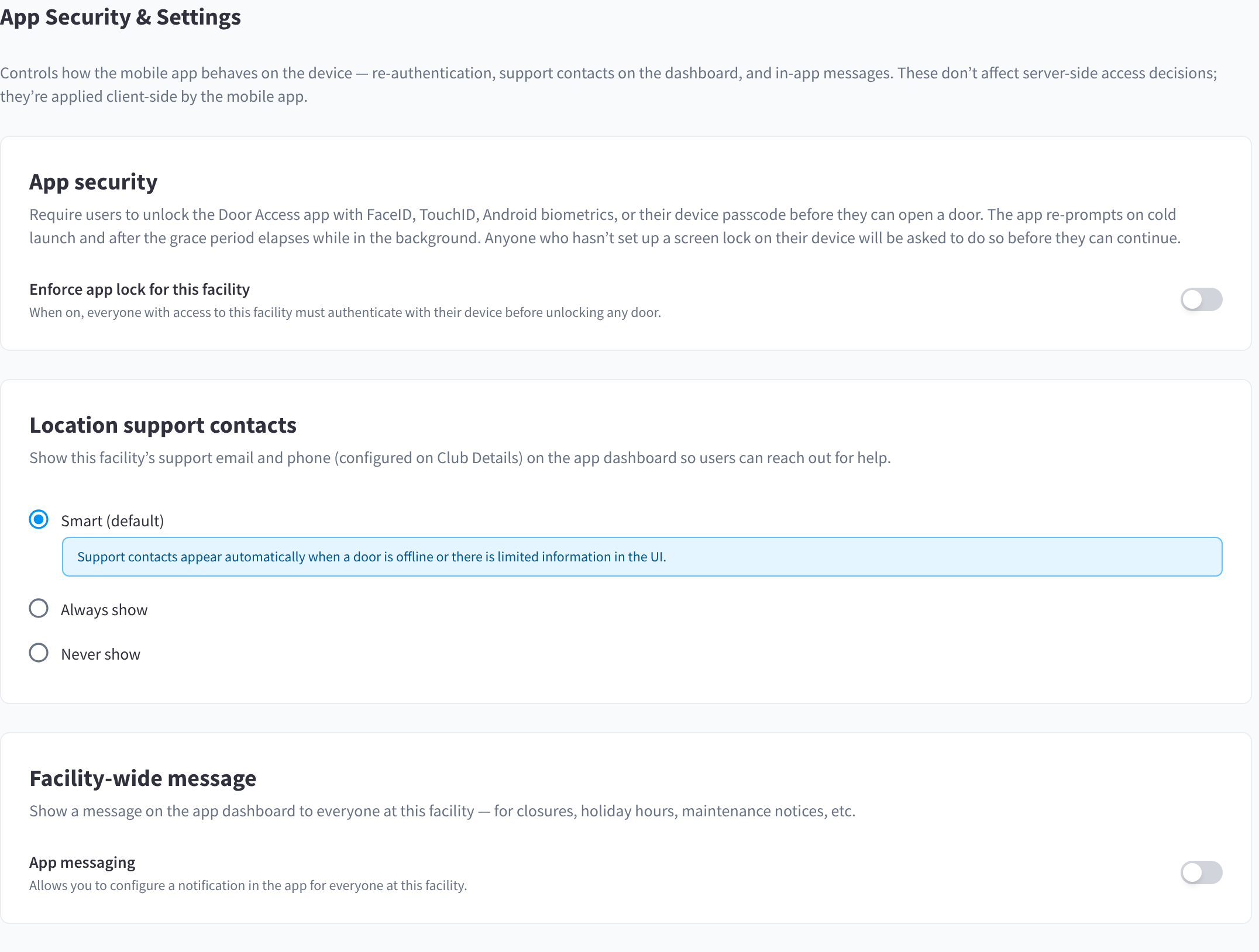
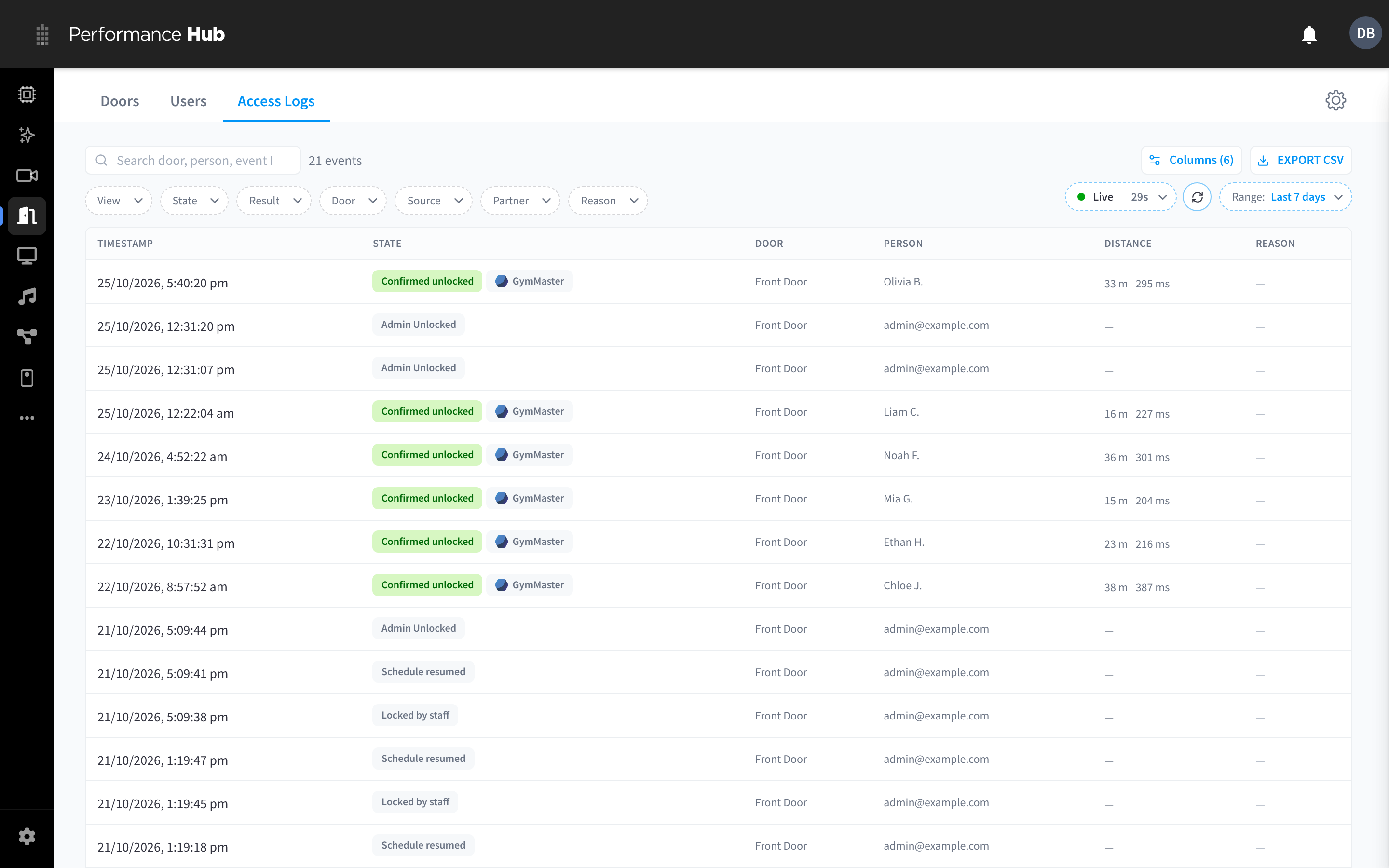

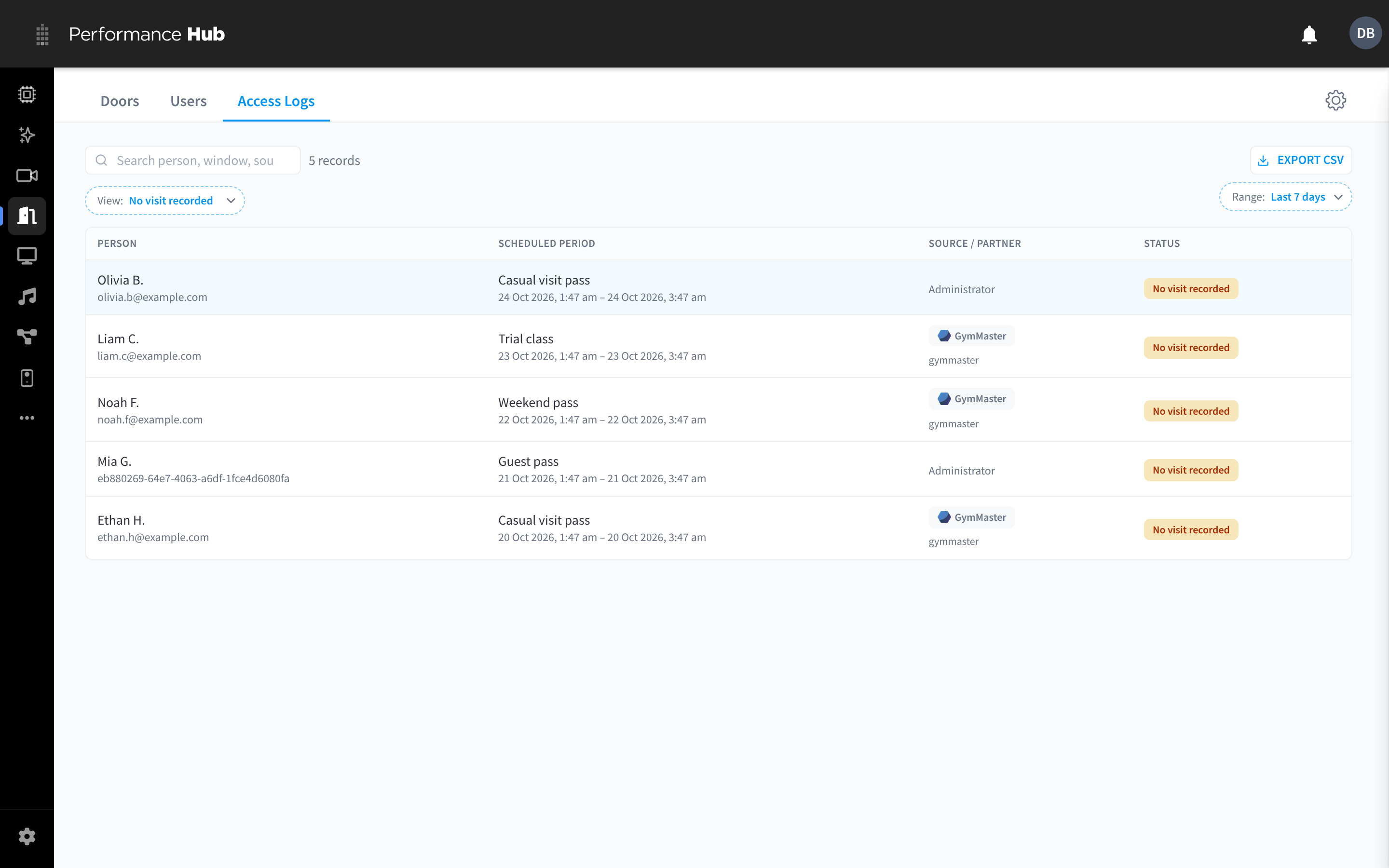
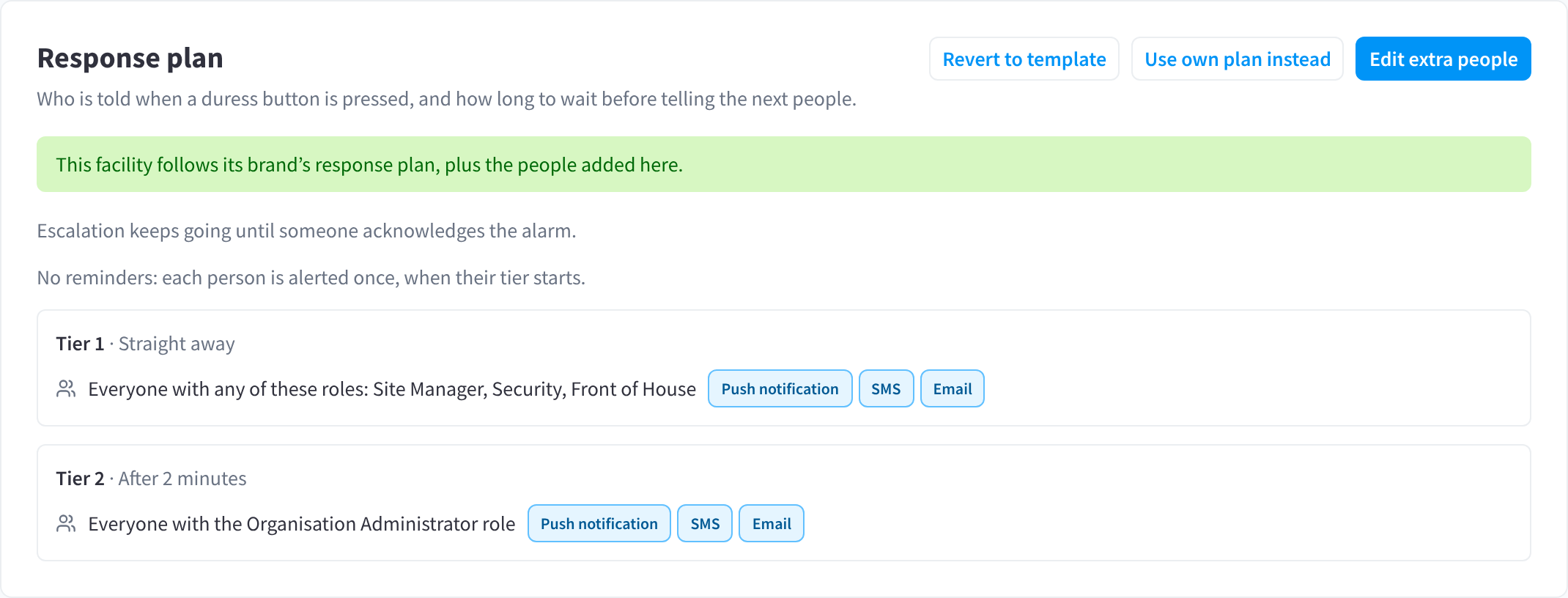
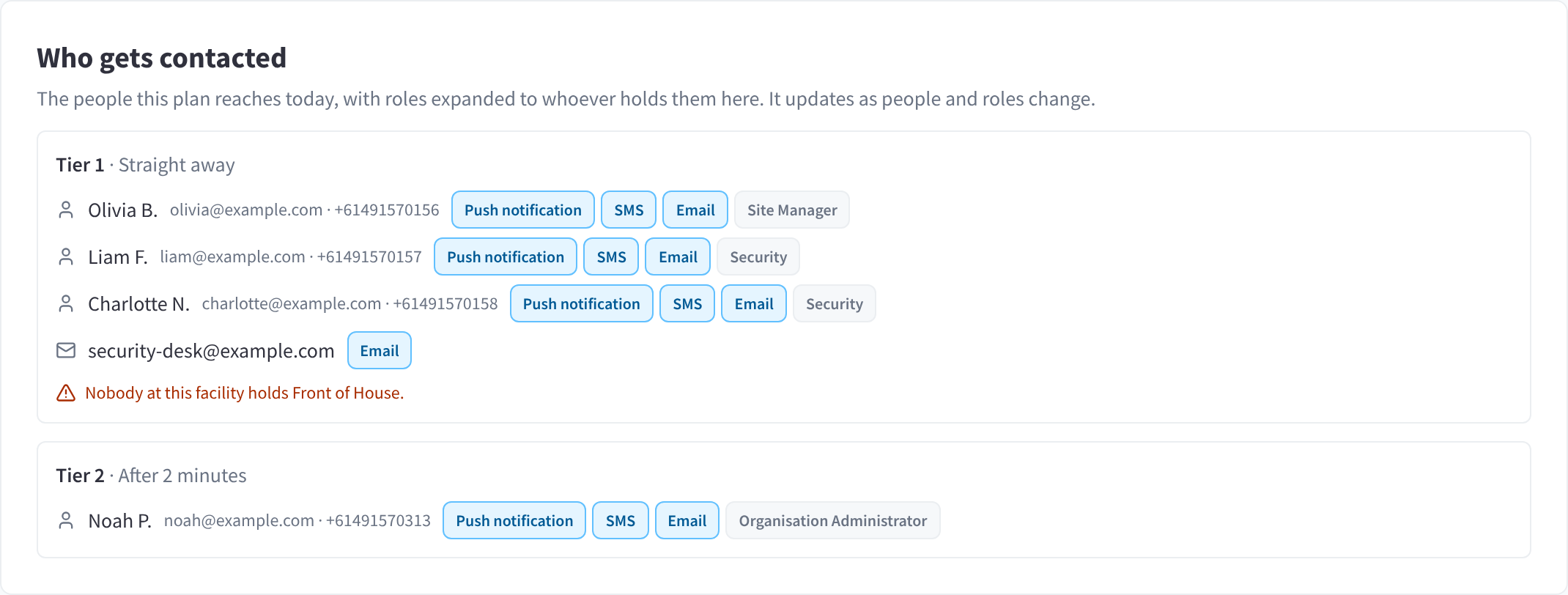
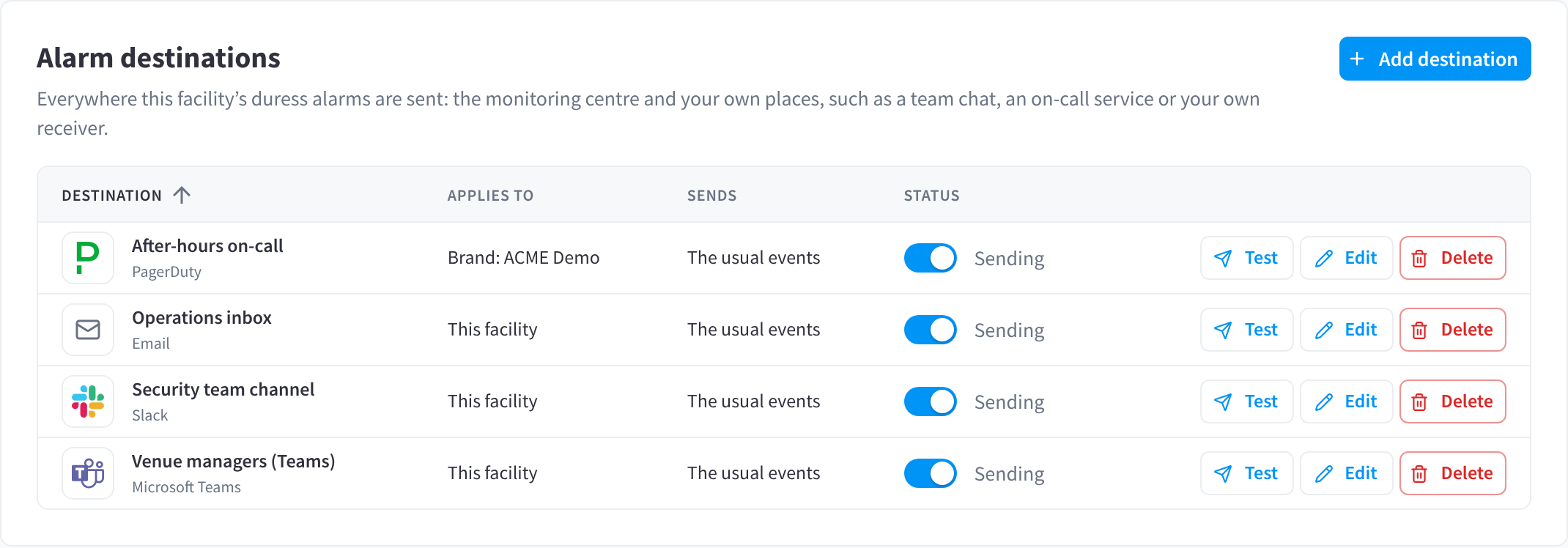
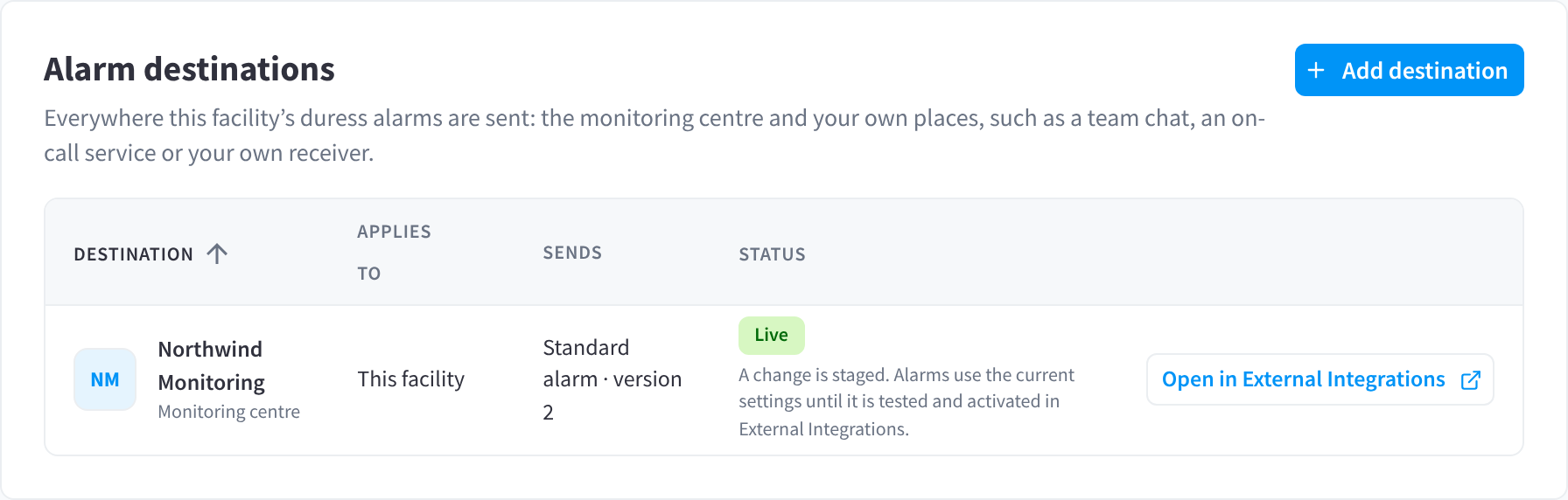
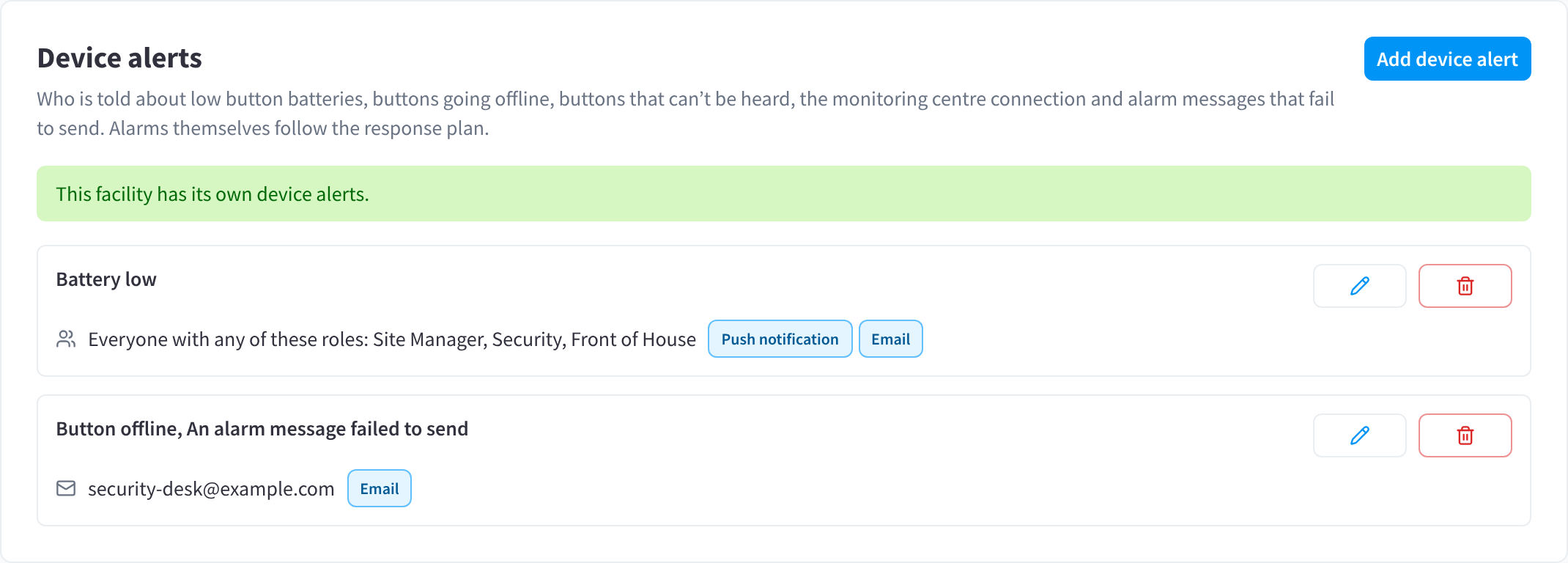
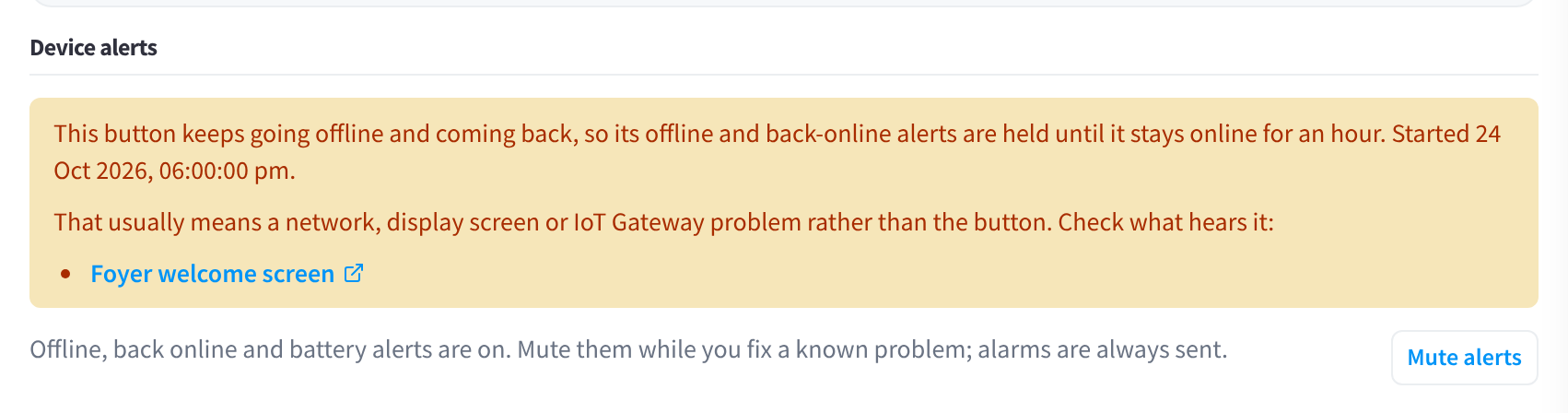
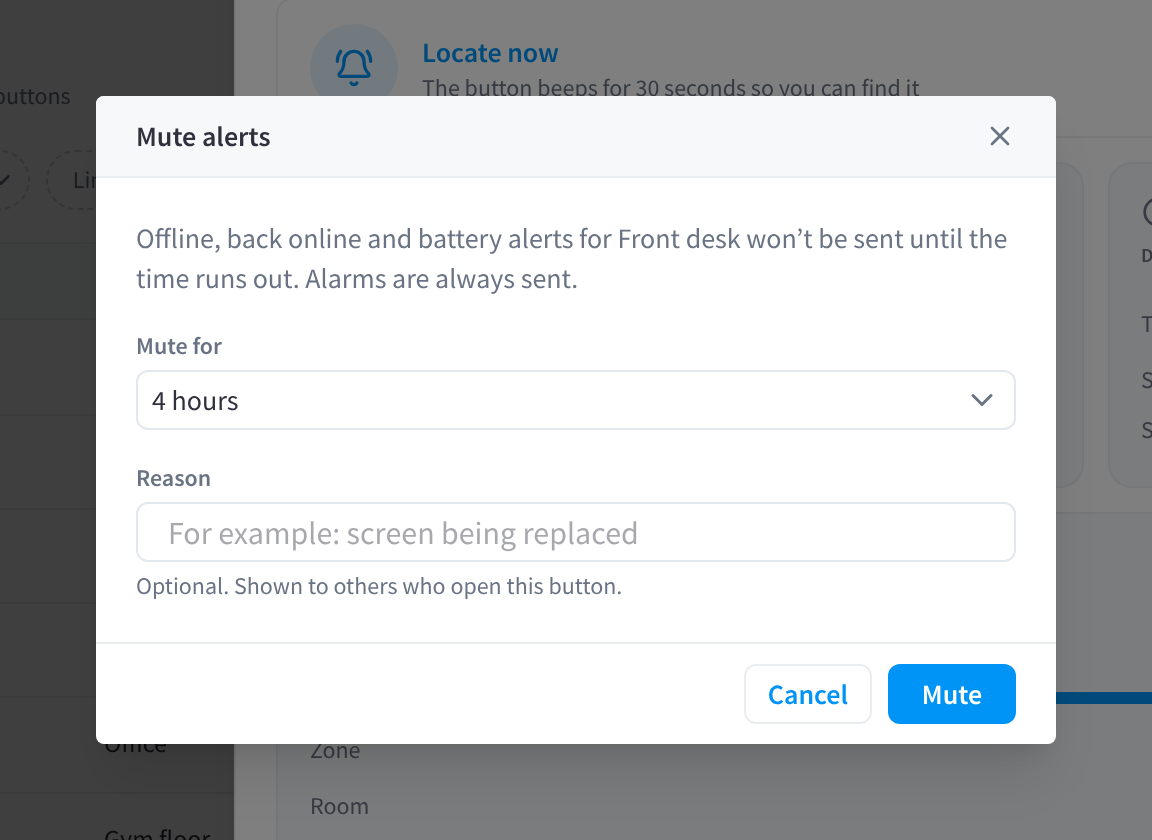
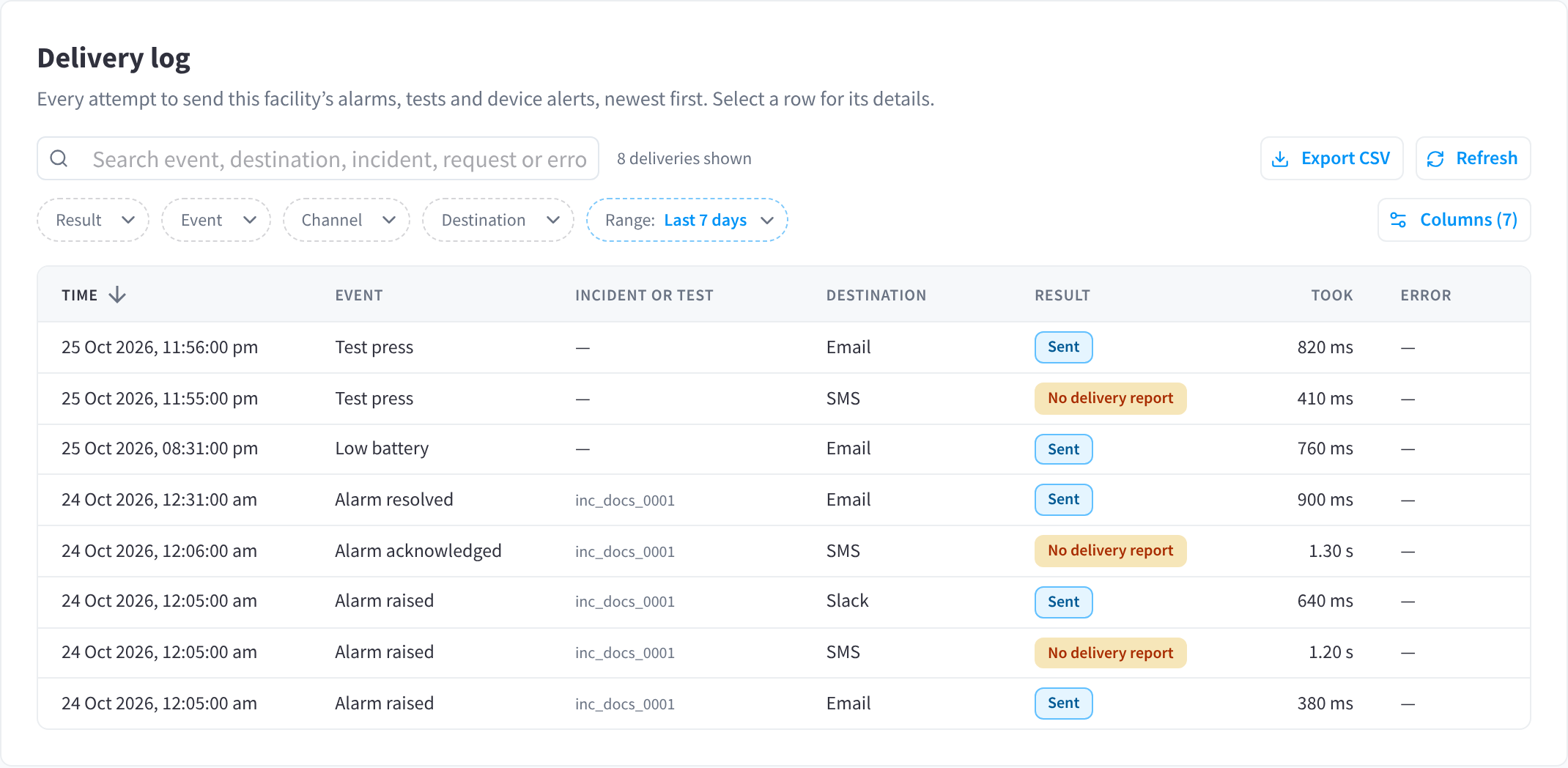

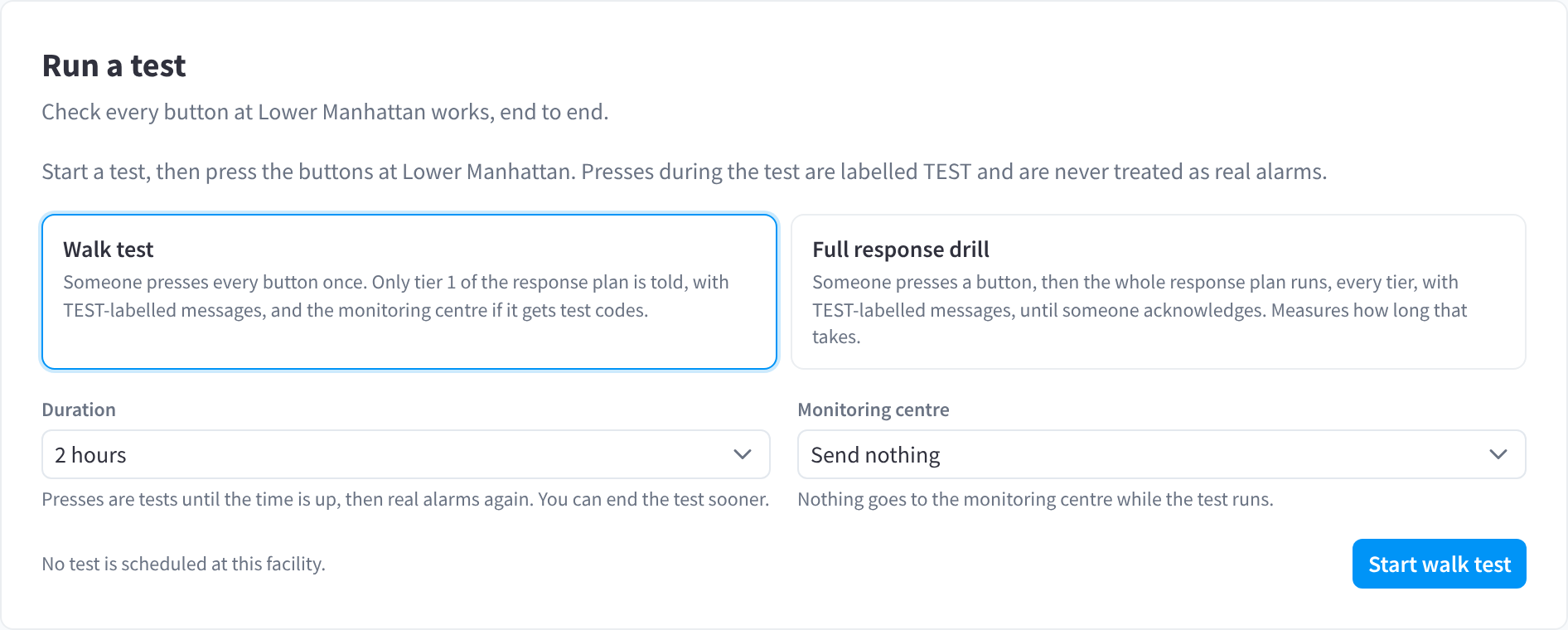
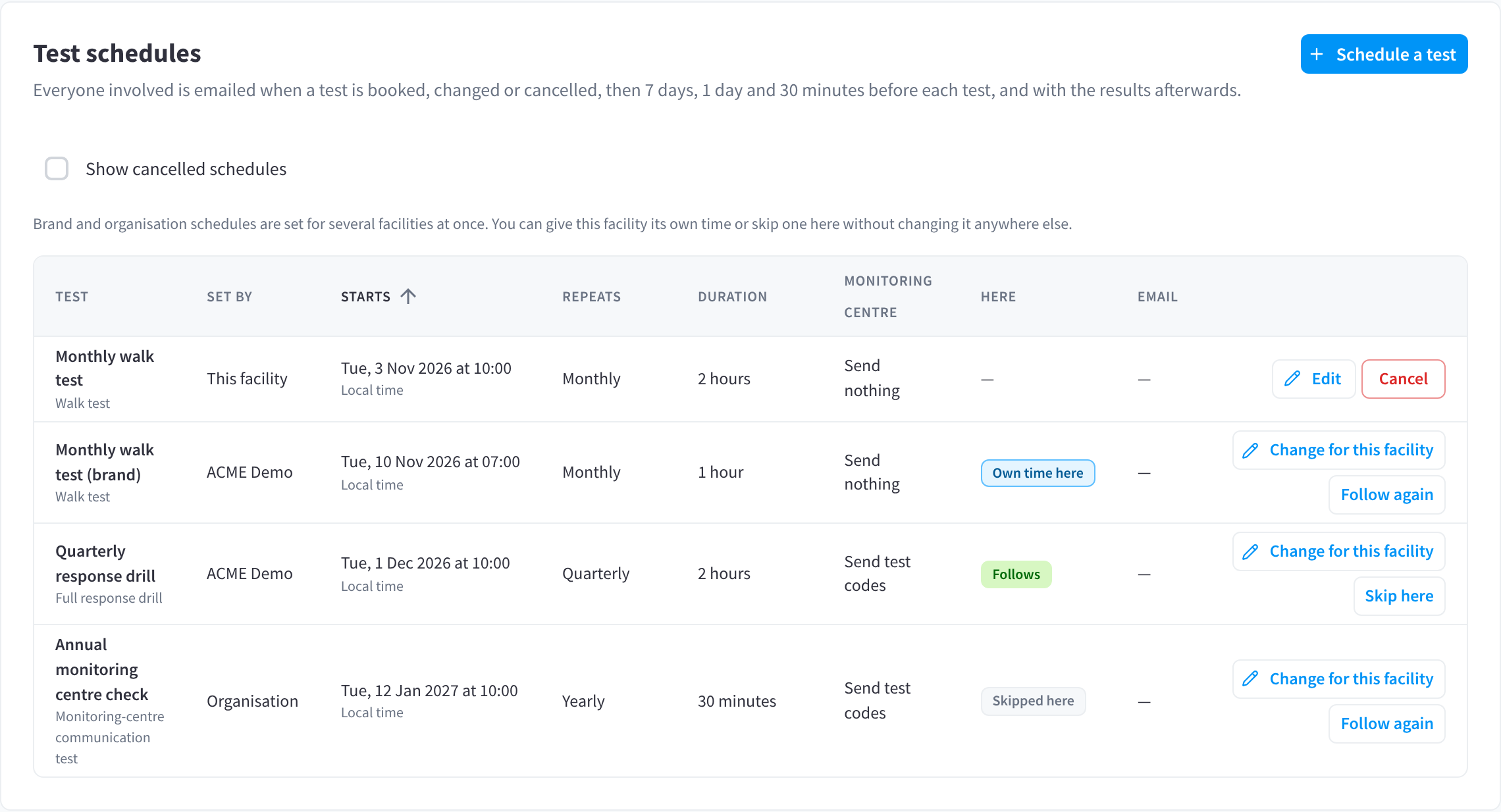
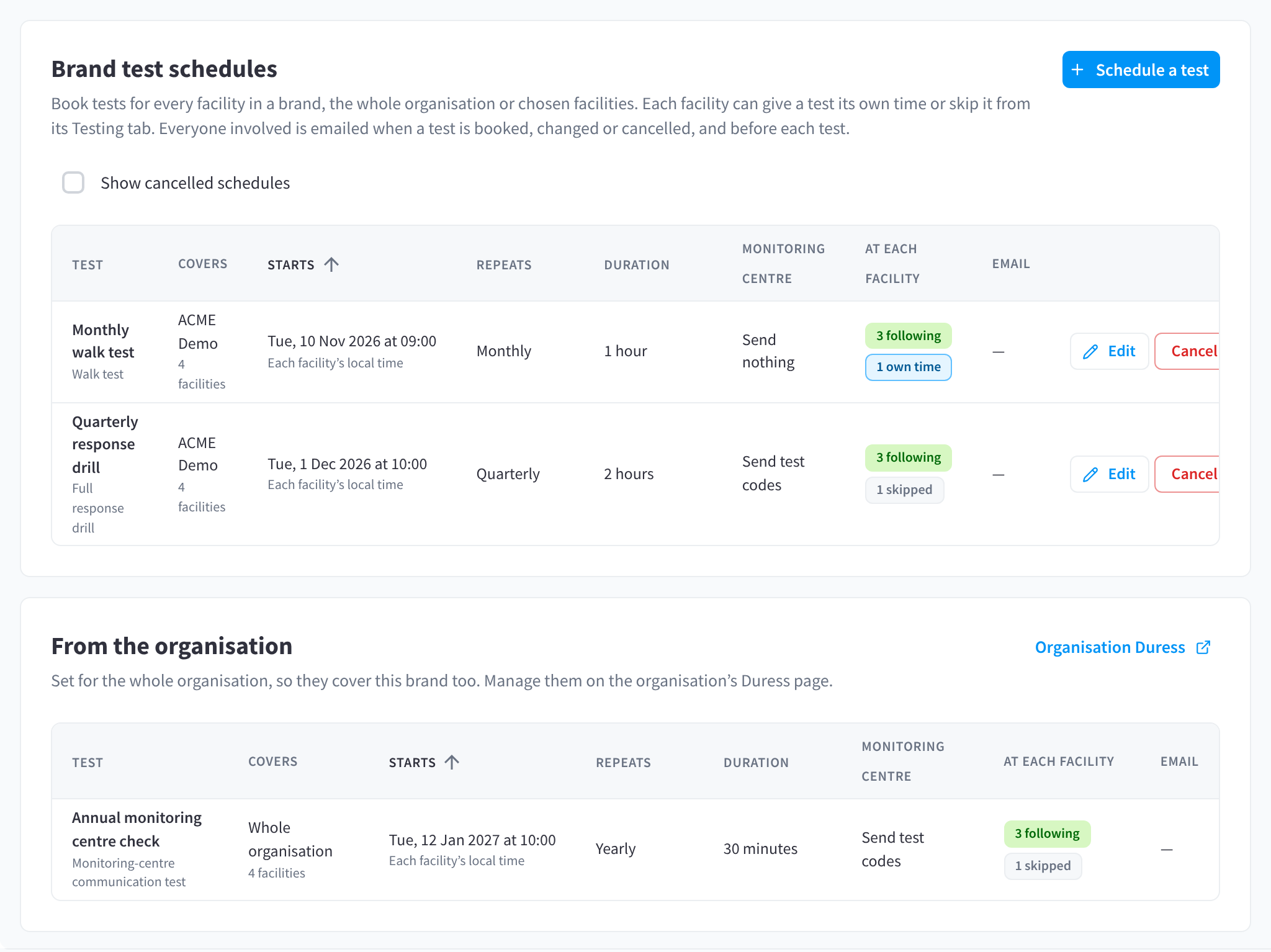
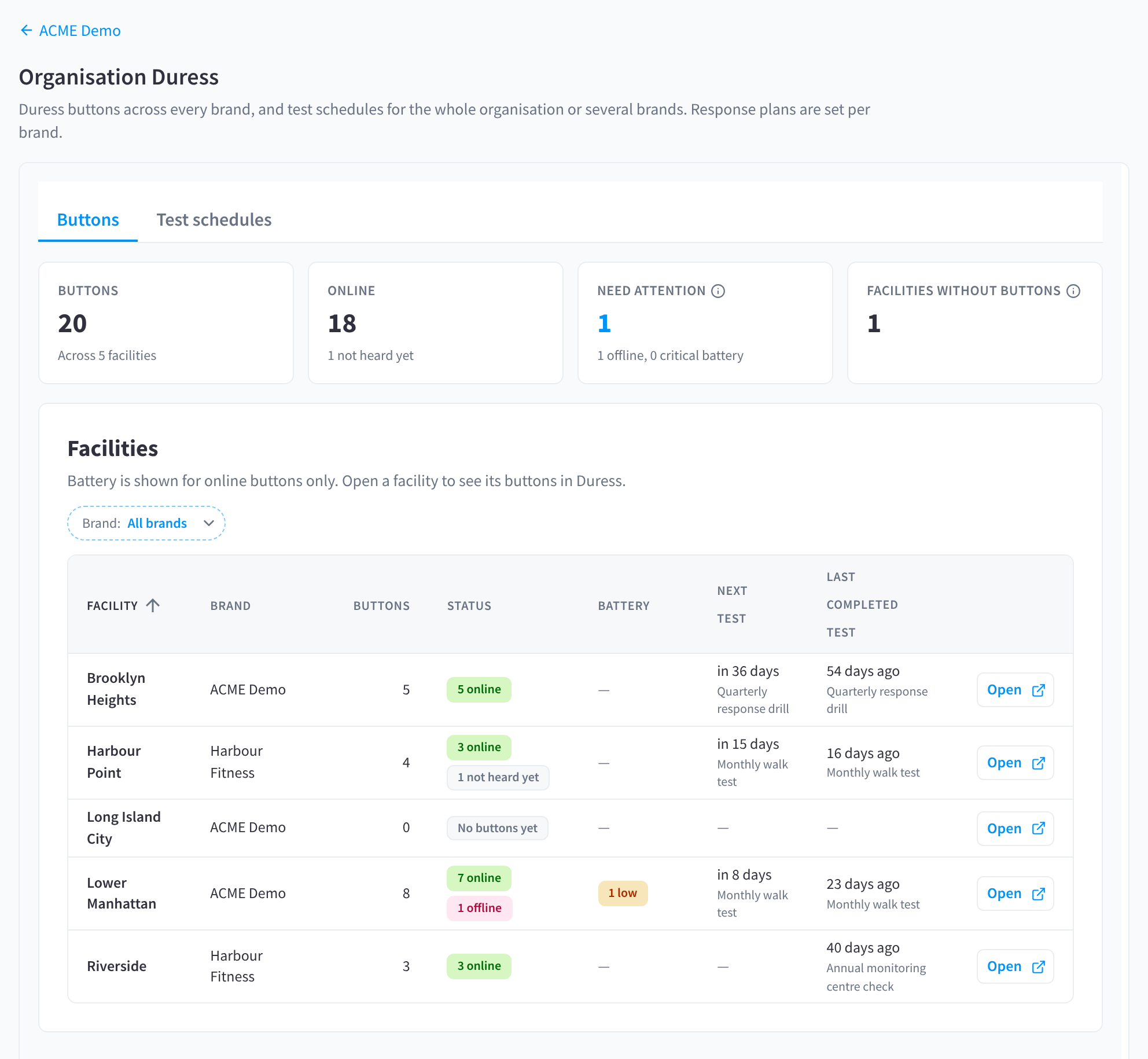


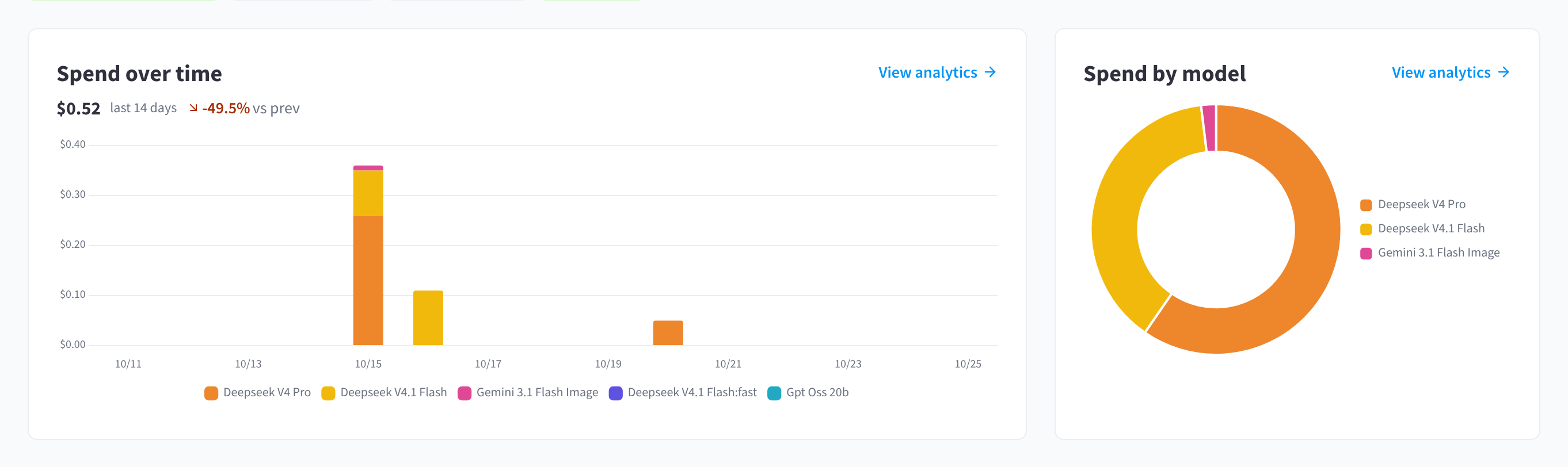
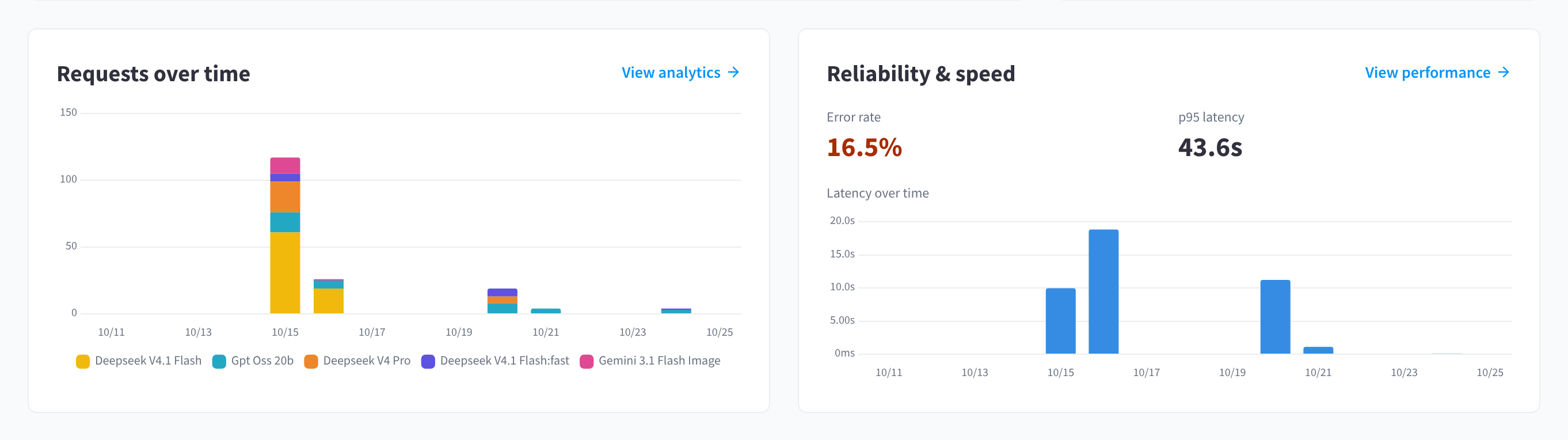

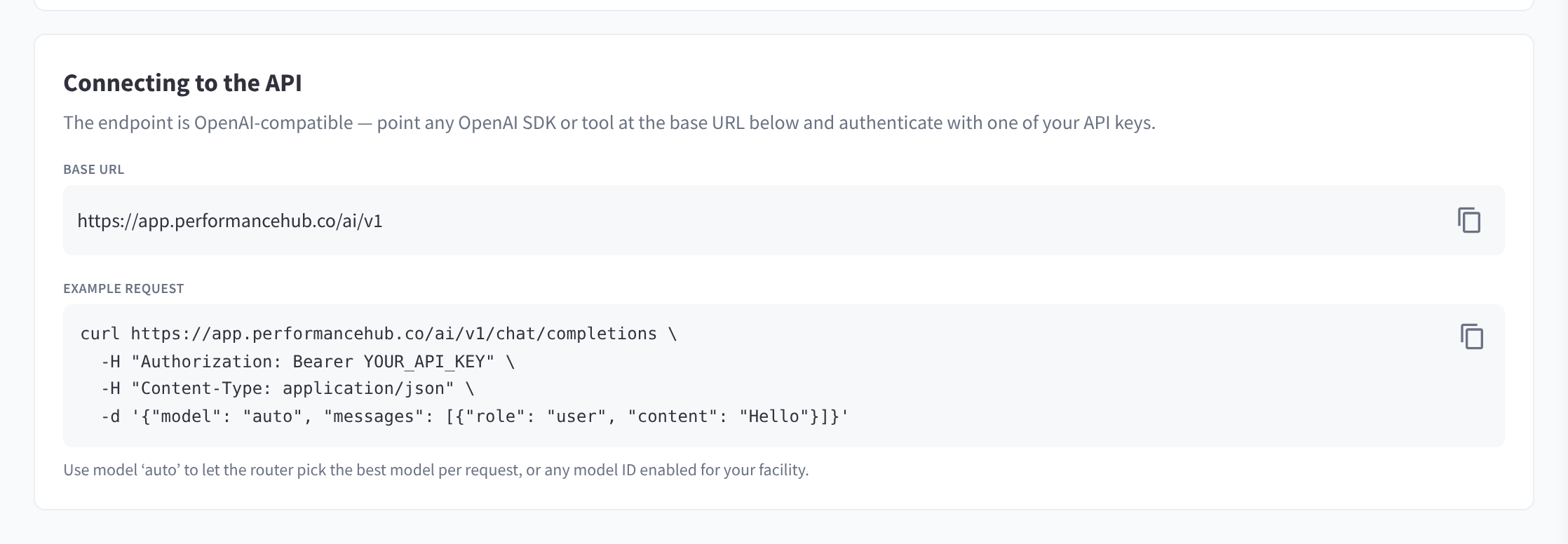
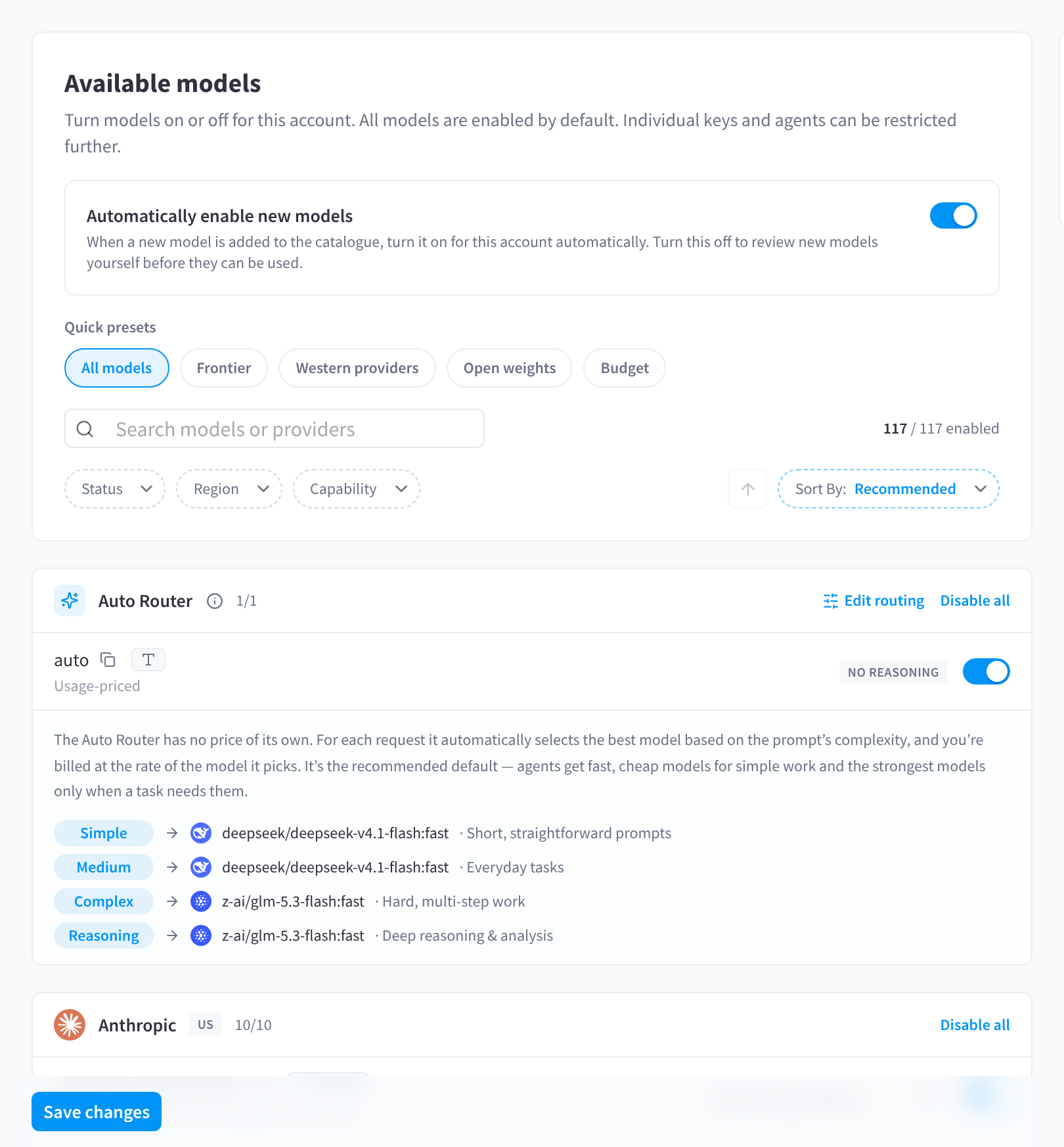
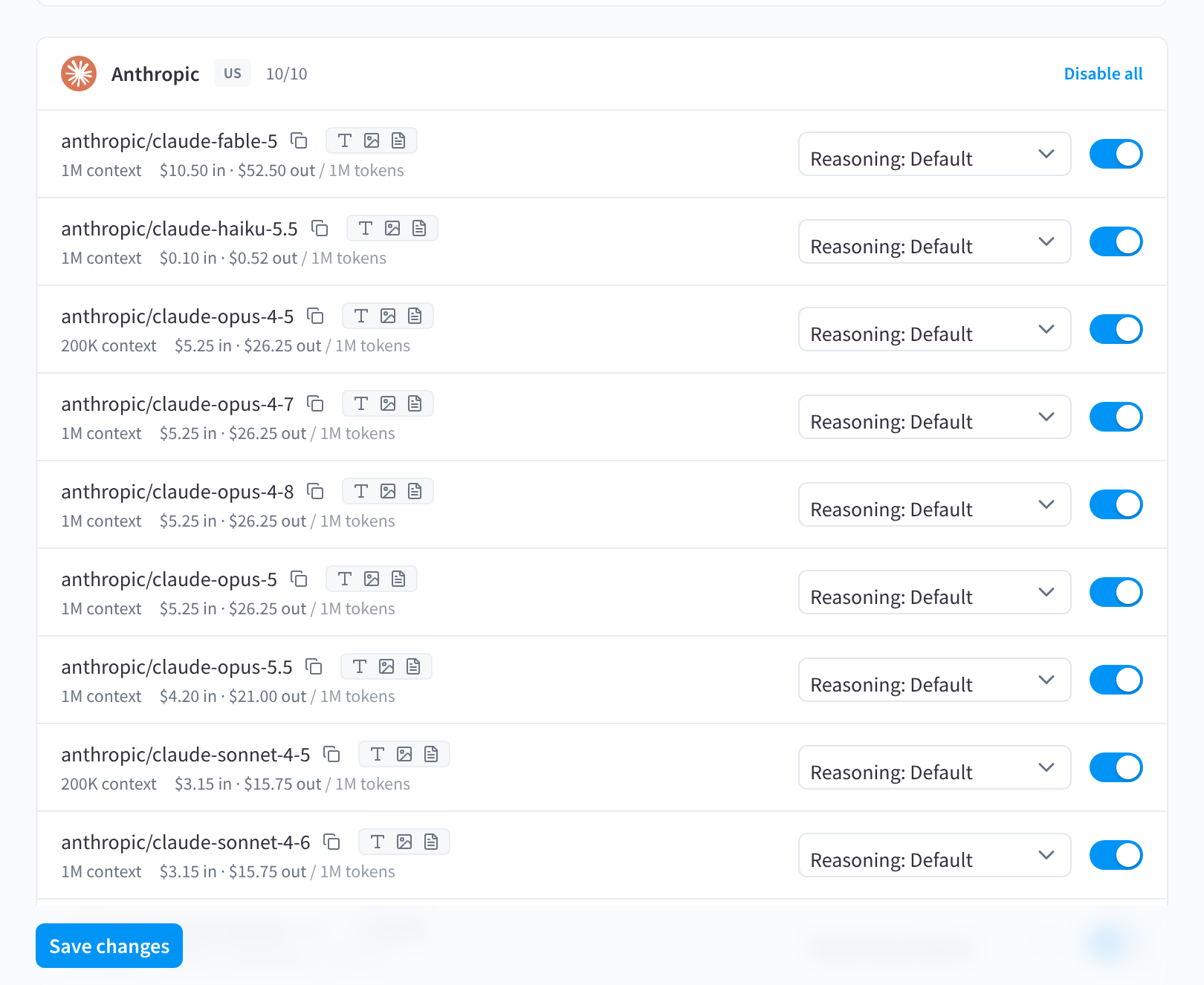
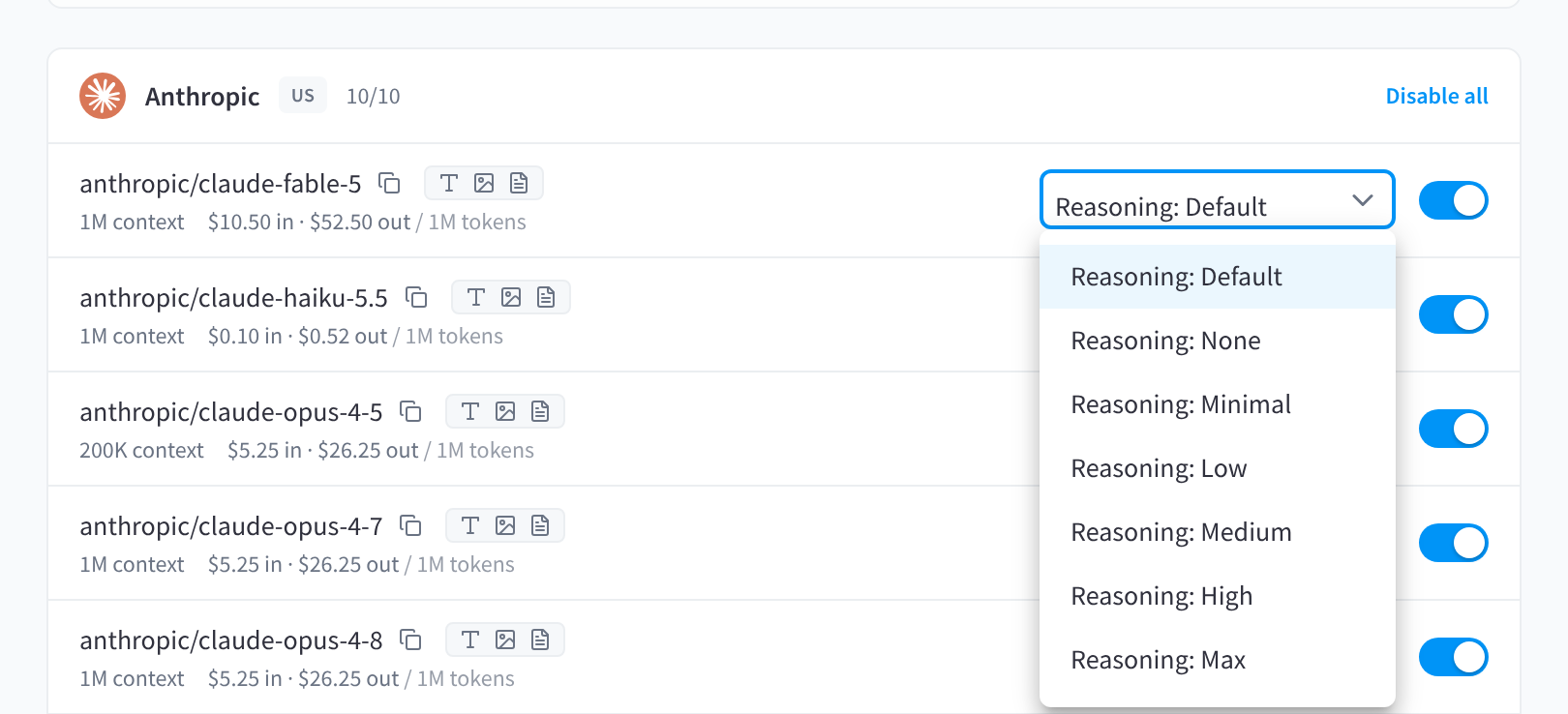
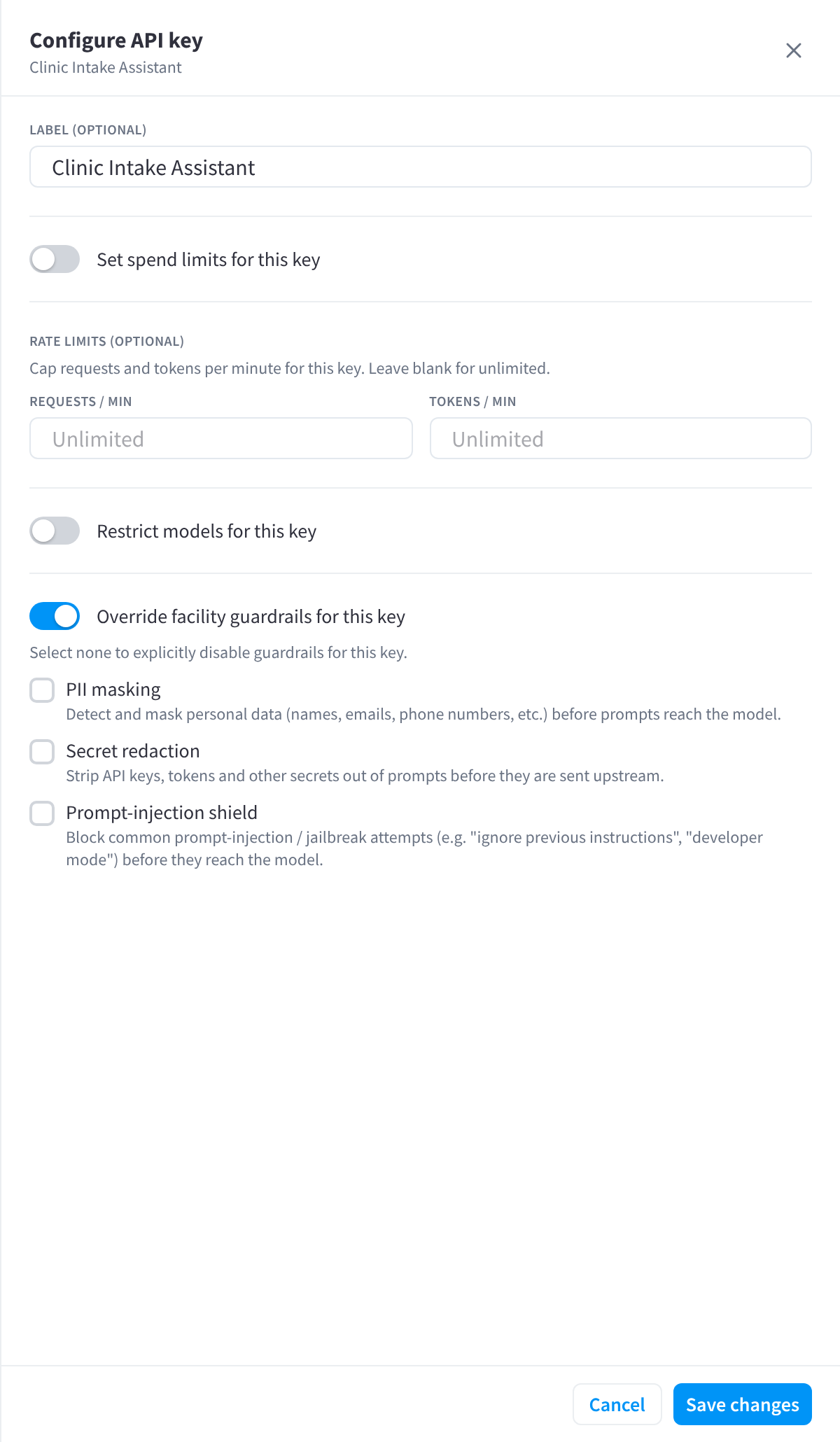
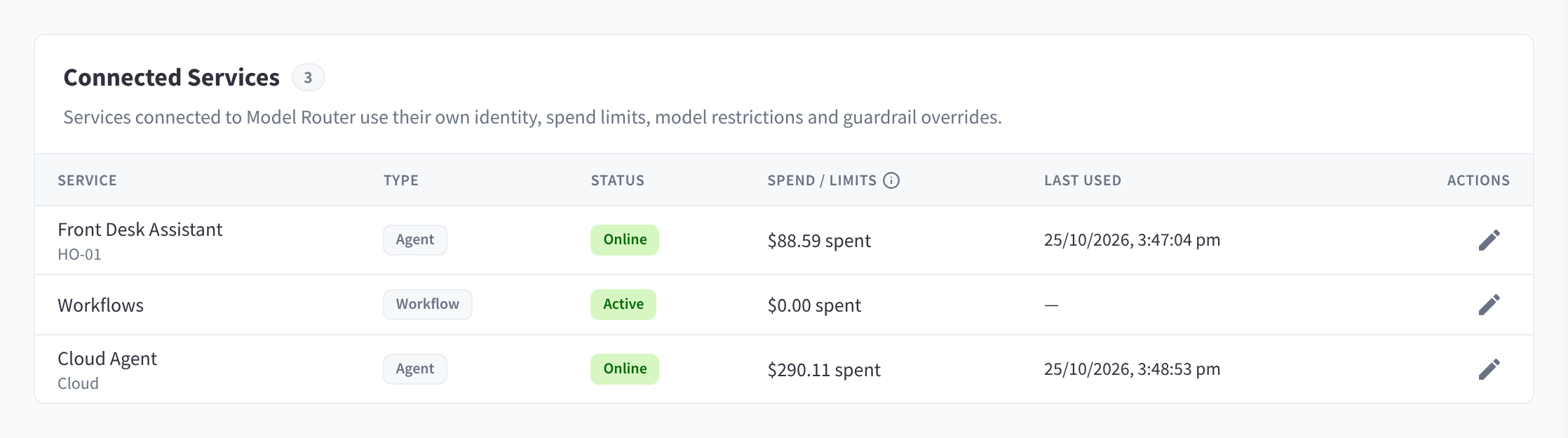
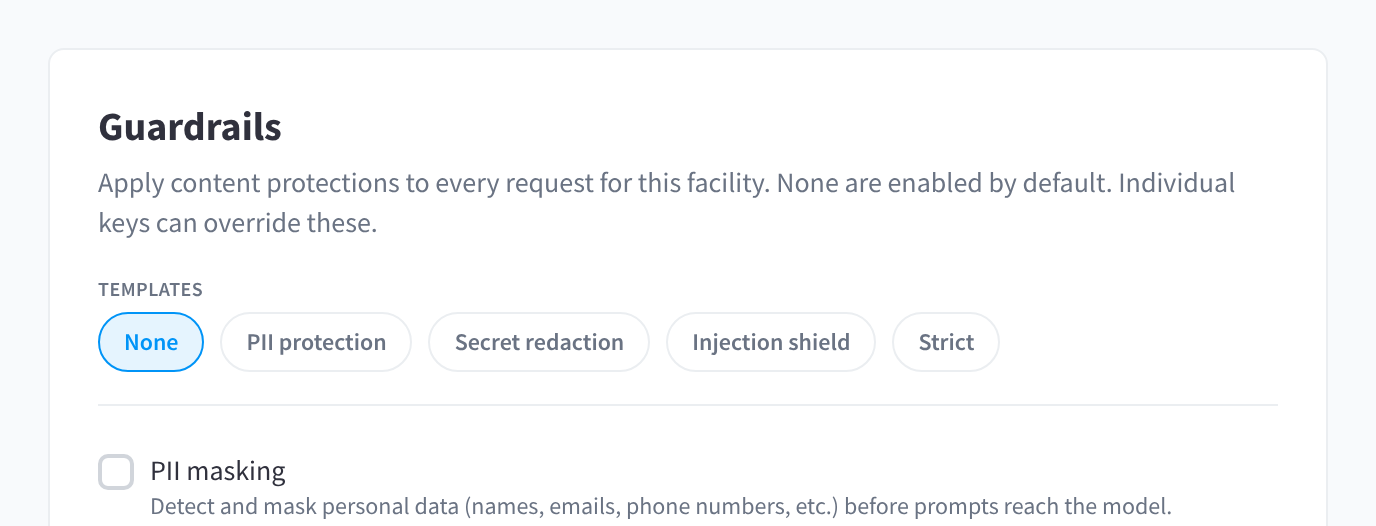

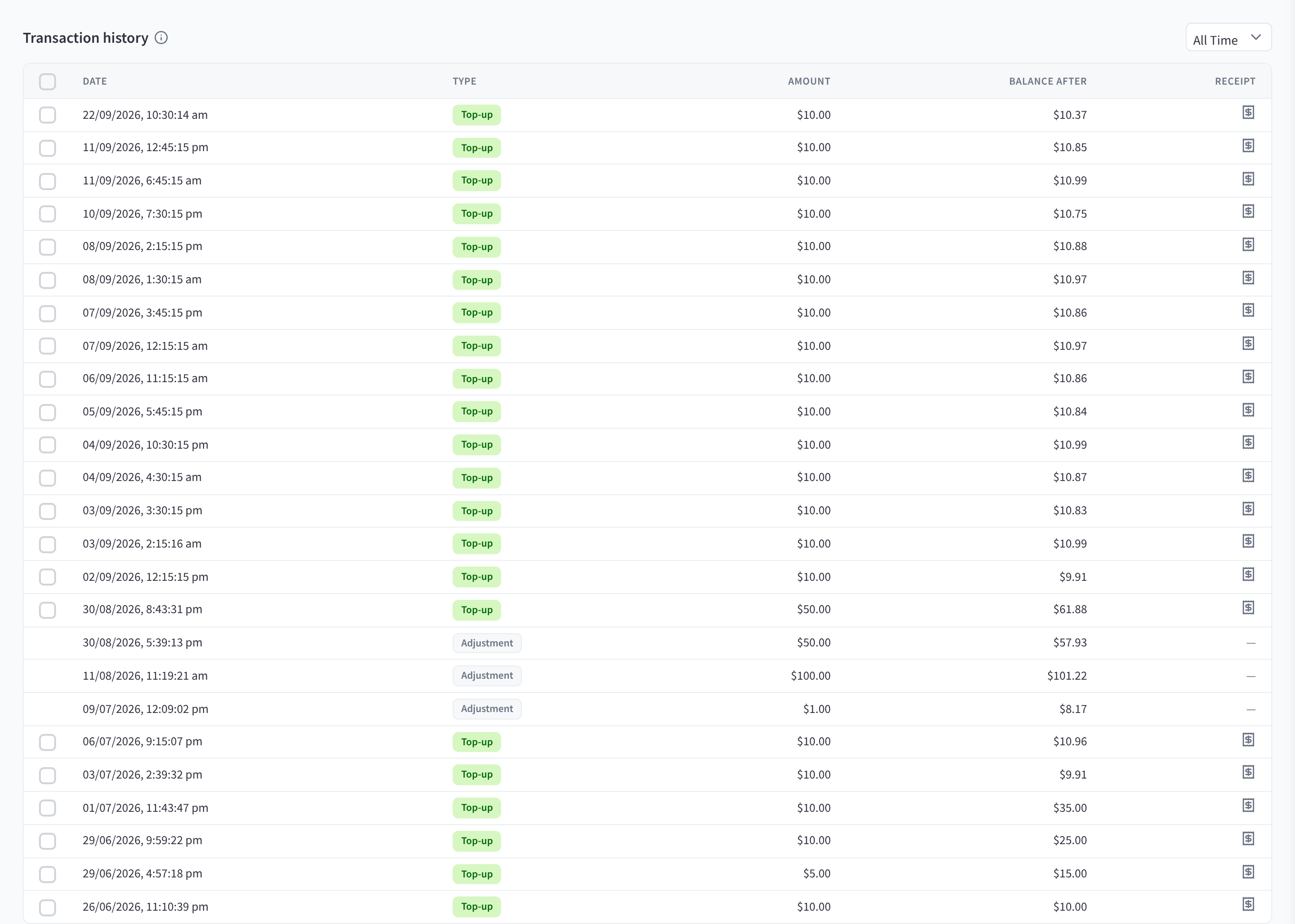
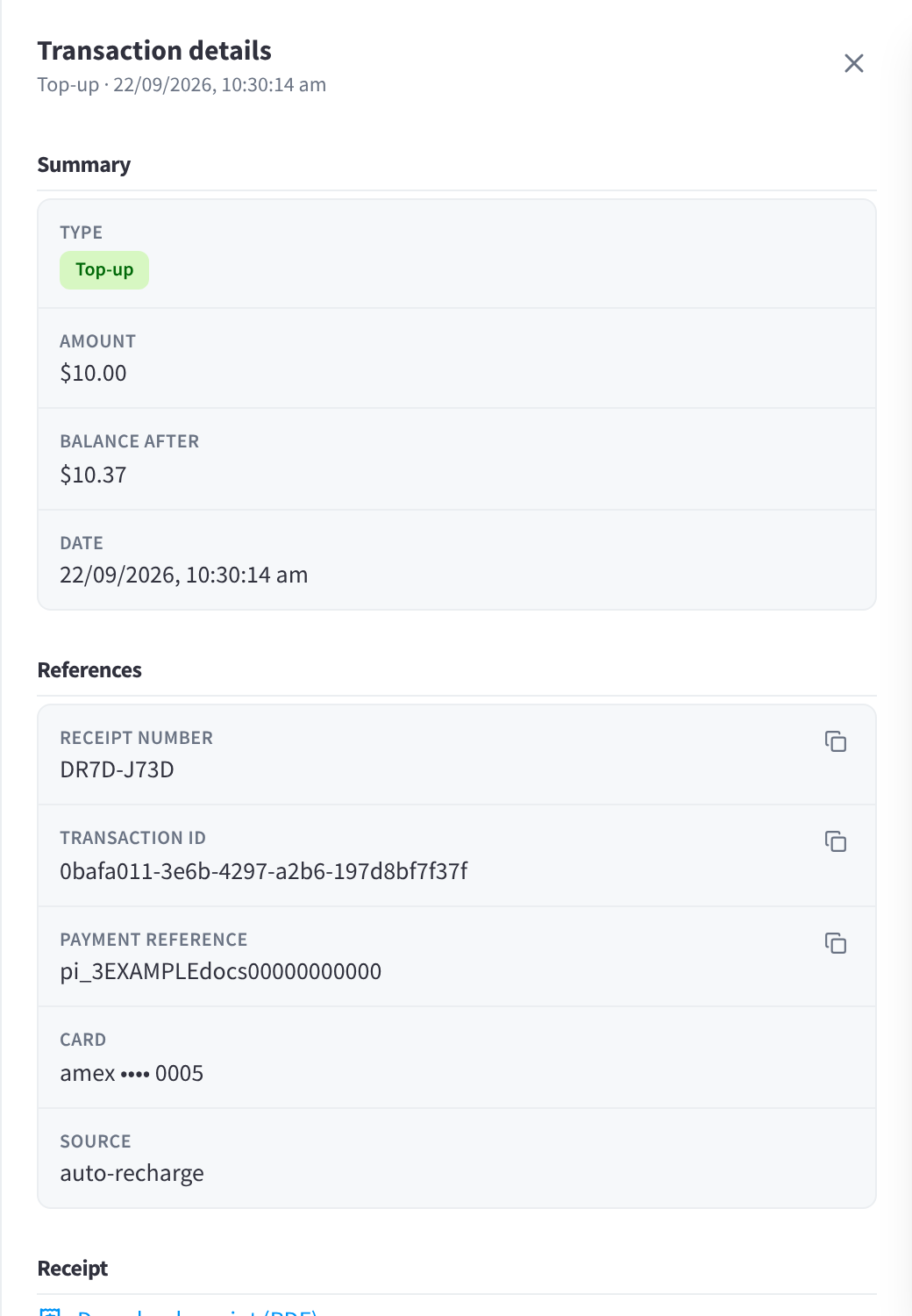

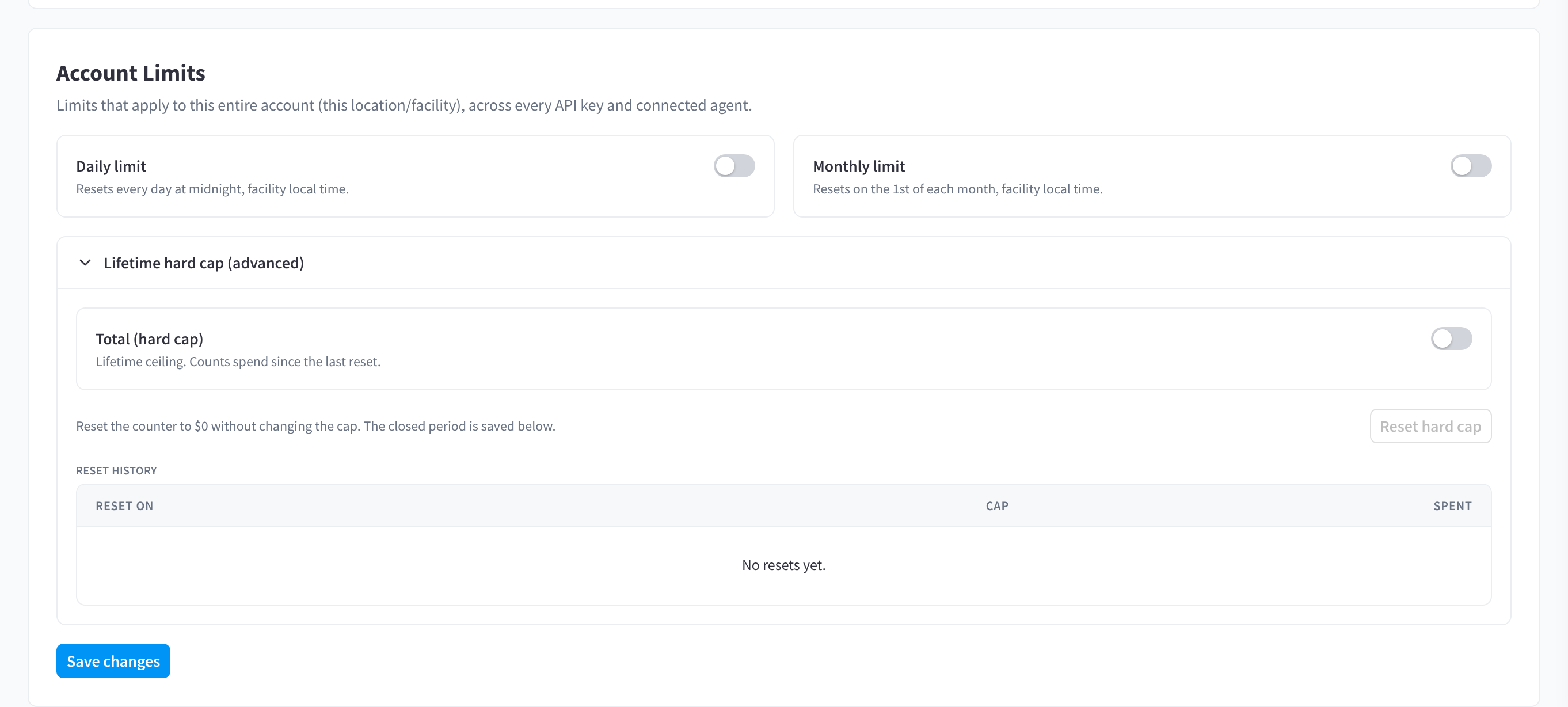
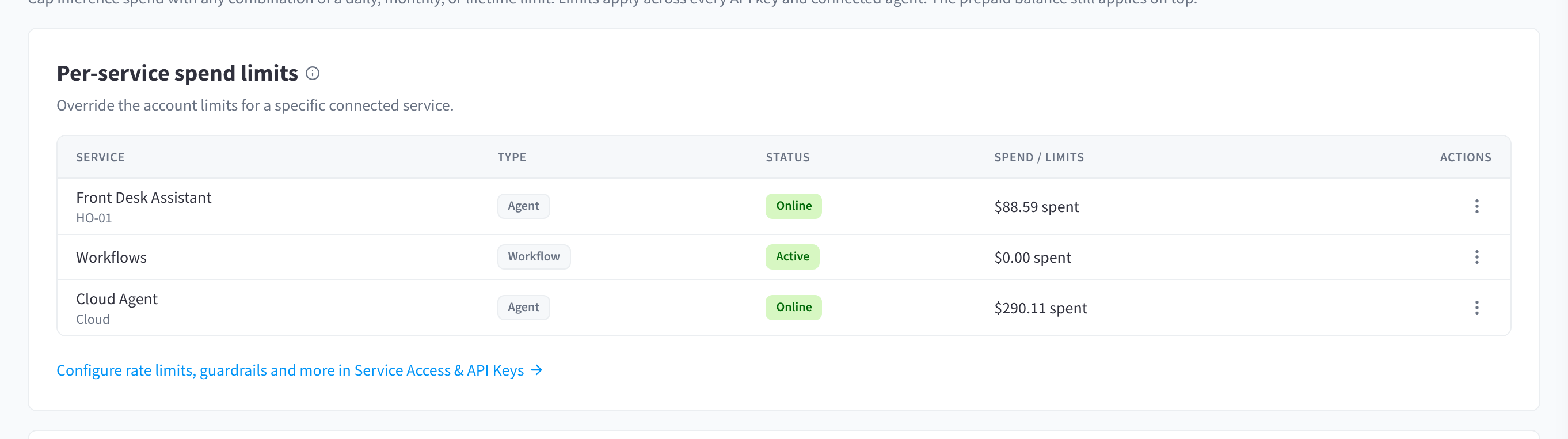
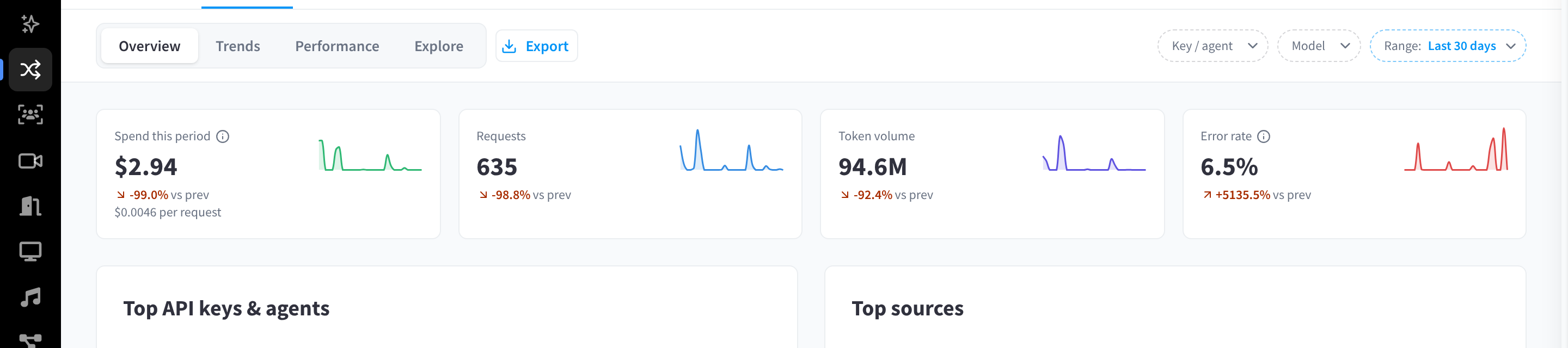
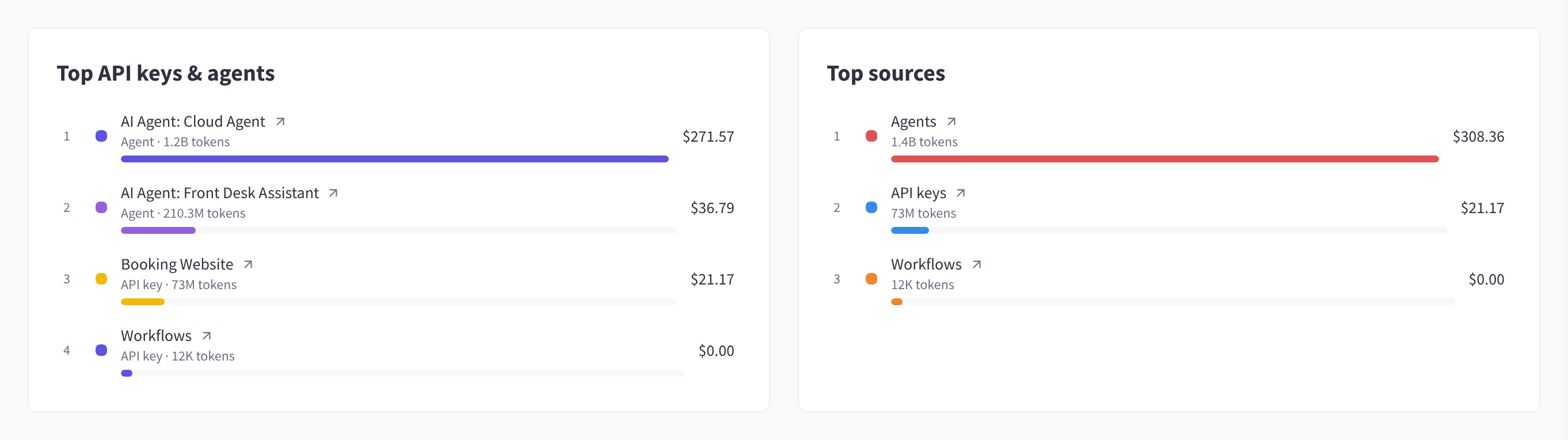
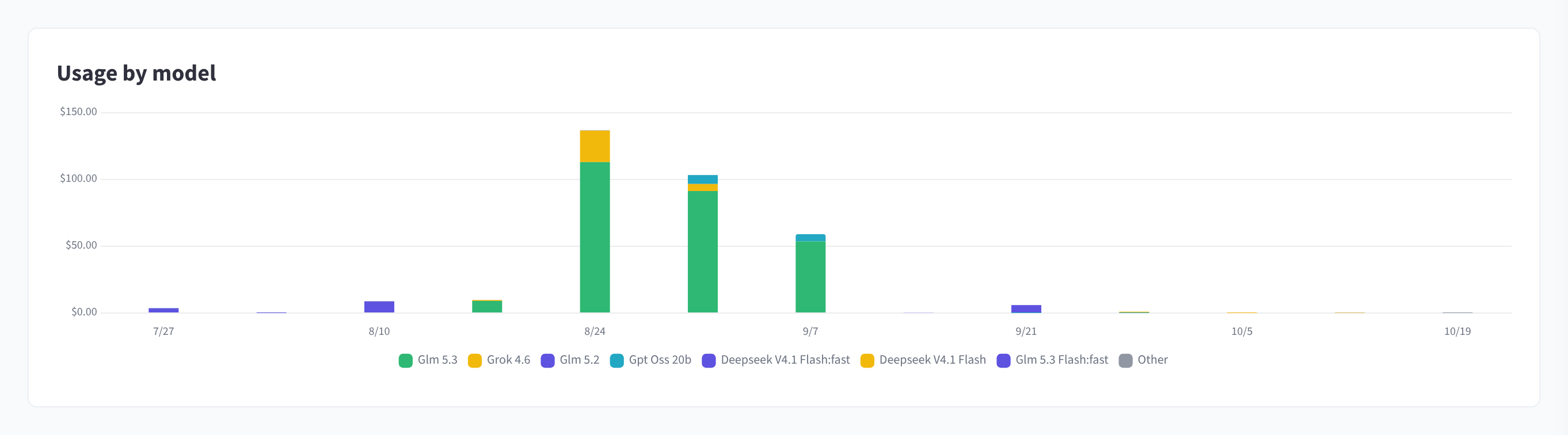
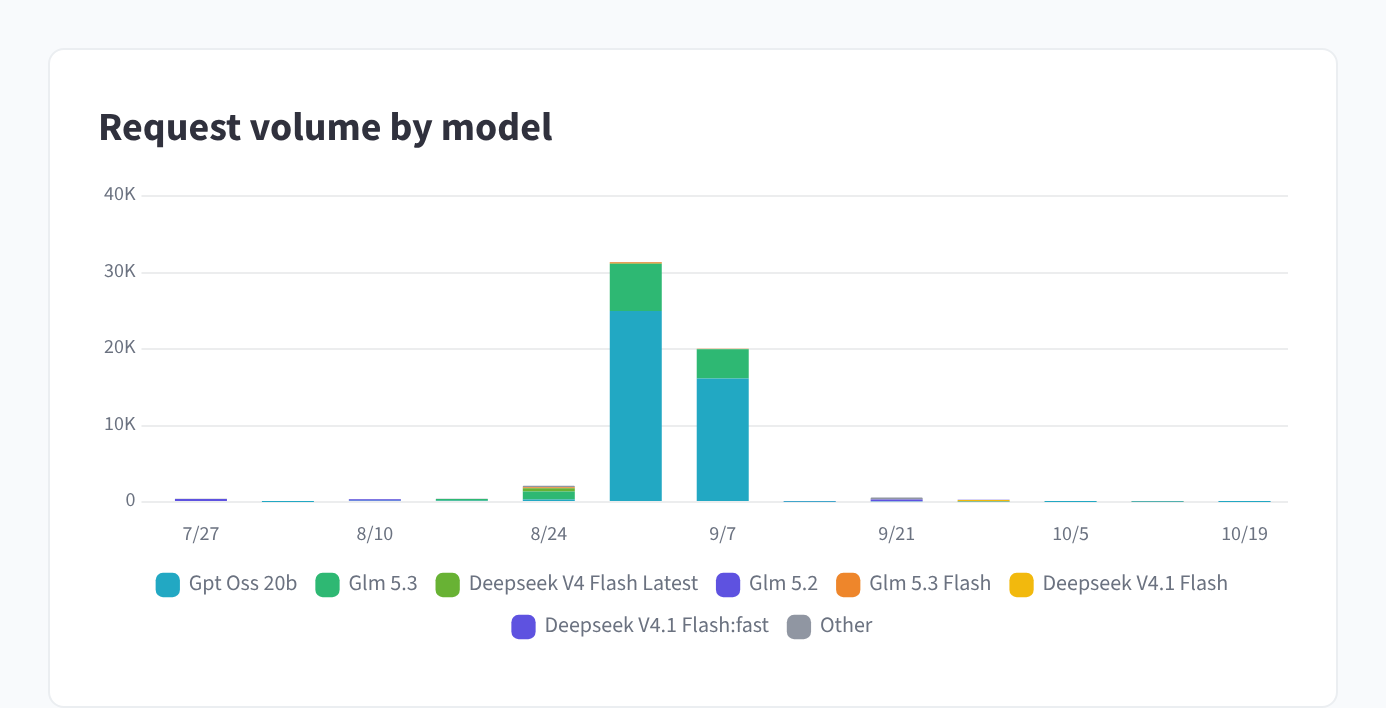
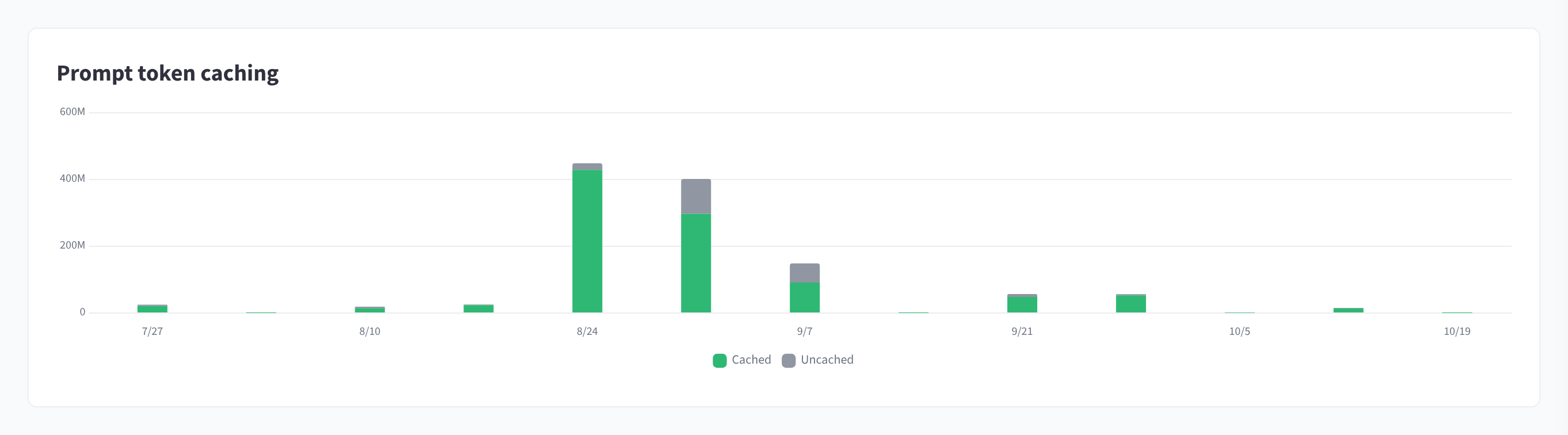
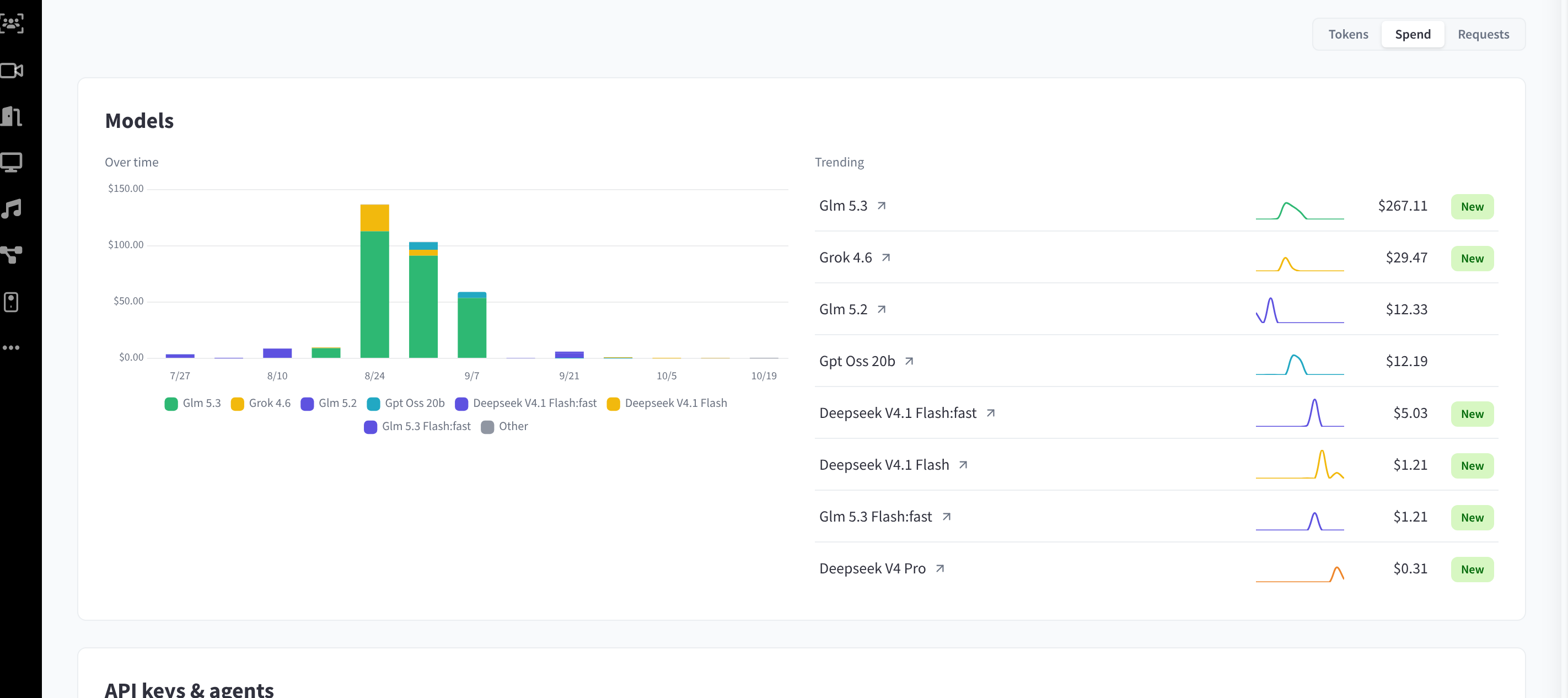
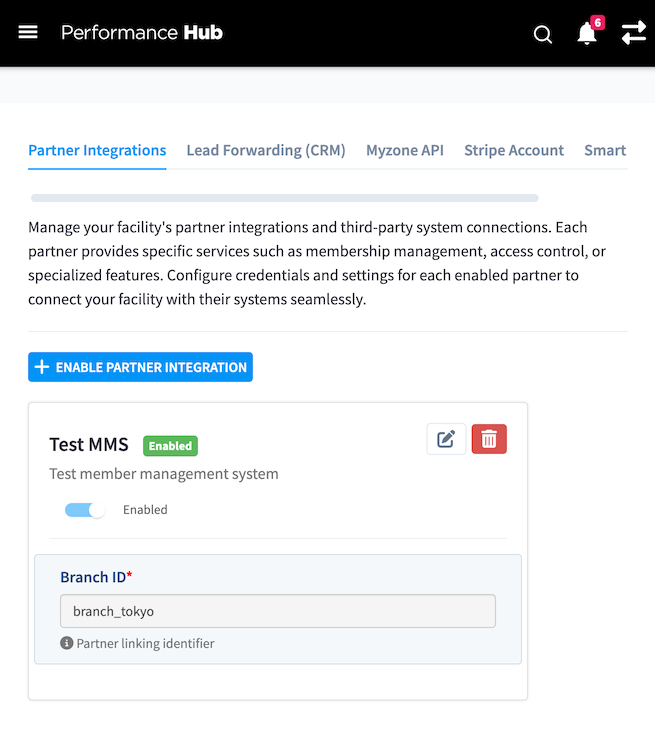
Recommended: Include a facility identifier whenever possible. Requests without `facility_id` or `linking_identifier` may take longer to load for partners with hundreds or thousands of Door/Gate Controllers.
## Parameters - **facility_id** `string` optional either/orProvide the facility identifier type configured for your integration: use facility_id for direct-link integrations, or linking_identifier for linking-identifier integrations. Do not send both; the API uses the identifier type configured for your partner account and ignores the other one. Learn more Performance Hub facility ID. Use this for direct-link integrations. - **linking_identifier** `string` optional either/orProvide the facility identifier type configured for your integration: use facility_id for direct-link integrations, or linking_identifier for linking-identifier integrations. Do not send both; the API uses the identifier type configured for your partner account and ignores the other one. Learn more Your own facility/location identifier. Use this when your integration is configured for linking identifiers. ## Returns Returns an array of Door/Gate Controller objects. ### Request ```bash curl -X GET "https://partner-api.performancehub.co/partner/v1/access-control/doors?facility_id=550e8400-e29b-41d4-a716-446655440000" \ -u sk_live_YOUR_PARTNER_SECRET_KEY: ``` ### Response ```json { "data": [ { "door_id": "00000000000000000000000000000007", "facility_id": "550e8400-e29b-41d4-a716-446655440000", "name": "Front Door", "zone": "Entrance", "status": "online", "relay_state": "locked", "maintenance_mode": "off", "hold_time_seconds": 10, "last_seen": "2026-05-01T04:30:00.000Z" } ] } ``` Source: https://docs.performancehub.co/api-docs/partner/access-control/doors/list --- # The Door/Gate Controller object ## Attributes - **door_id** `string` required Unique identifier for the Door/Gate Controller. Store this in your system after discovery and use it when calling the unlock endpoint. - **facility_id** `string` required Performance Hub facility ID. - **linking_identifier** `string` optional Partner facility identifier when your integration uses linking identifiers. [Learn more](https://docs.performancehub.co/api-docs/partner-console#partner-linking-methods) - **name** `string` required Human-readable device name configured in Performance Hub. - **zone** `string` optional Door zone or location, such as `Entrance`. - **status** `string` required `online` or `offline`. - **relay_state** `string` optional Latest known relay state, such as `locked` or `unlocked`. - **maintenance_mode** `string` required Current maintenance mode. One of `off`, `force-open`, or `force-closed`. - **hold_time_seconds** `integer` required Default unlock hold time configured for the door. - **last_seen** `string` optional ISO timestamp for the latest device metadata update. ### The Door/Gate Controller object ```json { "door_id": "00000000000000000000000000000007", "facility_id": "550e8400-e29b-41d4-a716-446655440000", "linking_identifier": "branch_downtown", "name": "Front Door", "zone": "Entrance", "status": "online", "online": true, "relay_state": "locked", "maintenance_mode": "off", "hold_time_seconds": 10, "last_seen": "2026-05-01T04:30:00.000Z" } ``` Source: https://docs.performancehub.co/api-docs/partner/access-control/doors/object --- # Unlock a Door/Gate Controller Sends an unlock command to the Door/Gate Controller and waits for the physical relay to confirm it has unlocked. Your system must decide whether the person is authorised before calling this endpoint. Performance Hub only verifies the partner key, facility access, door ownership, and device state. ## Parameters - **door_id** `string` required Door/Gate Controller ID returned by the list endpoint. - **facility_id** `string` either/orProvide the facility identifier type configured for your integration: use facility_id for direct-link integrations, or linking_identifier for linking-identifier integrations. Do not send both; the API uses the identifier type configured for your partner account and ignores the other one. Learn more Performance Hub facility ID. Required for direct-link integrations. - **linking_identifier** `string` either/orProvide the facility identifier type configured for your integration: use facility_id for direct-link integrations, or linking_identifier for linking-identifier integrations. Do not send both; the API uses the identifier type configured for your partner account and ignores the other one. Learn more Partner facility identifier. Required for linking-identifier integrations. - **member_id** `string` required Partner member ID. This is used for audit logging and later data linking. - **first_name** `string` required First name of the person opening the door. - **last_name** `string` required Last name of the person opening the door. - **full_name** `string` optional Optional. If omitted, Performance Hub combines `first_name` and `last_name`. - **check_in_id** `string` optional Optional check-in ID from your system for correlation. - **idempotency_key** `string` optional Optional replay-protection key. Reusing the same key for the same partner, facility, and door returns the existing result when available. ## Returns Returns `200` only when the device confirms the relay physically unlocked. The door uses the hold time configured in Performance Hub Device Management; partners cannot override relay timing per request. Most confirmations should complete in 3-5 seconds. Treat the documented timeout as an explicit failed unlock and retry only according to your own safety rules. Common failures: - `403 integration_not_enabled` - your integration is not enabled for the facility. - `409 maintenance_mode_active` - facility staff have enabled maintenance mode for the door. - `503 device_offline` - the Door/Gate Controller is offline or stale. - `504 unlock_confirmation_timeout` - the command was sent but no matching confirmation was received before timeout. ### Request ```bash curl -X POST https://partner-api.performancehub.co/partner/v1/access-control/doors/00000000000000000000000000000007/unlock \ -u sk_live_YOUR_PARTNER_SECRET_KEY: \ -H "Content-Type: application/json" \ -d '{ "facility_id": "550e8400-e29b-41d4-a716-446655440000", "member_id": "mem_12345", "first_name": "Jane", "last_name": "S.", "full_name": "Jane S.", "source": "door_reader", "idempotency_key": "unlock_20260501_0001" }' ``` ### Response ```json { "status": "unlocked", "door_id": "00000000000000000000000000000007", "facility_id": "550e8400-e29b-41d4-a716-446655440000", "event_id": "00000000-0000-0000-0000-000000000045", "command_id": "00000000-0000-0000-0000-000000000049", "hold_time_seconds": 10, "confirmed_at": "2026-05-01T04:30:00.000Z" } ``` ### Failure response ```json { "status": "failed", "reason": "device_offline", "door_id": "00000000000000000000000000000007", "facility_id": "550e8400-e29b-41d4-a716-446655440000", "event_id": "00000000-0000-0000-0000-000000000045" } ``` Source: https://docs.performancehub.co/api-docs/partner/access-control/doors/unlock --- # Authentication Access to the Partner API requires authentication using API secret keys. Generate and manage your keys through the [Partner Console](https://docs.performancehub.co/api-docs/partner-console). API keys serve as your credentials for accessing partner resources. Each key has restricted access to specific organisation data and can be deactivated instantly when needed. **Handle your API keys with care—they provide full access to your account!** Never expose these keys in public repositories, client-side applications, or anywhere they could be compromised. Authenticate requests using HTTP Basic Auth by passing your API key as the username. Leave the password empty. **The API only accepts secure HTTPS connections.** Plain HTTP requests are rejected, as are any requests missing proper authentication credentials. ### Example Request ```bash curl https://partner-api.performancehub.co/partner/v1/organisations \ -u sk_live_YOUR_PARTNER_SECRET_KEY: # The colon prevents curl from asking for a password. ``` ### Verify Secret Key ```bash curl https://partner-api.performancehub.co/partner/v1/auth/ping \ -u sk_live_YOUR_PARTNER_SECRET_KEY: # Returns { "message": "You are successfully authorised as " } ``` Source: https://docs.performancehub.co/api-docs/partner/authentication --- # Best Practices Use these patterns to keep partner integrations predictable, observable, and safe for facilities. ## Identify facilities consistently Choose the linking method configured for your partner account and use it consistently: - **Direct Link** - use the Performance Hub `facility_id` returned by the facilities endpoint. - **Linking Identifier** - use your own location identifier, such as a branch ID, location code, or store number. Do not send both identifiers in the same request. Performance Hub resolves requests using the linking method configured for your partner account. See [Partner Linking Methods](https://docs.performancehub.co/api-docs/partner-console#partner-linking-methods) for setup guidance. ## Batch writes carefully The Partner API accepts JSON request bodies and is designed for batch-oriented sync workflows where documented. Keep batches bounded and retryable. Default guidance: - Use up to **1000 items per batch request** for optimal performance. - Keep payloads under **10MB**. - Stay within **5 requests per second per endpoint**. Rate limits are adjustable and can be configured on a case-by-case basis by your Performance Hub partner account manager. If you expect high-volume imports, launch traffic, or reporting backfills, agree the required throughput before the change window. If you need to sync a large dataset, split it into deterministic chunks and log each chunk ID on your side. This makes failed retries easier to reason about. ## Retry safely Use exponential backoff for transient failures such as `429`, `500`, `502`, `503`, and `504`. Avoid tight retry loops. A good starting point is: 1. Retry after 1 second. 2. Retry after 2 seconds. 3. Retry after 4 seconds. 4. Stop and alert if the operation still fails. For validation failures such as `400` or `422`, fix the request before retrying. ## Use idempotency where supported The Door/Gate Controller unlock endpoint supports an optional `idempotency_key`. Reusing the same key for the same partner, facility, and door returns the existing result when one is available. Use a stable key for the action being performed, for example a check-in ID or access event ID from your system. Do not assume every write endpoint supports idempotency unless it is documented for that endpoint. ## Keep source data clean Send stable, normalized values wherever possible: - Use consistent member, plan, facility, and check-in IDs from your source system. - Use ISO 8601 timestamps for dates and times. - Send phone numbers in international format where available. - Send currencies using the fields documented for each endpoint. - Avoid overloading free-text fields with data that belongs in structured fields. ## Design for incremental and full syncs Most partner integrations need both: - **Incremental syncs** for day-to-day changes. - **Full reconciliation syncs** to correct missed events, historical imports, or data drift. Your integration should be able to resend the current state for a member, membership plan, or report snapshot without depending on a previous request having succeeded. ## Publish Access Time Windows safely Treat each member's `access_time_windows` value as a complete, independently revisioned snapshot: - Coordinate one monotonically increasing `access_time_windows_revision` stream across incremental and reconciliation workers. - Retry an uncertain or transient delivery with the same revision and normalized payload. - Omit `access_time_windows` when you are not updating it. - Send `[]` only after a successful authoritative source fetch proves that no windows remain. Never turn an upstream timeout, partial result, or parse failure into revocation. - Keep `external_id` and `scope_key` stable, and certify every scope mapping before production. - Monitor source age against the freshness policy agreed for that integration. See the authoritative [Access Time Windows producer guide](#members-access-time-windows) for complete snapshots, timezones, DST, cancellation, and test vectors. ## Treat access control as safety-critical For Door/Gate Controller unlocks: - Your system must decide whether the person is allowed to enter before calling Performance Hub. - Performance Hub returns `200` only after the on-site controller confirms the relay physically unlocked. - Most confirmations complete in 3-5 seconds. - A timeout is an explicit failed unlock, not a background success. - Retry only according to your own access and safety rules. Always log the `event_id` and `command_id` returned by the unlock endpoint. ## Monitor your integration Use the Partner Console request logs during development and launch. In production, also maintain your own logs with: - Request timestamp. - Endpoint. - Source record ID. - Facility identifier. - HTTP status code. - Performance Hub response body or error message. These fields make support and reconciliation much faster when a customer asks what happened. Source: https://docs.performancehub.co/api-docs/partner/best-practices --- # Changelog This changelog records notable Partner API and Partner Console changes that affect integration behaviour. ## 2026-09-09 ### Added - Added vendor-neutral Member `access_time_windows` snapshots with mixed absolute and recurring weekly windows. - Added `access_time_windows_revision` ordering, idempotent replay, conflict, stale-skip, and explicit-revocation semantics. - Added IANA timezone, daylight-saving, logical `scope_key` mapping, source-freshness, producer implementation, and certification guidance. ## 2026-05-06 ### Added - Added partner program documentation covering partner types, onboarding, best practices, go-live readiness, errors, versioning, and support. - Added a dedicated Become a Partner enquiry flow for prospective technical and commercial partners. - Added documentation for how approved partner integrations appear inside the Performance Hub partner directory in the core Performance Hub platform. ## 2026-05-01 ### Added - Added Door/Gate Controller access-control documentation, including list, status, and unlock operations. - Added synchronous unlock behaviour documentation: the API returns success only after the on-site controller confirms the relay physically unlocked. - Added optional `idempotency_key` support documentation for Door/Gate Controller unlock requests. ## Change categories Future entries use these categories: - **Added** - new endpoint, field, guide, or capability. - **Changed** - behaviour or documentation changed without removing support. - **Deprecated** - feature remains available but has a planned migration path. - **Removed** - feature or endpoint removed. - **Fixed** - bug fix or documentation correction. - **Security** - authentication, authorization, data handling, or key-management change. Source: https://docs.performancehub.co/api-docs/partner/changelog --- # Check-Ins Represents a record of a person being present at a facility, class, or activity. Used for tracking attendance, usage analytics, and improving visual detection accuracy. ### Endpoints ``` POST /partner/v1/check-ins - Save check-ins ``` Source: https://docs.performancehub.co/api-docs/partner/check-ins --- # The Check-In object ## Attributes - **check_in_id** `string` optional Unique identifier for the check-in. Optional - auto-generated from `member_id` and `timestamp` pair if not provided. - **member_id** `string` required Unique identifier of the member. - **facility_id** `string` either/orProvide the facility identifier type configured for your integration: use facility_id for direct-link integrations, or linking_identifier for linking-identifier integrations. Do not send both; the API uses the identifier type configured for your partner account and ignores the other one. Learn more Unique identifier of the facility from Performance Hub. - **linking_identifier** `string` either/orProvide the facility identifier type configured for your integration: use facility_id for direct-link integrations, or linking_identifier for linking-identifier integrations. Do not send both; the API uses the identifier type configured for your partner account and ignores the other one. Learn more Unique identifier value for each location that the partner uses (e.g., "Branch ID", "Location Code", "Store Number"). [Learn more](https://docs.performancehub.co/api-docs/partner-console#partner-linking-methods) - **check_in_type** `string` optional Type of visit. One of `member`, `class`, `staff`, `guest`, or `trial`. - **source** `string` optional How the check-in was captured. Common values include `manual`, `tag`, `rfid`, `kiosk`, `app`. Additional values like `door_reader` or `booking` may also be used. - **class_id** `string` optional Optional. If tied to a class booking or attendance. - **timestamp** `string` required ISO 8601 format timestamp of when the check-in occurred. ### The Check-In object ```json { // "check_in_id": "checkin_abc123", // Optional - auto-generated from member_id + timestamp if not provided "member_id": "mem_12345", "facility_id": "550e8400-e29b-41d4-a716-446655440000", // "linking_identifier": "branch_downtown", // If using linking identifier "check_in_type": "member", "source": "rfid", "timestamp": "2025-01-20T08:45:30Z" } ``` Source: https://docs.performancehub.co/api-docs/partner/check-ins/object --- # Save check-ins Creates check-in records. The API automatically deduplicates based on member, facility, and timestamp. ## Parameters - **check_ins** `array` required Array of Check-In objects to save. Recommended maximum: 1000 items per request for optimal performance. The API automatically batches items for processing. Each item must include either `facility_id` (required if not using `linking_identifier`) or `linking_identifier` (required if not using `facility_id`). ## Returns Returns a simple message confirming the sync operation. ### Request ```bash curl -X POST https://partner-api.performancehub.co/partner/v1/check-ins \ -u sk_live_YOUR_PARTNER_SECRET_KEY: \ -H "Content-Type: application/json" \ -d '{ "check_ins": [ { // "check_in_id": "checkin_abc123", // Optional - auto-generated from member_id + timestamp if not provided "member_id": "mem_12345", "facility_id": "550e8400-e29b-41d4-a716-446655440000", // "linking_identifier": "branch_downtown", // If using linking identifier "check_in_type": "member", "source": "rfid", "timestamp": "2025-01-20T08:45:30Z" } ] }' ``` ### Response Returns a success message with metadata about the sync operation. ```json { "message": "Check-in sync successful.", "metadata": { "success": 523, "skipped": 3, "skipped_items": [ { "member_id": "member_789", "facility_id": null, "reason": "No matching facility_id for the linking_identifier" } ] } } ``` **Metadata fields:** - **success** - Number of check-ins successfully processed - **skipped** - Number of check-ins skipped (if any) - **skipped_items** - Array of skipped check-ins with reasons (if any) - **dry-run** - Boolean flag if using dryrun key type (if applicable) Source: https://docs.performancehub.co/api-docs/partner/check-ins/save --- # Errors The Partner API uses standard HTTP status codes and JSON response bodies to explain why a request failed. ## Error response shape Most API errors return a JSON body with a message and, where available, structured details. ```json { "success": false, "message": "Request body.members[0].member_id is required" } ``` Some domain-specific endpoints return an explicit status and reason. For example, access-control failures include fields such as `reason`, `door_id`, `facility_id`, and `event_id`. ```json { "status": "failed", "reason": "device_offline", "door_id": "00000000000000000000000000000007", "facility_id": "550e8400-e29b-41d4-a716-446655440000", "event_id": "00000000-0000-0000-0000-000000000045" } ``` ## Status codes ### 400 Bad Request The request is malformed or missing required fields. Fix the request before retrying. ### 401 Unauthorized Authentication failed. Check that you are using HTTP Basic Auth with your API secret key as the username and an empty password. ### 403 Forbidden The key is valid but the operation is not allowed. Common causes include using a read-only key for a write operation or attempting to access a facility where your integration is not enabled. ### 404 Not Found The requested resource was not found or is not available to your integration. ### 409 Conflict The request conflicts with the current resource state. For access control, this can include a Door/Gate Controller being in maintenance mode. ### 422 Unprocessable Entity The request is valid JSON but fails semantic validation. Fix the data before retrying. ### 429 Too Many Requests The integration exceeded the documented rate limit. Retry with exponential backoff. ### 500 Internal Server Error Performance Hub could not complete the request because of an internal error. Retry with backoff. If the problem continues, contact support with the endpoint, timestamp, and response body. ### 503 Service Unavailable A dependent service or device is unavailable. For Door/Gate Controller unlocks, this can mean the controller is offline. ### 504 Gateway Timeout The operation timed out. For Door/Gate Controller unlocks, this means the unlock was not confirmed before the timeout window. ## Access Time Window failures Window validation fails before the invalid snapshot is written. Common non-retryable causes include: - Missing `access_time_windows_revision` when `access_time_windows` is present. - String, floating-point, or likely-millisecond epoch values. - An invalid IANA timezone, inverted interval, duplicate `external_id`, overlapping weekly blocks, or an overnight block that was not split. - A value outside documented count, length, or span limits. A repeated revision with different normalized content is a `409 Conflict`. Reconcile against the latest authoritative state and allocate a newer revision; do not keep retrying the conflicting pair. An older revision is reported as a stale skipped snapshot rather than allowed to overwrite newer state. An unknown or unmapped `scope_key` fails closed for authorization and should be treated as a configuration alert. If delivery times out or receives a transient `5xx`, retry the exact normalized snapshot with the same revision. If the upstream source fetch failed, omit the window field entirely; never substitute an empty array. ## Retry guidance Retry these with bounded exponential backoff: - `429` - `500` - `502` - `503` - `504` Do not blindly retry these: - `400` - `401` - `403` - `404` - `409` - `422` For access control, always treat timeout and offline responses as failed unlocks unless your own access rules and safety processes say otherwise. ## Support details to include When contacting support, include: - Endpoint and HTTP method. - Timestamp and timezone. - Partner key ID, not the secret key. - Facility identifier used. - Source record ID from your system. - Response status and body. - `event_id` or `command_id` where available. Source: https://docs.performancehub.co/api-docs/partner/errors --- # Facilities Represents a physical location, such as an office, store, venue, campus, clinic or gym, where members can access services. ### Endpoints ``` GET /partner/v1/facilities - List all facilities ``` Source: https://docs.performancehub.co/api-docs/partner/facilities --- # List all facilities Returns a list of facilities accessible to your partner account. ## Returns Returns a JSON object with a `data` property containing an array of Facility objects. ### Request ```bash curl https://partner-api.performancehub.co/partner/v1/facilities \ -u sk_live_YOUR_PARTNER_SECRET_KEY: ``` ### Response ```json { "data": [ { "facility_id": "550e8400-e29b-41d4-a716-446655440000", "org_id": "00000000-0000-0000-0000-000000000050", "name": "Harbourside Central", "brand": "Harbourside", "website_url": "https://example.com/central", "place_data": { "country": { "iso_code": "AU", "full_name": "Australia" }, "formatted_address": "123 Main Street, Sydney NSW 2000, Australia", "google_place_id": "ChIJN1t_tDeuEmsRUsoyG83frY4", "province": { "abbreviation": "NSW", "full_name": "New South Wales" }, "city": { "short_name": "Sydney", "full_name": "Sydney" } }, "timezone": "Australia/Sydney" } ] } ``` Source: https://docs.performancehub.co/api-docs/partner/facilities/list --- # The Facility object ## Attributes - **facility_id** `string` required Unique identifier for the facility. - **org_id** `string` required Unique identifier for the parent organisation. - **name** `string` required Facility name. - **brand** `string` optional Brand name used by the facility. - **website_url** `string` optional Facility website URL. - **place_data** `object` optional Location data from Google Places API containing country, formatted address, Google Place ID, province, and city. - **social_links** `object` optional Social media links for the facility. - **timezone** `string` optional IANA timezone identifier (e.g., `"Australia/Sydney"`, `"America/New_York"`). ### The Facility object ```json { "facility_id": "550e8400-e29b-41d4-a716-446655440000", "org_id": "00000000-0000-0000-0000-000000000050", "name": "Harbourside Central", "brand": "Harbourside", "website_url": "https://example.com/central", "social_links": { "instagram": { "handle": "@harbourside.central" }, "facebook": { "handle": "HarboursideCentral" } }, "place_data": { "country": { "iso_code": "AU", "full_name": "Australia" }, "formatted_address": "123 Main Street, Suite 100, Sydney NSW 2000, Australia", "google_place_id": "ChIJN1t_tDeuEmsRUsoyG83frY4", "province": { "abbreviation": "NSW", "full_name": "New South Wales" }, "city": { "short_name": "Sydney", "full_name": "Sydney" } }, "timezone": "Australia/Sydney" } ``` Source: https://docs.performancehub.co/api-docs/partner/facilities/object --- # Going-Live Checklist Use this checklist before enabling a partner integration for production facilities. ## Partner Console setup - Your partner profile is complete. - Your logo URL, website, category, and description are accurate. - Your data linking method is configured: Direct Link or Linking Identifier. - Facility linking has been tested with at least one real facility. - The right key type is being used: - **Dryrun** for non-destructive write testing. - **Read-only** for safe data consumption. - **Live** only when you are ready to affect production data. ## Authentication and key management - Secret keys are stored server-side only. - Keys are not embedded in client-side applications, mobile apps, public repositories, or support tickets. - Key rotation and revocation have been tested. - Your team knows which key is used by each environment. ## Data validation - Required fields are present for every endpoint you call. - Facility identifiers match your configured linking method. - IDs from your system are stable and do not change between syncs. - Large imports are split into batches under the documented limits. - Failed batch items can be identified and resent. ## Endpoint testing Before launch, test every endpoint your integration depends on: - Organisations and facilities can be read. - Members can be saved and updated. - Membership plans, access zones, and access hours sync correctly. - Check-ins are accepted and can be correlated back to your system. - Report snapshots use the expected reporting period and metrics. - Door/Gate Controller flows are tested on real hardware where applicable. ## Access Time Window readiness If the integration supplies Access Time Windows: - Absolute and weekly examples pass the [producer certification checklist](#members-access-time-windows). - Epochs are unquoted integer Unix seconds; exact `[from, to)` boundaries have been tested. - UTC defaults, the integration's custom IANA timezones, and relevant daylight-saving transitions have been verified. - One durable, monotonic member/source revision stream coordinates incremental updates, reconciliation, and retries. - Operators understand omitted, complete-replacement, idempotent, conflicting, stale, and explicit-`[]` behavior. - Every `scope_key`, including `default`, has an approved Performance Hub mapping; unknown keys have been tested to fail closed. - The integration's expected refresh cadence, maximum source age, stale-source behavior, and alerts are configured. - An upstream fetch failure has been proven not to emit an empty or partial snapshot. - Stage stream convergence, cancellation/revocation, and physical-door start/end boundaries meet the agreed targets. - Regular rules and permanent grants have been verified as fallback paths, and windows cannot bypass user disablement, `blockAllAccess`, maintenance, or geofencing. ## Access control readiness For access control integrations: - Your system makes the access decision before calling Performance Hub. - The integration handles `device_offline`, `maintenance_mode_active`, and `unlock_confirmation_timeout`. - Operators understand that a timeout means the unlock was not confirmed. - Your logs store the returned `event_id` and `command_id`. - You have a manual fallback process for facility staff. ## Error handling and retries - `400`, `401`, `403`, `404`, `409`, and `422` responses are surfaced to operators or support teams rather than retried blindly. - `429`, `500`, `502`, `503`, and `504` responses use bounded retry logic with backoff. - Repeated failures create an alert in your system. - The integration never drops failed records silently. ## Observability - Your logs include endpoint, timestamp, facility identifier, source record ID, request outcome, and response body. - Your support team can search by member ID, facility ID, check-in ID, or unlock event ID. - You have a way to replay or reconcile failed syncs. ## Production launch - Performance Hub has confirmed your production access. - At least one production facility has enabled your integration. - Your production key is active. - Your operational and technical contacts are current. - Your support process is documented for customers. After these checks are complete, your configured integration will appear in the Performance Hub partner directory inside the core Performance Hub platform. Source: https://docs.performancehub.co/api-docs/partner/going-live --- # Introduction The Performance Hub Partner API enables external partner platforms to seamlessly integrate with Performance Hub's core modules. The API supports computer vision, analytics, member access logging, and facility insights. ## Request Format The API accepts JSON-encoded request bodies and returns JSON-encoded responses. ## Rate Limiting To ensure fair usage and system stability, Partner API accounts start with default limits: - **5 requests per second** per endpoint - **Recommended: 1000 items maximum** per batch request for optimal performance - **10MB maximum** payload size Rate limits are adjustable and can be configured on a case-by-case basis by your Performance Hub partner account manager. If your integration needs higher throughput for launch, migrations, reporting backfills, or high-volume facilities, raise this during onboarding or before the planned change window. ### Base URL ``` https://partner-api.performancehub.co/partner/v1/ ``` Source: https://docs.performancehub.co/api-docs/partner/intro --- # Members Represents an individual customer of a facility. Can be a lead, prospect, recurring customer, expired member, or blocked user. Member upserts can also carry a complete, revisioned `access_time_windows` snapshot containing absolute and recurring weekly access. See [Access Time Windows](#members-access-time-windows) before producing these fields. They are additive permissions and do not replace the facility's regular rules or permanent grants. ### Endpoints ``` POST /partner/v1/members - Save a member ``` Source: https://docs.performancehub.co/api-docs/partner/members --- # Access Time Windows Access Time Windows let a Partner Member carry temporary or recurring access supplied by an external system. This page is the authoritative producer guide for `access_time_windows` and `access_time_windows_revision`. Access Time Windows are additive allow-only permissions. An active window can allow access, but an inactive, expired, stale, or unmapped window does not deny access that a regular rule or permanent grant already allows. User disablement, explicit door blocking, maintenance mode, geofencing, rate limits, and controller availability still apply. Implementations for particular upstream systems are separate adapters. They must translate their source data into this vendor-neutral contract without changing its field meanings. ## Member snapshot fields - **access_time_windows** `array` optional The complete Access Time Window snapshot for this member and partner source. A snapshot can mix `absolute` and `weekly` windows. Omit the field to leave the stored snapshot unchanged; send `[]` to revoke every window owned by this source. - **access_time_windows_revision** `integer` required with access_time_windows A monotonically increasing, non-negative JSON-safe integer for this member/source revision stream. It is required whenever `access_time_windows` is present and must not exceed `9007199254740991`. Each snapshot accepts at most 50 windows. `external_id`, `scope_key`, and `label` accept at most 120 characters. Absolute windows can span at most 90 days. A weekly day accepts at most eight non-overlapping blocks. Invalid data is rejected rather than truncated or guessed. ## Window shapes An absolute window identifies one exact interval: ```json { "external_id": "access-4b1782", "kind": "absolute", "from": 1792053000, "to": 1792058400, "timezone": "Australia/Perth", "scope_key": "after_hours_entry", "label": "Temporary site access" } ``` Required fields are `external_id`, `kind`, `from`, and `to`. `timezone`, `scope_key`, and `label` are optional. A weekly window identifies recurring local wall-clock intervals, optionally bounded by UTC instants: ```json { "external_id": "weekly-early-access", "kind": "weekly", "timezone": "America/New_York", "access_hours": { "sun": [], "mon": [["06:00", "08:30"]], "tue": [["06:00", "08:30"]], "wed": [["06:00", "08:30"]], "thu": [["06:00", "08:30"]], "fri": [["06:00", "08:30"]], "sat": [] }, "active_from": 1790812800, "active_until": 1796083200, "scope_key": "main_entry", "label": "Weekday early access" } ``` Required fields are `external_id`, `kind`, and `access_hours`. `timezone`, `active_from`, `active_until`, `scope_key`, and `label` are optional. ## Complete mixed request This request replaces the member's previous source-owned snapshot with one absolute and one weekly window: ```bash curl -X POST https://partner-api.performancehub.co/partner/v1/members \ -u sk_live_YOUR_PARTNER_SECRET_KEY: \ -H "Content-Type: application/json" \ -d '{ "members": [ { "member_id": "member_11111", "facility_id": "550e8400-e29b-41d4-a716-446655440000", "first_name": "John", "last_name": "Smith", "access_time_windows_revision": 1842, "access_time_windows": [ { "external_id": "access-4b1782", "kind": "absolute", "from": 1792053000, "to": 1792058400, "timezone": "Australia/Perth", "scope_key": "after_hours_entry", "label": "Temporary site access" }, { "external_id": "weekly-early-access", "kind": "weekly", "timezone": "America/New_York", "access_hours": { "sun": [], "mon": [["06:00", "08:30"]], "tue": [["06:00", "08:30"]], "wed": [["06:00", "08:30"]], "thu": [["06:00", "08:30"]], "fri": [["06:00", "08:30"]], "sat": [] }, "active_from": 1790812800, "active_until": 1796083200, "scope_key": "main_entry", "label": "Weekday early access" } ] } ] }' ``` Use either `facility_id` or `linking_identifier` according to your configured linking method. Do not send both. ## Time and boundary rules `from`, `to`, `active_from`, and `active_until` are JSON integer Unix seconds identifying UTC instants: - Send an unquoted JSON integer. Numeric strings, floats, RFC 3339 strings, and Unix milliseconds are rejected. - Every interval is half-open: `[from, to)`. Access can start exactly at `from`; it is no longer active exactly at `to`. - `from` must be less than `to`. When both weekly bounds are present, `active_from` must be less than `active_until`. - Do not derive epochs from an unzoned local date/time. First resolve the source time to a UTC instant, then divide Unix milliseconds by 1000 and verify the result is an integer. ### Epoch conversion `2026-10-15T08:30:00Z` converts to `1792053000`: ```text UTC instant Unix milliseconds Unix seconds sent 2026-10-15T08:30:00Z 1792053000000 1792053000 ``` Language-neutral conversion: ```text instant = parse_source_timestamp_with_explicit_zone(source_timestamp) milliseconds = instant.to_unix_milliseconds() assert milliseconds modulo 1000 equals 0 seconds = milliseconds / 1000 assert seconds is a JSON-safe nonnegative integer ``` If the source has sub-second precision, define a deliberate start/end rounding policy before integration testing. Never pass milliseconds and rely on the API to infer the unit. ## Timezones and daylight saving `timezone` must be a valid IANA timezone such as `UTC`, `Australia/Perth`, or `America/New_York`. It defaults to `UTC` when omitted. - **Absolute windows:** `from` and `to` already identify exact UTC instants. `timezone` is display and audit metadata only; changing it never shifts either instant. - **Weekly windows:** `timezone` defines the local wall clock and daylight-saving rules used to evaluate `access_hours`. Do not pre-convert weekly blocks to UTC. - During a spring-forward change, a local time that the timezone skips never occurs. - During a fall-back change, both real instants carrying the repeated local time match the weekly block. - `active_from` and `active_until` remain UTC instants even when a weekly window uses a non-UTC timezone. `access_hours` uses lowercase `sun` through `sat`. Each value is an array of `[start, end]` pairs using zero-padded, 24-hour `HH:mm`. Blocks must be non-empty, ordered, and non-overlapping. `end` is exclusive. A block cannot cross midnight; split an overnight source interval into a late block on the first day and an early block on the next day. ## Stable IDs and scope mapping `external_id` must be stable for the lifetime of a logical window and unique within the member snapshot. Keep it stable when times or labels change so operators and audit records can correlate revisions. Do not reuse it for an unrelated window. `scope_key` is your stable logical access target. It defaults to `default`. A facility administrator maps each allowed key to Performance Hub facility-wide, door, or Access Scope targets: ```text Partner scope_key Performance Hub mapping default Facility's configured default target main_entry Access Scope "Main entrances" after_hours_entry Doors approved for after-hours entry ``` Partners do not send Performance Hub facility, door, or Access Scope IDs inside a window. An unknown, disabled, or unmapped `scope_key` fails closed for that window; it does not broaden access. Agree and test mappings before launch. ## Complete snapshots and revisions Treat the two fields as a separately versioned partition within the Member upsert: | Input | Result | |-------|--------| | `access_time_windows` omitted | Existing snapshot remains unchanged; no revision is required | | Present with a newer revision | Entire stored snapshot for this member/source is replaced | | Same revision and same normalized payload | Idempotent replay; no snapshot change | | Same revision and different normalized payload | Conflict; allocate a new revision after reconciling | | Older revision | Stale snapshot is skipped; it cannot overwrite newer state | | `access_time_windows: []` with a newer revision | Explicitly revokes all source-owned windows | A snapshot is complete, not a patch. If revision `1842` has windows A and B, then revision `1843` containing only B removes A. Maintain one coordinated revision stream per partner/member across webhook workers, polling, replay, and full reconciliation. A durable database sequence is preferred. A Unix-millisecond value can be used as the revision only when every writer coordinates and guarantees strict ordering and uniqueness; it is a revision value, not an epoch field. Persist the exact request and revision until the API response is known. Retry the same normalized snapshot with the same revision after a timeout or transient error. Do not allocate a new revision merely because transport delivery is uncertain. ## Cancellation, expiry, and upstream failures - **Cancel one window:** successfully fetch authoritative source state, remove that window, and send the remaining complete snapshot with a newer revision. - **Cancel all windows:** send `access_time_windows: []` with a newer revision. - **Let an absolute window expire:** it stops allowing at `to`; send a later reconciliation without the expired entry to keep snapshots clean. - **End a weekly window:** remove it in a newer snapshot, or use `active_until` when the source has a known end instant. - **Source fetch fails or is incomplete:** do not send `[]` and do not publish a partial snapshot. Alert and retry the fetch. Turning an upstream failure into an empty snapshot is an unintended access revocation. - **Partner API request fails validation:** correct the data and send a newer revision only if the normalized snapshot changes. Retry transient failures with the original revision. Source freshness is configured per integration from its promised delivery and reconciliation cadence. Before activation, agree the maximum source age, what happens when it is exceeded, alert thresholds, and whether operators may acknowledge relying only on each window's own bounds. A stale source window never becomes a deny rule; regular rules and permanent grants remain fallback paths. ## Producer algorithm Use this language-neutral workflow for every member update: ```text function publish_member(member_key): source_result = fetch_authoritative_access_state(member_key) if source_result.failed or source_result.incomplete: record_failure(member_key) schedule_retry(member_key) return without sending access_time_windows windows = [] for source_window in source_result.current_windows: if source_window.is_absolute: windows.append({ external_id: stable_window_id(source_window), kind: "absolute", from: to_integer_unix_seconds(source_window.start_instant), to: to_integer_unix_seconds(source_window.end_instant), timezone: source_window.display_timezone or "UTC", scope_key: stable_scope_key(source_window) or "default", label: safe_label(source_window) }) else: windows.append({ external_id: stable_window_id(source_window), kind: "weekly", timezone: valid_iana_zone(source_window.timezone) or "UTC", access_hours: split_validate_and_sort_weekly_blocks(source_window), active_from: optional_integer_unix_seconds(source_window.active_start), active_until: optional_integer_unix_seconds(source_window.active_end), scope_key: stable_scope_key(source_window) or "default", label: safe_label(source_window) }) normalized_snapshot = validate_sort_and_deduplicate(windows) revision = next_durable_member_revision(member_key) request = member_upsert_with(normalized_snapshot, revision) persist_for_retry(member_key, request) response = post_request(request) if response.is_transient_or_unknown: retry_exact_request_with_same_revision(request) else if response.is_revision_conflict: reconcile_with_latest_committed_source_state(member_key) else if response.is_stale_skip: stop_replaying_this_revision_and_reconcile(member_key) ``` ## Certification checklist Complete these checks in a stage facility using the final `scope_key` mapping: - [ ] An absolute window is accepted with omitted timezone and is evaluated as UTC. - [ ] A custom-IANA absolute window preserves the same `from`/`to` instants. - [ ] A weekly custom-IANA window follows local wall time across spring-forward and fall-back transitions. - [ ] A mixed absolute/weekly snapshot replaces the prior snapshot completely. - [ ] Access starts exactly at `from` and stops exactly at `to`; weekly block ends are also exclusive. - [ ] Updating times under the same `external_id` with a newer revision takes effect. - [ ] Omitting `access_time_windows` changes other Member fields without changing windows. - [ ] Replaying the same revision/payload is idempotent. - [ ] Same revision/different payload returns a conflict and does not change the snapshot. - [ ] An older out-of-order revision is reported stale and cannot roll state back. - [ ] A newer `[]` revokes source-owned windows; an upstream fetch failure sends nothing. - [ ] An unknown or unmapped `scope_key` fails closed and creates an operator-visible warning. - [ ] Source-age alerts and the configured stale-source policy work at the agreed threshold. - [ ] Webhook and full reconciliation paths converge on the same snapshot and revision order. - [ ] Stream delivery reaches Door & Gate Access within the agreed target. - [ ] An active window can allow the mapped physical door, but cannot bypass user disablement, `blockAllAccess`, maintenance, or geofencing. - [ ] Before, outside, and after a window, regular rules and permanent grants still allow users who otherwise qualify. ### Minimum test vectors ```json [ { "name": "absolute-half-open", "window": { "external_id": "tv-absolute", "kind": "absolute", "from": 1792053000, "to": 1792058400 }, "expect": { "1792052999": "inactive", "1792053000": "active", "1792058399": "active", "1792058400": "inactive" } }, { "name": "weekly-dst", "window": { "external_id": "tv-weekly-dst", "kind": "weekly", "timezone": "America/New_York", "access_hours": { "sun": [["01:00", "03:30"]], "mon": [], "tue": [], "wed": [], "thu": [], "fri": [], "sat": [] } }, "expect": "Evaluate local wall time: skipped times do not occur; both repeated 01:30 instants qualify." } ] ``` Also submit negative vectors for Unix milliseconds, numeric strings, floats, invalid IANA zones, `from >= to`, duplicate `external_id`, overlapping blocks, overnight blocks, more than eight blocks in a day, more than 50 windows, and unmapped scope keys. ## Related guidance - [The Member object](#members-object) - [Save a member](#members-save) - [Best Practices](#best-practices) - [Errors](#errors) - [Going-Live Checklist](#going-live) Source: https://docs.performancehub.co/api-docs/partner/members/access-time-windows --- # The Member object ## Attributes - **member_id** `string` required Unique identifier for the member. - **facility_id** `string` either/orProvide the facility identifier type configured for your integration: use facility_id for direct-link integrations, or linking_identifier for linking-identifier integrations. Do not send both; the API uses the identifier type configured for your partner account and ignores the other one. Learn more Unique identifier of the facility from Performance Hub. - **linking_identifier** `string` either/orProvide the facility identifier type configured for your integration: use facility_id for direct-link integrations, or linking_identifier for linking-identifier integrations. Do not send both; the API uses the identifier type configured for your partner account and ignores the other one. Learn more Unique identifier value for each location that the partner uses (e.g., "Branch ID", "Location Code", "Store Number"). [Learn more](https://docs.performancehub.co/api-docs/partner-console#partner-linking-methods) - **first_name** `string` required Member's first name. - **last_name** `string` required Member's last name. - **email** `string` optional Email address. - **mobile_phone** `string` optional Mobile phone number in E.123 format (e.g., `"+1 415 555 2671"`). - **address** `object` optional Physical address object with the following properties: - `address_line_1` (string) - Primary street address - `address_line_2` (string, optional) - Secondary address line - `city` (string) - City name - `state` (string) - State/province code - `postal_code` (string) - Postal/ZIP code - `country` (string) - ISO 3166-1 alpha-2 country code (e.g., "AU", "US") - `country_name` (string, optional) - Full country name - **date_of_birth** `string` optional Birth date in `YYYY-MM-DD` format. - **gender** `string` optional One of `male`, `female`, `non_binary`, `prefer_not_to_say`, or `unknown`. - **type** `string` optional Member type (e.g. `staff`, `member`, `prospect`). - **tags** `array` optional Quick helper strings or texts to categorise and identify specific members (e.g. `["vip", "personal-training", "student"]`). - **membership_status** `string` optional Current membership status (e.g., `active`, `expired`, `on_hold`). - **membership_plans** `array` optional Array of membership plans associated with the member. - **profile_picture** `string` optional Base64-encoded profile picture (optional). - **created** `string` optional ISO 8601 timestamp when the member was created. - **updated** `string` optional ISO 8601 timestamp when the member was last updated. - **access_time_windows** `array` optional Complete source-owned snapshot of absolute and/or recurring weekly Access Time Windows. Omit the field to leave the snapshot unchanged; send an empty array with a newer revision to revoke it. See [Access Time Windows](#members-access-time-windows) for the shapes, validation, scope mapping, and replacement semantics. - **access_time_windows_revision** `integer` required with access_time_windows Monotonically increasing, non-negative JSON-safe integer for this member/source stream. Required whenever `access_time_windows` is present. ### The Member object ```json { "member_id": "member_11111", "facility_id": "550e8400-e29b-41d4-a716-446655440000", // "linking_identifier": "branch_downtown", // If using linking identifier "first_name": "John", "last_name": "Smith", "email": "john.smith@example.com", "mobile_phone": "+61 412 345 678", "date_of_birth": "1985-06-15", "gender": "male", "type": "member", "tags": ["vip", "personal-training"], "profile_picture": "/9j/4AAQSkZJRgABAQAAAQ...", "membership_status": "current", "created": "2024-01-15T10:30:00Z", "updated": "2024-01-20T14:45:00Z", "access_time_windows_revision": 1842, "access_time_windows": [ { "external_id": "access-4b1782", "kind": "absolute", "from": 1792053000, "to": 1792058400, "timezone": "Australia/Perth", "scope_key": "after_hours_entry", "label": "Temporary site access" } ], "address": { "address_line_1": "456 Bourke Street", "address_line_2": "Apt 12", "city": "Melbourne", "state": "VIC", "postal_code": "3000", "country": "AU", "country_name": "Australia" }, "membership_plans": [ { "membership_plan_id": "plan_99999", "name": "Unlimited Monthly", "start_date": "2024-01-01T00:00:00Z", "status": "current", "is_current": true, "end_date": null } ] } ``` Source: https://docs.performancehub.co/api-docs/partner/members/object --- # Save a member Creates or updates member records. The API determines whether to create or update based on the `member_id`. ## Parameters - **members** `array` required Array of Member objects to save. Recommended maximum: 1000 items per request for optimal performance. The API automatically batches items for processing. Each item must include either `facility_id` (required if not using `linking_identifier`) or `linking_identifier` (required if not using `facility_id`). When a member includes `access_time_windows`, it must also include `access_time_windows_revision`. The array is a complete source snapshot, not a patch. Omit it to preserve the existing snapshot, or send `[]` with a newer revision to revoke all source-owned windows. Read the [Access Time Windows guide](#members-access-time-windows) before enabling this field. ## Returns Returns a simple message confirming the sync operation. Member profile fields remain normal upserts even when a window snapshot is reported as an idempotent replay or stale skip. A conflicting same-revision/different-payload snapshot is not retryable unchanged; reconcile source state and send a newer revision. ### Request ```bash curl -X POST https://partner-api.performancehub.co/partner/v1/members \ -u sk_live_YOUR_PARTNER_SECRET_KEY: \ -H "Content-Type: application/json" \ -d '{ "members": [ { "member_id": "member_11111", "facility_id": "550e8400-e29b-41d4-a716-446655440000", // "linking_identifier": "branch_downtown", // If using linking identifier "first_name": "John", "last_name": "Smith", "email": "john.smith@example.com", "mobile_phone": "+61 412 345 678", "date_of_birth": "1985-06-15", "gender": "male", "type": "member", "tags": ["vip", "personal-training"], "profile_picture": "/9j/4AAQSkZJRgABAQAAAQ...", "membership_status": "current", "created": "2024-01-15T10:30:00Z", "updated": "2024-01-20T14:45:00Z", "access_time_windows_revision": 1842, "access_time_windows": [ { "external_id": "access-4b1782", "kind": "absolute", "from": 1792053000, "to": 1792058400, "timezone": "Australia/Perth", "scope_key": "after_hours_entry", "label": "Temporary site access" } ], "address": { "address_line_1": "456 Bourke Street", "address_line_2": "Apt 12", "city": "Melbourne", "state": "VIC", "postal_code": "3000", "country": "AU", "country_name": "Australia" }, "membership_plans": [ { "membership_plan_id": "plan_99999", "name": "Unlimited Monthly", "start_date": "2024-01-01T00:00:00Z", "status": "current", "is_current": true, "end_date": null } ] } ] }' ``` ### Response Returns a success message with metadata about the sync operation. ```json { "message": "Member sync successful.", "metadata": { "success": 245, "skipped": 5, "skipped_items": [ { "member_id": "member_123", "facility_id": null, "reason": "Facility integration is disabled in facility-partner-config" } ] } } ``` **Metadata fields:** - **success** - Number of members successfully processed - **skipped** - Number of members skipped (if any) - **skipped_items** - Array of skipped members with reasons (if any) - **dry-run** - Boolean flag if using dryrun key type (if applicable) Source: https://docs.performancehub.co/api-docs/partner/members/save --- # Membership Plans Defines a purchasable offering from an organisation or facility, including services, entitlements, schedule, and pricing. ### Endpoints ``` POST /partner/v1/membership-plans - Save a membership plan ``` Source: https://docs.performancehub.co/api-docs/partner/membership-plans --- # Access Hours Access hours specify when members can access a specific zone during each day of the week. Access hours are defined per [access zone](#membership-plans-access-zones), allowing different time restrictions for different areas of a facility. ### Structure ```json { "mon": [["start_time", "end_time"]], "tue": [["start_time", "end_time"]], "wed": [["start_time", "end_time"]], "thu": [["start_time", "end_time"]], "fri": [["start_time", "end_time"]], "sat": [["start_time", "end_time"]], "sun": [["start_time", "end_time"]] } ``` Each day is an array of time ranges in `HH:MM` format (24-hour clock). An empty array `[]` means no access on that day. Days that are omitted are treated the same as an empty array. ### Example Use Cases **Office tenant – business hours:** access during business hours on weekdays only. ```json { "access_hours": { "mon": [["07:00", "19:00"]], "tue": [["07:00", "19:00"]], "wed": [["07:00", "19:00"]], "thu": [["07:00", "19:00"]], "fri": [["07:00", "19:00"]] } } ``` **Student – term access:** a campus library open on weekdays, with a break in the middle of the day, and on Saturday mornings. ```json { "access_hours": { "mon": [["08:00", "12:30"], ["13:30", "21:00"]], "tue": [["08:00", "12:30"], ["13:30", "21:00"]], "wed": [["08:00", "12:30"], ["13:30", "21:00"]], "thu": [["08:00", "12:30"], ["13:30", "21:00"]], "fri": [["08:00", "12:30"], ["13:30", "17:00"]], "sat": [["09:00", "13:00"]] } } ``` **Gym – early bird:** morning-only access on weekdays. ```json { "access_hours": { "mon": [["04:00", "12:00"]], "tue": [["04:00", "12:00"]], "wed": [["04:00", "12:00"]], "thu": [["04:00", "12:00"]], "fri": [["04:00", "12:00"]] } } ``` **Hotel guest – 24/7:** always-on access, the most common use case. ```json { "access_hours": { "mon": [["00:00", "23:59"]], "tue": [["00:00", "23:59"]], "wed": [["00:00", "23:59"]], "thu": [["00:00", "23:59"]], "fri": [["00:00", "23:59"]], "sat": [["00:00", "23:59"]], "sun": [["00:00", "23:59"]] } } ``` ### Per-Zone Example A hotel guest plan with round-the-clock access to the guest floors and shorter hours for the pool: ```json { "access_zones": [ { "name": "Guest Floors", "description": "Lifts and corridors on the guest room levels", "access_hours": { "mon": [["00:00", "23:59"]], "tue": [["00:00", "23:59"]], "wed": [["00:00", "23:59"]], "thu": [["00:00", "23:59"]], "fri": [["00:00", "23:59"]], "sat": [["00:00", "23:59"]], "sun": [["00:00", "23:59"]] } }, { "name": "Swimming Pool", "description": "Access to the swimming pool and change rooms", "access_hours": { "mon": [["06:00", "20:00"]], "tue": [["06:00", "20:00"]], "wed": [["06:00", "20:00"]], "thu": [["06:00", "20:00"]], "fri": [["06:00", "20:00"]], "sat": [["08:00", "18:00"]], "sun": [["08:00", "18:00"]] } } ] } ``` Source: https://docs.performancehub.co/api-docs/partner/membership-plans/access-hours --- # Access Zones Access zones define specific areas within a facility where a membership plan grants access. Each zone can have its own access hours, allowing different time restrictions per area. ## Structure Each access zone includes: - **name** `string` required The name of the zone (e.g., "Level 3 Tenancy", "Library", "Guest Floors", "Main Gym Floor"). - **description** `string` optional Description of what's included in that zone. - **access_hours** `object` optional Access hours specific to this zone. See [Access Hours](#membership-plans-access-hours) for the time range format. ### Example An office building with a gym for its tenants: access to the tenancy during business hours, and to the gym from early morning to late evening. ```json { "access_zones": [ { "name": "Level 3 Tenancy", "description": "Lift lobby, offices and meeting rooms on level 3", "access_hours": { "mon": [["07:00", "19:00"]], "tue": [["07:00", "19:00"]], "wed": [["07:00", "19:00"]], "thu": [["07:00", "19:00"]], "fri": [["07:00", "19:00"]] } }, { "name": "Tenant Gym", "description": "Ground-floor gym and change rooms for building tenants", "access_hours": { "mon": [["05:00", "22:00"]], "tue": [["05:00", "22:00"]], "wed": [["05:00", "22:00"]], "thu": [["05:00", "22:00"]], "fri": [["05:00", "22:00"]], "sat": [["07:00", "18:00"]], "sun": [["07:00", "18:00"]] } } ] } ``` Source: https://docs.performancehub.co/api-docs/partner/membership-plans/access-zones --- # The Membership Plan object ## Attributes - **membership_plan_id** `string` required Unique identifier for the membership plan. - **facility_id** `string` either/orProvide the facility identifier type configured for your integration: use facility_id for direct-link integrations, or linking_identifier for linking-identifier integrations. Do not send both; the API uses the identifier type configured for your partner account and ignores the other one. Learn more Unique identifier of the facility from Performance Hub. - **linking_identifier** `string` either/orProvide the facility identifier type configured for your integration: use facility_id for direct-link integrations, or linking_identifier for linking-identifier integrations. Do not send both; the API uses the identifier type configured for your partner account and ignores the other one. Learn more Unique identifier value for each location that the partner uses (e.g., "Branch ID", "Location Code", "Store Number"). [Learn more](https://docs.performancehub.co/api-docs/partner-console#partner-linking-methods) - **name** `string` required Human-readable plan name (e.g., `"Office tenant – business hours"`, `"Student – term access"`, `"Hotel guest"`, `"10 Class Pack"`). - **billing_cycle** `string` optional Billing frequency. One of `weekly`, `fortnightly`, `monthly`, `annually`, or `one_time`. - **price** `integer` optional Base cost in smallest currency unit (cents for USD/AUD). - **currency** `string` optional ISO 4217 currency code (e.g., `"AUD"`, `"USD"`). - **description** `string` optional Optional marketing or internal description. - **active_members** `integer` optional Number of active members using this membership plan - **is_recurring** `boolean` optional Whether the plan auto-renews. - **is_trial** `boolean` optional Whether this is a trial offering. - **visible_to_public** `boolean` optional Whether the plan is available for self-service purchase. - **duration_days** `integer` optional Number of days the membership plan is valid for. - **access_zones** `array` optional Array of access zones included in the membership plan. Each zone can define its own access hours. See [Access Zones](#membership-plans-access-zones) for details. - **class_limit** `integer` optional Maximum number of classes allowed (null for unlimited). ### The Membership Plan object This example uses `facility_id`. For a linking-identifier integration, send `"linking_identifier": "branch_downtown"` instead. ```json { "membership_plan_id": "plan_99999", "facility_id": "550e8400-e29b-41d4-a716-446655440000", "name": "Office tenant – business hours", "description": "Weekday access to the level 3 tenancy and the end-of-trip facilities", "billing_cycle": "monthly", "price": 8900, "currency": "AUD", "duration_days": 30, "is_recurring": true, "is_trial": false, "visible_to_public": false, "active_members": 245, "access_zones": [ { "name": "Level 3 Tenancy", "description": "Lift lobby, offices and meeting rooms on level 3", "access_hours": { "mon": [["07:00", "19:00"]], "tue": [["07:00", "19:00"]], "wed": [["07:00", "19:00"]], "thu": [["07:00", "19:00"]], "fri": [["07:00", "19:00"]] } }, { "name": "End-of-trip Facilities", "description": "Bike storage, lockers and showers", "access_hours": { "mon": [["06:00", "20:00"]], "tue": [["06:00", "20:00"]], "wed": [["06:00", "20:00"]], "thu": [["06:00", "20:00"]], "fri": [["06:00", "20:00"]] } } ], "class_limit": null } ``` Source: https://docs.performancehub.co/api-docs/partner/membership-plans/object --- # Save a membership plan Creates or updates membership plan records. The API determines whether to create or update based on the `membership_plan_id`. ## Parameters - **membership_plans** `array` required Array of Membership Plan objects to save. Recommended maximum: 1000 items per request for optimal performance. The API automatically batches items for processing. Each item must include either `facility_id` (required if not using `linking_identifier`) or `linking_identifier` (required if not using `facility_id`). ## Returns Returns a simple message confirming the sync operation. ### Request This example uses `facility_id`. For a linking-identifier integration, send `"linking_identifier": "branch_downtown"` instead. ```bash curl -X POST https://partner-api.performancehub.co/partner/v1/membership-plans \ -u sk_live_YOUR_PARTNER_SECRET_KEY: \ -H "Content-Type: application/json" \ -d '{ "membership_plans": [ { "membership_plan_id": "plan_99999", "facility_id": "550e8400-e29b-41d4-a716-446655440000", "name": "Student – term access", "description": "Library and student hub access for one teaching term", "billing_cycle": "one_time", "price": 4500, "currency": "AUD", "duration_days": 84, "is_recurring": false, "is_trial": false, "visible_to_public": true, "active_members": 245, "access_zones": [ { "name": "Library", "description": "Reading rooms, study spaces and bookable rooms", "access_hours": { "mon": [["08:00", "21:00"]], "tue": [["08:00", "21:00"]], "wed": [["08:00", "21:00"]], "thu": [["08:00", "21:00"]], "fri": [["08:00", "17:00"]], "sat": [["09:00", "13:00"]] } }, { "name": "Student Hub", "description": "Common room, kitchen and lockers", "access_hours": { "mon": [["07:00", "22:00"]], "tue": [["07:00", "22:00"]], "wed": [["07:00", "22:00"]], "thu": [["07:00", "22:00"]], "fri": [["07:00", "22:00"]] } } ], "class_limit": null } ] }' ``` ### Response Returns a success message with metadata about the sync operation. ```json { "message": "Membership plan sync successful.", "metadata": { "success": 98, "skipped": 2, "skipped_items": [ { "membership_plan_id": "plan_456", "facility_id": null, "reason": "Missing facility_id" } ] } } ``` **Metadata fields:** - **success** - Number of membership plans successfully processed - **skipped** - Number of plans skipped (if any) - **skipped_items** - Array of skipped plans with reasons (if any) - **dry-run** - Boolean flag if using dryrun key type (if applicable) Source: https://docs.performancehub.co/api-docs/partner/membership-plans/save --- # Organisations Represents the top-level business entity that operates one or more facilities integrated with the Performance Hub platform. ### Endpoints ``` GET /partner/v1/organisations - List all organisations ``` Source: https://docs.performancehub.co/api-docs/partner/organisations --- # List all organisations Returns a list of organisations accessible to your partner account. ## Returns Returns a JSON object with a `data` property containing an array of Organisation objects. ### Request ```bash curl https://partner-api.performancehub.co/partner/v1/organisations \ -u sk_live_YOUR_PARTNER_SECRET_KEY: ``` ### Response ```json { "data": [ { "org_id": "00000000-0000-0000-0000-000000000050", "name": "Harbourside Group" }, { "org_id": "6ba7b811-9dad-11d1-80b4-00c04fd430c8", "name": "Wellness Studios Network" } ] } ``` Source: https://docs.performancehub.co/api-docs/partner/organisations/list --- # The Organisation object ## Attributes - **org_id** `string` required Unique identifier for the organisation. - **name** `string` required Organisation name. ### The Organisation object ```json { "org_id": "00000000-0000-0000-0000-000000000050", "name": "Harbourside Group" } ``` Source: https://docs.performancehub.co/api-docs/partner/organisations/object --- # Facility Reports A point-in-time record capturing key operational and financial metrics for a facility during a specific period. ### Endpoints ``` POST /partner/v1/report-snapshots - Save report snapshots ``` Source: https://docs.performancehub.co/api-docs/partner/reports --- # The Report Snapshot object ## Attributes - **facility_id** `string` either/orProvide the facility identifier type configured for your integration: use facility_id for direct-link integrations, or linking_identifier for linking-identifier integrations. Do not send both; the API uses the identifier type configured for your partner account and ignores the other one. Learn more Unique identifier of the facility from Performance Hub. - **linking_identifier** `string` either/orProvide the facility identifier type configured for your integration: use facility_id for direct-link integrations, or linking_identifier for linking-identifier integrations. Do not send both; the API uses the identifier type configured for your partner account and ignores the other one. Learn more Unique identifier value for each location that the partner uses (e.g., "Branch ID", "Location Code", "Store Number"). [Learn more](https://docs.performancehub.co/api-docs/partner-console#partner-linking-methods) - **start_date** `string` required Snapshot period start date in `YYYY-MM-DD` format. - **end_date** `string` required Snapshot period end date in `YYYY-MM-DD` format. - **metrics** `object` required Metrics object containing member and revenue data for the period. ### The Report Snapshot object ```json { "facility_id": "550e8400-e29b-41d4-a716-446655440000", // "linking_identifier": "branch_downtown", // If using linking identifier "start_date": "2025-01-01", "end_date": "2025-01-31", "metrics": { "members": { "active": 1200, "new": 45, "cancelled": 12 }, "revenue": { "total_payments": 289000.00, "total_payments_count": 1200, "currency": "AUD" } } } ``` Source: https://docs.performancehub.co/api-docs/partner/reports/object --- # Save report snapshots Submits operational and financial metrics for a facility during a specific period. ## Parameters - **snapshots** `array` required Array of Report Snapshot objects to save. Maximum 25 items per request. Each item must include either `facility_id` (required if not using `linking_identifier`) or `linking_identifier` (required if not using `facility_id`). ## Returns Returns a simple message confirming the sync operation. ### Request ```bash curl -X POST https://partner-api.performancehub.co/partner/v1/report-snapshots \ -u sk_live_YOUR_PARTNER_SECRET_KEY: \ -H "Content-Type: application/json" \ -d '{ "snapshots": [ { "facility_id": "550e8400-e29b-41d4-a716-446655440000", // "linking_identifier": "branch_downtown", // If using linking identifier "start_date": "2025-01-01", "end_date": "2025-01-31", "metrics": { "members": { "active": 1200, "new": 45, "cancelled": 12 }, "revenue": { "total_payments": 289000.00, "currency": "AUD" } } } ] }' ``` ### Response ```json { "message": "Report snapshot sync successful." } ``` Source: https://docs.performancehub.co/api-docs/partner/reports/save --- # Versioning The Partner API is versioned in the URL. The current version is: ```text https://partner-api.performancehub.co/partner/v1/ ``` ## Change policy Performance Hub aims to make additive, backward-compatible changes wherever possible. Examples of backward-compatible changes: - Adding a new optional field to a request. - Adding a new field to a response. - Adding a new endpoint. - Adding a new enum value where clients are expected to handle unknown values. - Improving validation messages without changing the status code contract. `access_time_windows` and `access_time_windows_revision` are additive Member request fields. Existing clients that omit them keep the stored Access Time Window snapshot unchanged. This omission rule preserves partial-upsert compatibility; omission is not equivalent to sending an empty array. Examples of breaking changes: - Removing or renaming a field. - Changing the type of a field. - Making an optional request field required. - Removing an endpoint. - Changing the meaning of an existing status code or domain-specific `reason`. ## Deprecations When a breaking change is required, Performance Hub will avoid changing the existing version in place where possible. Instead, we will introduce a new version or migration path and communicate the change to affected partners. Deprecation notices can include: - A changelog entry. - Direct partner communication. - Notes in the Partner Console. - Migration guidance in the docs. ## Client recommendations Build clients that tolerate additive changes: - Ignore response fields you do not use. - Treat unknown enum values as unsupported rather than crashing. - Avoid strict response equality checks. - Log unrecognized values so you can update your integration intentionally. For revisioned Member partitions such as Access Time Windows, persist the submitted revision and normalized payload until the outcome is known. Reusing a revision for changed content is a conflict, while replaying the same content is idempotent. See [Access Time Windows](#members-access-time-windows). ## OpenAPI specifications Use the published OpenAPI specifications to generate clients, validate requests, and track API shape changes over time. See [OpenAPI Specifications](https://docs.performancehub.co/api-docs/openapi-specs). Source: https://docs.performancehub.co/api-docs/partner/versioning