
Organisation Details
Details holds your organisation's name and logo, the legal entity printed on invoices and statements, the people Performance Hub may contact about your account, and your addresses.
Quick reference
Where to find it: Settings (cog icon) → Organisation Settings → Organisation → Details
Who can access: Organisation admins
Purpose: Keep your organisation's name, logo, legal details, contacts and addresses up to date
Organisation profile
"How your organisation appears across Performance Hub."
- Organisation name: "Shown in the facility selector, when switching organisation and in emails. Invoices use the legal or trading name below."
- Logo: click Upload logo to add one. "Shown next to the Performance Hub logo in the top bar. Square images work best."
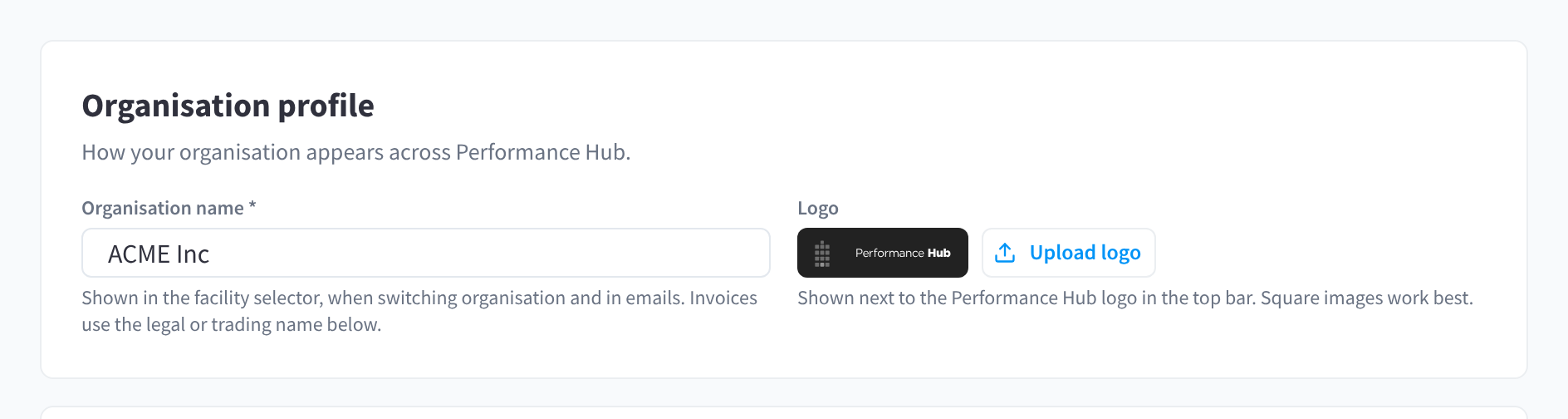
Figure 1: The Organisation profile card: name and logo
Business
"Your legal entity. The name you choose here is printed on invoices and statements."
- Legal name: your organisation's registered name.
- Trading name: the name you trade under. Tick Same as legal name if it's the same.
- Entity type: the kind of legal entity your organisation is.
- Tax and registration details: the labels follow the country of your registered address. For an organisation registered in the United States, for example, they're EIN and State registration number.
- Public contact details: expand it to see or change your organisation's public contact details.
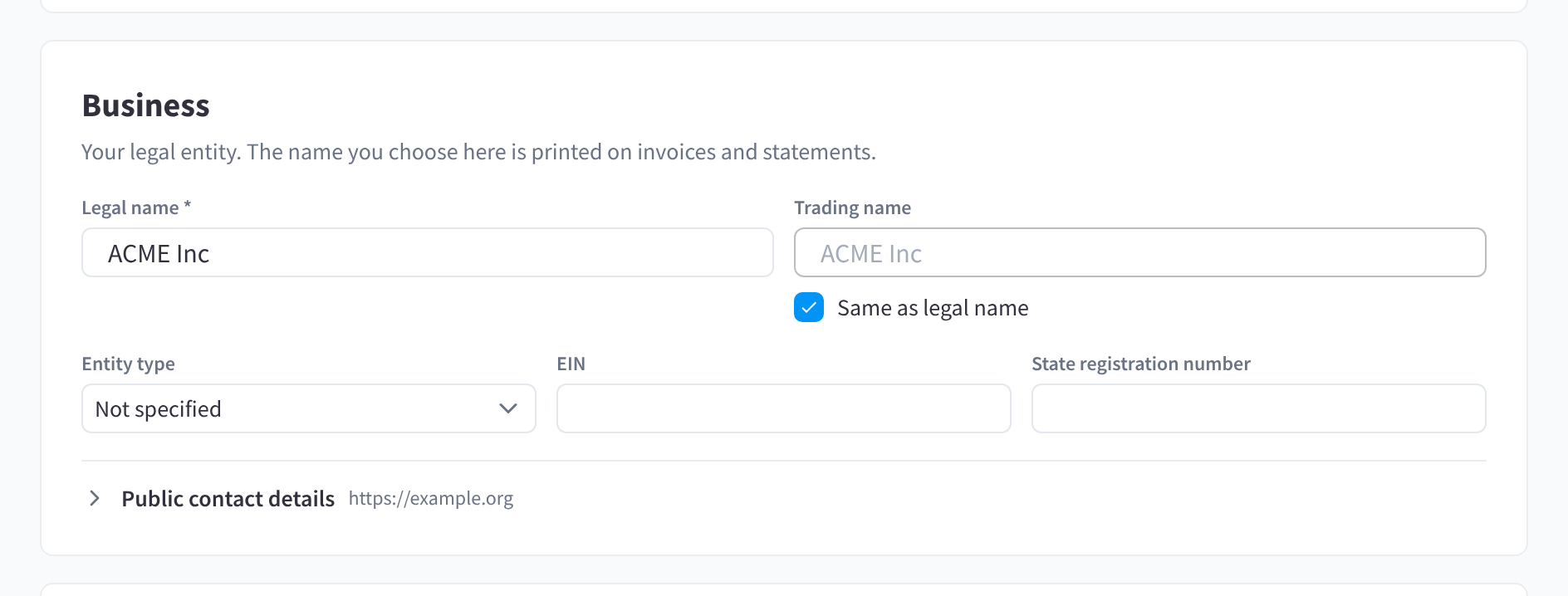
Figure 2: The Business card: legal and trading names, entity type and tax details
Named contacts
"Performance Hub may contact these people about your organisation’s account. We also use them to confirm who you are when someone from your organisation calls support, so keep them up to date."
- Click Add contact to add a person, for example your finance manager, a company director or your operations lead.
- Mark one contact as Primary.
- A contact doesn't need to use the Performance Hub: you can add someone with No platform access.
- Contacts can be marked to get billing emails. If no one is marked, the card says "No one is marked, so every organisation admin gets billing emails." Billing contacts get the organisation's statements, and also get budget alerts. See Payment Settings.
Registered address
"Your organisation’s official address. Its country sets the tax labels above."
- In Find an address ("Search for the street address to fill in the fields below."), start typing the street address and choose it from the list.
- Check the address fields it fills in.
Below it, set your organisation's Billing address.
Related pages
- Organisation Settings: the other Organisation pages
- Billing: who pays for your facilities, and your organisation's billing
- Primary details: each facility's own name, email and phone