
Who Pays
Billing sets who pays for your facilities: the organisation, with one statement for every facility, or each facility, with its own statement. It suits organisations of every shape, from a franchise group whose stores pay their own way to a company that pays centrally for its offices.
Quick reference
Where to find it: Settings (cog icon) → Organisation Settings → Organisation → Billing
Who can access: Organisation admins. Billing appears only for Technology Stack organisations.
Purpose: Decide who pays for your facilities by default, and which facilities are exceptions
Billing also has tabs for your organisation's costs: Overview and the facilities table (Overview & Facilities), Insights and Statements (Insights & Statements), and Payment Settings (Payment Settings). Statements and Payment Settings show only while the organisation's default is Organisation pays for all facilities, now or from the 1st of next month. When the default is Each facility pays for itself, Billing has Overview and Insights only, even if the organisation pays for some facilities as exceptions.
How a facility is billed
Two separate things decide how a facility is billed:
- Who pays: the organisation or the facility itself. Your organisation chooses this here, with a default for every facility and exceptions for single facilities.
- How the bill is settled: from a prepaid balance or by monthly invoice. Performance Hub sets this on your account. See Settlement methods.
| Organisation pays | Facility pays for itself | |
|---|---|---|
| Statement | One monthly statement for every facility the organisation pays for | The facility's own statement |
| Payment method and balance | The organisation's, shared across those facilities | The facility's own |
| Where billing is managed | Organisation Settings → Billing, by organisation admins | Settings → Billing & Cost Management at that facility, by people with the Billing & Cost Management module |
| At the facility | Billing & Cost Management opens the organisation's billing for that facility. Only organisation admins can see it. | Billing & Cost Management with all its tabs |
| Unpaid bills | An unpaid organisation statement locks out every facility the organisation pays for | Only the facility's own unpaid bills lock it out |
The organisation still sees every facility on Overview and Insights, whoever pays for it. A medical group, for example, can pay centrally for its clinics while one clinic run by a partner practice pays for itself, and still see all of them in one place.
Who pays by default
Who pays by default shows the current setting, for example "Organisation pays for all facilities (Performance Hub default)", and "Every facility follows this setting." Click How who pays works for a summary, or Change to change it.


Figure 1: Who pays by default, with How who pays works and Change
How who pays works
- "The organisation sets a default": every facility follows it unless it's an exception.
- "Facilities can be exceptions": in the facilities table, open a facility's menu and choose Change who pays.
- "Changes start on the 1st": "Every change takes effect from the 1st of next month, so a month is never split between two payers."
- "Whoever pays manages billing": organisation admins manage billing for the facilities the organisation pays for, and people with Billing access at a facility manage it for a facility that pays for itself.
Good to know:
- "An unpaid organisation bill locks out every facility the organisation pays for. A facility that pays for itself is only locked out by its own unpaid bills."
- Organisation statements go to the billing contacts in Organisation Details.
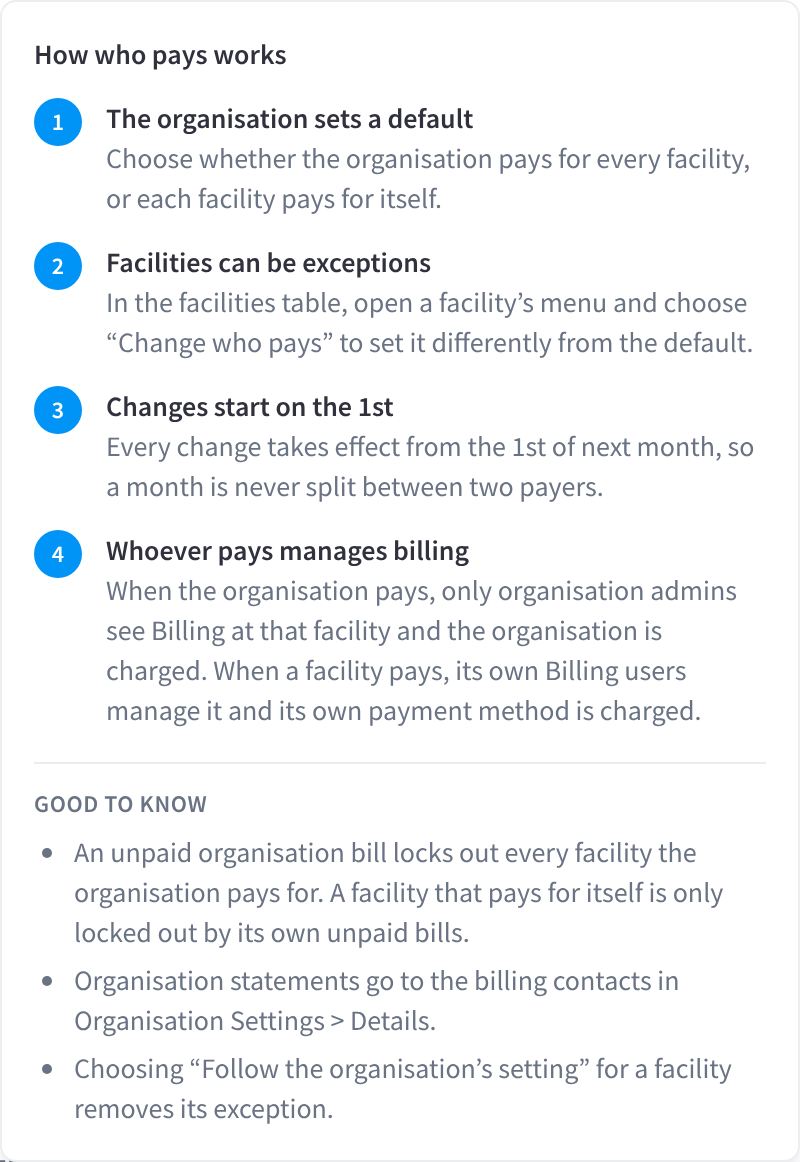
Figure 2: How who pays works
Change who pays by default
- Under Who pays by default, click Change.
- Choose an option:
- Organisation pays for all facilities: "One monthly statement and one payment for every facility, with a shared balance." "Only organisation admins can see Billing; facility staff can’t." "If the organisation’s bill is unpaid, every facility is locked out until an organisation admin settles it."
- Each facility pays for itself: "Each facility gets its own statement and pays with its own payment method." "People with Billing access at a facility manage its billing there." "An unpaid bill only locks out the facility that owes it."
- Click Save, or Cancel to keep the current setting.
"Applies to every facility without an exception. Changes always start on the 1st of next month, never part-way through a month."
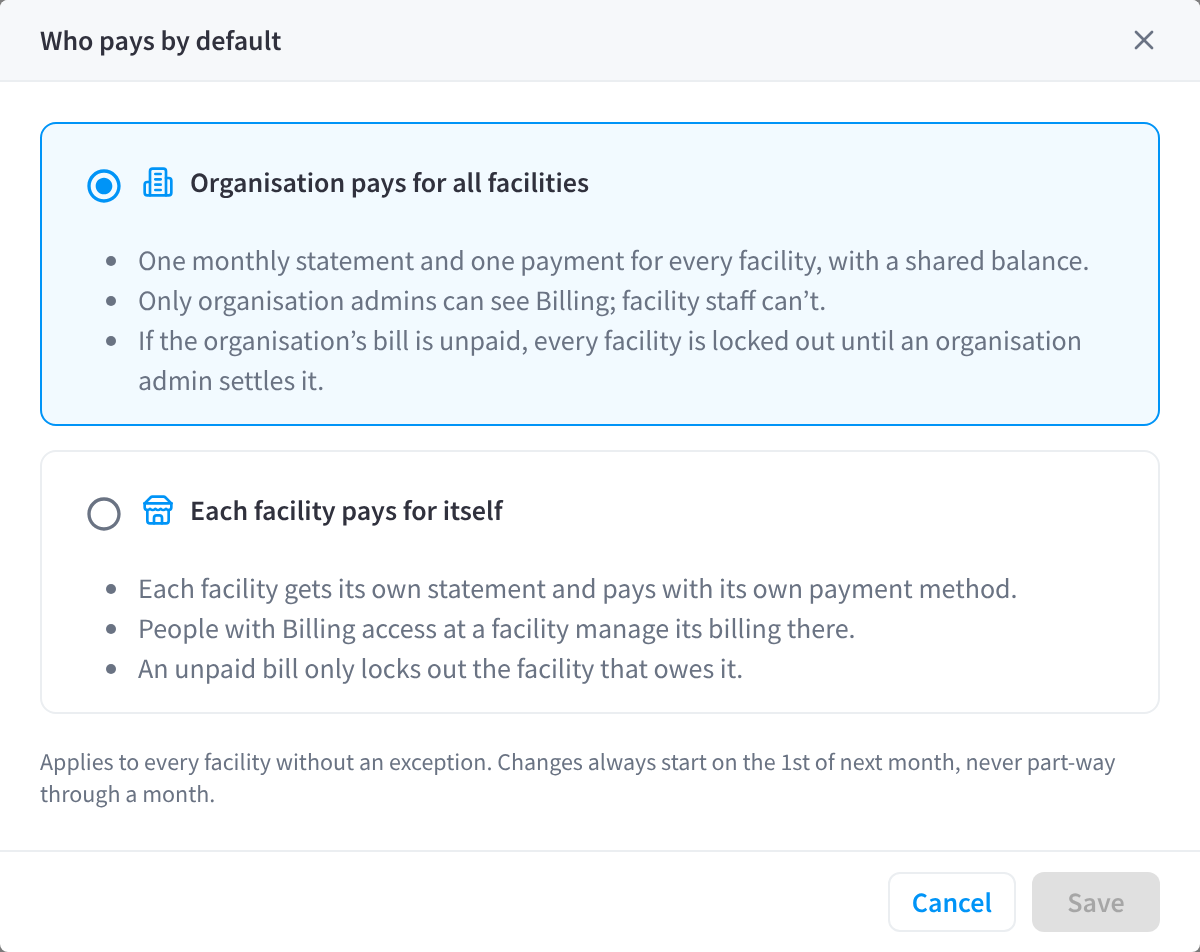
Figure 3: Changing who pays by default. Changes start on the 1st of next month.
Exceptions
An exception is a single facility set differently from the default. A retail group that pays centrally for its stores might let one franchised store pay for itself, or a company that lets each office pay its own way might pay centrally for its head office.
- On the Overview tab, find the facility in the Facilities table.
- Open the facility's menu at the end of its row and choose Change who pays….
- In Who pays for facility, choose an option:
- Follow the organisation’s setting: "The organisation pays, and this follows any future change to the organisation’s setting."
- The organisation pays for this facility: "Always billed to the organisation, whatever the organisation’s setting."
- This facility pays for itself: "Always billed to the facility, whatever the organisation’s setting."
- Check the summary under "From 1 November 2026:" (the 1st of next month), then click Save, or Cancel to leave it as it is.
If whoever will pay has no payment method yet, the dialog says so, for example "This facility has no payment method yet. Add one before 1 November 2026 so its first bill can be paid."
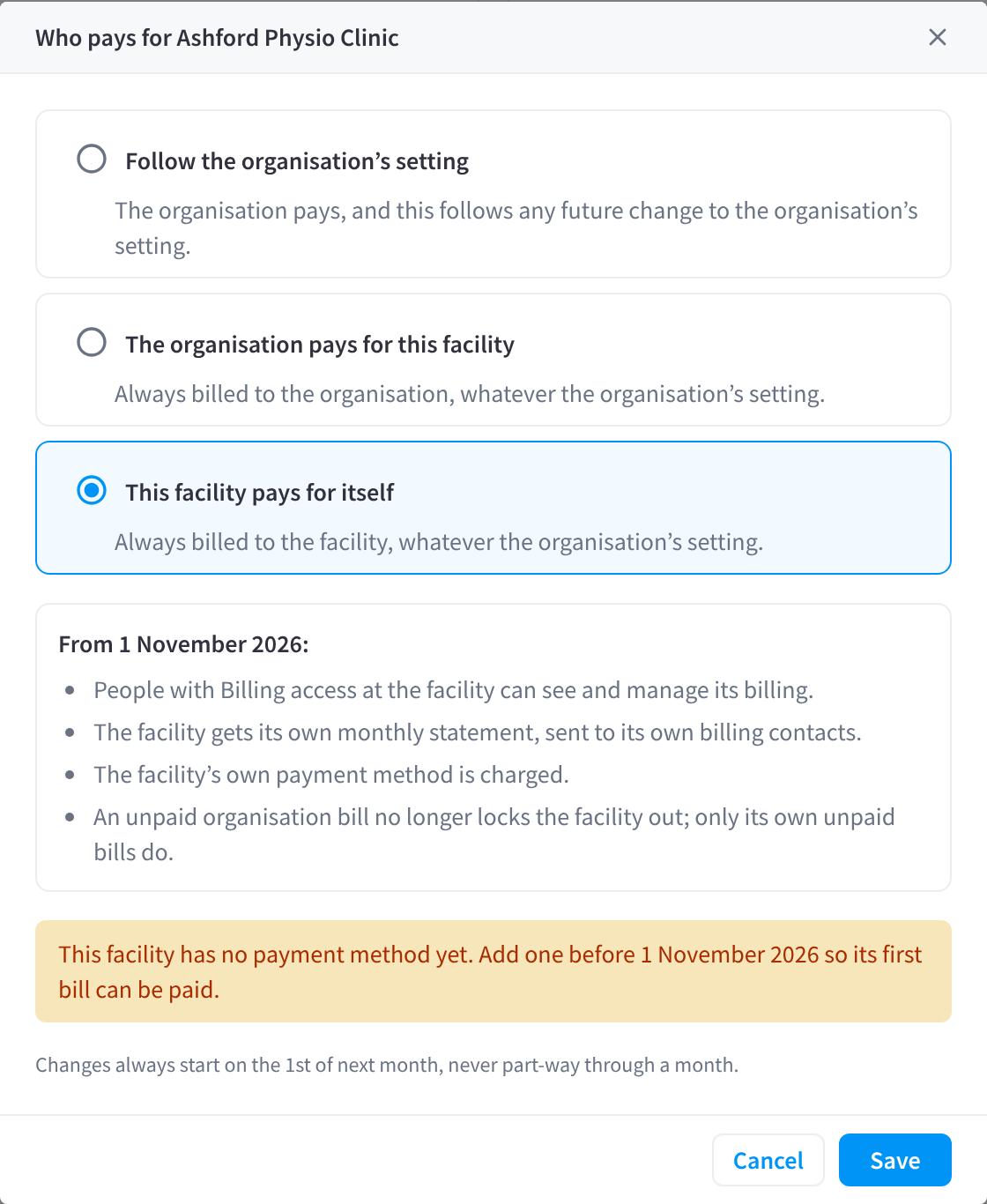
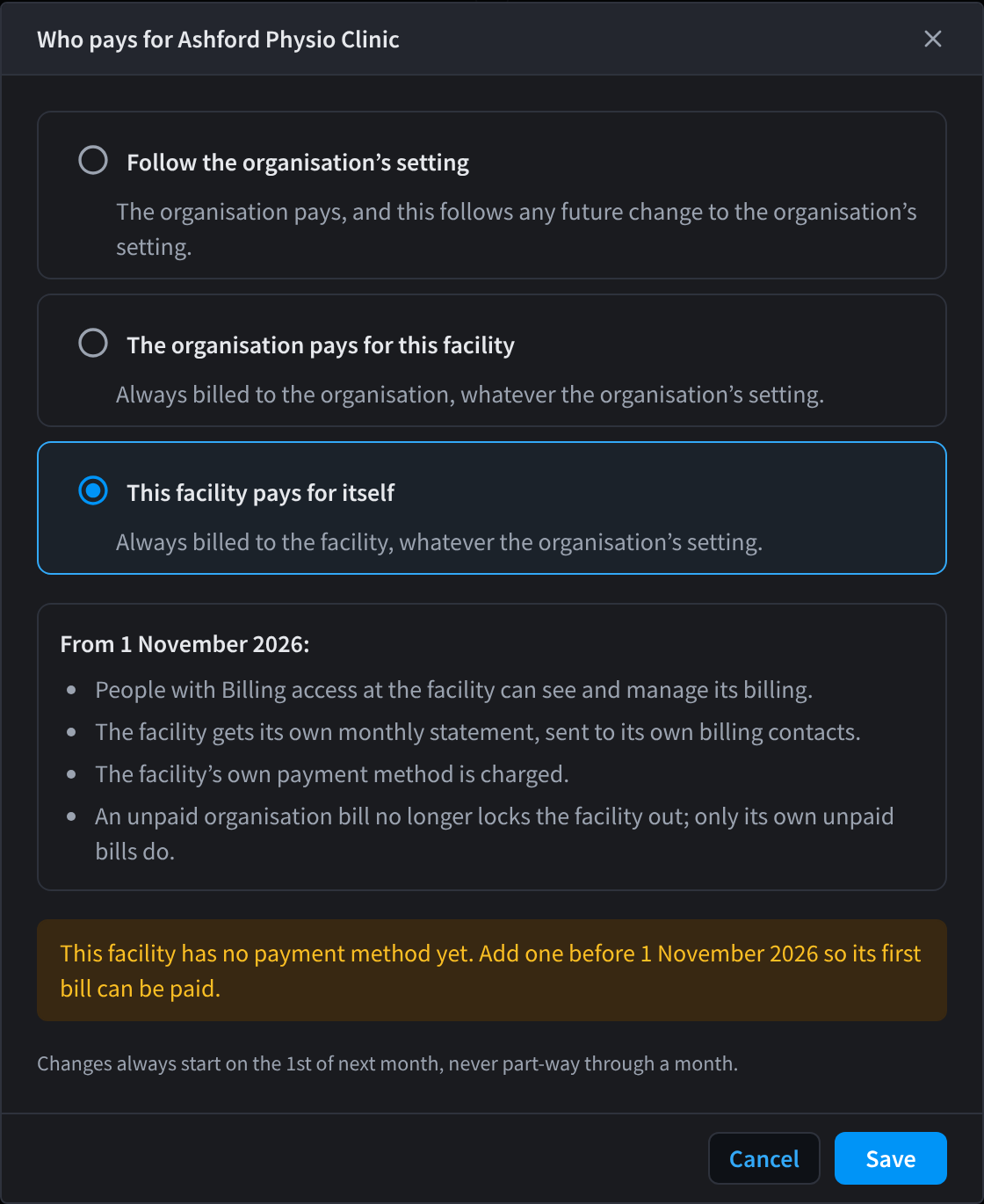
Figure 4: Choosing who pays for one facility. The summary shows what changes from the 1st of next month.
To give several facilities the same setting, select their rows first. Like every change to who pays, an exception starts on the 1st of next month.
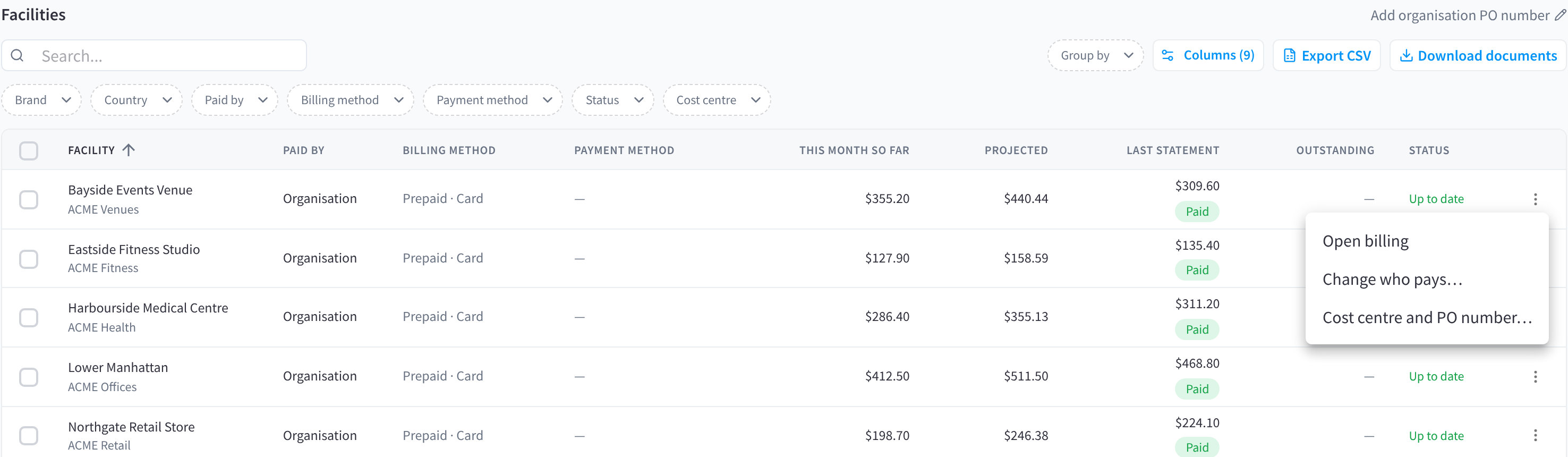
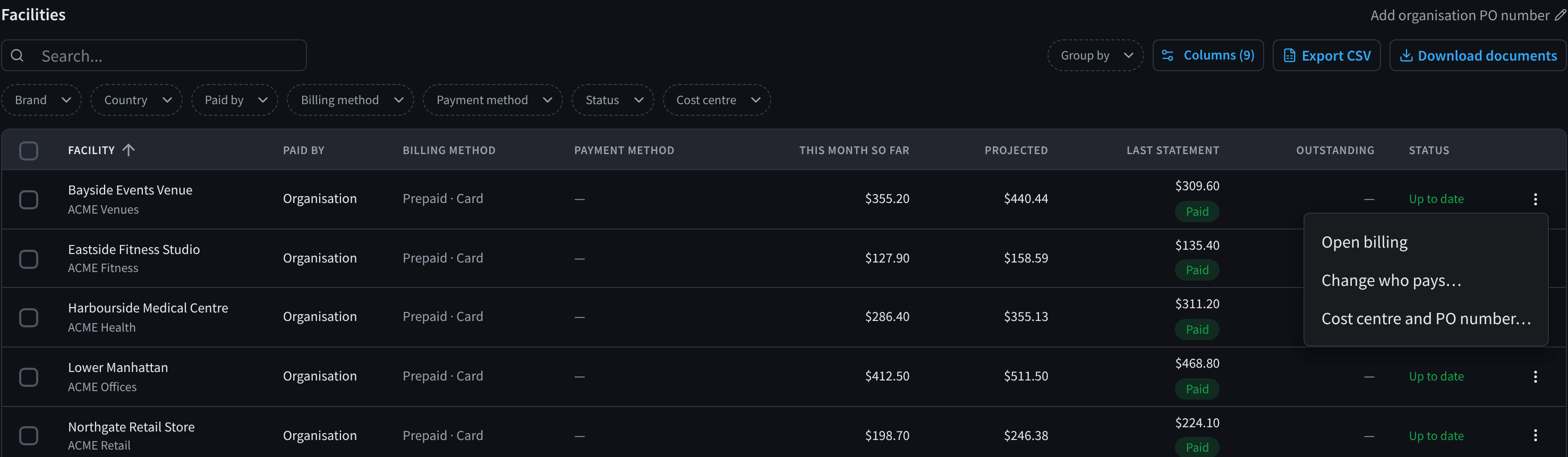
Figure 5: A facility's menu: Open billing, Change who pays… and Cost centre and PO number…
A facility that pays for itself shows Facility in PAID BY, with an Exception chip, and the Who pays by default card counts them, for example "2 facilities are exceptions". Click that line to open the Facilities table filtered to those facilities. Its own payment method shows in PAYMENT METHOD, and its own unpaid amount in OUTSTANDING.
To remove an exception, open the facility's menu, choose Change who pays… and choose Follow the organisation’s setting. The facility then follows the default again from the 1st of next month.
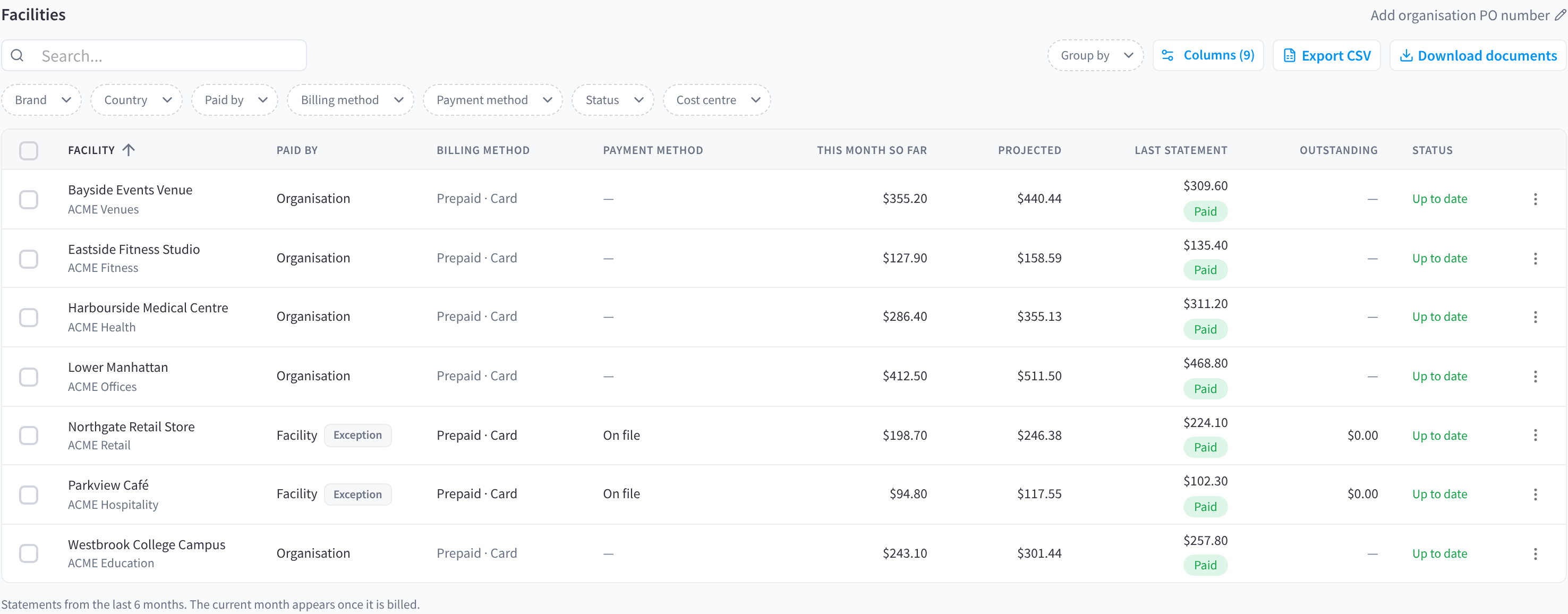
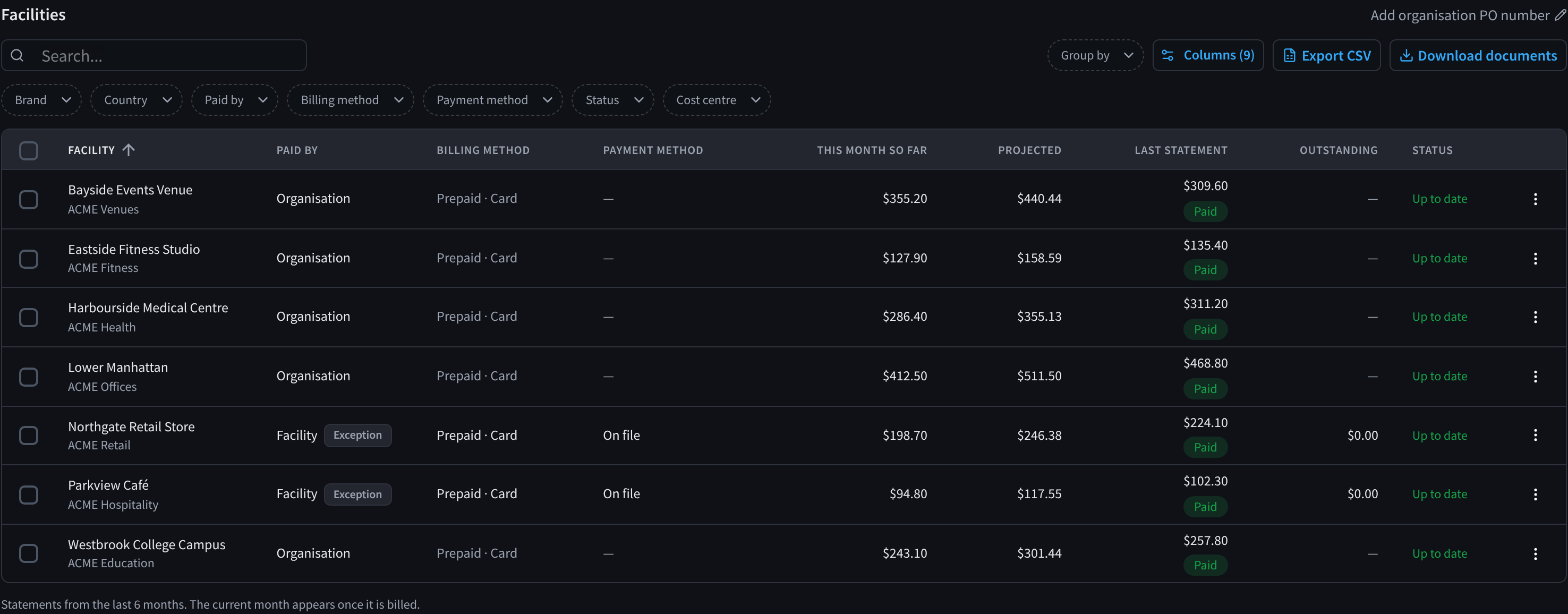
Figure 6: Two facilities that pay for themselves, shown as exceptions
Scheduled changes
A change to who pays never applies straight away. Until the 1st of next month, the current payer keeps paying and managing billing.
While a change is waiting, the Who pays by default card shows:
- A chip with the date it starts, for example "Facilities pay from 1 November 2026".
- Cancel change, to cancel it before it starts.
- A line with the number of facilities that change, for example "7 facilities change who pays next month". It's a link that opens the Facilities table filtered to those facilities.
A change for single facilities shows on the card as a line only, for example "1 facility changes who pays next month", with no date chip and no Cancel change. In the Facilities table, the facility shows a Changes 1 Nov chip under PAID BY, which keeps showing the current payer until the change starts. To cancel it, open the facility's menu, choose Change who pays…, choose the facility's current setting (for example Follow the organisation’s setting) and click Save.
When you change who pays by default, the dialog says when the change starts: "This starts on" the 1st of next month. If a change is already scheduled and you choose the current setting again, the dialog says "Saving cancels the change scheduled for" that date instead. Saving then cancels the scheduled change and keeps the current setting.


Figure 7: A scheduled change to who pays, starting on the 1st of next month, with Cancel change


Figure 8: One facility changes who pays next month
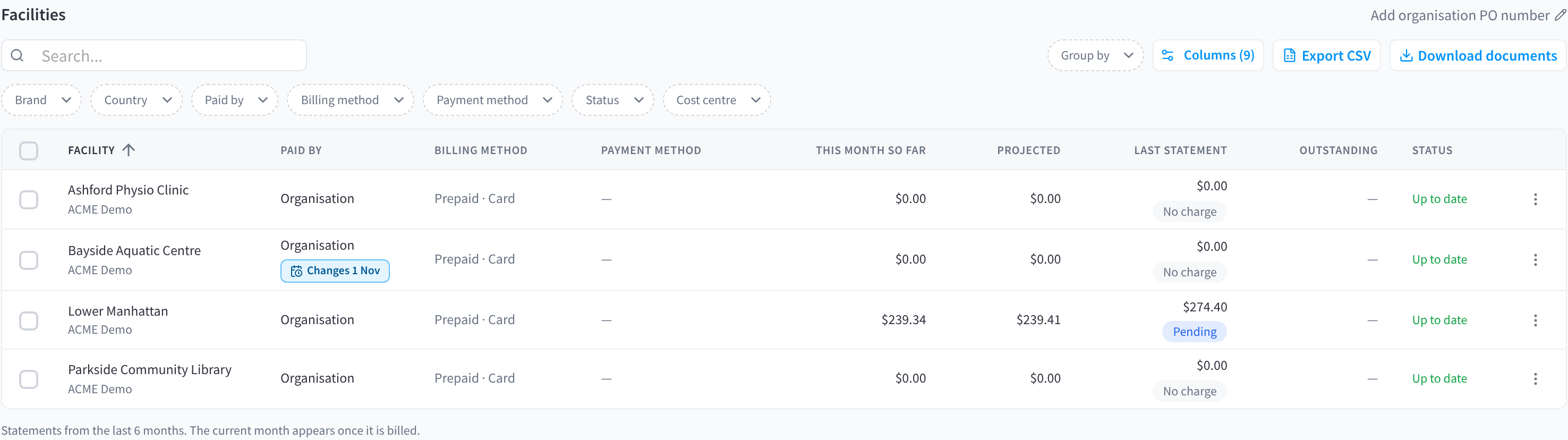
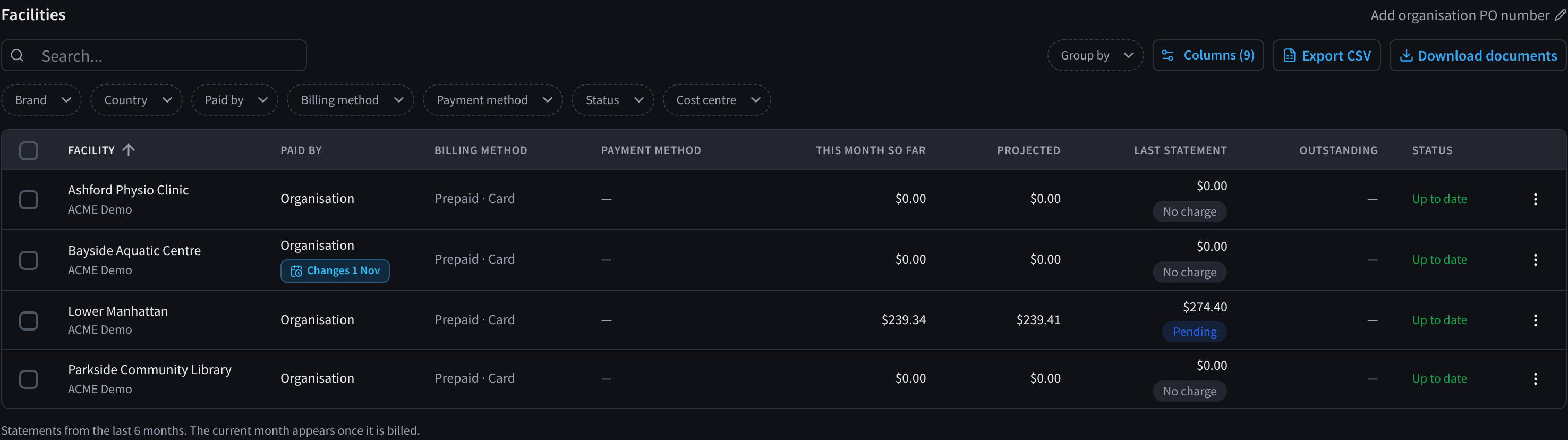
Figure 9: A facility with a change to who pays waiting for the 1st of next month
Settlement methods
Whoever pays, the bill is settled in one of two ways:
- Prepaid balance: usage is deducted from a balance that you top up by card, by hand or with auto top-up.
- Monthly invoice (some accounts): you're invoiced after the month and pay by card or by bank transfer.
The Facilities table shows each facility's settlement in BILLING METHOD and PAYMENT METHOD, for example "Prepaid · Card".
Your settlement method is part of your agreement with Performance Hub. To change it, contact Support (Settings → Raise Support Request).
Related pages
- Overview & Facilities: your organisation's costs this month and every facility in one table
- Insights & Statements: usage over time, and your organisation's monthly statements
- Payment Settings: the organisation's payment methods, shared balance and billing profile
- Billing & Cost Management: billing for a facility that pays for itself
- Organisation Details: billing contacts and your billing address
- Organisation Settings: the payment method notice