
Overview & Facilities
The Overview tab of Organisation Settings > Billing brings every facility's costs together: this month so far, your organisation budget, the last statement and a table of every facility. A hospitality group can compare its cafés and hotels side by side, and a college can see each campus, whoever pays for it.
Quick reference
Where to find it: Settings (cog icon) → Organisation Settings → Organisation → Billing → Overview
Who can access: Organisation admins, in Technology Stack organisations
Purpose: Follow your organisation's costs, compare facilities, and manage who pays and the PO number for each facility
No payment method notice
If your organisation pays for its facilities but has no payment method, a notice says "Your organisation pays for its facilities but has no payment method. Add one so its statement can be paid and facilities aren’t locked out." If the organisation starts paying from next month, the notice says "Your organisation starts paying on" the date it starts, "but has no payment method yet. Add one before then."
The notice shows on every Organisation page until a payment method is added. Click Add payment method to add one, or see Payment Settings.


Figure 1: The notice shown when the organisation pays but has no payment method
The Overview tab
The tab opens with "Consolidated view of all 7 facilities" (the number is how many facilities your organisation has).
- This month so far: MONTH TO DATE, PROJECTED MONTH END and SAME POINT LAST MONTH, across every facility. These are estimates that update during the month; final amounts are on the monthly statement.
- Organisation budget: "All facilities, whoever pays. Set a budget to get alerts before you overspend." Click Set a budget to set one. It covers every facility, including the ones that pay for themselves. A facility can also have its own monthly budget.
- Cards for LAST STATEMENT (the organisation's last statement, with its usage month and status), OUTSTANDING, ORGANISATION BALANCE (the balance shared across the facilities the organisation pays for) and NEEDS ATTENTION.
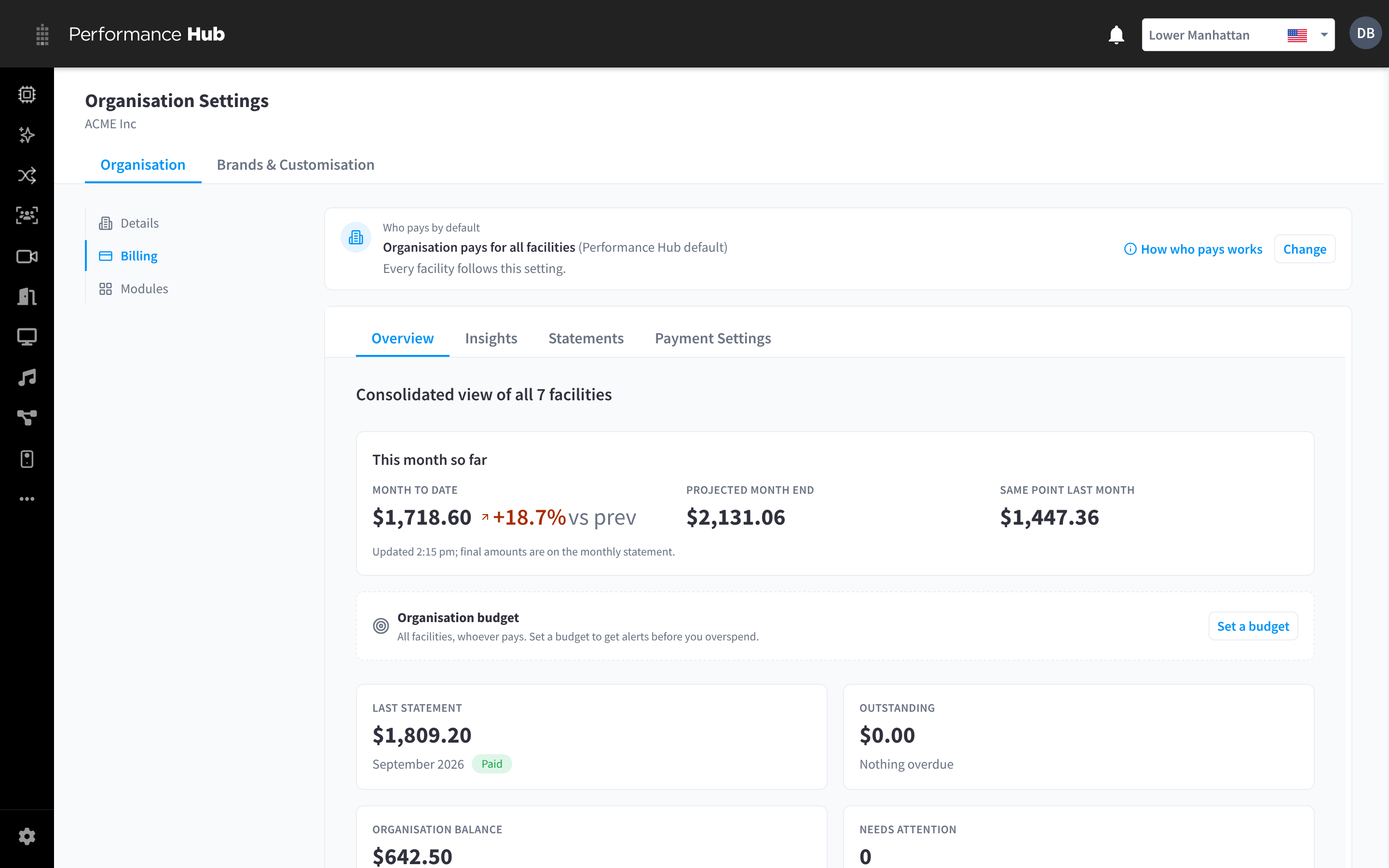
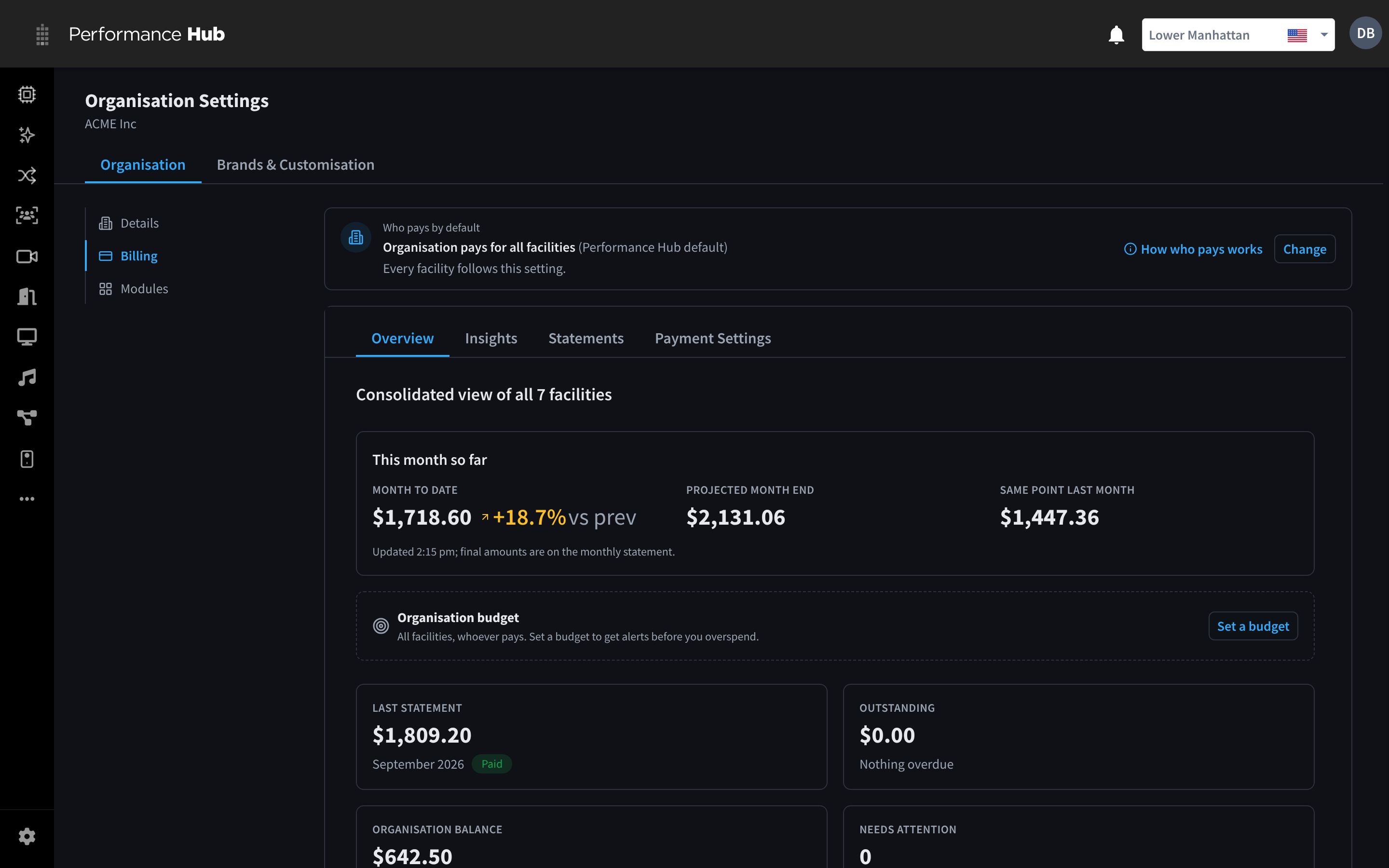
Figure 2: Organisation billing: who pays by default, then the Overview tab with this month so far, the organisation budget and the last statement
The Facilities table
Below the cards, the Facilities table lists every facility in your organisation, one row each.
Tools above the table:
- Search: find a facility by name.
- Group by: group the rows, for example by brand, with a subtotal for each group.
- Columns (9): choose which columns to show.
- Export CSV: download the visible columns as a CSV file.
- Download documents: download statements, invoices and receipts for several months and facilities at once. See Download documents.
- Filters: Brand, Country, Paid by, Billing method, Payment method, Status and Cost centre.
- Add organisation PO number: set your organisation's purchase order number. It's printed for every facility that has no PO number of its own.
Columns:
- FACILITY, with the facility's brand under its name
- PAID BY: Organisation or Facility (see Exceptions)
- BILLING METHOD and PAYMENT METHOD: how the facility's bill is settled, for example "Prepaid · Card" (see Settlement methods)
- THIS MONTH SO FAR and PROJECTED: estimates for the current month
- LAST STATEMENT: the facility's total on its last statement, with its status
- OUTSTANDING and STATUS
A row for a facility the organisation pays for shows the organisation's billing method, and no outstanding amount of its own: what's owed is on the organisation's statement. "Statements from the last 6 months. The current month appears once it is billed."
Click a row to open that facility's billing. See One facility's billing.
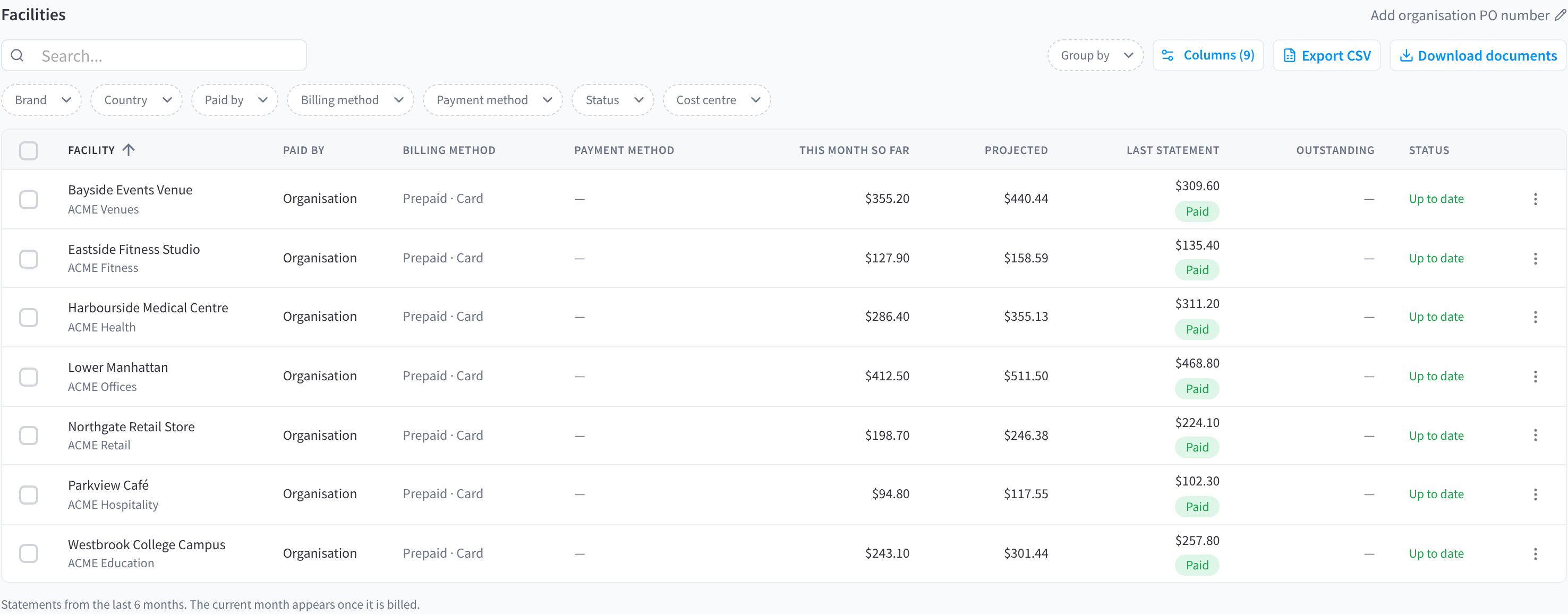
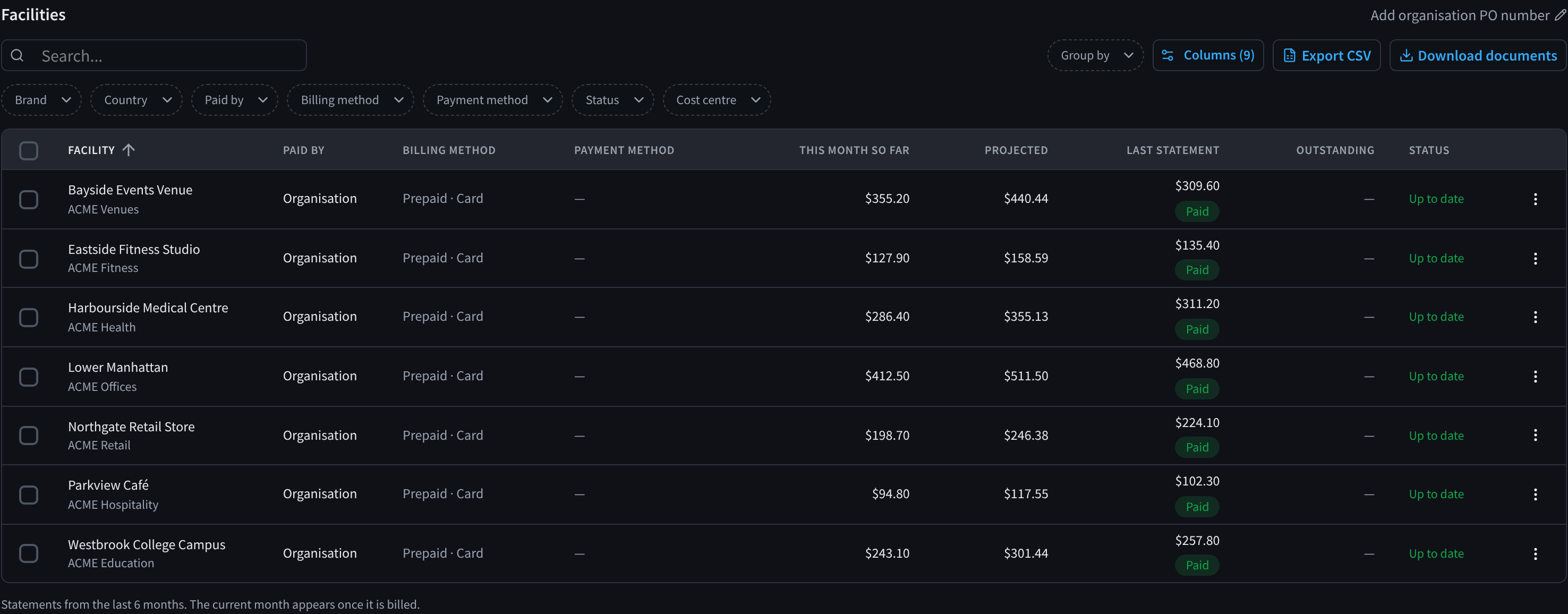
Figure 3: The Facilities table: who pays, the billing and payment method, this month so far and the last statement for every facility
Facility actions
Open a facility's menu at the end of its row for:
- Open billing: open the facility's billing.
- Change who pays…: make the facility an exception, or choose Follow the organisation’s setting to remove its exception. See Exceptions.
- Cost centre and PO number…: set the facility's cost centre and its own purchase order number. A facility without its own PO number uses the organisation's.
To do the same for several facilities, select their rows first. Cost centres also work as a filter, so a company can see the costs of every office in one department, or a retail group every store in one region.
Download documents
Download documents downloads billing documents for many months and facilities at once. Choose:
- Months: up to 24.
- Contents: statements, invoices, receipts and data CSVs.
- Facilities: all of them, the ones shown in the table, or the ones you selected.
Small downloads start straight away. Bigger ones are prepared in the background, and an email tells you when they're ready.
One facility's billing
Click a facility's row, or Open billing in its menu, to see that facility's billing inside Organisation Settings. Click ← All facilities to go back to the table.
For a facility the organisation pays for, a banner reads Billed to your organisation: "ACME Inc pays for this facility. Statements, payment methods and balance are managed at organisation level." (with your organisation's name). Click View statements to open the organisation's statements.
The facility's billing has four tabs, which work like the same tabs in Billing & Cost Management:
- Overview: see Overview tab & budgets
- Cost Breakdown and Pricing: see Cost Breakdown & Pricing
- Invoices & Receipts: see Invoices & Receipts
There's no Payment Settings tab: the organisation's payment methods and balance are in the organisation's Payment Settings.
This is also where Billing & Cost Management in the Settings menu takes organisation admins when the organisation pays for the selected facility.
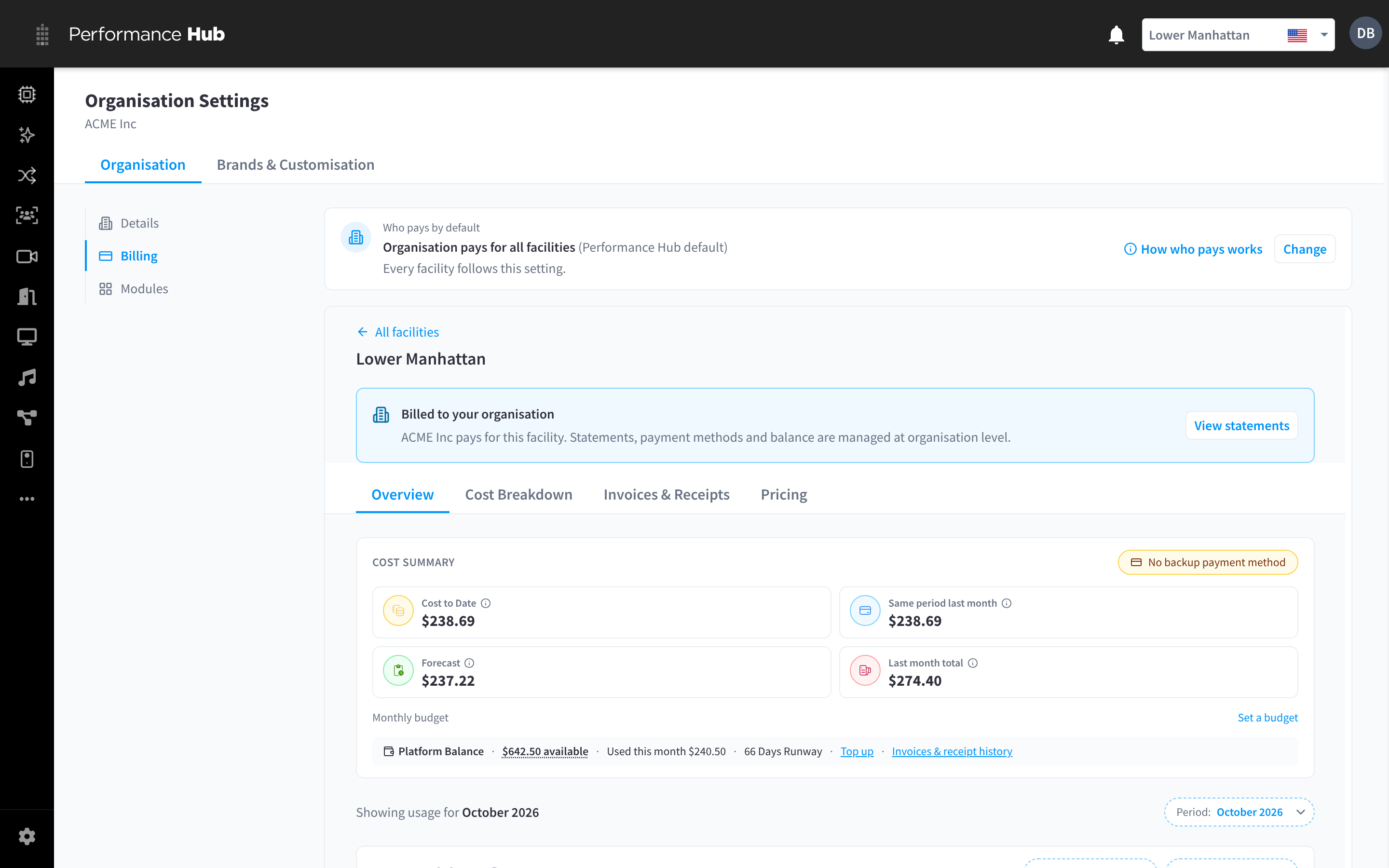
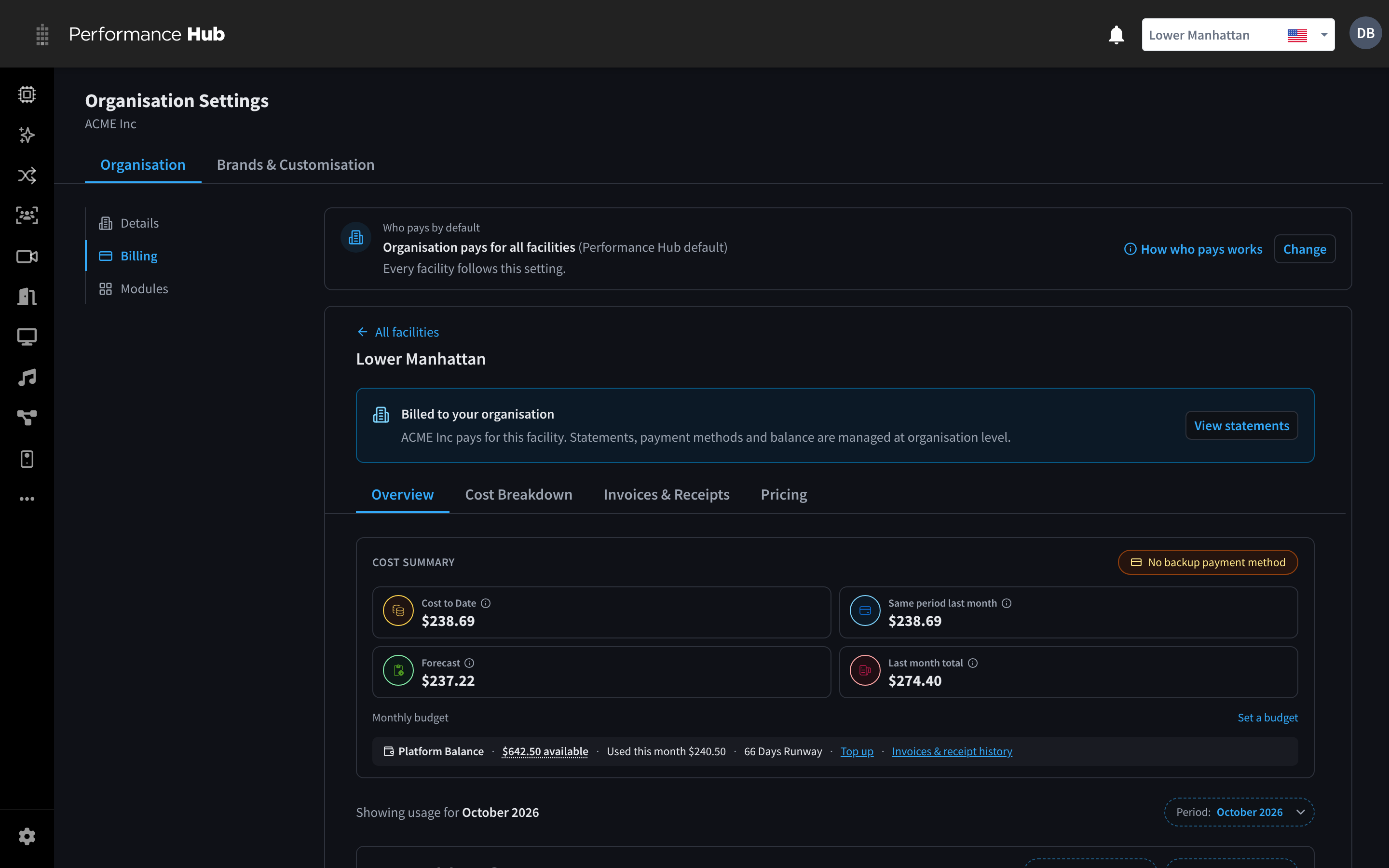
Figure 4: One facility in organisation billing, with the Billed to your organisation banner
Brands in billing
Brands have no billing of their own: billing only groups and filters facilities by brand, with the Brand filter and Group by in the Facilities table, and Brands in Insights. See Brands & Customisation.
Related pages
- Who Pays: who pays by default, exceptions and scheduled changes
- Insights & Statements: usage over time and monthly statements
- Payment Settings: the organisation's payment methods and shared balance
- Overview tab & budgets: a facility's cost summary and monthly budget
- Organisation Details: your organisation's bill-to details and billing contacts