
Partner Console
The Partner Console provides a web interface for managing your integration with Performance Hub.
If you do not yet have access to the Partner Console, please reach out to us by submitting a partner enquiry via the Performance Hub Main Website. Our team will guide you through the partner onboarding process and help set up your console access.
Accessing the Console
To access the Partner Console, you'll need:
- Partner ID - A unique identifier provided by Performance Hub to each partner
- One-Time Password (OTP) - A verification code sent to your Partner Email
Log in at partner-api.performancehub.co/partner/v1/console
What's in the Console
The Partner Console provides tools to manage your integration with Performance Hub:
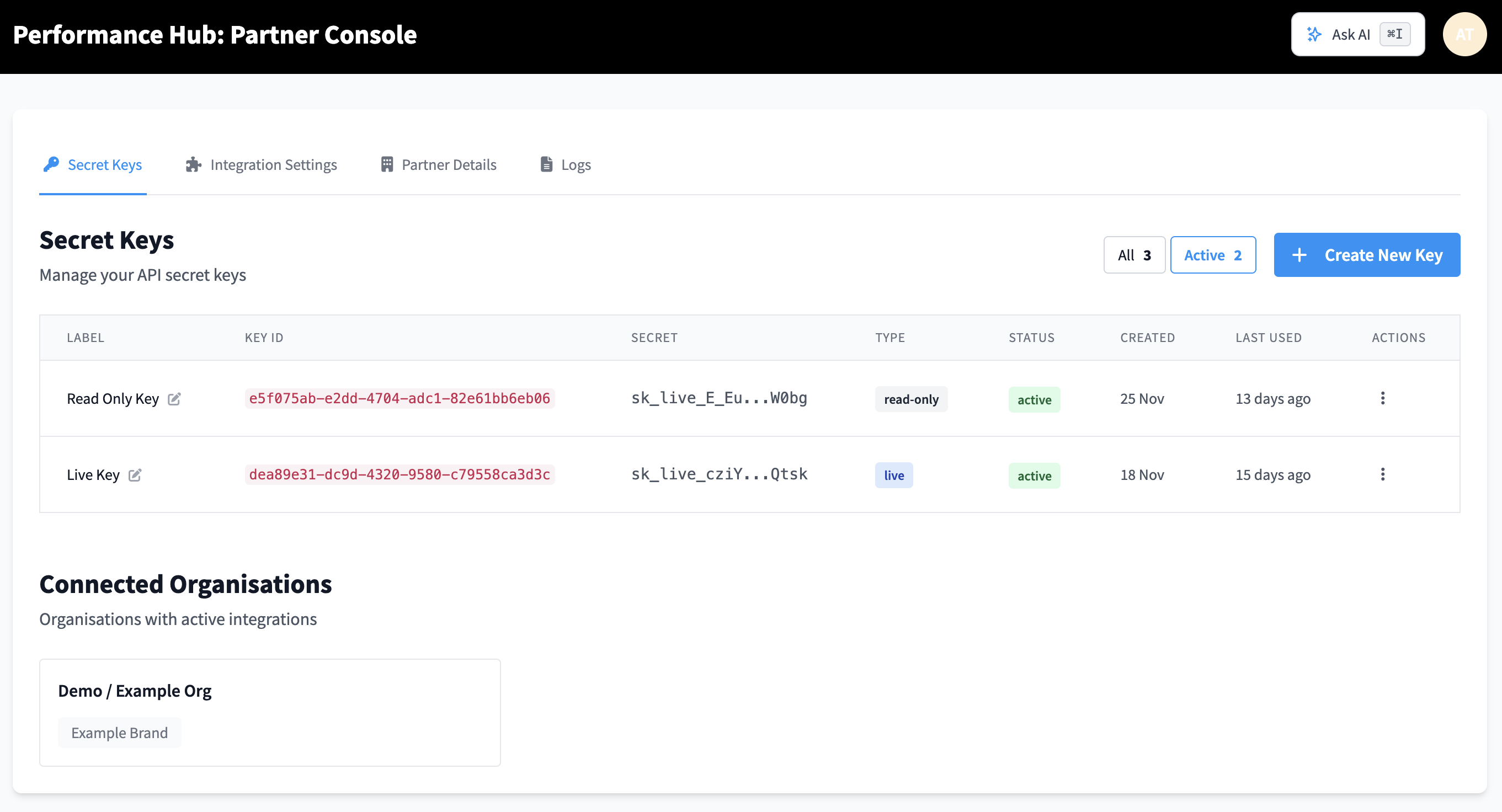
- Secret Keys - Generate and manage API keys with different access levels (live, dryrun, read-only)
- Integration Settings - Configure how your integration links with facilities
- Partner Details - View and update your partner profile information
- Logs - Monitor API activity and troubleshoot issues
- Connected Organisations - See all organisations using your integration
- Ask AI - Get instant help with ⌘I shortcut
For detailed information about each feature, see Partner Console Features.
Partner Console Features
The Partner Console includes four main sections accessible via the navigation tabs:
1. Secret Keys
Manage your API secret keys with full control over access types and permissions.
Key Features:
- Create New Keys - Generate new API keys with specific access levels
- Key Types:
- Live - Full read-write access to production data
- Dryrun - Test write operations without affecting production data (writes are simulated)
- Read-only - Read-only access for safe data consumption (write operations blocked)
- Key Management - View key details, last used timestamps, rotate keys, and revoke keys instantly
- Key Filtering - Filter keys by status (All, Active, Revoked)
- Key Rotation - Seamlessly rotate keys without downtime
Each secret key displays:
- Label - Customisable name for easy identification
- Key ID - Unique identifier (UUID format)
- Secret - Partially redacted secret key (first 12 and last 4 characters visible)
- Type - Key access level (live, dryrun, read-only)
- Status - Current state (active, revoked)
- Created - Date when the key was generated
- Last Used - Timestamp of most recent API call
- Actions - Rotate or revoke key
2. Integration Settings
Configure how your integration links with Performance Hub facilities.
Key Features:
- Data Linking Method - Choose between two linking methods:
- Direct Link - Use Performance Hub facility IDs for API calls
- Linking Identifier - Use your own location identifiers (Branch ID, Store Number, etc.)
- Learn more about Partner Linking Methods
- Linking Identifier Label - Customise the field name displayed to facilities (e.g., "Branch ID", "Location Code")
- Partner Prefix - Set a unique prefix for your integrations
- Integration Fields - Configure custom fields specific to your integration
3. Partner Details
View and manage your partner profile information.
Editable Fields:
- Partner Email - Primary contact email for notifications
- Description - Brief description of your integration
- Logo URL - URL to your partner logo
- Website - Your company or integration website
- Category - Integration category classification
- Details - Additional partner information
Read-Only Information:
- Partner ID (unique identifier)
- Partner Name
- Integration Status
- Connected Organisations Count
4. Logs
Monitor API activity and troubleshoot integration issues.
Available Data:
- API Request Logs
- Response Status Codes
- Error Messages
- Timestamp Information
- Request/Response Payloads
Connected Organisations
View all organisations that have enabled your integration. Each organisation card displays:
- Organisation Name
- Associated Brands
- Number of Active Facilities
- Integration Status
Ask AI
Get instant help with partner-related topics using the AI assistant (⌘I shortcut).
Ask About:
- API endpoint usage and examples
- Authentication and secret key management
- Data synchronisation best practices
- Troubleshooting common integration issues
- Partner Console features and navigation
Partner Linking Methods
Different partners or member management systems identify each facility or location by their own ID, branch ID, or gym ID. We have two types of ways to identify locations during the syncing or pushing of data.
1. Direct Link
When pushing data, the partner will use the facility ID from the Performance Hub system.
For example, for Partner A, their internal ID for a gym in Tokyo is branch_tokyo. But to normalise the data within the Performance Hub ecosystem, we assign a new ID for this location and this partner, for example UUID: 550e8400-e29b-41d4-a716-446655440000.
Partners should use this facility_id when calling our APIs to push data.
To obtain the correct facility_id for linking (as required in the Direct Link method), partners can call the /partner/v1/facilities API endpoint. This endpoint will return a list of all facilities that currently have your partner integration enabled in Performance Hub, along with their corresponding facility_id values.
2. Linking Identifier
The partner maintains their own system with unique identifiers for each location (e.g., "Branch ID", "Location Code", "Store Number"). This linking method allows the partner to identify Performance Hub facilities using their own identifier rather than our Facility ID.
Facility Setup: When a facility enables this partner, they will be prompted to provide the unique identifier that the partner uses to identify their location in their facility configuration within the Performance Hub.
API Integration: When the partner makes API calls to Performance Hub, they can provide their own unique identifier in the request. Performance Hub will internally look up the linking_identifier to match the API call to the correct facility.
Example: If the partner calls locations "Branch ID" in their system, set the label below to "Branch ID". Each facility will then provide their Branch ID value when enabling the integration, allowing seamless data synchronisation between systems.
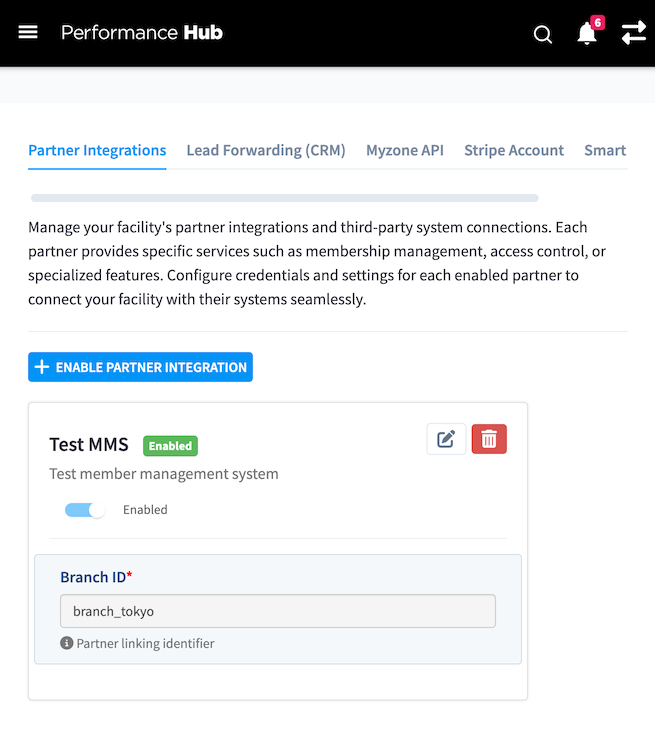 Example configuration from a Facility Integrations Screen (Main Performance Facility View) showing the linking identifier / internal ID from the member management system configured in the partner integrations screen
Example: Direct Link
curl -X POST https://partner-api.performancehub.co/partner/v1/membership-plans \
  -u sk_live_YOUR_PARTNER_SECRET_KEY: \
  -H "Content-Type: application/json" \
  -d '{
    "membership_plans": [
      {
        "membership_plan_id": "plan_unlimited_monthly",
        "facility_id": "550e8400-e29b-41d4-a716-446655440000",
        "name": "Unlimited Monthly Access",
        "billing_cycle": "monthly",
        "price": 10058,
        "currency": "JPY"
      }
    ]
  }'
Example: Linking Identifier
curl -X POST https://partner-api.performancehub.co/partner/v1/membership-plans \
  -u sk_live_YOUR_PARTNER_SECRET_KEY: \
  -H "Content-Type: application/json" \
  -d '{
    "membership_plans": [
      {
        "membership_plan_id": "plan_unlimited_monthly",
        "linking_identifier": "branch_tokyo",
        "name": "Unlimited Monthly Access",
        "billing_cycle": "monthly",
        "price": 10058,
        "currency": "JPY"
      }
    ]
  }'