
Budgets & top-ups
The Budgets & Limits tab is where money is managed. It has two sub-tabs: Spend Limits (policy caps) and Balance & Top-up (the balance, top-ups, the transaction history and monthly usage).
For the rates that produce these charges, see the Model Catalog.
Balance & Top-up
The header band shows Available balance, Spent today, Spent this month, and Estimated runway ("Rough estimate based on average daily spend this month. Top up or enable auto top-up to extend it." — shown as e.g. 3 days, 1 day, 0 days, 365+ days, or Not enough data).
Manual top-up
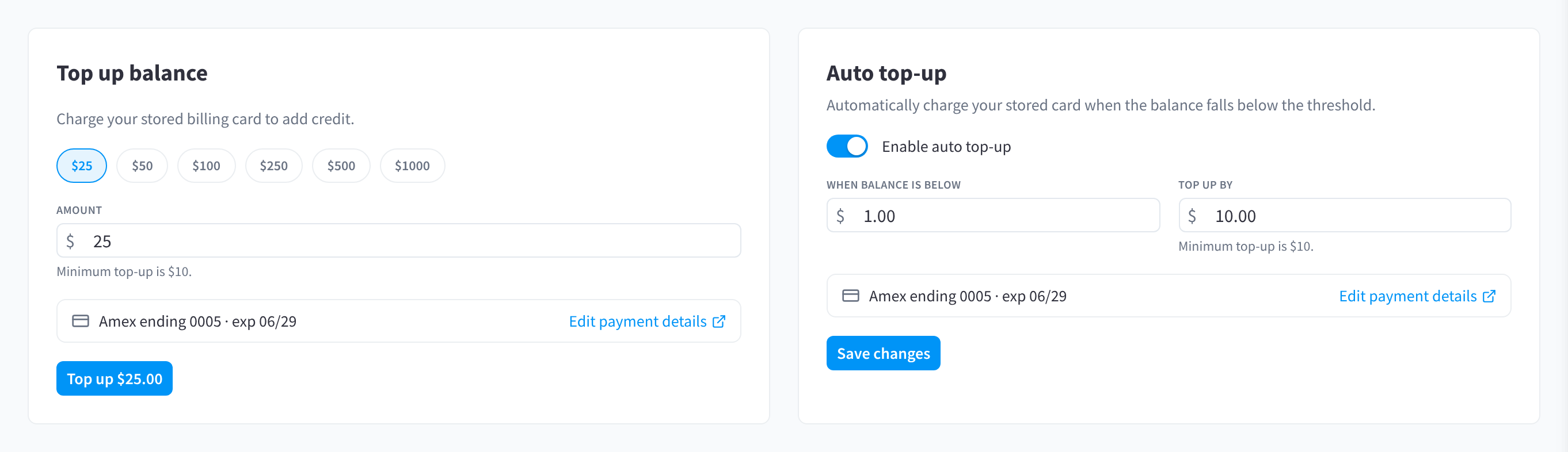
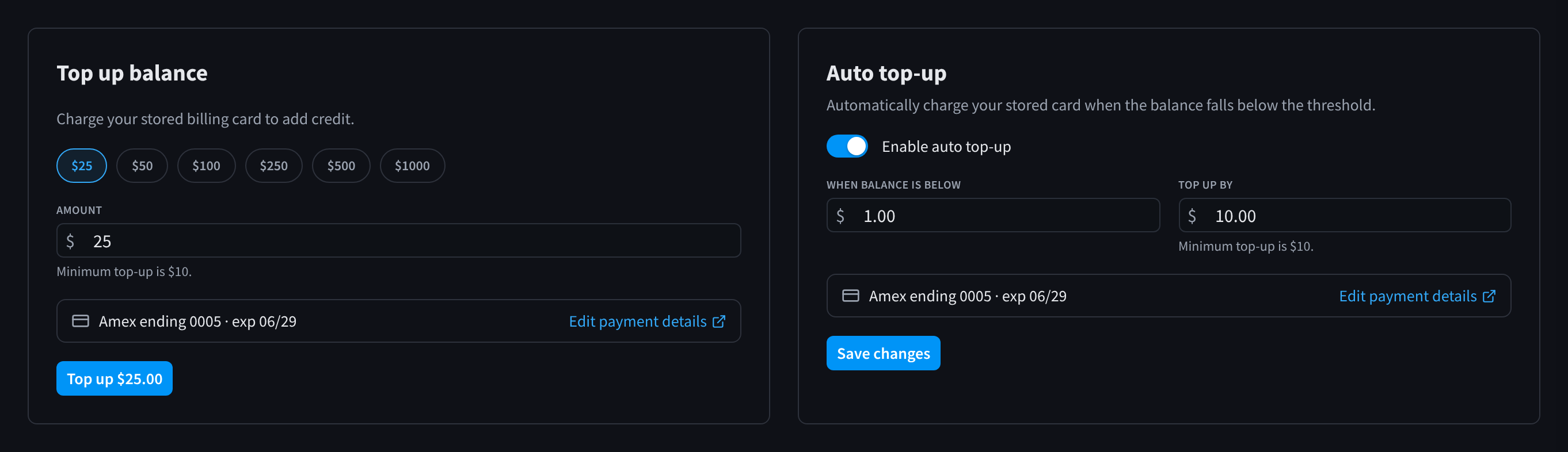
Figure 1: The Top up balance and Auto top-up cards
"Charge your stored billing card to add credit."
- Pick a preset — $25, $50, $100, $250, $500, $1000 — or enter an amount. "Minimum top-up is $10." (A single top-up can be at most $5,000.)
- Confirm the stored card shown below the amount; Edit payment details / Add payment details takes you to your billing settings if needed.
- Click Top up $–.––. Success shows "Top-up successful. Your balance has been credited." and the balance updates instantly.
If your card requires extra verification you'll see "Additional card authentication is required. Please try again."; a failed charge shows "Top-up could not be completed."
Auto top-up
"Automatically charge your stored card when the balance falls below the threshold."
- Switch on Enable auto top-up.
- Set When balance is below (the threshold) and Top up by (the recharge amount, minimum $10).
- Click Save changes.
Auto top-up runs on a schedule (checks happen roughly every 15 minutes). If your balance is already at or below the threshold when you save, the module tells you: "Your balance (…) is already at or below this threshold. Auto top-up will charge your card at the next scheduled check (usually within 15 minutes) — top up now to credit your balance immediately and avoid any interruption."
Balance warnings
When auto top-up is off and the balance is projected to run out within 14 days, Overview, Spend Limits and Balance & Top-up warn (with a Top up link on Overview and Spend Limits): "At your current spend, your balance runs out around … (~…). Top up or enable auto top-up." If an auto top-up can't run, a red callout explains why (no card on file, extra card authentication needed, or the card was declined) with an Update card link.
| Callout | Cause |
|---|---|
| "Auto top-up could not run because there is no card on file. Add a card to keep inference running." | No stored card. |
| "Auto top-up needs extra card authentication. Top up manually or update your card to continue." | The card requires interactive verification. |
| "Auto top-up failed (your card was declined). Update your card or top up manually to avoid interruption." | Declined charge. |
Transaction history
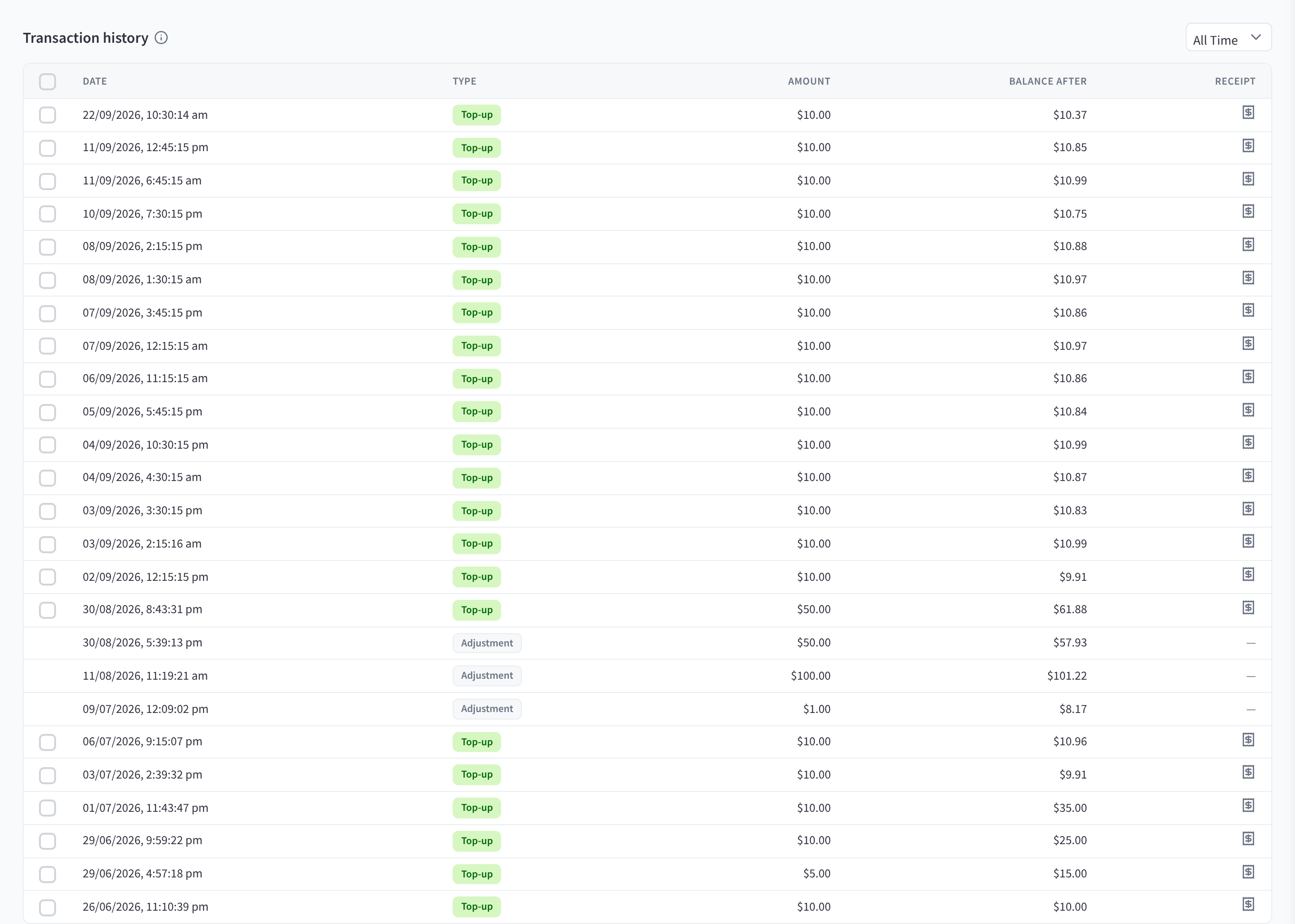
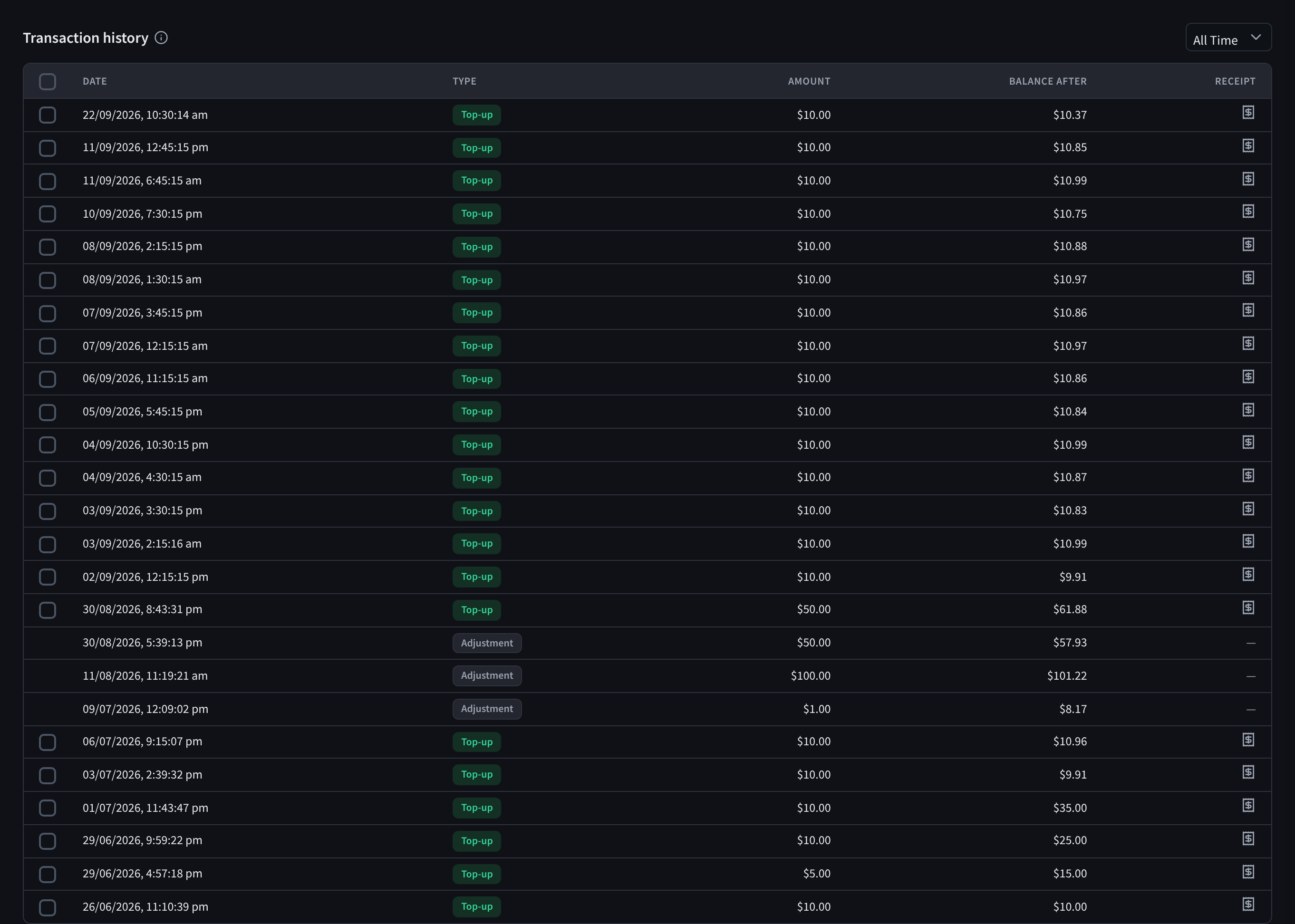
Figure 2: Transaction history: top-ups and balance adjustments, with the balance after each one and receipts
The transaction history lists top-ups and balance adjustments, with the columns Date, Type, Amount, Balance after and Receipt. Usage isn't listed here; it's summarised in Monthly usage below.
"Shows top-ups and balance adjustments. Usage is drawn down from your balance continuously and summarised in Monthly usage below."
| Type | Meaning |
|---|---|
| Top-up | A card charge crediting the balance (manual or auto top-up). |
| Refund | A refunded charge. |
| Adjustment | A balance correction credited or debited by Performance Hub. |
To download several receipts at once, tick the rows you want and click Download receipts (n).
Click a row to open the Transaction details drawer:
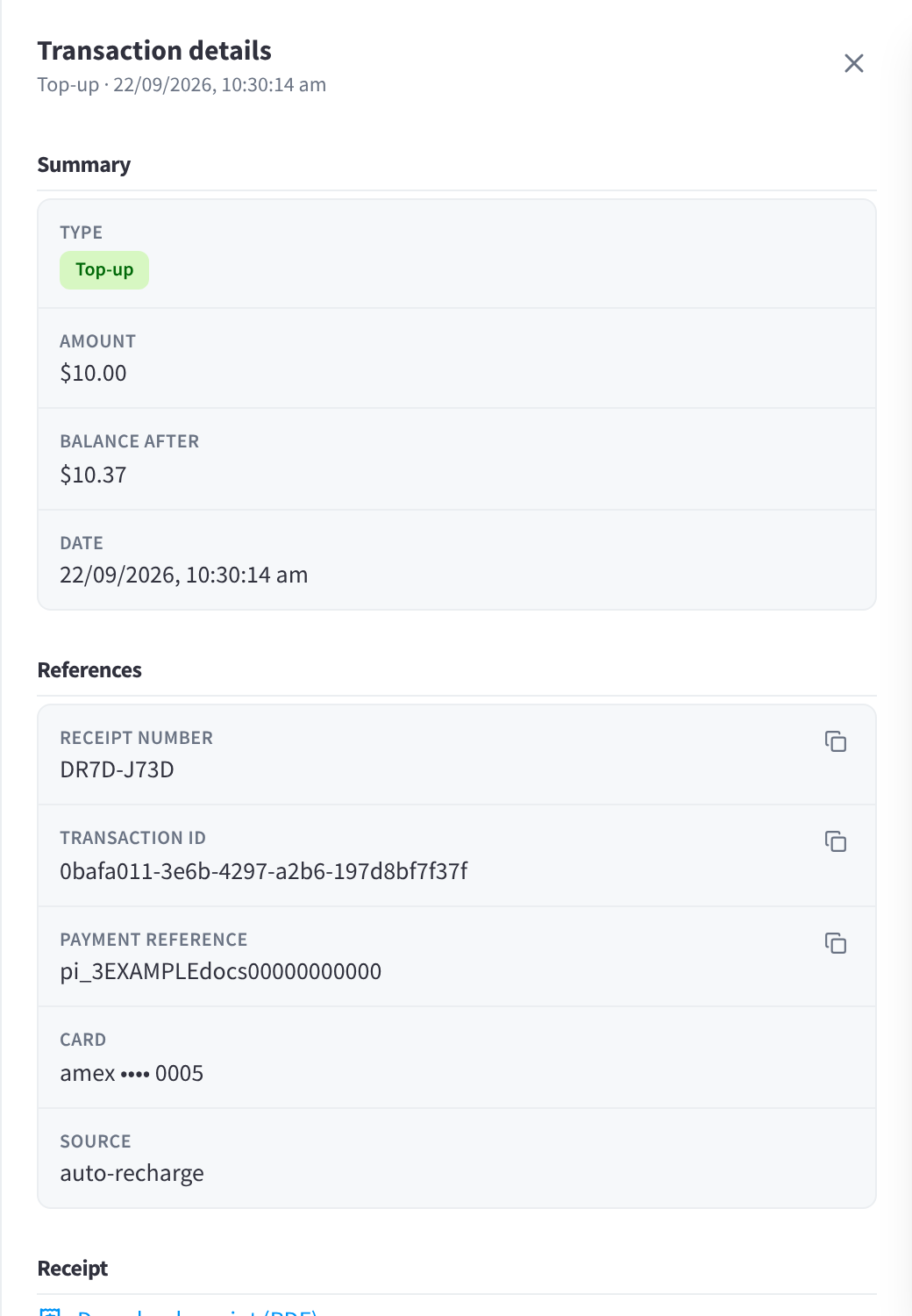
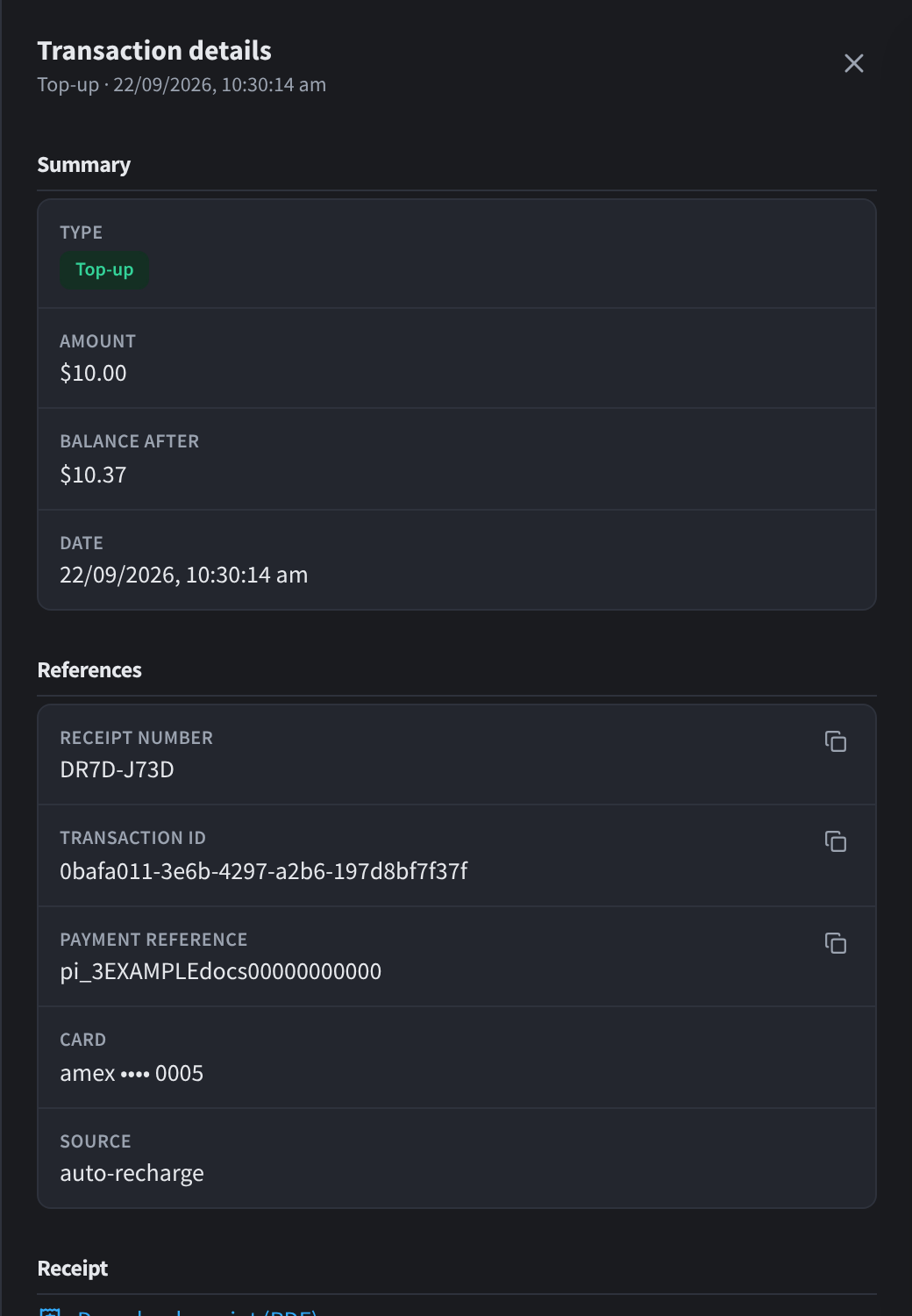
Figure 3: Transaction details, with the receipt download
Top-ups carry a Receipt number, Transaction ID, Payment reference, the card used, and the source (e.g. auto-recharge for automatic top-ups), plus Download receipt (PDF). A receipt for each top-up is also emailed to your facility's billing contacts.
Monthly usage
Below the transaction history, Monthly usage shows the usage drawn from your balance, one row per calendar month.


Figure 4: Monthly usage: usage drawn from the balance each month, with a usage statement (PDF) and usage detail (CSV) to download
"Usage is reconciled against your prepaid balance every 15 minutes and grouped here by calendar month (UTC). Each month offers a summary statement (PDF) and a detailed export (CSV) — these are usage statements, not invoices; only card top-ups have receipts."
- Use the year filter at the top right to choose which months are listed.
- The columns are Month, Usage, Deductions and Downloads. The current month carries a Month to date chip.
- Each month has Download usage statement (PDF) and Download usage detail (CSV).
- Expand a month to see its Usage charge deductions. Long months show only the latest ones: "Showing the latest … of … deductions — download the CSV for the full list."
Spend Limits
The Spend Limits sub-tab caps spend by policy, independent of the balance:
"Cap inference spend with any combination of a daily, monthly, or lifetime limit. Limits apply across every API key and connected agent. The prepaid balance still applies on top."
Account Limits
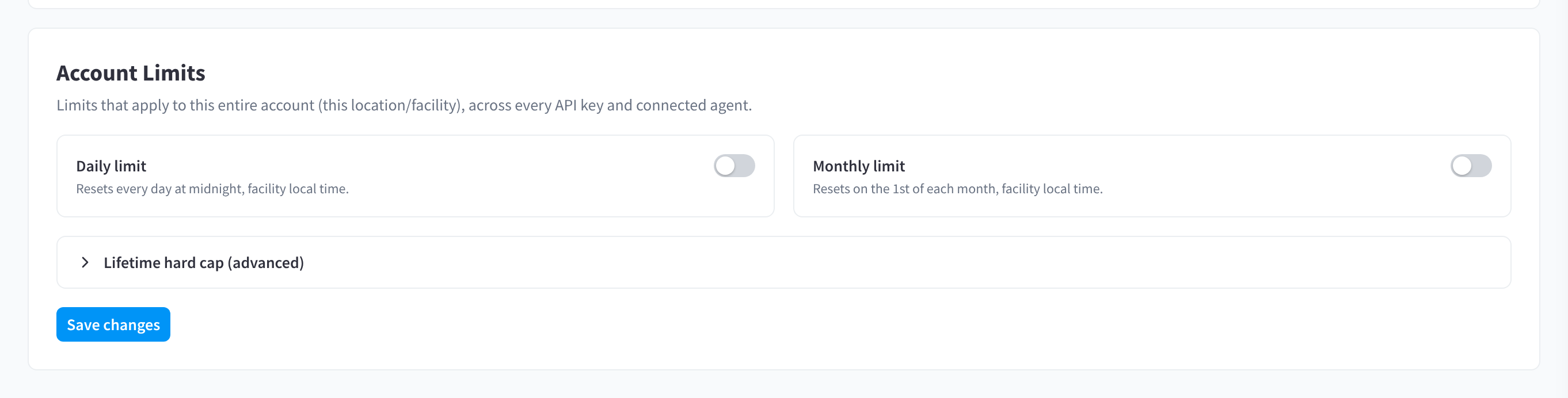
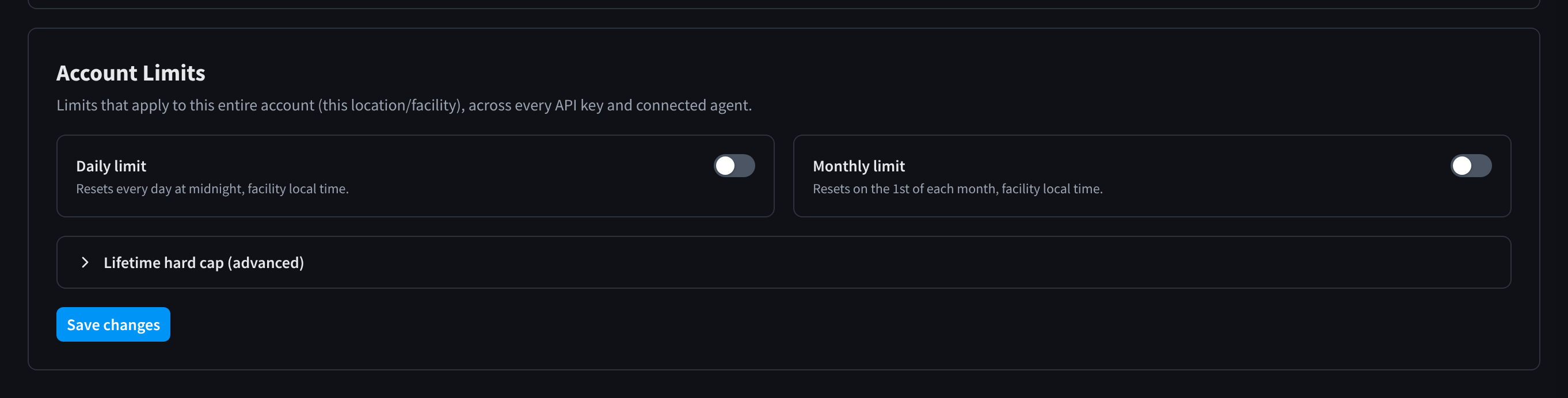
Figure 5: Account Limits: daily and monthly limits, and the collapsed Lifetime hard cap (advanced) section
"Limits that apply to this entire account (this location/facility), across every API key and connected agent."
| Limit | Reset behaviour |
|---|---|
| Daily limit | "Resets every day at midnight, facility local time." Quick presets: $25 / $50 / $100 / $250. |
| Monthly limit | "Resets on the 1st of each month, facility local time." Quick presets: $50 / $100 / $250 / $500 / $1000. |
| Total (hard cap) | "Lifetime ceiling. Counts spend since the last reset." Never resets on its own. |
Enable any combination, set the amounts, and click Save changes ("Spend limits saved."). While a limit is active, the module shows progress toward it and projections such as "On track to reach this limit around …", "On track to reach this limit this period." or "Projected … by the end of this period." (the Overview tab's Budget usage card says "…today." / "…this month.") When a limit is hit you'll see "Limit reached for this period." and requests are blocked with a budget exceeded error until the window resets (daily/monthly) or you raise/reset the limit.
Lifetime hard cap (advanced)
Expand Lifetime hard cap (advanced) to manage the total cap:
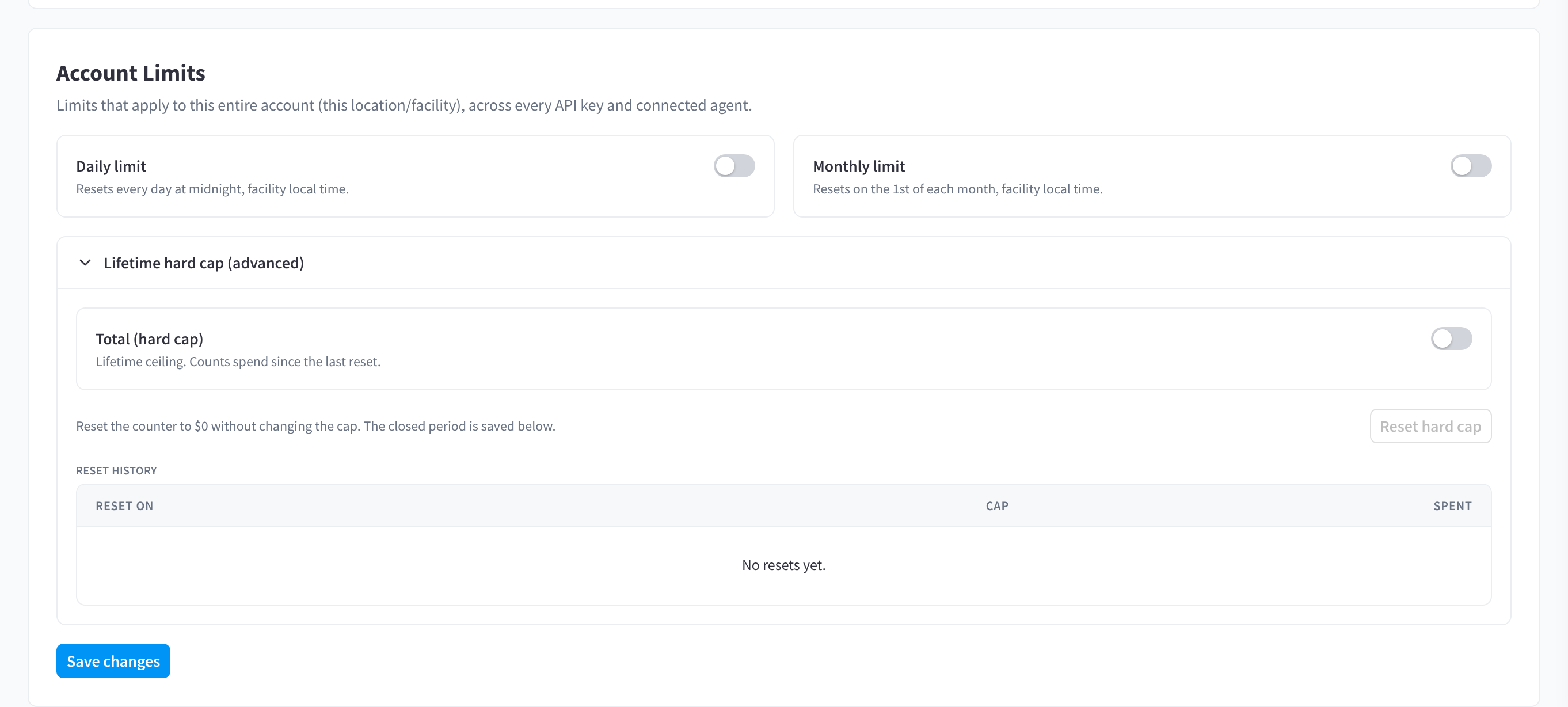
Figure 6: Lifetime hard cap (advanced) expanded, with Reset hard cap and the reset history
- The counter tracks spend since the last reset — a brand-new facility counts from its first request.
- Reset hard cap — "Reset the counter to $0 without changing the cap. The closed period is saved below." / "Starts the lifetime counter over from $0. The cap amount stays the same." The confirmation shows "The current period — spent … of … — is saved to the reset history."
- Reset history records each closed period (Reset on, Cap, Spent). "No resets yet." until the first reset.
Use the hard cap for "never spend more than X without a human deciding to continue" — when it's reached, spending stays blocked until someone deliberately resets the counter or raises the cap.
Per-service spend limits
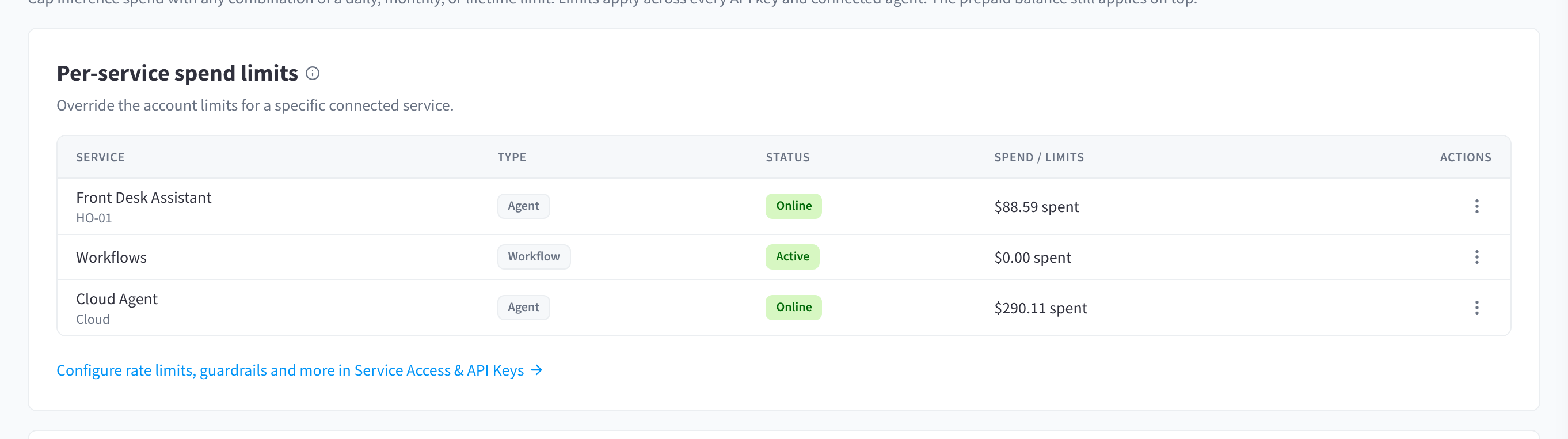
Figure 7: Per-service spend limits: set a tighter cap on an individual connected service
"Override the account limits for a specific connected service."
The info hint adds: "Set a tighter cap on an individual service. The account limits below still apply on top." Services are your connected AI Agents and Workflows.
Open a service's More actions (⋯) menu and choose Spend Limits; Service Configuration opens its full configuration drawer instead. The spend-limits dialog is titled Set agent spend limits for an AI Agent or Set workflow spend limits for a workflow; the limits (daily / monthly / lifetime) work the same way as account limits but count only that service's spend. For rate limits, model restrictions, and guardrails, follow the Configure rate limits, guardrails and more in Service Access & API Keys link — see Connected Services.
What happens at zero balance
When the available balance reaches $0, inference is blocked with an insufficient credits error and the module warns: "Your balance is depleted. Inference requests will be blocked until you top up." AI Agents show a credits-required state instead of their chat. Model listing keeps working. Top up (or let auto top-up run) and requests resume within moments.