
Model Router
Model Router gives your facility prepaid access to a catalog of leading AI models through a single, OpenAI-compatible endpoint. Your Performance Hub AI Agents connect to it automatically with no setup, Workflows can connect too, and you can provision your own API keys to plug the same models into third-party or in-house software — a booking assistant, a clinic intake form or a hotel concierge app. You top up a USD balance, set spend limits, and watch every request in real time — all from one place.
Quick Reference
Where to find it: Main menu → Model Router (Technology Stack facilities). The module sits in the AI Modules & Agents group of the main menu.
Who can access: Organisation Administrators only (Technology Stack facilities).
Purpose: Buy AI inference on a prepaid balance: manage API keys, spend limits, auto top-up, and usage.
How it fits together
- Your facility holds a prepaid balance in USD. You top it up with your stored billing card (manually or automatically), and every AI request draws down the balance at the price of the model that served it.
- The model catalog covers models from many providers. All models are enabled by default; you can turn individual models on or off for your facility, and restrict them further per API key or per connected service.
- There are two ways to consume models:
- Connected Services — paired AI Agent devices connect automatically, with no API key needed, and Workflows can connect as well.
- Your own API keys — provision keys and point any OpenAI-compatible SDK or tool at the Performance Hub endpoint.
- Spend limits (daily, monthly, and a lifetime hard cap) let you bound spend independently of the balance, across every key and connected service — with tighter per-key and per-service limits available on top.
- Every request is recorded — model, tokens, cost, latency, and status — in the Activity analytics and the Logs tab. Prompt and response content is never stored.
The main areas
The module has four tabs plus a Settings area (cog icon, top right):
| Area | What you do there |
|---|---|
| Overview | The dashboard: available balance, spend today and this month, estimated runway, spend and request charts, reliability at a glance, budget usage, and top agents & keys. |
| Activity | Deep usage analytics with four views (Overview, Trends, Performance, Explore), filters by key/agent and model, and CSV export. |
| Budgets & Limits | Two sub-tabs: Spend Limits (account-wide daily/monthly/lifetime caps and per-service limits) and Balance & Top-up (manual top-ups, auto top-up, the transaction history and monthly usage). |
| Logs | The per-request audit trail: every request's model, tokens, cost, speed, and status, with live refresh, search, filters, and a detail drawer. |
| Settings (cog) | Models (enable/disable catalog models, edit the Auto Router), Service Access & API Keys (connected services, API keys, and the API connection details), and Guardrails (content protections and custom content filters). |
The Overview dashboard
The Overview tab summarises your account at a glance.


Figure 1: The stat band (Available balance, Spent today, Spent this month and Estimated runway) and the quick-glance chips for auto top-up, limits, models and connected services
Under the stat band, chips summarise auto top-up, spend limits, enabled models and how many connected services are online. A Low balance chip appears beside them when the balance is at or below the auto top-up threshold.
- Available balance — the prepaid credit remaining right now.
- Spent today / Spent this month — usage charges in the current day and calendar month (facility local time).
- Estimated runway — "Rough estimate based on average daily spend this month. Top up or enable auto top-up to extend it."
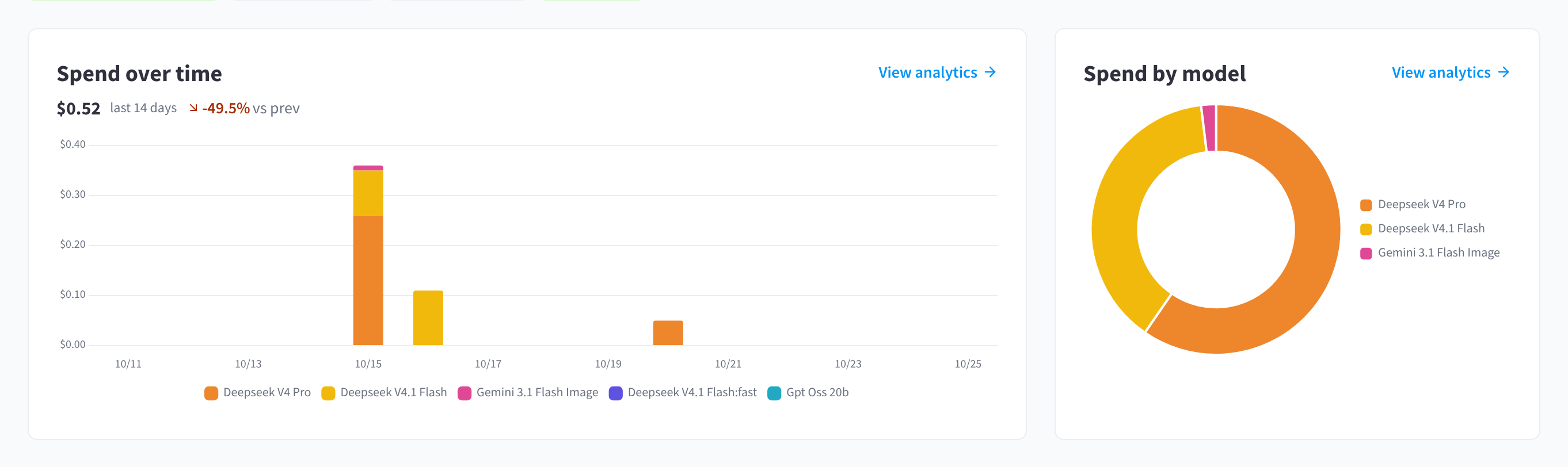
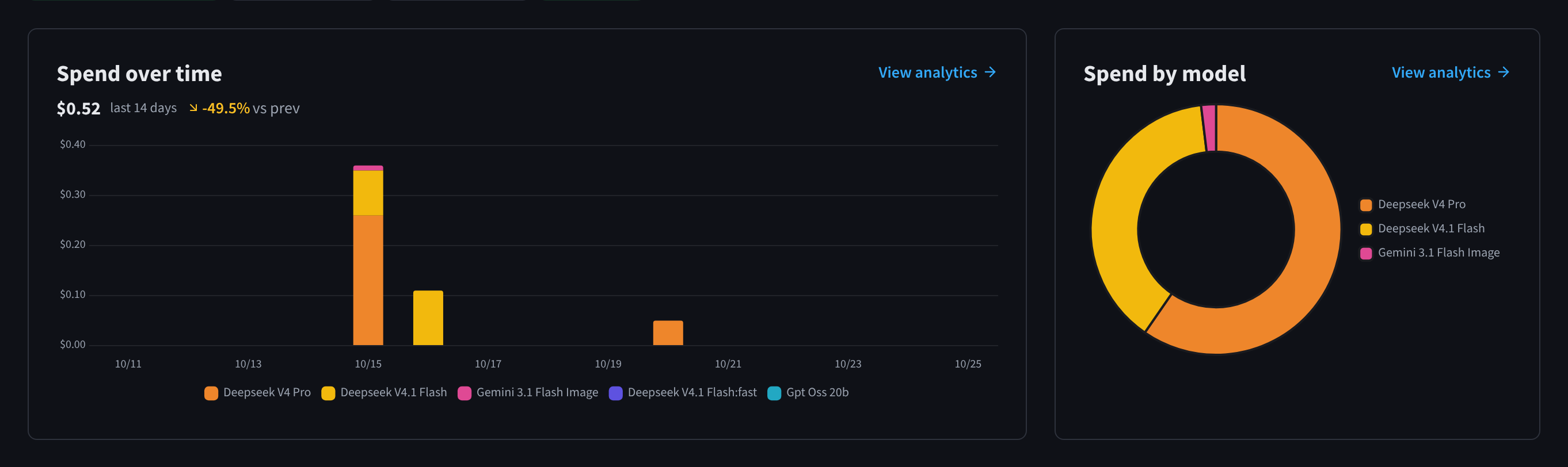
Figure 2: Spend over time (last 14 days, with the change against the previous period) and Spend by model
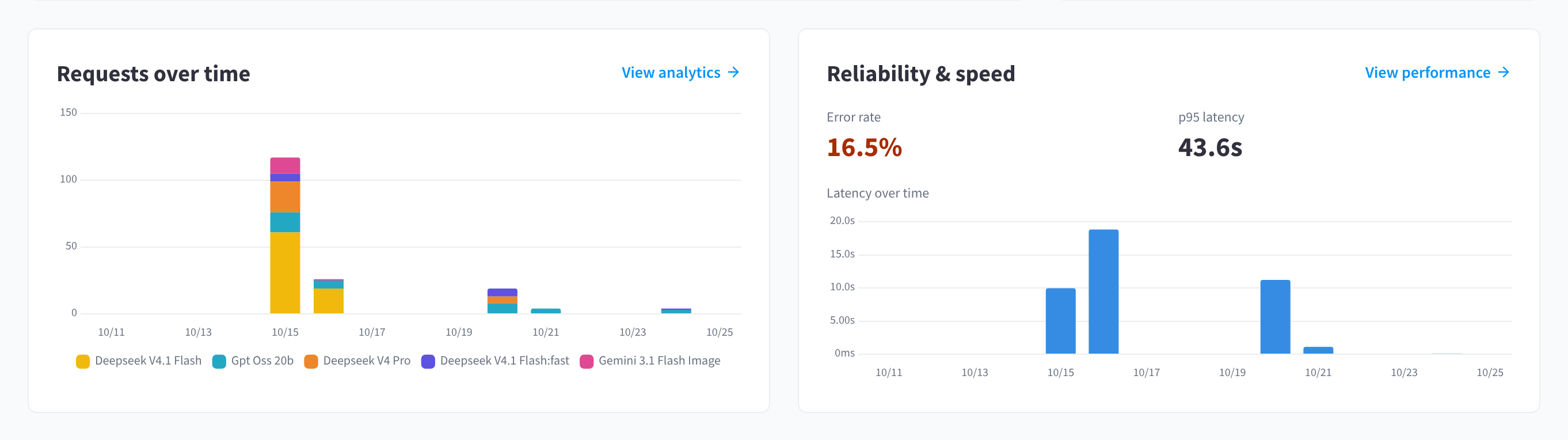
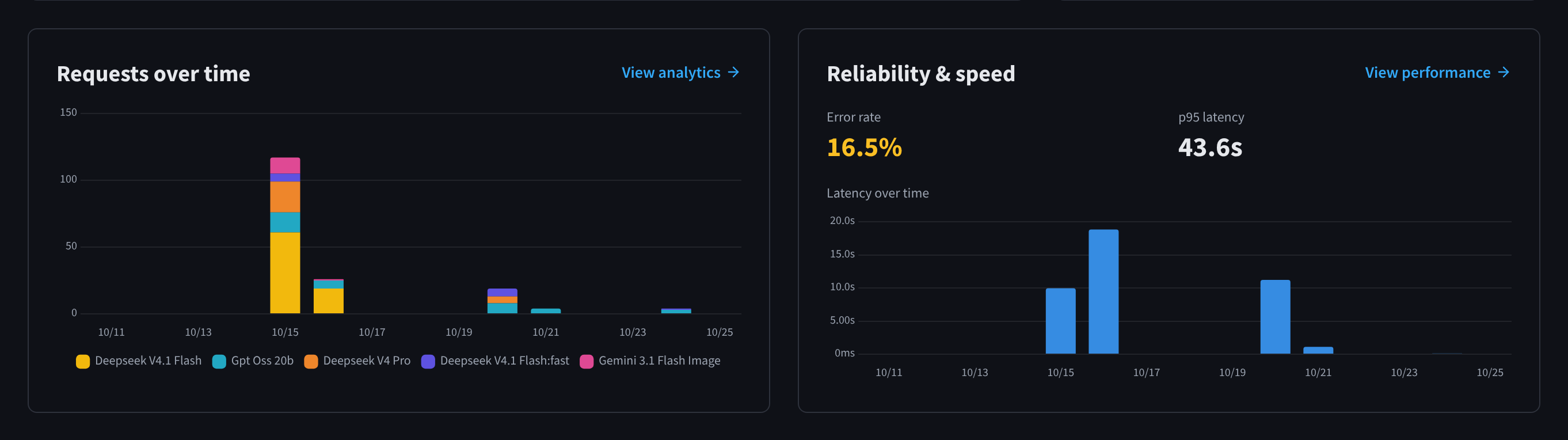
Figure 3: Requests over time by model, and Reliability & speed with error rate, p95 latency and latency over time
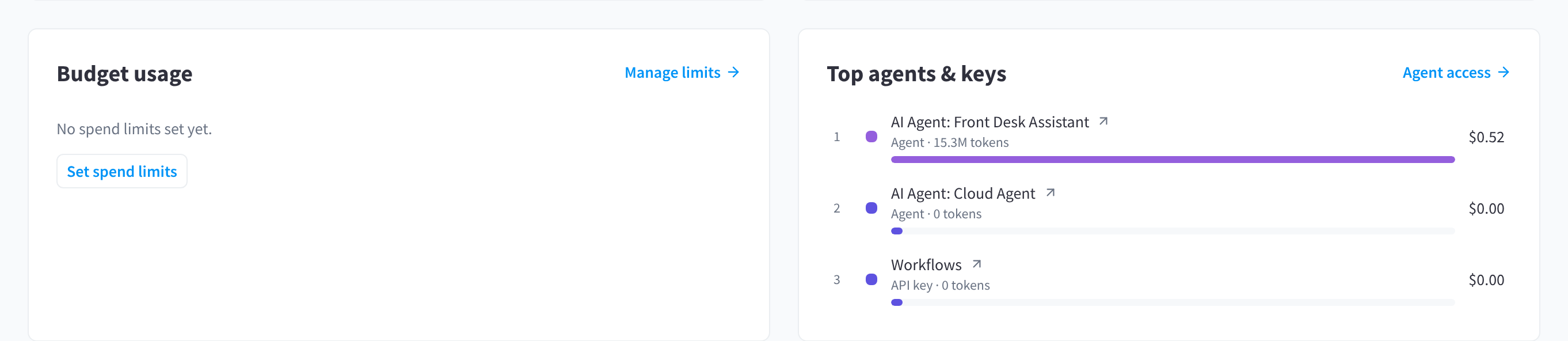
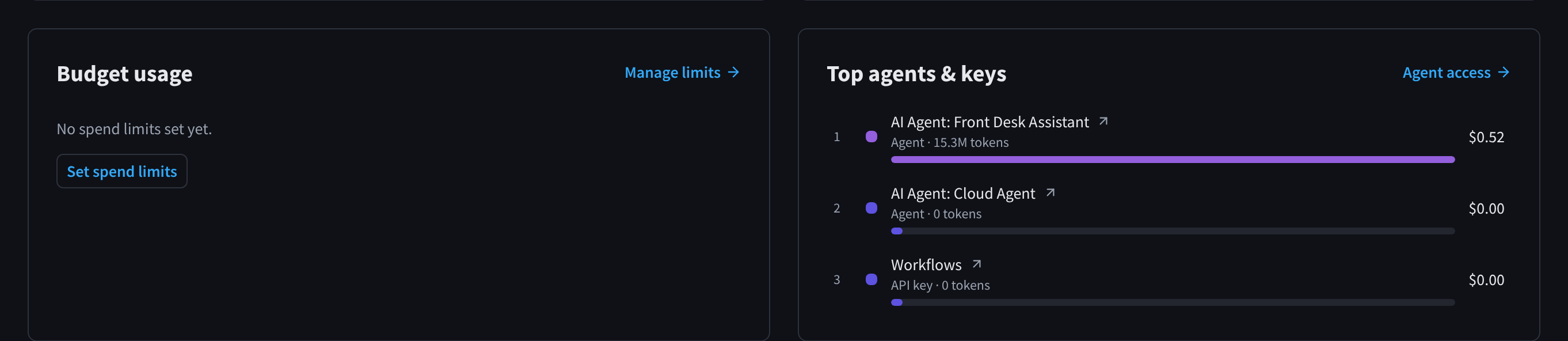
Figure 4: Budget usage and Top agents & keys ranked by spend
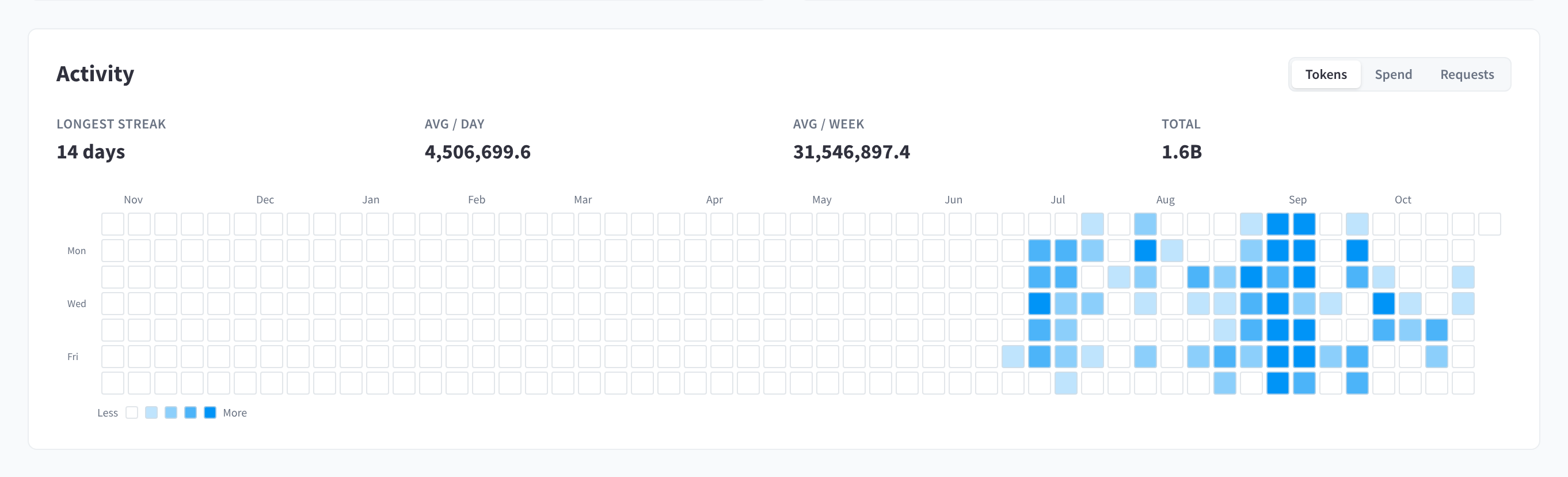
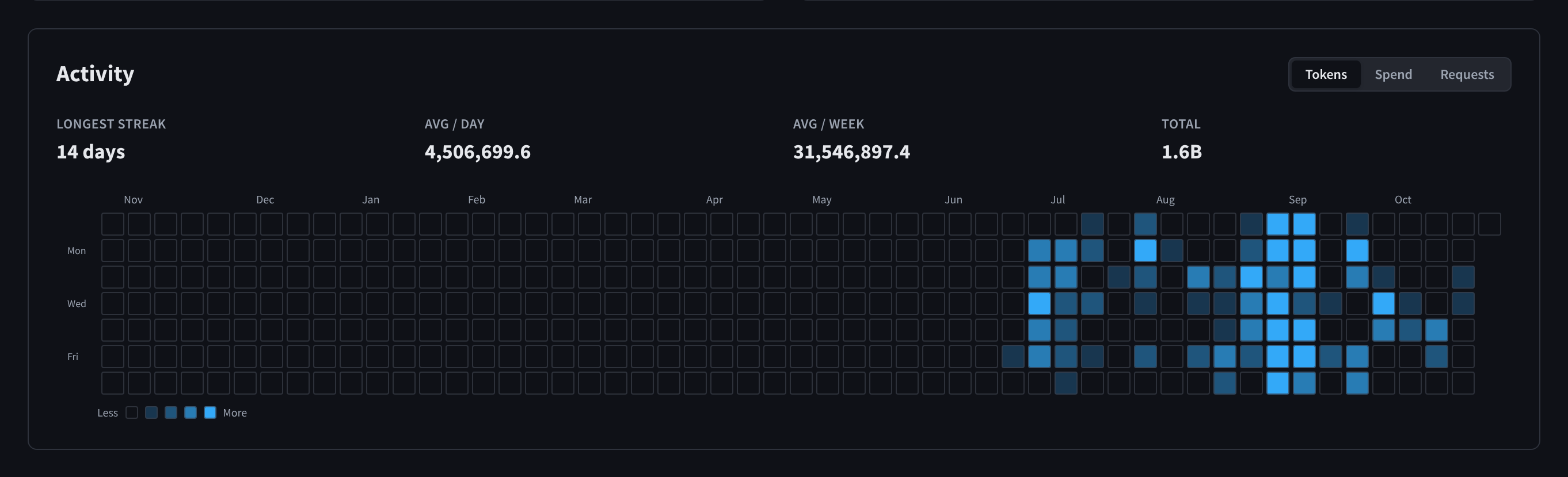
Figure 5: The Activity heatmap: a year of usage, switchable between Tokens, Spend and Requests, with the longest streak and daily and weekly averages
Documentation guide
Concepts
- How it works — the conceptual model: prepaid balance vs spend limits, the two access paths, how requests are priced, and the full glossary.
Getting started
- Getting started — enabling the module, your first top-up, and your first request.
- Connecting your application — the quickstart for your own software: base URL, authentication, and curl / Python / TypeScript examples.
Managing access
- Models — the catalog, enabling and disabling models, quick presets, and the Auto Router.
- API keys — creating keys, the one-time secret display, per-key spend caps, rate limits, model restrictions, and the rotate/revoke/delete lifecycle.
- Connected Services — how paired AI Agents and Workflows connect, and how to bound each one.
- Guardrails — content protections (PII masking, secret redaction, prompt-injection shield) and custom content filters.
Money & monitoring
- Budgets & top-ups — the balance, manual and auto top-ups, receipts, the transaction history, monthly usage, and spend limits.
- Activity & logs — the analytics views, CSV export, and the request log.
Reference
- Reference — every setting, default, limit, and error response in one place.
- Troubleshooting — symptom-by-symptom fixes for blocked requests, key issues, and balance questions.
- Common questions — FAQ.
Getting started checklist
Tick items off as you go — your progress is saved in this browser, and you can print the list.
Selecting a facility
The module is configured per facility. Use the facility selector in the main Performance Hub toolbar to choose which facility you are configuring. While the facility context loads, the module shows "Loading facility context…".