
Getting started
This guide takes a facility from nothing to a working first request in three steps, then shows how to check it worked.
Before you begin
- You need to be an Organisation Administrator. Model Router is available to Organisation Administrators only, at Technology Stack facilities.
- Select the facility you want to configure using the facility selector in the main Performance Hub toolbar.
- Have a billing card stored for the facility, or be ready to add one. Top-ups charge your stored billing card; if none is on file, the Balance & Top-up page shows "No card on file." with an Add payment details link.
Step 1 — Enable Model Router
Open Model Router from the main menu (in the AI Modules & Agents group). If the module has not been enabled for this facility yet, you see the Welcome to Model Router page:
"Give your business prepaid access to a catalog of leading AI models through a single, OpenAI-compatible endpoint. Your Performance Hub AI Agents connect automatically, and you can create API keys to plug the same models into your own software — with spend limits and full usage visibility."
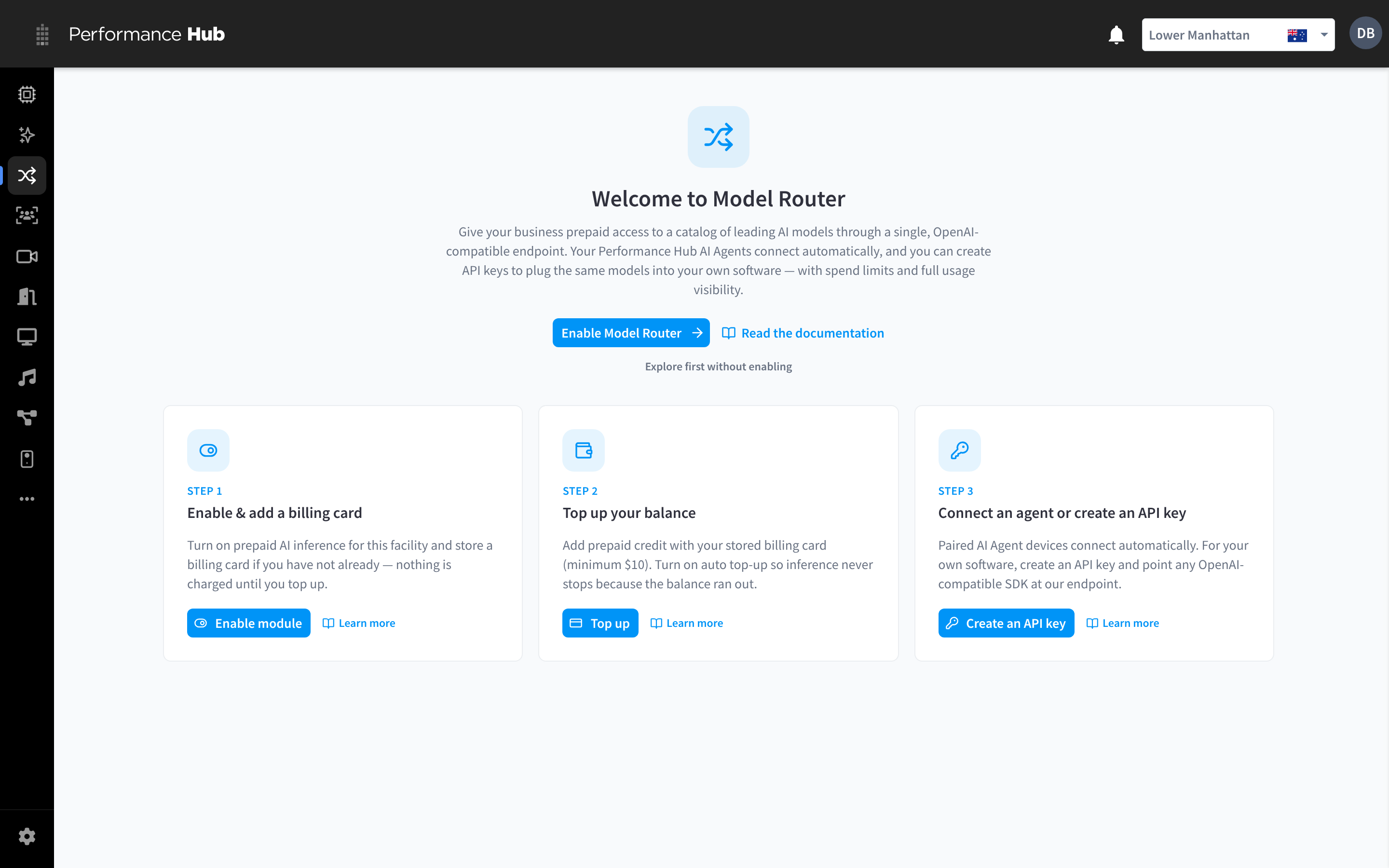
Figure 1: The Welcome to Model Router page a facility sees before the module is enabled
The page has three buttons: Enable Model Router, Read the documentation (which opens these docs) and Explore first without enabling. Below them, three steps lay out the setup:
| Step | What it says | Button |
|---|---|---|
| 1. Enable & add a billing card | "Turn on prepaid AI inference for this facility and store a billing card if you have not already — nothing is charged until you top up." | Enable module |
| 2. Top up your balance | "Add prepaid credit with your stored billing card (minimum $10). Turn on auto top-up so inference never stops because the balance ran out." | Top up |
| 3. Connect an agent or create an API key | "Paired AI Agent devices connect automatically. For your own software, create an API key and point any OpenAI-compatible SDK at our endpoint." | Create an API key |
Each step also has a Learn more link.
Click Enable Model Router (or Enable module) to turn the module on.
The setup checklist
After you enable the module, a setup checklist banner shows at the top of Model Router until setup is complete. It is titled Finish setting up Model Router and shows a time estimate (e.g. ~3 min left), how many steps are complete (e.g. 2 of 3 complete) and a Resume button that expands the full checklist. Each step has Review (or Review again) and Learn more; Collapse folds it away again. When one step is left, the expanded subtitle reads "Just one step to go before AI requests start flowing. Steps can be done in any order."


Figure 2: The setup checklist banner shown until setup is complete
The required steps are Add a billing card, Top up your balance and Connect an agent or create an API key. Optional steps — Set spend limits, Turn on auto top-up and Verify your first request — can be dismissed with Skip for now.
Step 2 — Make your first top-up
Go to Budgets & Limits → Balance & Top-up.
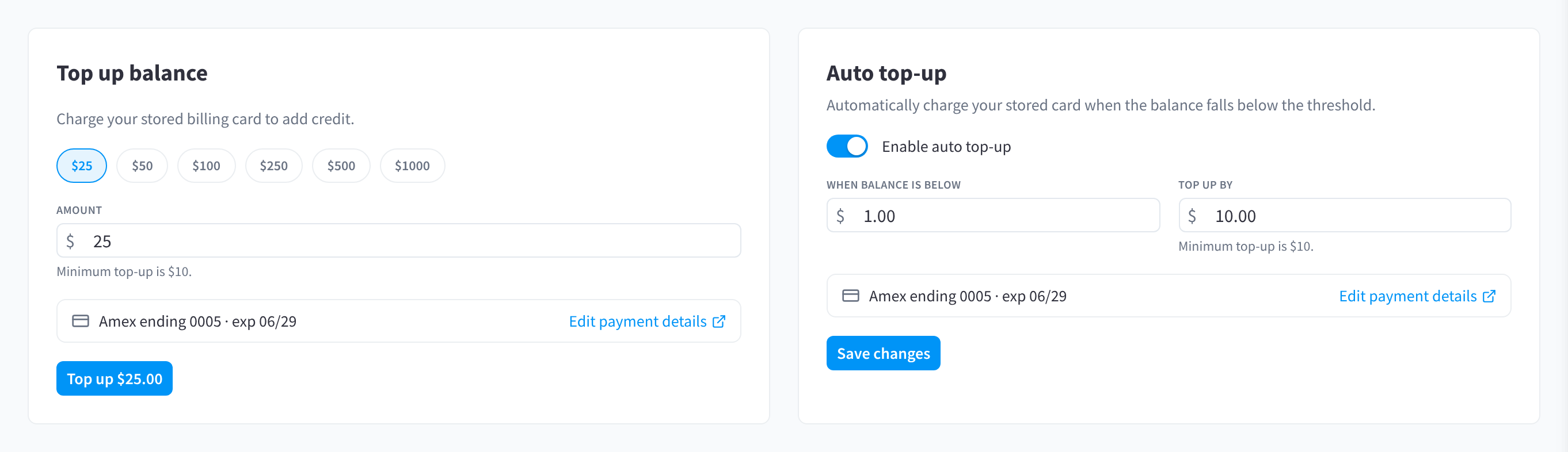
Figure 3: The Top up balance card (presets, amount, stored card) and the Auto top-up card
- In the Top up balance card, pick a preset ($25, $50, $100, $250, $500, $1000) or type an amount. "Minimum top-up is $10."
- Check the stored card shown beneath the amount (e.g. "Amex ending 0005 · exp 06/29"). Use Edit payment details if it needs updating.
- Click Top up $–.––. On success you'll see "Top-up successful. Your balance has been credited." Top-ups appear in the balance instantly.
Recommended: in the Auto top-up card, switch on Enable auto top-up, set When balance is below and Top up by (also minimum $10), and click Save changes. Your card is then charged automatically whenever the balance falls below the threshold, so inference never stops unexpectedly. See Budgets & top-ups for details.
Step 3 — Send your first request
Pick whichever path applies to you:
If you have AI Agents or Workflows
Nothing to configure — AI Agent devices paired with this facility connect automatically, and Workflows can connect too. Open Settings (cog) → Service Access & API Keys and confirm your agent appears under Connected Services with status Online. See Connected Services.
If you're connecting your own software
- Open Settings (cog) → Service Access & API Keys and click Create key. Copy the secret from the "Copy your API key" dialog — "This is the only time the full key is shown. Store it somewhere safe."
- Use the Base URL and example request shown in the Connecting to the API card on the same page. A minimal test:
curl https://app.performancehub.co/ai/v1/chat/completions \
  -H "Authorization: Bearer YOUR_API_KEY" \
  -H "Content-Type: application/json" \
  -d '{"model": "auto", "messages": [{"role": "user", "content": "Hello"}]}'
See Connecting your application for Python and TypeScript examples.
Step 4 — Verify
Open the Logs tab. Your test request should appear within moments, with its model, token counts, cost, speed, and a success status. If it doesn't, see Troubleshooting.
Recommended next steps
- Set spend limits — Budgets & Limits → Spend Limits. A monthly cap is a sensible safety net; see Budgets & top-ups.
- Review the model catalog — Settings → Models. All models are enabled by default; use the quick presets to narrow the set if you have provider or budget preferences. See Models.
- Consider guardrails — Settings → Guardrails for PII masking, secret redaction, and prompt-injection shielding. None are enabled by default. See Guardrails.