
Getting around
On this page
To install Performance Hub Agent, see Desktop app (Mac and Windows) or Install on Linux.
This page shows the main parts of the Performance Hub Agent window, as it looks in Simple mode, and how to find, pin and start sessions with your Agent.
The window
- The title bar shows CPU and memory meters, the agent selector with the name of the Agent the app is using, a theme toggle and the layout controls. To change agents, see Choose an agent.
- The side menu lists Sessions, Connected Apps & Capabilities, Published Apps, Memory, Kanban, Artifacts, Scheduled jobs and More, followed by Customize, Account, Settings and Agent settings.
- The session sidebar lists your sessions. At the top is the mode menu, which shows Session mode or Bot mode. See Session mode and Bot mode.
- The chat fills the rest of the window, with the composer at the bottom, where you type to your Agent.
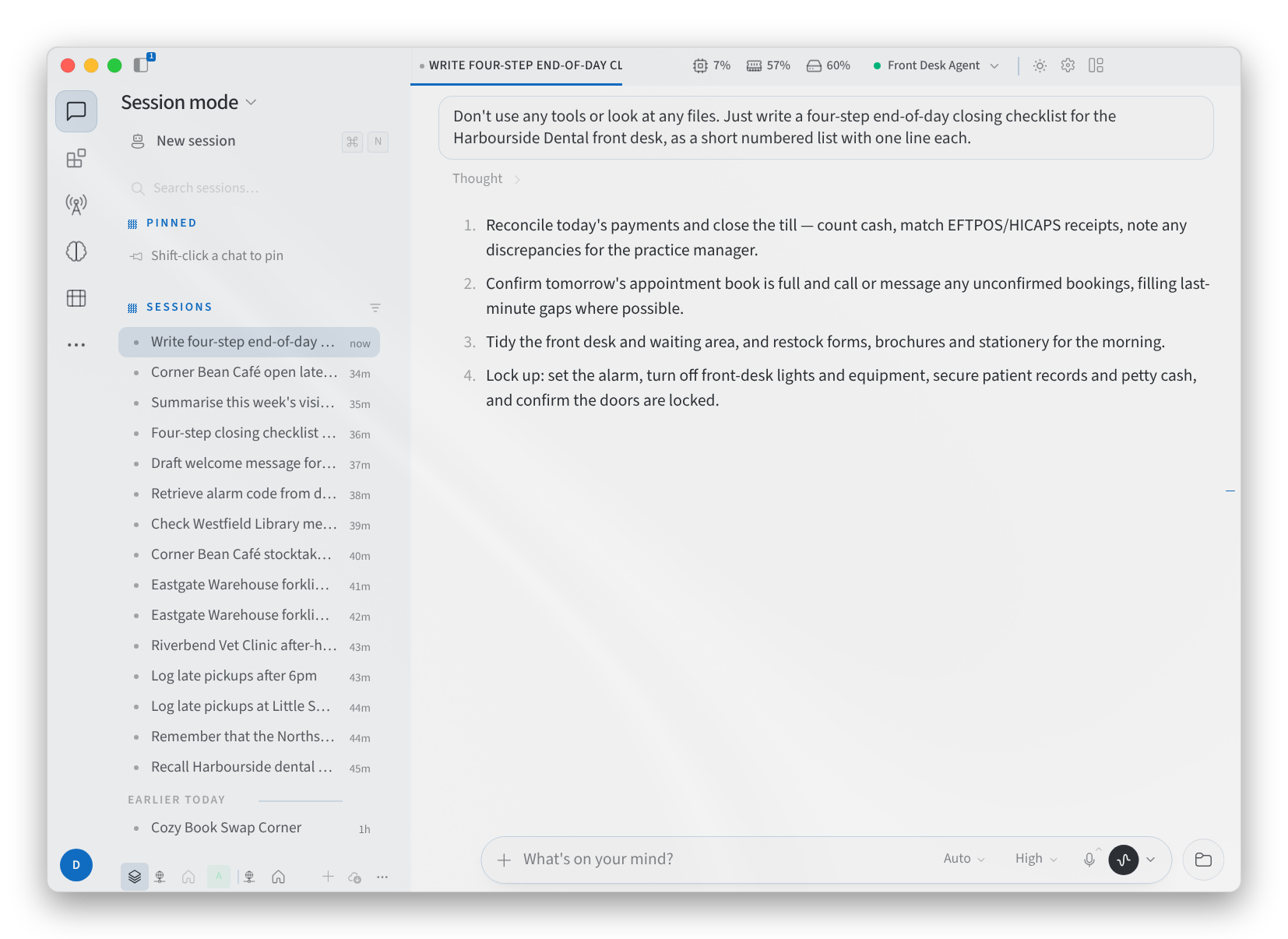
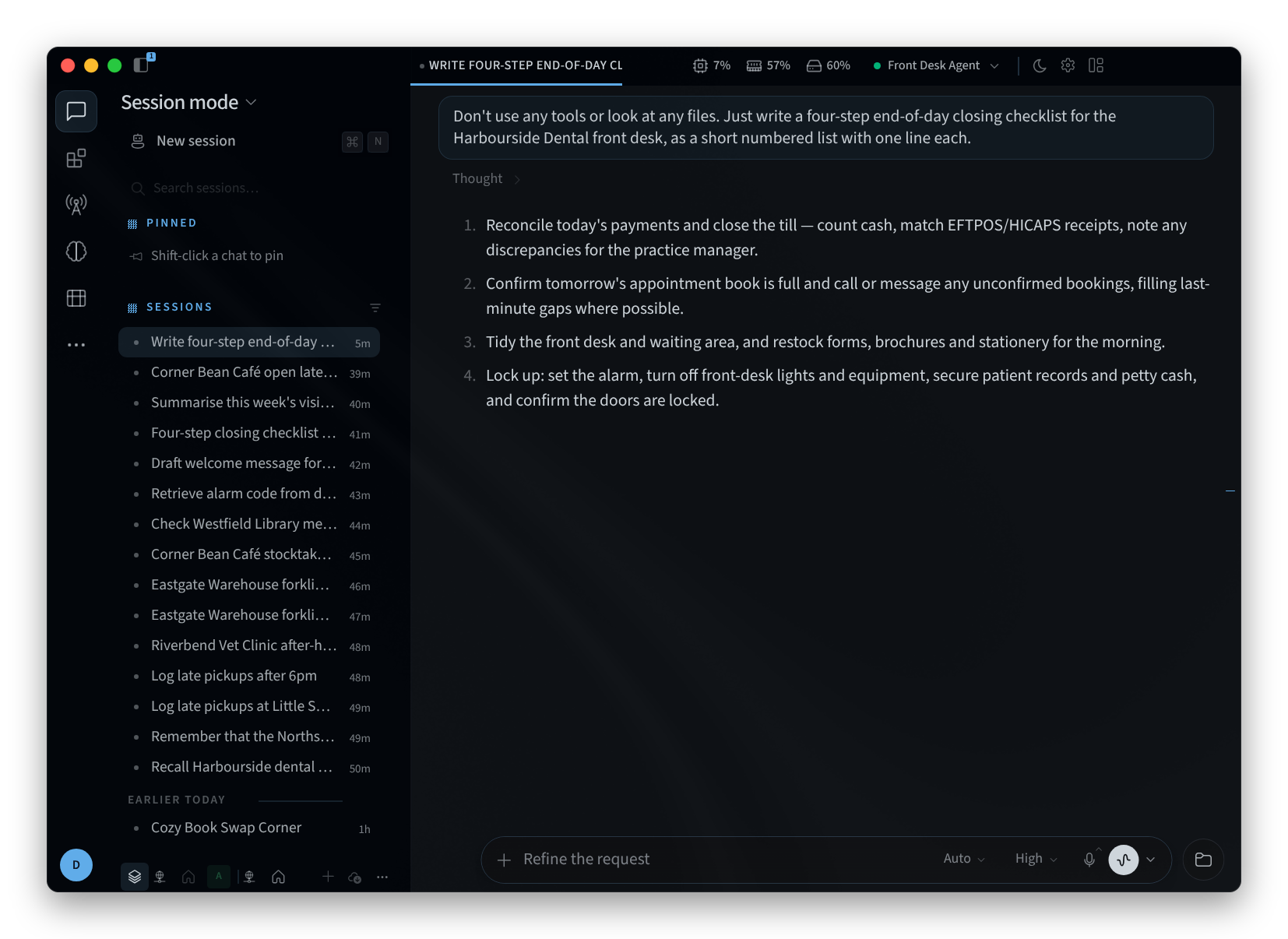
Figure 1: The session sidebar and an open chat
The side menu
- Sessions holds your conversations with the Agent.
- Connected Apps & Capabilities connects the apps your Agent can use, and lists its skills and tools. See Connected Apps.
- Published Apps lists the web apps and services your Agent is running. See Published Apps.
- Memory shows what your Agent has learned. See Long-term Memory.
- Kanban shows your Agent's tasks on a board. See Kanban task board.
- Scheduled jobs are the Agent's scheduled tasks. See Automations.
- Customize ("Customize the side menu") changes what the side menu shows.
- Settings opens the app's settings. See Settings.
- Agent settings opens Device Management for this agent in Performance Hub. See Device management.
Some features stay in Performance Hub, and the app opens them in your browser: publishing apps, the Skill Library, device configuration and Model Router.
Sessions
The session sidebar keeps your sessions in two lists:
- PINNED holds the sessions you've pinned. To pin a session, hold Shift and click it, as the hint "Shift-click a chat to pin" says.
- SESSIONS lists the rest.
Click a session to open it. When the Agent shows its reasoning, it appears in a Thought block above the reply. Click the block to expand or collapse it.
Search sessions
- Click Search sessions… at the top of the session sidebar.
- Type a word from the session's title, for example "Harbourside", "stocktake" or "roster".
- Matching sessions appear under RESULTS. Click one to open it.
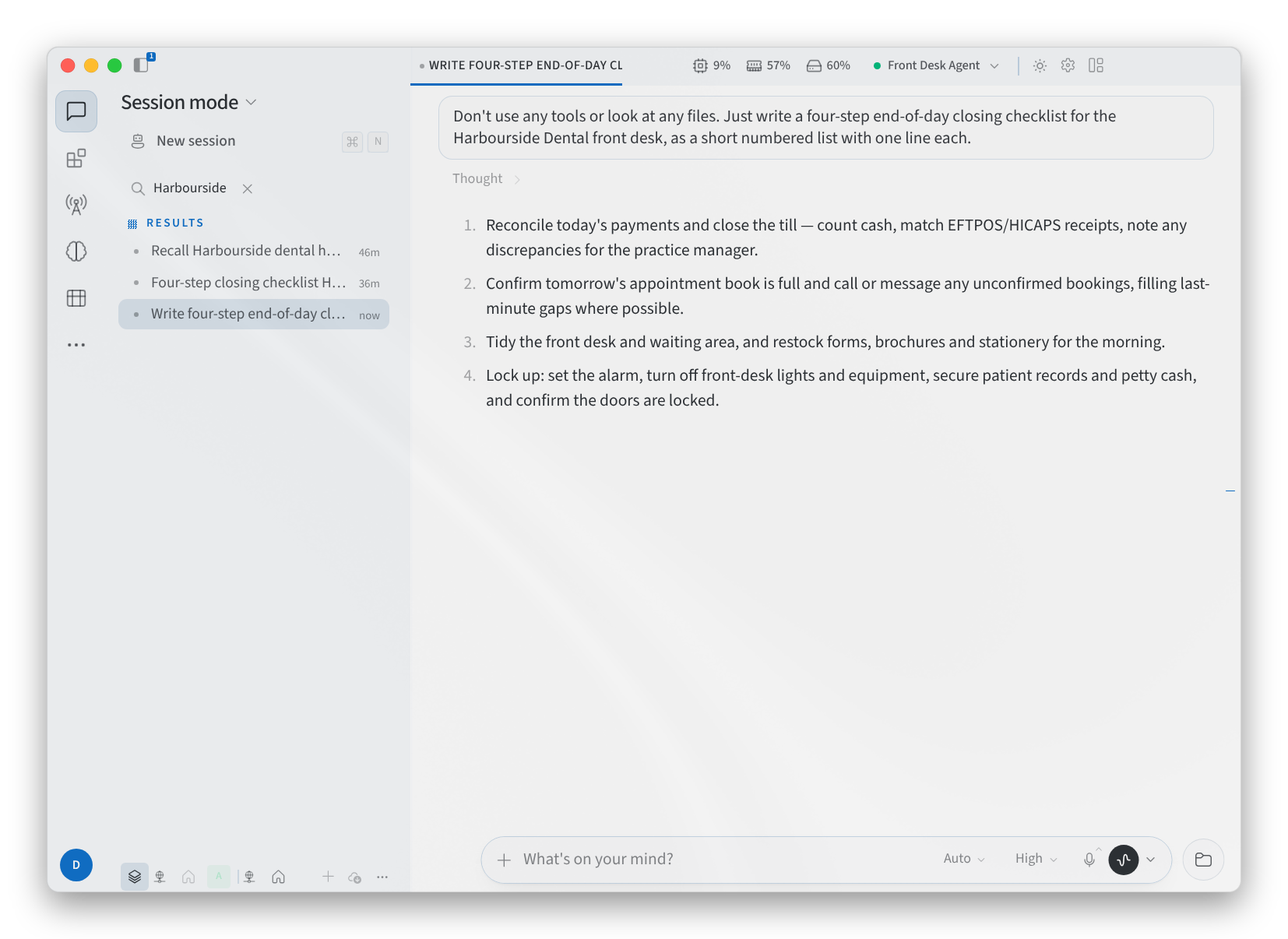
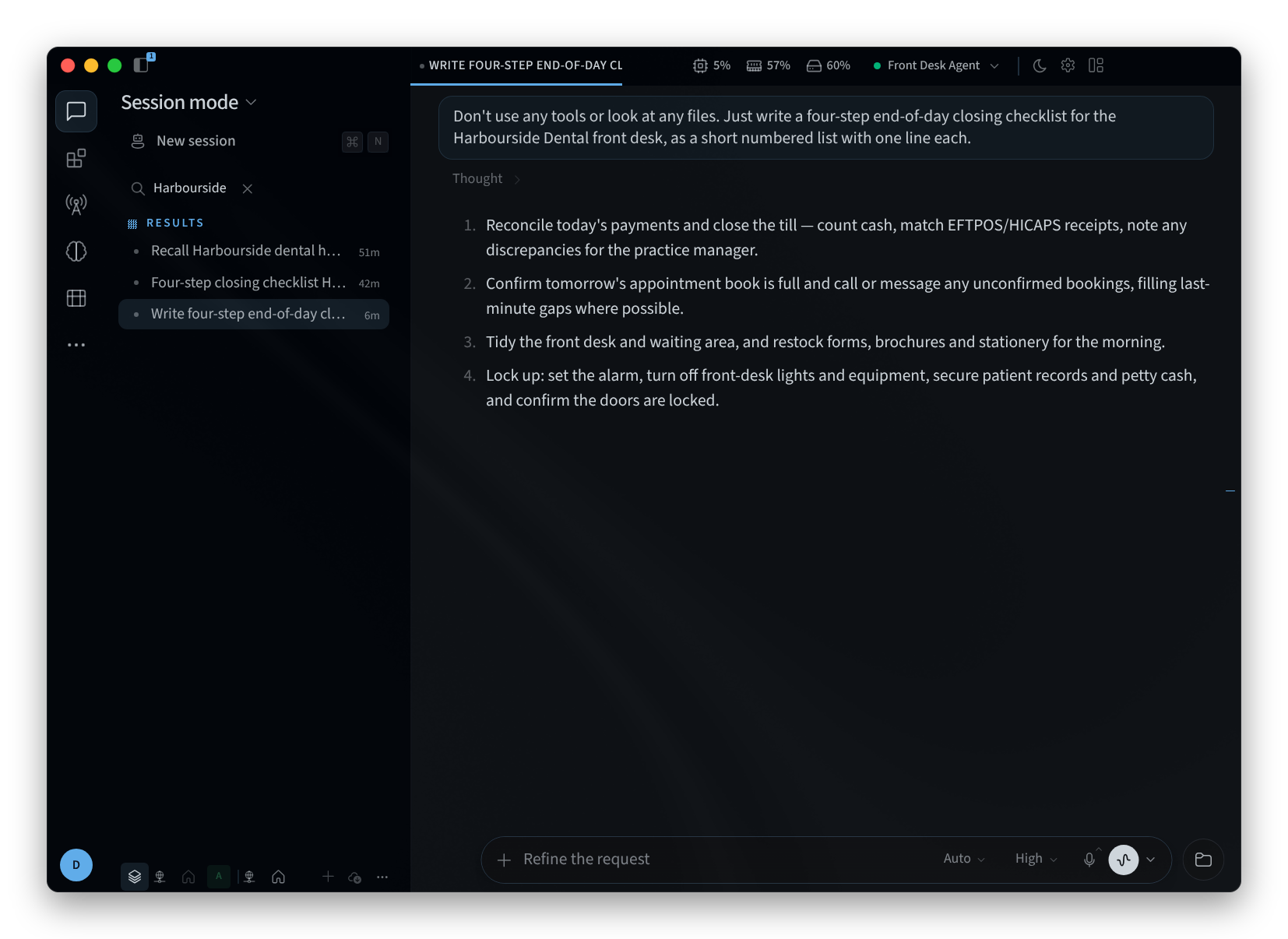
Figure 2: Searching sessions by title
Start a new session
Click New session at the top of the session sidebar, or press ⌘N. The new session opens with NEW SESSION at the top and a short greeting from your Agent, such as "Got a task for me?" or "What needs doing?". The greeting, and the prompt in the composer, change from one session to the next.
Type your task in the composer and send it. For example:
- "Draft a short after-hours notice for the clinic's front door."
- "Make a checklist for closing the café at night."
- "Summarise this week's room bookings for the office manager."
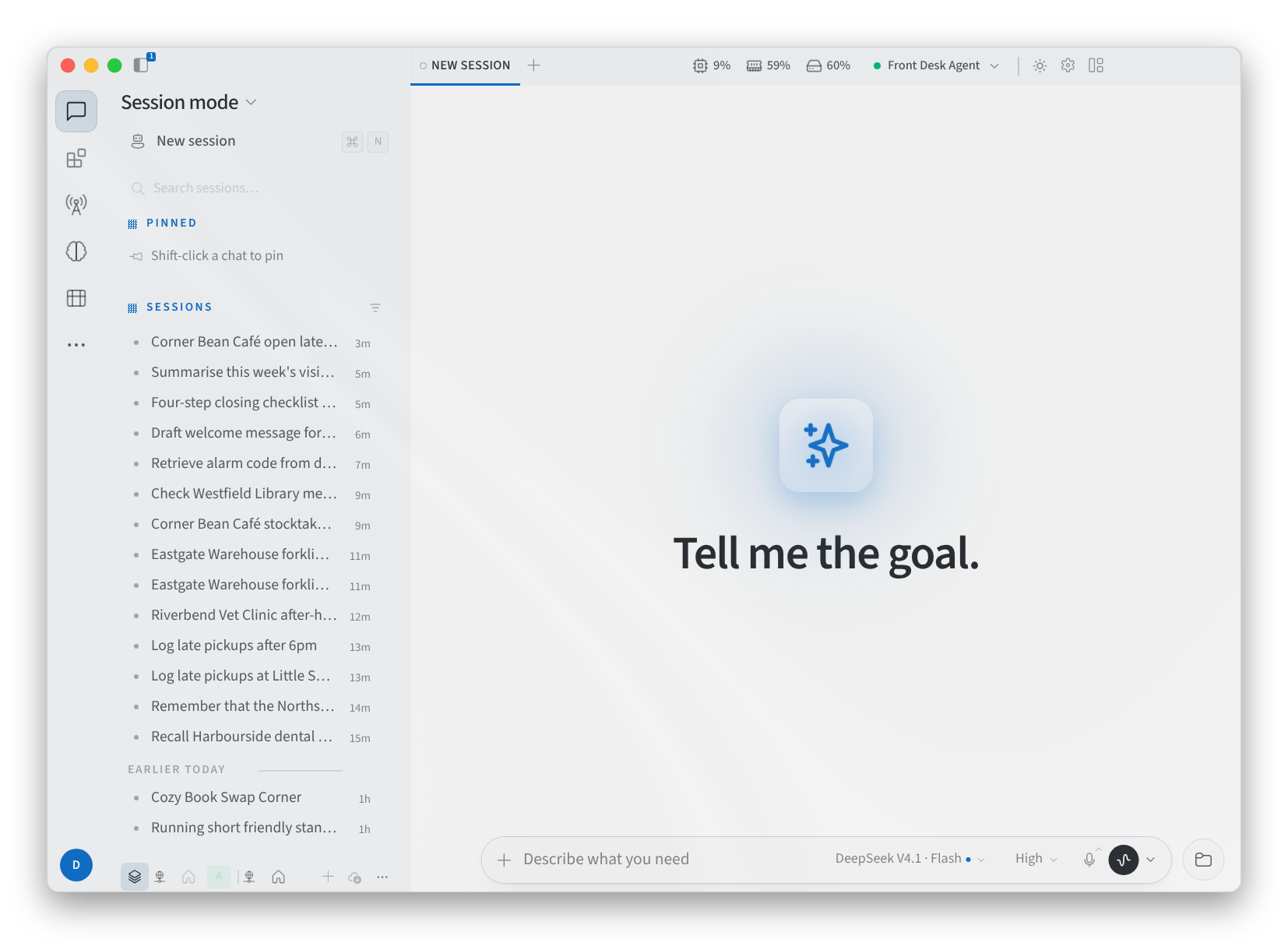
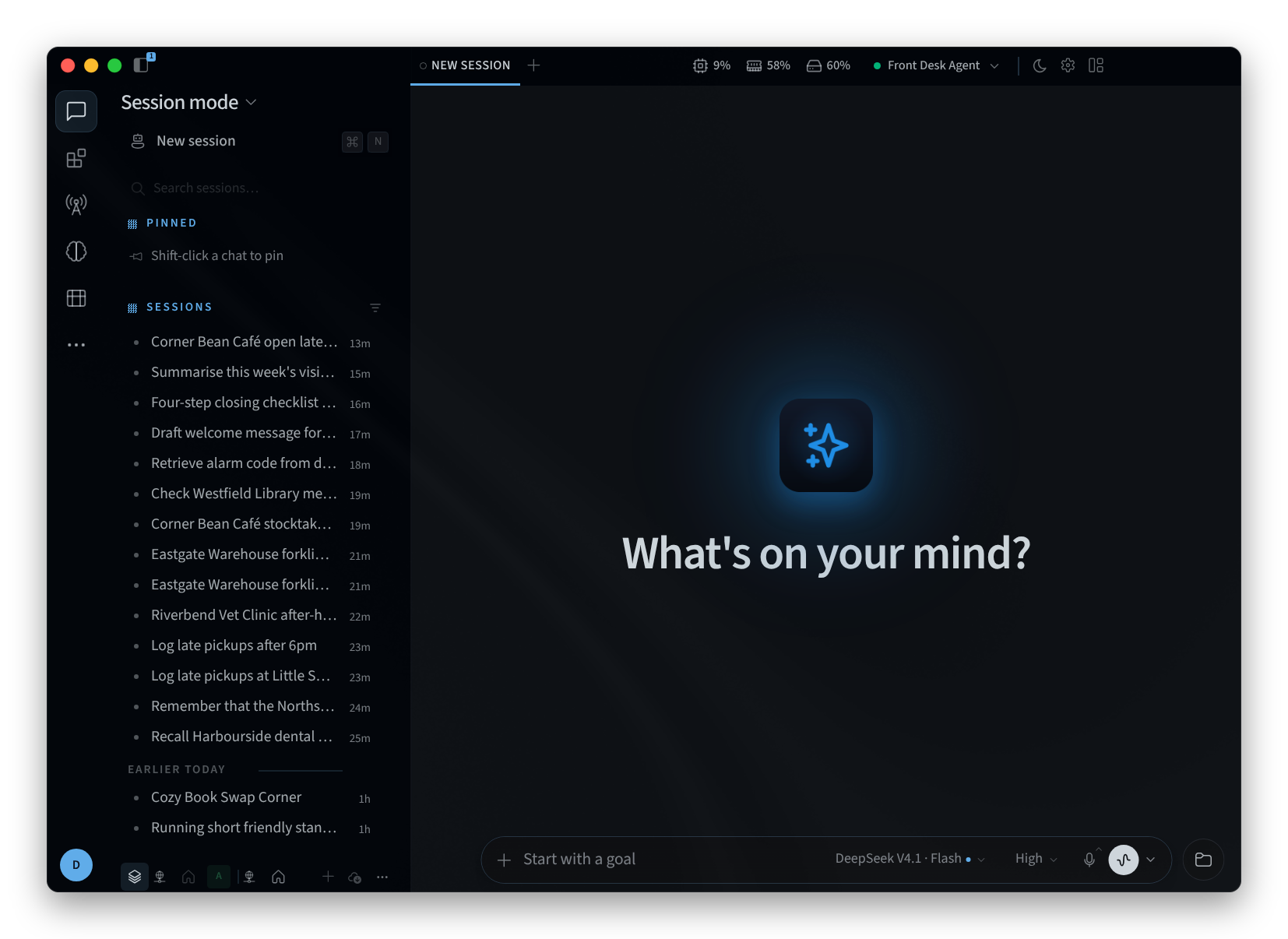
Figure 3: A new session
Your Agent's files
Show Agent's files opens the Agent's workspace folder on the right of the window. Use Browse folders to look around and Back to the workspace to return. Hide Agent's files closes it. The files are on the Agent, not on your computer. See Workspace, files & wiki.
Related pages
- Desktop app (Mac and Windows): install, sign in and choose an agent
- Install on Linux: the desktop app on Linux
- Session mode and Bot mode: the two ways the app opens
- Using your agent: managing conversations in Performance Hub
- The agent interface: the agent's chat in Performance Hub