
Choosing a model
On this page
To install Performance Hub Agent, see Desktop app (Mac and Windows) or Install on Linux.
Your Agent thinks with an AI model from Model Router. In Performance Hub Agent you can change the model for the chat you're in, from the composer, or set the main model that new sessions start with, in Settings.
Change the model for this chat
- In the composer, click the model picker, or press ⌘⇧M.
- Type in Search models to filter the list, for example by a model's name.
- Choose a model. The models are grouped under PERFORMANCE HUB.
The change applies to the chat you're in. To go back to the model set in Settings, choose Use Settings default. Refresh models and Edit models… are at the bottom of the list.
A filled tag such as FLASH or LATEST names the model's variant; an outlined tag such as HIGH shows how it's set, here the reasoning level (or FAST). Some models show extra tags.
To add a model to Favorites, star it.
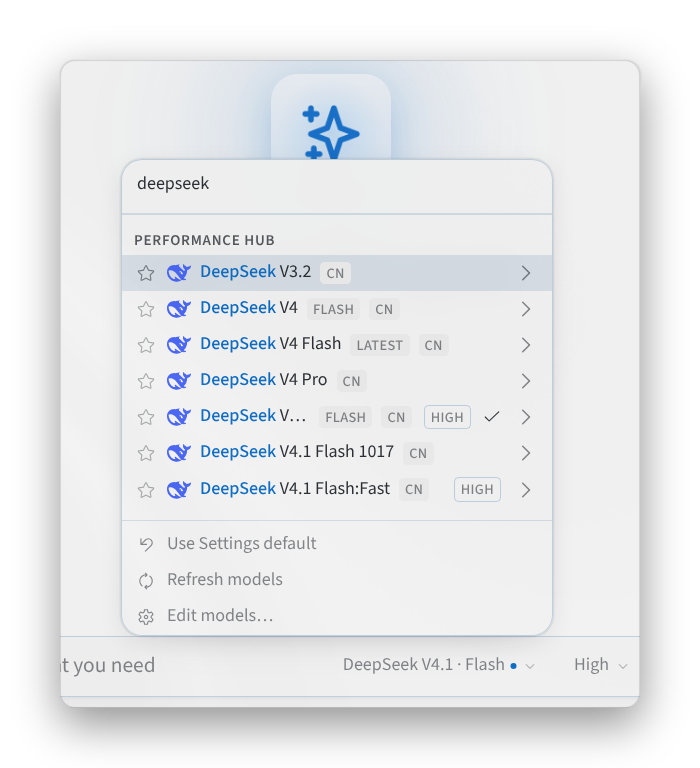
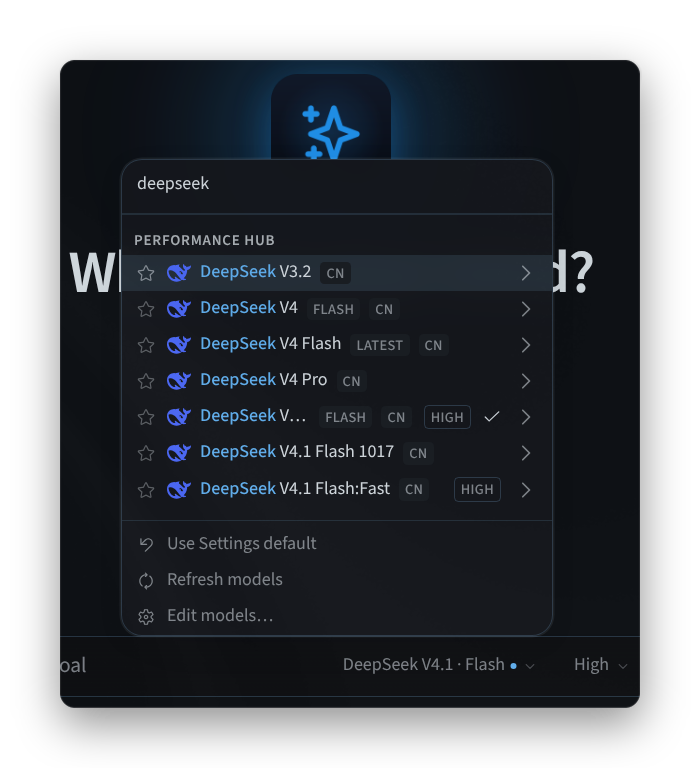
Figure 1: The model picker in the composer
Set the reasoning effort
Hover over a model in the picker to open its options:
- OPTIONS has a Thinking switch.
- EFFORT sets how hard the model thinks: Minimal, Low, Medium, High, Extra High, Max or Ultra.
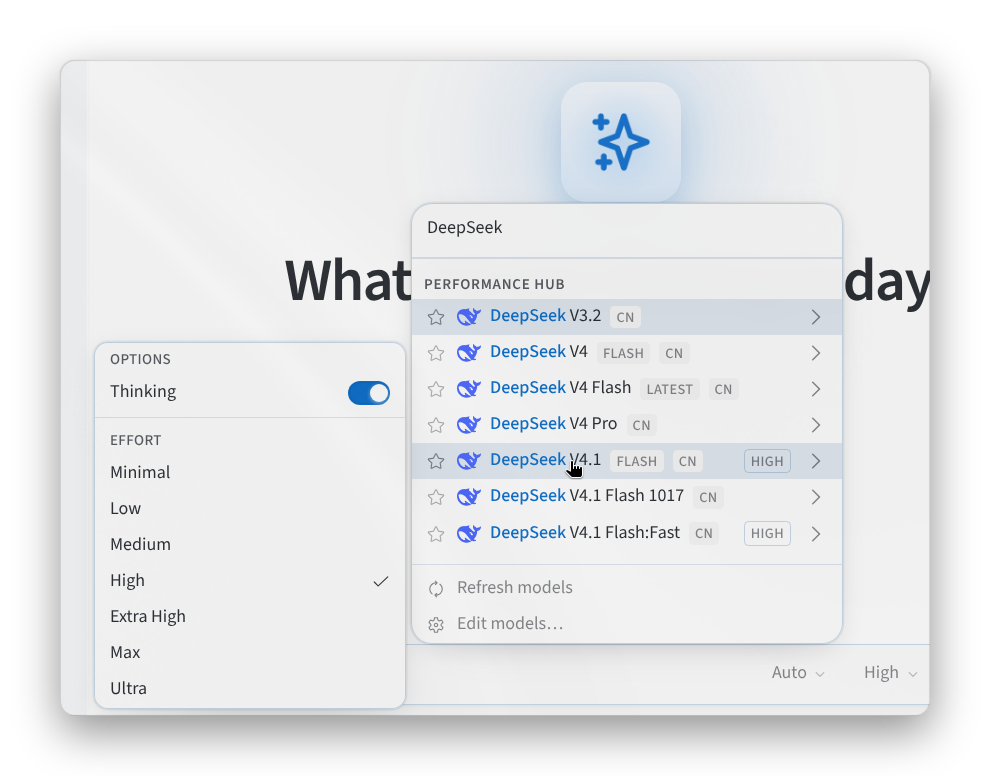
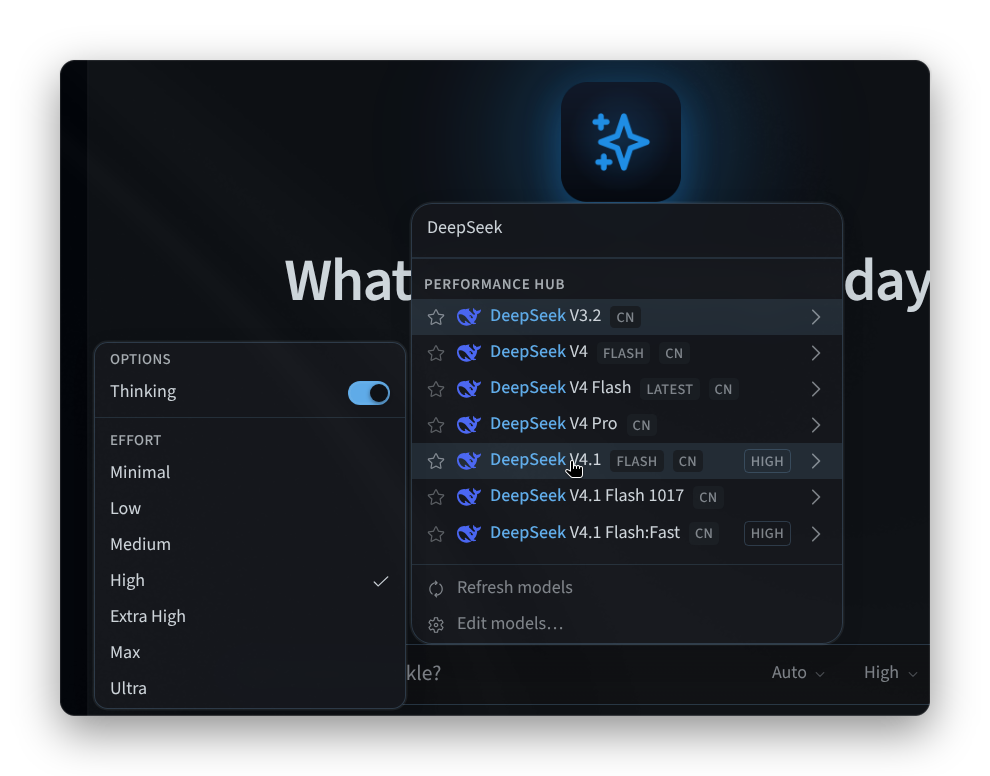
Figure 2: A model's options and effort levels
Set the main model for new sessions
- Open Settings > Model > Main model.
- Choose a Provider and a Model.
- Click Apply. Under Defaults, set Reasoning (and Speed, if the model has it); these save straight away as the defaults for new sessions.
As the page says, the main model "Applies to new sessions. Use the model picker in the composer to hot-swap the active chat."
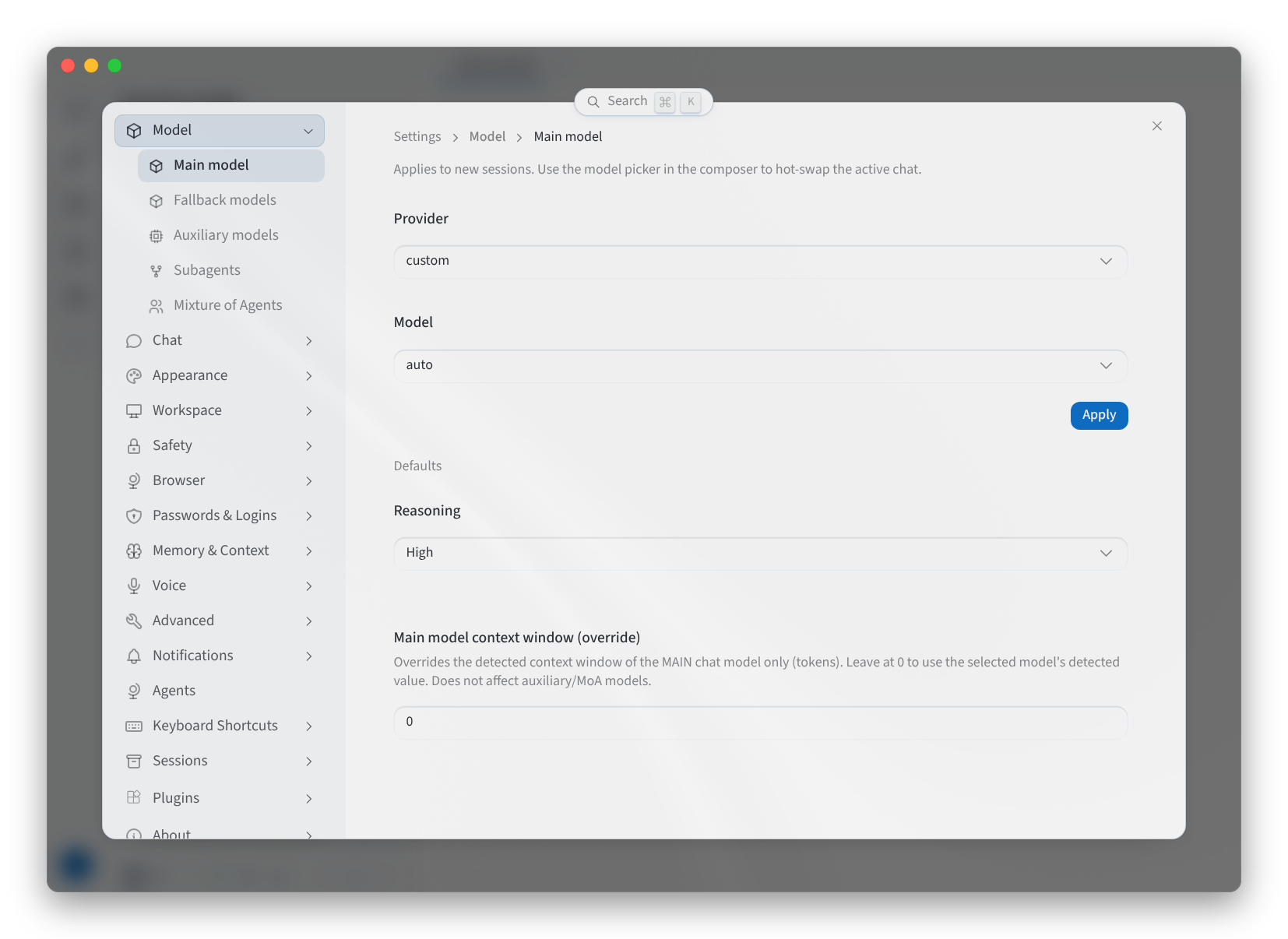
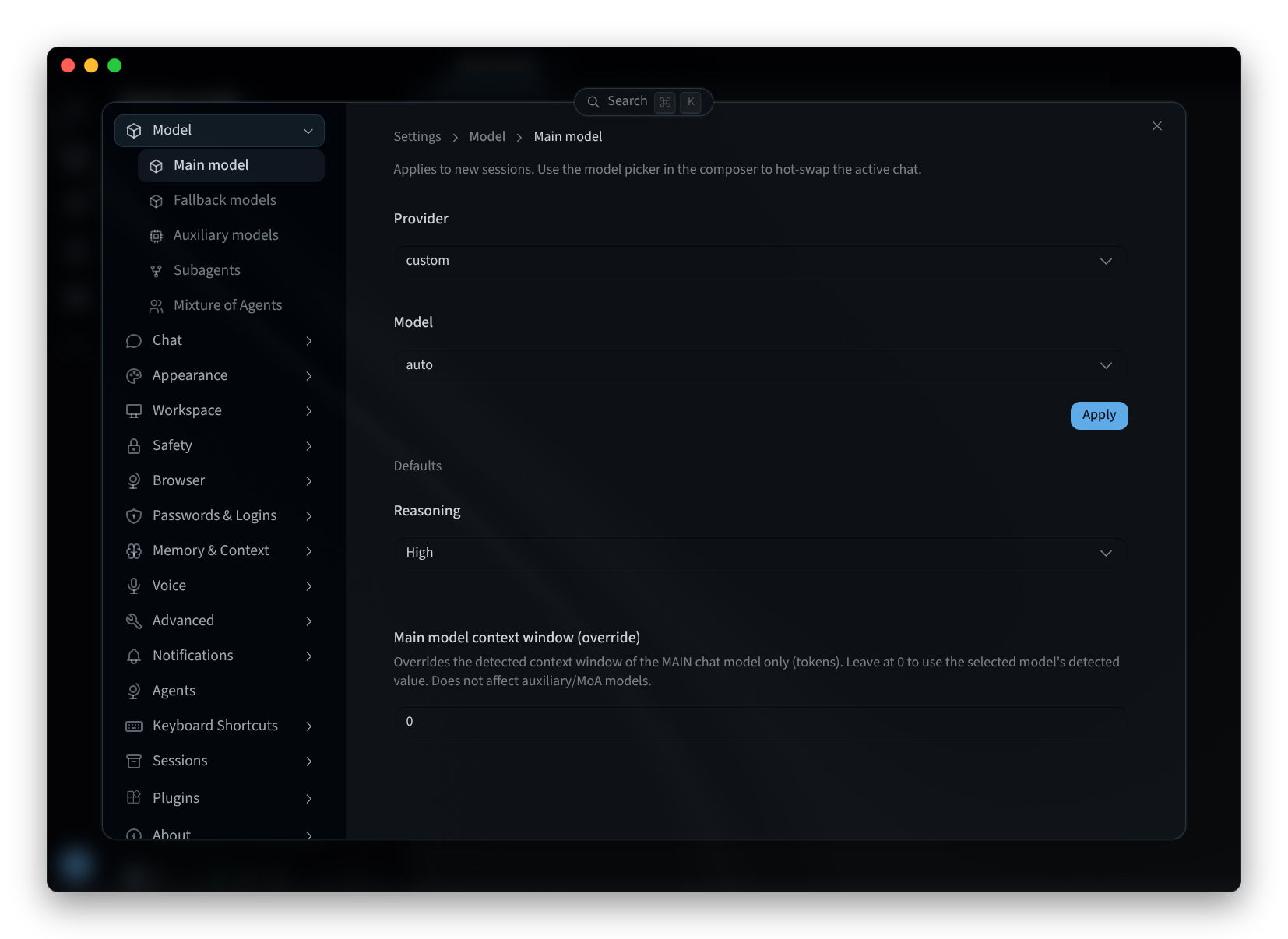
Figure 3: The main model for new sessions
Other model settings
The Model settings have four more pages:
| Page | What it does |
|---|---|
| Fallback models | Models to use if the main model fails. With none set, "No fallback models — the default model is used unless it fails." Click Add fallback to add one. |
| Auxiliary models | "Helper tasks run on the main model by default. Assign a dedicated model to any task to override." Use Change on a task to pick its model, Set to main to put it back, or Reset all to main. |
| Subagents | The model your Agent's subagents use: Inherit from main agent, or Custom model (use parent credentials) with a Subagent Provider and Subagent Model. "Changes stay local until applied." |
| Mixture of Agents | Named presets that appear as models under a Mixture of Agents provider in the picker. Each preset has reference models (Add reference model) and an Aggregator. Use Add preset to create one and Set default to make it the default. |
Related pages
- Desktop app (Mac and Windows): install, sign in and choose an agent
- Install on Linux: the desktop app on Linux
- Using your agent: which model is thinking, in Performance Hub
- Settings: the app's other settings