
Settings
On this page
To install Performance Hub Agent, see Desktop app (Mac and Windows) or Install on Linux.
Open Settings from the side menu. The settings are grouped in a list on the left, such as Model, Chat, Appearance, Workspace, Notifications, Agents and Keyboard Shortcuts, and the path at the top shows where you are, for example Settings > Appearance > Theme. To find a setting by name, use Search.
Settings marked "This is managed by Performance Hub." are locked in the app.
Window & layout
Open Settings > Appearance > Window & layout.
| Setting | Options | What it does |
|---|---|---|
| Interface mode | Simple, Advanced | "Changes what is shown, not what Agent can do." These pages describe Simple. |
| Session List Density | Compact, Comfortable, Detailed | "Choose how much context appears beneath session titles in the sidebar." |
| Tab Strip | Auto, Always, Never | "Show tabs above a zone. Auto hides them for a single pane unless another chat or tile zone is open." |
| App Actions | Right, Left | "Where Settings, Layout, and HUD sit in the titlebar. Right leaves room for tabs on the left." |
| Minimize to tray | On or off | Hides the windows in the system tray (the menu bar on a Mac) when you minimise them or close the main window, and keeps the Agent running. Quit from the tray menu. It's off by default and applies only to this computer. |
| Window Translucency | Clear, Glass | "See your desktop through the whole window, text and all. Tuned separately for light and dark." You can also adjust the tint and frost, and apply it to the whole window or the sidebar only. Not shown on Linux. |
| Chat Backdrop | On or off | "The faint statue image behind the conversation." |
| File Browser | On or off | "Show the file browser beside the chat when a workspace is open." In Simple mode: "Set by Simple mode. A change here lasts for this session; switch to Advanced to make it yours." |
| Floating Composer | On or off | "Allow dragging the composer out of its dock. When off, it stays docked at the bottom." |
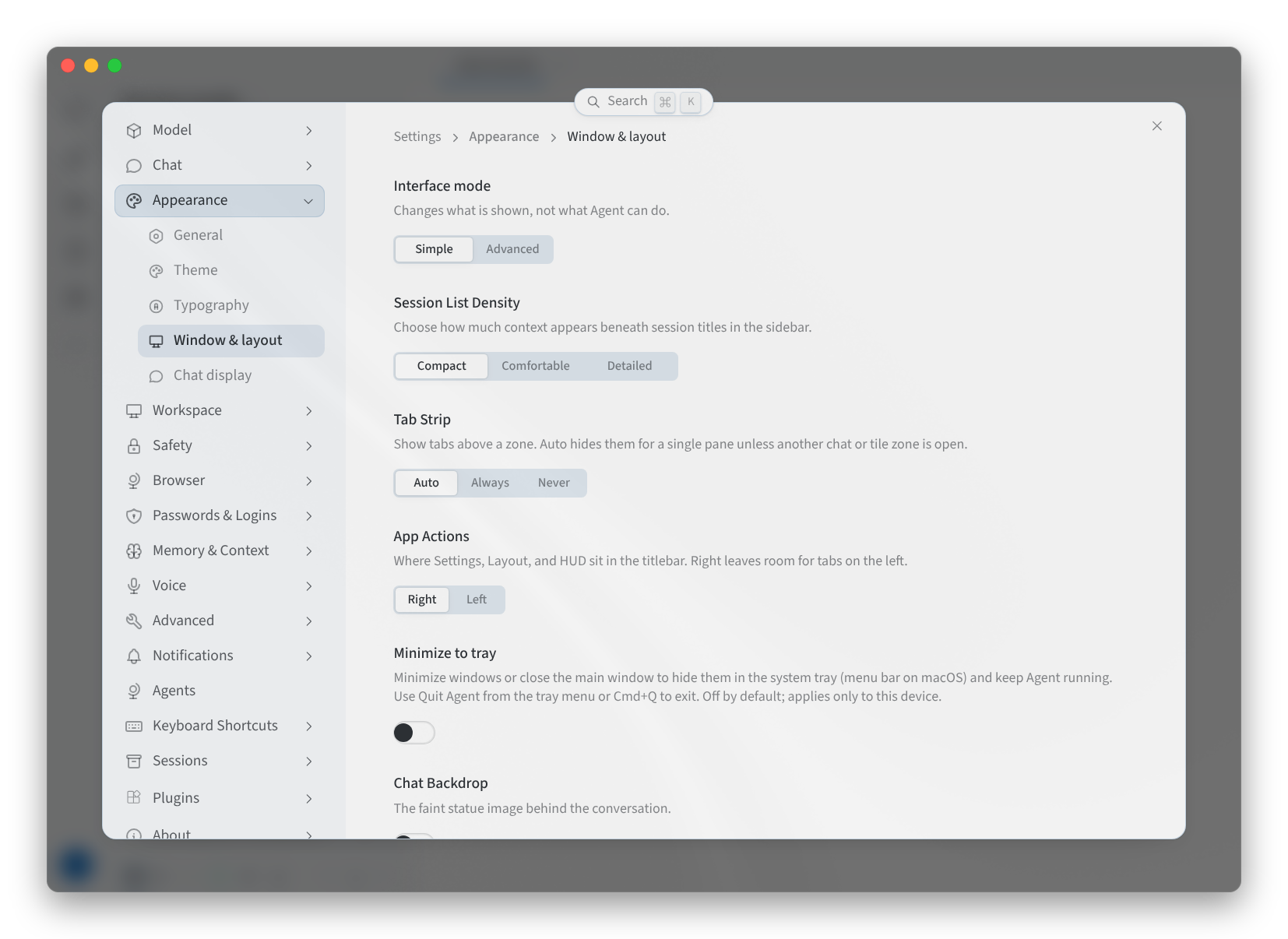
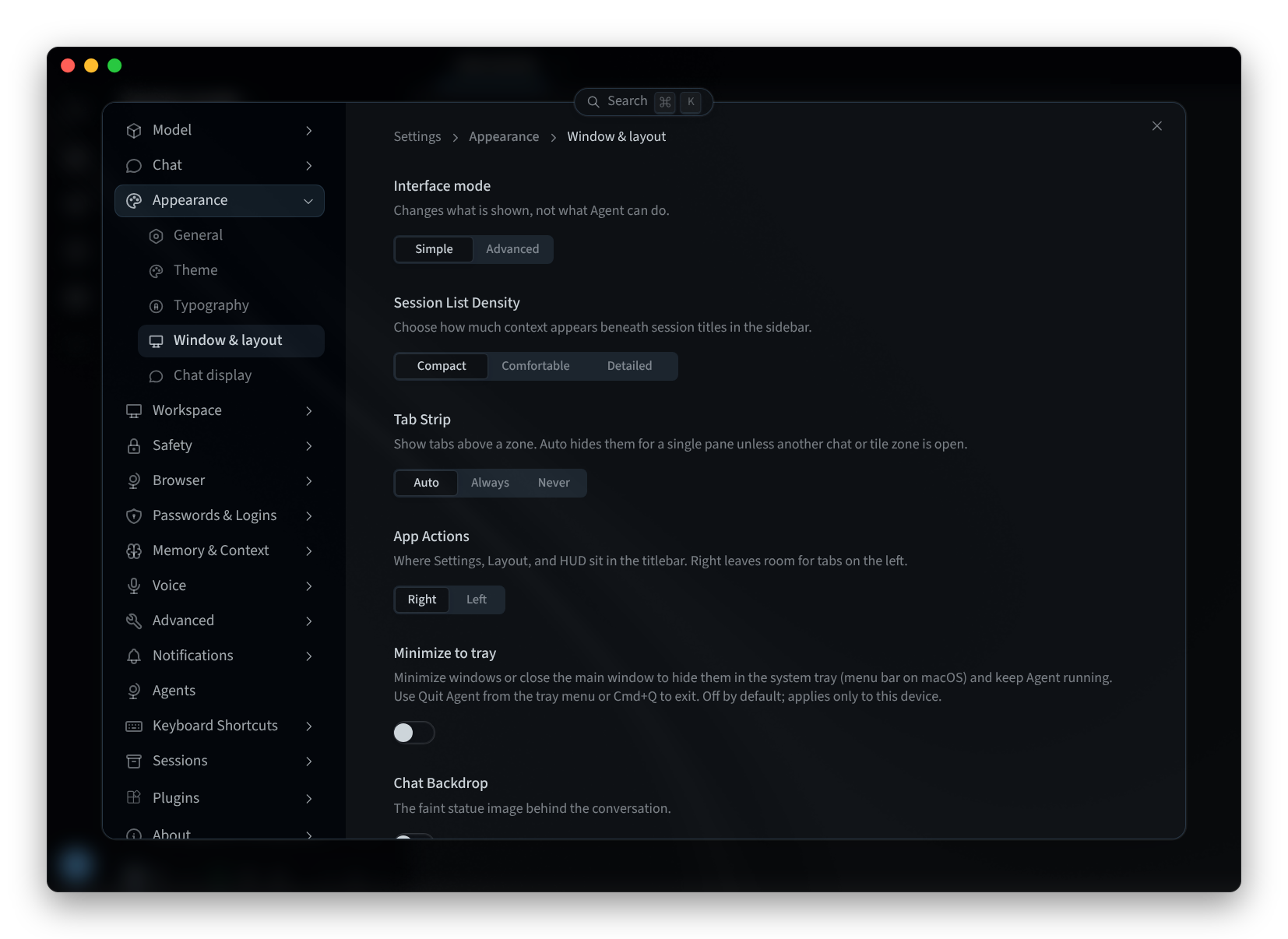
Figure 1: Window & layout
Theme
- Open Settings > Appearance > Theme.
- At the top, choose Light, Dark or System, which follows your computer.
- Pick a theme from the cards, for example Performance Hub ("GitHub chrome, Performance Hub blue accent") or GitHub ("GitHub Light Default and Dark Default"). The theme in use is highlighted. As the page says, these are "Desktop palettes only. The selected mode is applied on top."
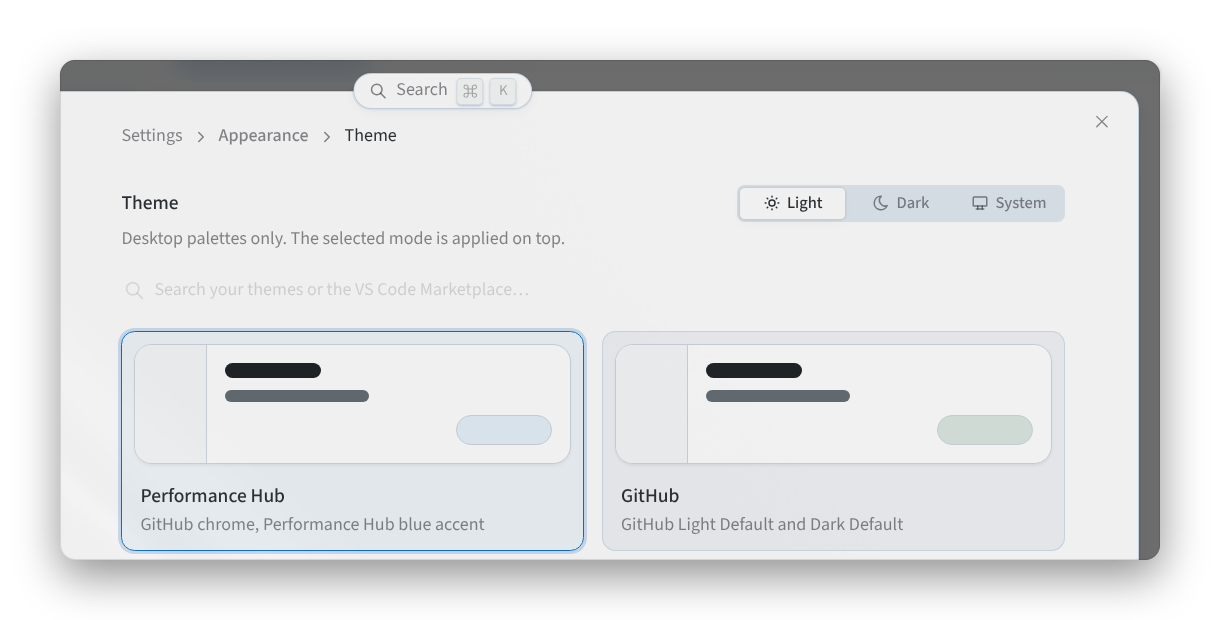
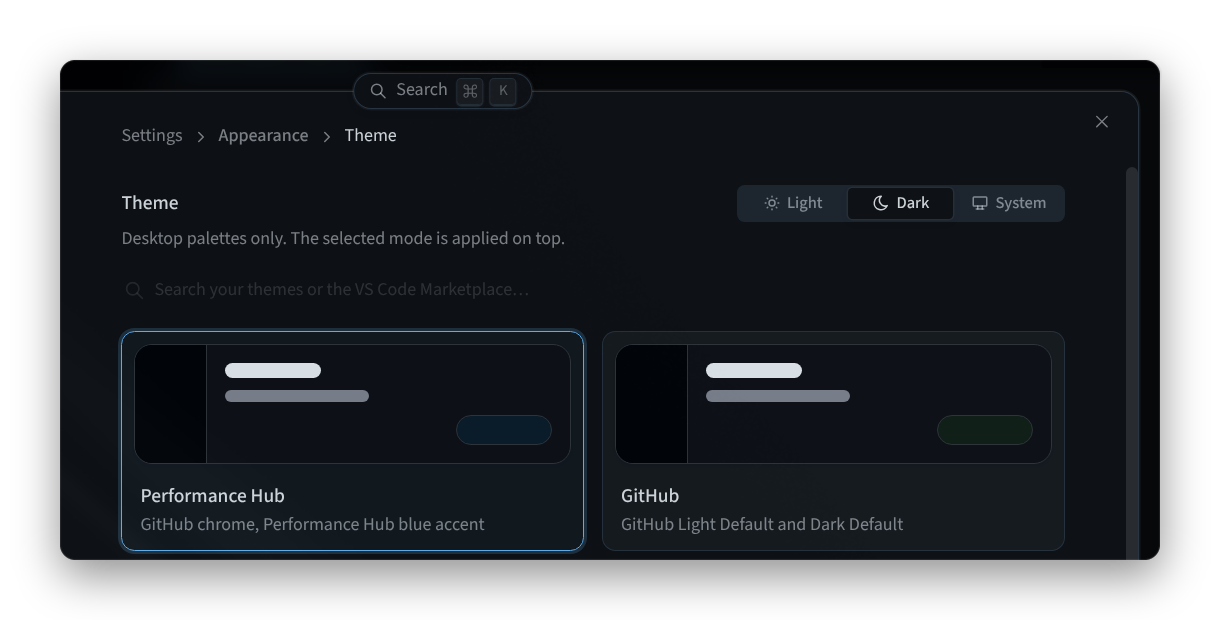
Figure 2: Choosing a mode and a theme
- Scroll down for more themes, for example Midnight, Ember or Slate.
To look for more themes, use "Search your themes or the VS Code Marketplace…". You can also switch between light and dark with the theme toggle in the title bar.
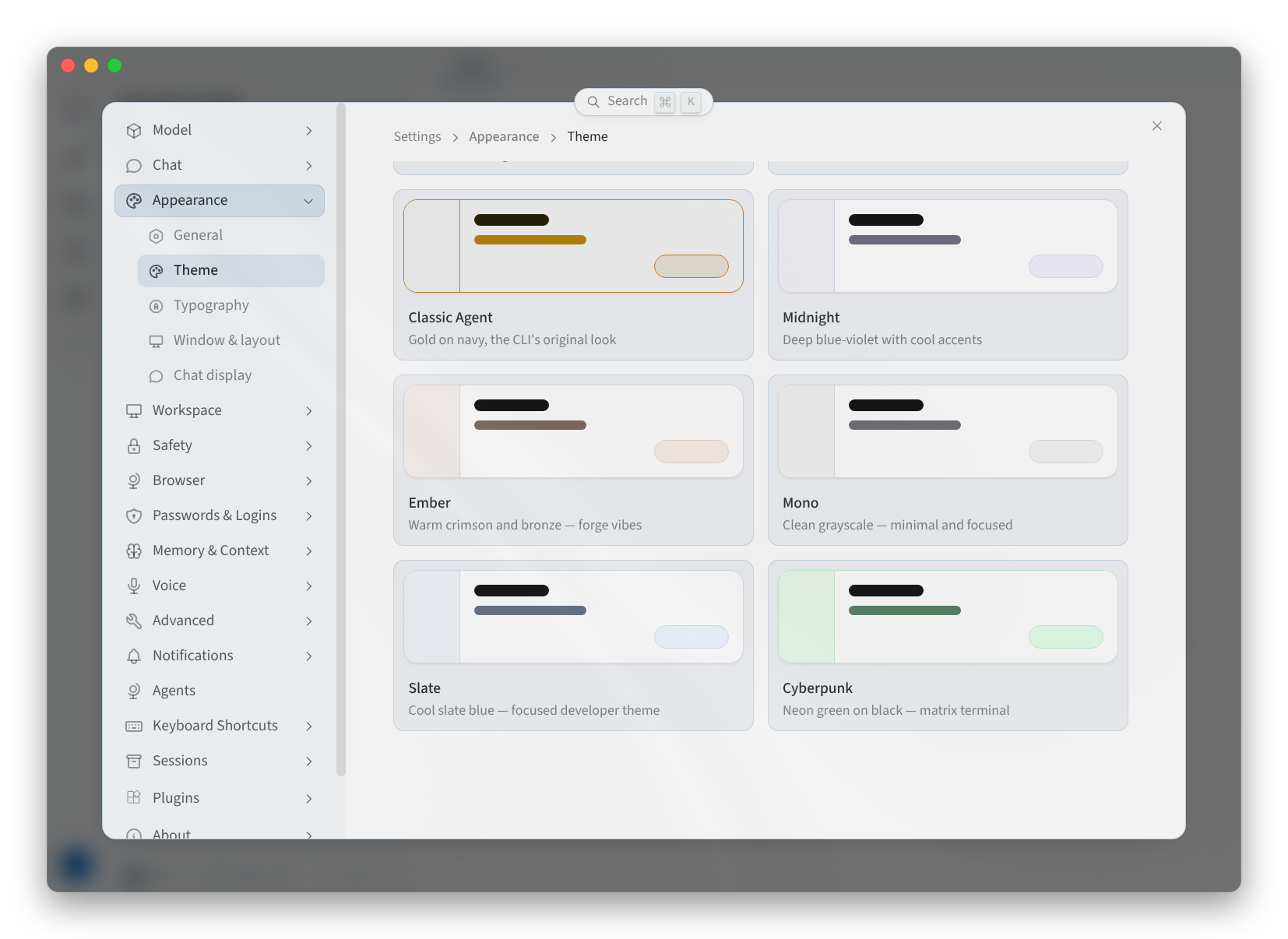
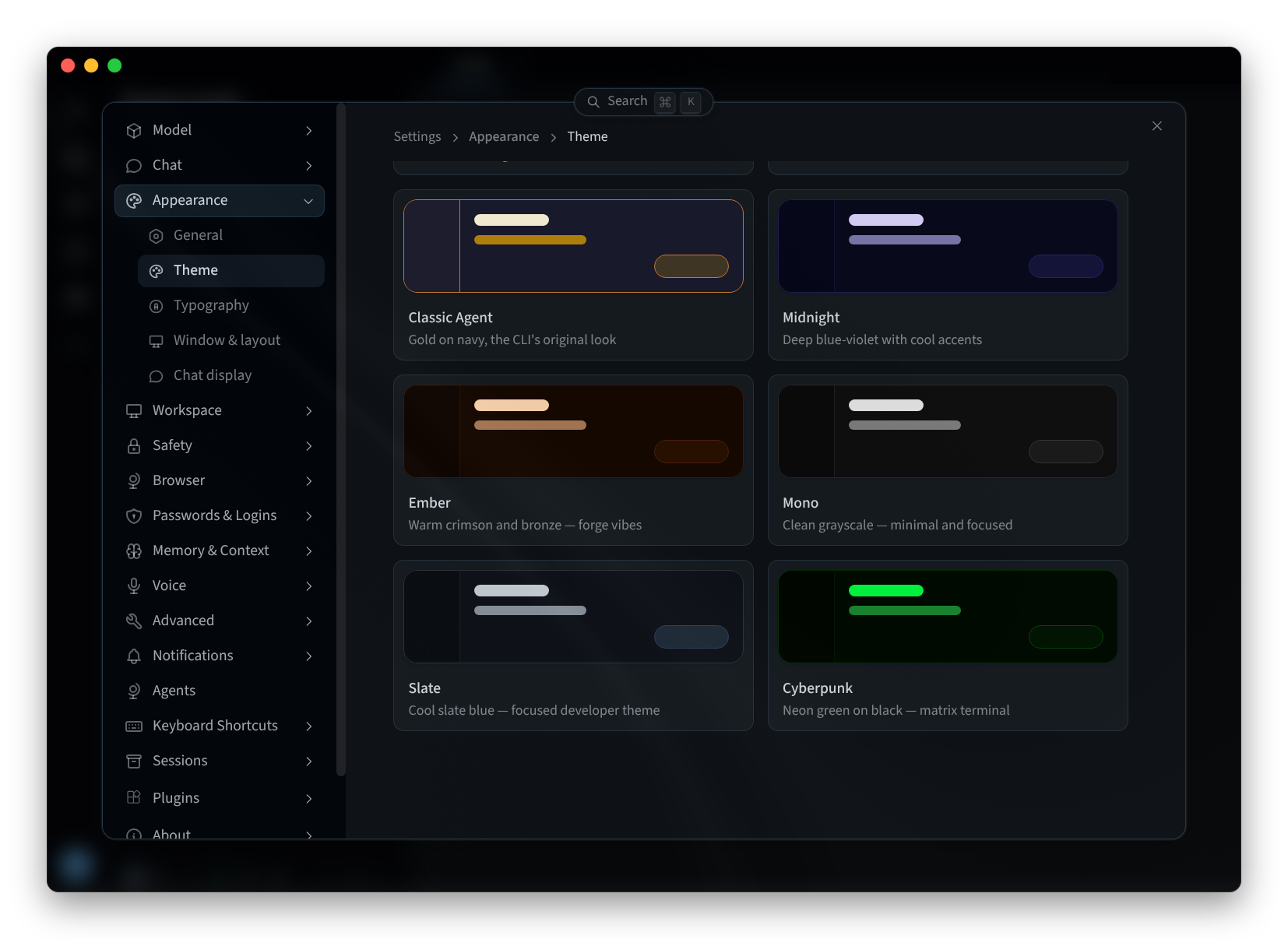
Figure 3: The theme gallery
Keyboard Shortcuts
Keyboard Shortcuts has three tabs: Key bindings, HUD gesture and Screen capture.
On Key bindings, the shortcuts are grouped by where they work: Composer, Profiles, Session, Navigation and View. The COMPOSER group, for example, includes Focus composer, Open model picker, Start / stop voice conversation, Send message, Insert newline, Steer the running turn and Queue message. Some of the defaults on a Mac:
| Shortcut | Default on a Mac |
|---|---|
| Start / stop voice conversation | ⌃B (Ctrl+Alt+V on Windows and Linux) |
| Open model picker | ⌘⇧M |
| Queue message | ⌘↵ |
| Send next queued turn | ⌘⇧K |
| Start / stop dictation | No key by default |
| Reasoning level up | No key by default |
| Reasoning level down | No key by default |
- To change a shortcut, click it: "Click a shortcut to rebind it · ⌘/ reopens this panel." Each shortcut also has Reset to default and Clear. If the keys you choose are already in use, the app tells you what they're "Also bound to".
- Search shortcuts… finds a shortcut by name.
- Reset all resets every shortcut.
The shortcuts in these pages are shown with the Mac keys. Windows and Linux use different keys for some shortcuts, and Keyboard Shortcuts shows the bindings on your computer.
On Linux, the HUD gesture needs an X11 session: "Linux requires X11; Wayland is not supported."
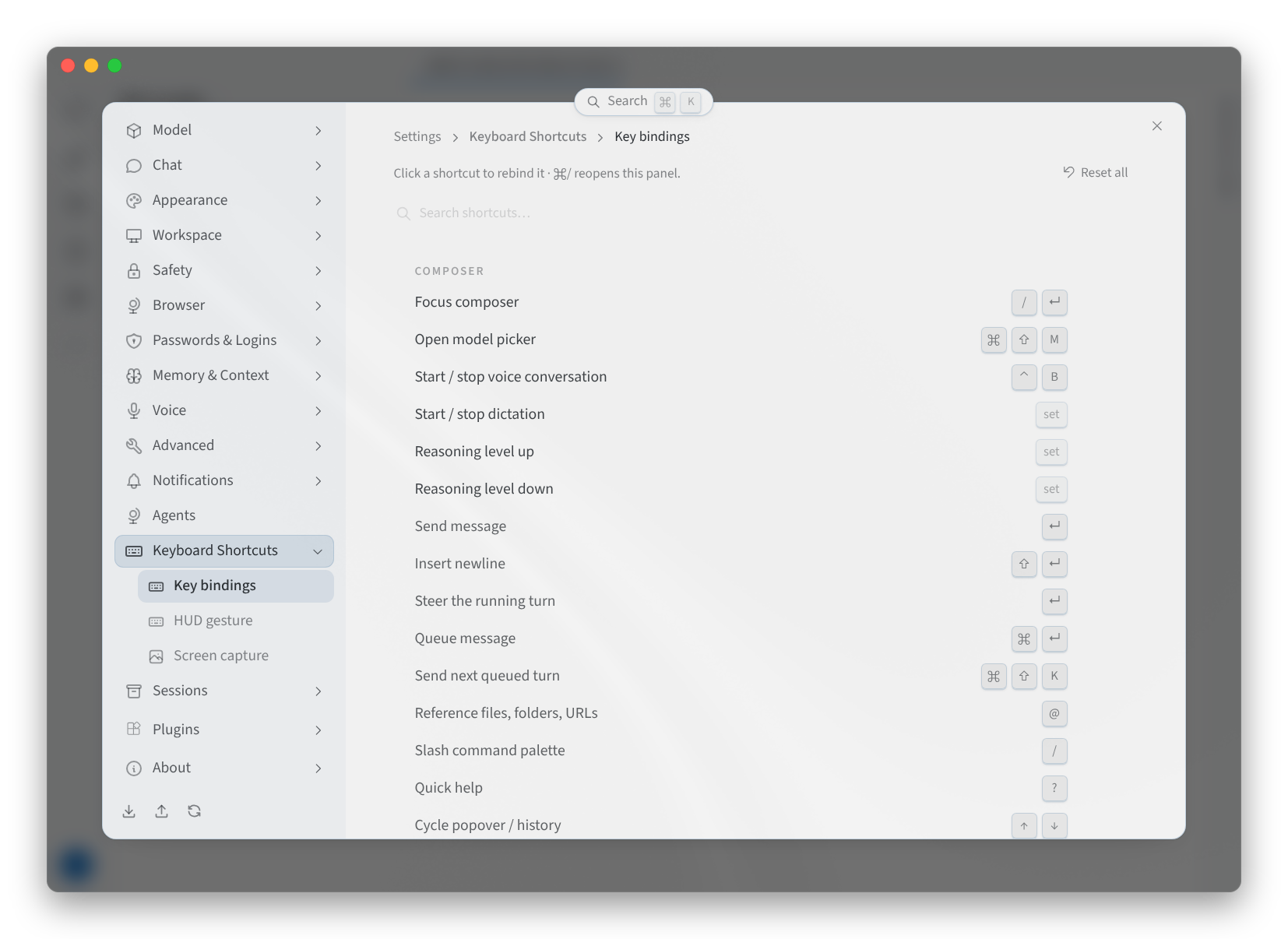
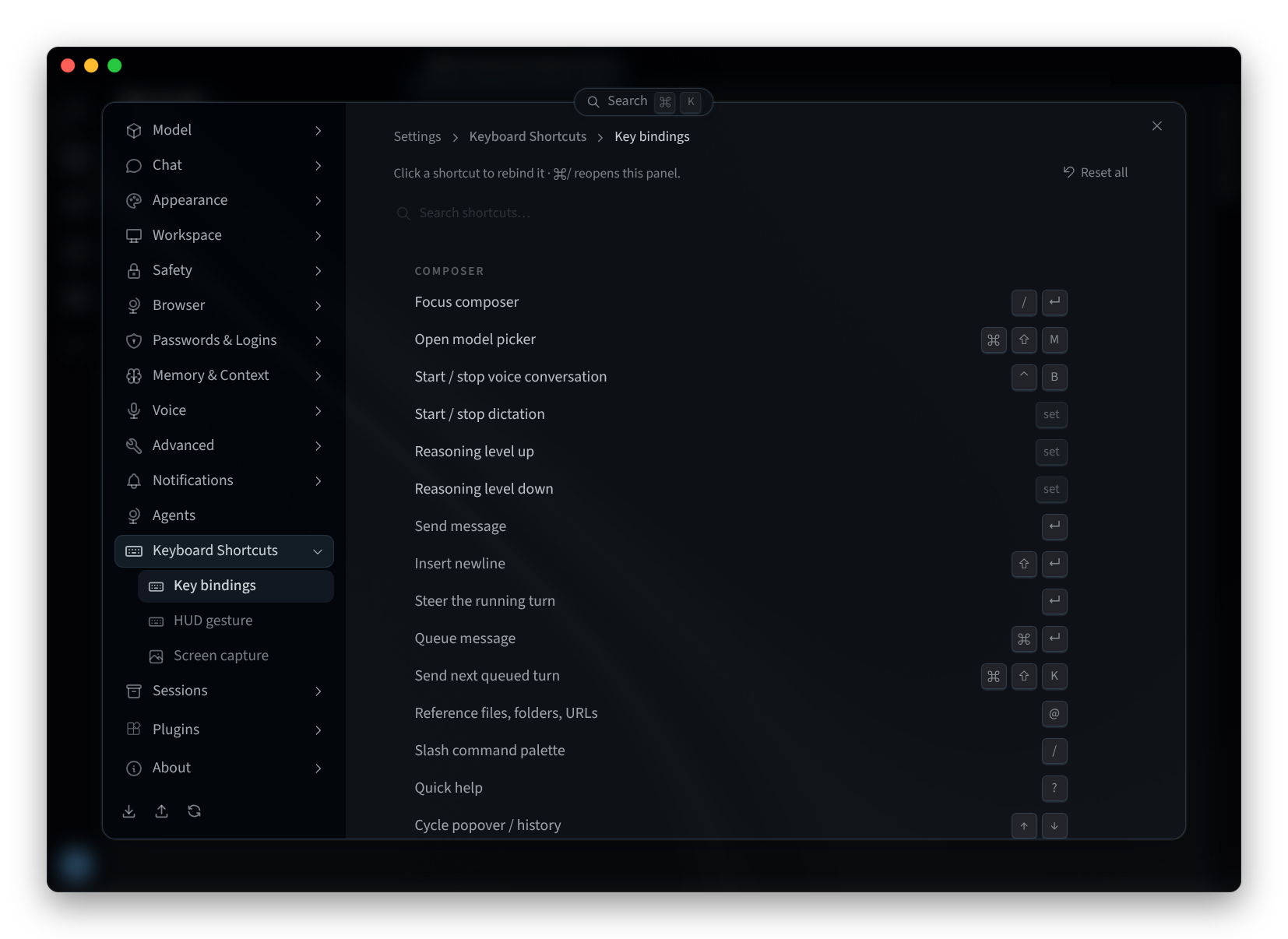
Figure 4: Keyboard shortcuts
Model
Settings > Model sets the main model for new sessions, with Fallback models, Auxiliary models, Subagents and Mixture of Agents. See Choosing a model.
Related pages
- Desktop app (Mac and Windows): install, sign in and choose an agent
- Install on Linux: the desktop app on Linux
- The agent interface: the agent's settings in Performance Hub
- Choosing a model: the model picker and the main model