
The Agent Interface
On this page
Below the agent switcher and metrics bar, the rest of the AI Agent module is the agent's own interface: chat, tasks, skills, memory, workspaces and the apps the agent is running, all in one place. This page is a tour of the screen. For the day-to-day mechanics of a conversation, see Using your agent.


Figure 1: The agent's interface — tabs along the top, conversations on the left, the composer at the bottom
The screen at a glance
| Area | Where | What it's for |
|---|---|---|
| Top bar | Across the top | A row of tabs (hover over an icon to see its name), any Live Services tabs, and the Settings cog at the right |
| Sidebar | Left | The list for the current tab: conversations on Chat, scheduled jobs on Tasks, skills on Skills, and so on |
| Main area | Centre | The open conversation, or the item you picked in the sidebar |
| Composer | Bottom | Where you write. The paperclip attaches files, the microphone dictates, the workspace chip (for example Home) picks the workspace, and the model chip (auto by default) picks the model. For models that support it, a reasoning chip (Reasoning effort level) sets how much the model thinks before it answers |
| Workspace panel | Right | The files in the current workspace. Open and close it with the arrow at the right edge of the screen |
The expand control at the top right gives the agent's interface the full screen. Click it again to return to the module.
The tabs in the top bar:
| Tab | What it shows |
|---|---|
| Chat | Your conversations with the agent |
| Tasks | The agent's scheduled jobs: see Automations |
| Skills | The skills on this agent: see Skills |
| Memory | What the agent remembers: see Memory |
| Spaces | The agent's workspaces: see Workspace, files & wiki |
| Todos | The agent's checklist for the conversation you have open |
| Insights | Token and skill usage over time |
Chat
Chat is where most work happens. The sidebar lists your conversations under date headings such as Today and Yesterday, with Filter conversations... at the top to find one by its title or by what was said in it. Click + to start a new conversation.
Everything about running a conversation (renaming, pinning, projects, attachments, approvals and reading a response) is on Using your agent.
Tasks
Tasks lists the agent's Scheduled jobs: the briefings, reports and checks it runs on its own. You can create and manage them here, or simply ask in a conversation. See The Tasks tab.
Skills
Skills lists the skills on this agent by category, so you can read, edit or add one. See The Skills tab. To share skills with other sites, use the Skill Library.
Memory
Memory shows what the agent knows: its notes, what it knows about you, and its Long-term memory (the Relations, Activity and Memories views). See Looking inside its memory.
Spaces
Spaces lists the agent's workspaces, the folders it works in. Switch the workspace for a conversation from the workspace chip in the composer. See Spaces.
Todos and the task list
When the agent works through a job with several steps (say, reconciling a supplier invoice, checking room bookings for the week, then drafting an email to the café manager), it keeps a checklist and ticks items off as it goes. Todos shows the Current task list for the conversation you have open, so you can see how far it has got. A conversation without a checklist shows "No active task list in this session."
To see the checklist next to the conversation, turn on Show Todos tab in workspace panel in Settings on the Appearance tab. A Todos tab then appears in the workspace panel.
Insights
Insights shows how the agent is being used: the tokens it uses, the skills it relies on and when it's busiest. Choose the period at the top: 7 days, 30 days, 90 days or 365 days. The Sessions, Messages and Tokens cards give the totals for that period.
Daily Tokens charts the Input and Output tokens for each day, and Token Breakdown gives the Input, Output and Total tokens for the period.


Figure 2: Daily Tokens on the Insights tab
Skill Usage shows the Total invocations and how many skills were used (Skills used), then a table with each skill's Skill, Uses, Views, Patches and Usage %. It shows at a glance which skills do most of the work, whether that's a room booking report for an office, a stock reorder for a shop or appointment reminders for a clinic.


Figure 3: Skill Usage on the Insights tab
Activity by Day and Activity by Hour show when the agent is used most, with a Peak marker on the busiest day and hour.
Insights counts tokens and activity. Billed AI spend is in Budgets & limits, along with the caps on the agent, and in Model Router.
Live Services tabs
When the agent starts a web app, such as a lobby welcome screen, a stock lookup for a shop floor or a menu board for a café, a tab for it appears in the top bar, next to the other tabs. Click it to open the app full screen, or dock it beside the chat to check it while you talk to the agent about changes. See Live Services tabs.
Settings
Click the Settings cog at the right of the top bar. Most of the settings below are about how you work with the agent and how it looks. Command approvals, Conversation compacting and Agent personality are the exceptions: they're saved on the agent itself, so they apply to everyone who uses it.
Conversation tab
Actions for the conversation you have open:
- Transcript downloads it as a Markdown file, handy for a handover note or a record of a decision.
- JSON exports the full conversation.
- Import brings a conversation you exported back in, for example to move it to another of your agents.
Preferences tab
| Setting | What it does |
|---|---|
| Send Key | Which key sends a message: Enter (Shift+Enter for newline), Ctrl+Enter (Enter for newline) or Shift+Enter (Enter for newline) |
| Language | The language of the agent's interface |
| Notification sound | "Play a sound when the assistant finishes a response." Pick the chime (Pulse by default). Only you hear it |
| Show token usage after responses | Shows the token count below each reply. You can also type /usage |
| Command approvals | When the agent asks before running a command. See Approvals |
| Conversation compacting | When a long conversation is compacted, chosen from presets. See Long conversations and compacting |
| Agent personality | How the agent should talk and behave, with presets to start from. See Personality |


Figure 4: The Agent personality setting on the Preferences tab
Appearance
The agent's interface follows Performance Hub: switch Performance Hub between light and dark and the agent switches with it. It uses the Performance Hub skin by default, so it looks like the rest of the module. To try a different look, choose another skin under Skin in Settings on the Appearance tab.
Slash commands
Type / in the composer to see the commands available, then use the arrow keys and Enter to pick one. Your skills appear in the list too: type part of a skill's name to run it directly. Anything after / that isn't a command goes to the agent as an ordinary message.


Figure 5: The slash command list
| Command | What it does |
|---|---|
/help | Lists the commands |
/new | Starts a new conversation |
/clear | Clears the messages in this conversation |
/compress [topic] | Compacts the conversation now, optionally keeping a topic in focus. /compact does the same. See Long conversations and compacting |
/model | Switches the model for this conversation, from the models your organisation allows |
/workspace | Switches to another workspace by name |
/usage | Shows or hides the token count below each reply |
/theme | Changes the skin. Light and dark follow Performance Hub |
On a phone or tablet
The agent's interface works in a phone or tablet browser too, which suits a quick check from the shop floor, a ward round or the front desk of a hotel.
- On a narrow screen the tabs sit at the top of the sidebar, and the sidebar slides in over the chat. Pick a conversation and it slides away again.
- The workspace panel slides in from the right edge.
- On a touch screen, Enter adds a new line. Tap the send button to send.
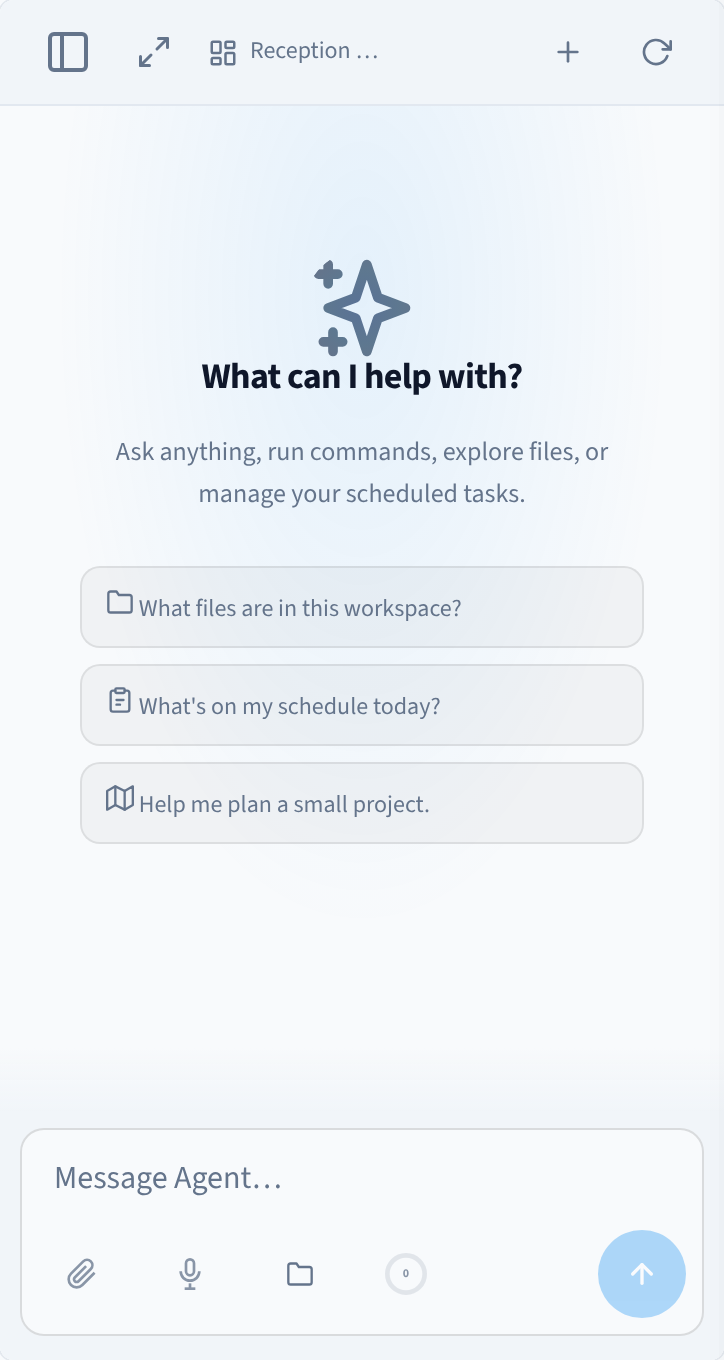
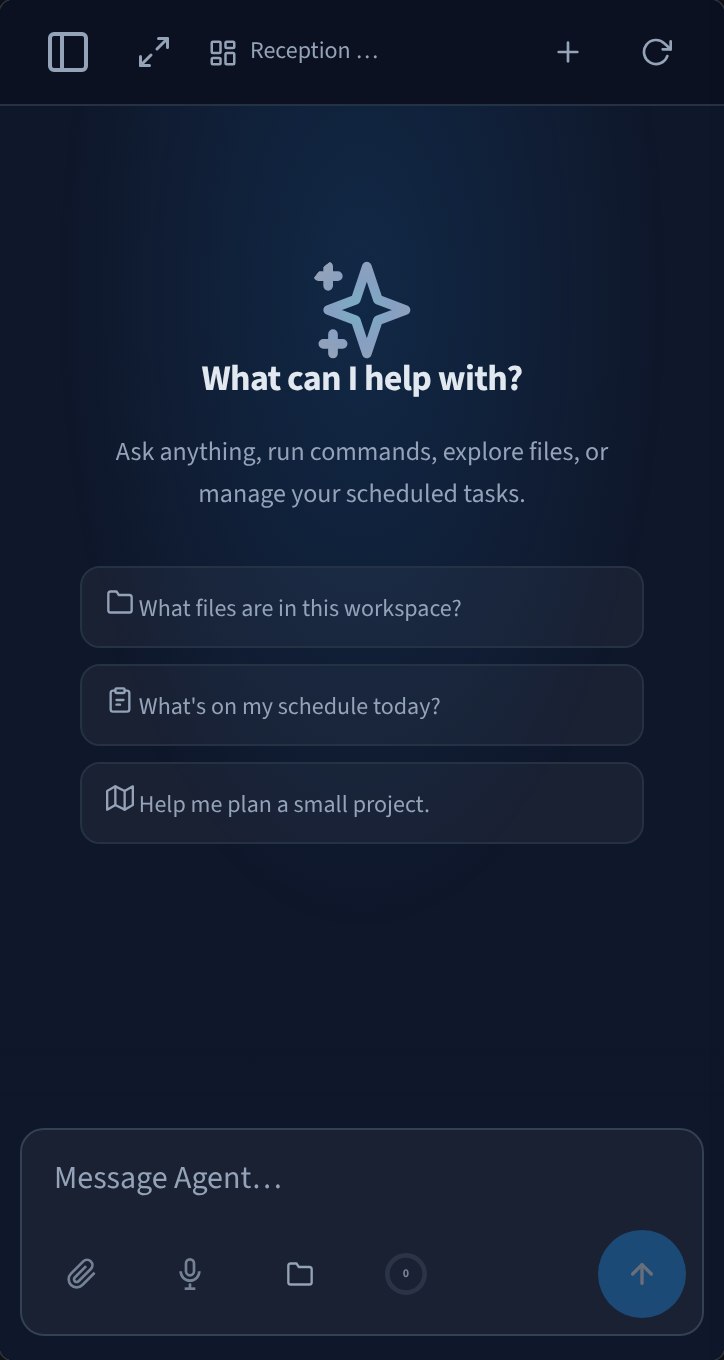
Figure 6: The agent on a phone
Managed for you


Figure 7: The agent's interface, embedded in the AI Agent module
Performance Hub runs the agent's interface for you. Software updates, sign-in and the server it runs on are handled for you and managed from the AI Agent module, so the settings here are only the ones that are yours to choose: how you work, how it looks and how the agent behaves. You sign in to Performance Hub once, and that is who the agent sees in every conversation.
Related pages
- Using your agent — conversations, attachments, models and approvals
- Automations — scheduled tasks and the Tasks tab
- Skills — the Skills tab and the Skill Library
- Memory — what the agent remembers
- Workspace, files & wiki — spaces and the files panel
- Agent capabilities — what the agent can do, including Live Services tabs