
Install on Linux
On this page
Performance Hub Agent, the AI Agent desktop app, is available for Linux as a .deb package for Debian and Ubuntu and an .rpm package for Fedora, RHEL and openSUSE. It's the same app as on a Mac or Windows PC. This page covers installing it on Linux. For using the app once you've signed in, see Desktop app (Mac and Windows).
Download
Both packages are for 64-bit x86 (x64) computers, and the links always give you the latest version. The packages aren't signed.
Requirements
| Requirement | |
|---|---|
| Linux | Tested on Ubuntu 24.04, Debian 13 and Fedora 42. Also expected to work on Ubuntu 22.04 and later, Debian 12 and later, Fedora 39 and later, RHEL, Rocky Linux and AlmaLinux 9 and later, and openSUSE Leap 15.5 and later or Tumbleweed. |
| Processor | 64-bit x86 (x64) only. There is no package for Arm-based computers. |
| Desktop | A graphical desktop session (X11 or Wayland). The app doesn't run without a display. |
| Disk space | About 339 MiB once installed. |
| Keyring | A keyring, such as GNOME Keyring or KWallet, keeps you signed in between launches. Without one, you sign in each time you open the app. |
| Tray icon | On some desktops, the tray icon needs AppIndicator support. |
| Account and network | The same as for the Mac and Windows apps. See System requirements. |
Install
Download the package for your distribution, open a terminal in the folder you saved it to, and run the command below. The package name is performance-hub-agent.
Debian and Ubuntu
sudo apt install ./PerformanceHubAgent-linux-x64.deb
To download the package from the terminal instead:
wget https://agent-desktop.performancehub.co/prod/downloads/PerformanceHubAgent-linux-x64.deb
Fedora, RHEL, Rocky Linux and AlmaLinux
sudo dnf install ./PerformanceHubAgent-linux-x64.rpm
openSUSE
The package isn't signed, so zypper needs the --allow-unsigned-rpm option:
sudo zypper install --allow-unsigned-rpm ./PerformanceHubAgent-linux-x64.rpm
What the install sets up
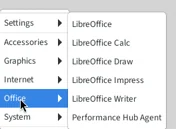
- Performance Hub Agent in your applications menu, under Office.
- The
performance-hub-agentcommand. - A link handler, so your browser can hand you back to the app after you sign in.
- On systems with AppArmor enabled, such as Ubuntu 24.04, an AppArmor profile that lets the app's built-in sandbox run.
Open the app
Open Applications > Office > Performance Hub Agent, or run performance-hub-agent in a terminal. If the app is already open, opening it again takes you to the open window.
Sign in
Sign-in happens in your default browser, and the browser then hands you back to the app.
-
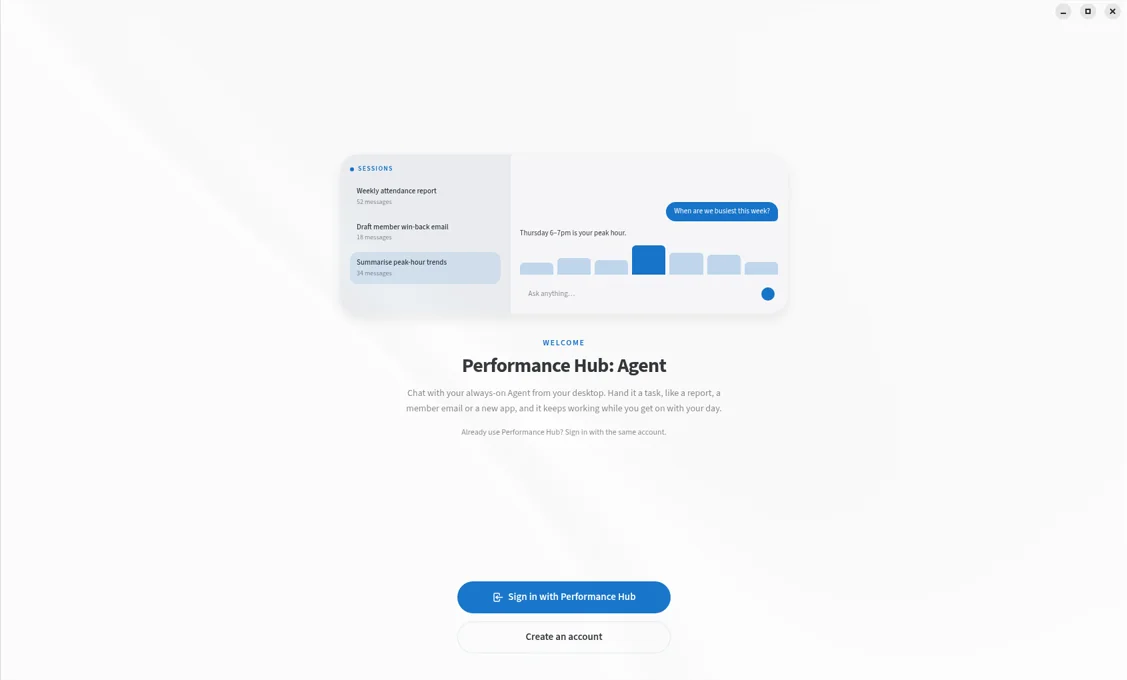
When you're signed out, the app shows a welcome screen. Click Sign in with Performance Hub. No Performance Hub account yet? Create an account opens the Performance Hub sign-up page.
-
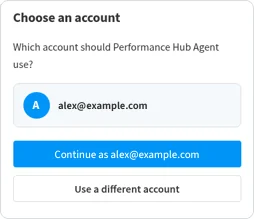
Your browser opens Performance Hub. If you aren't signed in to Performance Hub in that browser, sign in as you normally do. If you are, the browser shows Choose an account: "Which account should Performance Hub Agent use?" Choose the account to use.
-
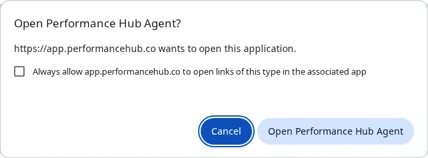
The browser asks Open Performance Hub Agent? Click Open Performance Hub Agent.
-
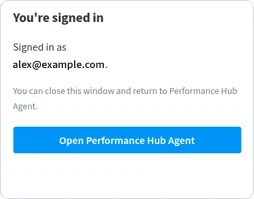
The browser shows You're signed in. You can close the browser window and return to the app.
Finish signing in within 10 minutes of clicking Sign in with Performance Hub, or start again from the app.
The app stores your sign-in encrypted in your desktop's keyring (GNOME Keyring or KWallet), so you stay signed in between launches.
Choose an agent
Back in the app, Choose an Agent lists the Agents your account can use, grouped by location. Click Connect on the one you want. See Choose an agent.
First-run setup
The first time you connect, four short screens set the app up. You can change everything later in Settings.
- How much do you want to see? Choose Simple or Advanced.
- Where should the app open? Choose Bot mode (recommended) or Session mode.
- Pick a look: Light, Dark or System.
- You're all set. Click Start.
From here the app works as it does on a Mac or Windows PC. See Getting around.
Update and uninstall
Update
The Linux app doesn't update itself, and installing it doesn't add a package repository, so your system's software updates don't update it either. About > Version & updates says "This build doesn't update itself. Install the new version from Performance Hub over this one."
To update, download the package again from Download and install it with the same command you used to install it. The new version replaces the installed one.
To check which version you have:
dpkg -s performance-hub-agent | grep Version   # Debian and Ubuntu
rpm -q performance-hub-agent                   # Fedora, RHEL and openSUSE
Uninstall
Uninstalling the app doesn't affect your agent: your chats and files stay on the agent.
sudo apt remove performance-hub-agent      # Debian and Ubuntu
sudo dnf remove performance-hub-agent      # Fedora, RHEL, Rocky Linux and AlmaLinux
sudo zypper remove performance-hub-agent   # openSUSE
Your settings and sign-in stay behind in ~/.config/PerformanceHubAgent. To remove them too, delete that folder:
rm -rf ~/.config/PerformanceHubAgent
Troubleshooting
The app doesn't open
The app needs a graphical desktop session. Started without one, for example from a terminal with no display, it exits with "Missing X server or $DISPLAY". Open it from your desktop's applications menu, or from a terminal inside your desktop session.
The window doesn't display properly on Wayland or X11
On a Wayland session the app runs as a Wayland app, or as an X11 app when the NVIDIA proprietary driver is in use. To choose for yourself, start it from a terminal with:
performance-hub-agent --ozone-platform=x11
or --ozone-platform=wayland.
The window is blank or graphics fail
If the graphics driver fails to start, the app switches to software rendering by itself and keeps using it on later launches. There's nothing to set.
There's no tray icon
The tray icon needs AppIndicator (StatusNotifier) support, which some desktops don't have by default. On GNOME, for example, you may need an AppIndicator extension. On Debian and Ubuntu, the .deb package recommends libappindicator3-1, which isn't available on Debian 13 and may not be on other newer releases.
You're asked to unlock a keyring, or you're signed out each time
The app keeps your sign-in in your desktop's keyring, so your desktop may ask you to unlock the keyring, or to create one, when you sign in. Allow it to stay signed in.
If you're signed out every time you open the app, there's no keyring running, which can happen on minimal window managers. Install or start GNOME Keyring or KWallet, then sign in again.
The browser doesn't hand you back to the app
-
When the browser asks Open Performance Hub Agent?, click Open Performance Hub Agent.
-
Finish within 10 minutes of clicking Sign in with Performance Hub in the app. The app only accepts a sign-in it started, so start again from the app rather than from an old browser tab.
-
Check that the app's link handler is registered. This command should print
co.performancehub.agent.desktop:xdg-mime query default x-scheme-handler/phagent
D-Bus messages in the terminal
When you run the app from a terminal, it may print errors that mention D-Bus and system_bus_socket. They're harmless, and the app keeps running.
Related pages
- Desktop app (Mac and Windows): using the app, settings and updates
- AI Agent apps: what the apps do and who can use them
- Apps troubleshooting: messages in the apps and what to do
- Access control: who can open an agent