
Kanban task board
On this page
To install Performance Hub Agent, see Desktop app (Mac and Windows) or Install on Linux.
The Kanban board shows your Agent's tasks as cards in columns, so you can see where each task is at a glance. Open it from Kanban in the side menu.
The first time you open it, an introduction sums the board up: "You don't run the cards — agents do. Put a card in Ready with an assignee and an agent picks it up within a minute. No assignee, no run." Click Got it to close it.
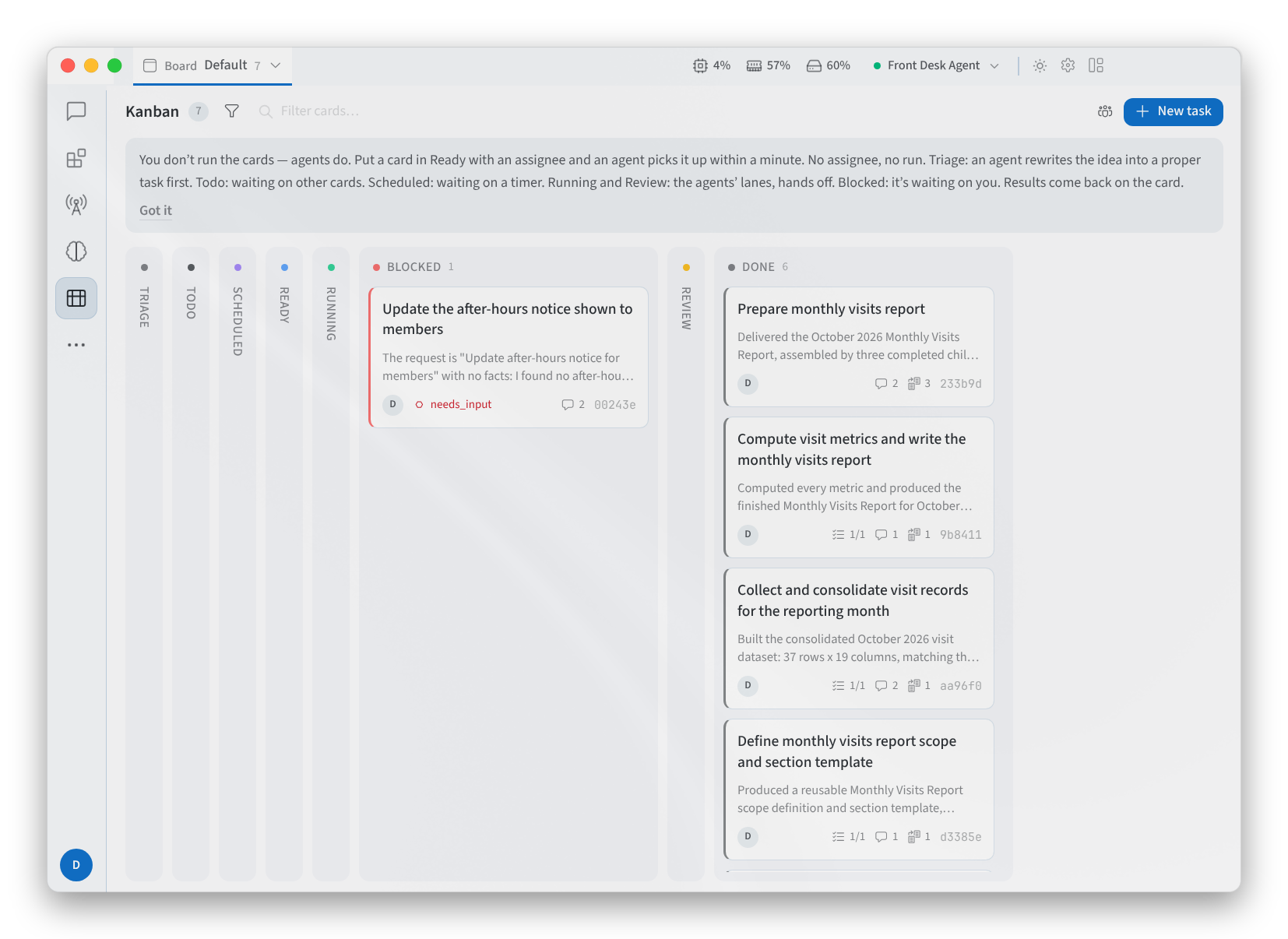
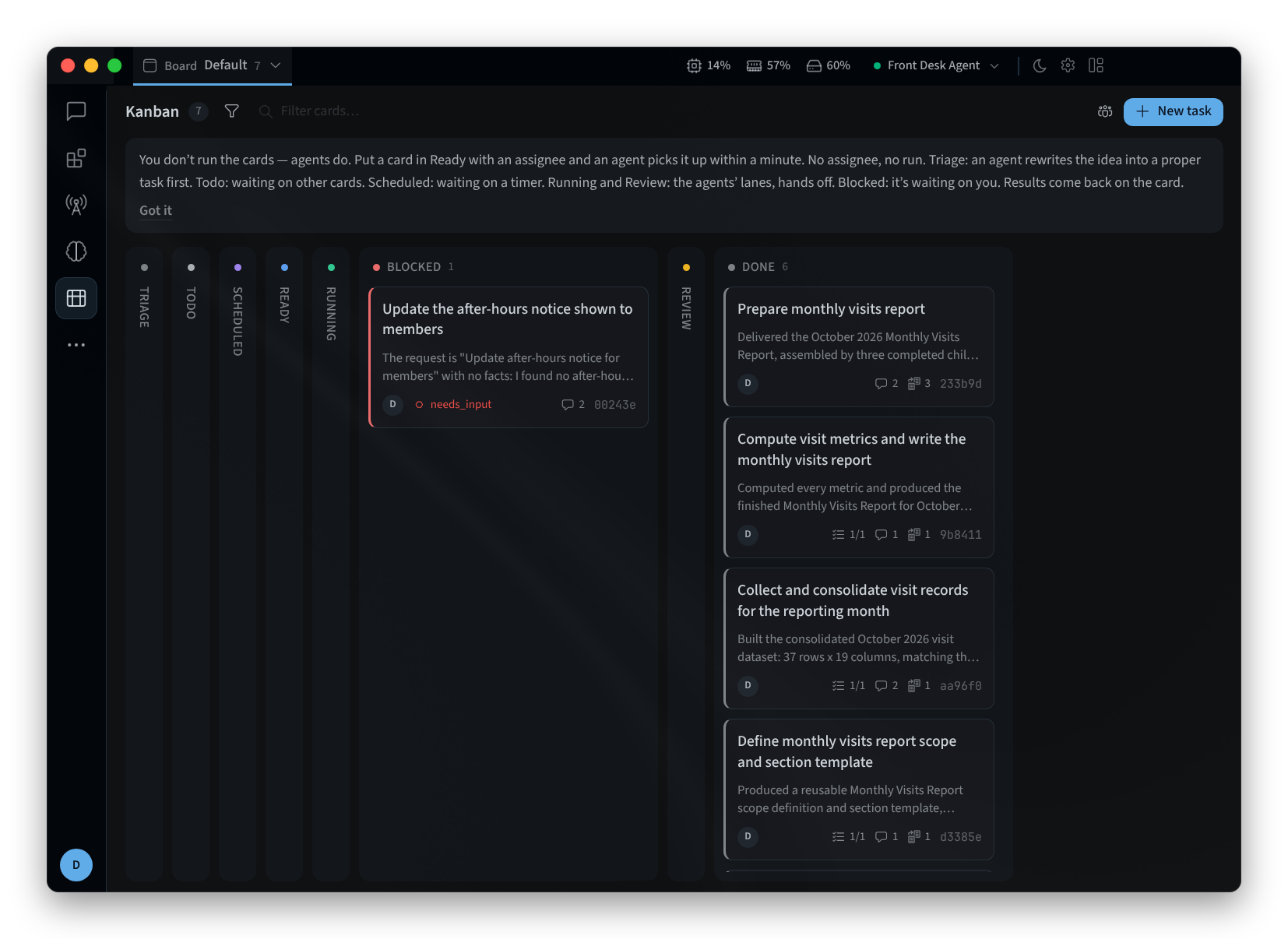
Figure 1: The Kanban board
The columns
The columns run from left to right, each with how many cards it holds. Hover over a column's header to see what it means:
| Column | What it means |
|---|---|
| TRIAGE | "Raw ideas — a specifier fleshes out the spec." An agent rewrites the idea into a proper task first. |
| TODO | "Waiting on dependencies, or unassigned." |
| SCHEDULED | "Waiting for a scheduled time to arrive." |
| READY | "Dependencies satisfied — assign a profile and the dispatcher runs it." A ready card with no assignee shows won't run. |
| RUNNING | "Claimed by a worker — an agent is on it." |
| BLOCKED | "The worker asked for human input." It's waiting on you. |
| REVIEW | "A review agent is checking the work." |
| DONE | "Completed; dependent children become ready." |
Archived cards are "Hidden from the default board view." To see them, turn on Show archived under Filters.
Each card is one task, for example:
- "Prepare the monthly visits report"
- "Update the store's holiday trading hours"
- "Draft the reminder email for next week's open day"
Add a task
- Click New task, or New task in a column to add it straight to that column.
- Enter a Title. In TRIAGE, a rough idea is enough: "Rough idea — a specifier will flesh it out".
- Optionally add a description and set the other fields:
- PRIORITY, and the WORKSPACE the task works in.
- ASSIGNEE: the profile that runs the task.
- SKILLS (COMMA-SEPARATED): the skills to use.
- MODEL: "Runs this task on a specific model and thinking depth. Unset uses the assigned profile's own."
- PARENT (BLOCKS UNTIL IT'S DONE): a task this one waits for.
- Goal mode ("worker loops until a judge agrees it's done").
- Click Create task.
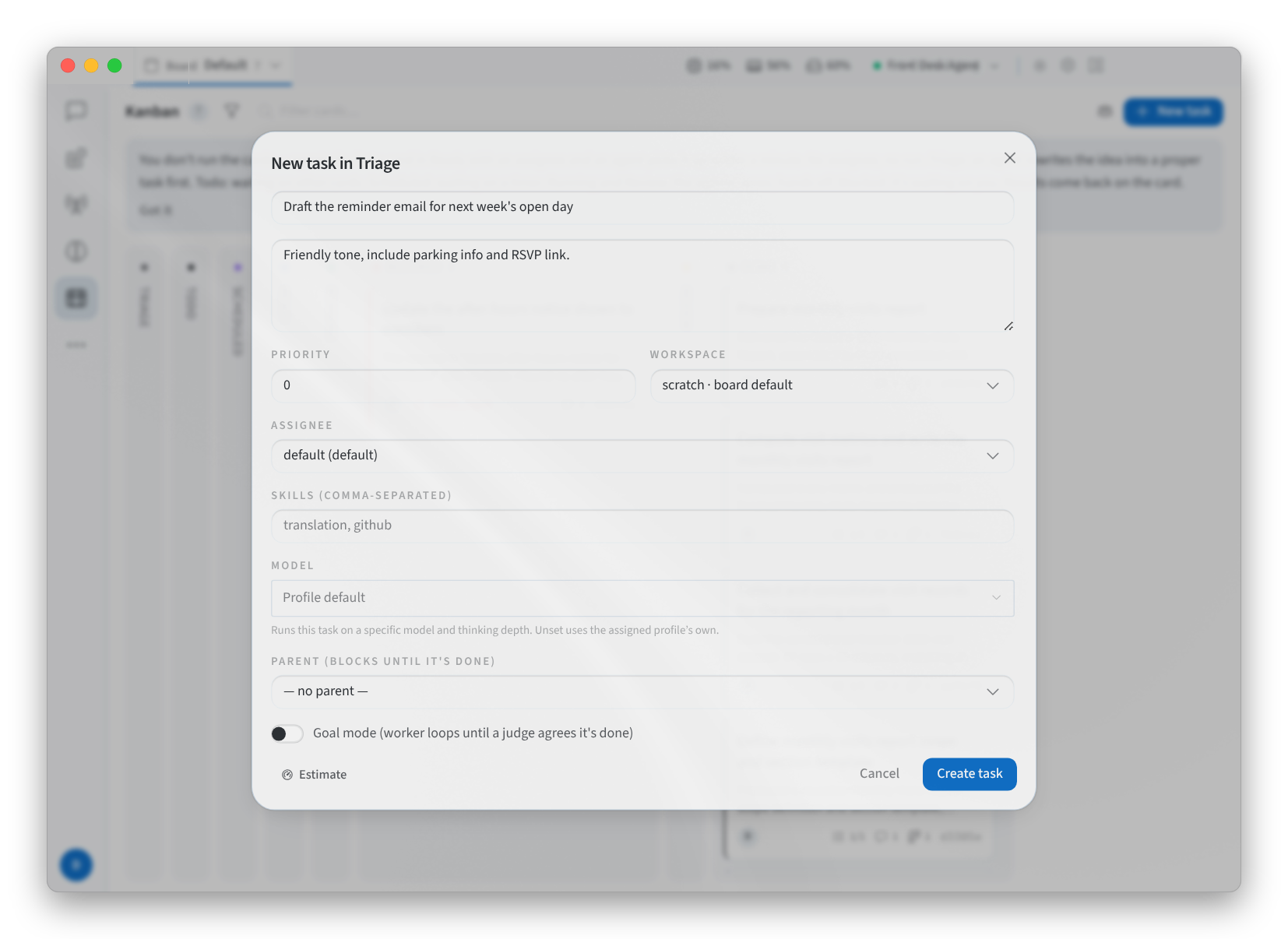
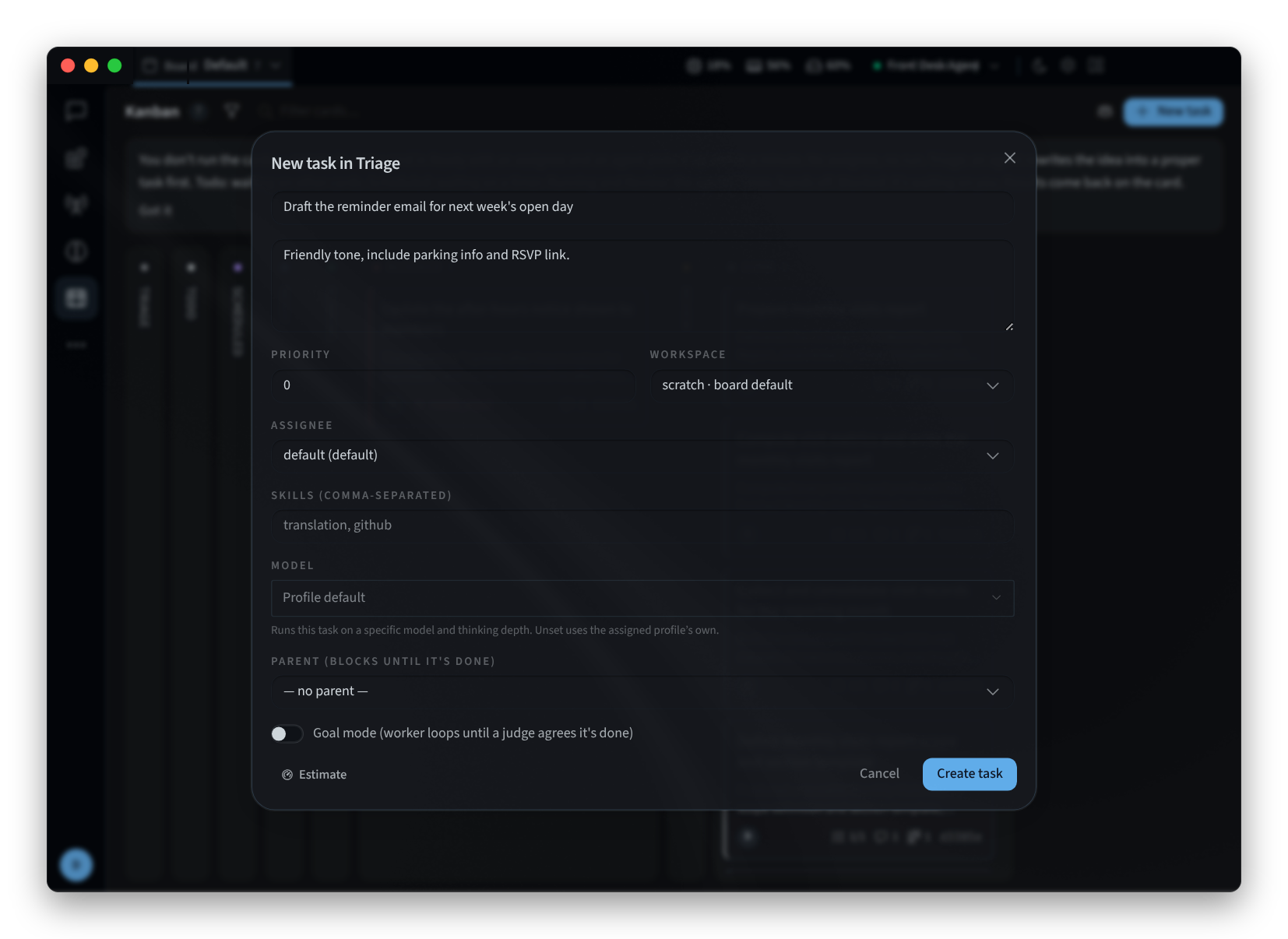
Figure 2: Adding a task
To be run, a task needs an assignee: "Ready cards only run once a profile is assigned".
Move cards
- Drag a card to another column, or right-click it and choose Move to.
- To move several at once, hold ⌘ and click each card, then choose Move to, Assign, Unassign or Archive. Clear selection ends the selection.
- You can't drag a card into RUNNING or REVIEW: the board moves cards there when an agent picks them up. You can't drag one into SCHEDULED either: "Scheduled needs a wake-up time — agents set it; it can't be dragged into."
Blocked tasks
A card in BLOCKED shows why it's blocked. needs_input means the Agent is waiting for your input, and the app notifies you with "Task blocked — needs your input". The other reasons are capability, transient and dependency.
You can add a comment to any card: "Comments are added to the task thread. When a worker picks the task up it reads them as part of its context."
Open a card
Click a card to open it in a drawer. The drawer shows the task's Description, its Result or Latest summary, its Dependencies (Blocked by and Blocks), and its Comments, Activity, Runs and Attachments. While a task is running, a note goes straight to the agent working on it ("Message the running worker…"), and Requeue with note restarts the task with your note.
Find tasks and boards
- Filter cards… narrows the board to the cards that match what you type, for example "report" or "roster". Filters has more options, such as Show archived.
- Board shows which board you're looking at, for example Default, and lets you switch boards or create one with New board….
Related pages
- Desktop app (Mac and Windows): install, sign in and choose an agent
- Install on Linux: the desktop app on Linux
- Automations: the Tasks tab and scheduled jobs in Performance Hub
- Getting around: the window, the side menu and sessions