
Connected Apps
On this page
To install Performance Hub Agent, see Desktop app (Mac and Windows) or Install on Linux.
Open Connected Apps & Capabilities from the side menu. The Connected Apps page has three tabs: Connected Apps, then Skills and Tools, each with a count. It's the same set of connections as Connected Apps in Performance Hub, and Open in Performance Hub opens them there.
Connected Apps
The Connected Apps tab lists the apps your Agent can work with, such as email, calendars, file storage and booking systems.
- Your Agent asked for lists the apps your Agent has asked you to connect. Connected lists the apps already connected.
- Suites ("Connect a set of apps with one sign-in.") offers Google Workspace and Microsoft 365, each showing how many of its apps are connected, for example "0 of 5 connected".
- Built-in services ("Included with every Agent. Nothing to sign in to.") sit above Featured and All apps.
- To find an app, search with the box at the top, or filter by All categories.
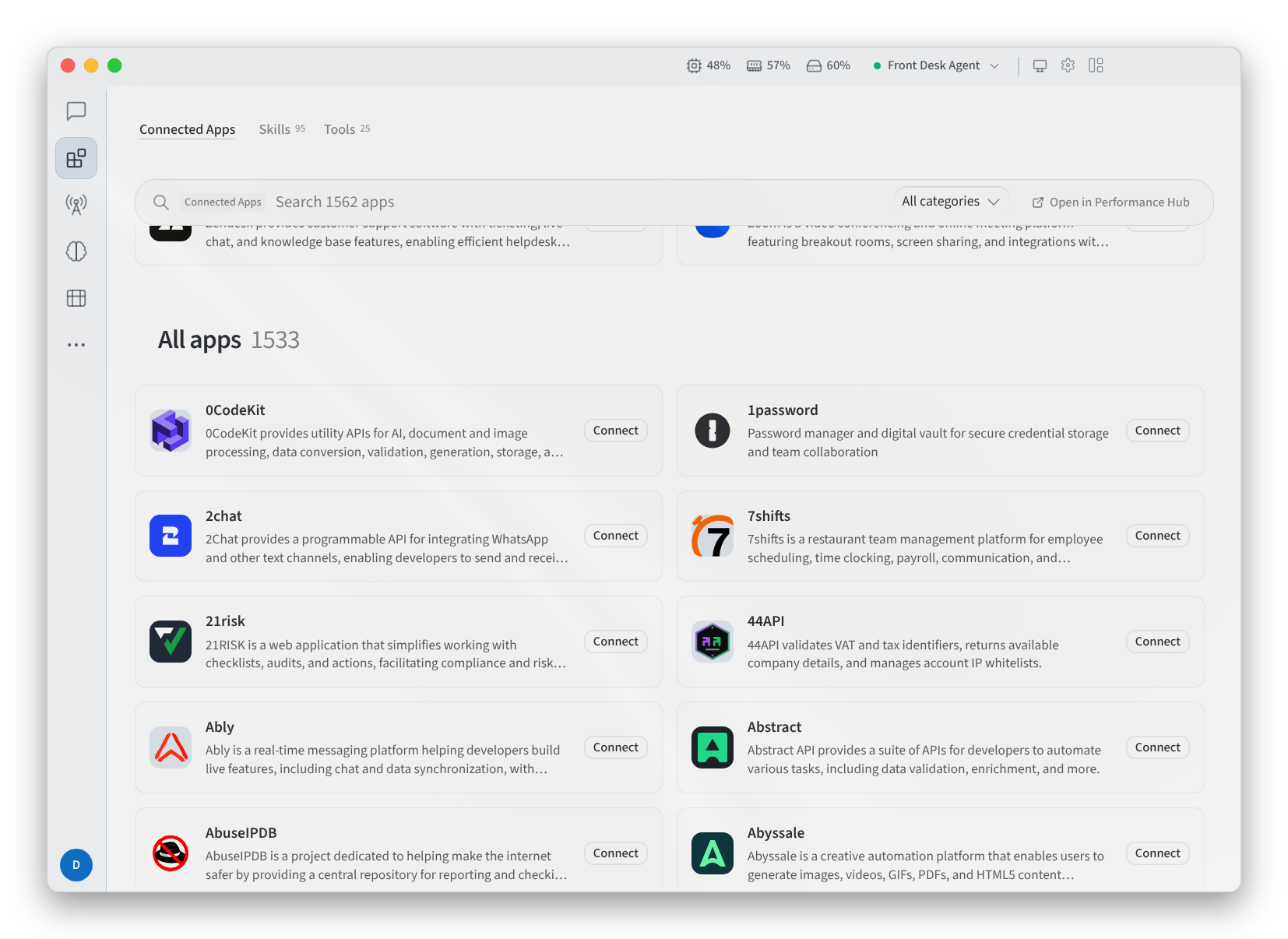
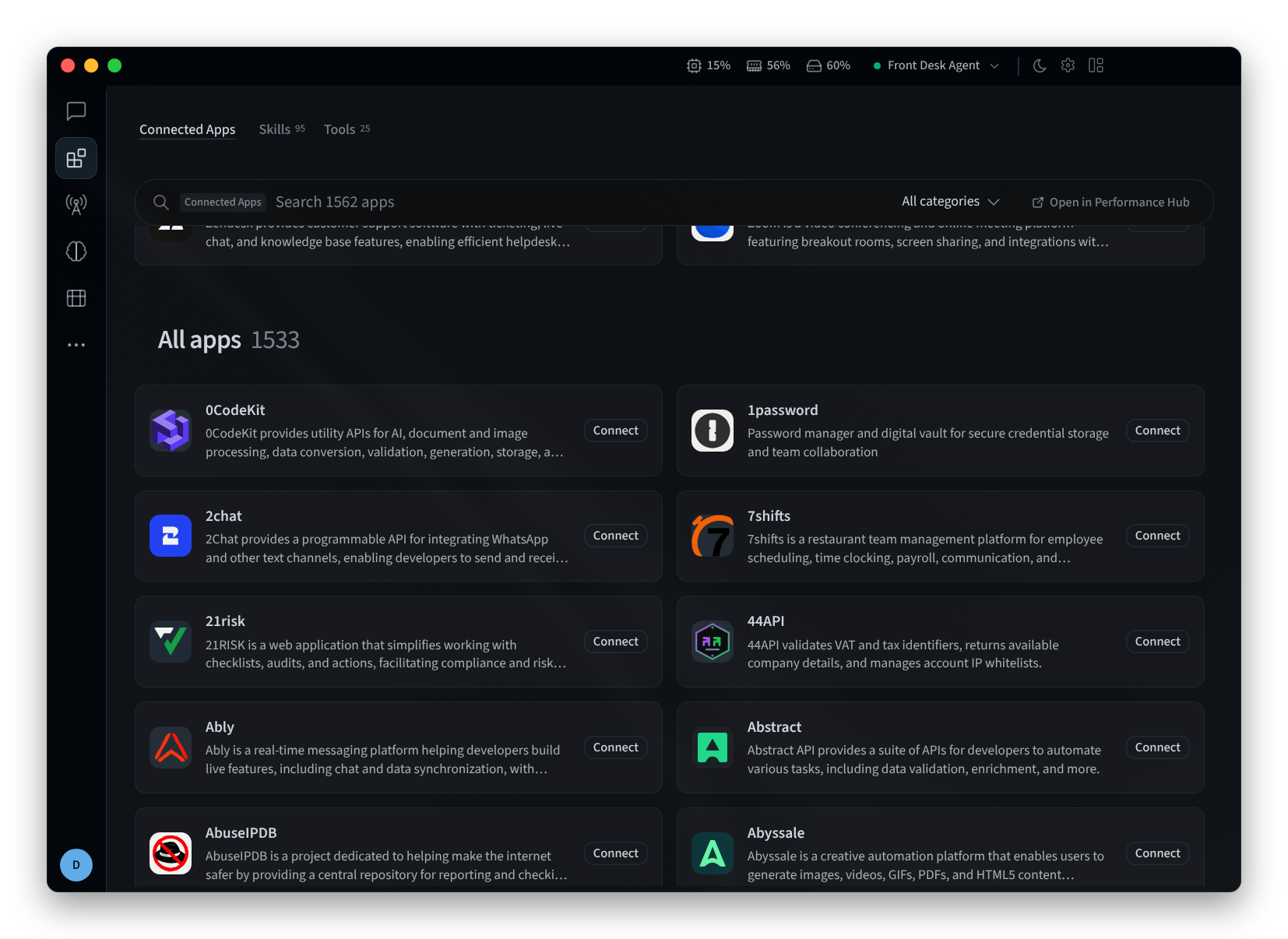
Figure 1: The Connected Apps tab, scrolled to All apps
Connect an app
- Click Connect on an app, or Connect all on a suite. For Asana, for example, the app says "Sign in with your Asana account and approve access."
- In Account name (optional), you can name the account to tell it apart from others, for example "Front desk inbox", "Bookings calendar" or "Store orders".
- Click Continue in browser. The app shows "Finish connecting in your browser – Sign in and approve access there. This updates by itself when you're done."
- Sign in and approve access in your browser, then return to Performance Hub Agent and click Done.
To connect through an OAuth app you've registered with the provider yourself, use Use your own OAuth app, which takes a Redirect URL, Client ID and Client secret.
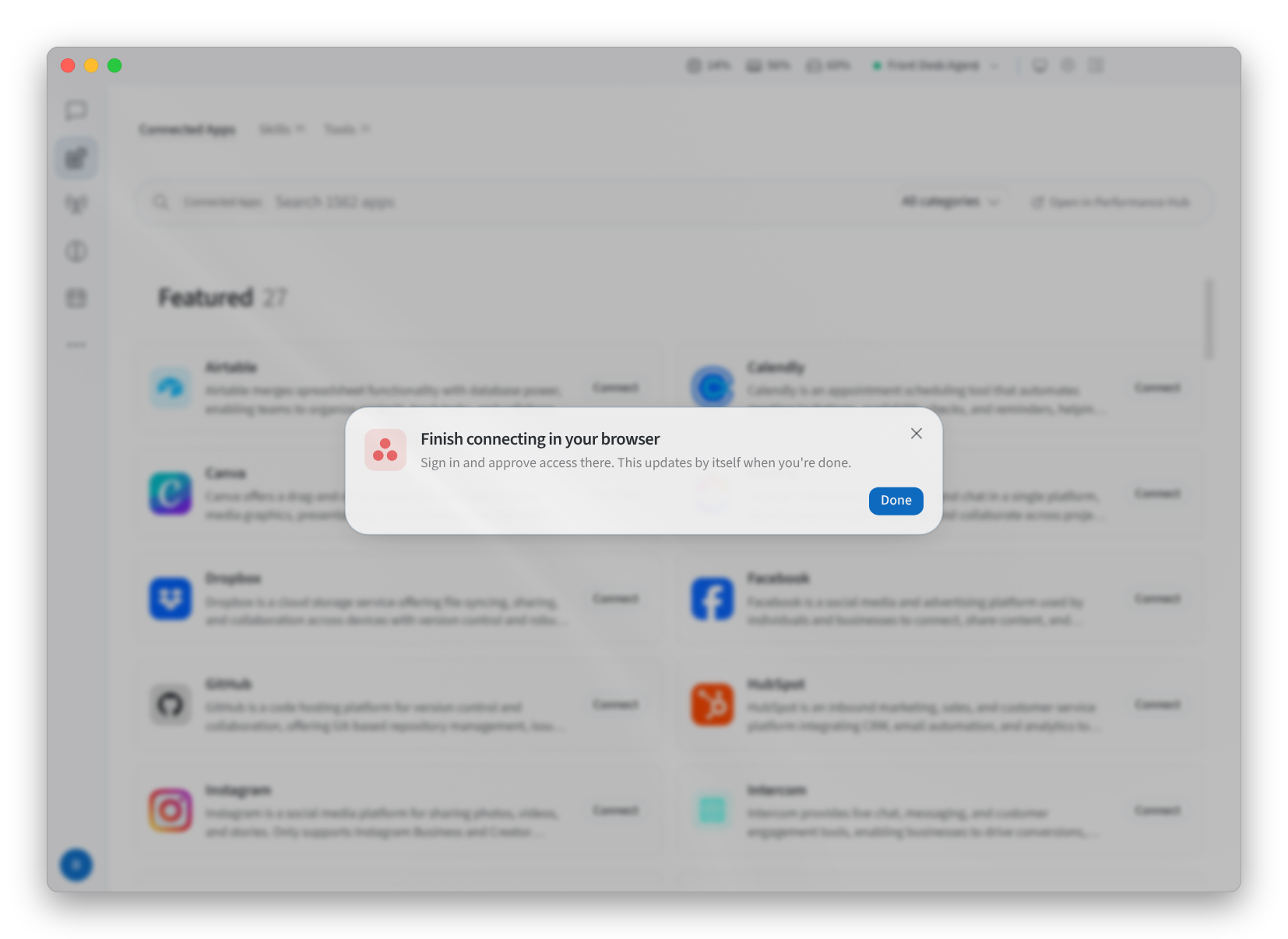
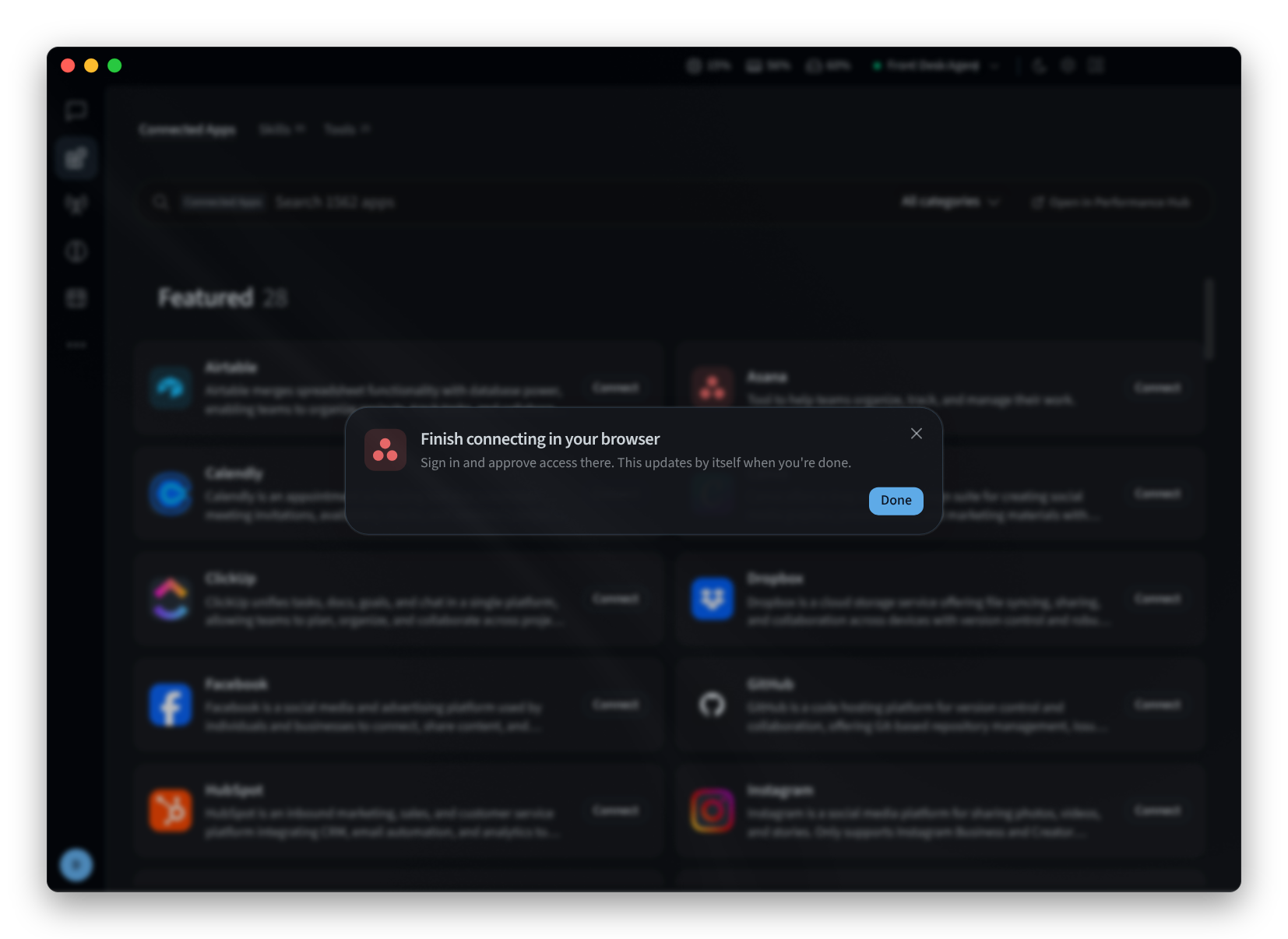
Figure 2: Finishing a connection in your browser
Manage a connected app
Click a connected app's card. It lists the app's Accounts:
- To rename an account, click its pencil icon.
- To remove an account, click its trash icon.
- To connect another account to the same app, click Add another account.
Click Done when you've finished.
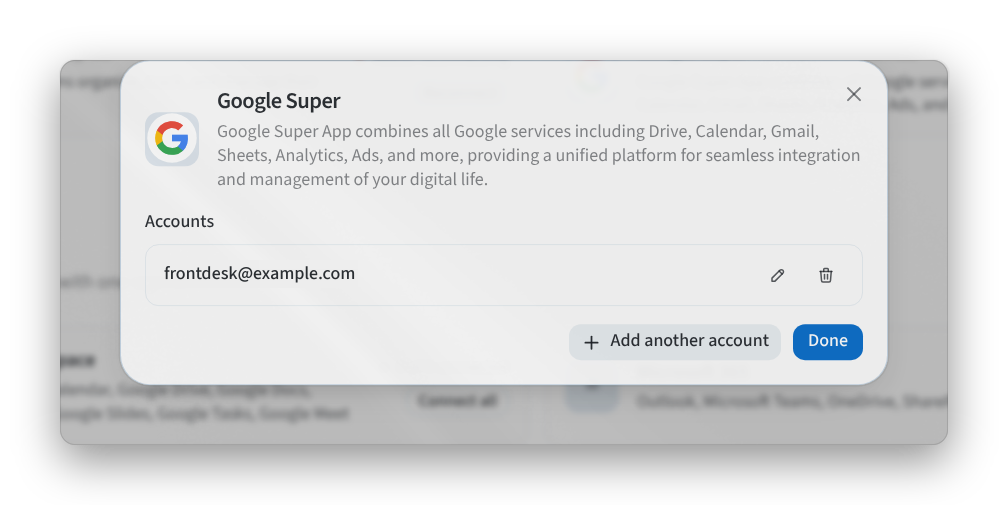
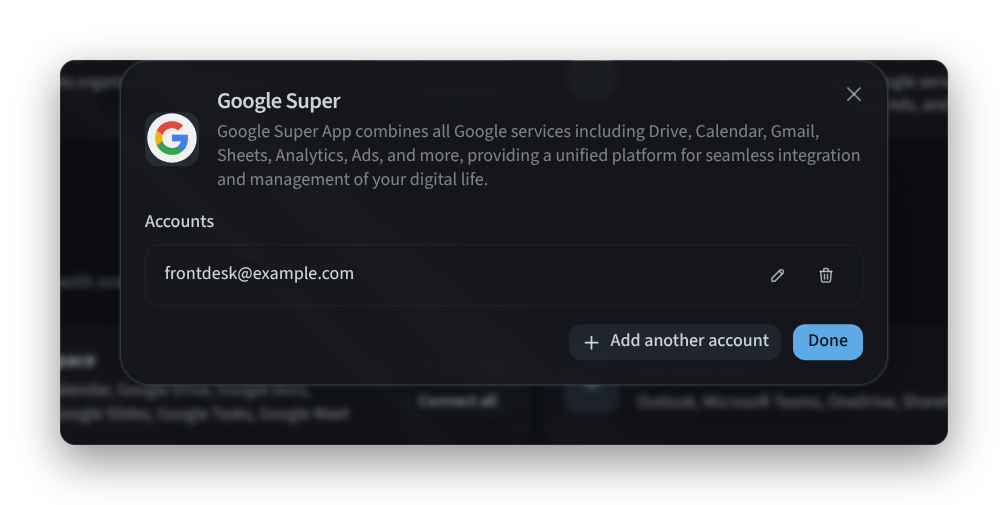
Figure 3: Managing a connected app's accounts
An app marked Needs reconnecting has lost its sign-in. Click Reconnect.
When the Agent needs an app you haven't connected, a banner says "Your Agent wants to use" the app, with Open Connected Apps.
If you see "You can't manage this Agent's Connected Apps", your access to this agent doesn't include managing its connections. Ask the agent's owner or your facility administrator.
Skills
The Skills tab lists your Agent's skills: the procedures it has learned or comes with, such as writing a weekly sales report or preparing a new employee's first-day checklist.
- Configuring: shows the profile whose skills you're looking at.
- Search the skills, or filter them by Category and Source.
- Discover Skills is a carousel of skills to try. Skills that come with the Agent are marked Built In.
- To stop the Agent using a skill, click Disable on it.
- Skill Library ("Add skills from the Performance Hub Skill Library") opens the Skill Library in Performance Hub.
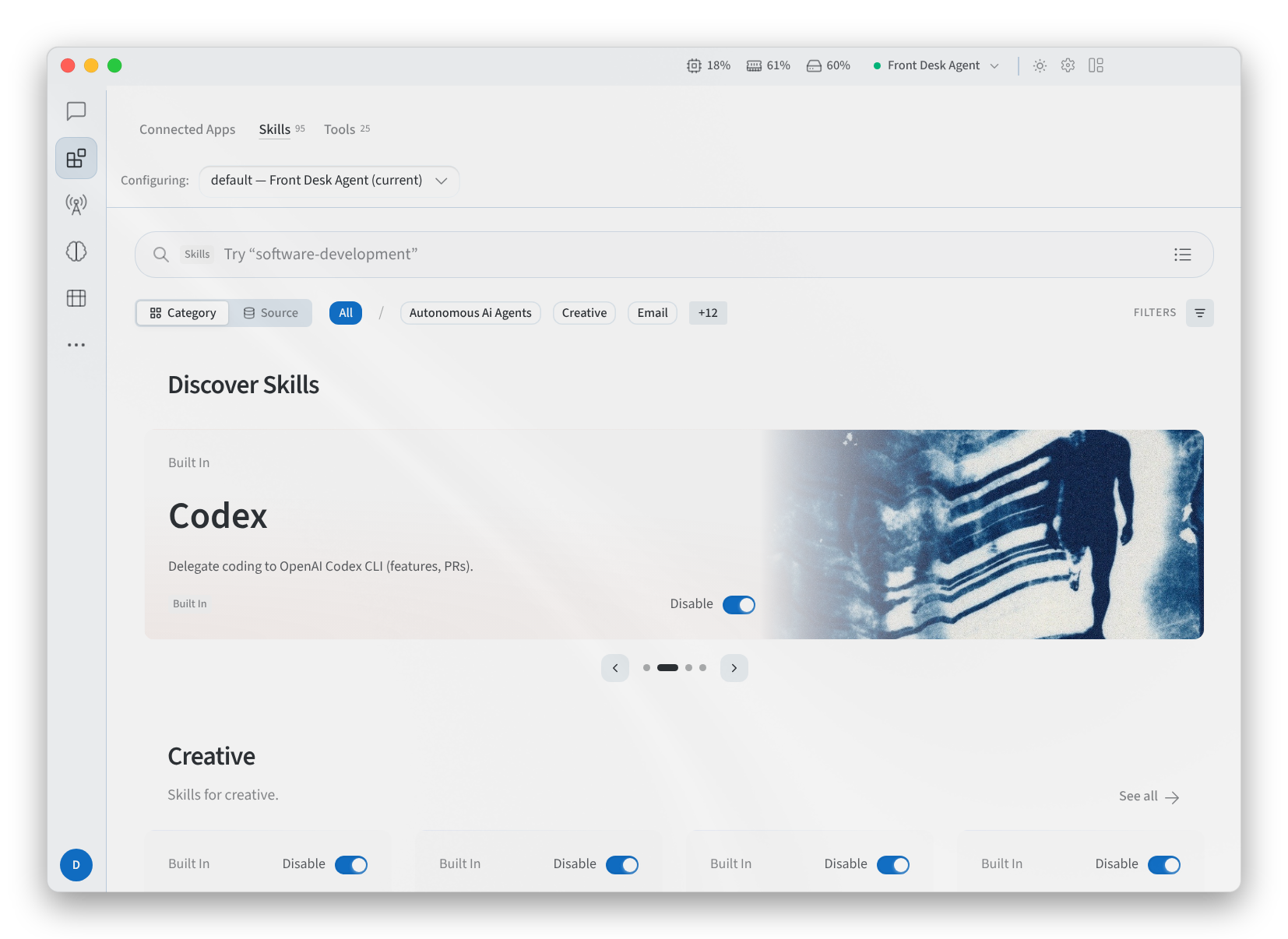
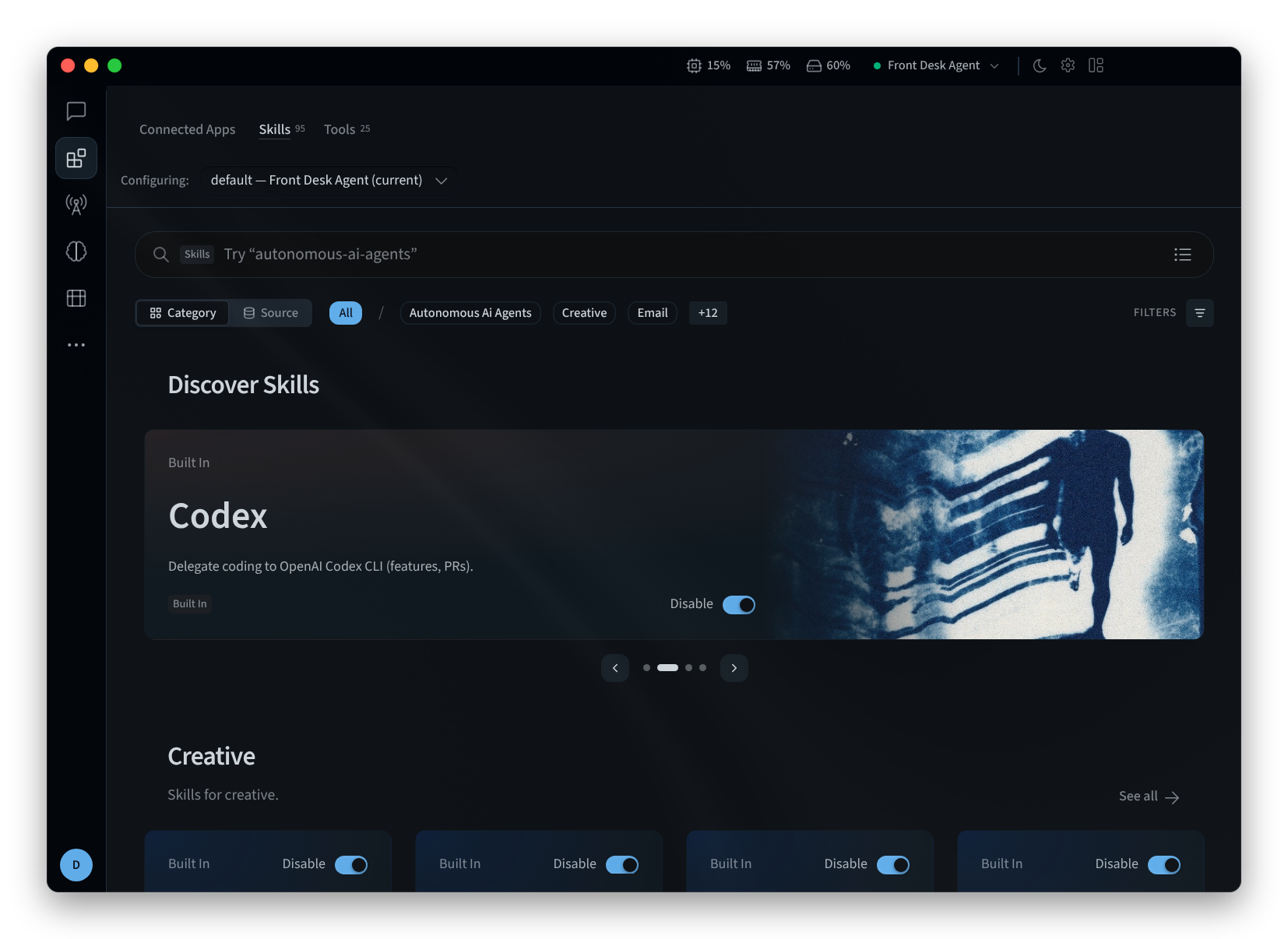
Figure 4: The Skills tab
Tools
The Tools tab lists the toolsets your Agent uses to get work done, such as searching the web, working with files and scheduling work. Search it with "Search tools, built-in services and plugins".
- Most used shows "The toolsets Agent reaches for most on this profile.", each with how many calls the Agent has made with it.
- The other toolsets are grouped by what they do, for example Browse, work and automate.
- To stop the Agent using a toolset, click Disable on it.
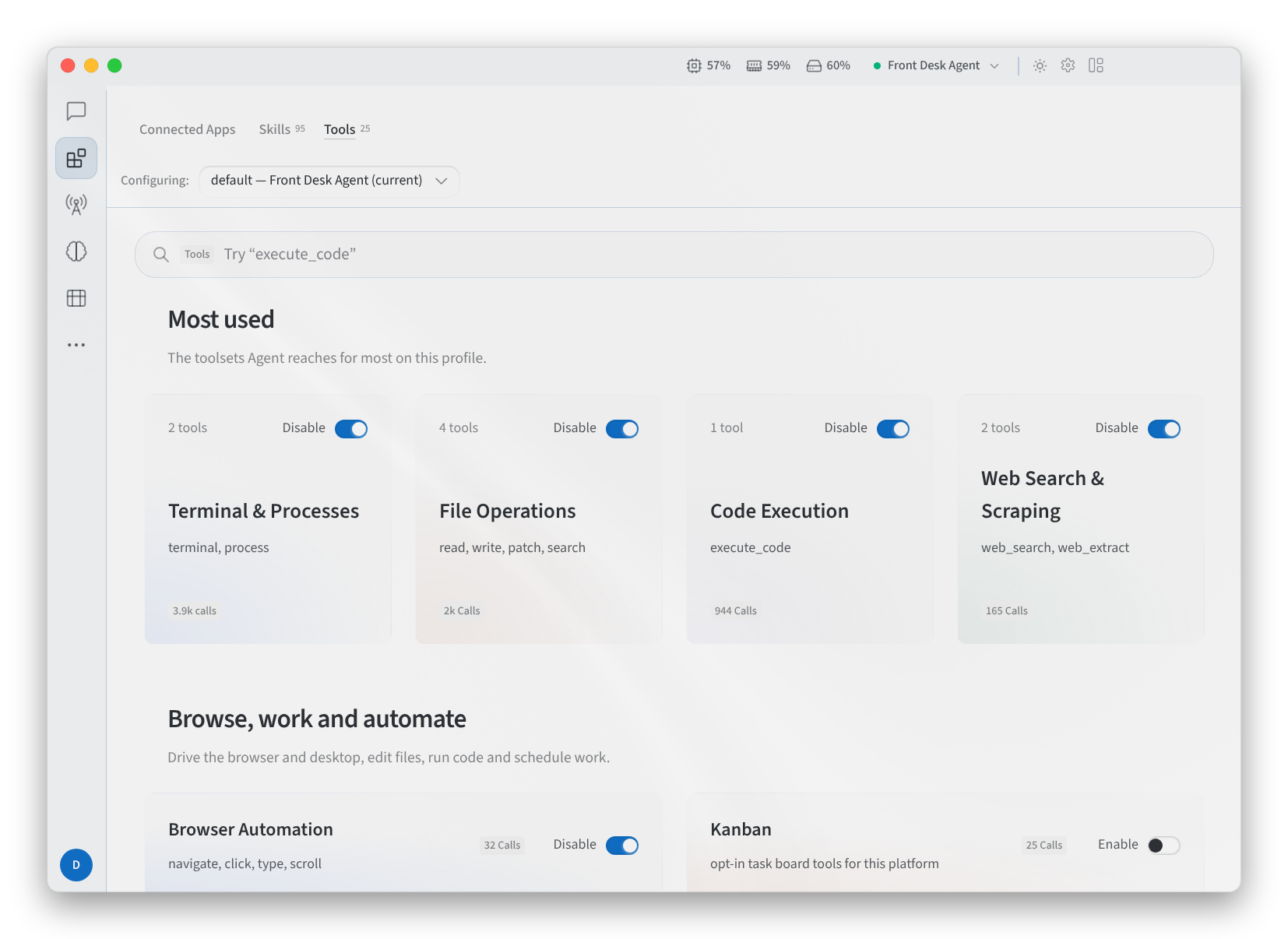
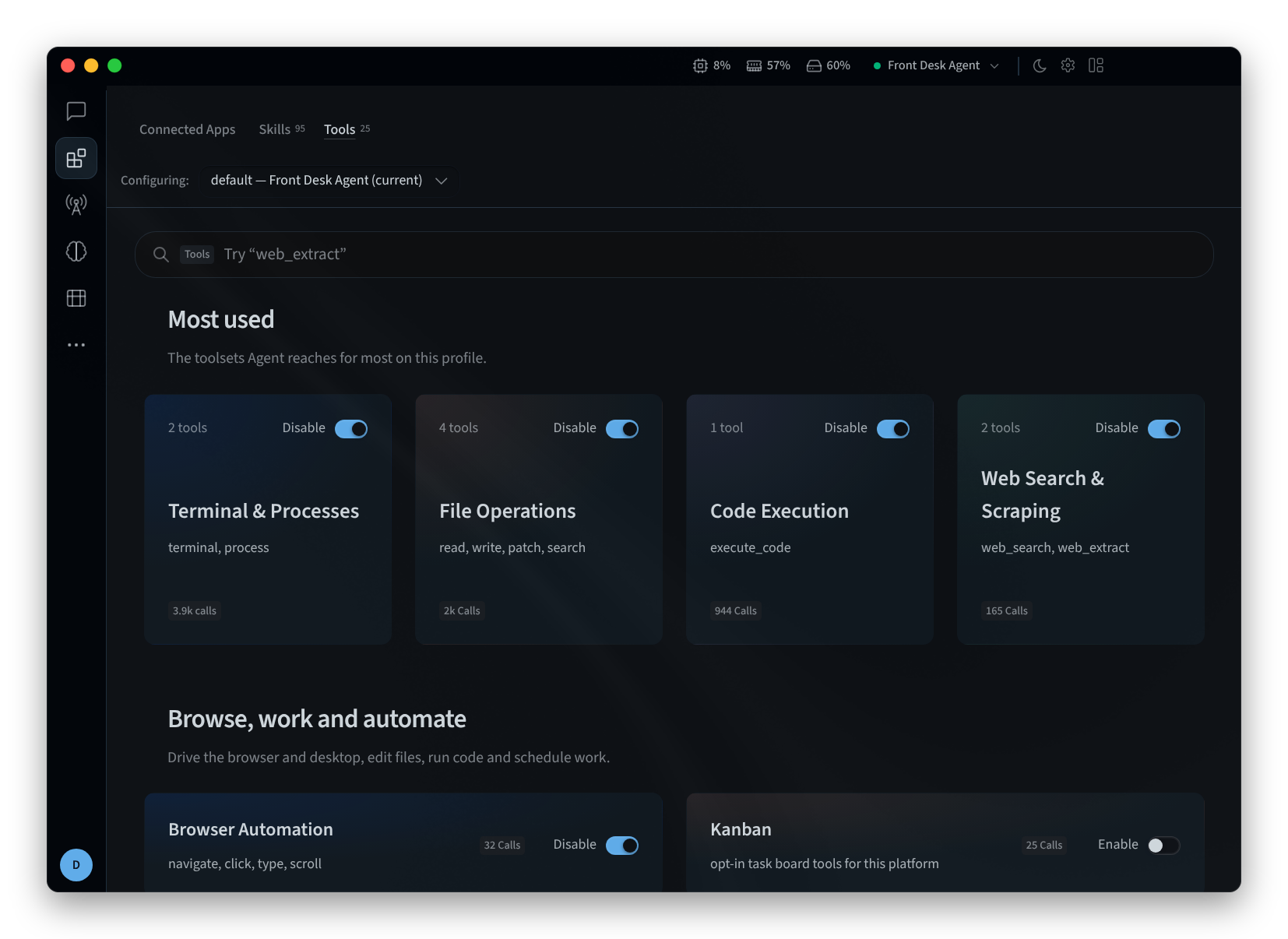
Figure 5: The Tools tab
Related pages
- Desktop app (Mac and Windows): install, sign in and choose an agent
- Install on Linux: the desktop app on Linux
- Agent capabilities: Connected Apps in Performance Hub
- Skills: the Skills tab and the Skill Library in Performance Hub