
Published Apps
On this page
To install Performance Hub Agent, see Desktop app (Mac and Windows) or Install on Linux.
Published Apps lists "Web apps and services your Agent is running", such as a reception welcome board, a café menu board, a classroom timetable or a room bookings page. Open it from Published Apps in the side menu. With none yet, it shows No published apps.
Find and open an app
- Use Search apps to find an app by name, or pick one from the list.
- The app's details show its Address, its Project, how long it has been running (Running since) and a SCREENSHOT preview.
- Choose how to open it:
- View in Session opens it in a session.
- Open in New Window gives it a window of its own.
- Add to Side Menu adds it to the side menu.
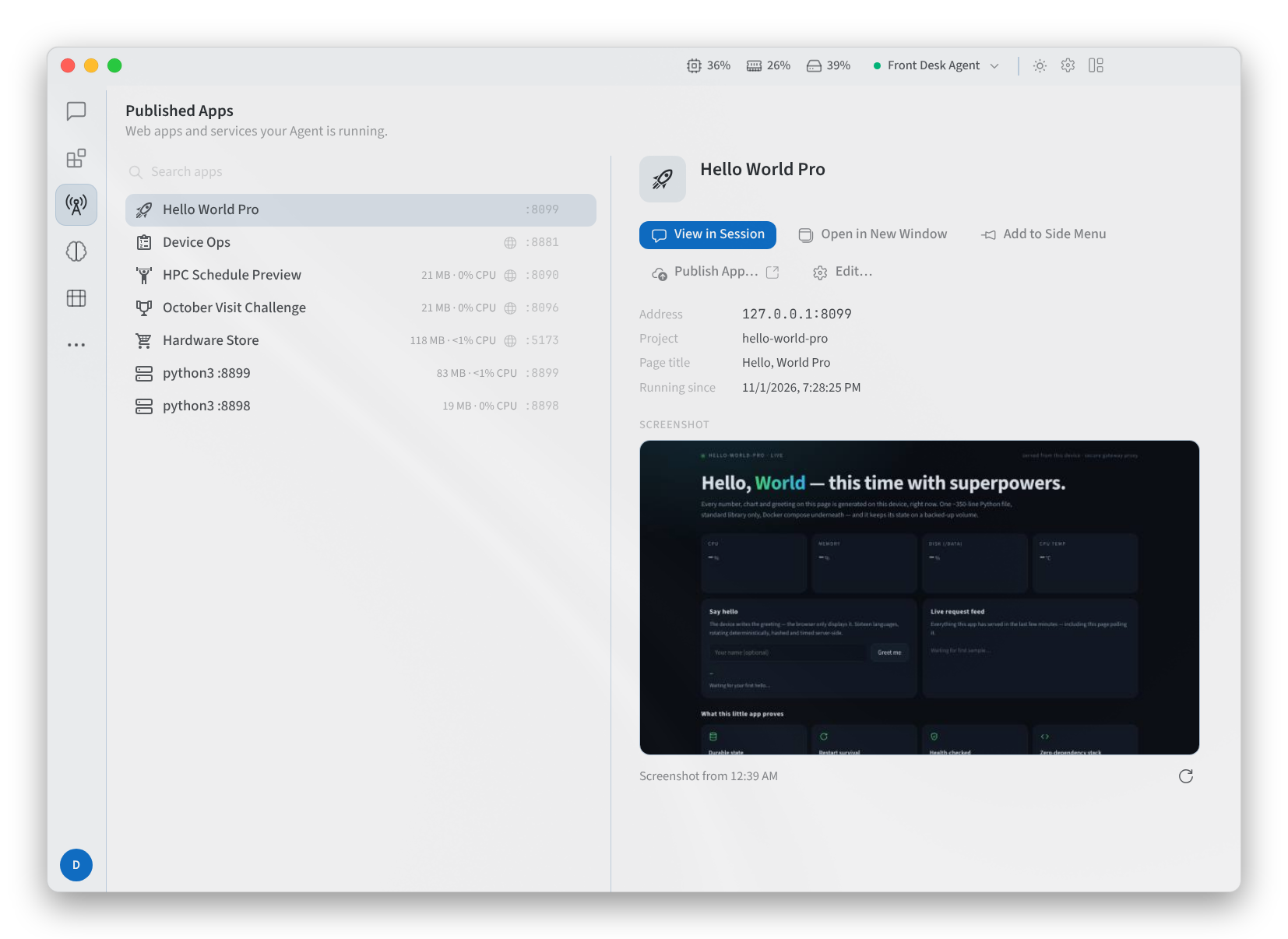
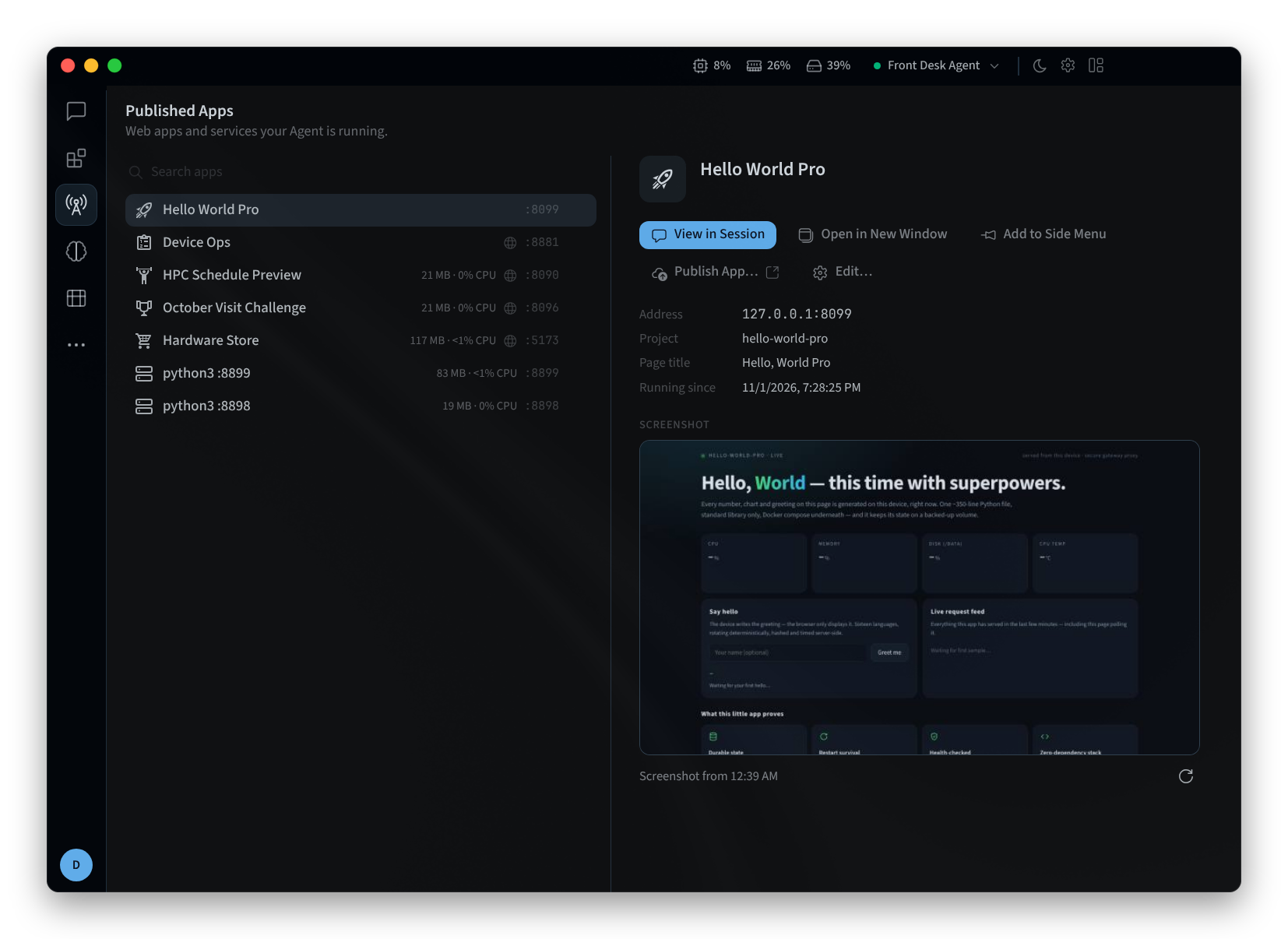
Figure 1: Published Apps, with an app selected
An open app has Back, Forward and Reload controls and shows its address.
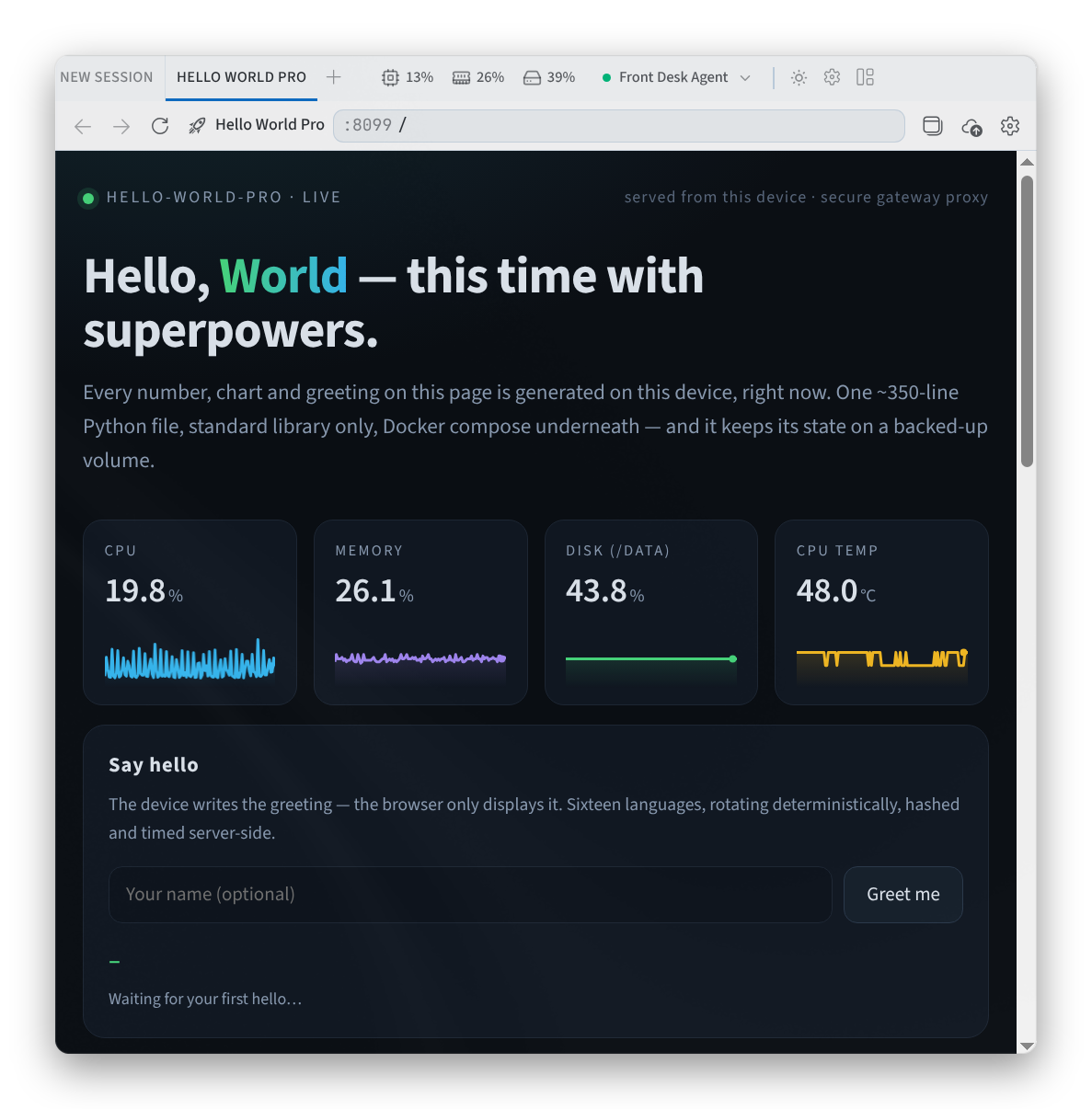
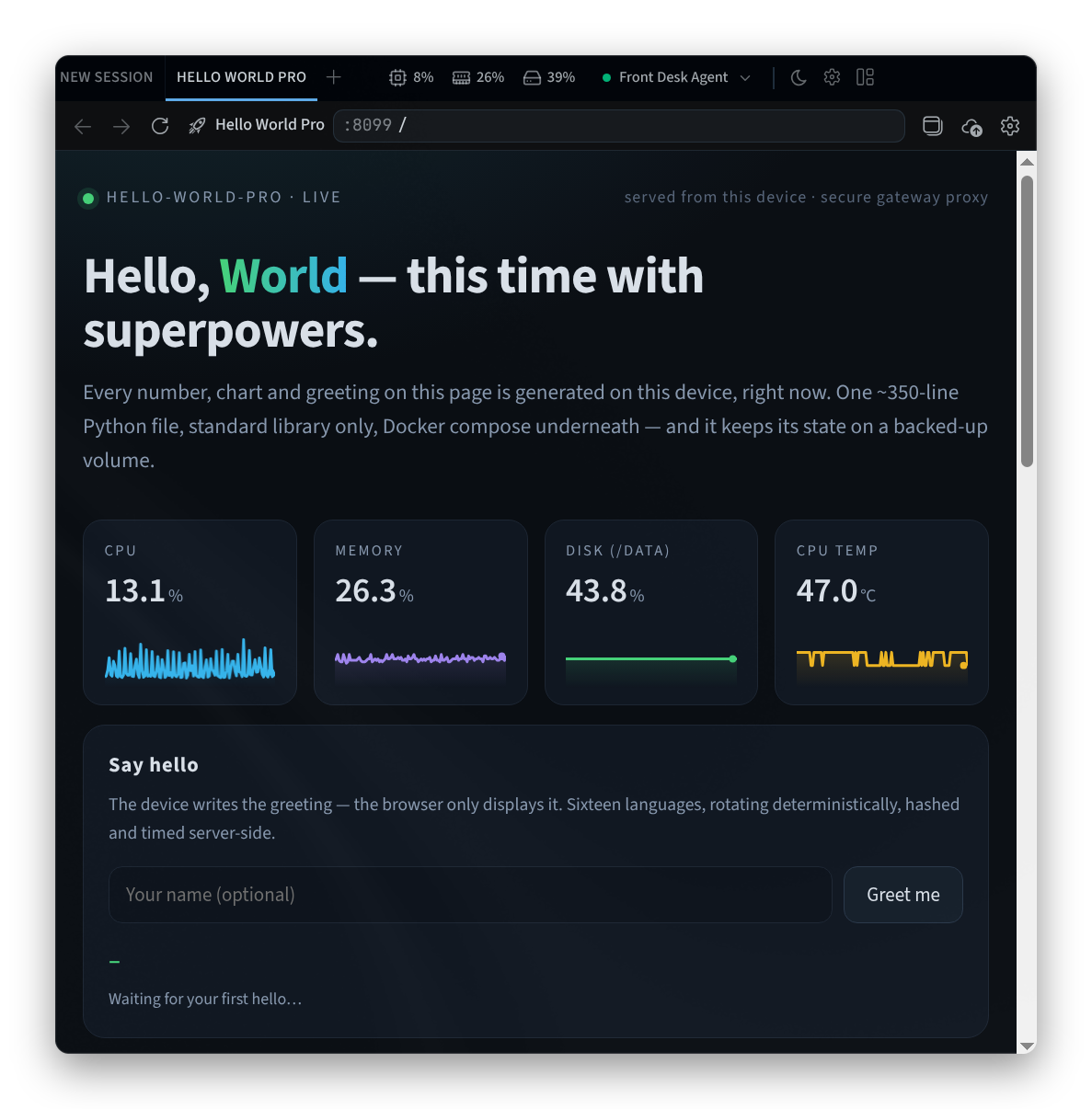
Figure 2: A published app open in a tab
To rename an app or change its icon, open its Service Settings:
- Change the Name.
- Under Icon, pick an icon or search for one.
- To keep the app out of the way, turn on Hide this service. Hidden services move to the bottom of the list.
- Select Save, or Cancel to leave it as it was.
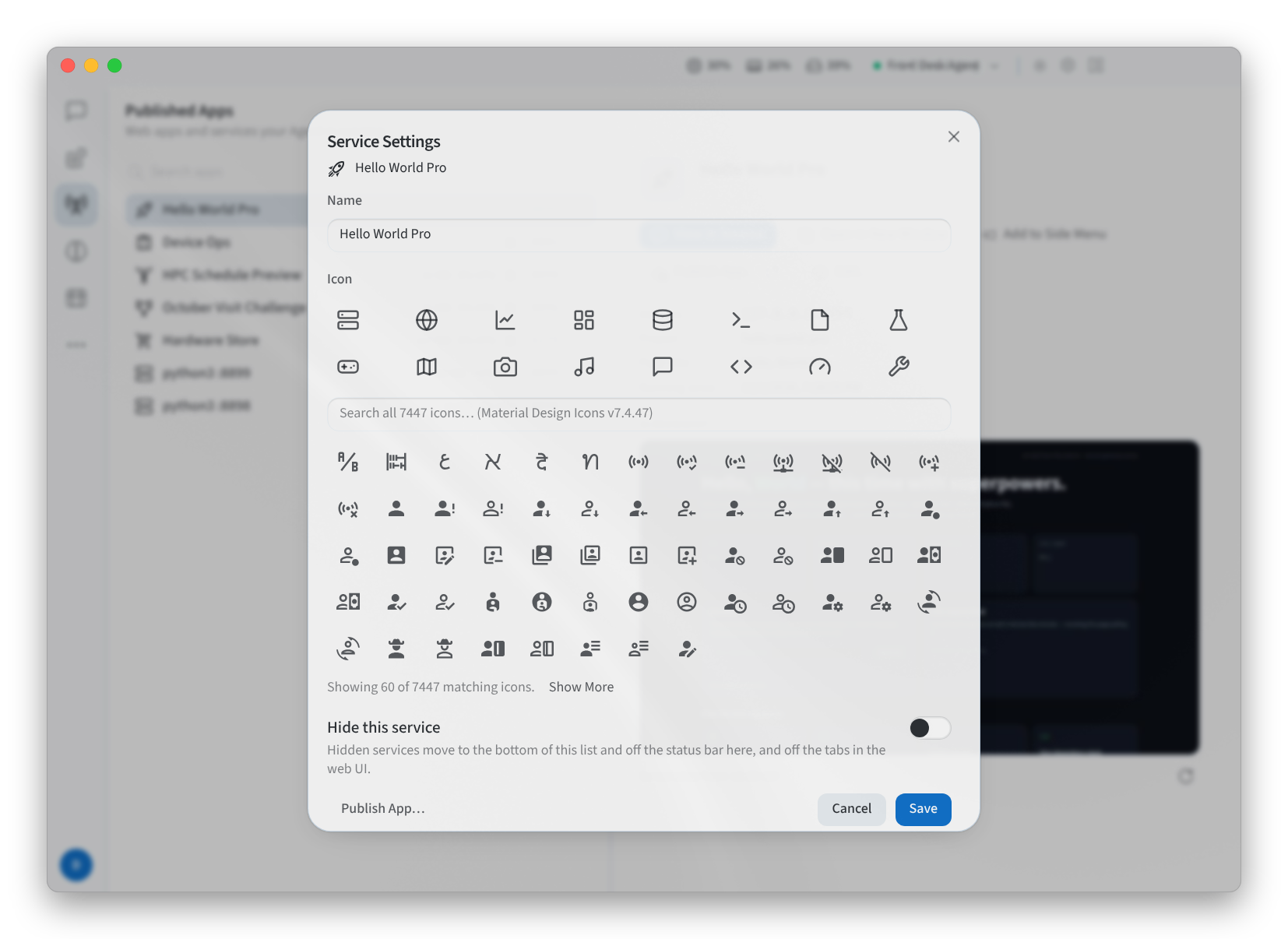
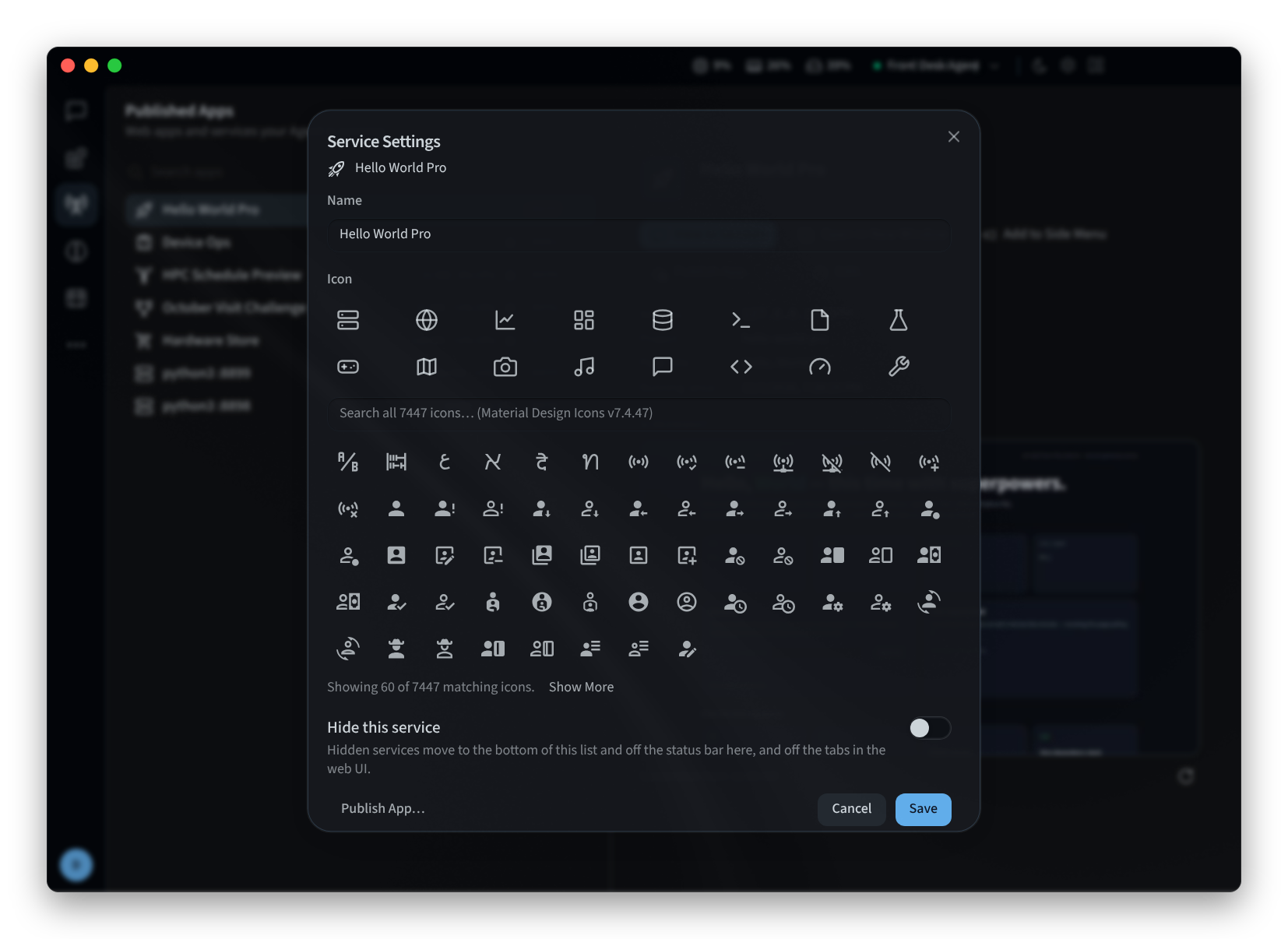
Figure 3: Service Settings
Manage an app
- The other actions are Edit…, Hide and Show, Publish App… and Manage Published App…. Publishing itself happens in Performance Hub.
- An app can carry the warning Exposed on the local network.
See Apps for your screens for what your Agent can build and publish.
Related pages
- Desktop app (Mac and Windows): install, sign in and choose an agent
- Install on Linux: the desktop app on Linux
- Agent capabilities: the Published Apps tab in Performance Hub