
Your Agent's computer
On this page
Performance Hub Agent can show your Agent's computer in the app. You can watch the Agent work, click and type yourself, or leave the computer asleep until a task needs it. The Agent in the figures is Front Desk Agent.
To install the app, see Desktop app (Mac and Windows) or Install on Linux. These pages describe version 0.1.93.
Quick reference
Where to find it: Show Agent's Computer in the command palette, or the Computer pill ("Click to show it here, or drag to move it.")
Who can access: Anyone using Performance Hub Agent with an Agent
Purpose: Watch the Agent's desktop, take control, or reset it
How to show it
The computer can sit in three places.
Docked above the Agent's files. Choose Dock Above Files. The hint reads "Agent's computer, above its files. Click to open it full window, or drag it out to float it." Dropping it there shows "Drop to dock it above your Agent's files".
Floating in a corner. The hint reads "Agent's computer. Click to open it full window, or drag to move it." Undock releases it. "Drag to resize. Double-click for the usual size."
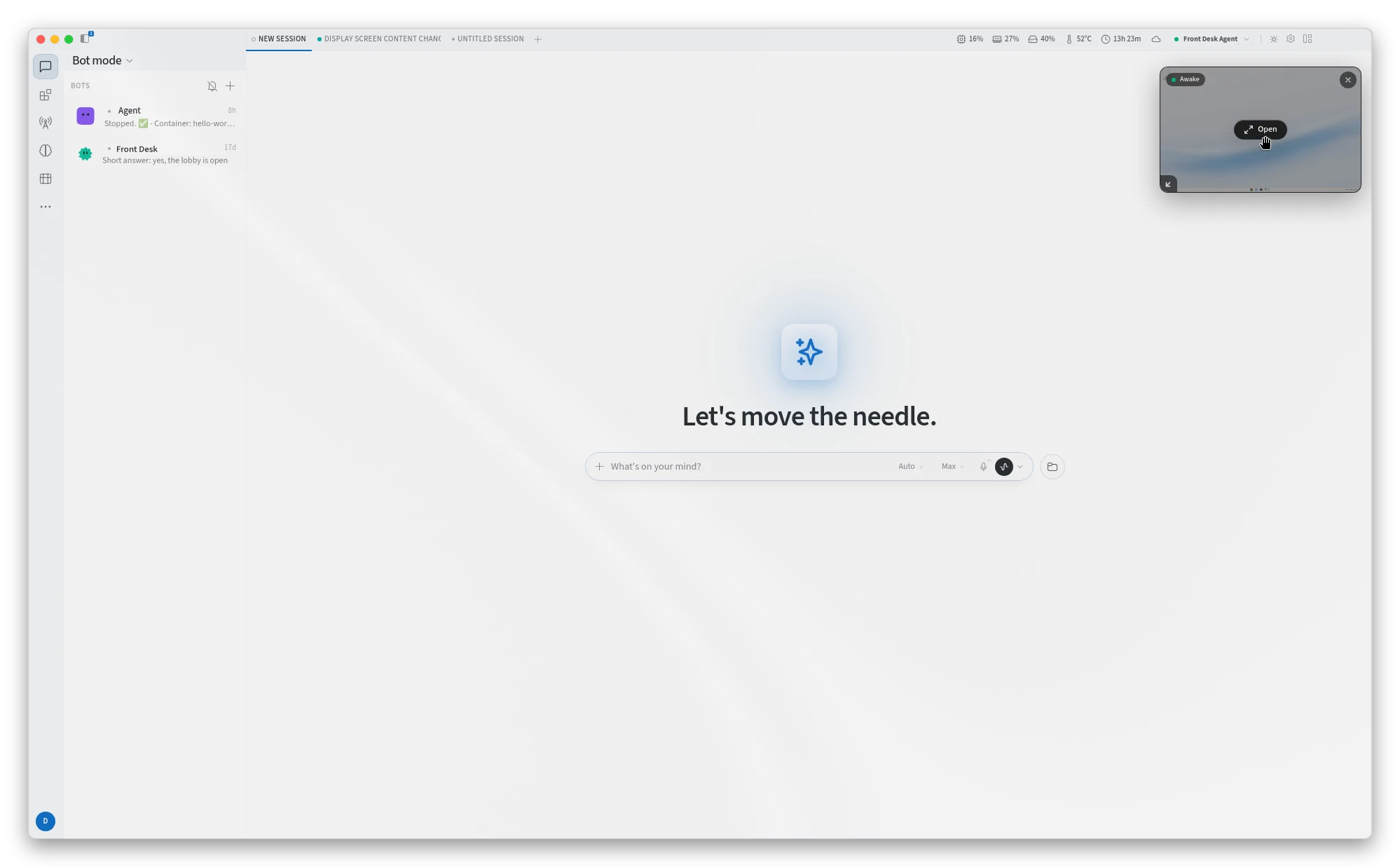
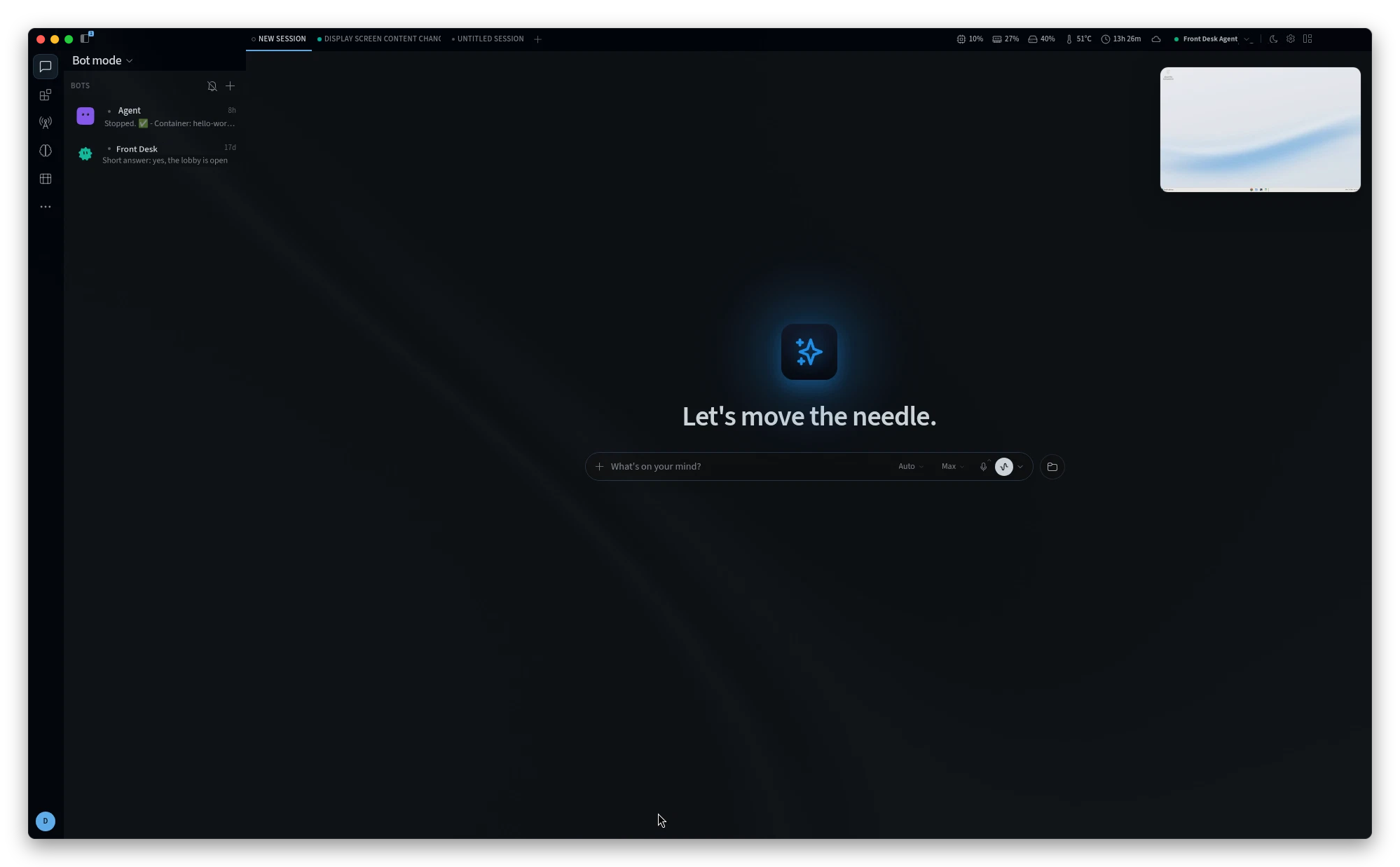
Figure 1: The computer floating over a chat
Full window. "Open the Agent's computer full window." The title shows Agent's Computer and whether it is Awake or Asleep. Leave with Back to the Corner (Esc).
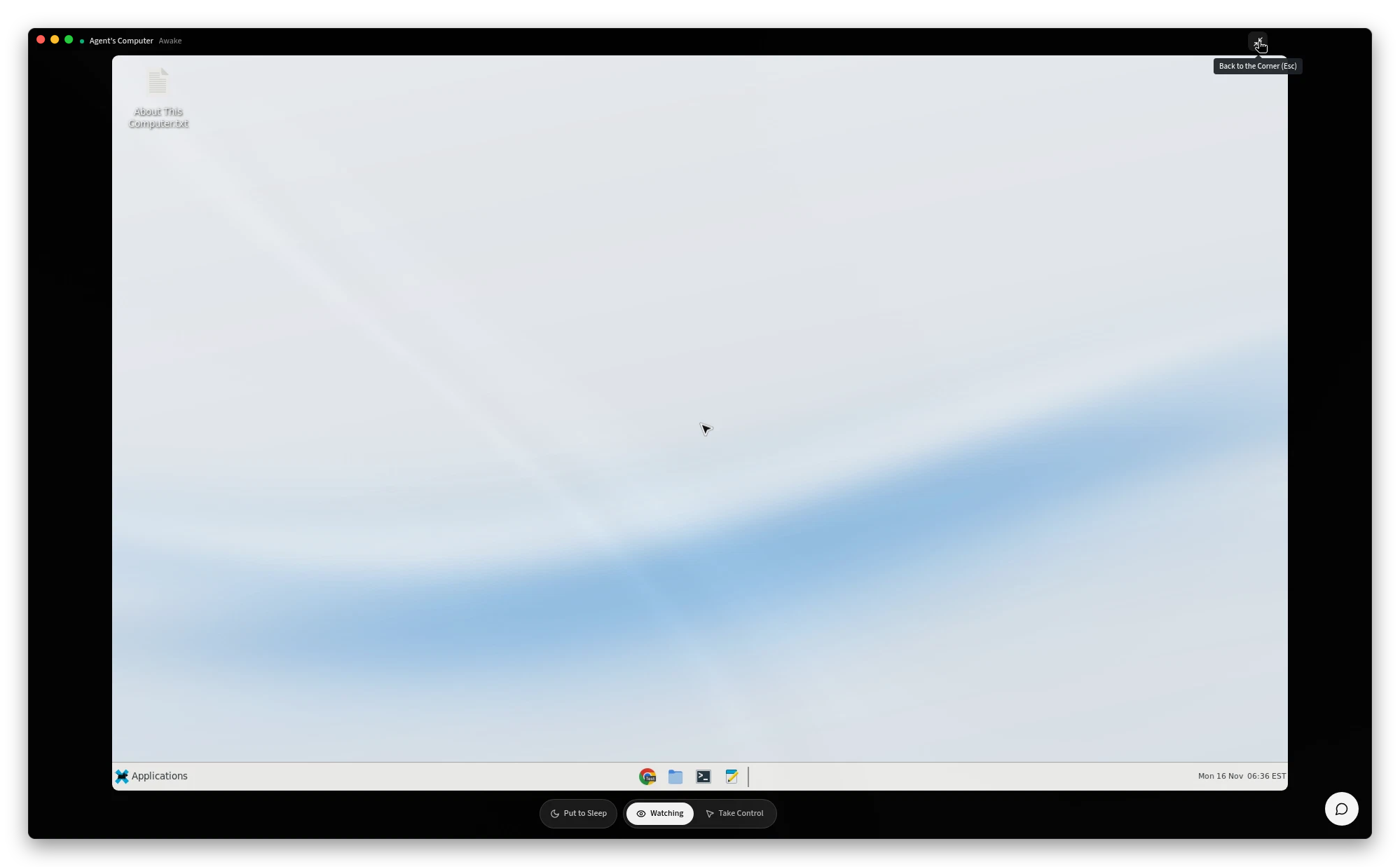
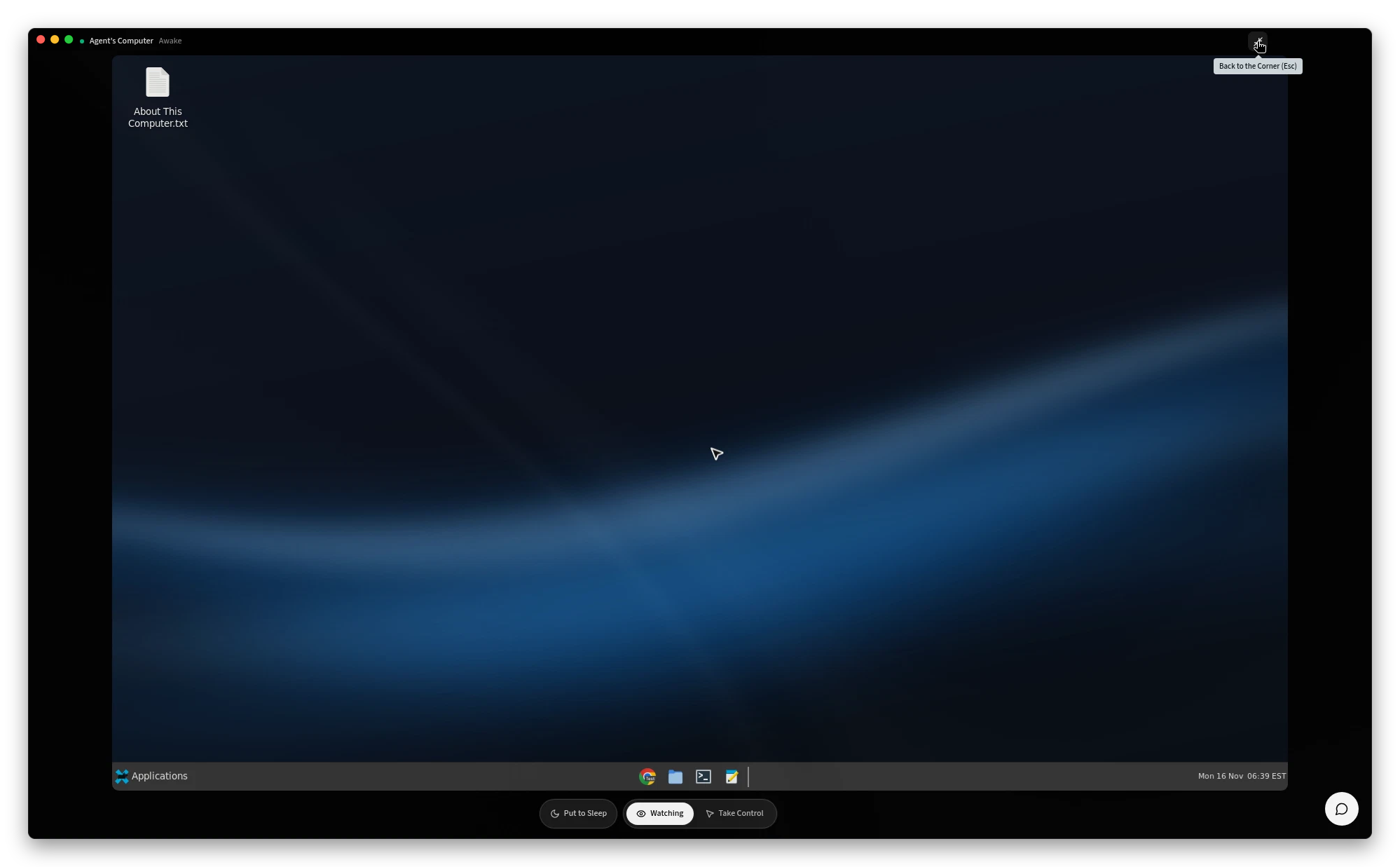
Figure 2: The computer full window, awake
Hide to Sidebar puts it away. If more than one browser is open on the computer, "Which browser to show" lists "Newest browser ({time})" and "Browser from {time}".
A mini chat sits with the computer: Open Chat ("Put the computer back in the corner and go to the chat"), Chat with your Agent, and a box with the placeholder "Message your Agent". If nothing has been said, it reads "Nothing said yet. Ask your Agent something while you watch."
If you aren't connected to an Agent, the panel reads "Connect to an Agent to see its computer."
Watch, or take control
The bar along the bottom of the computer is Put to Sleep, Watching and Take Control. Watching means "Watching or in control". The hint reads "Take control to click and type yourself. Your Agent waits until you hand back."
Click Take Control to switch straight in. There is no confirmation. The figure shows Take Control selected on the bar. It does not show a separate "you're in control" banner.
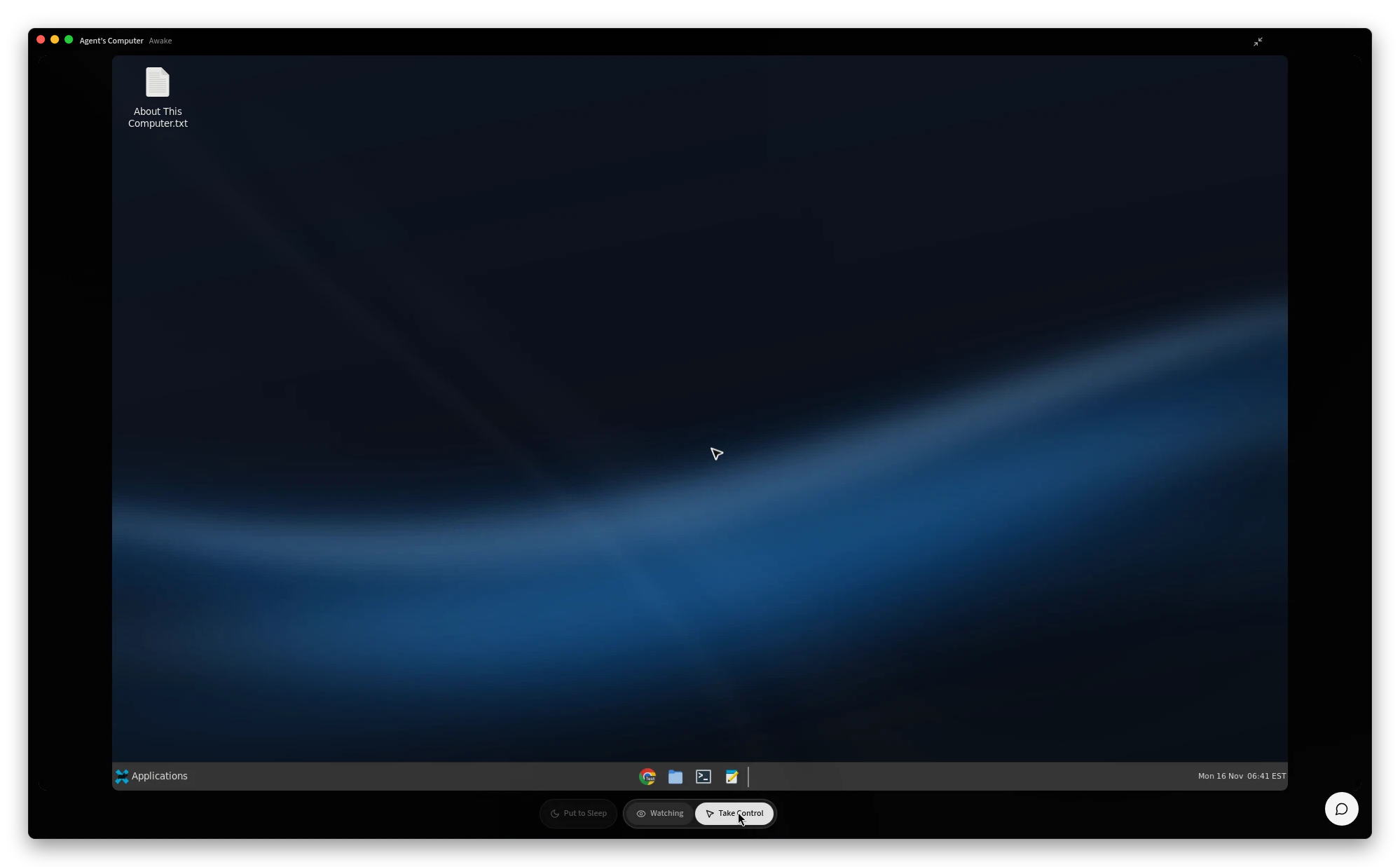
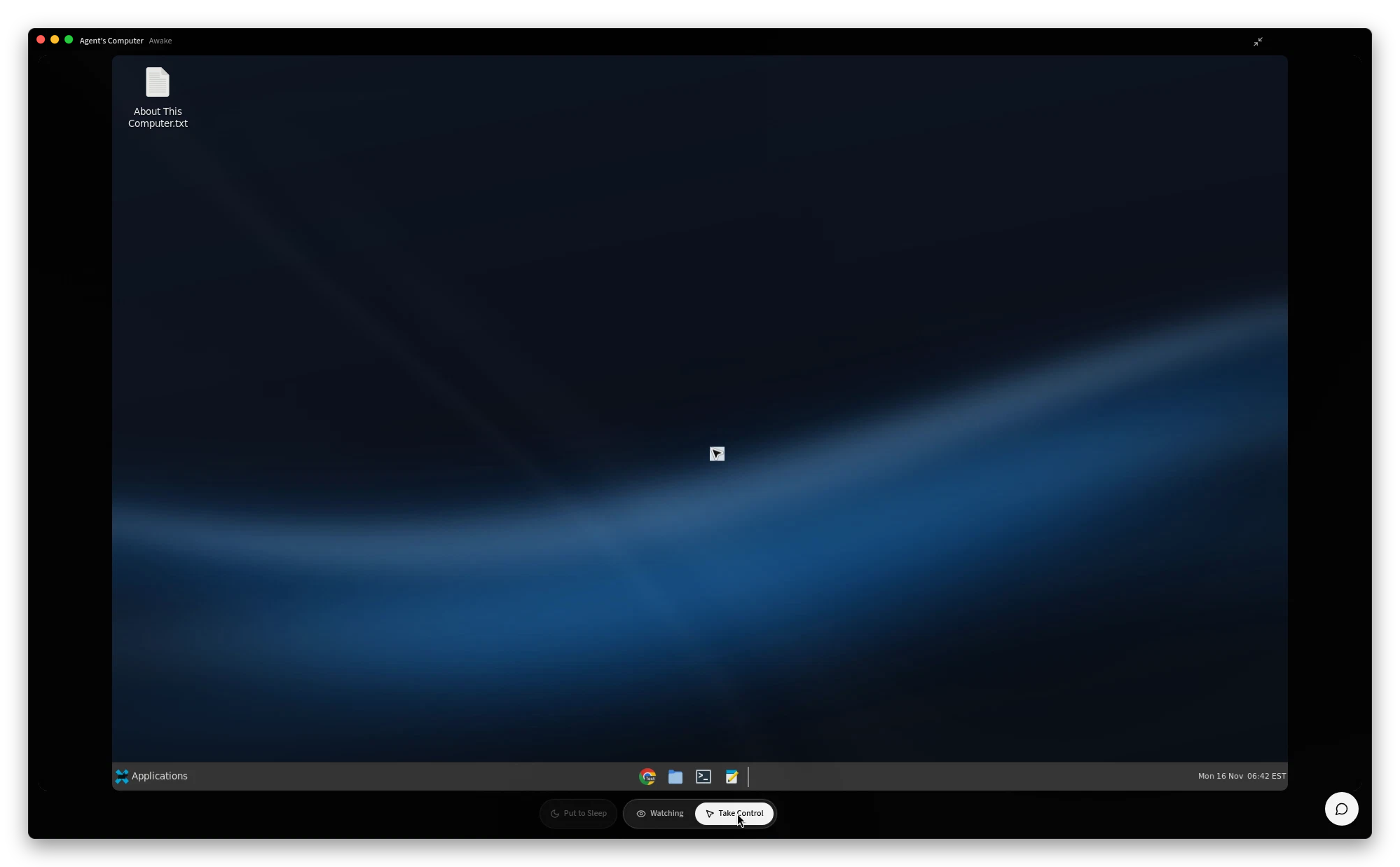
Figure 3: Take Control selected. The Agent's own desktop is dark in both themes; the app chrome follows the theme.
Hand the computer back with Hand Back to Agent ("Hand back to your Agent and go back to watching"). While you have control, Put to Sleep shows "Hand back first".
If someone else already has control, the app says "Someone else has control right now, so that didn't go through. Take control to have it here instead." You may also see "Someone else has taken control of this computer." or "Your Agent is paused: someone has control of its browser and computer."
Sleep and wake
The computer sleeps when it isn't needed. Put to Sleep sends it to sleep. Wake Computer ("See the whole desktop, not just the browser") wakes it. While it changes, you see "Waking your Agent's computer…" or "Going to sleep…".
The asleep panel in the figure shows "Your Agent's computer is asleep" and Wake Computer.
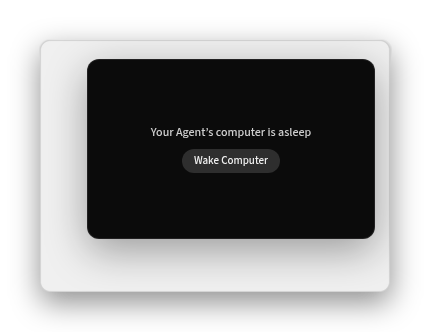
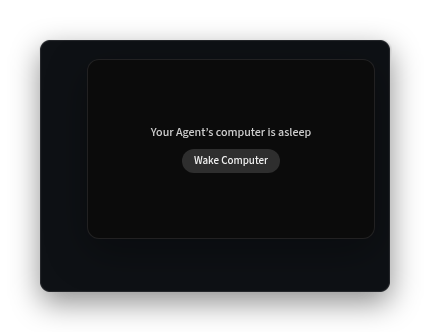
Figure 4: The computer asleep
The asleep state also explains "Your Agent wakes its computer when a task needs a desktop, and it goes back to sleep after 15 minutes without use. Whenever your Agent is using its browser, you can watch it here." Tips in the app include "Agent's computer: asleep", "Agent's computer: awake" and "Your Agent is using its browser".
Browser only ("Just the browser, while the computer sleeps") keeps the browser visible while the rest of the computer sleeps. It isn't on the asleep panel.
If the computer can't be shown:
| What you see | What it means |
|---|---|
| "Your Agent's device is short of memory right now ({n} MB free), so its computer can't wake. Stop an app you don't need, or try again later." | The device is low on memory. |
| "Your Agent's device needs an update before you can see its computer here. It updates automatically." | Wait for the update, then try again. |
| "Lost the connection to your Agent's computer." | Click Reconnect. |
Reset the desktop
If the desktop gets into a mess, you can put it back the way it came. Files, the workspace and published apps are kept.
Open Settings > Agent. The page is titled Settings for this Agent. The Agent's Computer row reads "Reset your Agent's desktop if it gets into a mess." See Settings.
On Agent's Computer, the Reset Computer row reads "If the desktop gets into a mess, put it back the way it came. Files, the workspace and apps are kept." Click Reset….
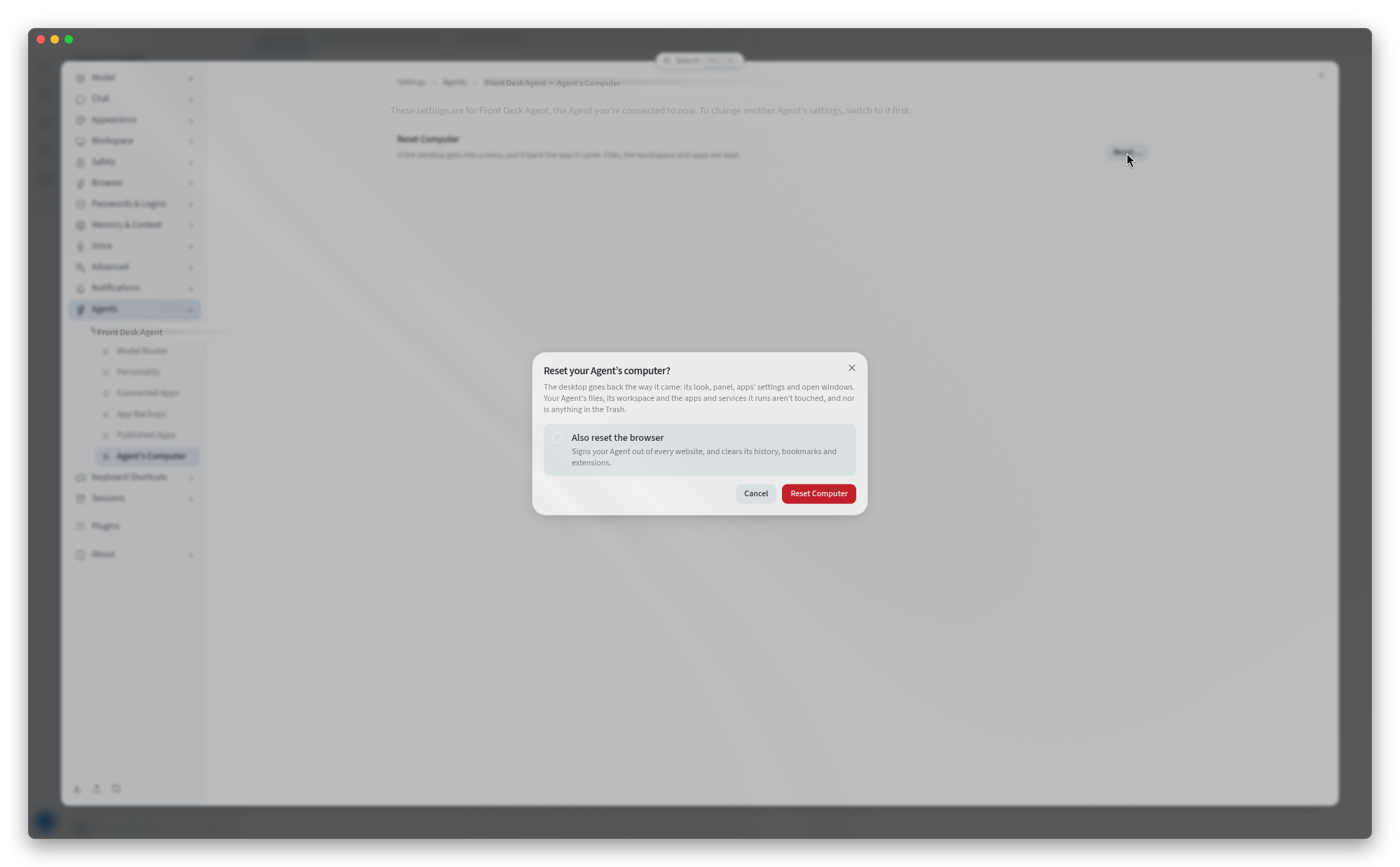
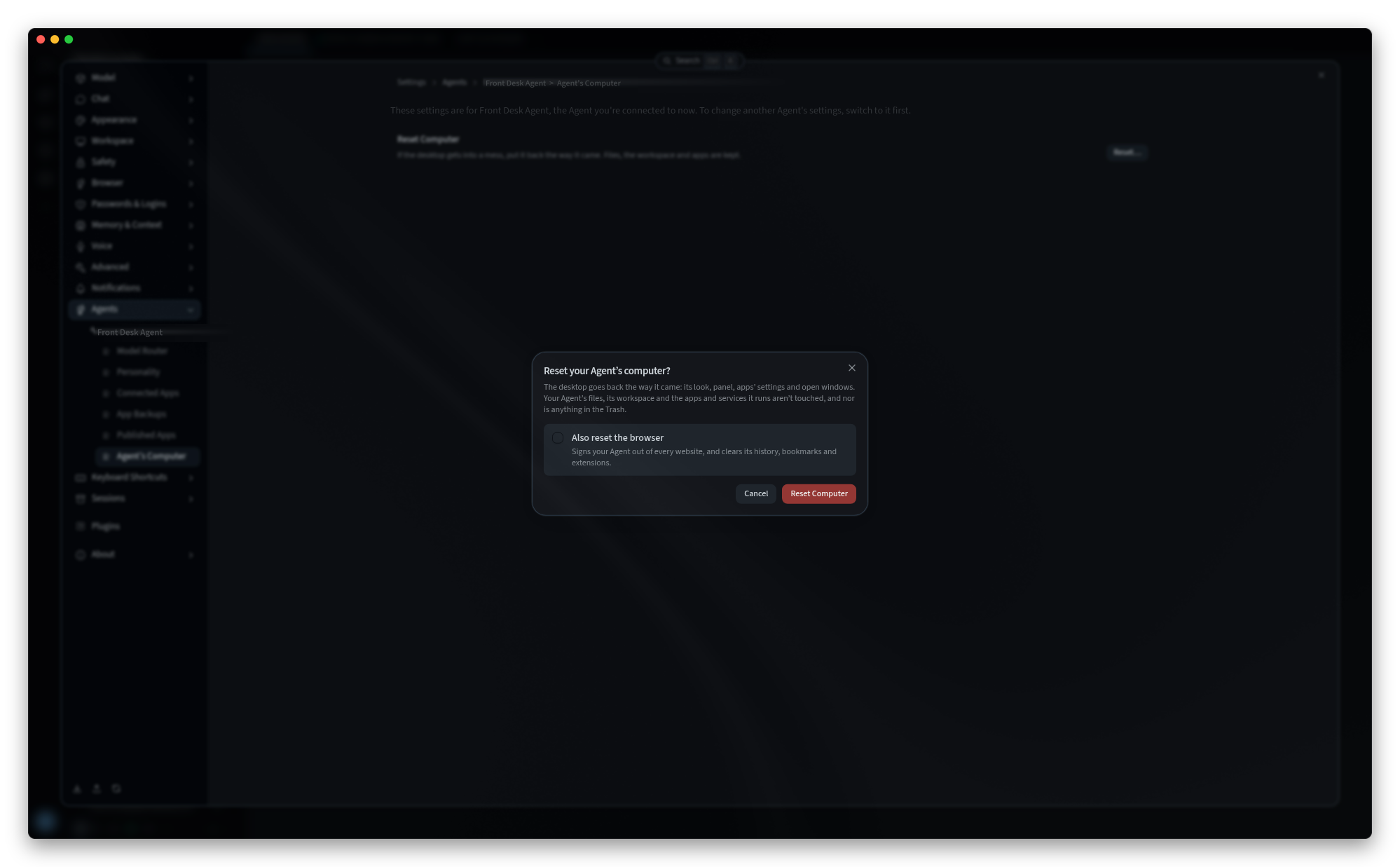
Figure 5: Reset your Agent's computer? Also reset the browser is off.
The dialog is Reset your Agent's computer?:
"The desktop goes back the way it came: its look, panel, apps' settings and open windows. Your Agent's files, its workspace and the apps and services it runs aren't touched, and nor is anything in the Trash."
Also reset the browser, left off unless you tick it: "Signs your Agent out of every website, and clears its history, bookmarks and extensions."
Cancel closes the dialog without changing anything. Reset Computer goes ahead.
When it finishes, you see "Reset. The desktop is back the way it came." If you also reset the browser, the message says the browser was reset too.
The reset is refused when:
- "Your Agent is using its browser right now, so nothing was reset."
- "Hand back to your Agent first: someone has control of its computer."
- The device needs an update.
- "Couldn't reset the computer — please try again."
Related pages
- Getting around: the window, sessions, and find
- Settings: Settings for this Agent
- Desktop app (Mac and Windows): install, the connection, and updates
- Apps troubleshooting: when the computer won't wake, or macOS blocks a direct connection